Use case #1 Cross Channel Attribution for omnichannel campaigns
A marketing specialist at Ingka is analysing a seasonal campaign that spans paid search, social media, influencer marketing, and display ads. The team wants to understand how each channel contributes to metrics such as conversions, app-installs etc. and how to optimize spend accordingly. The journey unfolds in four key steps:
Step 1: Ingka’s media team has launched a multi-channel campaign and needs to understand how each channel supports different parts of the funnel – from awareness to conversion.
Step 2: A data analyst monitors how customers interact across devices and platforms. They need to stitch together fragmented touchpoints to build a complete view of the metrics impacted (conversions, app-installs etc.)
Step 3: The media team evaluates campaign performance using attribution models. They want to move beyond last-click to fairly assess the impact of upper-funnel channels like influencers and display.
Step 4: The team needs the right overview and insights to ensure that communication is relevant and aligned with what stage of the journey the customer is on.
Use case #1 build-out
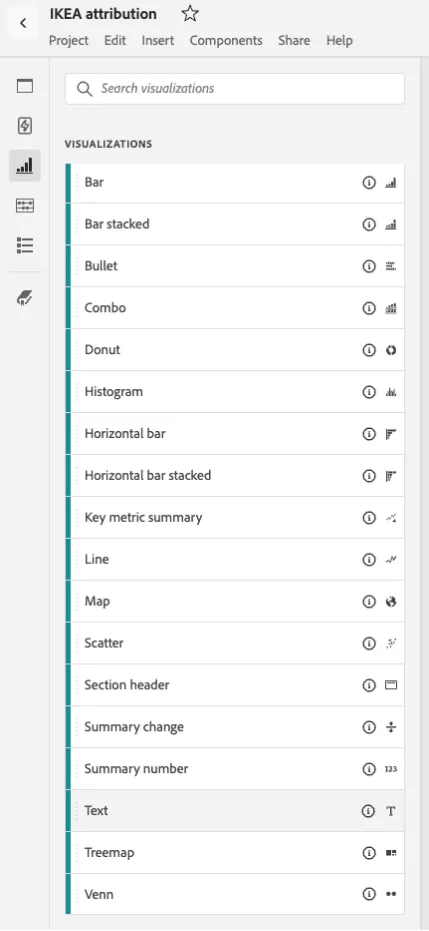
With the Text visualization available on the left rail, we have added the description of the Use case #1:
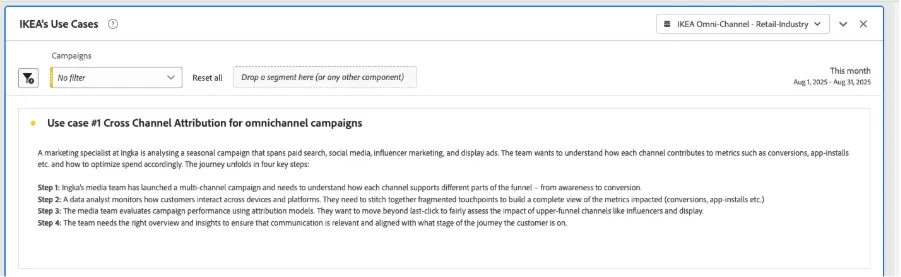
You can see the Campaigns filter already added into the Workspace Pannel too.
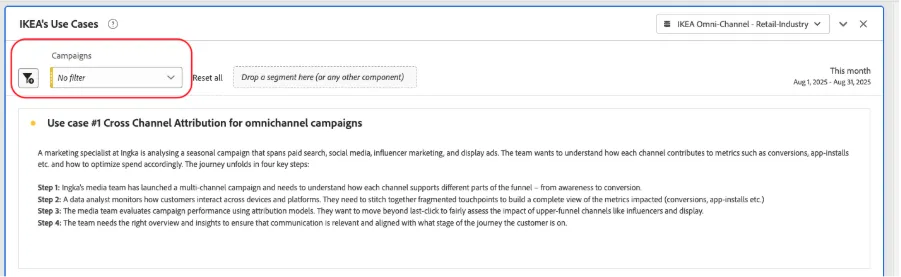
To create the Campaigns filter
- Go to the left rail
- In the list of Dimensions search Campaigns
- Click on the ‘>’ icon to see more values.
- Select the campaigns we want to have available to analyze
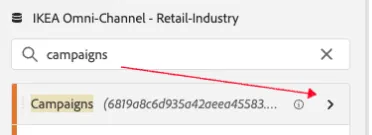
The list opens and we can select the campaigns we want to analyze, all of them or just a few as in this example. We can select multiples values pressing ctrl/ ⌘command
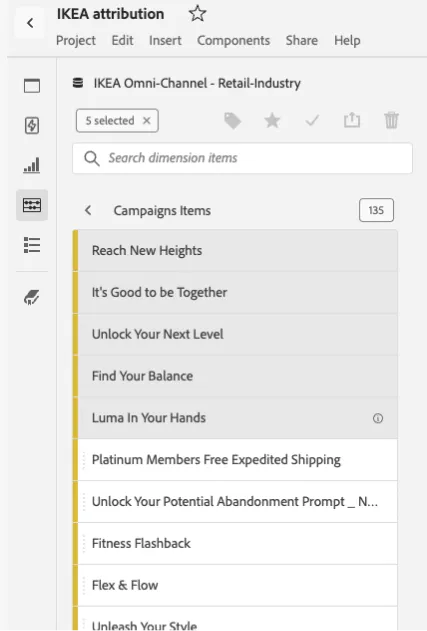
- Press ⇧ shift and drag-and-drop the elemnts into the filter space on top of the panel.
You will see then this drop-down list:
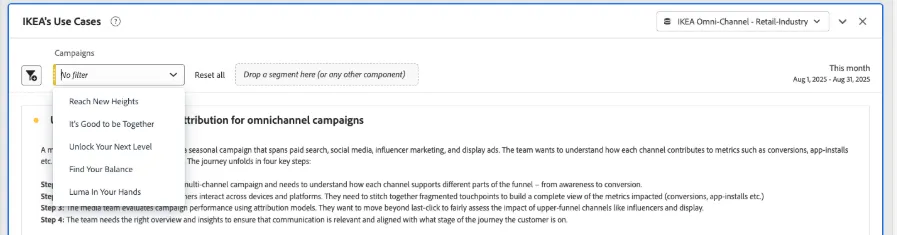
This is one of the ways of how we can filter our results by ‘seasonal campaigns’ like asked on the use case.
Now, let’s build a table for our analysis.
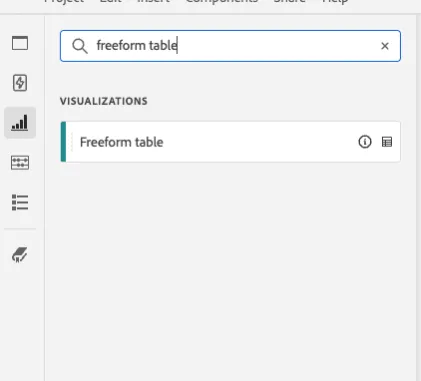
- From the left rail, we search for Freeform table.
- Drag-and-drop the element into the panel.
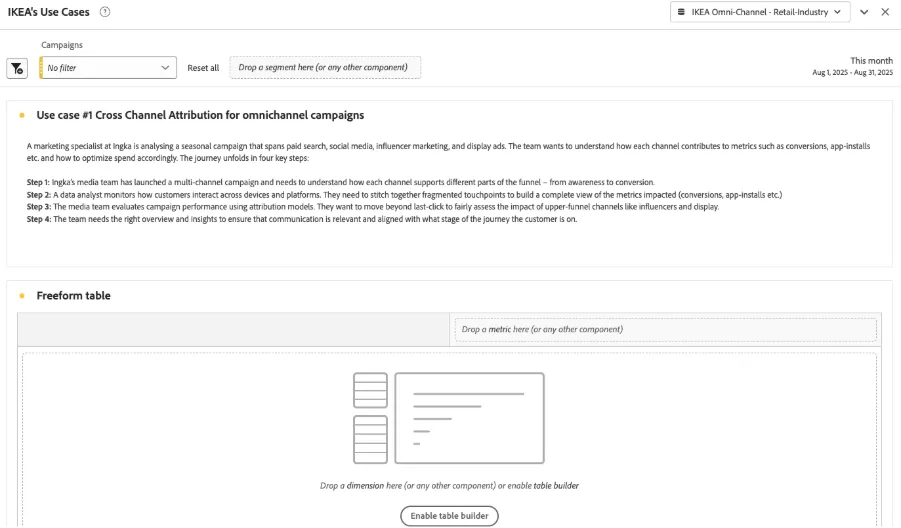
As we want to perform an analysis of marketing channels, we drag and drop that dimension on the table from the component’s left rail. If you don’t see it, you can type Marketing Channels in the Search box.
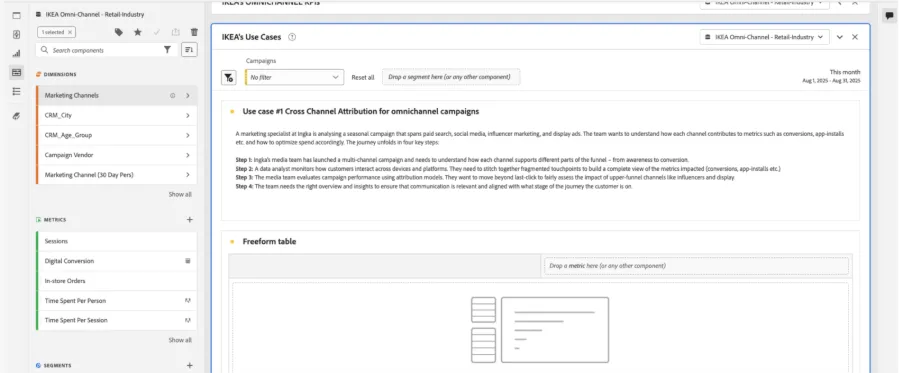
By default, we see marketing channels with Events as metric. We are going to replace Events with Sessions.
- Find the Sessions metric from the left-hand components.
- Drag Sessions over the Events column to replace.
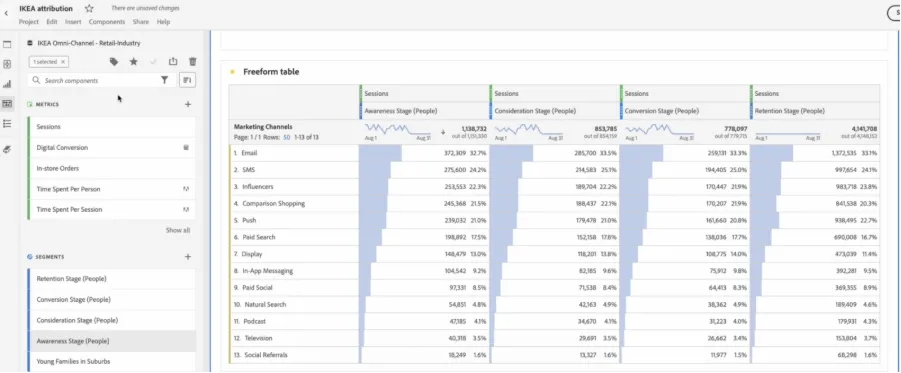
You should now have this table:
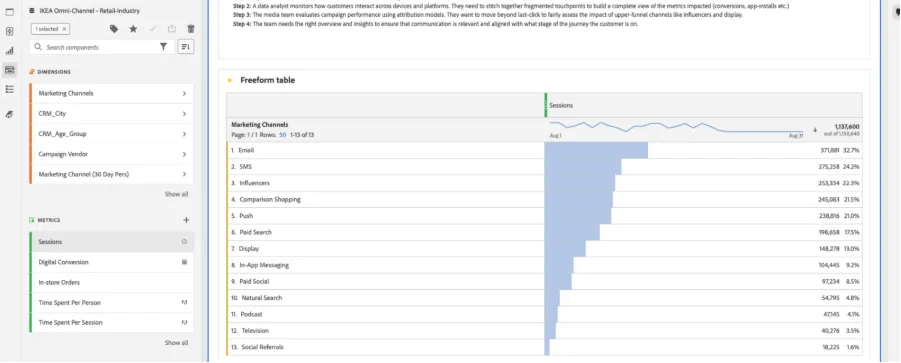
As we want to analyse how marketing channels impact on customer stages, we are going to filter the metric Sessions by the segments that we have created for each customer stage.
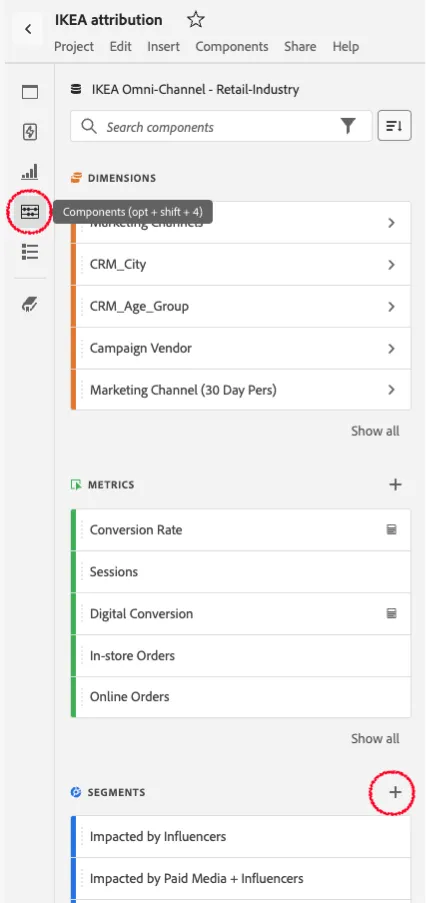
To create the ‘Awareness Stage (People) Segment, we opened the Segment Builder – like we explained under the section ‘Components’, opening it from the left rail:
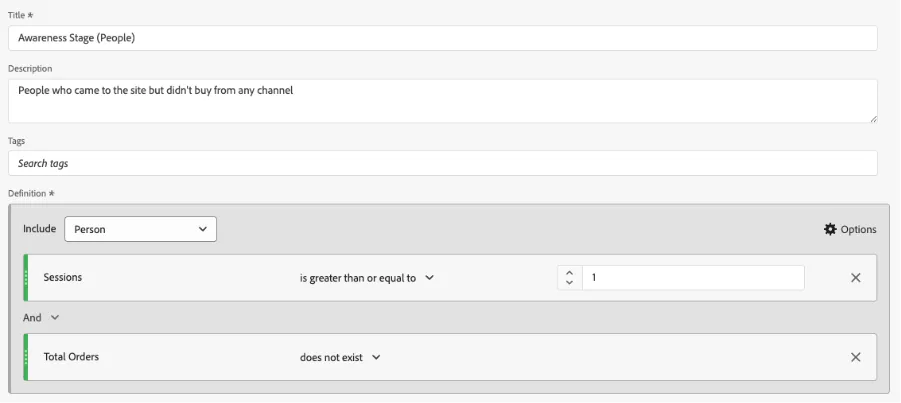
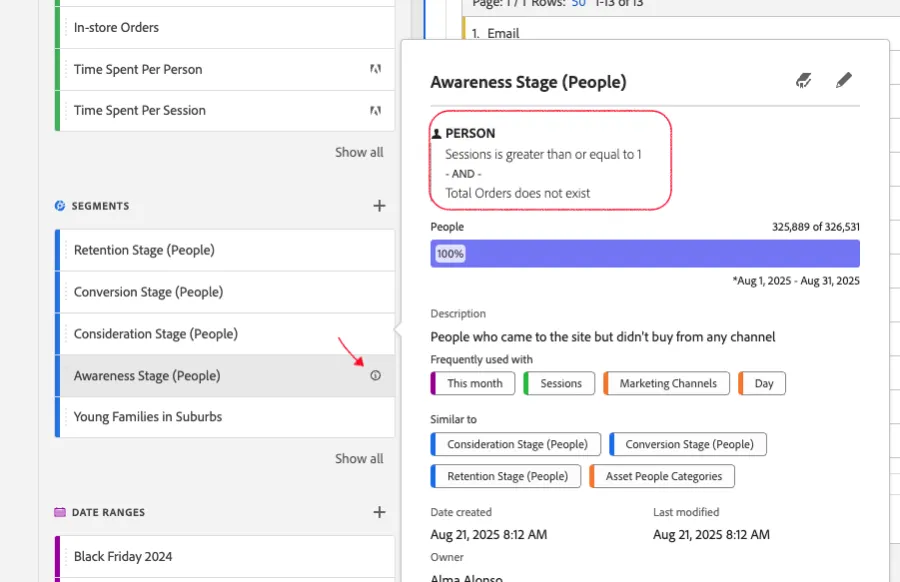
Then we drag-and-drop the metrics that define people on awareness stage, we took this as an example: People who came to the site but didn’t buy:
We drag the Awareness Stage (People) Segment below the Sessions metrics until we see the action ‘Filter by’
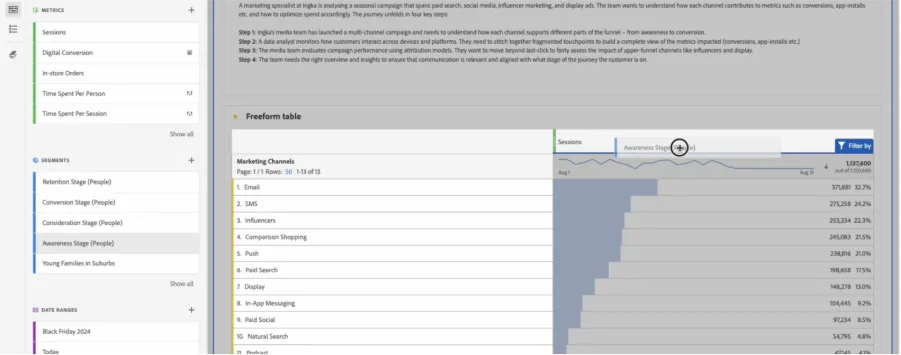
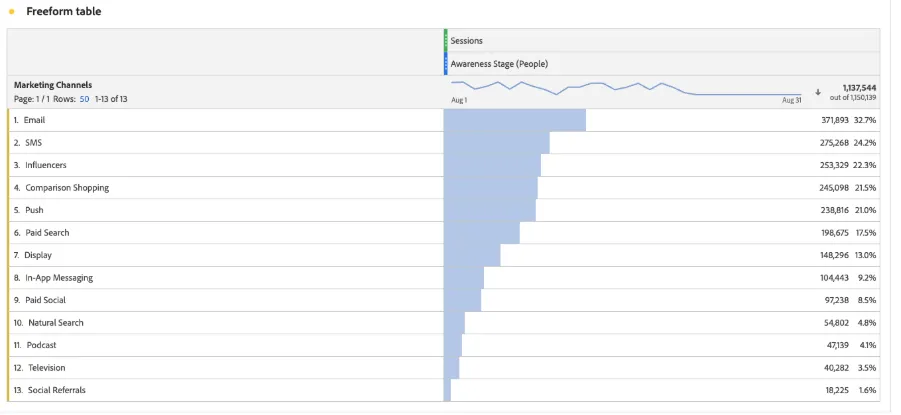
The result is the sessions metric filter by the people who is in Awareness stage:
You can see the detail of the segments that we created, and we are using from the information icon at each segment:
Now we are going to do the same with the Consideration Stage (People) Segment, Conversion Stage (People) Segment, Retention Stage (People) Segment.
First, Add again the Sessions Metric:
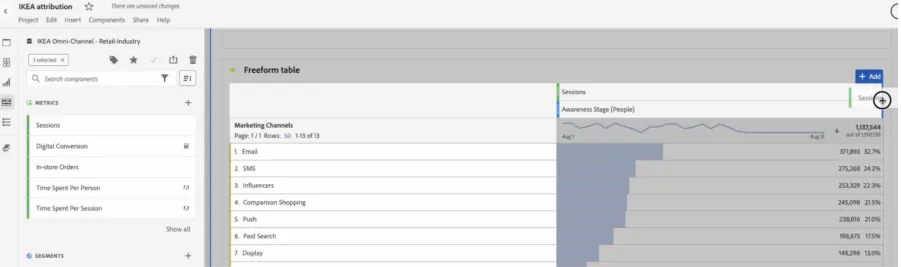
And filter by Consideration Stage (People), repeat with each segment.
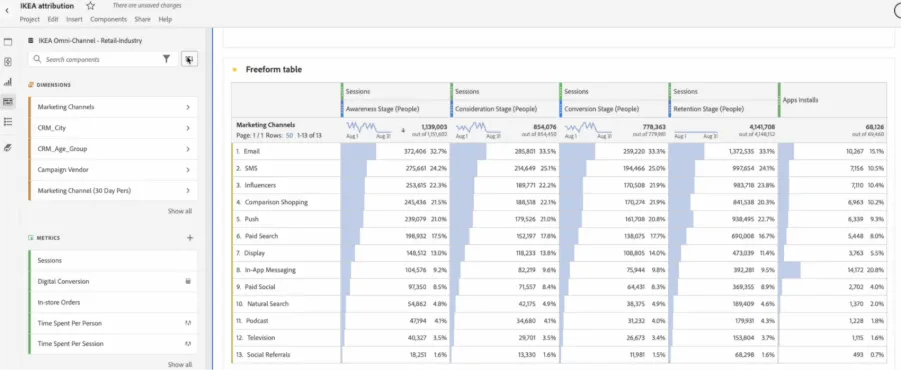
Now let’s add a performance metric, App installs
For this use case, it is requested to compare between different attribution models for upper-funnel marketing channels like influencers and display.
We are going to filter the table to analyse just those two channels.
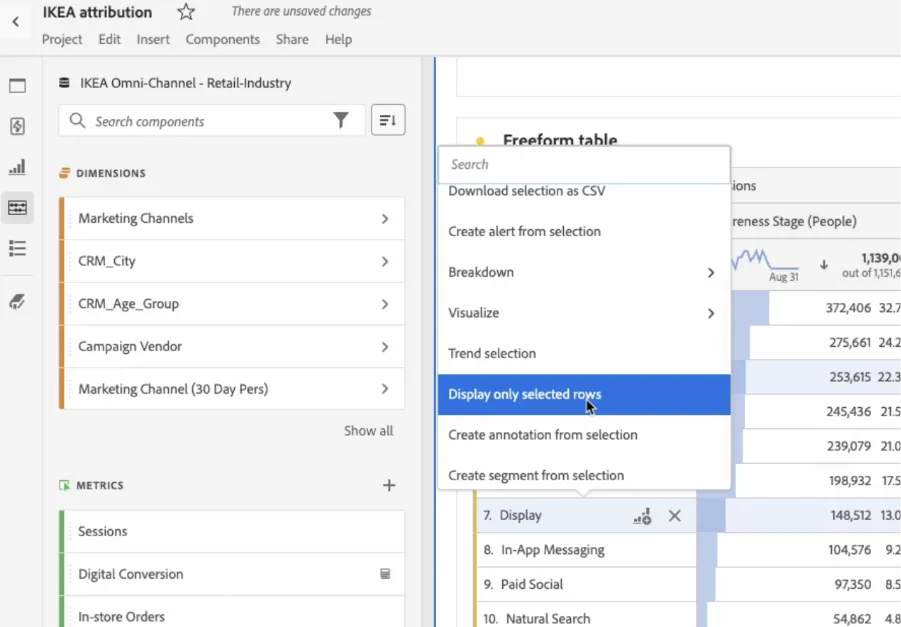
- We click on Influencers and press control/command and click on Display, and then right click.
- It opens a drop-down with different actions.
- We select Display only selected rows
The result is a filtered table:
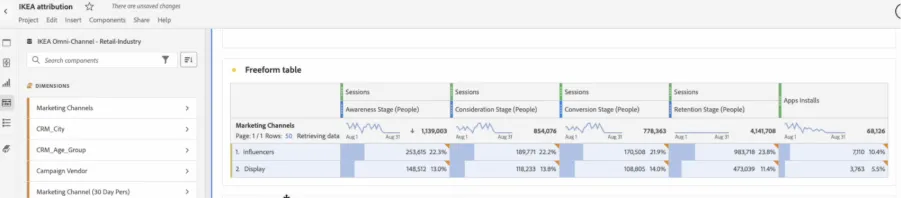
We have already a detailed view of how the Influencers and Display channels are impacting traffic in different customer funnel stages.
Attribution models comparison
Notice that, by default, the attribution model applied on metrics is last-touch. We can change it clicking on the gear icon on the metric:
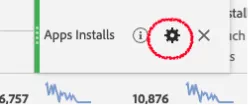
That will open the column settings, where we can find at the bottom the option of Use non-default attribution model
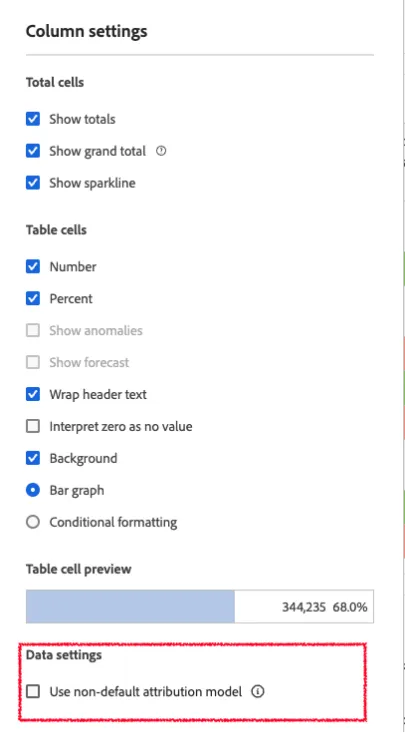
And we can change it from the pop-up that appears:
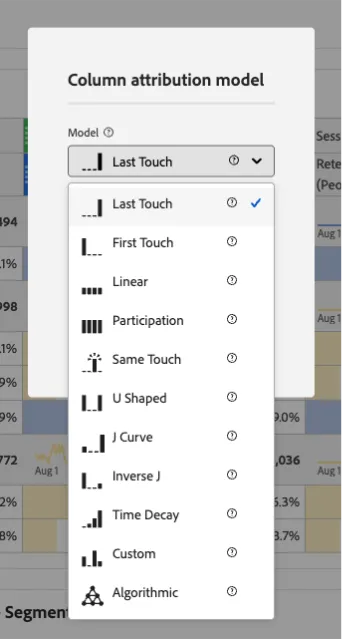
Now, let’s compare the conversion of the App Installs metric with a first-touch model as the channels we are analysing often work better for attraction campaigns more than conversion, but may have an influence on the final conversion and that is what we want to analyse.
- We right-click on Apps Installs and select from the drop-down Compare attribution models
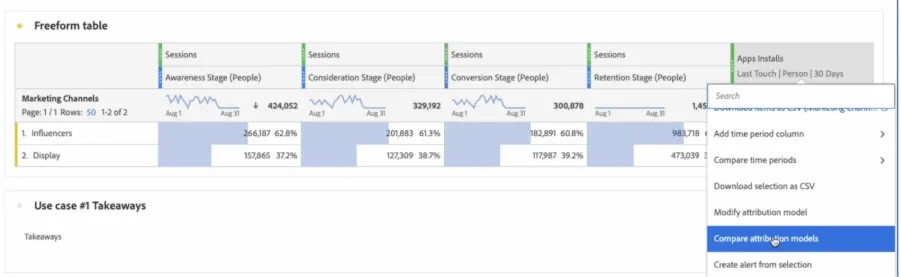
A new drop-down will open with the list of attribution model we can use:
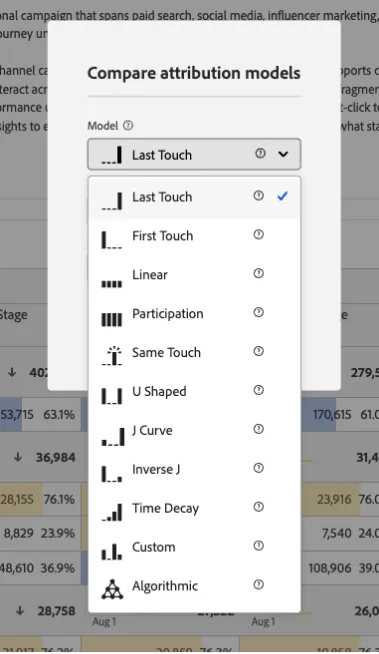
You can find the detailed description of each Attribution model on the Adobe Experience League.
We click on First Touch and we automatically see a comparison between attribution models and the percentage change (delta) of attributed conversions for App Installs:

We could even go further and filter App Installs by the Customer Stages Segments as we did for Sessions. Or add omnichannel metrics like In-Store Orders and Web sessions.

Please notice that the exact values that we see in this screenshot may change depending on the date range used
As you can see in a very autonomous way, without the need of stitching datasets from different sources – as this is a built-in capability of the tool – we can see how campaigns activated in different marketing channels have different impact across devices and platforms.
Key Takeaways
We can see from our demo data Influencers dominate the upper funnel and are undervalued in last-click models for ‘App Installs’ and also that people impacted by these channels are converting across platforms as we can see on the same analysis ‘In-Store Orders’ as example.