Use case #2 Attribution by Audience Segment
A media strategist at Ingka is launching a multi-channel campaign. The team wants to identify which audiences respond best to each media touchpoint to personalize messaging and optimize performance & spend. The journey unfolds in three key steps:
Step 1: Ingka’s media team member is planning a cross-platform campaign for a specific audience segment and wants to optimize this campaign based on previous campaign insights by identifying which audiences were most responsive to each media touchpoint. They analyze engagement metrics across segments to uncover patterns in behavior and preferences.
Step 2: A data analyst supports the campaign by applying segment-level attribution models. They break down performance by demographic and contextual groups, such as age, gender, ethnicity, and location to understand how different audiences move through the funnel and which touchpoints drive the most value.
Step 3: The team need the relevant metrics to adhere to customers lifestyle and cultural context without relying on stereotypes. The messaging resonates because it reflects their actual needs and interests, informed by data-driven insights. This builds trust and increases the likelihood of engagement and conversion.
Use case #2 build-out
For the second use case, we are going to create a new Text Visualization to include the use case description and a new Freeform table Visualization as we did before for the use case #1:
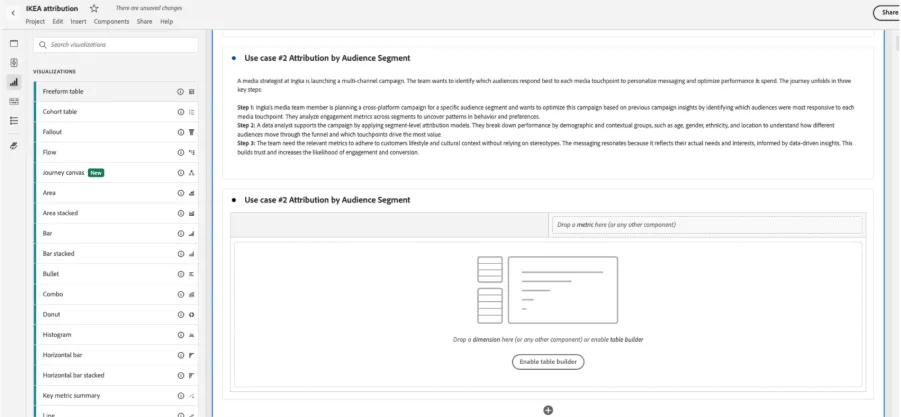
For this use case we are going to use segment-level attribution to analyse engagement insights, identifying which audiences respond best to different media touchpoints. Then we can tailor messages to real customer behaviours and contexts with the platform’s activation.
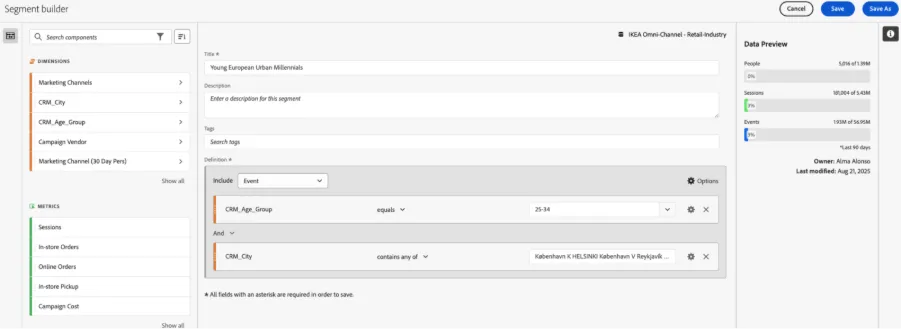
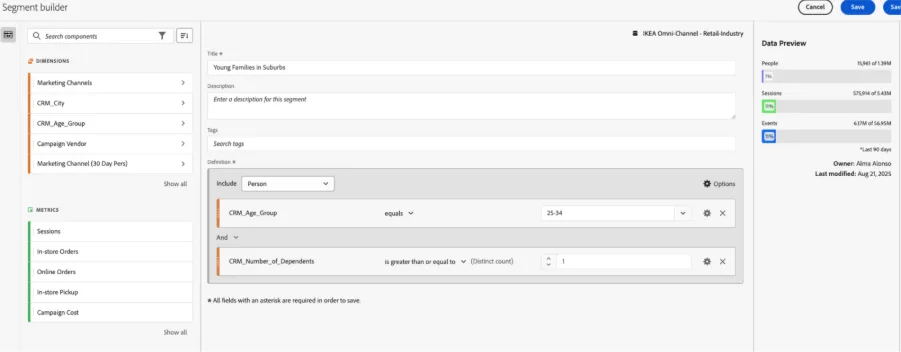
We need to create demographic segments like “Young European Urban Millennials” and “Young Families in Suburbs”. That will give us a clear view of how a specific segment engages across awareness, conversion, and loyalty.
To build the Young European Urban Millennials Segment, we used dimensions containing demographic customer attributes like the ‘Age Group’ and ‘City’:
And for the Young Families in Suburbs Segment, ‘Age Group’ and ‘Number of Dependents’:
With that, now we can identify not just how much traffic is coming from each marketing channel, but the segments of users that we are impacting.
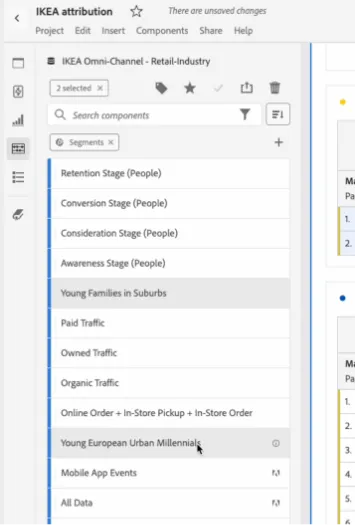
First, we drag and drop the segments we want to analyse, in this case:
- Young European Urban Millennials
- Young Families in Suburbs
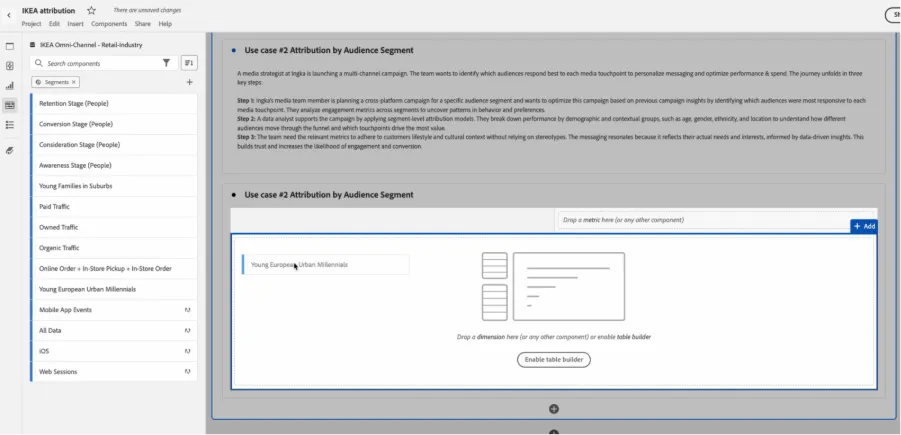
- Then we replace the Event metrics with Sessions
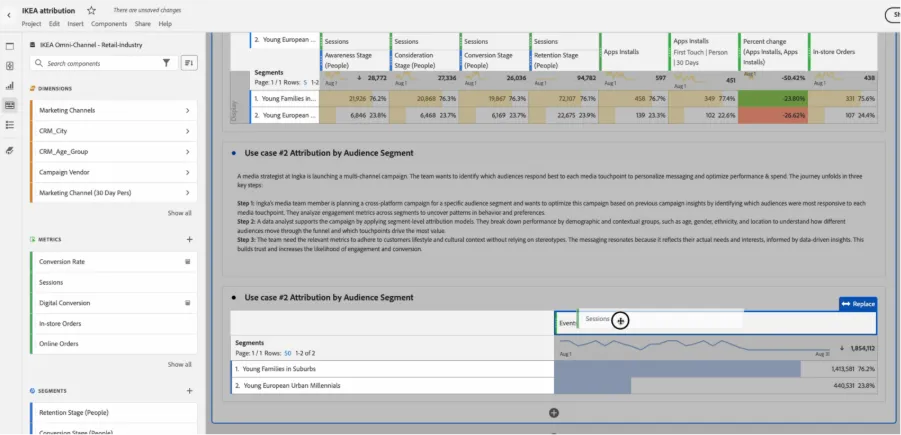
Add the following metrics to your table:
- Product Views,
- Online Orders,
- In-store Orders,
- Conversion Rate.

As we want to analyse the impact of each channel by customer segment, we breakdown the segments by the Marketing Channels dimension:
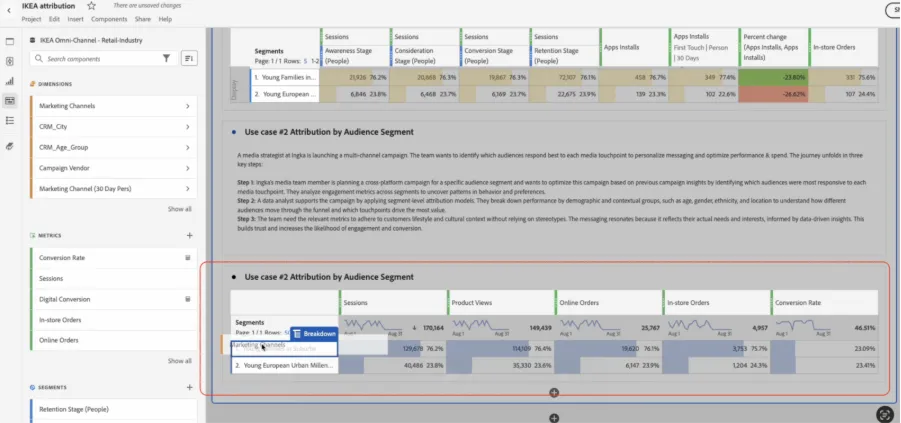
Your final visualisation should look like:
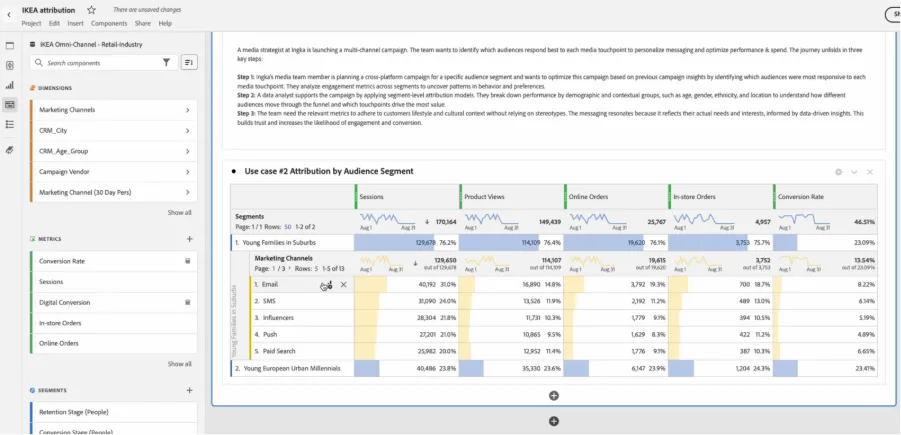
We can perform attribution models comparison of product views, online orders and In-store Orders. Let’s see which channels have the most influence as awareness or opening channels for In-Store Orders. This use case is very easy to do thanks to the built-in capabilities of Adobe’s Experience Platform, which ingest data from any source and natively stiches any customer touchpoint.
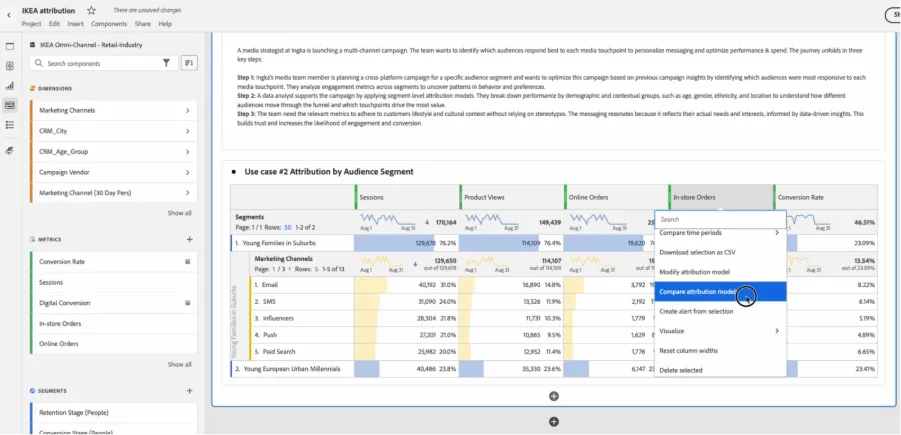
To compare attribution models
- Right-click on the metrics
- Select from the drop-down Compare attribution models.
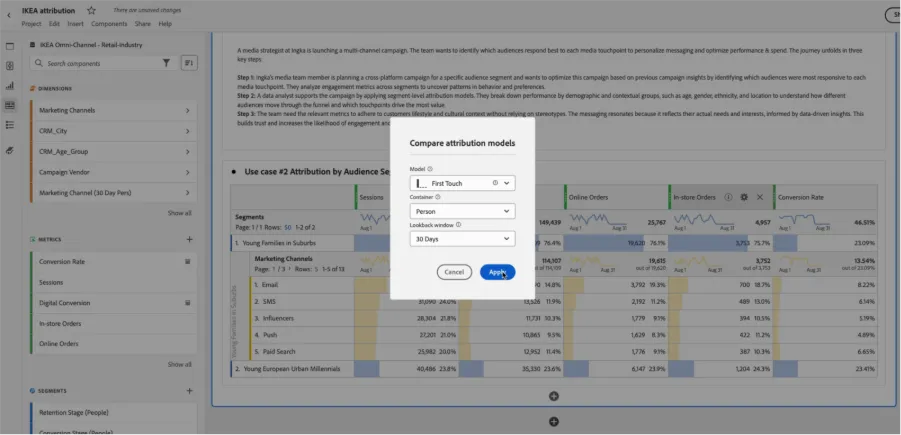
- We select the model we want from the drop-down of Attribution models
- Click Apply.
Now we have an extensive view of marketing impact on different customer’s touchpoints analyse at audience level:
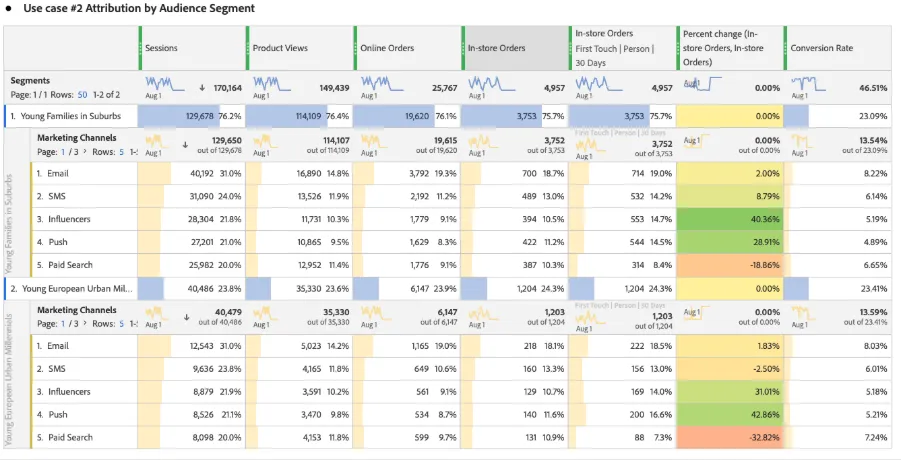
Please notice that the exact values that we see in this screenshot may change depending on the date range used.
Key Takeaway
We can see in this example how Influencers & Push are critical for first-touch engagement across both segments and are tied to In-Store purchases.
Activating our Audiences
We are going again further. Let's activate these audiences and tailor the message we show them.
To do that, we are going to create a funnel to see where these audiences drop-off. This way, we can easily create sub-audiences to improve the message we give them based on how they progress through the funnel. For example, these audiences can be used for retargeting in paid media, abandoned cart emails, or excluding audiences that have already converted.
- From the left rail, under Visualizations select the Fallout visualization
- Drag-and-drop it below the previous table.
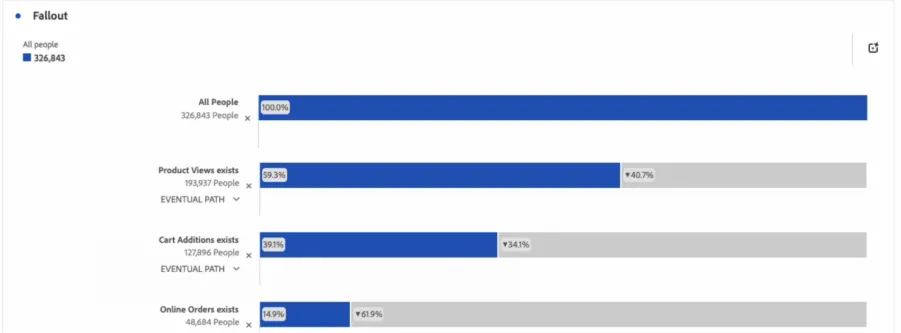
This opens a new Fallout visualization below the table:
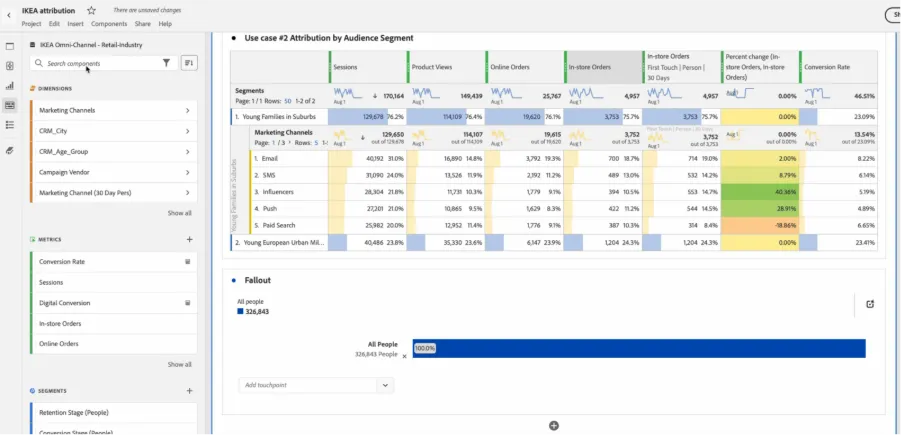
Result: A Fallout for "All People".
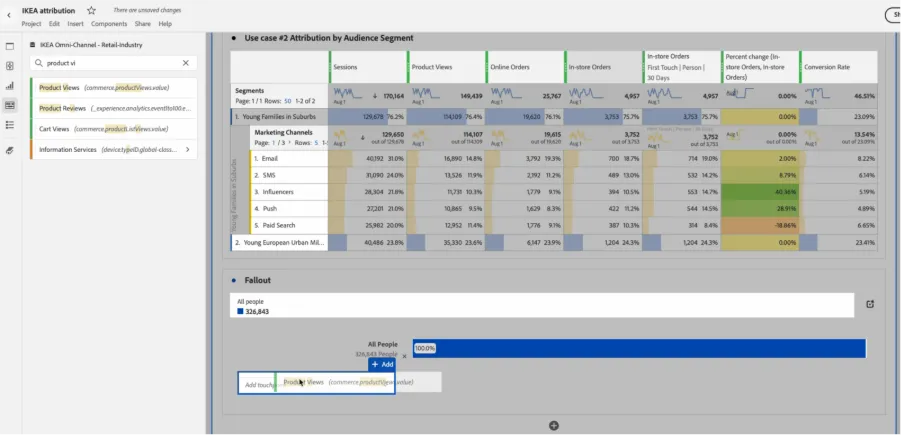
We are going to drag-and-drop Product Views, Cart additions and Online Orders into the touchpoints of the channel.
We can drag and drop the metrics from the left rail components or from the visualization drop down.
Here an example from the left rail:
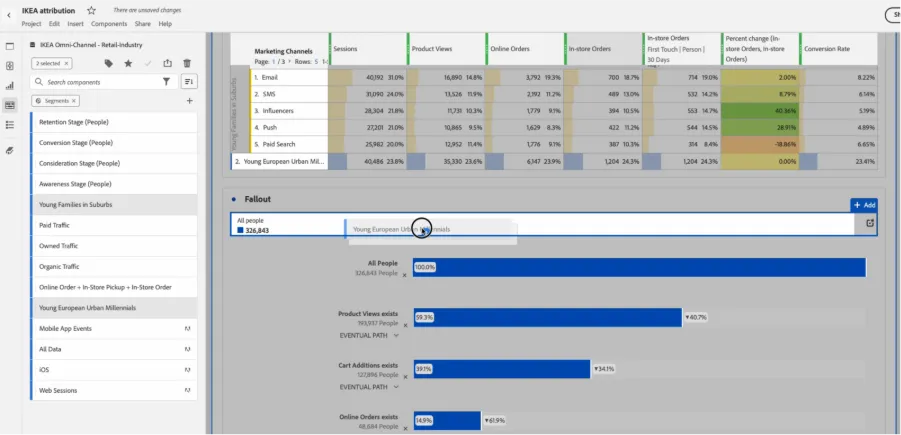
We want to compare this funnel for the customer segments we have used in the use case #2, so we select them from the left rail and drag-and-drop them.
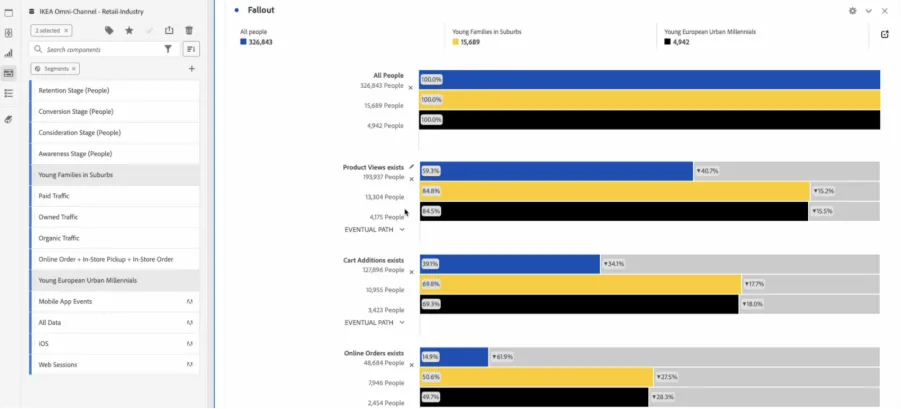
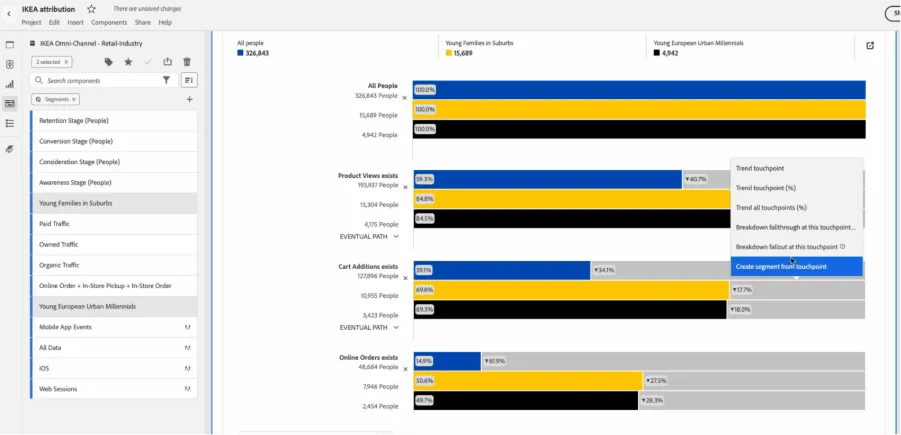
Now we can see that these segments are performing better than our overall audience All people, with the best conversion in each step for the yellow-represented segment of Young Families in Suburbs.
Audience Activation
We want to create an audience to retarget this high-performing audience of Young Families in Suburbs so, we click over the gray area that represents the people that abandoned. We do right-click and select the option of create a segment from touchpoint.
It will open an automatically created segment that we can check on segment builder, seeing that is the audience of Young Families in Suburbs that abandoned a cart, and on the top right we can see the audience size.
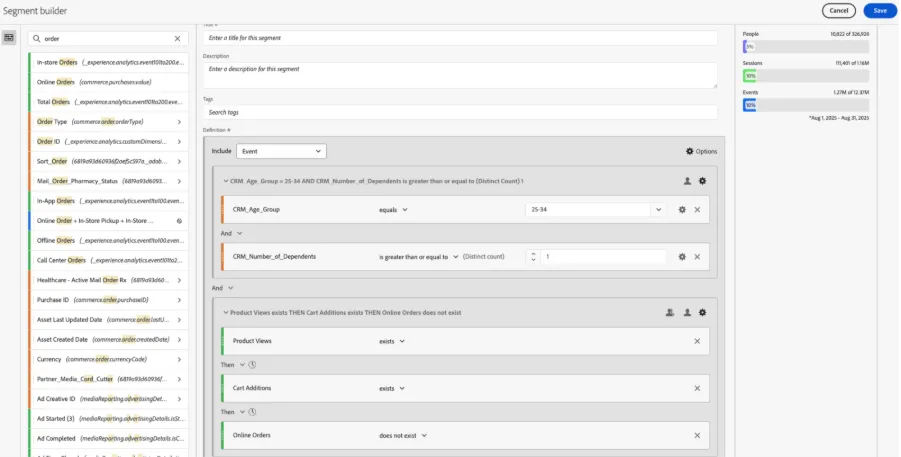
This audience can be used on RT-CDP for the retargeting use case we just mentioned.