Demo App
Access the Mobile App
This step is optional, you can complete the exercises just using the website if you prefer
Install the App
If you want to actually receive the push notification from the journey you build during the lab you will need to install the app and authenticate using your lab profile.
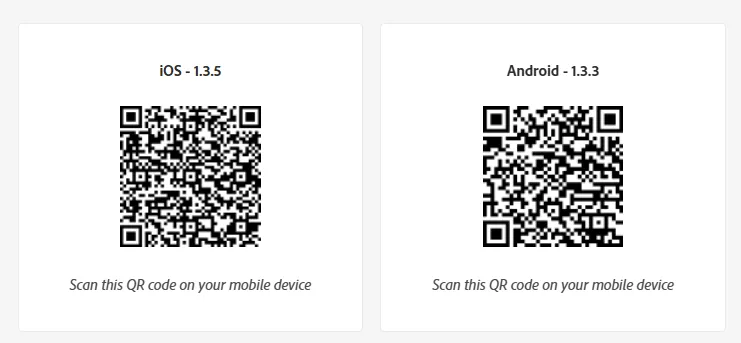
Scan the QR code to install the demo app on your device.
If you are on iOS the first time you open the app you will see this message:
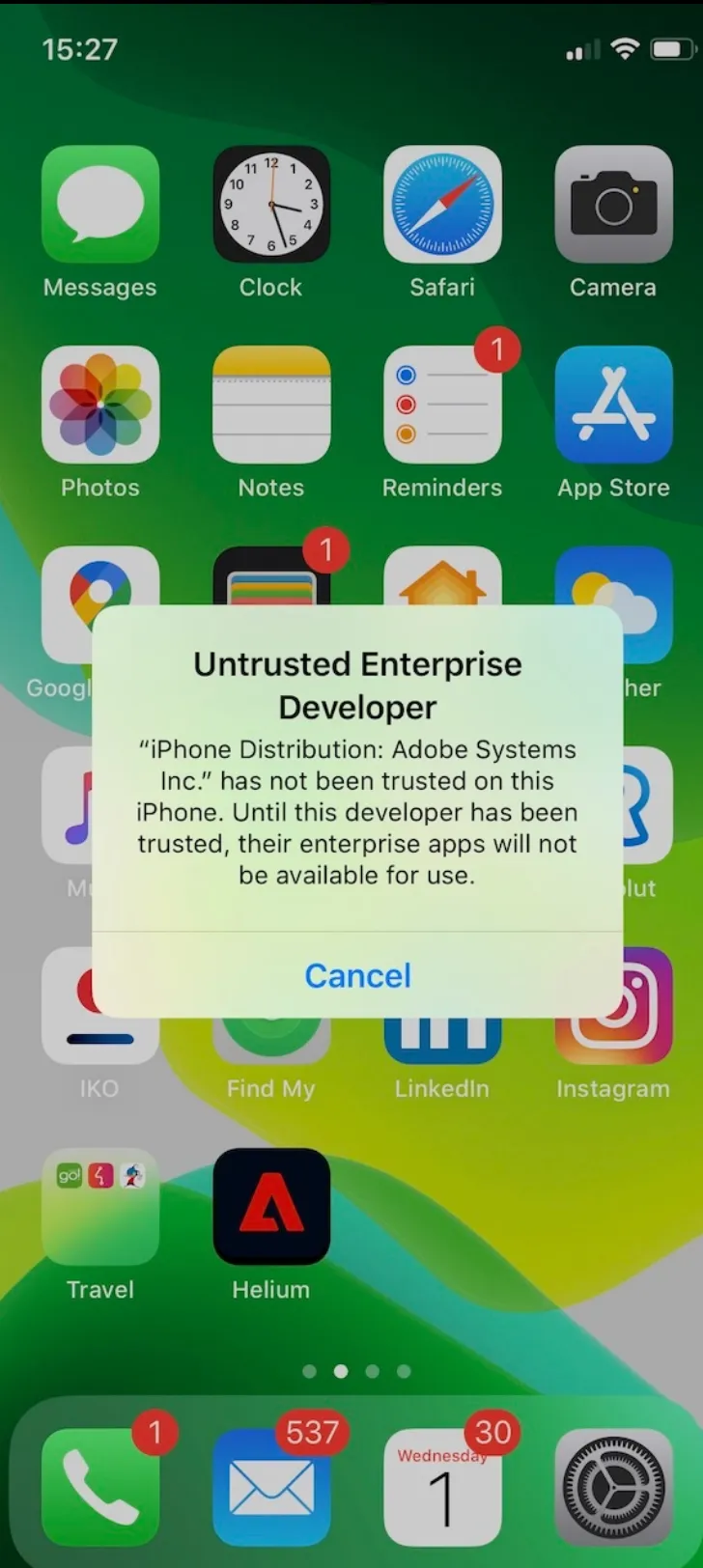
The app is signed with an official Adobe enterprise certificate but by default, iOS will not treat it as trusted. To add it to the list of trusted certificates go to:
Settings -> General -> Device Management -> Adobe Systems Inc.
Click “Trust Adobe Systems Inc.” You only need to do it once on given device.
First Launch
First Time You will launch the app you will be asked to log in. Anyone with Adobe ID can log in to the app. Sign in using the credentials you just used for accessing AEP from the Access page.
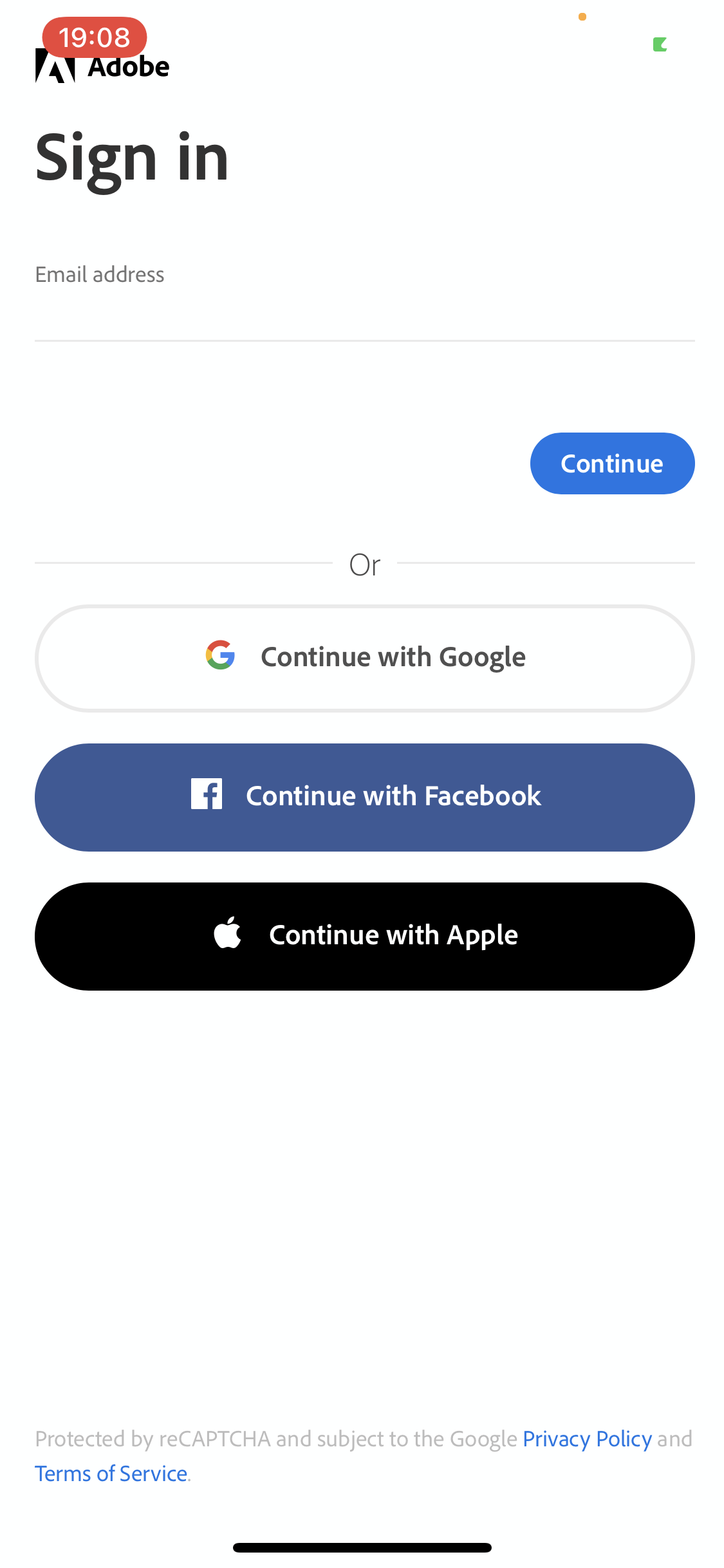
When prompted accept all of the alerts that pop up to allow tracking and notifications.
Configure App
Navigate to Settings in the bottom menu
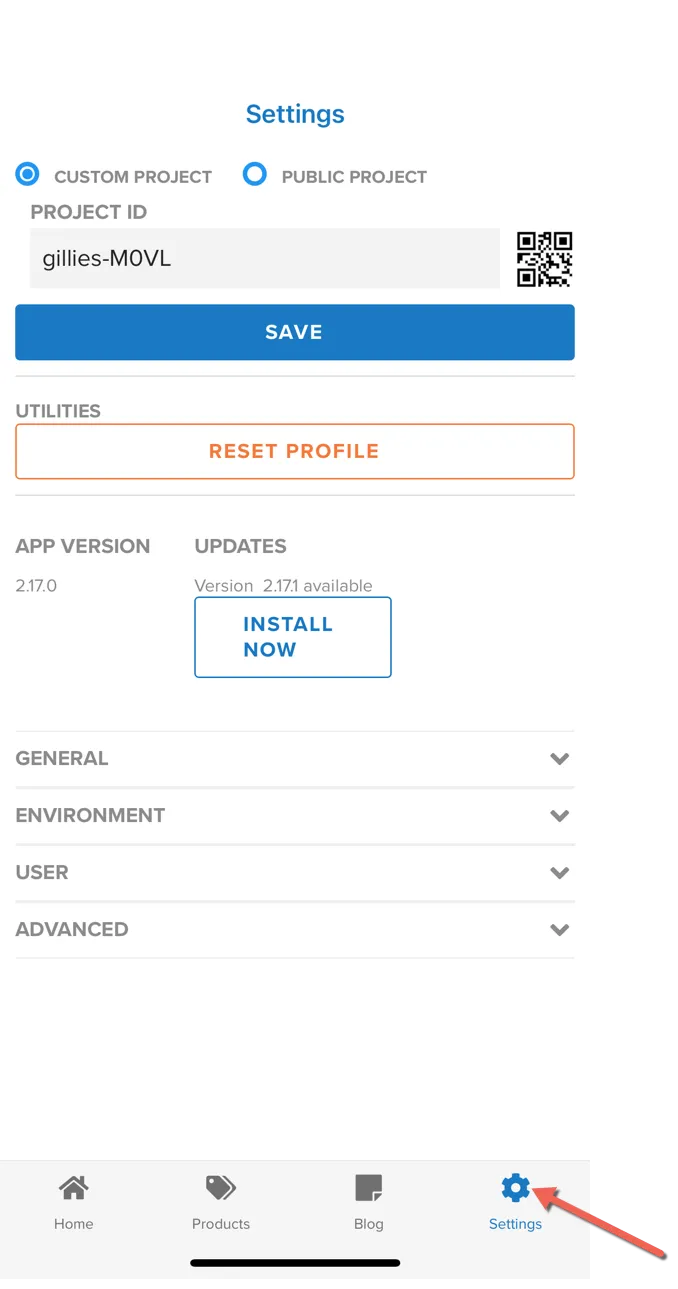
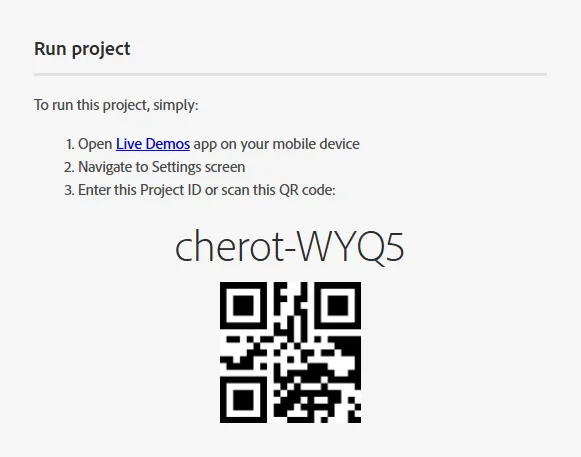
Check Custom Project and insert the Project ID: cherot-WYQ5 or use the QR code below.