Unified profile and Audiences
First, let's act as customer on our web site to see how AEP collect information, then we will use this to create audiences.
Capture App usage
Before we start creating audiences for our use case, let's take a quick look at how streaming event data is ingested in real time, and how it can be used to personalize onsite experiences, on web or App.
Open the Demo App you installed, and browse some pages using the bottom menu. Go to Offers, click on Auto loan, them come back to the home page and click on the Adobe logo on the top right.
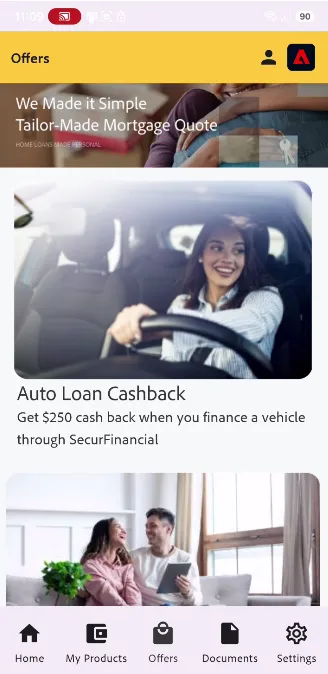
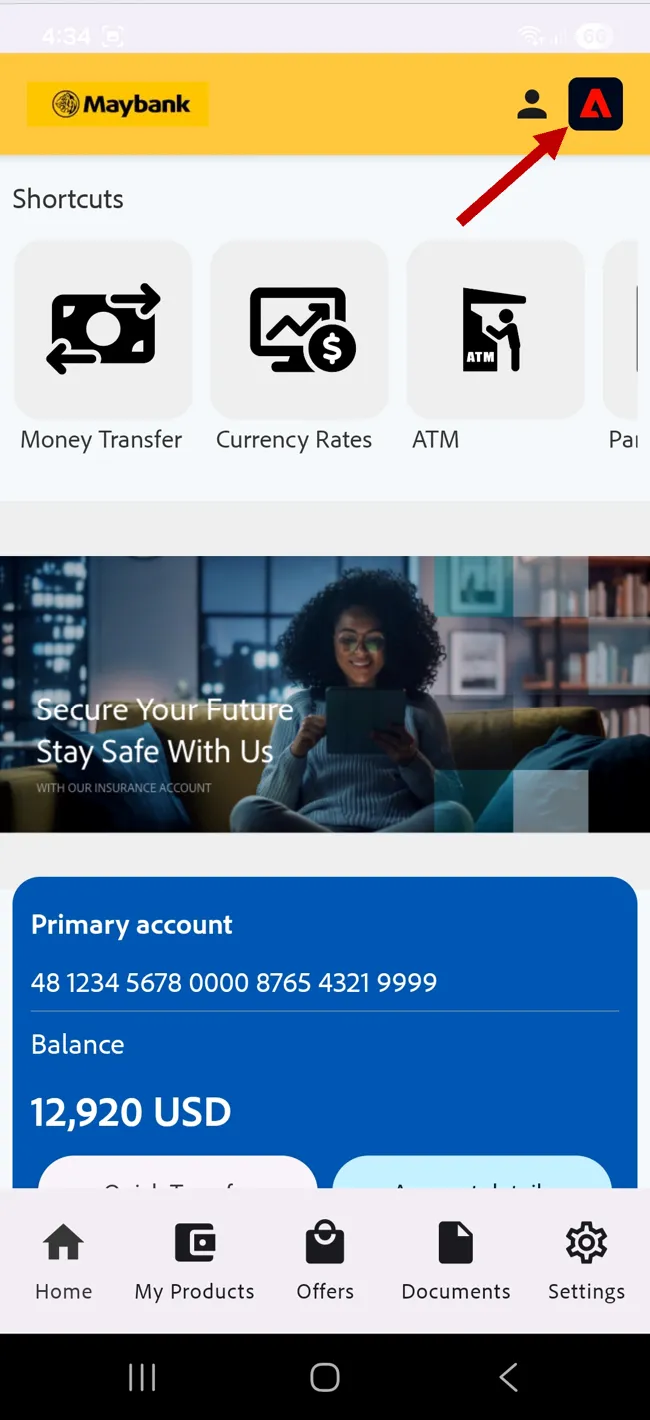
This Icon open a widget that highligh what information have been captured from our SDK and send to AJO.
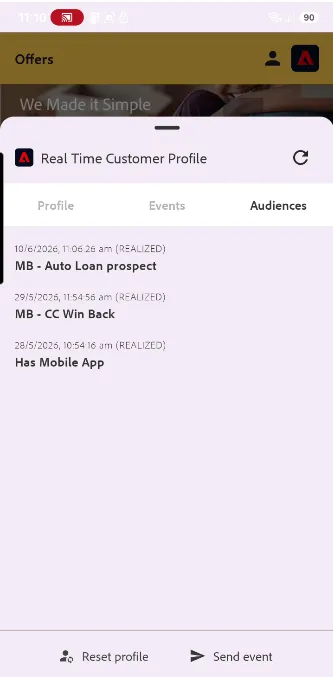
Check out the events captures and the audience you belong to.
The profile will remain anonymous until a customer identifier is provided. Click on the Sign In button on the top right.
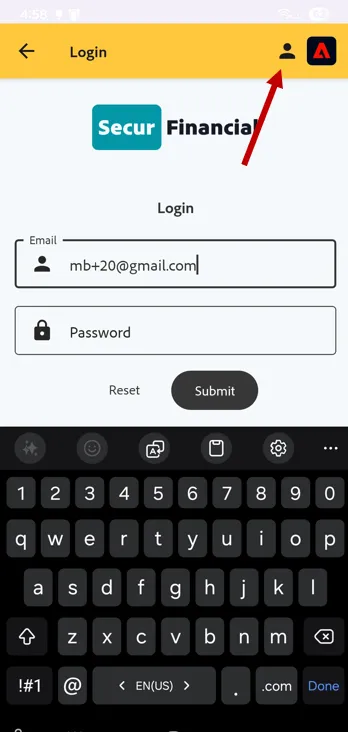
We created some customer profile for you. Use mb+{{your seat number}}@gmail.com. Ex, if you loged in AEP using [email protected]. use "[email protected]"
You can let the password empty.
the Signin event will trigger a new entry into the Identity Graph, stitching the ECID with the Email address.
Stitching of new identities takes a few minutes, so you won't see the profile attributes update immediately here, but that doesn't mean we can't qualify for segments and personalise in real-time.
Now that you've seen the data collection and audience qualification in action, let's move on to viewing the profile in Adobe Experience Platform and creating some real-time audiences of your own.
The Unified Profile
The data collected from all of the source systems is unified into an actionable profile based on the identities collected from each source. Follow the instructions below to look up the profile you just authenticated with on the website.
Browse to Customer -> Profiles. The Overview dashboard shows insights on how many profiles exist in the sandbox along with the distribution of identities.
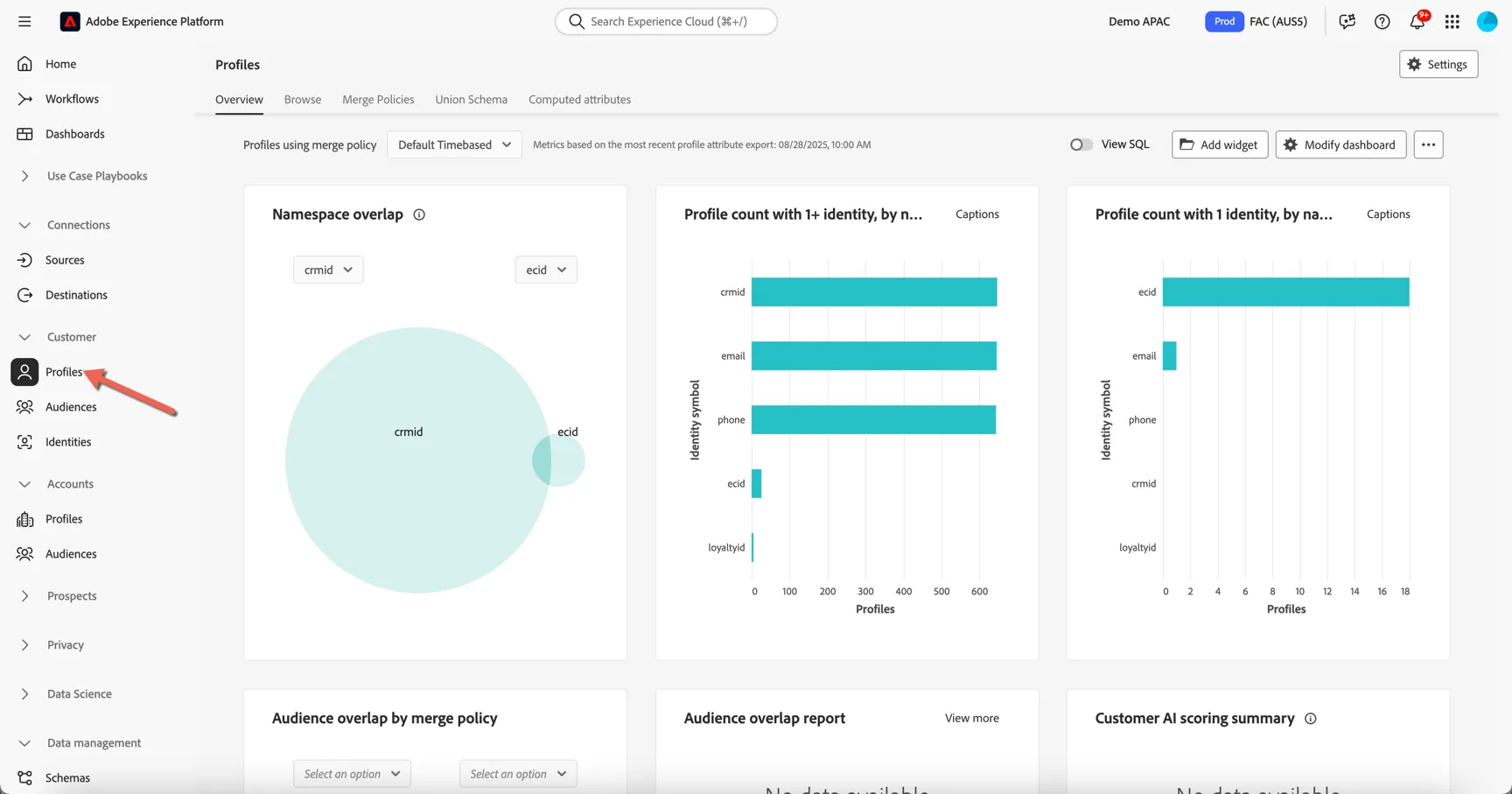
To lookup a specific profile, move to the Browse tab.
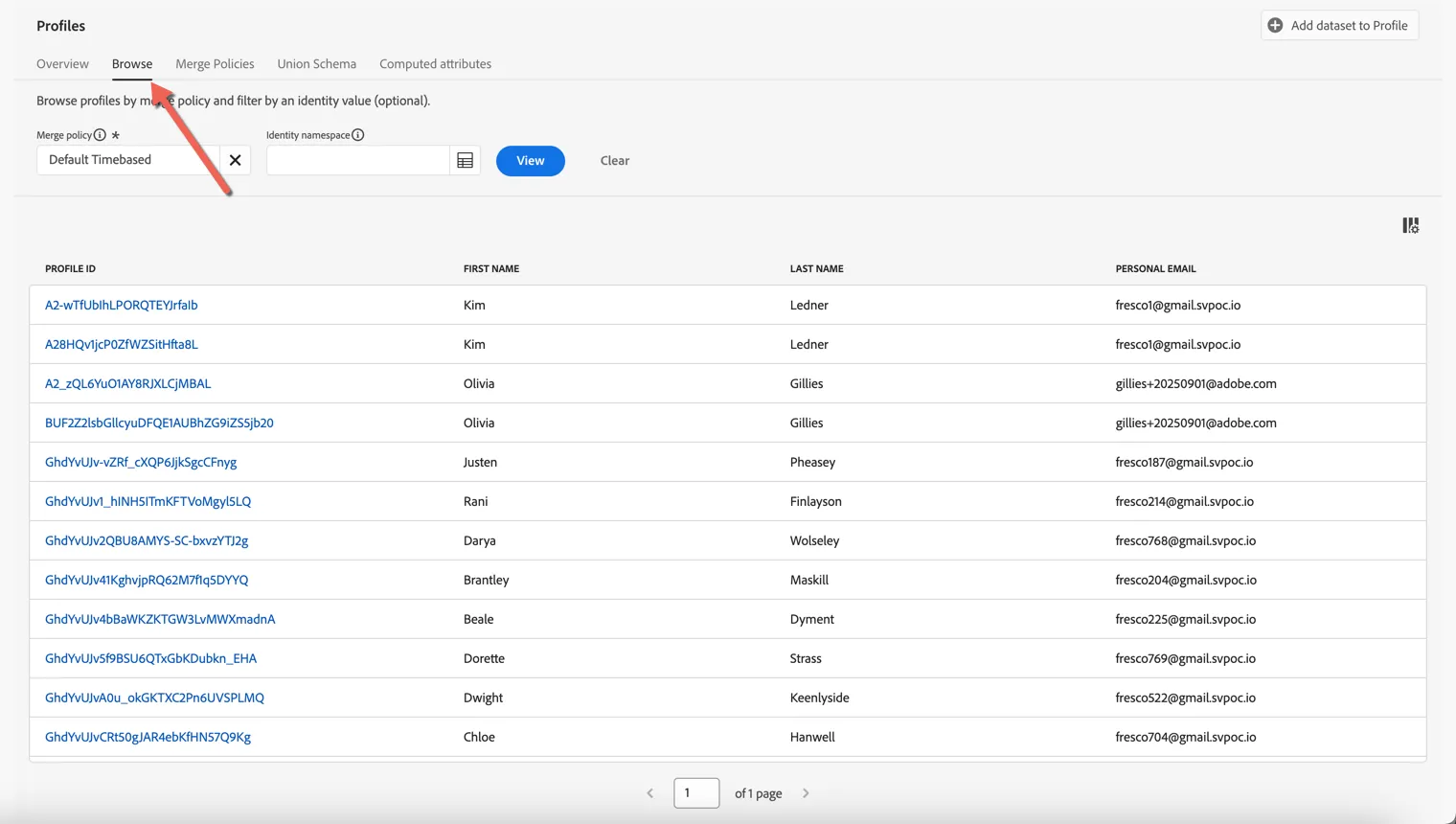
Profiles can be retrieved by any of the attributes which have been defined as "Identities". Which Identity Namespaces are leveraged depends on your organisations requirements. CitiSignal are currently using a custom cross device id called Demo System - CRM ID as well as Email address to identify known users. Any user who's authenticated on the website will have one or more ECID cookies also. For this exercise we will use a known customer id to look up your profile.
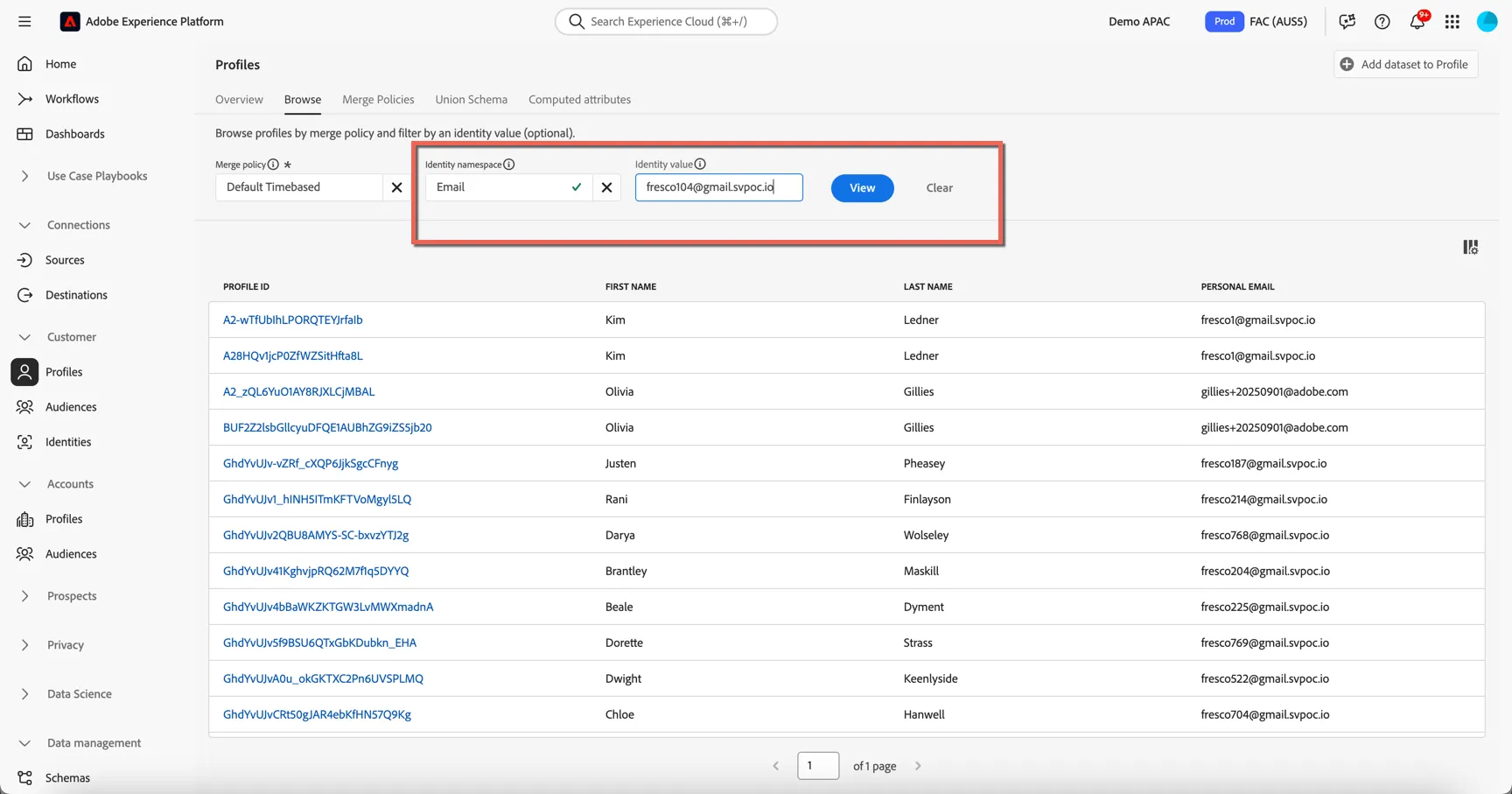
First set the Identity Namespace to be Email. Then use the email you used for login.
if you have not installed the app, used [email protected]. this is the user the presenter will use during presentation
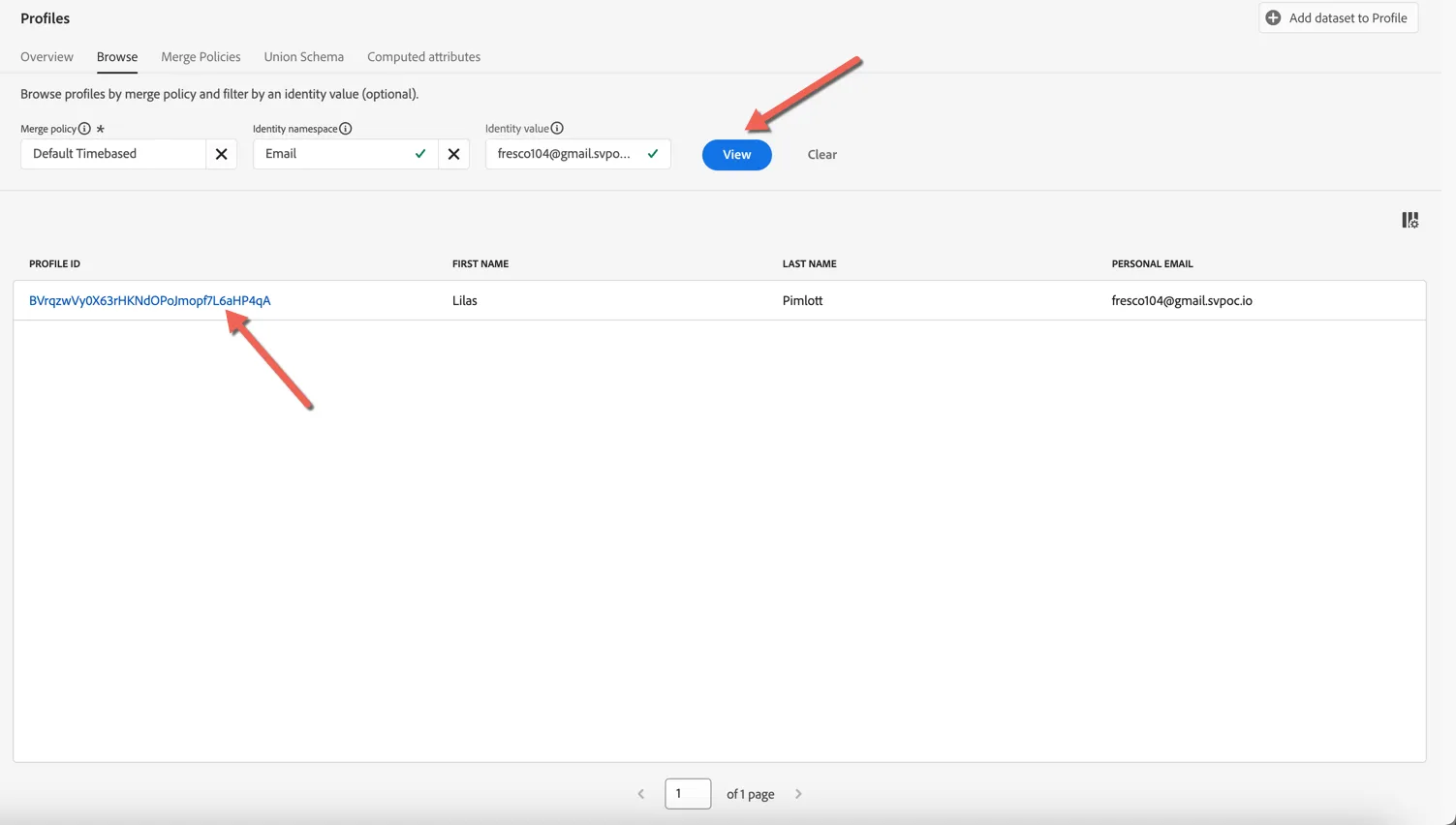
Click to View button to search for the profile, then click on the Profile Id to view the profile details.
The Detail tab shows us some basic information about the profile, which fields are displayed here can be customized according to business needs.
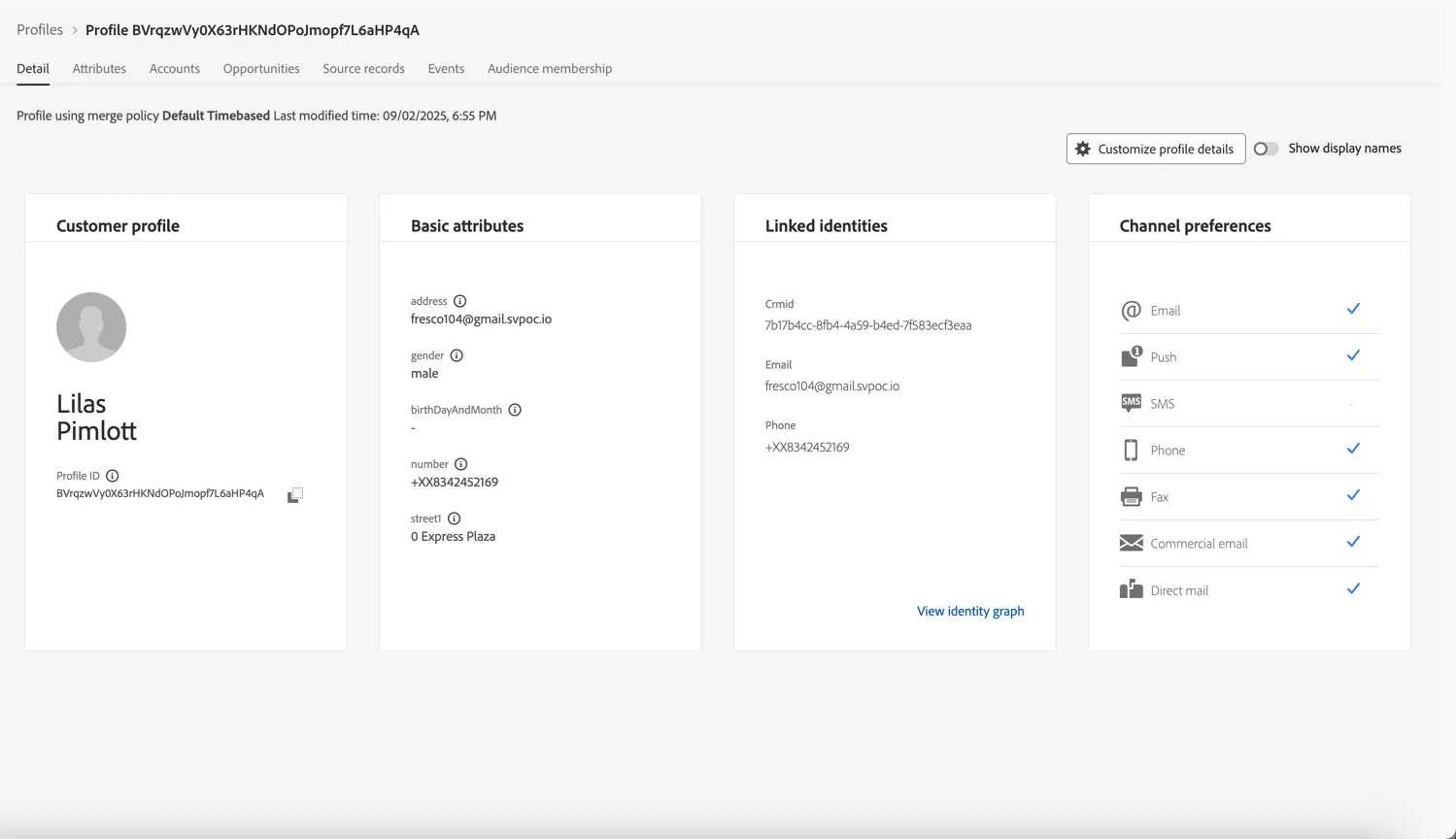
There are 2 main types of data collected against the profile, Attributes and Experience Events. Profile can change over time while Experience Events represent point in time interactions a profile has had with your brand, whether that's viewing a web page, installing your app, subscribe to a credit card, calling the call center or visiting a branch.
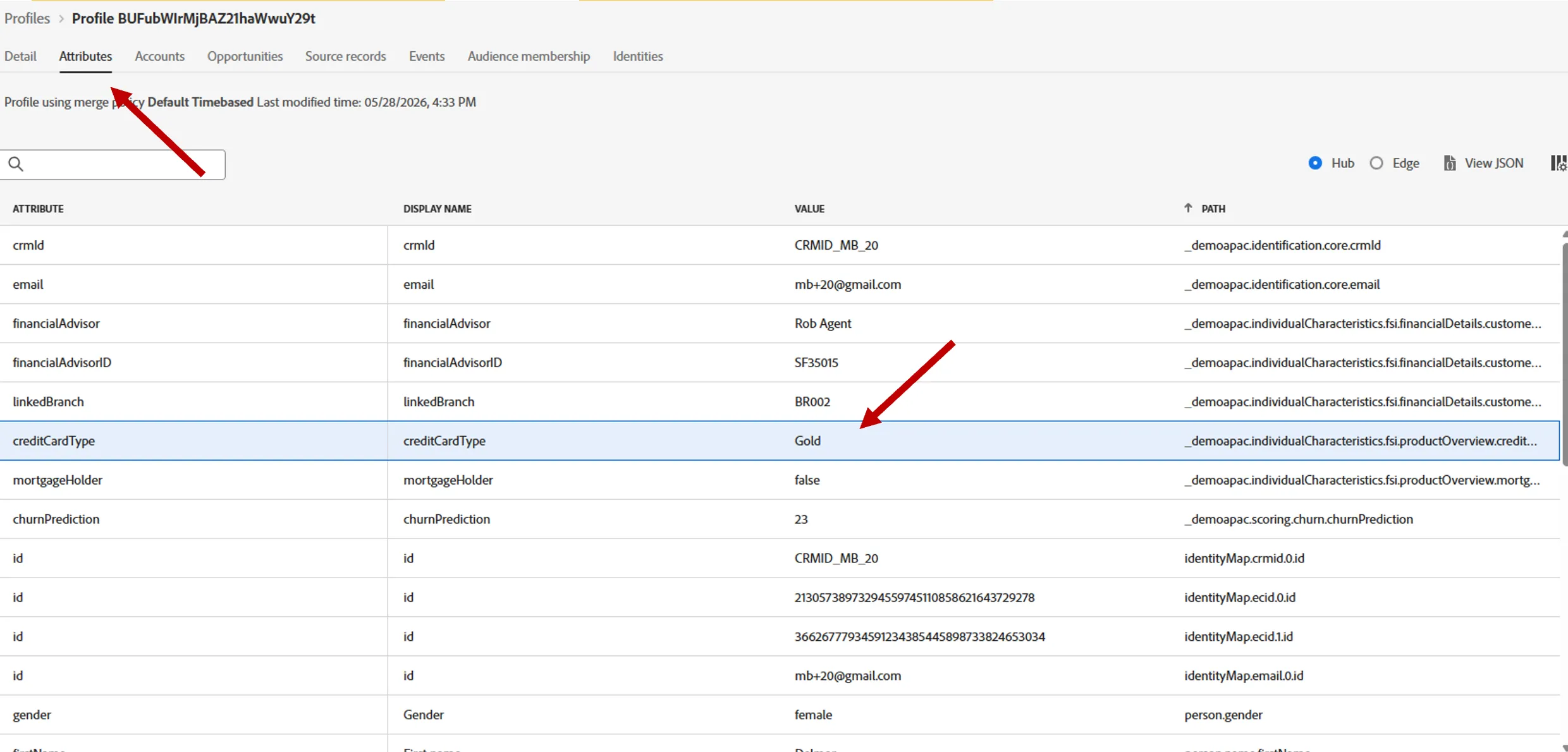
Click on the Attributes tab to view the full list of attributes ingested for this profile. These attributes can come from different source systems, Adobe Experience Platform will merge them in real-time.
Take a look at the detail, you should be able to see Product subscription detail, consent, and demographic data.
Note that credit card type (Gold, Platinium) is stored in an attribute named "creditCardTpe", under the node _demoapac.individualCharacterisitics.fsi.productOverview. This is an infomration we will need for targeting and personalisation for our WinBack Campaign
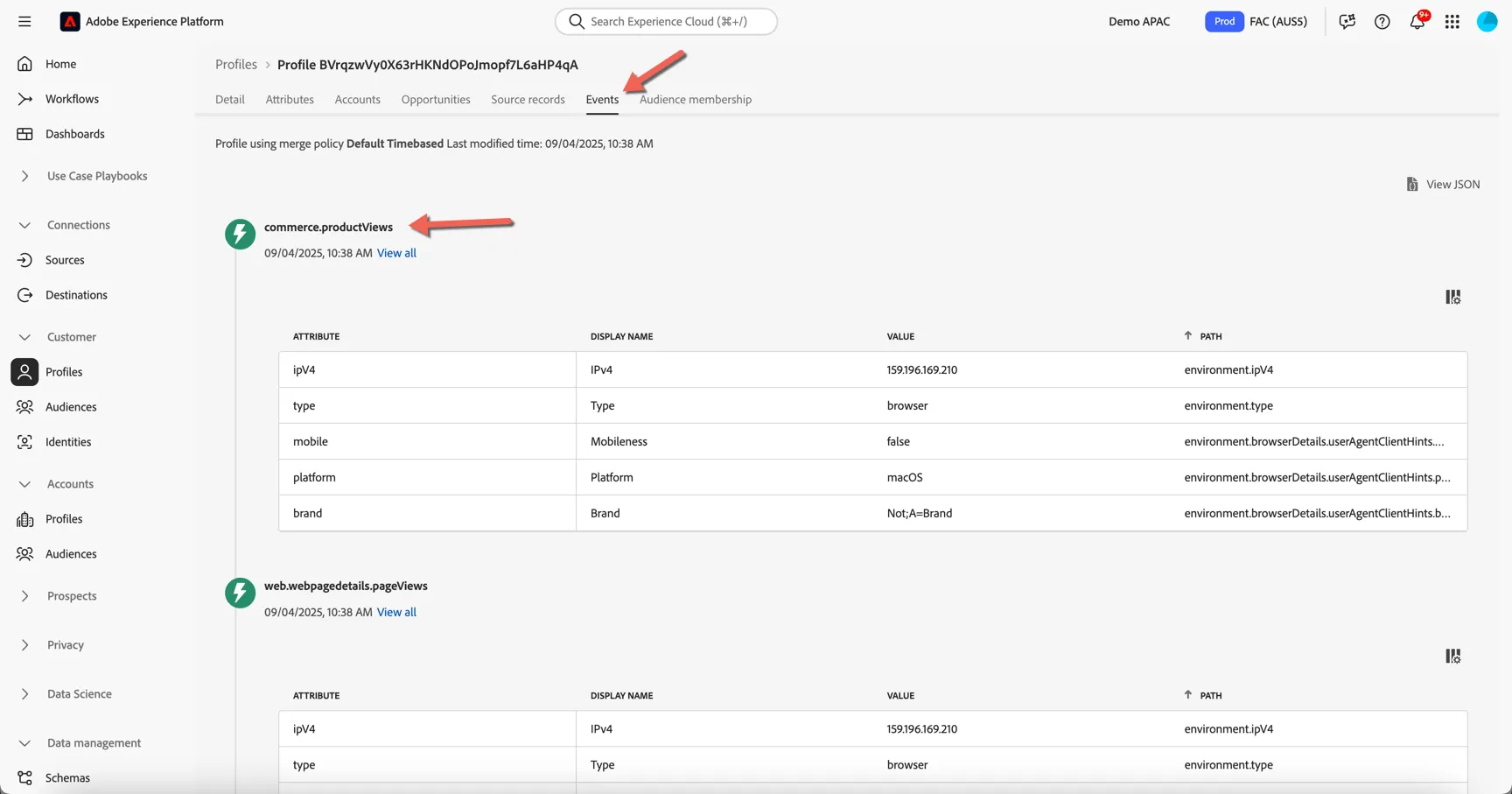
Click on the Events tab. Here you can see a chronological view of all the behavioural experience events coming from different source systems for this profile. These events are ingested in real-time from the sources like your website and mobile app.
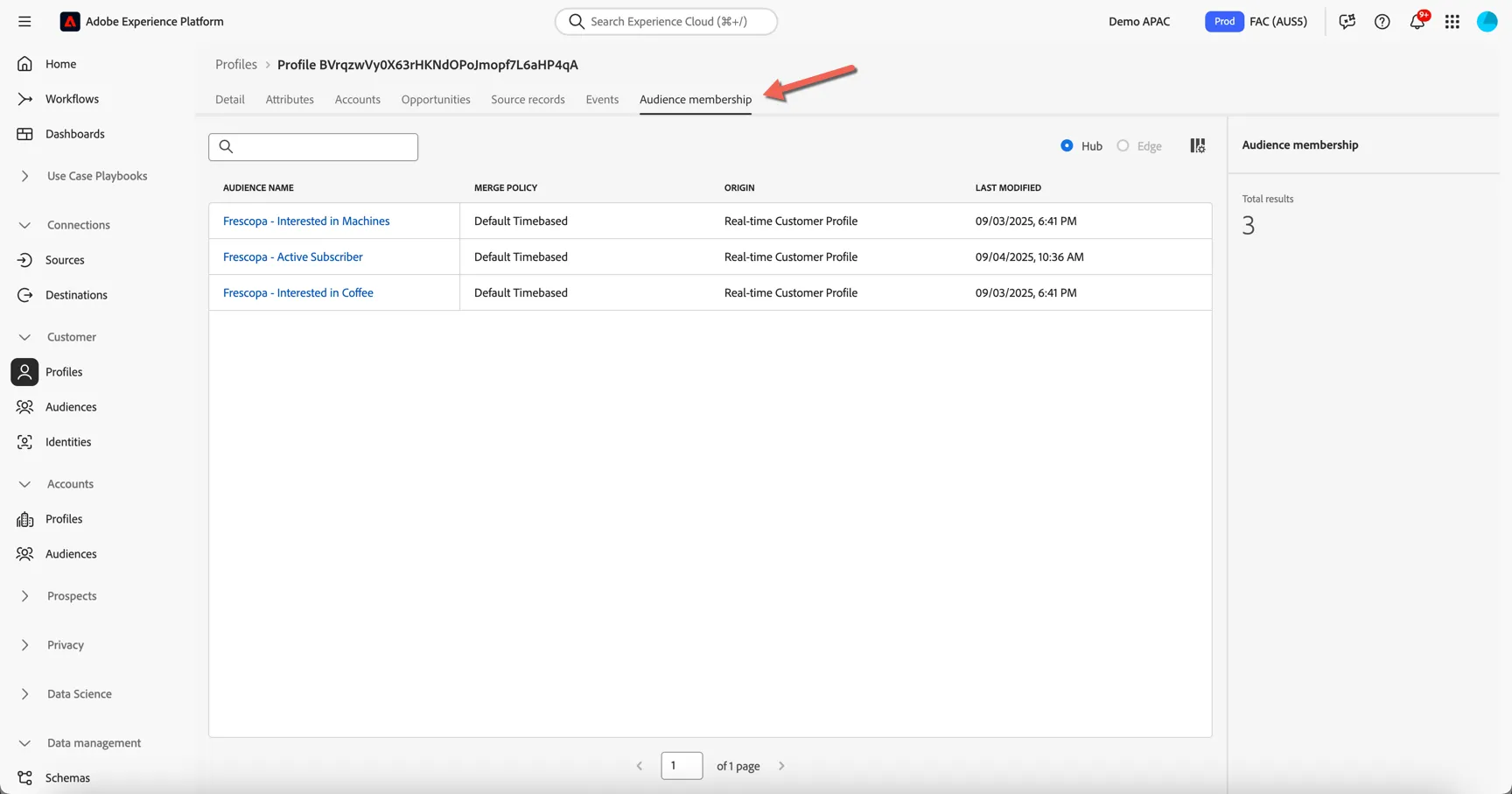
Move to the Audience membership tab. Here you can see which audiences the profile is currently a member of, this list will update as the profile moves in and out of audiences based on their attributes and behavior.
Lastly, return to the Details tab and click to view the Identity Graph.
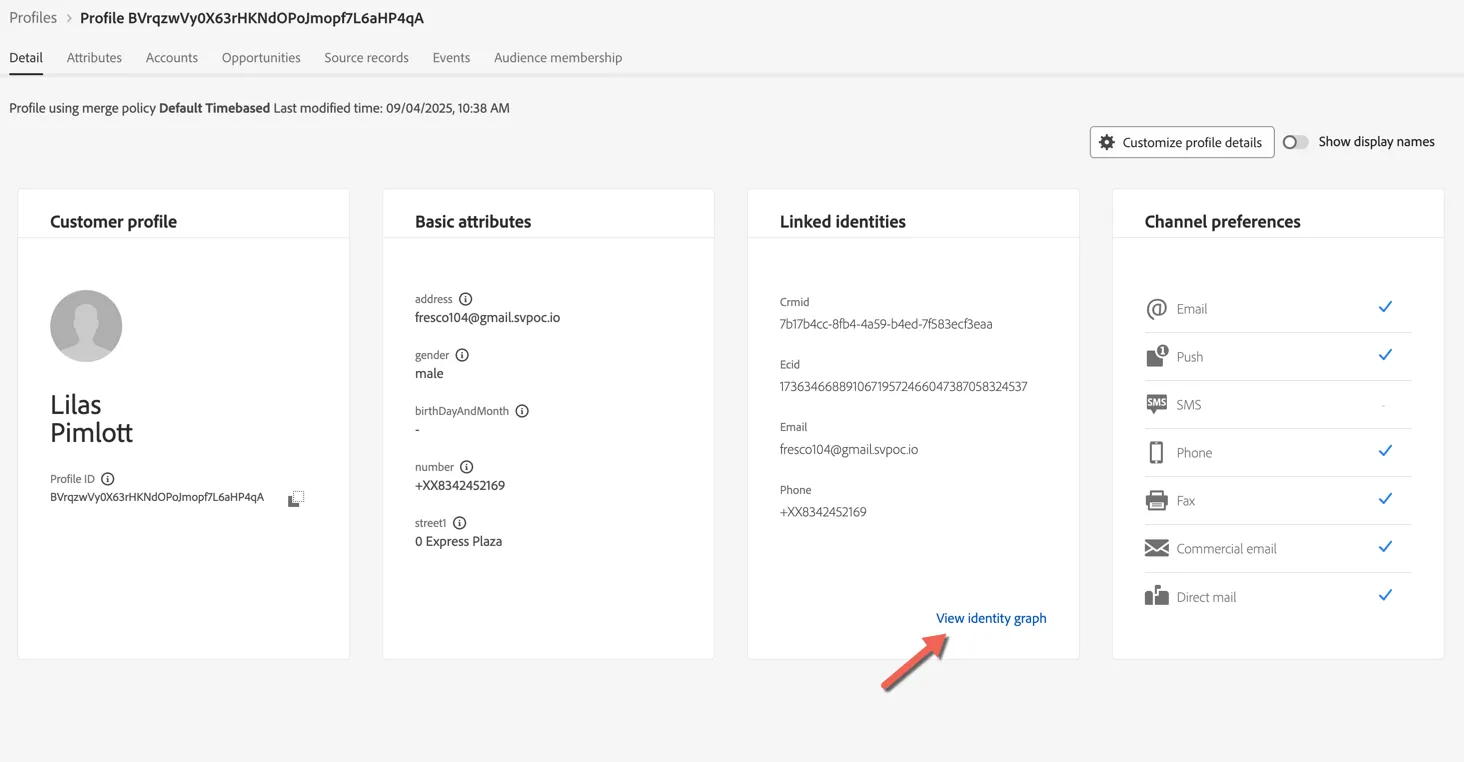
Here you can see a visualisation of the Identity Graph linking all of the different sources of information together to create our profile. You can see that there are multiple ECID's or Cookie ID's attached to the profile, this represents the different devices that the customer has identified themselves on.
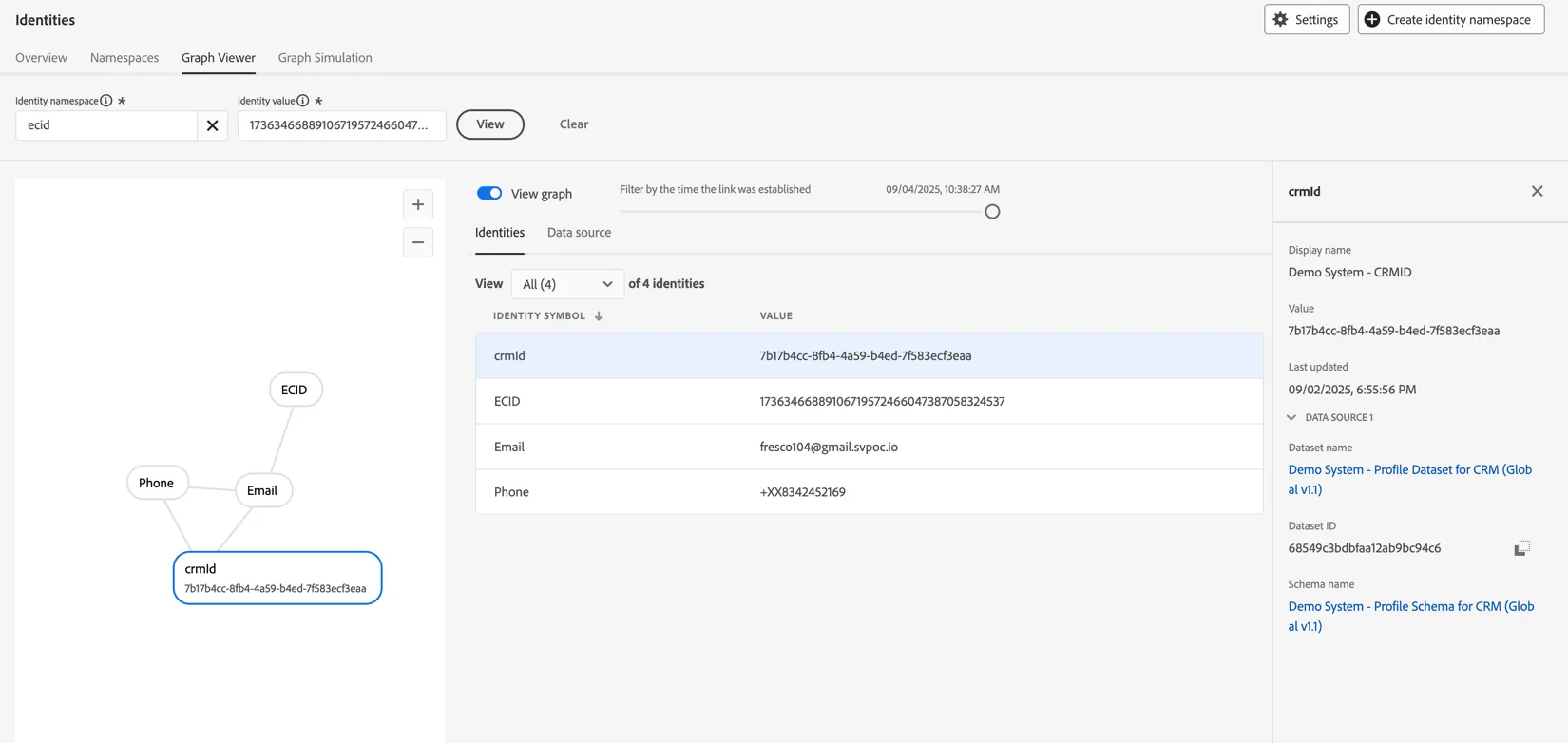
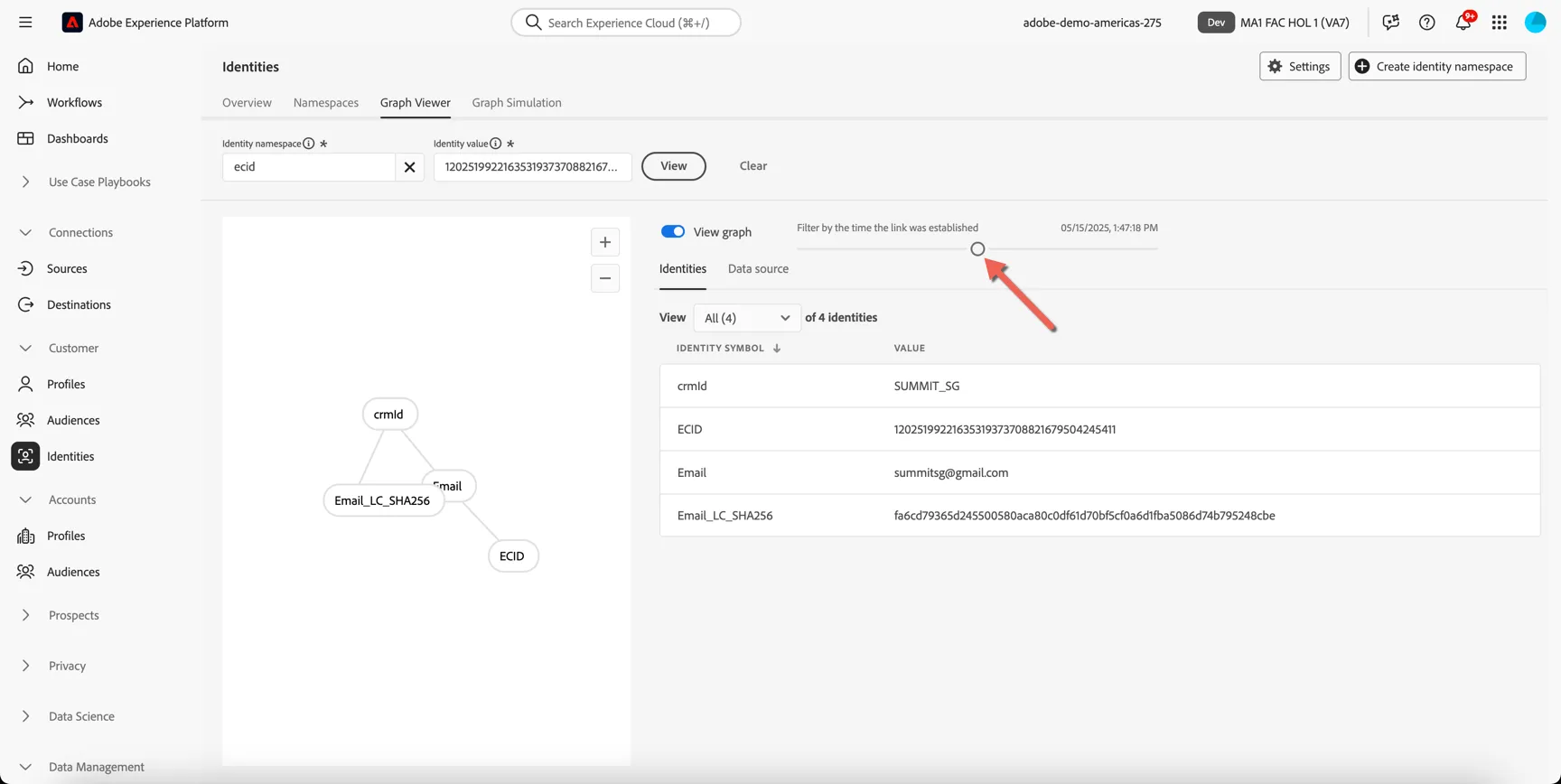
Use the slider to see how the graph grew as the profile interacted over time.
Audience creation
No that we know which data are stored in our profile, we can start to create audience. Audiences can be used for targeting, personalisation rules, reporting, etc.
For our Win Back Campaign, we want to select your customer who have a credit card they haven't used for 6 months.
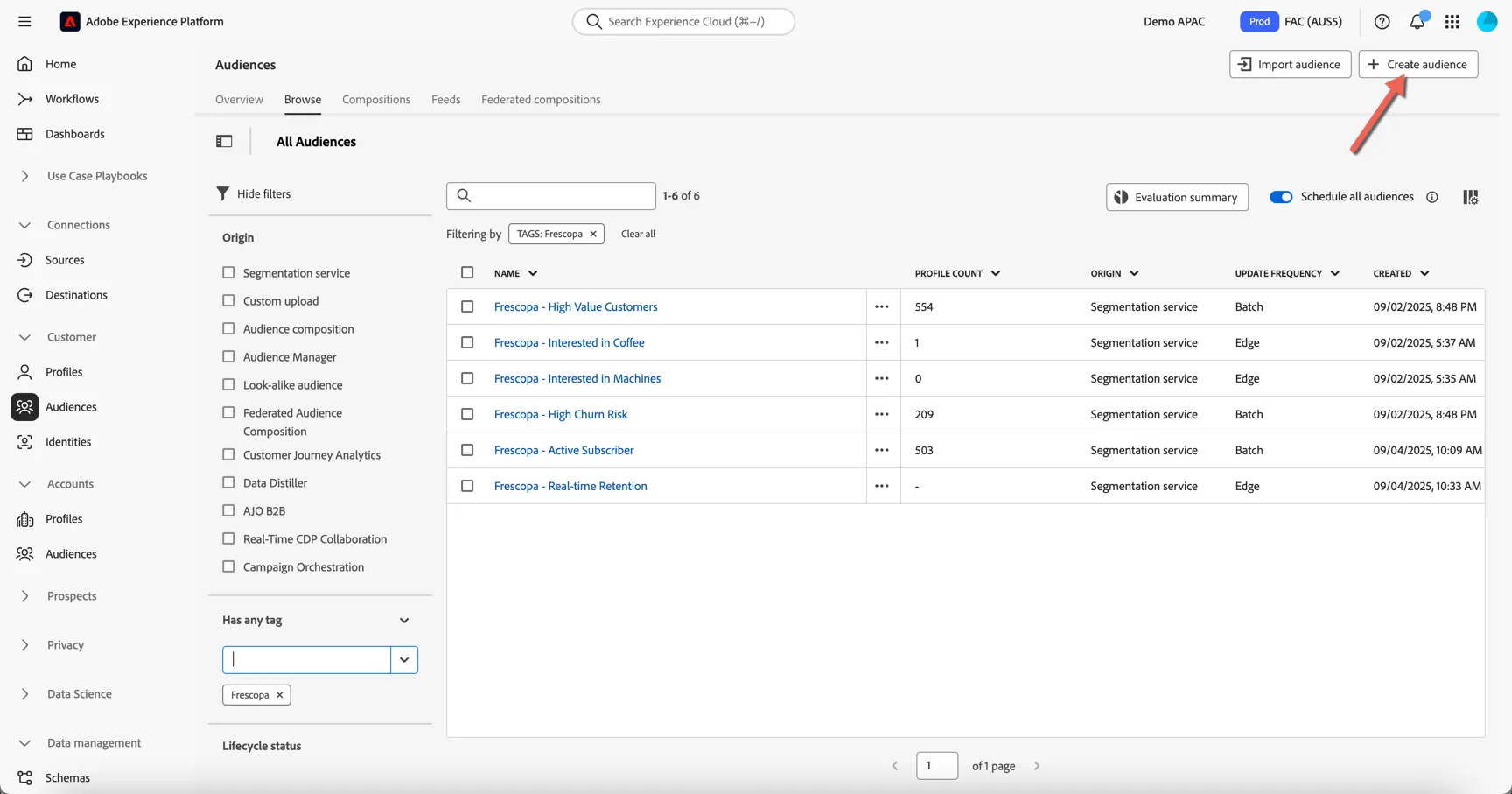
Click on Customer -> Audiences, then click Browse to open the Audience Portal.
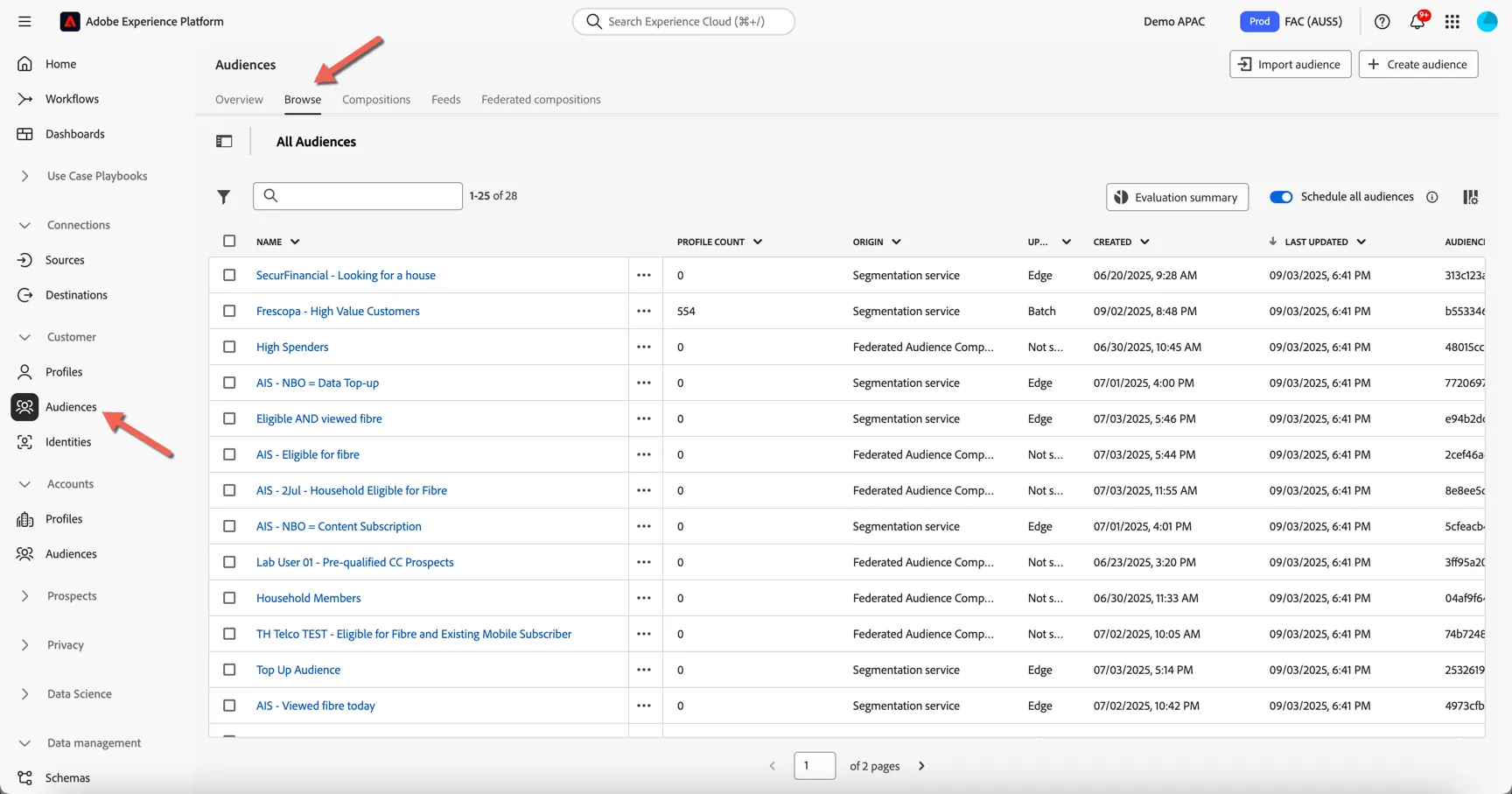
Let's create our new audience. Click to Create Audience in top right corner.
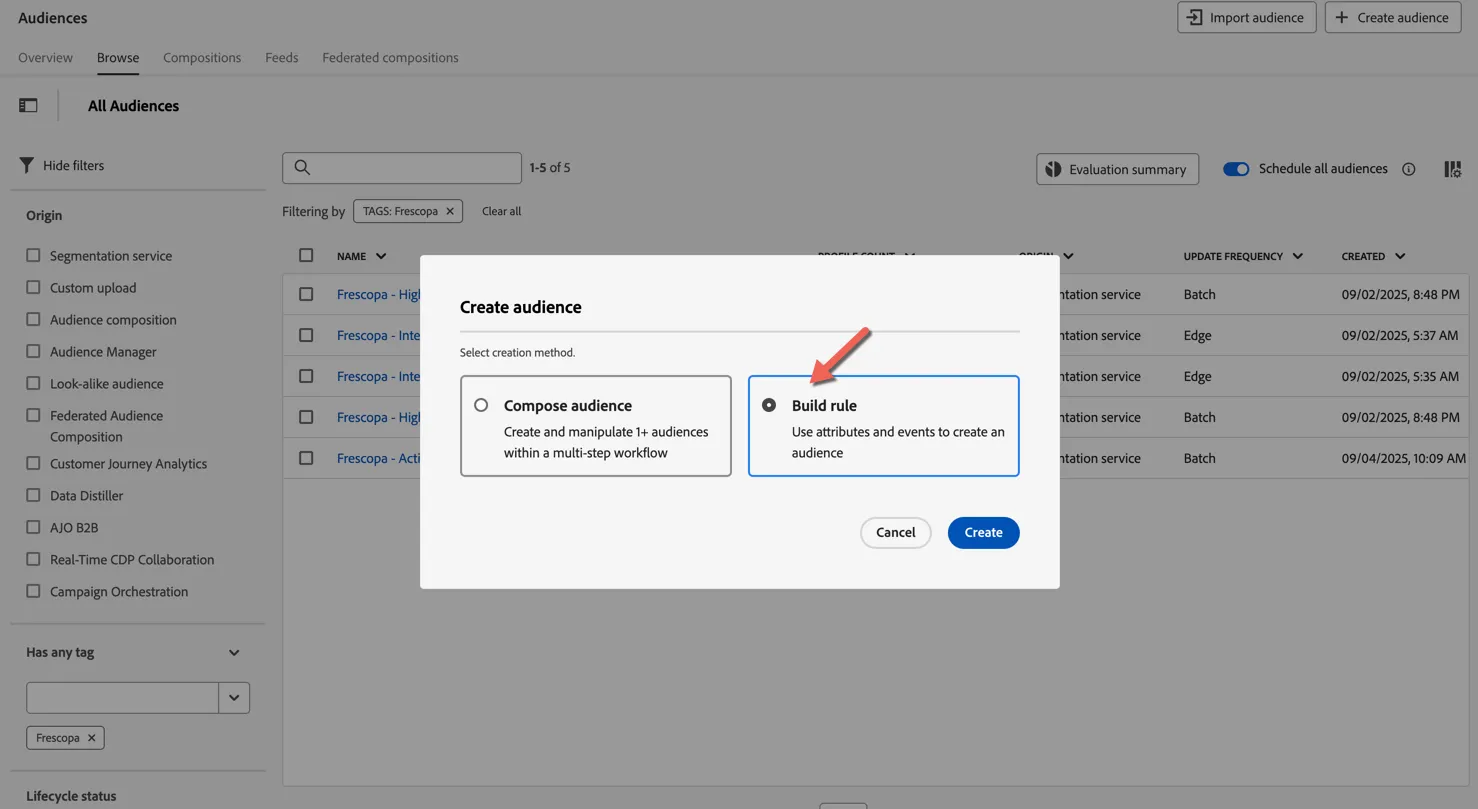
Click to Build rule and click Create.
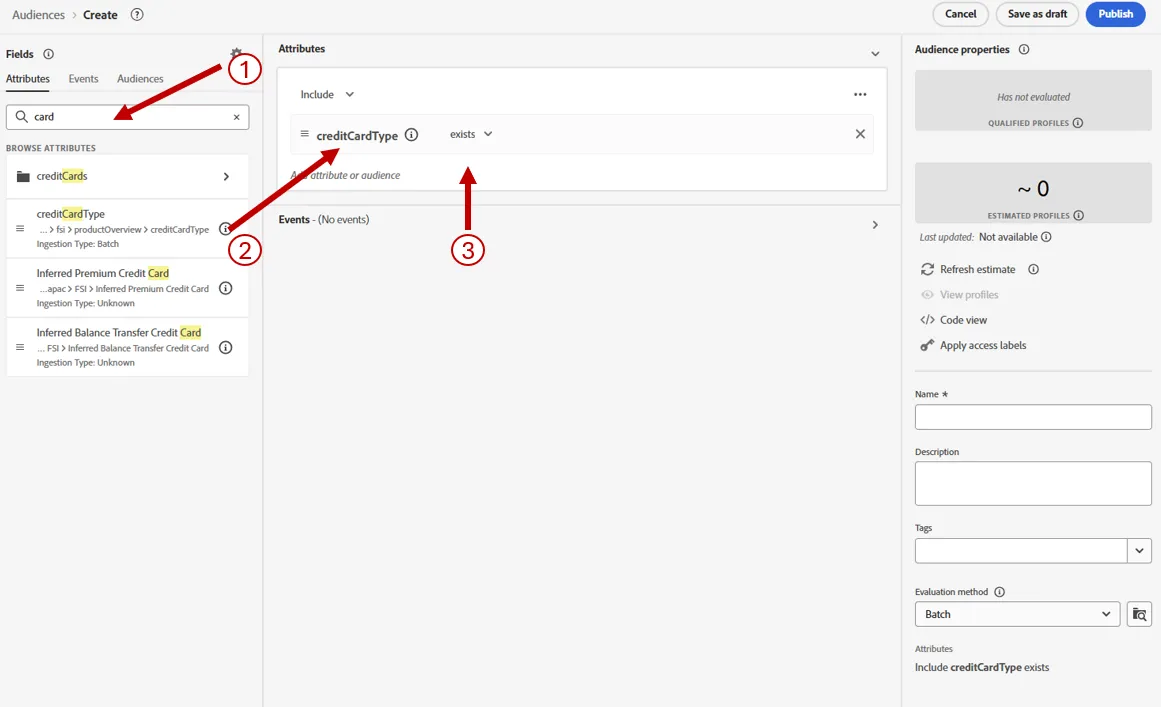
Let's start by selecting customer who have a credit card, regardless of the type.
In the Attribute Tab, search for card. You will see the attribute called CreditCardType. Drag and drop it into the midlle pannel. Then change the condition to exist
Click on refresh the estimate on the right pannel to check your audience. You should see ~250 profiles.
We want to select people who can receive email.
Search for Consent. Then click on Consents and preferences
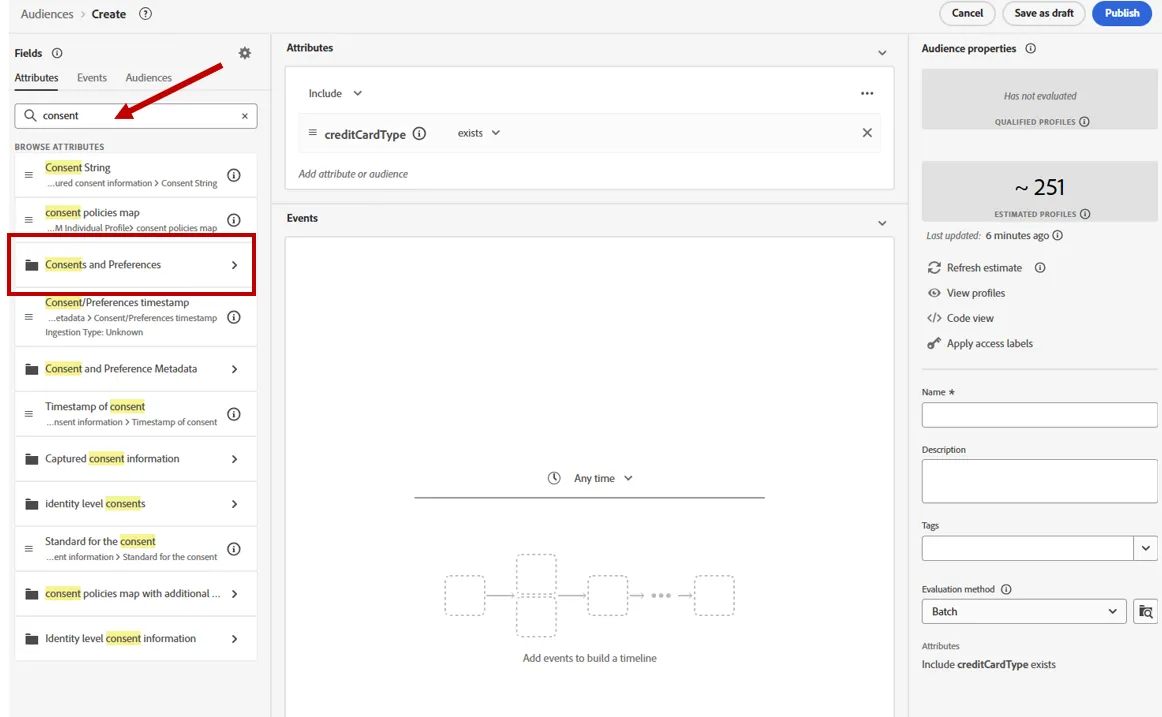
This is where we store all the consent, to collect data, share, communicate, etc. Select Marketing preferences
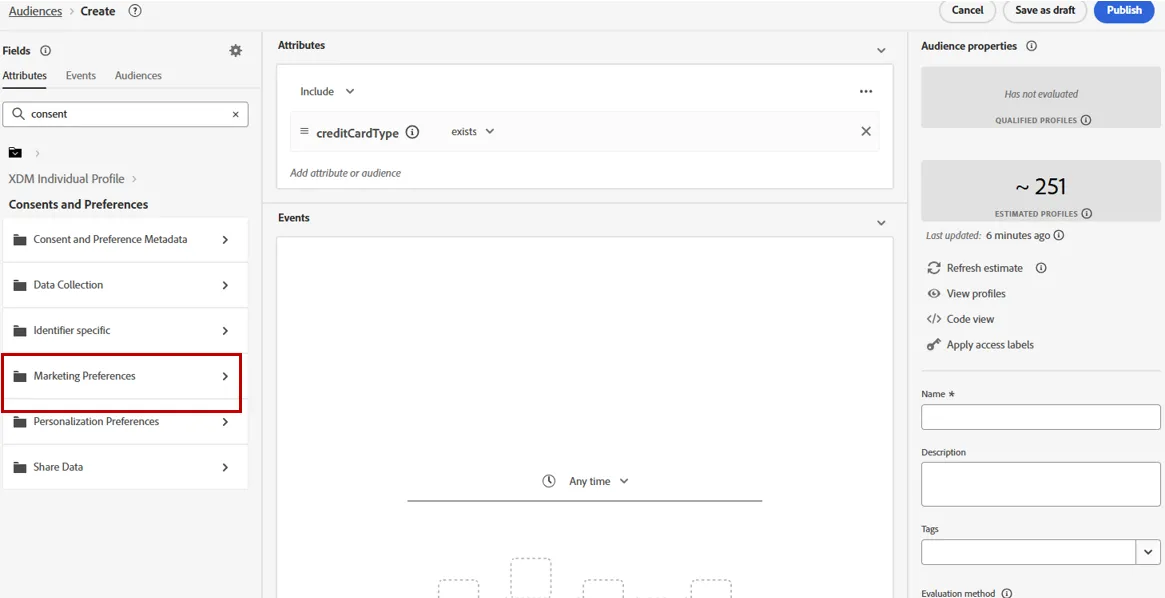
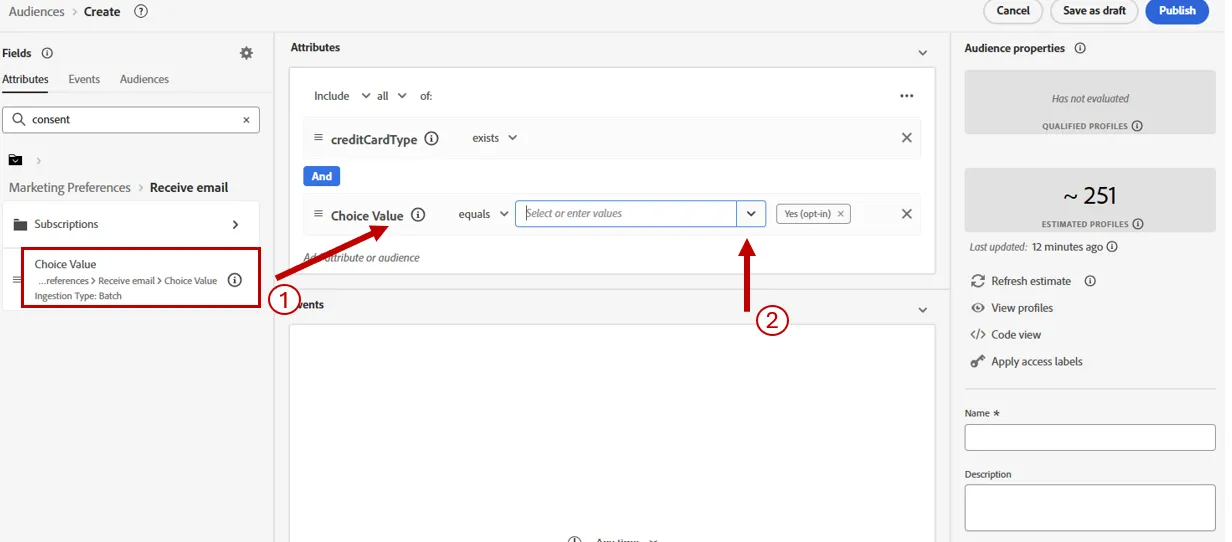
Click on Receive Email, then drag and drop the Choice Value attribute just beneath the credit card in the mid pannel. Change the value to Yes (optin)
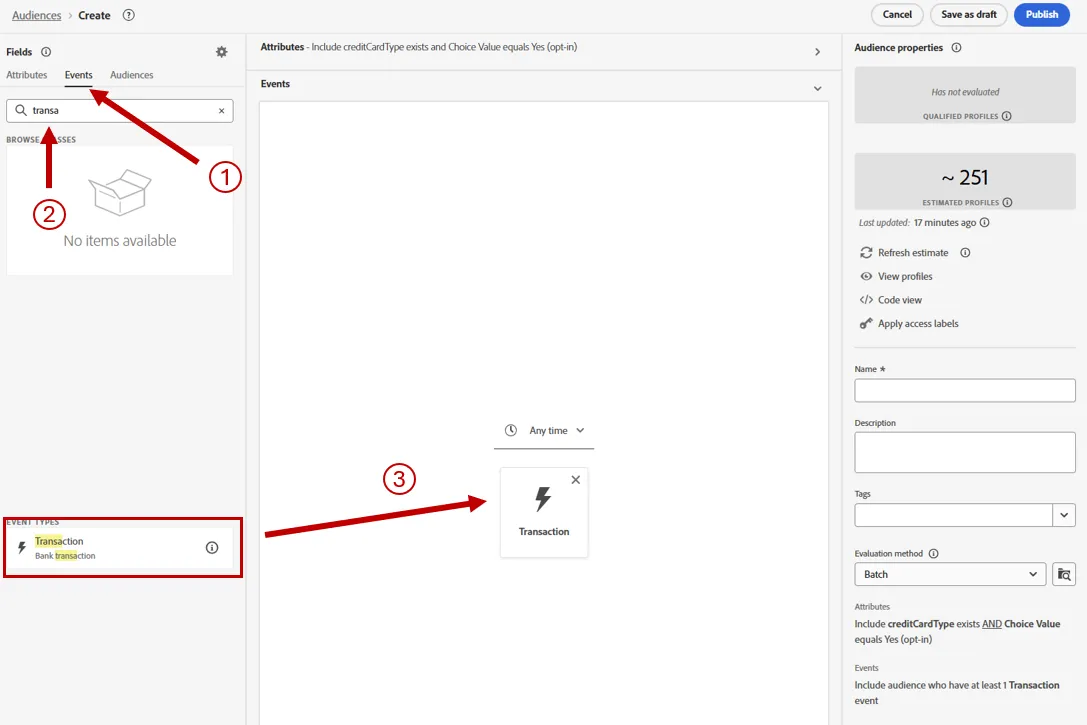
Next, we want to select people who have not used their card for the last 6 months.
- Go the event tab,
- Search for transaction
- Drag and drop the transaction eventType on the mid pannel
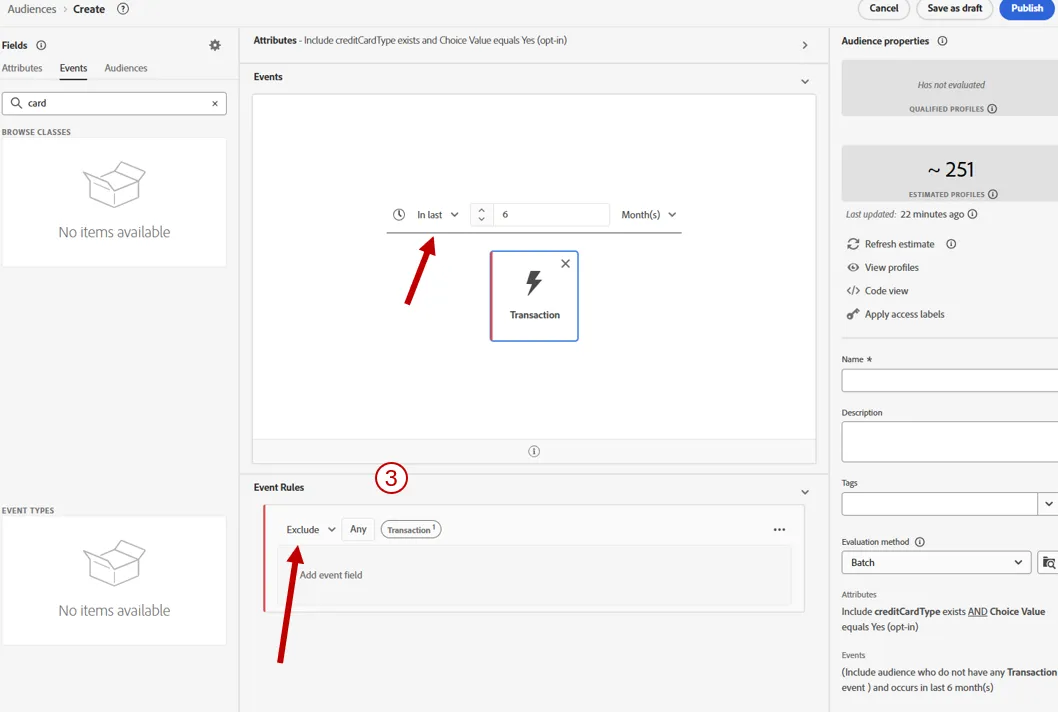
Now we need to change the condition to exclude people wo used their card in the last 6 months.
- Click on the transaction event in the mid pannel to see the detail
- Change the condition to exclude transaction
- Change the timeline condition to In last 6 months
You audience is now ready.
Give it a name, like {Your name} - Win back , (ex : Fabien - Winback). Set up the evaluation methid as batch, then publish it.