Add Knowledge Sources
Objectives
Ground your concierge in trusted brand content. Let's ingest another source into your Brand Concierge. In this exercise we will ingest a few URLs for the concierge to build knowledge on. Then we will connect the knowledge sources to the concierge.
Add a website knowledge source
Now let's begin adding knowledge sources.
Knowledge sources are additional data about your product or services that AI will use to answer questions. That can be retrieved from content on the website, or an Excel file if some information is not available on your website.
Let's add your first knowledge source:
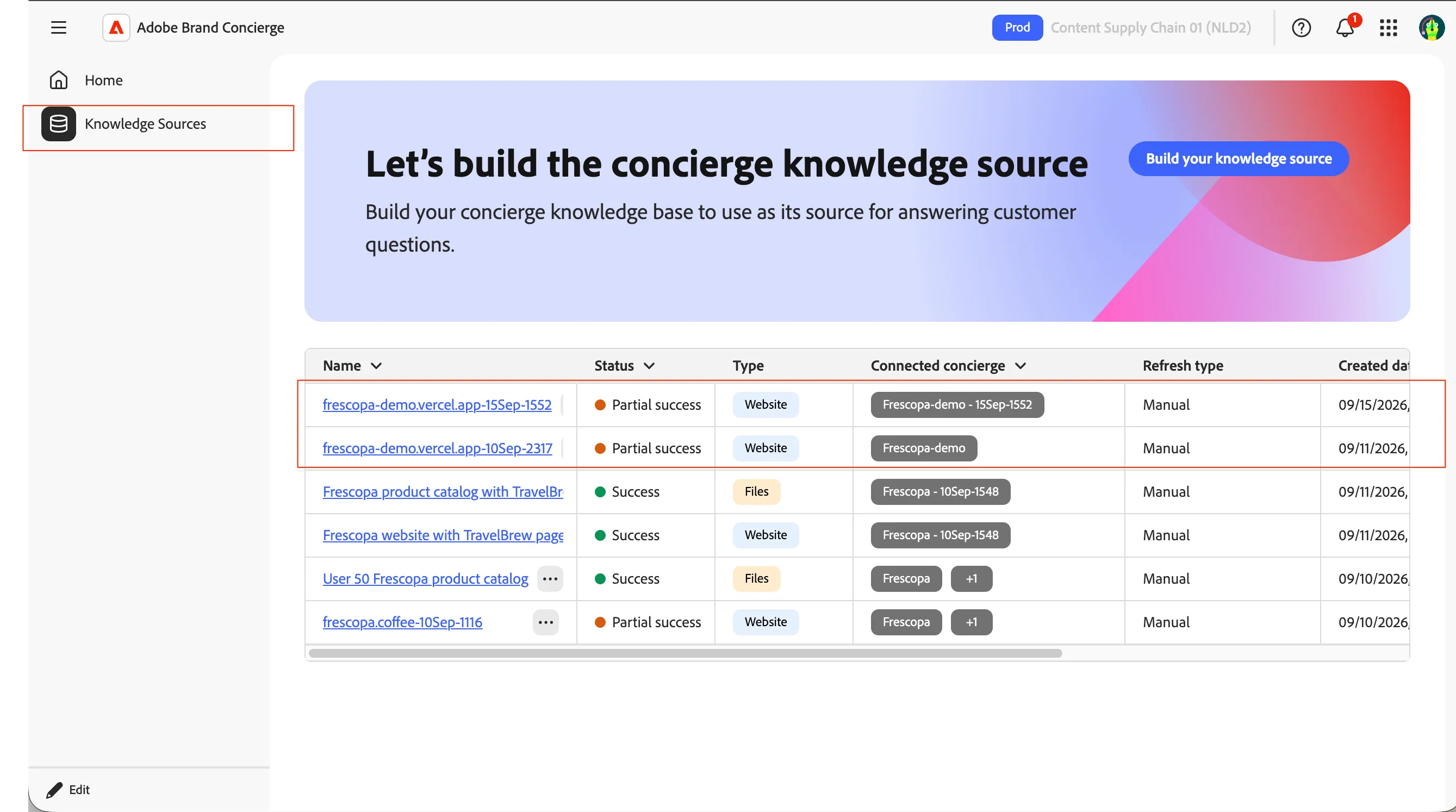
- Click on Knowledge Sources shown on the top left corner below. You can also see the concierge creation initiated knowledge source.
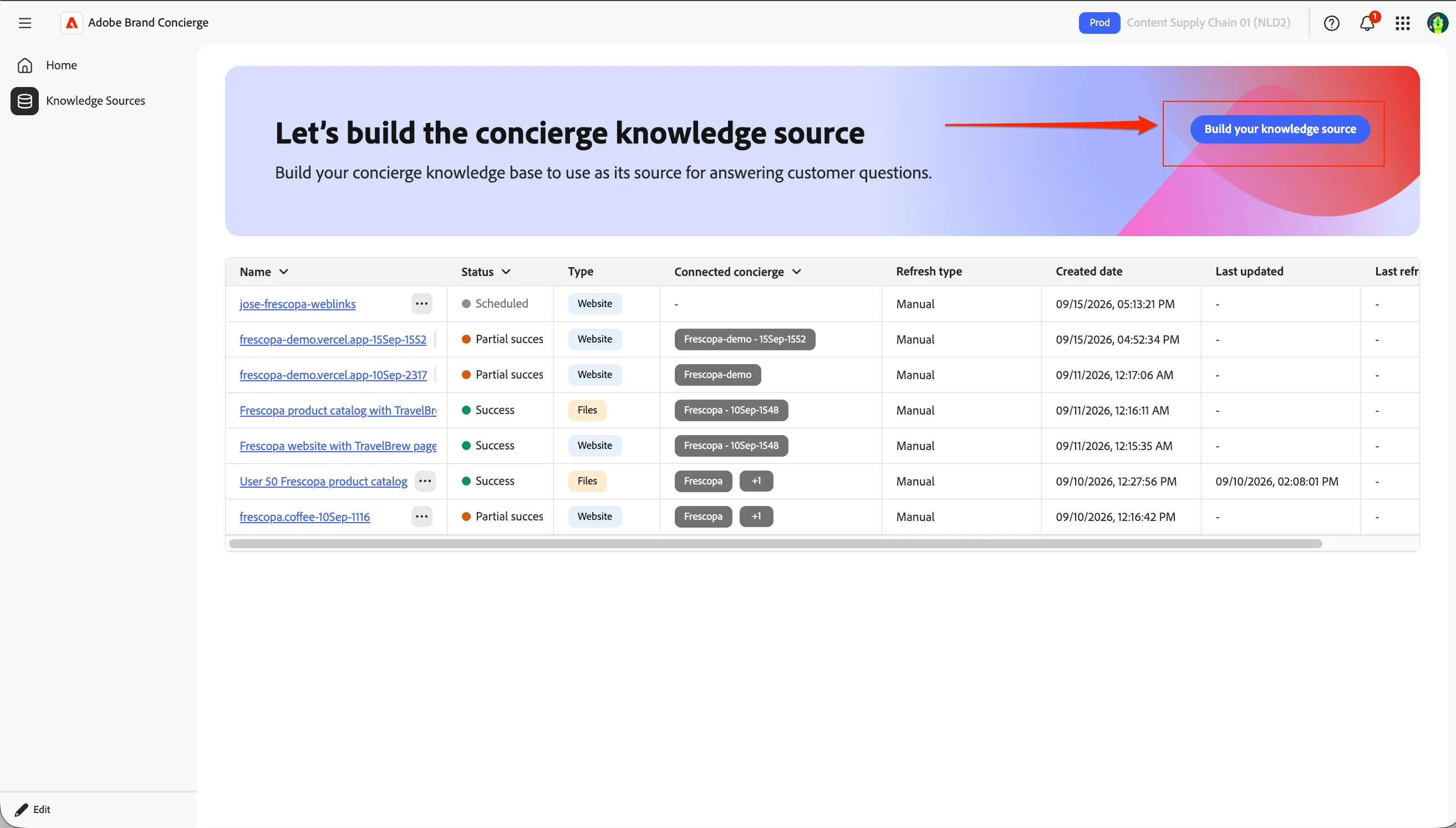
- Then click on Build your knowledge source button on the top banner.
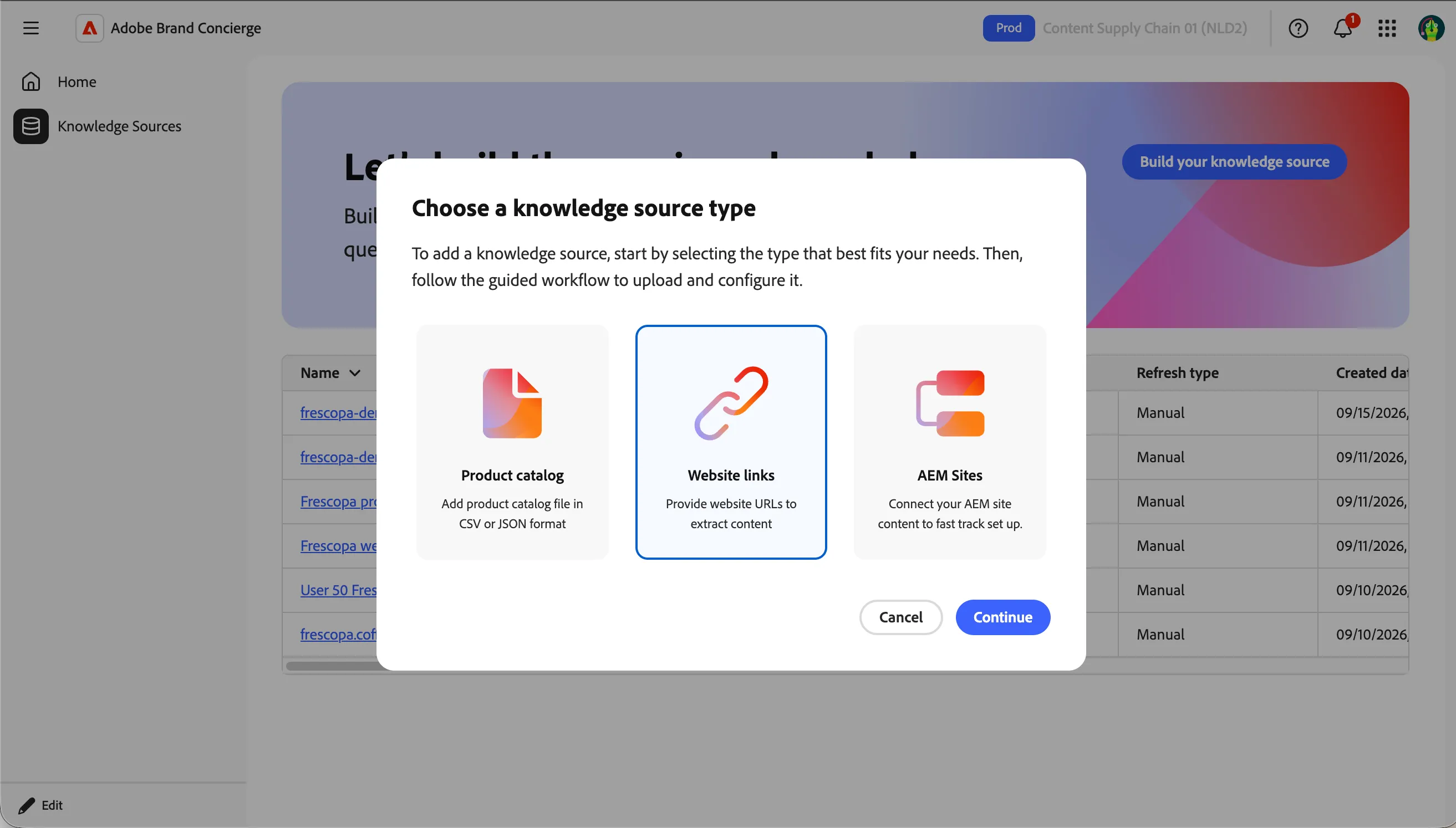
- Choose a knowledge source type as website links.
- Provide the source name as{{LASTNAME}}-frescopa-websitelinks
- Download the below file and click on Browse Files to upload the file.
- You can configure a schedule to automatically do this at a scheduled interval. For labs, we can skip it and click on Add button on the top.
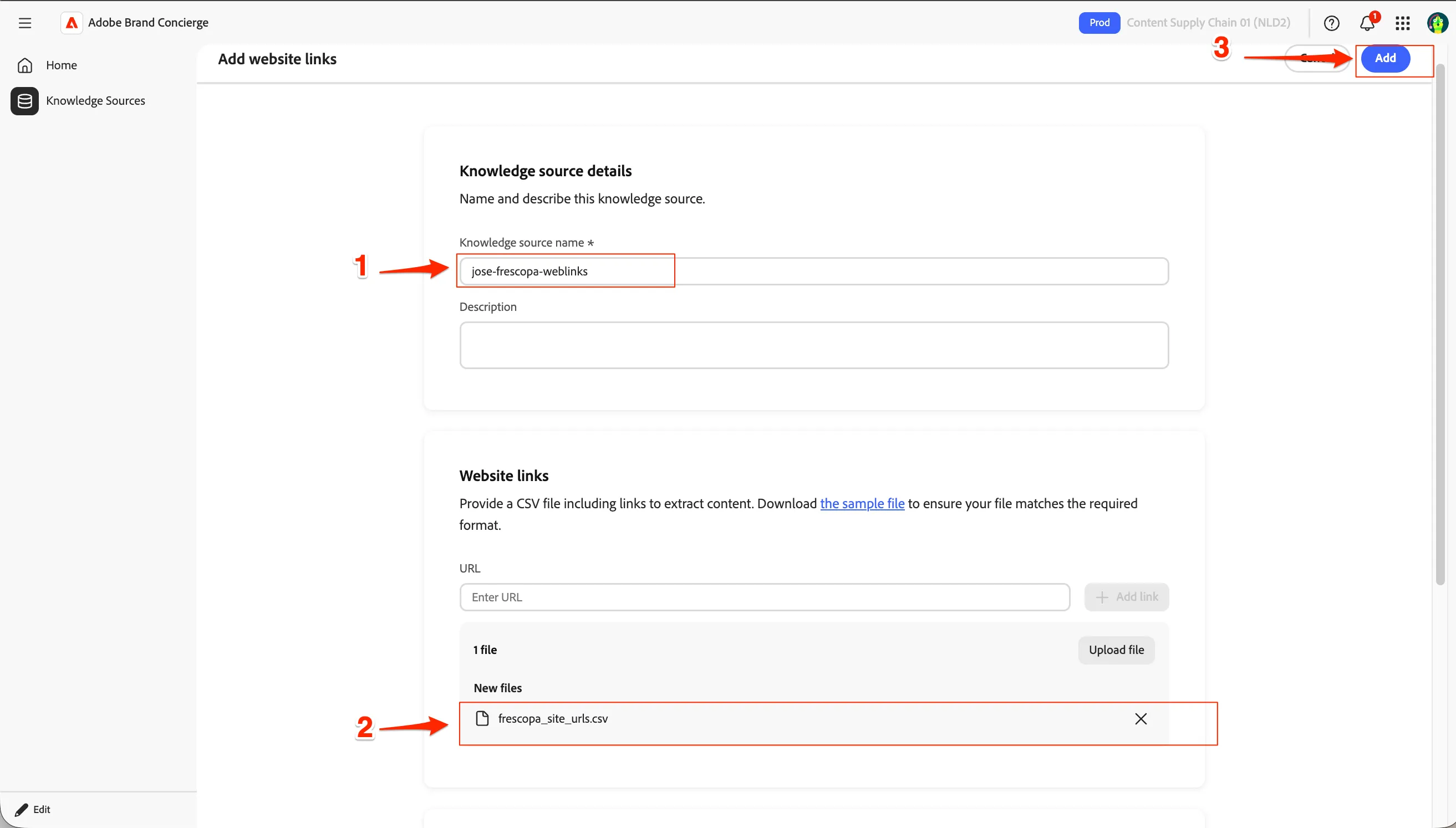
This creates a knowledge source and this will be picked up by the scheduled job as a background process.
Adding a product catalog knowledge source
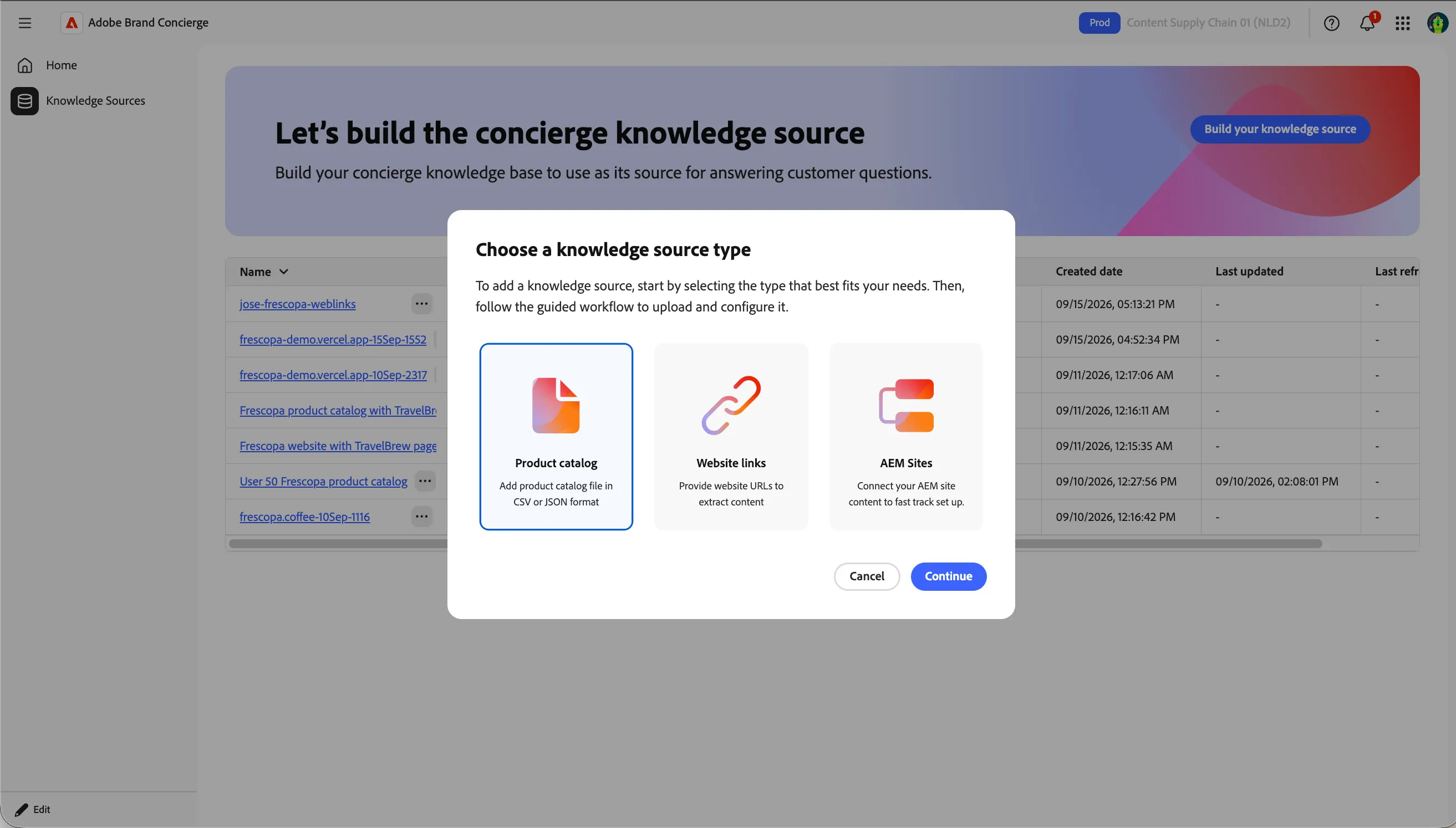
- click on Build your knowledge source button on the top banner.
- Choose a knowledge source type as Product catalog and click Continue.
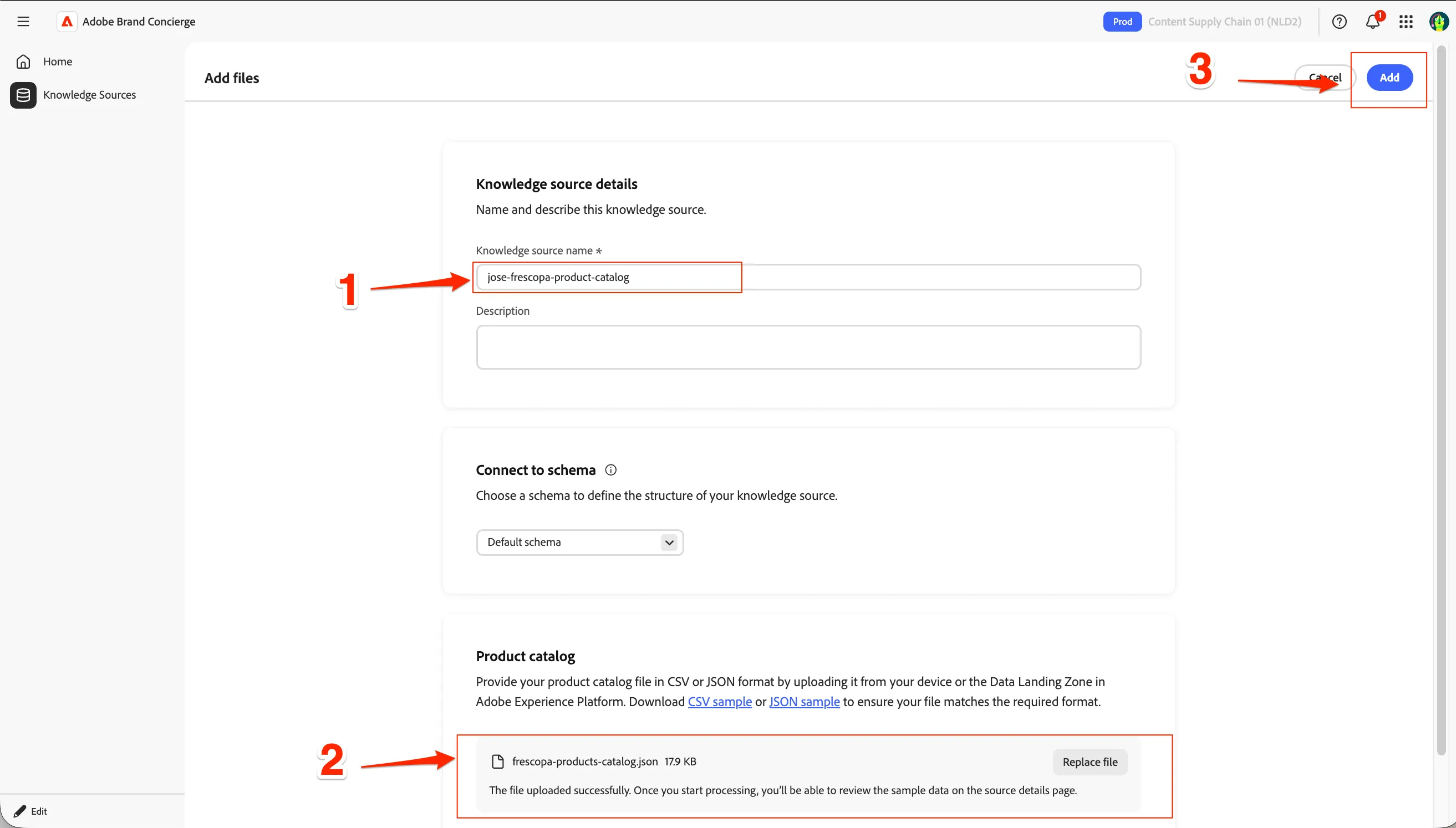
- Provide the source name as {{LASTNAME}}-frescopa-product-catalog
- Download the below file and click on Browse Files to upload the file.
- Click on Add button on the top.
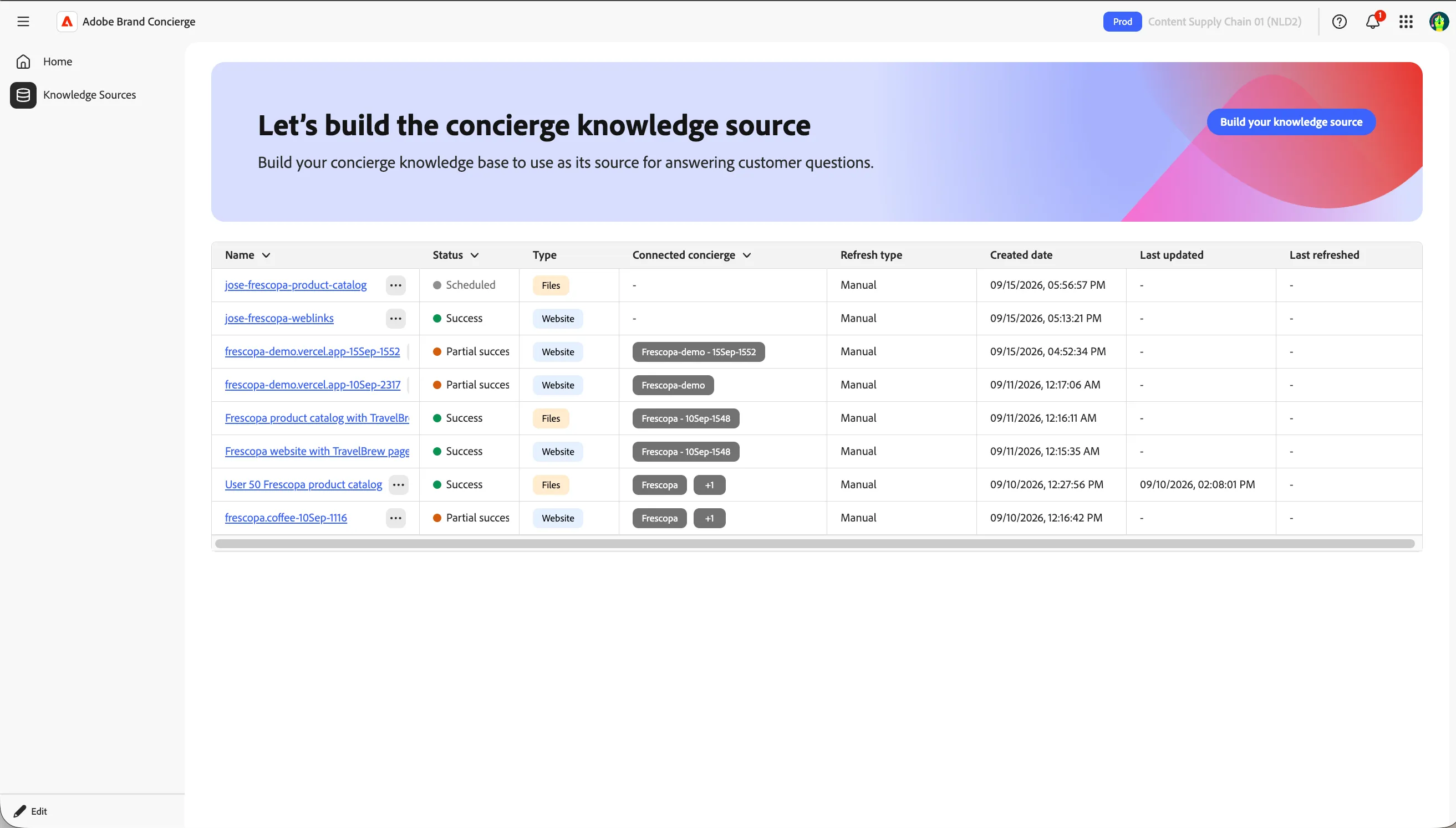
This creates a knowledge source and this will be picked up by the scheduled job as a background process.
Checkpoint / Reflection
In this exercise we learnt how to ingest website data and product data as a knowledge source for the concierge!
💡 Tip: Incremental ingestions are supported. If you have already ingested a knowledge source, you can edit it and add more URLs to the same source by using the "Add Link" option.