Edit your page
Introduction
In this exercise, we will enhance our Travelbrew landing page by updating the hero banner, creating a new cards block and update the page metadata. You will then preview the completed page to verify that all content and blocks are displayed correctly.
Update the headline in hero banner
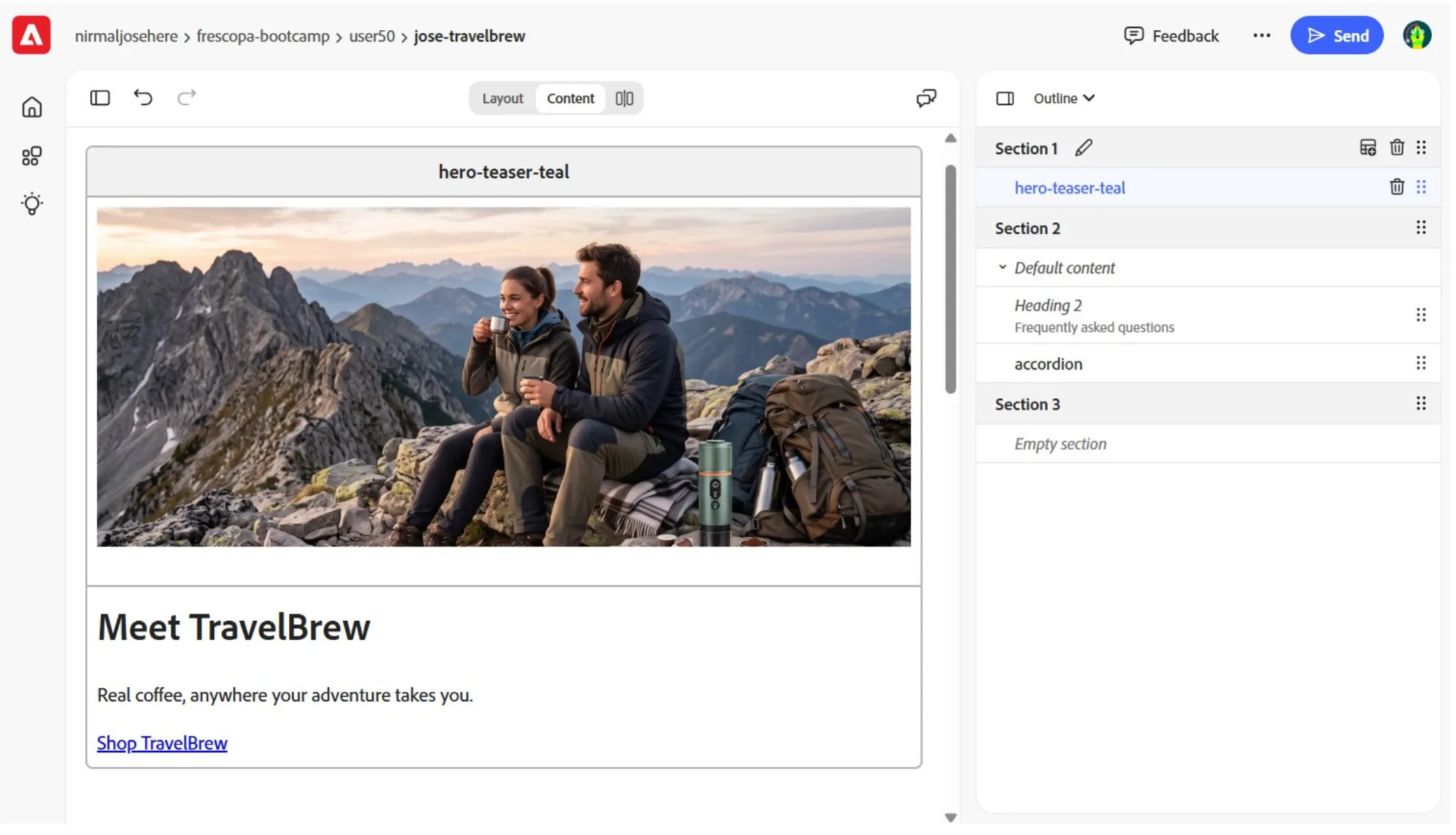
- Switch to Content view in the editor.
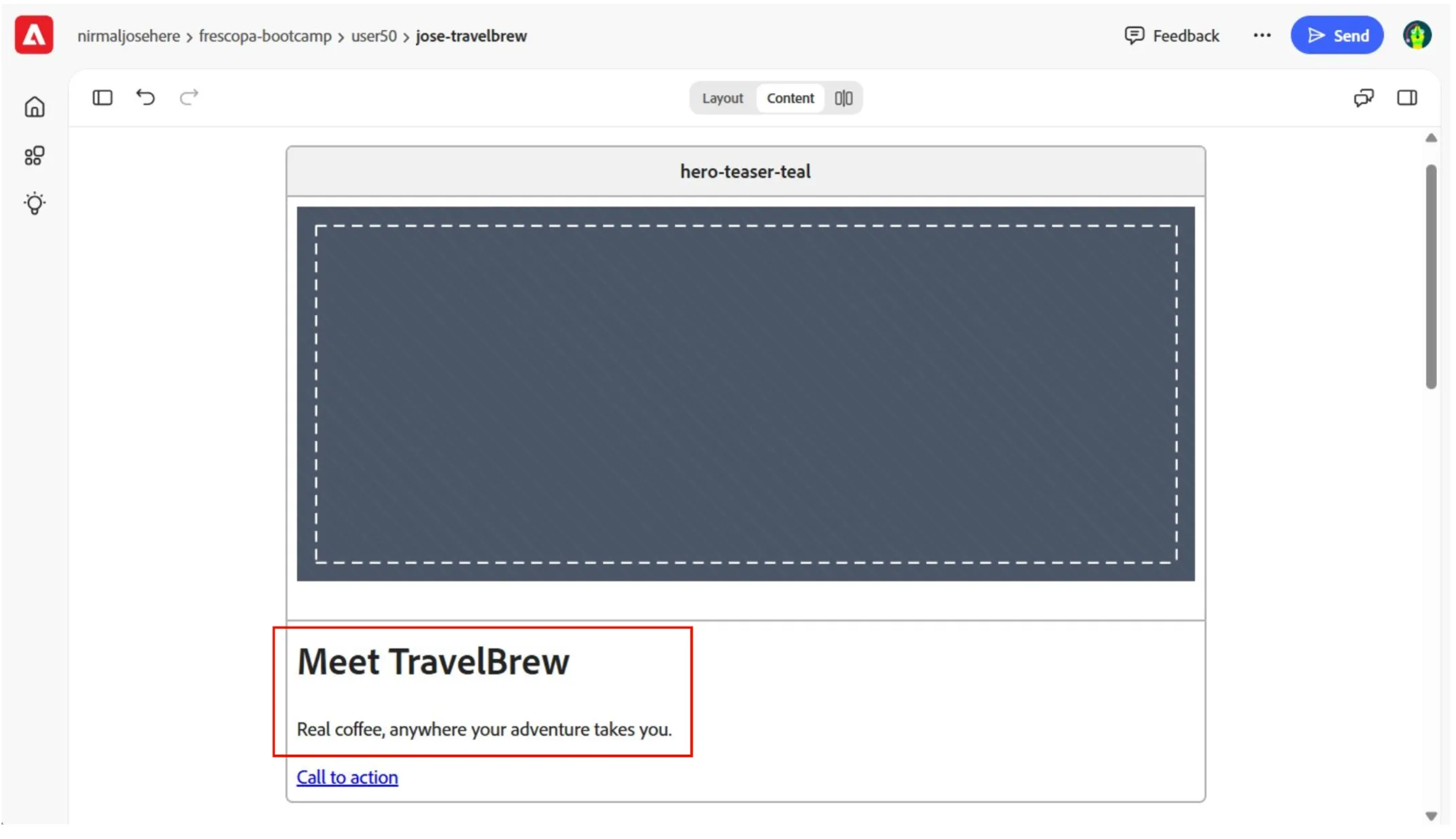
- Click and select 'Your headline goes here' in the hero-teaser-teal block.
- Replace the title with Meet TravelBrew
- Similarly, replace the subheading placeholder with Real coffee, anywhere your adventure takes you.
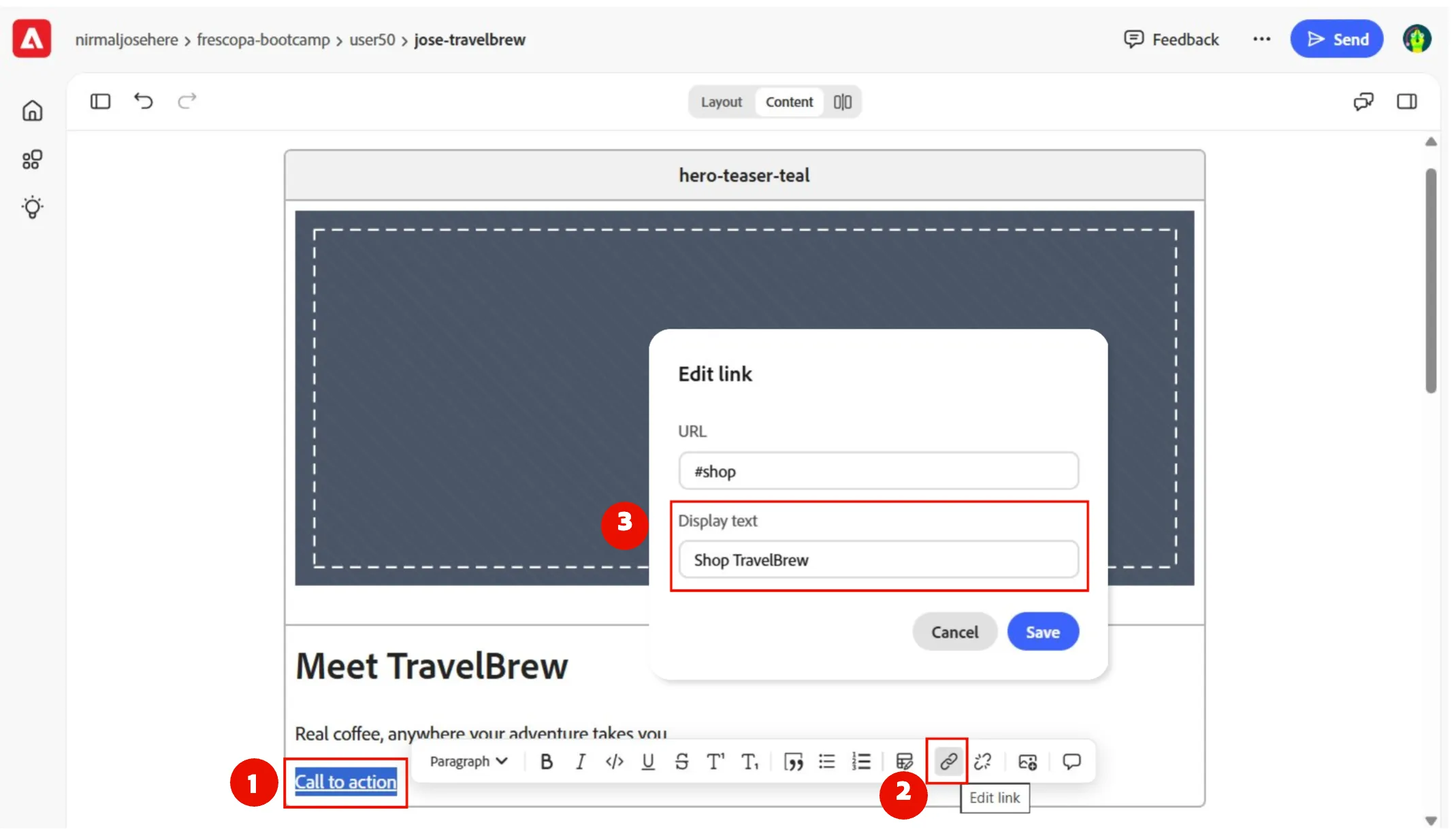
- Click on Call to action text to open the link editing options. Select Edit link and update Display text to Shop TravelBrew
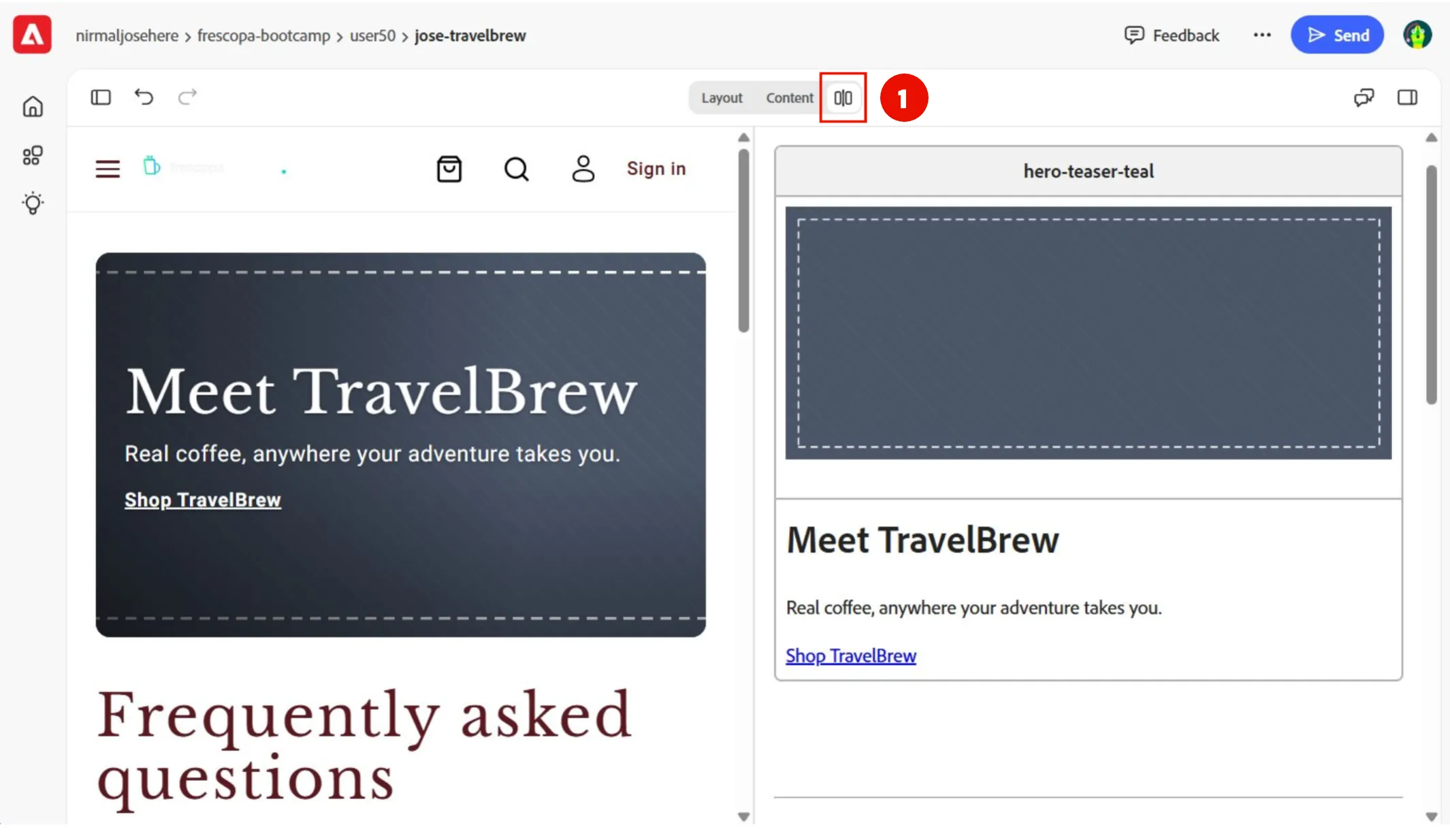
- That's it, you have updated the copy on the hero banner. Switch to Split view of the editor and see how it look in the editor. This way, you can see how it will look for the customers before even publishing to a preview server.
Replace image in hero banner
- Switch back to Content view if you want more screenspace.
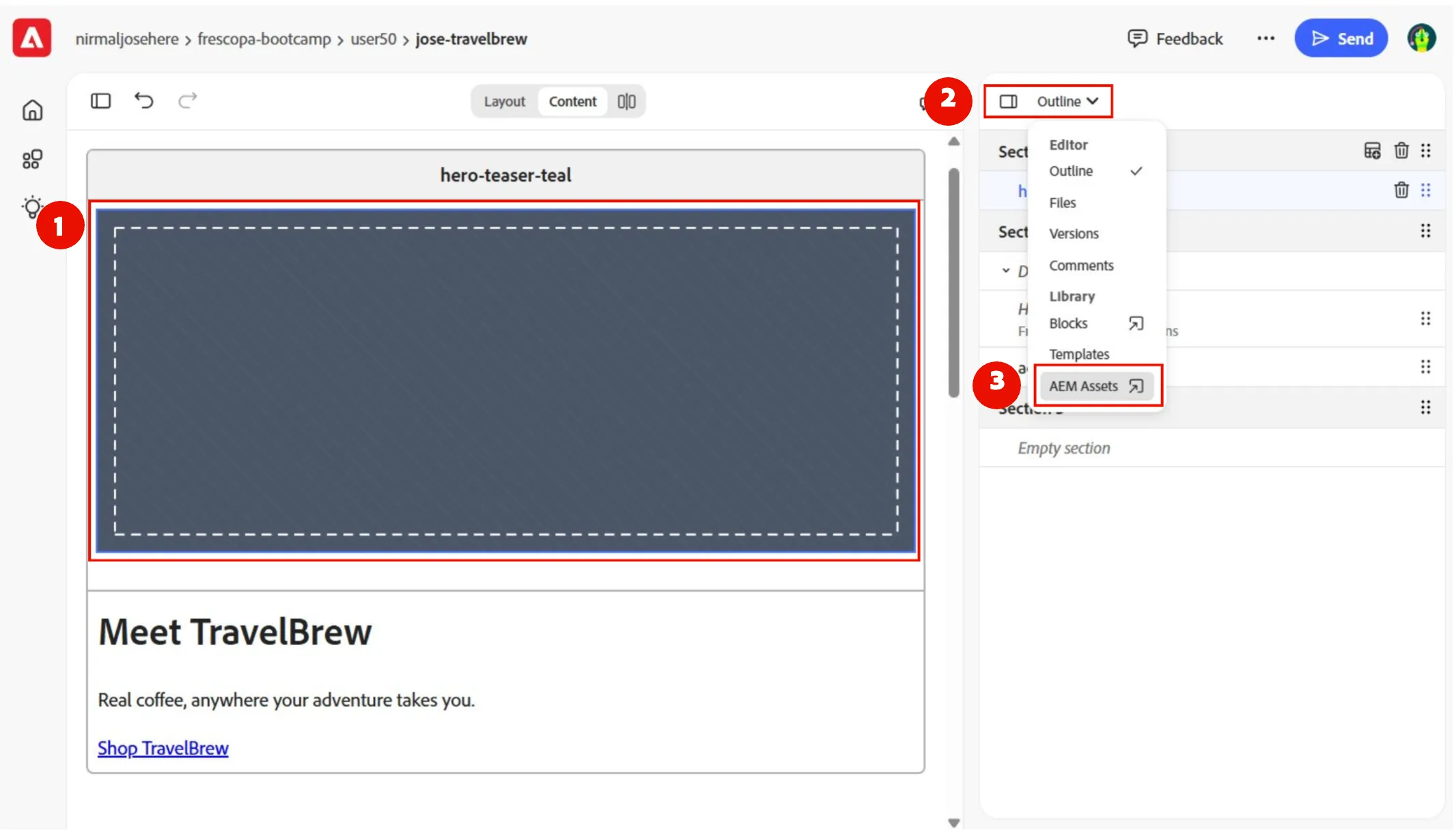
- Click on the placeholder image and press delete button. This will remove the placeholder image.
- To see the menu options, click on Outline on the menu and select AEM Assets from the pop menu. This will open AEM Assets folder.
- Navigate to bootcamp folder, select travelbrew-hero.png and click Select.
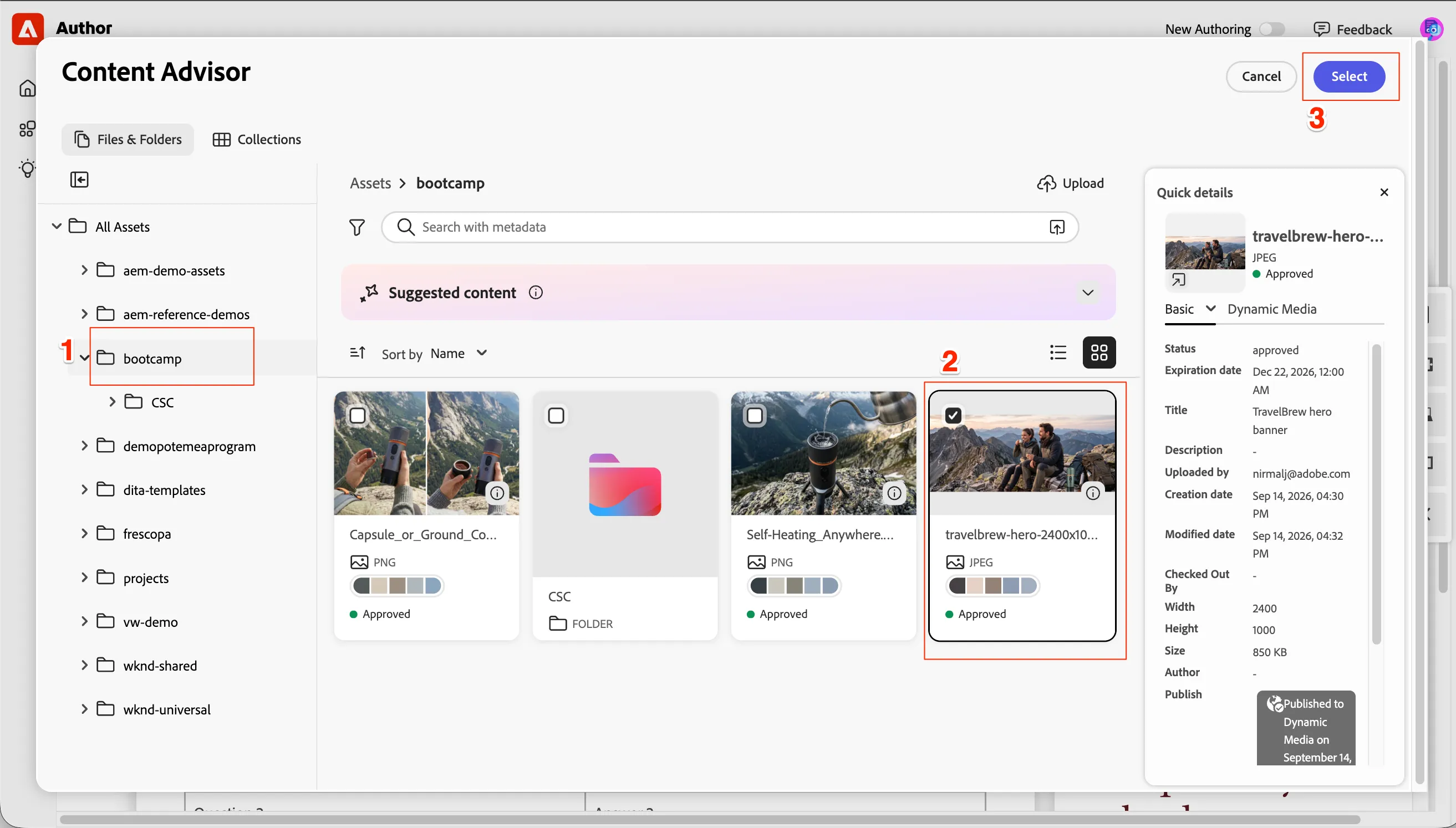
- This should get the assets from AEM Assets digital asset management system and place it as the hero banner image on our page.
Update the FAQ contents
- Replace the accordion placeholder content block with the below content.
Question Content | Answer content |
|---|---|
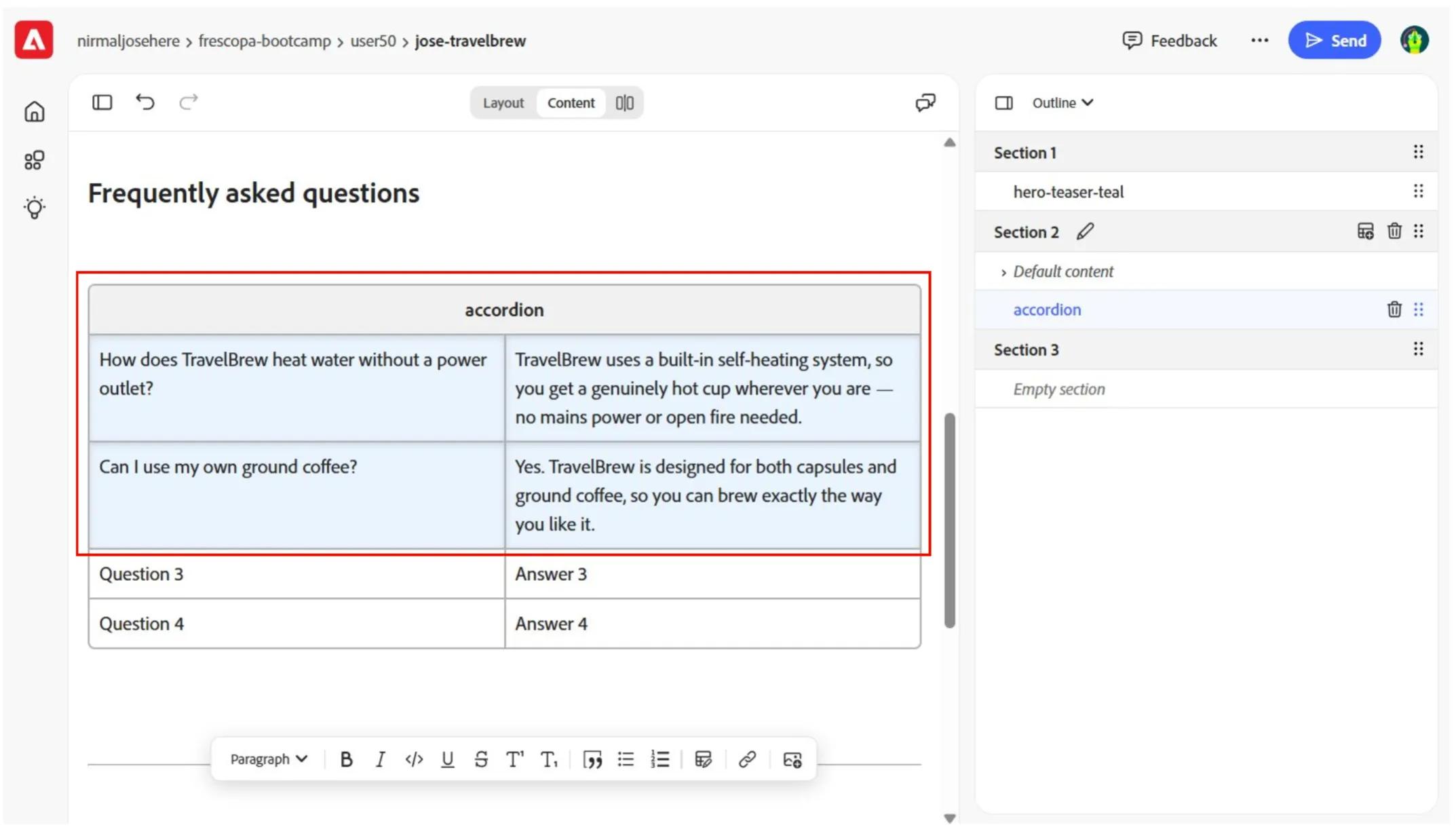
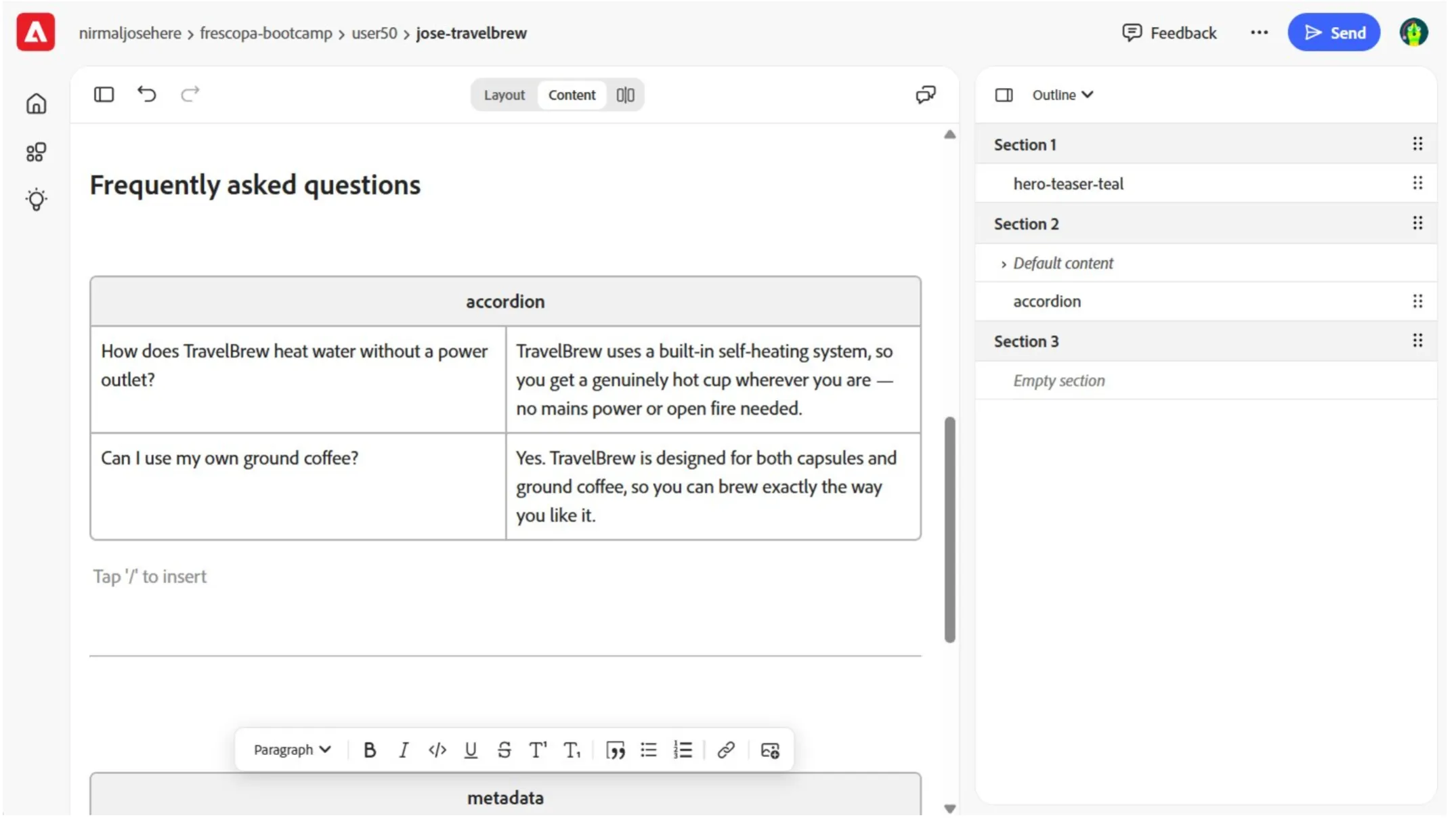
How does TravelBrew heat water without a power outlet? | TravelBrew uses a built-in self-heating system, so you get a genuinely hot cup wherever you are — no mains power or open fire needed. |
Can I use my own ground coffee? | Yes. TravelBrew is designed for both capsules and ground coffee, so you can brew exactly the way you like it. |
- Once updated, it will look like below.
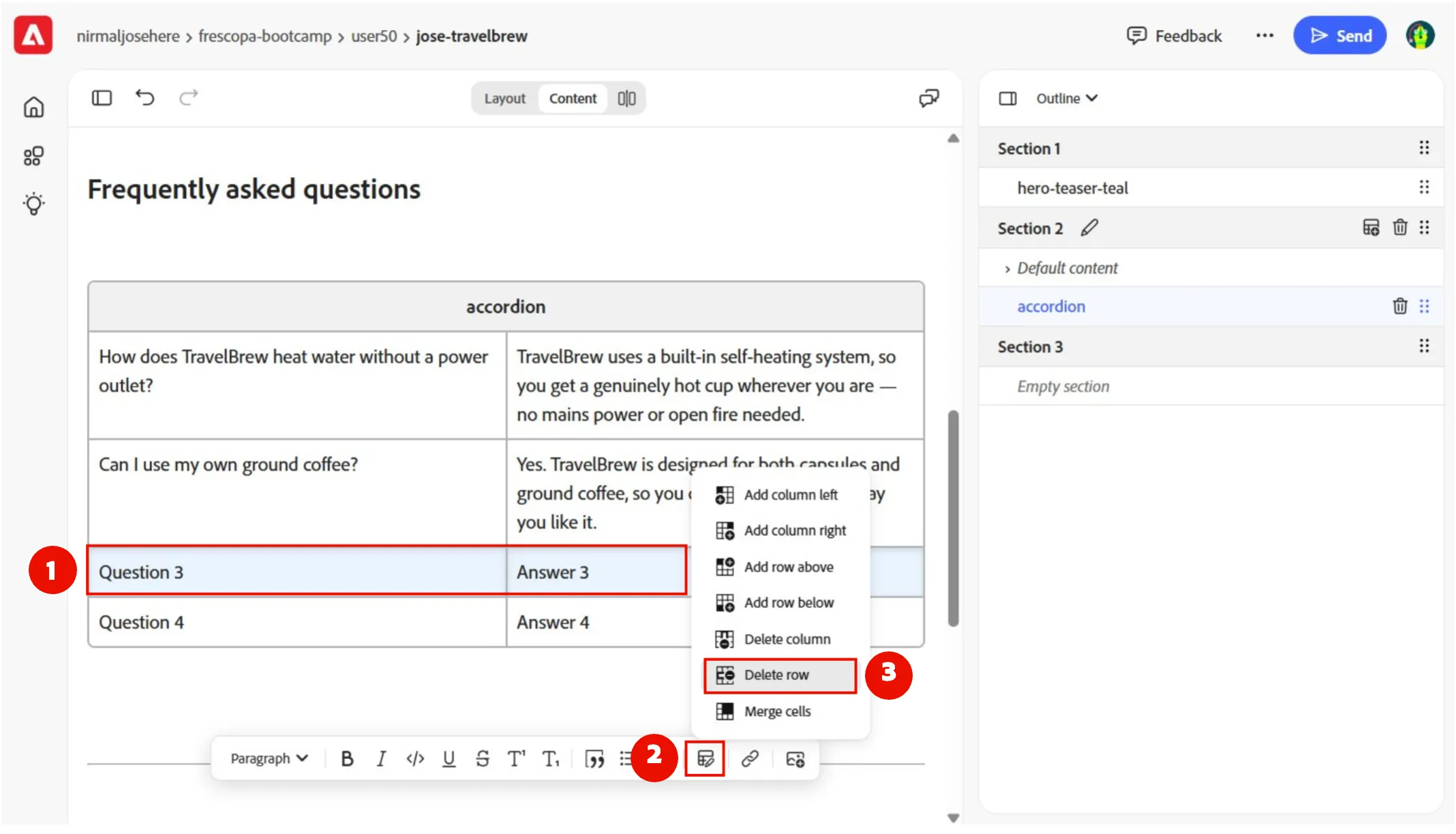
- Click on Question 3, click on Edit block button on the menu and select Delete row option. Do the same for Question 4 as well. This way we will edit the block and remove the unnecessary FAQ items.
- Once all done, it should look like below.
Adding a new block
We want to add some information cards before the frequently asked questions.
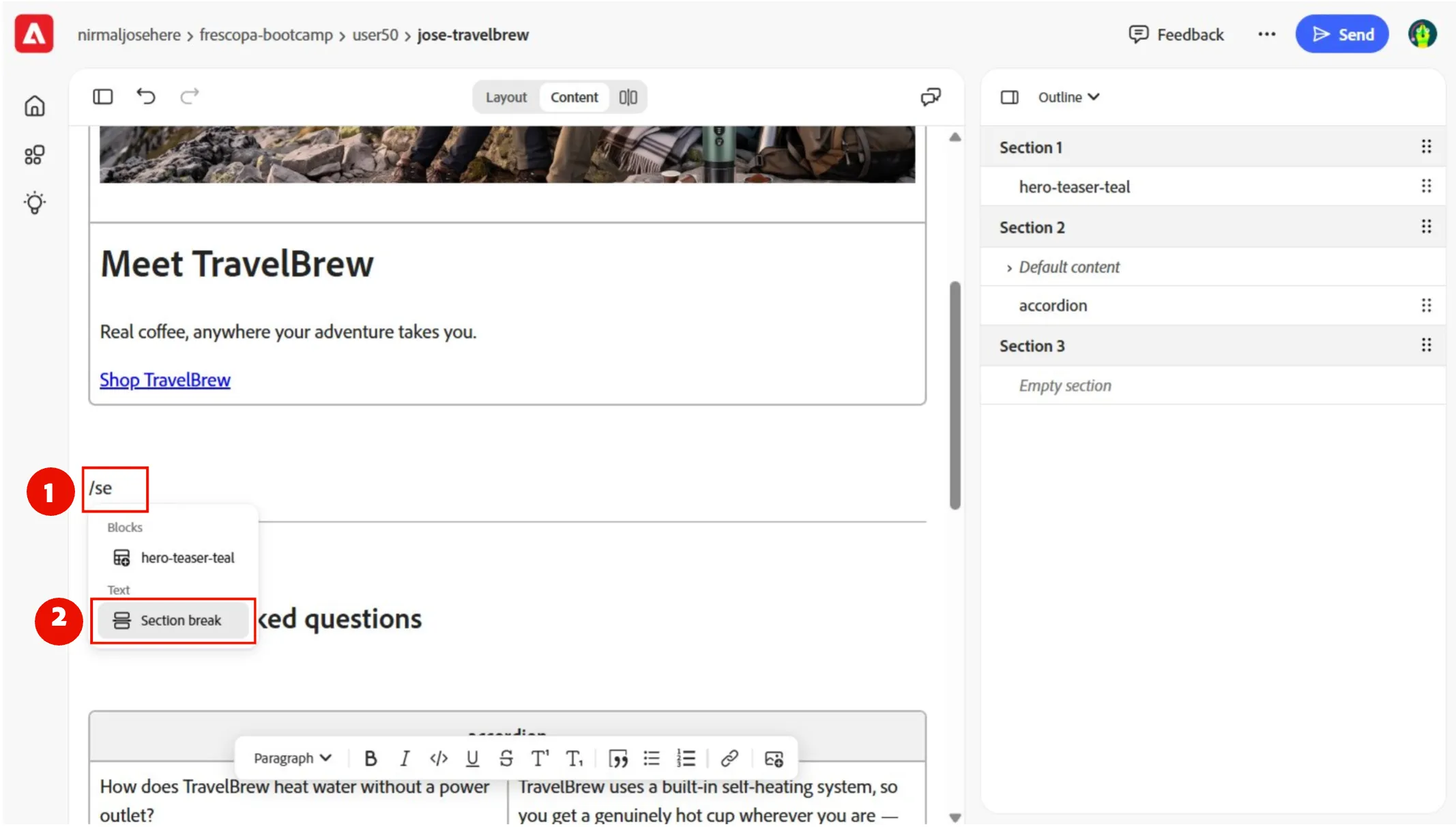
- First, let's add a Section. Place your cursor below the Hero block, and type /sec and select Section break block:
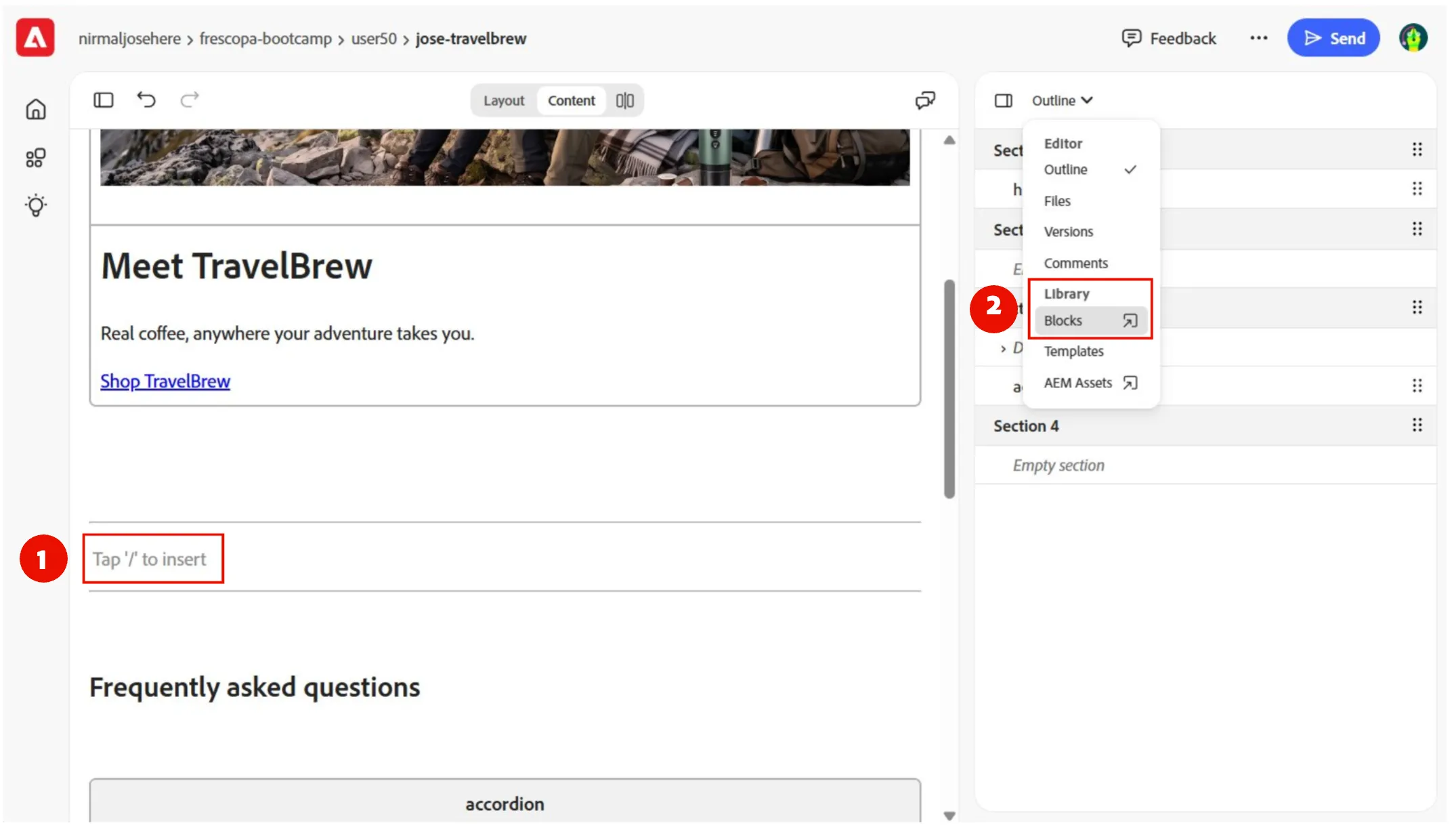
- Place your cursor in between the 2 sections:

- Go to menu options by clicking on Outline, and click on Blocks to show the available blocks.
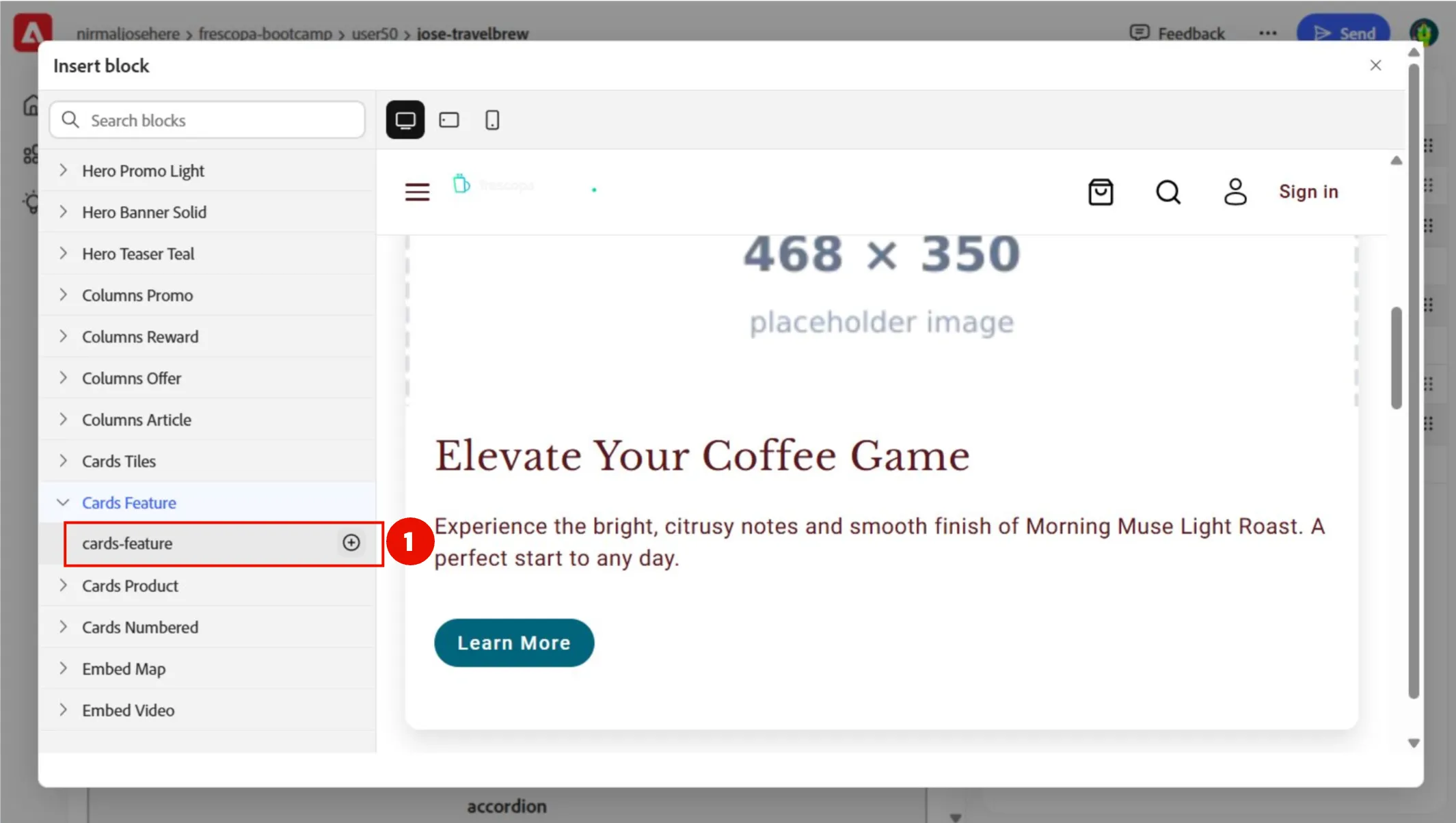
- Click on the Cards - Feature, and cards-feature to add the Block element to the page.
- See our cards block that has been added, with placeholder content.
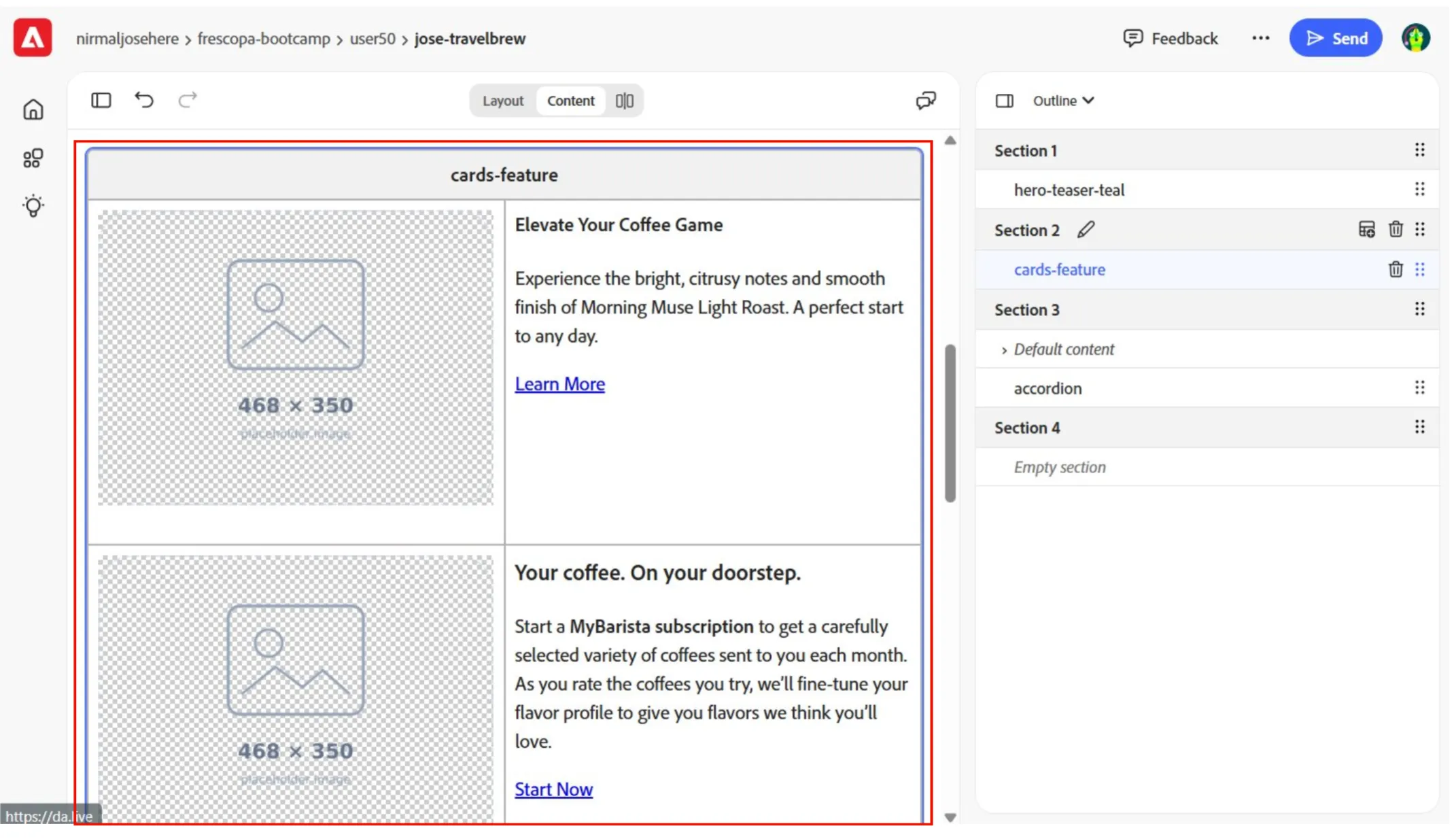
- Update the first cards row with TravelBrew content.
- On the Image block, click Library > AEM Assets
- Navigate to Bootcamp folder and select Self-Heating-Anywhere.png
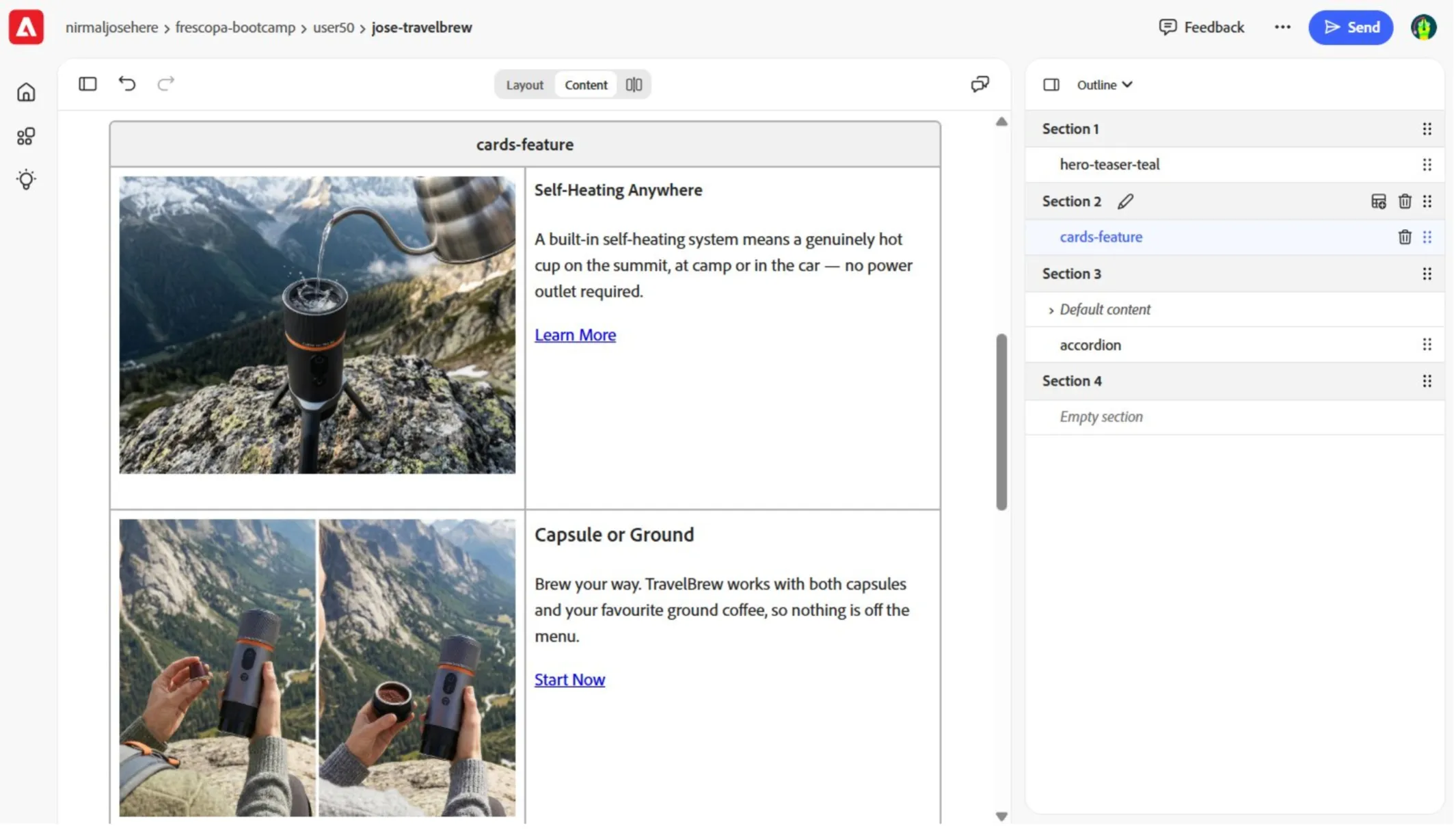
- Replace Feature one title with Self-Heating Anywhere
- Replace Feature one description with A built-in self-heating system means a genuinely hot cup on the summit, at camp or in the car — no power outlet required.
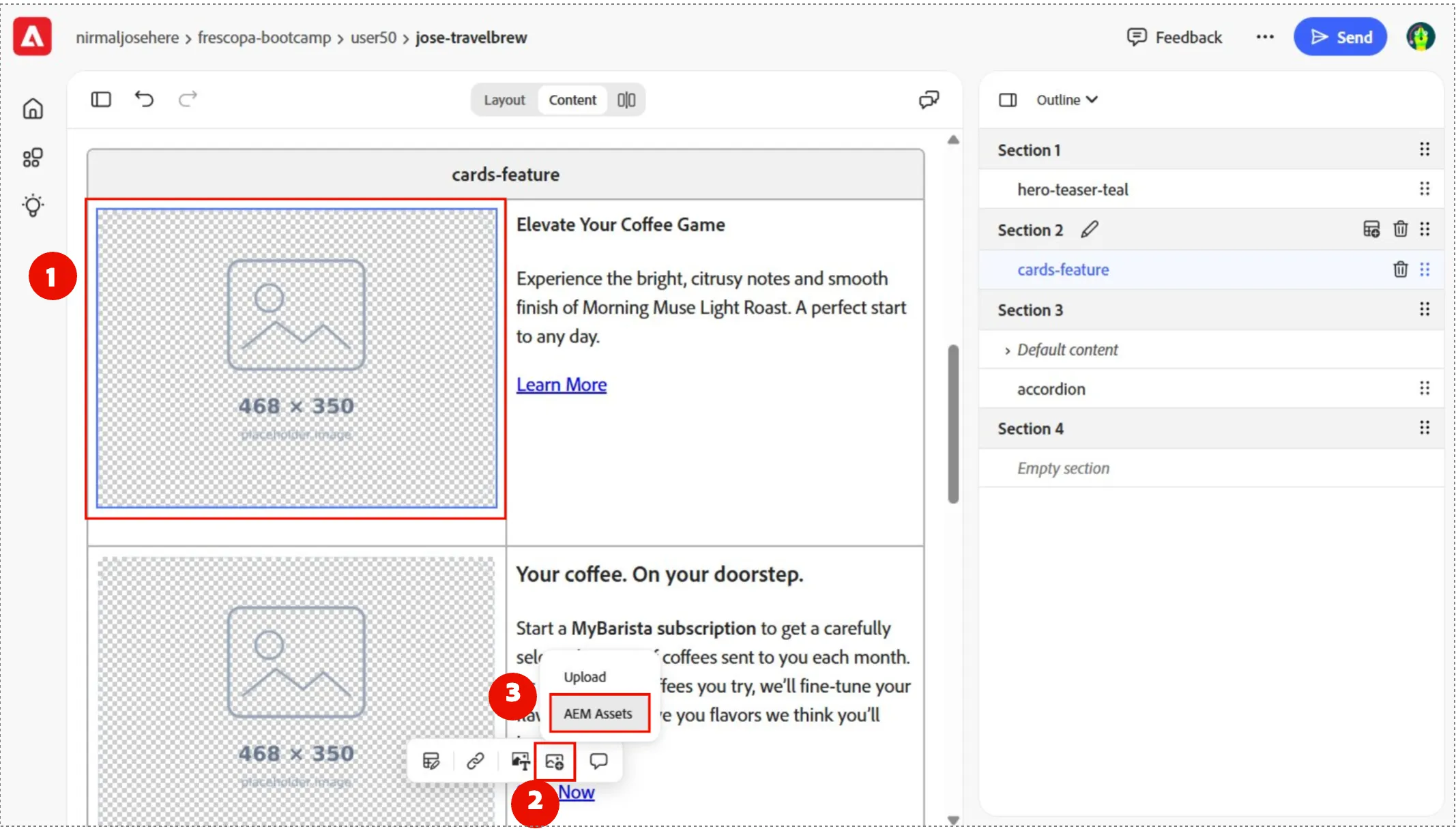
- Do the same for the second TravelBrew card content.
- On the Image block, click Library > AEM Assets
- Navigate to Bootcamp folder and select Capsule-or-ground-coffee.png
- Replace Feature one title with Capsule or Ground
- Replace Feature one description with Brew your way. TravelBrew works with both capsules and your favourite ground coffee, so nothing is off the menu.
Preview the TravelBrew landing page
- When all content of the TravelBrew landing page is ready, scroll to the top and click the send icon and click Preview.
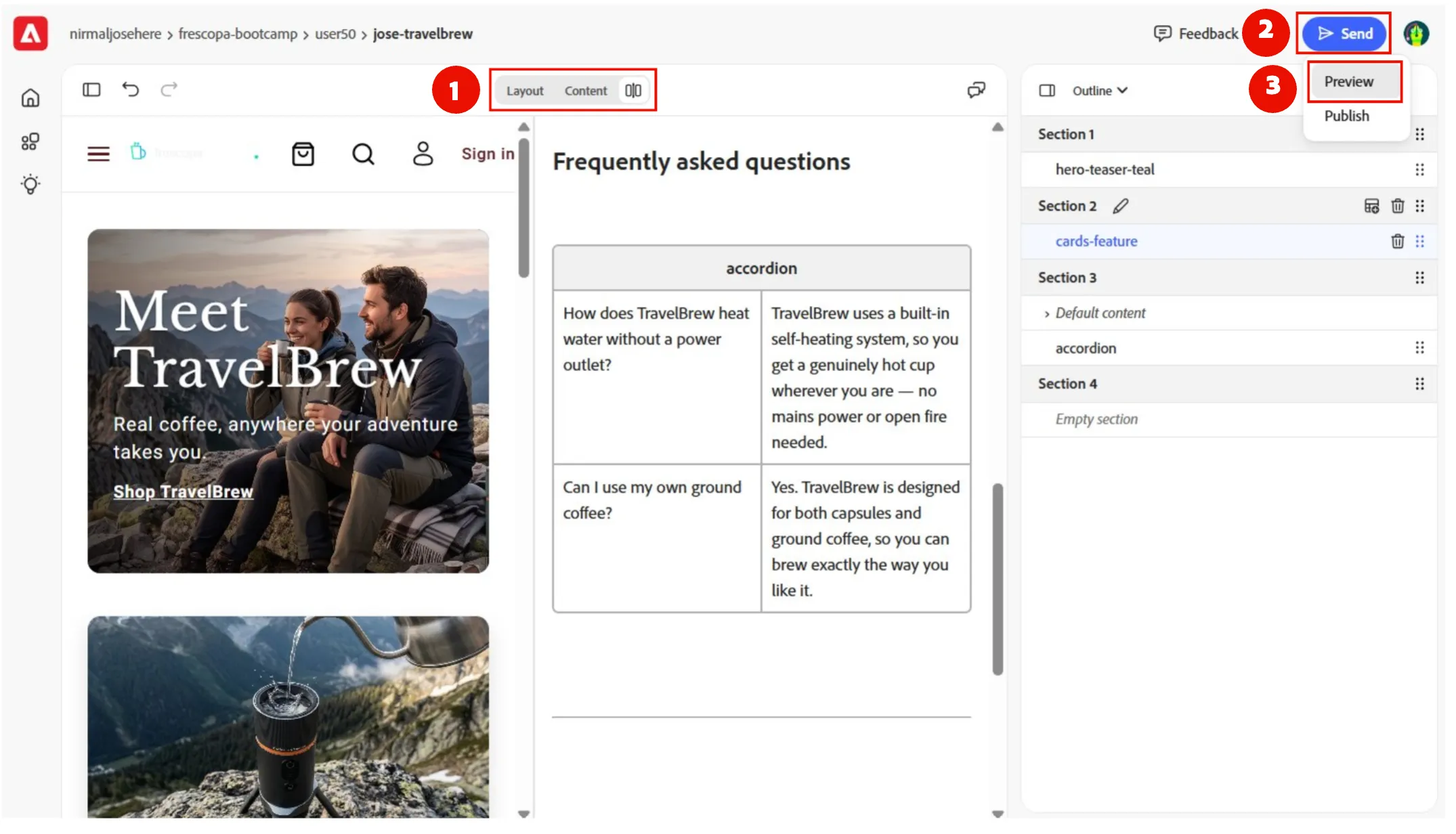
- This will open a new tab for our page to preview.
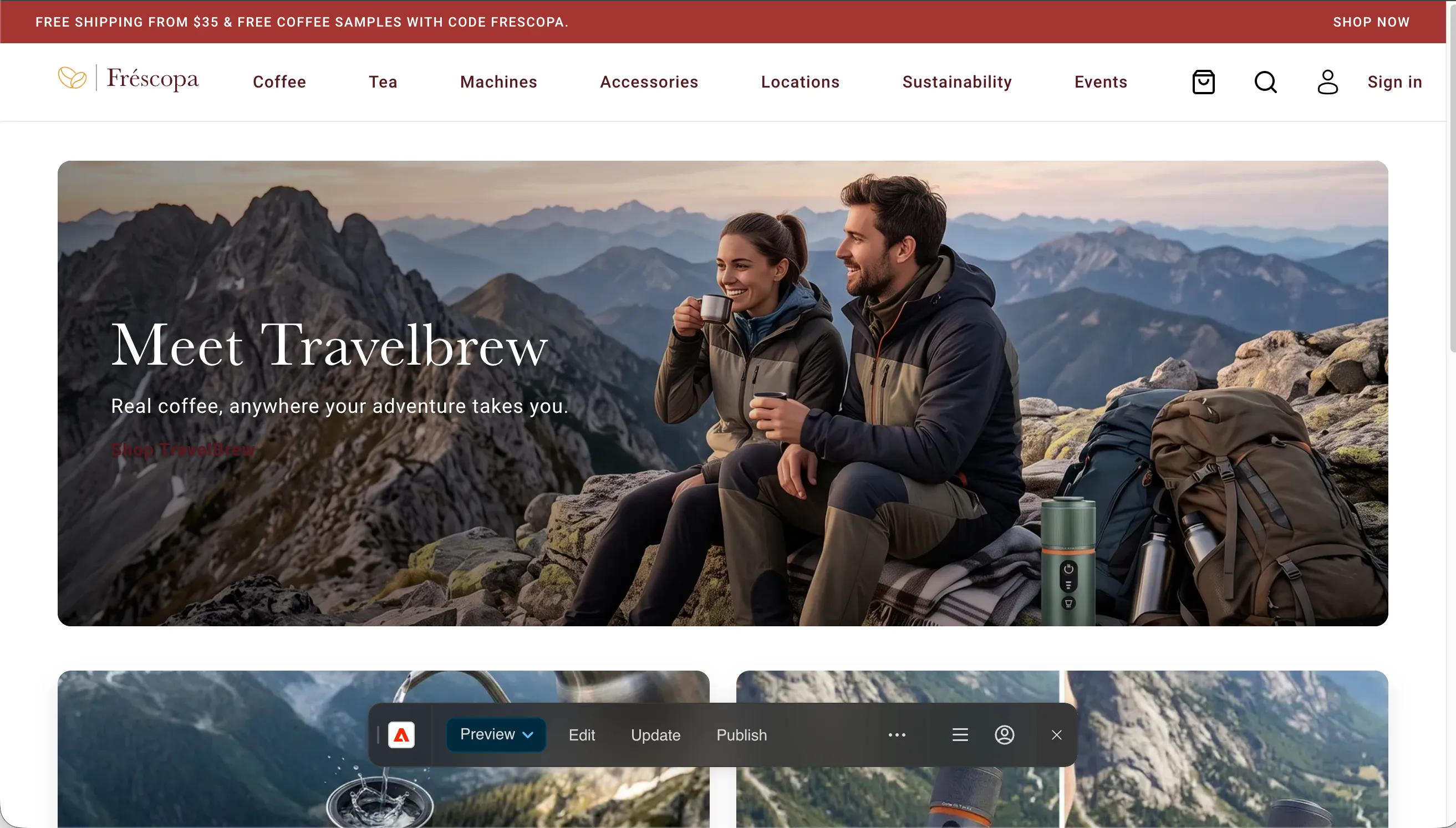
Congratulations!
You have successfully created a TravelBrew landing page in Document Authoring. You used a template to get the initial structure, updated default block content and added new blocks. You also previewed the page and validated its content, structure, and presentation.
Want to know more about Document Authoring's latest updates? → Click Here