Create your page
Overview
In this exercise, you will create a new Product Landing page using Document Authoring (DA) for our new product TravelBrew. You will work in the Frescopa demo site, use a template to create the page, update the content on the page, and preview the finished page.
Scenario
The Frescopa demo site needs a new TravelBrew landing page to help visitors to know more about the new product
Create Product Landing Page
- In https://da.live/ navigate to frescopa > user{{USER_NUMBER}} folder., eg. user50
- Ensure you are signed in using the Adobe ID provided for the lab.
- Create a new Page:
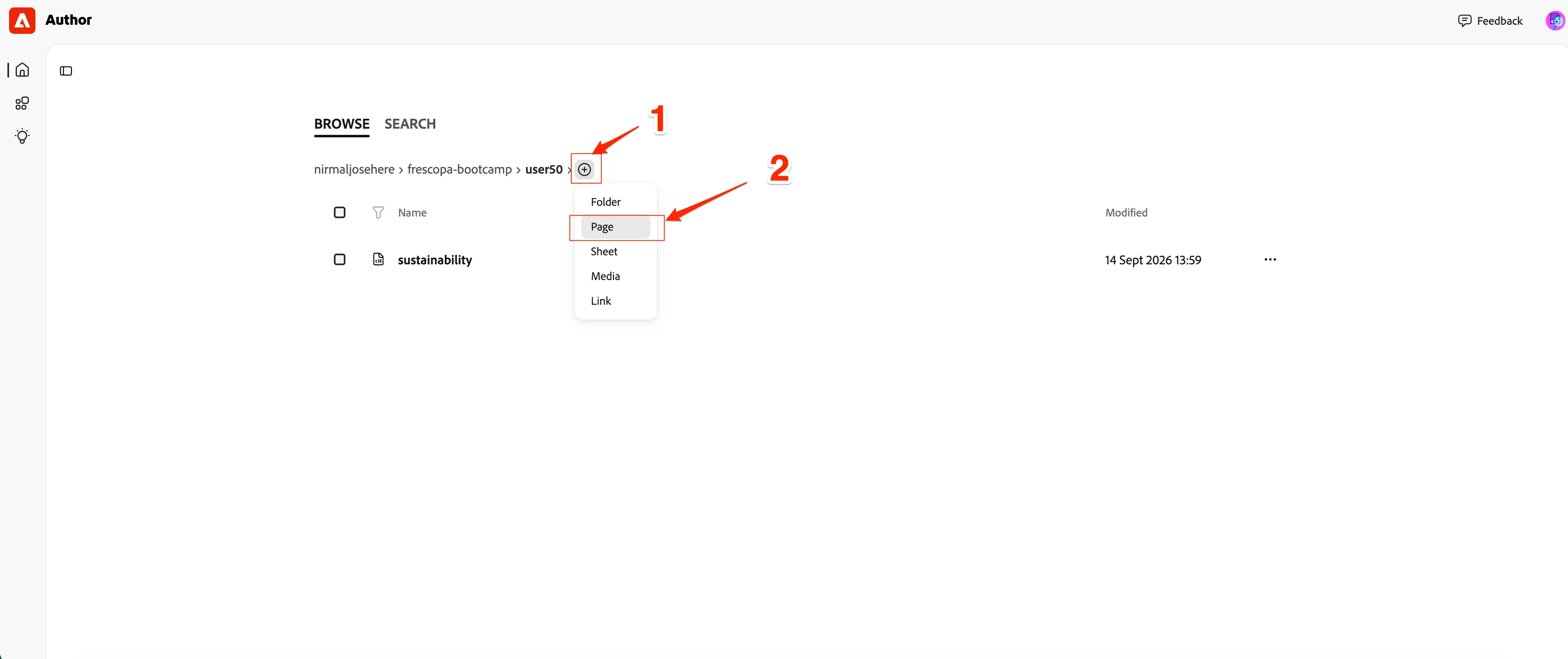
- Name the Page: {{LASTNAME}}-travelbrew
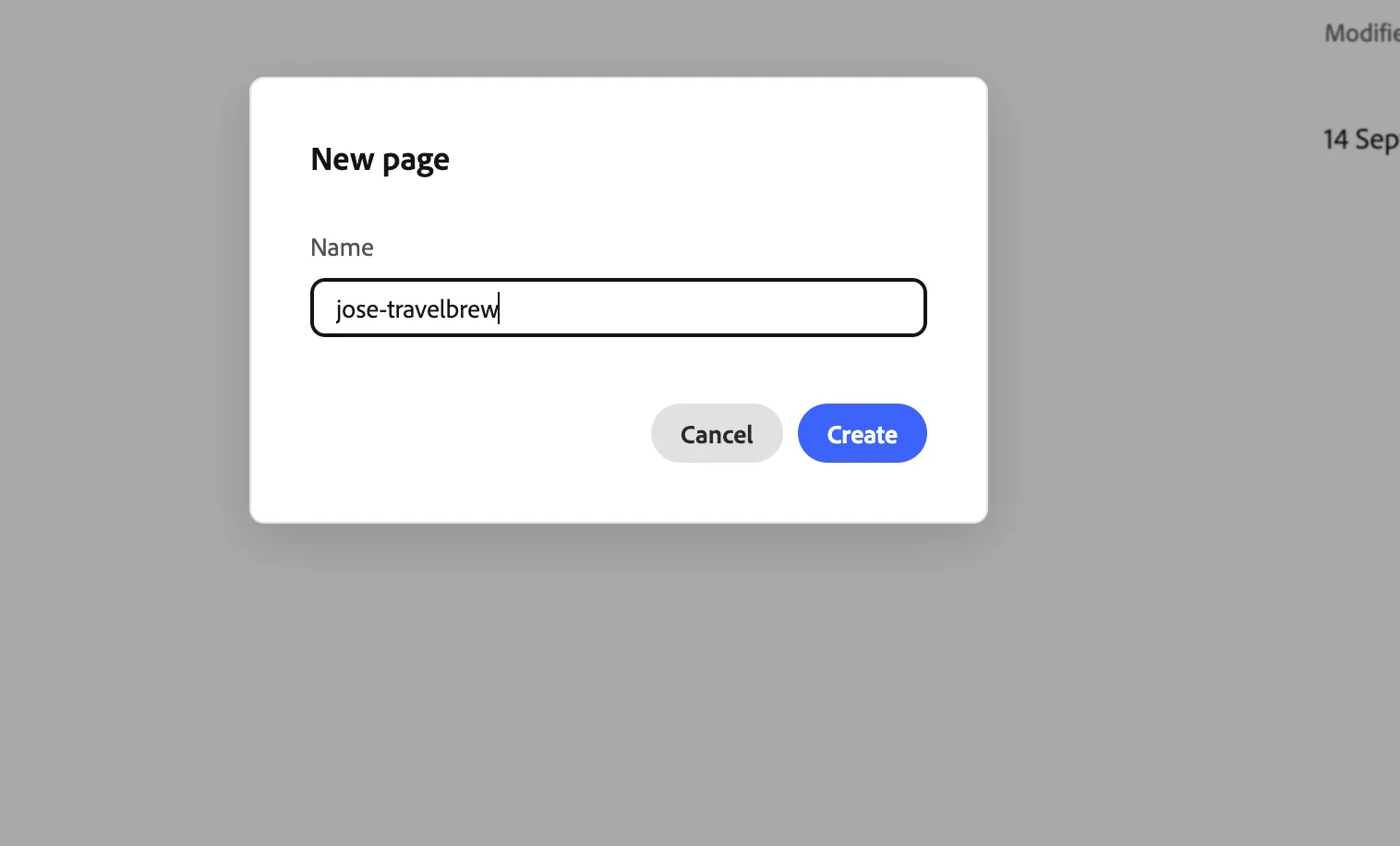
- Click Create.
- This will take you to the DA authoring interface of your page:
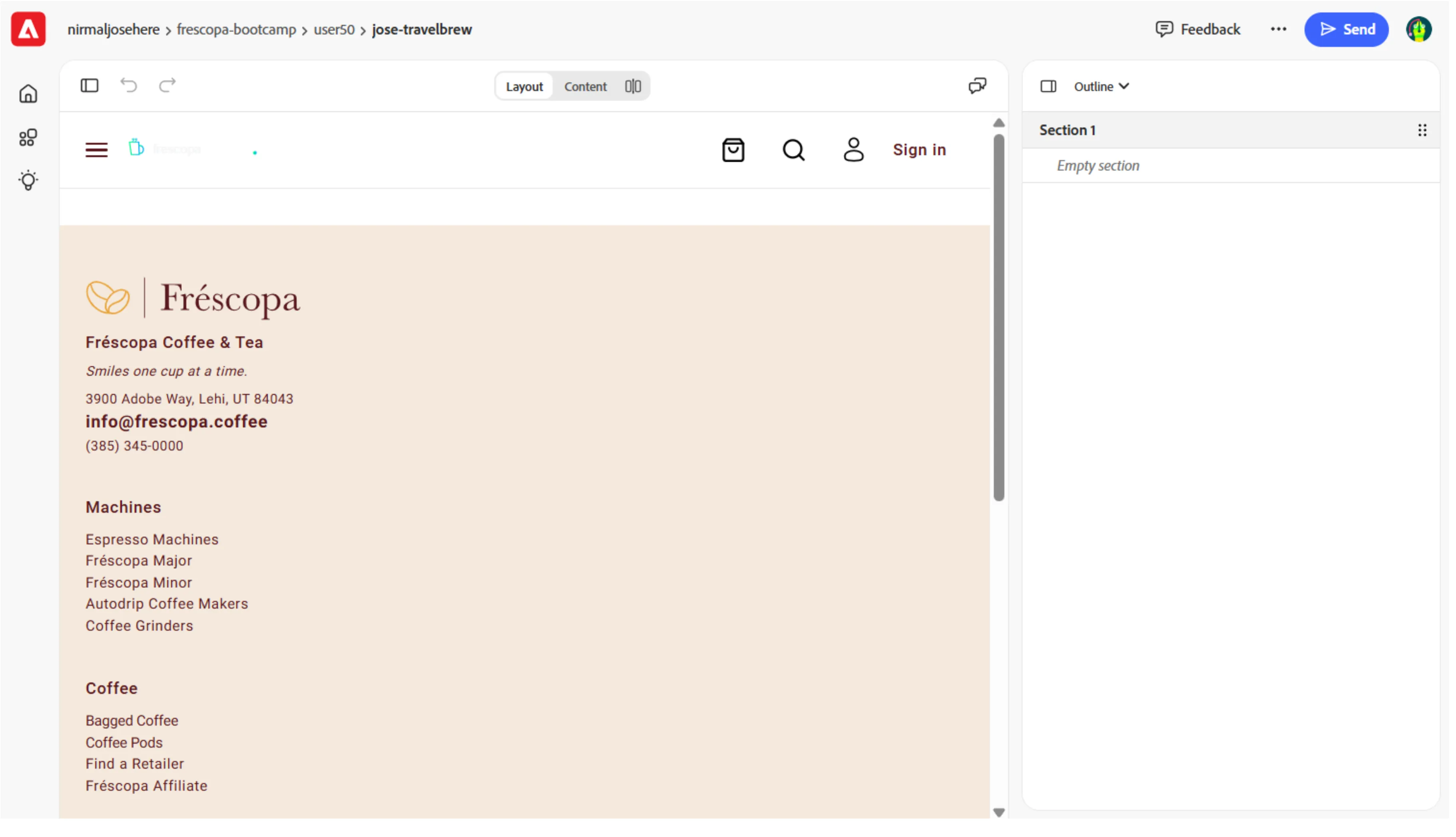
Start from Product Landing page template
We have prepared an product landing page template to start our page from.
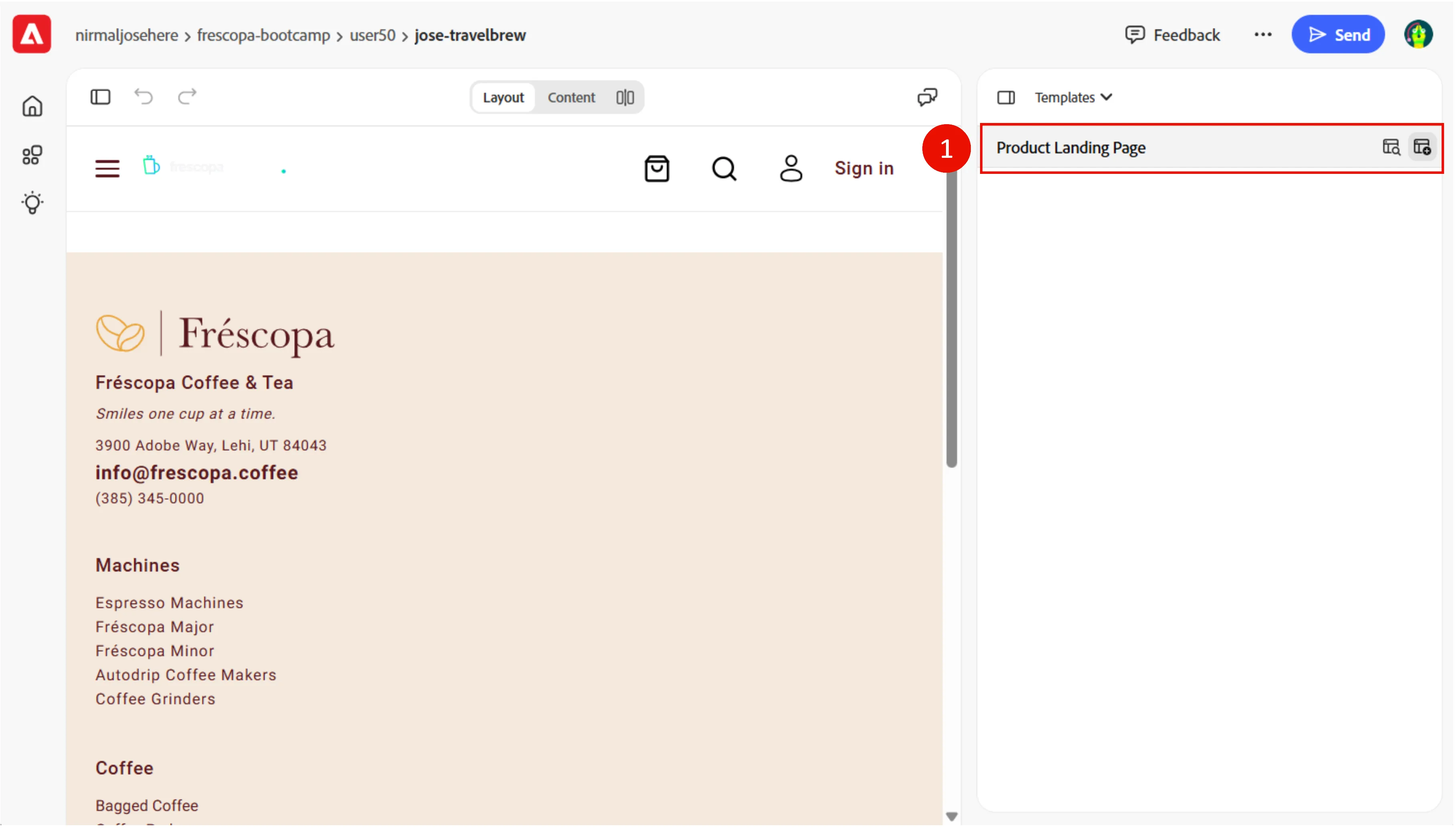
- Go to menu options buy clicking on outline, then Templates:
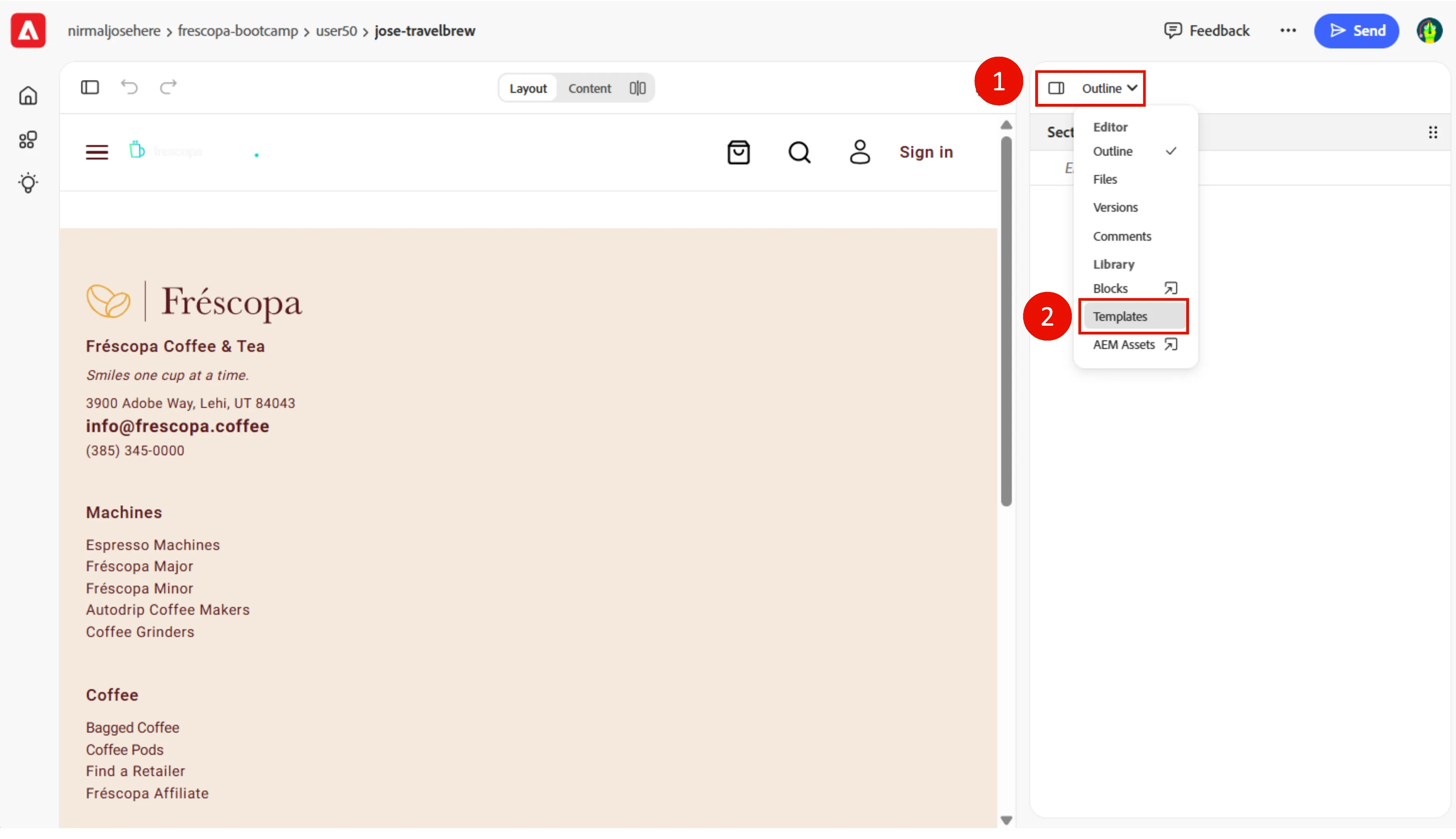
- You can preview the Product Landing template by clicking on the preview icon. Click on Product Landing Page to add the template to our page:
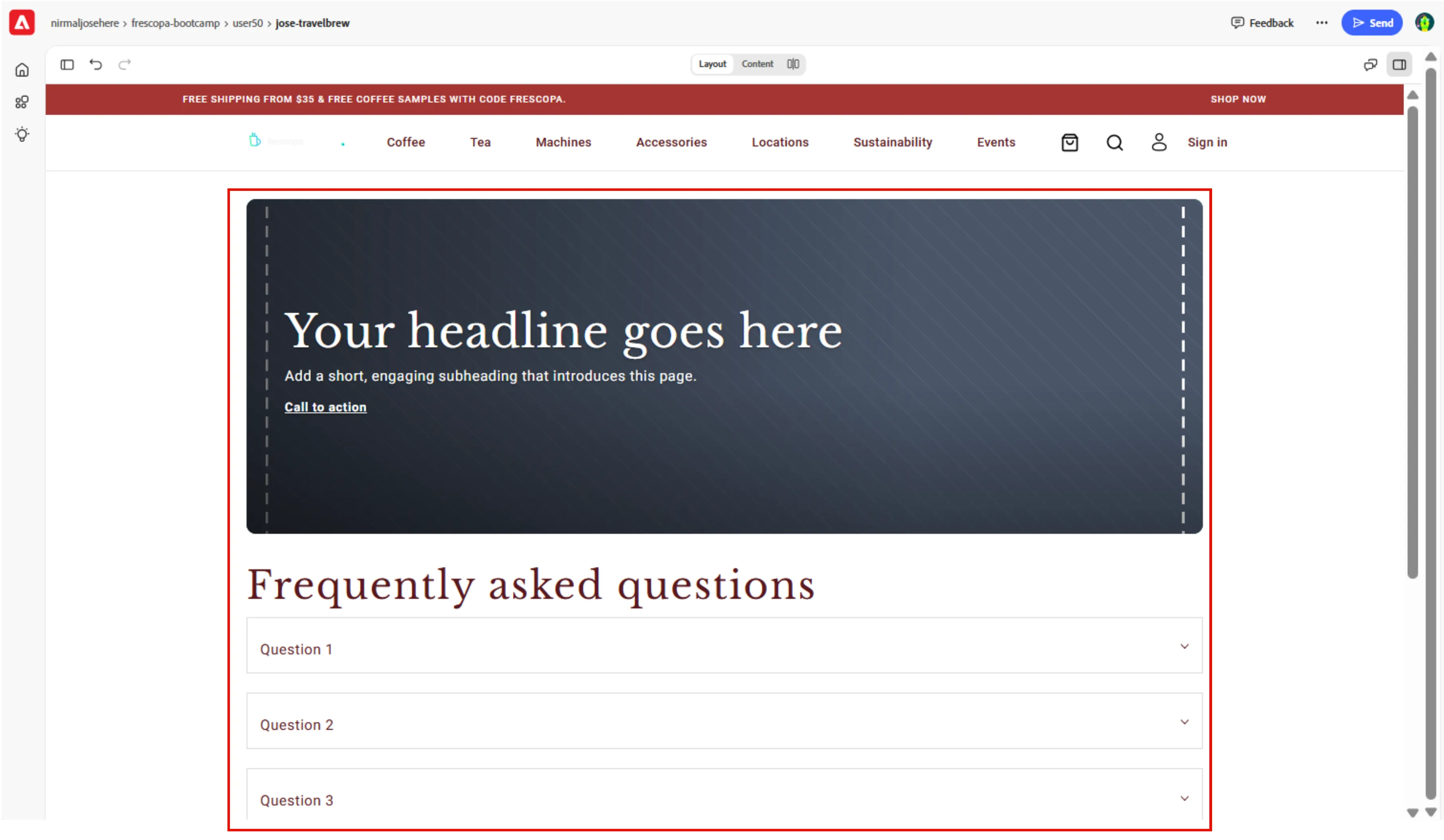
- You can see that a few elements have been added to our page as per the template design.
Conclusion
In this exercise, you created a new Product Landing page in Document Authoring for the TravelBrew product in the Frescopa demo site.
This exercise demonstrated how Document Authoring enables users to create structured content quickly, reuse templates, and preview updates in real time before making the page available to visitors.
Do not close the DA page, as we will need it in the next exercise.
Next In the next exercise, we will author some content on the page we just created.