UI Overview
3 min
Document Authoring builds upon the knowledge you likely already have from using other word processors like Microsoft Word or Google Docs. This should give you a head start in being able to make content.
Browsing through the website authoring structure
- Go to https://da.live/ and click on Sign In to login using the provided Adobe ID. Refer your credentials if needed in this pagein this page.
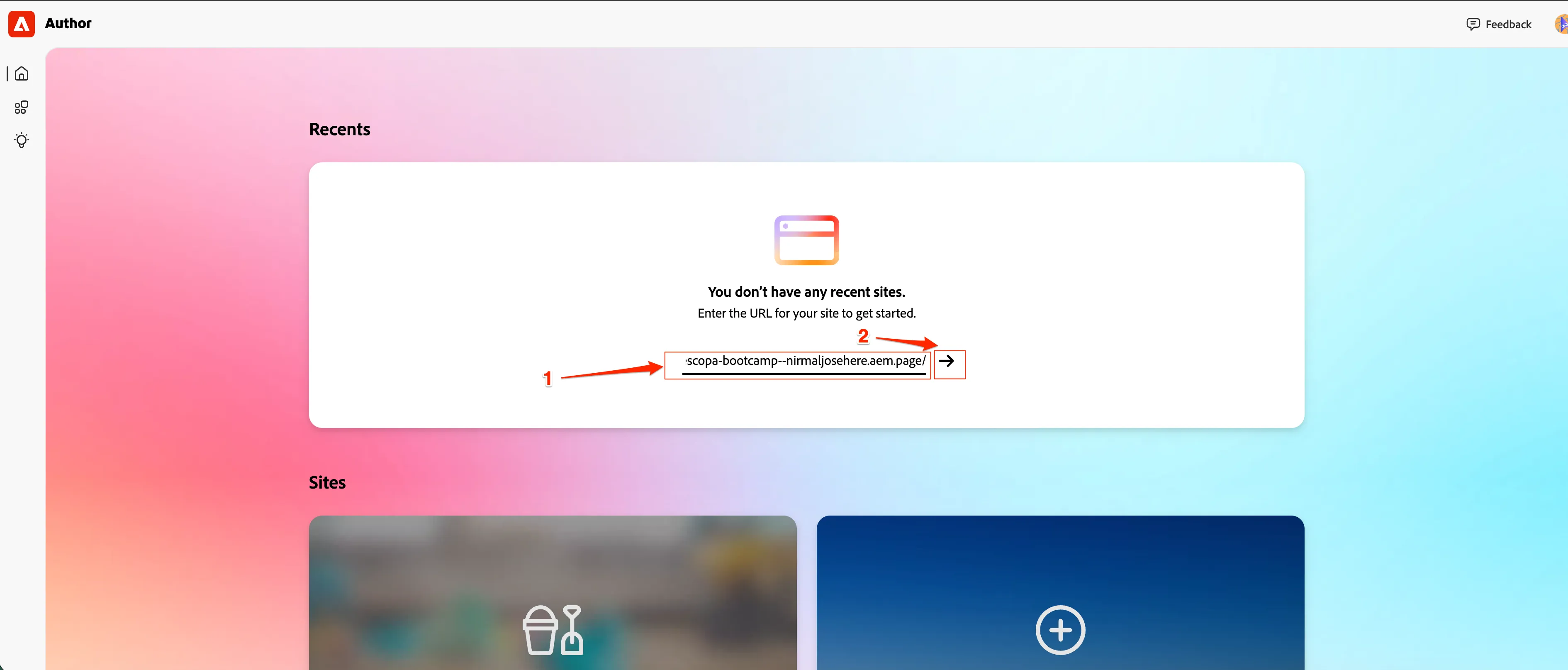
- Enter https://main--frescopa-bootcamp--nirmaljosehere.aem.page/ in the input field for the URL of your site to get started as below and Click on ->- icon.
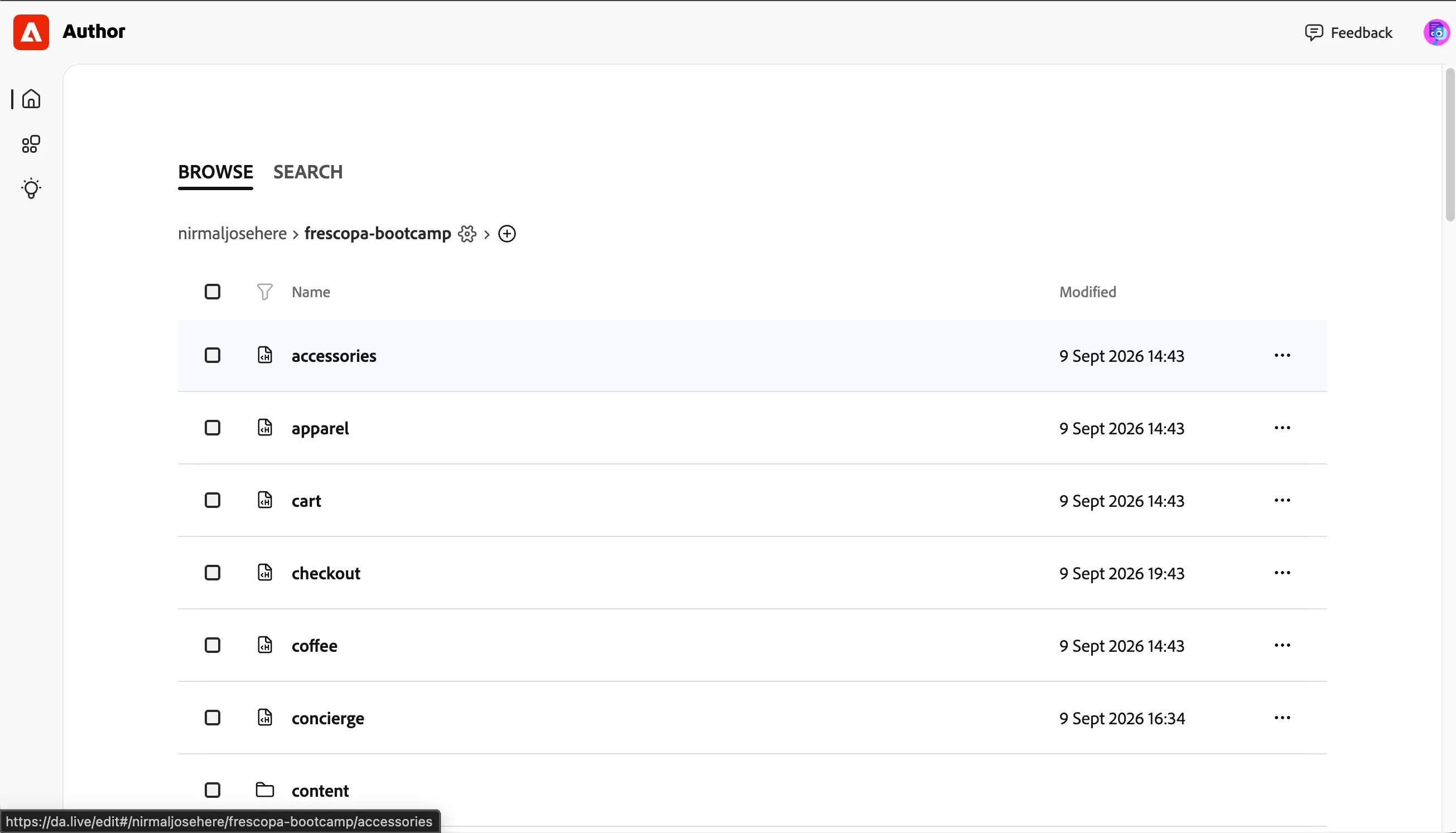
- This should take you to the authoring view of our Frescopa demo site. This page shows all the author files that are serving our website. (you may see more pages on our site)
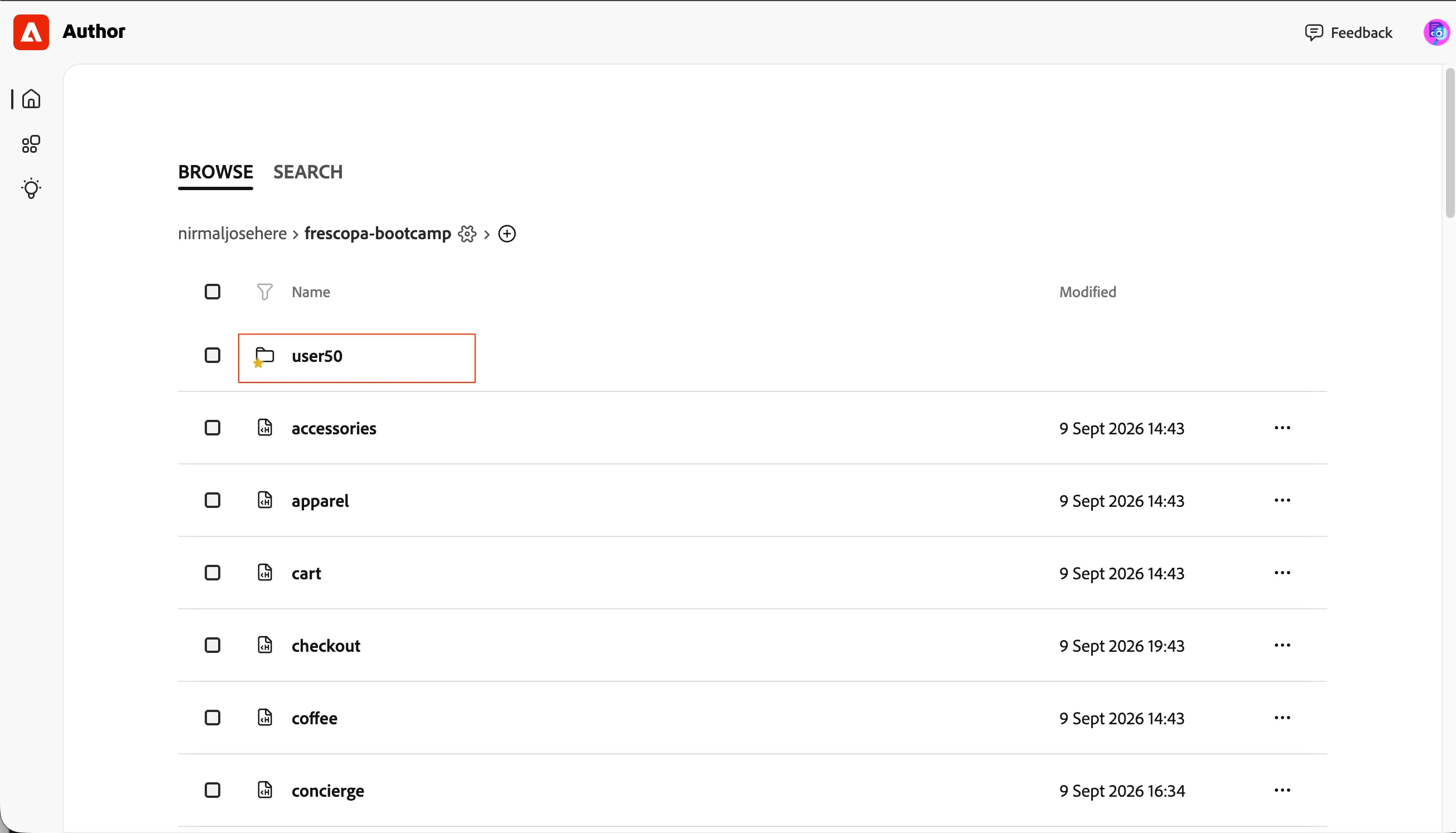
- Let's go to our your folder, user{{USER_NUMBER}} by clicking on it. eg. user50.
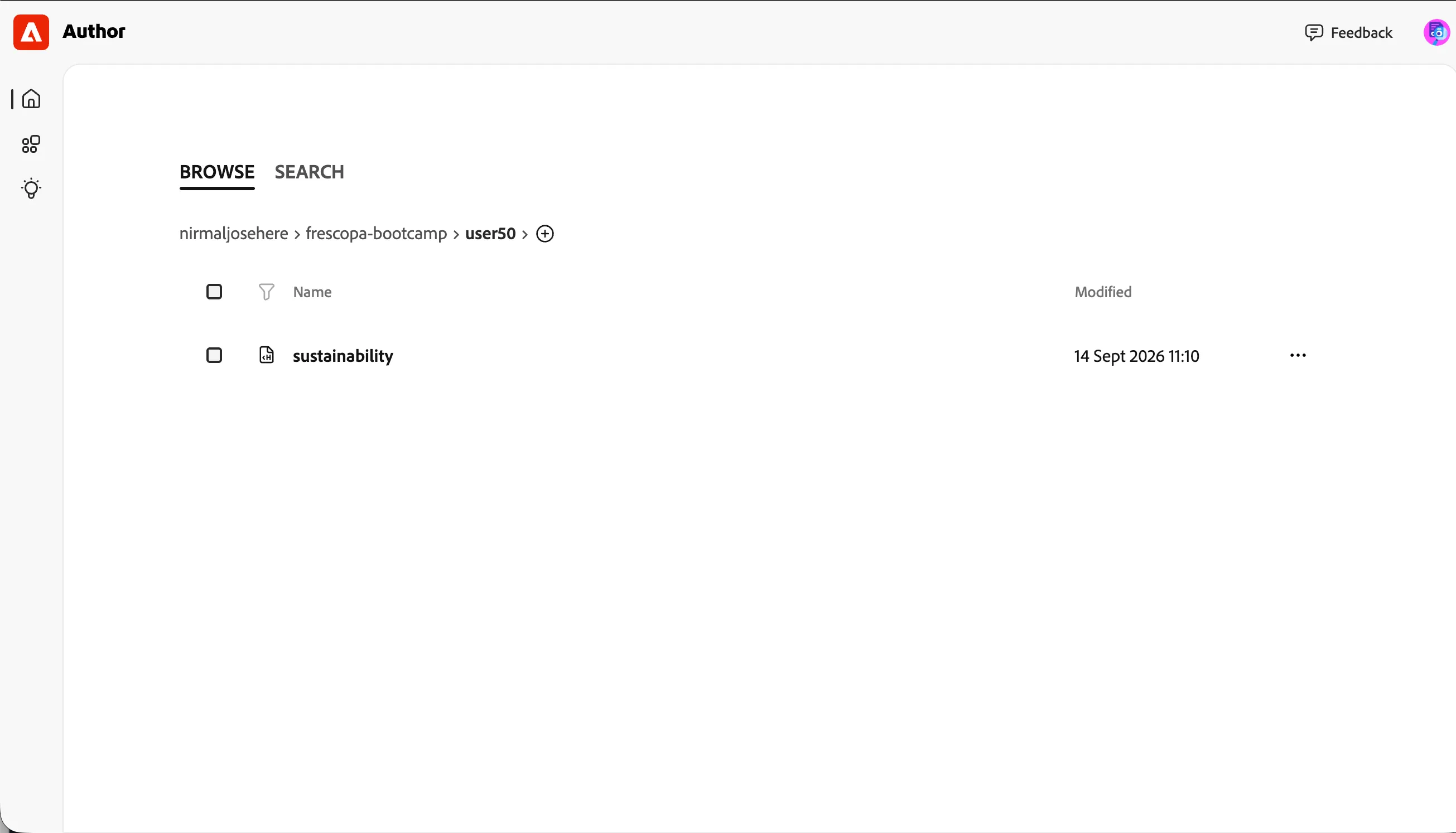
- Click on 'sustainability' to open the Sustainbility page in your folder.
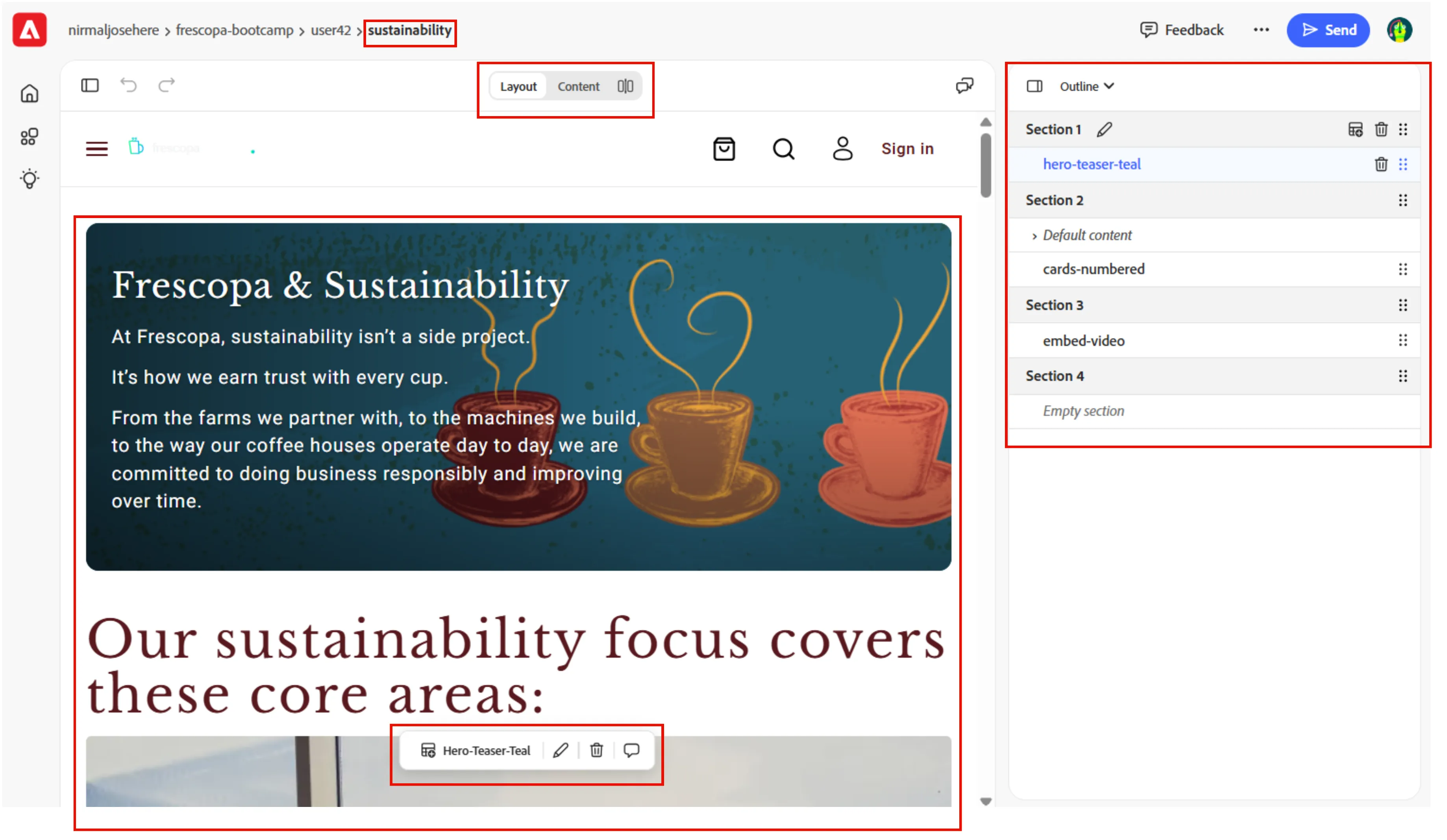
- This will allow you to access the Document Authoring, of our sandbox homepage, have an overview of the UI:
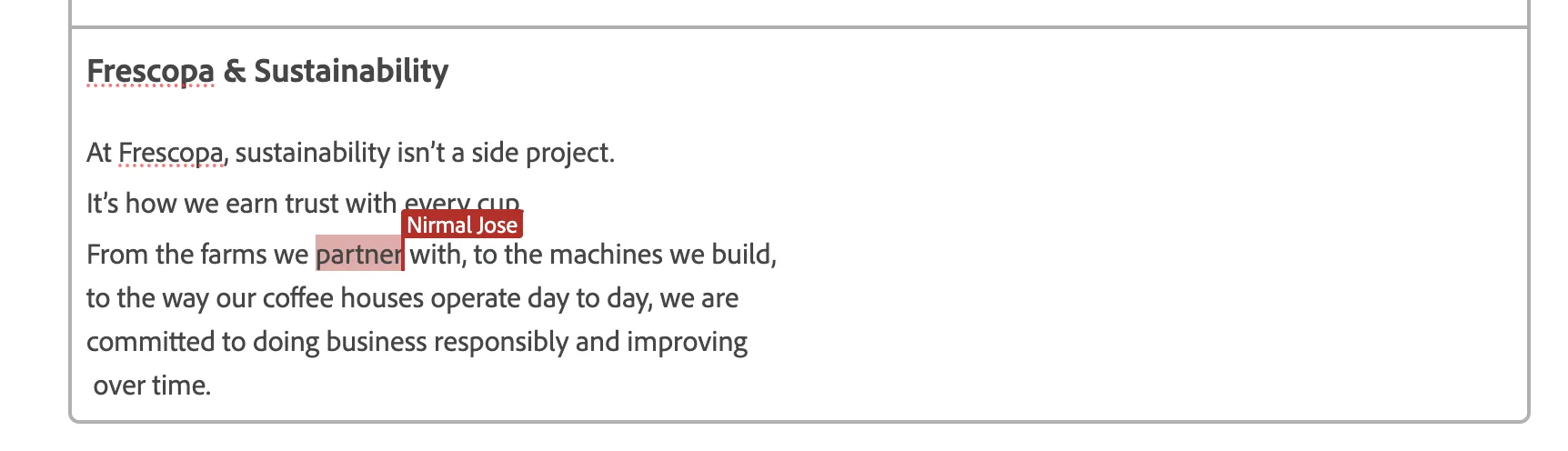
- If there are multiple authors on the same page, you will see their cursors:
Conclusion
By completing this step, you have successfully accessed Document Authoring in AEM, navigated to the Frescopa demo site and an example page content, and explored the authoring interface.
Next: You are now ready to create and update page content in the lab environment.