Environment & Access
User accounts have been created to access the CX Enterprise platform and all of the solutions you'll need in today's workshop.
Login credentials
Your login credentials will be:
Password is Adobe@2026
Full Name | Login email |
|---|---|
Mike Eisenbach | |
Ted Schütz | |
Florian Brauch | |
Ann-Christin Steiner | |
Diana Woede | |
Anne Schaaf | |
Tom Gruner | |
Juliane Zimbehl | |
Britt Hendricks | |
Andre Weppler | |
Merle Meier-Holsten | |
Steffen Georgi | |
Thomas Ruf | |
Michael Giffels | |
Isabell Stoffel | |
Kerstin Paulus | |
Hans-Joachim Klose | |
Rainer Böhm | |
Vanessa Groß | |
Adrian Dungs | |
Mirjam Patermann | |
Sven Sondermann | |
Abdul Munim | |
Marius Schneider | |
Reserve | |
Reserve | |
Reserve | |
Reserve | |
Reserve | |
Reserve |
Password is Adobe@2026
Login steps
- Navigate to CX Enterprise Homepage : https://experience.adobe.com/#/@demopotemea/home
- If you are already logged in on your own or corporate account, log out first.
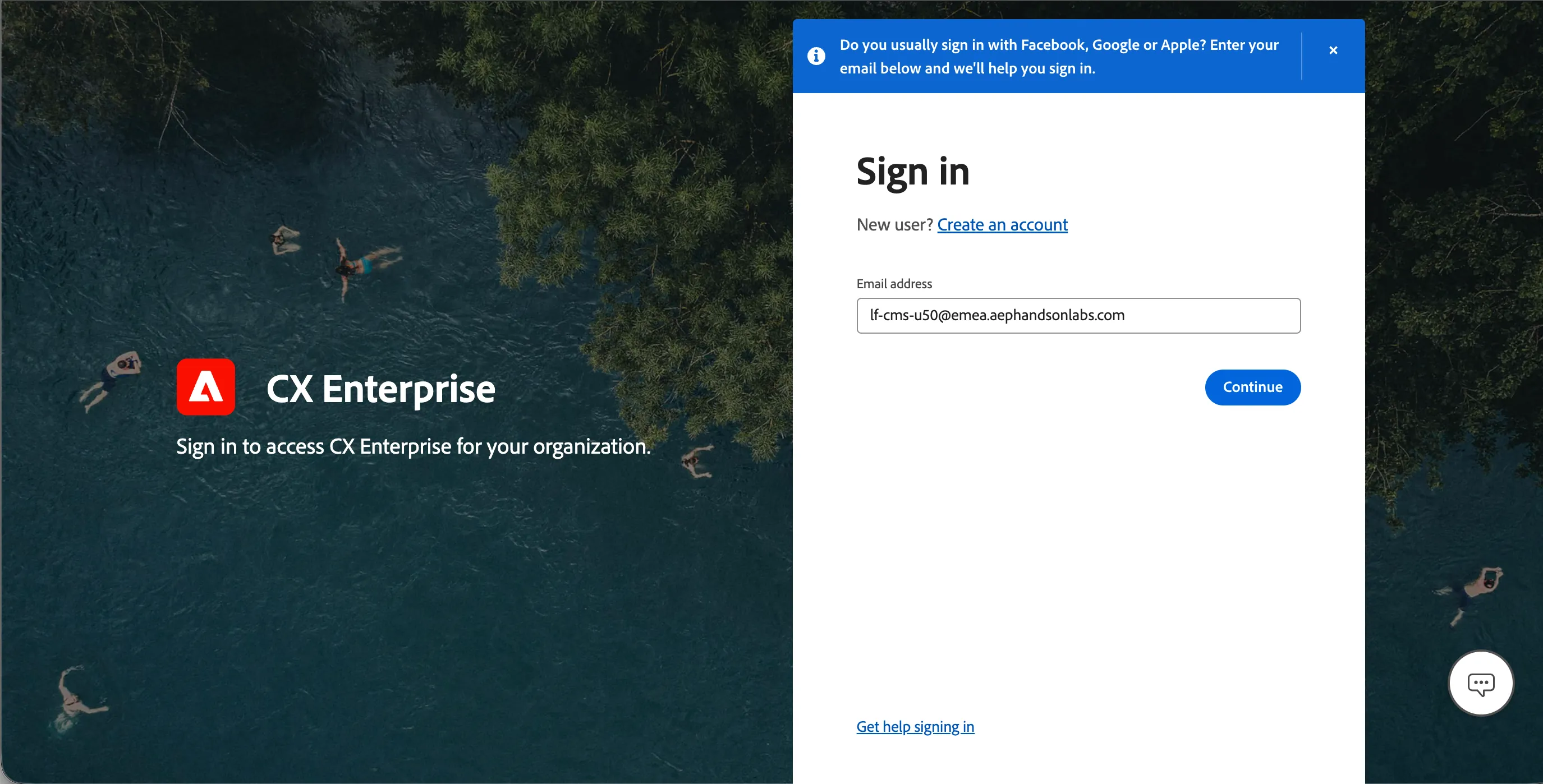
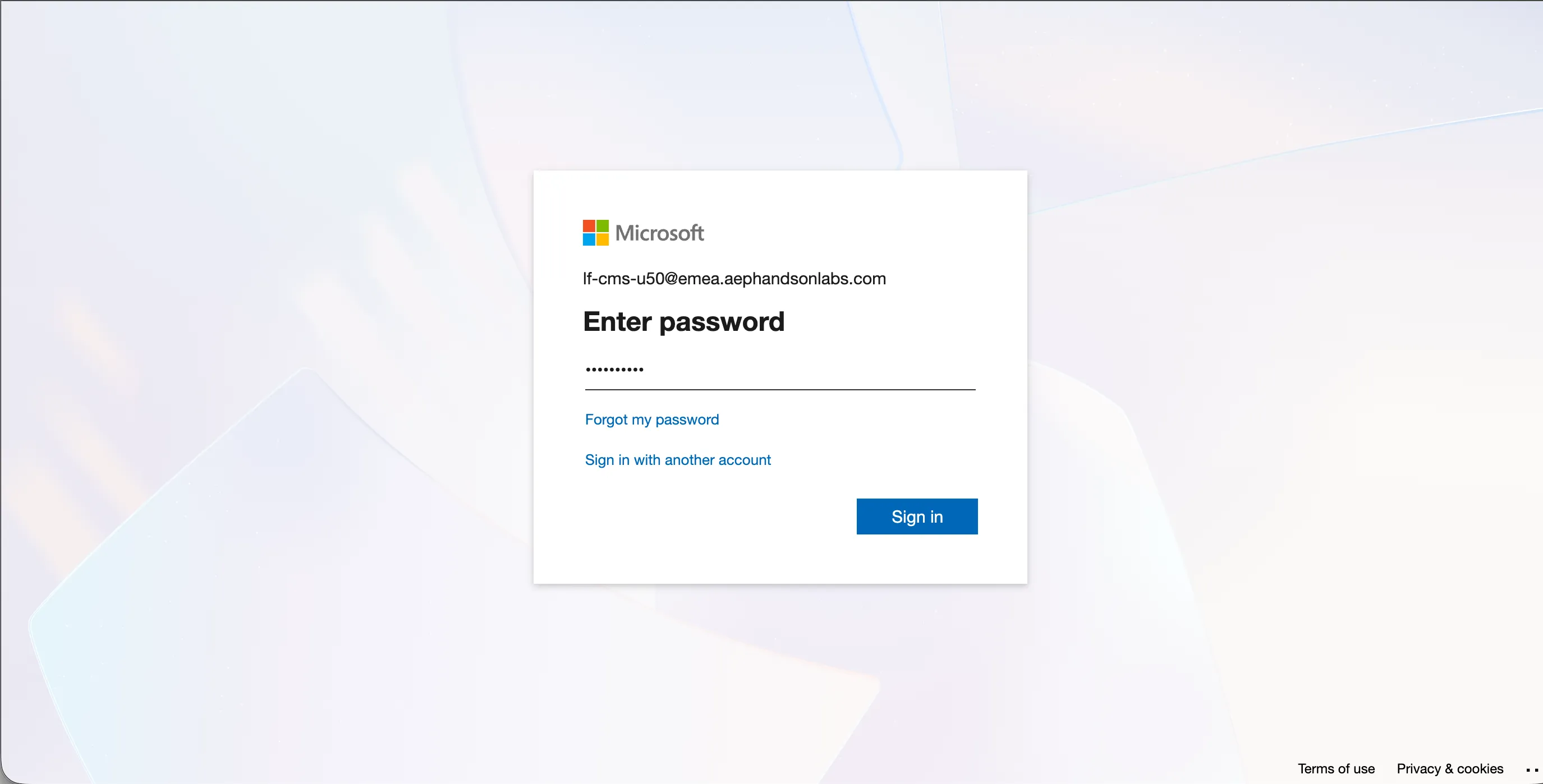
- Enter the password as mentioned above.
- If prompted for a confirmation to stay signed in, click Yes.
- You will arrive at the CX Enterprise Home.
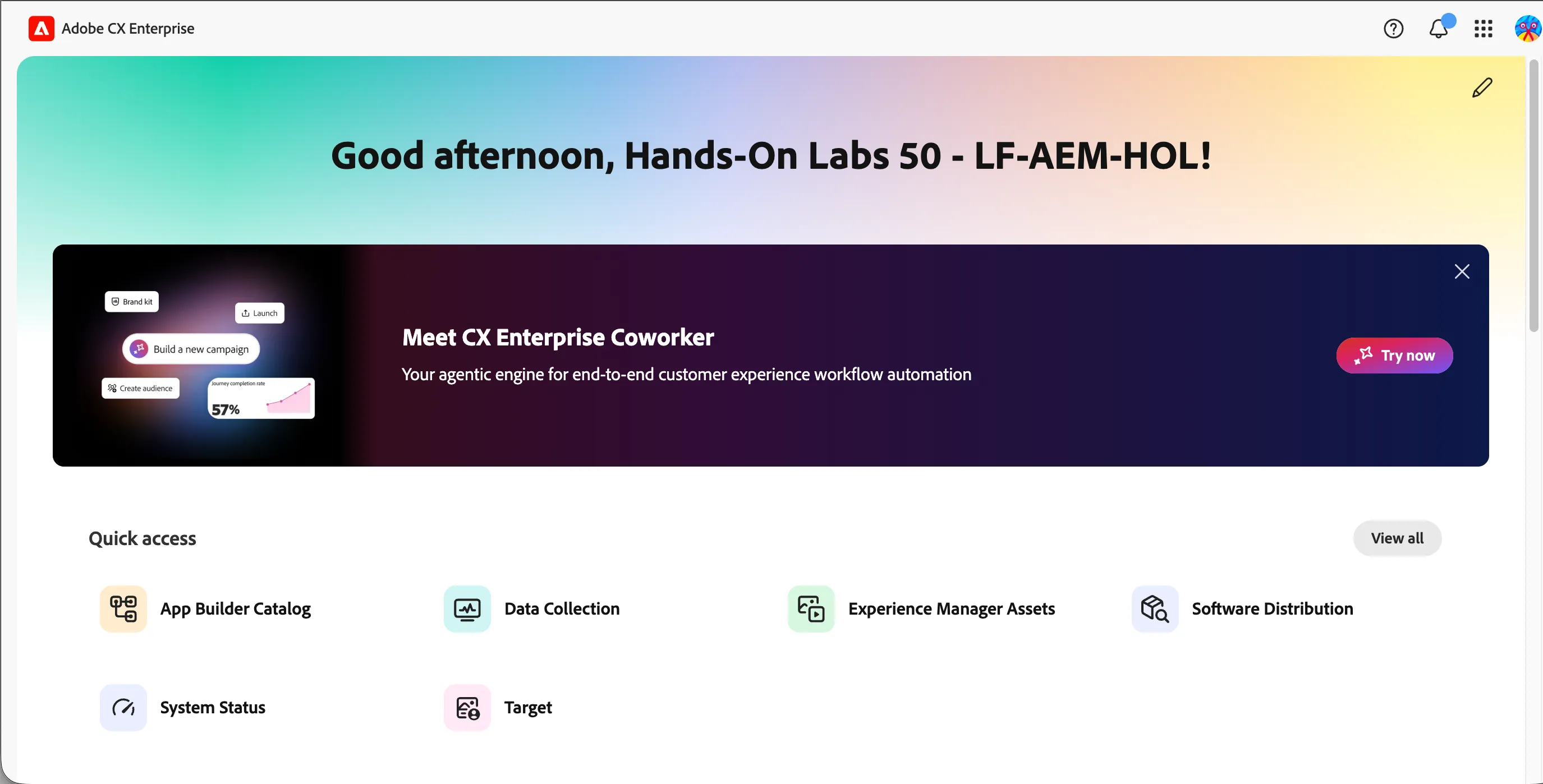
Navigating to Experience Manager Assets
Click on the navigation-icon (9 dots) in the top right and select Experience Manager Assets in the dropdown list.
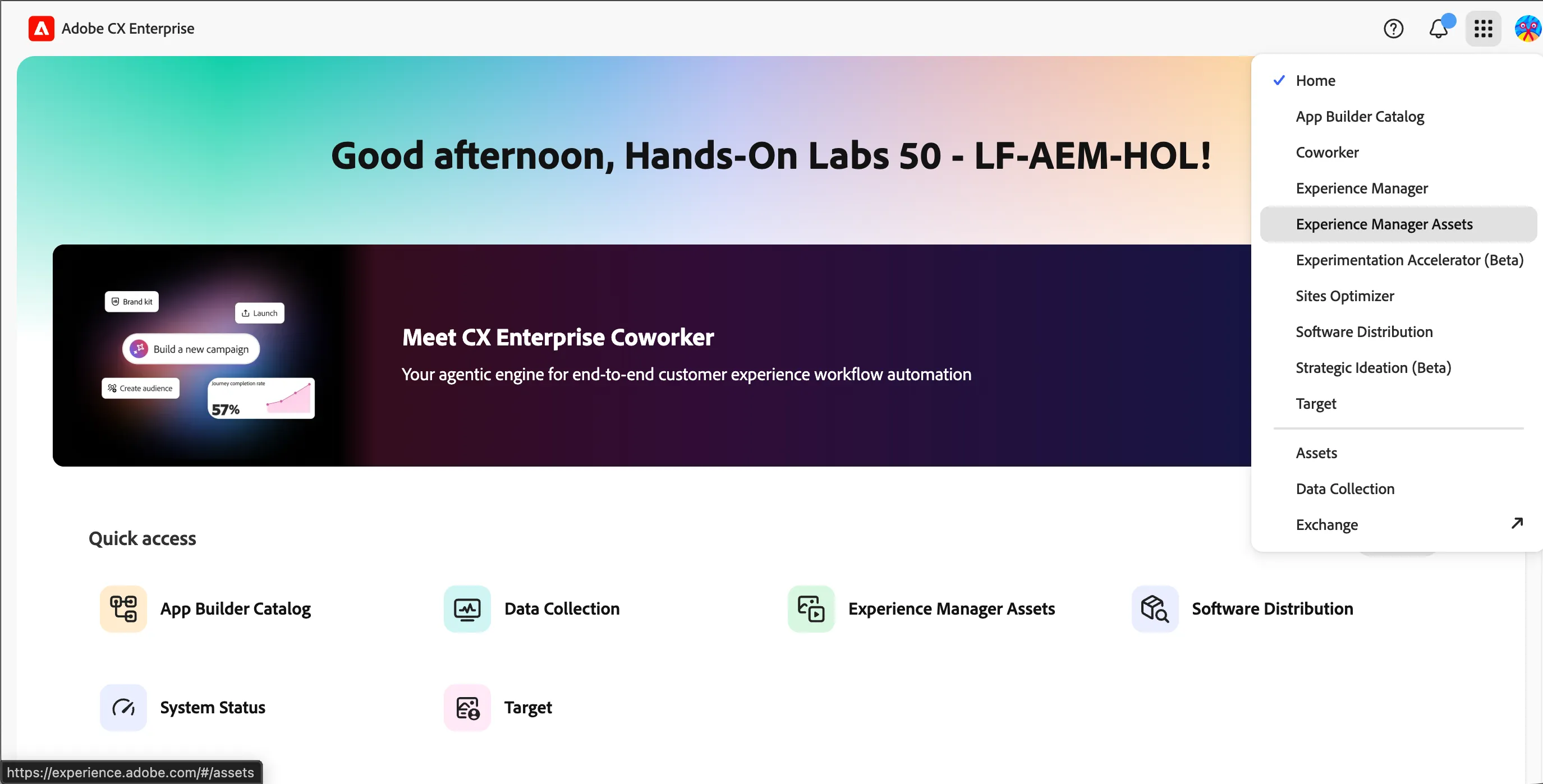
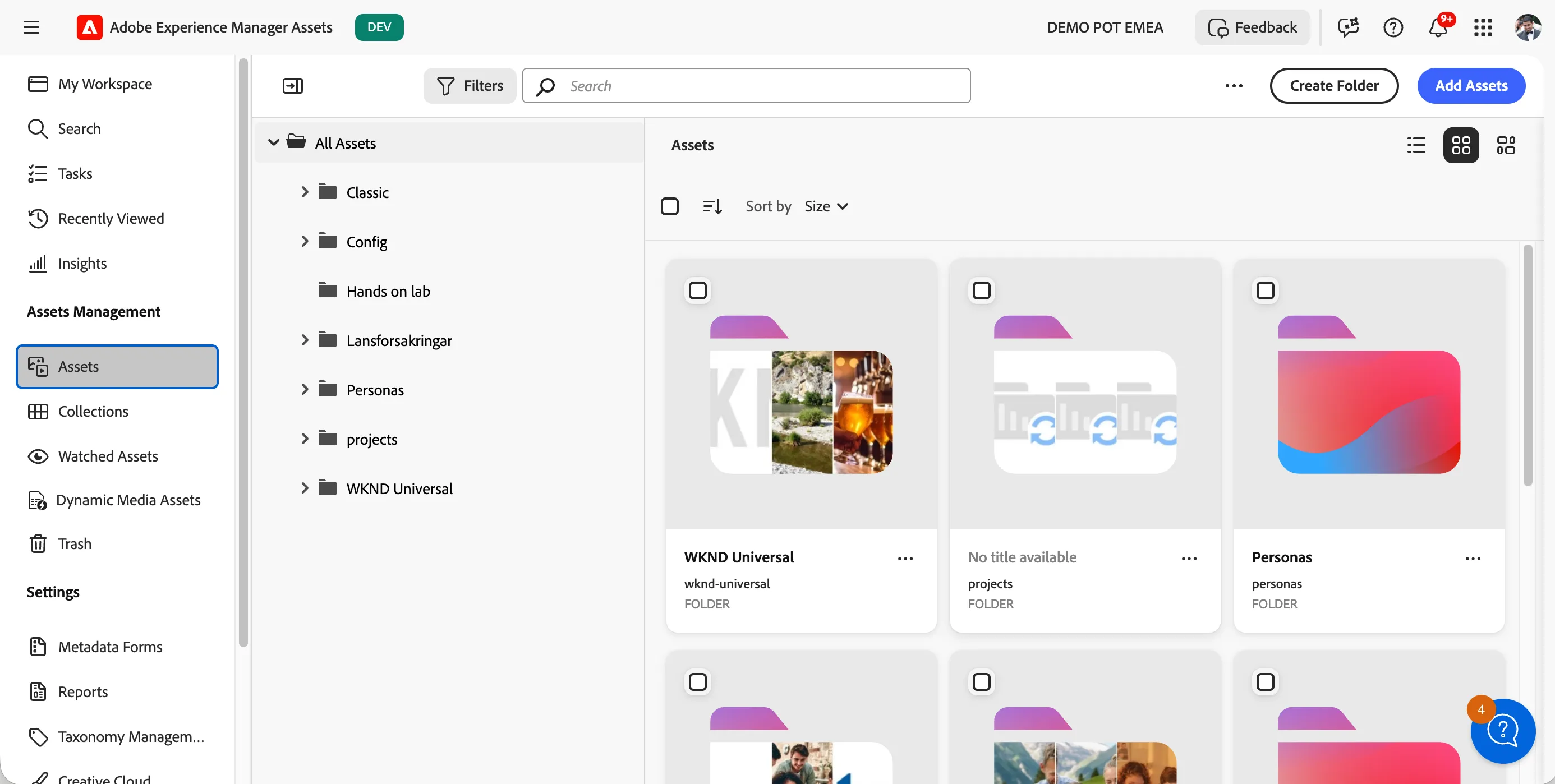
- You'll see a large visual with a search bar. Click on Browse Assets to open the full workspace.
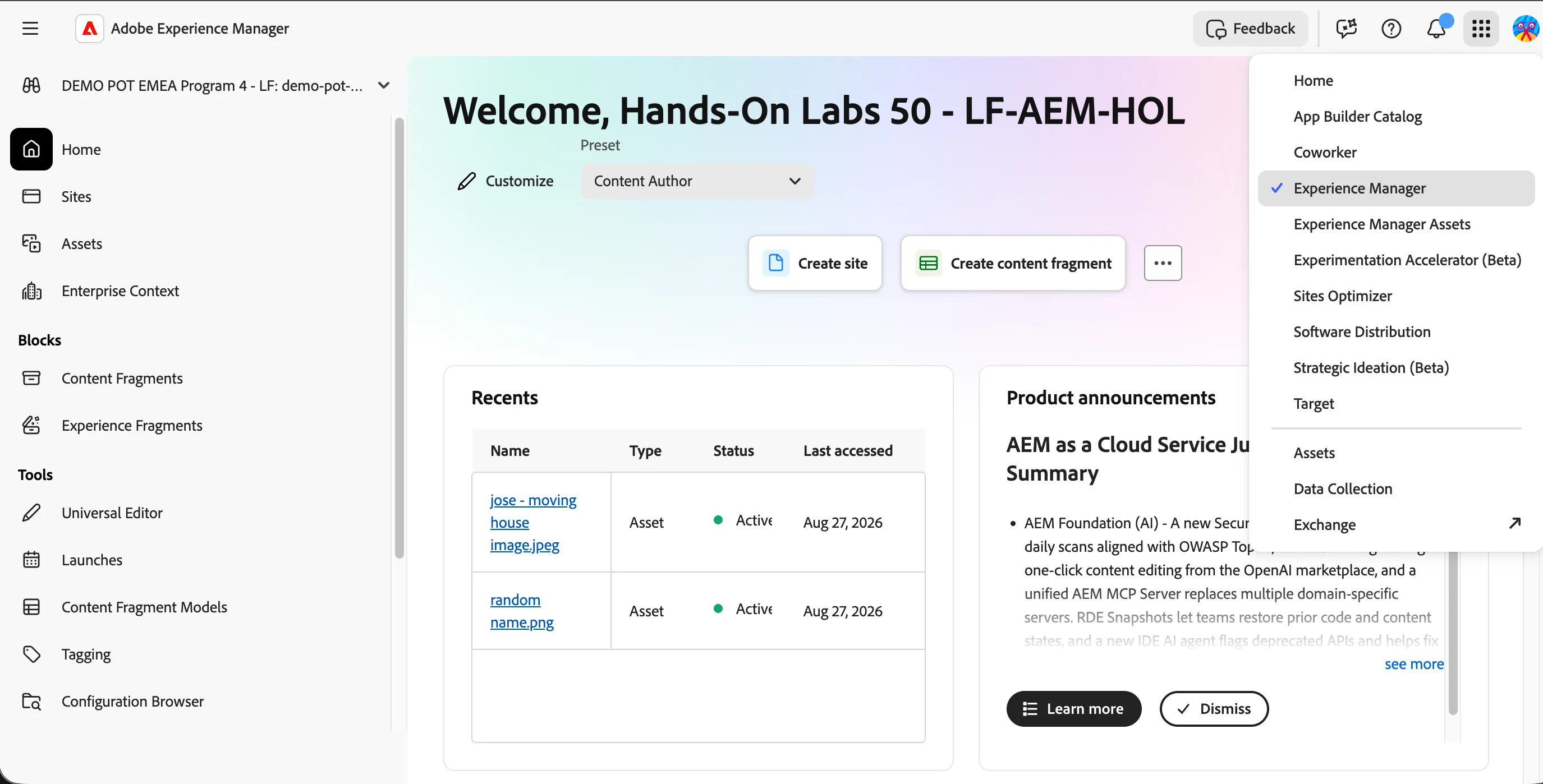
Navigating to Experience Manager
Click on the navigation-icon (9 dots) in the top right and select Experience Manager in the dropdown list.
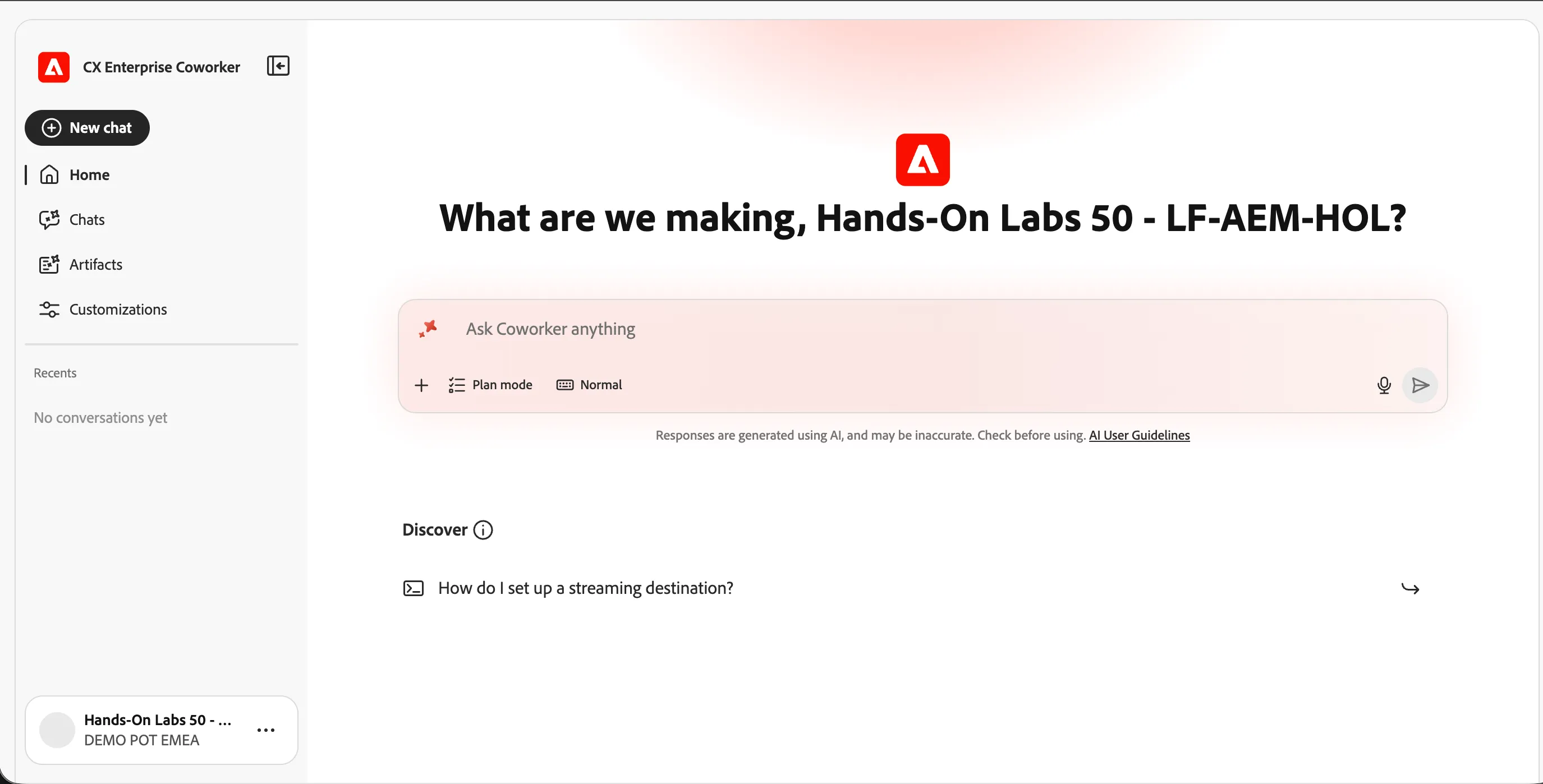
Navigating to Coworker
From any screen: click the 9-dots icon  (top right) → Coworker.
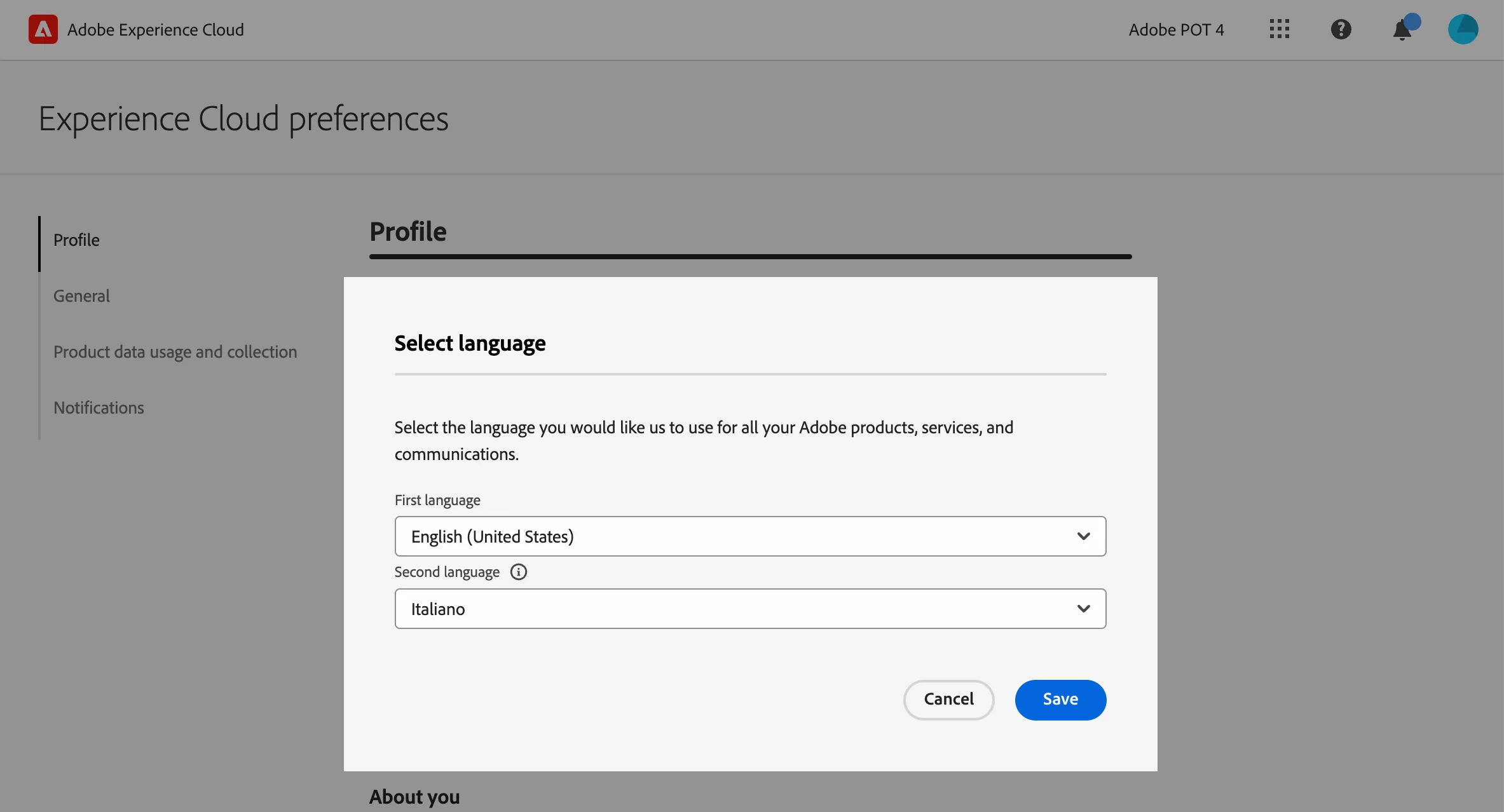
(Optional) Set language preferences
If you prefer the interface in English, set English (United Kingdom) as your first language.
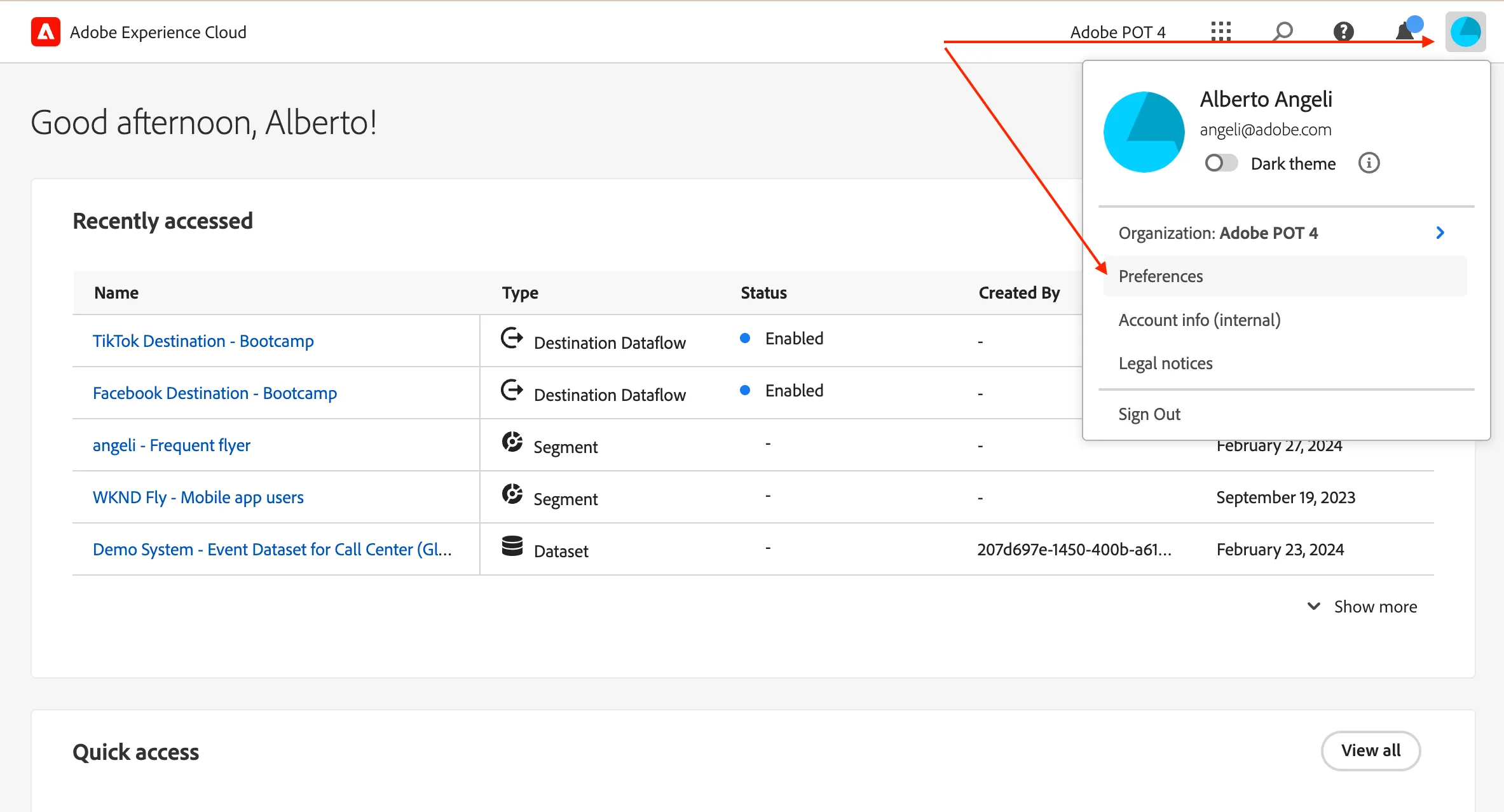
click on the profile icon on the top right corner;
- click on Preferences.
- Click on the language label just below your name.
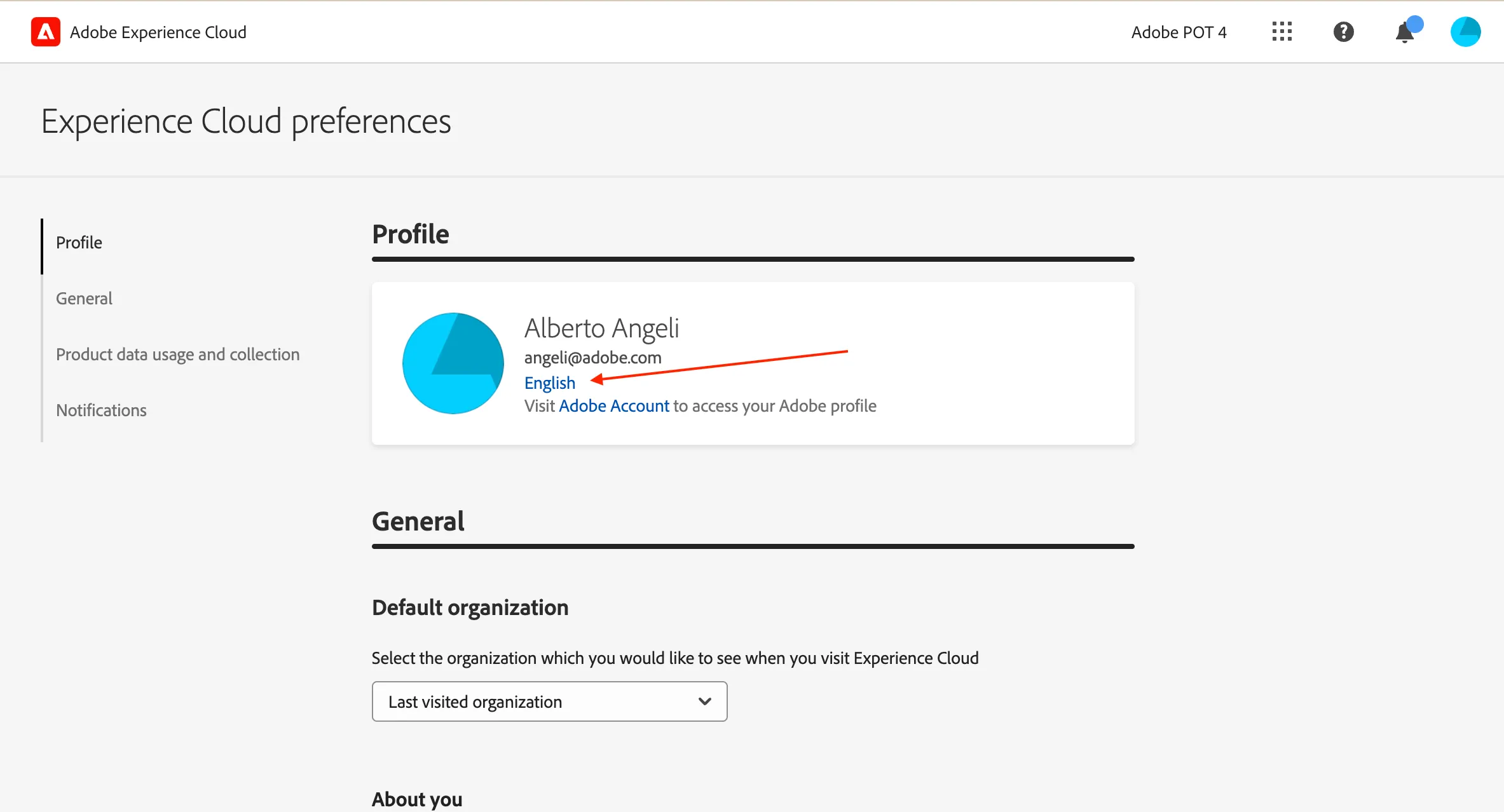
- Select English (United Kingdom) as First language;
- select your preferred language as Second language;
- click Save.