Segments
Segments are rules or sets of conditions that define a subset of your data based on attributes, behaviors, or events. They let you focus your analysis on specific audiences, actions, or moments within a customer journey.
Segment Builder
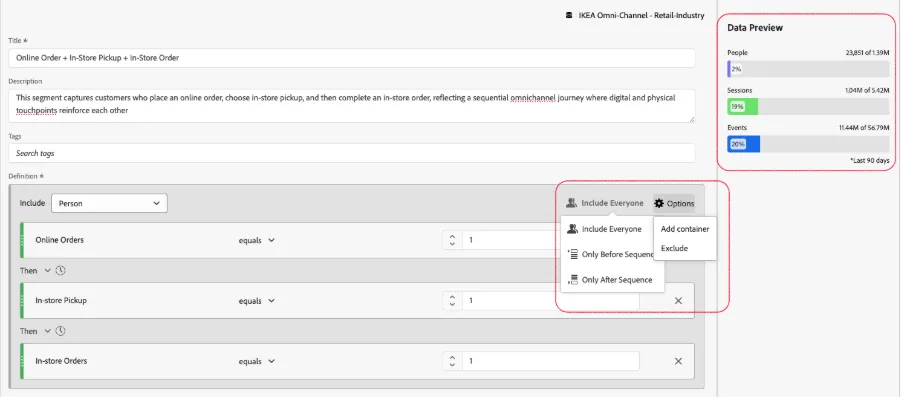
The Segment Builder lets you create highly targeted customer groups by combining dimensions, metrics, and existing segments into powerful definitions of behavior.
- Dimensions (e.g., channel, device type, geography) define who or what is involved.
- Metrics (e.g., online orders, store orders, revenue, page views) define how much or how often.
- Segments can be layered or nested to reuse existing logic and build more complex audience definitions.
To open the Segment Builder
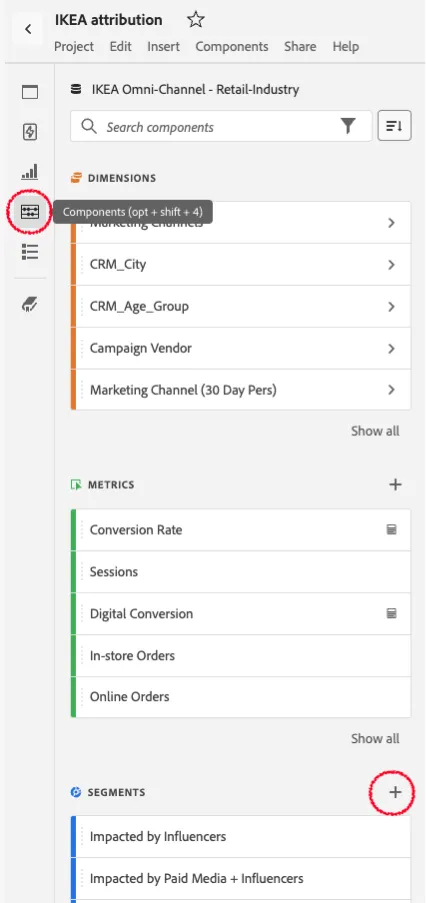
- Go to the Workspace’s left rail, click on the ‘Components’ icon. It will show the Dimensions, Metrics, Segments and Date Ranges components.
- Click on the ‘+’ symbol to create a new segment using the segment builder.
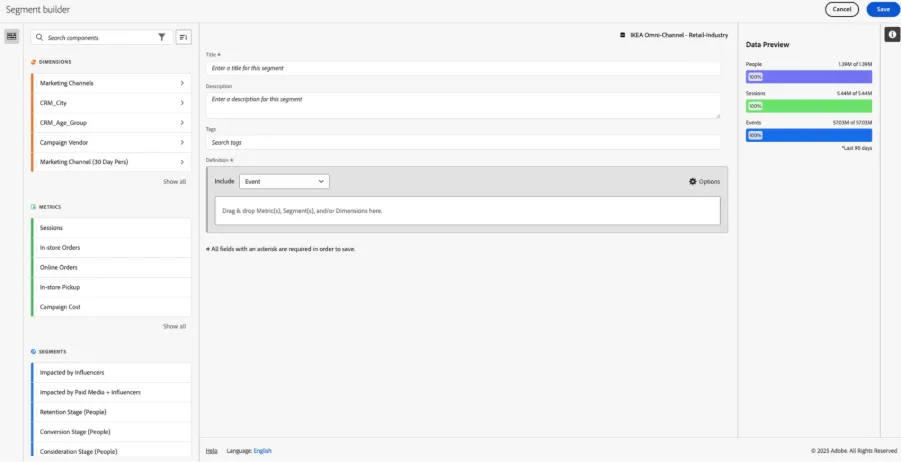
This flexibility enables you to segment user by any metric or dimension, even on specific date ranges, to track omnichannel customer journeys, for example:
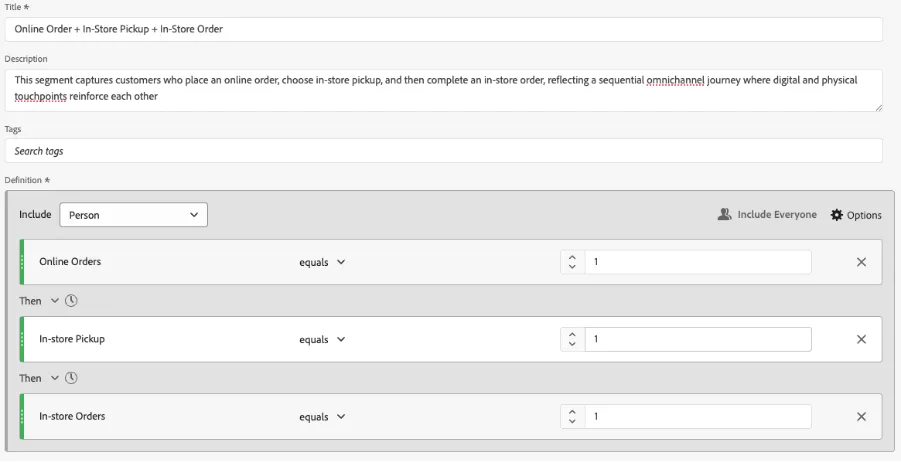
Customers who start with an online order, then pick up in-store, and later purchase again in-store.
Segment Builder Operators
- AND → Narrows your audience by requiring all conditions to be true. Example: Customers who purchased AND used a coupon.
- OR → Broadens your audience by including customers who meet any of the conditions. Example: Customers who purchased online OR in-store.
- THEN → Defines sequential logic across events and is especially powerful for omnichannel analysis. Example: Online Order THEN In-Store Pickup THEN In-Store Order. This ensures actions happened in order, not just that they all occurred.
Why "THEN" matters: It turns static attribute-based segments into journey-based segments, helping you capture progression through stages (Awareness → Consideration → Conversion → Loyalty) or cross-channel paths.
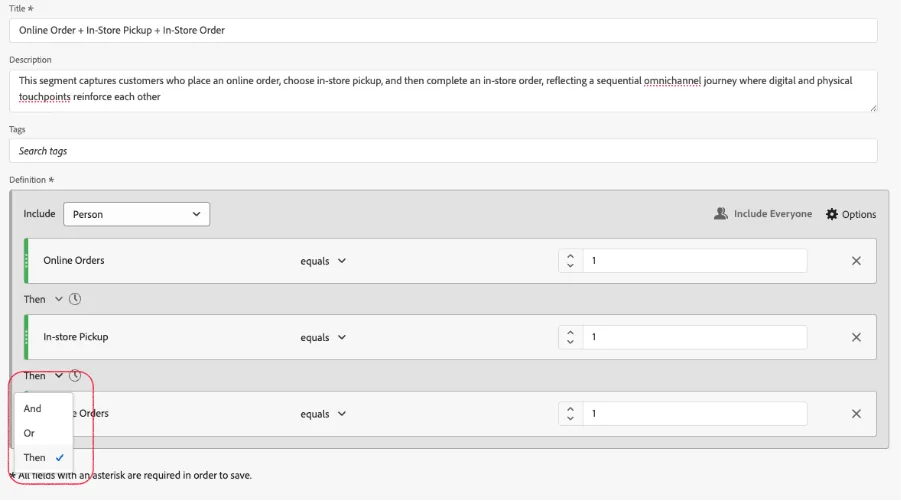
We could even go further and nest more conditions for inclusion, exclusion, and work with other sequences.
On the top right, the Data Preview tells you how big your segment is to evaluate if it could be interesting to target or residual.
You can also map customers to journey stages like:
- Awareness: visitors with first touch on digital campaigns
- Consideration: customers who viewed product details or added to cart
- Conversion: those completing an online or offline purchase
- Loyalty: repeat buyers across multiple channels
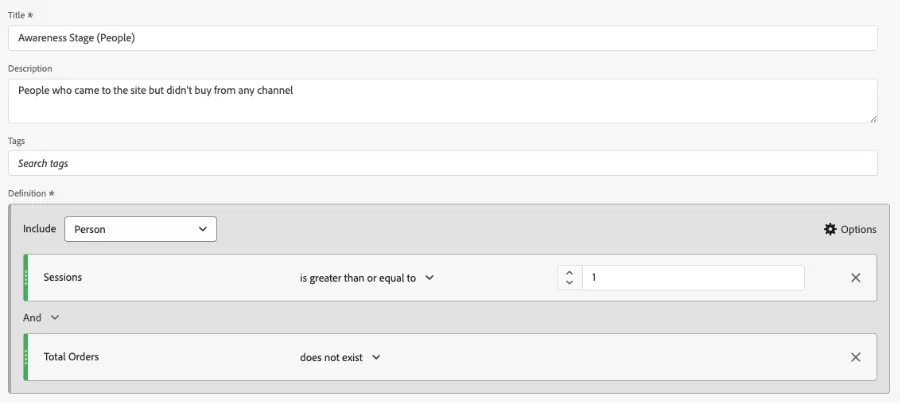
Example of the Awareness Stage Segment:
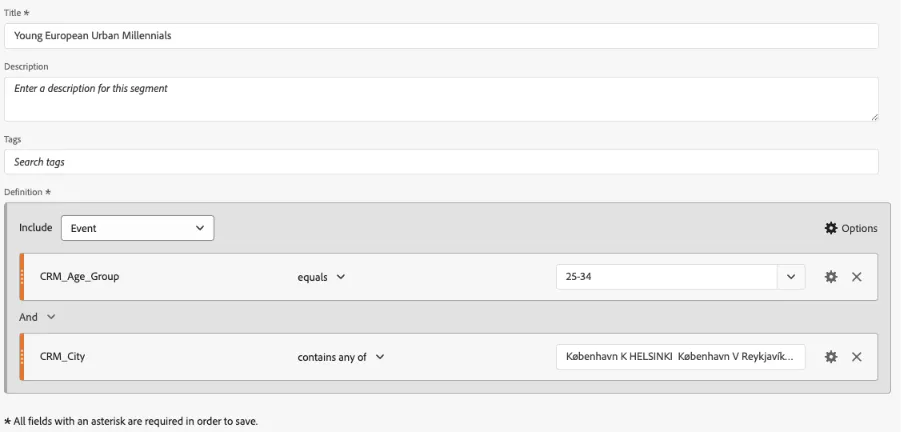
We can also create demographic filters like: e.g., “Young European Urban Millennials” combined with “Omnichannel converters” gives you a clear view of how a specific segment engages across awareness, conversion, and loyalty.
We are going to use in the use cases the segment “Young European Urban Millennials”. To build it, we used dimensions containing demographic customer attributes like the ‘Age Group’ and ‘City’.
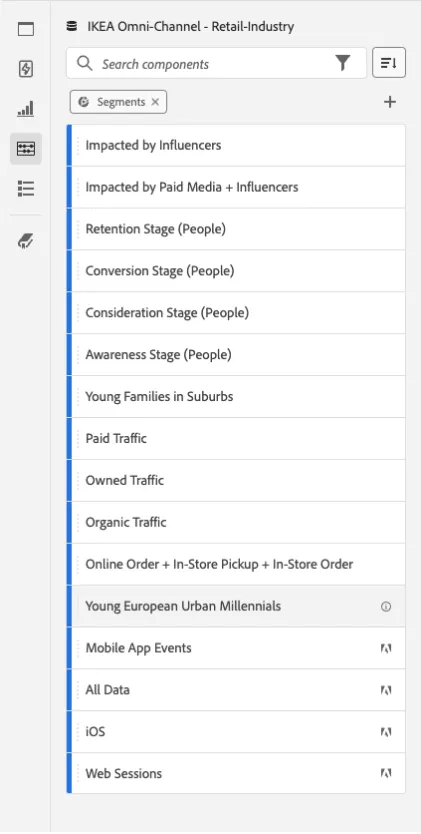
Once created we can see our new segment under SEGMENTS component list on the left rail of the workspace
For more information on Segments in CJA see the Adobe Experience League.