3. Creating a localised content fragment
In this section, we will create a Content Fragment for the NBO Mortgage product description, associate it with an image, generate a personalised AI variation for our own county, and confirm the platform's ability to trace where that image is being referenced.
Business Context
Product content shouldn't be written from scratch for every regional company — it needs to say the same thing, with the same compliance-approved core message, while still feeling locally relevant to a customer in Stockholm versus one in Skåne.
Content Fragments let LF's editors create that core content once, structured into fields rather than a flat block of text, and then generate audience- or region-specific variations from it, without copying the whole fragment or losing the link back to the original. Because a Content Fragment's image field is a proper structured reference rather than a flattened URL, AEM can show, directly from the asset's own admin view, every fragment that's using it. That's real usage visibility, backed by the platform rather than narrated around it.
In this exercise, you'll create a Content Fragment, attach an image to it, generate your own county's AI variation, and then check the image asset itself to see the fragment listed as a reference.
Objective
Create a Content Fragment for a savings product teaser, associate it with a DAM image, use AI to generate a personalised variation for your assigned county, then check the image asset's References tab in AEM Assets to confirm the fragment is visible there, proving structured content stays traceable back to the assets it uses.
What This Proves
- Flexible content modeling — structured fields, not flat text
- Content managed as reusable, related objects rather than page-bound text
- Multiple variants of the same content for different audiences
- AI-assisted content adaptation, with the original always traceable
- Version history and ownership for created content
- Central visibility of where an asset is used, via the asset's own admin view
Create your Content Fragment
- Go to the AEM environment: AEM Content Fragments
- From the AEM Navigation Menu, select Content Fragments.
- Navigate to the shared folder: Hands on lab.
- Click Create, then select Content Fragment. This opens a popup for creating a new content fragment.
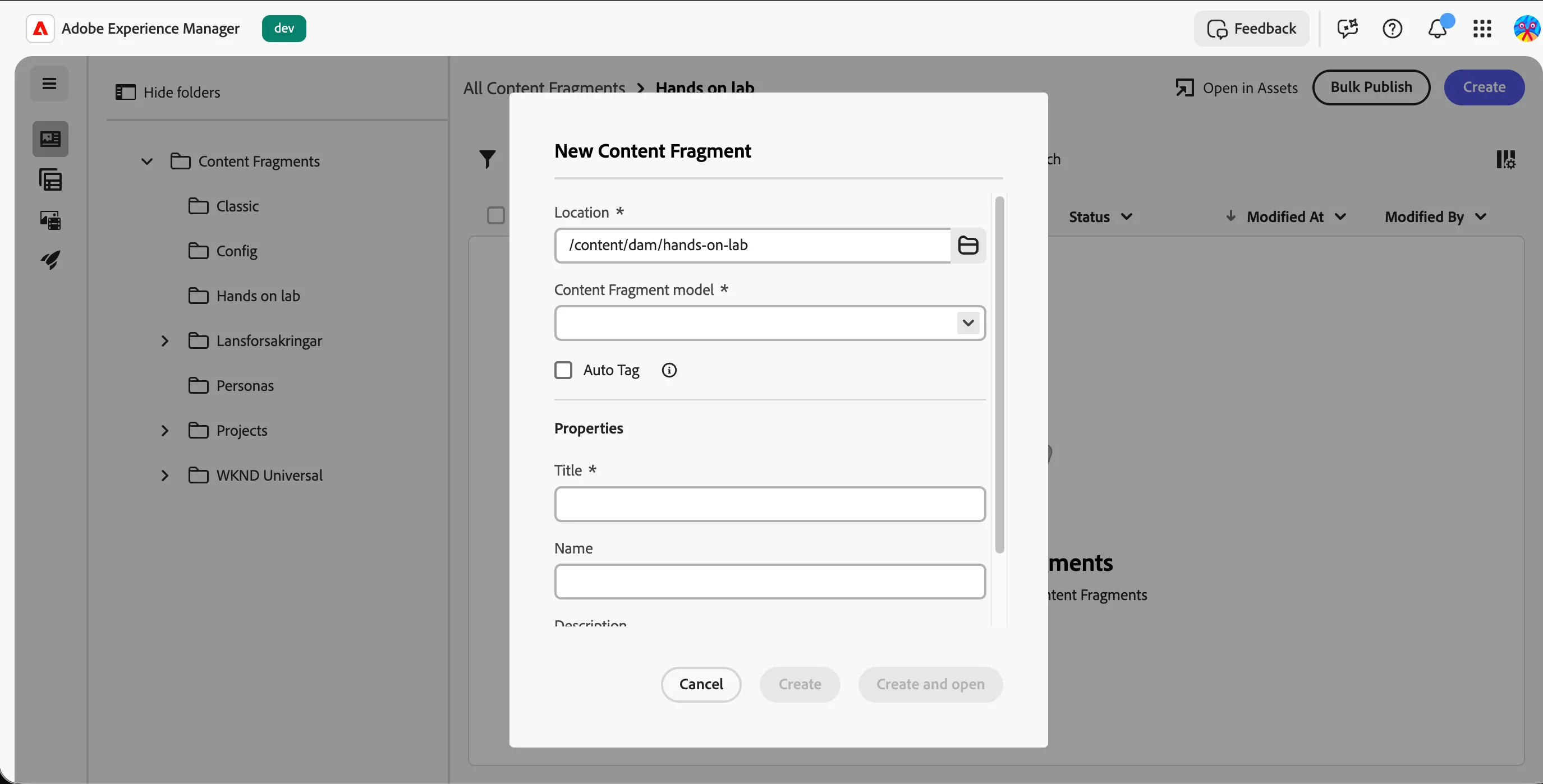
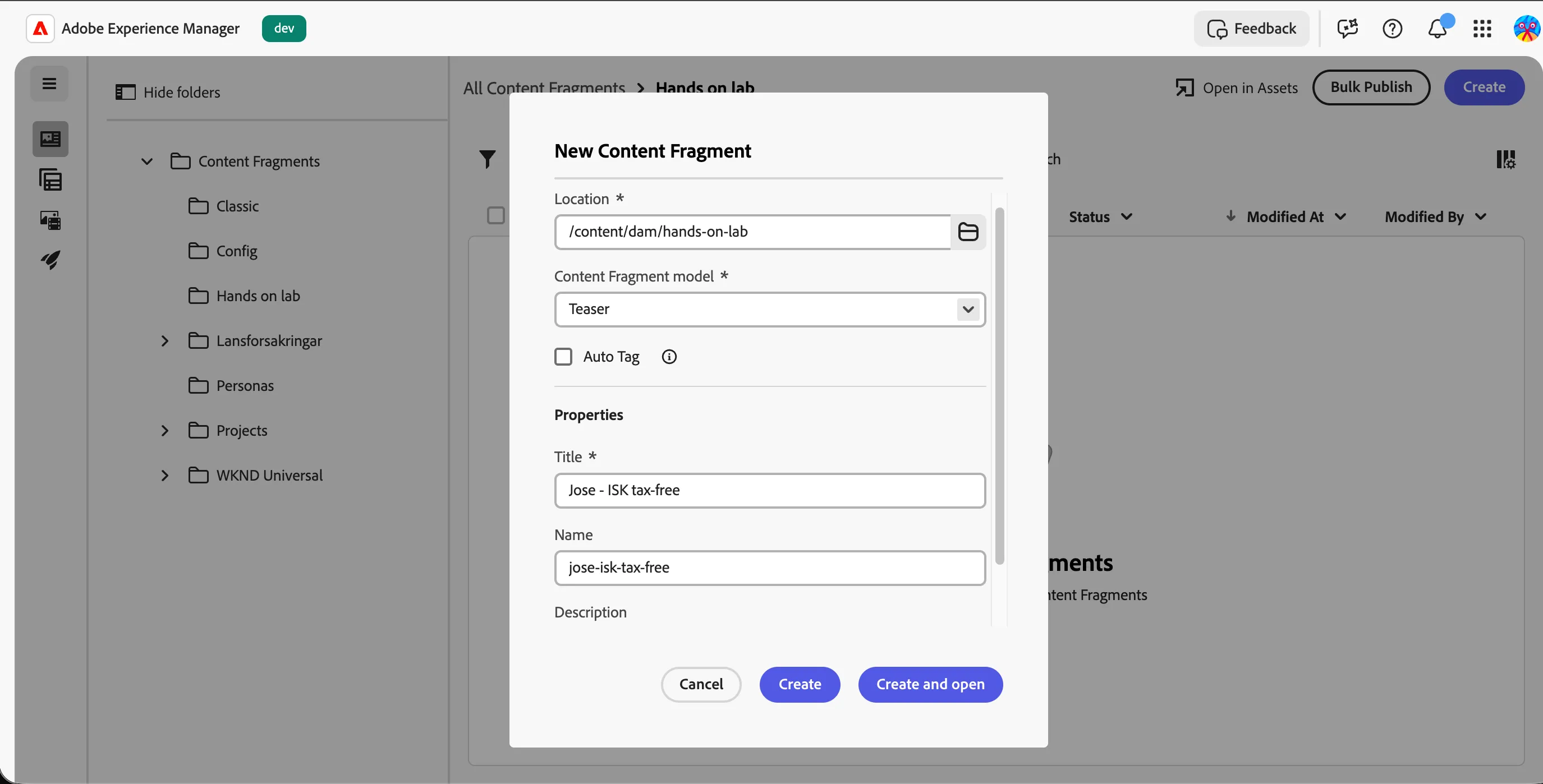
- Select the Teaser content fragment model.
- Name your Content Fragment: {{LASTNAME}}-ISK tax-free
- Click Create and Open to open the content fragment editor.
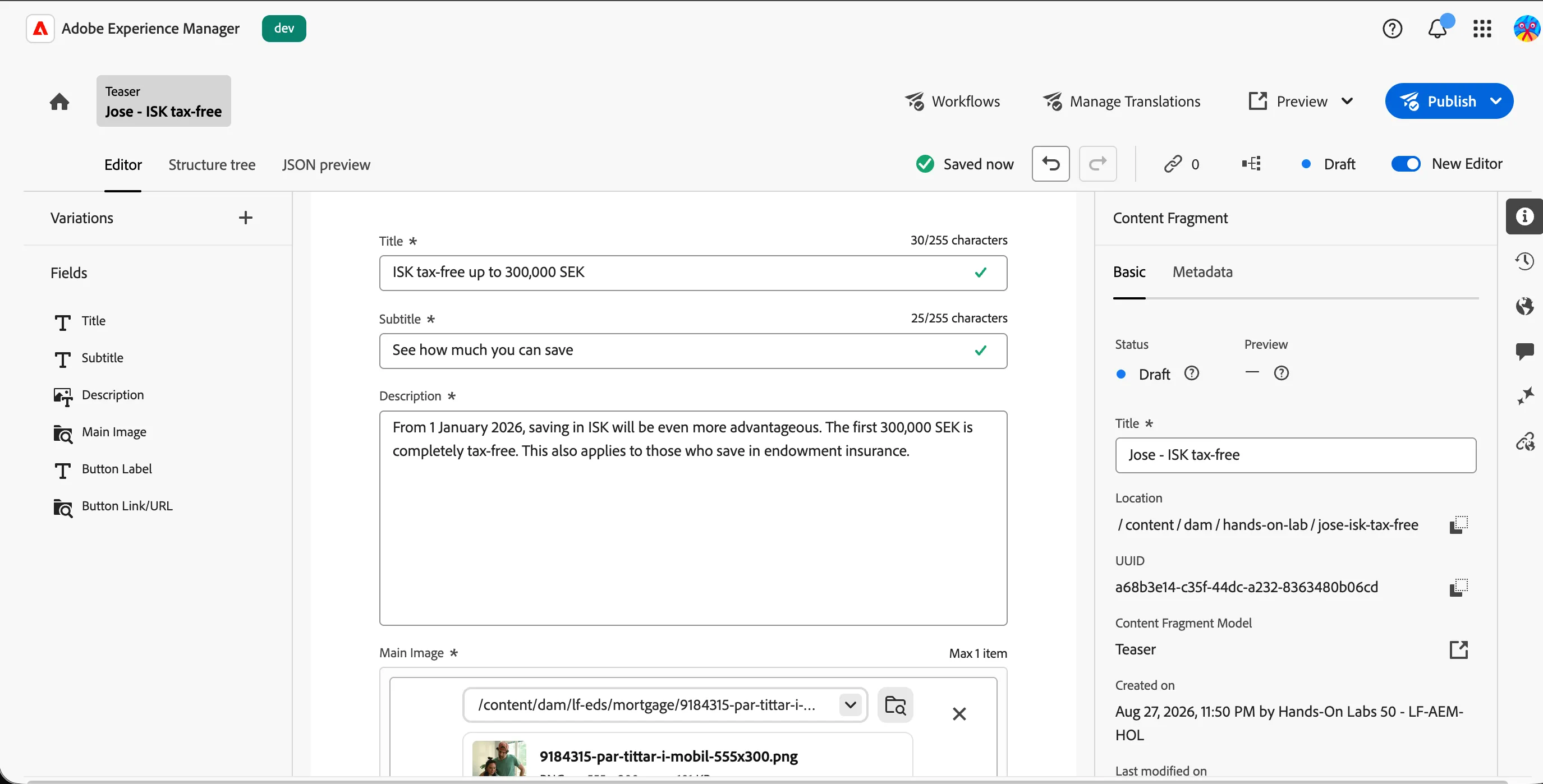
- Fill in the base fields as follows:
- Title: ISK tax-free up to 300,000 SEK
- Subtitle: See how much you can save
- Description: From 1 January 2026, saving in ISK will be even more advantageous. The first 300,000 SEK is completely tax-free. This also applies to those who save in endowment insurance.
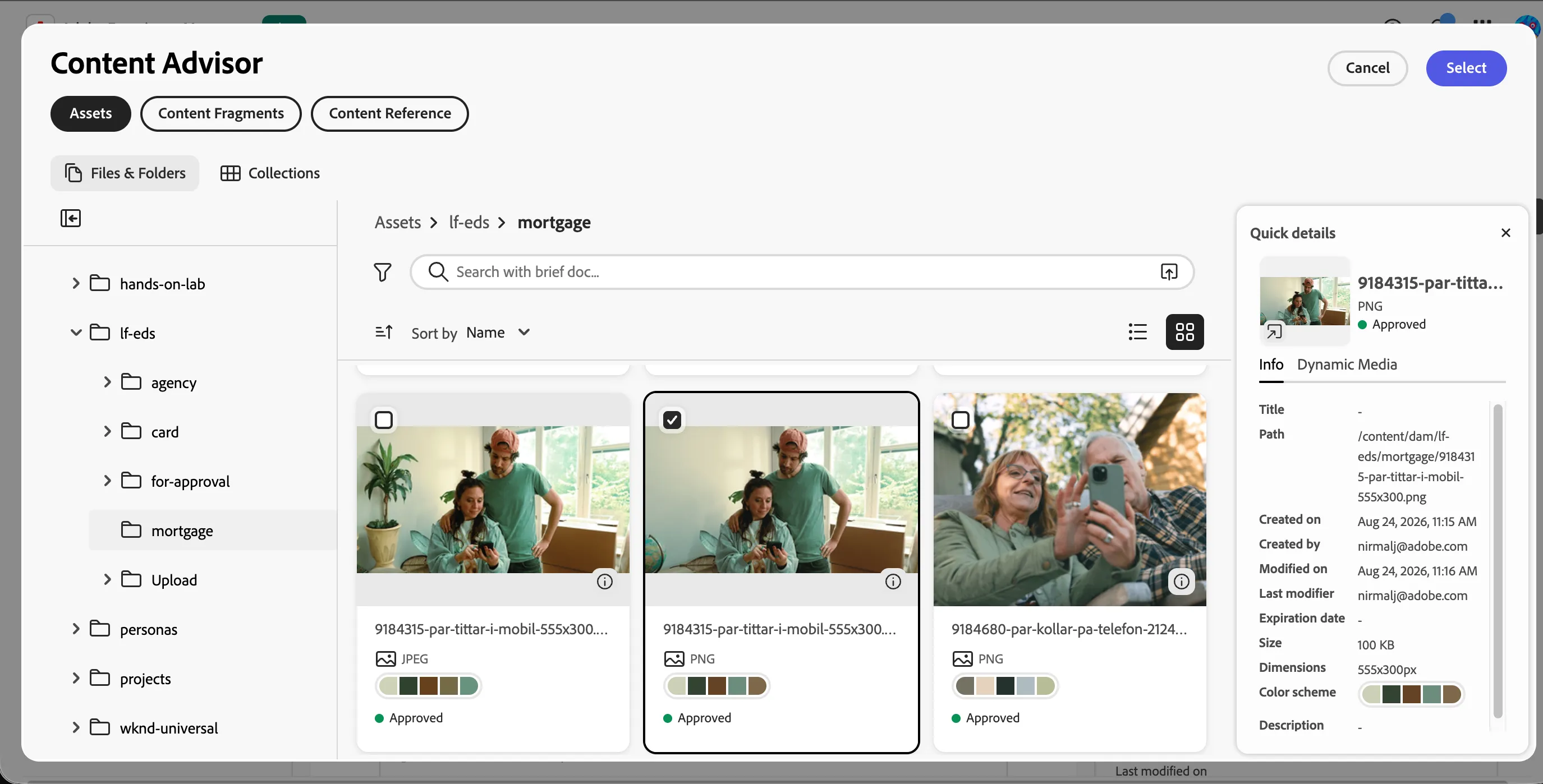
- Click Add asset or content path, then click Browse assets.
- Navigate to Assets > lf-eds > mortgage and select any image.
- Set the button label to Open ISK.
Generate your county's AI variation
A Content Fragment shouldn't need a separate copywriter for every region. Here, we'll use AI to adapt the same approved message for your county, without touching the compliance-critical parts of the text.
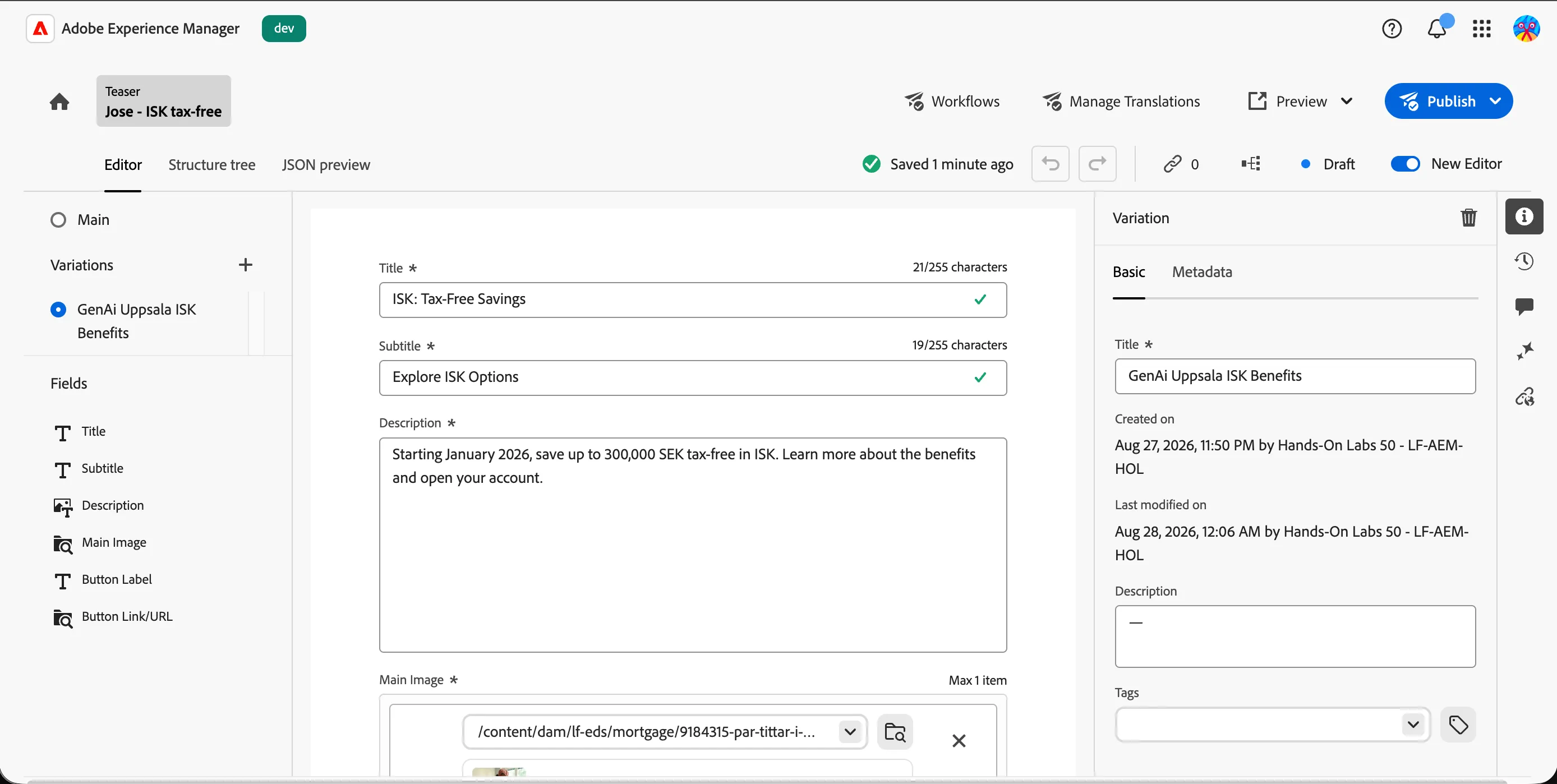
- With your Content Fragment open, select Generate Variation.
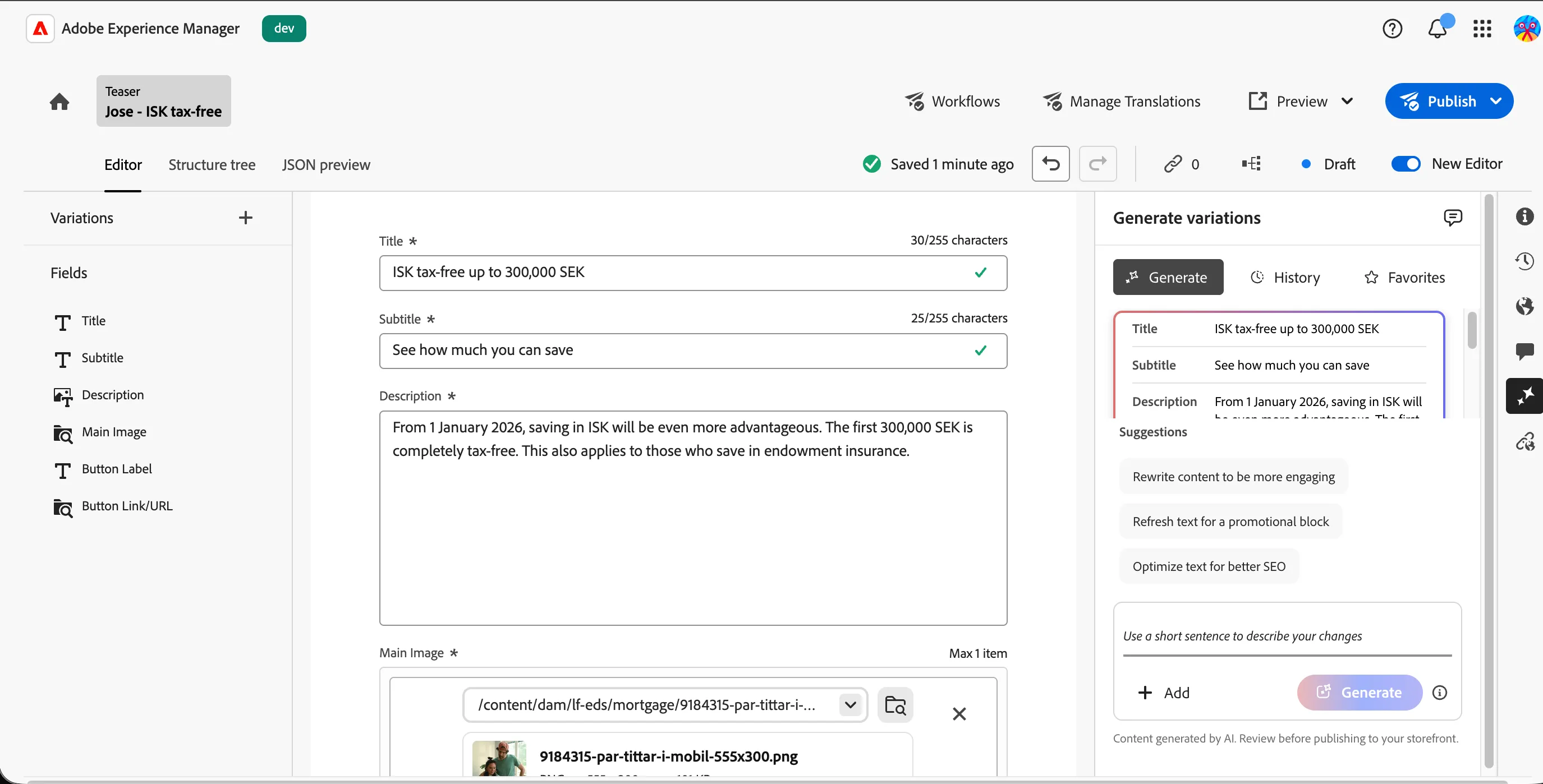
- Provide a short AI prompt referencing your county, for example: Adapt this article description for a customer in {{COUNTY_NAME}}, keeping the same tone and compliance language.
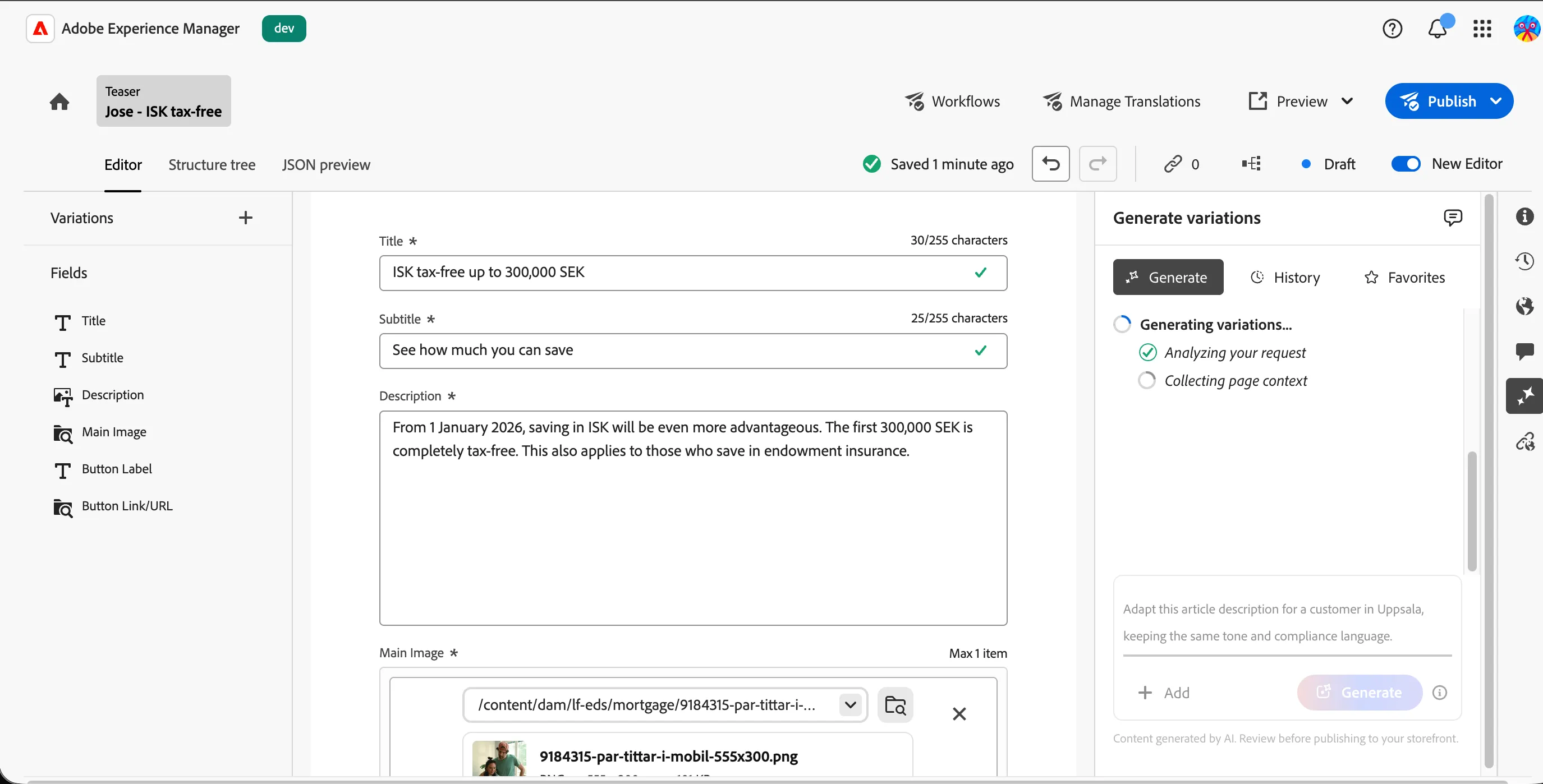
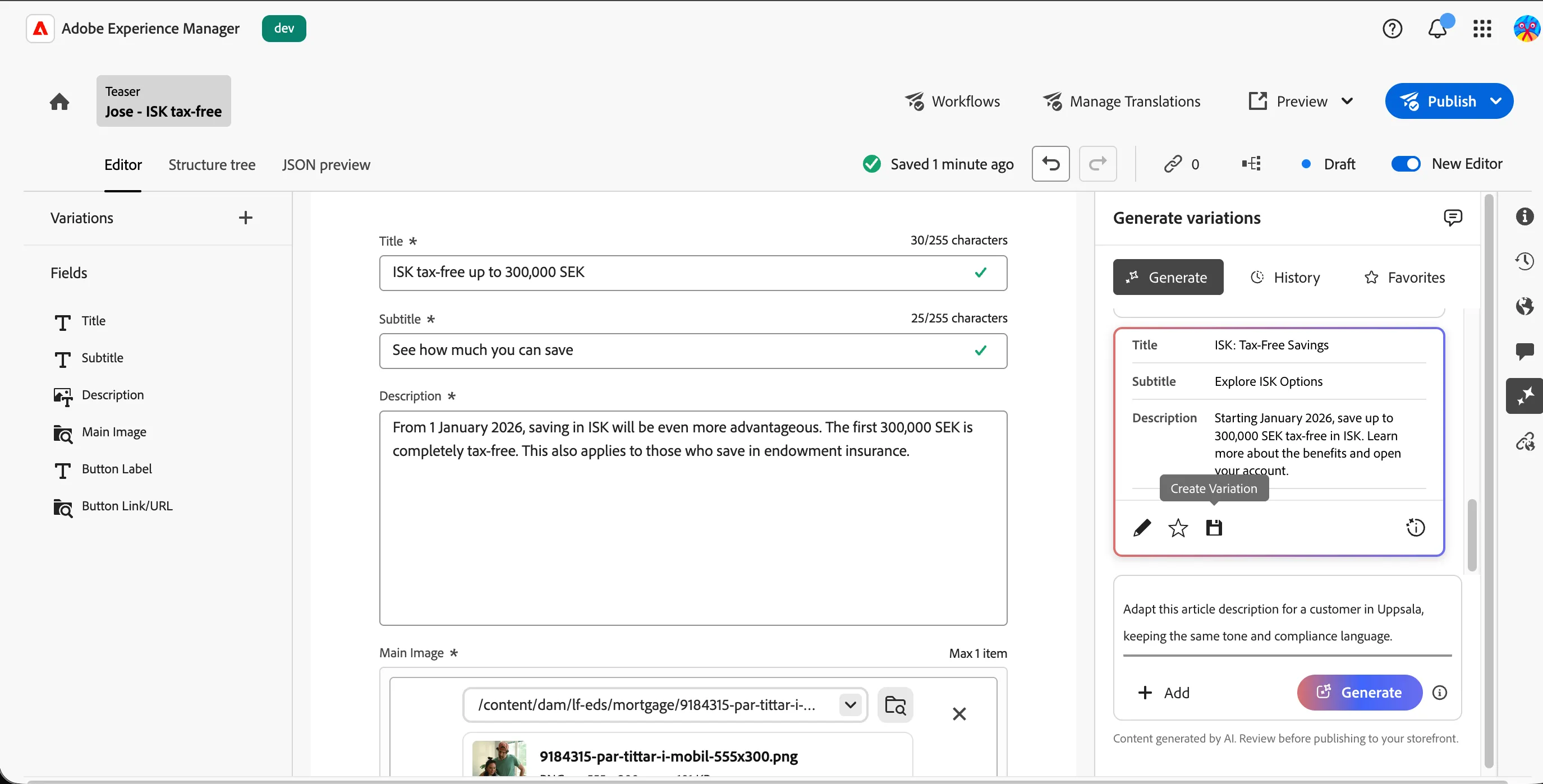
- This generates three different variations. Review each one and confirm the core message and compliance-critical language haven't changed, only the local framing has.
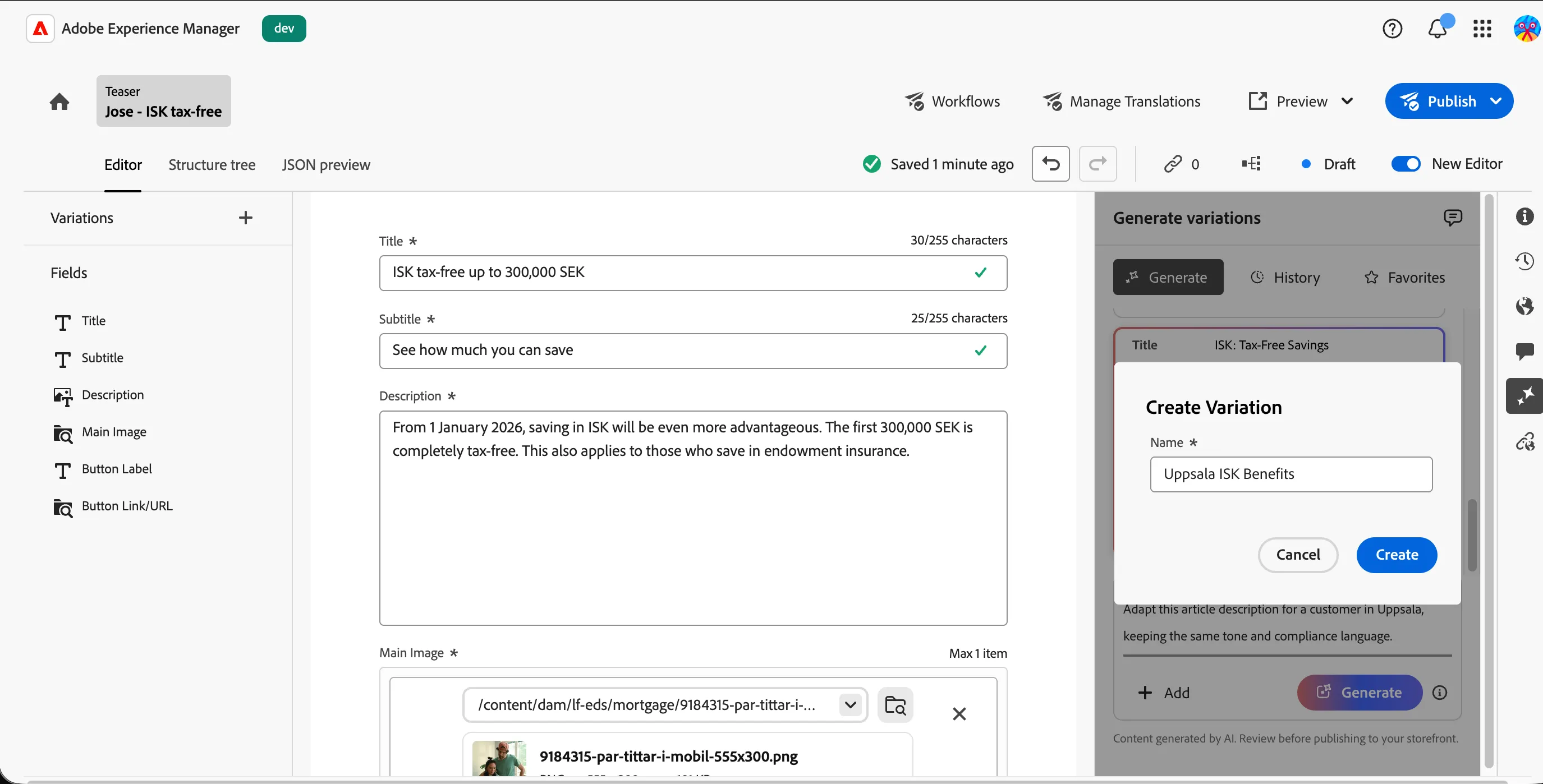
- Click the variation you like to reveal the available options, then click Create Variation to save it.
- Provide a name for the variant and click Create.
Check version history and publish
- Open Version History on the fragment and confirm both the base save and the AI-generated variation are tracked, each with your name against it.
- Click Publish, select the publish service, and publish the content fragment to make it available outside of the author environment.
What you learned
Before moving to the next step, you should have:
- ✅ Created a Content Fragment using the Teaser model
- ✅ Filled in the base, approved copy and attached an image
- ✅ Generated an AI variation personalised for your county
- ✅ Confirmed the variation stayed linked to the parent fragment, not duplicated as a separate object
- ✅ Reviewed version history showing both the base and the variation
- ✅ Published the fragment