8. Creating an A/B test
In this section, your facilitator will walk through creating an A/B test on the NBO Mortgage page using the Experimentation extension in Universal Editor, testing whether a personalized hero image and layout actually outperforms a generic one.
Business Context
Personalization is only worth the investment if it measurably performs better than the generic alternative. Before rolling a personalized experience out broadly, LF needs to test it — with a controlled variant, clear metrics, and enough visibility to know which version actually wins.
Objective
Configure an A/B test comparing the personalized county hero (image + layout) against a generic, non-personalized version, proving that experimentation can be layered directly onto an existing page without rebuilding it, with a clear, measurable difference between variants.
What This Proves
- A/B variants can be created using no-code visual editing
- Experiment targeting and triggering can be configured
- Metrics can be defined against a real business outcome
- Traffic allocation and scheduling can be configured
- It's clear which page elements differ between variant A and variant B
The Experiment
Hypothesis: Does the personalized county hero (image + layout) outperform a generic, non-personalized version on conversion?
- Variant A (control): The page as built, county-personalized hero image, current full-bleed layout
- Variant B (challenger): Generic, non-personalized hero image, with a more compact image-left/text-right layout
- Metric: Conversion
- Traffic split: 50/50
Create the experiment
- Open the local NBO Mortgage page in Universal Editor.
- From the extensions panel, launch the Experimentation extension.
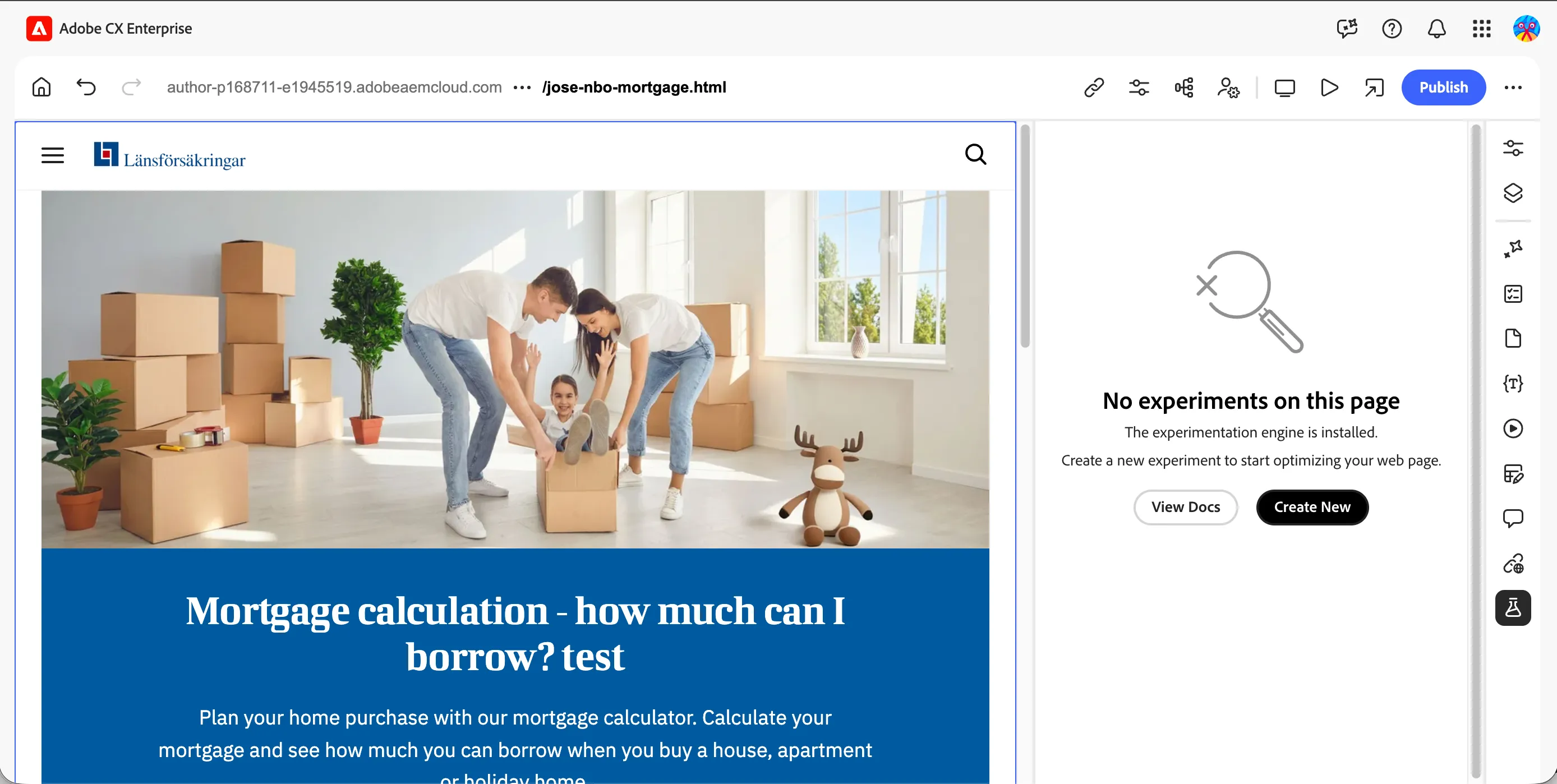
- Select Create New Experiment, and name it: {{LASTNAME}}-nbo-mortgage-hero-personalization-test.
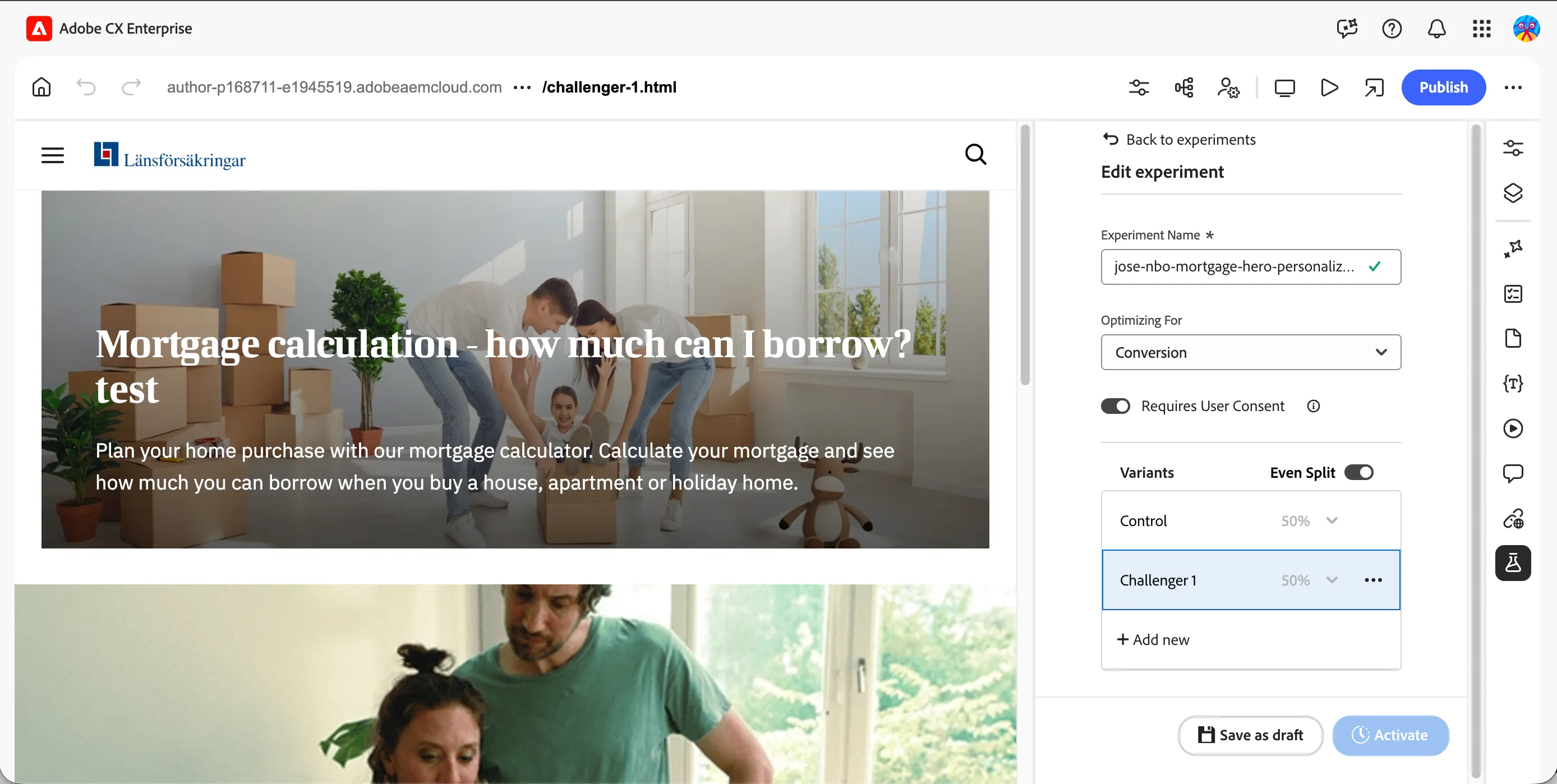
- Set Optimizing for to Conversion.
- Enable the Requires user consent toggle.
- Select Even split on the variants.
Configure the challenger variant
- Click Challenger 1 to select it, it will be highlighted in blue.
- Swap the hero image to the generic (non-personalized) version, and change the layout option from full-bleed to image-left/text-right.
Schedule and activate
- Configure the experiment schedule, start date and duration.
- Click Save as draft, then Activate the experiment.
- Experiment results appear on your page editor itself. They won't show up immediately, results are pooled on a schedule and synced back to your AEM view.
What you learned
By the end of this section, you should have seen:
- ✅ An experiment created directly on the existing page, no rebuild required
- ✅ Variant B configured with a swapped image and an alternate layout — no code involved
- ✅ Traffic allocation and scheduling configured
- ✅ A clear, visible difference between Variant A and Variant B, side by side