4. Building a page
In this section, we will create a new NBO Mortgage page in AEM Sites, using the shared hero banner from the DAM and the Content Fragment we built in the previous exercise.
Business Context
A content author shouldn't need a developer to assemble a new campaign page — they need reusable, pre-approved building blocks they can drop onto a page and configure themselves.
In this exercise, you'll build your NBO Mortgage page using two such blocks: a Hero Banner block, pulling in the shared campaign image everyone in the room is using, and a Content Fragment block, rendering the fragment you personalised for your county in the last exercise.
In this exercise, you'll build your NBO Mortgage page using two such blocks: a Hero Banner block, pulling in a shared campaign image, and a Content Fragment block, rendering the fragment you built in the last exercise.
Objective
Create a new page under the Hands-on Lab section, add a Hero Banner block using a shared campaign image, and add a Content Fragment block referencing your ISK tax-free fragment, proving that pages can be assembled from governed, reusable content rather than page-specific duplication.
What This Proves
- Custom content types, templates and blocks can be created/configured
- Pages are assembled from reusable blocks/components, not page-specific duplication
- DAM assets can be inserted directly into the page structure
- Content Fragments can be rendered on a page via a dedicated block
- Ownership, versioning and traceability are visible for the created content
Create your page
- Go to AEM Sites: AEM Sites
- Navigate the tree structure to Länsförsäkringar Site > Language Masters > English > Hands-on Lab.
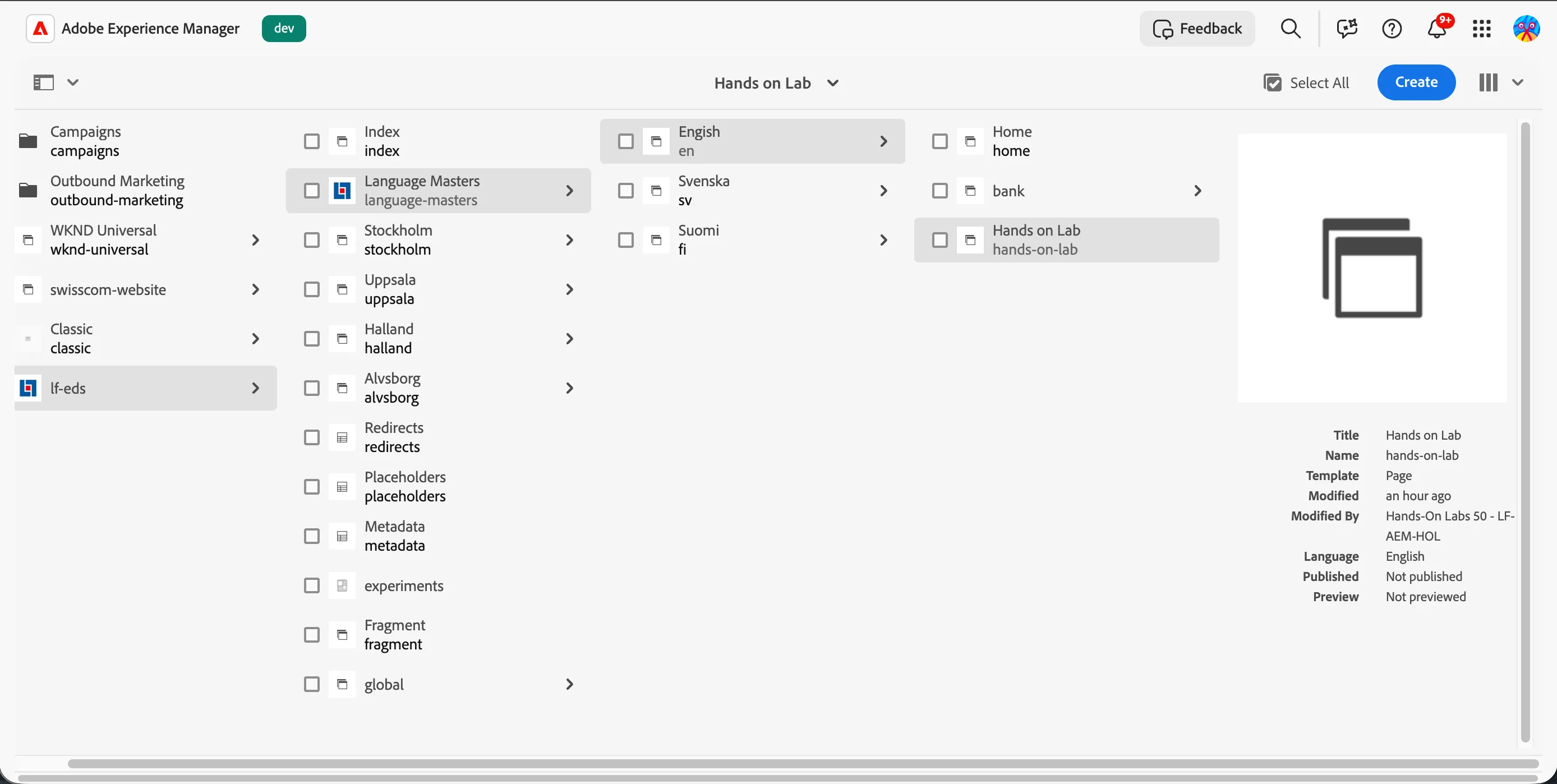
- Click Create, then select Page.
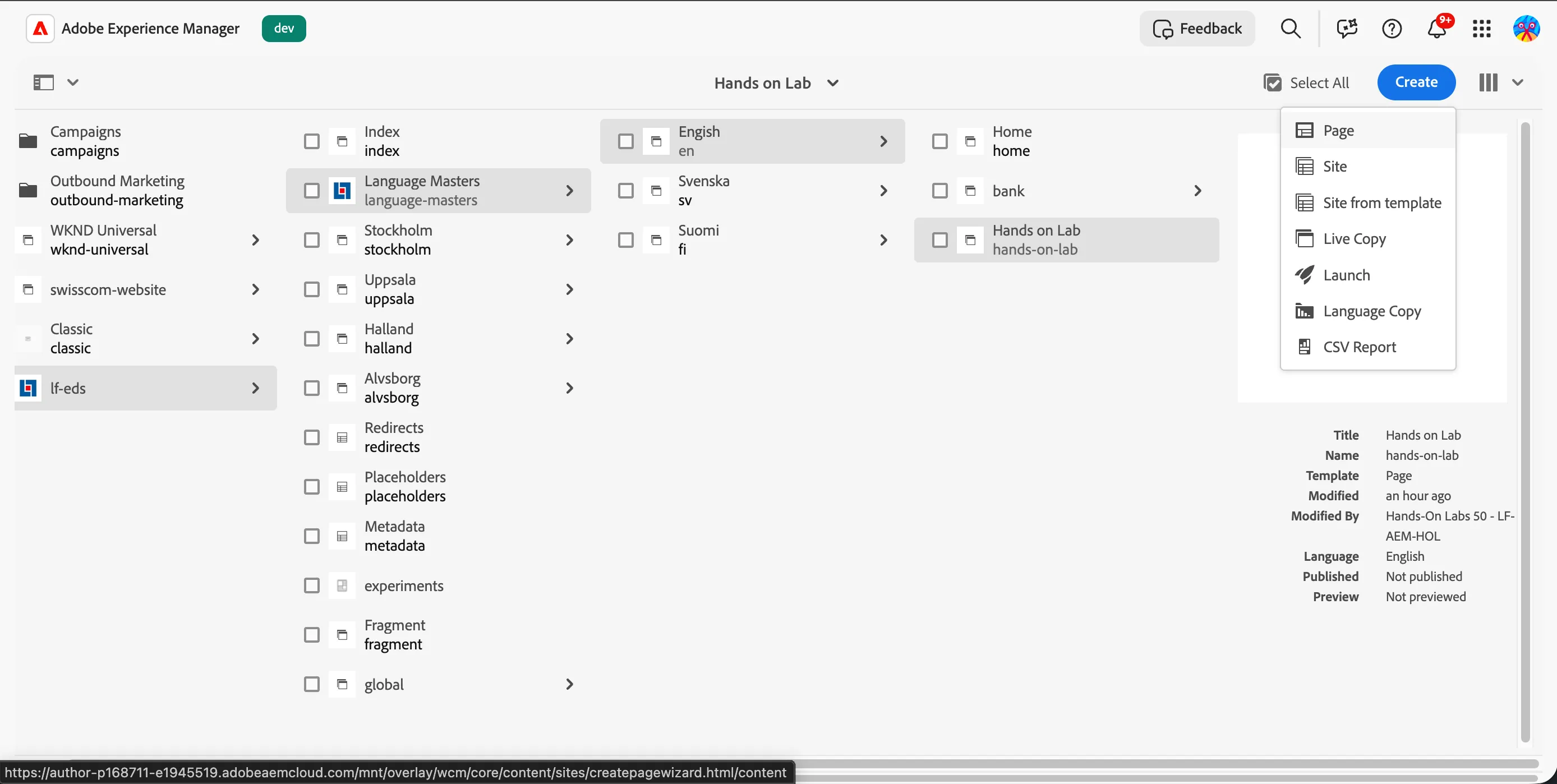
- Select the Page template, then click Next.
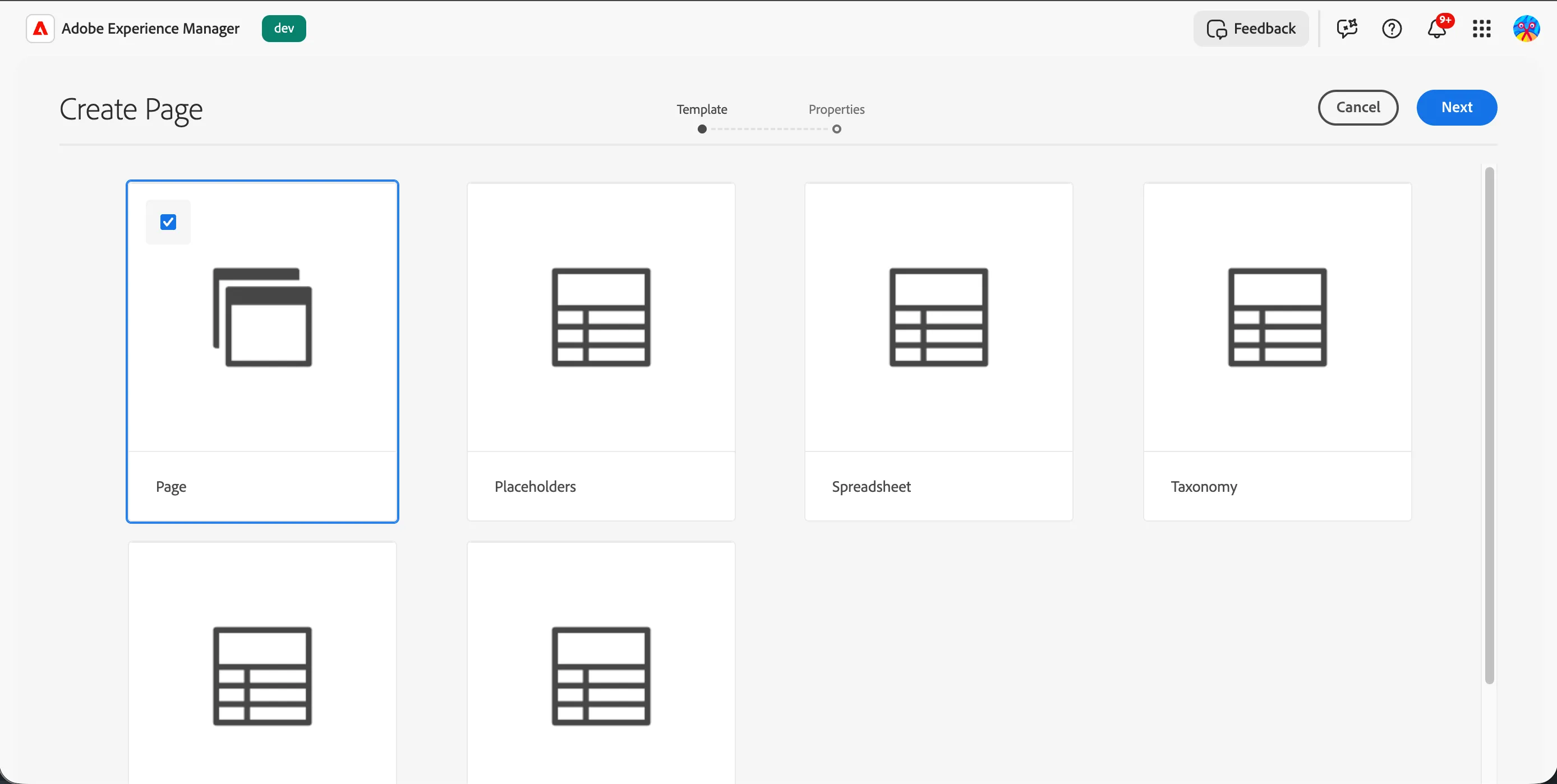
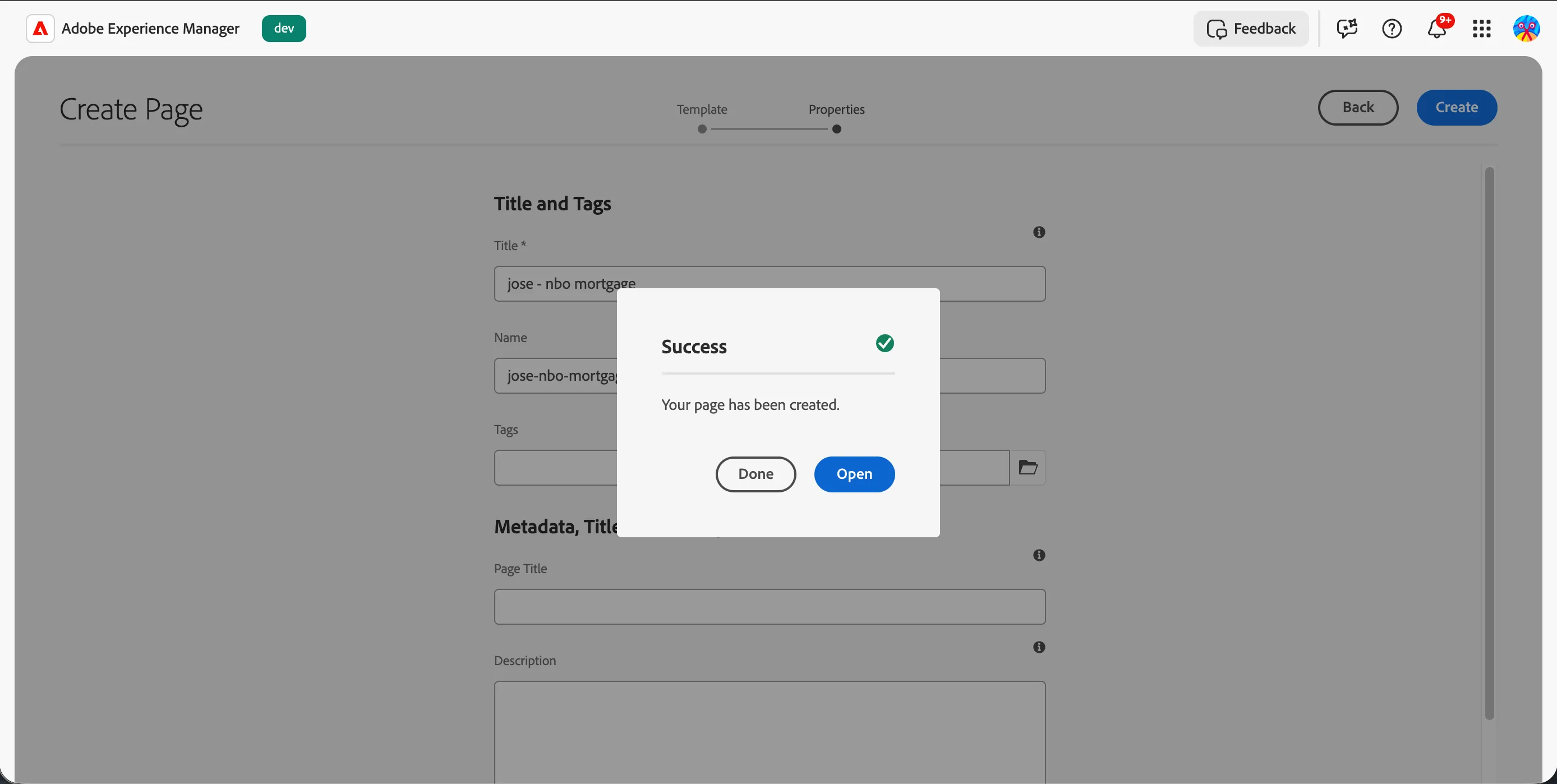
- Name your page: {{LASTNAME}}- NBO Mortgage
- Click Create, then Open. This opens the page in the Universal Editor interface, ready for you to add content.
Add the Hero Banner block
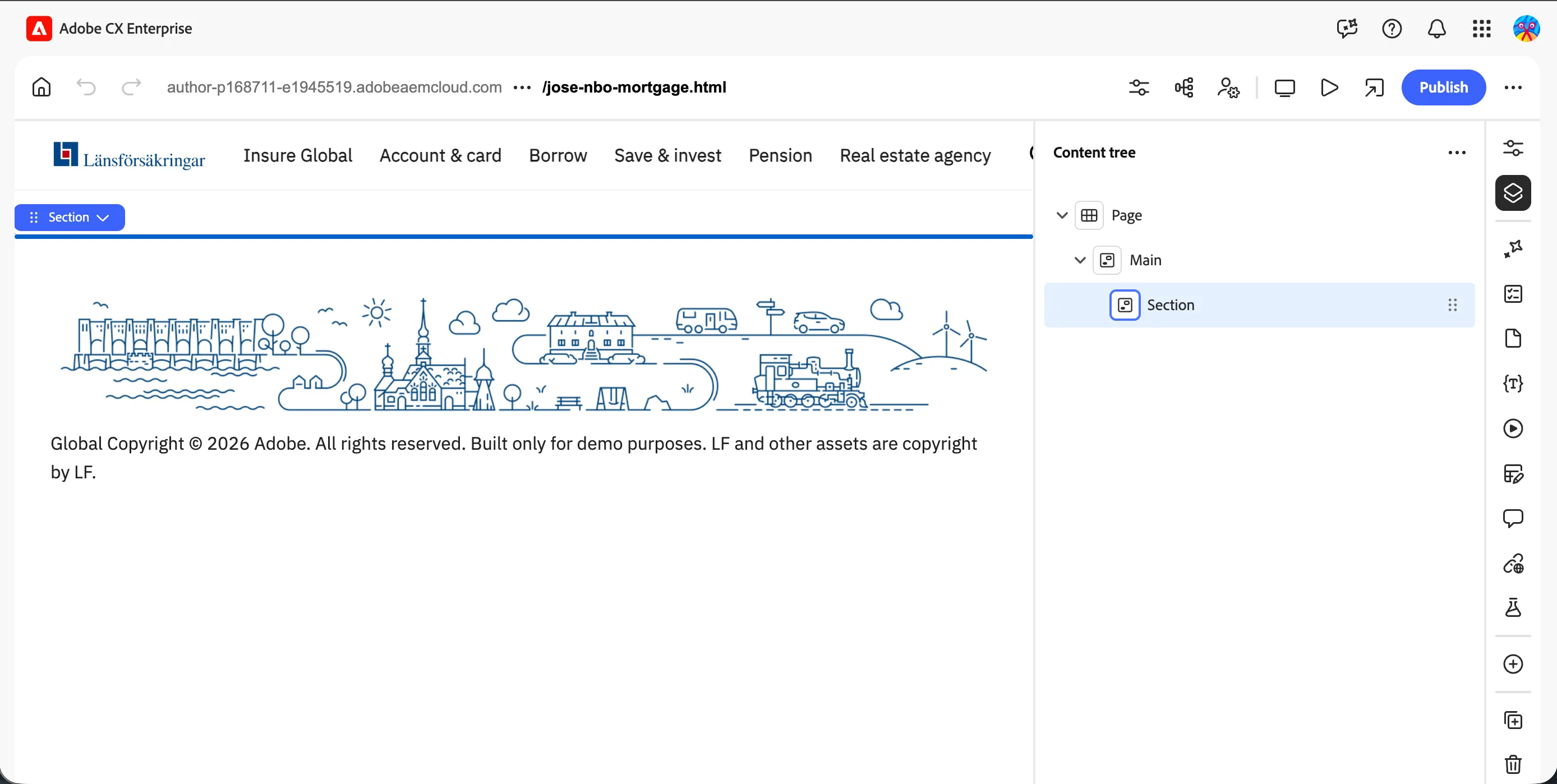
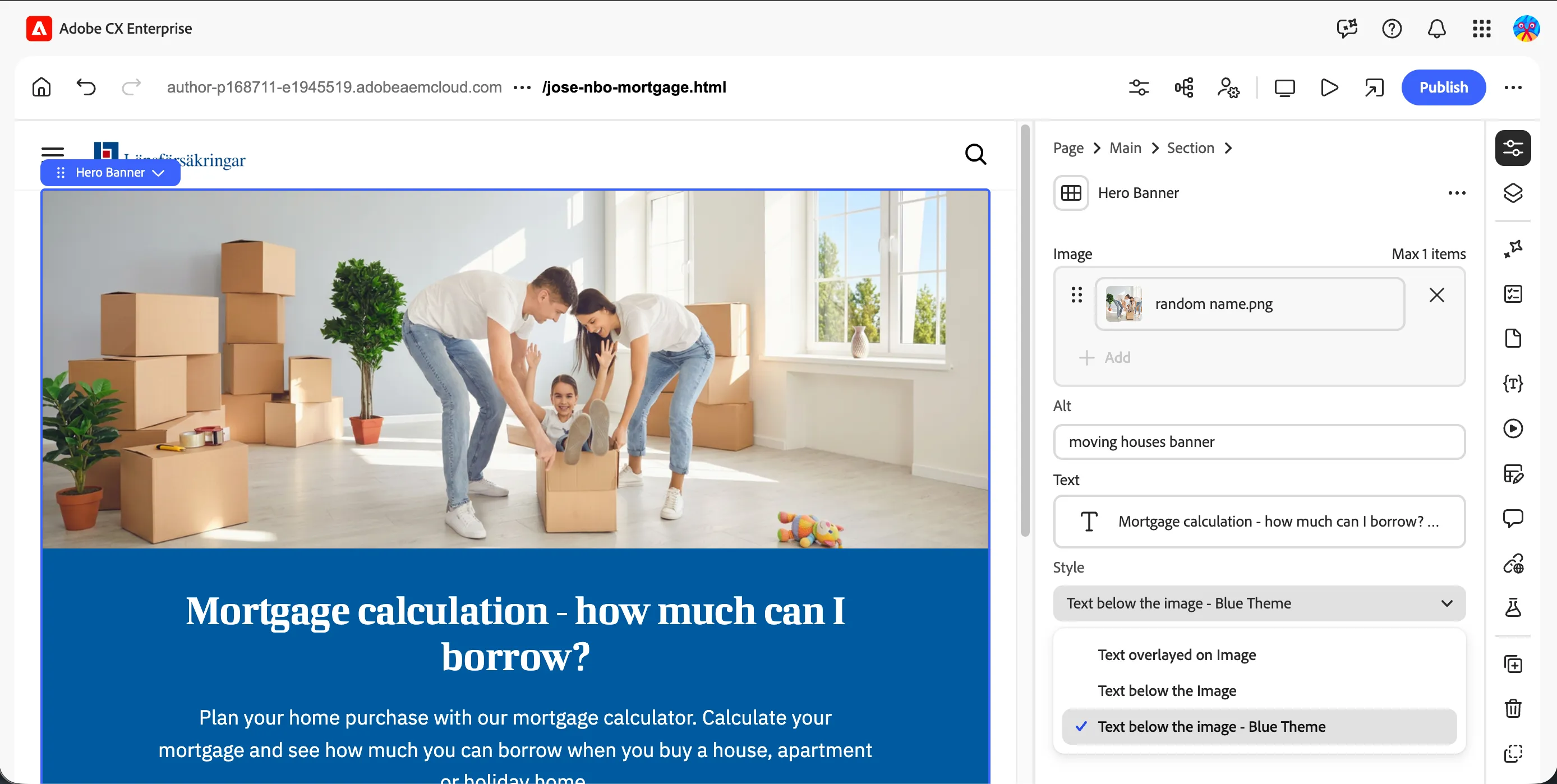
- From the side panel, click Content Tree to show the content tree, then select the Section block, this is where we'll insert the Hero Banner. Click the (+) icon to add a new block.
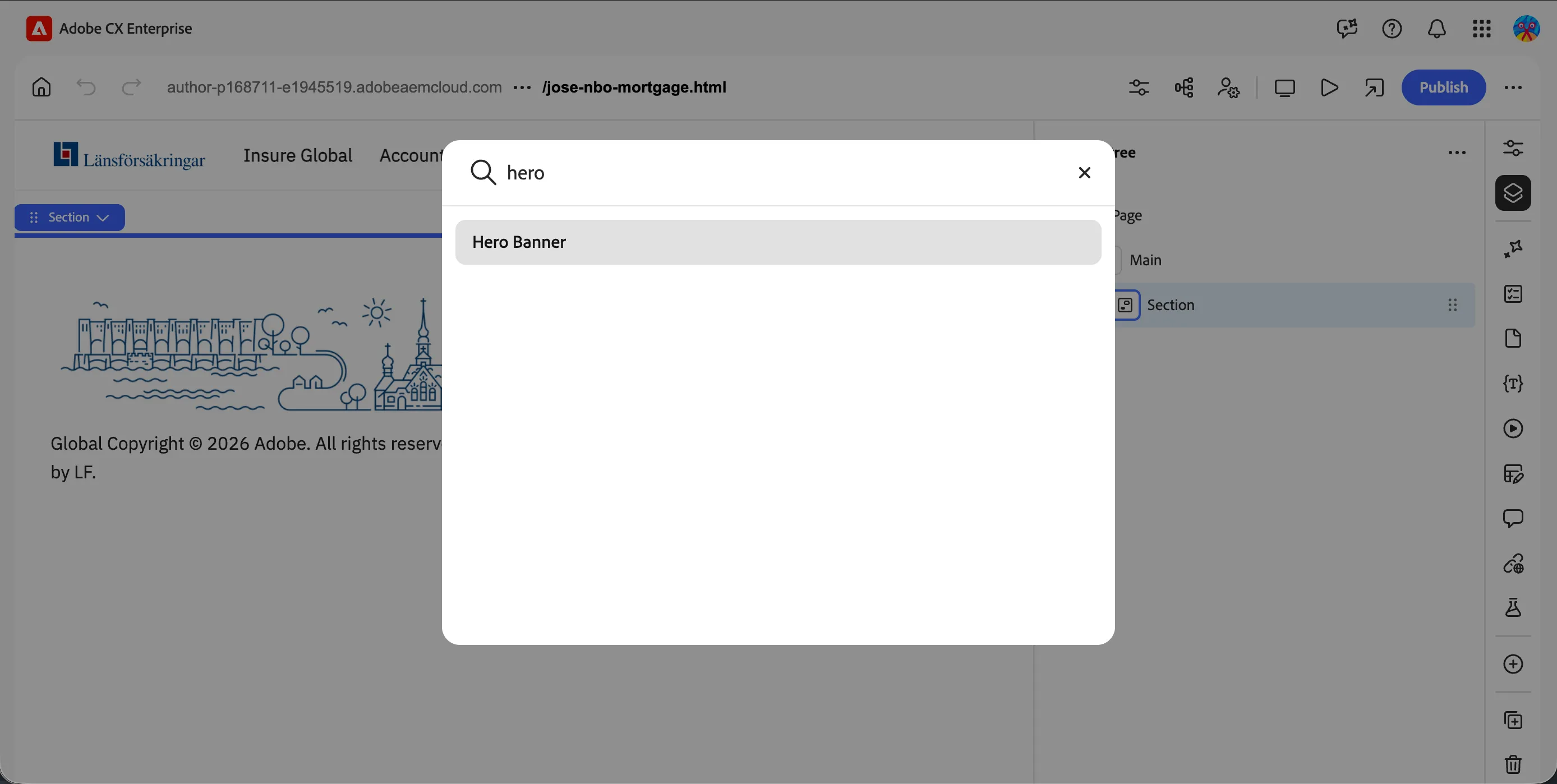
- Search for Hero and select Hero banner.
- Switch to the Properties menu to see the block's configuration options.
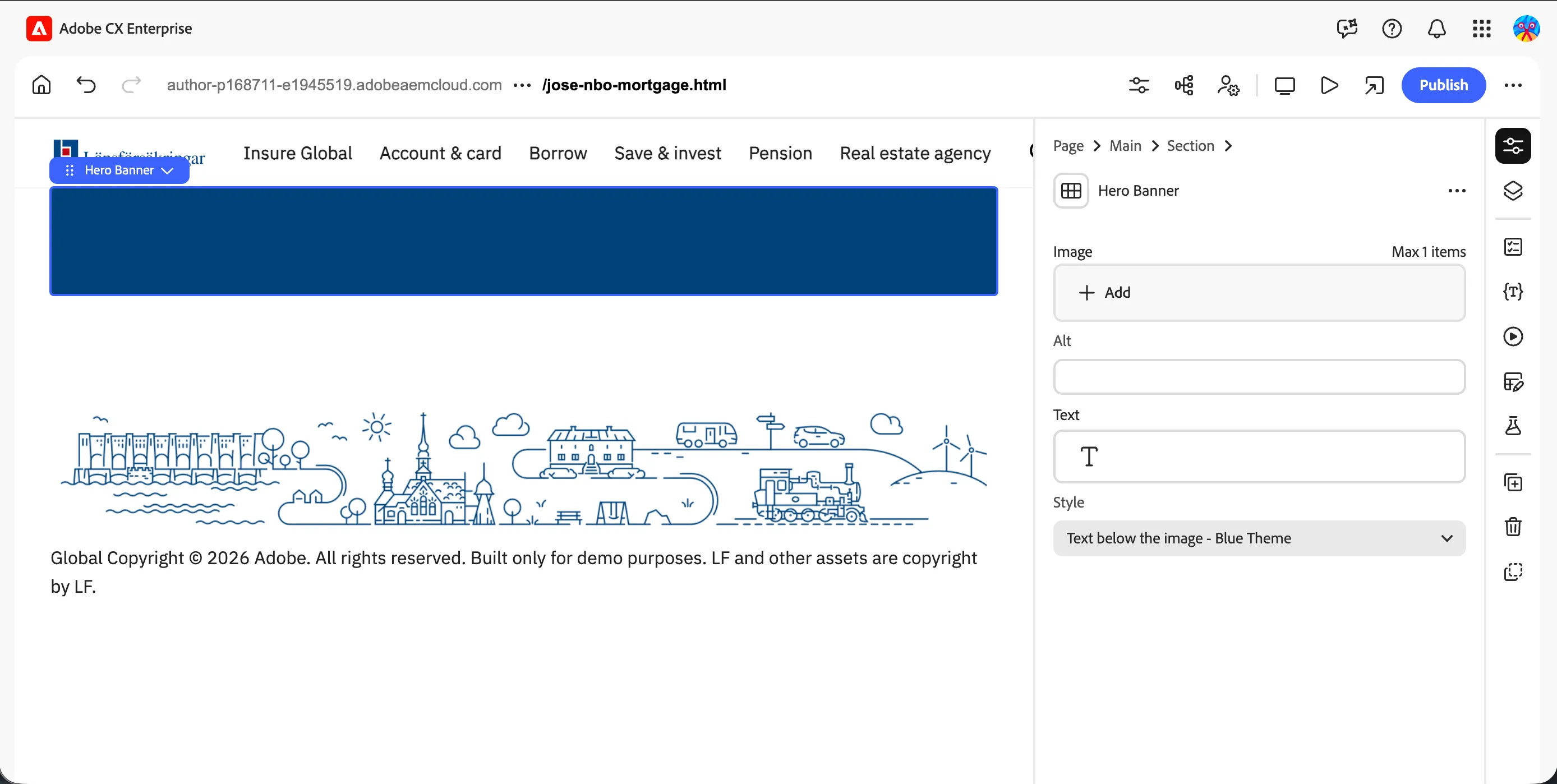
- Add the content for the Hero Banner. Since we're building this centrally, let's use generic content that any regional company could inherit:
- Click Add on Image, search for random image, and select an image.
- Click on Text and enter:
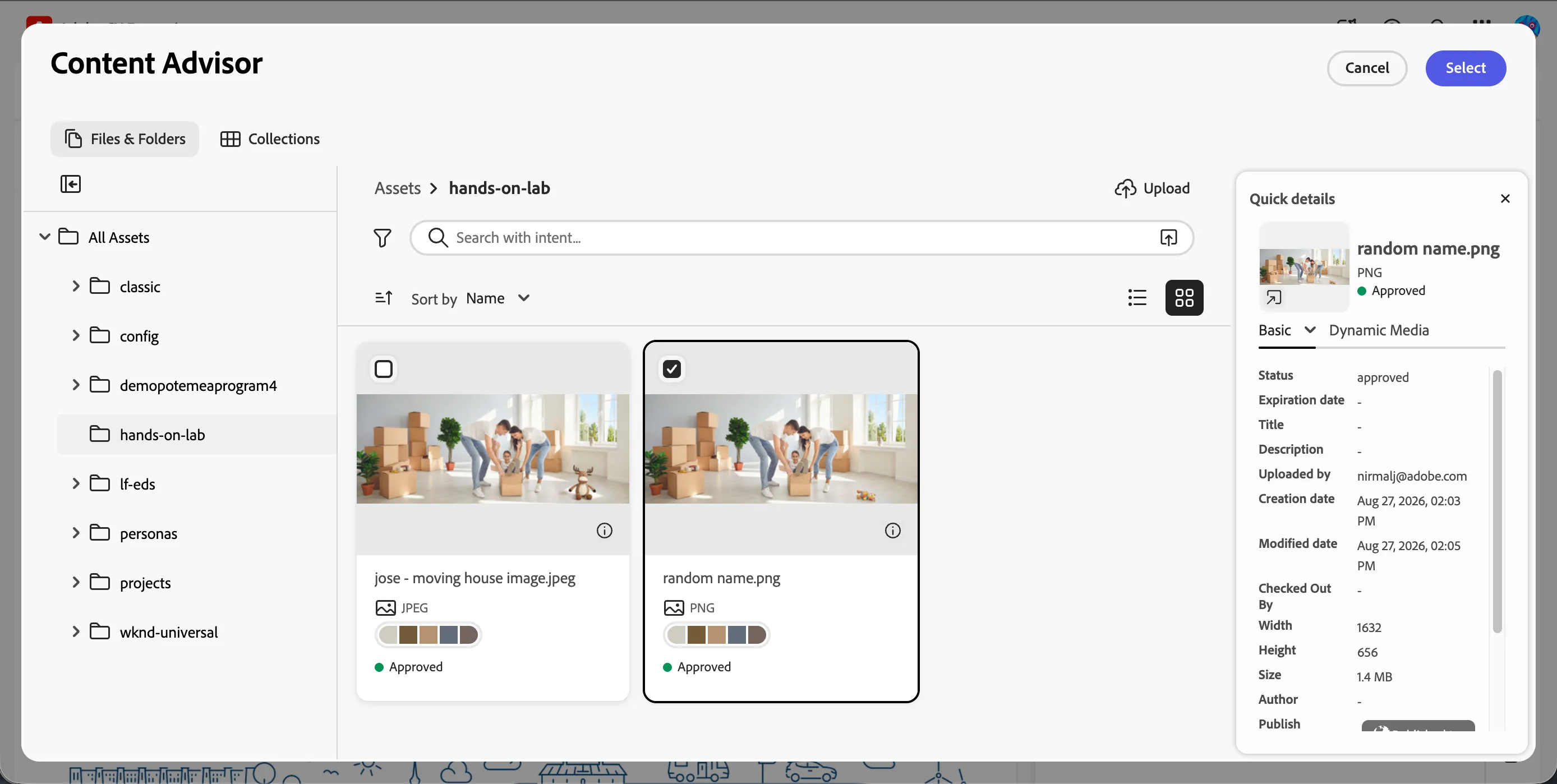
- Select the style you'd like from the Style dropdown.
Add the Content Fragment block
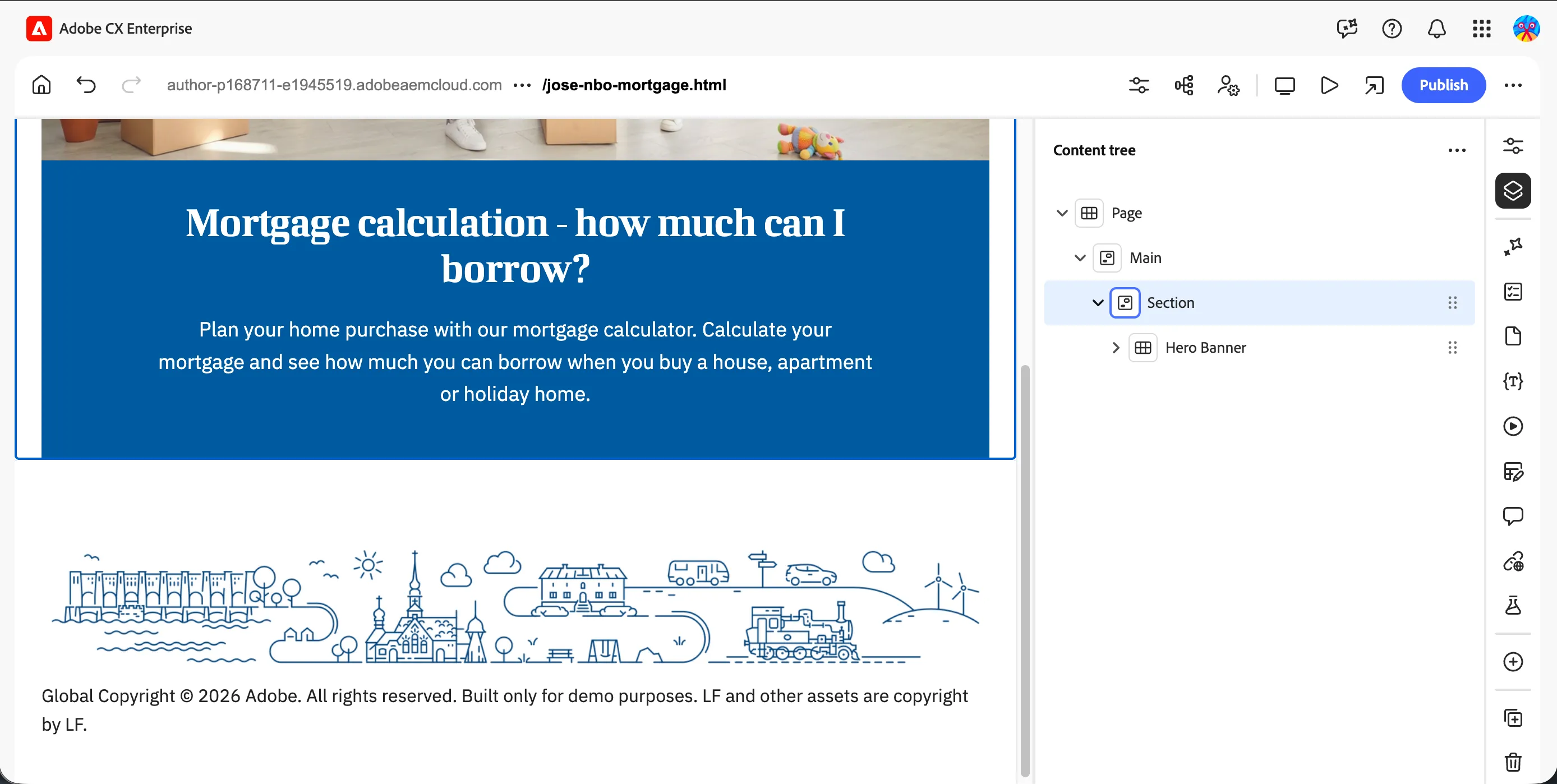
- From the side panel, go back to the Content Tree menu and select Section again. Click the (+) icon to add a new block below the Hero Banner.
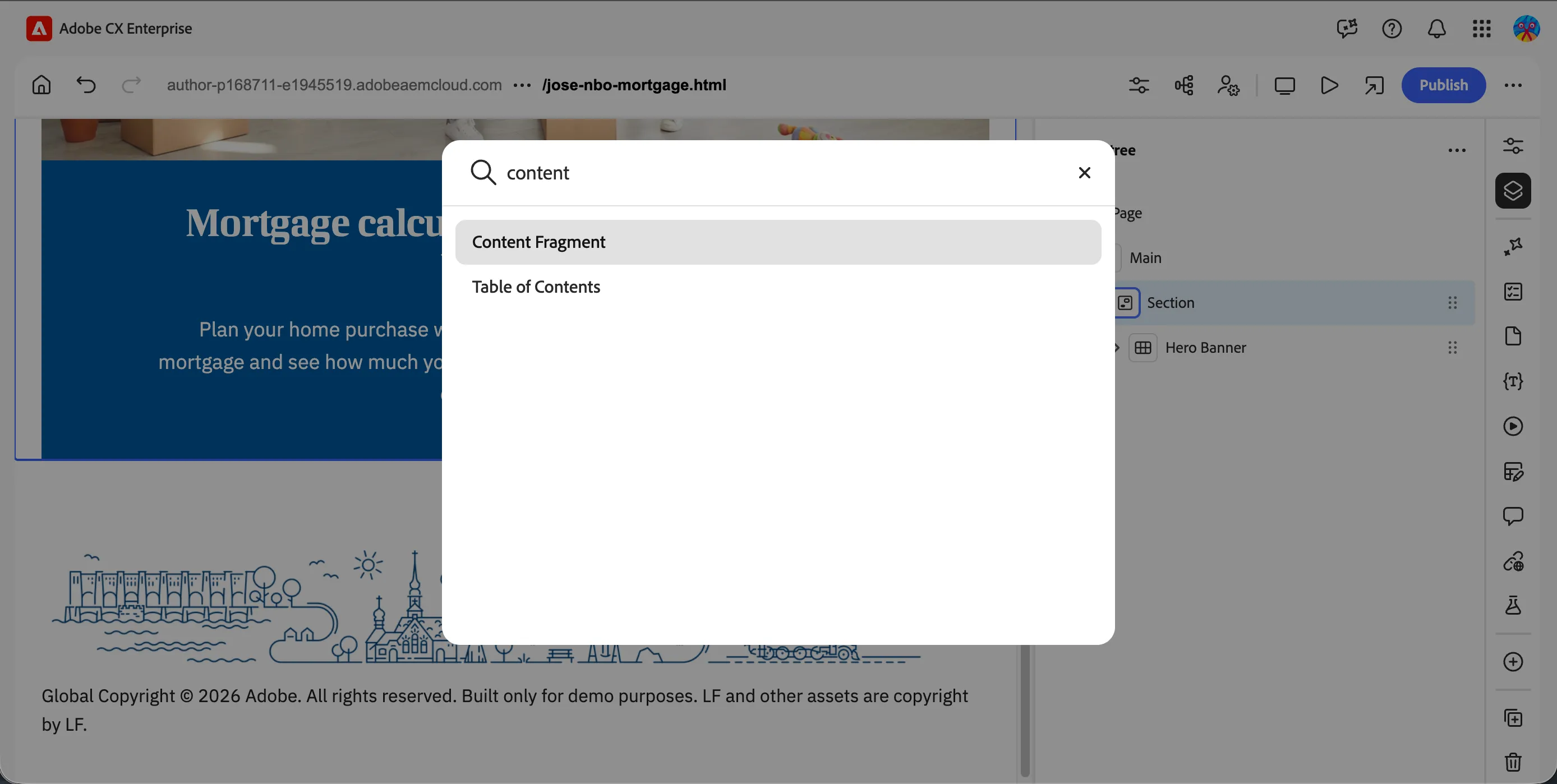
- Search for content and select Content Fragment from the list.
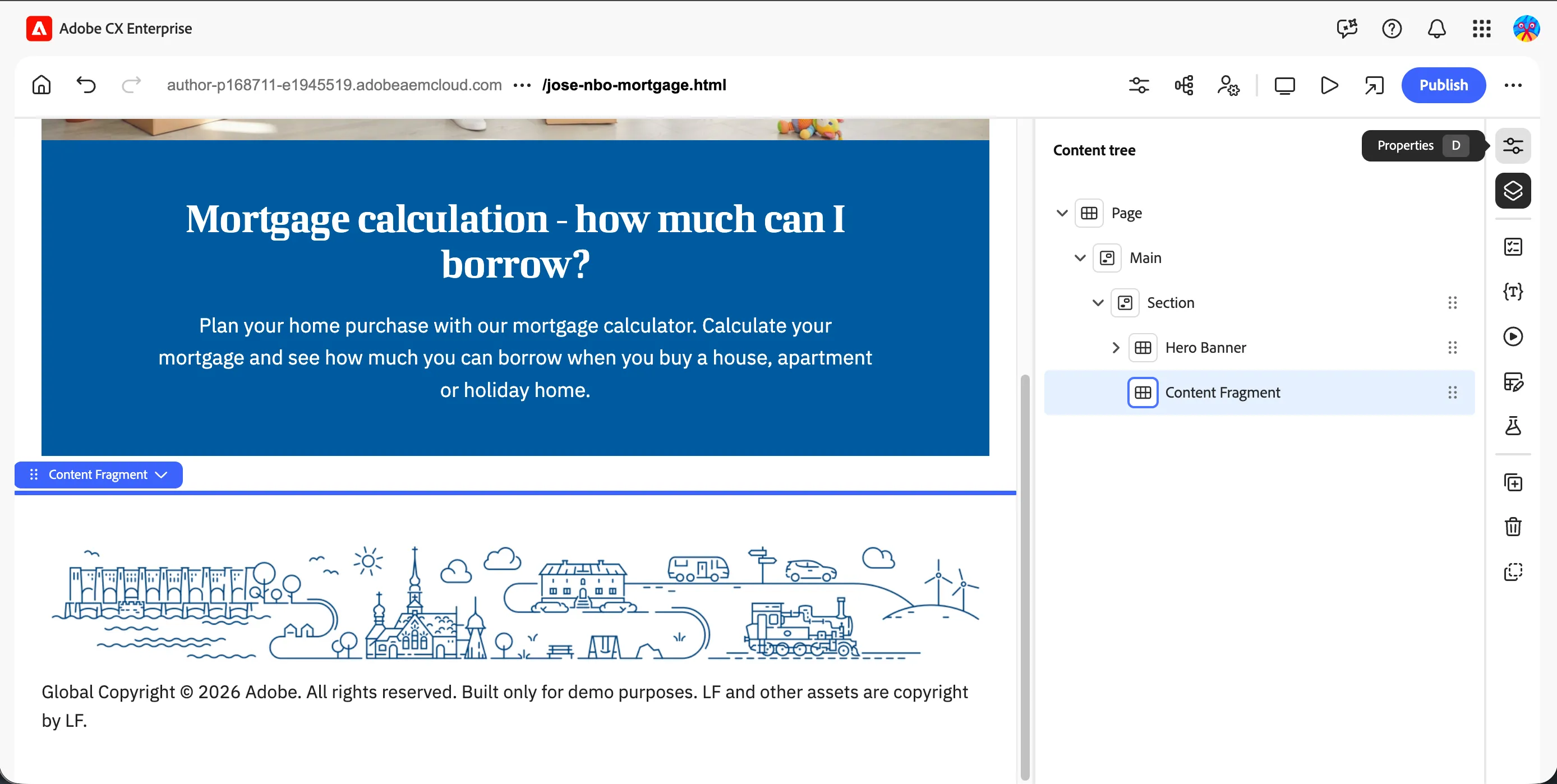
- Switch to the Properties of the Content Fragment block.
- From the content fragment picker, select the generic content fragment ISK tax-free.
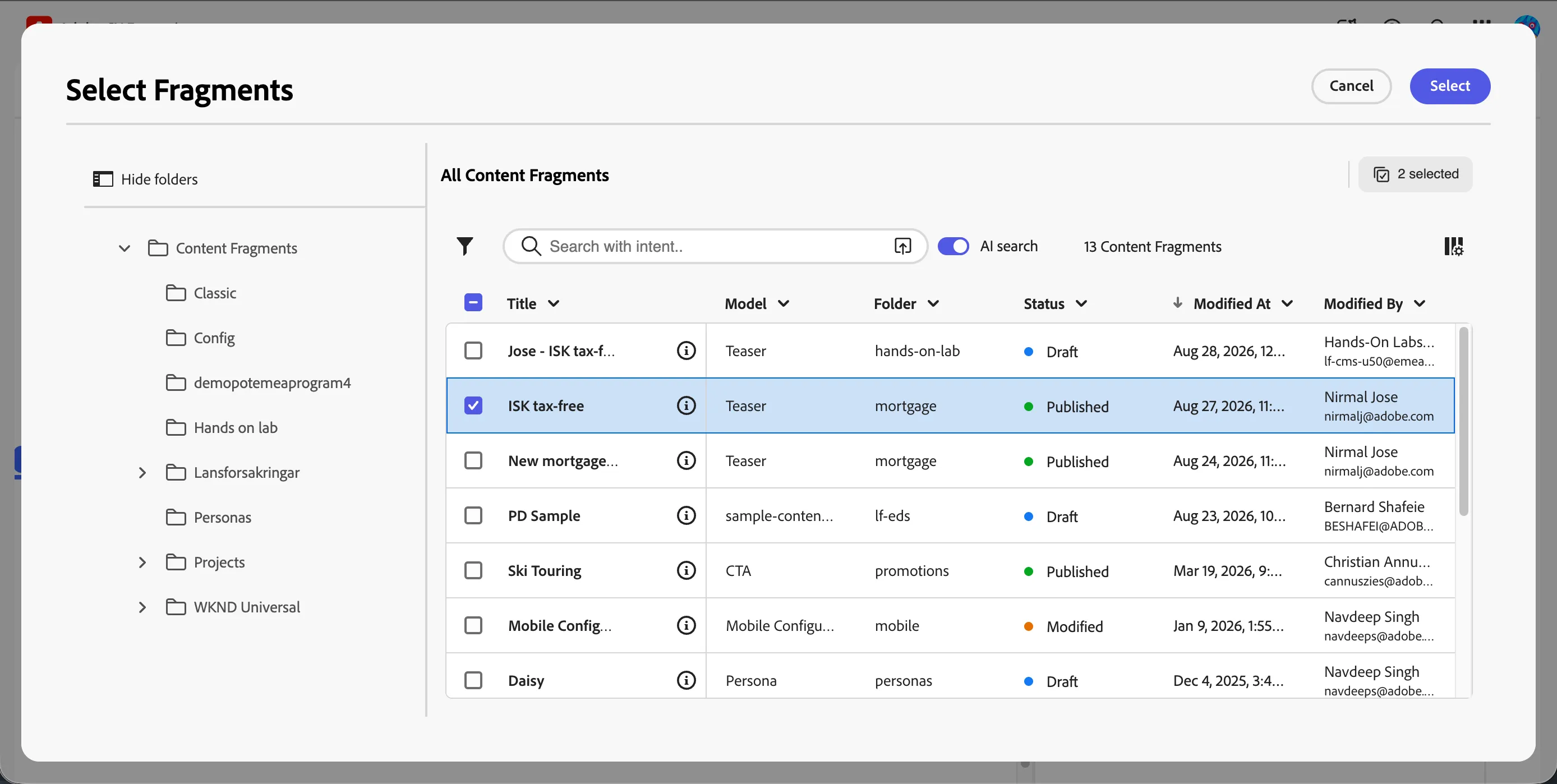
- Ensure you're using the Main variation, then select the style you'd like. As an example, we're selecting Image left.
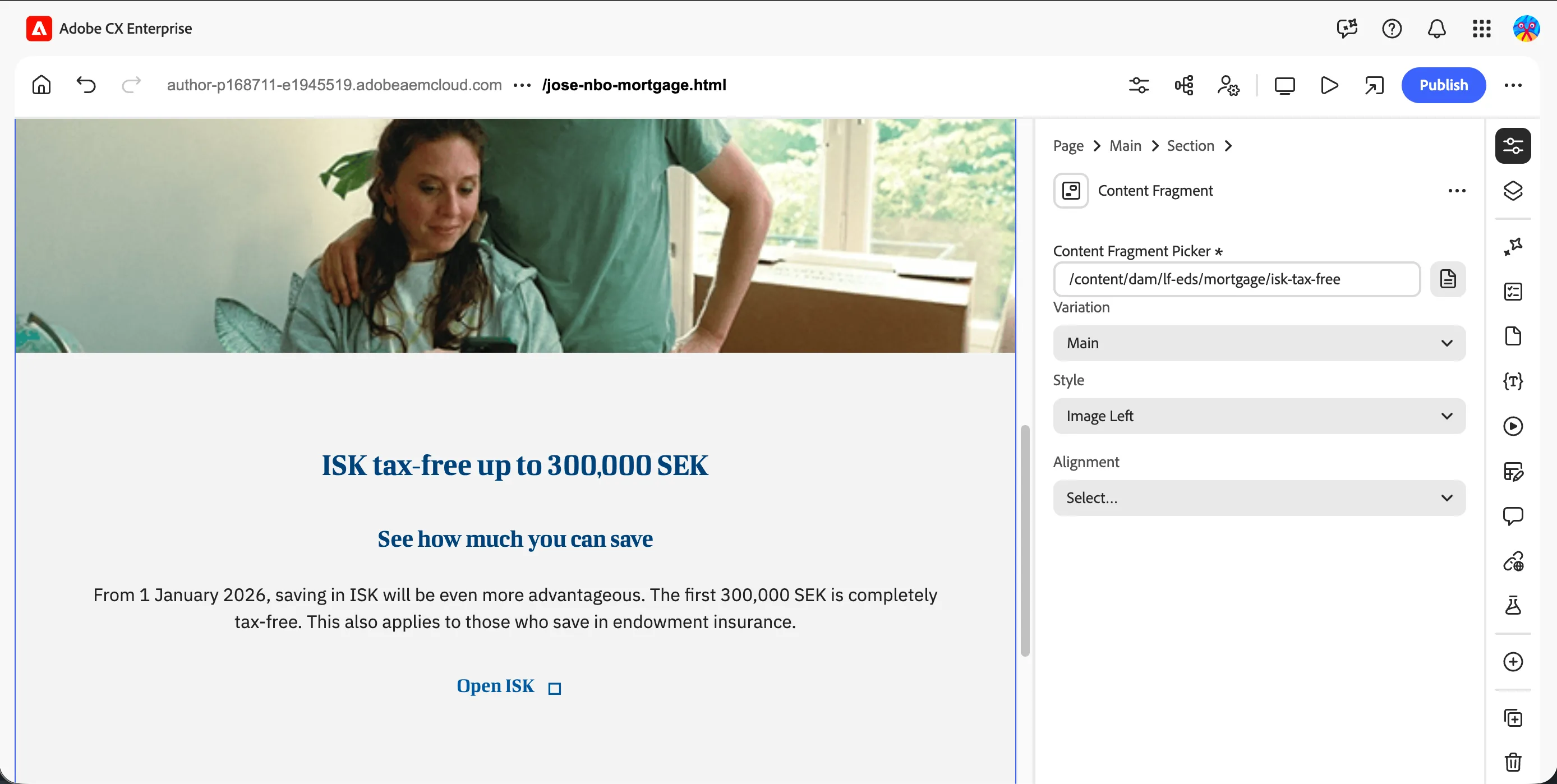
- Your changes are saved automatically, no explicit save action is needed.
What you learned
Before moving to the next step, you should have:
- ✅ Created a new NBO Mortgage page from the shared template
- ✅ Added a Hero Banner block using a shared, generic campaign image
- ✅ Added a Content Fragment block referencing your ISK tax-free fragment
- ✅ Confirmed both blocks render correctly on the page