Environment & Access
User accounts have been created to access Adobe Experience Manager Sites and Assets and all of the tools you'll need in today's workshop.
Login credentials
Password is Adobe@2026
Name | Login credential |
|---|---|
David Ståhl | |
Mona Toofani | |
Alexander Szeps | |
Carina Pahl Skärlind | |
Sofie Lilja | |
Josef Rhawi | |
Caroline Lydén | |
Lina Sennerdal Kolacz | |
Rasmus Lindén | |
Oscar Mångs | |
Jesper Kandelberg | |
André Bergholtz | |
William Persson | |
Alfred Eriksson | |
Reserv | |
Reserv | |
Reserv |
Password is Adobe@2026
Login steps
- Navigate to CX Enterprise Homepage : https://experience.adobe.com/#/@demopotemea/home
- If you are already logged in on your own or corporate account, log out first.
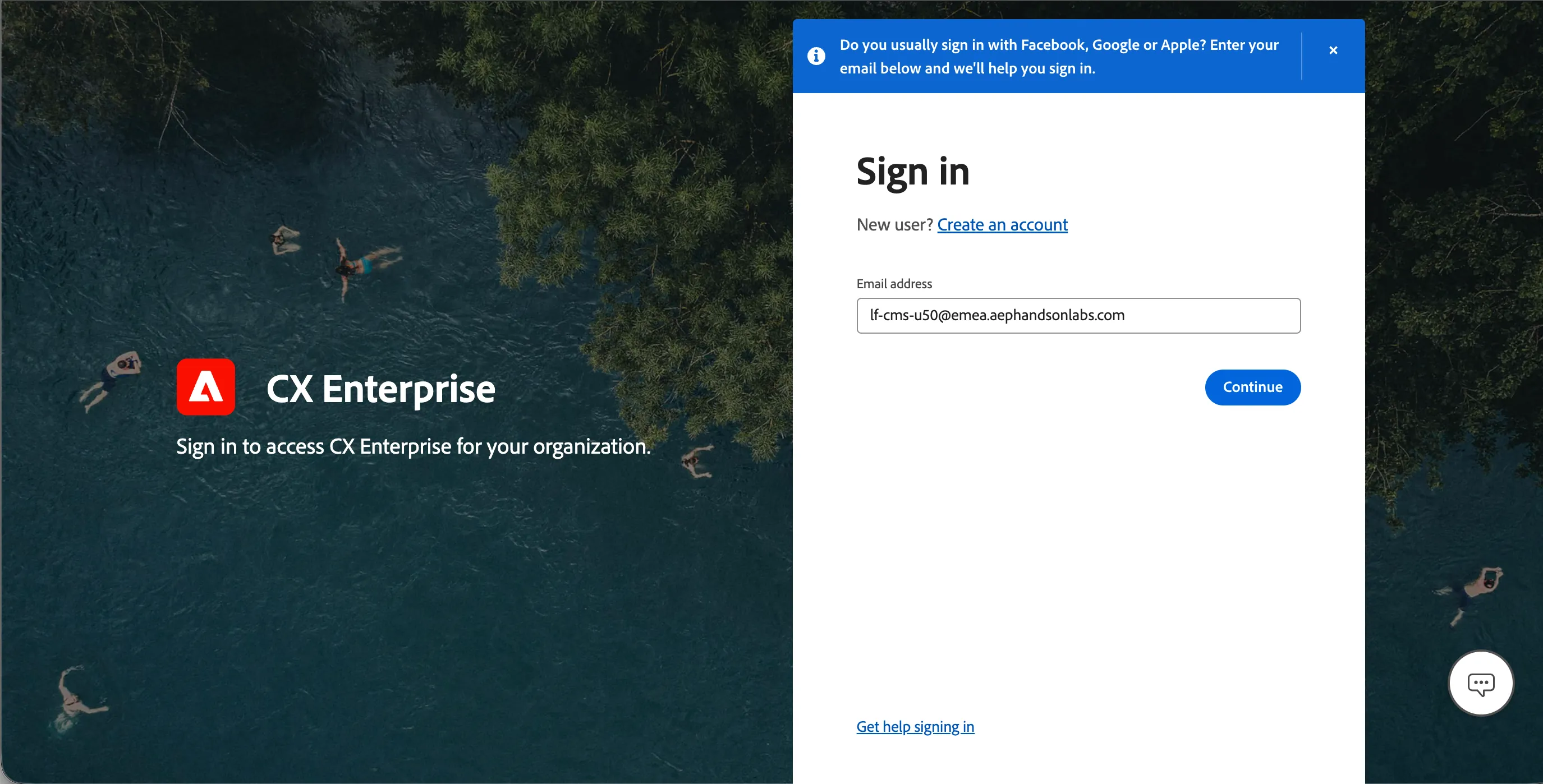
- Enter the password as mentioned above.
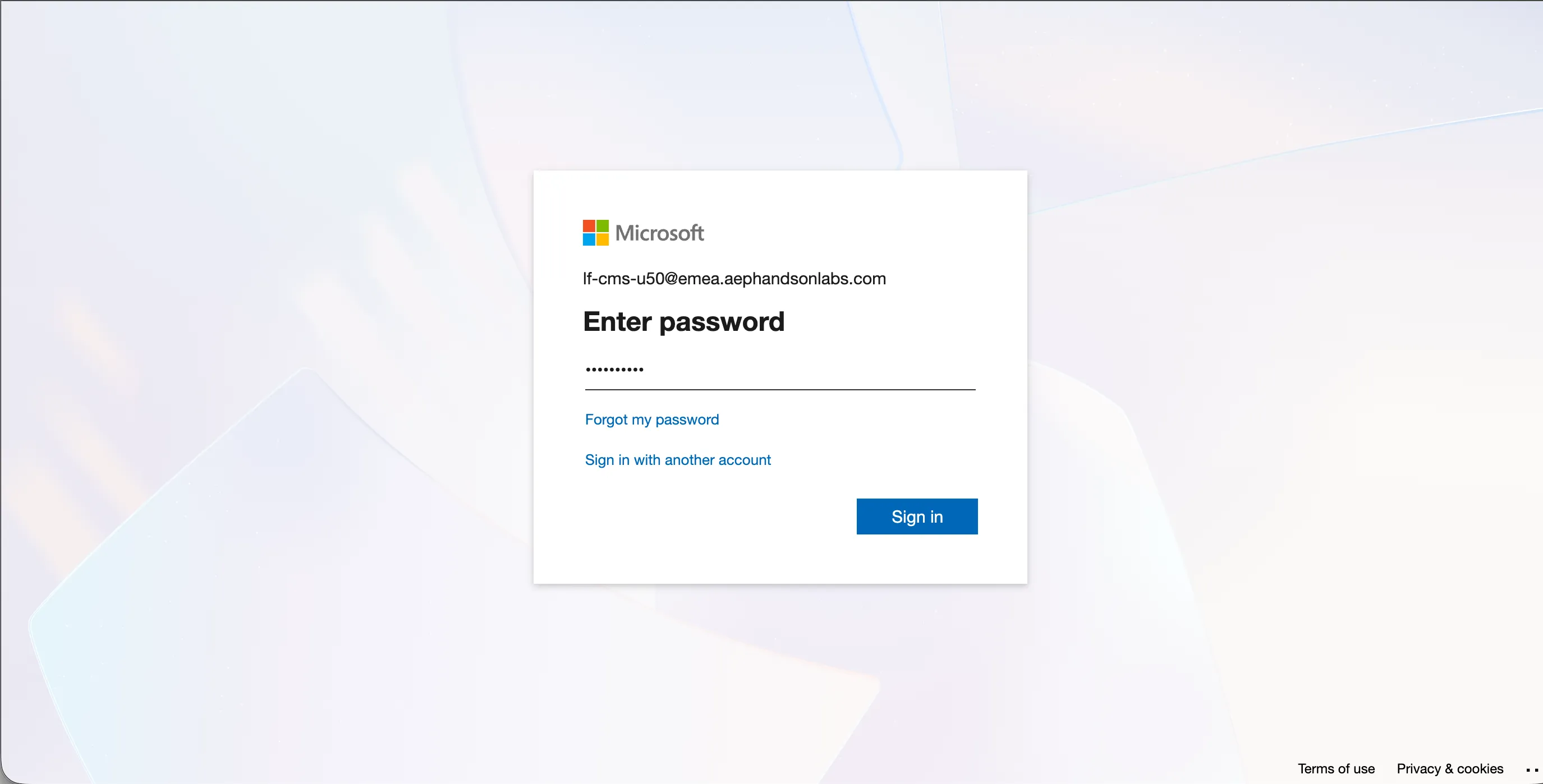
- If prompted for a confirmation to stay signed in, click Yes.
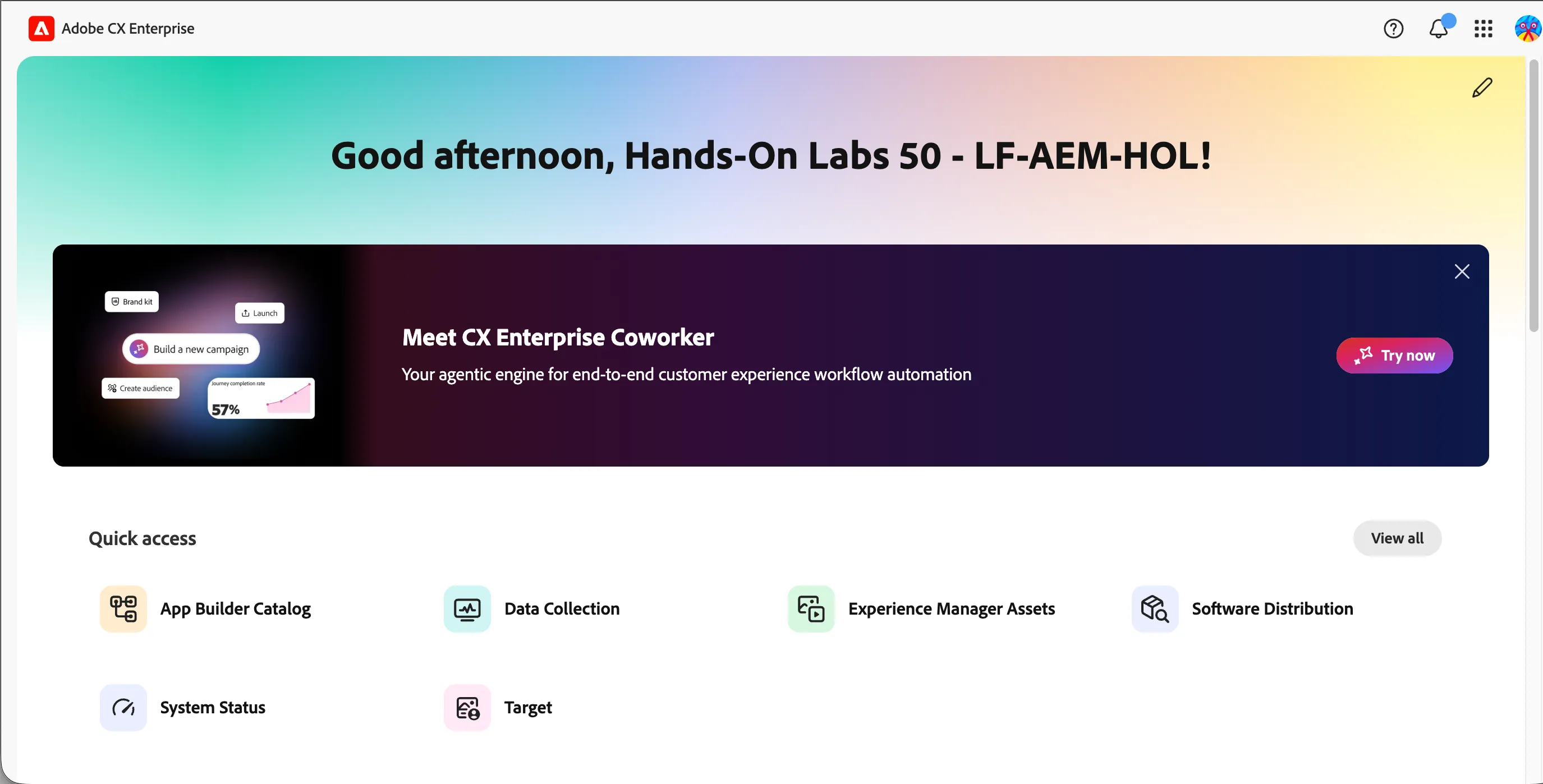
- You will arrive at the CX Enterprise Home.
Navigating to Experience Manager Assets
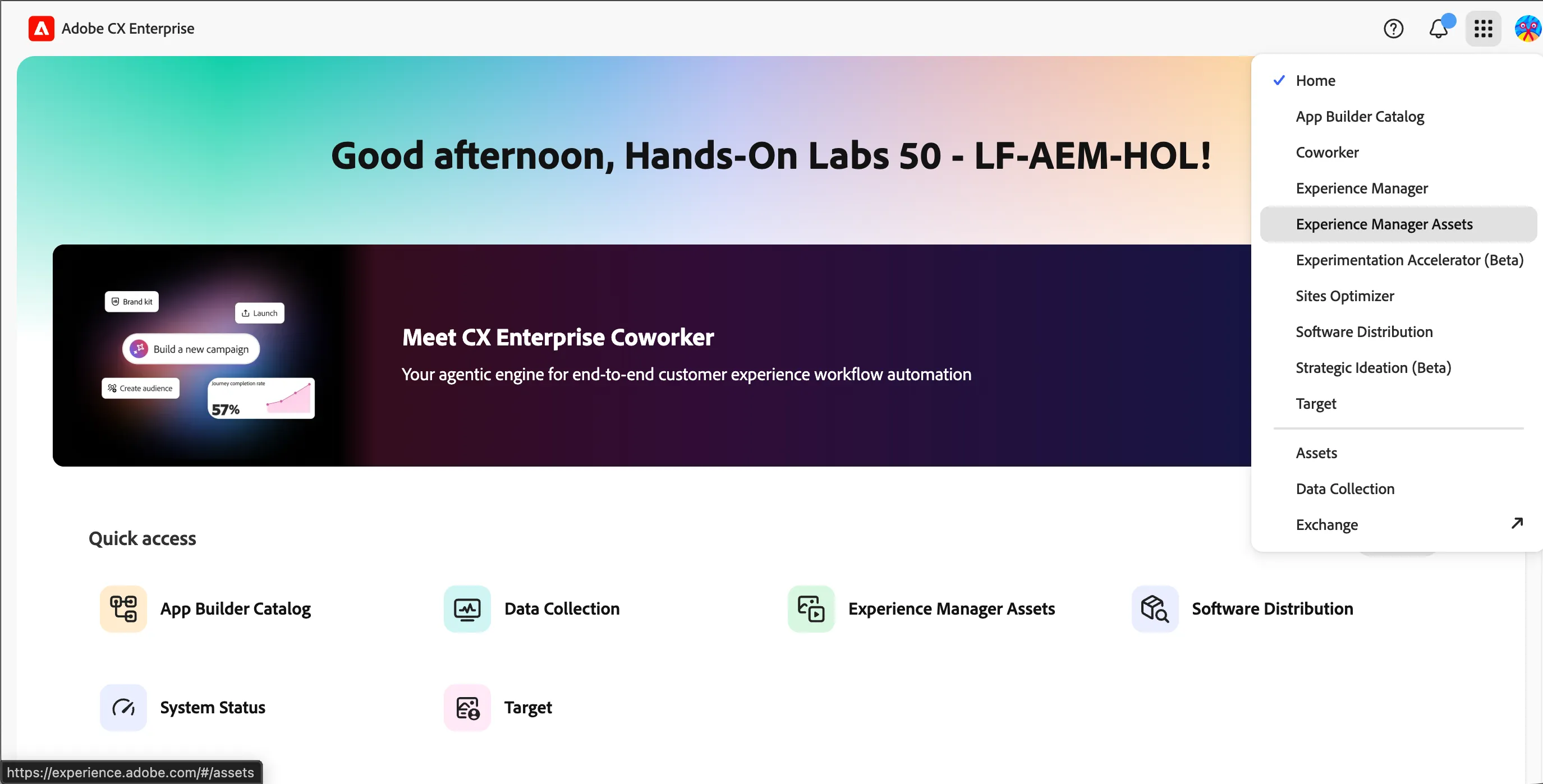
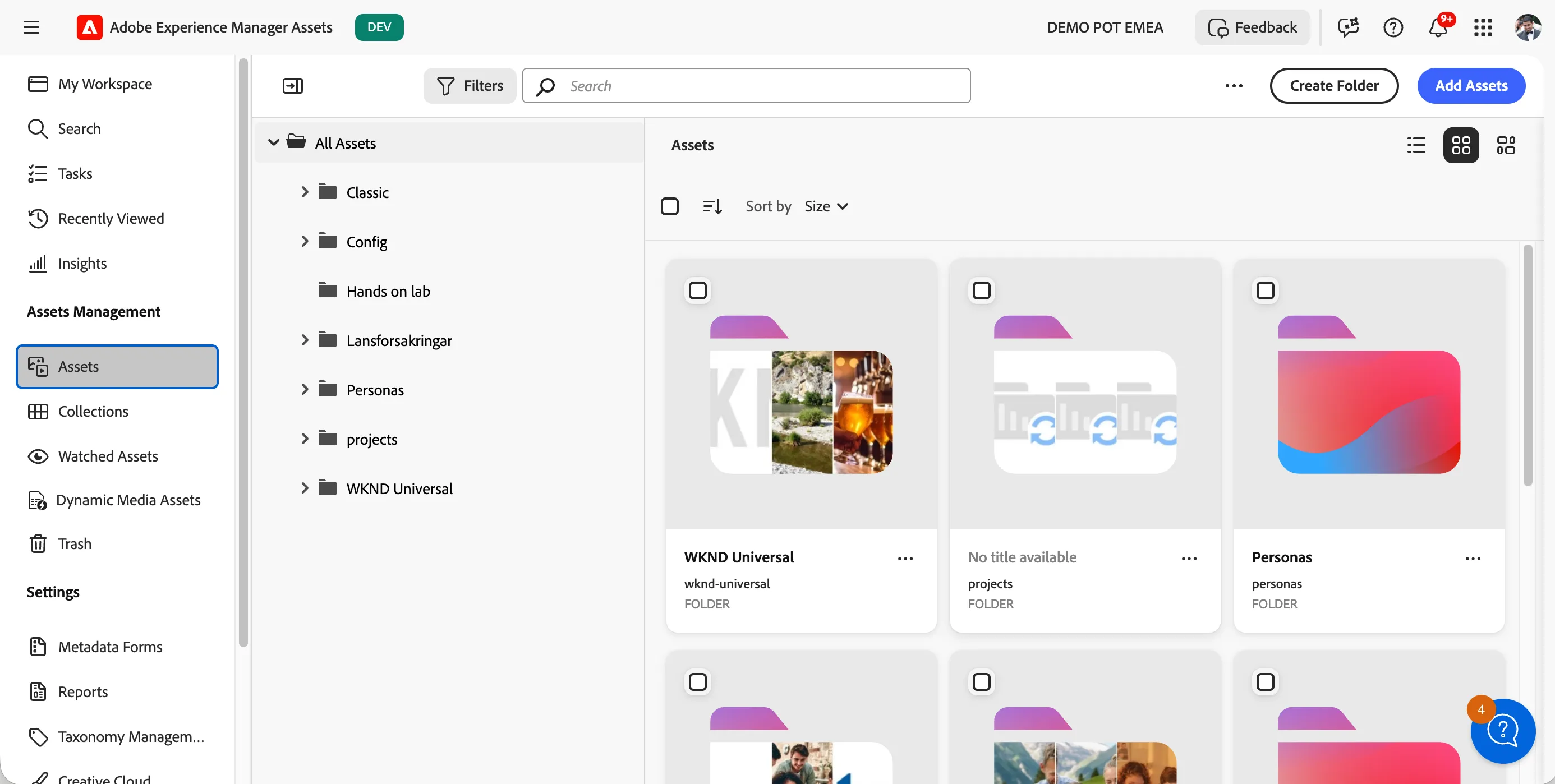
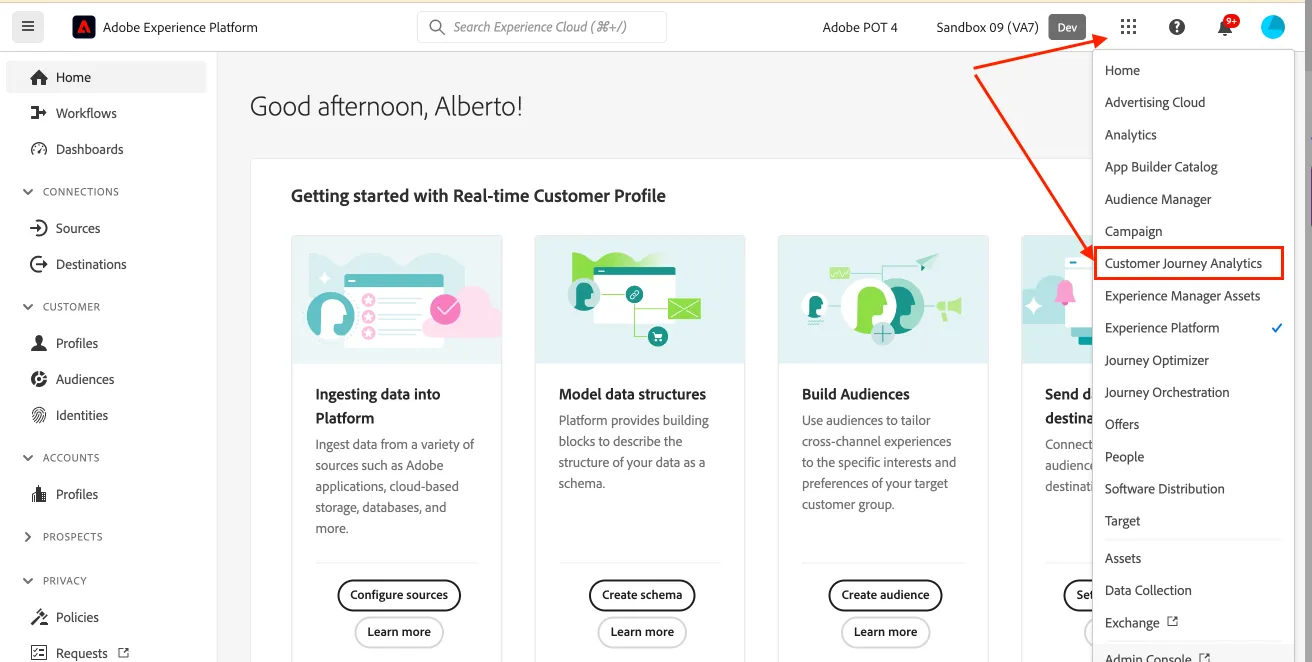
Click on the navigation-icon (9 dots) in the top right and select Experience Manager Assets in the dropdown list.
- You'll see a large visual with a search bar. Click on Browse Assets to open the full workspace.
Navigating to Experience Manager
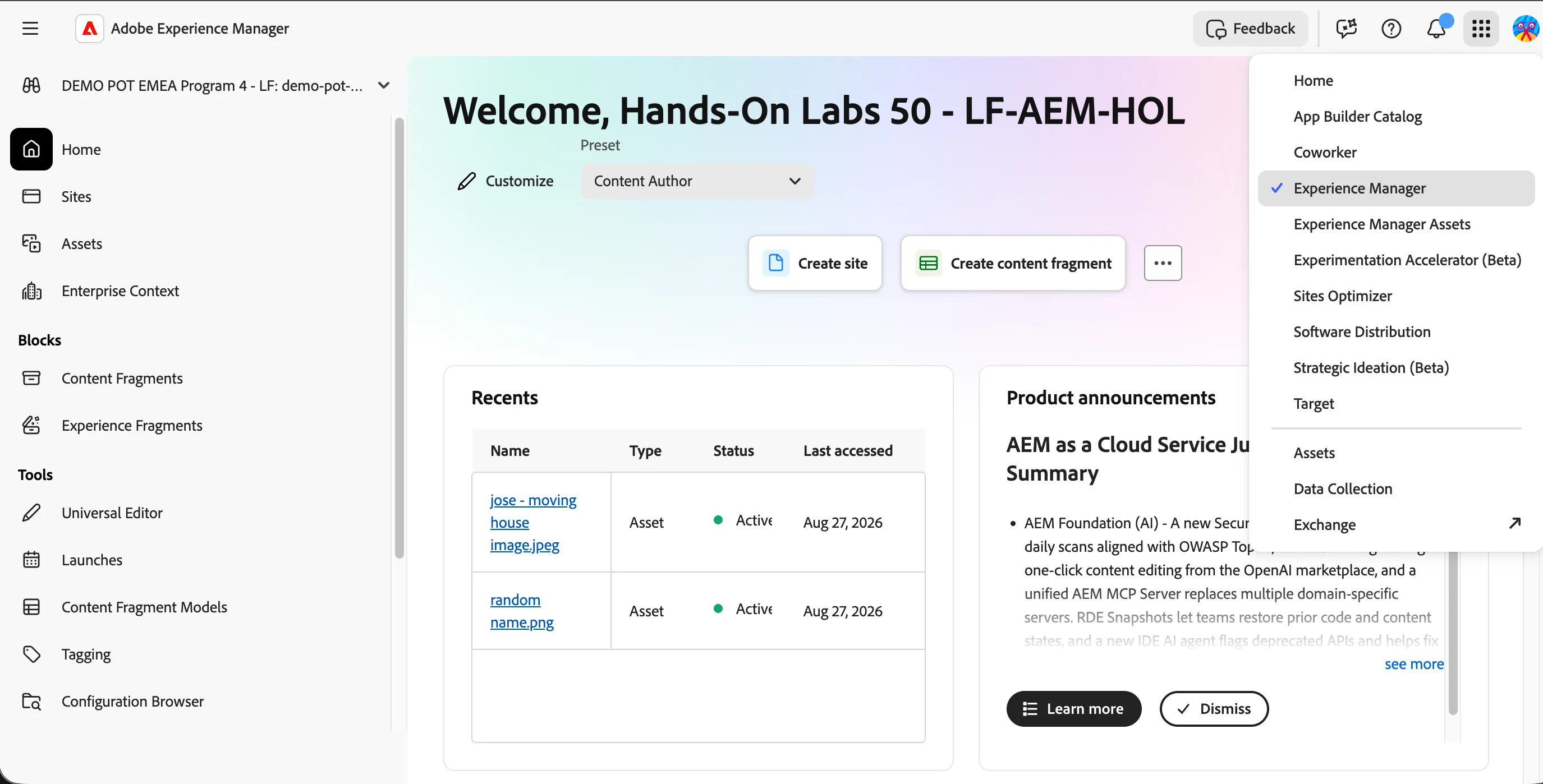
Click on the navigation-icon (9 dots) in the top right and select Experience Manager in the dropdown list.
Navigating to Coworker
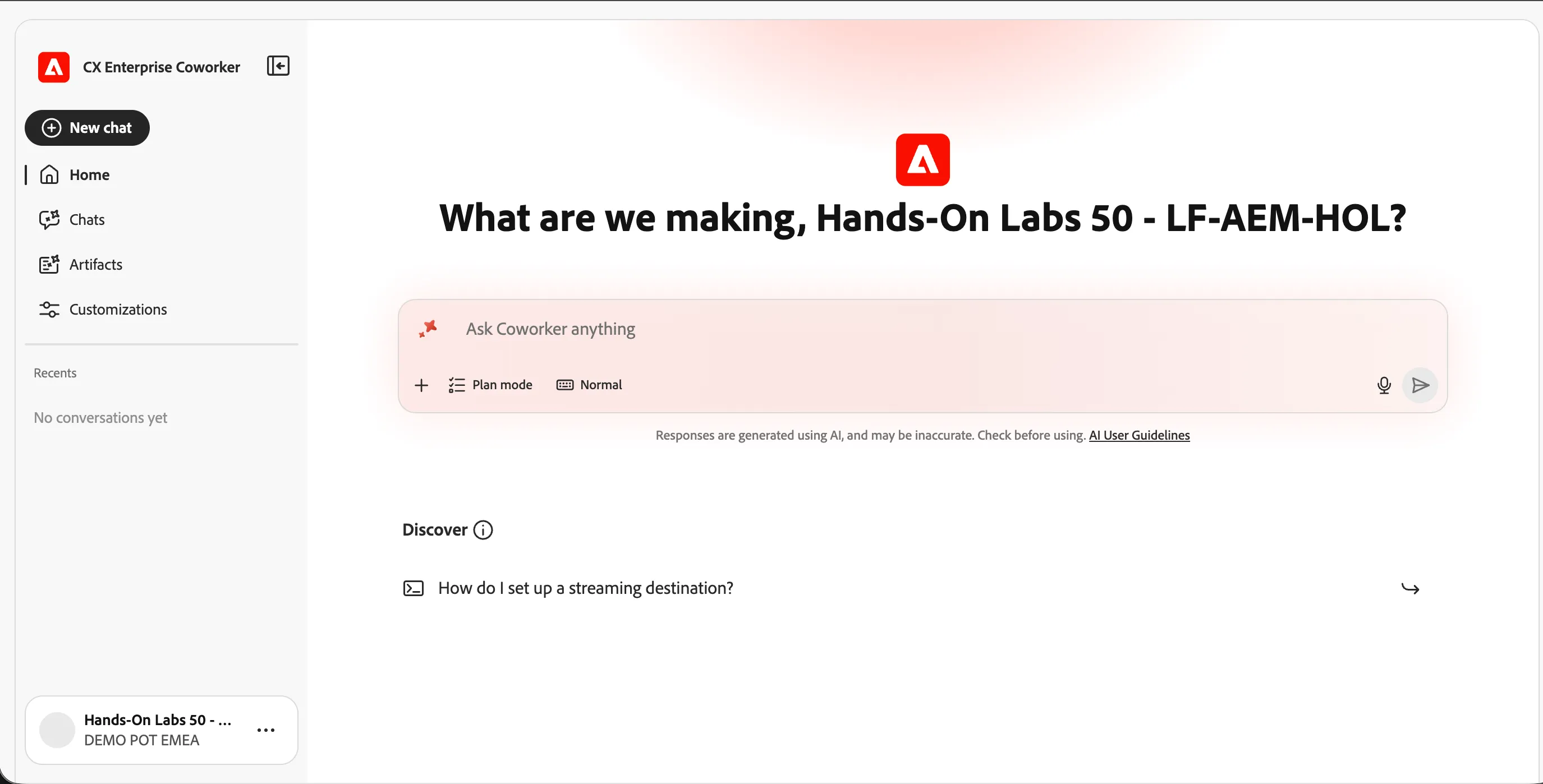
From any screen: click the 9-dots icon  (top right) → Coworker.
Navigating to Customer Journey Analytics
From any screen: click the 9-dots icon (top right) → Customer Journey Analytics.
(Optional) Set language preferences
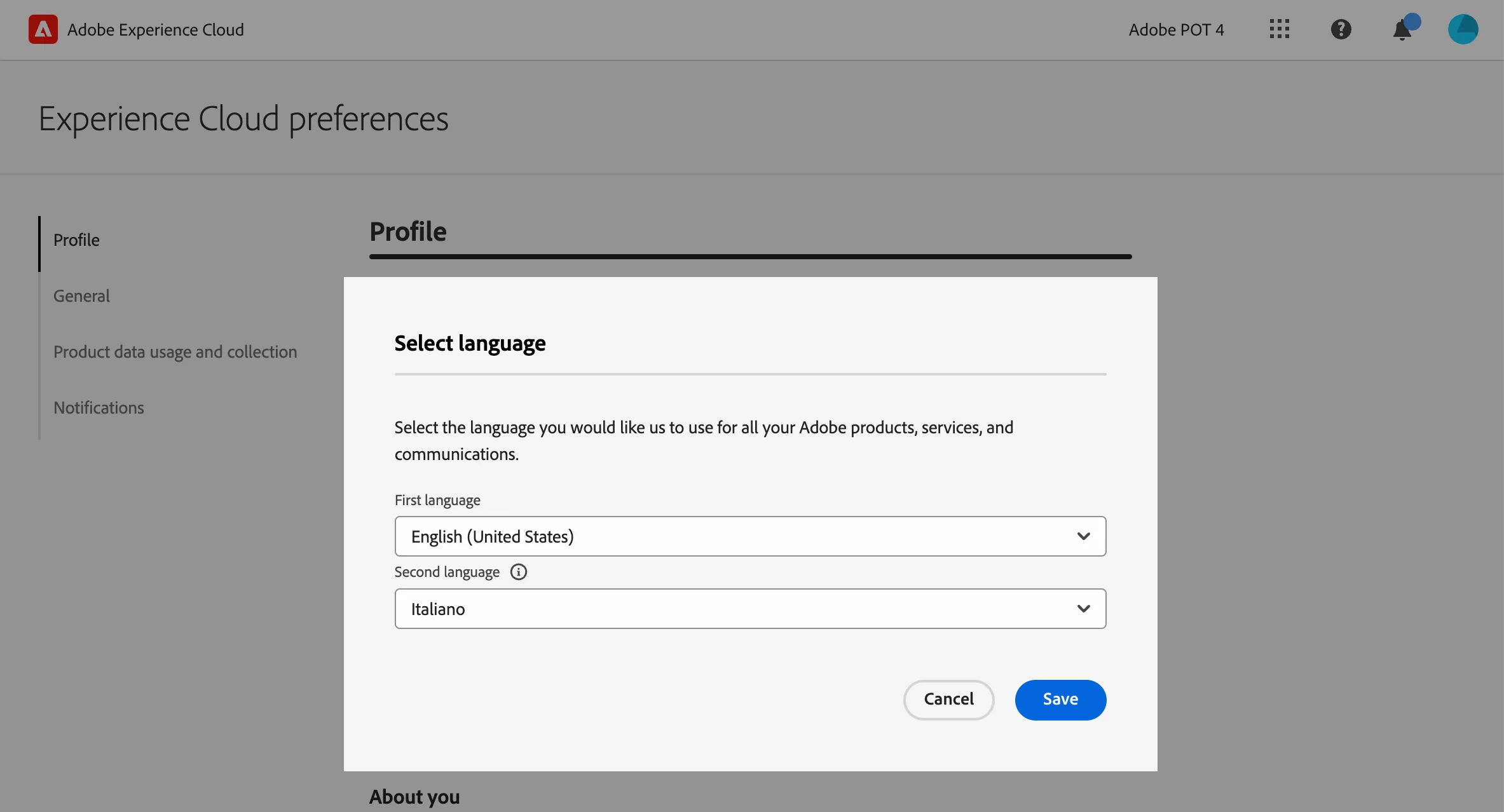
If you prefer the interface in English, set English (United Kingdom) as your first language.
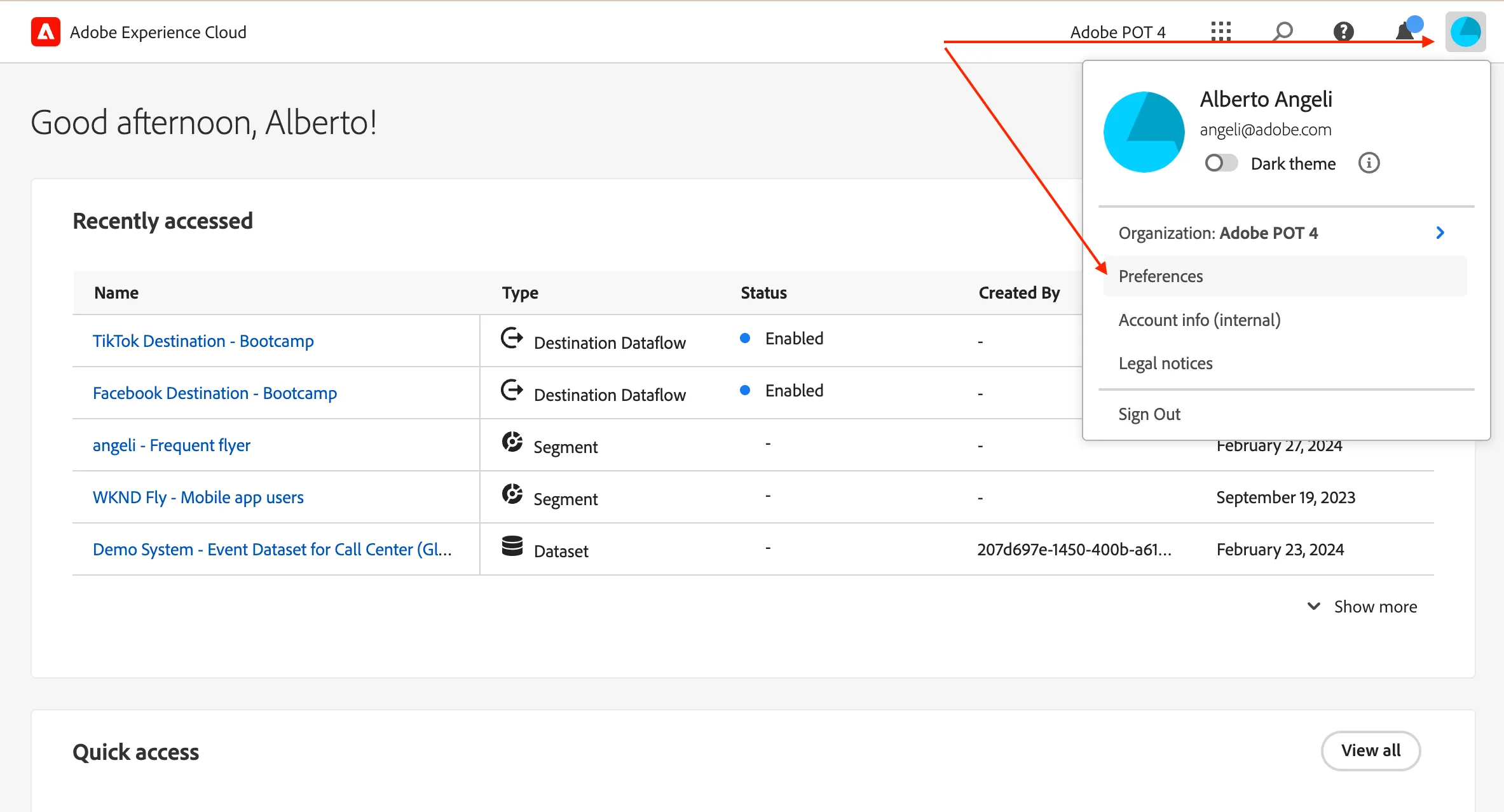
click on the profile icon on the top right corner;
- click on Preferences.
- Click on the language label just below your name.
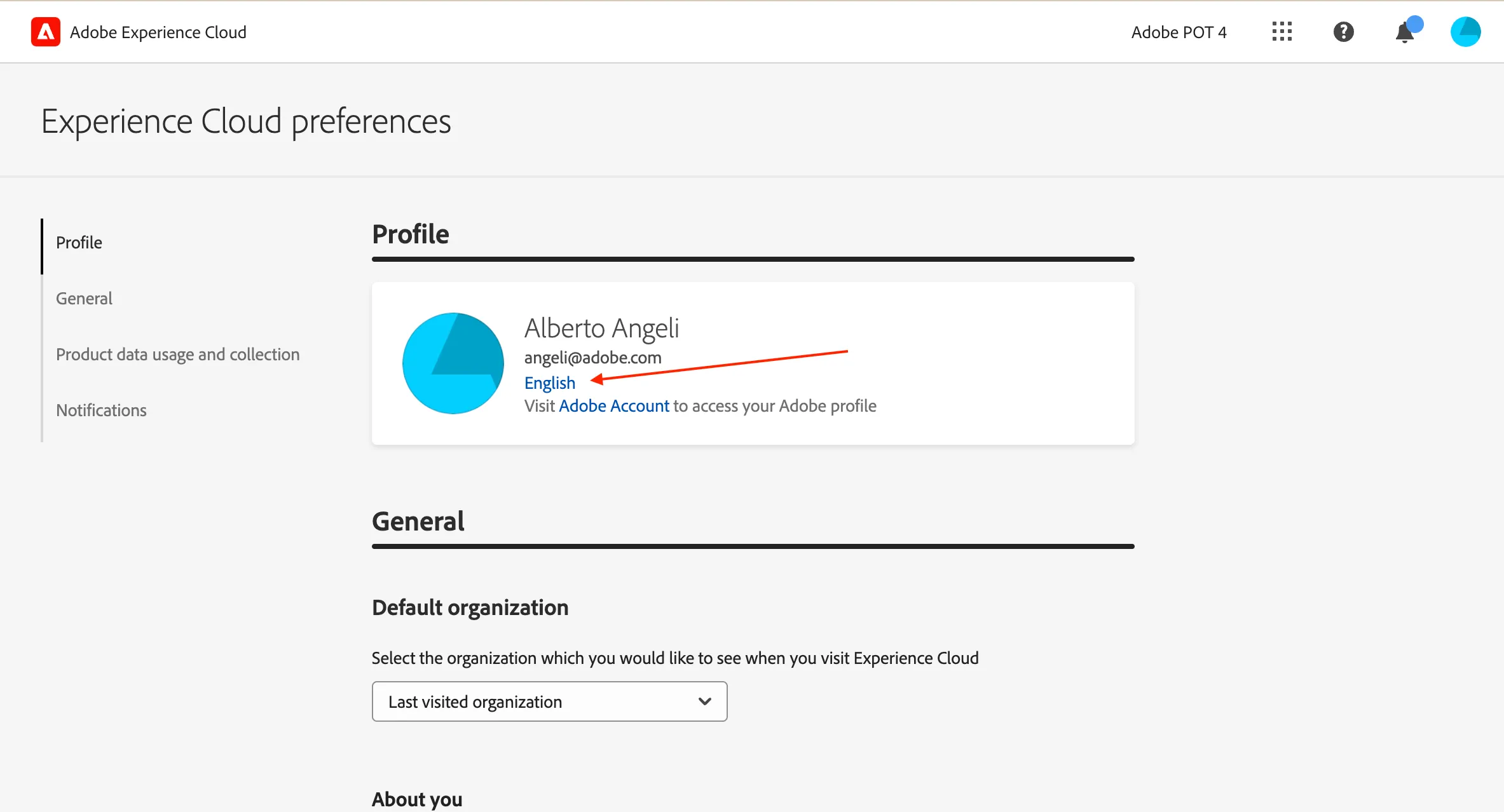
- Select English (United Kingdom) as First language;
- select your preferred language as Second language;
- click Save.