9. Preview and Publish
In this section, we will check our NBO Mortgage page responsively, preview it on the .page preview environment, then publish it live using Manage Publication with a scheduled publish date. Your facilitator will also talk through Launches as a way to manage larger content changes over time.
Business Context
Before any page goes live, LF needs confidence it looks right across devices, that a proper stakeholder can review it in a realistic environment before publication, and that publishing itself is a controlled, schedulable action rather than an irreversible one-click decision.
This exercise walks through that full path — responsive check, preview, and a scheduled live publish — using your own local NBO Mortgage page.
Objective
Check your page across device sizes, preview it on the .page environment, and publish it live using a scheduled Manage Publication workflow, proving content can move from draft to a controlled, scheduled live release without being rebuilt at any stage.
What This Proves
- The page can be previewed across desktop and mobile devices
- Local page variants can be previewed before publication
- Publication can be scheduled and controlled through workflow
- Content can move from test/staging to production without being recreated
Responsive check
- Open your local NBO Mortgage page in Universal Editor.
- Click the Preview icon at the top right to enter preview mode. This gives you a full preview, disabling all editorial features.
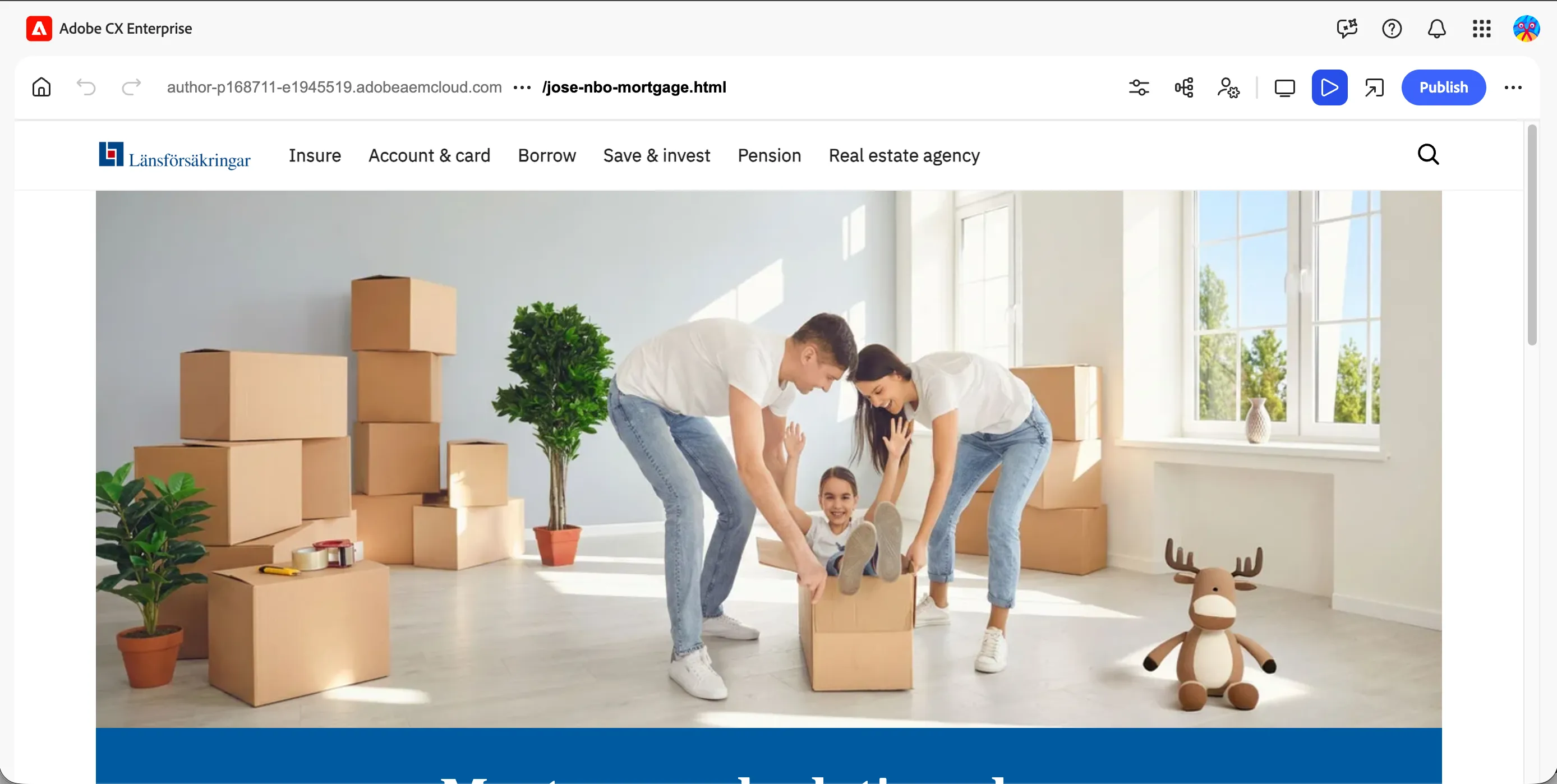
- Click the responsive mode toggle and switch between desktop, tablet, and mobile views.
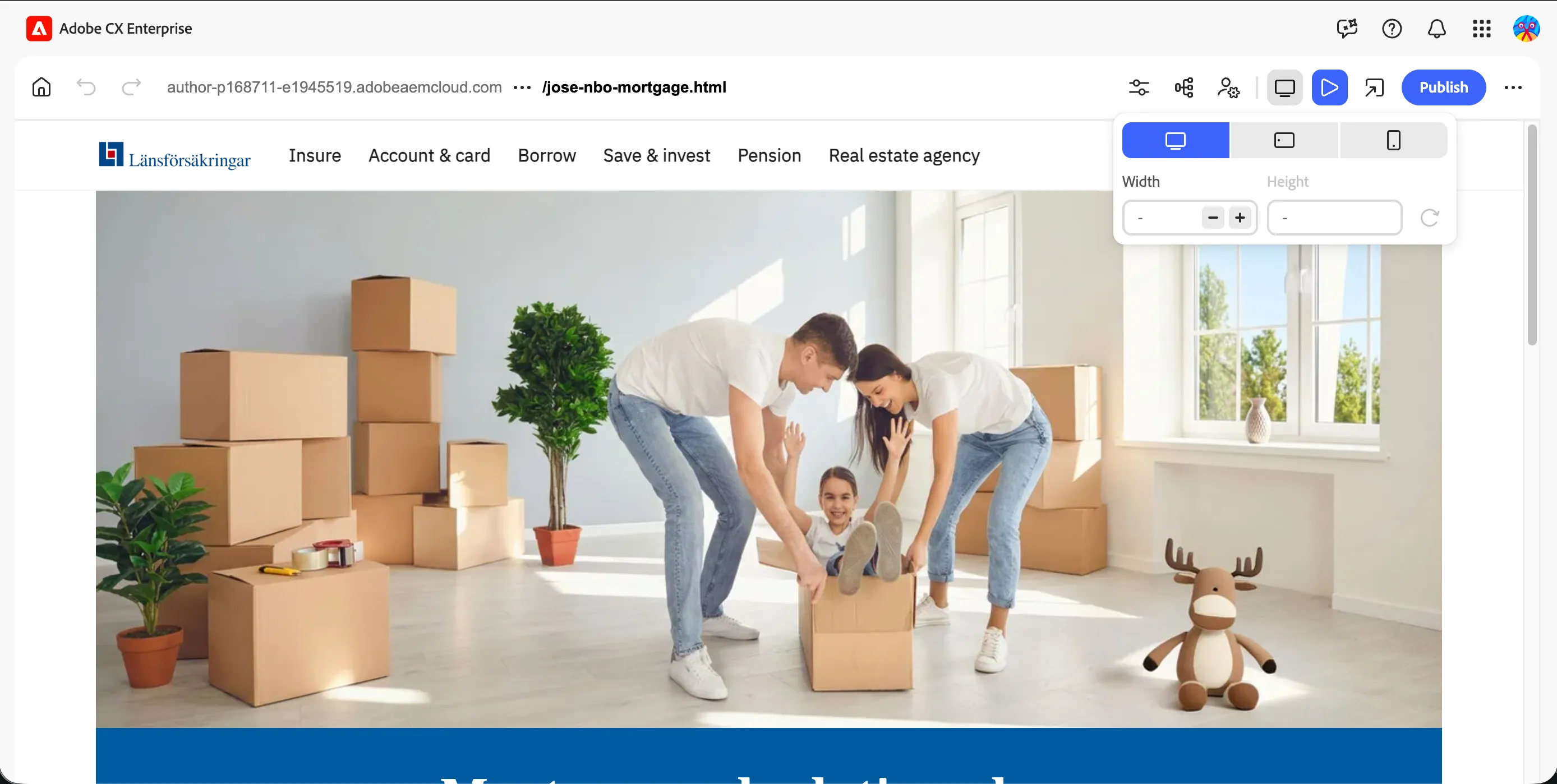
- Check the Hero Banner and Content Fragment blocks at each size, confirm text remains readable, the image doesn't crop awkwardly, and the CTA stays visible without excessive scrolling.
Preview on .page
- Open your page's .page preview URL, this is the pre-publish environment reviewers can access without going into the author environment themselves.
- Preview server: https://main--lf-eds--nirmaljosehere.aem.page/
- Publish server: https://main--lf-eds--nirmaljosehere.aem.live/
- https://main--lf-eds--nirmaljosehere.aem.page/{{COUNTY_NAME}}/en/hands-on-lab/{{LASTNAME}}-nbo-mortgage
- https://main--lf-eds--nirmaljosehere.aem.live/{{COUNTY_NAME}}/en/hands-on-lab/{{LASTNAME}}-nbo-mortgage
- Confirm the page renders correctly here, matching what you saw in the Universal Editor, this is your last check before anything goes live.
Publish live with a scheduled date
- Back in AEM, select your page in the site tree and open Manage Publication.
- Instead of publishing immediately, select Schedule Publish and set a future date/time.
- Confirm and save the scheduled publication.
Walkthrough: Launches (demo)
Your facilitator will talk through this rather than have everyone configure it, Launches are typically used for larger, timed content initiatives spanning multiple pages, rather than a single-page publish.
- Your facilitator will show how a Launch can bundle multiple pages and changes together, targeted at a future go-live date, and promoted as a single controlled event once ready.
What you learned
Before moving to the next exercise, you should have:
- ✅ Checked your page across desktop, tablet and mobile views
- ✅ Previewed the page on the .page environment
- ✅ Scheduled a live publish via Manage Publication
- ✅ Seen how Launches manage larger, multi-page content initiative