2. Add split and actions
Narrative context
Half an hour has passed since the simulation. The customer is no longer in front of the website. Now the journey has a decision to make: is this a new prospect we have never spoken to before, or an existing customer who already trusts the brand? The answer changes both the channel and the tone of the next message.
NTB and ETB. Two acronyms you will see throughout the rest of the lab.
- NTB — New To Bank. A prospect with no prior account or relationship with LF.
- ETB — Existing To Bank. A customer LF already knows and serves.
The brand speaks to them differently. NTB messages are educational and acquisition-toned; ETB messages assume familiarity and loyalty.
Add the NTB / ETB condition
The platform needs to ask one question at this point: do we already know this person?
- In the left panel, click the Orchestration tab.
- Drag Optimize onto the canvas, after the wait node.
- In the Properties panel, set the Label to NTB or ETB?.
- Click on Path 1 and rename as ETB.
- Click on Show path for other cases than the one(s) above.
- Set the label to NTB.
On the ETB path:
- Click on the text field below Expression.
- Search for accountId.
- Drag and drop accountId onto the canvas.
- Change the operator to is not empty.
- Click Ok to save the condition.
- Click Ok to close the window.
- Click Save.
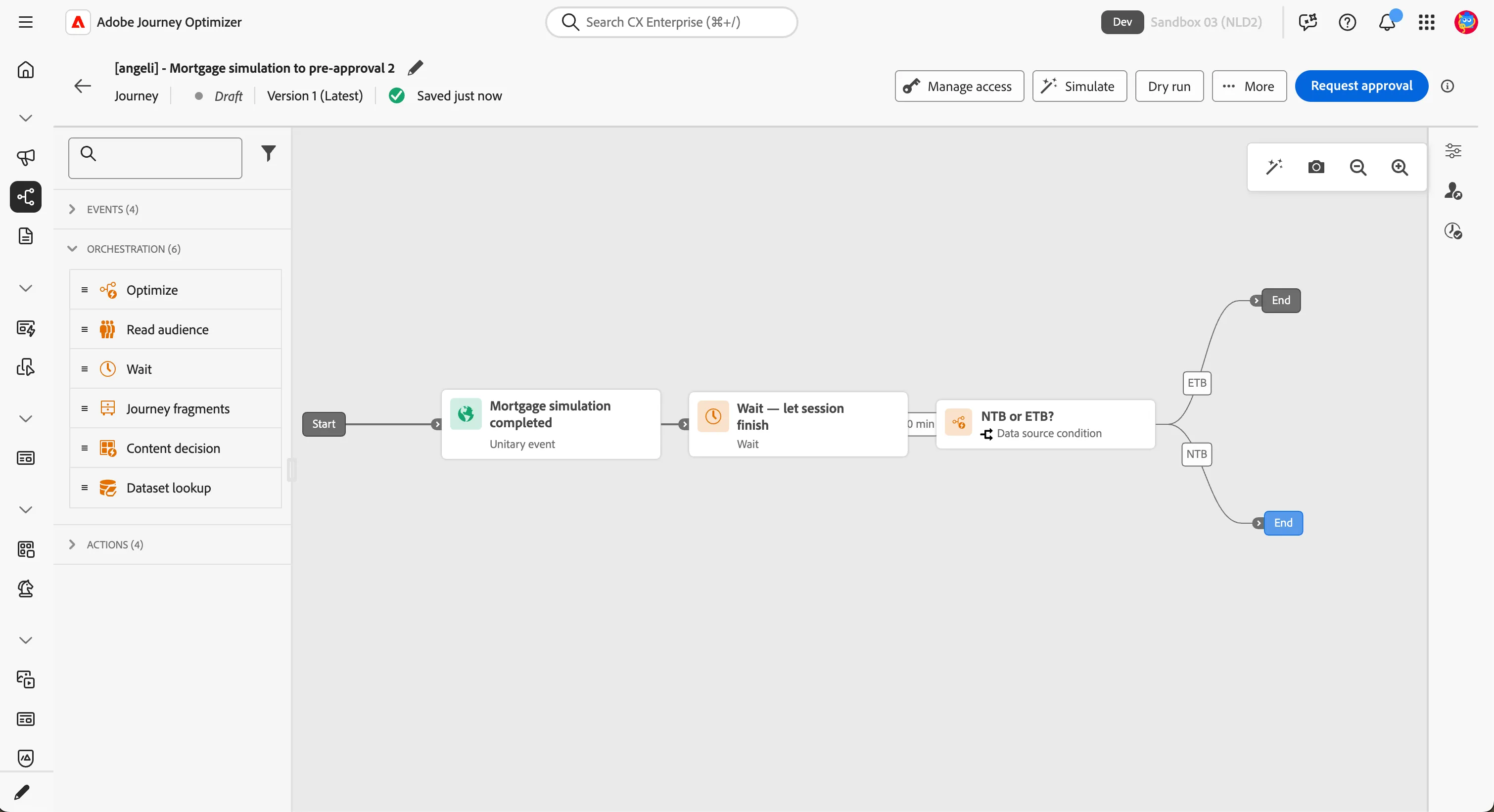
Your canvas should now look like this:
NTB branch - the Welcome email
The Welcome email is already built and approved. It carries the full design — master template, brand-locked header and footer, and conditional content. Your job in this exercise is to attach it to the journey, not to build it. You will build a complete email from scratch later in the day.
- In the left panel, click the Actions tab.
- Drag Action onto the NTB path.
- In the window that appears, select Email and click Add.
- In the Properties panel, set the Label to Welcome email.
- Click Configure action.
- In the Email channel configuration, select Email-Marketing from the dropdown.
- Click on Edit content.
- Click on Content template.
- Select Apply content template.
- From the list select LF - Mortgage simulation recap and click Confirm.
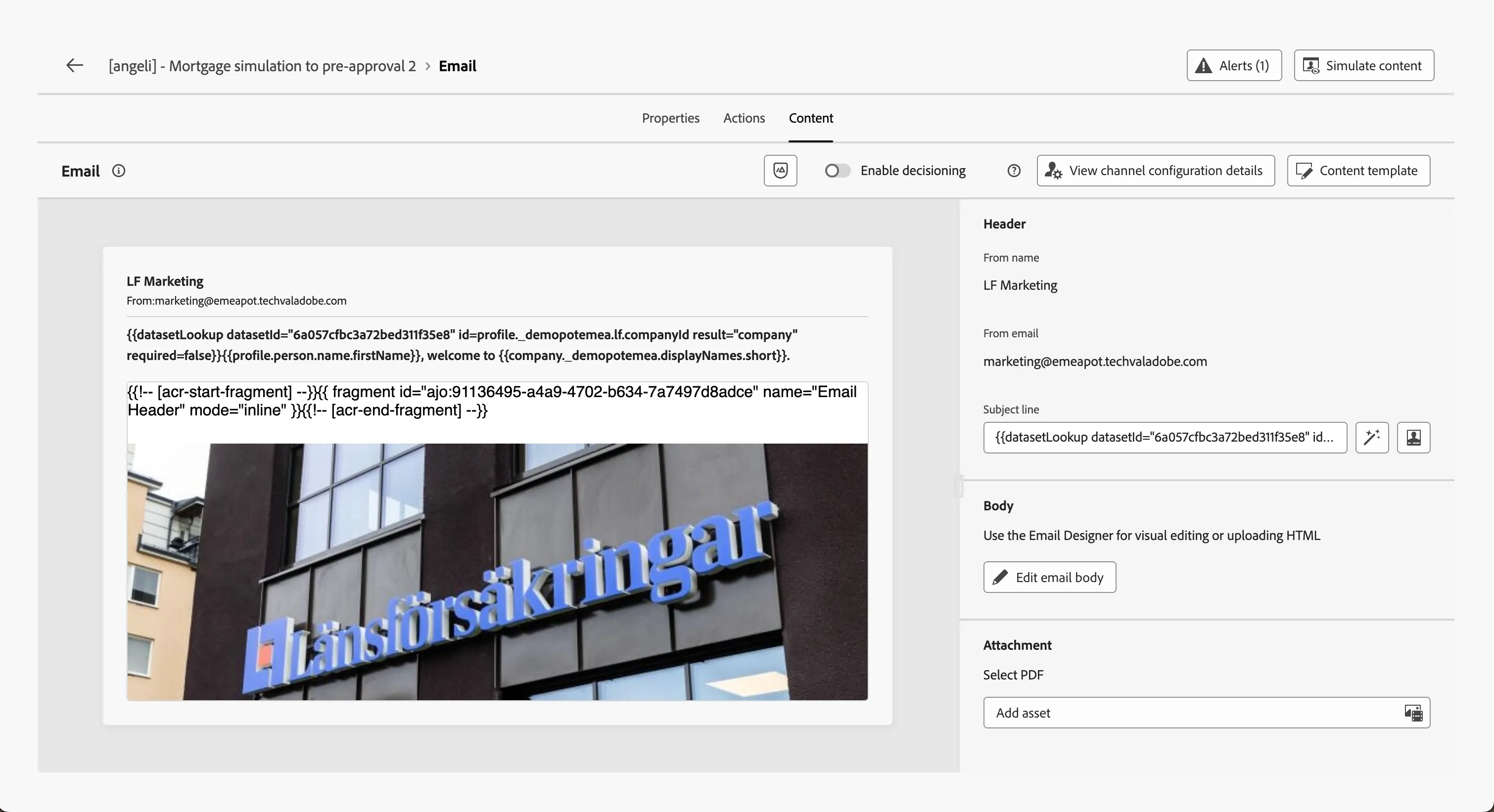
- Click on Edit email content.
This is a Read only template; the editor can only change the subject line and another couple of fields. The rest is locked.
- Click the arrow on the top-left corner to go back to the canvas email wizard.
- Click the arrow on the top-left corner to go back to the canvas.
- Click Save.
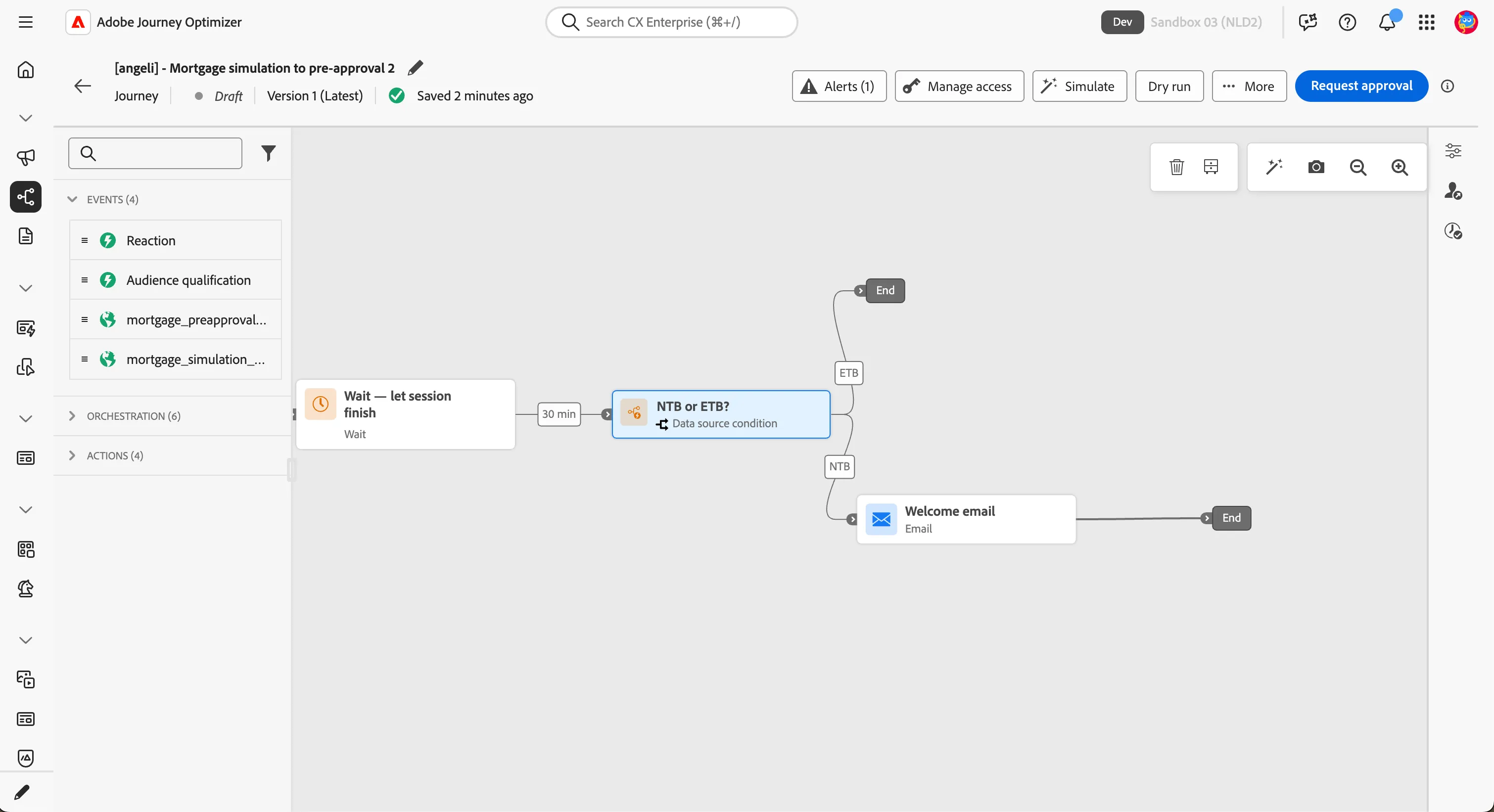
ETB branch — push consent check
Push is the right channel for existing customers — they already have the LF app installed. But push requires explicit consent, and not every customer has granted it. Check first.
- In the left panel, click the Orchestration tab.
- Drag Optimize onto the ETB path.
- Set the Label to Push consent?.
- Leave the method as Data source condition.
- Click on Path 1 and rename as Granted.
- Click on Show path for other cases than the one(s) above.
- Set the label to Denied.
On the Granted path:
- Click on the text field below Expression.
- In the left panel, navigate to ExperiencePlatform > Consents > profile > consents > marketing > push.
- Drag and drop Choice Value (val) onto the canvas.
- Select the value y.
- Click Ok to save the condition.
- Click Ok to close the window.
- Click Save.
Granted path - build the "Welcome back" push
This is the first communication you build from scratch.
- In the left panel, click the Actions tab and drag onto the Granted path.
- In the window that appears, select Push and click Add.
- In the Properties panel, set the Label to Push - Welcome back.
- Click Configure action.
- In the Push notification channel configuration, select push-notification from the dropdown.
- Click on Edit content.
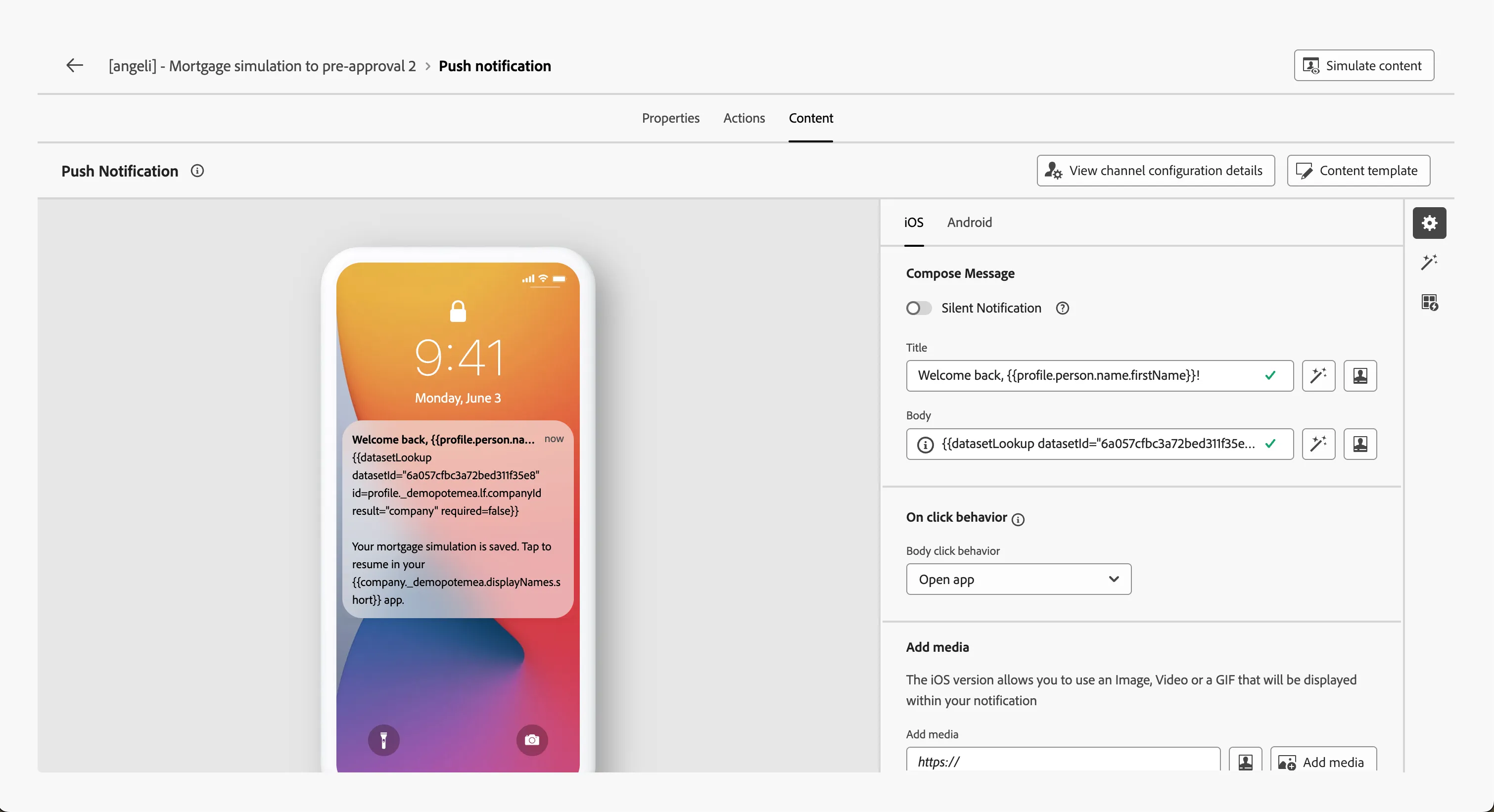
To set the Title, click on the personalisation icon  :
:
- In the text box, type Welcome back, FIRSTNAME!.
- Remove the text FIRSTNAME and search for first name in the Profile Attributes (left menu).
- Find the field First name (under ... attributes > person > Full name) and click the + icon to add it to your text.
- The title should now read: Welcome back, {{profile.person.name.firstName}}!.
Set the Body to:
The first line is a technical helper that resolves the customer's LF company name at send time, based on the company ID on their profile. The body then references the resolved company via {{company._demopotemea.displayNames.short}}. One template — multiple company-specific renders.
Simulate the push
Before moving on, render the push against a test profile to verify the personalisation resolves correctly.
- Click Simulate content > Simulate content.
You can test how the push will be rendered, using one of the test profiles already available.
- Click on Manage test profiles.
- In the Identity Namespace select Email.
- In Identity value paste this email [email protected].
- Click Add profile.
- Click the arrow on the top-left corner to go back to the simulator.
The preview should show:
- Title: Welcome back, Erik! (the test profile's first name)
- Body: Your mortgage simulation is saved. Tap to resume in your LF Stockholm app.
- Click Close to exit the simulator.
- Click the arrow on the top-left corner to go back to the canvas.
- Click Save.
Denied path - the fallback email
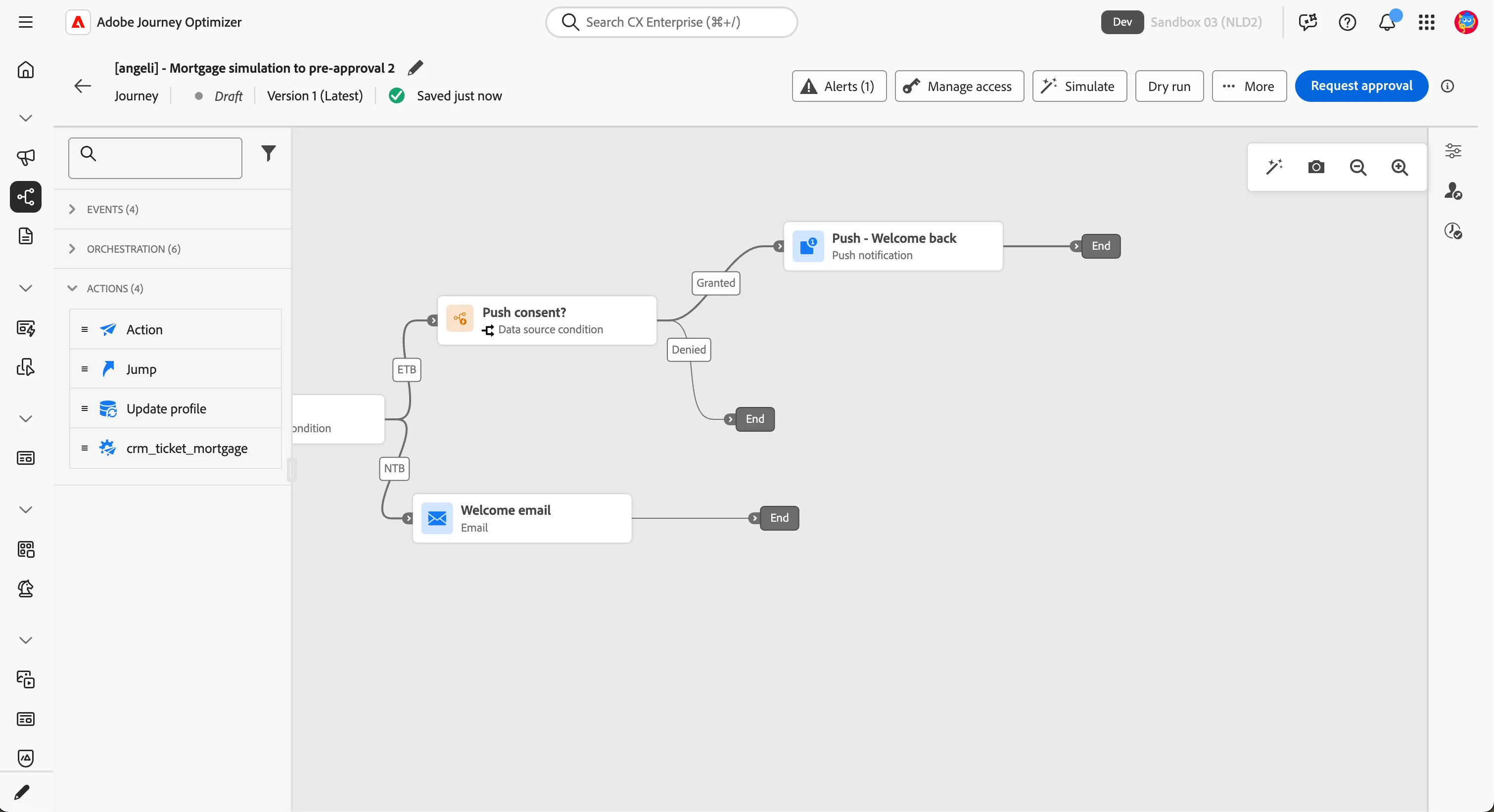
The fallback carries the same message via email. It is pre-built, like the Welcome NTB email - full design with master template.
- Drag Action onto the Denied path.
- In the window that appears, select Email and click Add.
- In the Properties panel, set the Label to Welcome back — fallback.
- Click Configure action.
- In the Email channel configuration, select Email-Marketing from the dropdown.
- Click on Edit content.
- Click on Content template.
- Select Apply content template.
- From the list select LF - Welcome back email and click Confirm.
- Click the arrow on the top-left corner to go back to the canvas.
- Click Save.
Converge the branches with a wait
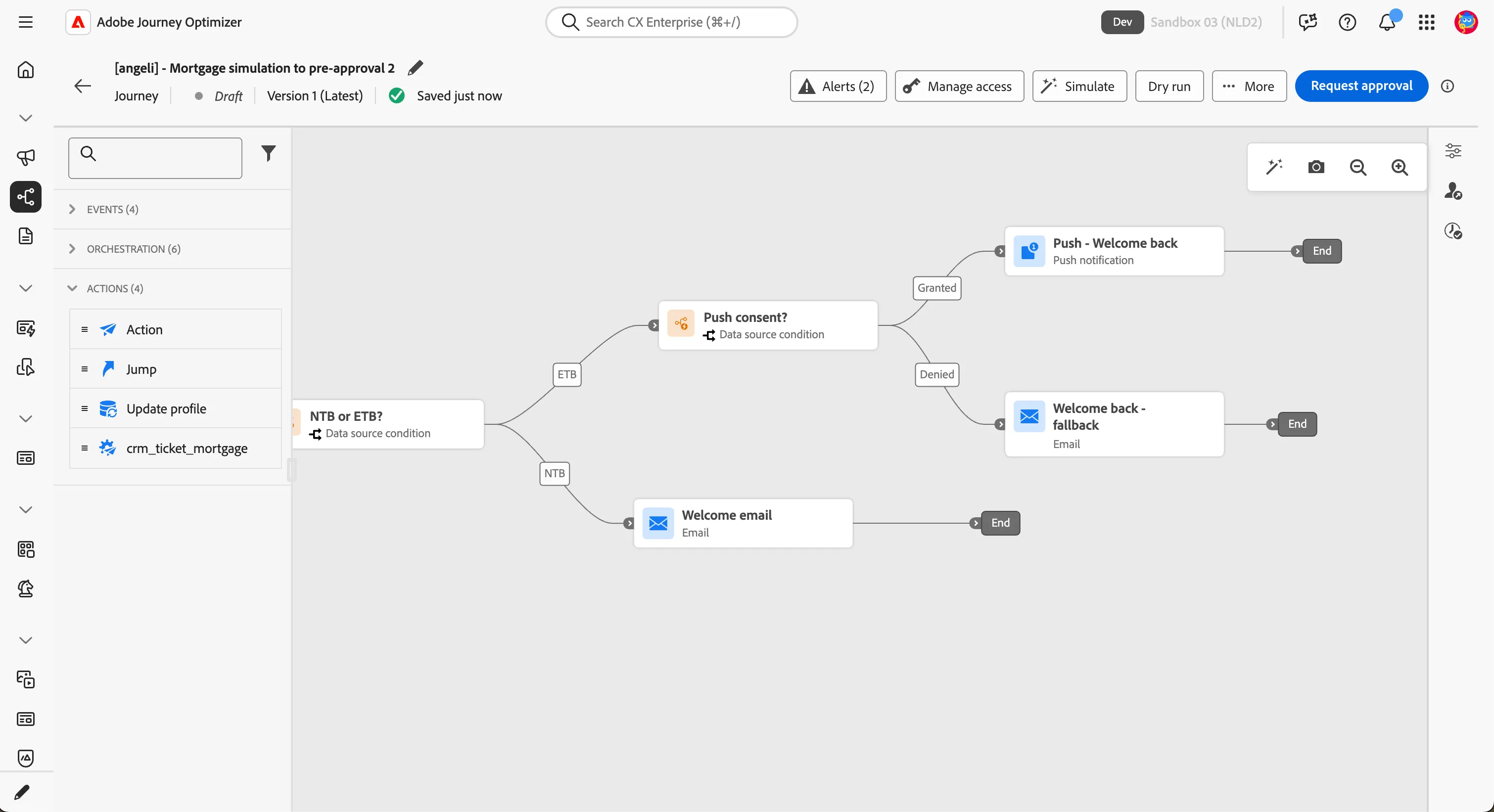
After the welcome moment, the journey gives the customer two days of breathing room. Both NTB and ETB paths converge here.
- In the left panel, click the Orchestration tab.
- Drag Wait onto the canvas, after the Welcome email node.
- Set the Label to Wait — 2-day convergence.
- Set Duration to 2 days.
- Click Save.
- Connect the Welcome email, the Push, and the Welcome back fallback outputs all into this single wait node.
Business punchline
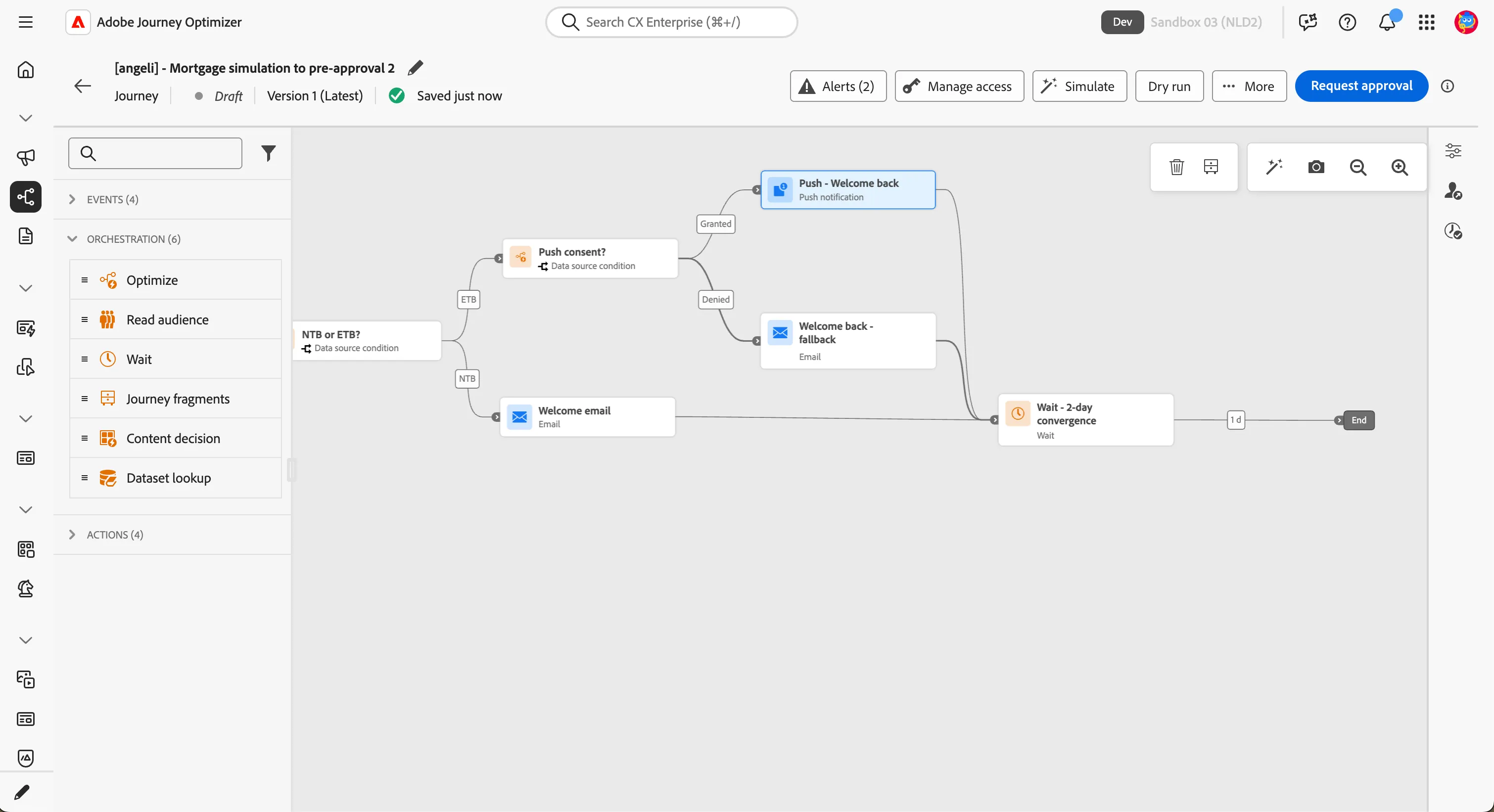
You just taught the journey two things at once. First, who the customer is — and to speak to them differently depending on the answer. Second, what channel to reach them on — with a built-in respect for the permission they gave (or didn't). The fallback to email is not a workaround; it is the brand keeping its promise that the customer will hear what they need to hear, on a channel they have agreed to.