5. Decision items
Narrative context
The email has its structure. Now it needs an offer — the right offer, for this specific customer, chosen at send time from the LF catalog. The decisioning engine knows seven of the eight offers in the catalog already. You will author the eighth from scratch — a federation-wide under-36 promo aimed at younger profiles — and then embed the decision policy directly inside the journey's recap email so every recipient sees their best-fit offer at render time.
Create the decision rule
You author the eligibility rule first - decision rules determine to whom an offer can be shown.
- In the left menu, under Decisioning, click Strategy setup to see the list of rules.
- Click Create rule.
- Leave Enable dataset lookup disabled and click Next.
- Set Name to {{LASTNAME}}-rule_under36.
- In the Attributes search for age.
- Drag the Demopotemea > individualCharacteristics > core > age onto the canvas.
- Set the operator as is less than.
- Set the number to 36.
- Click Refresh estimate to have a rough estimation of the profiles that match this condition.
- Click Create.
Why this matters: the rule isolates the eligibility logic from the offer content. If the business later decides "under 35", the change happens here without re-authoring the offer.
Create the decision item
- Click on Catalog to see the list of decision items (aka offers).
- Click Create item.
- Set Name to [{{LASTNAME}}] - Mortgage promo — Under 36.
- Set Priority to 90.
- Set Start date to 2026-05-01.
- Set End date to 2026-08-31.
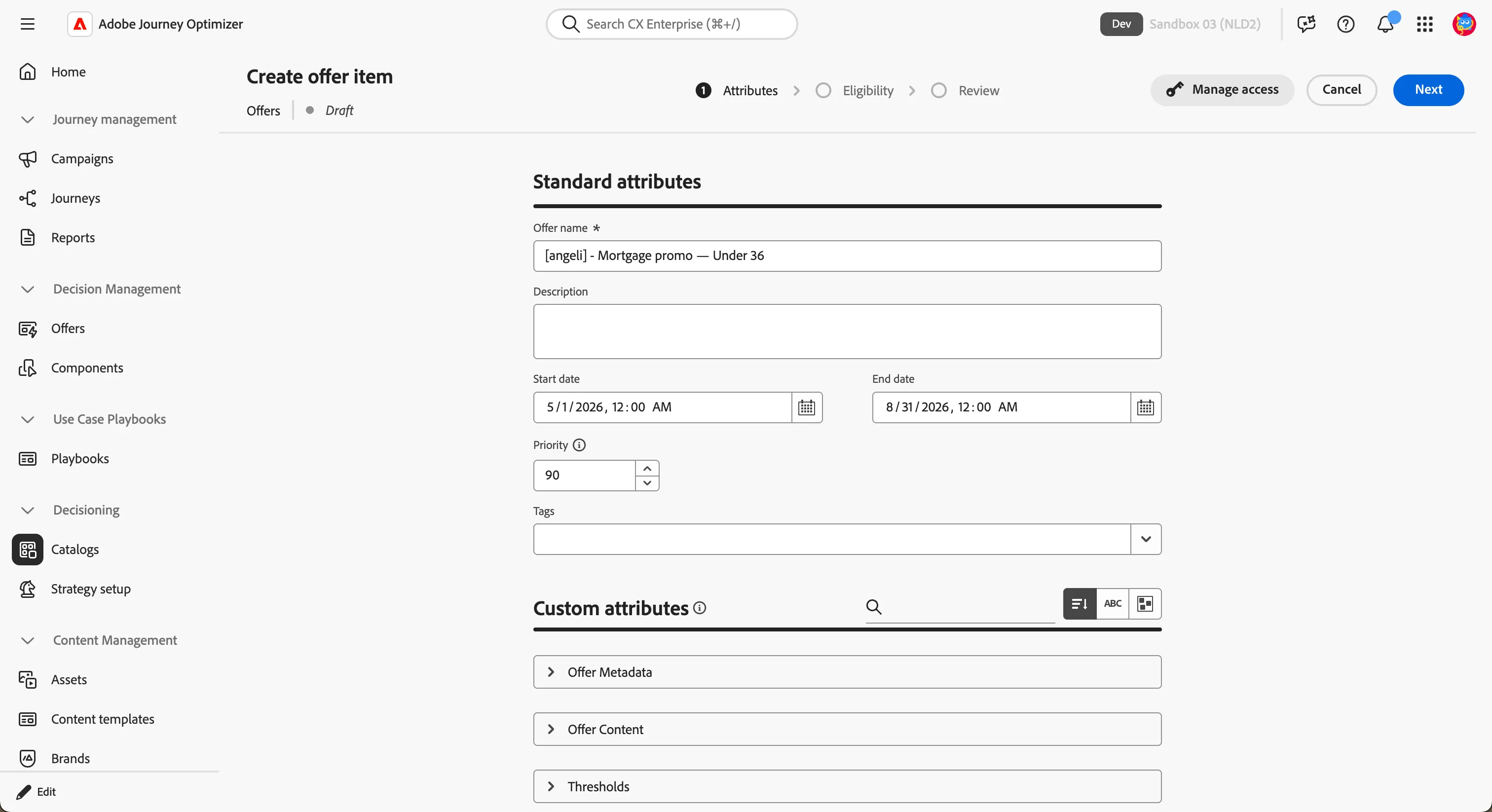
In the custom attributes section, set:
Custom attribute | Value |
|---|---|
offerMetadata > Category | Mortgage |
offerContent > Text Content > Compact Title | Mortgage solution for under 36 |
offerContent > Text Content > Compact Description | Reduced setup costs and conditions calibrated for younger borrowers. |
Terms > Mortgage > Offer Scope | central |
offerScope | federation |
Terms > Mortgage > Duration | 25 |
Terms > Mortgage > Tier | promo |
Terms > Mortgage > Rate | 3.25 |
- Click Next.
- In Eligibility, click By rule and select rule_under36 (or the rule you just created).
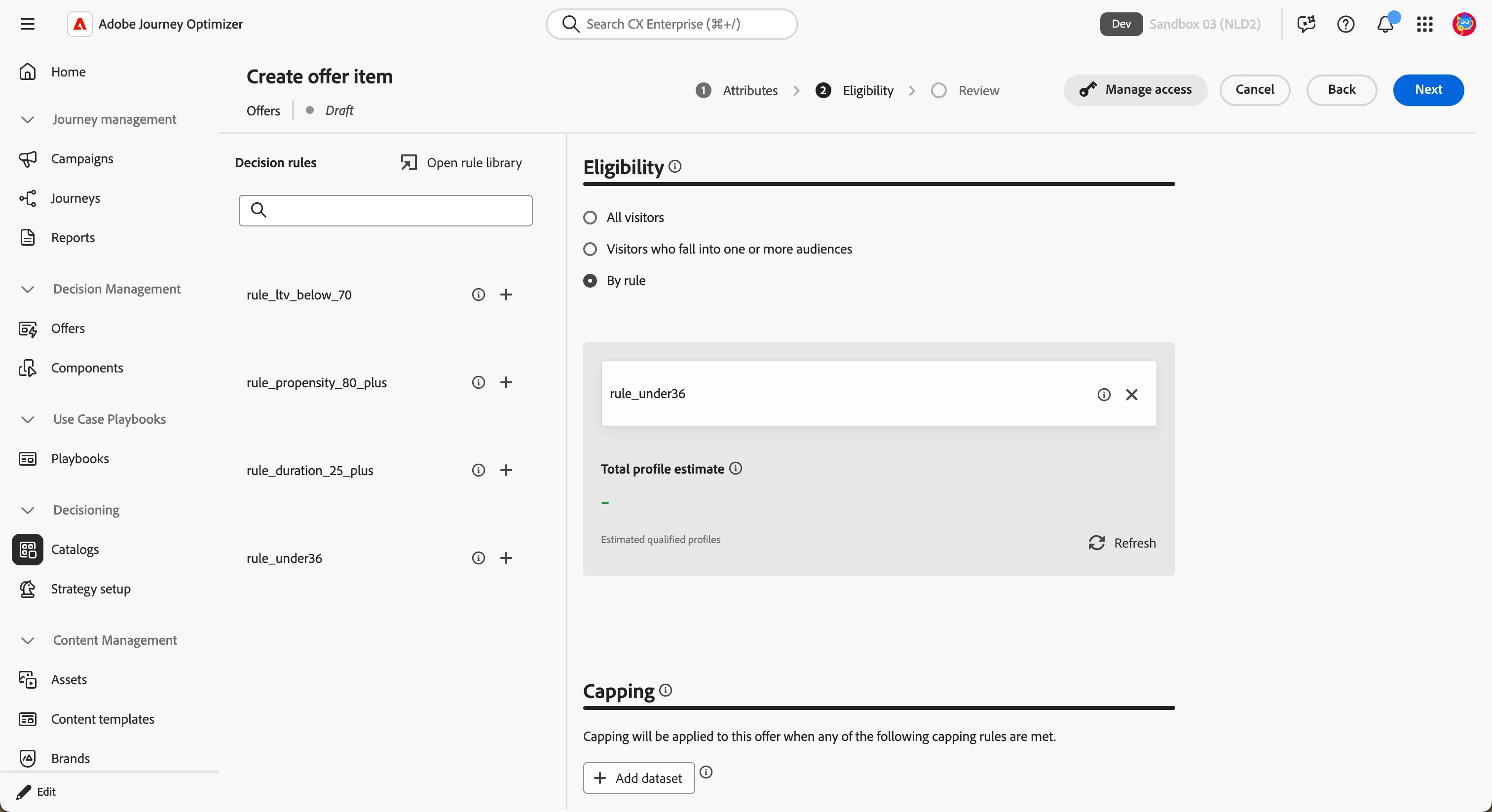
- Click Next.
- Review the item and then click Save.
- Click Save.
Now your item is ready to be used in any communication with your customer, whether it is an email, a push notification or an SMS.
Embed the decision policy inside the journey's recap email
Let's explore Collections.
Collections allow you to categorize and group your decision items according to your preferences. These categories are created by crafting rules that leverage the attributes of decision items.
- Click Collections.
- Click on Mortgage offers.
- Click Preview collection.
In the list you should find also your item; this is because the collection is dynamic and automatically includes all the items where category = mortgage.
- Click Cancel to go back.
Now the decision engine need to know how to prioritize different items. A selection strategy is reusable, and consists of a collection associated with an eligibility constraint and a ranking method to determine the offers to be shown when selected in a decision policy.
The selection strategy Mortgage offers selection ranks the items on each send and returns the best fit.
Now you can embed the items directly inside the journey's recap email with a decision policy.
- In the left menu, under Journey Management, click Journeys.
- Open your journey [{{LASTNAME}}] - Mortgage simulation to pre-approval.
- On the canvas, click the Follow up email action node.
- In the Properties panel, click Edit content then Edit email body to open the email in the designer.
The email has an blue empty box that you can fill with the content you want. The editor prepared a fragment (pre-built piece of content) to display the offer. In this exercise you will enable the decisions engine to show the offer content in the box.
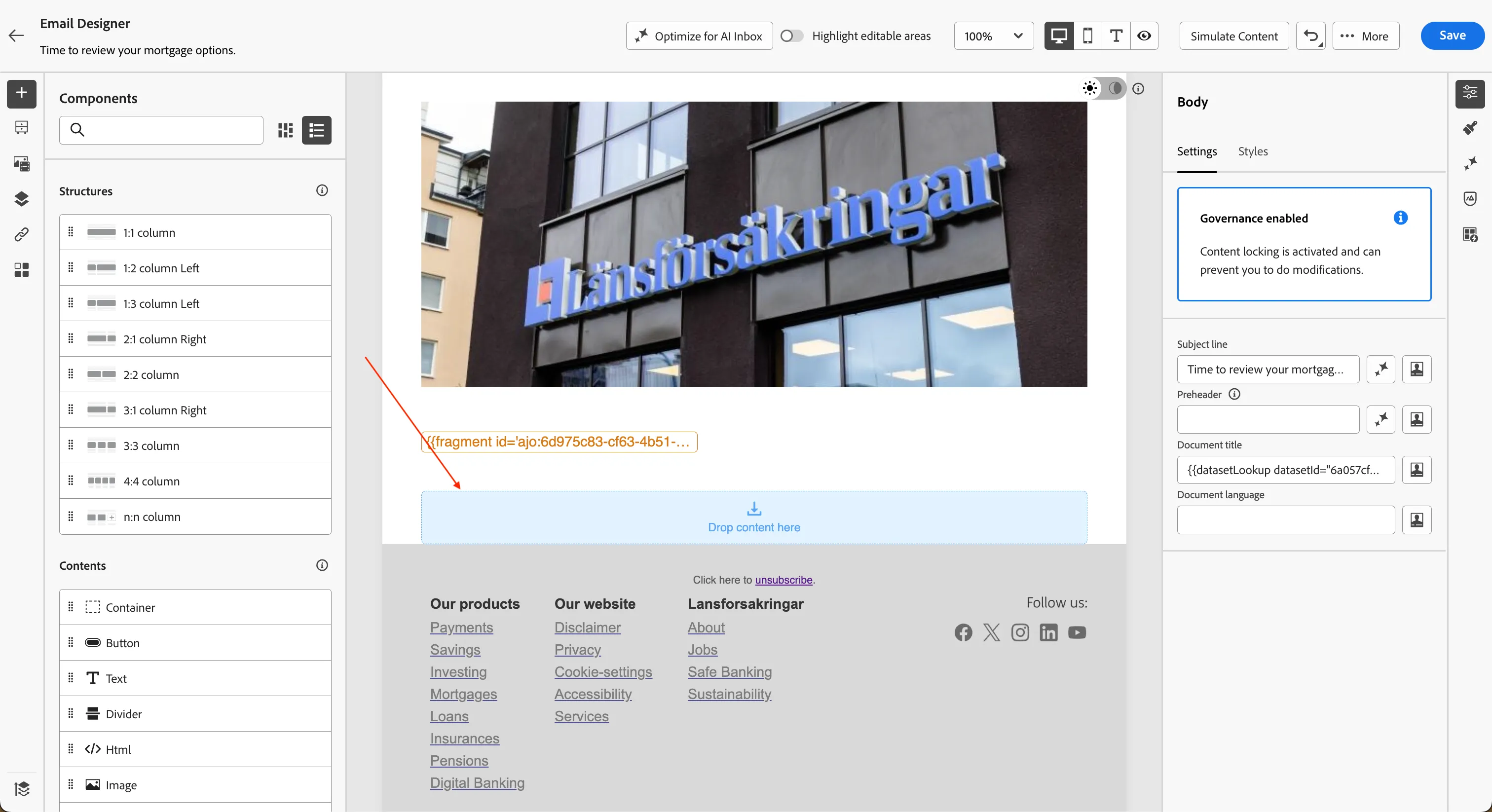
- In the body, click the Drop content here block.
- In the left panel, click the icon
 then drag Mortgage Offer Box onto the block.
Mortgage Offer Box is a content fragment: a predefined block with generic data, that you can fill with the most relevant content.
- Click the icon
 and then Add decision policy > Add new policy.
- Set the name to mortgage_offer and click Next.
Now you need to decide which set of offers you want to display.
- Click Add > Selection strategy.
- Select Mortgage offers selection and click Save.
You can also define one or more Fallback items. If the engine can't find anything from the Selection strategy (because for example the item has expired), it returns a generic content valid for everyone.
- Click Next and then click Create.
Now you have selected the group of offers the engine have to evaluate before sending the email. The next step is assigning a placement.
- Click Assign placement.
- Select email then click Assign.
Now you're ready to use the decision item attributes in the email. Next step is to replace the placeholder text with a reference to the decision item.
- Click inside the grey box, to select the container.
- Click the icon
 and then the icon
  to unlock the fragment.
- Then select OFFER TITLE and click the icon
 to open the personalisation editor.
Among the profile and contextual data, now you also have the possibility to choose the decision attributes.
- On the left menu click on Decision policies.
- Search title and click the + icon beside Compact title.
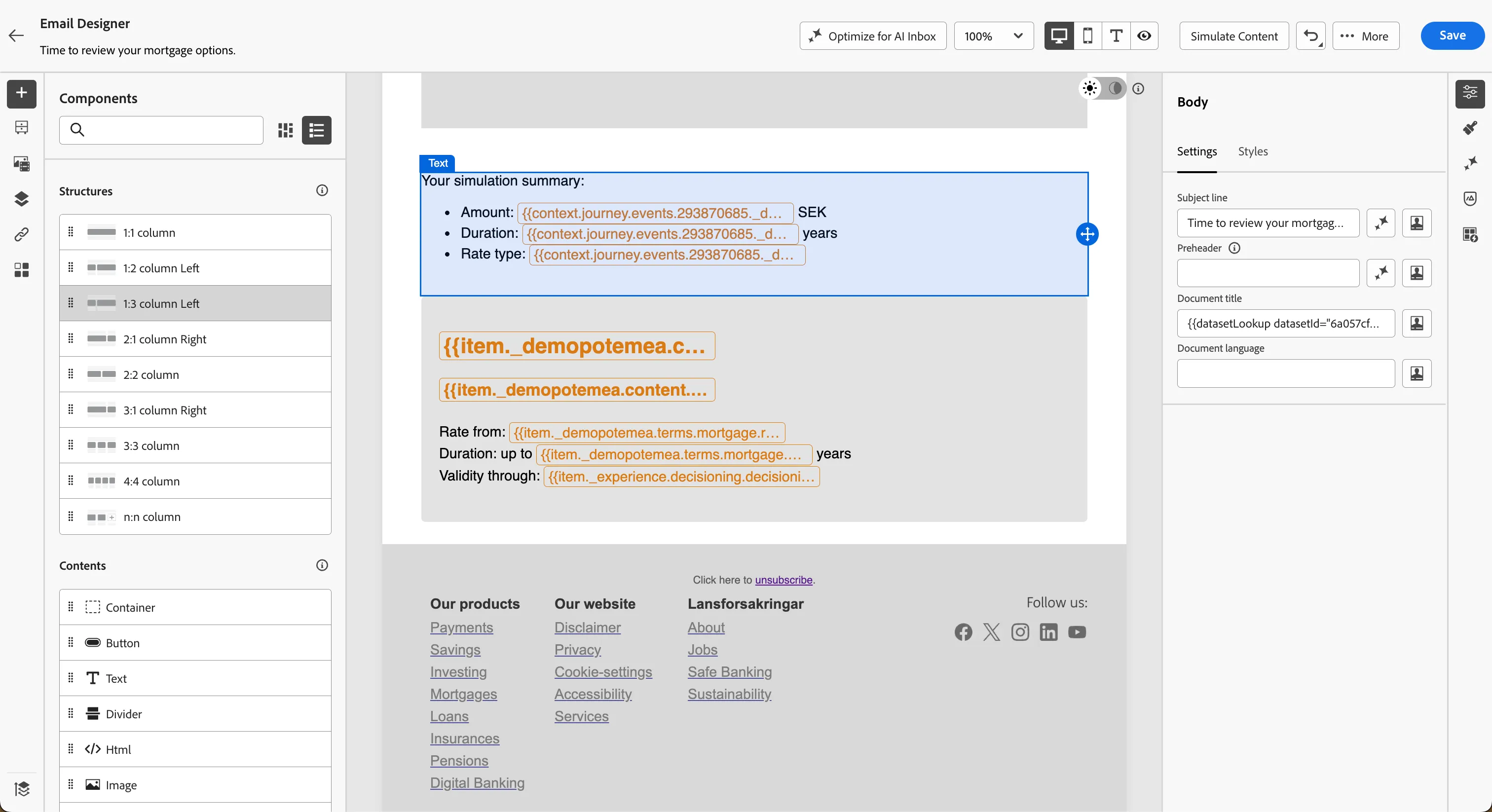
- {{item.demopotemea.content.textContent.compactTitle}}appear in the expression editor.
- Click Save.
Now, the placeholder test will be replaced by the offer title selected by the decision engine.
Repeat the same activity for the other fields:
PLACEHOLDER | FIELD |
|---|---|
OFFER SUBTITLE | textContent.compactDescription |
RATE | terms.mortgage.rate |
DURATION | terms.mortgage.duration |
VALIDITY DATE | experience.decisioning.decisionitem.itemCalendarConstraints.endDate |
Preview per-profile outcomes
The email now selects its offer at render time. Use the per-profile preview to verify ranking behaves sensibly.
- In the email designer (still open from the journey), click Simulate Content > Simulate Content. You should already have a test profile from the previous exercises. If you want to see a different rendering:
- click Manage test profiles.
- Set Identity namespace to Email.
- Set Identity value to [email protected].
- Click Add profile.
- Click the arrow on the left to go back to the simulator.
Now you have two different profile. Check the differences.
Business punchline
You just gave the same email a brain. Five customers — five different offers, each one ranked against a formula that knows their age, their loan-to-value, their propensity to convert, and the region they live in. You did not write five emails. In production, this scales to every customer in the catalog without any additional authoring effort — every new offer you add becomes immediately available to the engine, and every customer's recap email re-ranks on each send.