3. Audience & Experimentation
Narrative context
Two days have passed since the welcome message. Most of the simulated contacts will go cold — they were curious, not committed. The brand should not keep spending on people who will not convert. Before the flagship offer email goes out, the journey filters down to the hot leads only. And for those that stay, it tests whether to strike while iron is hot (24 hours) or to give a longer pause (72 hours).
Build the audience
Before the journey can branch on hot leads, the audience itself has to exist.
- In the left menu, under Customer, click Audiences.
- Click Create audience → Build rule.
- Set the Name to [{{LASTNAME}}] Mortgage hot leads.
- Set the Evaluation Method to Batch.
The first condition is about the propensity score towards the conversion:
- On the left, in Attributes, search for propensityScore.
- Drag Propensity Score (with capital letters) onto the canvas.
- Set the operator to is greater than or equal to.
- Set the number to 60.
The second condition is about the mortgage simulation:
- On left, click on the Events tab.
- Search for simulation.
- Drag and drop Simulation Completed onto the canvas.
- Then search for amount.
- Drag and drop Amount (Demopotemea > Simulation > Amount) over the Simulation Completed card in the canvas.
- Set the operator to is greater than or equal to.
- Set the number to 1500000.
In plain terms: profiles with an high propensity to convert and that have done a simulation for more than 1.500.000 SEK.
- Click Publish.
Why this matters: the audience captures intent + fit in one definition - a recent high-value simulation combined with a propensity score that flags the profile as worth a second touch. The journey does not have to know how "hot" was decided - it only asks, at runtime, whether the profile is currently in the audience.
Add the audience condition
The Mortgage hot leads audience you just published will now gate the rest of the journey. Customers who do not qualify exit here.
Go back to Journey Optimizer using the 9-dots icon  on the top right corner.
- Open the journey with your lastname.
- In the left panel, click the Orchestration tab.
- Drag a Optimize node onto the canvas, after the 2-day convergence wait.
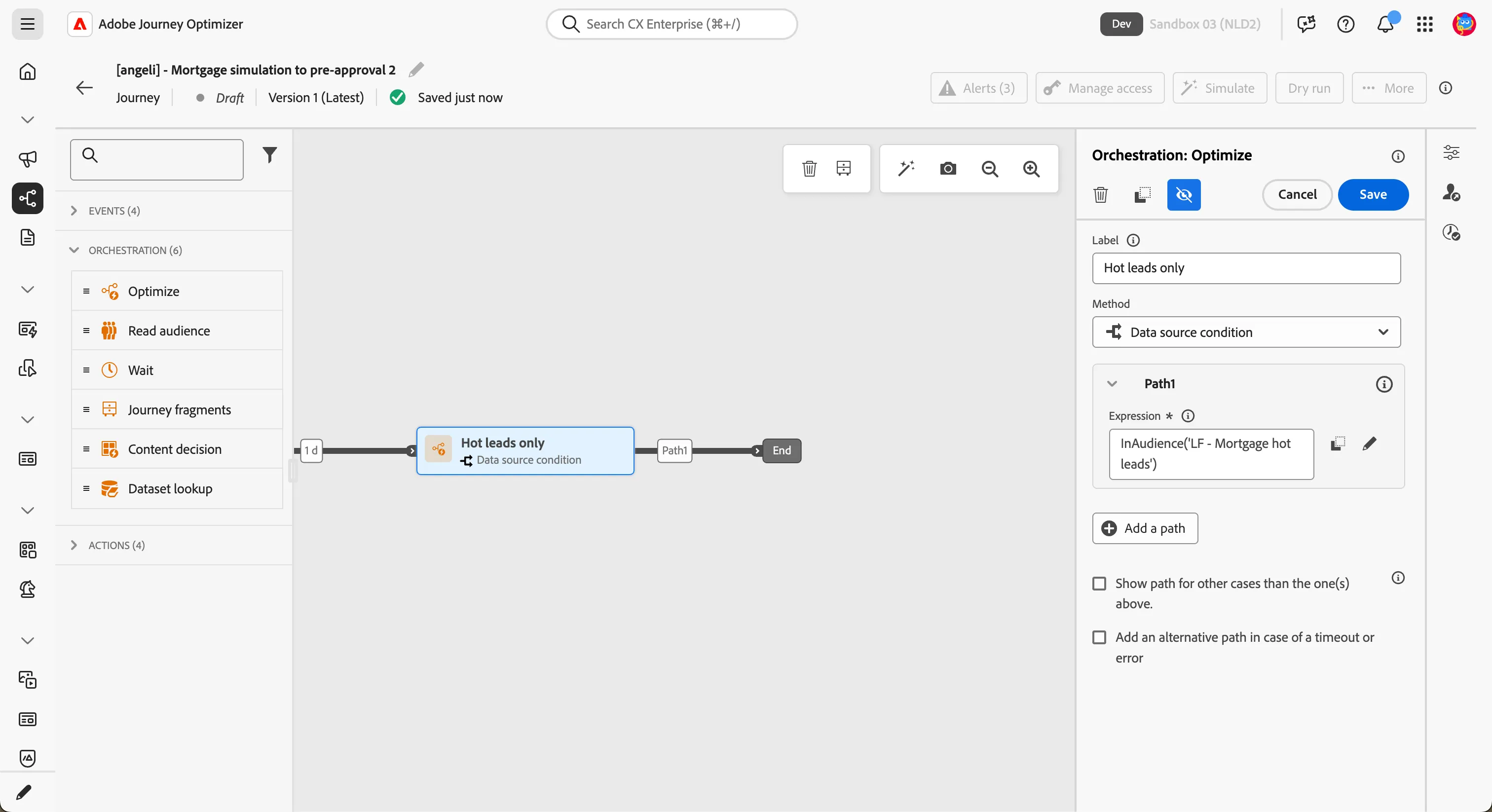
- In the Properties panel, set the Label to Hot leads only.
- Click the textbox under Expression to open the expression editor.
- On the left , open Audiences and drag and drop the audience LF - Mortgage hot leads onto the canvas.
- Click Ok to save the condition.
- Click Ok to close the window.
- Rename Path 1 as Hot leads.
- Click Save.
The default fallthrough path becomes the exit path for non-qualifying profiles.
Add the path experimentation
The same offer can perform very differently depending on when it is sent. LF does not assume — it tests. Half the hot leads get the recap email after 24 hours; the other half after 72 hours. The platform measures which timing converts better and then scales every future profile onto the winning path automatically.
- In the left panel, click the Orchestration tab.
- Drag Optimize onto the canvas, after the audience check node.
- In the Properties panel, set the Label to 24h vs 72h test.
- Set the Method as Experiment.
- Click on Create experiment.
- Leave Success metrics as Indirect Clicks (AJO).
- Configure the two paths:
- Click on Add treatment.
- Rename Treatment A as 24h.
- Rename Treatment B as 72h.
- Enable Auto-scale.
- Leave the rest of the configuration as it is.
- Click Create.
Once you're back to the canvas, click Save.
Your canvas should now look like this:
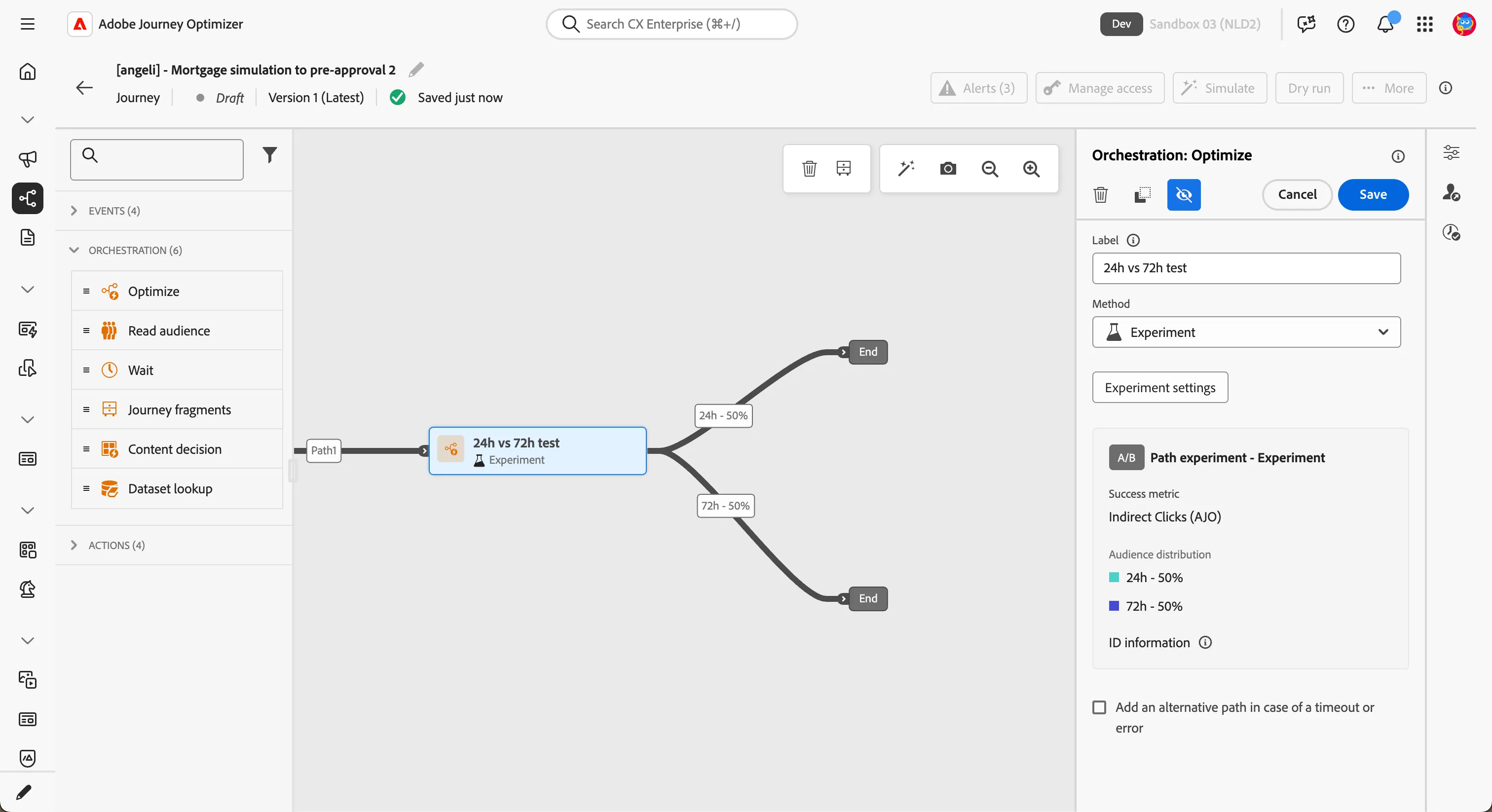
Auto-scale means: once the experiment reaches statistical significance, every new profile that enters this node is routed onto the winning path. Profiles already in flight finish on the path they were assigned to. No one gets re-routed mid-journey.
Add the dynamic waits
Each path now needs its own waiting period before the flagship email fires.
- In the left panel, click the Orchestration tab.
- Drag Wait onto the path labeled 24h.
- In the Properties panel, set the label to Wait 24h.
- Set Duration to 24 hours.
- Click Save.
- In the left panel, click the Orchestration tab.
- Drag Wait onto the path labeled 72h.
- In the Properties panel, set the label to Wait 72h.
- Set Duration to 72 hours.
- Click Save.
We use two separate wait nodes rather than one parameterised wait because the experimentation report tracks performance per branch — keeping the waits side-by-side makes the timing variable visible in the canvas and in the report.
Business punchline
You just made the journey spend more carefully. The audience filter respects the brand's budget — no offer goes to a customer unlikely to act on it. The experimentation node respects the brand's curiosity — instead of guessing the right timing, you have set up a structured test that the platform will resolve on its own. By the end of the campaign, every new hot lead is automatically routed to whichever timing has proven to work best.