4. Master template
Narrative context
The wait is over. The journey is about to send the most important message of the experience: a personalised recap of the customer's simulation, with the offer best suited to them, in the voice of their local LF company. The same email object will produce brand-distinct outcomes at send time, one for each LF company. This exercise builds the structure that makes that possible.
Open the master template and explore content locking
- In the left menu, under Content management, click Templates.
- Find LF - Mortgage Comms and click its name to open it.
The template opens in the email designer. We will explore content locking directly inside the editor — it is much clearer with the email open than as an abstract concept.
- Click Edit email body.
- On left menu, click the icon
 to open the navigation tree.
A lock icon appears next to each block that has been locked by the creator. The Structure 1, that contains the Header, is locked by the central template owner. Click on it so see the settings
- Click the Structure 6 block at the bottom — same behaviour.
- Now click the Hero image area in the middle. It opens normally for editing.
Add the conditional content - hero image and headline
Let's use the template as starting point to create the full email.
- Use the arrow on the top left corner to exit the template.
- If prompt, click on Close without saving.
- Then click on Journeys and open the journey you were working on.
In the left panel, click the Actions tab.
- Drag Action onto the 24h path.
- In the window that appears, select Email and click Add.
- In the Properties panel, set the label to Follow up email.
- Merge the 72h branch in the same node.
- Click the email node to open the properties.
- Click Configure action.
- In the Email channel configuration, select Email-Marketing from the dropdown.
- Click on Edit content.
IMPORTANT: click the Enable decisioning toggle and click Continue. This is required for the next exercise.
- Click on Content template.
- Select Apply content template.
- From the list select LF - Mortgage Comms and click Confirm.
- Click Edit email body.
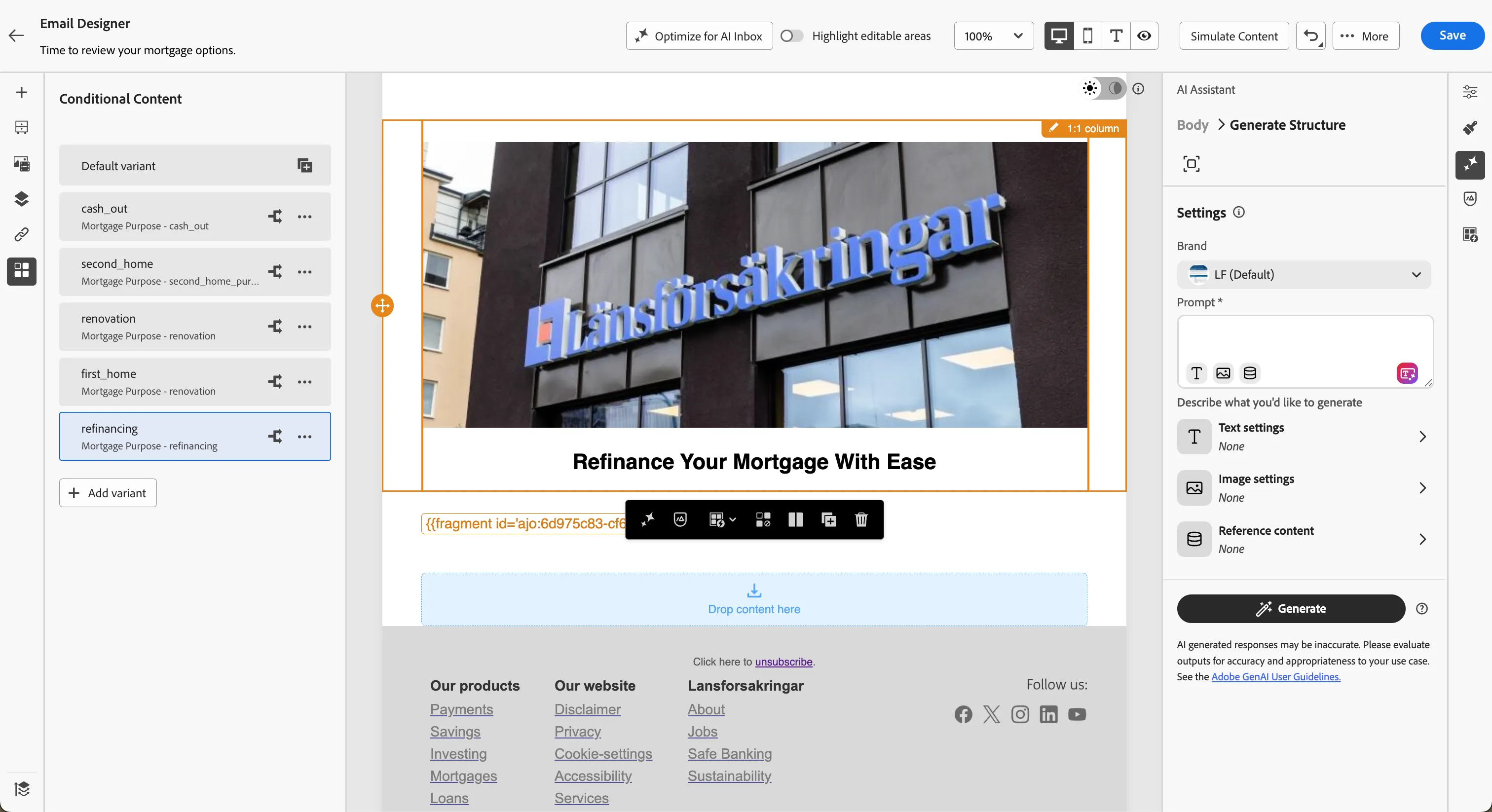
Five mortgage purposes produce five different hero images and headlines. The same email body chooses among them at send time based on the context.
- In the body, click the hero image block, slightly outside the image, to select the entire block.
- The border of the block is orange because Conditional content are already enabled.
- In the left menu click on icon
 to see Conditional content: the list of variants appears.
Four conditions are already pre-built in the template (for first_time_purchase, renovation, second_home_purchase, cash_out). You will author one new condition for the missing refinancing purpose.
- Click Add variant.
- Click the icon
 the Rename and set the name to refinancing.
- Click the icon
 to select the condition.
- Click Create new to create a new condition for your needs.
- On the left, select the Contextual tab.
- Search for purpose.
- Drag the item into the canvas and set the value to refinancing.
- Click Save condition.
- Set the title to [{{LASTNAME}}] Mortage purposa - refinancing.
- Click Add, then click Select.
- Set the Headline field. You have two options — try both and pick the one you prefer:
- Type it manually: Move your mortgage to a place that listens.
- Or click the icon
 in the right menu (if prompted agree to the terms)
- enter the prompt Short, institutional headline for a mortgage refinance email. Calm, deliberate tone. No exclamation marks.
- Click Generate.
- Pick one of the variants the assistant proposes by clicking Apply.
- Click Save.
Generate image with AI
Four of the five hero images are pre-loaded. The refinancing (mortgage refinance) variant is missing - you will generate it now to learn the Firefly flow with the LF Group brand profile.
- Click on the Hero image to select the block.
- In the right panel, click the icon .
The Firefly composer opens with the LF Group brand profile already applied (palette, typography, mood).
- In the Prompt field, enter:
- Click Generate.
- Review the four variants AI produces.
- Pick the one that best matches an institutional register.
- Click Apply .
- The image will be saved in the Asset repository. In the window click Next.
- Select the folder Hands-on Lab > LF then click Import.
Now the variant shows the AI generated image. Click on Default variant to see the difference.
- Click Save.
- Click the arrow on the top-left corner to go back to the canvas email wizard.
- Click the arrow on the top-left corner to go back to the canvas.
The brand profile constrains AI to LF's palette and mood. This is why a single prompt produces on-brand outputs without manual adjustment — the profile is doing the heavy lifting.
Business punchline
You have just built a single email object that will produce distinct outcomes at send time without ever cloning the email. The locked header keeps the federation's brand consistent; the lookup dataset adapts the regional voice; the conditional content adapts the message to the customer's intent; the AI Brand profile keeps every newly generated asset on-brand. The customer sees one email, written for them. The marketing team maintains one email, governed centrally.