Asset management
Once an asset is approved in Workfront, it can be seamlessly transferred to Adobe Experience Manager (AEM) for use in various digital experiences. This integration ensures that only finalized, high-quality assets are published, maintaining consistency across channels. By automating the transfer process, teams can reduce manual effort, prevent versioning issues, and ensure that the latest approved assets are readily available for content creation and delivery.
Sending the approved assets to AEM Assets
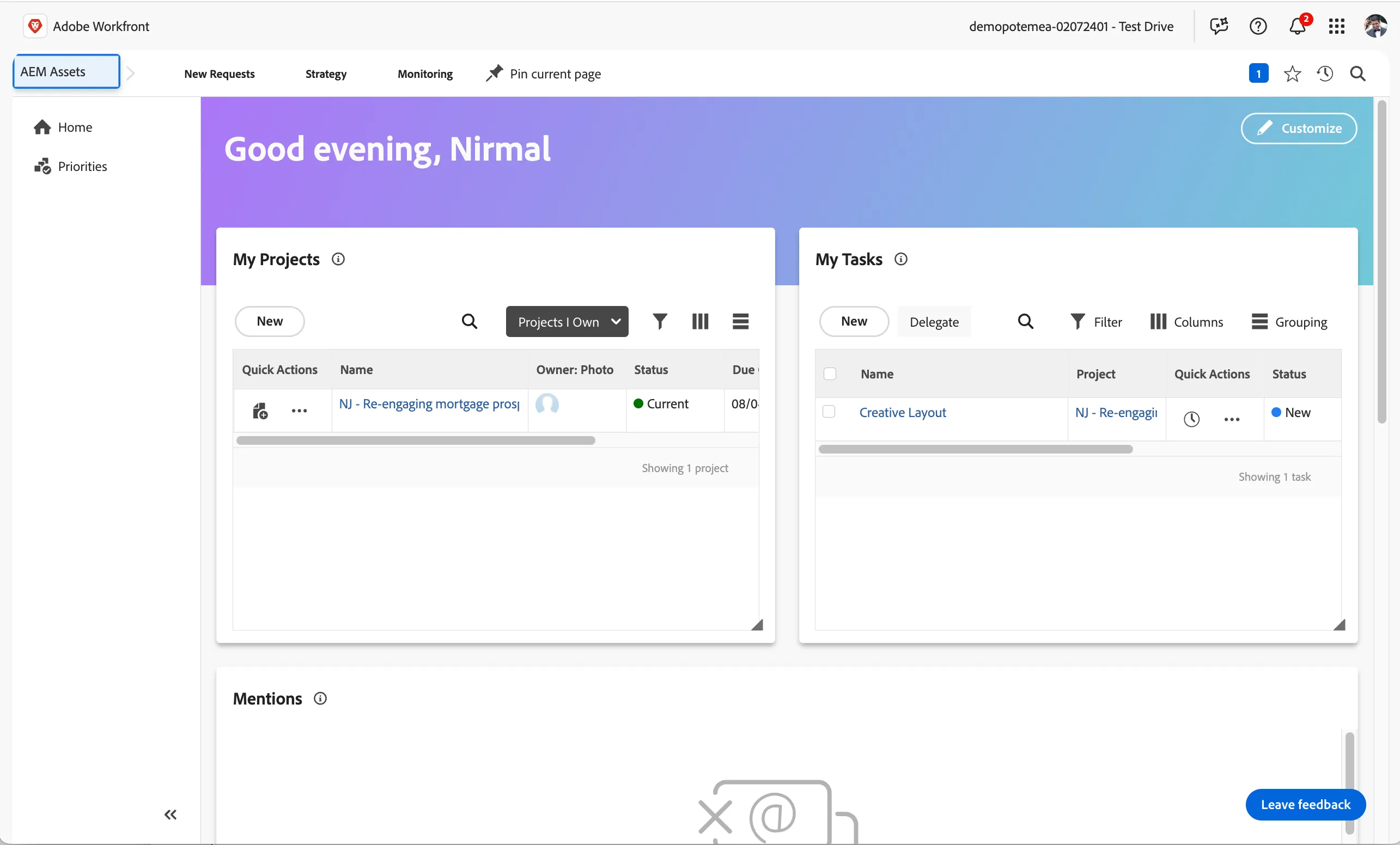
From workfront Home, click on the Creative Layout task from My tasks widget to go to your assigned task.
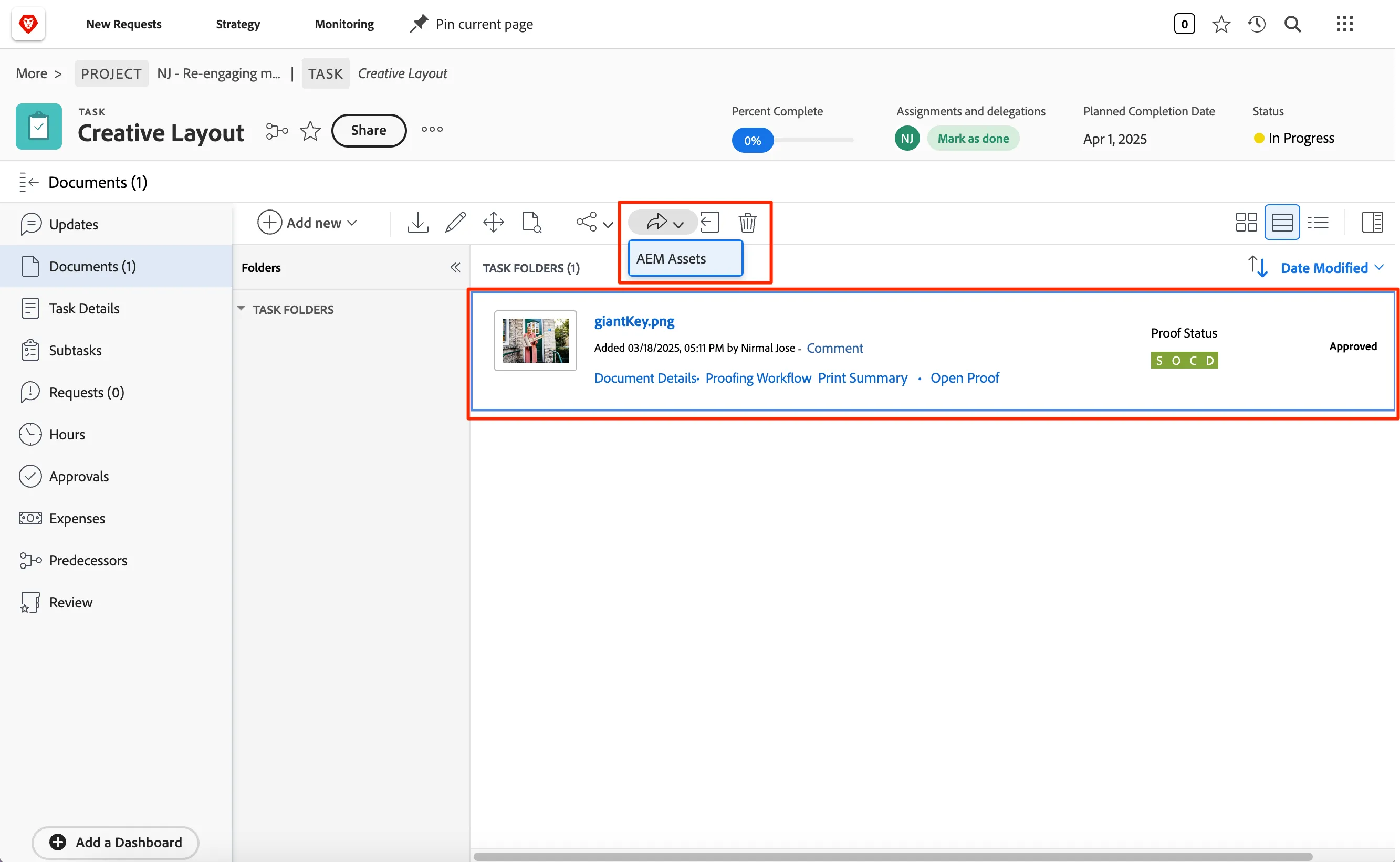
- In the Documents section, you can see the approved asset.
- Click on the asset to see the document options menu.
Click on the -icon forward menu icon and select AEM Assets.
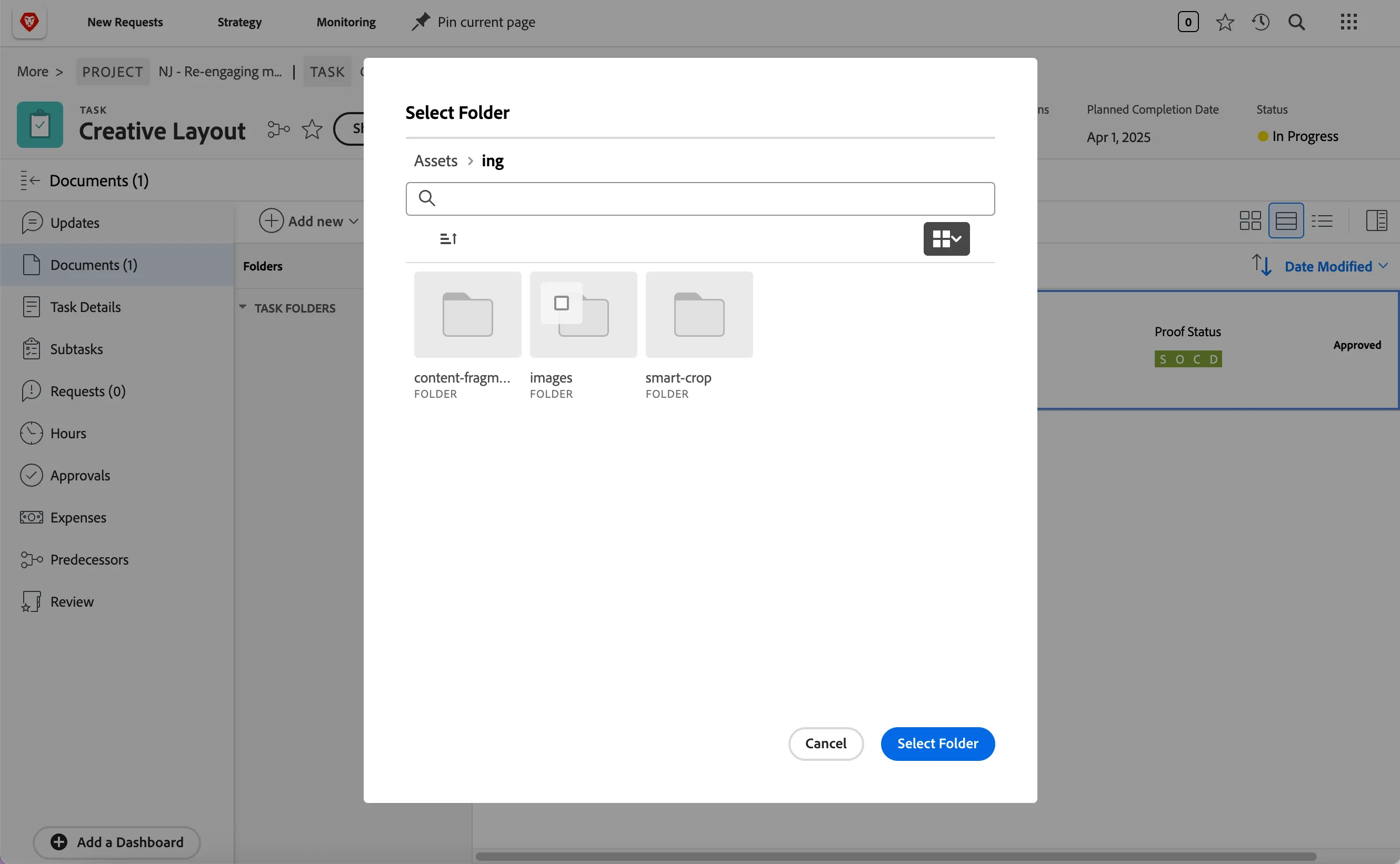
This will open up a popup to show the AEM Assets folders. Select ING folder and click Select Folder button.
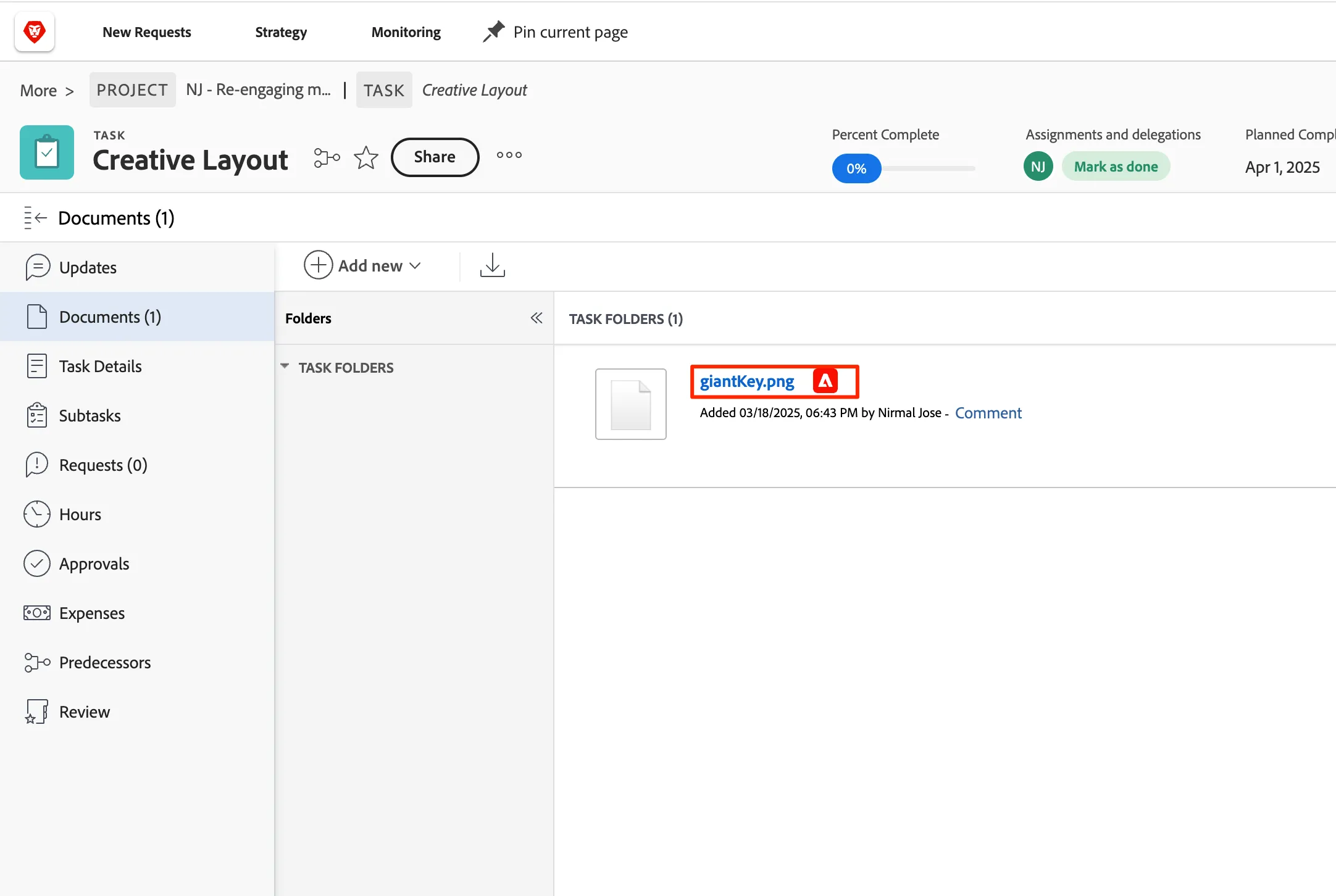
After a few seconds, the popup will go away and you can see the document section of task again. On the asset you transferred to AEM Assets, you can now seea an Adobe logo after the title indicated it is now available in AEM.
Metadata and renditions in AEM Assets
When transferring approved assets from Workfront to Adobe Experience Manager (AEM), ensuring that key metadata is mapped correctly is essential for efficient asset management and accurate searchability. Metadata such as asset title, description, tags, and usage rights can be automatically mapped from Workfront to AEM, enabling better organization and faster retrieval.
In addition to metadata, AEM supports various renditions to optimize asset delivery across different platforms and devices:
- Static Renditions – Predefined, fixed-size versions of the asset for consistent display.
- Dynamic Renditions – On-demand resizing or reformatting of assets based on delivery requirements.
- Smart Crop Renditions – AI-powered cropping that automatically adjusts the focal point to highlight the most important part of the asset, ensuring optimal presentation across different screen sizes.
By mapping metadata and utilizing renditions, teams can streamline content management, enhance content delivery, and improve the overall customer experience.
Lets see it in action.
- Click on the title of the image to go to AEM Assets and see the the asset.
Click on the Properties menu to see the metadata of the asset.

- Click on the Properties menu to see the metadata of the asset.
- Under Basic tab, you can see all the smart color tags and smart tags auto generated by Adobe AI.
- Under Campaign details tab, you can see the workfront project and details are copied over as asset metadata. This helps to find the assets using them and also to create automations like expiry and references.
You can customise the metadata fields and the mapping on your own for a clearer Asset strategy.
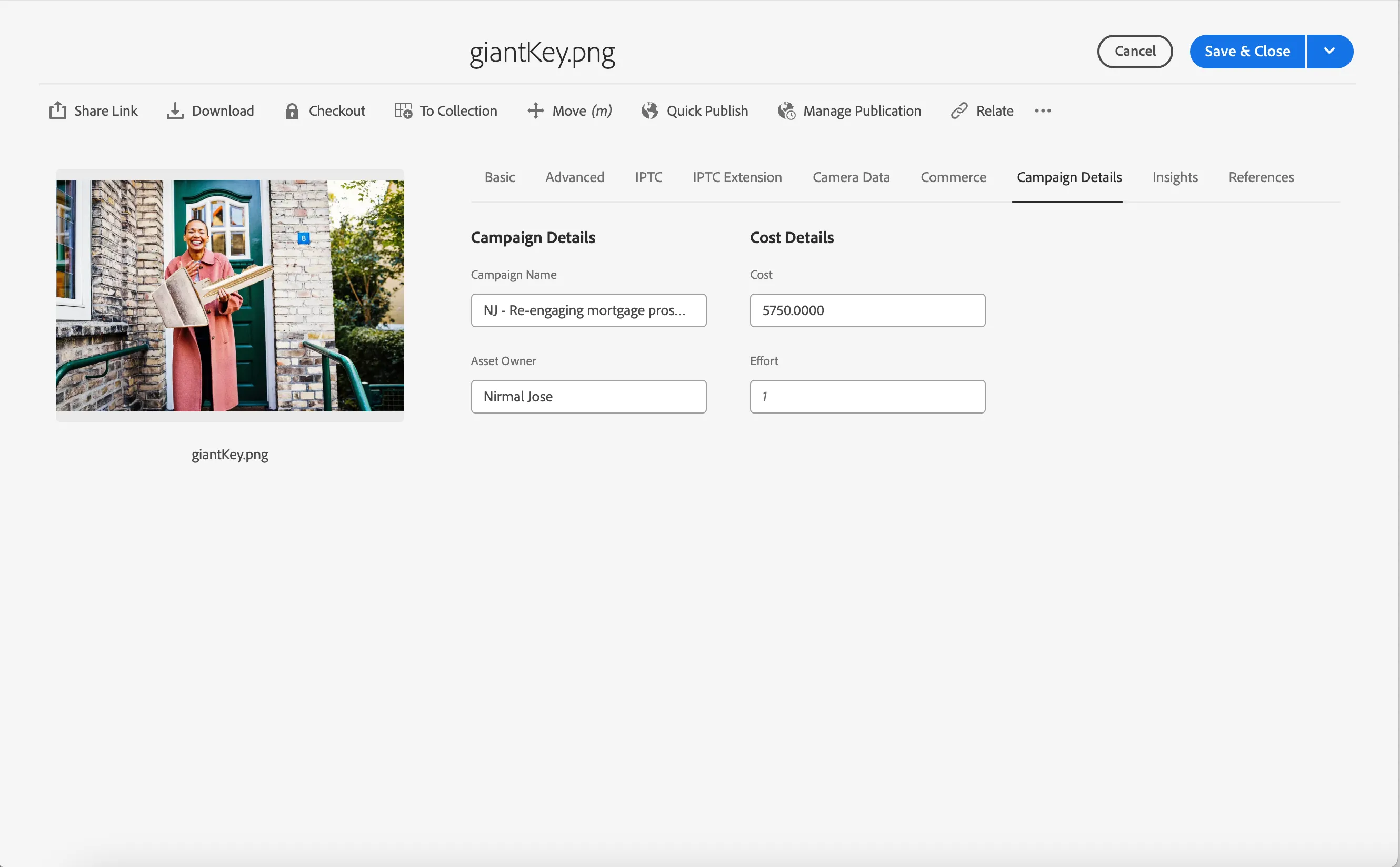
- Click Save & Close to exit the propeties.
Click on Left menu -icon button and select Renditions.

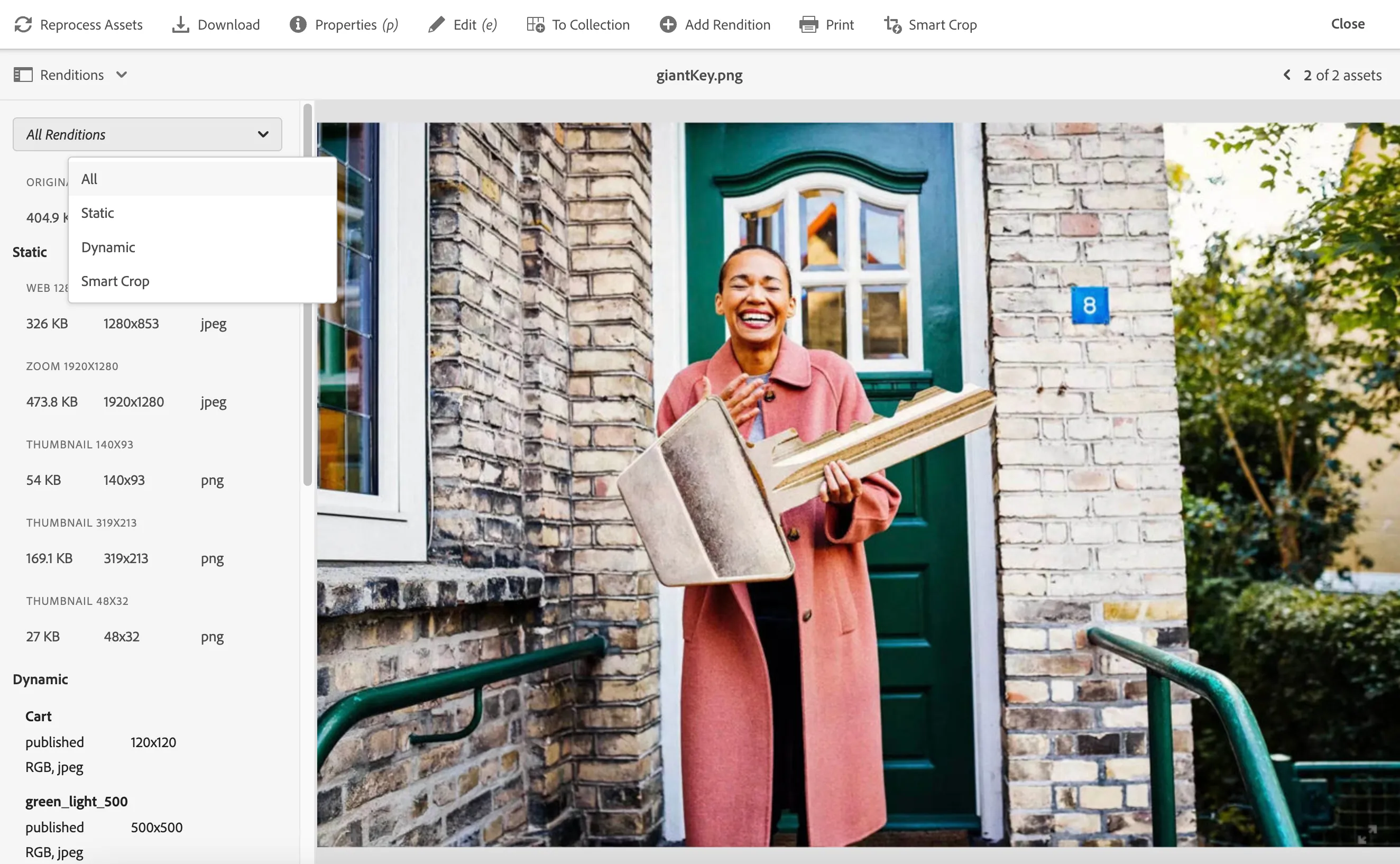
- This shows you all the different renditions created by AEM Assets on the asset you uploaded. There are various types of renditions created.
- Static Renditions – Pre-generated, fixed-size asset variations for consistent delivery across channels.
- Dynamic Renditions – On-demand asset variations automatically resized or reformatted based on delivery requirements.
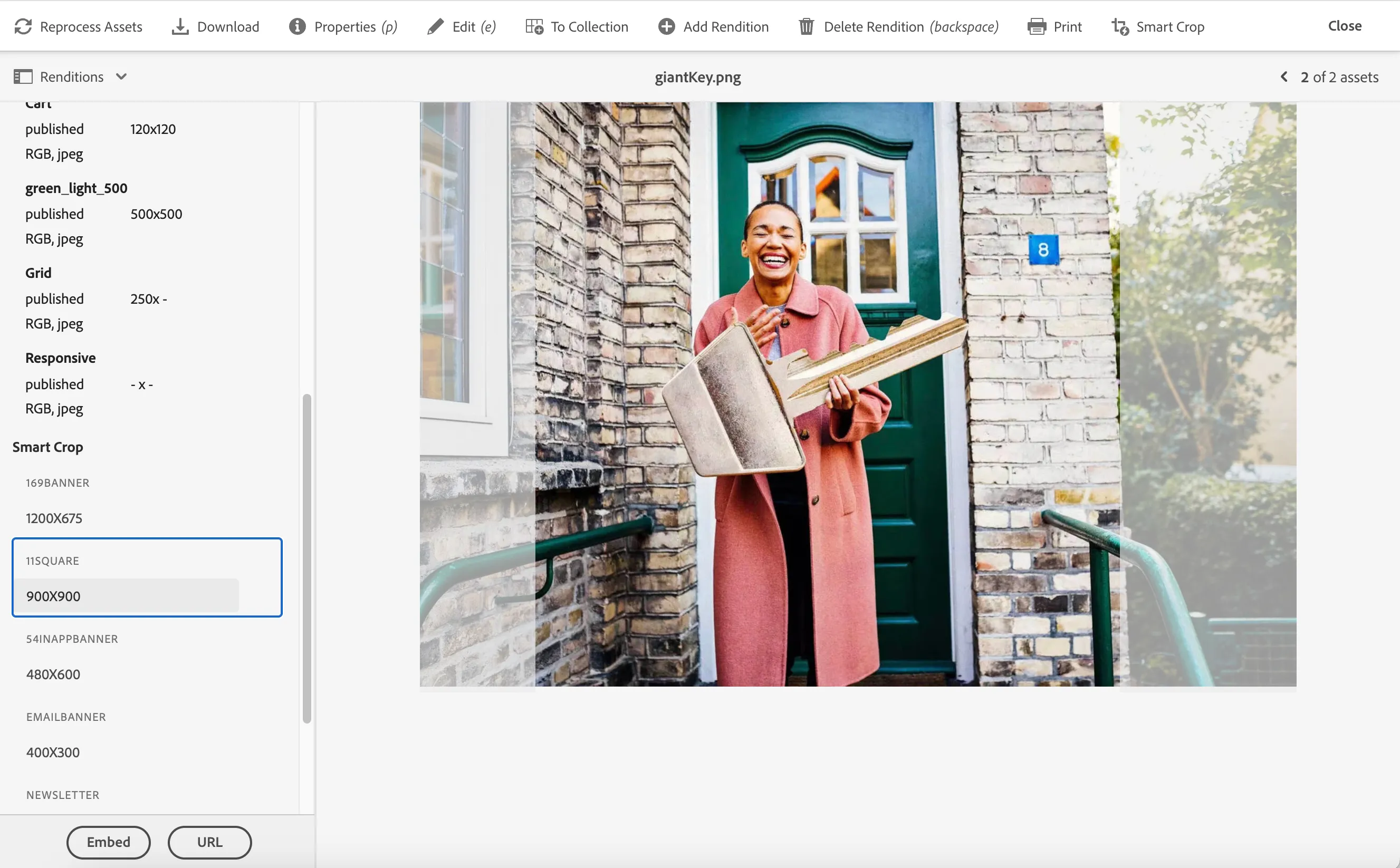
- Smart Crop Renditions – AI-powered cropping that focuses on the most important part of the asset for optimal display.
Click on the rendition to see the preview on the right side.
Click on the URL button at the bottom left once a rendition is selected to see the actual delivery URL for that rendition.
With assets available in AEM assets, it is now available to be used in any customer journeys in any channels.
Finding your assets in Adobe Journey Optimizer
We are now going to use this assets in emails using Adobe Journey Optimizer. To see the assets in log in to Adobe Journey Optimizer.
Navigate to Adobe Journey Optimizer.
Once inside Adobe Journey Optimizer, click on Content Management > Assets from the left side menu
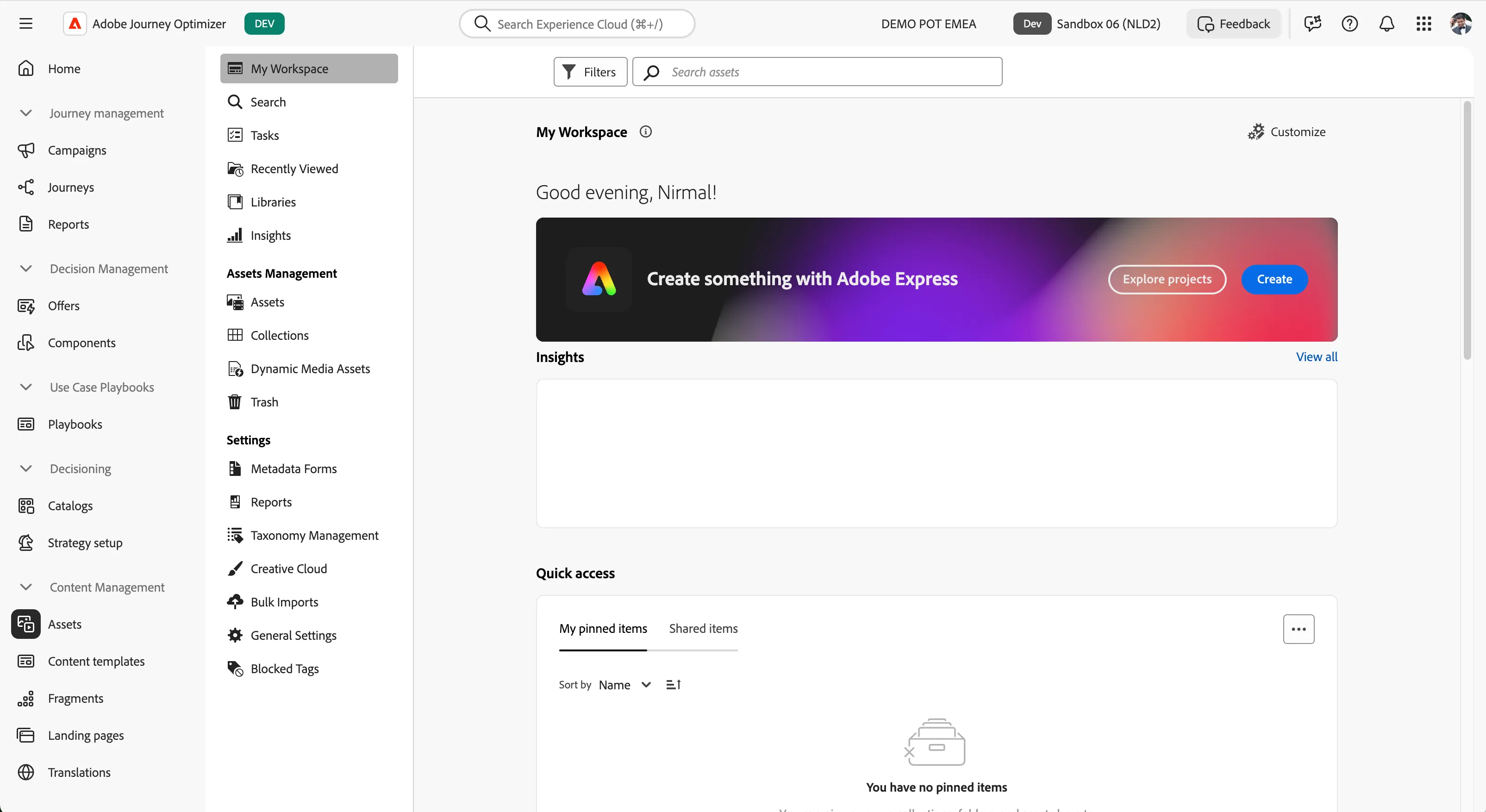
Select Assets from the menu and navigate to ING folder
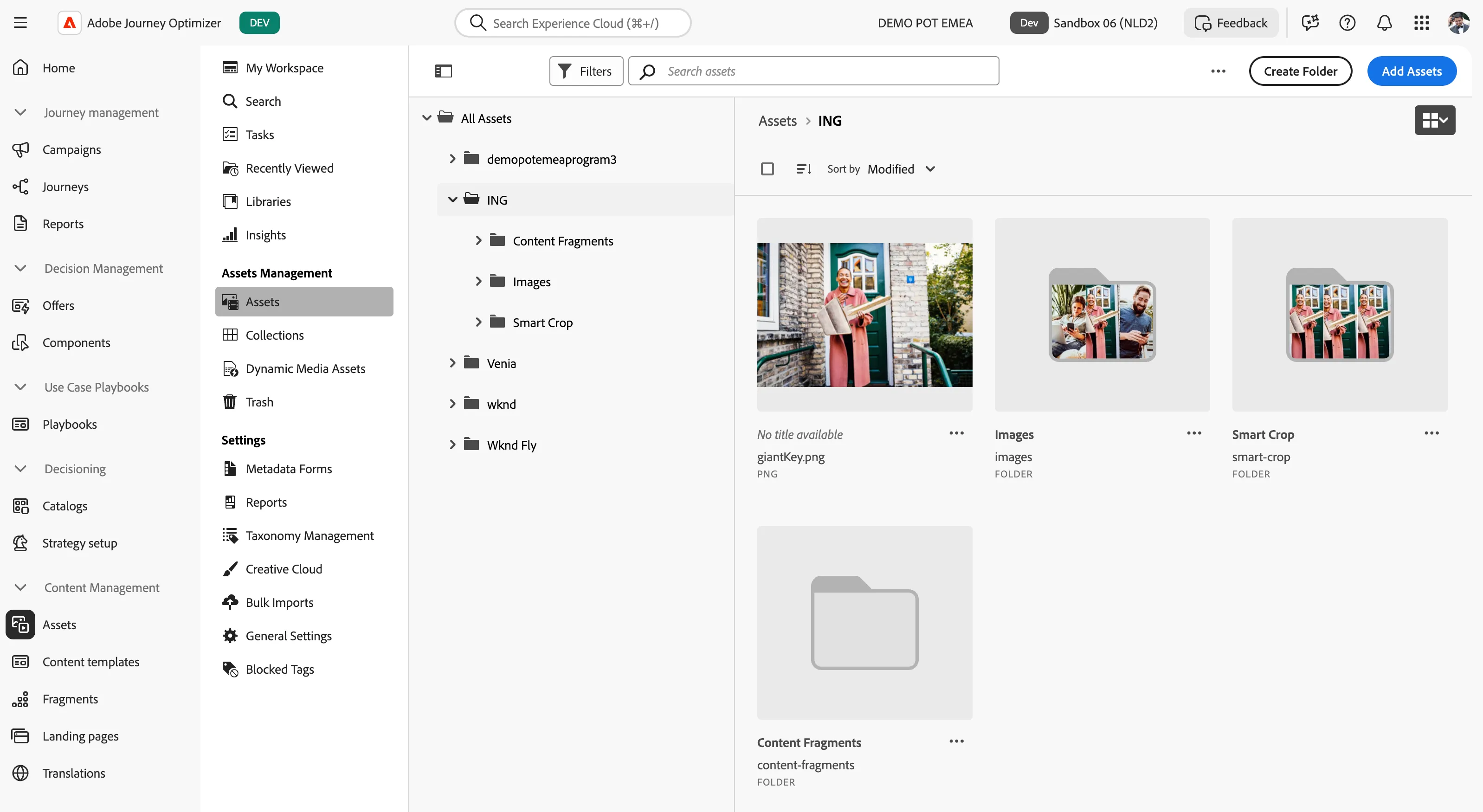
- You can now see the assets in AEM Assets is available in Adobe Journey Optimizer.
You have now successfully created an asset and its various smart renditions of it in AEM Assets and published it to made it available for using it in any delivery channels like email or web.