Creating the journey
Journey overview
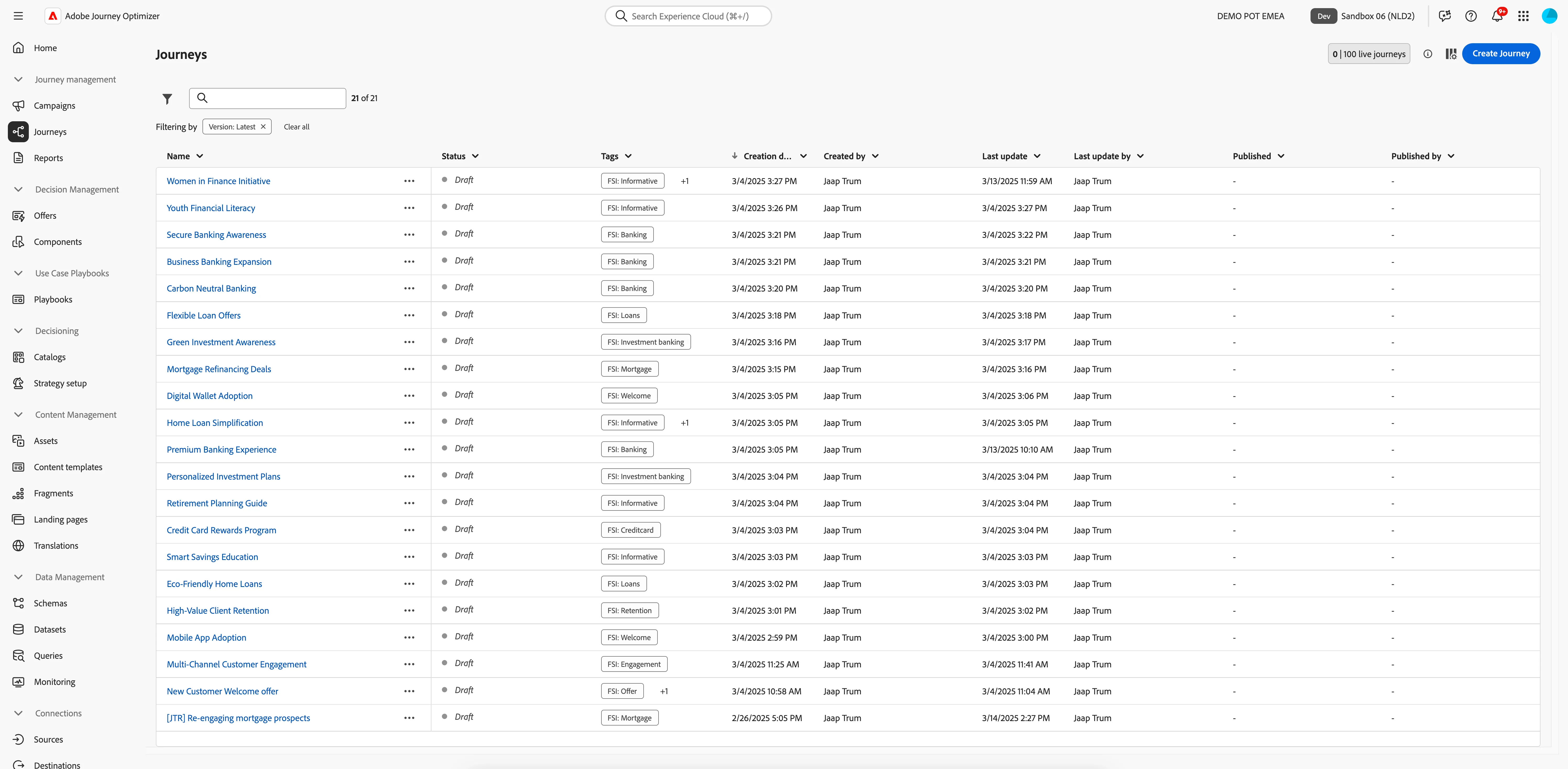
To get an overview of all journeys in Adobe Experience Platform:
- In the menu on the left side, under Journey Management, click on Journeys. You will see a overview with all existing journeys.
Creating a journey
We'll be creating a journey that contacts all prospects that clicked on the Funda ad but did not complete the mortgage application form. You've captured these prospects in an audience in the Research & Analysis exercise. If they have the ING mobile app, we'll send them a Push notification followed by an in-app message as well as an email containing details about finishing their mortgage application. If the customer does not have the mobile app, they'll only receive the email message. After sending out the communication we'll check if they submit the application within the next 5 days. If not, we'll send them a reminder message.
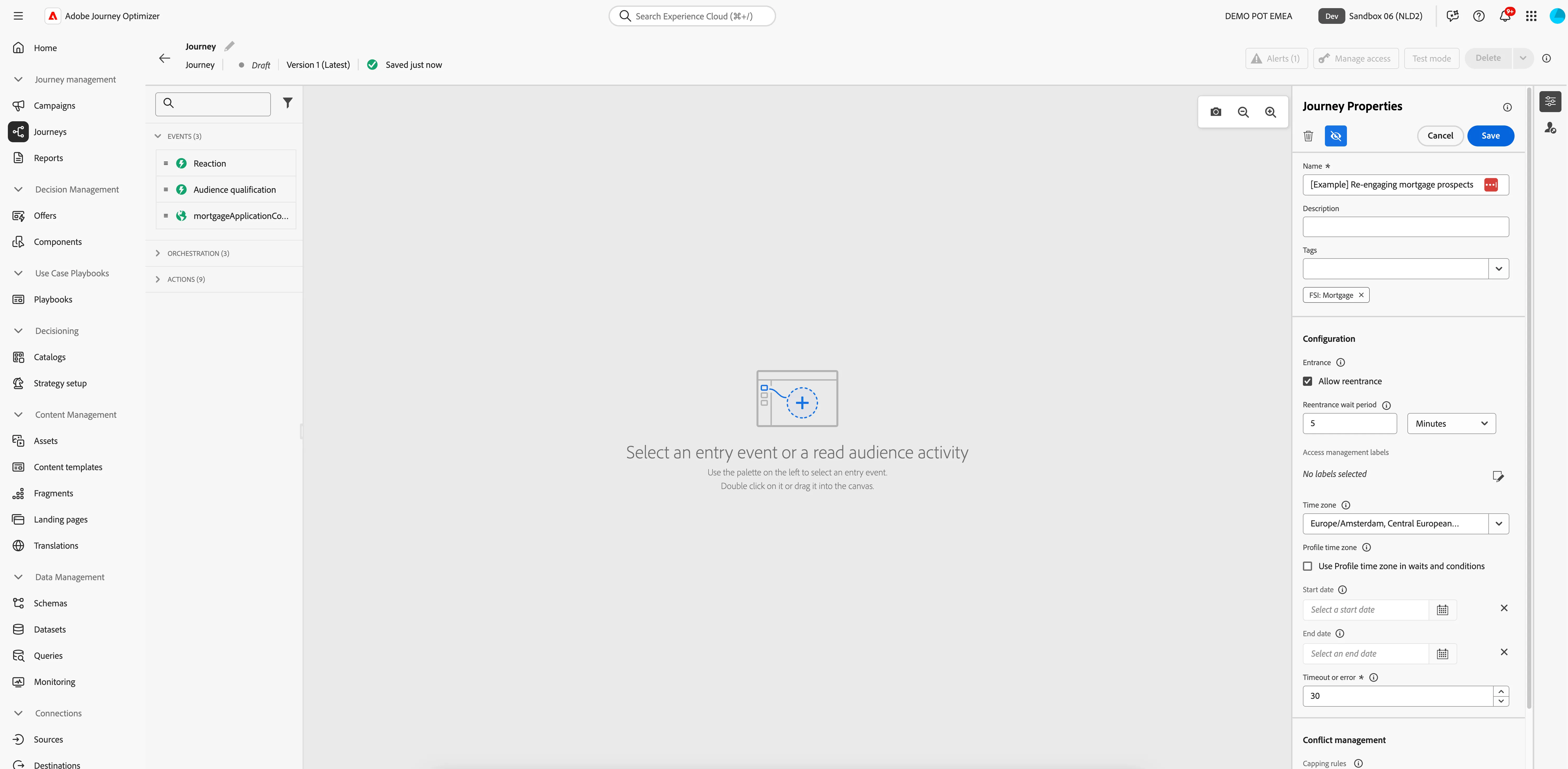
Click on Create Journey. You'll be taken to the Journey canvas with the journey properties opened.
- Set the name to [your name] Re-engaging mortgage prospects.
- Under Tags, start typing FSI and choose FSI: Mortgage to apply this tag to your journey.
- For the other properties we'll keep the default values.
- Your screen should look like the image below. Click Save to save and close the properties.
Read audience
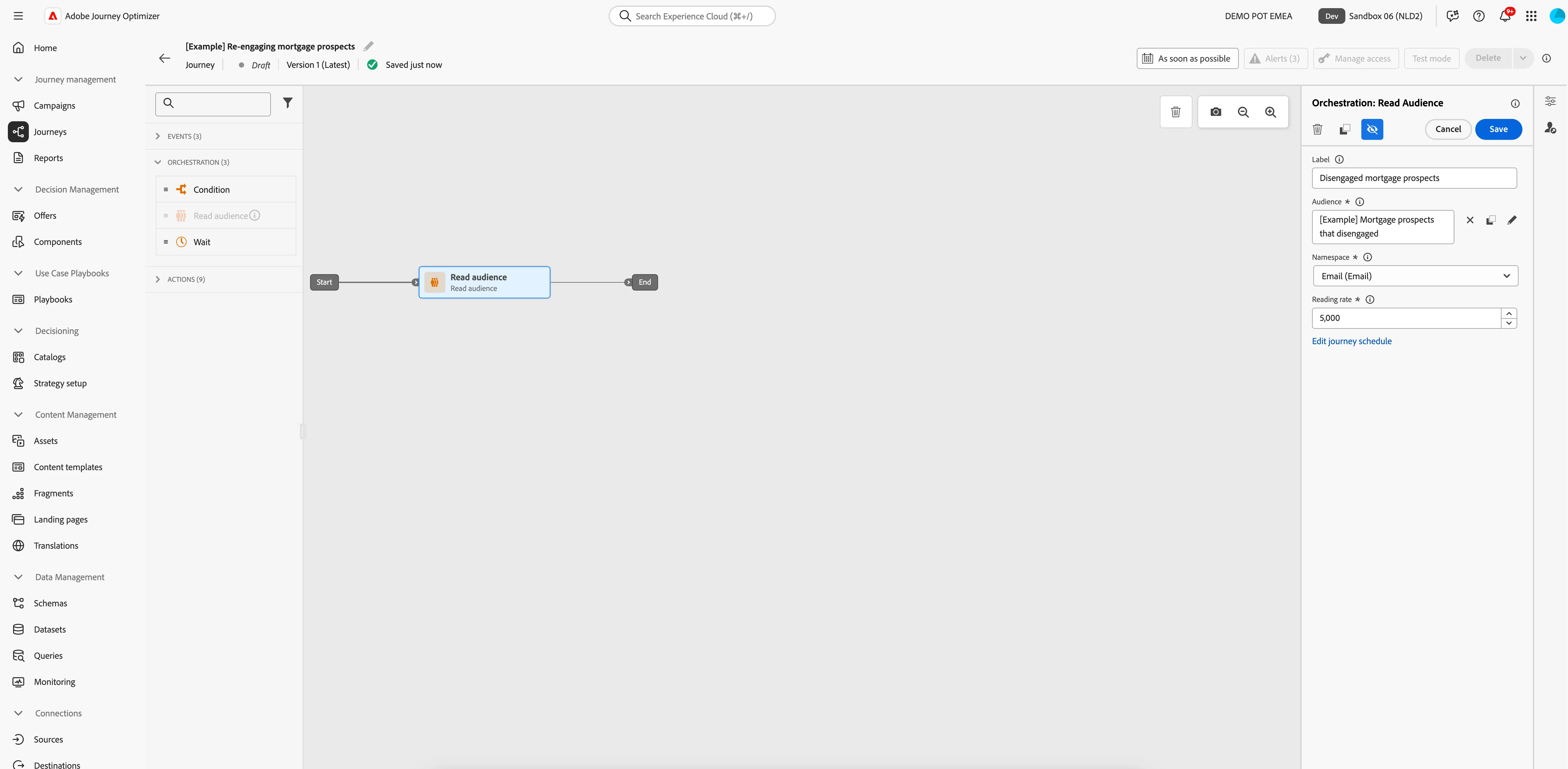
We're going to start the journey by selecting all mortgage prospects that disengaged. This is the audience we derived from our report and refined in the audience builder at the start of the day.
- From the Orchestration tab, choose Read audience and drag it onto the canvas.
- Set the Label to Disengaged mortgage prospects.
- Click on the -icon, a pop-up window will open. Search for the audience you created through the report in the Research & Analysis exercise. It should be called [your name] Mortgage prospects that disengaged. If you didn't create an audience, you can use [Example] Mortgage prospects that disengaged instead. Check the box for audience and click Save.
- Set Namespace to Email (Email).
- Your screen should look like the image below. Click Save.
Condition - mobile app users
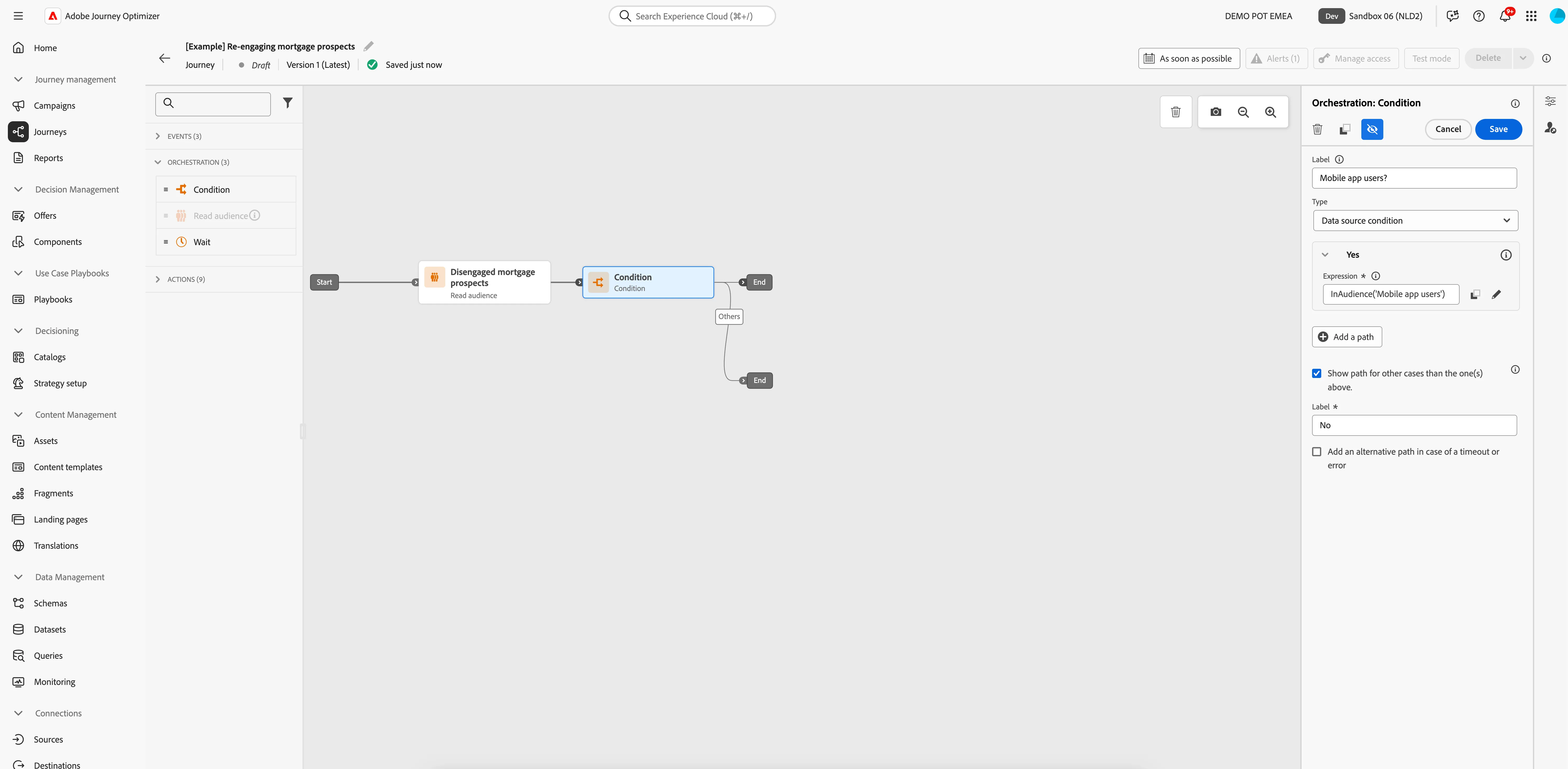
We'll send all prospects in the audience an email to re-engage them. However, if the prospect is a mobile app user we also want to send them a push and personalised in-app pop-up message so they can continue their mortgage application on their mobile device. For this we can use the Condition-activity. With this activity you can set one or multiple conditions to have your profiles go through different paths in this journey.
- From the orchestration tab, choose Condition and drag it onto the empty circle on the canvas.
- Click on the activity to open the detailed view.
- Set the Label to Mobile app user?.
- Click on Path1 and change the label to Yes.
- Click on Add an expression to open a window.
- On the left side, open Audiences. Scroll down till you find the audience called Mobile app users and drag it to the right side.
- By default the statement should be on true, if not click the toggle. Checks if the title reads The Mobile app users audience membership is true and click Ok.
- Click Ok to save the conditions.
- Check Show path for other cases than one(s) above and set the label to No.
- Your screen should look like the image below. Click Save.
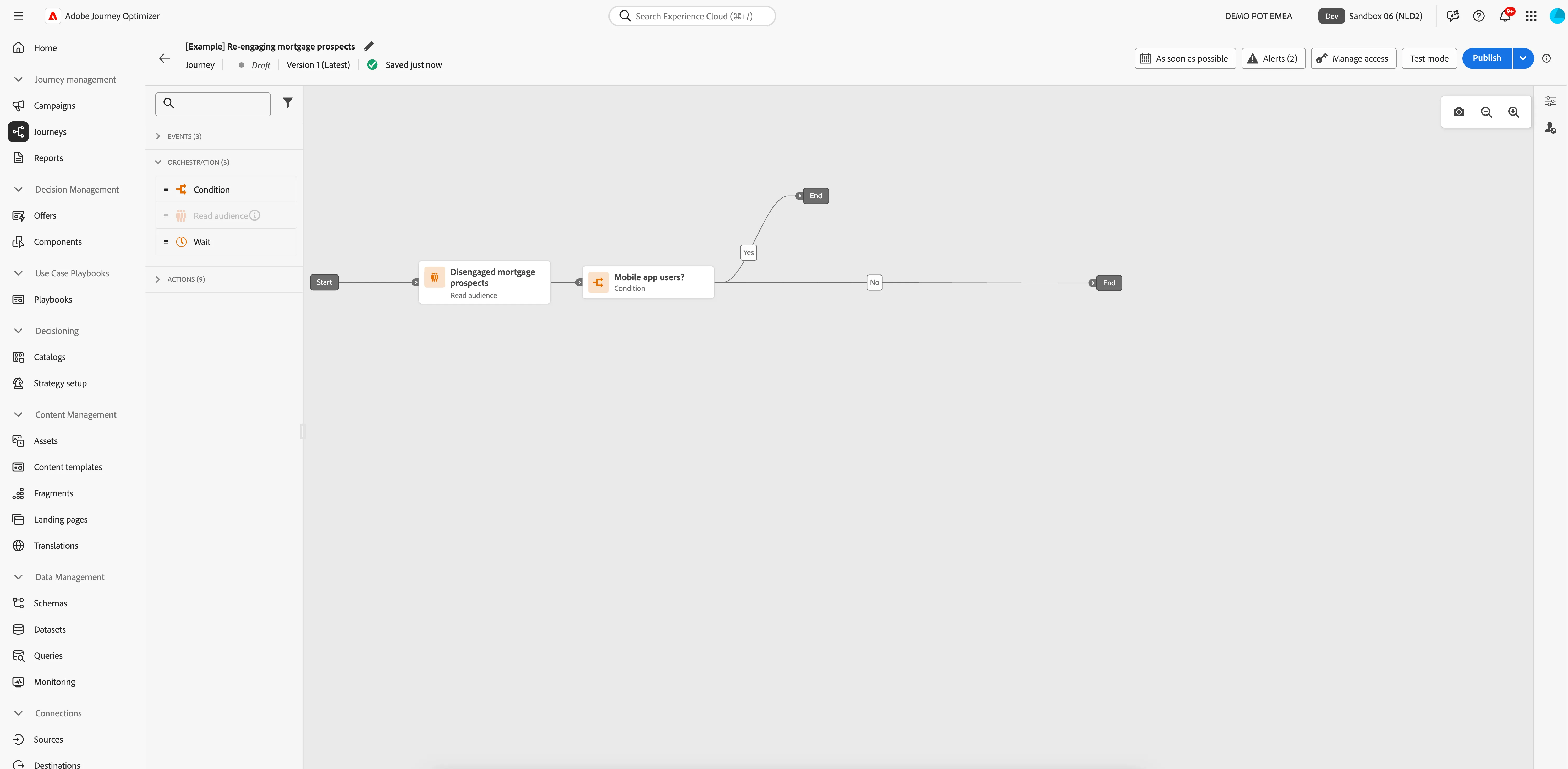
In our journey we want to send a push and in-app message to everyone using the mobile app as well as sending an email. Therefore, we want to re-arrange the paths so the "Yes"-path branches off to the top and the "No"-path goes further in a straight line.
- Drag the End of each path so it looks like the image below:
In-app message
The first action we'll take is an in-app message. This form of communication allows you to present content when the customer engages with your mobile app.
- From the actions tab, choose In-app message and drag it onto the empty circle on the canvas at the Yes-path.
- You'll notice not one, but two activities are placed on the canvas. An in-app message and a wait-activity. We don't need the wait-activity in our use case, so we can remove this.
- Click on the Wait-activity to open the detail panel and click on the -icon. You'll be prompted to confirm. Click on Delete to remove the activity from the canvas. An in-app message is initiated by the customer, it's displayed when the user engages with the mobile app. This is different to email and push notifications who are "pushed" to the customer and do not require an action from them to see it. The wait activity is automatically added so it ensures the customer remains in the journey for a little while so they have time to engage with the app to actually see the message. In our use case the customer will be in the journey for some time due to follow-up actions we are taking. Therefore, we do not need to have a wait-activity.
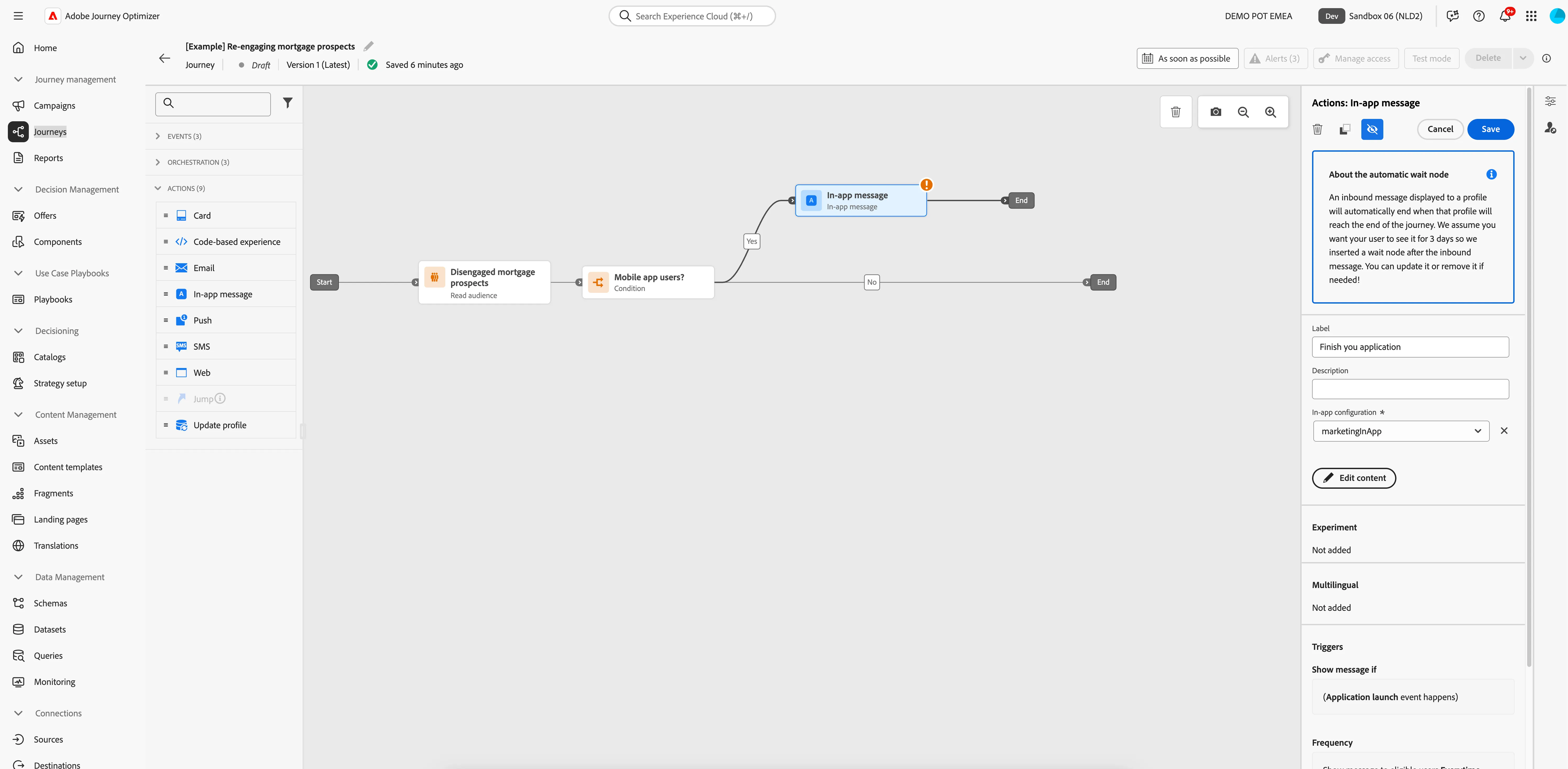
- Click on the In-app message to open the detail panel
- Set the label to Finish you application.
- Set the In-app configuration to marketingInApp.
- For the other properties we'll keep the default values.
- Click on Edit content to start designing your in-app message
- Click on Content template and choose Apply content template.
- Select the Default in-app template and click Confirm.
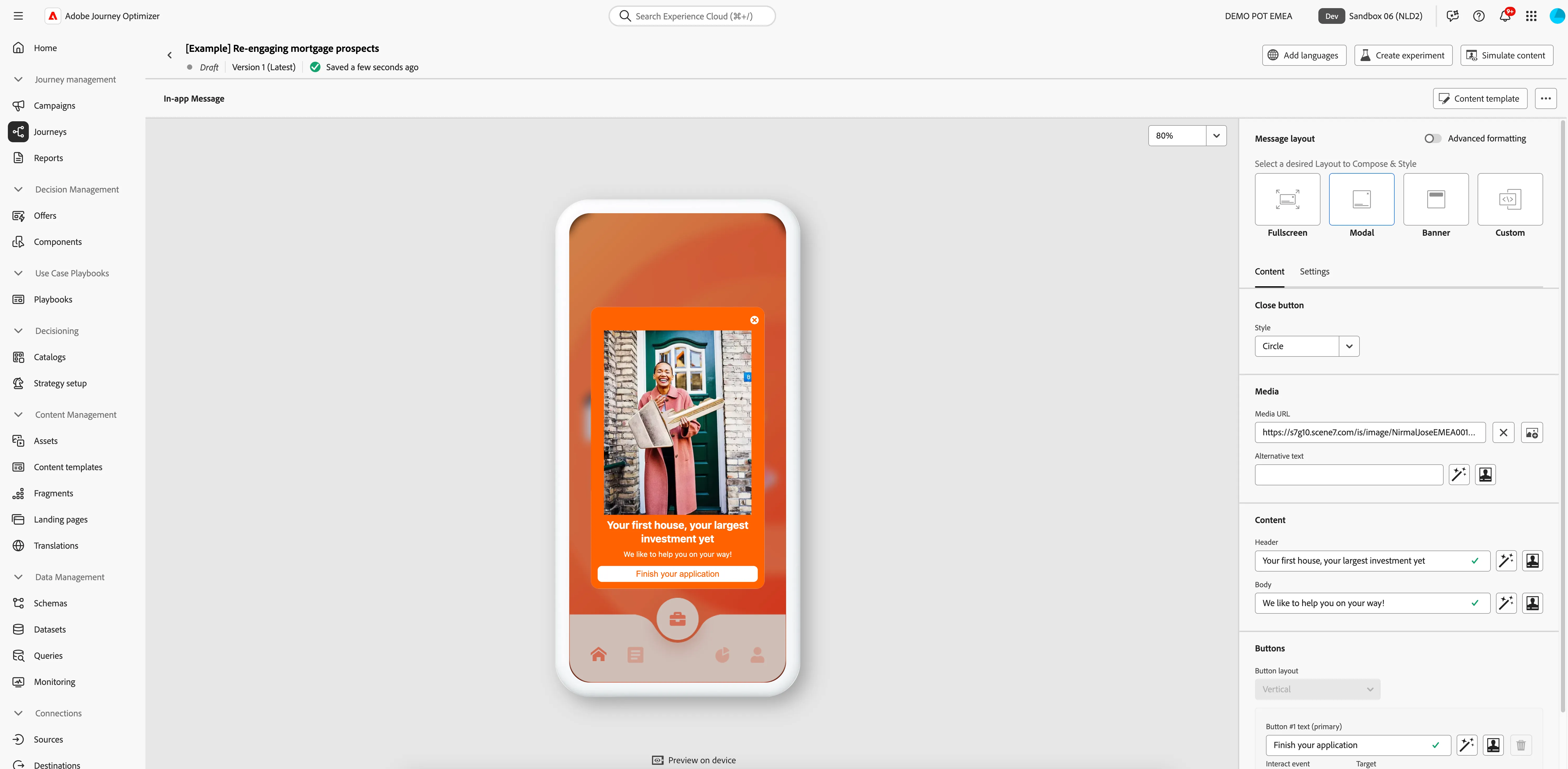
- To add an image, click on the -icon on the right side of Media URL. This will let you select an asset from Adobe Experience Manager Assets. Navigate to ing > smart-crop. In this folder you'll find some of the different sizes of our asset. Select the image inAppBanner-giantKey.png and click Select in the top right.
- Set the header to Your first house, your largest investment yet.
- Set the body to We like to help you on your way!.
- Set the button text to Finish your application.
Your screen should look like the image below.
- Navigate out of the designer by clicking the arrow in the top left. Your screen should now look like the image below. Click Save to close the in-app message detail panel.
Push
To draw our prospects into the app we're going to follow with a push-notification. This pushes a short message to the profile's mobile phone that they can easily interact with. When they click on the push they'll be taken to the mobile app directly, which allows us to present the (larger) in-app message.
- From the actions tab, choose Push and drag it onto the empty circle on the canvas following the in-app message.
- Click on the activity to open the detailed view.
- Set the label to Finish your mortgage application.
- Set the category to Marketing. This should already be pre-populated, since the previous message was a marketing message.
- Set the push configuration to marketingPush.
- Click on Edit content to start designing your push.
- Set the title to Finish your mortgage application.
- Select and remove the text FIRSTNAME.
- In Profile attributes, search for first name. Click on the icon to add First name (Profile attributes > Person > Full name) to your expression. It should read: Hi {{profile.person.name.firstName}}, how can we help you with your largest investment yet?
- Click Save.
- To add an image, click on Add media. In Asset selector tab, Navigate to ing > smart-crop and select the image banner-giantKey.png and click Select in the top right.
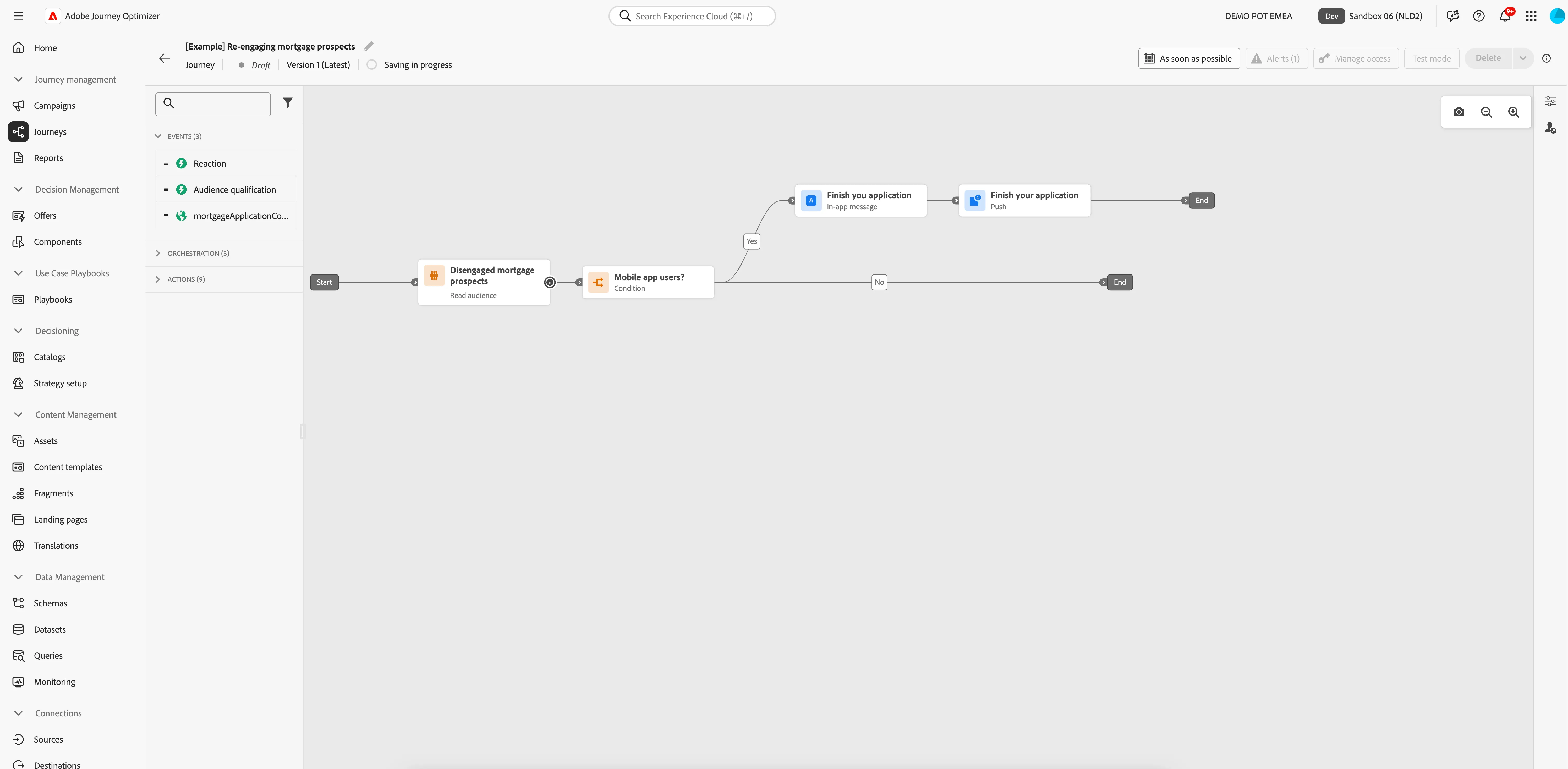
Your screen should look like the image below.
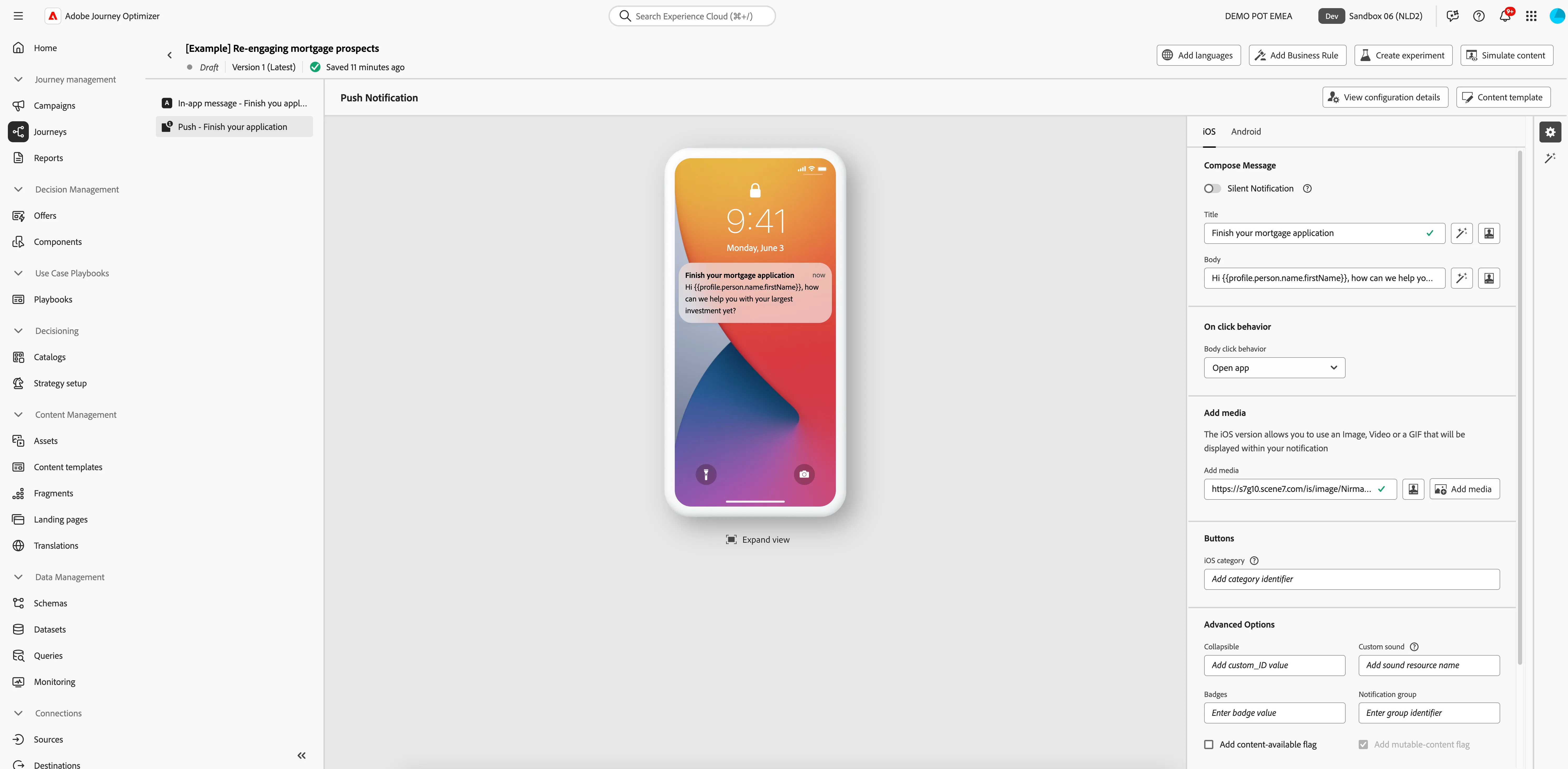
- Navigate out of the designer by clicking the arrow in the top left. Your screen should now look like the image below. Click Save to close the push-notification detail panel.
Email #1
Our main form of communication will be email. Everyone entering this journey will receive this email. It should be sent at a convenient time for the recipient to increase the chance they'll see it. Furthermore, it needs to contain different content if the recipient is an ING customer.
- From the actions tab, choose Email and drag it onto the empty circle on the canvas at the No-path.
- Click on the activity to open the detailed view.
- Set the label to Finish your application.
- Set the category to Marketing.
- Set the email surface to MarketingEmail.
- Enable Send time optimization, choose to Optimize send time for Opens and set it to send within next 12 hours. Send time optimization This feature will calculate the best time in the next 12 hours to send this email to the customer. This calculation is different for each customer and looks at their email tracking history to see at what time they're most likely to open an email.
- Click on Edit content to start designing your email.
- Set the subject line to Finish your application.
- Click Save.
- Click on Edit email body. Under Saved templates, choose Mortgage re-engagement. It will show you a preview of the template. Click on Use this template.
- The email designer will now open. It should look like this:
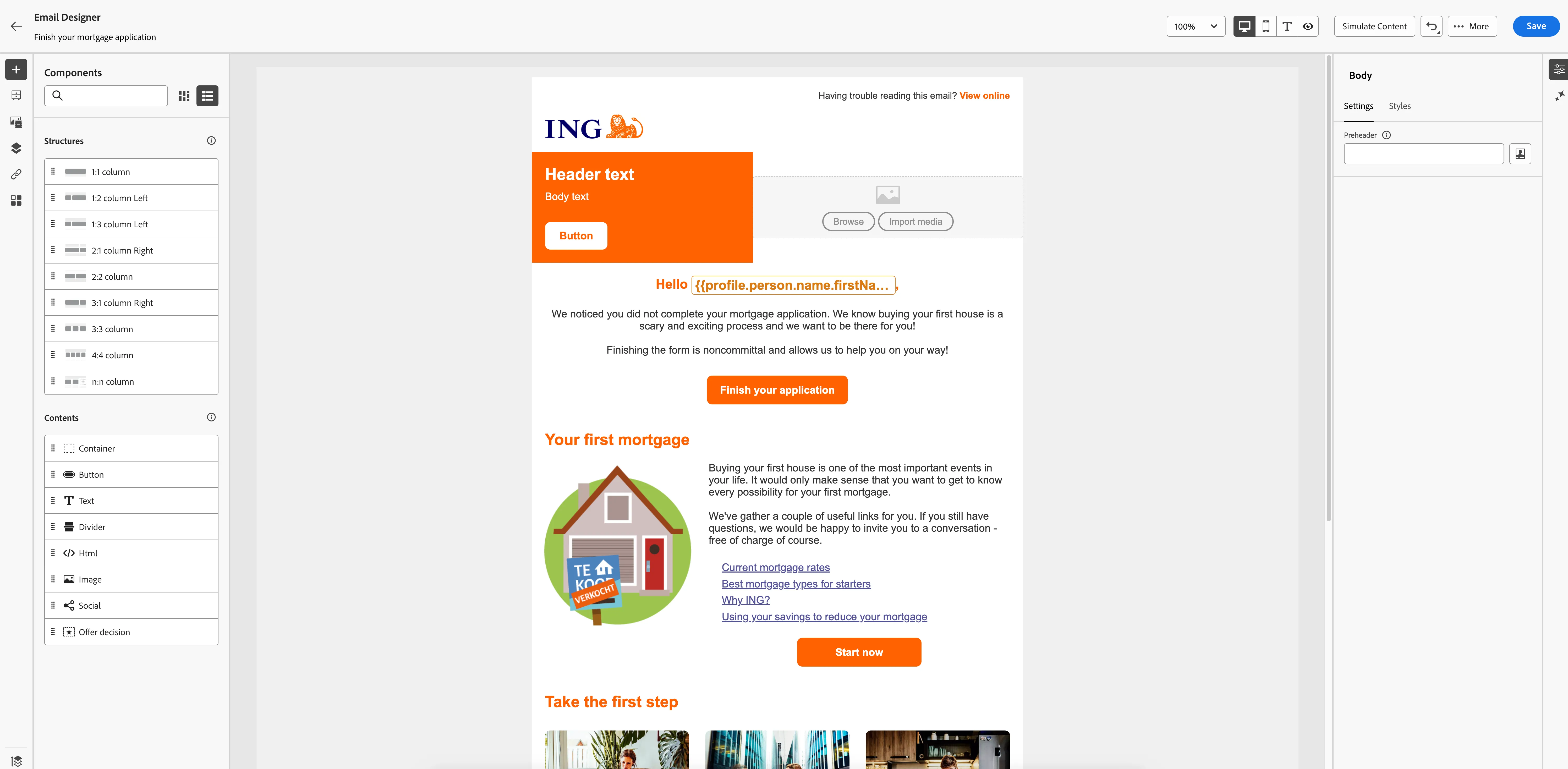
You'll have noticed that the template you picked is almost completed already. Let's make a few edits to finish the email.
- Let's start by modifying the header.
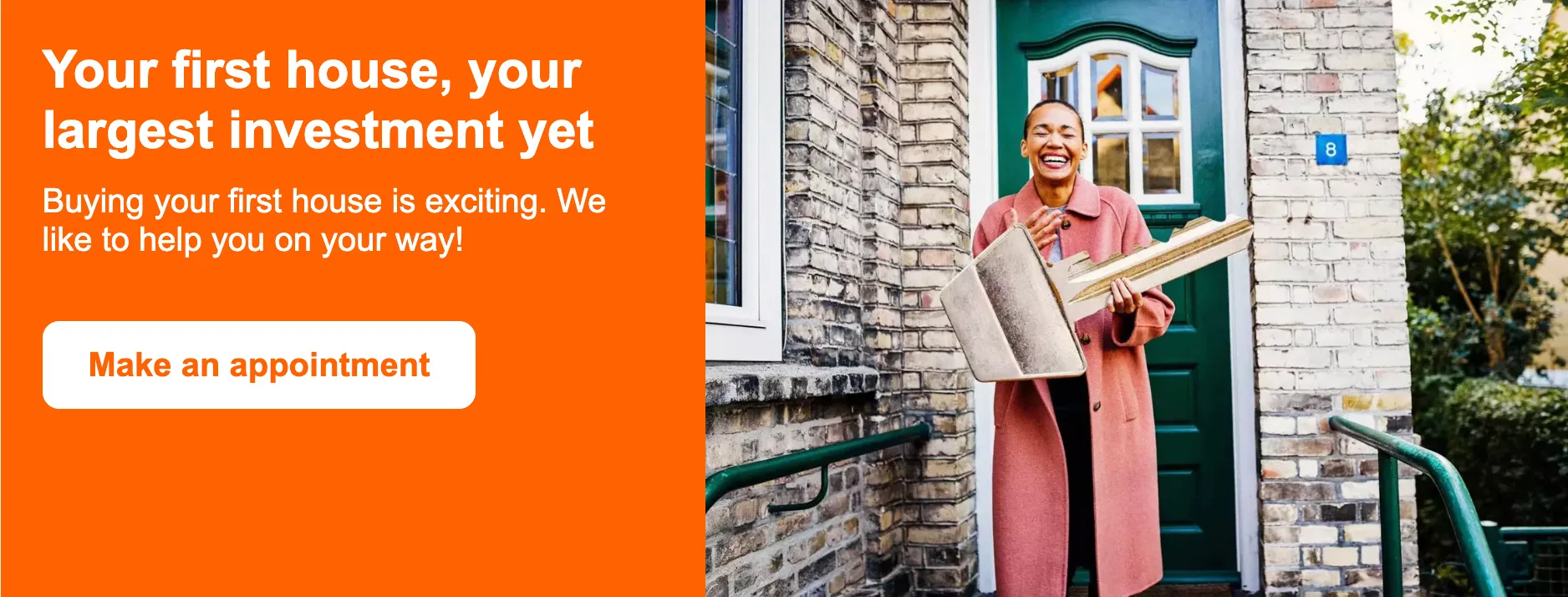
- Set the Header text to Your first house, your largest investment yet.
- Set the Body text to Buying your first house is exciting. We like to help you on your way!.
- Click the Button and set the label to Make an appointment and the url to https://www.ing.nl/.
- To add an image on the right side of the header, click on Browse. In Asset selector tab, Navigate to ing > smart-crop and select the image emailBannerLarge-giantKey.png and click Select in the top right.
Your header should now look like this:
- ING Customers with an active debit account can receive a discount on their mortgage interest. It's likely that our target audience includes some of these customers. We want to change the content of the email for these customers to inform them about this advantage. For prospects that do not have a debit account, we want to not show this as to not deter them from continuing their mortgage application. We can use Conditional content for this.
Select the body of the email by clicking on the side (gray area) of the content block.
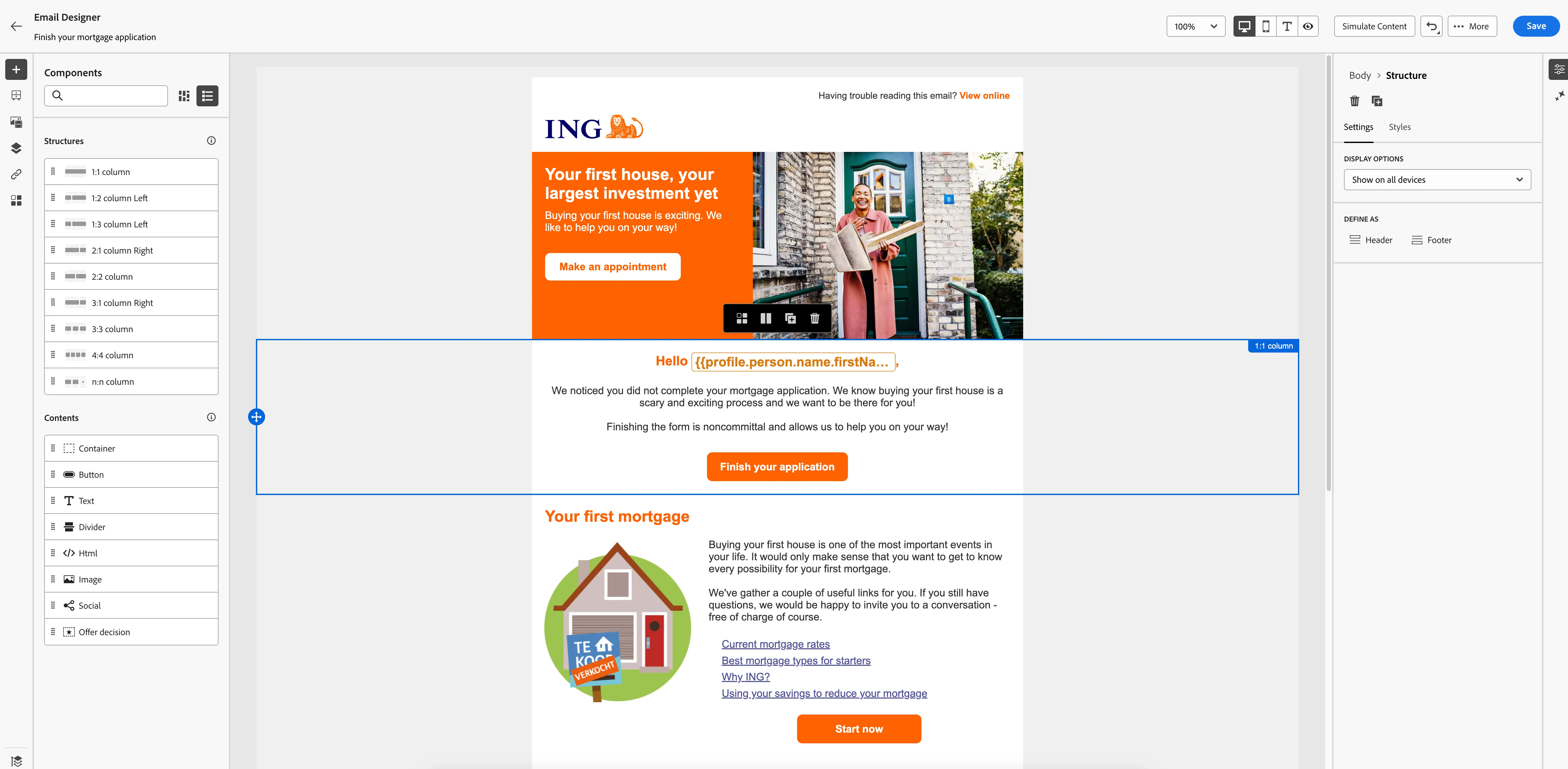
- In the pop-up menu, click on the -icon to enable Conditional content. The left menu will change to the Conditional Content menu and display your content variants.
- We're not changing the default variant as we want this to display as the current content.
- Select Variant - 1 and hover over it with your cursor. Click on the -icon and choose Rename. Set the name of this variant to Customers with a debit account.
- Hover over the variant again and click on the condition-icon. A window will open. Select the Customers with a debit account condition and click Select. Select condition You can create your own rules and save preset rules here to be used in future conditional content conditions. In our example we prepared a condition that is based on an audience called "Customers with a debit account".
- Select your variant Customers with a debit account. It'll have a blue border. Then go into the content and add a line of text in the middle of the body saying: Did you know that you're eligible for a mortgage interest discount because you have a debit account with us?
Your content block should now look like this:
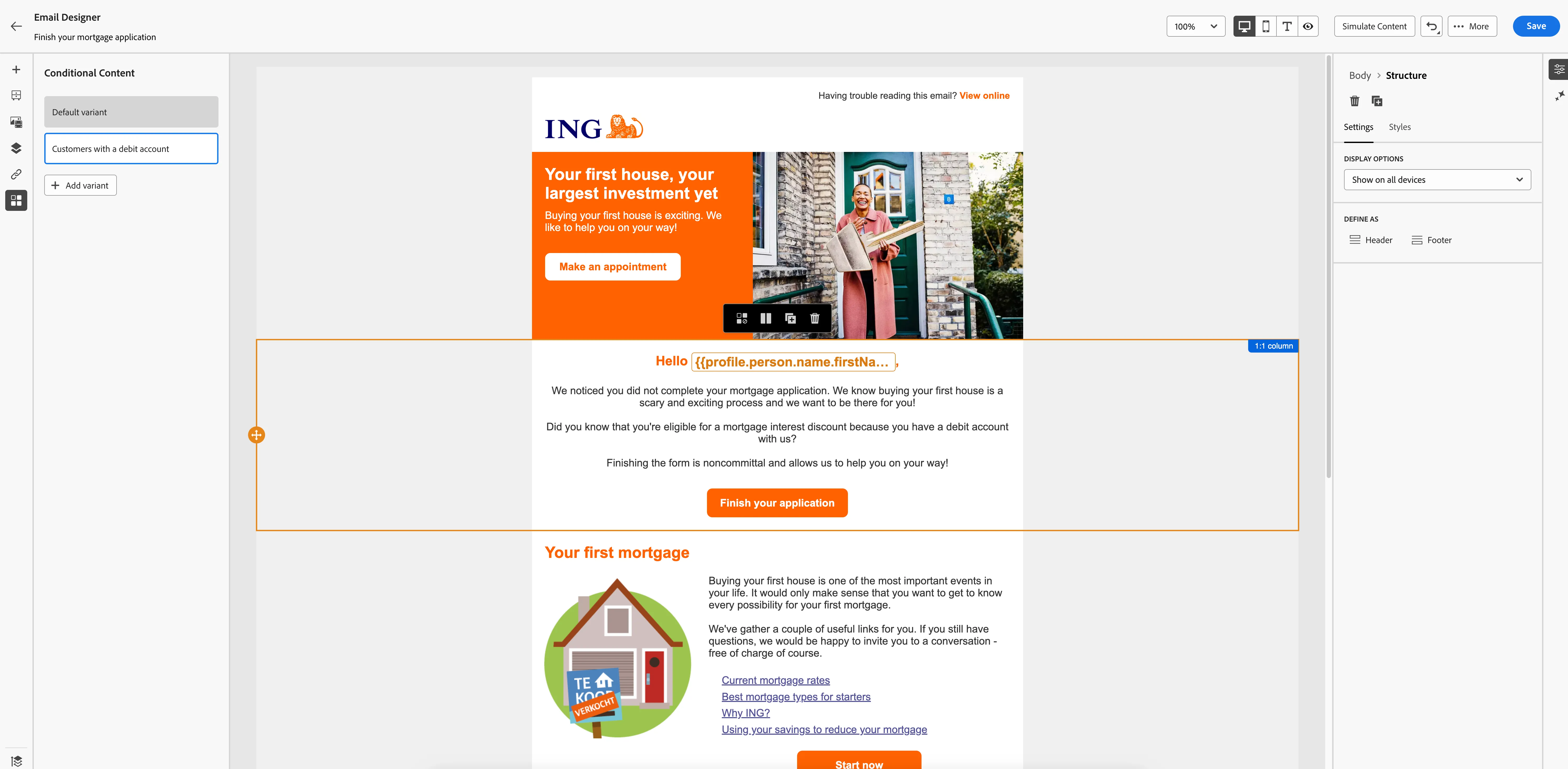
- You can now swap between both content variant and see the difference.
- The email content is now finished. Click Save in the top right of the screen. Then navigate out of the email designer by clicking on the arrow in the top left. You'll be taken to the messages overview for your journey.
Creating a content experiment
As part of our drive to increase the conversion rates of our emails, we want to run an A/B to see what subject line leads to a higher open-rate. In Adobe Journey Optimizer we call this a Content experiment.
- In the top right, click on Create experiment. A window will open.
- Set the success metric to Email Opens (AJO).
- Leave the holdout off, this is the default setting. Enabling this will allow you to add a percentage of the audience to a control group, receiving none of the content treatments.
- Leave distribute evenly on, this is the default setting. Disabling this will allow you to customly distribute the incoming audience over your treatments.
- Click Add treatment to add a second treatment to your experiment.
Your settings should now look like this:
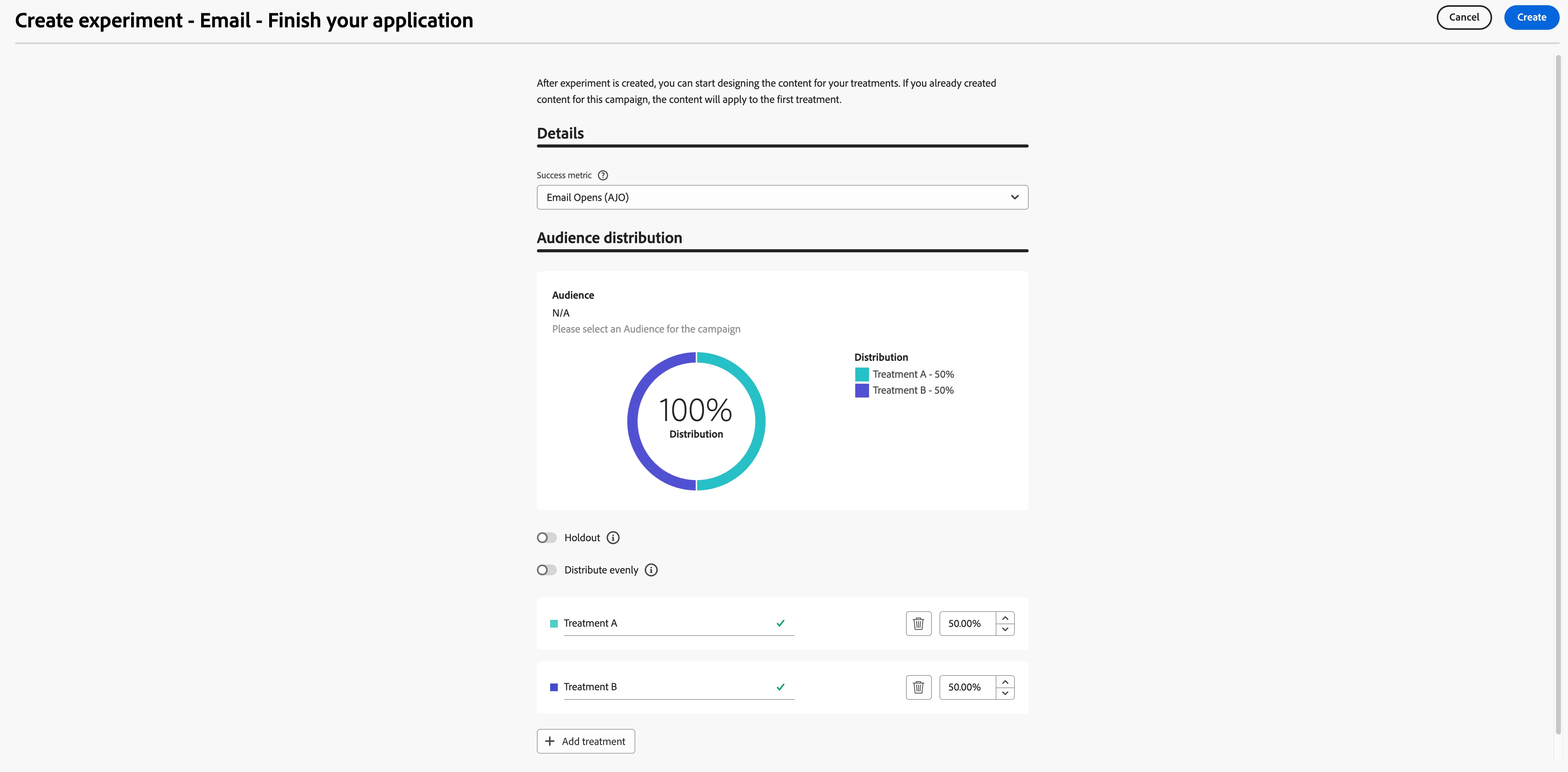
- Click Create in the top right.
- Notice how the interface changed and now displays your treatments on the left menu.
- The email content for Treatment B is empty. However, we'd want this to be the same as Treatment A as we are only testing how the subject line affects the open rate. Click on the -icon for Treatment B and click Delete. You'll be prompted to confirm the delete, click Delete to remove Treatment B.
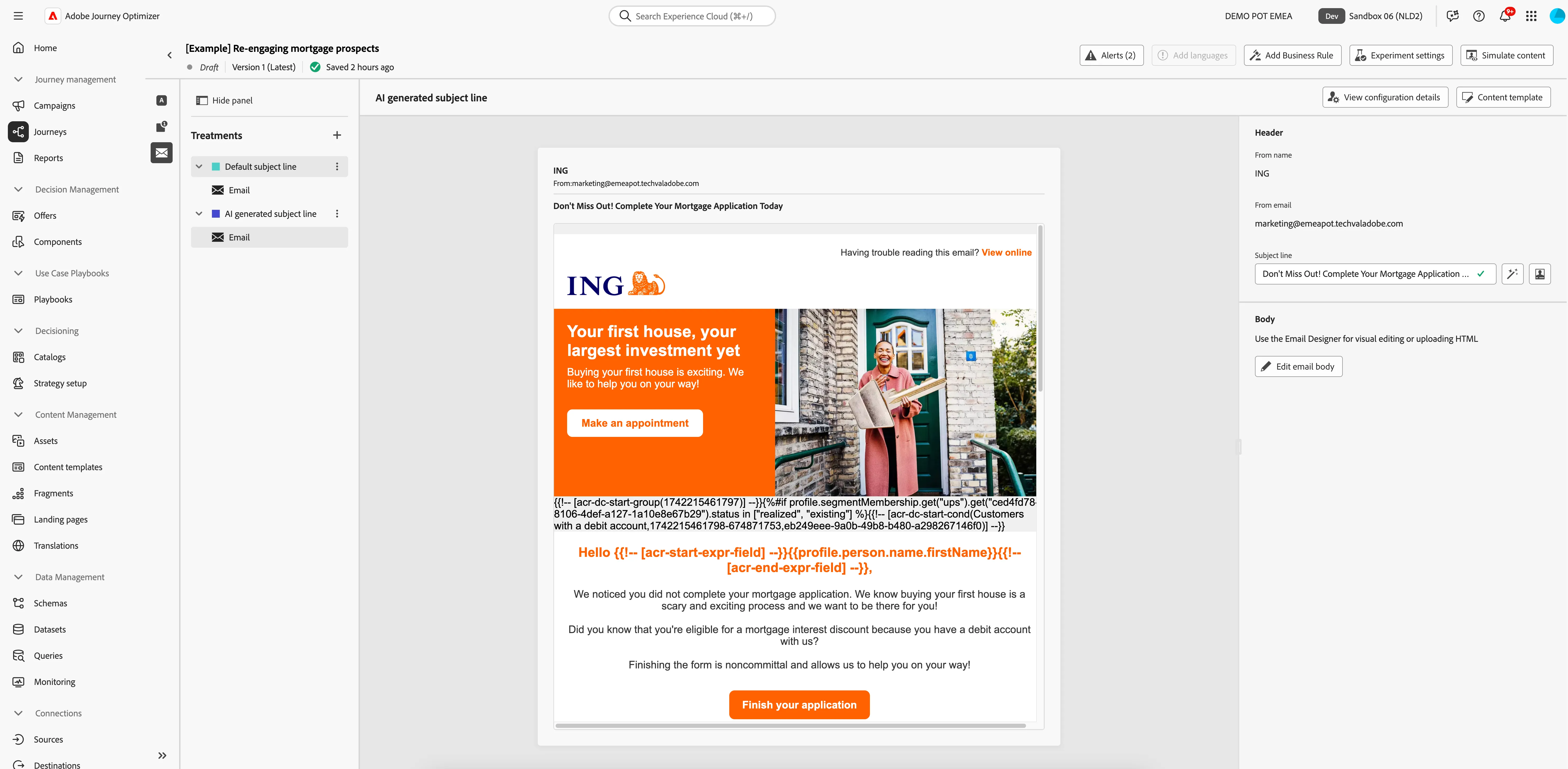
- To create a copy of Treatment A click on the -icon for Treatment A and click Duplicate. You'll be prompted to provide a name for the new treatment. Set the name to AI generated subject line.
- Rename Treatment A to Default subject line. by clicking on the -icon for Treatment A and clicking Rename.
- Select the email for the AI generated subject line. On the right side you'll see the current subject line, which was duplicated from the original email we created.
- Click on the -icon to edit text with AI Assistant. A window will open.
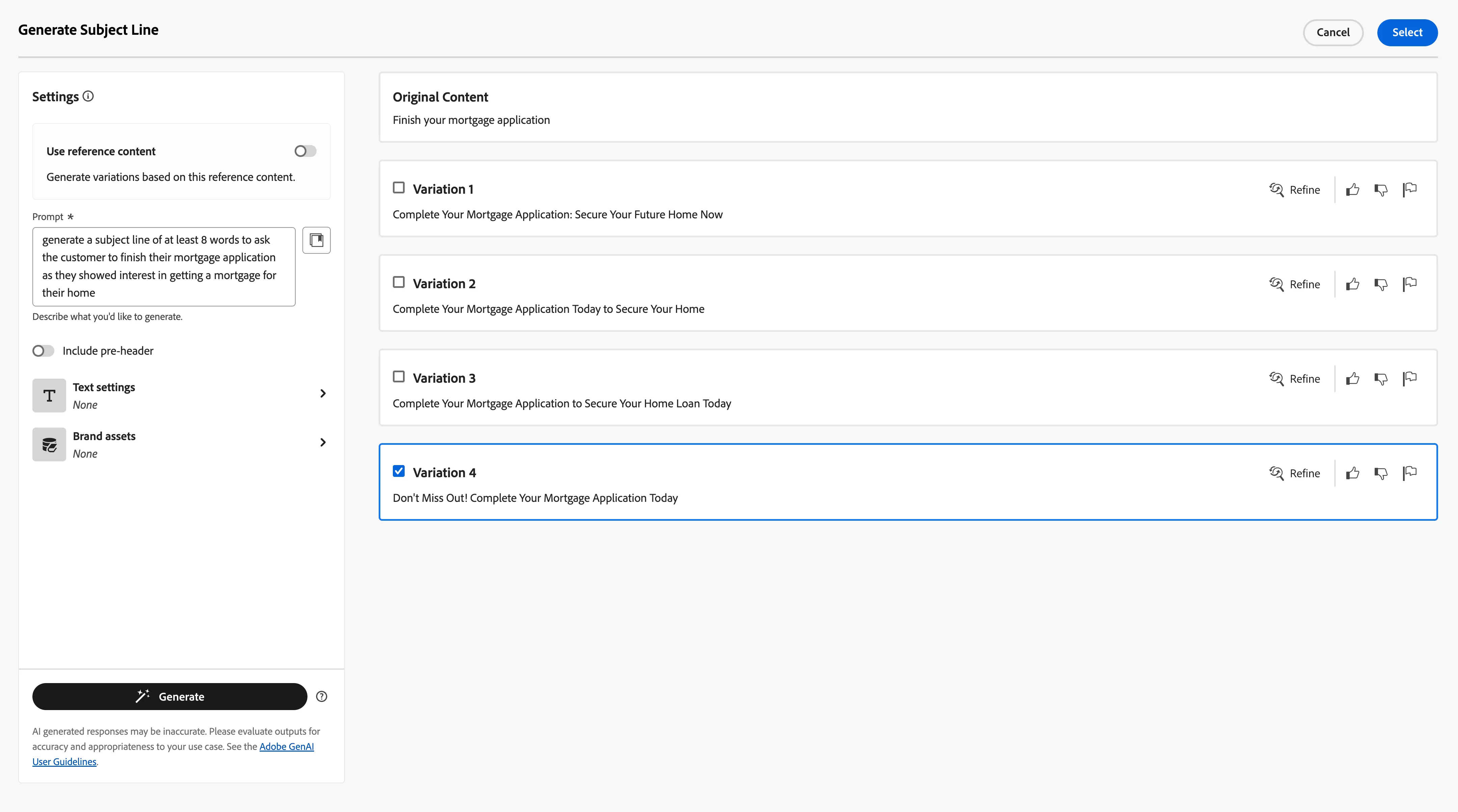
- You're now in the AI Assistant interface. You can write a prompt and set various settings like communication style, language and tone.
- The more descriptive you are, the better the prompt will work. Try the following prompt: Generate a subject line of at least 8 words to ask the customer to finish their mortgage application as they showed interest in getting a mortgage for their home and click Generate.
- The AI Assistant will provide you with several variations.
- Feel free to add more instructions to the prompt and play around with the tone to find a result you like!
When you find your perfect subject line, select it and click Select in the top right corner.
- We now succesfully set up a content experiment for a subject line open rate test using AI to generate a subject line! Your screen should look like the image below. Navigate out of the email overview by clicking on the arrow on the top left. You will be taken back to the journey canvas.
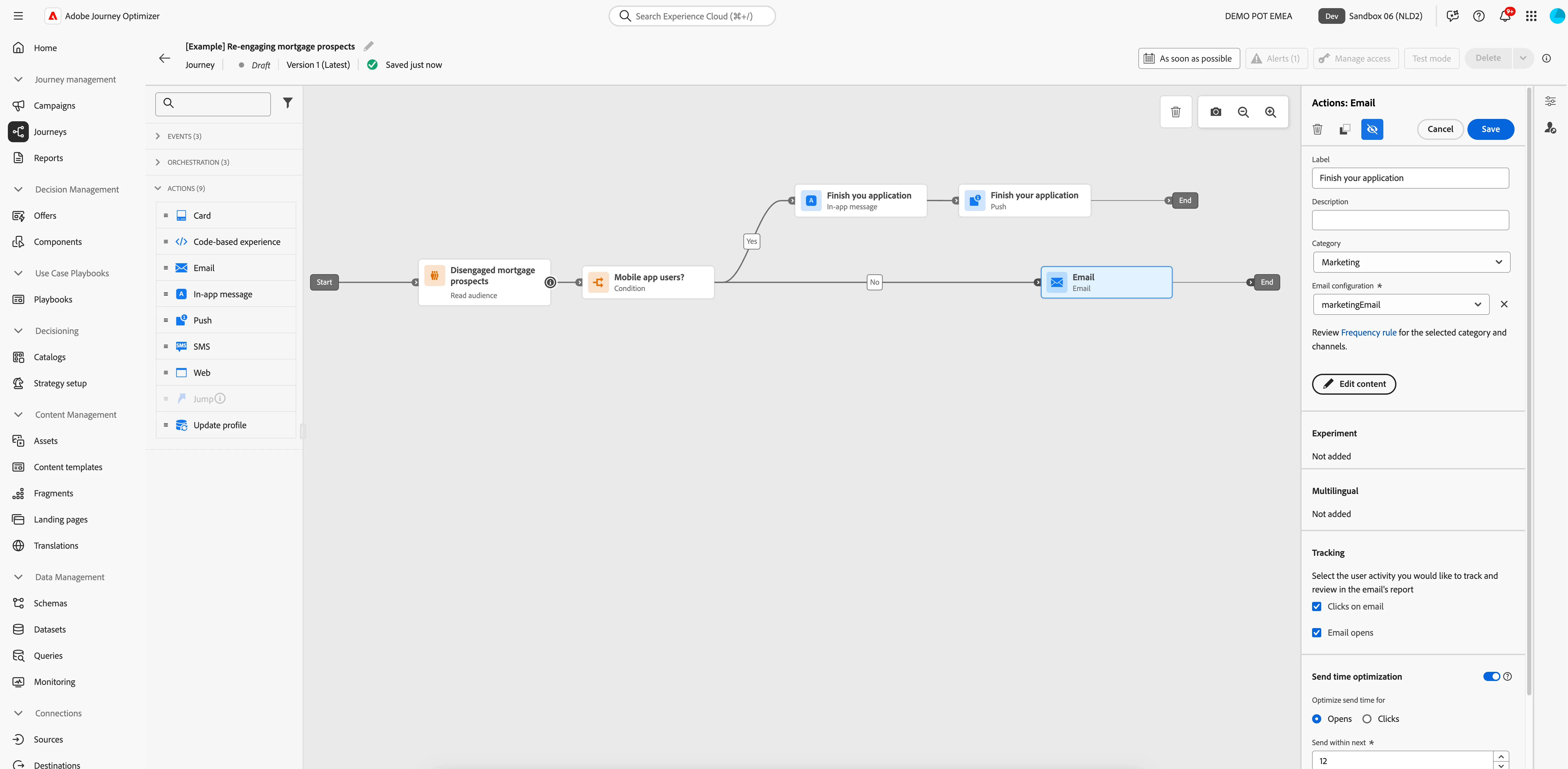
We want all prospect that receive the push & in-app message to also receive the email. We can easily do this by merging the paths together.
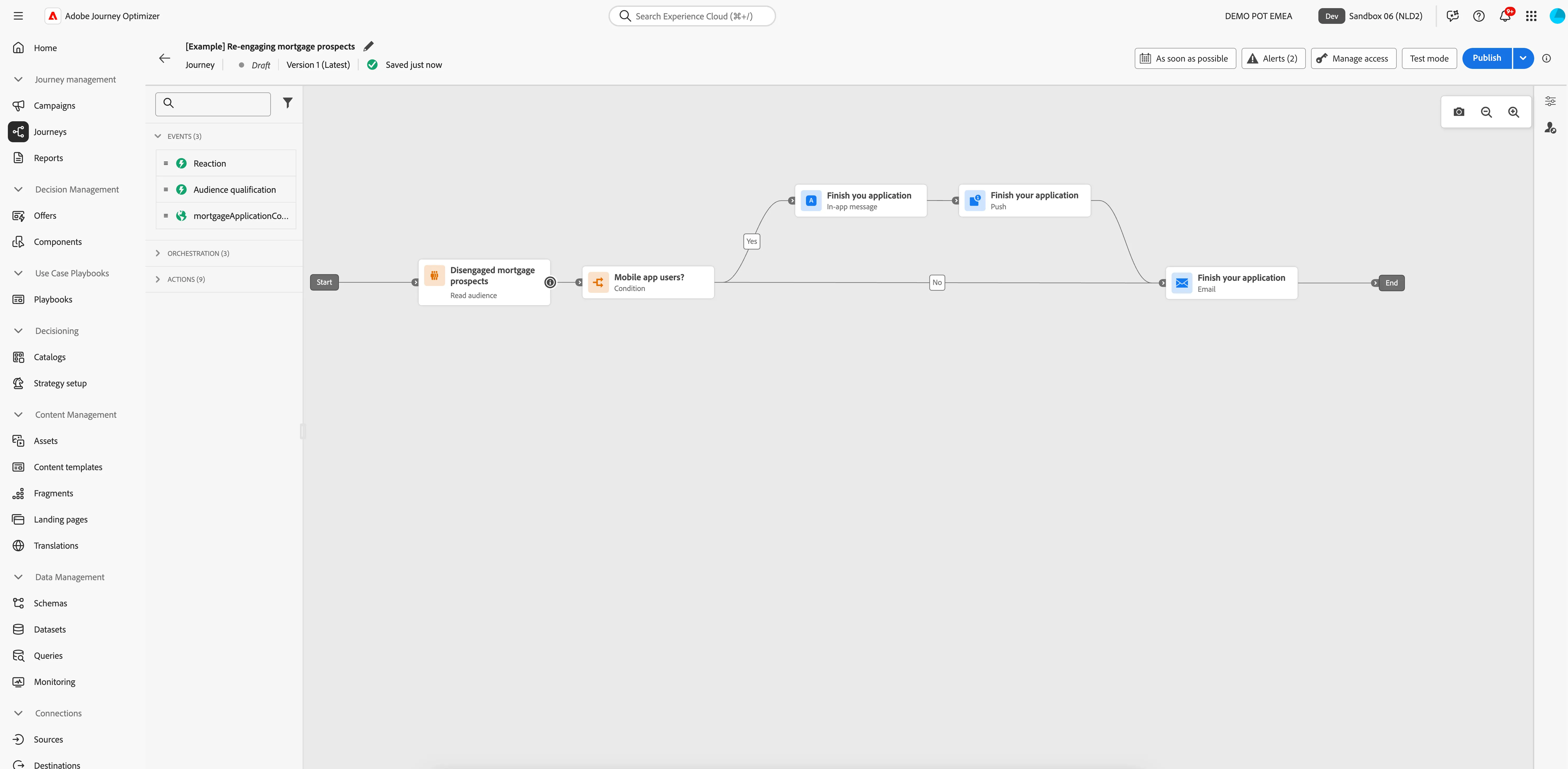
- Drag the Email-activity on top of the end following the Push-activity. This will connect them and merge the customers into this path.
- Move the Email-activity down to the right so the No-path goes in a straight line.
- Your canvas should now look like this:
Event trigger - Mortgage application form completed
Next, we want to monitor if the prospects finish their mortgage application. If they don't complete the process in the next 5 days, we'll want to send them a reminder email in hope that we can re-engage them.
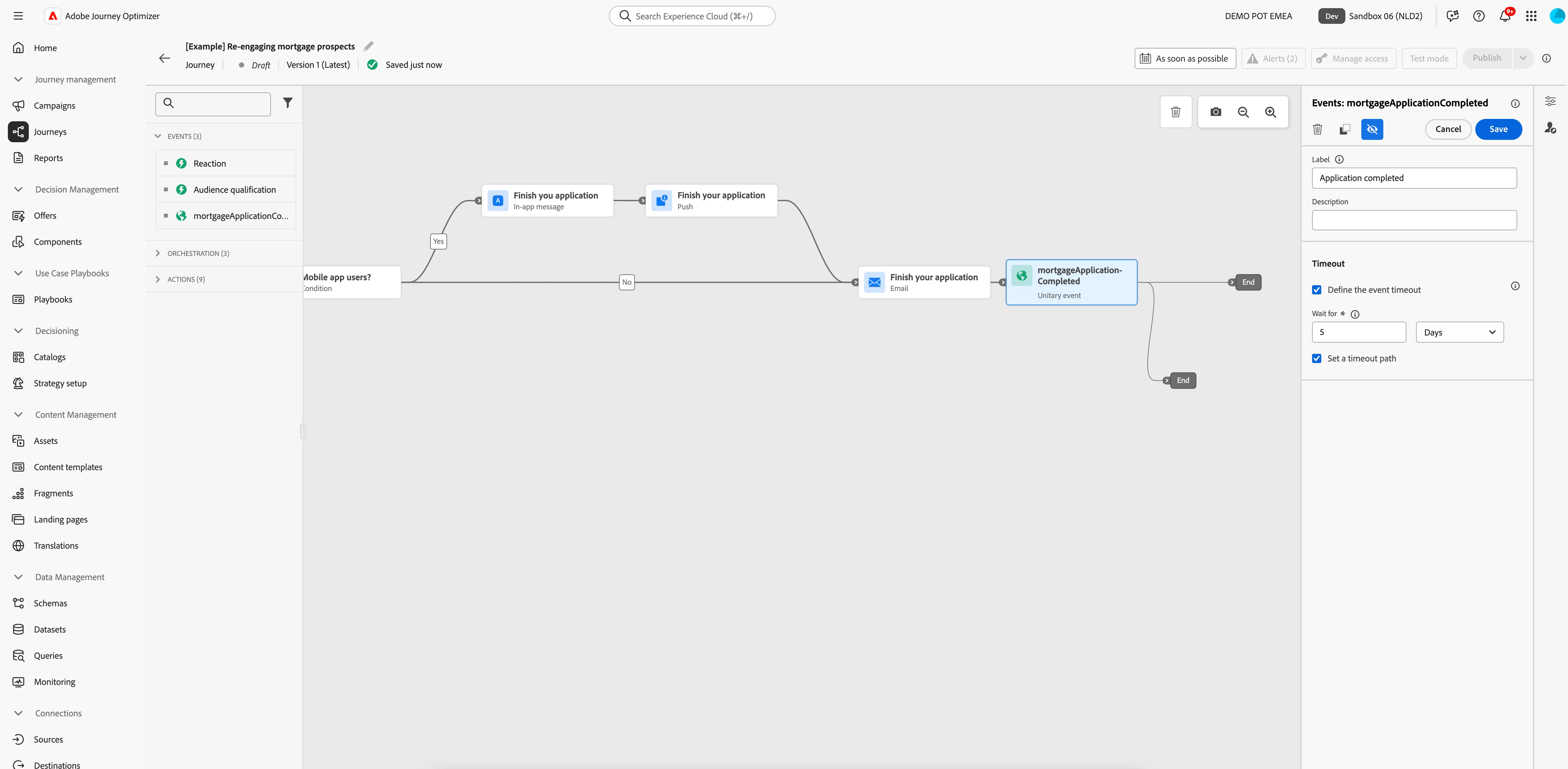
- From the events tab, choose mortgageApplicationCompleted and drag it onto the empty circle on the canvas.
- Set the Label to Application completed.
- Check Define the event timeout and set it to Wait for 5 Days. Make sure Set a timeout path is checked.
- Your screen should look like the image below. Click Save.
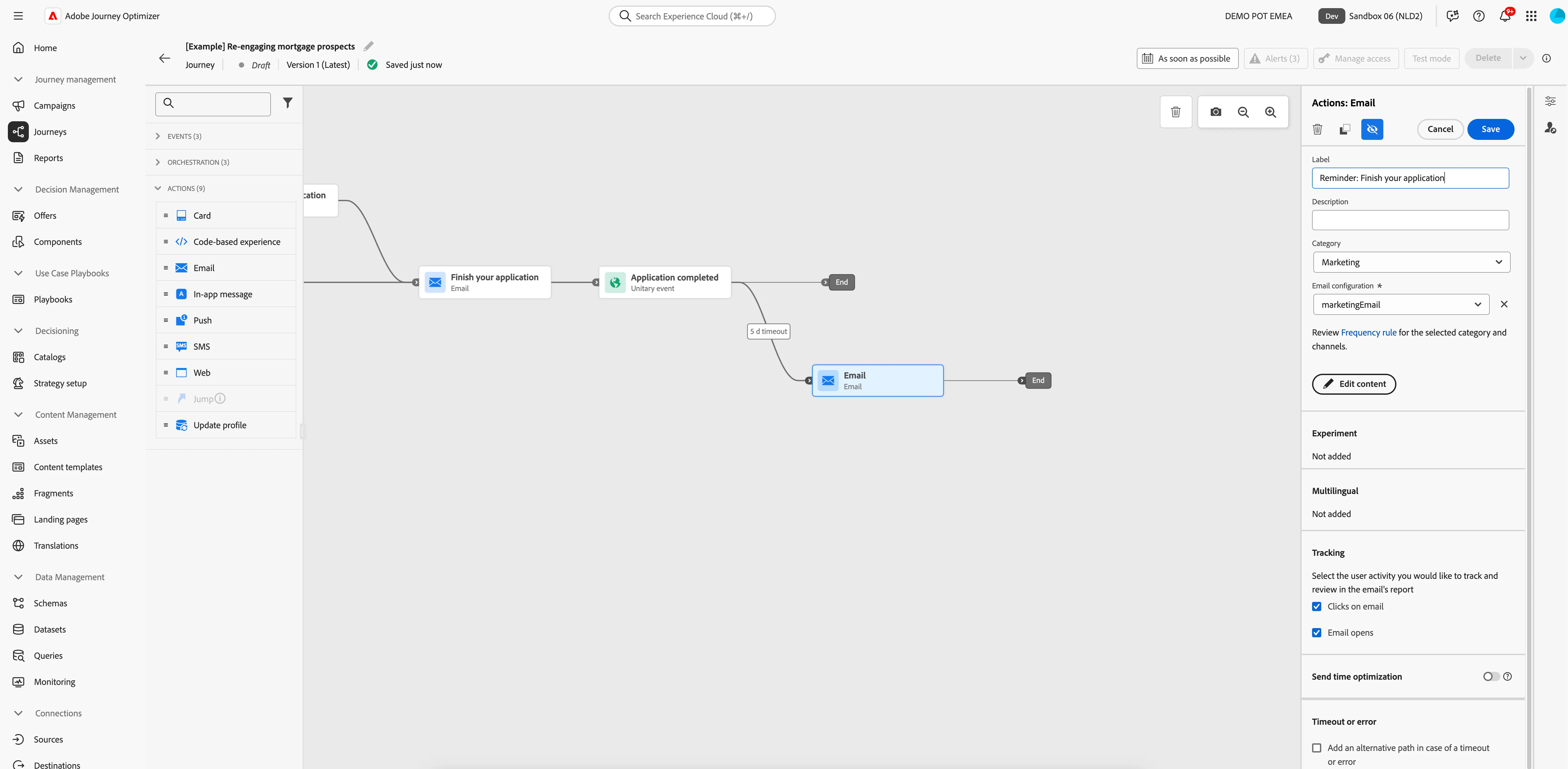
Email #2 - Reminder
If the customer does not complete the mortgage application form in the next 5 days, we want to send them a reminder email.
- From the actions tab, choose Email and drag it onto the empty circle on the canvas at the 5d timetout-path.
- Click on the activity to open the detailed view.
- Set the label to Reminder: Finish your application.
- Set the category to Marketing.
- Set the email surface to MarketingEmail.
- Click on Edit content to start designing your email.
- Set the subject line to Don't forget to finish your mortgage application.
- Click Save.
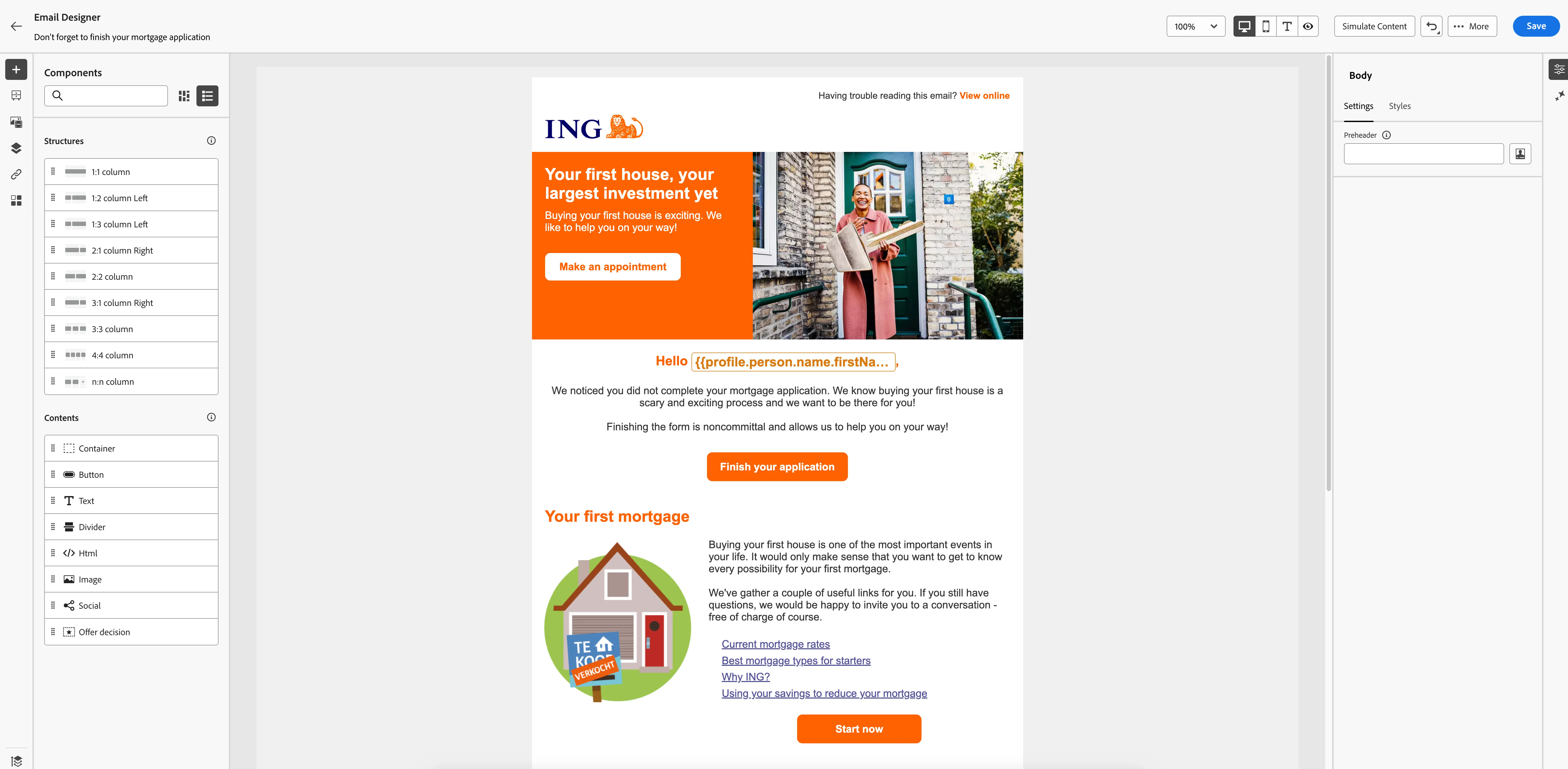
- Click on Edit email body. Under Saved templates, choose Mortgage re-engagement reminder. It will show you a preview of the template. Click on Use this template.
- The email designer will now open. It should look like the image below. We're not going to make any edits to this content, so you can click Save in the top right. Navigate out of the Email designer by clicking the arrow on the top left of your screen. Then navigate out of the email overview by clicking on the arrow on the top left. You will be taken back to the journey canvas.
Adding an exit criteria
There's many ways a prospect can request a mortgage and some of them do not use the mortgage application form. For example, a person could walk into an ING bank and request a conversation or they could call the call center to plan an appointment.
In these cases, we wouldn't want them to receive any further communication from this journey. This is where Exit criteria come into play. With this feature you can define real-time triggers that cause the profile to be removed from the journey.
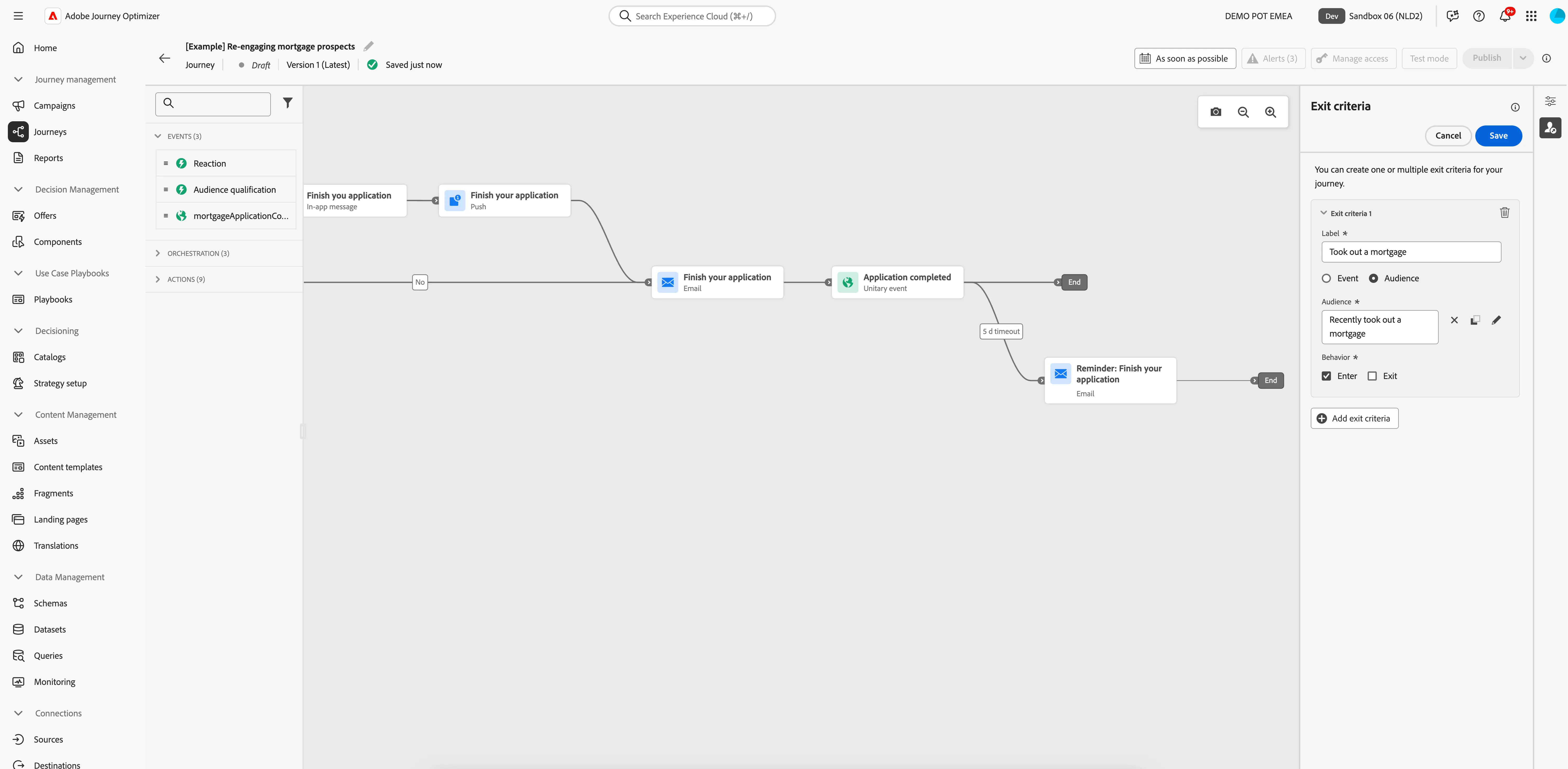
- On the right side of the canvas you'll find a small vertical hotbar. Click on the -icon to Show exit criteria.
- Click on Add exit criteria.
- Set the label to Took out a mortgage.
- Choose Audience as the exit criteria.
- Click on the Audience input field or on the -icon. A window will open
- Select the audience Recently took out a mortgage and click Save.
- Set the behavior to Enter, this is the default value.
- Click Save.
You have now successfully created the mortgage re-engagement journey using the Adobe Journey Optimizer. Next, we are going to test our journey using Test Mode.