Journey fall out analysis and audience creation
After completing the Journey Analysis, the next step is to understand where customers are dropping off in the journey. Analysing journey fallouts helps to identify the friction points and uncover opportunities to improve customer engagement and conversion.
In this section, we will examine the points at which customers disengage, the channels involved, and any patterns that might suggest why the fallout is occurring. This insight will help refine the campaign strategy and retarget potential customers.
Creating your panel - Fallout analysis
Let's create a new panel in the project to begin your fallout analysis. Panels help you organize your analysis within a project and can contain multiple tables and visualisations.
- Collapse all other panels for ease of use by clicking on the -icon for each panel.
Click on -icon at the bottom to add a new blank panel.

- Click on the title to rename the panel and update it to Fallout analysis.
- Ensure the Data Views is ING HoL - Data View.
- Select the date range Last 90 days from the date selector and Apply.
- Select Fallout from the visualisation options.
Upon selection of Fallout, all people will be added by default in the analysis.
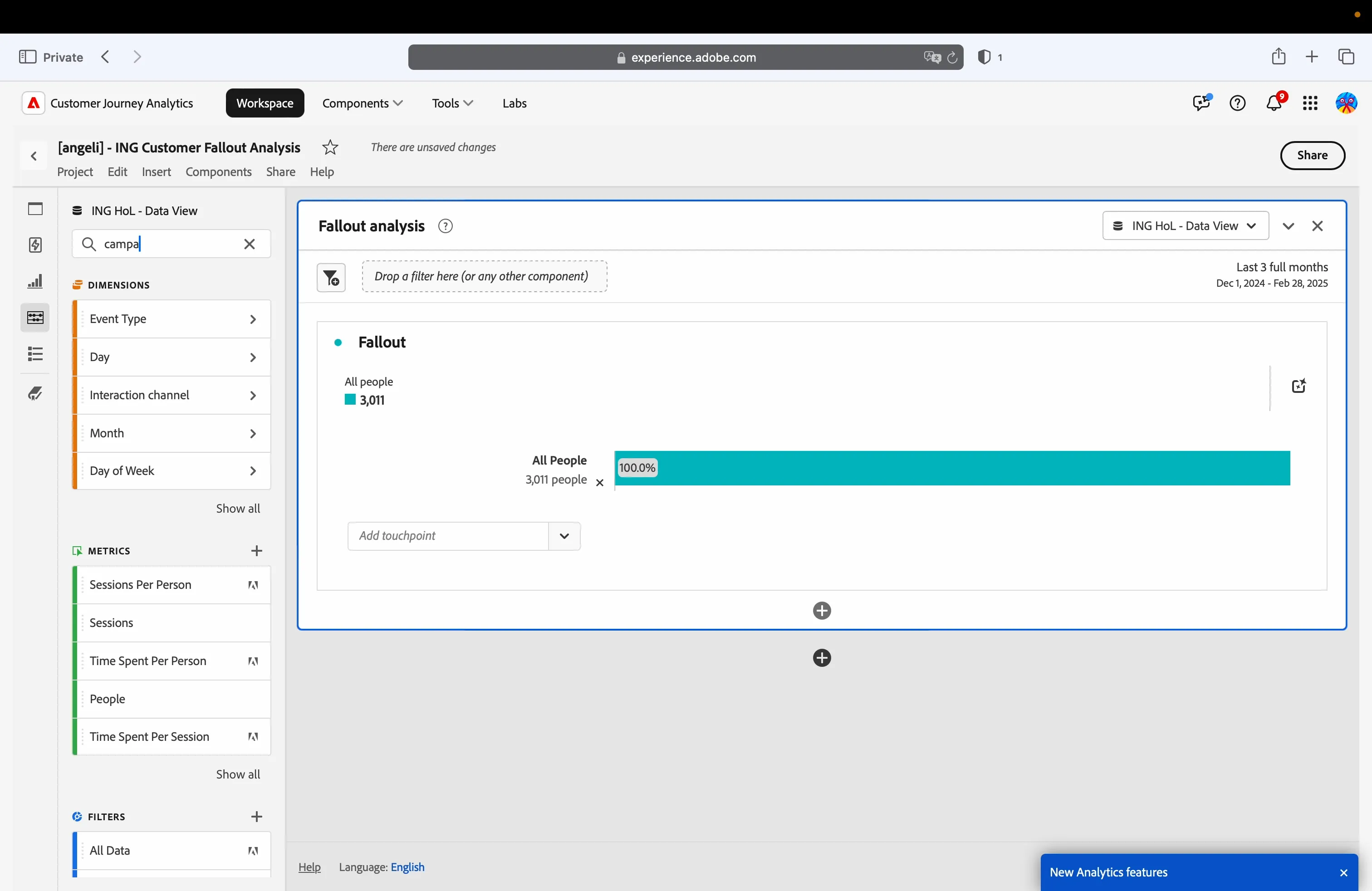
- Let's add the first fallout touchpoint:
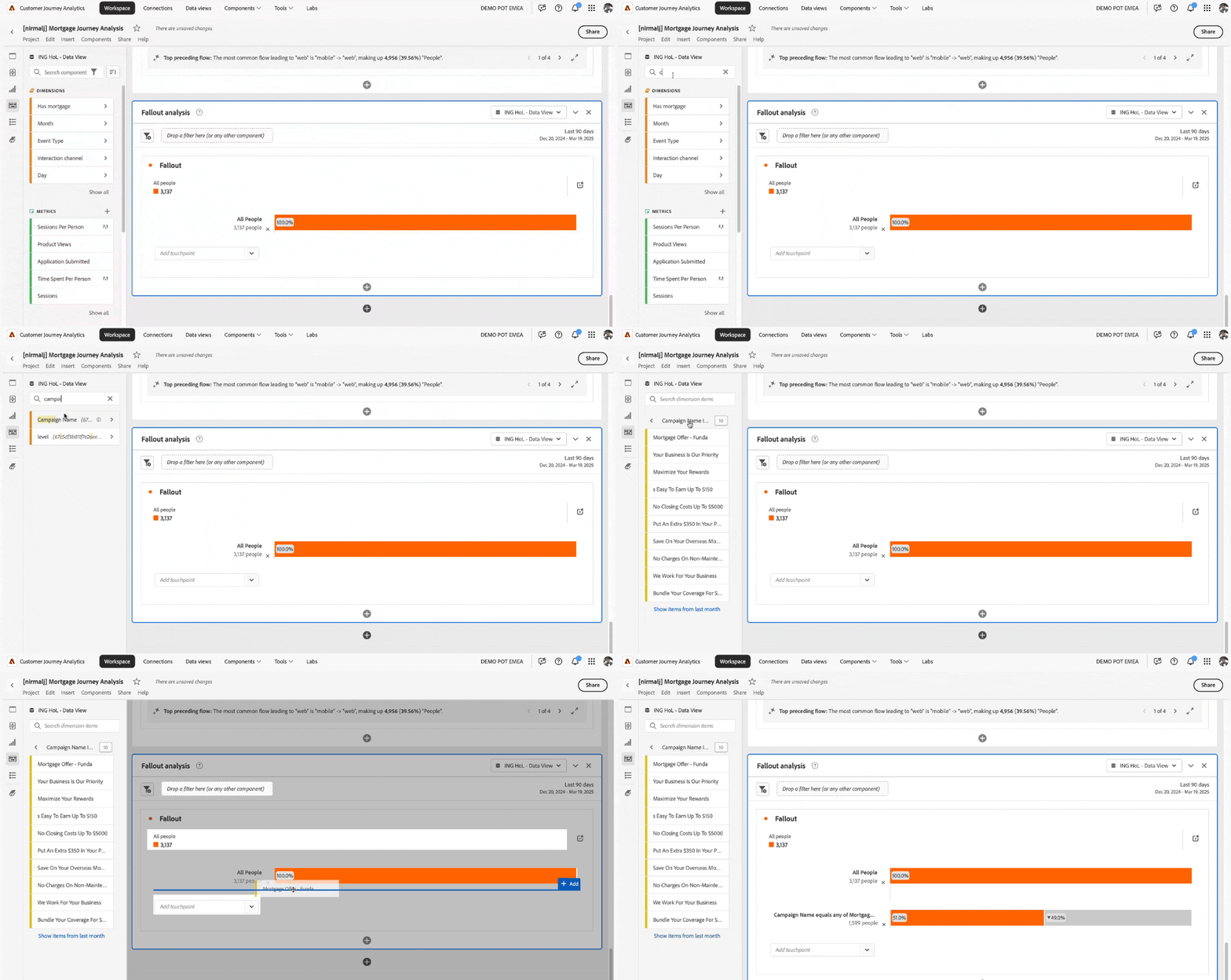
- Click on Search Components in the left hand side panel.
- Search for Campaign Name.
- Click the -icon beside Campaign name to see the campaign names.
Drag and drop the Mortgage Offer - Funda value in the fallout visualisation. By adding this campaign name, we are filtering down all the people who came through this particular campaign.
-
- Click on the -icon beside Campaign Name Items, to come back the the components list
- Clear the current search by clicking on the X in the search text box.
- Repeat the sequence for the other touchpoints:
- Click on Search Components in the left hand side panel.
- Search for Product Views.
- Drag and drop the metric in the fallout visualisation, under the last element. This further filters the people who has actually viewed a product.
- Then:
- Click on Search Components in the left hand side panel.
- Search for Application Submitted.
- Drag and drop the metric in the fallout visualisation, under the last element. This finally filters people who have submitted an application.
Your analysis should now look like below.
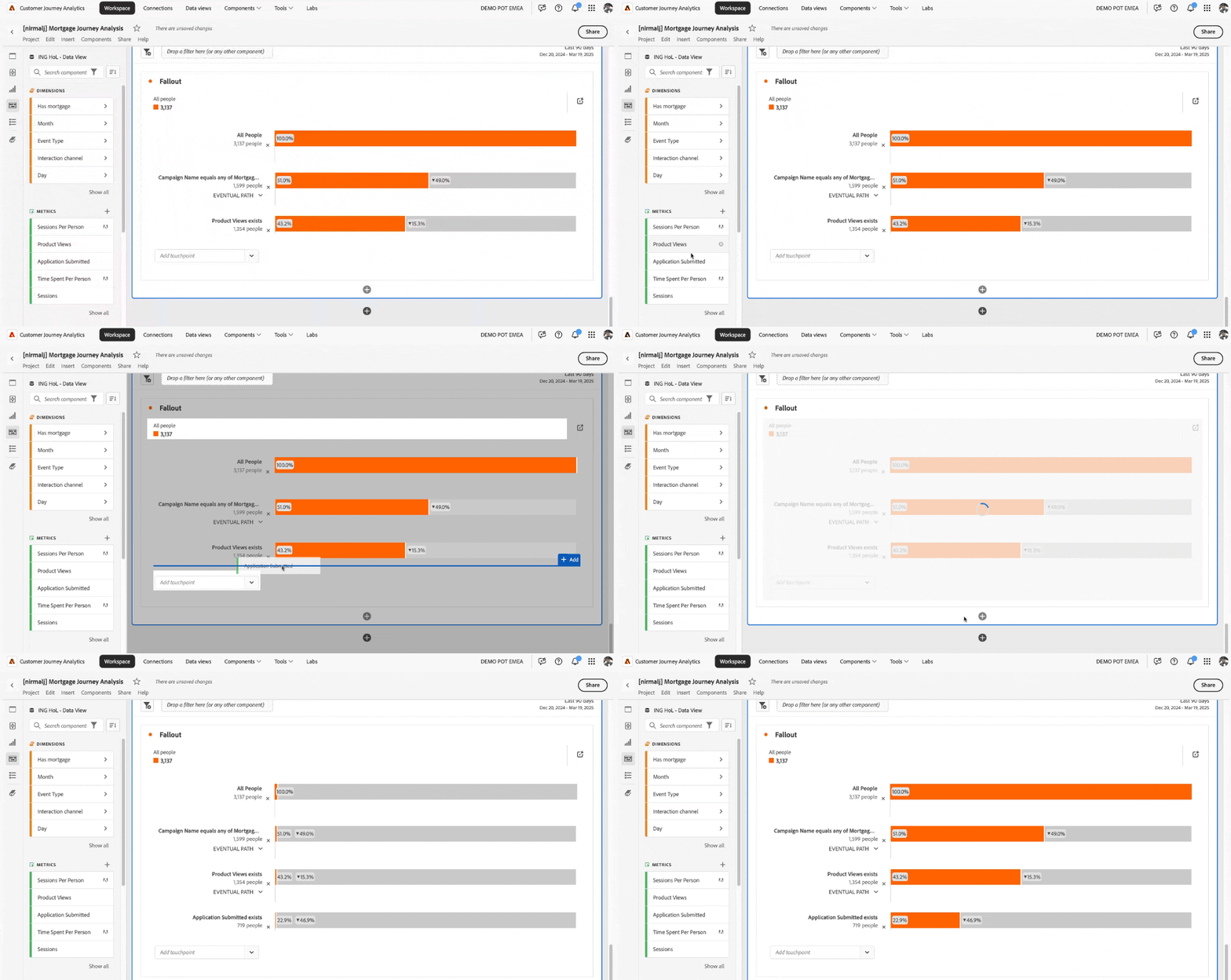
This analysis enables you to comprehend the number of individuals who came through the Mortgage funda campaign, progressed through viewing a product and submitting an application.
Compare channels
The current fallout analysis lacks detailed insights into the performance of individual channels, particularly web and mobile. To gain a deeper understanding, it would be beneficial to include additional dimension of channels and comparisons to identify performance gaps and opportunities for improvement.
- Clear the current search by clicking on the X in the search text box.
- Search for Interaction Channel in Search components text box.
- Click the -icon beside Interaction channel to visualize the possible values.
Drag the item web in the fallout visualisation, on the top, over All People.
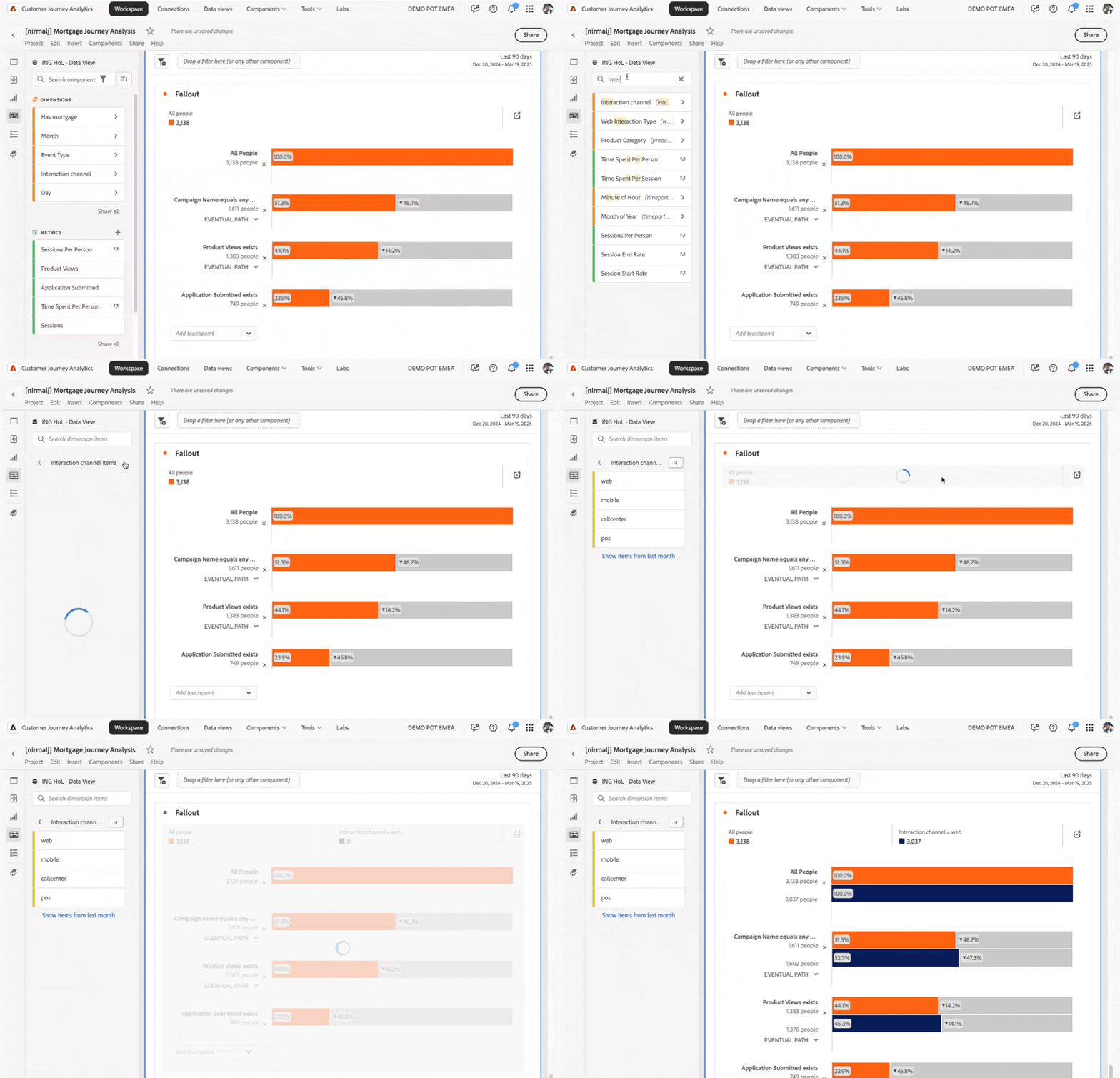
- Repeat the same process for the mobile channel. If you are already inside Interaction channel dimension, drag the item mobile in the fallout visualisation, on the top, over All People. Else,
- Click on Search Components in the left hand side panel.
- Search for Interaction Channel.
- Click the -icon beside Interaction channel to visualise the possible values.
- Drag the item mobile in the fallout visualisation, on the top, over All People.
Now you have 3 bars in the fallout report:
- (orange) one that encompasses all individuals.
- (blue) one that comprises solely those who have engaged with the web channel.
- (white) one that accounts exclusively for those who have interacted with the mobile channel.
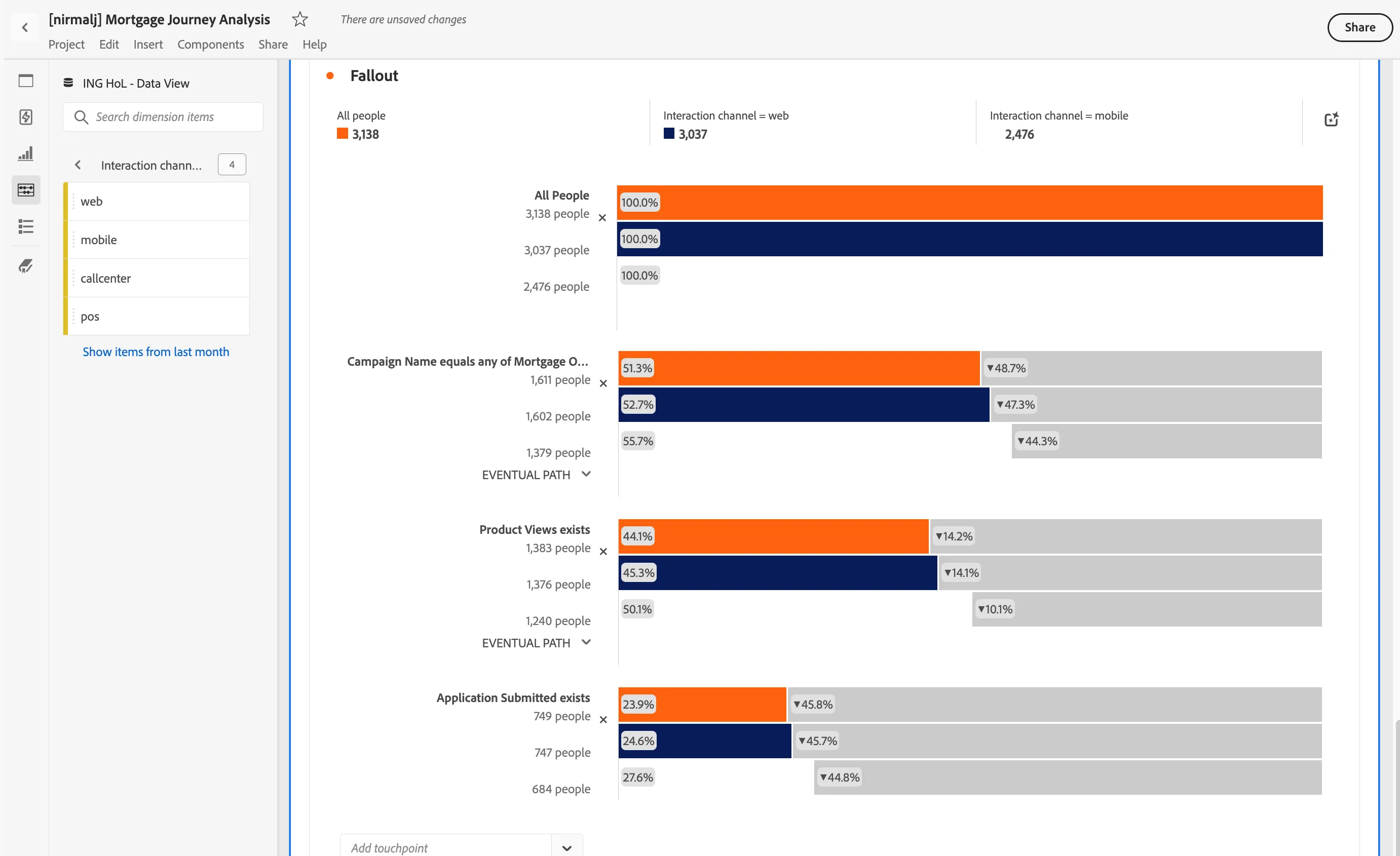
Filter by profile attributes
The aim of our analysis is to look for people who don’t have a mortgage. To do this, we can simply add a filter at the panel level, allowing us to focus on the right group of individuals.
If the component list is still filtered on Interaction channel values:
- Click on the -icon beside Interaction channel Items, to come back the the components list.
- Click on the X in the search text box to reset the component list.
Let's go ahead and look for the profile attribute so we can use it to filter the data in the panel:
- Click on Search Components in the left hand side panel.
- Search for Has mortgage.
- Click the -icon beside Has mortgage to visualize the possible values.
- Drag the item No on the top of the panel, and drop in the area Drop a filter here.
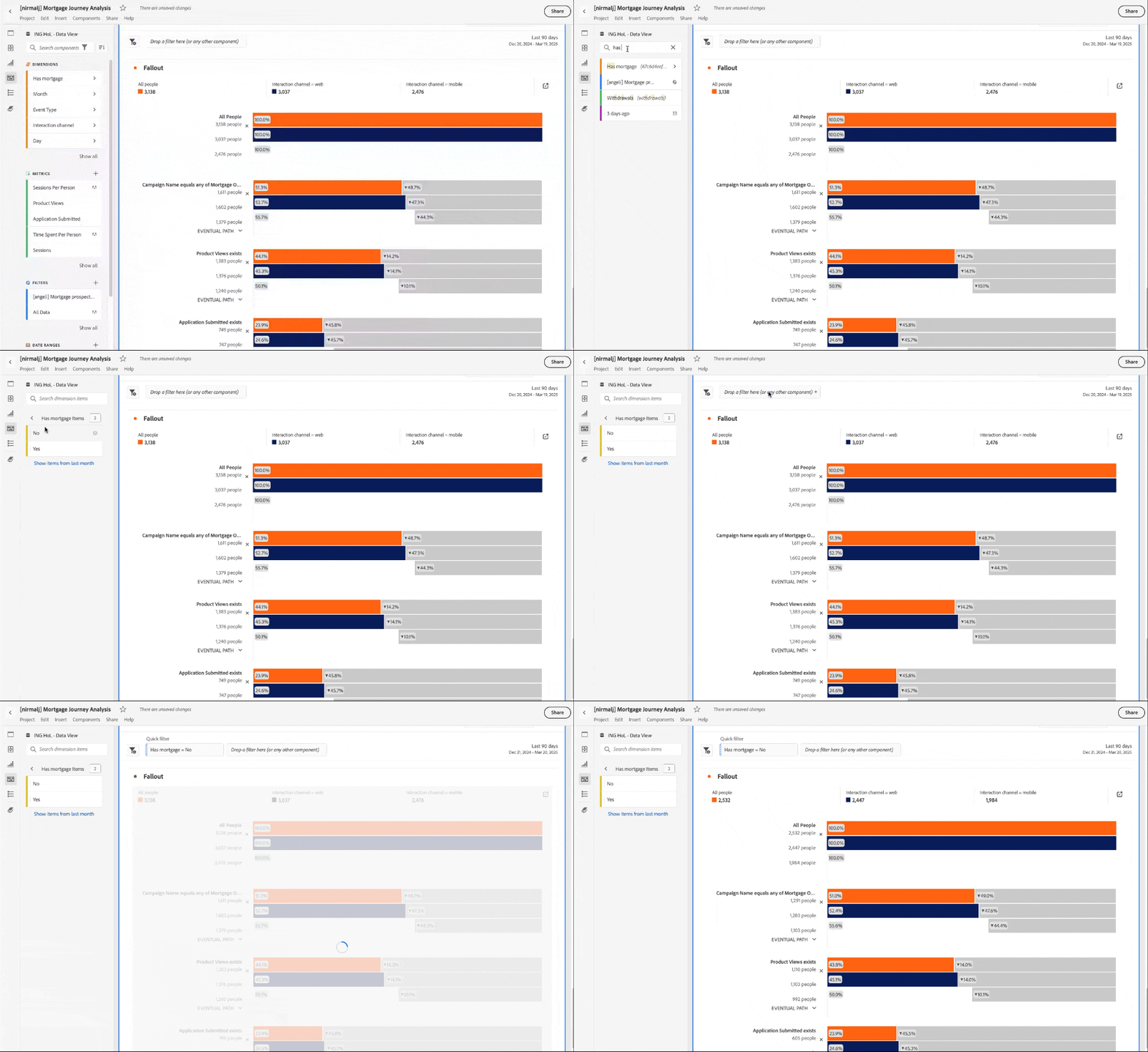
The fallout report now includes only those customers who do not have a mortgage.
This is a good moment to save your progress.
Navigate to Project > Save or click CTRL+S or CMD+S.
Creating an audience to use in a re targeting journey
After reviewing the report, it’s clear that the web channel isn’t performing quite as good as the mobile one. How about we set up a filter to group those customers and then export the profiles as an audience to be further used in a journey?
Create a filter
As first step, let's create a filter to match the required condition. This can be done manually, but CJA provide us a better experience to avoid starting from the beginning.
- Scroll down to the very bottom of the fallout visualisation i.e Application Submitted exists.
- Once you’re there, hover your mouse pointer over the darkblue bar that represents the web channel in the last step of the funnel, and give it a right click.
From the menu that appears, select Create filter from touchpoint.
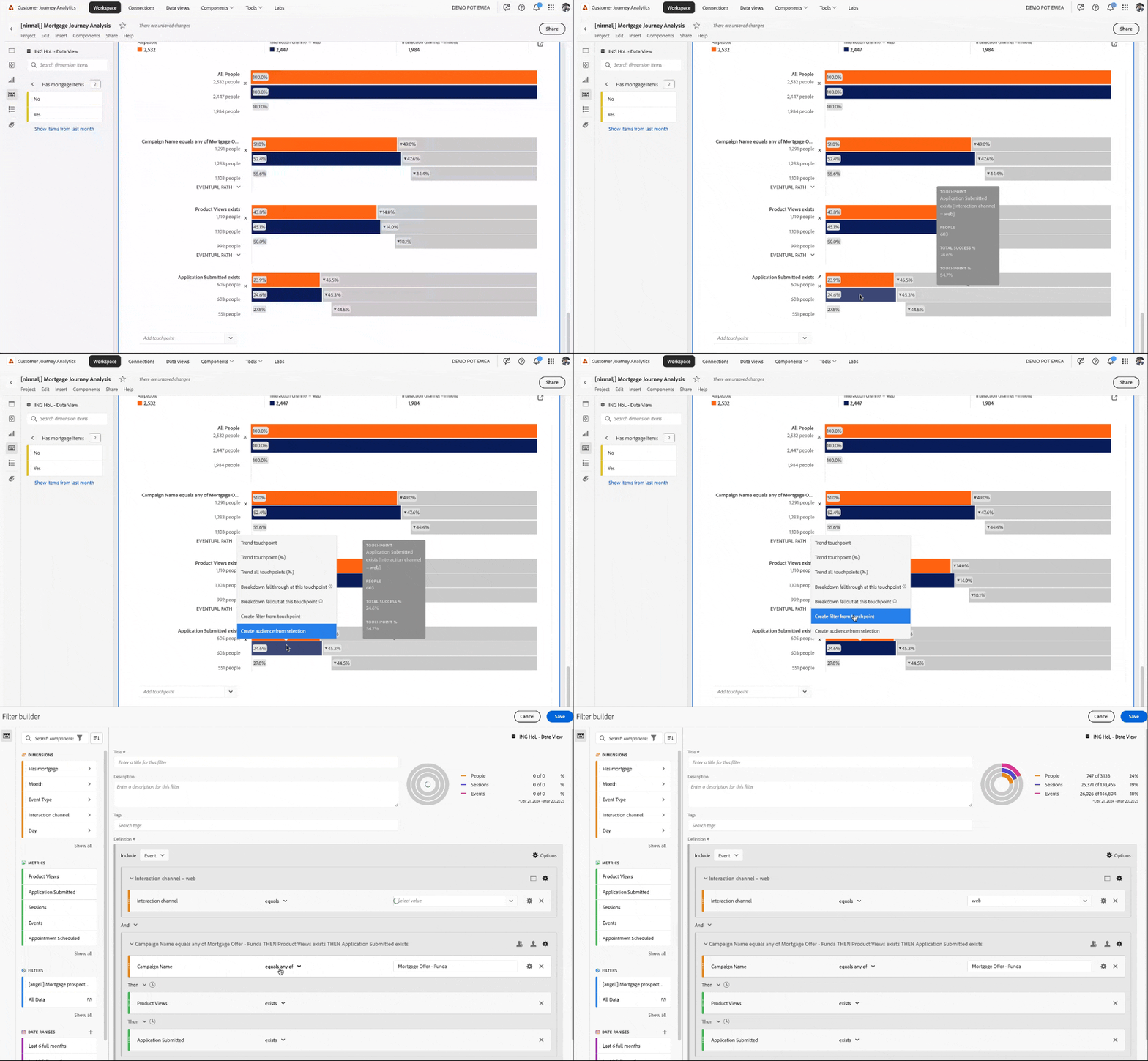
- This action opens up the Filter builder UI, which comes with a handy pre-built setup. Tweak the filter configuration so that it perfectly aligns with our need.
- Scroll down to the bottom of the main section.
Change the condition in the Application Submitted step from exists to does not exist. We want to create a list of the fallouts and by select this we are selecting the customers who has done this journey but did not submit an application.
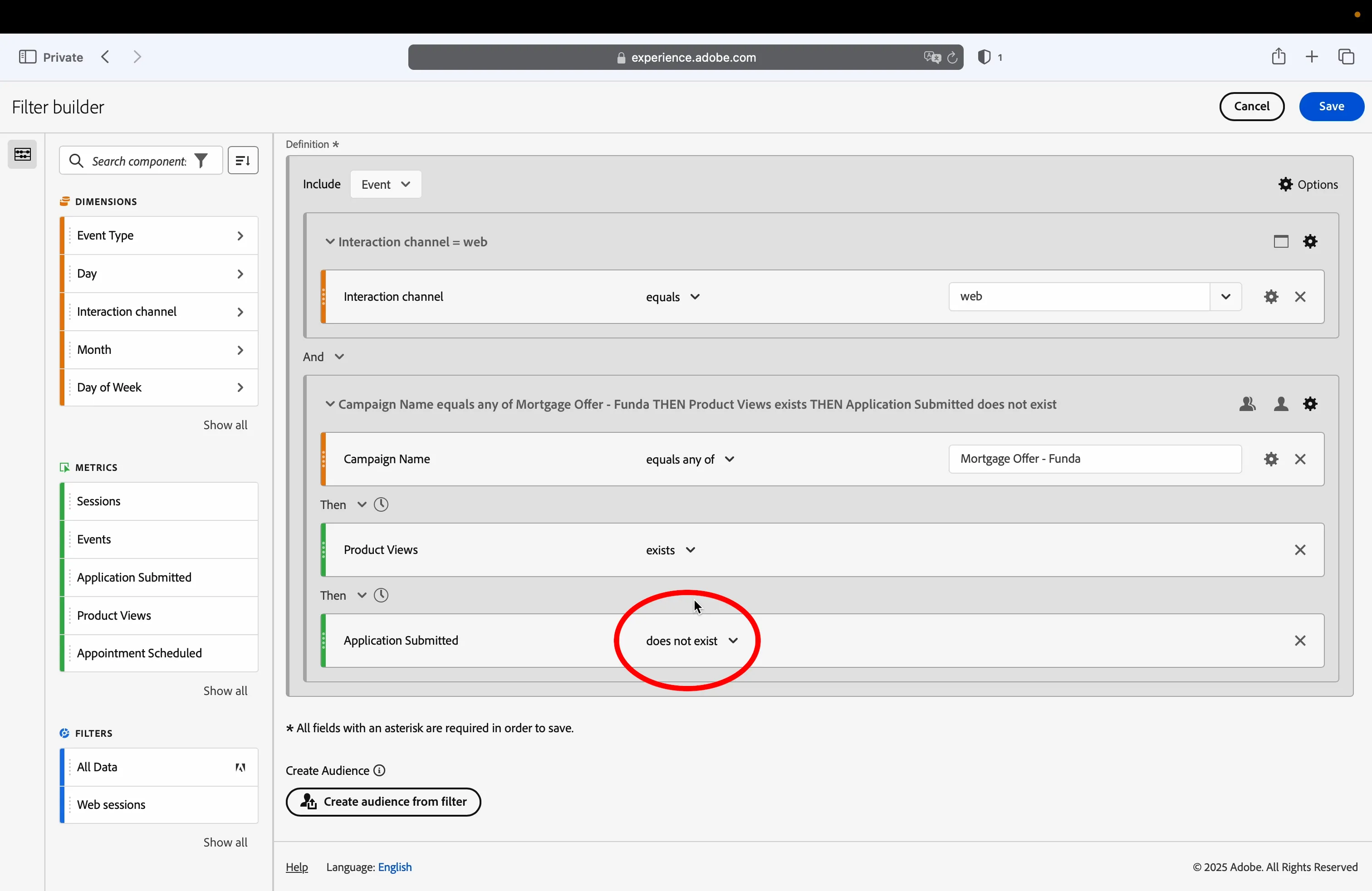
- Scroll up, click on the title textbox and type in [your name] Mortgage application fallouts.
- Click Save.
Create audience
Now let's take the final step and create the audience that we can use in a journey to retarget all the people who are yet to submit the application.
From the top menu, click on Components > Create audience.
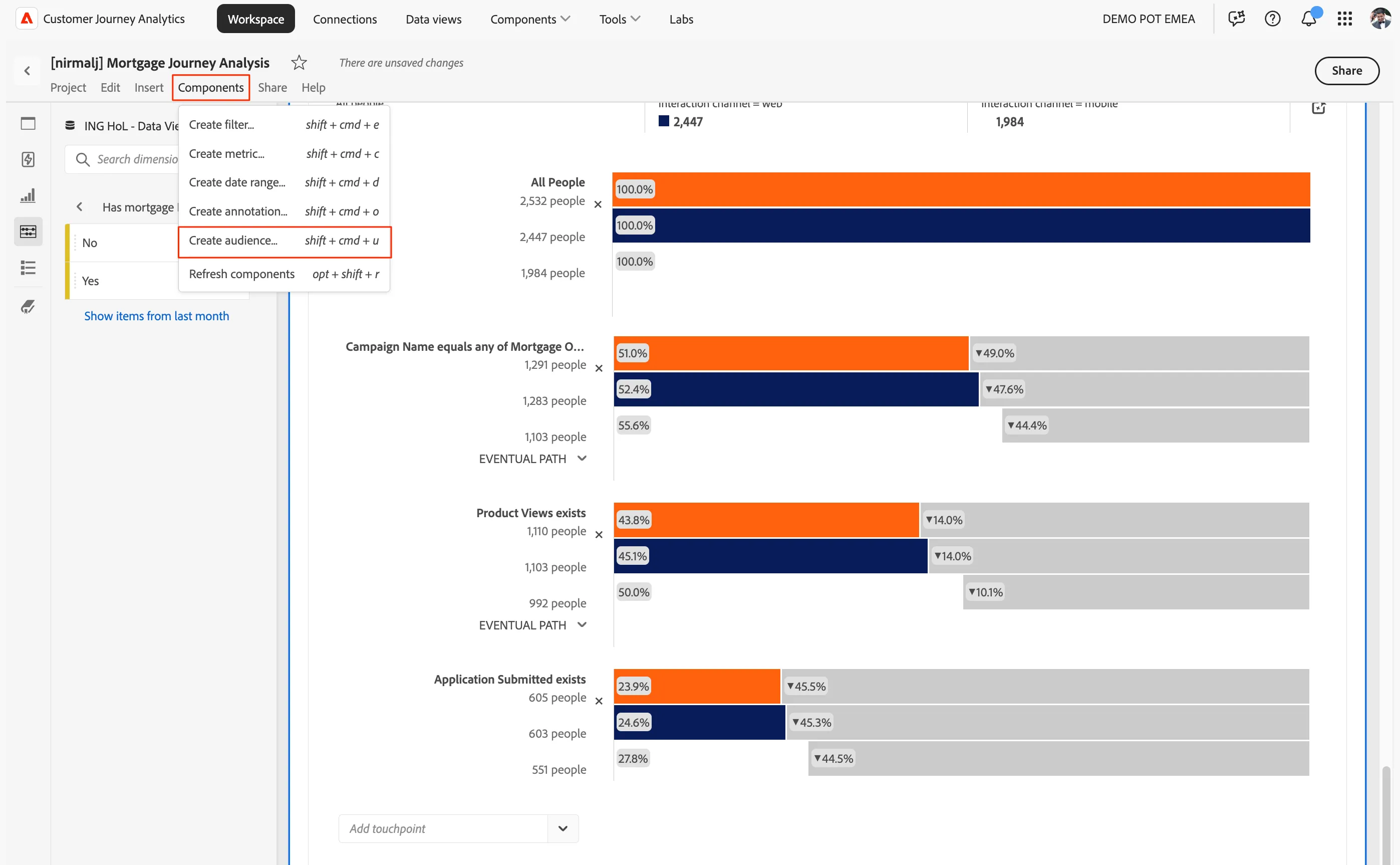
- From the left rail menu, find the filter you have created in the previous step.
Drag and drop in the area Drag and drop a filter here. You can see a preview on the right pane showing how many profiles are being included in the audience.
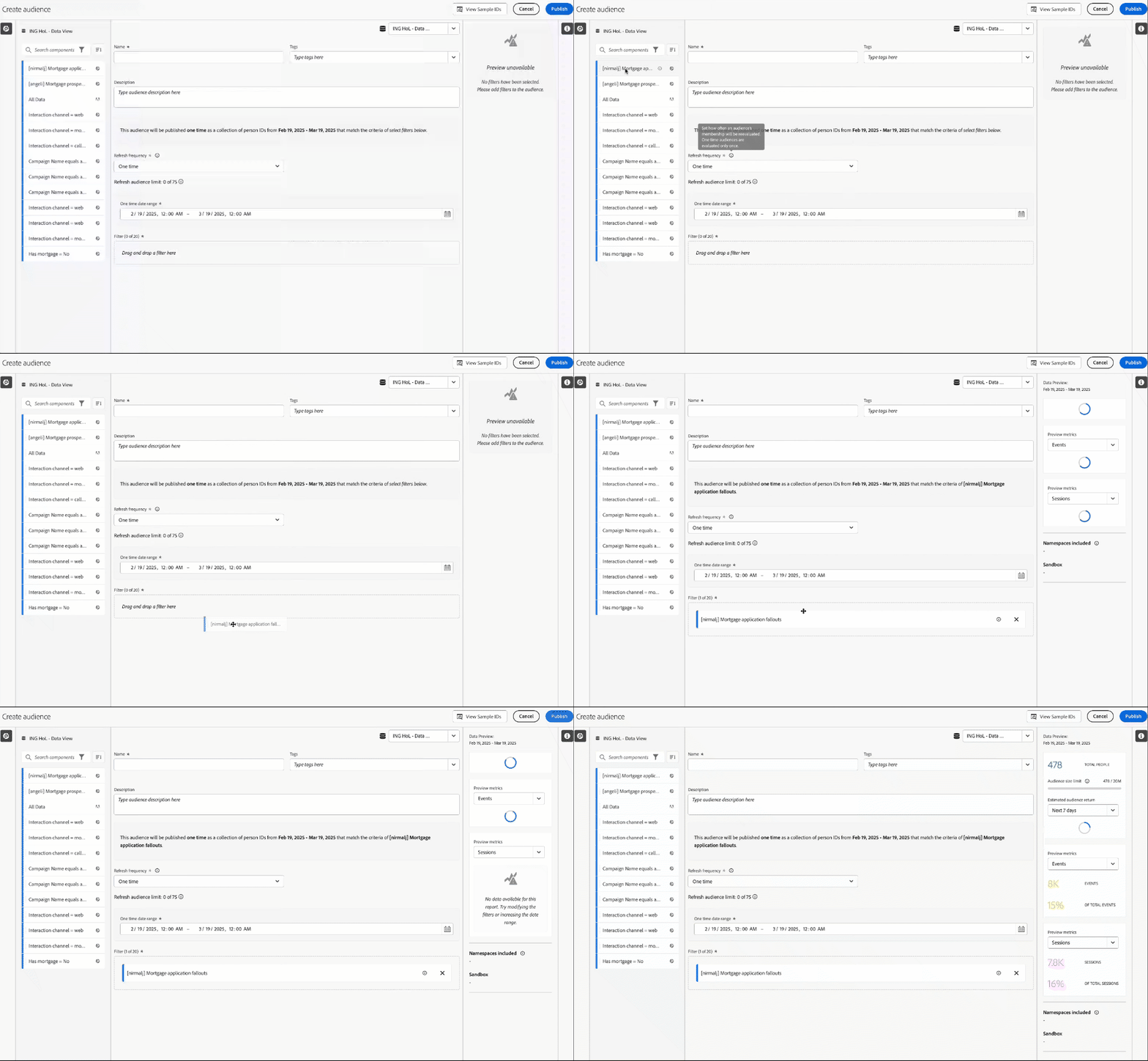
- Click on the Name textbox and type in [your name] Mortgage application fallout.
- Click Publish.
With this we have now successfully created an audience who came through the Mortgage offer - Funda campaign, viewed a product but did not submit the application.
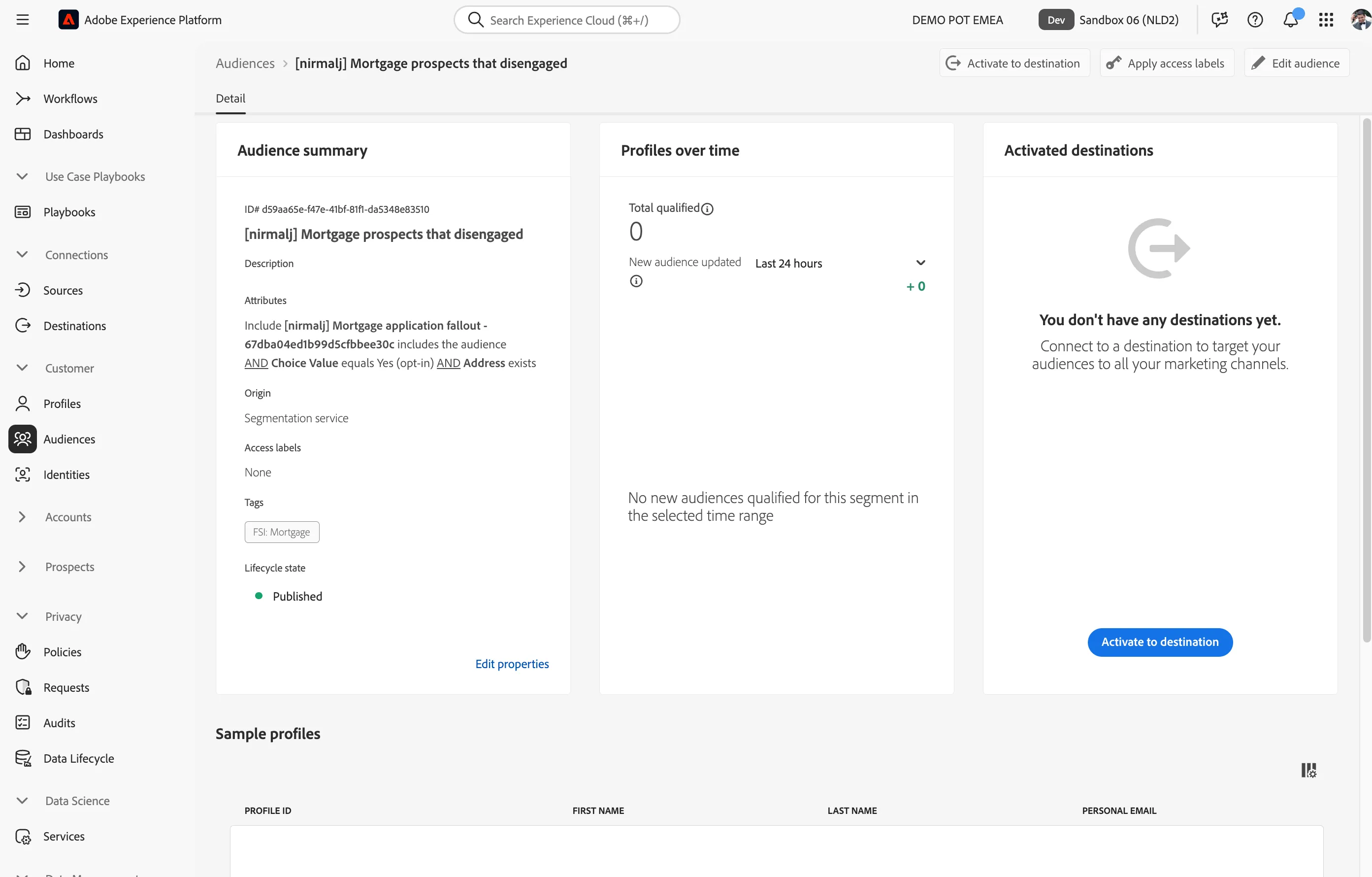
Congratulations on successfully completing the exercise!
Now that you have identified the individuals who have yet to submit their application forms on the website lets enrich the audience with some additional validations for checking their consent to receive email and further. This way we will ensure the audience we created are 100% optimised for campaign usage.