Finding your test profile
Rich test profiles were created for all participants of the Hands-on Lab. You can use your test profile in some of the later exercises to test your journey(s) and receive messages to your ING email address.
Searching for your test profile
We used the email addresses in the calendar invite to create test profiles
- Navigate to Adobe Experience Platform.
- In the left menu, under Customer, click on Profiles.
- Type email in the Identity namespace input field and click on Email in the dropdown. A new input field will appear.
- Type your ING email address in the Identity value input field.
Type your ING email address in the Identity value input field and click on View. Your test profile should show up in the bottom section of the screen.
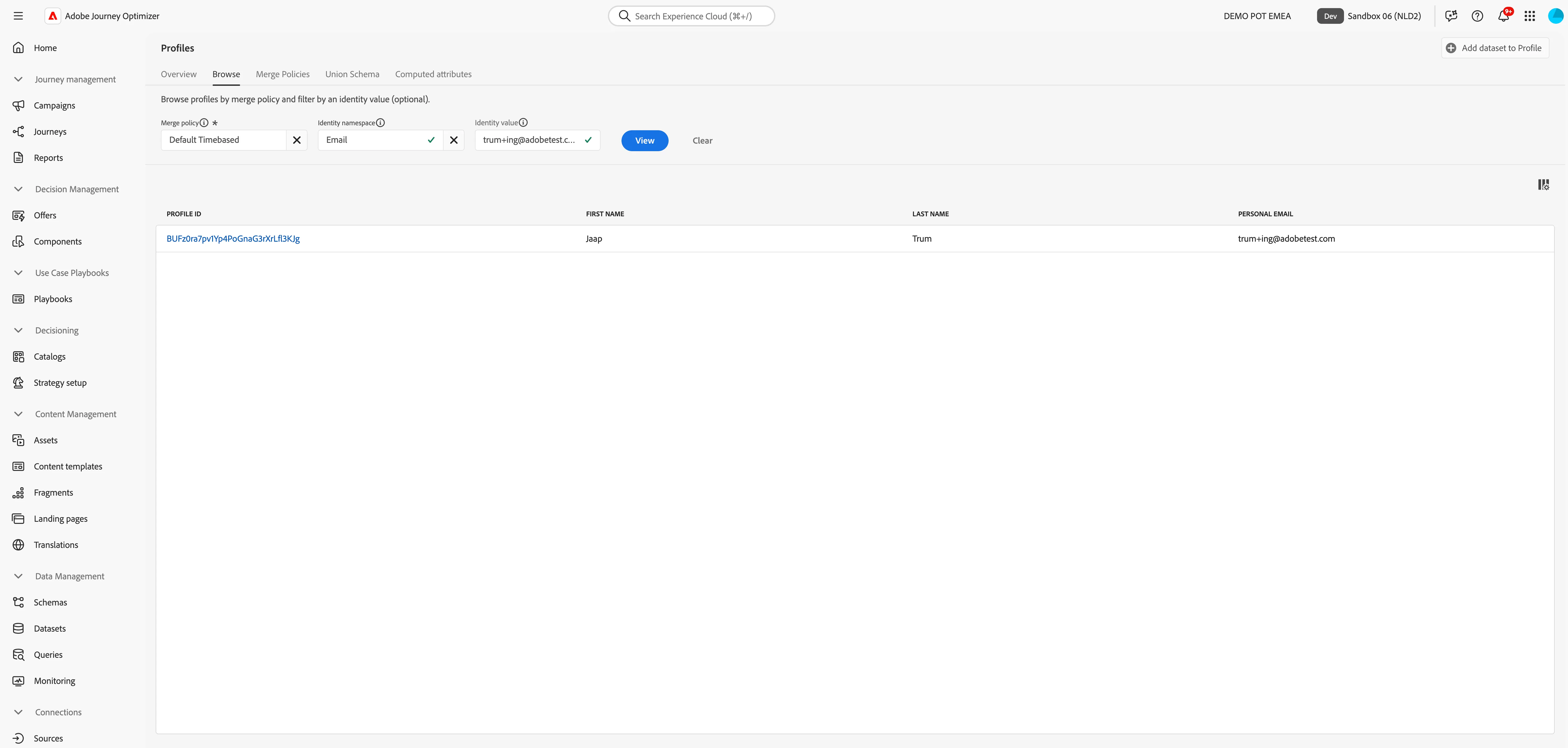
- Click on the profile ID for your profile to open the profile details. Did your search yield no results even though the Identity namespace and email address are both correct? Please reach out to the Adobe staff so they can create a test profile for you.
- You're now in the profile detail screen dashboard. Click on Attibutes in the top menu. You'll now see a list of all your test profile's attributes. You can click on View JSON to see the profile attributes are stored. Even though this might look like code, it will give you a good understanding of what all the fields mean.
- You'll be using this profile later today to test your journey and receive emails. These attributes will determine what version of content you receive. No need to write them down, when you need them again you can always look back at your profile details.