Viewing a report
Data analysis serves as the foundation for launching new campaigns and optimizing existing ones. To gain a comprehensive, end-to-end understanding of the customer journey, it is essential to analyze data from various channels and touchpoints. Customer Journey Analytics (CJA) will enable us to consolidate and interpret this data, providing valuable insights to drive more effective and targeted campaign strategies.
What is Customer Journey Analytics?
Customer Journey Analytics (CJA) provides a toolkit to the business intelligence and data science teams for stitching and analysis of cross-channel data (online and offline). The capabilities within CJA deliver context and clarity to the complex multi-channel customer journey. The provided context leads to actionable insight into removing pain points from the customer conversion process and designing and delivering exceptional experiences for the moments that matter most.
CJA brings Analysis Workspace on top of Adobe Experience Platform. Adobe Experience Platform is the brain for communication and orchestration and with CJA, brands can now contextualize and visualize all that data, so that Business and Insight teams can learn from it by analyzing the full online to offline customer journey.
Business and Insight teams can talk to CJA, ask questions and get answers on the fly with the drag-and-drop, point-and-click and user-friendly UI of Analysis Workspace.
Navigating to Customer Journey Analytics
Navigate to Customer Journey Analytics by clicking on the navigation-icon (9 dots) and choosing Customer Journey Analytics.
Viewing a journey analysis report
We created a report named ING Mortgage Journey Analysis for you to go through the various KPIs and reports on various mortgage journeys. This shows the interaction with various mortgage journeys and how various campaigns are driving the traffic to these journeys.
To ensure you can use the report for yourselves, let's create a copy for yourselves. Click on -icon next to ING HoL - Mortgage Journey Analysis project and select Copy.
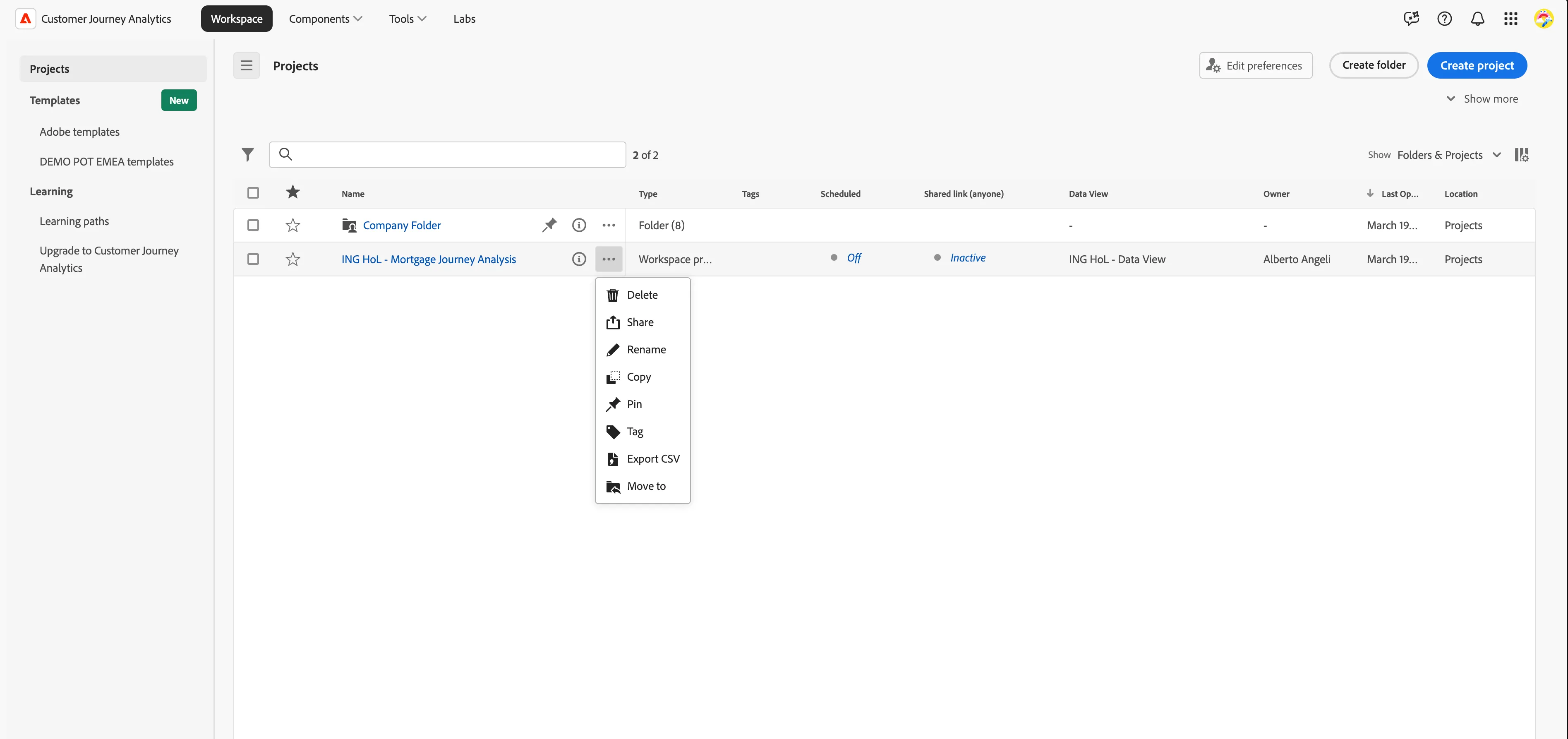
- Click on new report ING HoL - Mortgage Journey Analysis(copy) to go the report. The owner of the report will be mentioned as your name.
Click on the title to rename the project and update with your name as [your name] Mortgage Journey Analysis
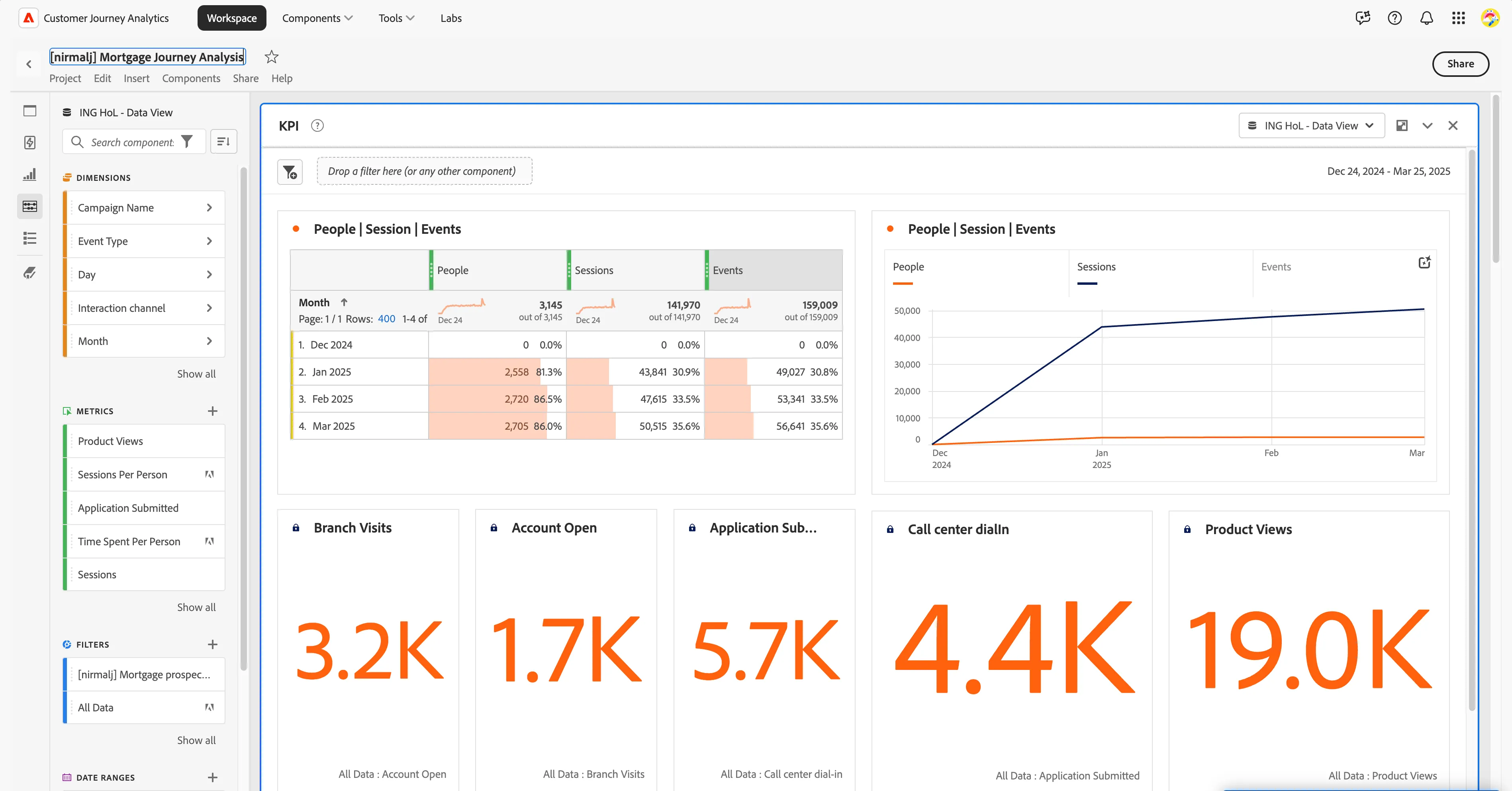
- From Project menu, click on Save to save your report. Now you have a version of the report for your own analysis. You can also use CTRL+S or CMD+S to save your project.
This report consists of two panels - one for KPI and another for Campaign Attribution. We have done various analysis for the mortgage journeys within this panels to analyse the various customer interactions.
On the top right of a panel, we have two options
- Data View - We define context-aware visit definitions, filtering, how the components are called etc in the data view. Data view helps to clean and prepare the data before visualisation for various use cases and teams and helps to adapt to the naming conventions relevant for them. We have created a data view called ING HoL - Data View for this lab.
- Date Range - To select the date range for the analysis panel. There are various presets available or a custom data picker. We can apply the date changes to a single panel or all panels based on the needs. We have selected last 90 full days preset for this lab.
Interactions by mortgage customers or not
In the first visualisation, you can see we have mapped the total number of people, session and event metrics aganist the dates categorised as months. This is the total visits to the mortgage journeys.
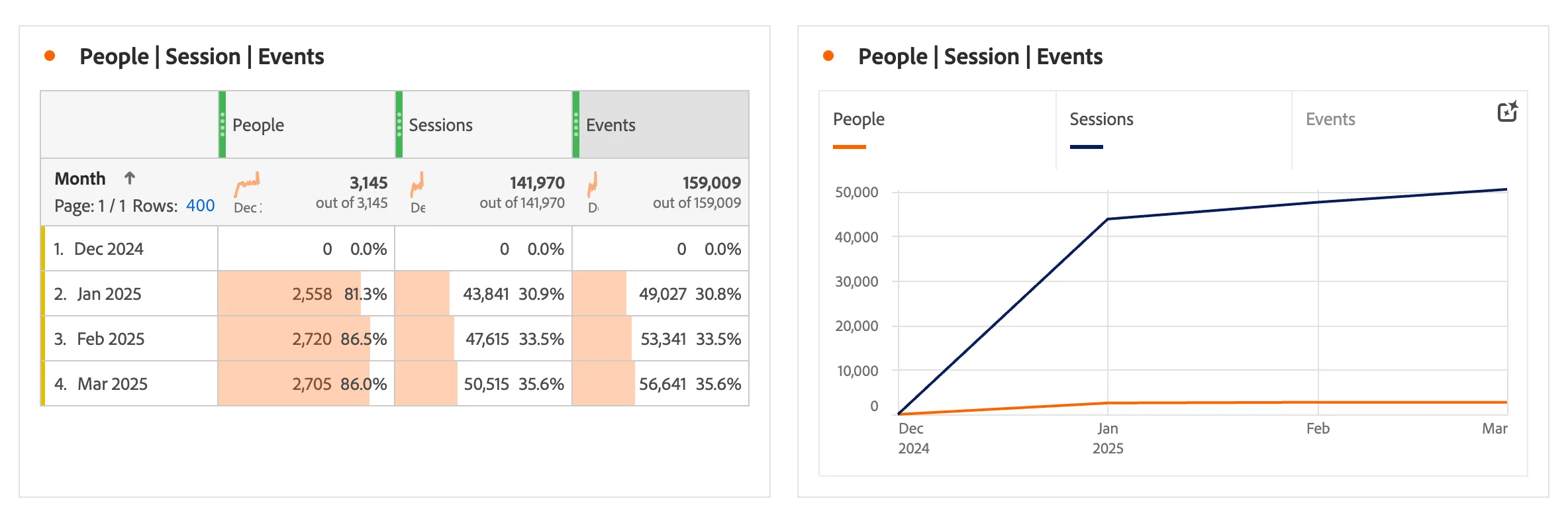
Let's try to identify how many of them are mortgage customers. This will help us evaluate whether the campaigns are effectively reaching the right audience.
- Click on Search Components in the left hand side panel.
- Search for Has mortgage in the search field.
Drag and drop Has mortgage dimension on top of the Month cell in the table.
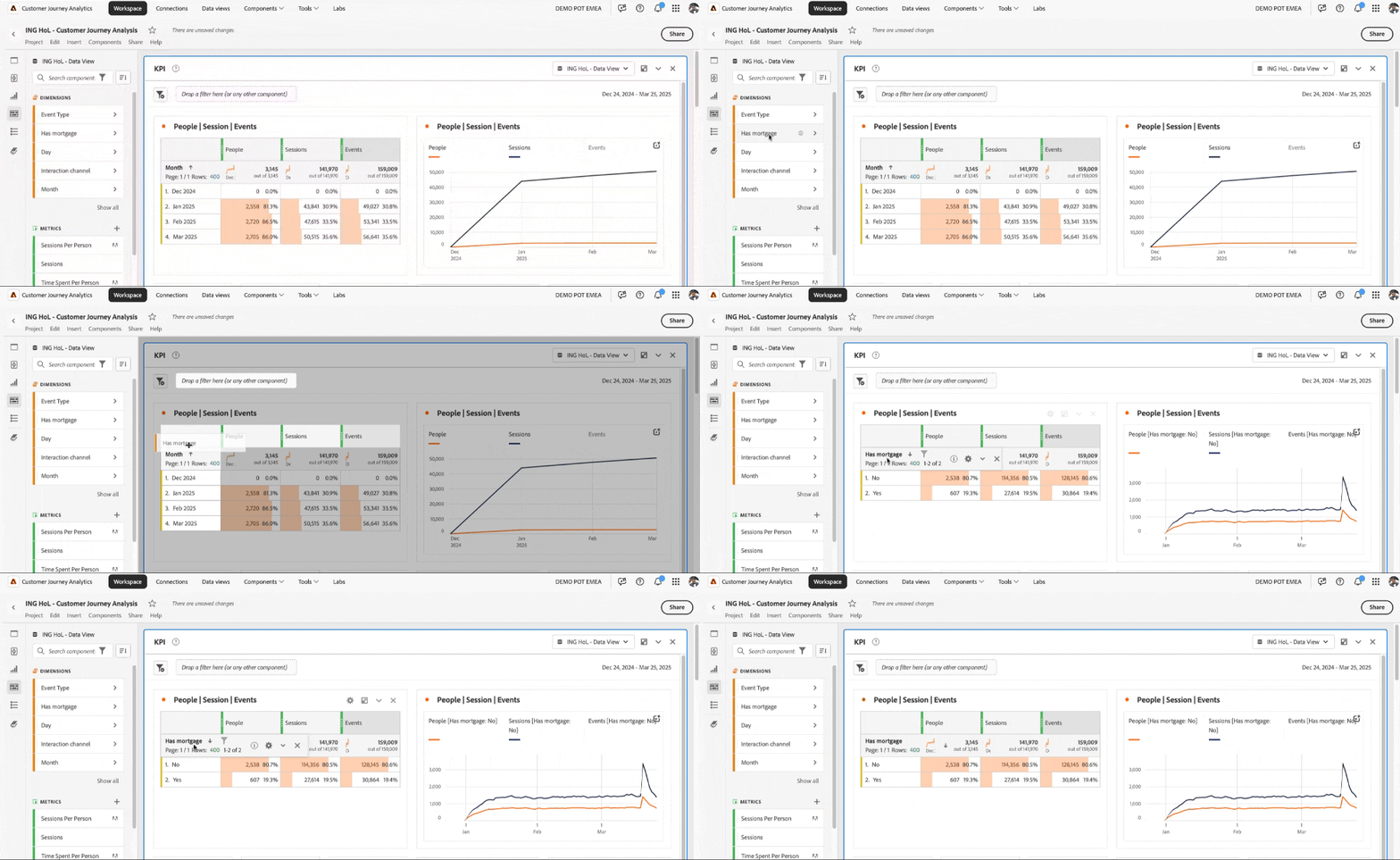
- You can now see that most interactions are by customers without mortgages. This provides us with confidence that the campaigns are being engaged by potential customers. The visualization linked to the data source updates in real time to reflect these changes.
Finding the top three product category of engagement
In the next visualisation after the KPI numbers, we have the number of Applications Submitted aganist the product categories and we have used a donut visualisation type.
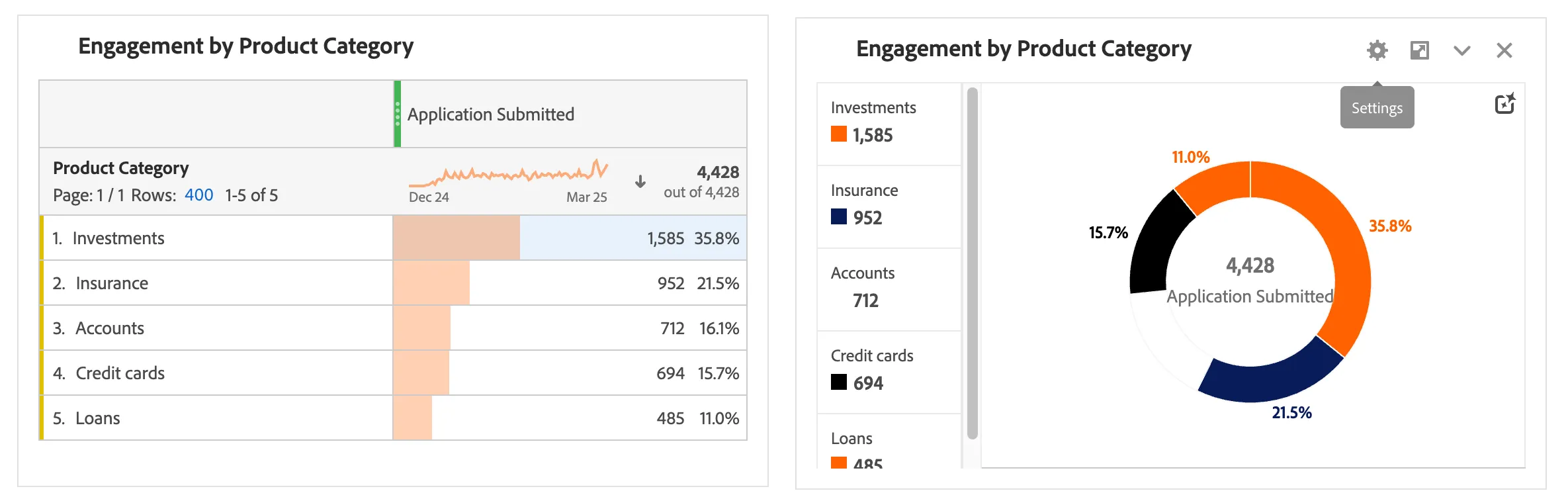
Lets try to show case the top category of products in a bar chat. To change the visualisation type,
- Click on the cog wheel icon on the visualisation
- Select Visualization type as Horizontal bar stacked from the dropdown.
- Enable Limit max items checkbox.
- Enter the value as 3 to list of the top three product categories only.
Close the menu by clicking outside the menu.
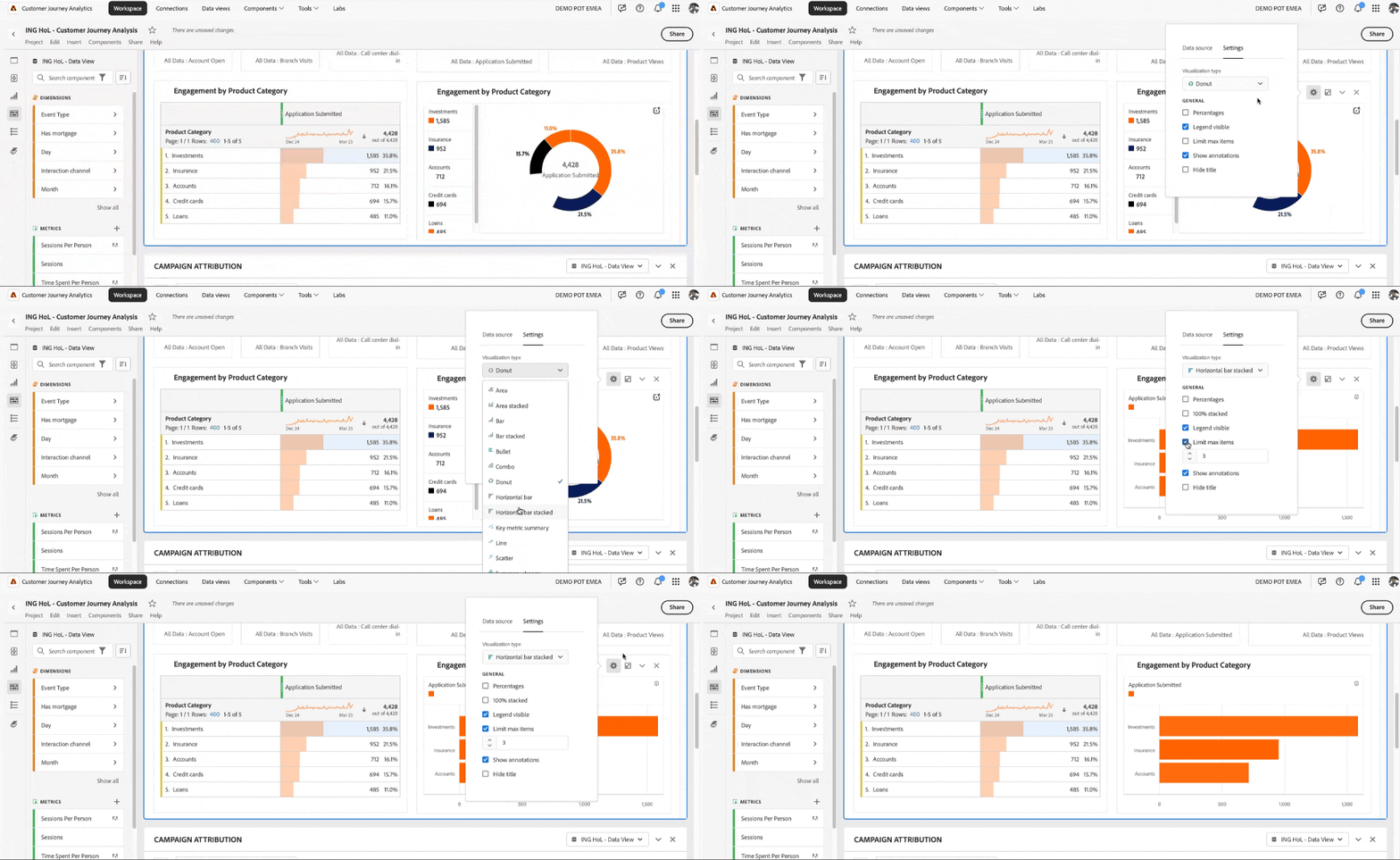
- You can now see the top three product categories by engagement. Investments ranks as the top category, indicating that the campaigns are effectively targeting the right audience.
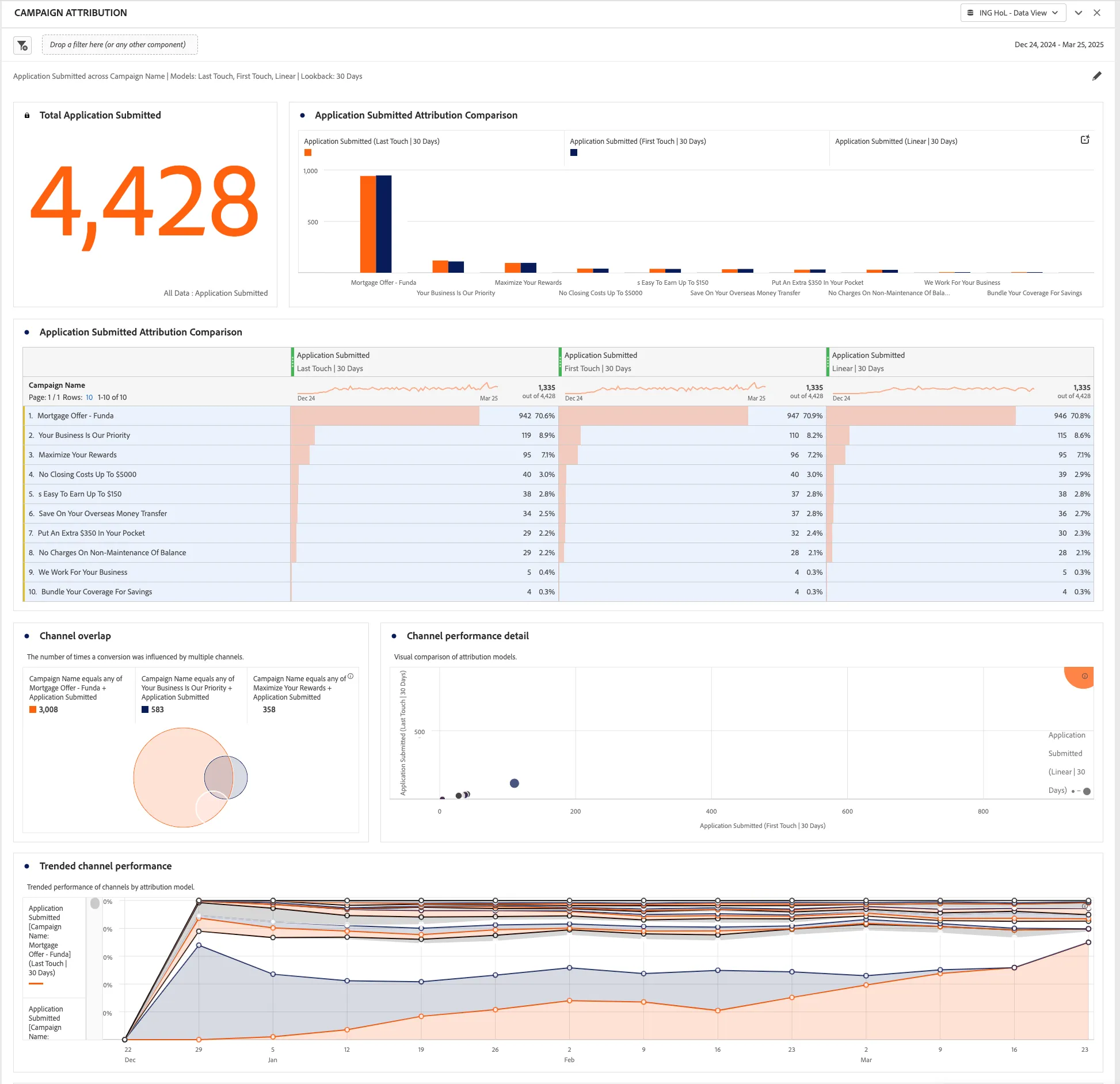
In the next panel, we focus on evaluating the performance of various mortgage campaigns against the total number of applications submitted. The visualizations provide insights into the top-performing campaigns, channel performance, and any overlaps.
Explore the data and feel free to adjust and investigate further.
Natural language captions for visualisations
The final visualisation in the panel provides a detailed view of how customers engage with the brand across different channels through a flow analysis. This analysis helps to map the customer journey by showing the sequence of interactions customers have with various touchpoints.
In the Channel Flow Analysis below, we are specifically analysing the types of channel interactions that occur before and after a customer engages with the web channel. This allows us to understand how different channels influence customer behavior and identify potential patterns or drop-offs in the journey. By examining this flow, you can gain insights into which channels are driving engagement and which ones might need optimisation to improve the overall customer experience.
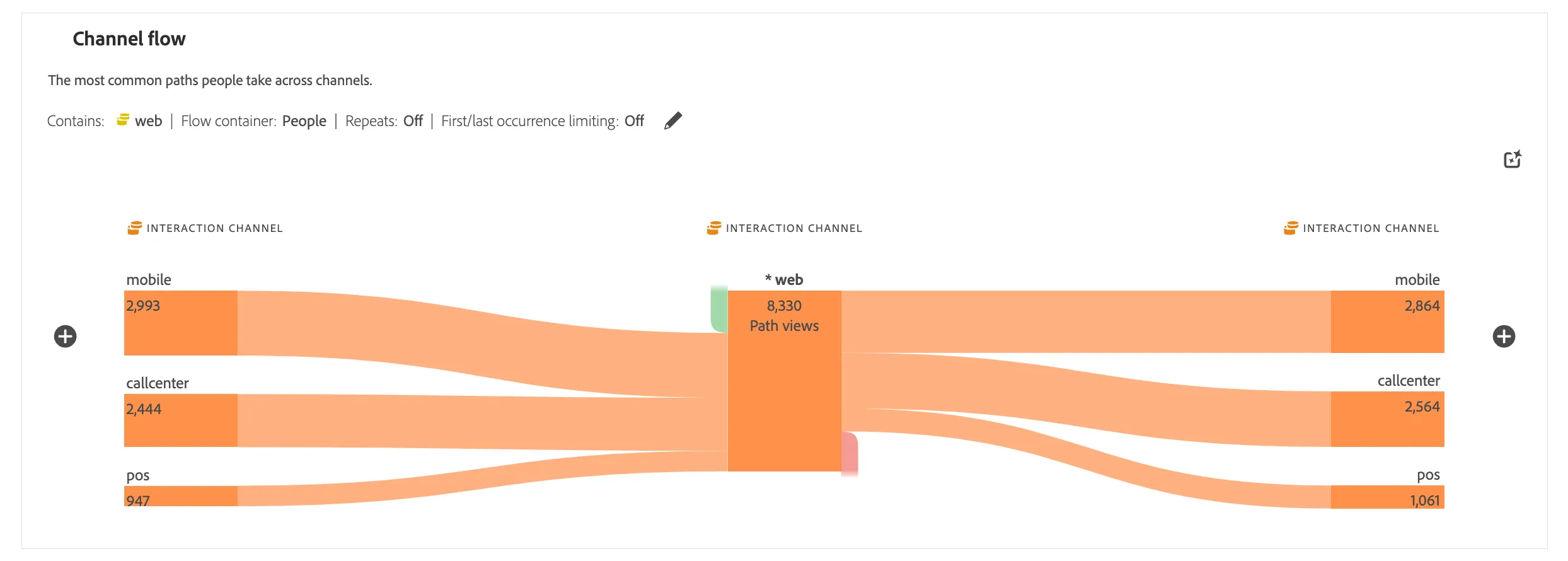
As you can see, in addition to direct entries to the web channel, there are several entries triggered by other channels, highlighting a multi-channel engagement pattern. Similarly, while some customers drop off after a web interaction, many transition to other channels, indicating continued engagement and channel switching post-web interaction.
Hovering on the items shows the various metrics and details available.
For deeper analysis and more effective summarization, we have introduced Intelligent Captions powered by Generative AI. This feature automatically generates key insights in natural language for the most frequently used Workspace visualizations, helping to quickly surface meaningful patterns and trends.
Intelligent Captions are particularly valuable for:
- Analysts – To generate narratives that can be shared with other users, helping to provide clear context and actionable insights.
- Business Users – To quickly uncover high-level takeaways without needing to explore complex data sets manually.
This capability enhances decision-making by making complex data more accessible and easy to interpret.
Click on Intelligent Captions logo on the top right of the visualisation.
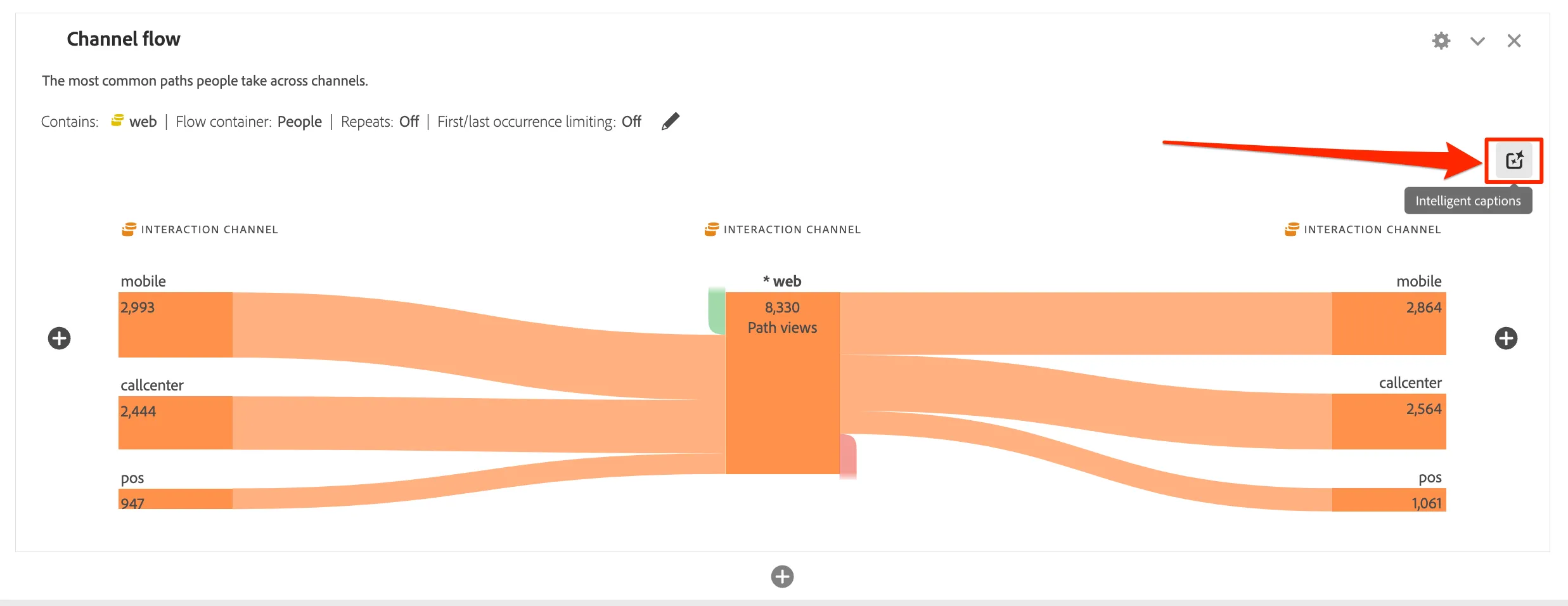
This creates a new section below the visualisation with natural-language insights.
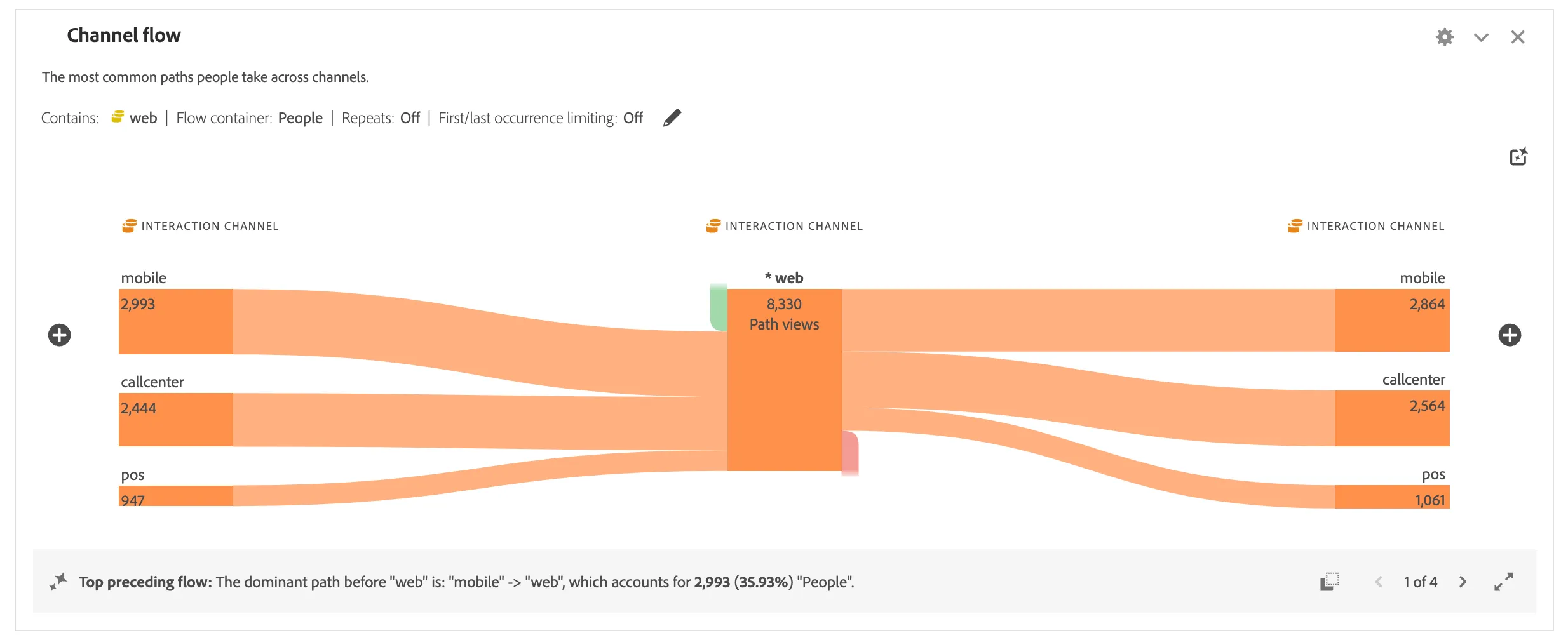
- In this case, it generates and important observation with percentage metrics - Top preceding flow: The most popular sequence before "web" is "mobile" -> "web", accounting for 4,956 (39.56%) "People".
You can hover the insights to see the copy button for easy copying of the insight. You can slide through the various insights using the arrows or clicking the expand button shows the whole set of insights.
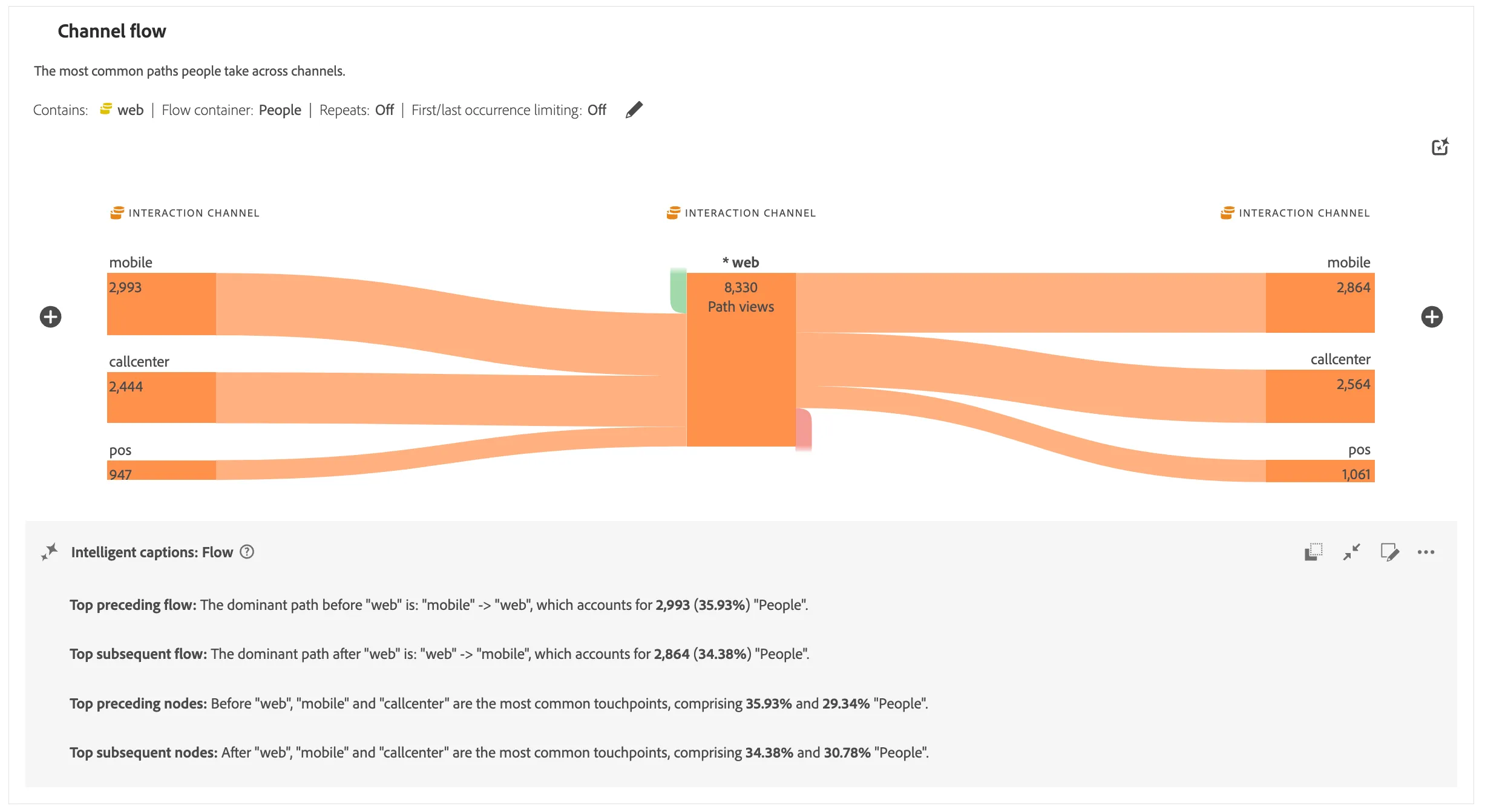
- Save your project by clicking CTRL+S or CMD+S or from the Project menu from top bar, Select Save for saving your progress. You'll know your project is saved if it no longer says "There are unsaved changes" next to your report title.
You have now successfully reviewed a customer journey analytics report and identified the peformance of the campaigns. Now, lets dig deeper and identify an optimisation opportunity.