Creating a project
The marketer has analysed the data and identitied the campaign requirements, created the brief and submitted the request. The campaign manager has validated the overall campaign timelines and budget availability and has given a go ahead. Now its time to start actioning on the request.
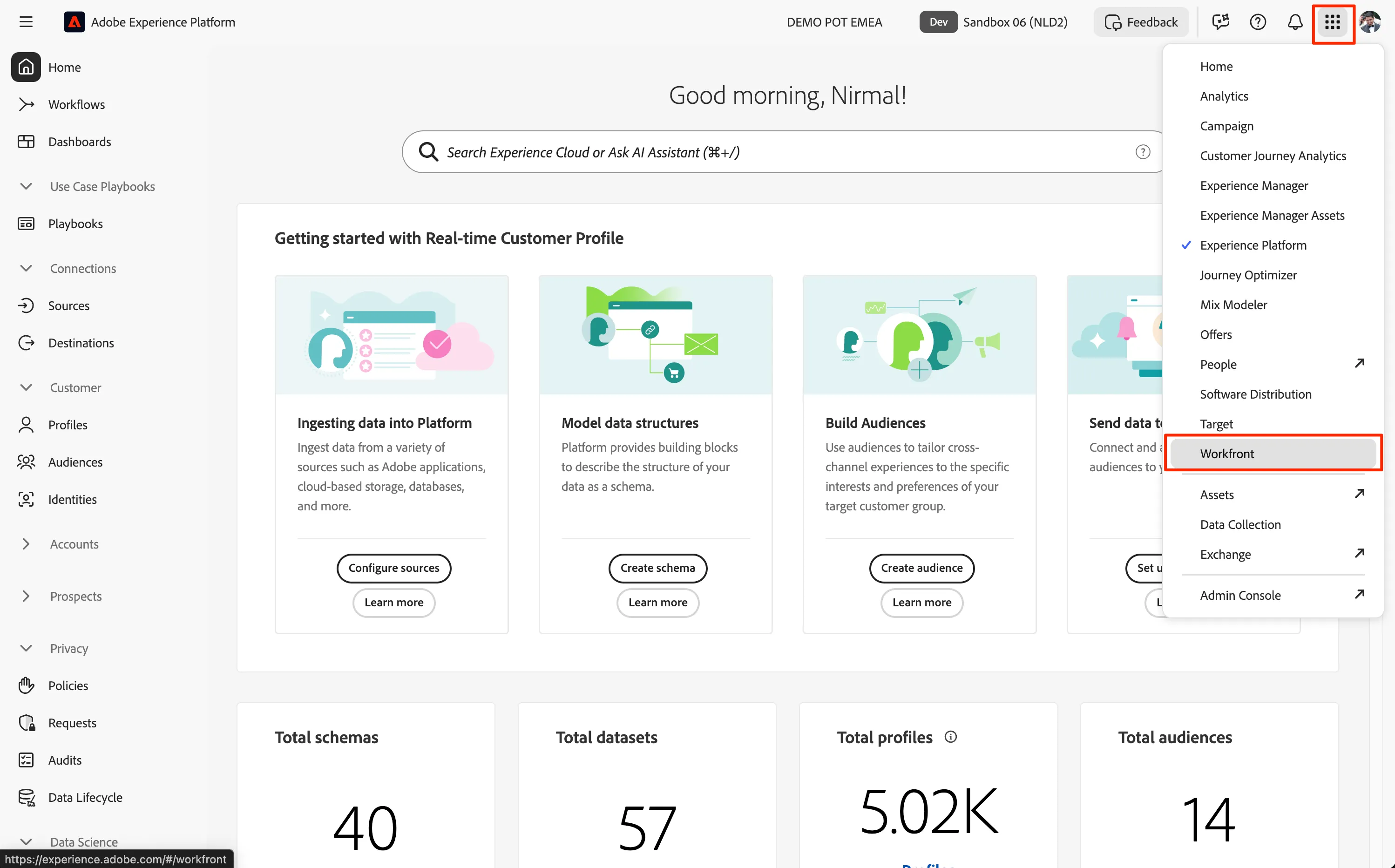
Click on nine dots on the top menu and select Workfront to get into the workfront.
Viewing the request
For actioning on the campaign request, we will converting the request to a project so that the various tasks for various teams and manage the campaign delivery.
To see the request, click on New requests from the top menu.
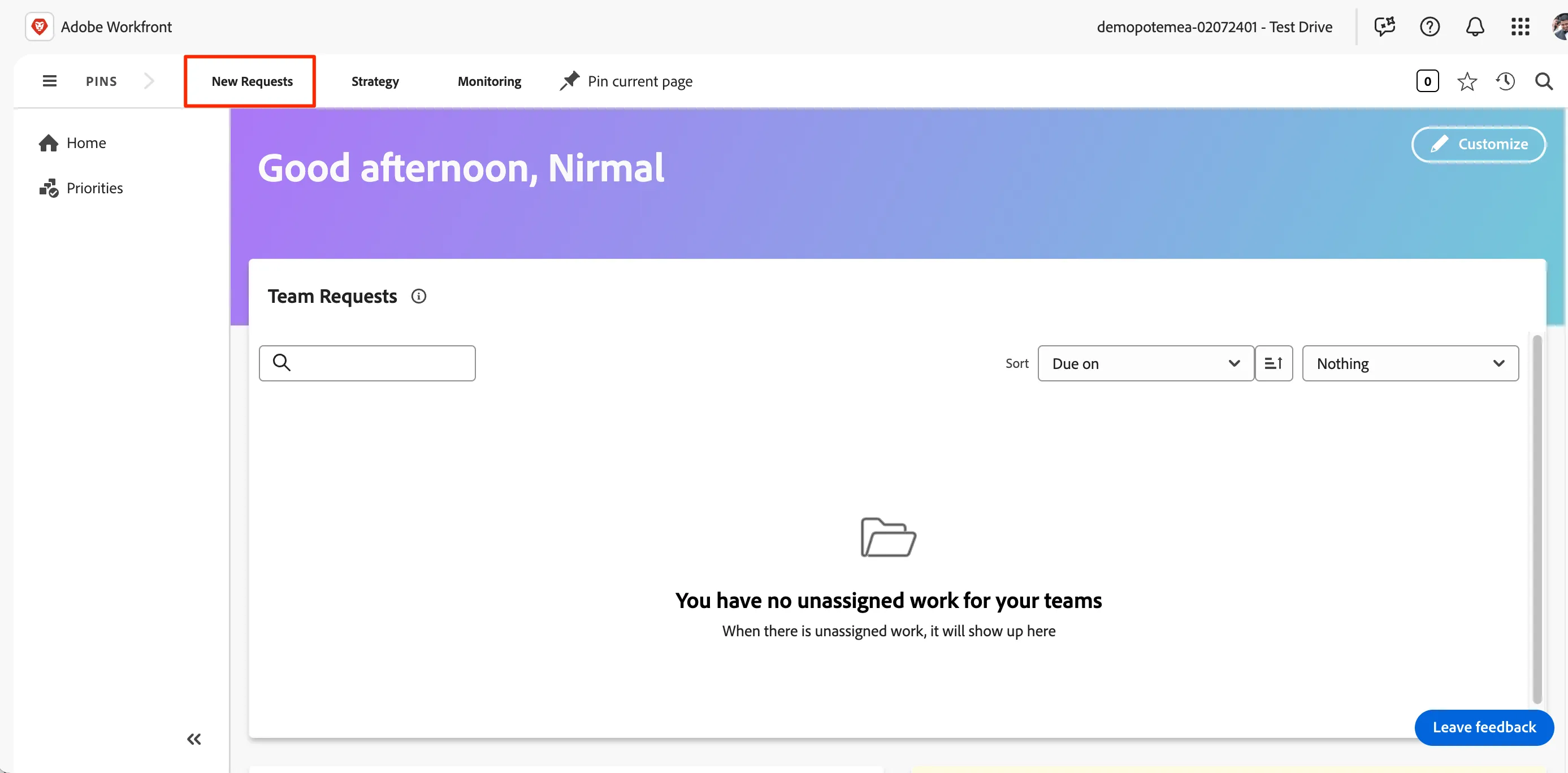
- This should take you to a dashboard where you can see all the new requests created for the campaign request queue.
Click on the Re-engaging mortgage prospects requests in New ING Campaign requests to go into the request.
- You can see the various tabs in the left menu to see the details of the request. Click on Request Details to see the details of the request. You can see the base assets used for creating the campaign already copied over to the Documents section.
Converting the request to a project
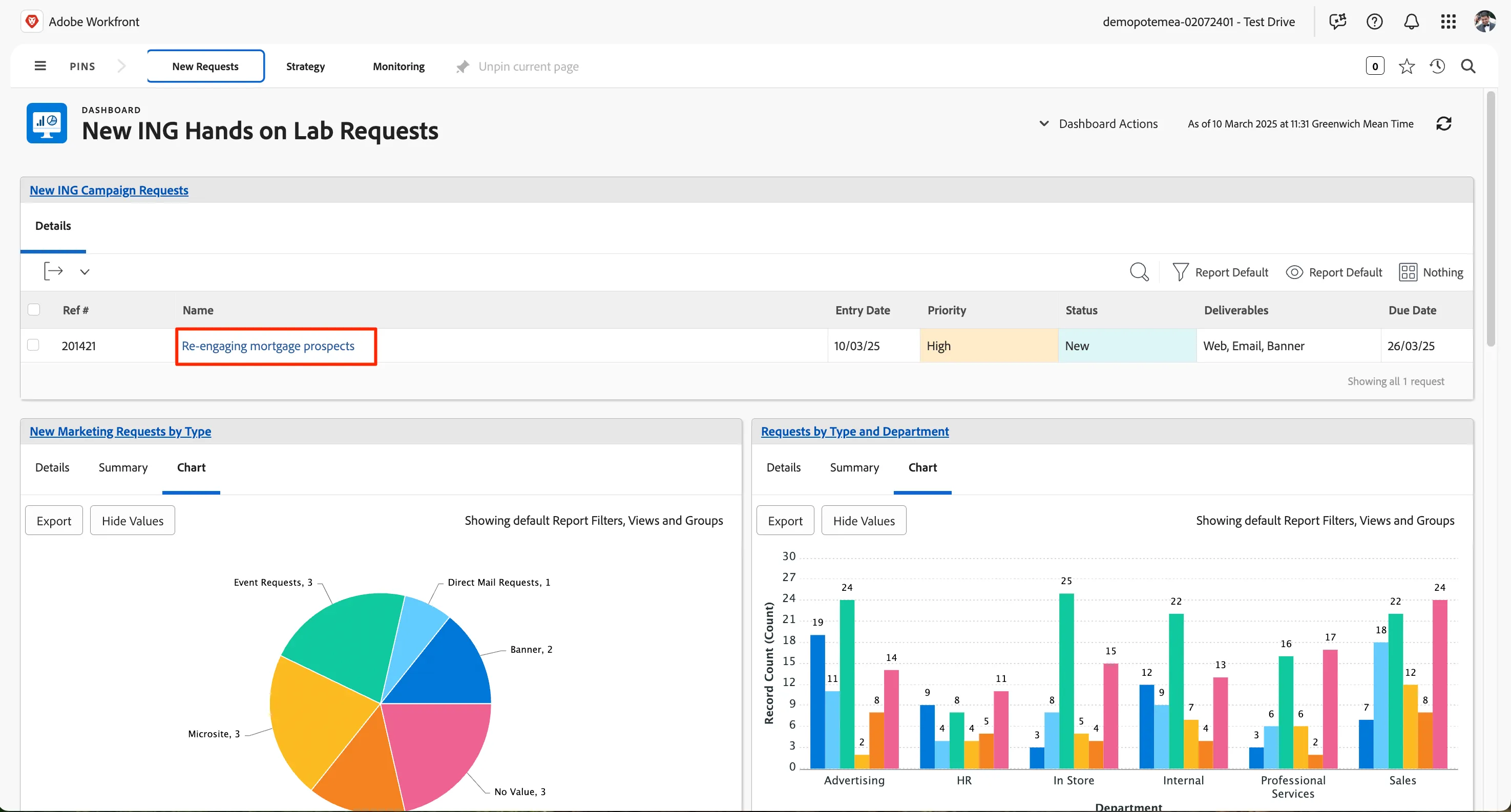
- For converting the request, click on the -icon next to the request title to open the issue actions.
From the menu, go into Favourite templates and select ING Web & Email Banner Template to convert the request as a project
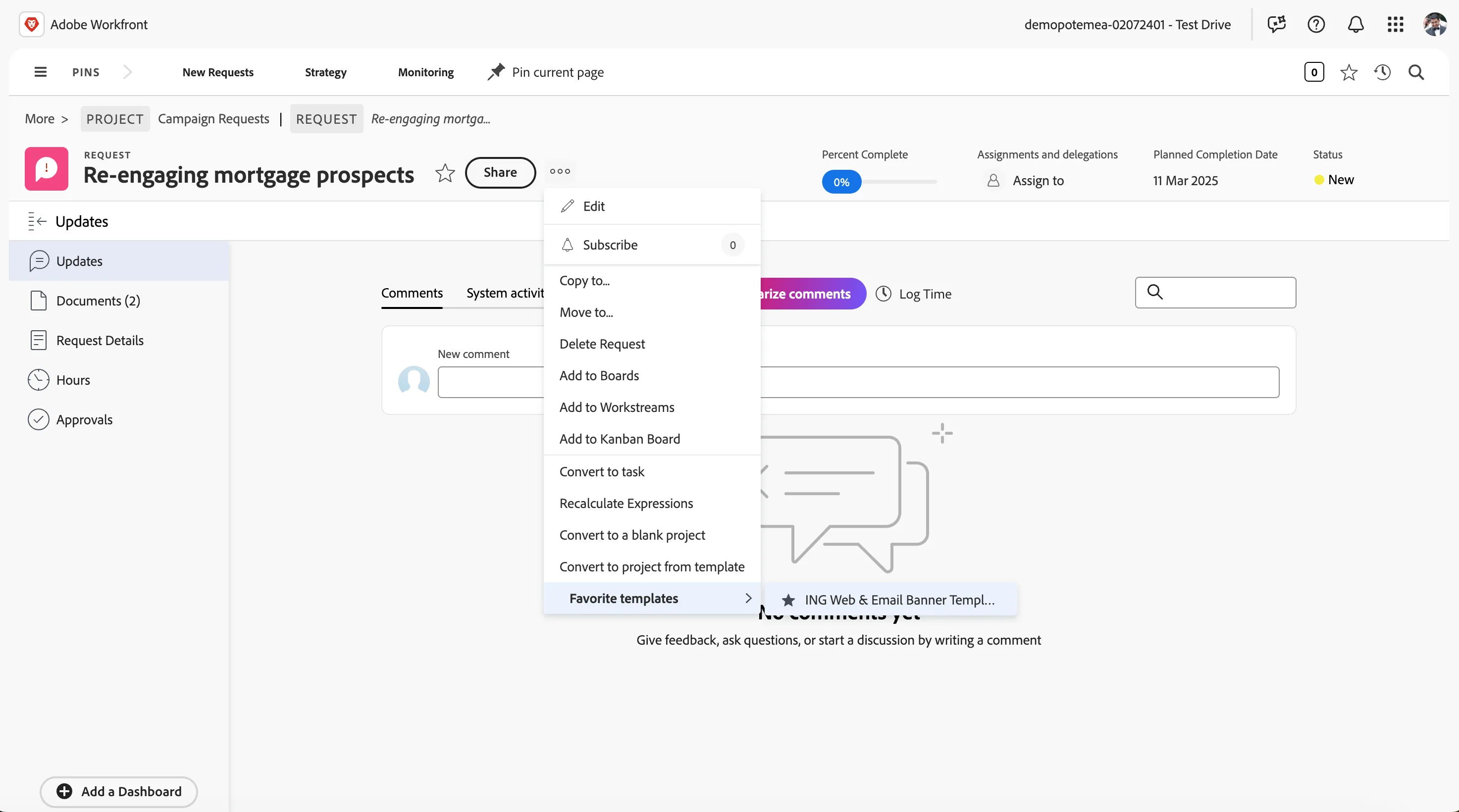
- Prefix the project name with your initials eg. [nirmalj] Re-engaging mortgage prospects
Click Convert to project button to start the conversion
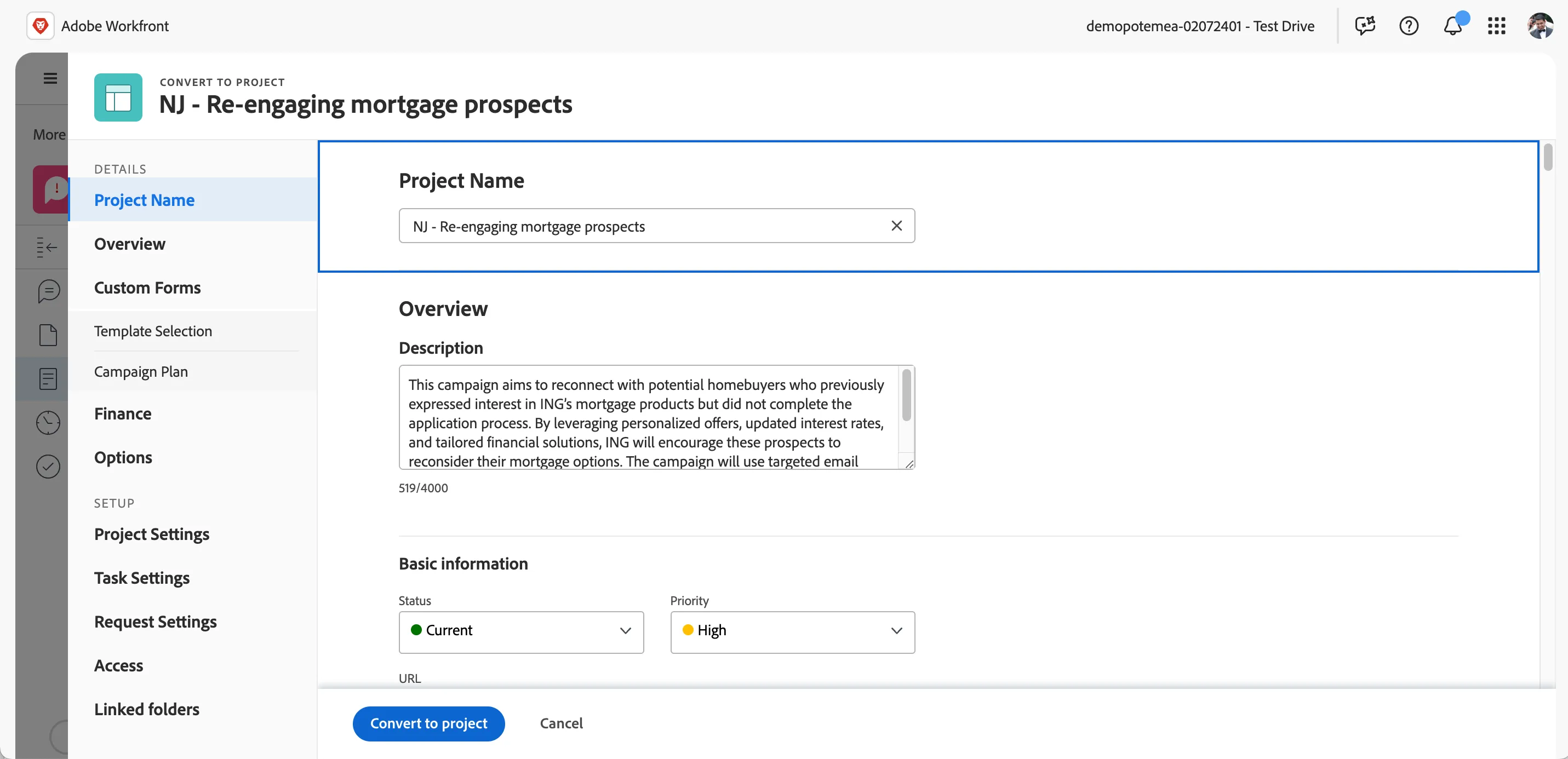
- This converts the request to a project and create actionable tasks based on the template. You will see a success pop up upon conversion. Once done,
- Go to Home by clicking on the Adobe Workfront logo on top left
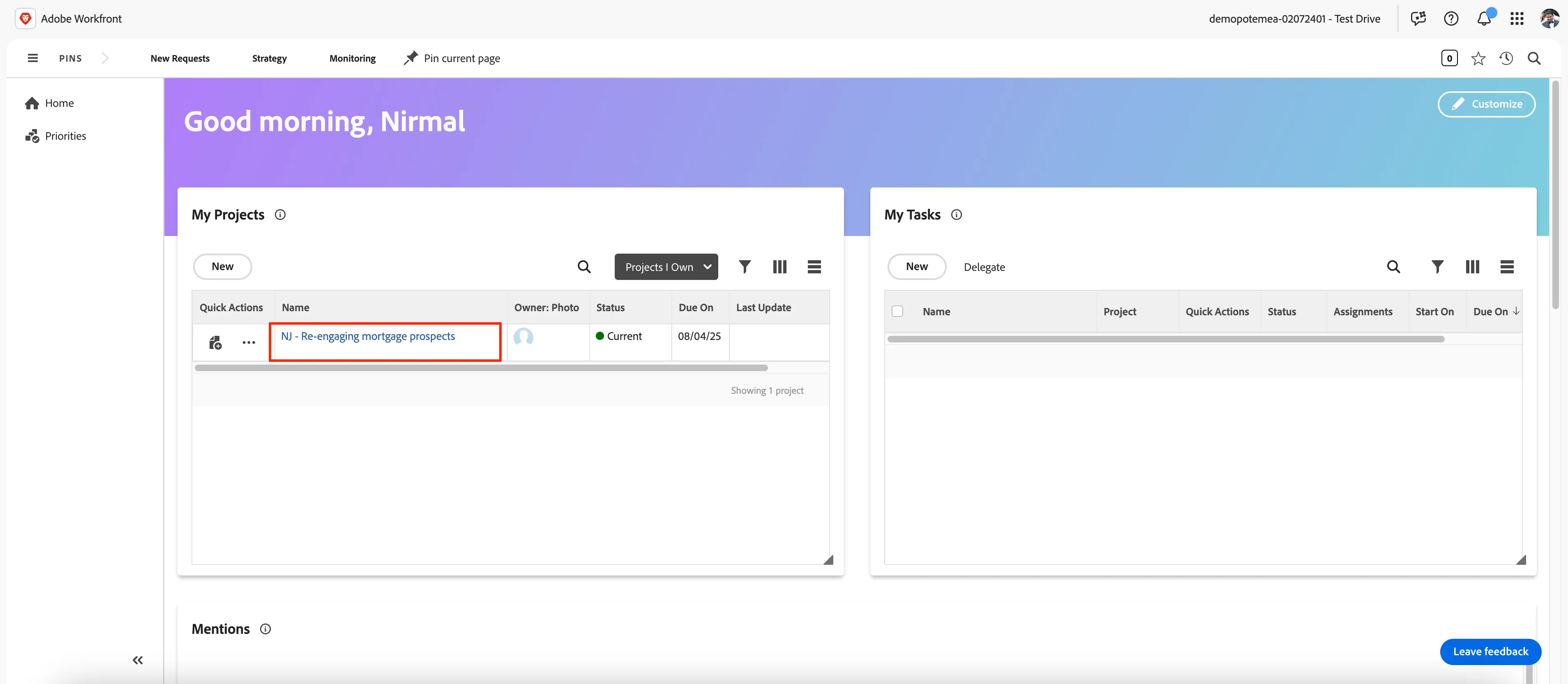
- You should be able to see the project you created in the My Projects widget
- Click on the project name to go into the project.
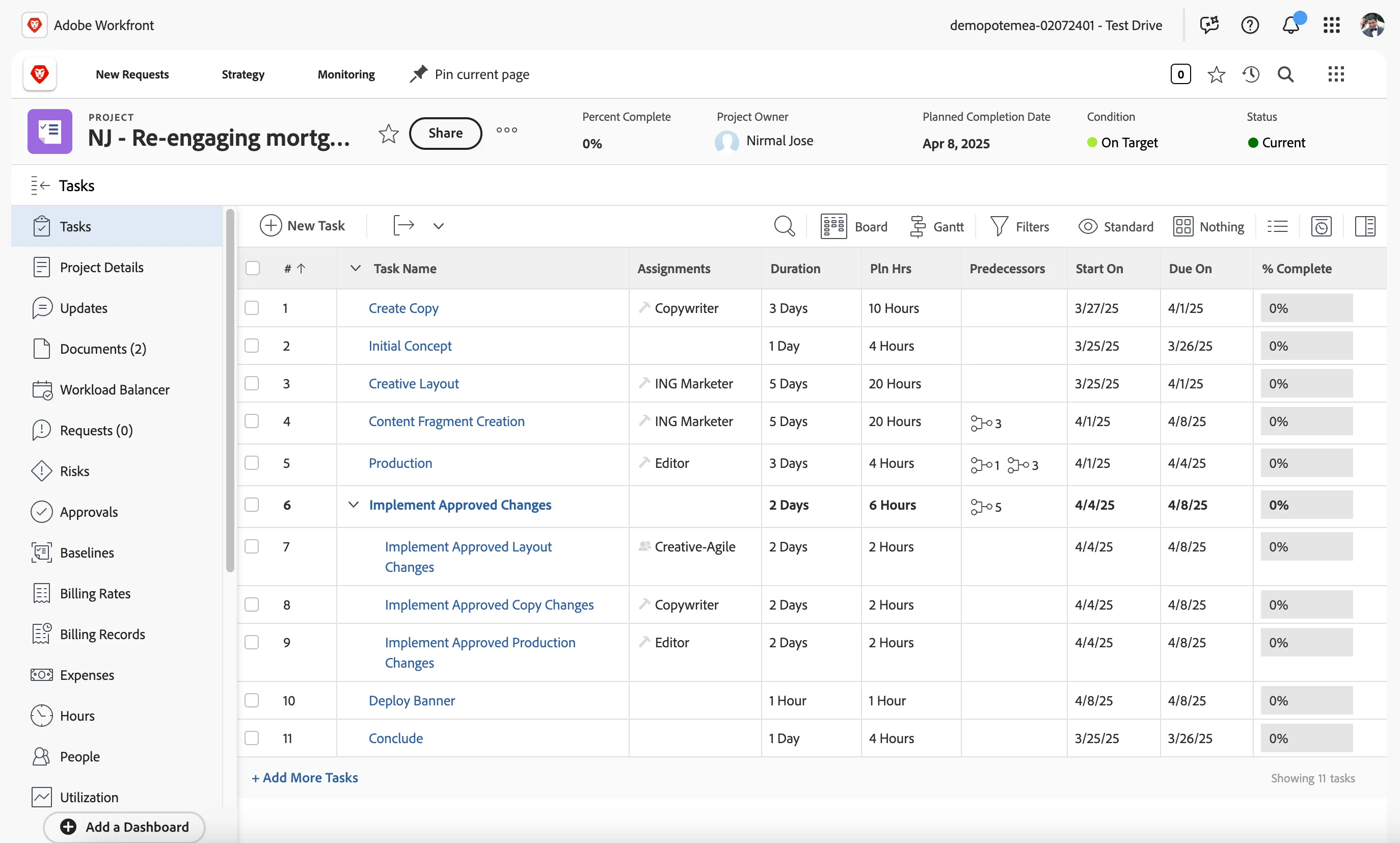
You are now in the project task list as configured in the project template with which we converted the request.
As the campaign requires a banner creation to be used in both web and email channels and a copy creation for the messaging, the relevant tasks are there as seperate tasks.
We can view the tasks in different views based on the team requirements and needs.
- Clicking on Gantt shows the timeline relationshisps between tasks and associations
- Clicking on Board changes to a kanban delivery board for the tasks in the project.
- You can select different views and grouping based on project attributes as well.
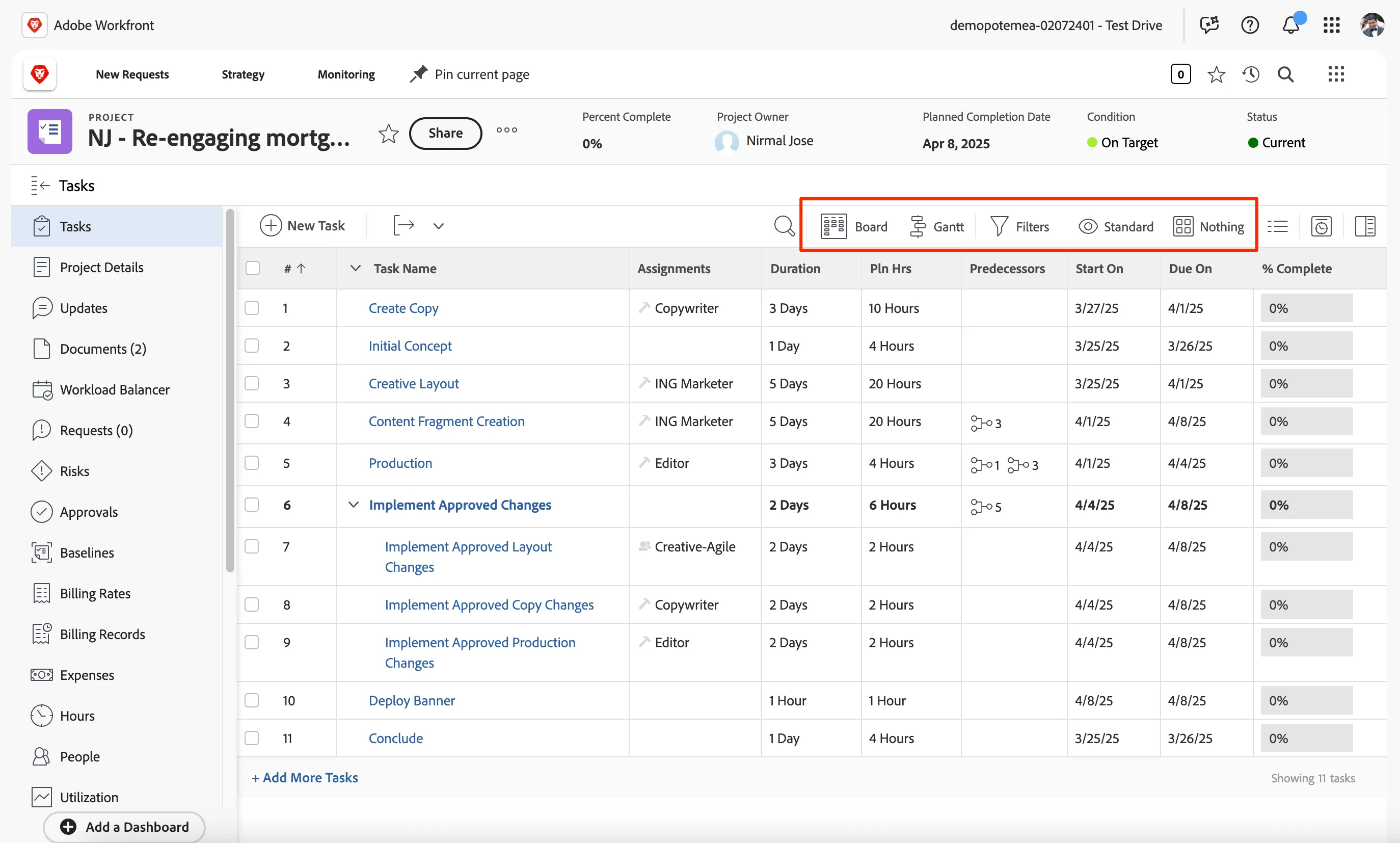
Come back to List view and standard view for the next task.
Assigning a task
We can define the default assignments for the tasks when the project. THis is by default assigned to ING Marketer team which includes everyone attending the labs today.
We are now going to assign two tasks to yourselves.
- Click in the assignments cell for Creative layout tasks to make it editable.
- Click on (x) on ING Marketer group to remove the teams assignment
Search for your name and select your name to assign the task to yourself.
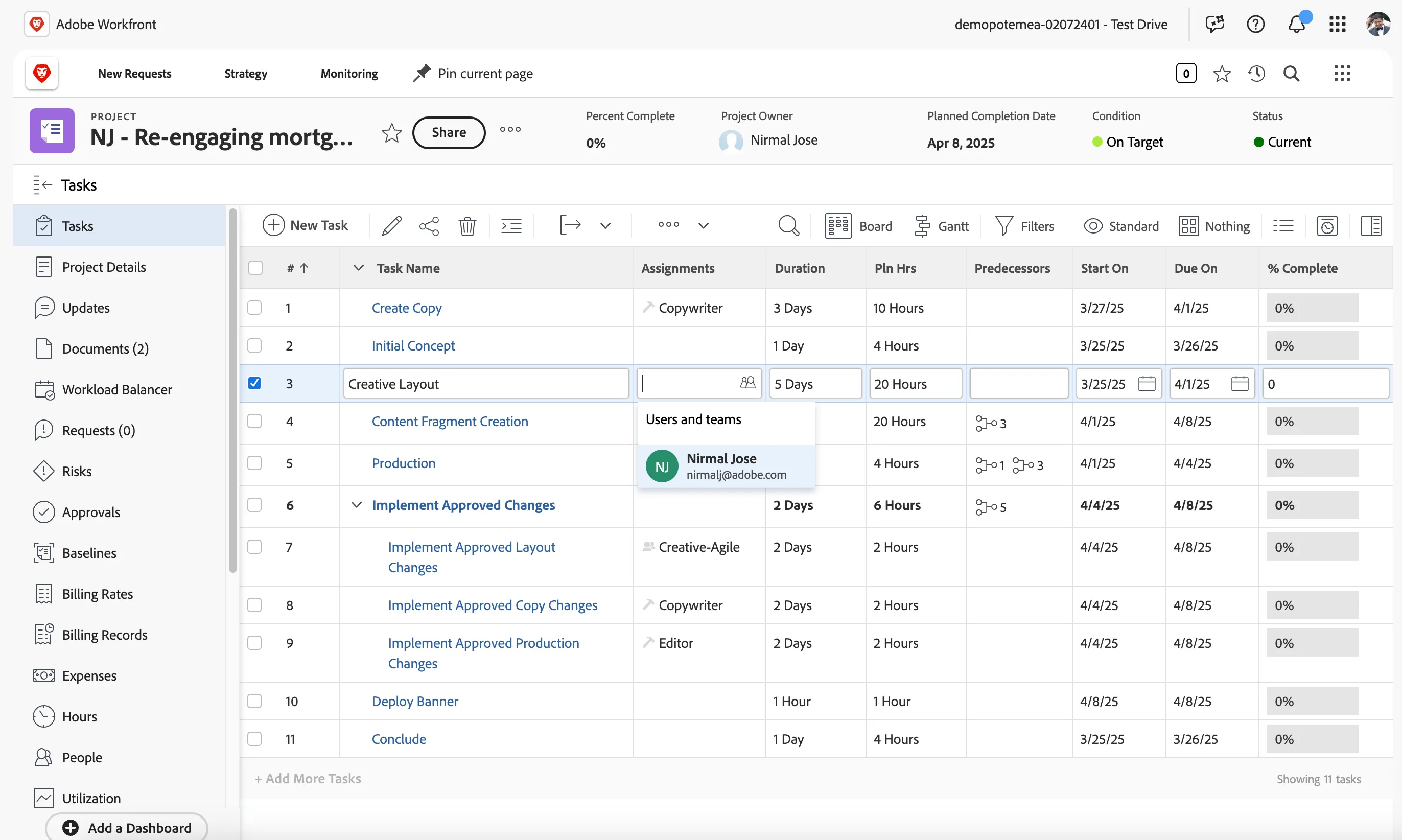
- Do the same for Content Fragment creation task and assign it to yourselves.
Workload balancer for team view
The Workload Balancer in Adobe Workfront is a powerful tool designed to help project managers and team leads efficiently manage and distribute work across their teams. It provides a real-time, visual overview of team members’ workload, making it easy to identify over- or under-utilization and adjust assignments accordingly.
With the Workload Balancer, you can:
- View workload distribution – See how work is allocated across team members and adjust to prevent burnout or inefficiencies.
- Reassign tasks easily – Drag and drop tasks to balance workloads in real time.
- Set capacity limits – Define individual and team capacity to ensure workloads stay manageable.
- Improve efficiency – Optimize resource allocation to meet deadlines without overloading team members.
By using the Workload Balancer, you can ensure that work is distributed fairly and efficiently, helping teams stay productive and focused.
Click on Workfront Balancer from the left pane menu.
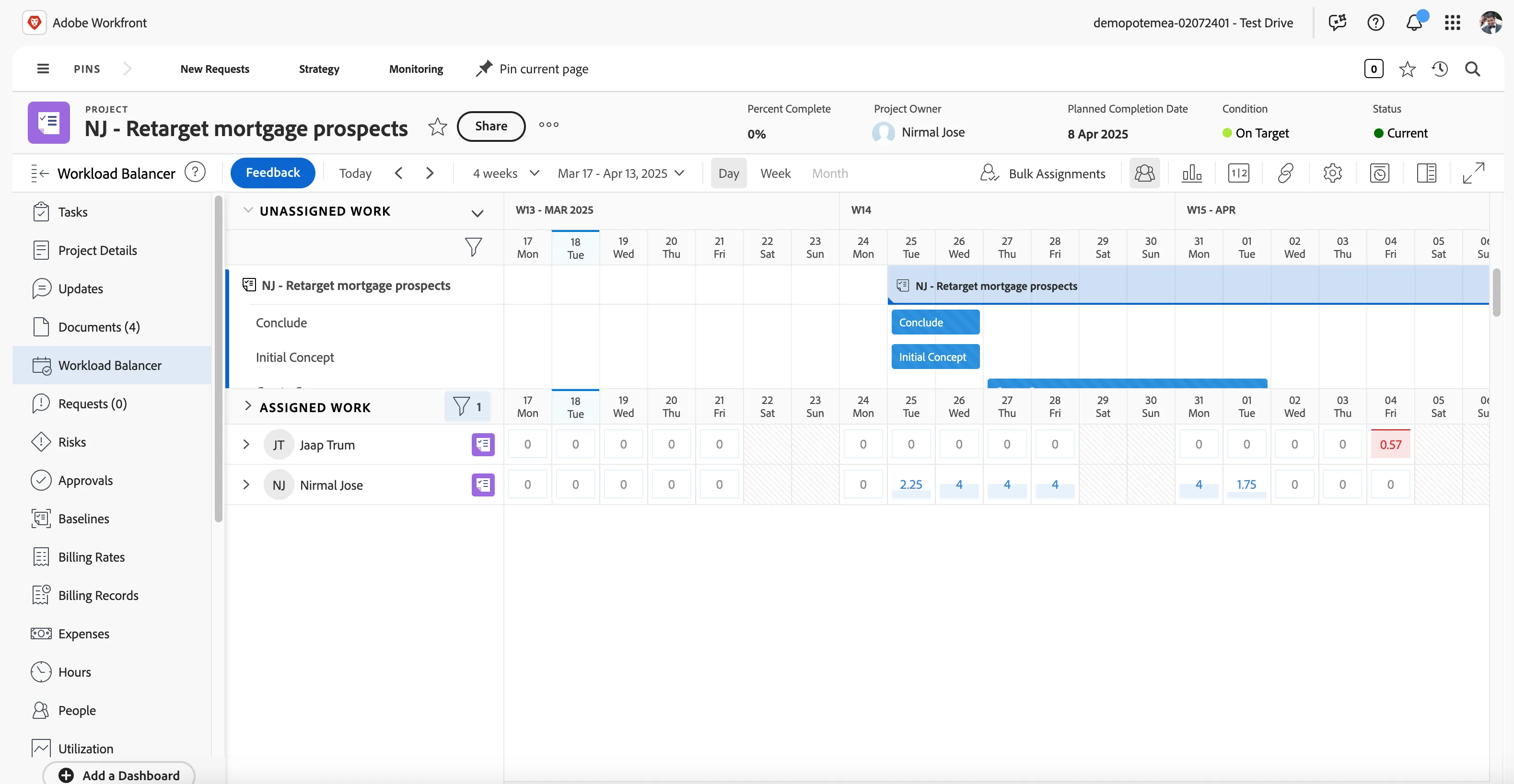
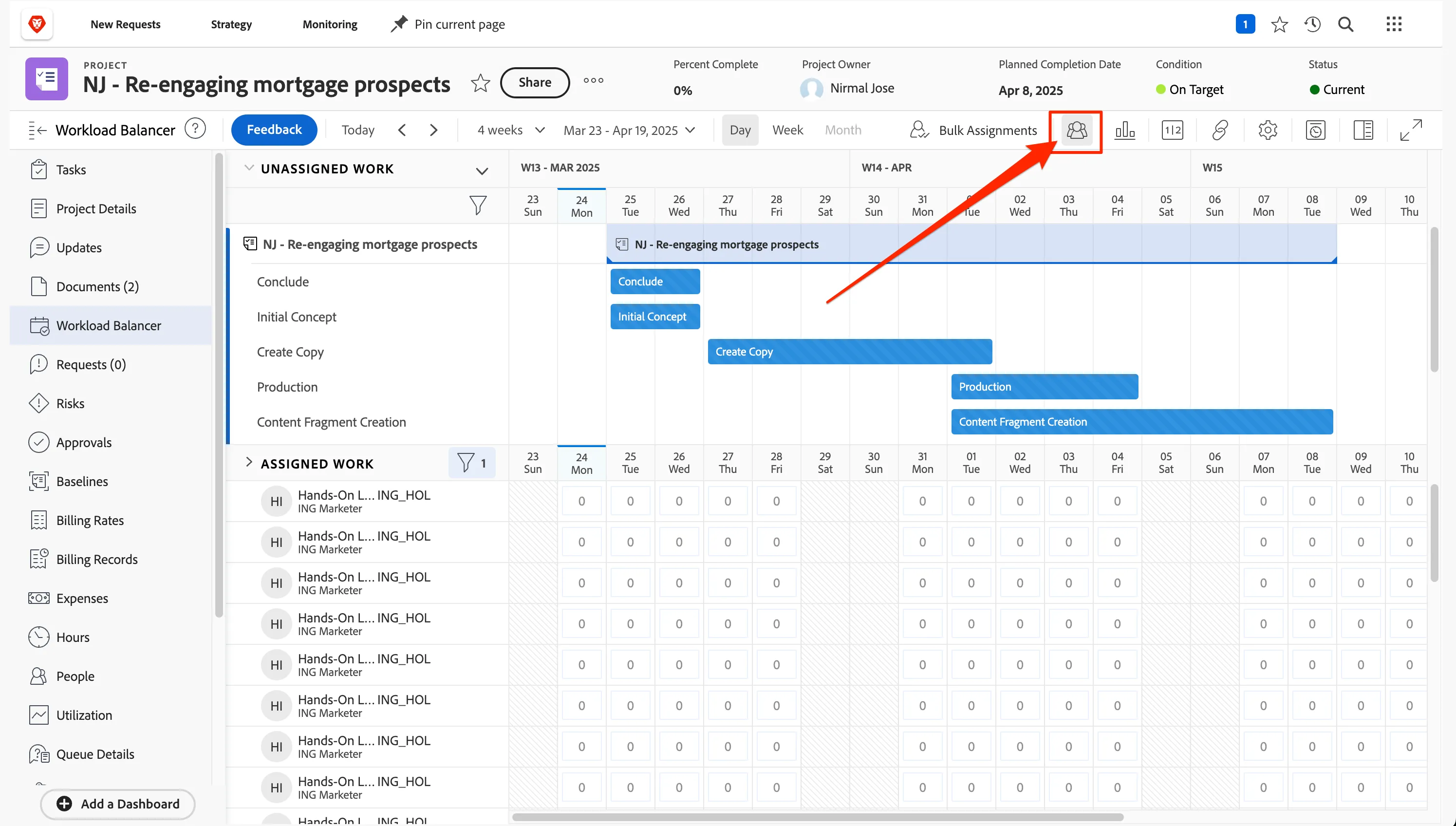
Click on show all users icon to see the workload of your team. This view is filtered to just to see people attending the lab today.
Documents download
In order to start working from the base assets, we need to have the assets.
Click on Documents in the left panel. This opens the Documents section and you can see the documents we attached in the request is already available as a project document.
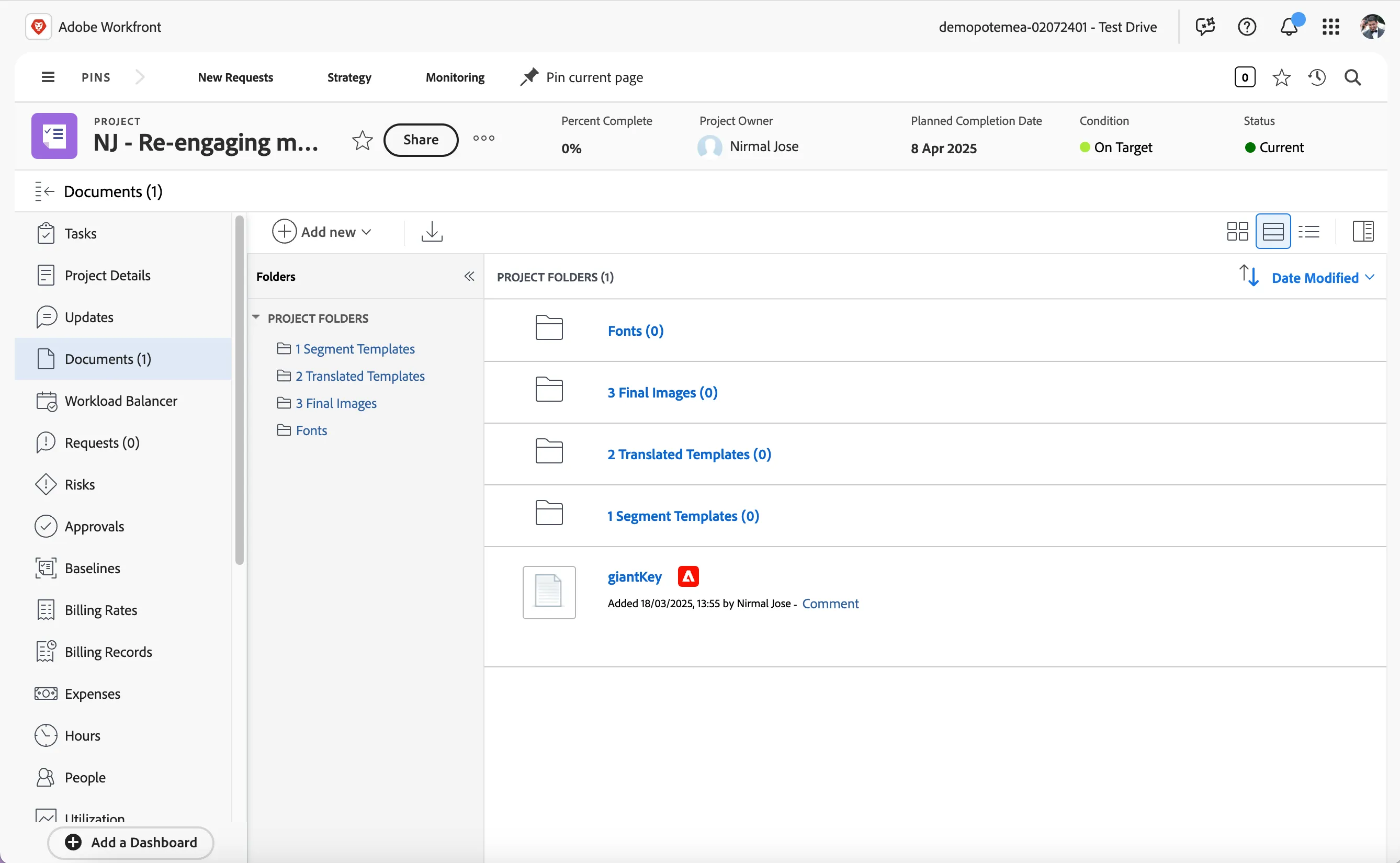
Click on the image of the giantKey.png asset tile to show the asset item menu.
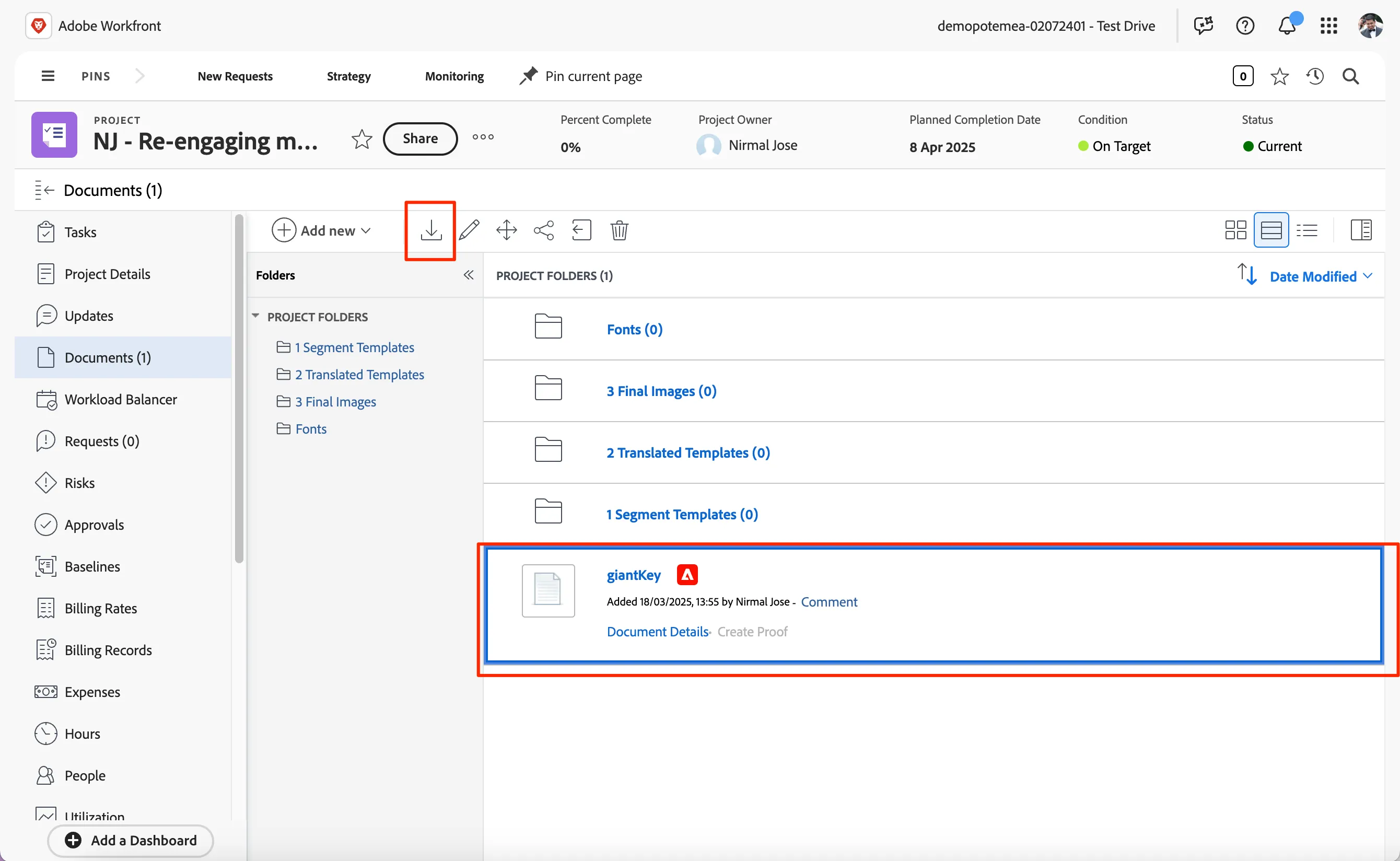
- Click on the -icon in the asset item menu bar on the top to download the asset. After a few seconds the asset should download to your computer. Beware that pop-up blockers might interfere with this process.
- Rename the asset with your name prefix as yourname-giantKey.pngeg nirmalj-giantKey.png
You have now successfully created a campaign project in workfront and have assigned tasks to the relevant team.