Logging into the platform
User accounts have been created to access the Adobe Experience Cloud and all of the tools you'll need in today's workshop.
Login credentials
# | Name | Username |
|---|---|---|
1 | Toon van den Einde | |
2 | Jasper Blonk | |
3 | Dirk Jan Meinema | |
4 | Ezgi Cakmak | |
5 | Tom Schreurs | |
6 | Iwan Sterk | |
7 | Tim Bakers | |
8 | Michiel van Eldik | |
9 | Robin Riemslag | |
10 | Pierre Colin | |
11 | Nicolas Liegeois | |
12 | Christophe van Cutsem | |
13 | Maxime Krack | |
14 | Robin Lannoy | |
15 | Olivia Surny | |
16 | Eddy van der Sman | |
17 | Juriaan Spek | |
18 | Miriam Sperna Weiland | |
19 | Eric de Heer | |
20 | Benny Herman | |
21 | Ruud van Kessel | |
22 | Martine Barbier-Westhuis |
The password for all users is ING!2025.
Login to Adobe Experience Platform
- Logout if you are already logged in on your own or corporate Adobe account
- Find your username in the table above and use the password ING!2025 to log in. Not in the list? Please let someone from the Adobe staff know so they can create a new user for you.
- If you are prompted to provide a phone number, click Not now.
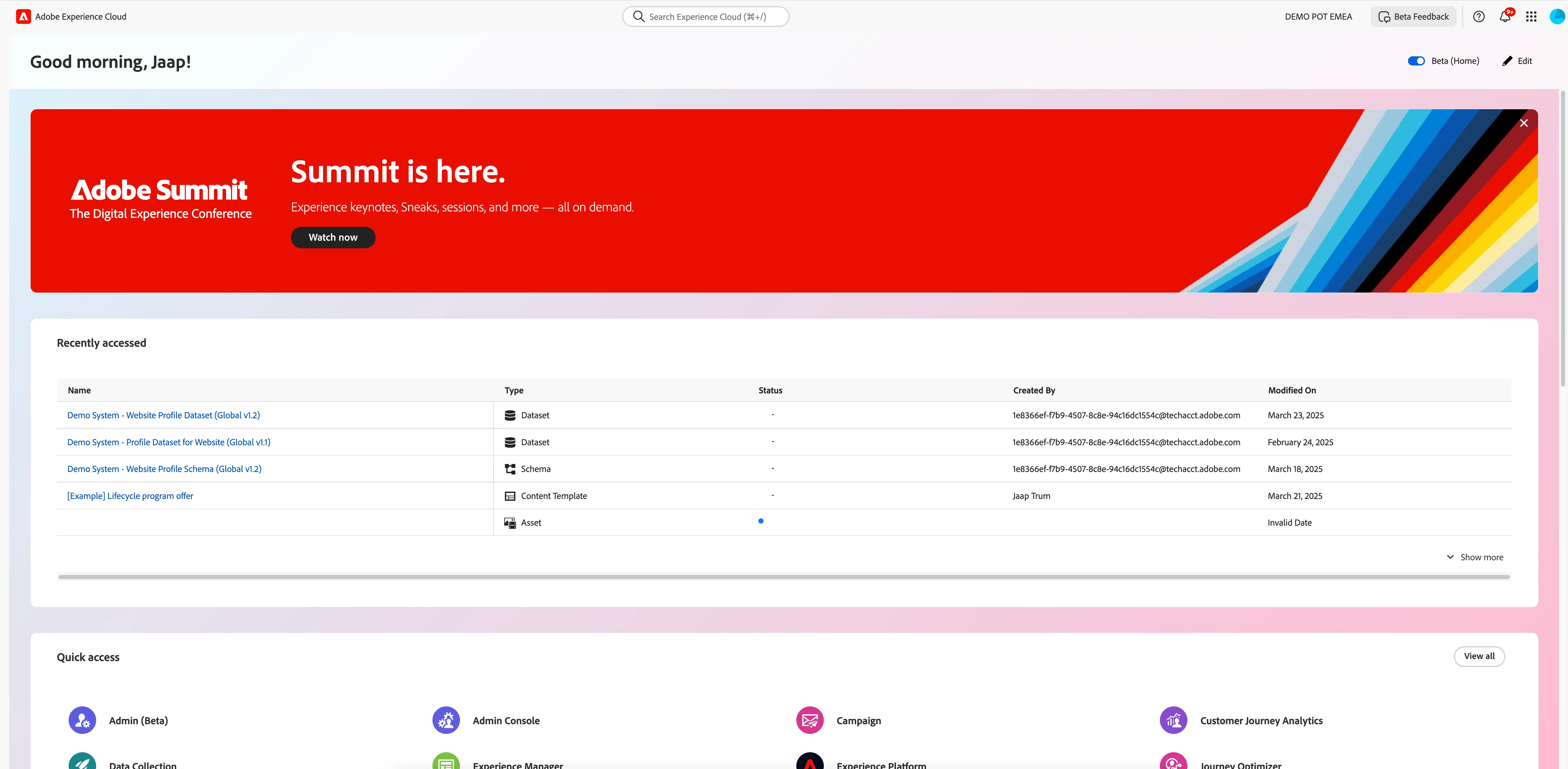
- You should arrive at the Adobe Experience Cloud home dashboard
After login you should arrive at the Adobe Experience Cloud home dashboard.
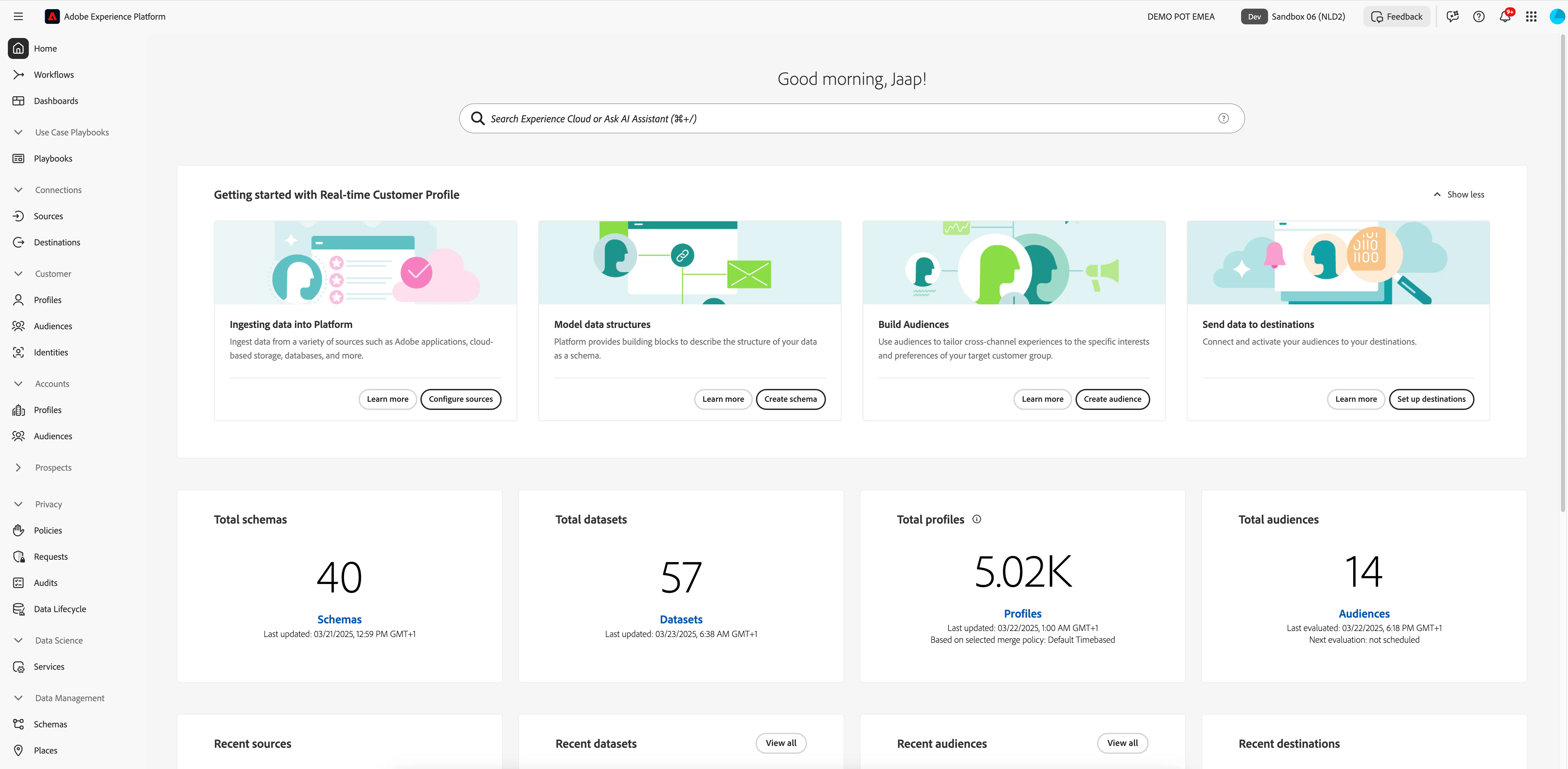
- Click on the navigation-icon (9 dots) in the top right cornet and click on Experience Platform.
- Check if you are in the right sandbox. On the top right you should see:
- DEMO POT EMEA, indicating the organisation.
- Sandbox 06 (NLD2), indicating the sandbox.
Adobe Journey Optimizer
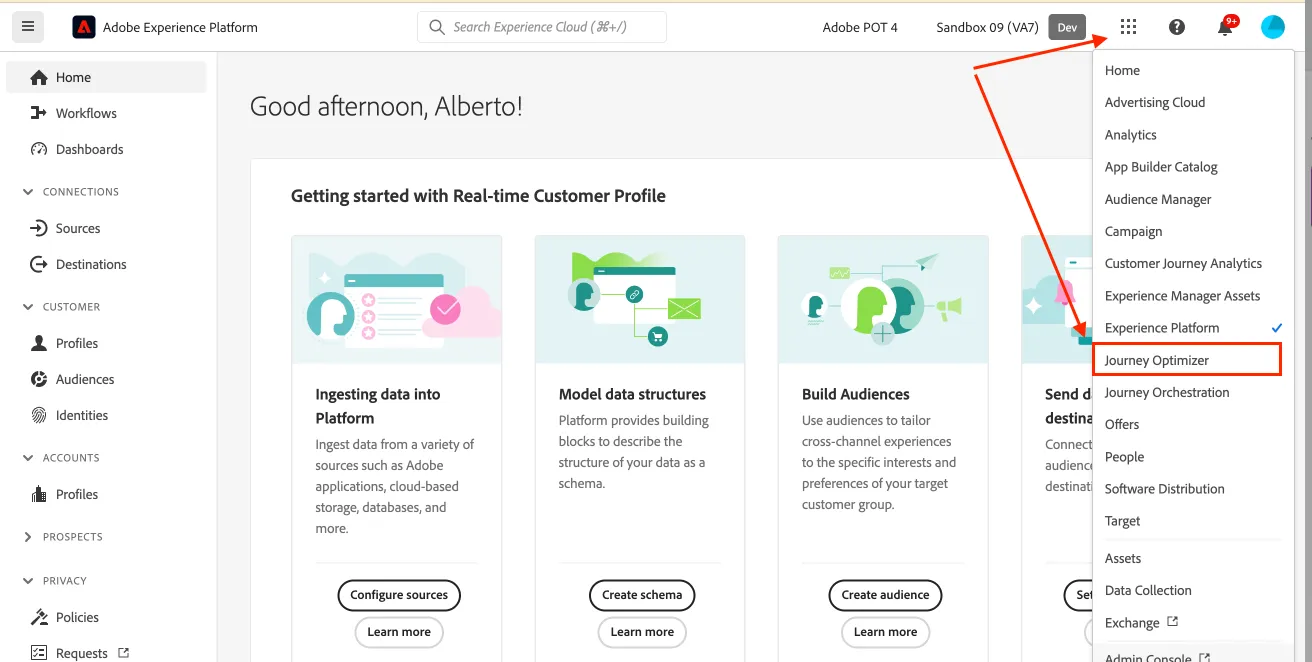
Click on the navigation-icon (9 dots) in the top right and select Journey Optimizer in the dropdown list.
Customer Journey Analytics
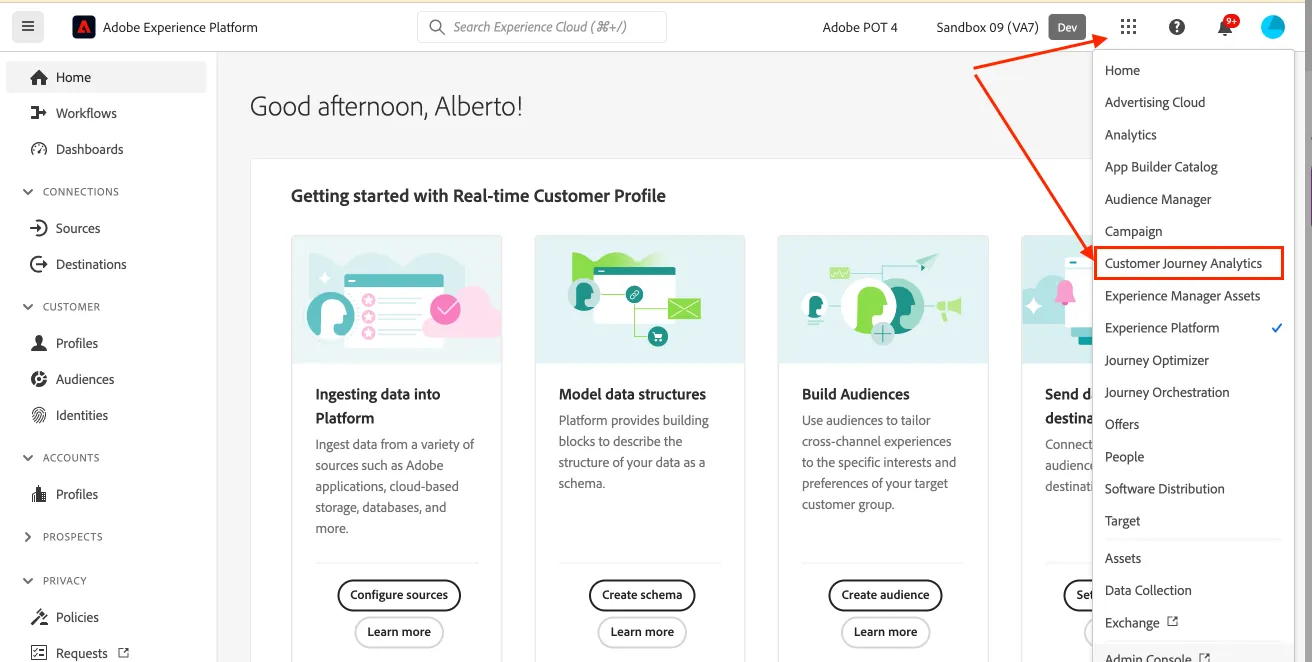
Click on the navigation-icon (9 dots) in the top right and select Customer Journey Analytics in the dropdown list.
Experience Manager Assets
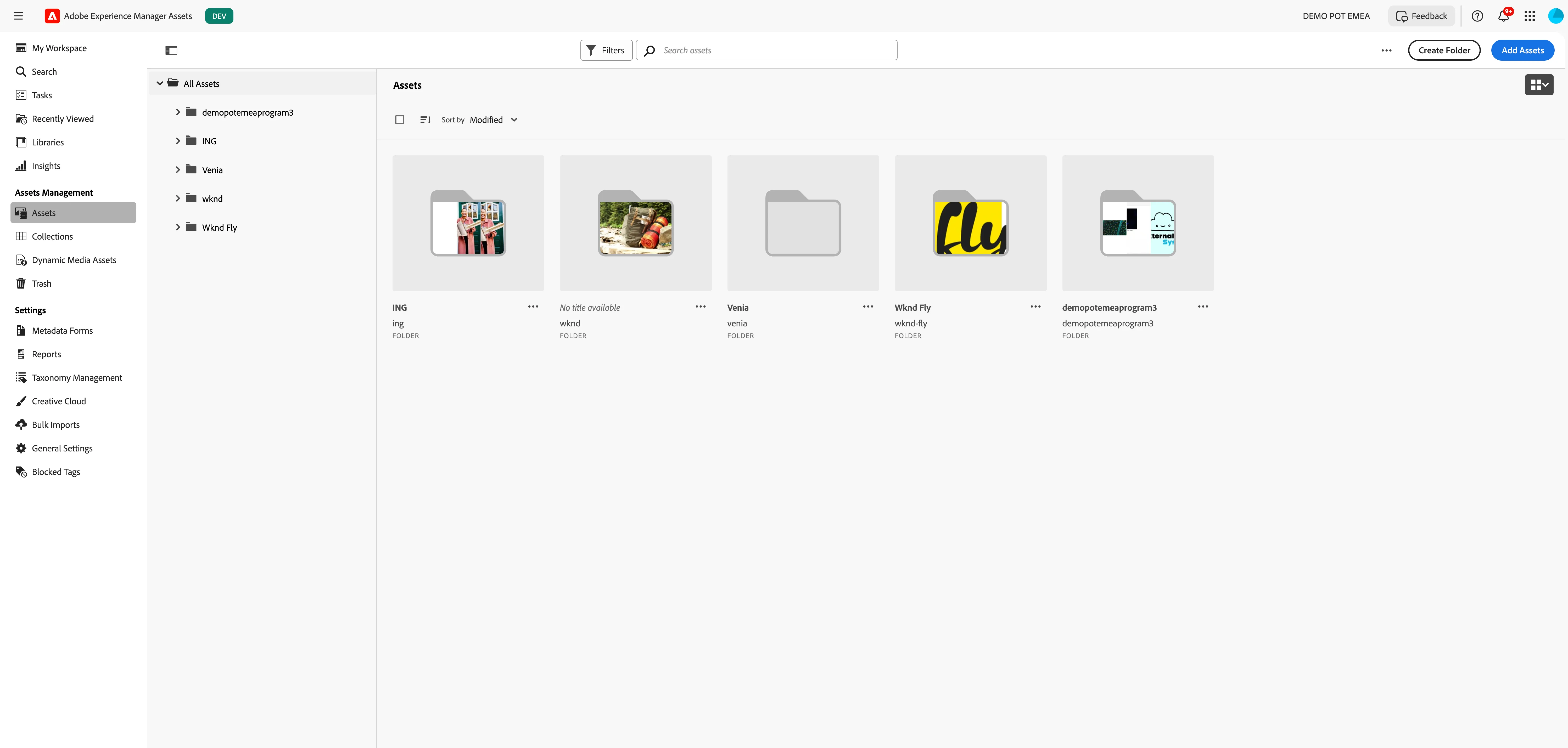
Click on the navigation-icon (9 dots) in the top right and select Experience Manager Assets in the dropdown list.
- You'll see a large visual with a search bar. Click on Browse Assets to open the full workspace.
Navigating to Adobe Workfront
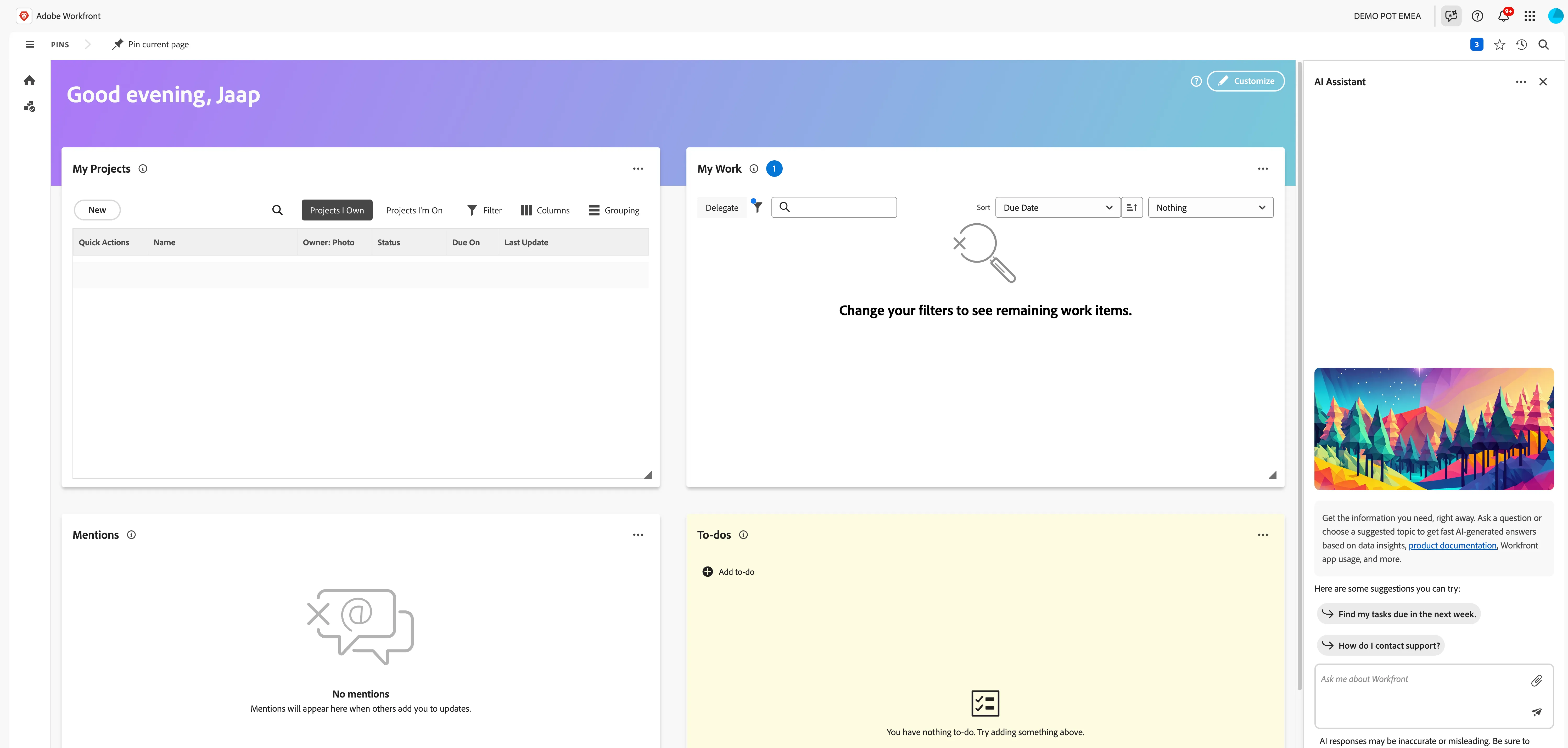
Click on the navigation-icon (9 dots) in the top right and select Workfront in the dropdown list.
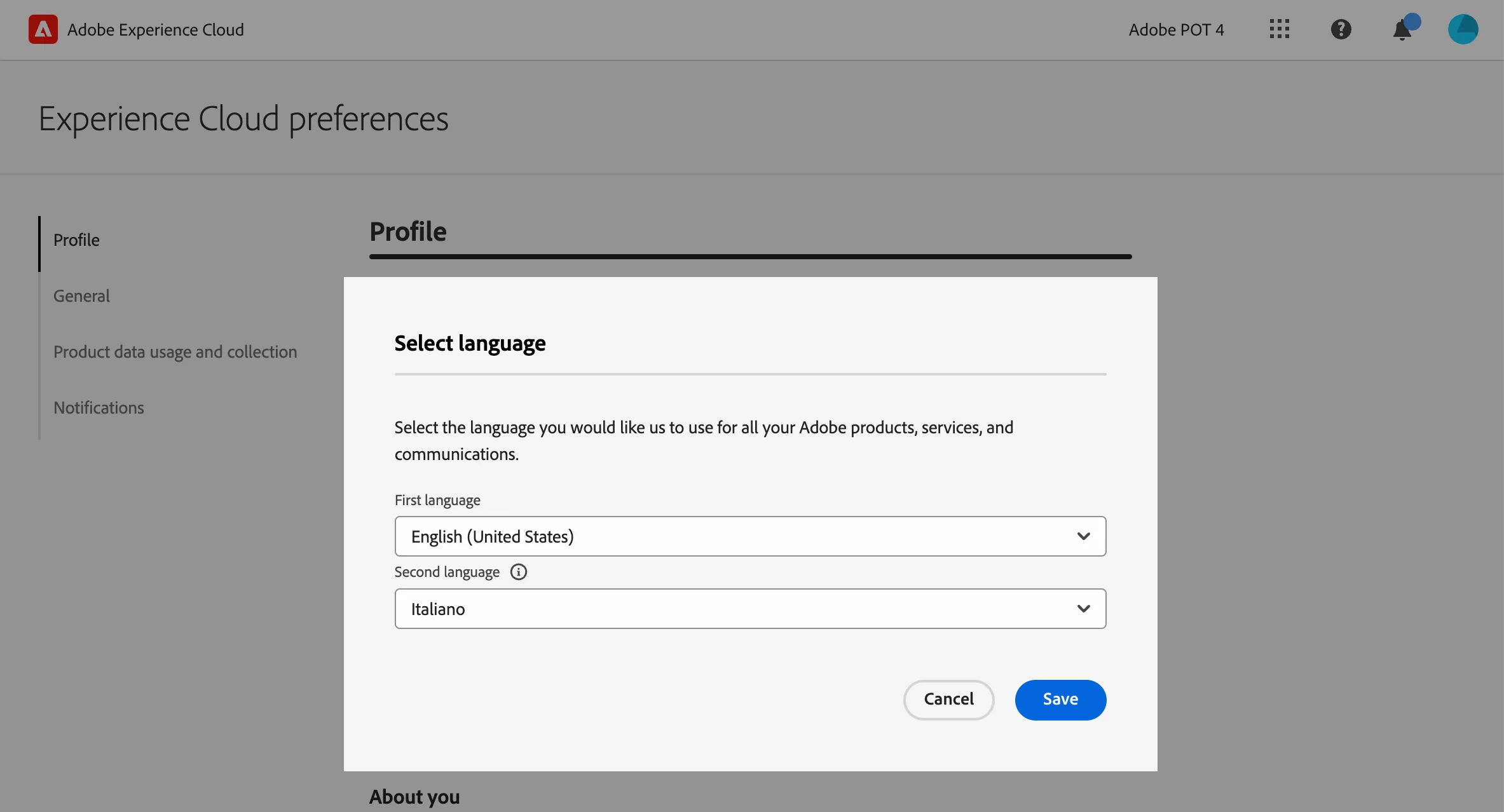
Set language preferences
This guide is written in English and the screenshot are taken from a UI set for English language. If your UI is set to use other language, it can be difficult to recognise buttons, labels and text. We suggest you to switch your Adobe account preferred language to English.
To change the preferences:
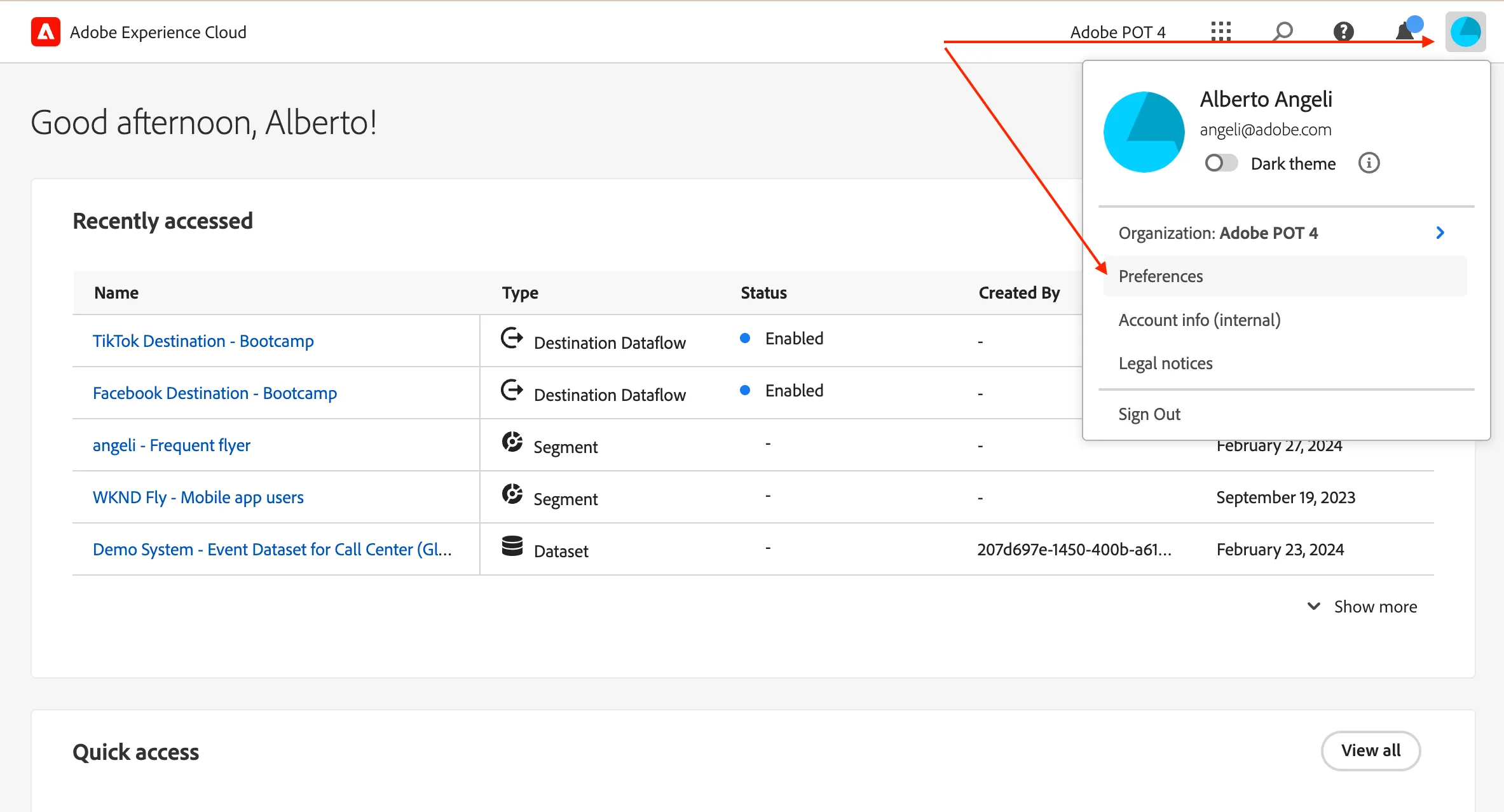
- click on the profile icon on the top right corner;
- click on Preferences.
- Click on the language label just below your name.
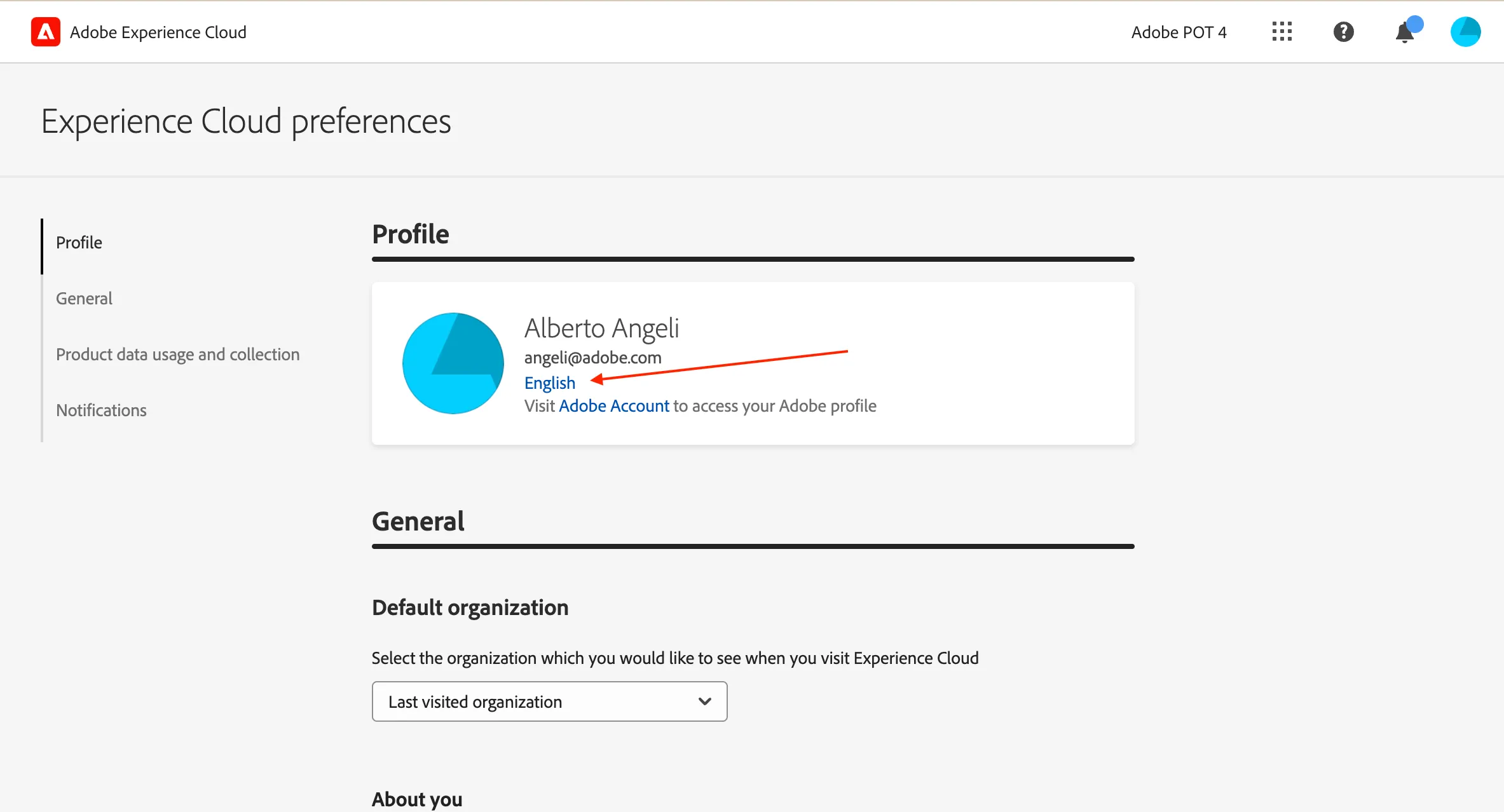
- Select English (United States) as First language;
- select your preferred language as Second language;
- click Save.