Create Audience
Create Audience
- From either the Journey Optimizer or Experience Platform menu, under the Customer heading click Audiences > + Create Audience > Build Rule > Create
- Give the audience a name of <your name> ZUS Dorman Customers
- Under Attributes, search for churnPrediction, then drag-and-drop it to the main attributes panel
- Change from equals to is greater than 70
- Under Events, search for Purchases, then drag-and-drop it to the main events panel
- Change the time range from Any Time to In Last 150 days
- Click on Purchases, and change the Event Rule from Include to Exclude
- Click Publish
Your overall set up should have looked similar to this:
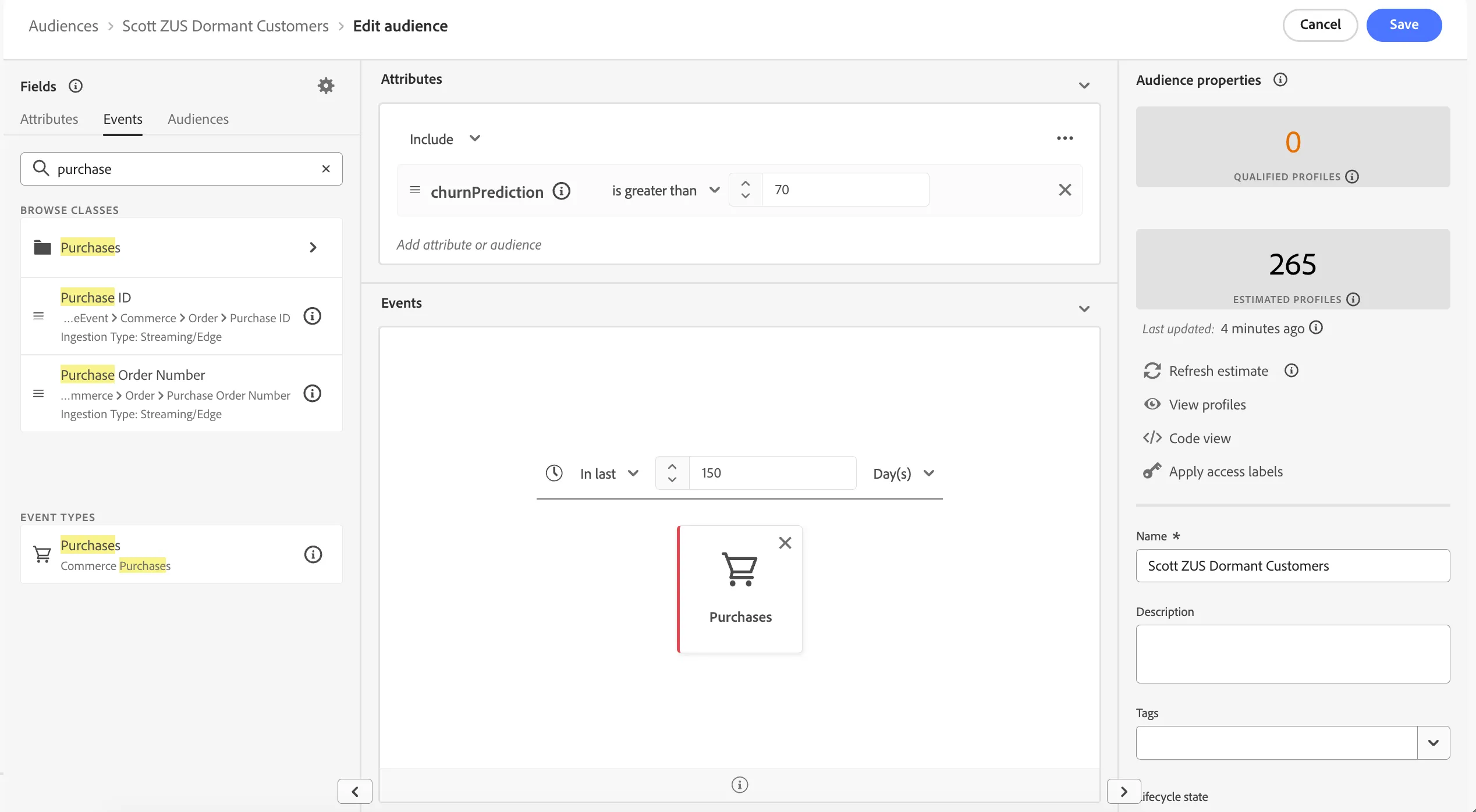
You can leave the Evaluation Method as batch as there's no need to be real-time in this case as we're checking against a daily value (last 150 days) - so calculating once per day is fine. Note, the audience number will not show until the batch is run overnight, but while creating the audience you can click Refresh Estimate to get an estimate (as per the screenshot above)
Customer AI
The churn prediction score can come from AEP's Customer AI model or from your own external model (for example, an Amazon Redshift ML score that is brought into AEP). Due to the fact Customer AI needs time for the model to run (overnight) we didn't include the config in this lab but this is what Customer AI looks like:
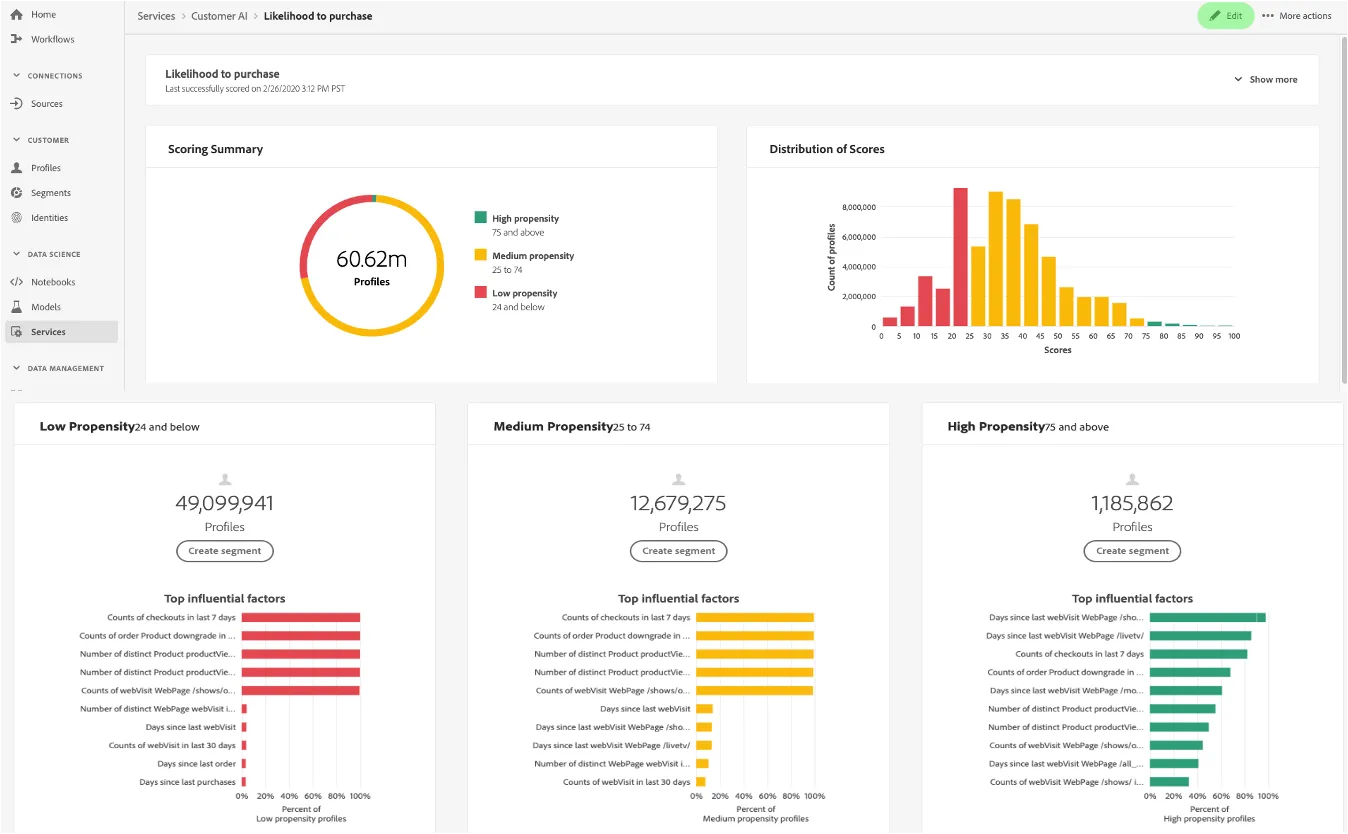
Customer AI can model propensity to churn or propensity to convert (such as purchase). Profiles are automatically put into low, medium and high buckets and segments can be easily created to target by clicking the Create Segment button.