Create Content
We now need to set up the content for each of those messages.
Add Email Content
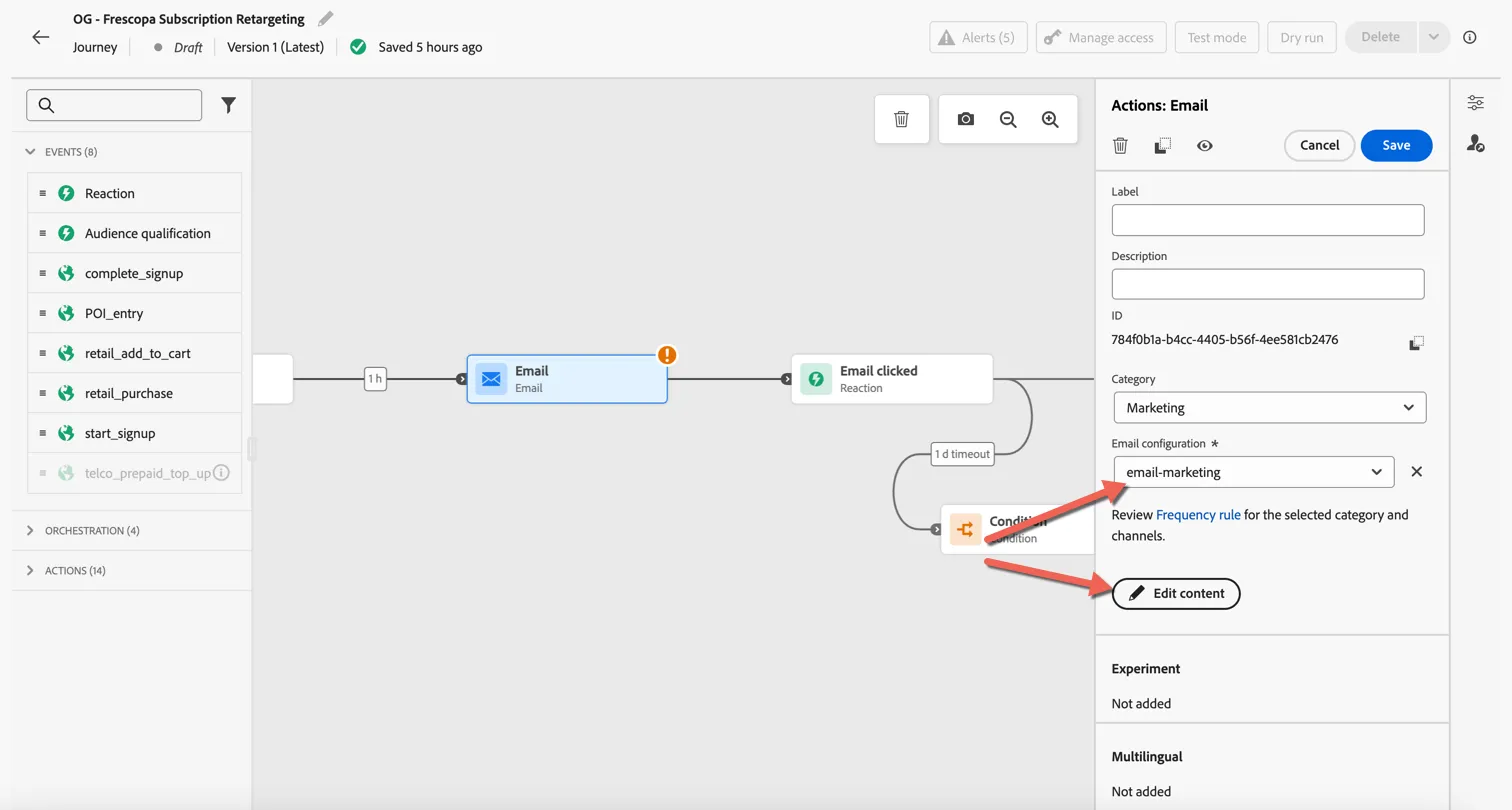
For this exercise we'll start with a pre-defined content template. Select the email activity in your journey and set the Email Configuration to email-marketing and click to Edit Content.
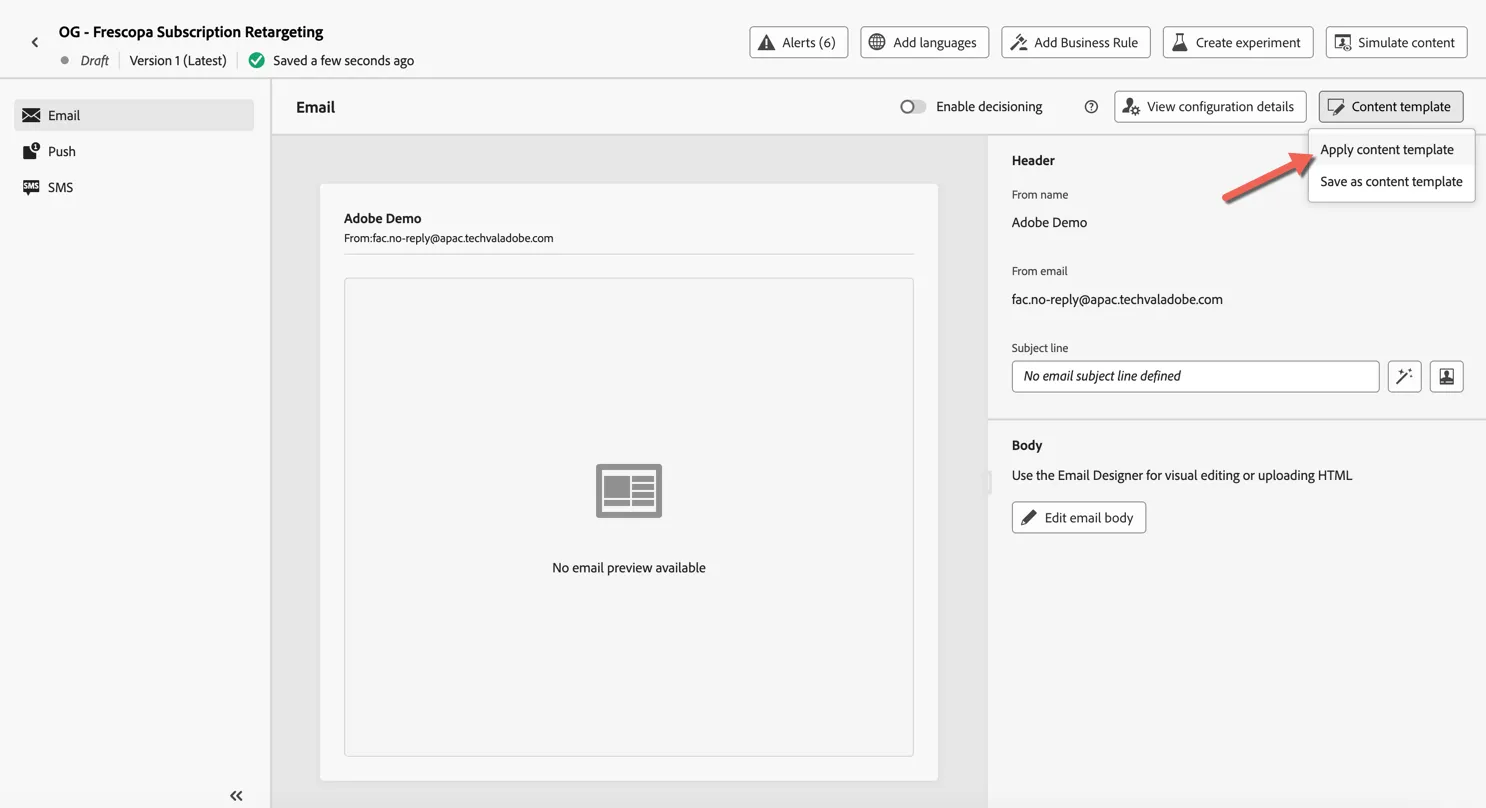
Click to Apply content template
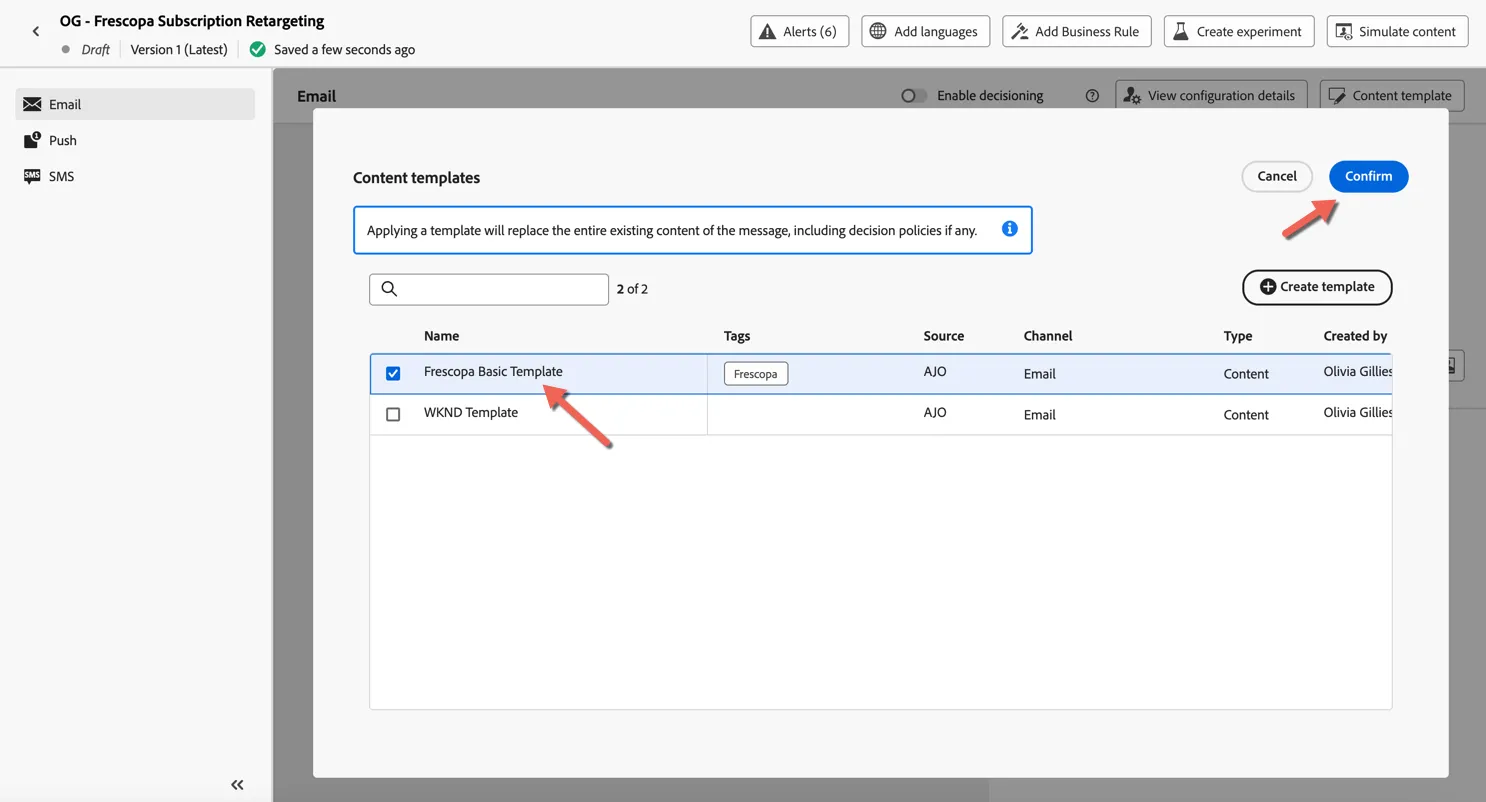
Select the Frescopa Basic Template and click Confirm.
Now that the template is loaded click to Edit the email body.
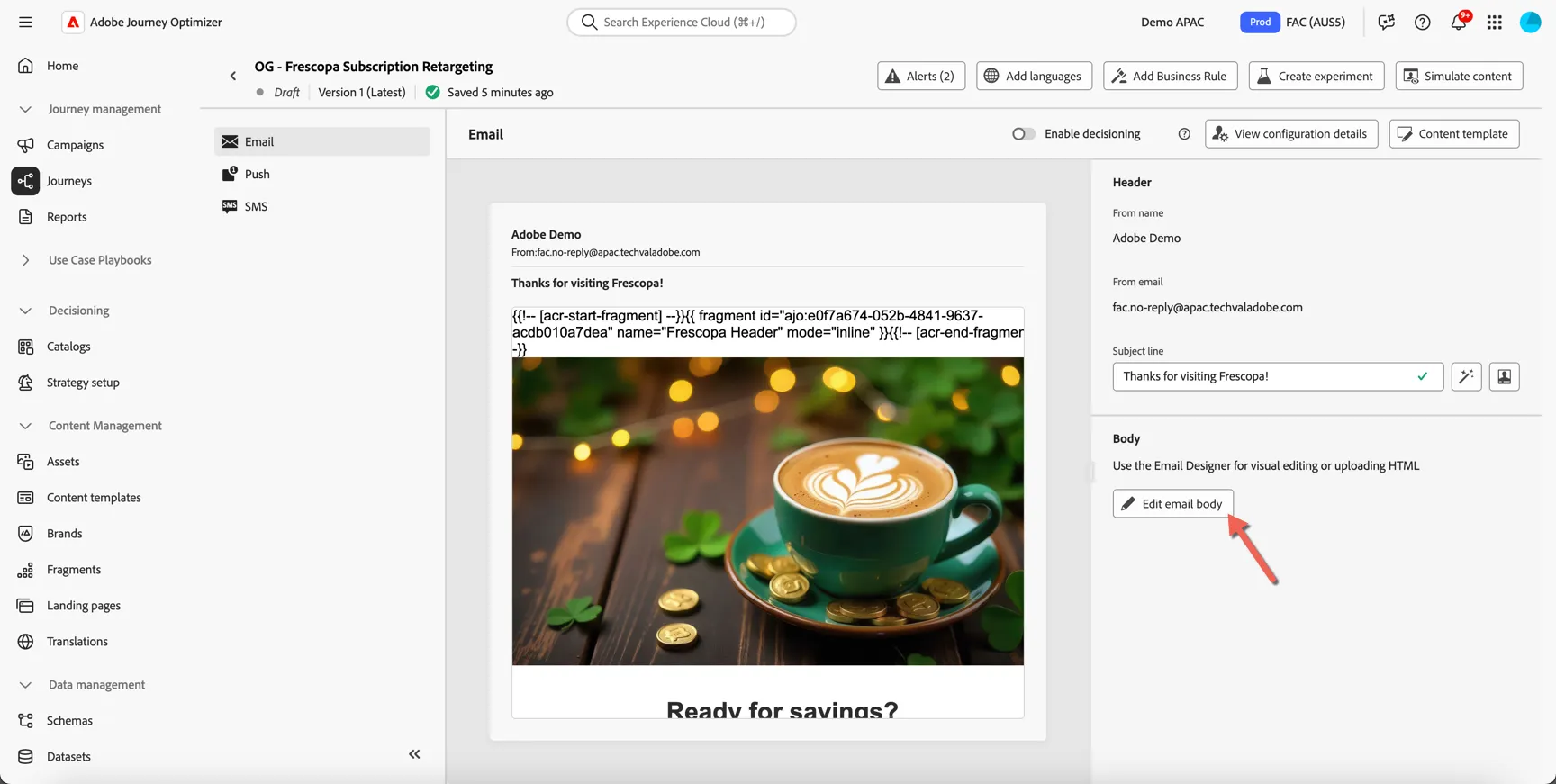
First we'll replace the template banner image with one from the asset repository. Let's assume we learnt from Customer Journey Analytics that male prefer black coffee, while female prefer latte. We want to replace this image only for men.
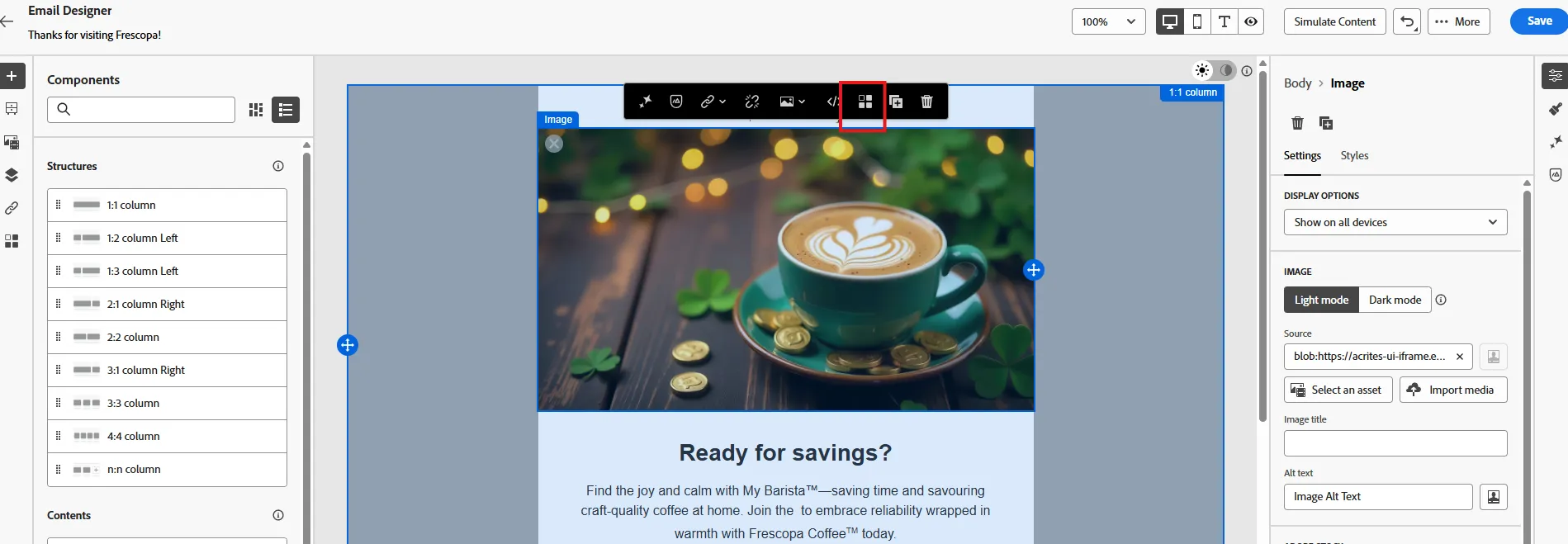
first, click on the hero image, and click on enable conditional content
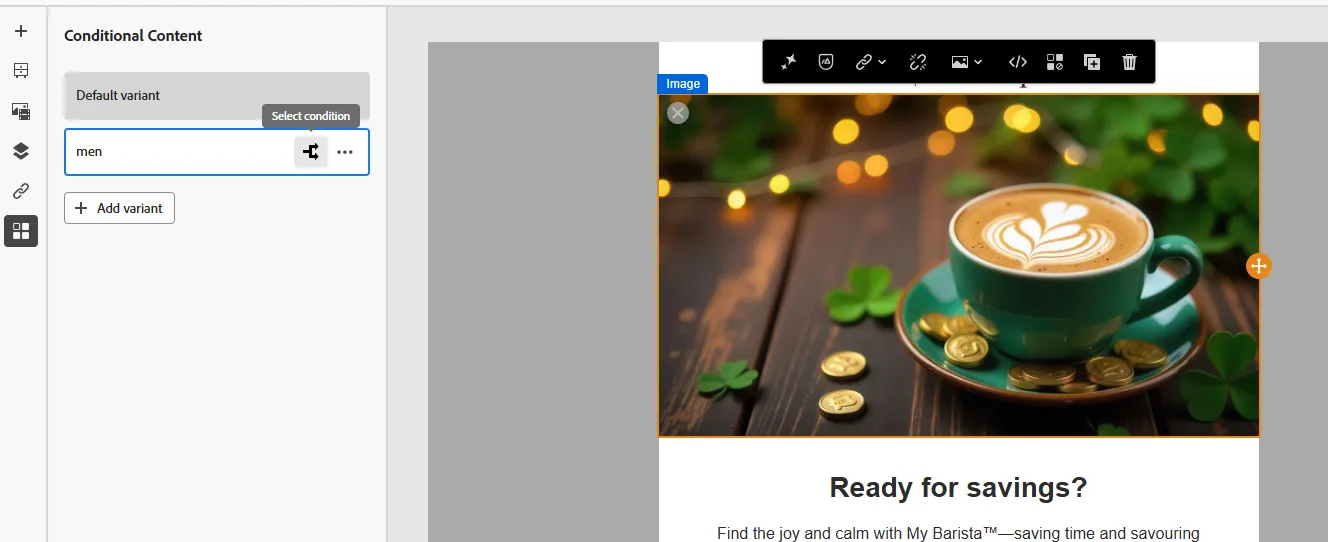
That will create 2 variant of this block. Let's keep the default content with latte coffee, and change the variant for male. You cna rename you rvariant by clicking on the 3 dots then rename, then click on select condition
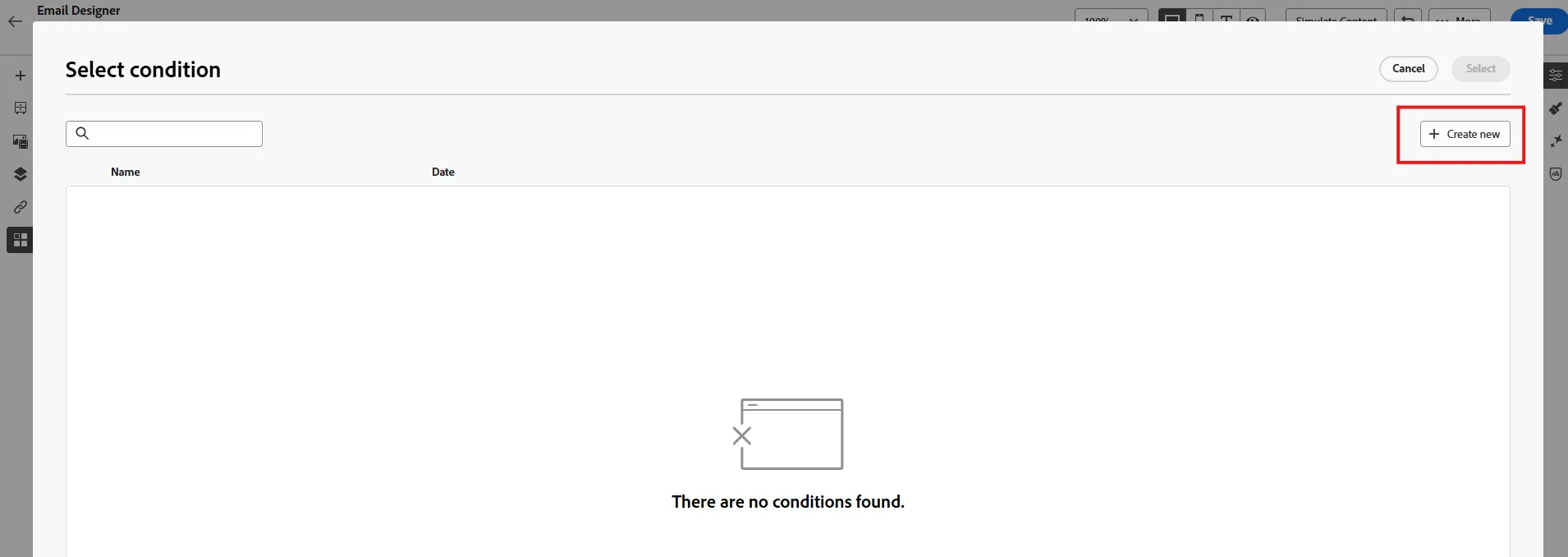
You should see one for men, you can just slect it. If there is no pre-existing condition with the criteria you want, you can click on create new (optional)
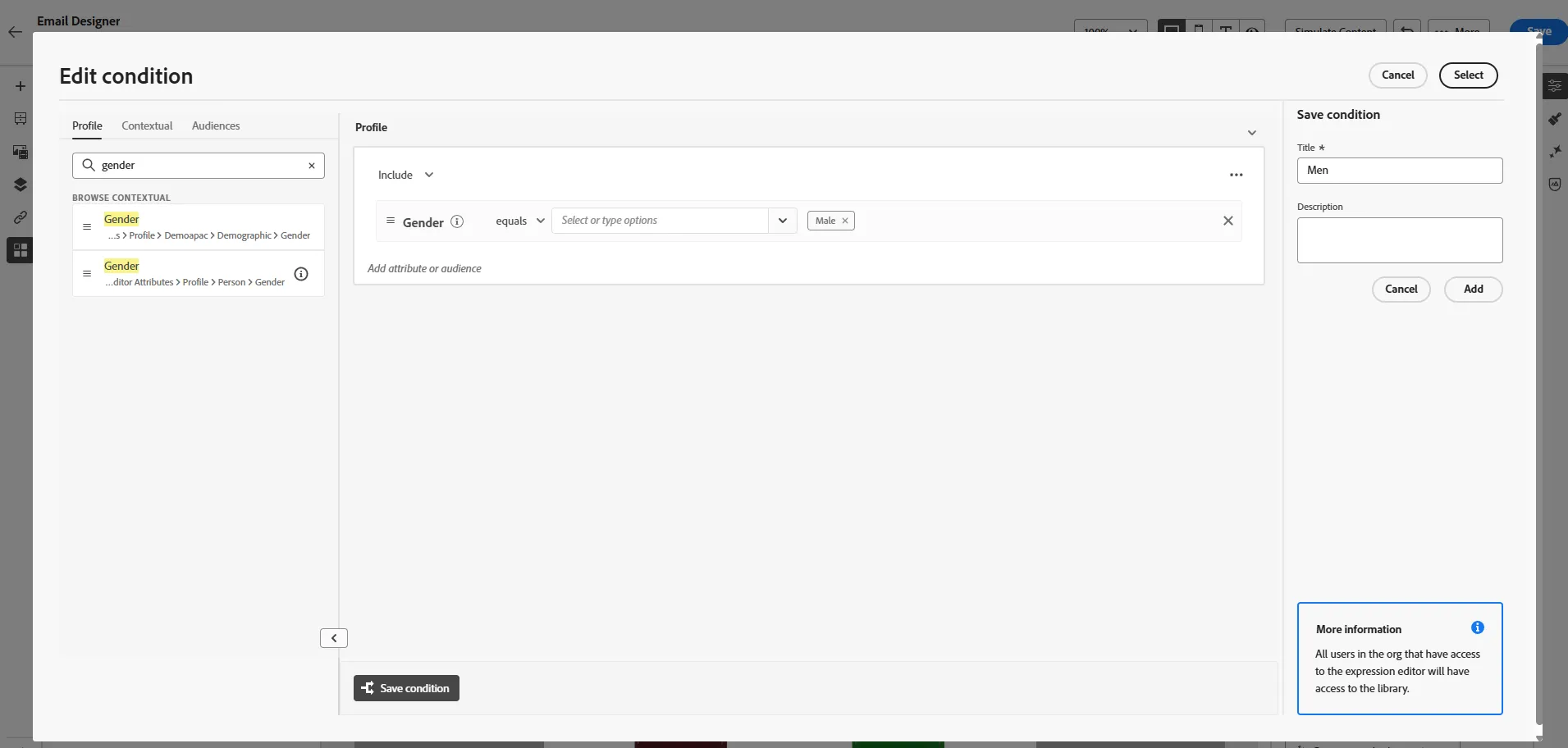
You will arrive in the same UI than for audiences. Search for gender, (profile.person.gender) drag and drop it, select male, then click on select.
Now we can personalize image for men. Click to Select an asset.
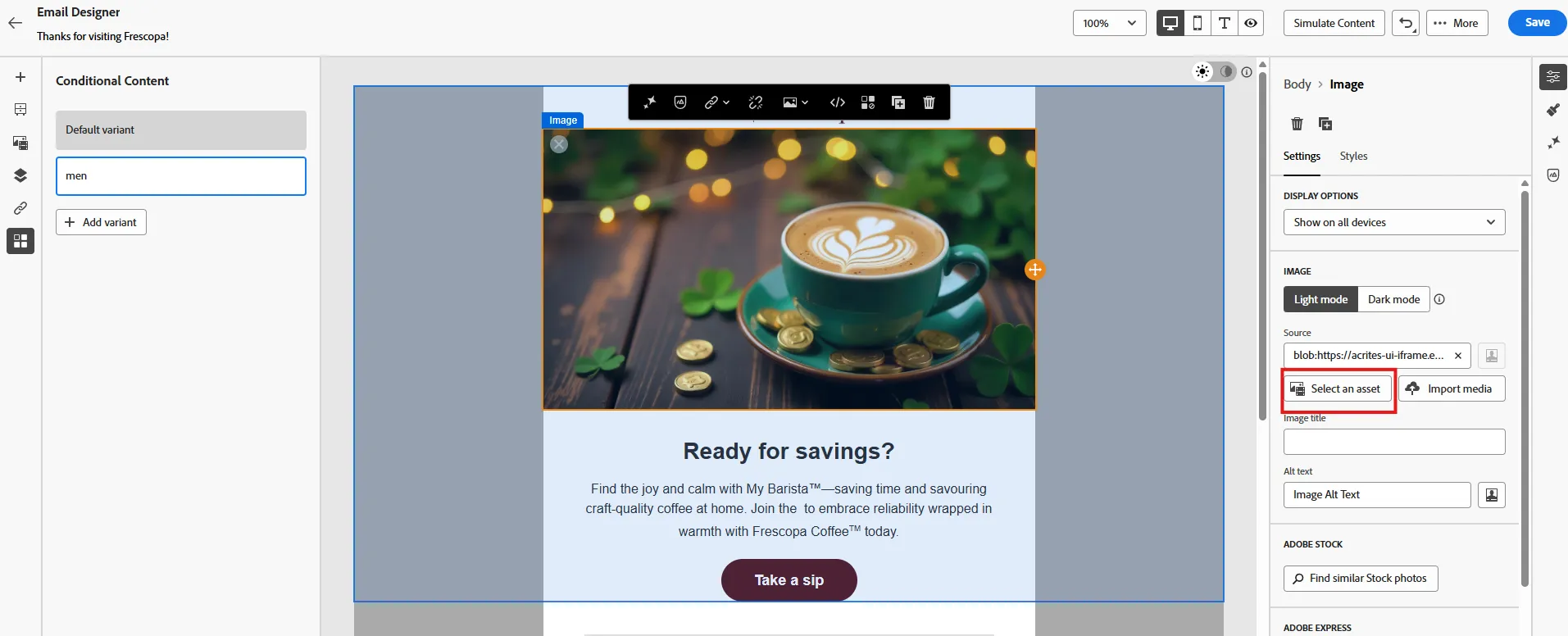
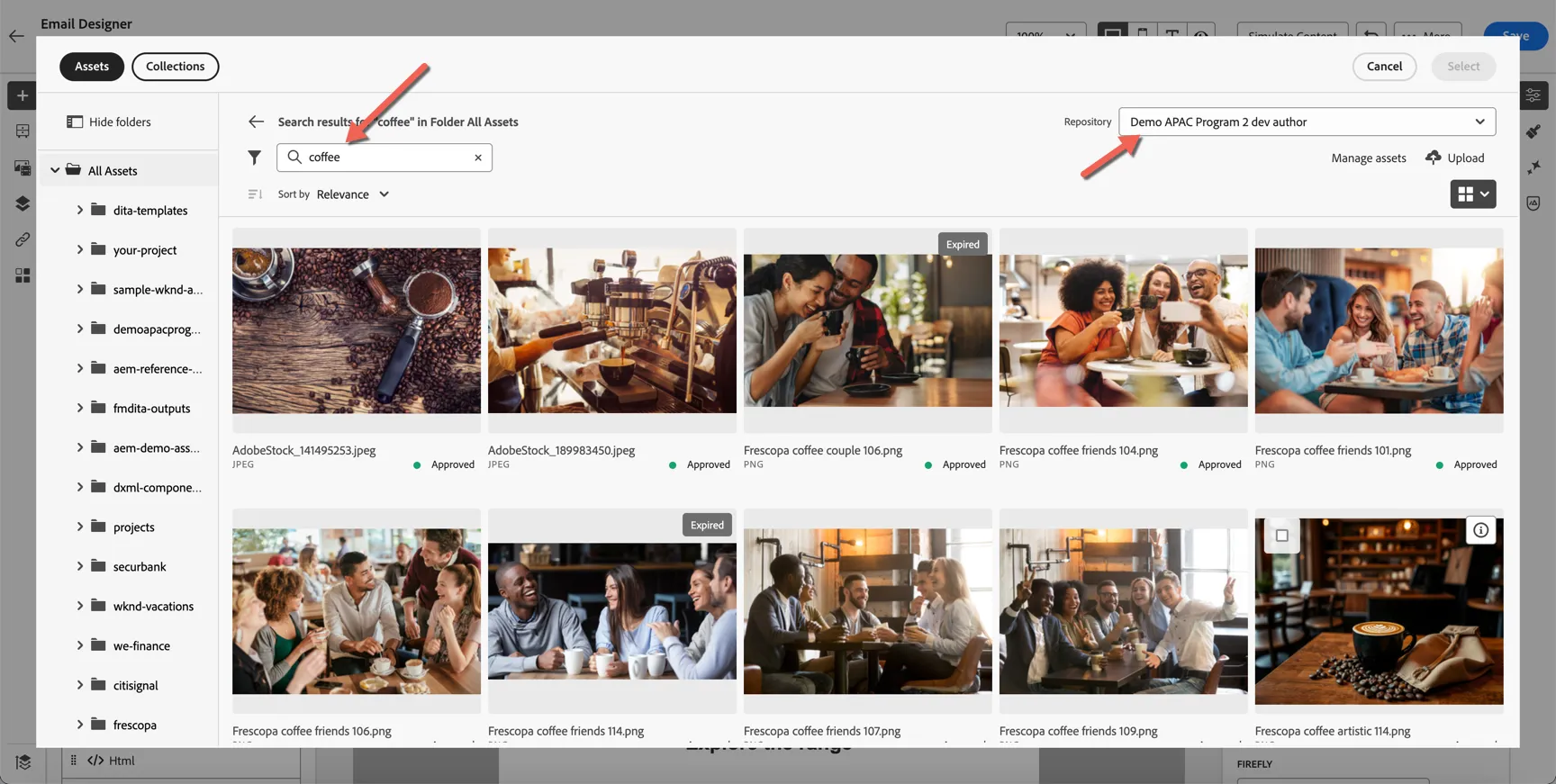
Make sure you're in the right repository, then search for coffee - this is leveraging the smart asset tags to find relevant images. An essential time saver when working with a large repository.
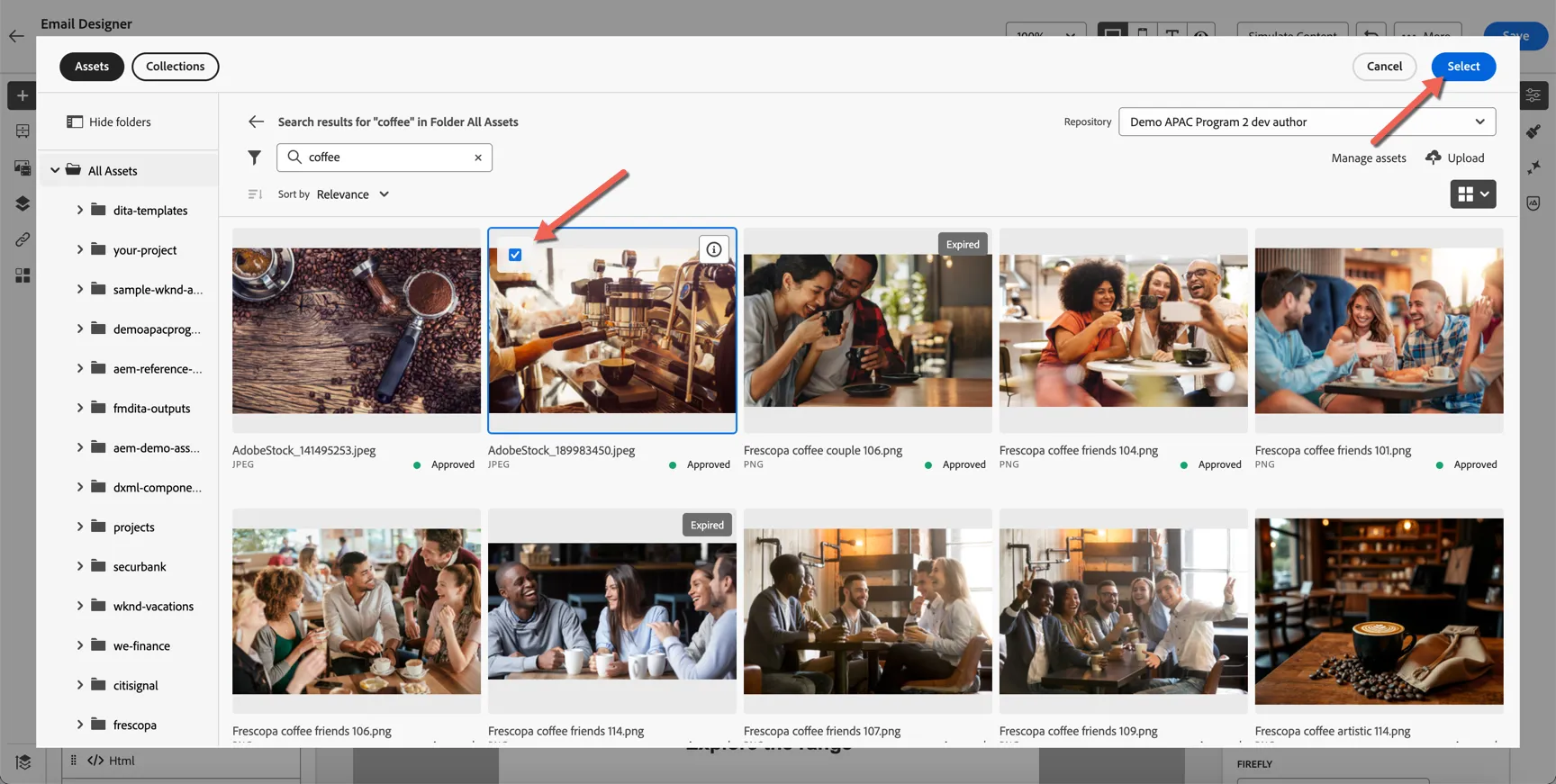
Choose an image and click select to add it to the email.
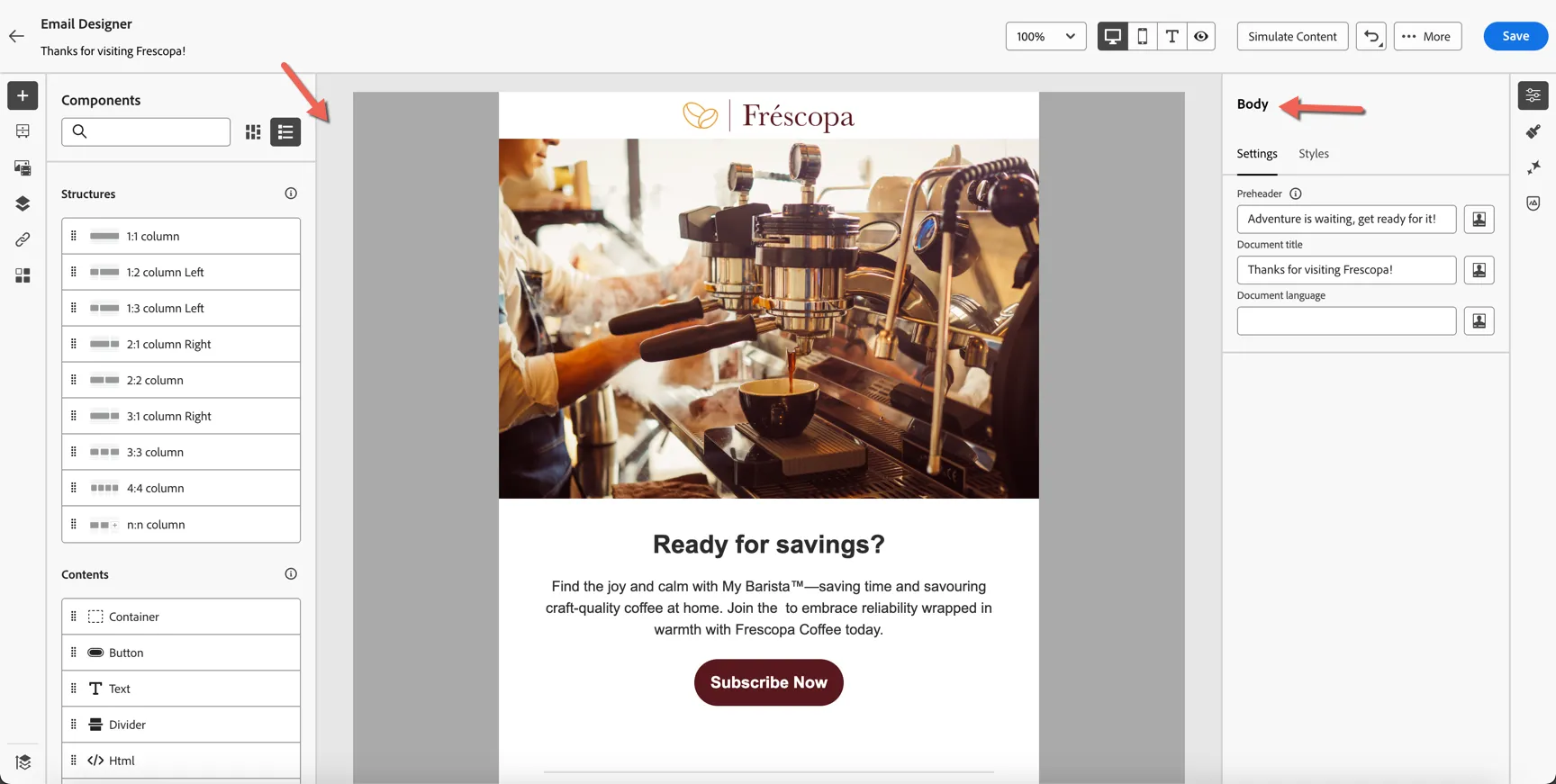
Next we'll check the Brand Alignment score. Click on the gray background around the email to select the full message body.
Click to open the Brand Alignment panel on the right, then click to Evaluate Score.
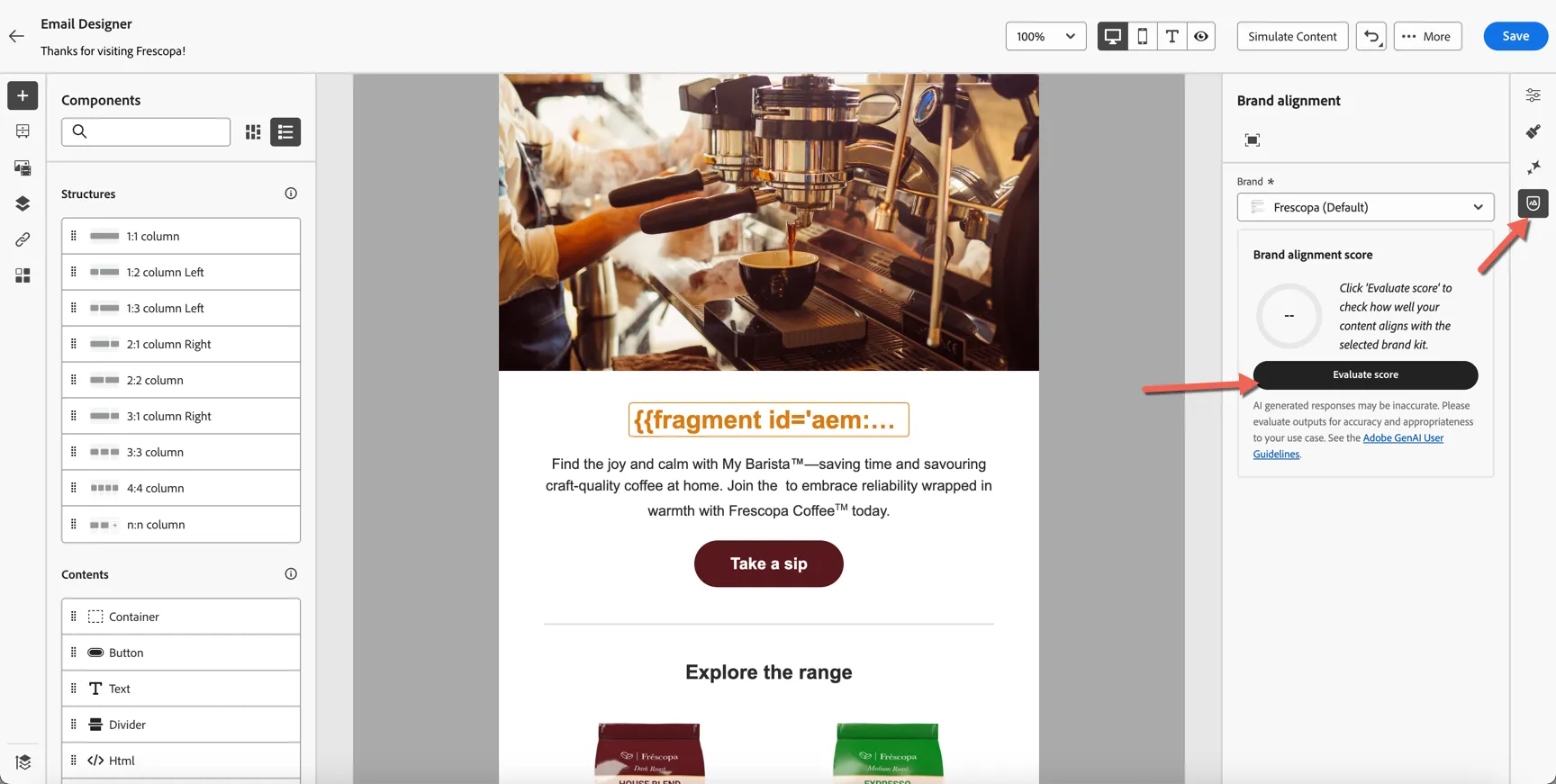
Not too shabby at 81%! Yours might be a bit different.
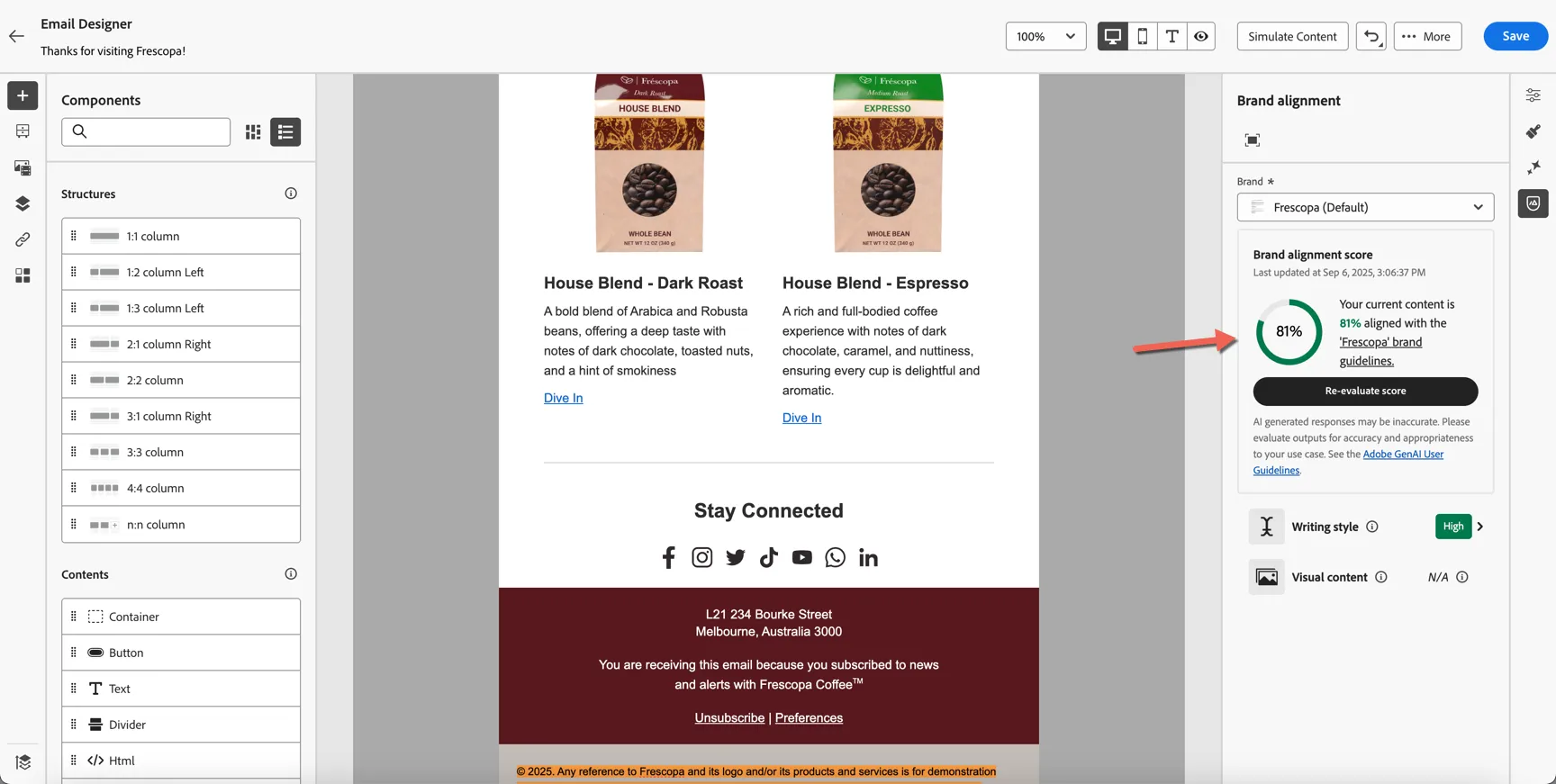
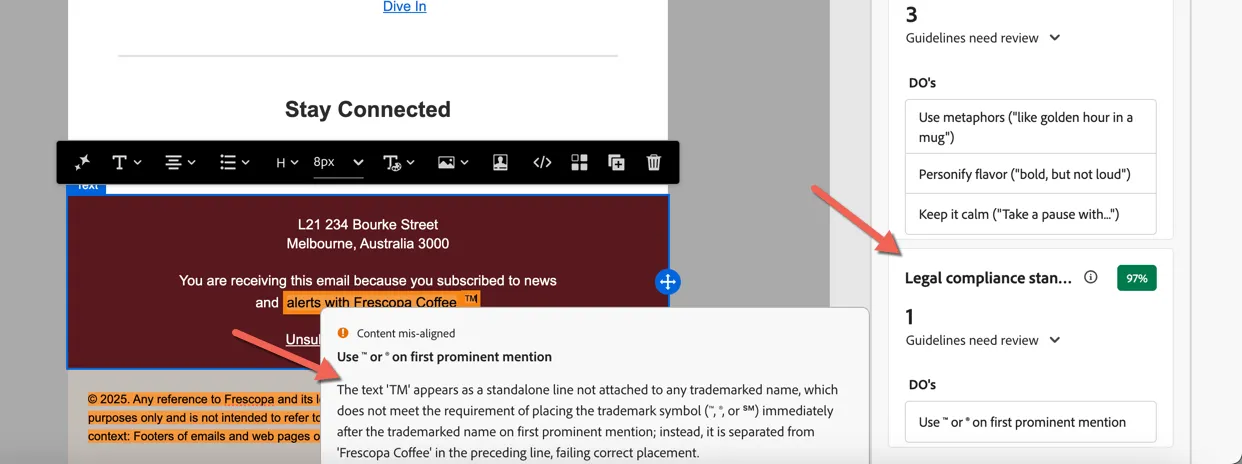
Click into the Writing Style to review individual guideline feedback, you can make adjustments and re-evaluate as needed.
Generate Variations with AI
Now we'll use AI Assistant to help us generate variations of this content to use for experimentation. AI Assistant can be used to generate individual images or text components but in this case we're going to generate new variations for a mixed content block.
Select the two column block from the center of the email then click to open the AI Assistant on the right side.
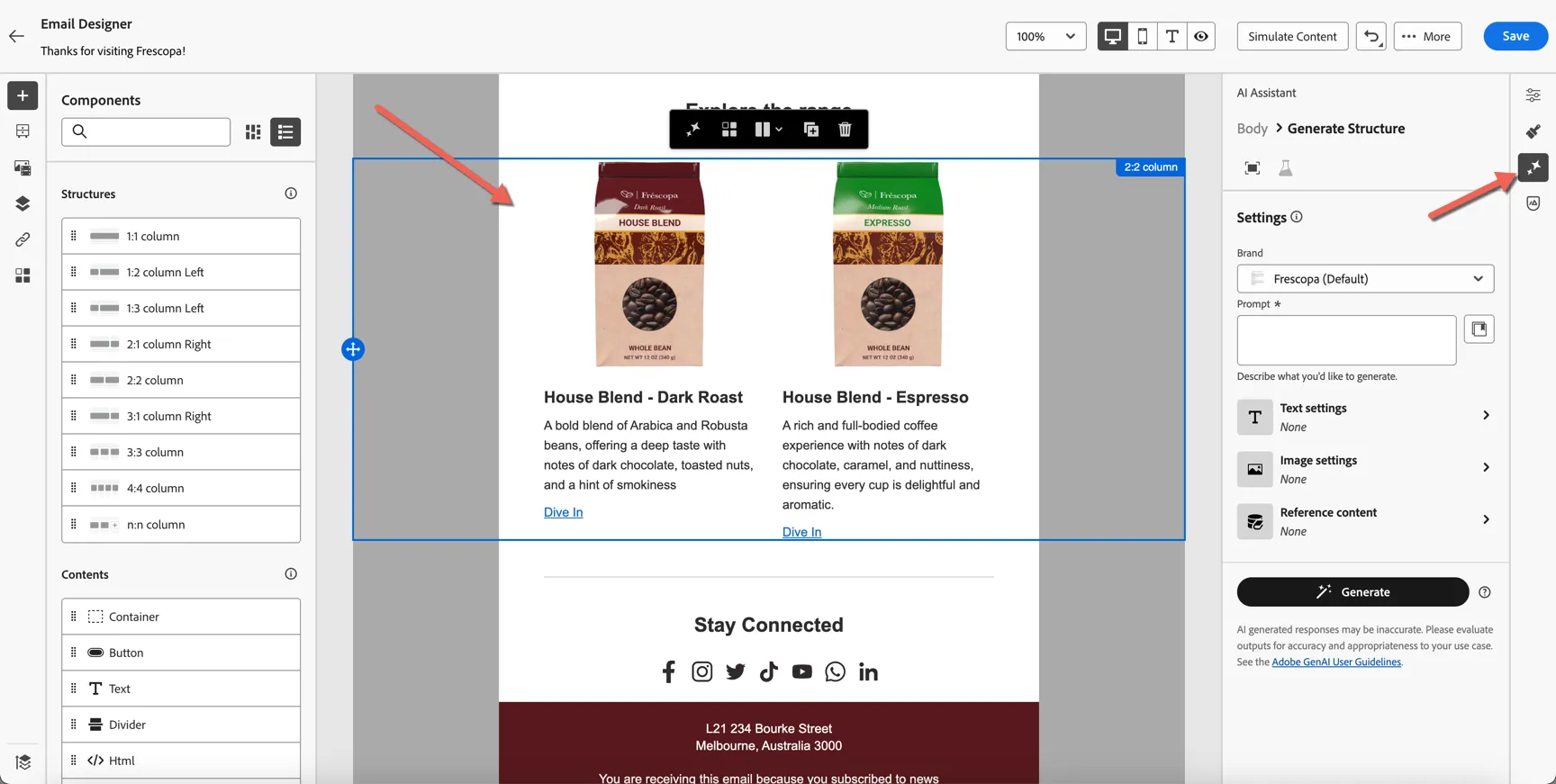
Add a text prompt for the message you want to convey - in this case, encouraging a My Barista subscription, for example:
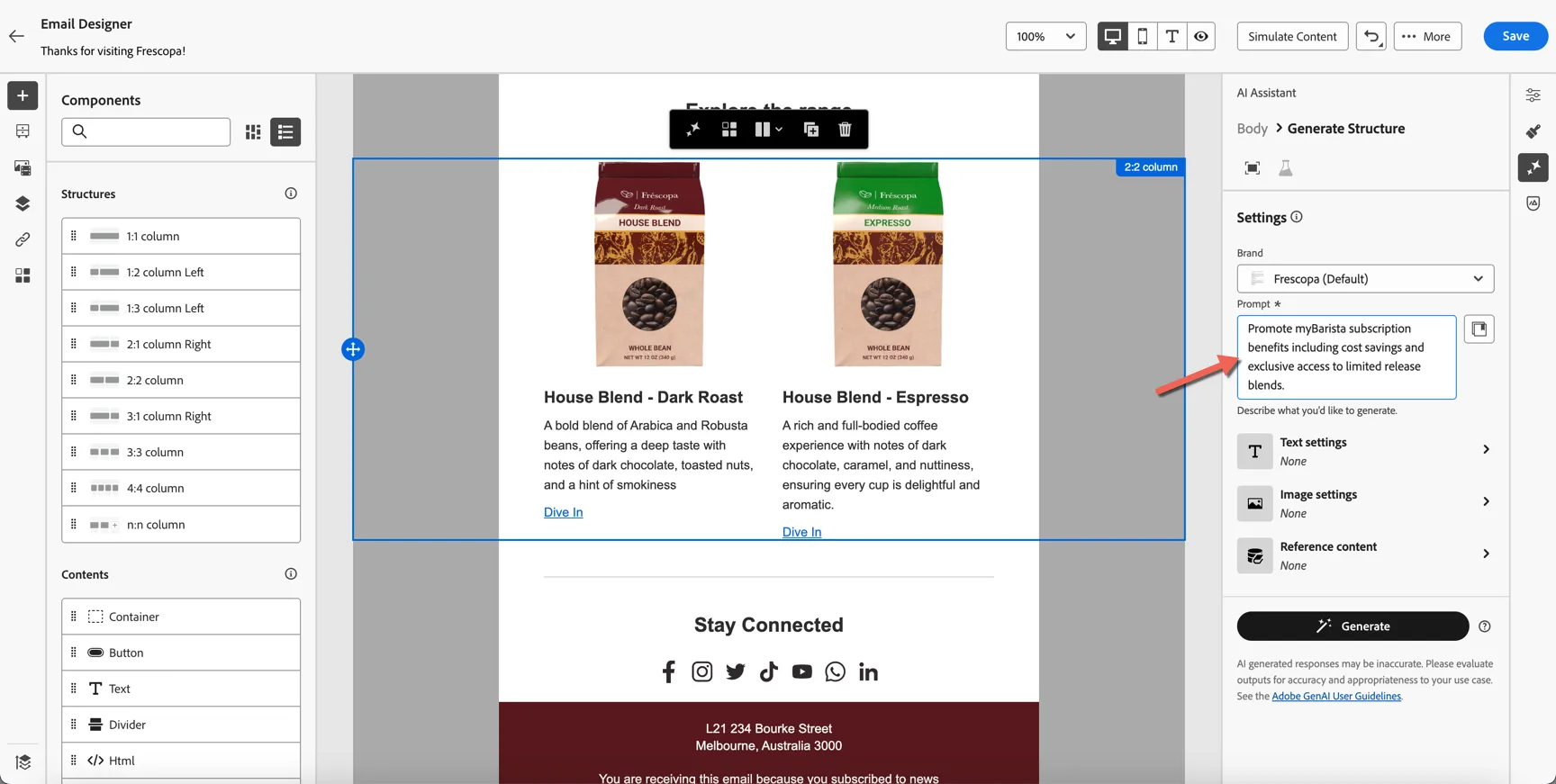
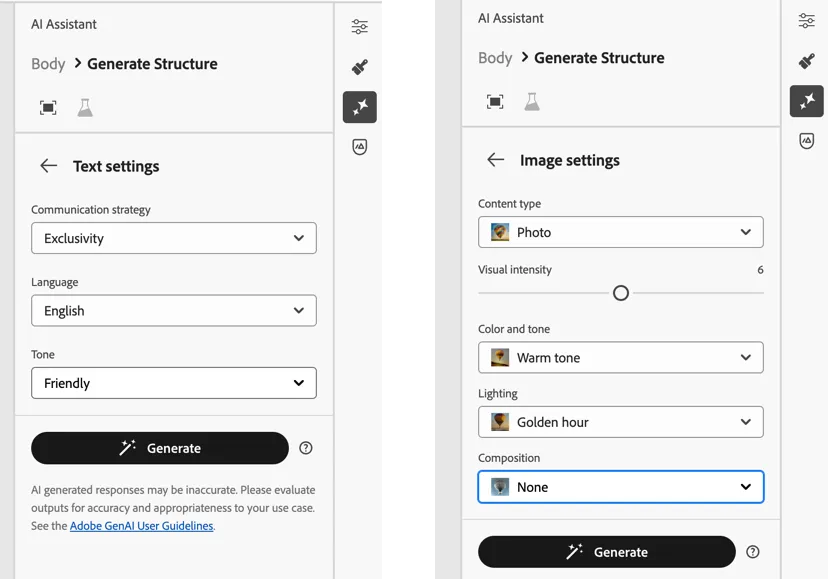
Add text and image settings to influence the tone and colouring.
Click on Generate. After a short while, two new variations are generated. Each variation has been automatically scored against the brand guidelines.
What you see generated and the scores applied will be different from the screenshots below. You can follow the process as it applies to your generated content.
Click on the Preview button to take a closer look.
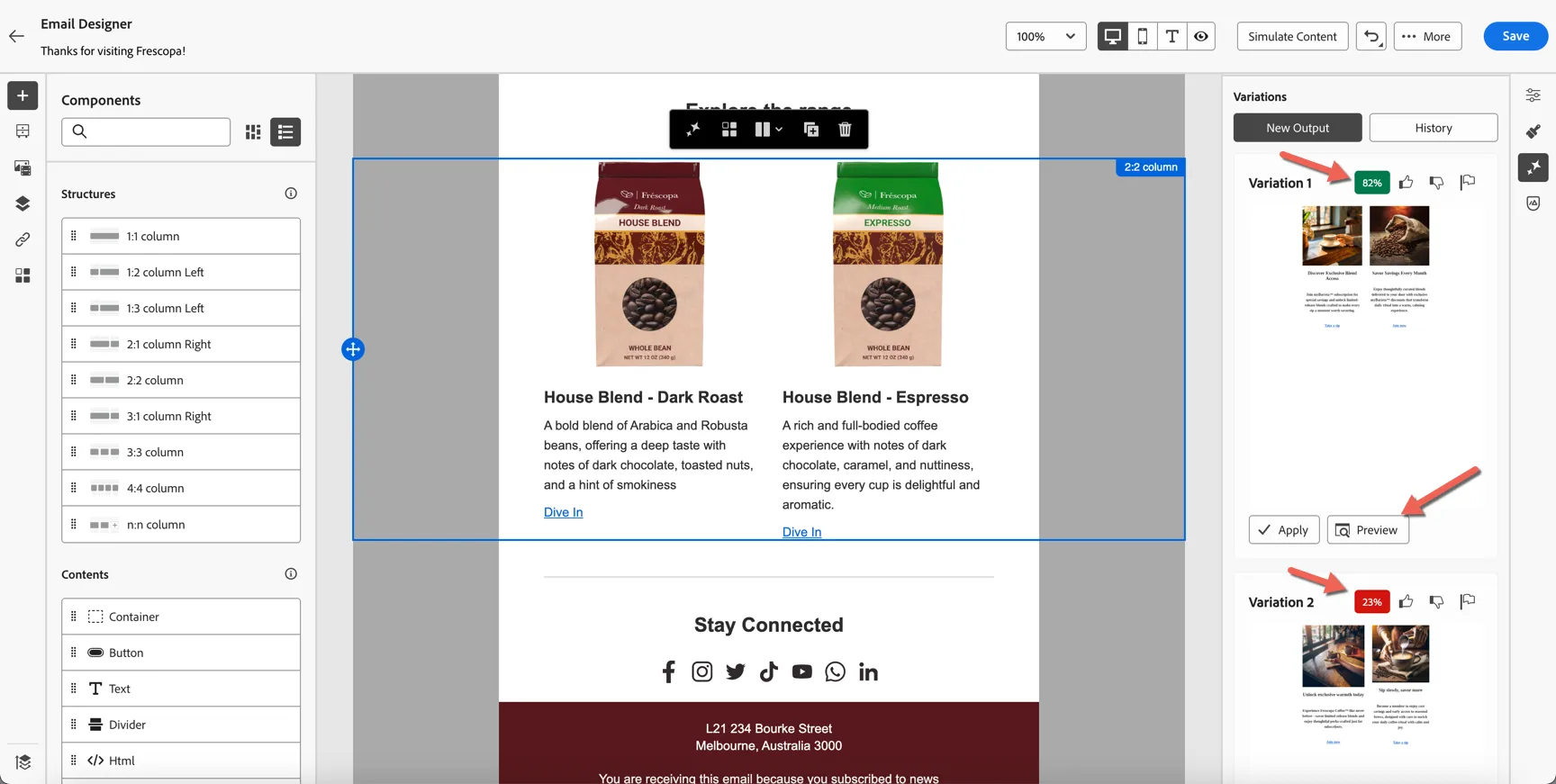
You can switch between each variation on the right, and use the brand guidelines tab on the left to review the reasons if low scores.
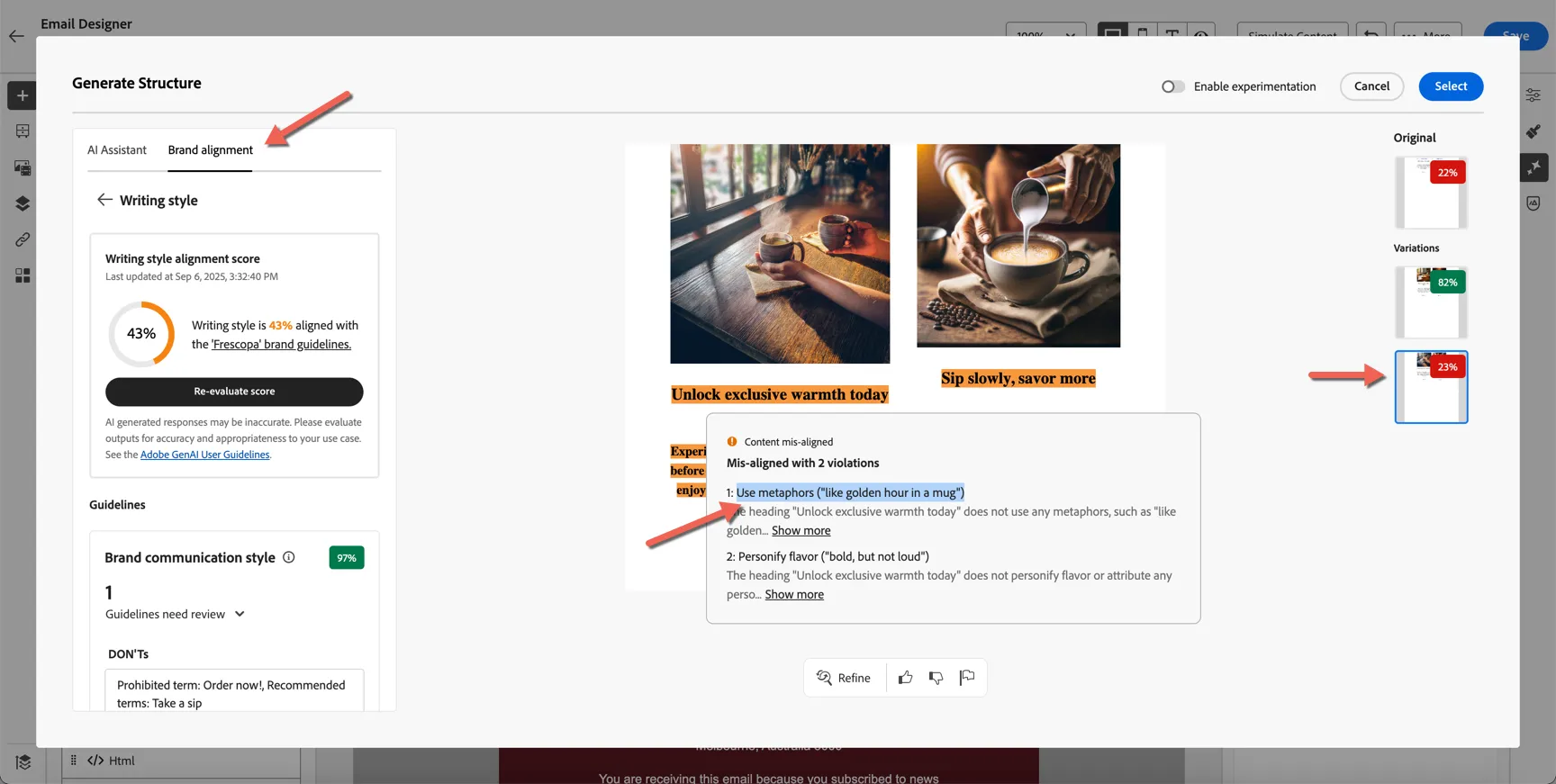
You can also ask it to refine specific pieces of the content and provide positive and negative feedback through the panel at the bottom.
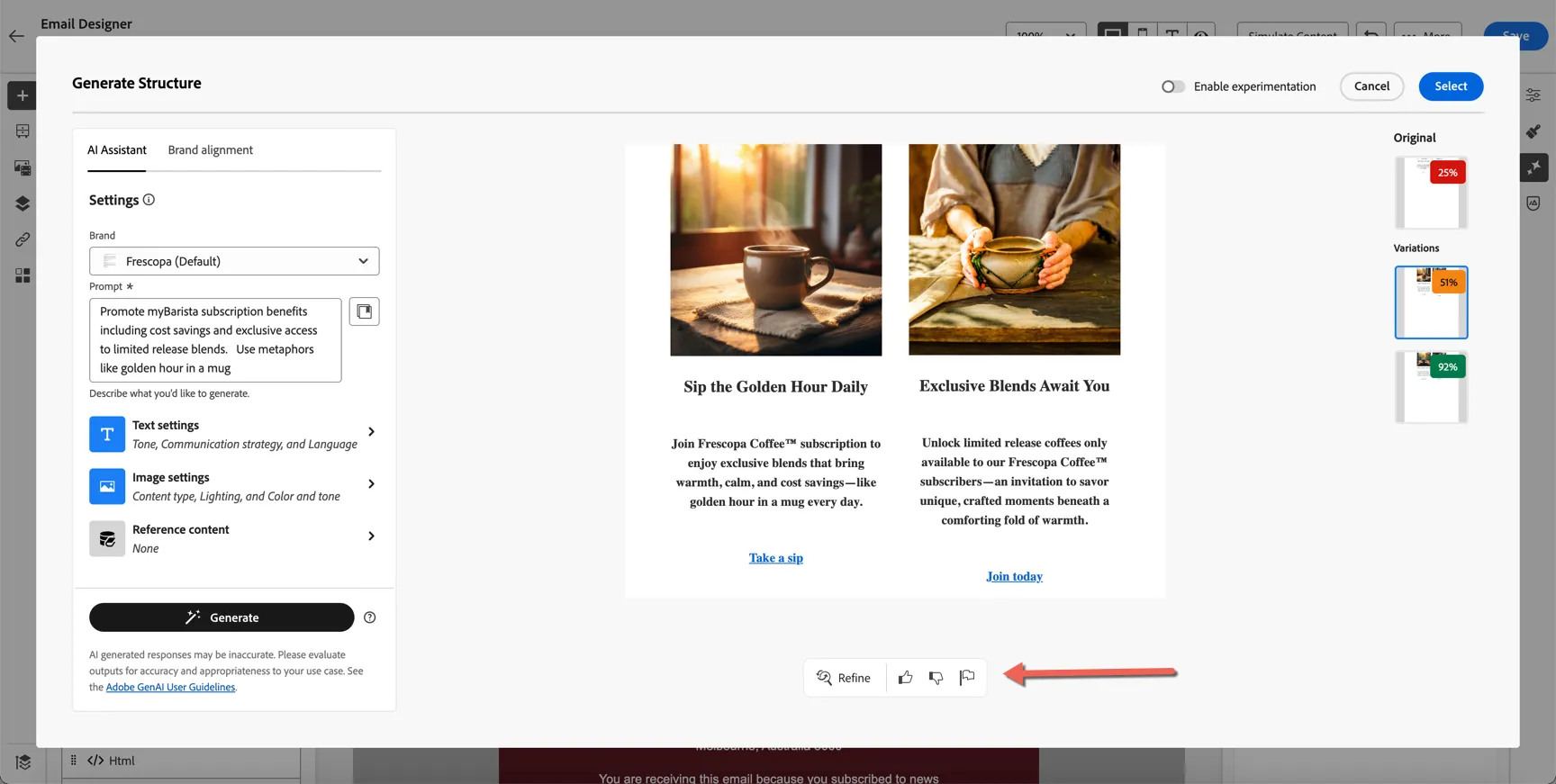
From here you can choose to use one of the generated variations, or we can choose to use ALL of the variations and configure an experiment to test which content performs the best.
Just select the one you prefer and click on apply.
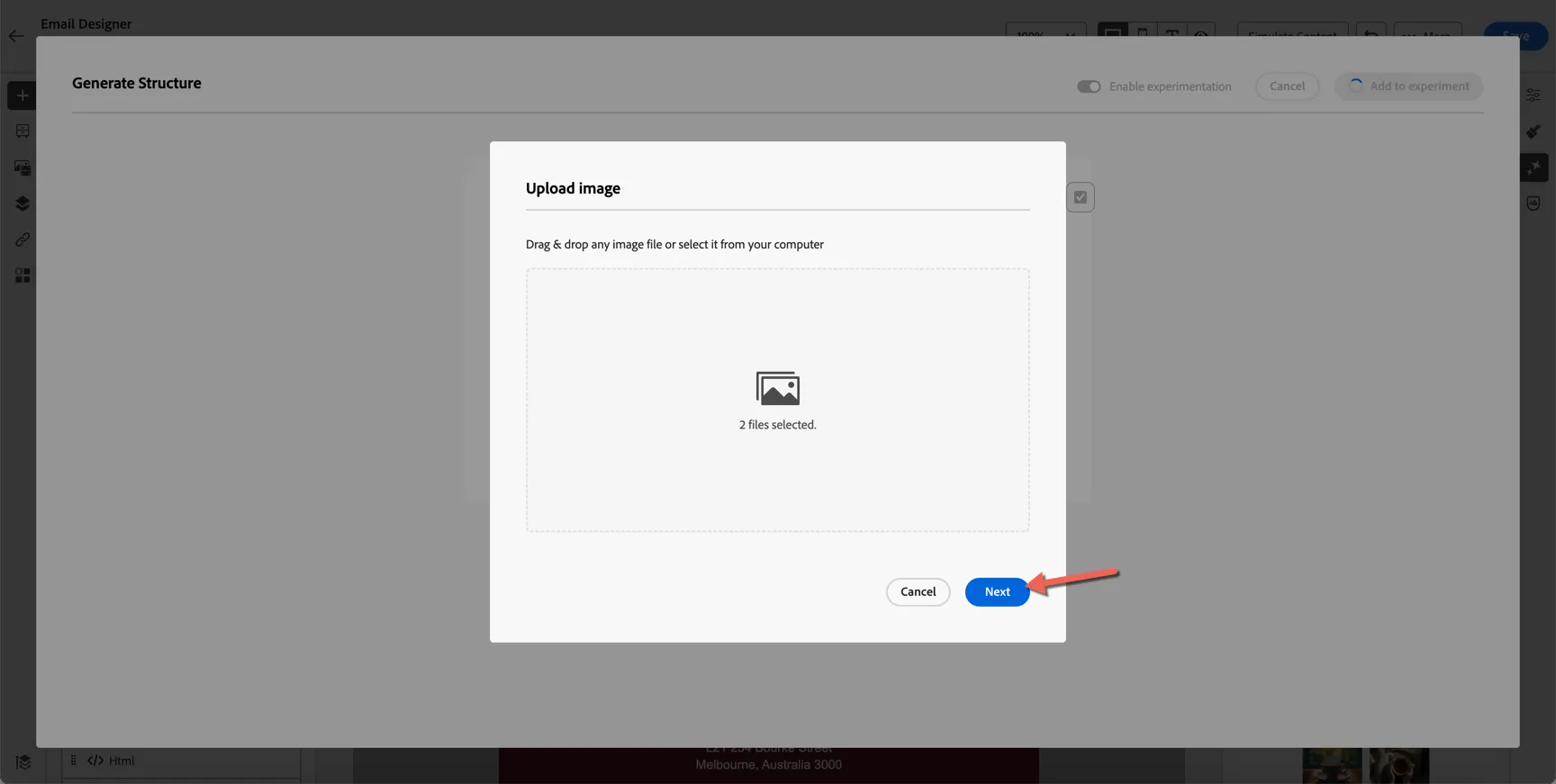
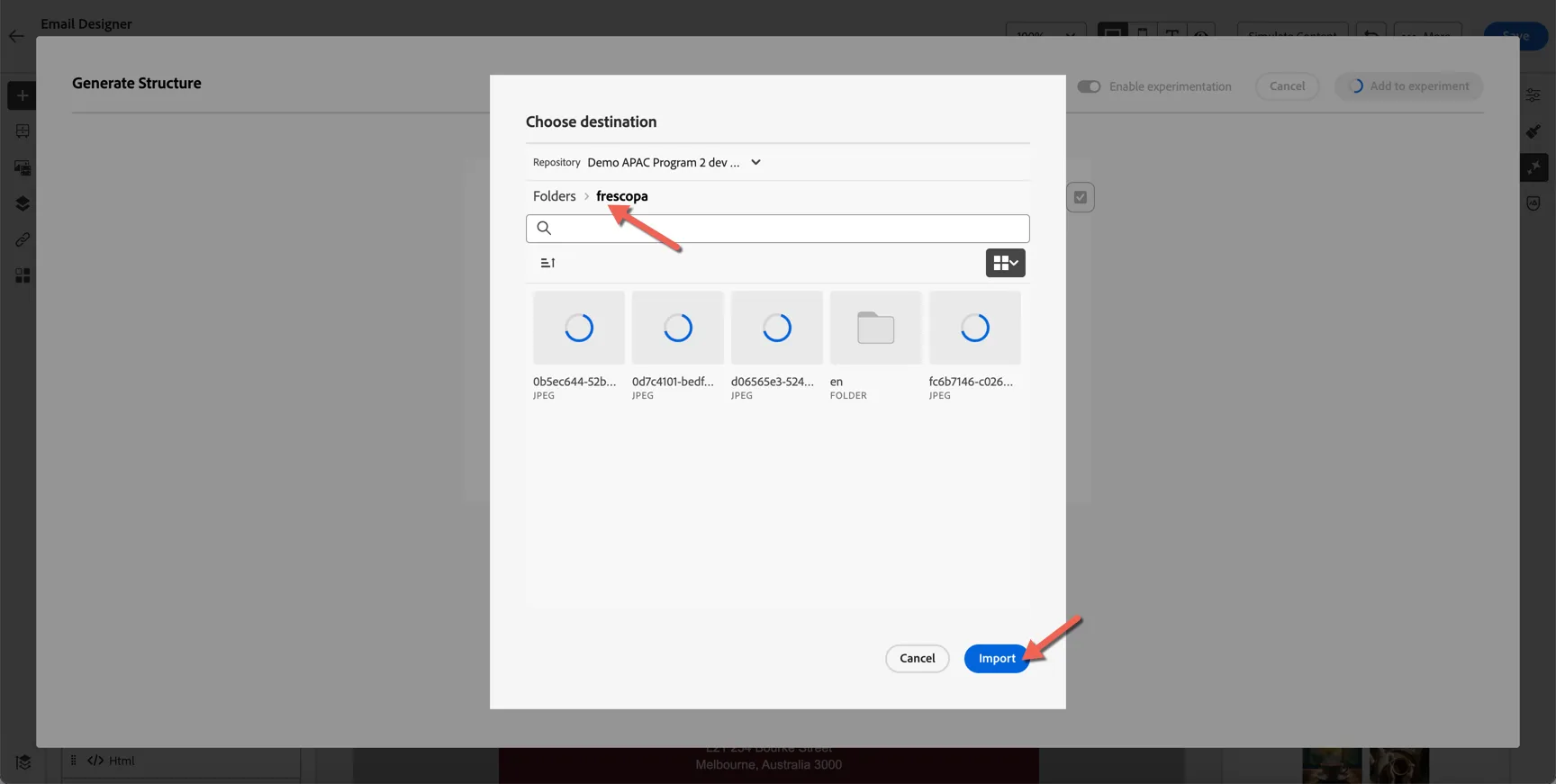
Because the generated content includes imagery we need to tell AJO where in the asset repository to put the new images. Click Next to choose the folder.
Select the Frescopa folder and click to Import.
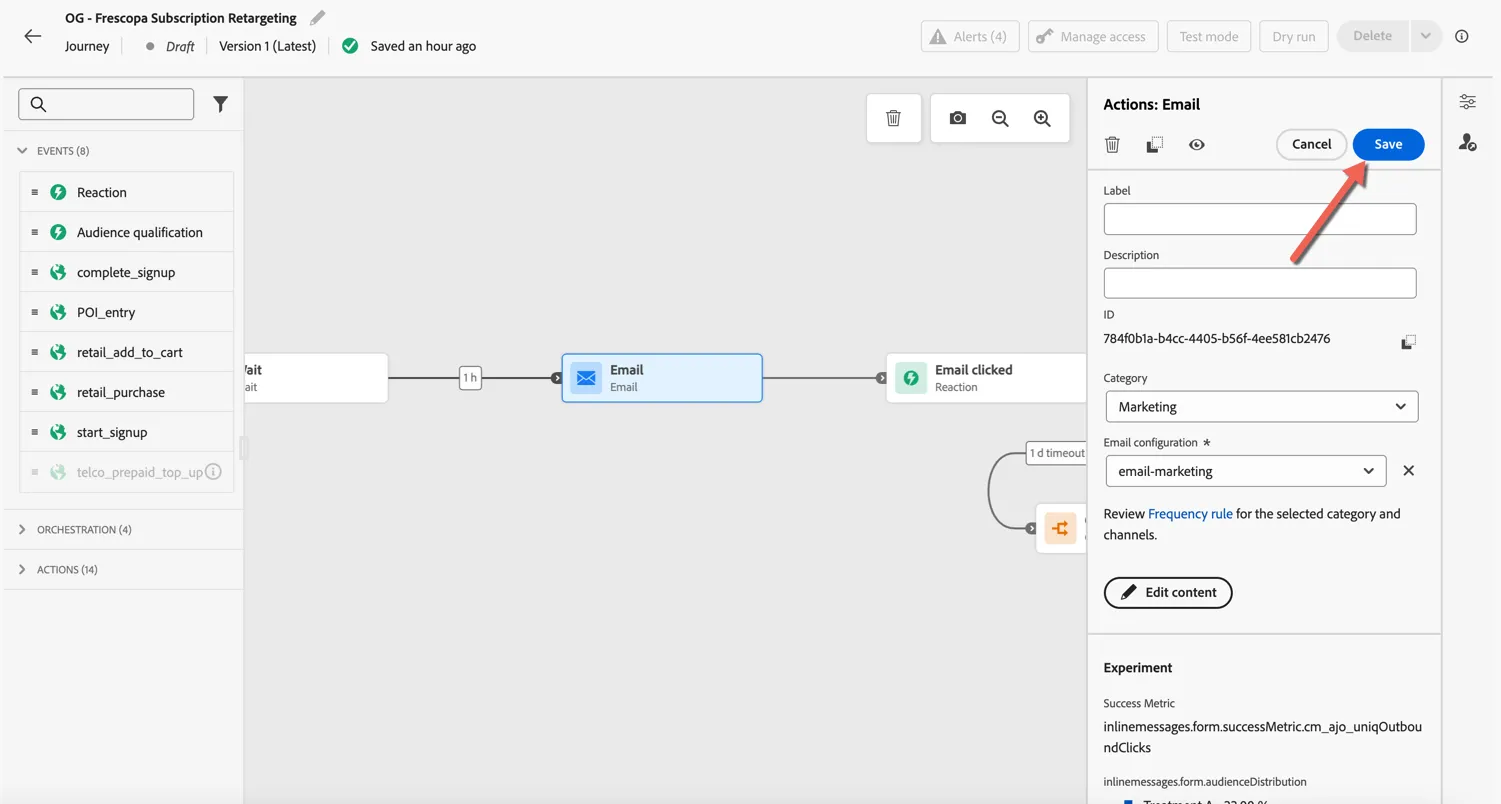
Your email is now configured. Click on the arrow on the top left to return to your journey.
Click to Save your email activity.
Add Mobile Content
To complete the journey, we need to add content to the SMS and Push Notification activities.
Click on the Push activity and select Push in the configuration drop down, then click Edit content.
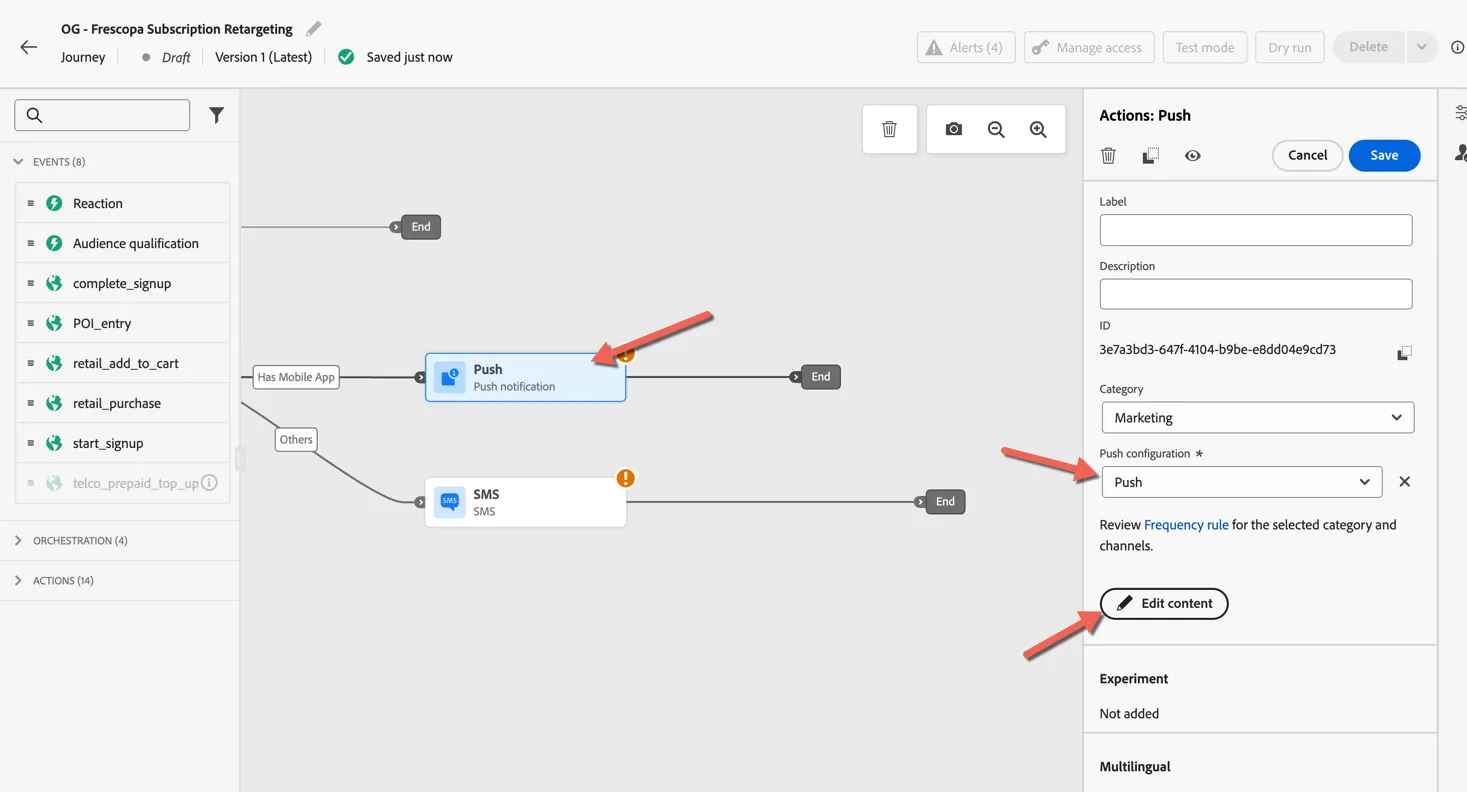
Once again you can either manually add content or use AI Assistant to generate it for you. Open the AI Assistant panel and reuse the prompt and text settings from your email to keep messaging consistent.
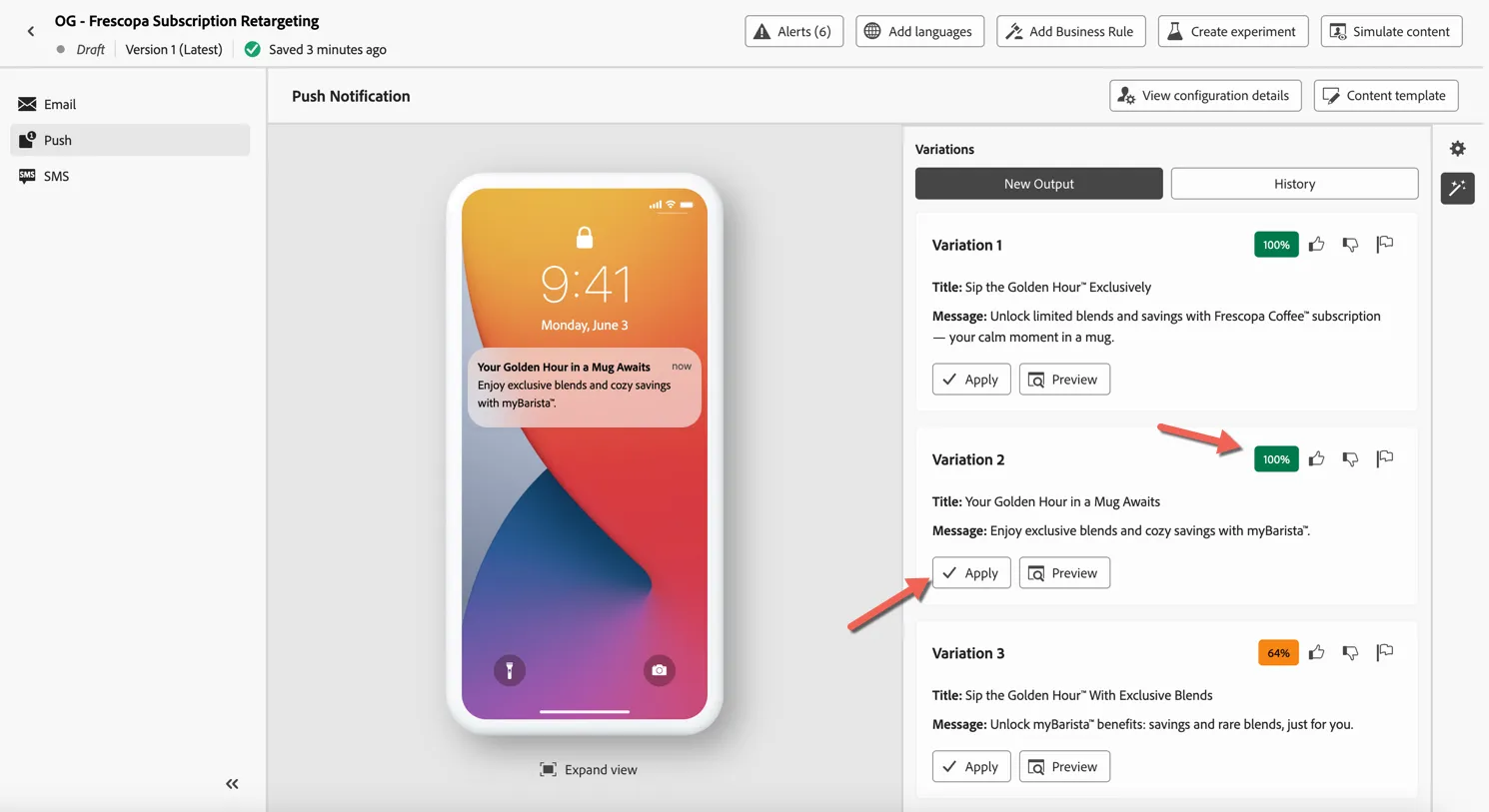
The generated content is again scored against the Brand Guidelines. Select the variation you prefer and click to Apply it to your message.
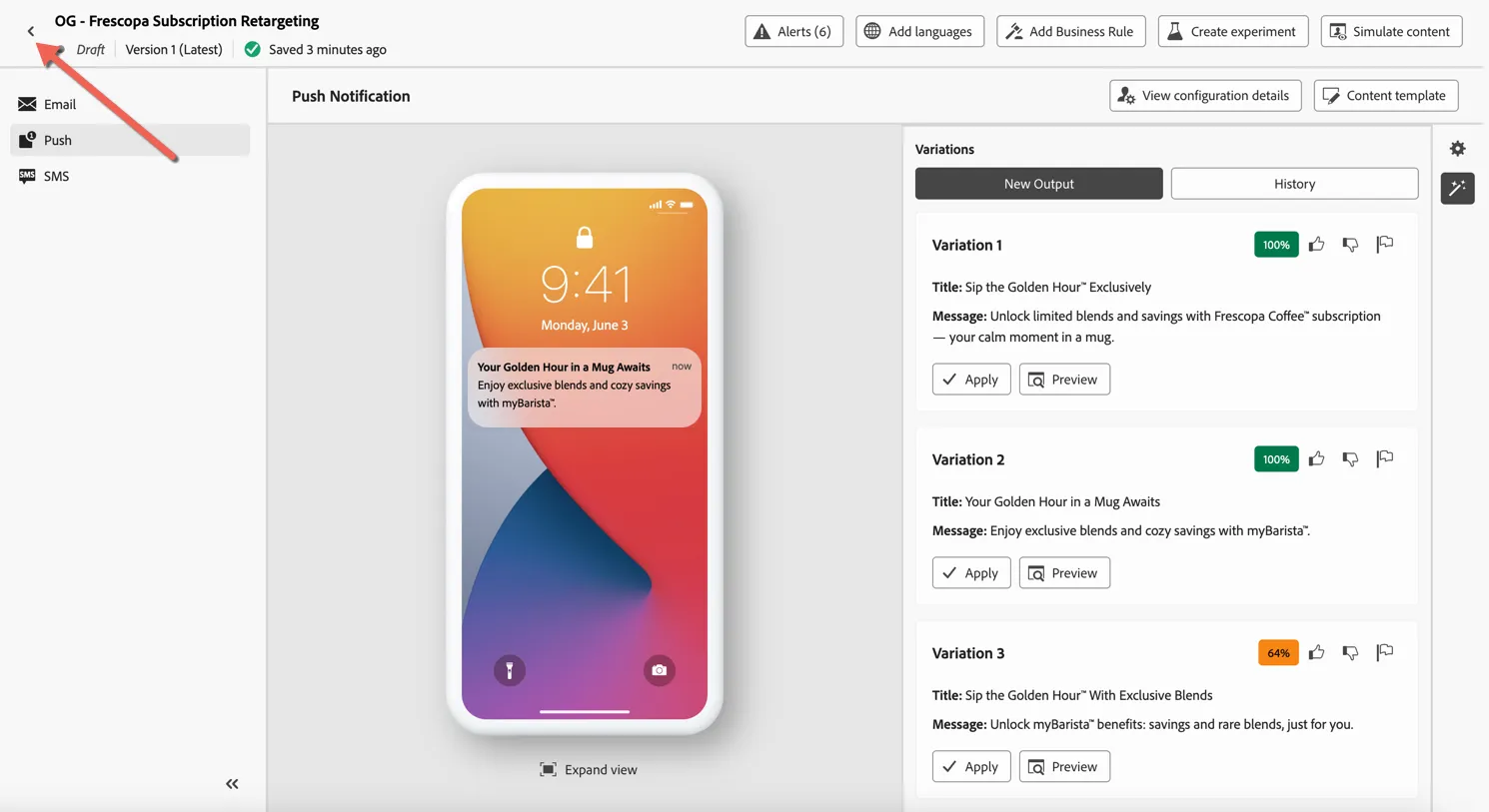
Click the arrow in the top left to return to your journey.
Repeat the same process for the SMS Activity.
Summary
Adobe Journey Optimizer enables brands to deliver contextual, personalised experiences at scale by combining real-time triggers, intelligent decisioning, and dynamic content generation—all within a unified orchestration canvas.
Adobe Journey Optimizer's integration with Adobe Experience Manager (AEM) and Adobe Firefly has enabled:
- Faster creative cycles: No need to manually design every variant.
- Brand integrity: All content aligns with approved guidelines.
- Higher engagement: Personalised, relevant content drives better results.
- Cross-channel consistency: AEM assets and content fragments ensure that messaging in email, push, and web banners is aligned.
Congratulations you've completed the exercise on Adobe Journey Optimizer... but before you go, don't forget to check the content template you uploaded earlier.