Create a Journey Manually
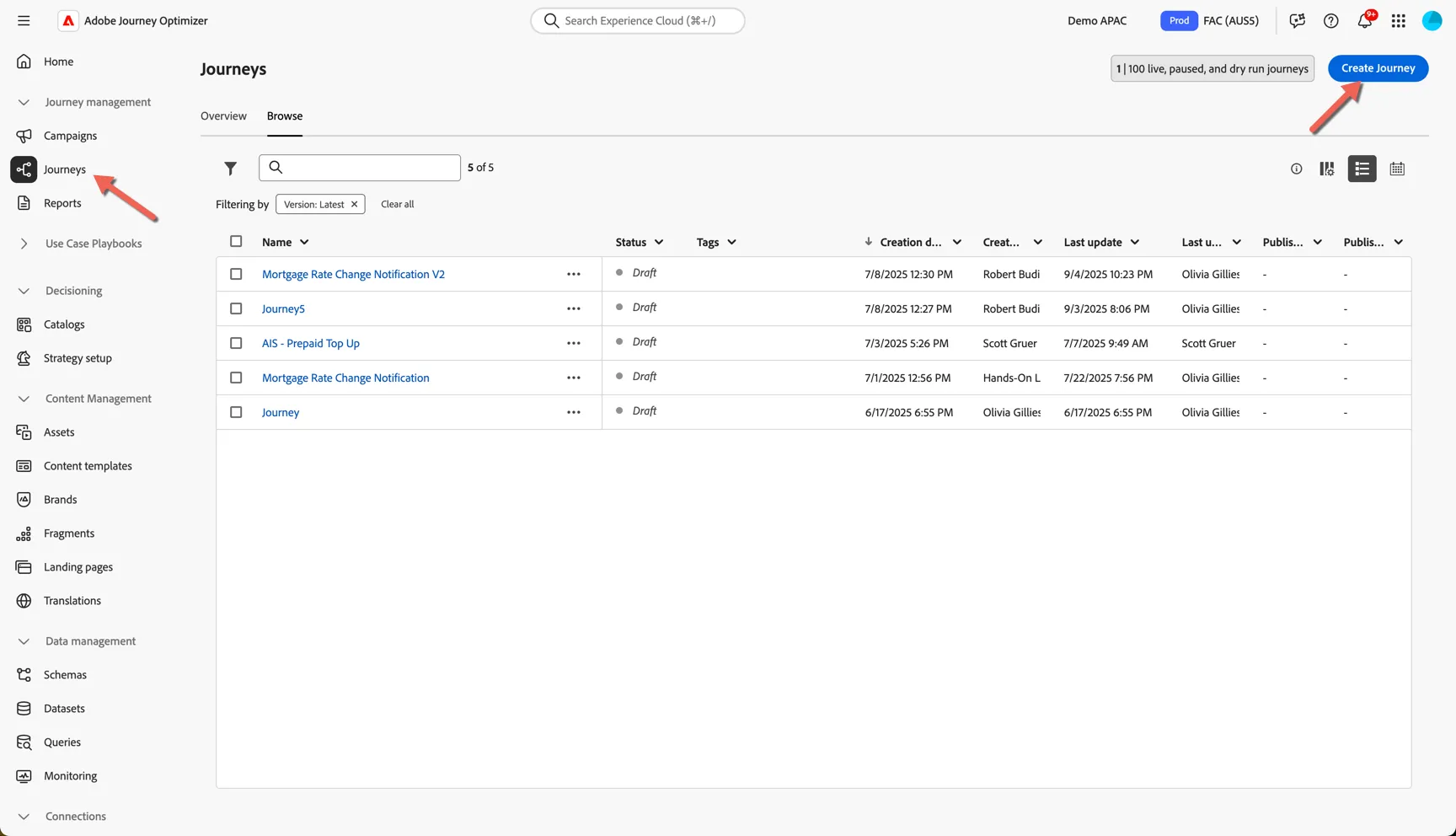
Navigate to Journey Management -> Journeys and click on Create Journey.
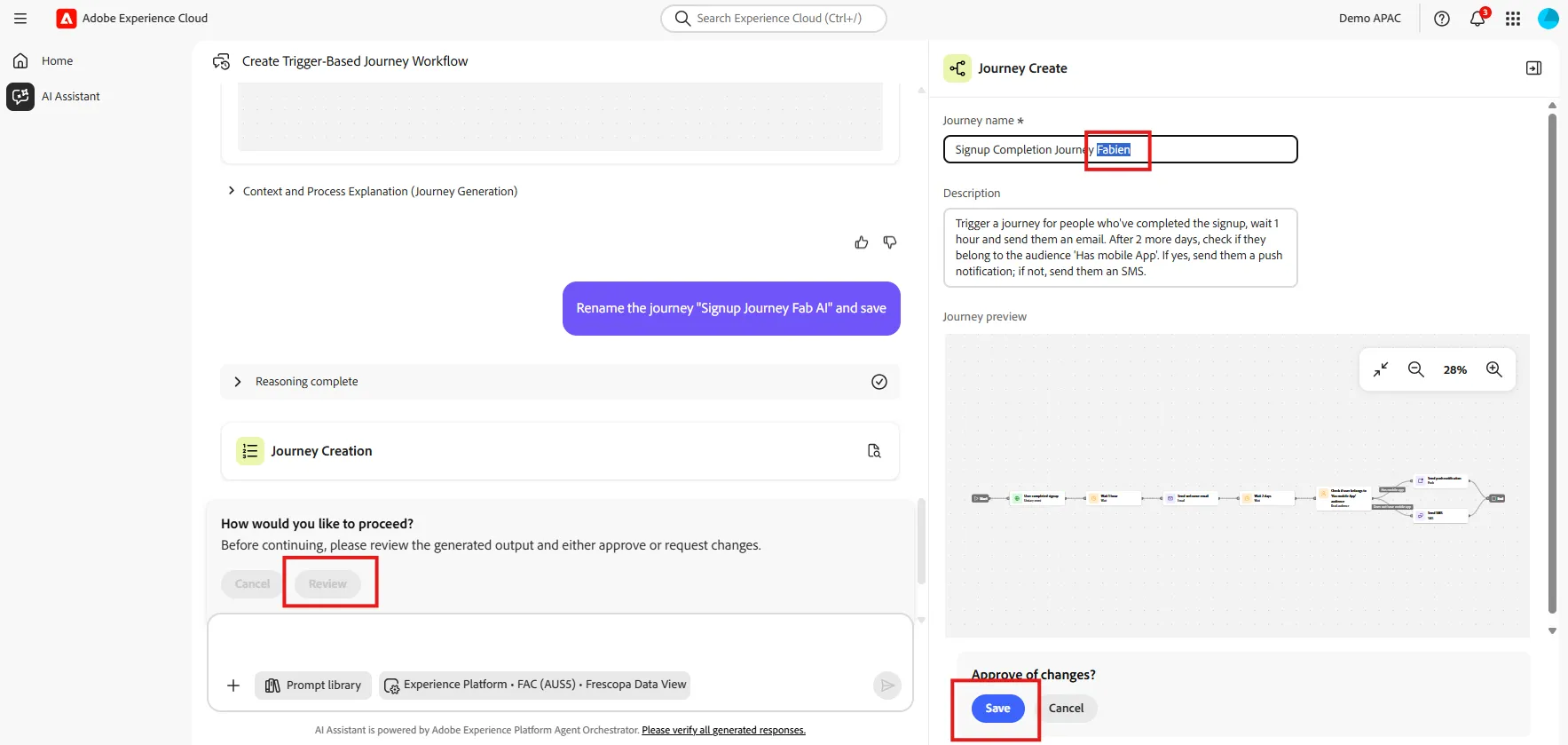
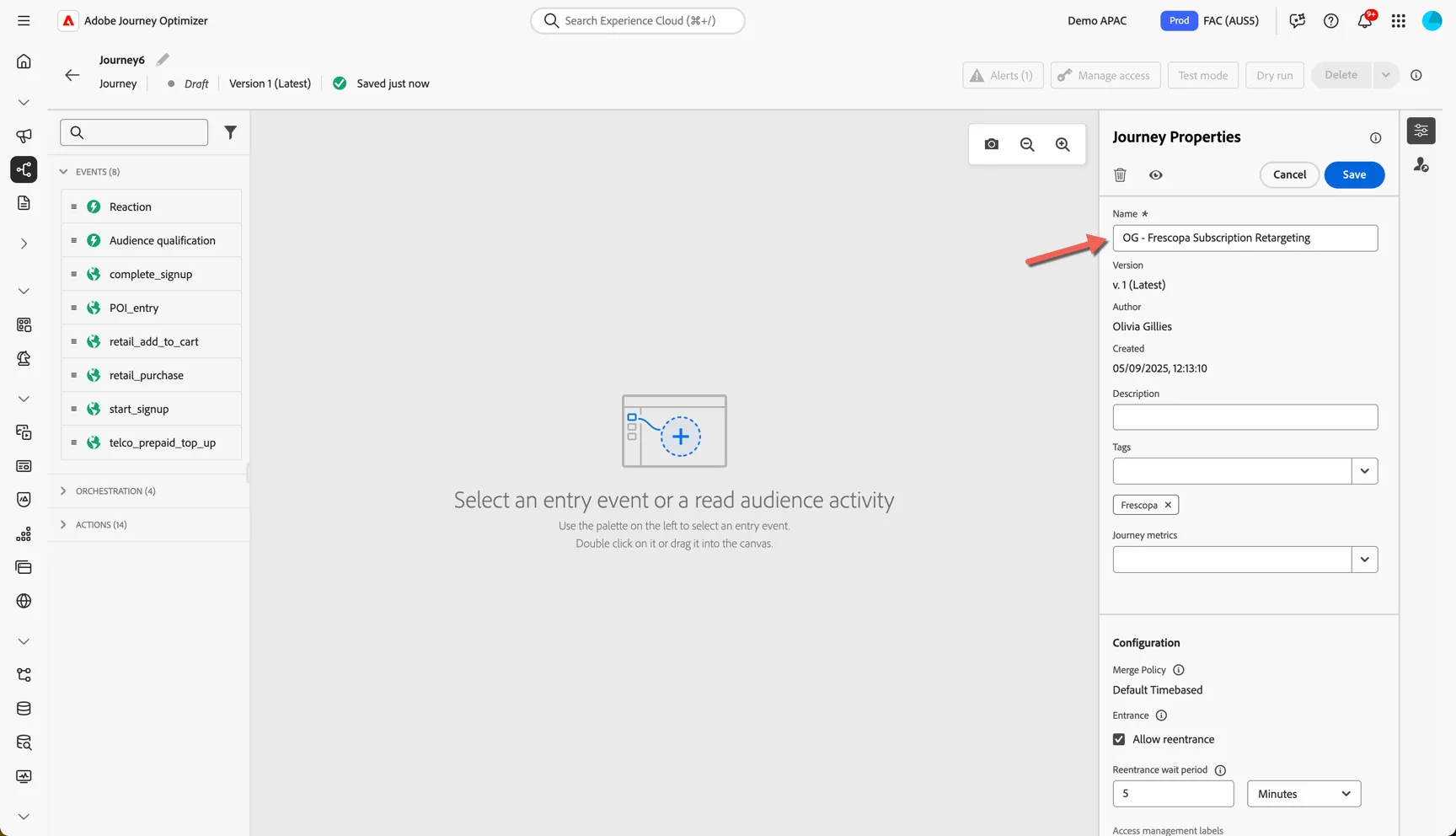
Give your journey a name, add your initials so you can recognise it from other lab participants.
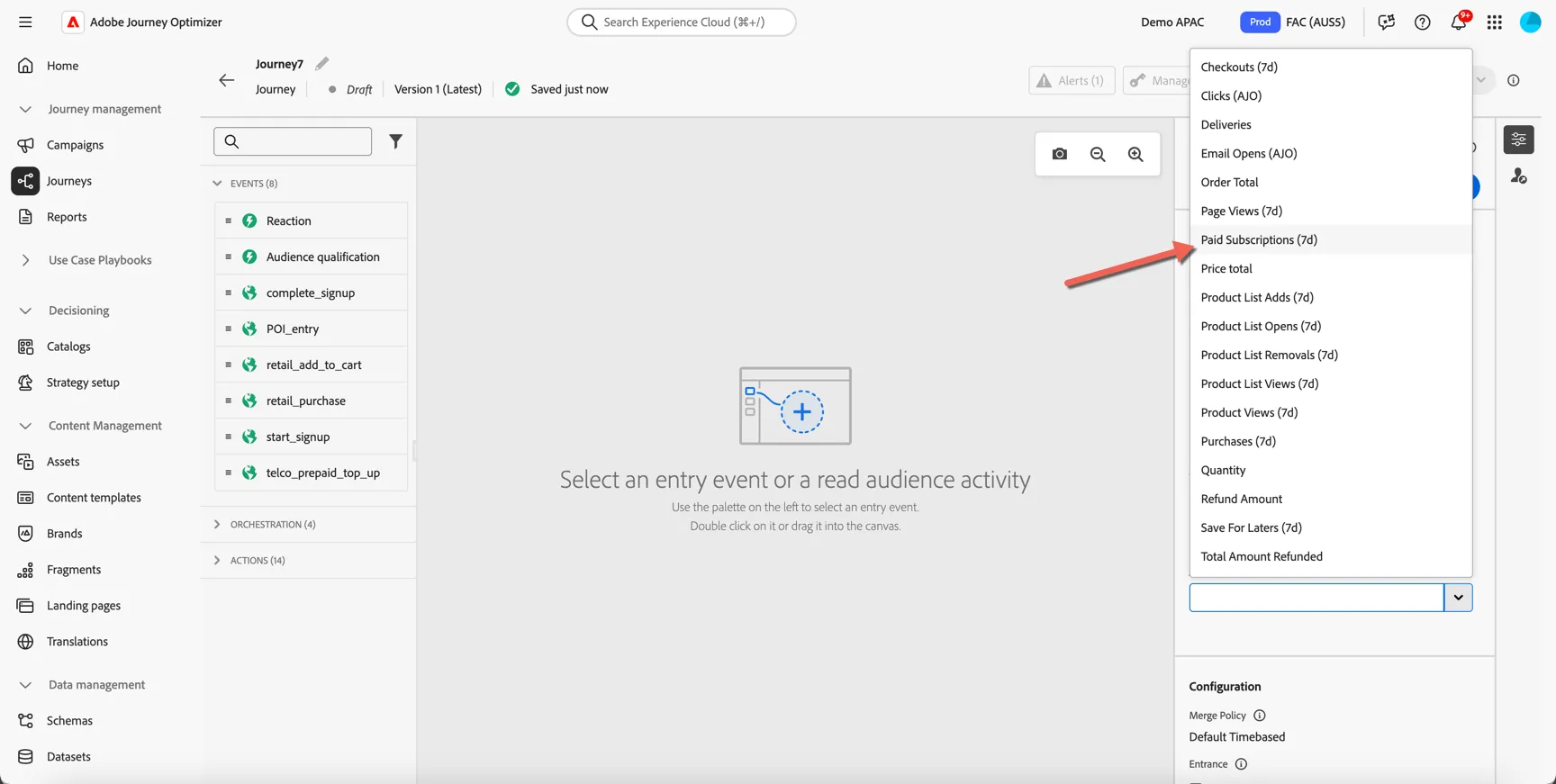
Measurement is critical to any journey, Adobe Journey Optimizer can use any of the metrics defined in Customer Journey Analytics as journey success metric. For this journey we are encouraging subscription, click on the Journey Metric drop down and select Paid Subscription (7d). The attribution in this case is pre-set to Last Touch 7 days, but you can modify this within Customer Journey Analytics or create different versions for different purposes.
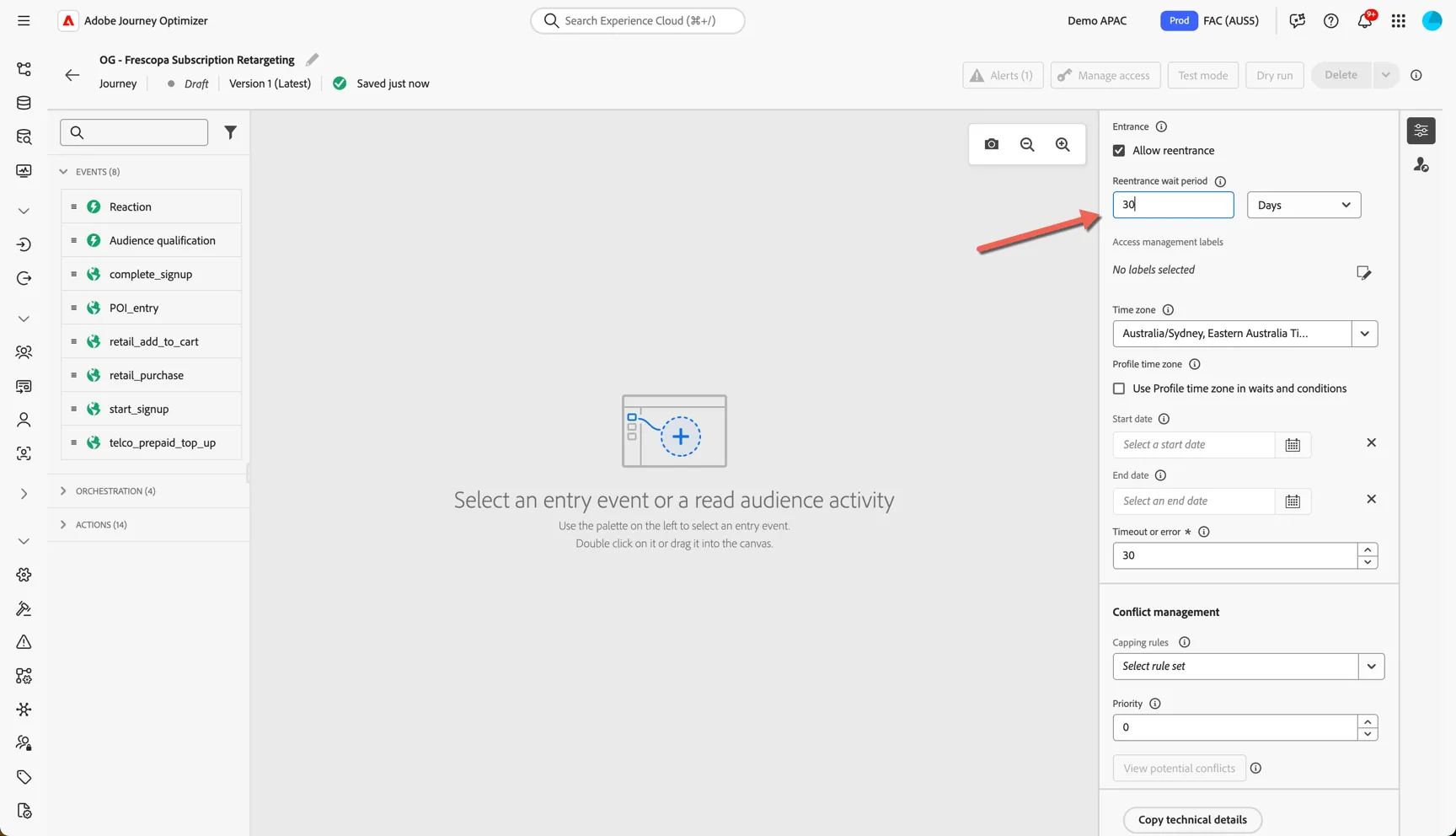
The journey properties are also where you can set up the re-entrance criteria to ensure we're not fatiguing customers multiple entries into the same journey, scroll down and set re-entry wait period to every 30 days. Click Save.
Click to save the properties.
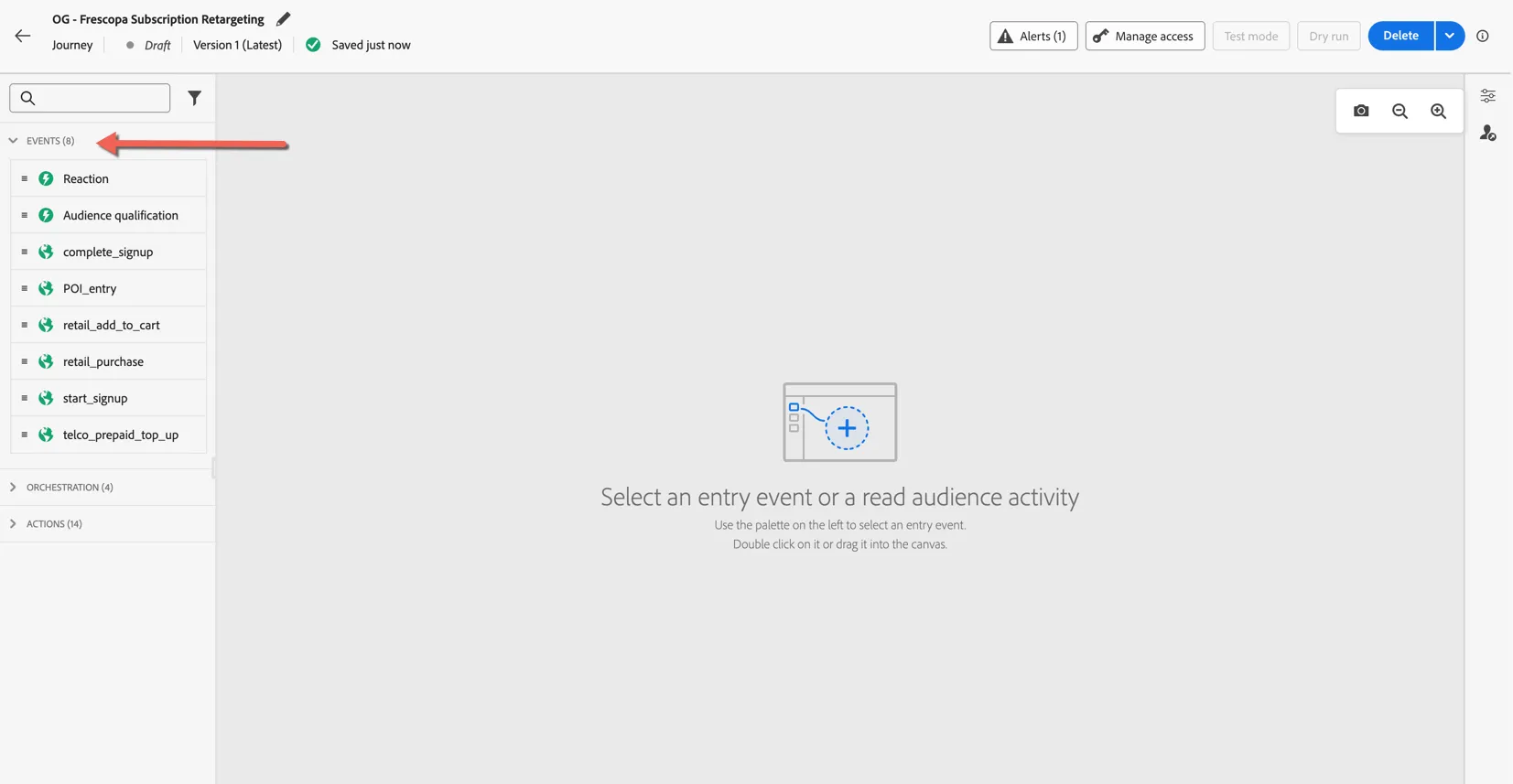
Journeys can be triggered from individual events or when a customer enters or exits a streaming audience. You can see the events that are configured as journey triggers in the left panel - this list is configurable and will depend on your implementation.
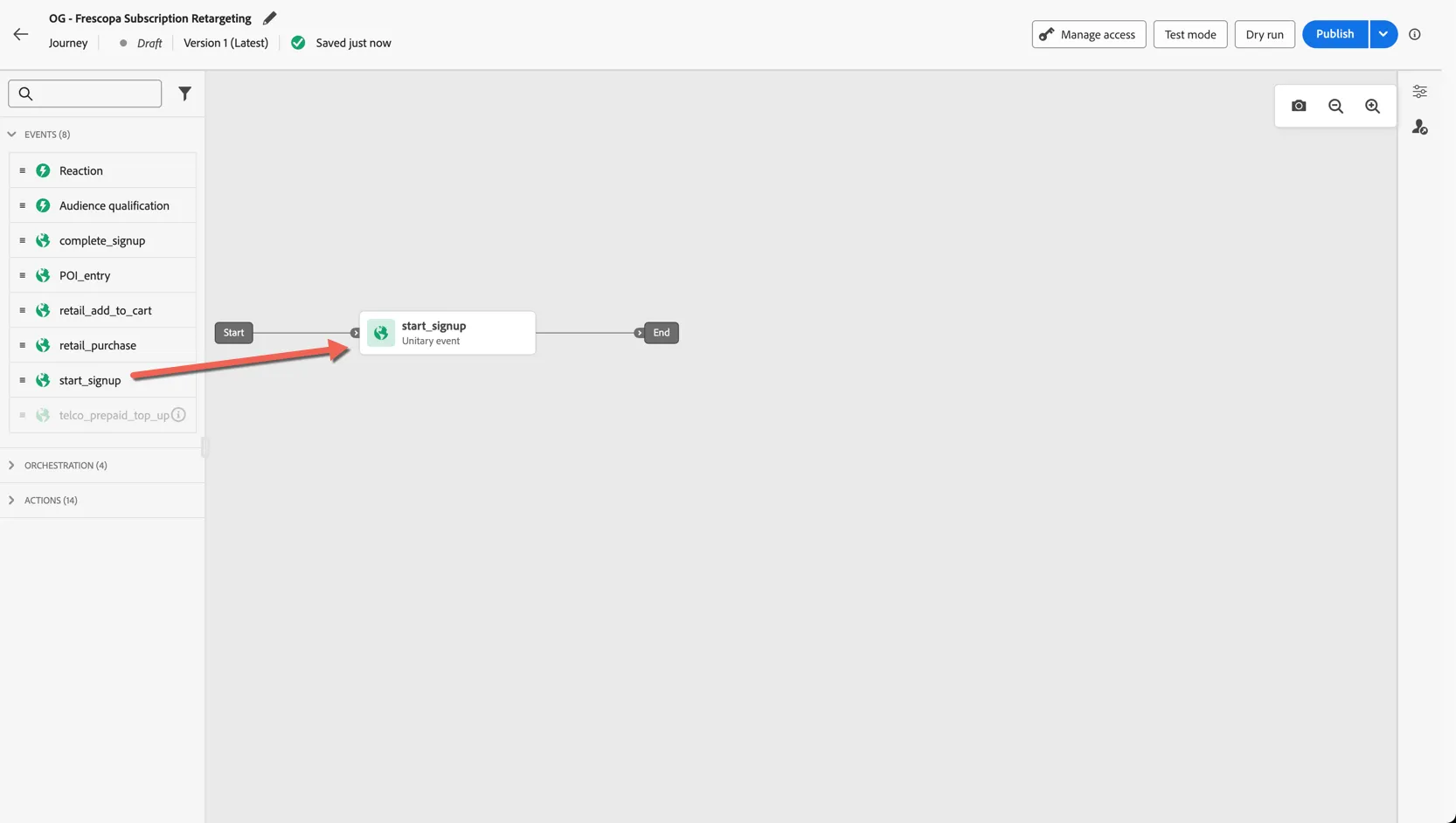
Drag the Start_Signup event into the panel as your journey trigger.
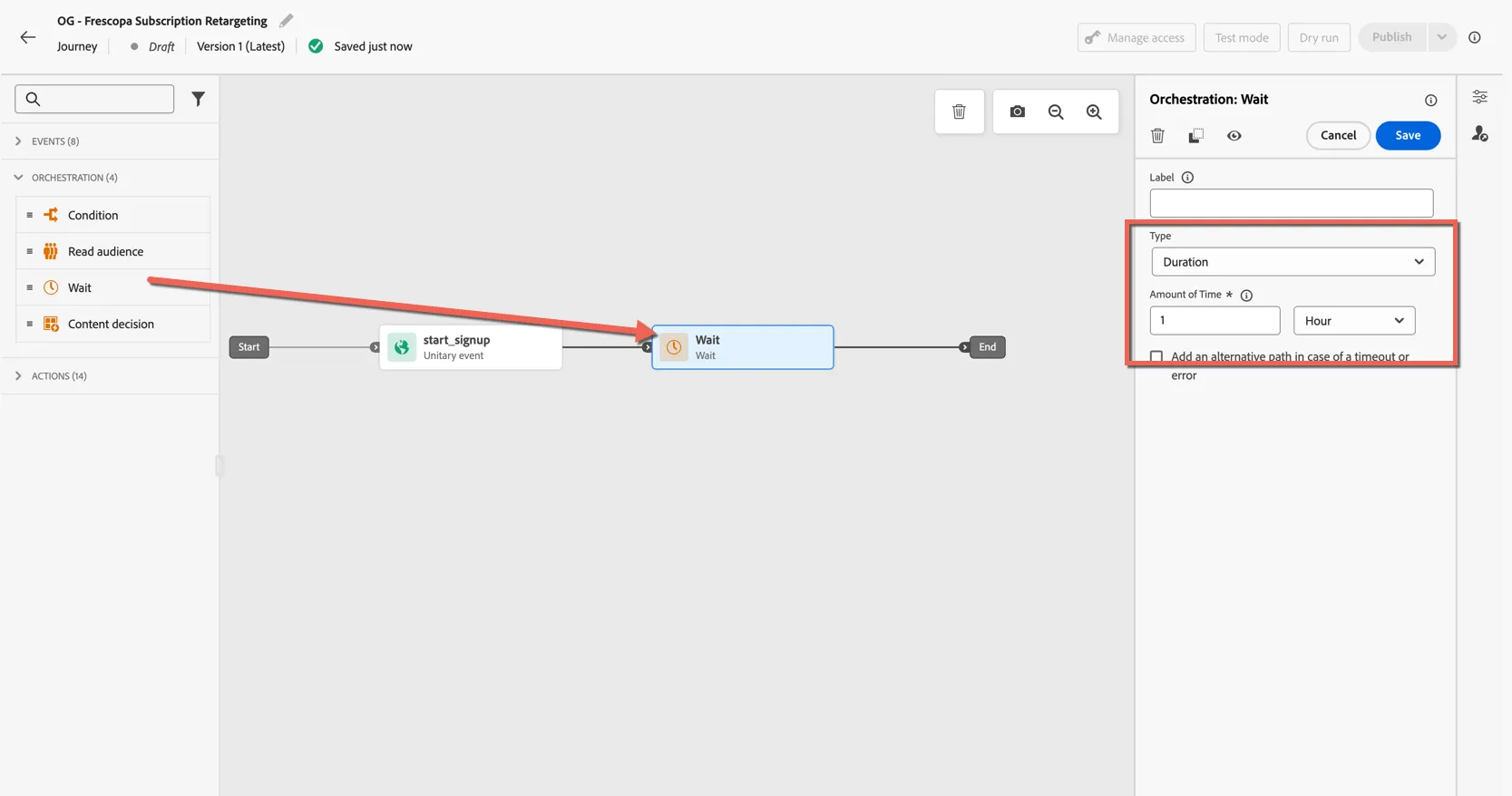
The orchestration panel is where we can find activites to control the pathing and flow of the journey. Drag a wait activity to pause the journey flow for a short duration to allow the customer time to complete the process they started before we start retargeting them. The wait period can be as long or short as you want.
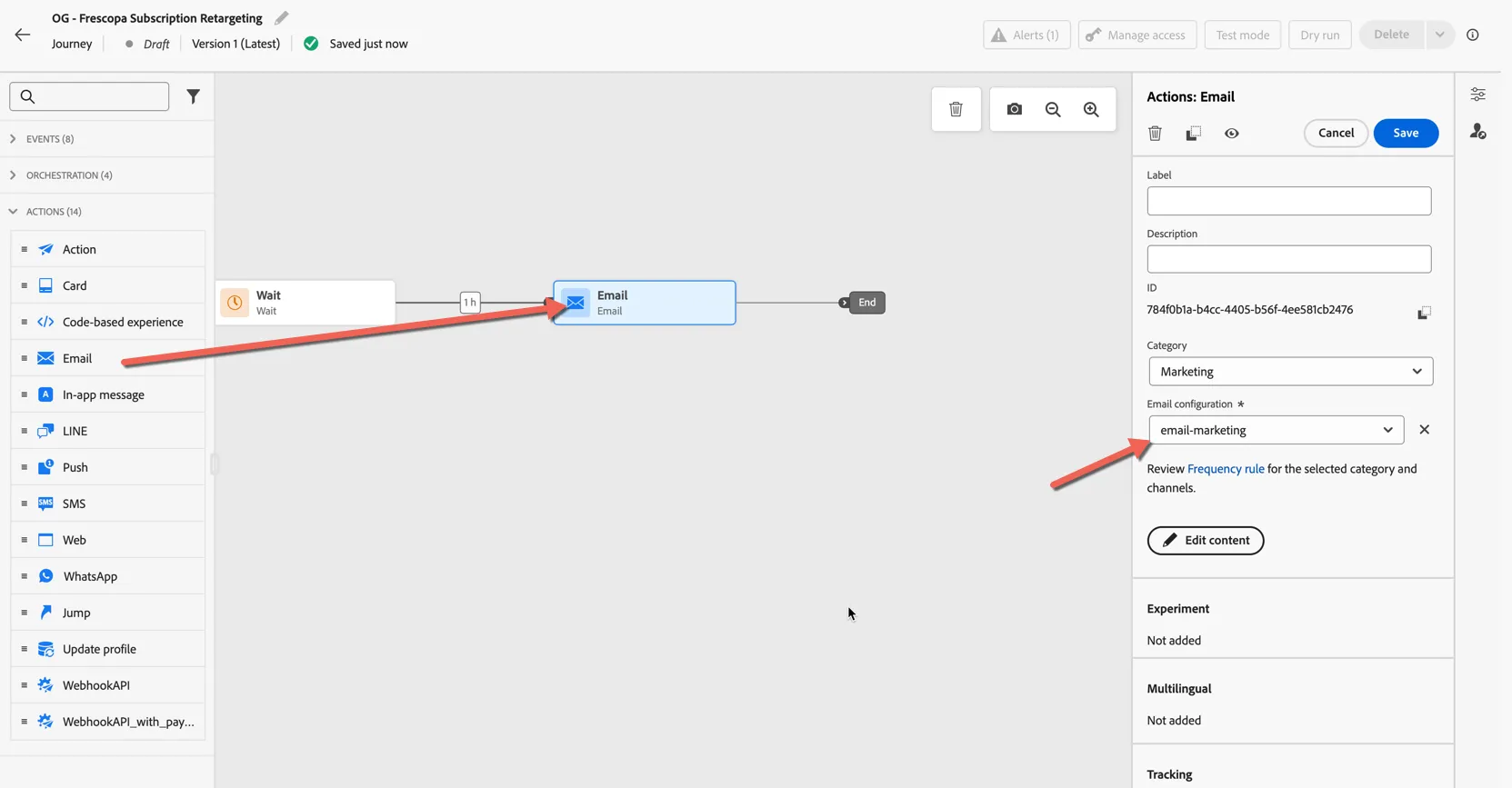
The Actions panel is where you'll find the native messaging channels as well as any custom channels or actions that have been enabled in the sandbox. Drag an Email action onto the canvas and attach it to the trigger event. Set the Email Configuration to email-marketing.
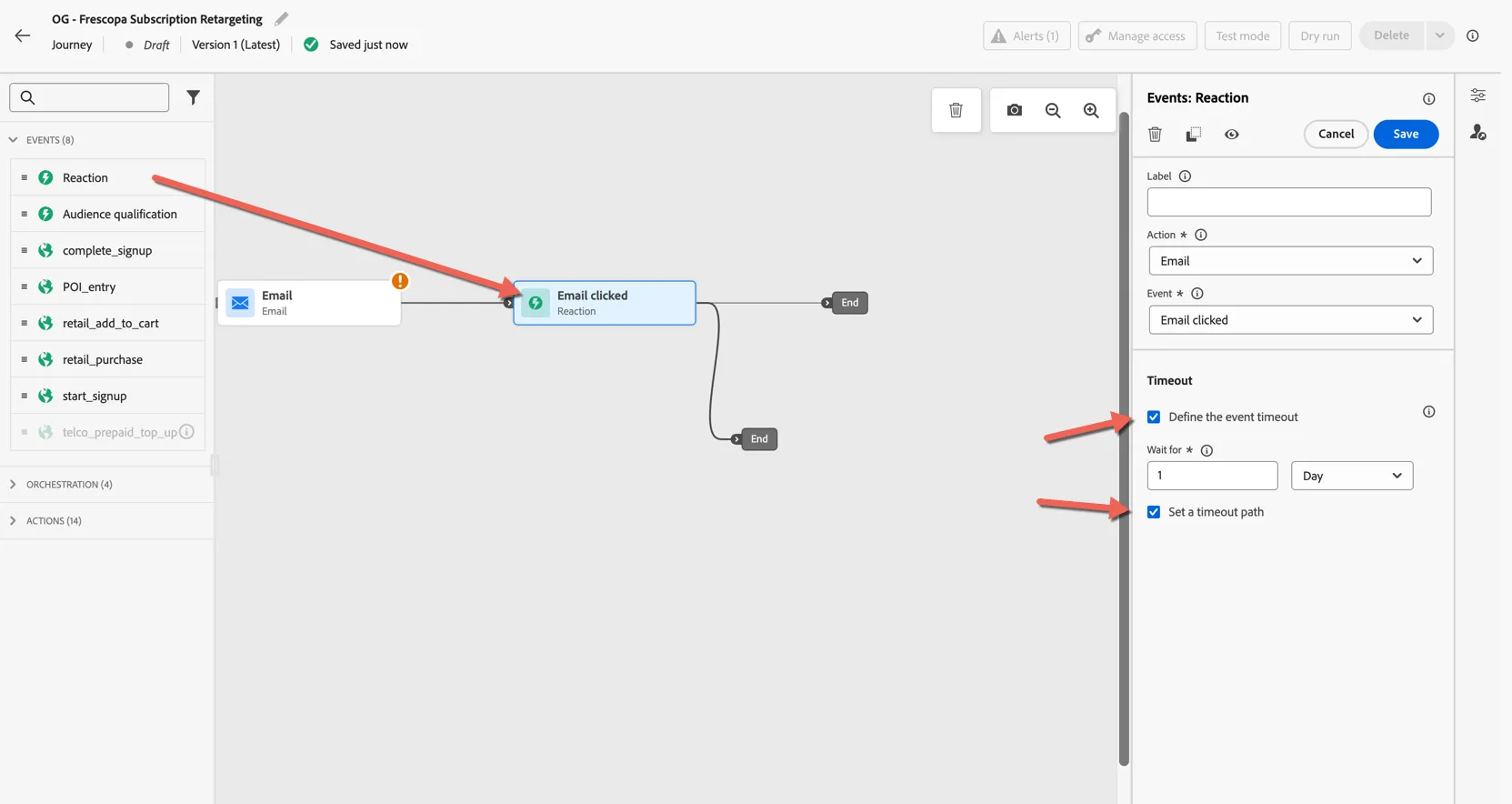
Before we configure the email content we'll finish the journey flow. Returning to the events panel, drag a Reaction activity after the email and configure a Timeout of 2 days. This triggers the journey to continue after 1 day along the timeout path if the customer does not click the link in the email.
Click to Save the reaction.
If the customer does not click the email we'll continue to engage them on other available channels. We will prioritize push notification as a less invasive channel but there's no point sending a push if the customer doesn't have the app, so let's check first and route customers to the right channel.
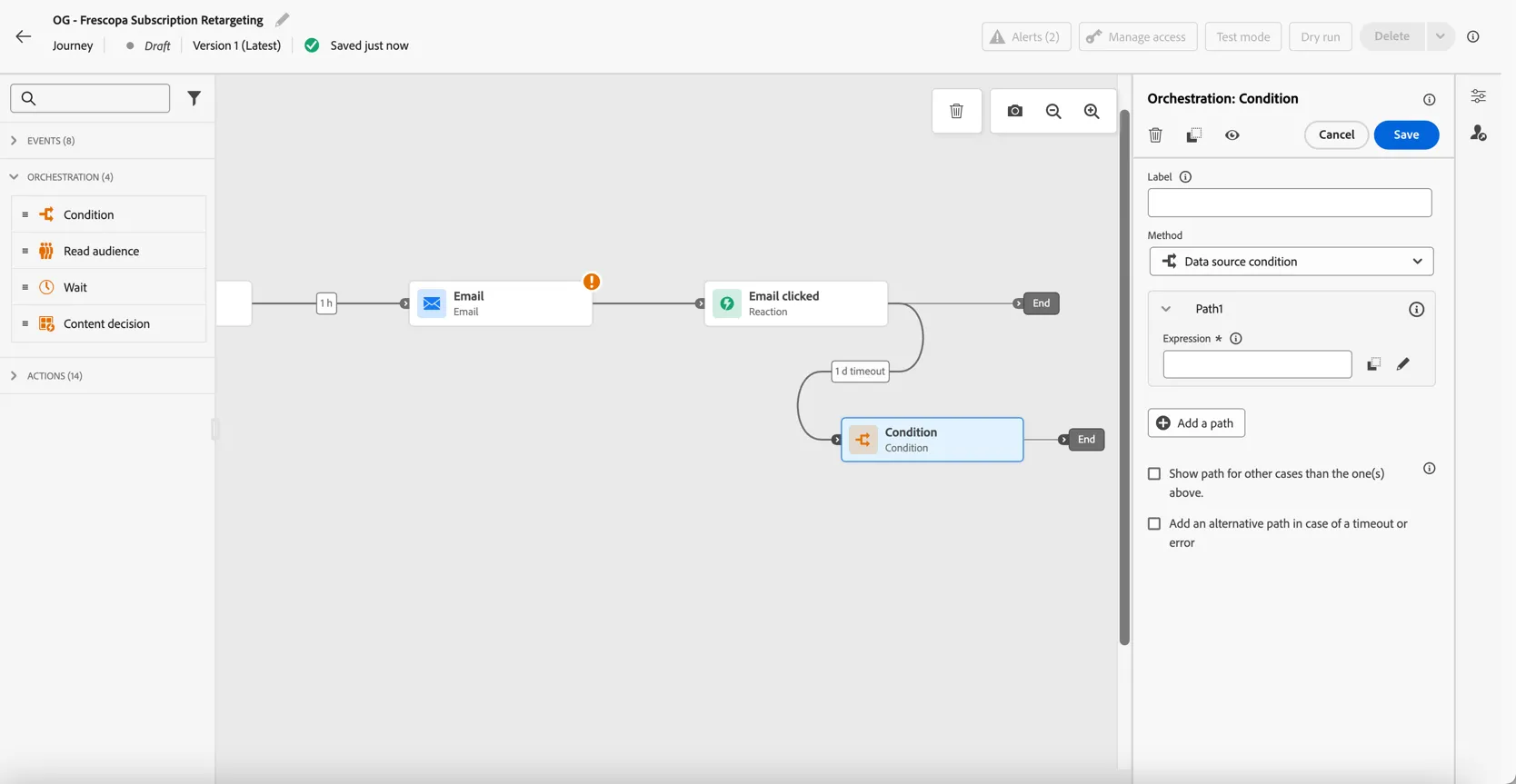
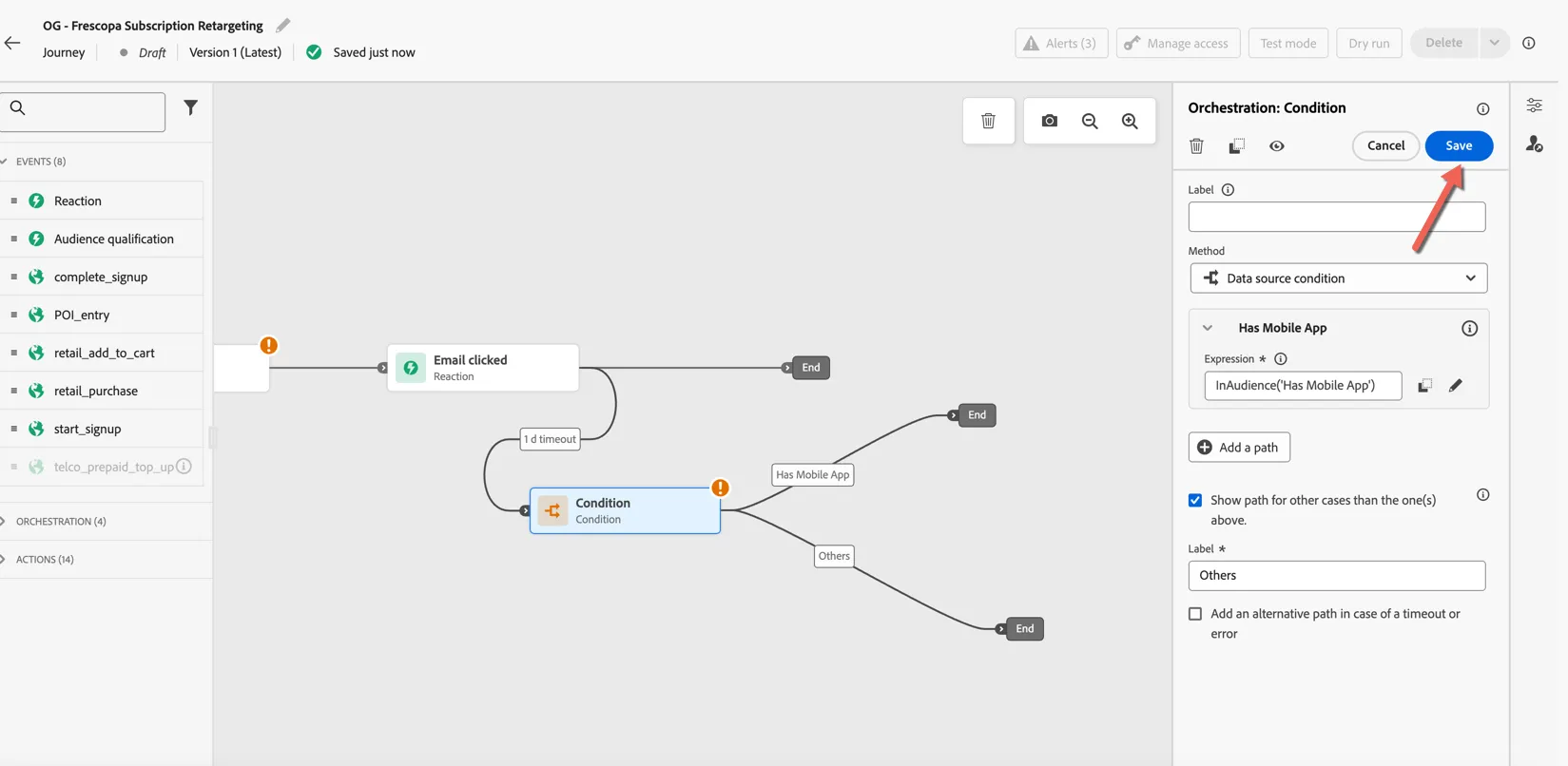
Drag a Condition activity, from the orchestration panel, into the canvas and connect it to the timeout branch.
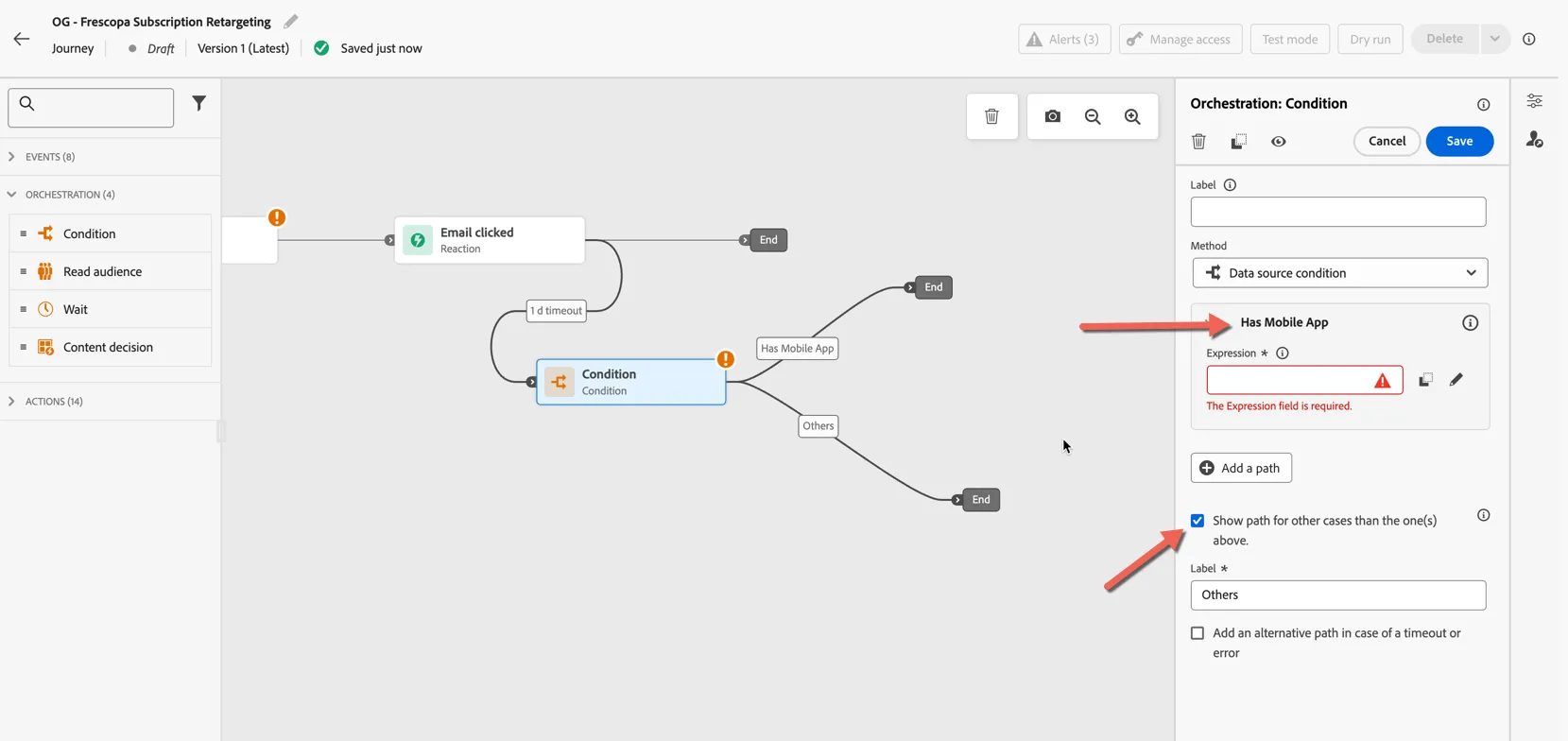
Rename the default path condition to Has Mobile App and tick the checkbox to show path for other cases. Then click into the Expression to configure the condition.
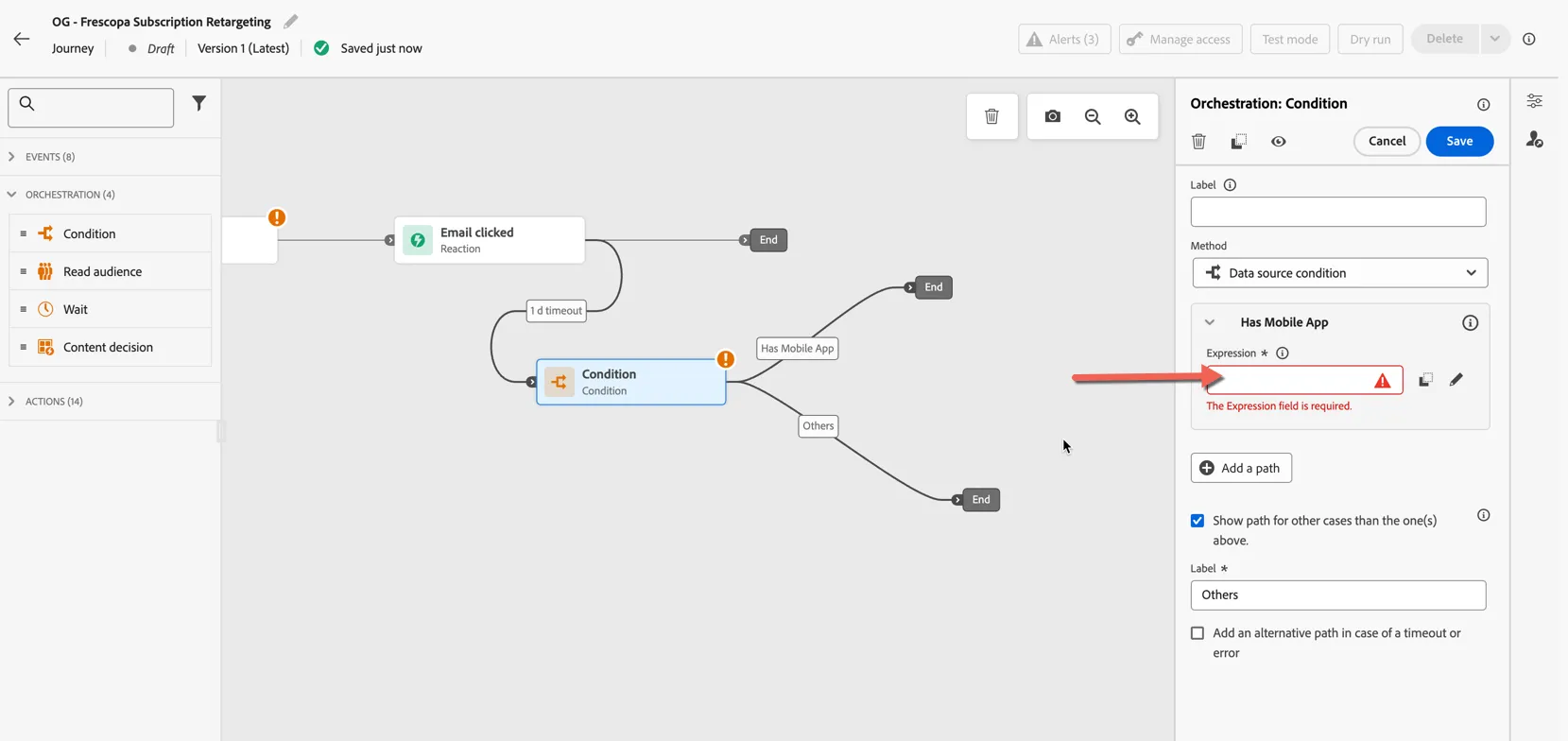
Then click into the Expression to configure the condition.
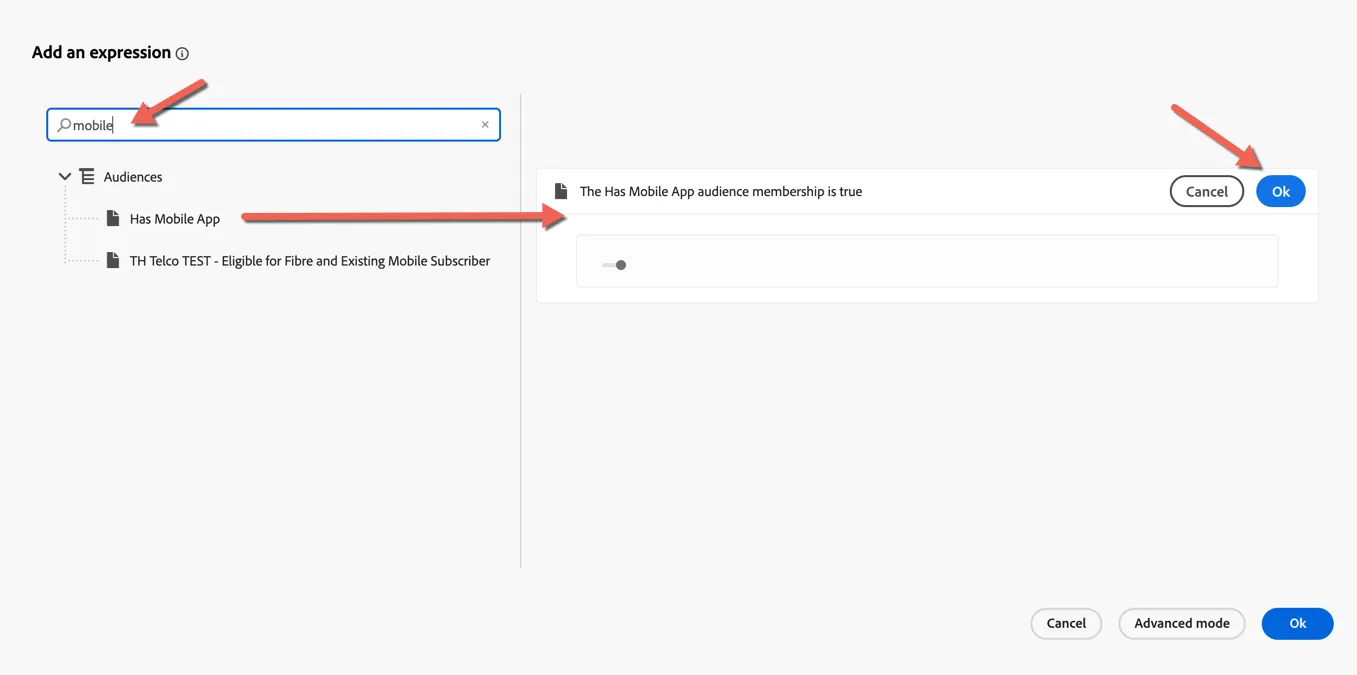
The expression editor let's you configure a boolean condition which if it evaluates to true will push the profile down the condition path. Expressions can use context from the journey triggering event, audiences or other data stored in Adobe Experience Platform.
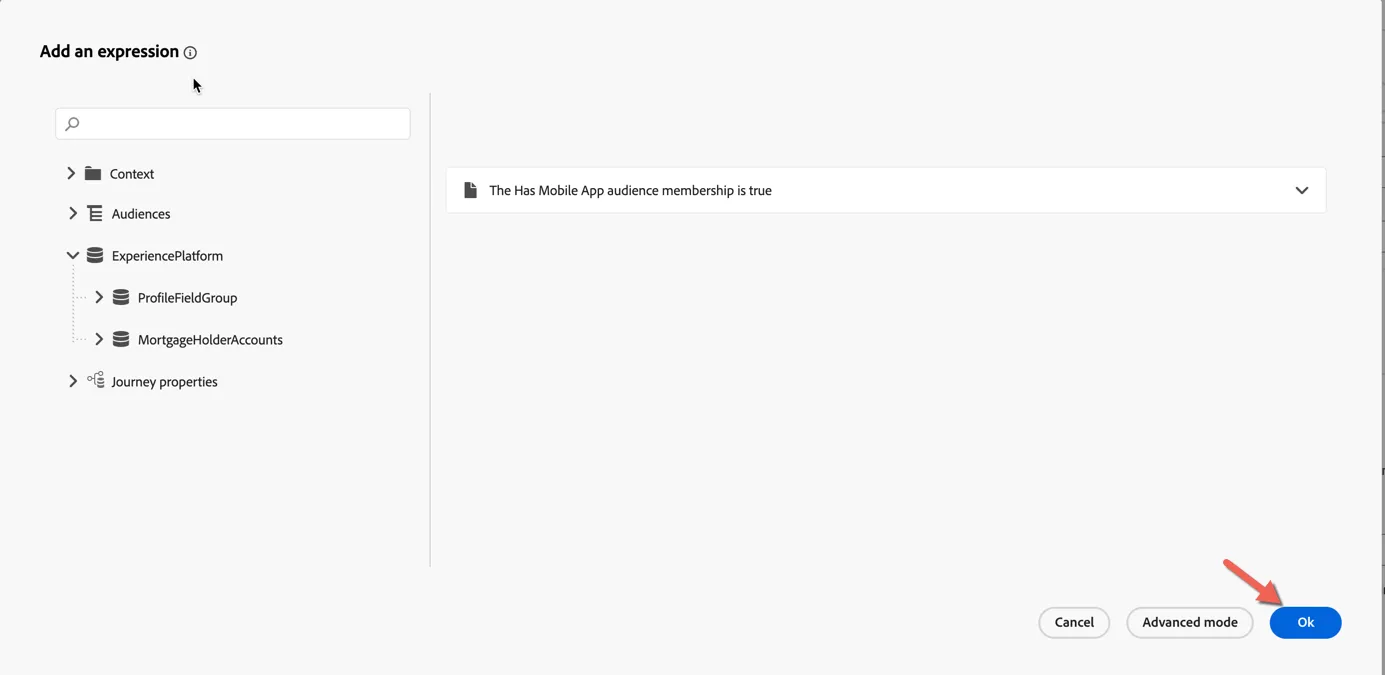
Search for Mobile. Drag the pre-configured Has Mobile App audience into the expression then click Ok.
Click Ok again to store the condition.
Click to Save the condition.
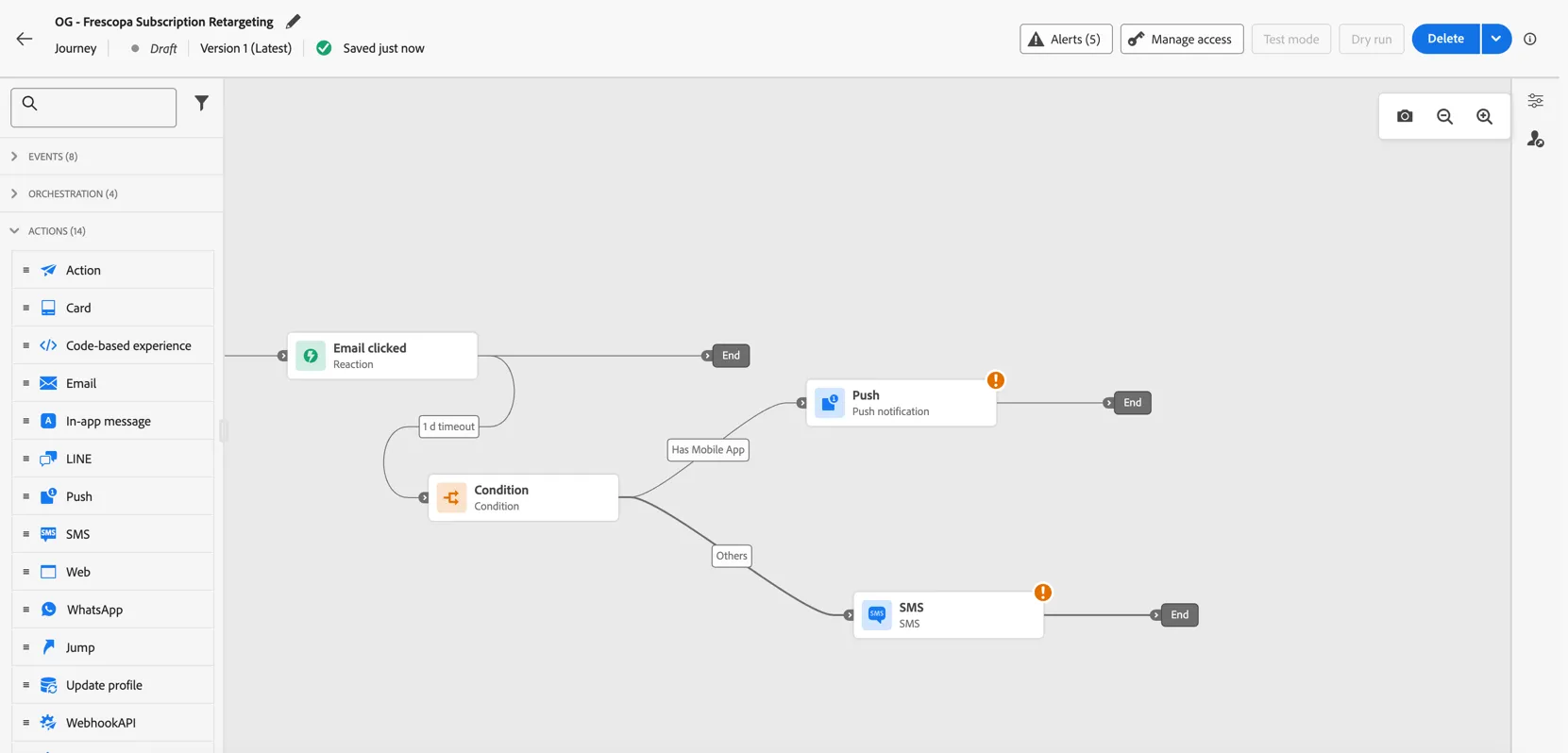
Now drag a push notification and add it to the "Has mobile app" path. Drag an SMS action as the alternative channel, depending on your business you might choose Line or WhatsApp as an alternative.
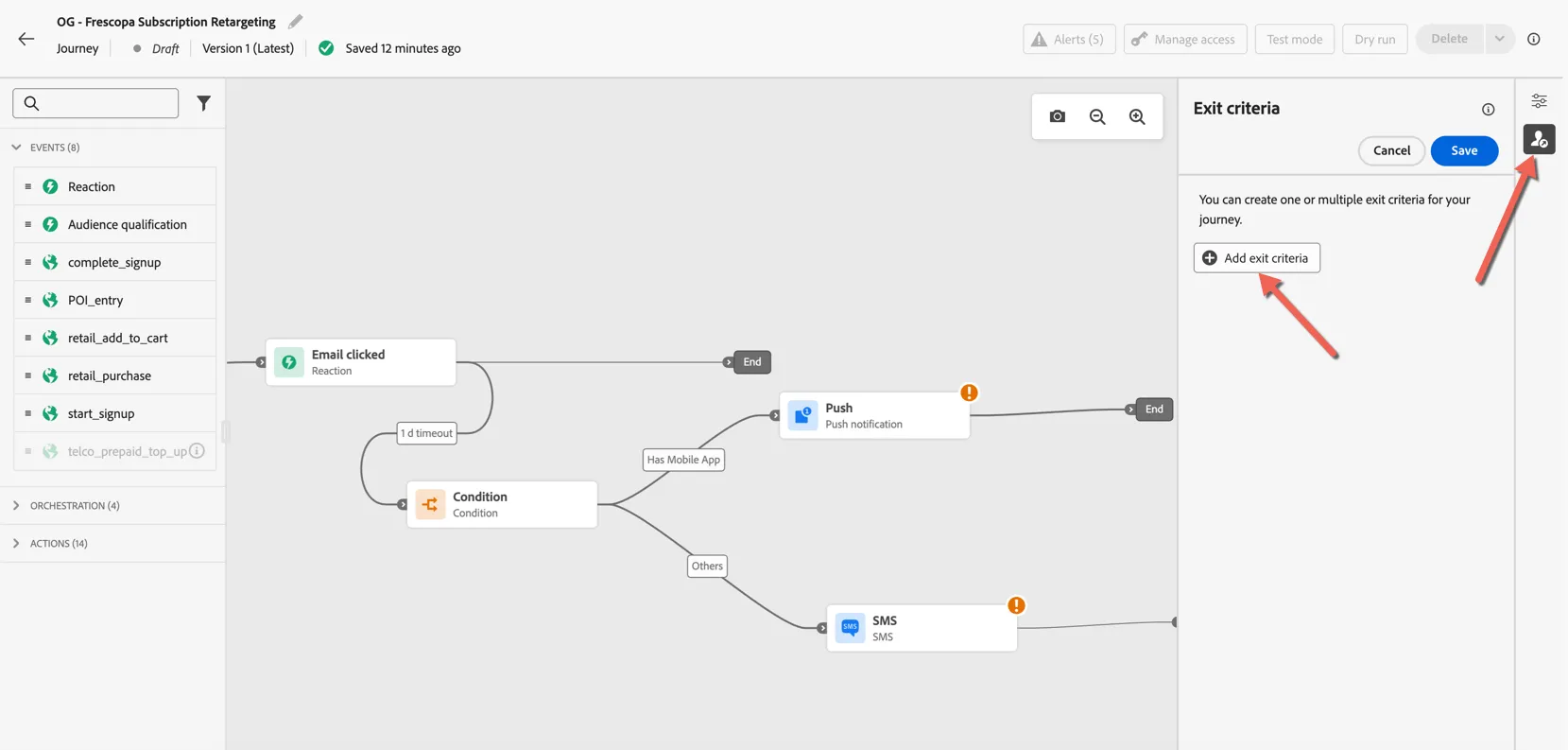
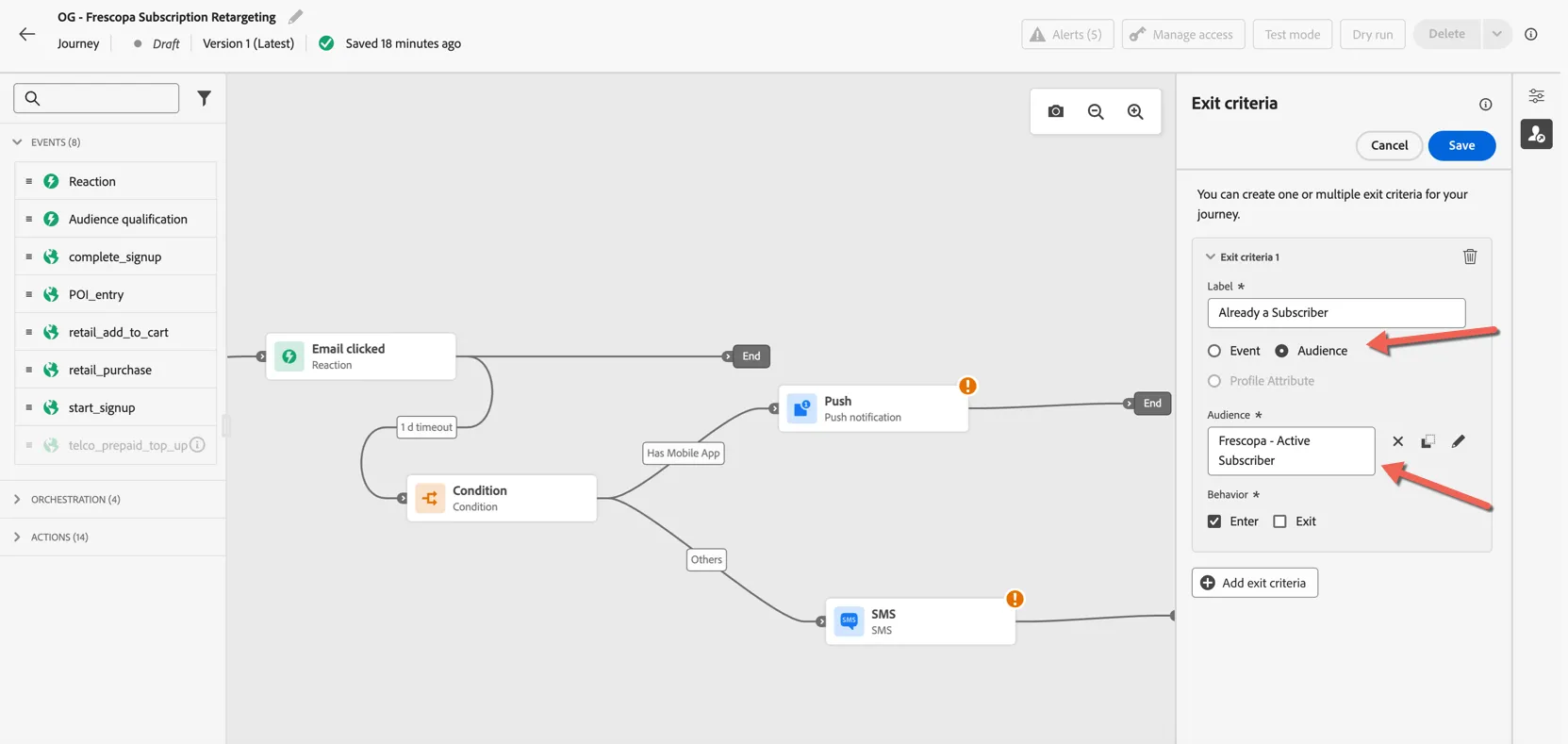
Lastly, we'll add exit criteria to remove profiles from the journey once they complete the desired action, in this case completing their subscription. Click on the profile icon to the right of the journey to open the exit criteria panel. Click the button to add the exit criteria.
You can use events and/or audiences as exit criteria, for this example we'll use the Active Subscriber audience.
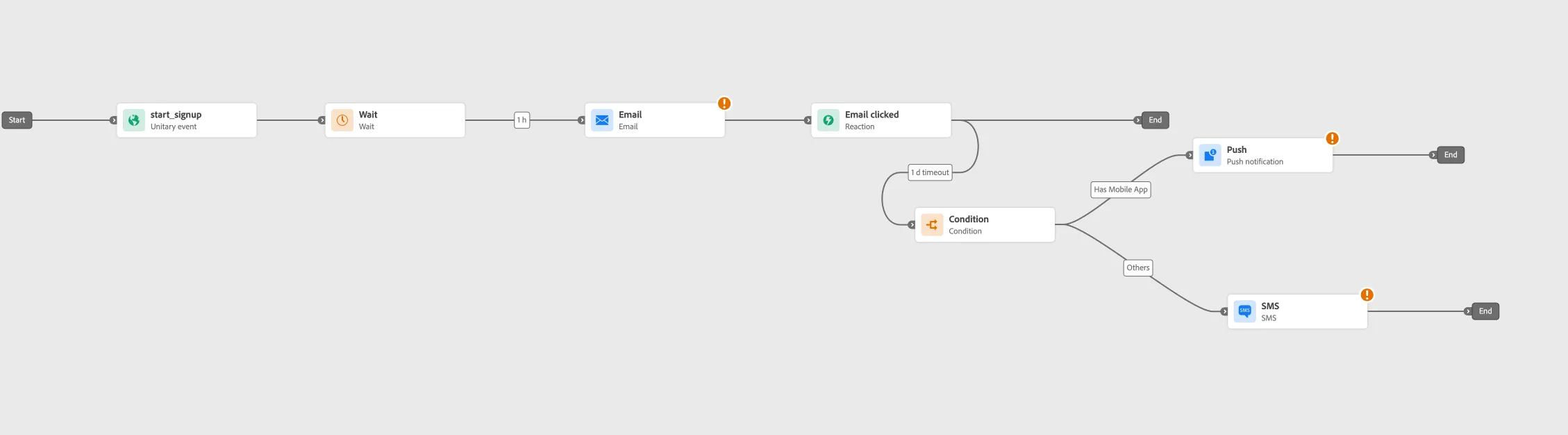
Click Save to complete your journey logic. Your journey flow should look like this:
Your journey flow is now ready