Access CX Coworker
Introduction
In this exercise, you will use Adobe CX Enterprise Coworker to collaborate with an AI agent on website content related to Adobe Experience Manager.
Access CX Coworker
- Open CX Coworker.
- Sign in using the Adobe ID provided for the lab.
- CX Coworker UI Overview:
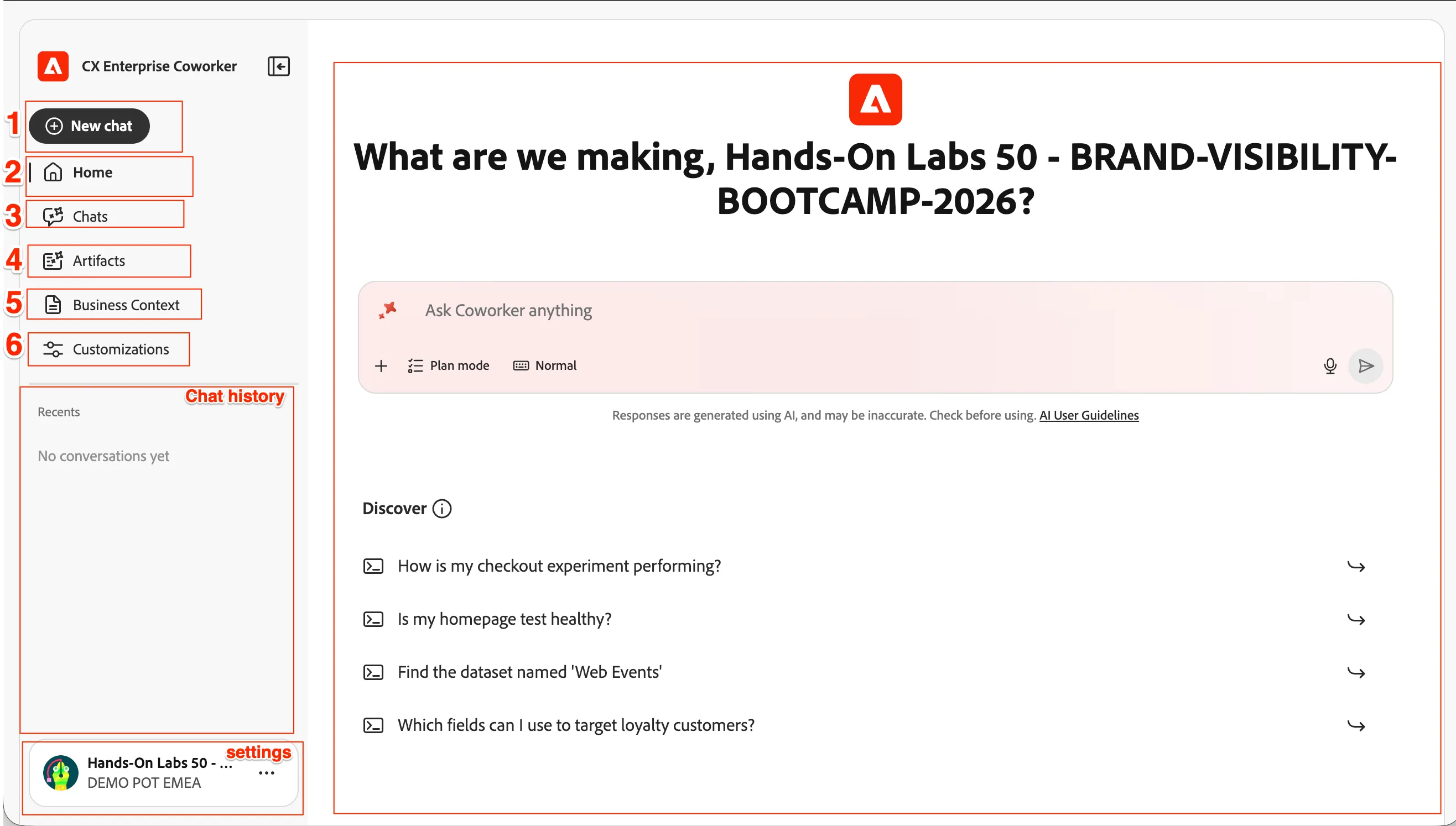
No. | UI element | Explanation |
|---|---|---|
1 | New chat | Starts a new conversation with CX Coworker. |
2 | Home | Returns to the CX Coworker home page. |
3 | Chats | Opens your previous conversations so you can continue working. |
4 | Artifacts | Displays files, documents, or other results created during your conversations. |
5 | Business context | Setup grounding knowledge about your business for AI |
6 | Customizations | Provides access to available preferences and personalization settings. |
— | Chat history / Recents | Shows your most recent conversations for quick access. |
— | Ask Coworker anything | Enter a question, request, or instruction for CX Coworker. |
— | Plan mode | Asks Coworker to create a plan before completing a task. |
— | Normal mode | Uses the standard conversational mode for questions and requests. |
— | Discover | Provides example prompts to help you get started. |
Step 2 — Discover CX Coworker capabilities
Start a new chat so that the exercise begins with a clean conversation context. We want here to discover CX Coworker capabilities on AEM, with AEM Agents.
- Enter the following prompt: give me everything you can do, especially on aem, aem eds, assets

- Review the response, and take an overview look at CX Coworker capabilities on AEM.
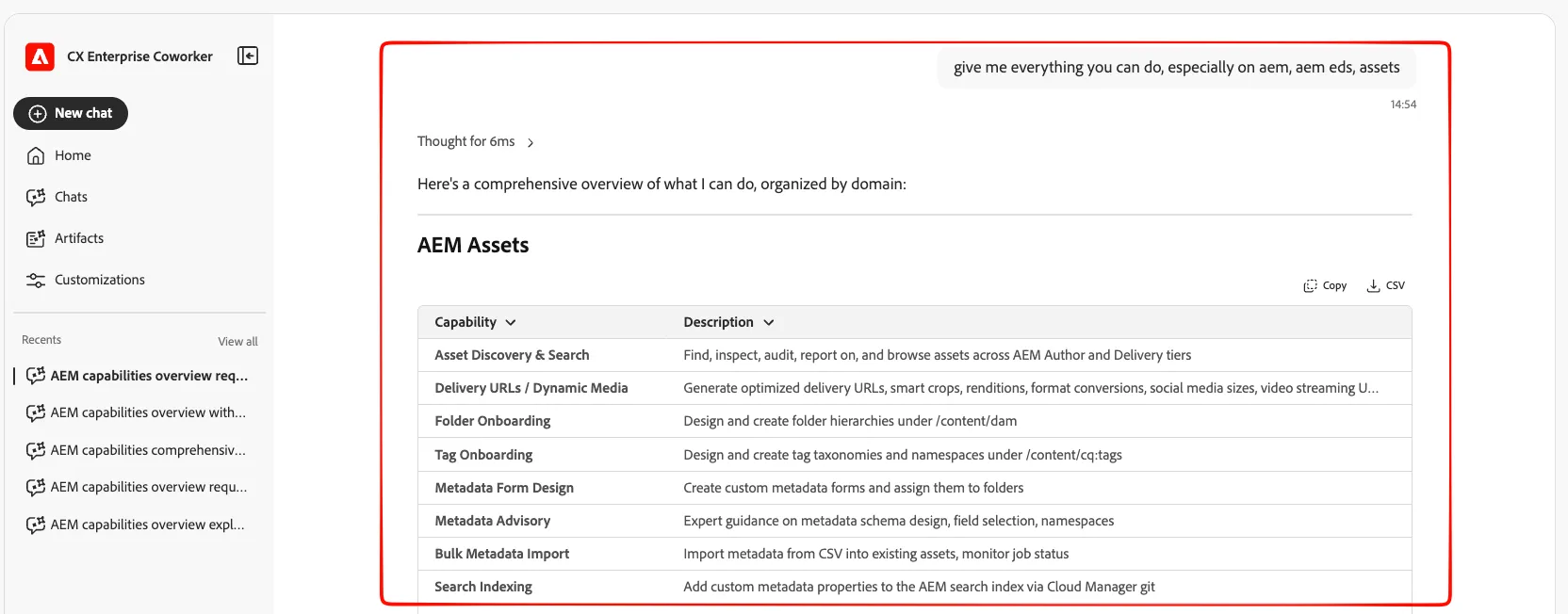
We will work with CX Coworker with AEM. Nevertheless, keep in mind that CX Coworker is especially powerful because it has access to all Adobe tools, not only AEM.
You are all set!
Congrats! You have taken an overview of Coworker capabilities with AEM, and you are ready to start prompting.
Do not close the Coworker tab, as we will need it in the next exercise.