Build a lookalike audience
Time to build. You've experienced the journey as a customer—now construct the orchestration in AEP that makes that experience real for your users.
Story so far
The customer has just landed on the Luma website after clicking on a } ad on a newspaper website. You now build the lookalike audience that powered that ad.
Audience - overview
To log into the Adobe Experience Platform, check the Environment & AccessEnvironment & Access page.
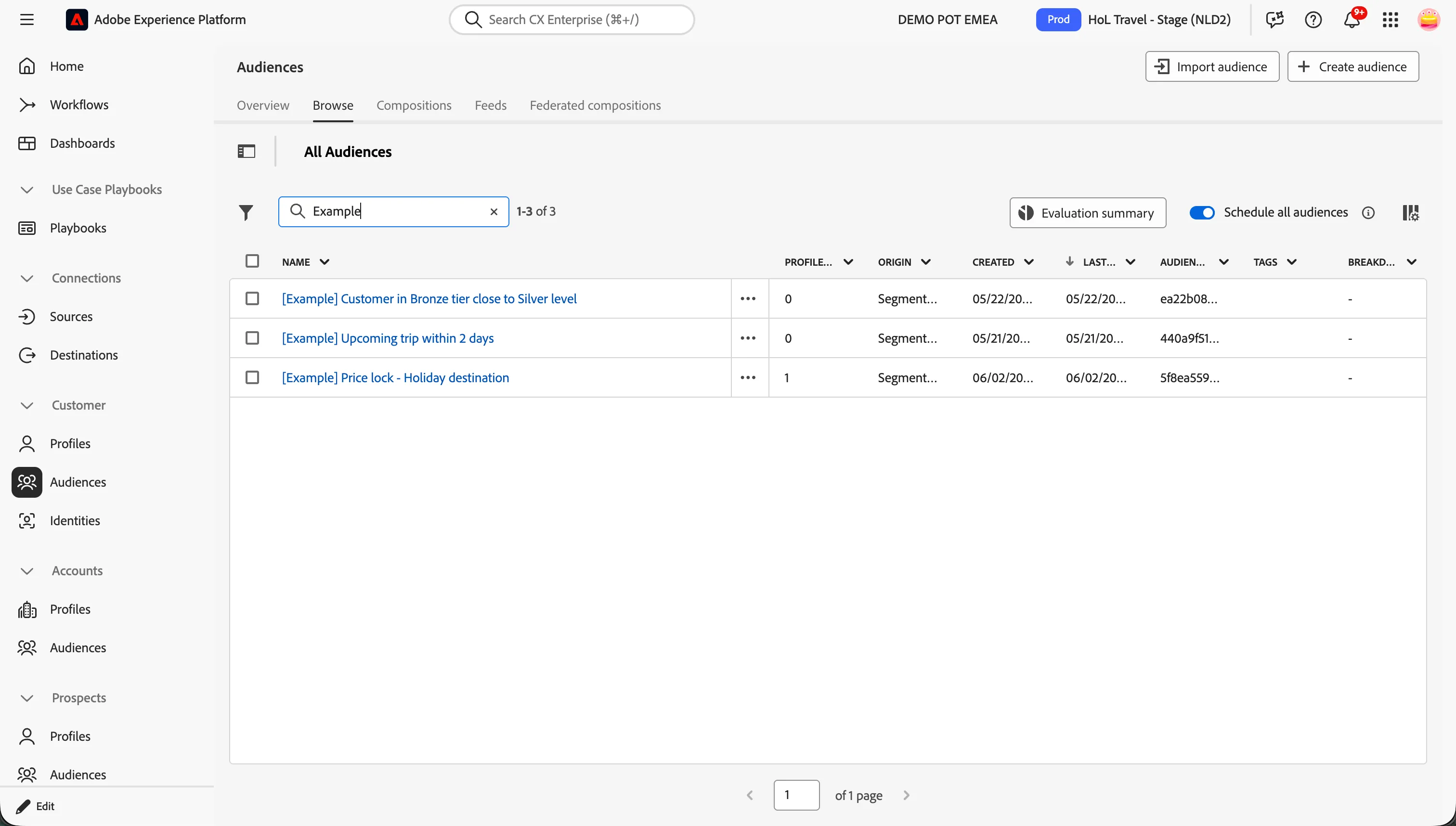
To get an overview of available audiences in Adobe Experience Platform:
- In the menu on the left side, click on Audiences.
- Then click on Browse at the tab bar. You will see an overview of all existing audiences.
Create the lookalike audience
- Click on the audience called [Example] Price lock - Holiday destination.
- On the next screen, click on the Look-alike insights tab.
Adobe experts are in the room with you. Don't hesitate to ask them about best practices, features and configuration choices as you build.
- Click on the
 button.
- Move the similarity % slider to find the best trade-off between similarity and reach.
- Set Look-alike audience name to [{{LASTNAME}}] - LAL Holiday Purchaser.
- Select Create to finish creating your Look-alike audience.
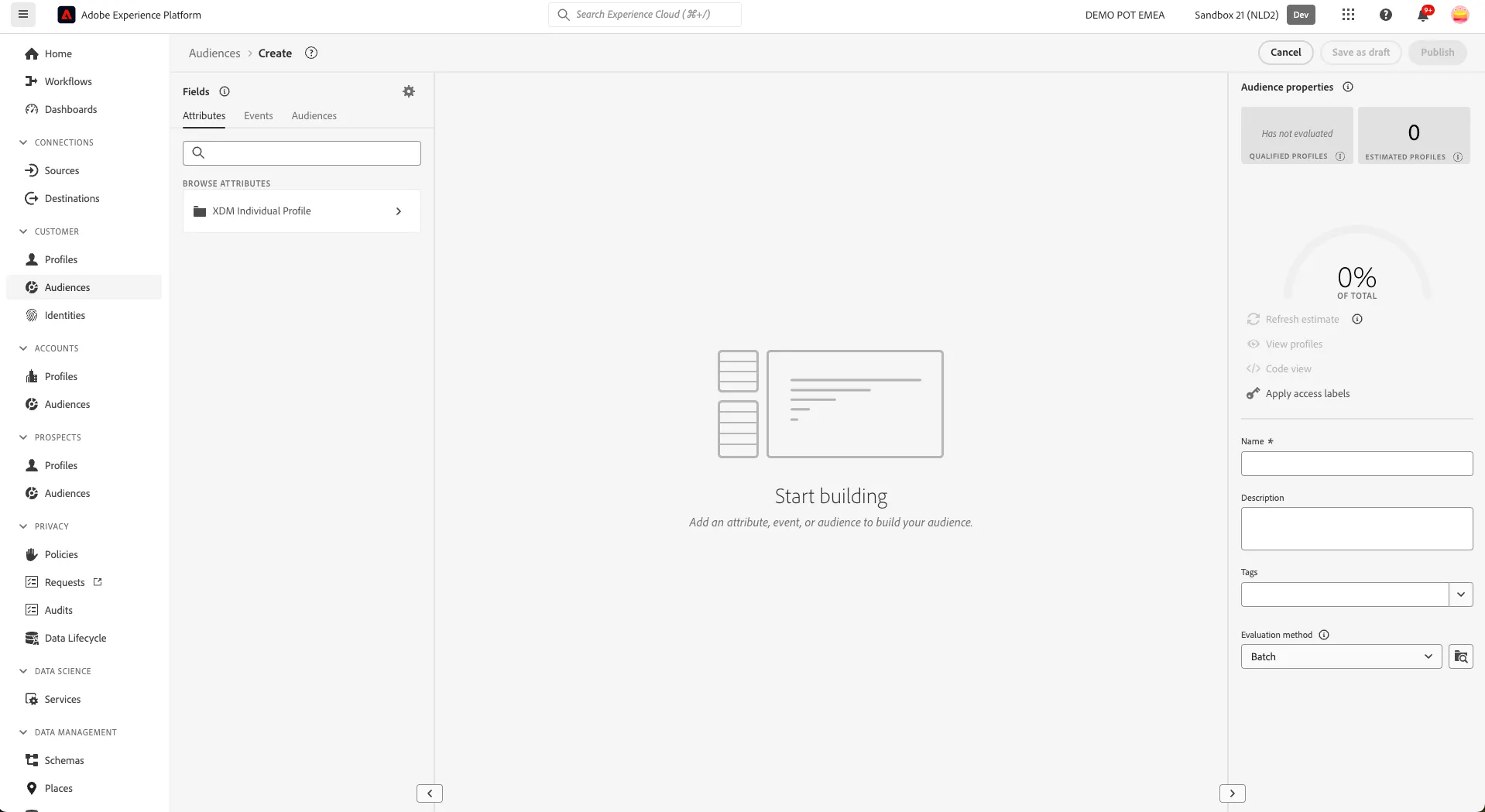
You have now successfully created an audience using the Adobe Experience Platform Audience Builder. It's time to activate it.