Environment & Access
User accounts have been created to access the Adobe Experience Platform and all of the tools you'll need in today's workshop.
Login credentials
Your login credentials will be:
Username | travel-one_u{{USER_NUMBER}}@emea.aephandsonlabs.com |
|---|---|
Password | (check the slide) |
The temporary password will be shared during lab session.
Login to Adobe Experience Platform
- Navigate to Adobe Experience Platform.
- Logout if you are already logged in on your own or corporate Adobe account.
- Use the provided username and password to log in.
- If you are prompted to provide a phone number, click Not now.
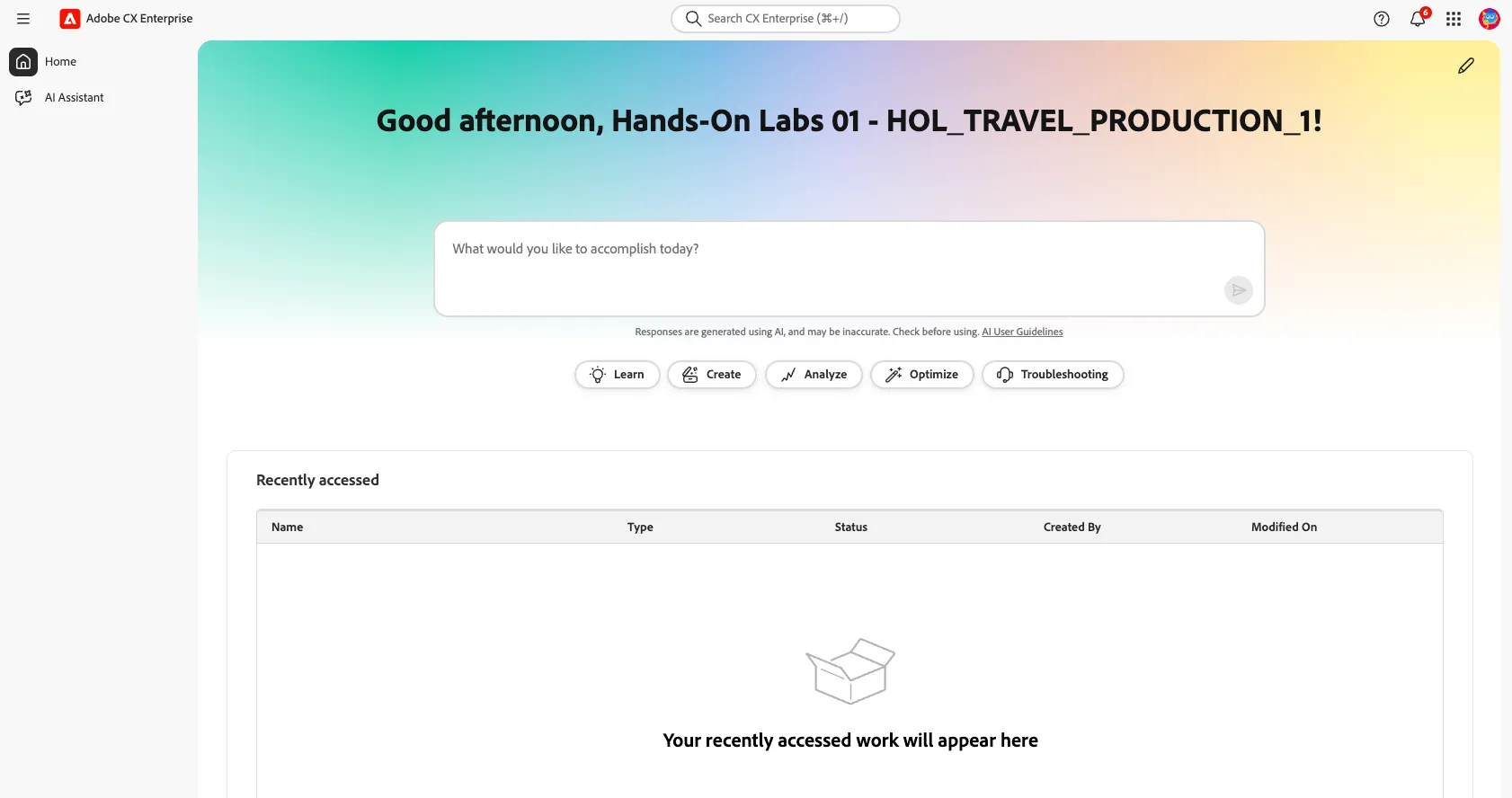
- After login you should arrive at the Adobe Experience Cloud home dashboard
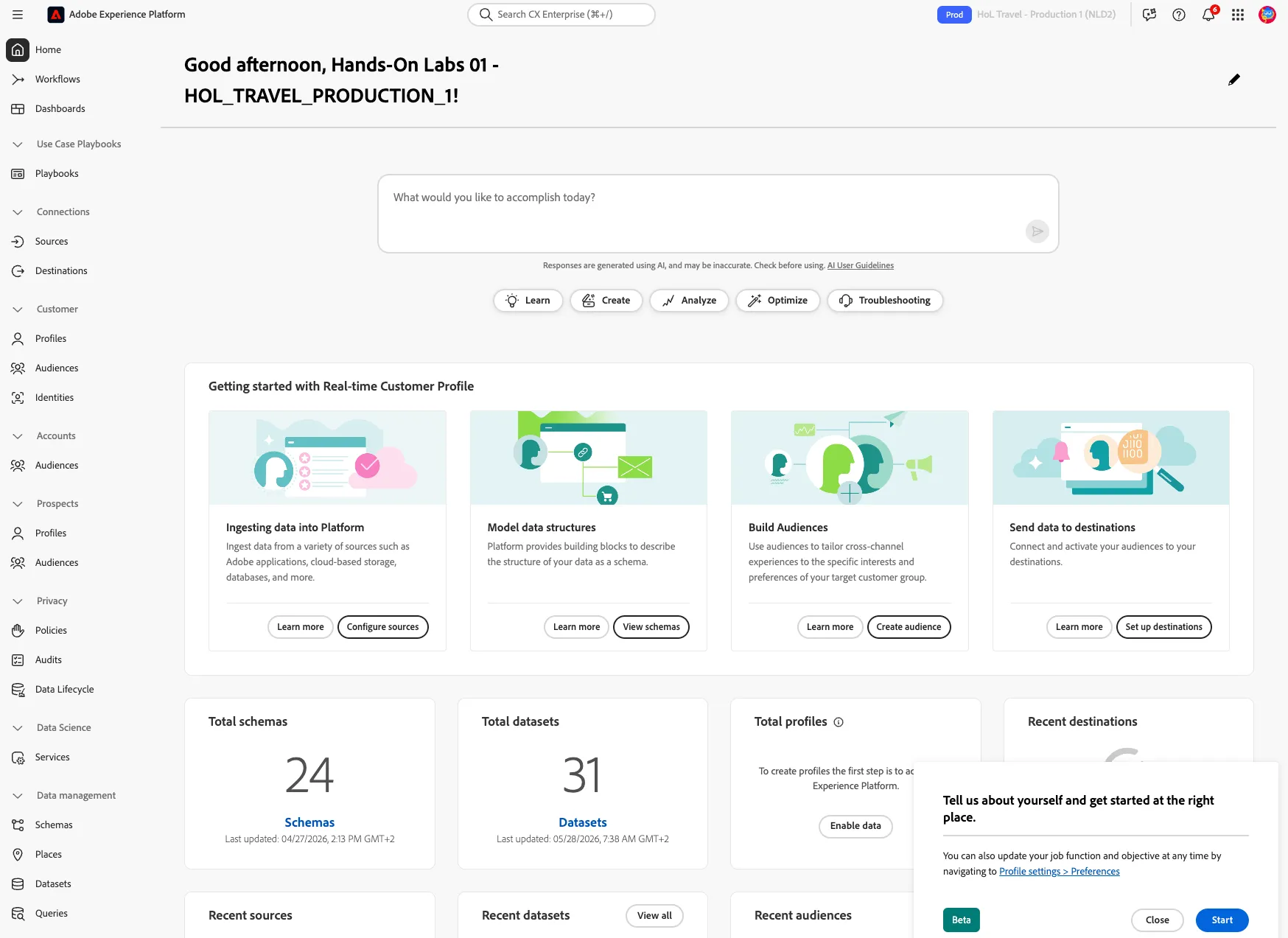
- Click on the navigation-icon (9 dots) in the top right corner and click on Experience Platform.
- Check if you are in the right sandbox. On the top right you should see:
- DEMO POT EMEA indicating the organisation (if not available, ignore this).
- HoL Travel - Production 1 indicating the sandbox.
Adobe Journey Optimizer
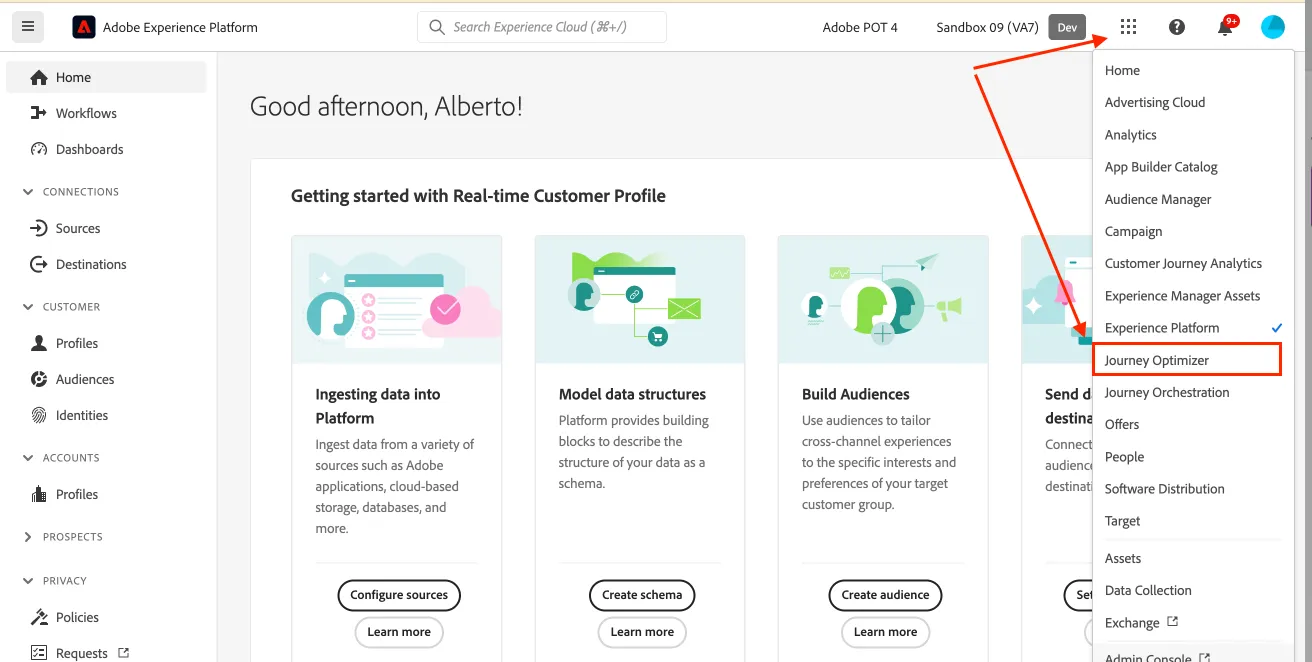
Click on the navigation-icon (9 dots) in the top right and select Journey Optimizer in the dropdown list.
Customer Journey Analytics
Click on the navigation-icon (9 dots) in the top right and select Customer Journey Analytics in the dropdown list.
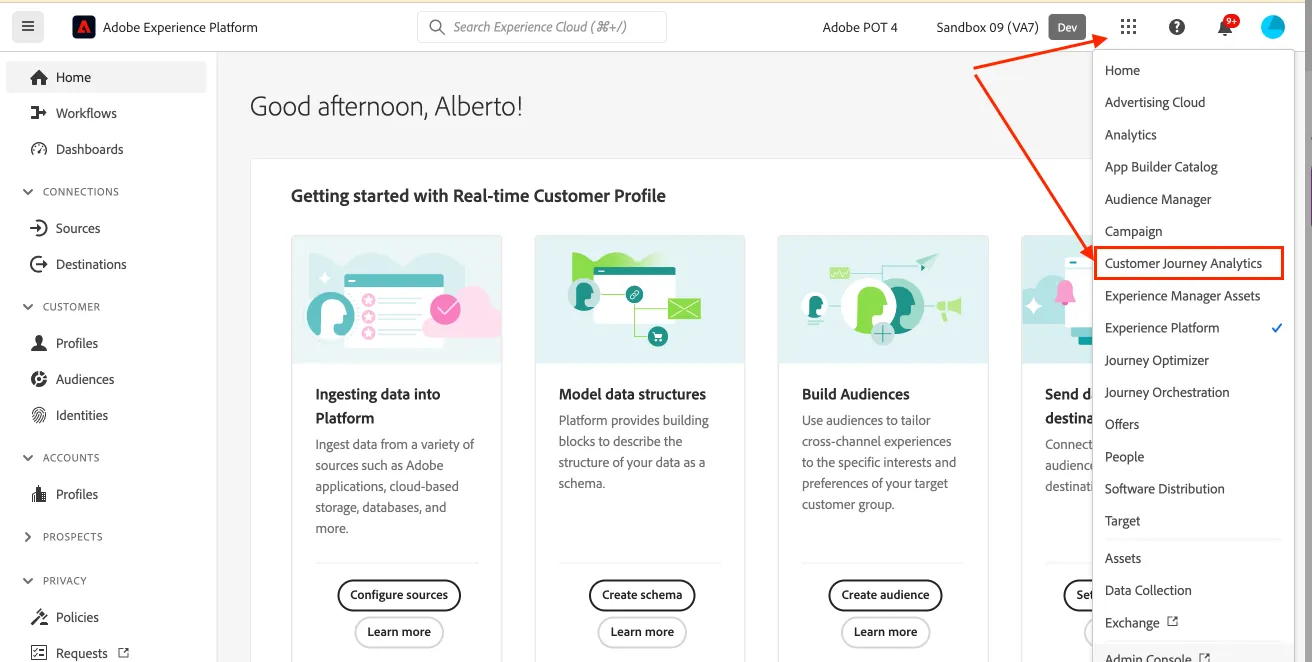
[Optional] Set language preferences
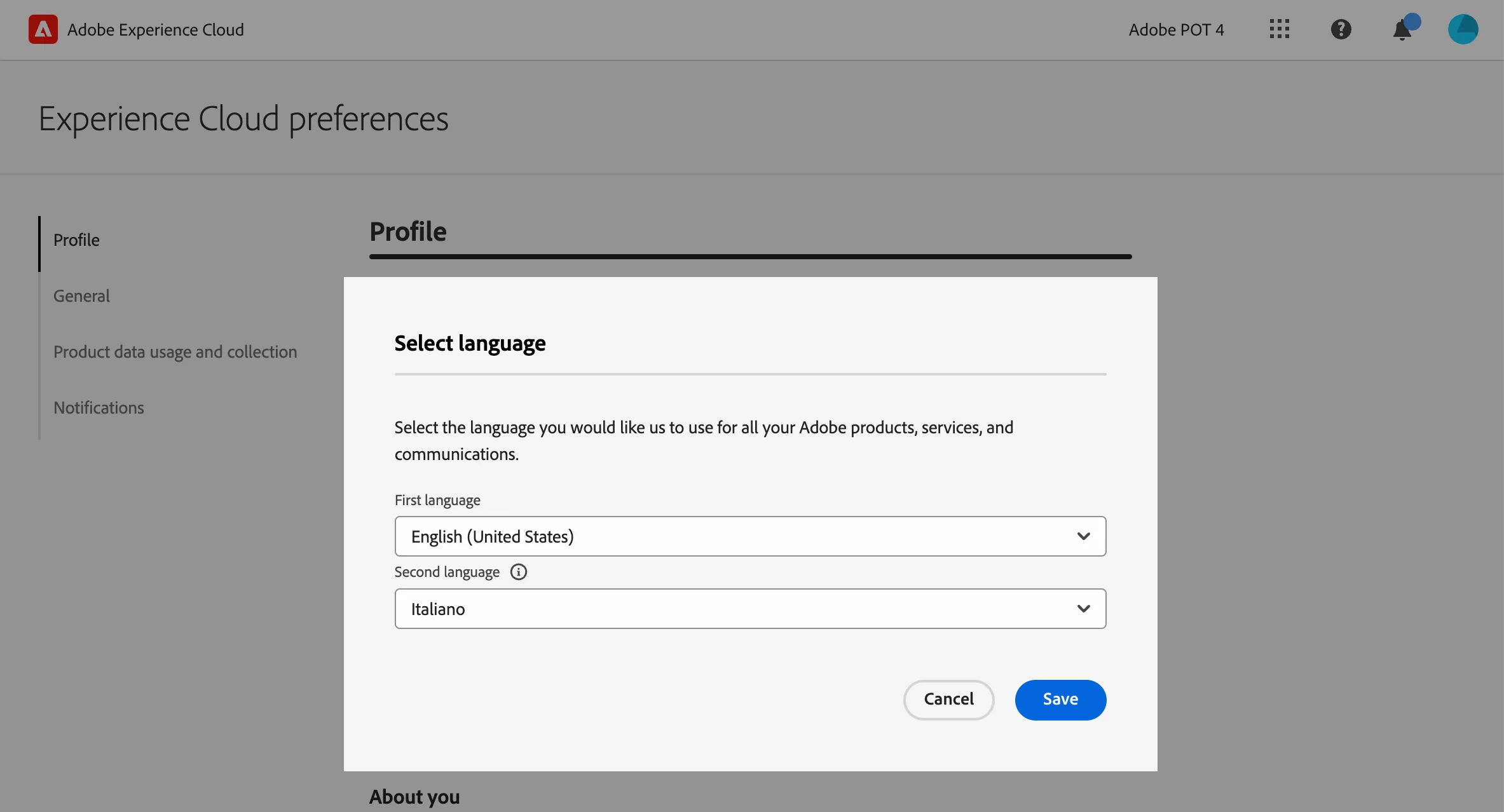
This guide is written in English and the screenshots are taken from a UI set for English language. If your UI is set to use other language, it can be difficult to recognise buttons, labels and text. We suggest switching your Adobe account preferred language to English.
To change the preferences:
- click on the profile icon on the top right corner;
- click on Preferences.
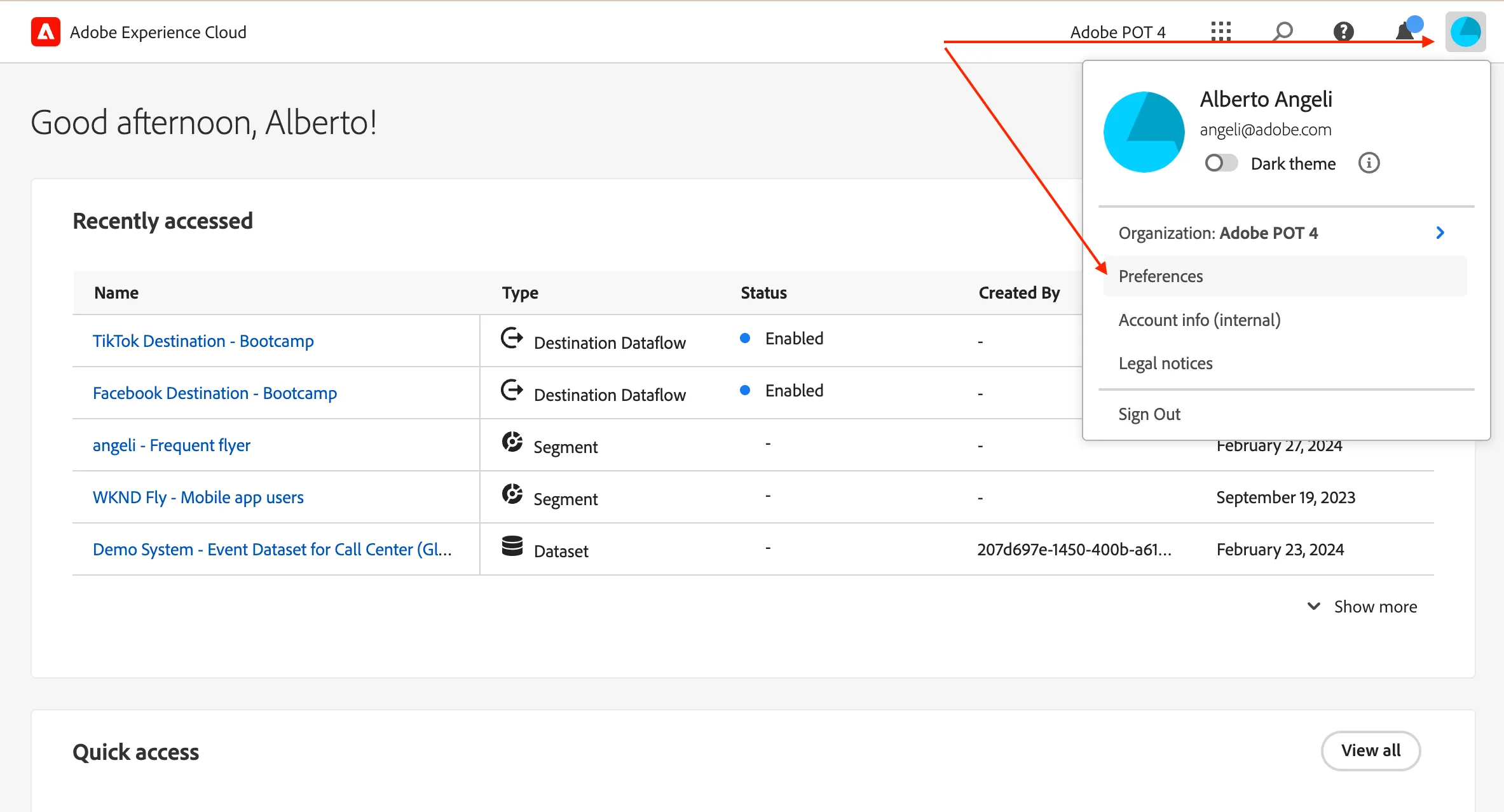
- Click on the language label just below your name.
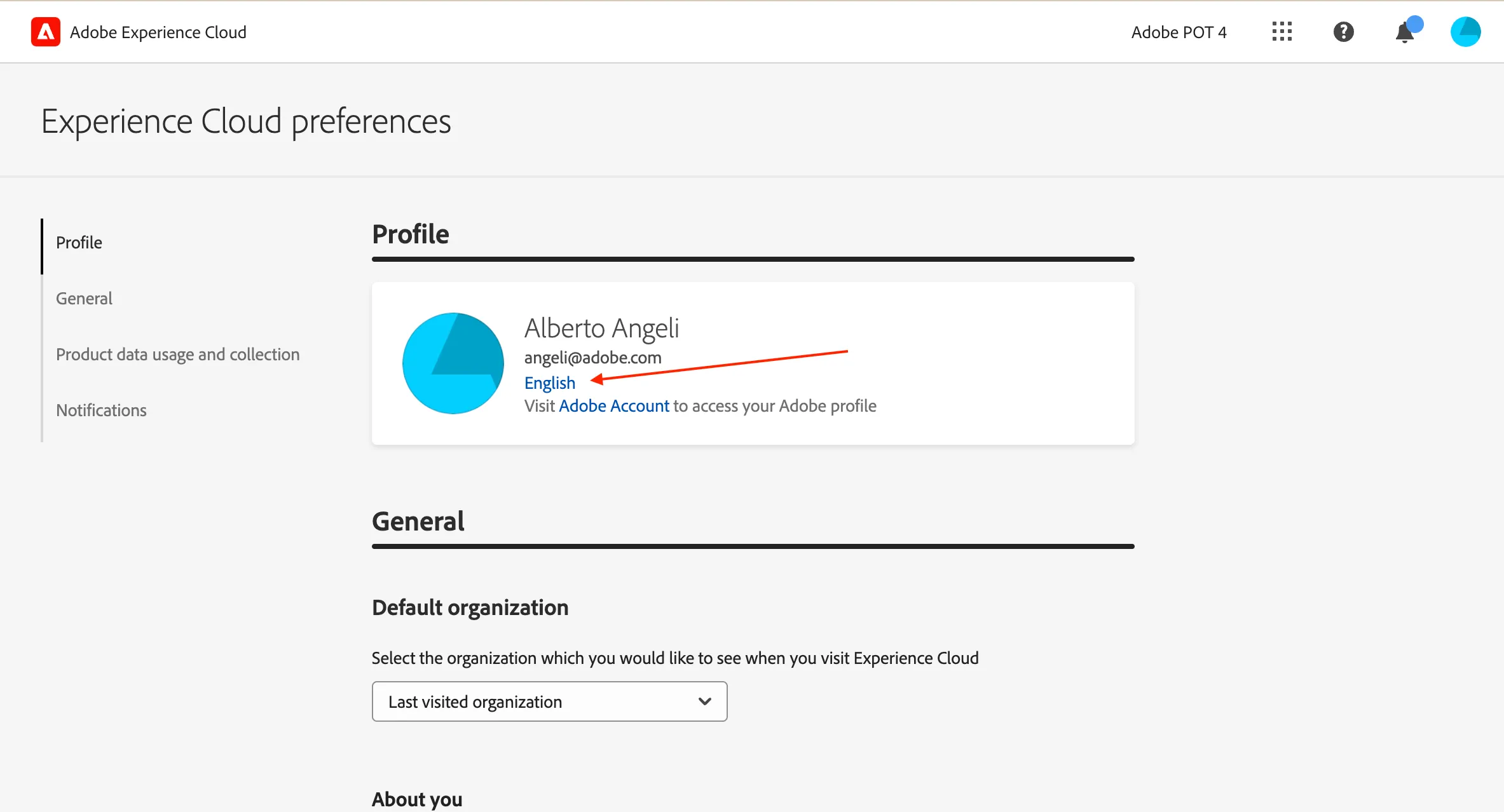
- Select English (United Kingdom) as First language;
- select your preferred language as Second language;
- click Save.