Create the journey
Now you'll draft the journey that acts on the audience: the upcoming flight email, a wait until check-in opens, and a check-in push, with an exit for customers who cancel.
Prompt sequence
Create the journey with a single prompt. As Coworker processes it, approve and validate its inputs. When prompted to save the journey to AJO, reply yes (or yes, please).
Notice this prompt doesn't spell out how long the Check-in window is. Coworker already knows it's 24 hours before departure, because you loaded that into Business Context.
Keep in mind that the outputs from the same prompt may differ, and you may see different visuals than the screenshots in this guide.
Expected outcome: A summary with a link to the draft journey, confirming the audience entry, an email step, the wait, a push step and the exit rule. Coworker also lists what's still to do: the email and push have no content, and the wait and exit rule may need attention.
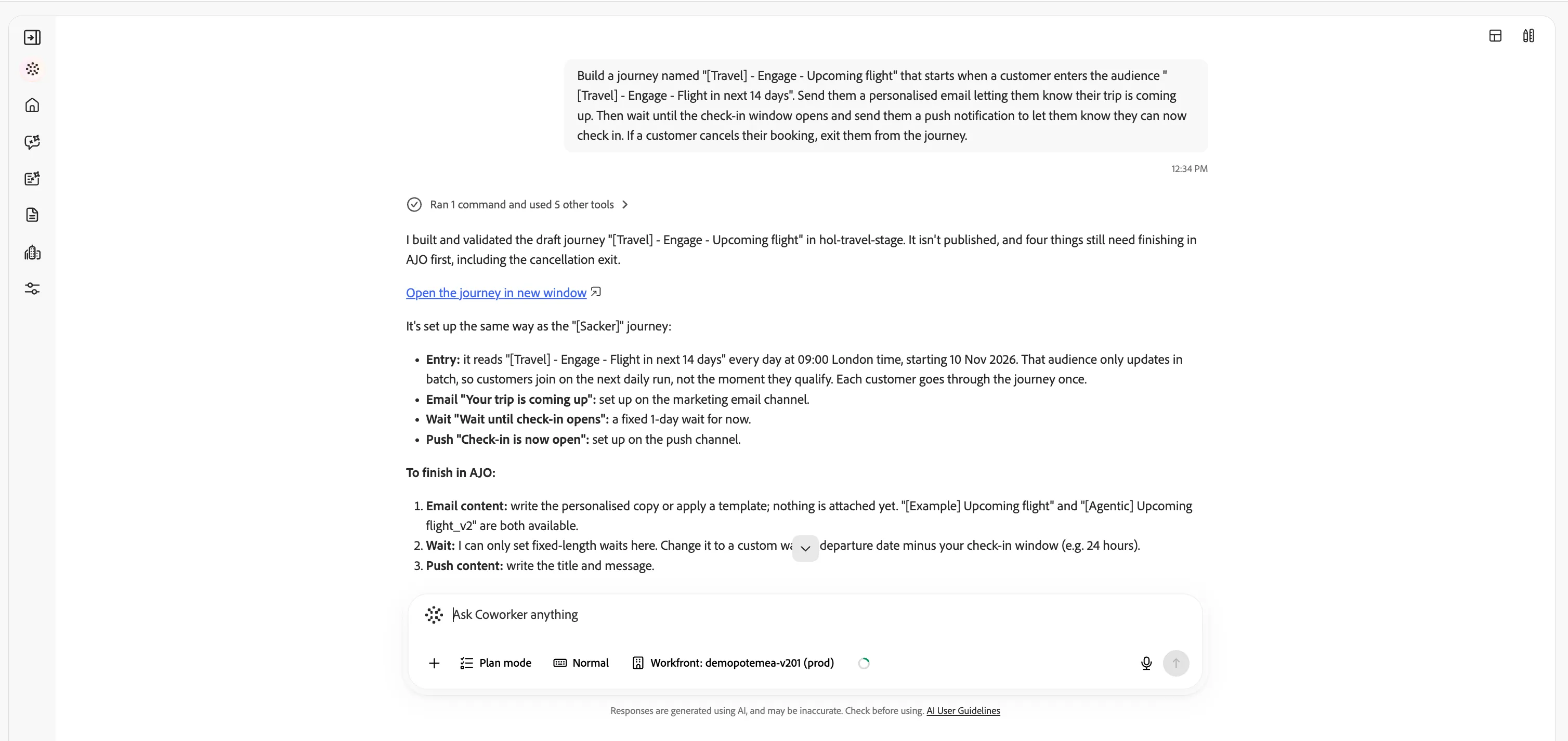
Click the link to open the journey and see how Coworker pieced it together. The full structure is in place; the details are next.
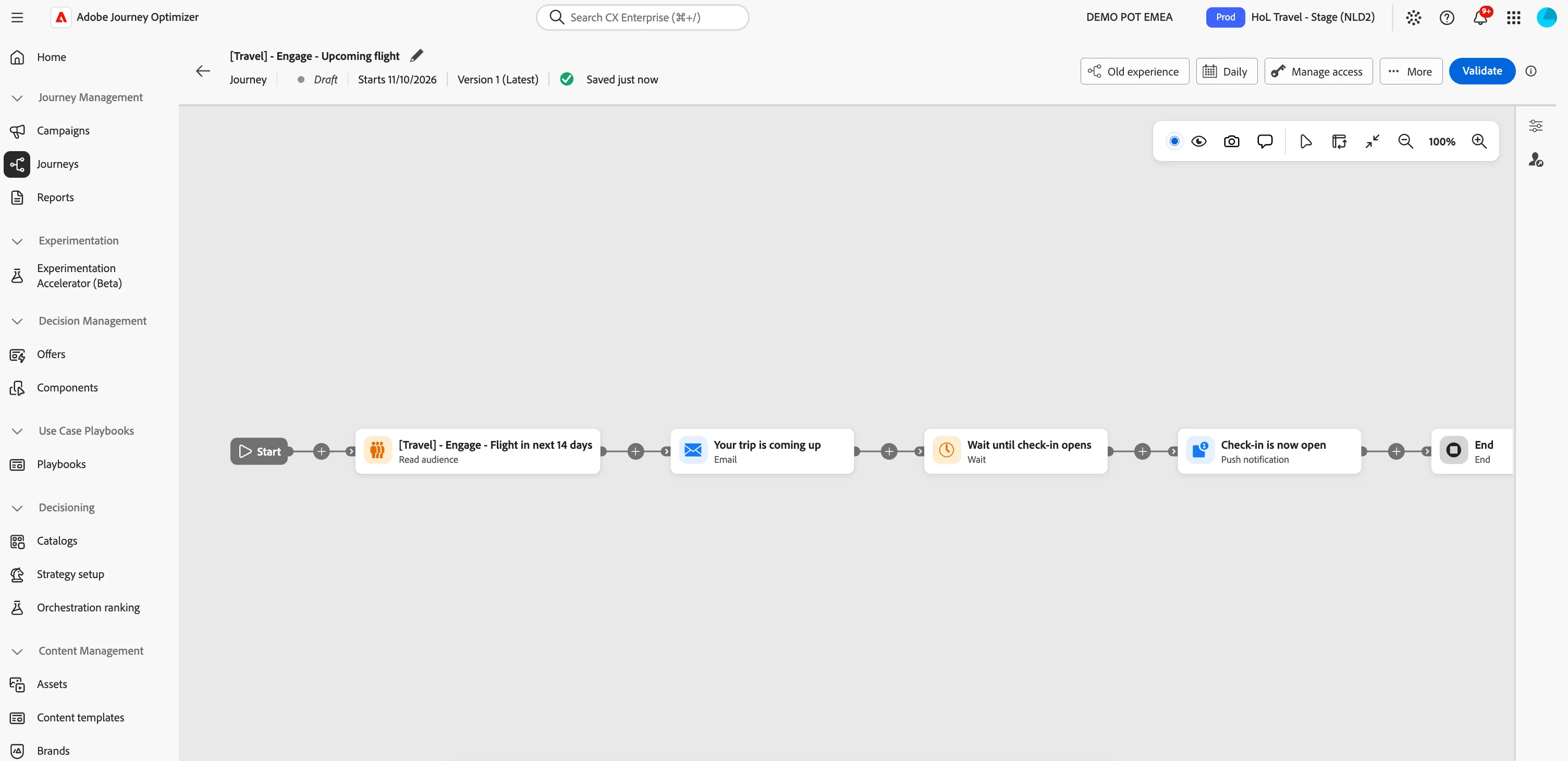
The Email and Push notifications are added into the journey structure, let's ask Coworker to create the content for the Push message (email content will be created in the next exercise).
Expected outcome: Confirmation of the push content updates. Coworker also lists what's still to do: the wait and exit rule may need attention.
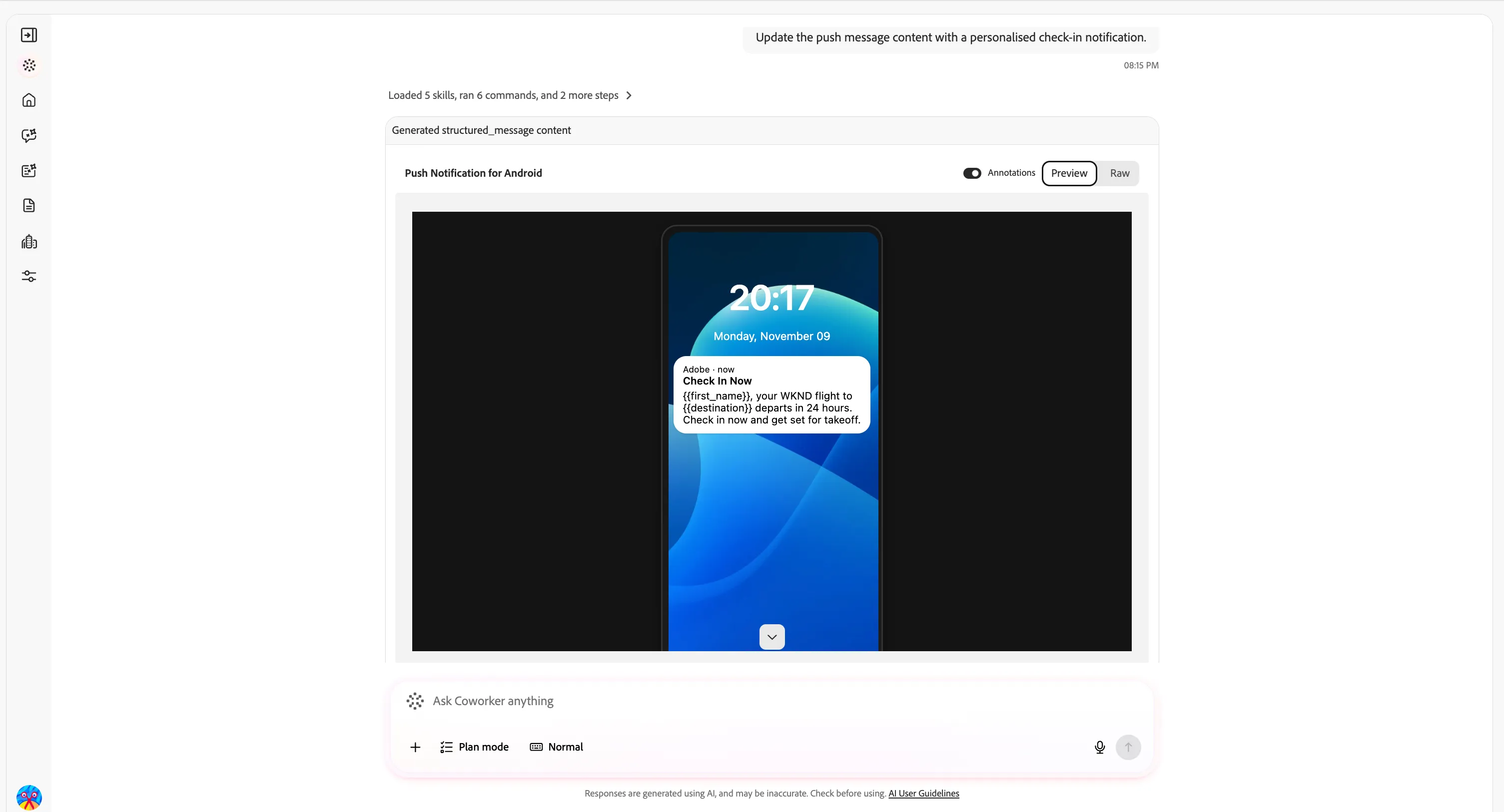
Open the updated journey and see how Coworker pieced it together. The full structure is in place, and now the content has been updated in the push action. Don't try to publish yet.
You've drafted an end-to-end journey from a single prompt - grounded in WKND's business context, with the audience trigger, the wait on the check-in window, and the push action all wired together. From here you'll finish configuring the details (such as the email content) before publishing, but the full structure is already in place.