Create an offer
Time to build. You've experienced the journey as a customer -now construct the orchestration in AEP that makes that experience real for your users.
Offers - overview
In Decisioning, catalogs serve as central containers for organising decision items (aka offers). Each catalog is linked to an Adobe Experience Platform schema, encompassing all the attributes assignable to a decision item.
For now, all created decision items are consolidated within a single “Offers” catalog, accessible via the Catalogs menu.
To get an overview of all offers in the catalog:
- Navigate to Adobe Journey Optimizer
- In the menu on the left side, under Decisioning, click on Catalogs.
- Select Offers. You will see all existing offers in the catalog.
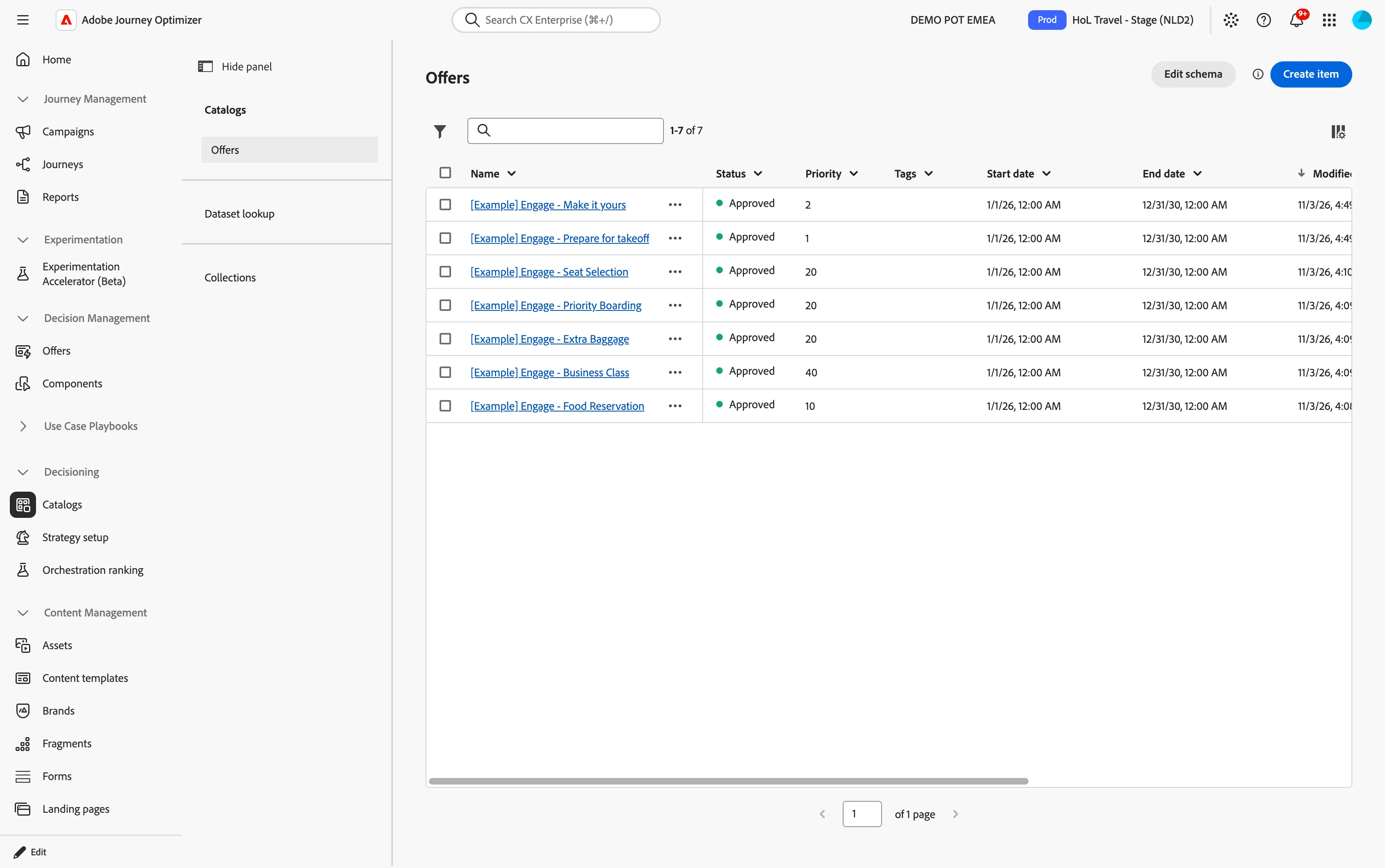
Create an offer
- Select Create Item.
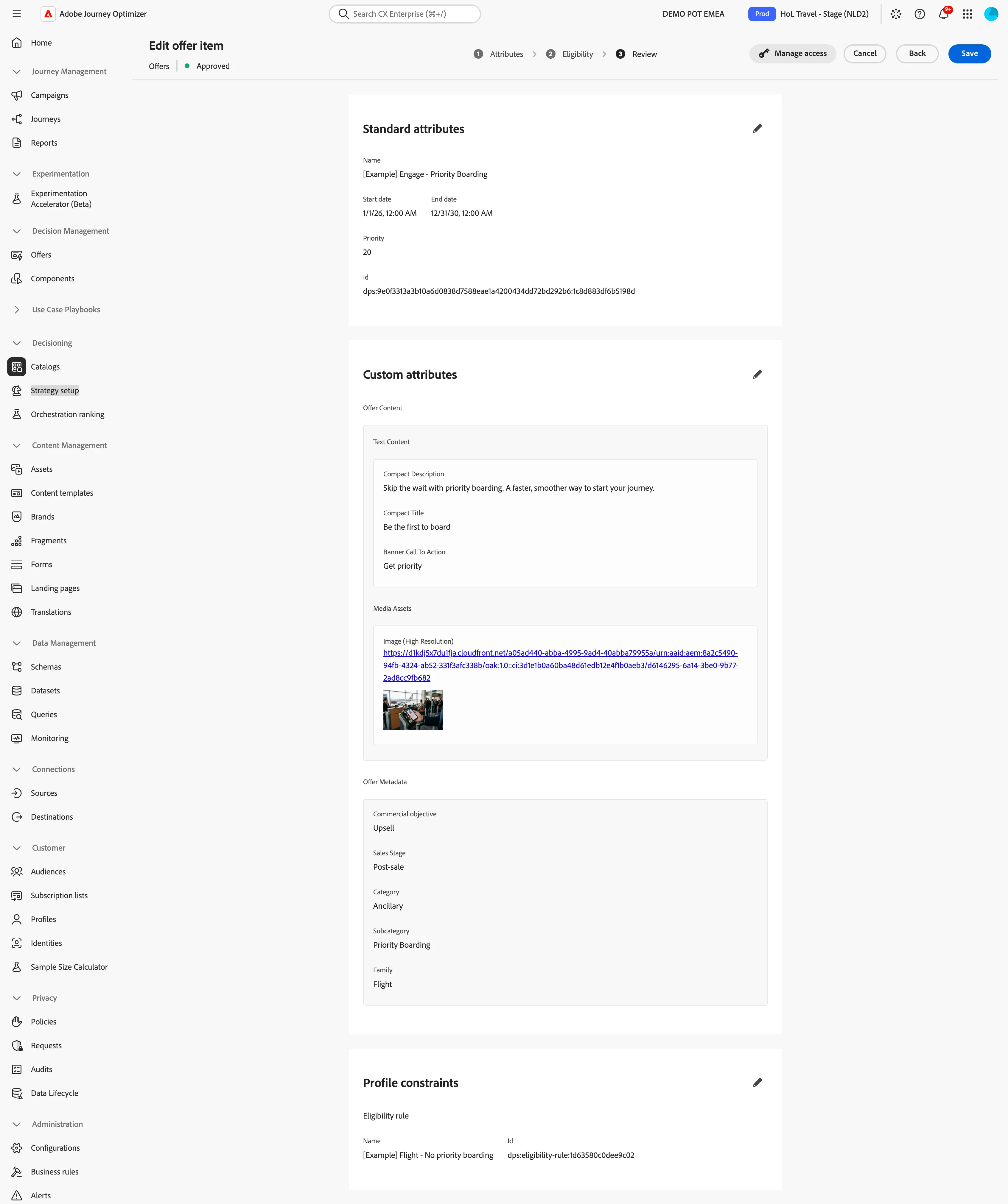
- Name your offer as [{{LASTNAME}}] Engage - Priority Boarding.
- Select a start date and end date from the date pickers for which your offer is valid.
- Set the priority to 20.
These are the standard attributes of an offer; you'll notice below there is also a list of Custom attributes.
These are specific attributes tailored to your needs that can be assigned to an offer. These values can be used to customise customer communication across different channels, ensuring a coherent and consistent message.
- Expand Offer Content > Text Content section and set the below values accordingly:
- Compact Description: Skip the wait with priority boarding. A faster, smoother way to start your journey
- Compact Title: Be the first to board
- Banner Call to Action: Get priority
- Expand the Media Assets panel:
- For the Image (High Resolution) attribute, select Add asset from library.
- Click Add asset to open the Asset Selector.
- Search for priority-boarding.
- Click on priority-boarding.png then click Select.
- Expand the Navigation panel and set the web URL to https://dsn.adobe.com/web/{{ENV:WEBSITE_PROJECT_ID}}
- Expand Offer Metadata and set the below values accordingly:
- Category: Ancillary
- Commercial objective: Upsell
- Family: Flight
- Sales Stage: Post-sale
- Subcategory: Priority Boarding
- Click Next.
You're now in the Eligibility step.
- Set Eligibility to By rule and add the rule [Example] Flight - No priority boarding by clicking the icon.
- Leave Capping rules unchanged.
- Click Next.
You're now in the Review step.
- Review your offer and click Save.
- An offer must be approved to make it visible; click Approve in the top right corner.
Your offer is now ready to be used in the Create the journey exercise!