Decisioning setup
This is a bonus exercise
It takes you through the process of setting up all components to be able to use decisioning. These were already set up as part of the Lab preparation. It is not required and can be skipped.
Create an offer collection
Collections allow you to categorize and group your decision items according to your preferences. These categories are created by crafting rules that leverage the attributes of decision items.
You will now create a Collection of post-sales offers that you will use later in the lab.
- In the menu on the left side, under Decisioning, click on Catalogs.
- Select Collections.
- Select Create Collection.
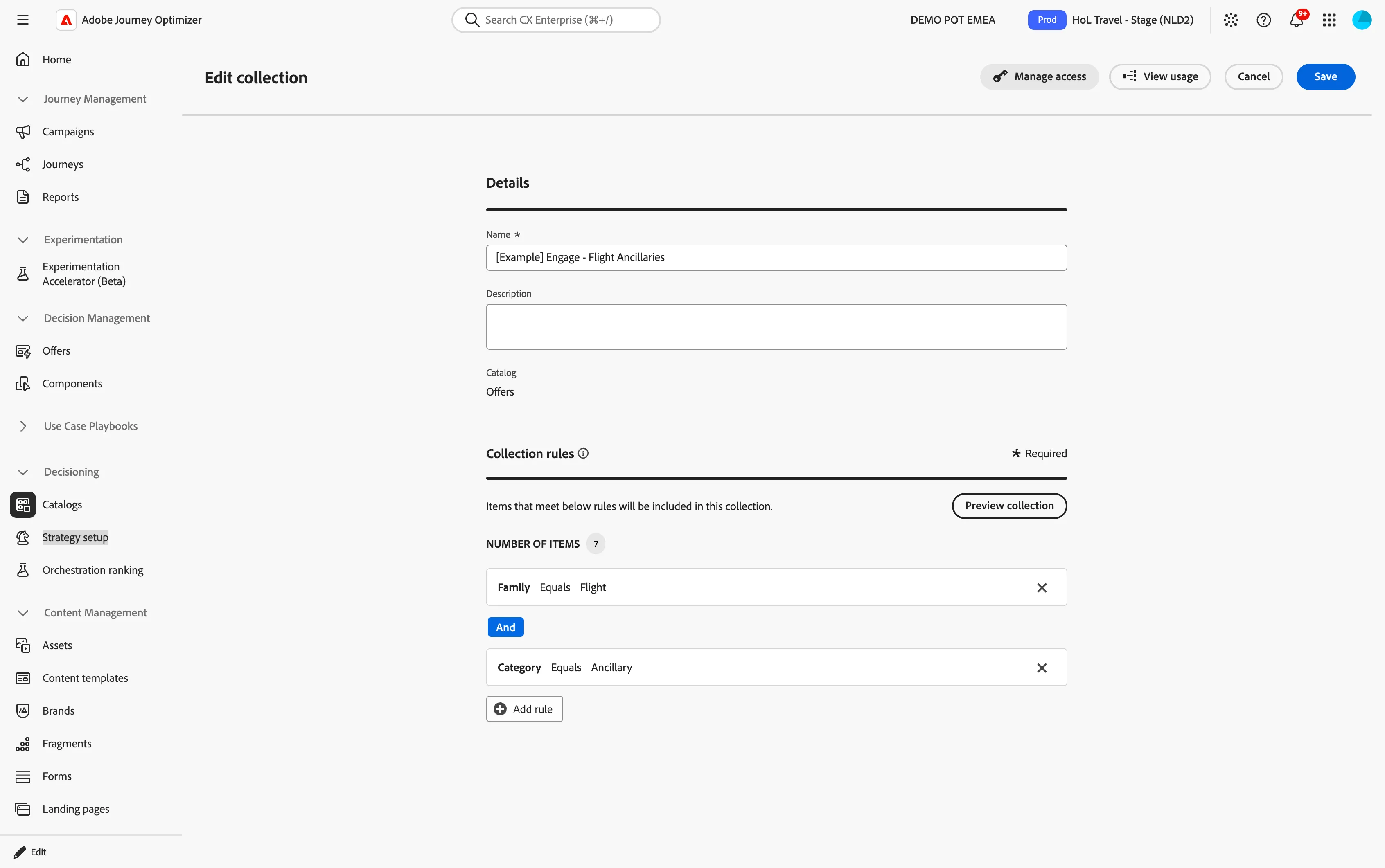
- Name your Collection: [{{LASTNAME}}] Engage - Flight Ancillaries
- In the Collection Rules, under NUMBER OF ITEMS, click on Click to create a decision item...
- Click Select attribute button.
- In the the attribute window, select Offer Metadata > Family.
- Click Save to close the window.
- Set the operand to Equals and the value to Flight.
- Click Add rule.
- Click Select attribute button.
- In the the attribute window, select Offer Metadata > Category
- Click Save to close the window.
- Set the operand to Equals and the value to Ancillary.
- Click Preview collection to see the offers that match the criteria.
You'll see a lot of offers qualifying for the collection criteria; some of them are the examples created by the lab creator as reference; others are the offers created by other participants in the lab.
- Click Create.
You've now configured a Collection.
Create a selection strategy
A selection strategy is reusable, and consists of a collection associated with an eligibility constraint and/or a ranking method to determine the offers to be shown.
The strategy:
- Takes all Flight Ancillary offers in the collection.
- Applies eligibility rules.
- Applies the ranking formula (if available).
- Returns the top ranked offer(s).
The Selection strategy decides which offer the customer will see.
- In the menu on the left side, under Decisioning, click on Strategy setup.
- Select Selection strategies.
- Select Create selection strategy.
- Name your selection strategy: [{{LASTNAME}}] Engage - Selection strategy
- Click Select collection.
- Select Collection previously created and click Save.
- Leave the Eligibility as All visitors.
- Note: Eligibility removes offers from consideration entirely, while ranking orders the remaining ones.
- Set the Ranking Method to Formula
- Click Select formula
- Select Propensity Based Scoring from the list and click Save. This is a Ranking Formula, it allows you to affect the offer priority based on external factors, like profile attributes. You can learn more about this in the next bonus exercise.
- Click Create.
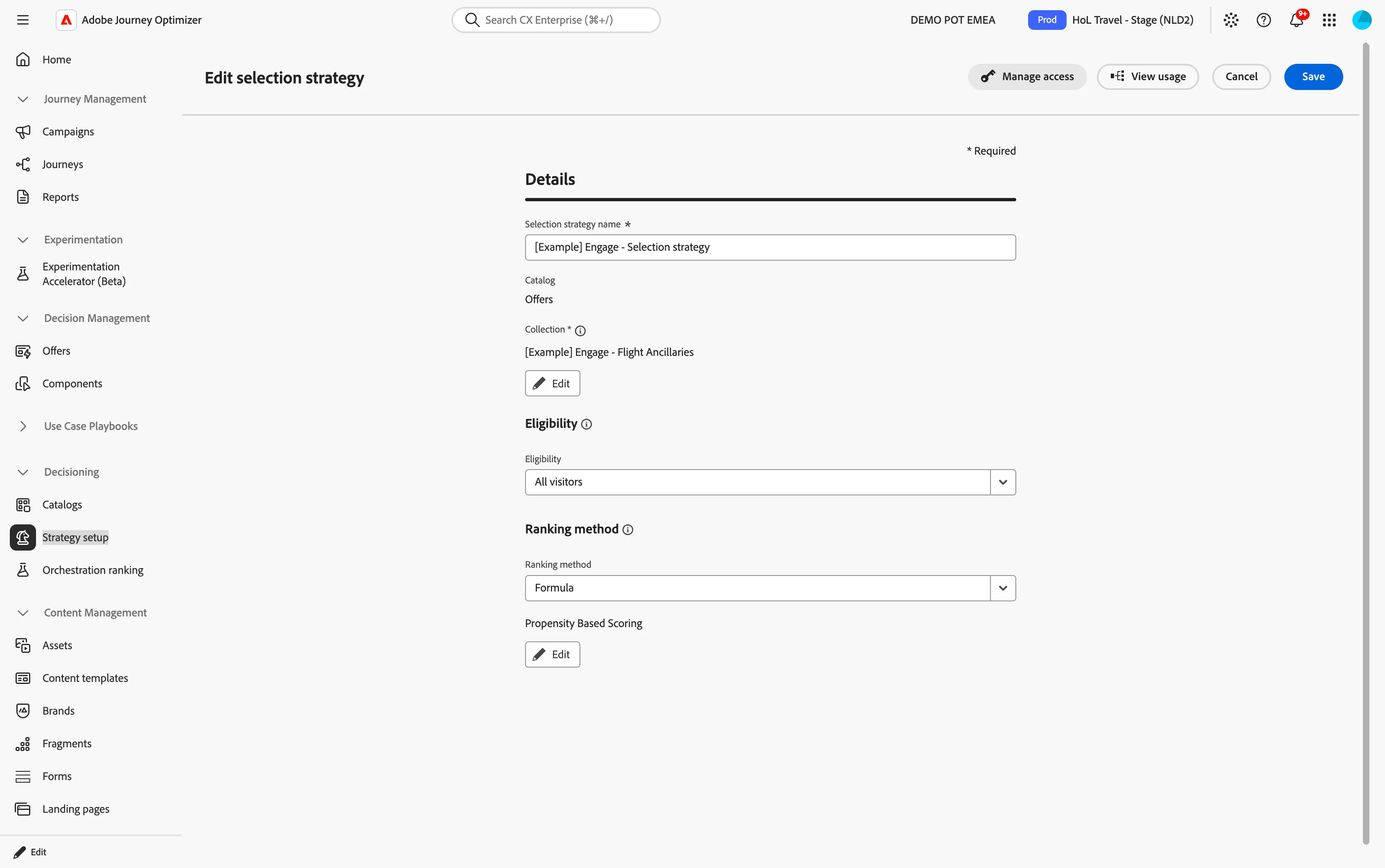
This connects the offer catalog and the ranking so that decisioning can choose the best offer for each customer!
You have now configured a system that selects a different offer for each customer automatically.
How will this be used next?
This decision will now be called inside journey message so each customer is shown a personalised offer in real-time. The journey will request one offer from this strategy at send time.