Ranking Formula
This is a bonus exercise
It takes a deeper look at how Ranking Formulas can be used to affect decisioning. It is not required and can be skipped.
Not every customer values the same thing. Some customers prefer premium options where others prefer low prices, some value priority and some value comfort.
If your offers are prioritized by priority scores we might completely miss the mark and lose out on a valuable upsell.
Ranking formulas allow you to define rules that will influence offer priority, affecting what offer is presented first for an individual customer. In our use case we want to change the priority of the offer based on the customer's propensity score for the given subcategory.
Exploring the ranking formula
Let's have a look at what we set up.
- In the menu on the left side, under Decisioning, click on Strategy setup.
- Select Ranking formulas.
- Click on [Example] Priority Based Scoring
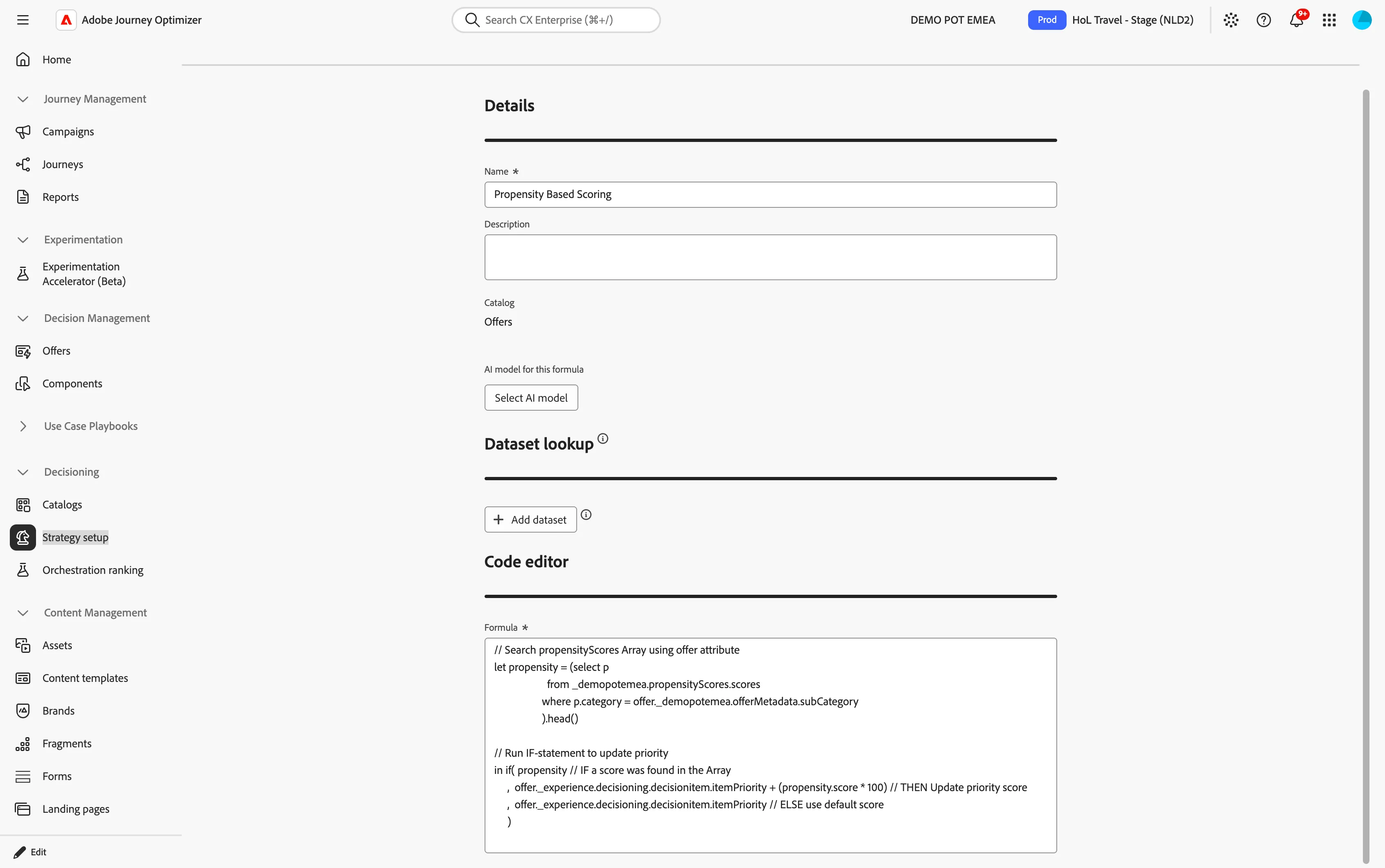
AI model for this formula
Journey Optimizer allows you to use a trained model system that ranks offers to display for a given profile. Two types of AI models are available in Journey Optimizer:
- Auto-optimization models aim to serve offers that maximize the return (KPIs) set by business clients. These KPIs could be in the form of conversion rates, revenue, etc. At this point, Auto-optimization focuses on optimizing offer clicks with offer conversion as our target. Auto-optimization is non-personalized and optimizes based on “global” performance of the offers. Learn more
- Personalized optimization models allow you to define business goals and utilizes customer data to train business-oriented models to serve personalized offers and maximize KPIs. Learn more
We're not using AI Models in this environment. AI Models require data to train and this environment gets reset after each Lab. There's simply not enough data available for the AI Model to give a meaningful result.
Dataset lookup
Dataset Lookup lets your ranking formula use business data that lives outside the offer itself, such as prices, seat availability, or margins, so the best offer is chosen with the latest facts. Instead of updating hundreds of offers by hand whenever something changes, you keep that data in one reference table and the formula reads from it automatically.
For example, WKND could check live seat availability per route and push offers for destinations with a lot of seats remaining or look up the margin per route and rank high-margin routes higher, so the offers that earn the most are shown first.
We're not using Dataset lookup in this environment. We do not have an external data source we can connect to this.
Code editor
This is where you define your ranking formula's expression. Let's dive a little deeper into the expression.
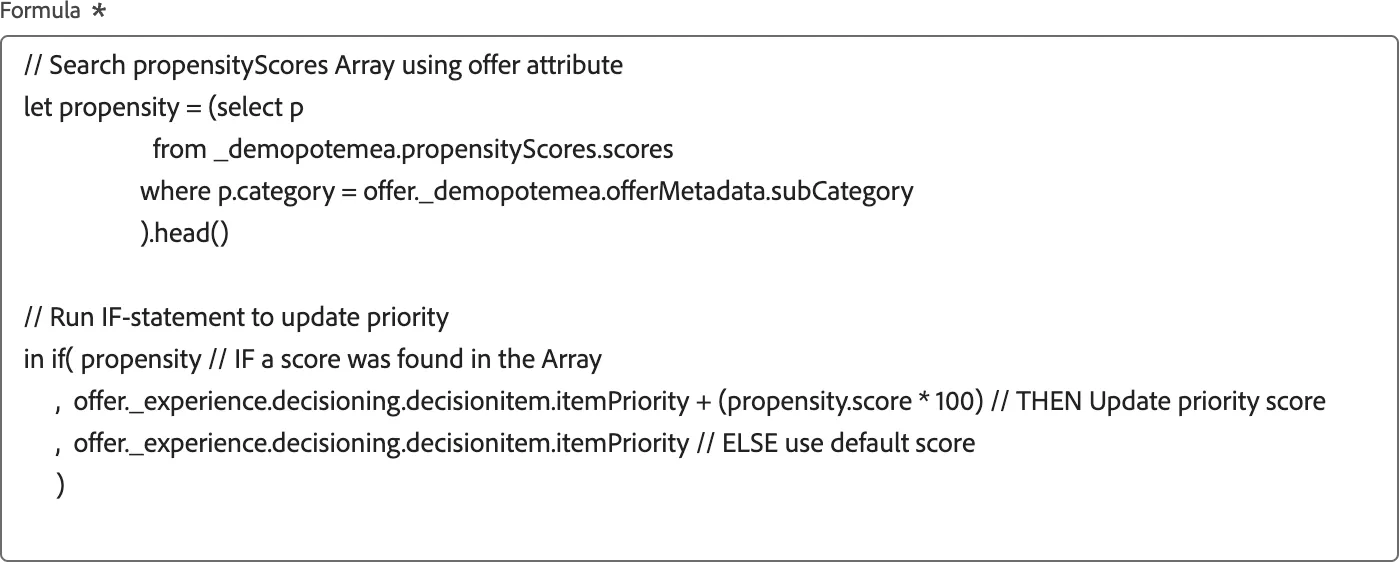
- Search propensityScores Array using offer attibute This part looks through the profile’s propensity scores and finds the one whose category matches the offer’s subCategory (You set this to "Priority Boarding" when you created the offer). Because there should be only one match per category, .head() takes the first item. If the profile has no score for that category, nothing is returned, and the result is stored in a variable called propensity.
- Run IF-statement to update priority The if() function takes three parts: a condition, what to do if it’s true, and what to do if it’s not. Here the condition is simply propensity, which is true if a matching score was found in the previous step.
- If a score was found: the offer’s default priority is increased by the propensity score multiplied by 100. A score is typically between 0 and 1, so multiplying by 100 turns it into a meaningful boost. For example, a score of 0.85 adds 85 points, so offers matching what the customer is likely to want move up the ranking.
- If no score was found: the offer keeps its default priority, so it isn’t penalized for missing data.
- Result The in keyword hands the outcome of the if back as the formula’s final value. That value is the offer’s ranking score for this customer.
Example
Let's show how decisioning works for Customer A, who is eligible for three offers:
- [Example] Engage - Priority Boarding,
- Sub Category: Priority Boarding
- Base priority: 20
- [Example] Engage - Extra Baggage
- Sub Category: Extra Baggage
- Base priority: 20
- [Example] Engage - Business Class
- Sub Category: Seat Upgrade
- Base priority: 40
Based on these priorities, Customer A would always receive [Example] Engage - Business Class as it is the highest priority at 40, then it would receive either other offer as they both have the same priority at 20.
However, we attached the Ranking Formula Propensity Based Scoring to this decision. Customer A has the following propensity scores:
- Priority Boarding: 0.85
- Seat Upgrade: 0.12
- Extra Baggage: 0.27
This changes the priority of the offers to:
- [Example] Engage - Priority Boarding,
- Sub Category: Priority Boarding
- Base priority: 20
- Ranking formula priority: 20 + (0.85 x 100) = 105
- [Example] Engage - Extra Baggage
- Sub Category: Extra Baggage
- Base priority: 20
- Ranking formula priority: 20 + (0.27 x 100) = 47
- [Example] Engage - Business Class
- Sub Category: Seat Upgrade
- Base priority: 40
- Ranking formula priority: 40 + (0.12 x 100) = 52
After the Ranking Formula applies, Customer A would now receive [Example] Engage - Priority Boarding first, followed by [Example] Engage - Business Class and then [Example] Engage - Extra Baggage.
Key takeaway A ranking formula replaces one-size-fits-all offer priorities with a score calculated for each customer. It combines the offer’s base priority with data such as profile attributes, context, or Dataset Lookup values, so the offer most relevant to that person ranks first. Offers with no matching data simply keep their default priority.