Creating the journey
Time to build. You've experienced the journey as a customer—now construct the orchestration in AEP that makes that experience real for your users.
Story so far
The customer has returned to the WKND website and completed their trip booking. You now build the journey that confirms the booking, highlights the benefits of real-time flight notifications, promotes the loyalty program to non-members, and follows up later through the customer’s preferred channel if they have not signed up yet.
Journey - overview
To log into the Adobe Experience Platform, check the Environment & AccessEnvironment & Access page.
To open Journey Optimizer, click the  icon on the top-right corner, the select Journey Optimizer.
To get an overview of all journeys:
- In the menu on the left side, under Journey Management, click on Journeys.
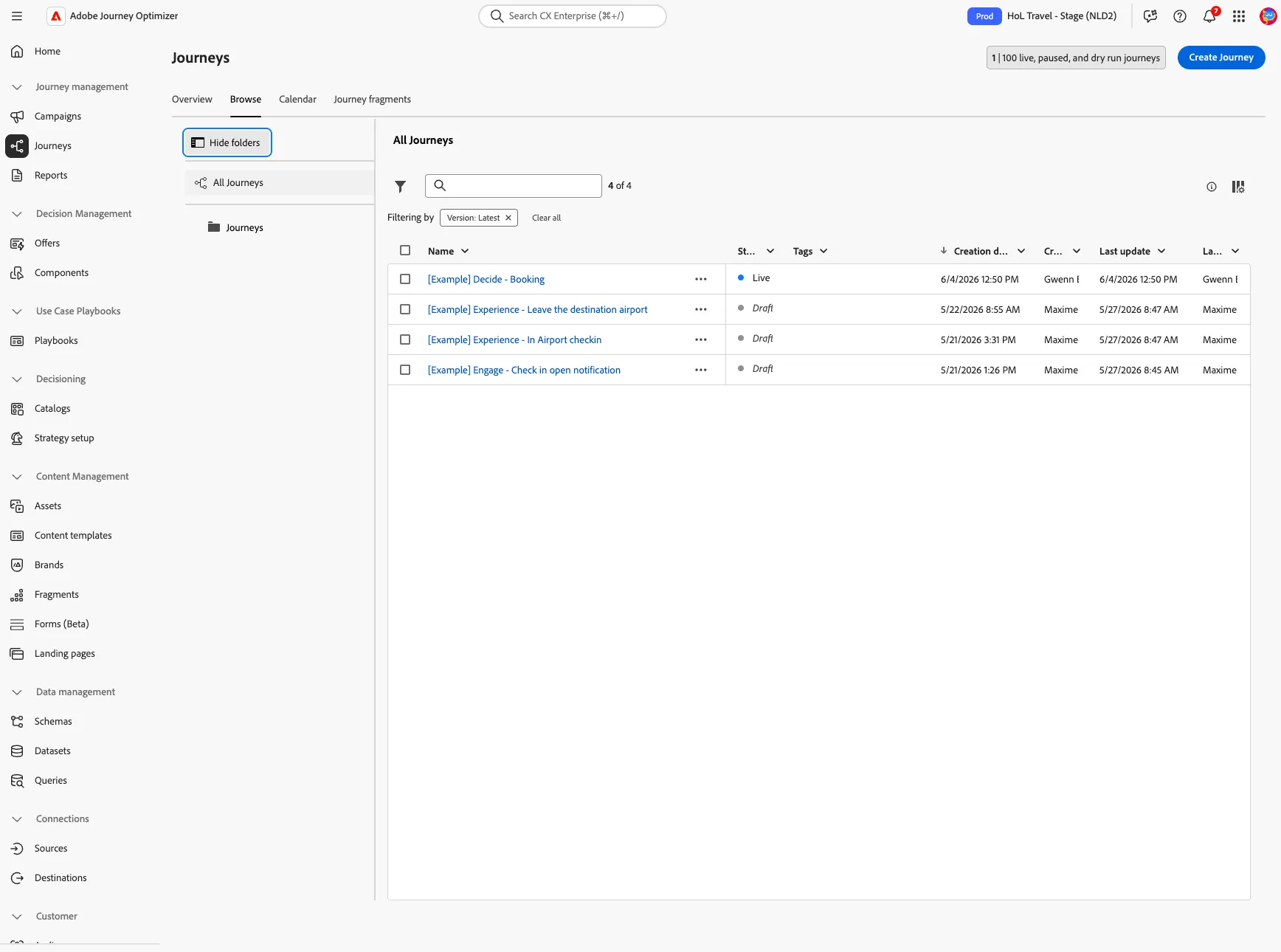
Creating a journey
- Click on Create Journey.
- Select Create from scratch. You'll be taken to the journey canvas with the journey properties opened.
- Set the name to [{{LASTNAME}}] Decide - Booking.
- For the other properties keep the default values.
- Your screen should look like the image below. Click Save to save and close the properties.
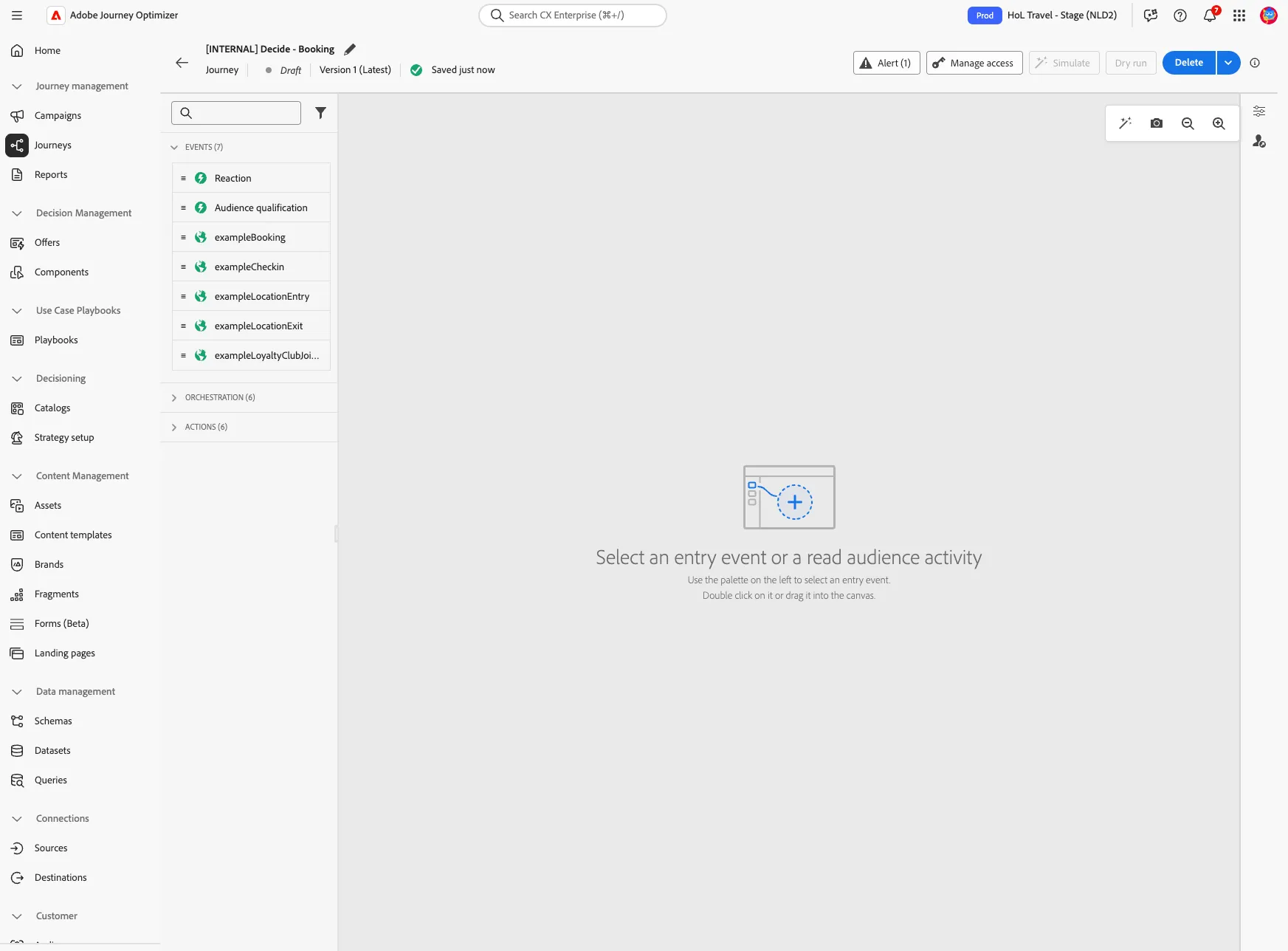
You're now in the journey canvas. This is where you'll be creating your journey's logic. In the left menu you have activities. There's three types of activities:
Events are the triggers that can start or continue your journey.
Orchestration is the logic of your journey. It looks at conditions, audiences, but can also be used to make your workflow wait or end.
Actions are the results of your journey. This can be messages, profiles updates or API calls.
Event trigger
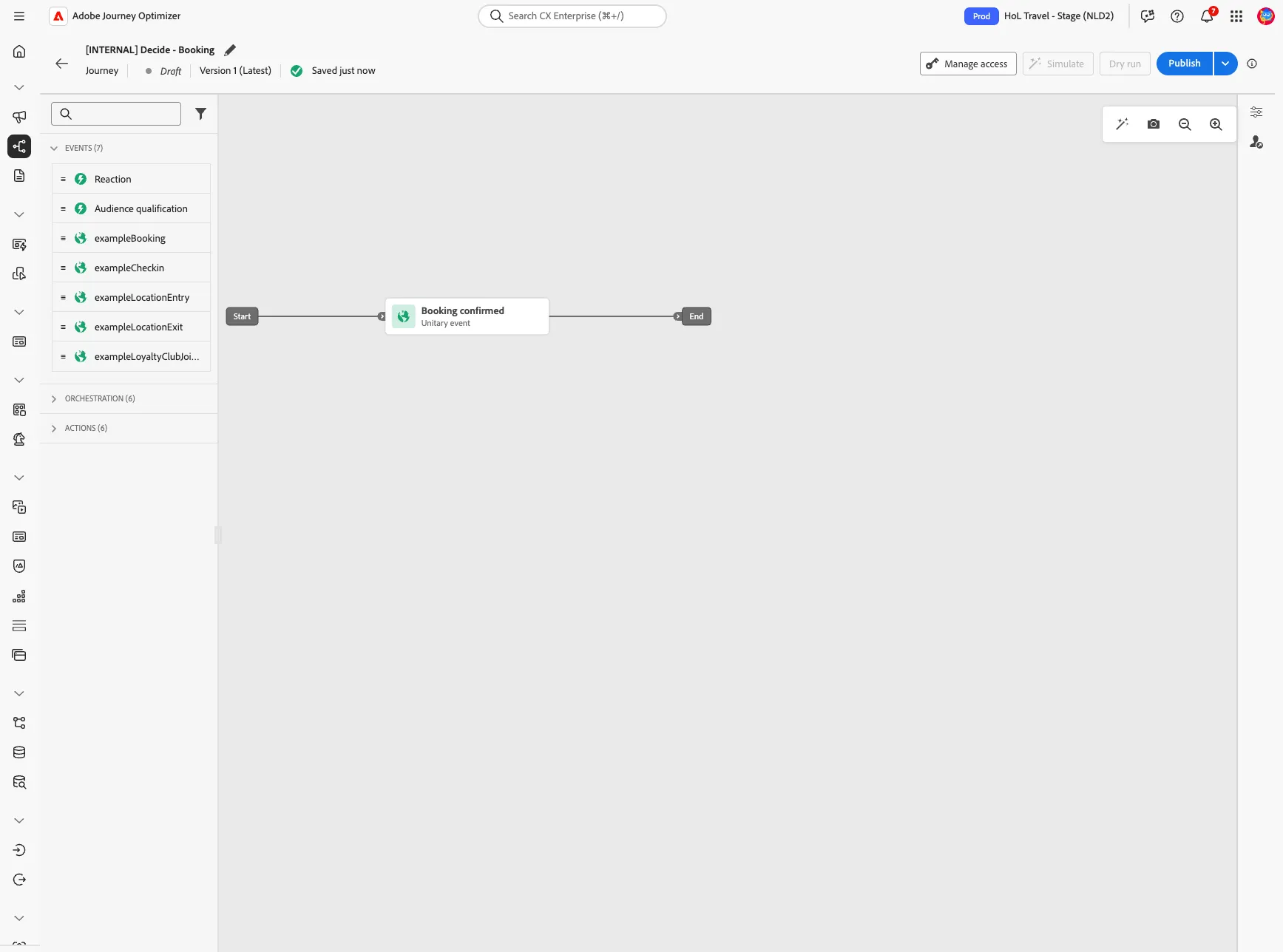
- Starting the journey with an event trigger. From the events tab, choose exampleBooking and drag it onto the canvas.
- Change the label to Booking confirmed.
- There's nothing else to configure.
- Click Save to close the menu.
Email #1 - Booking confirmation
In the next steps you will be building the email for your journey.
- From the Actions tab, choose Action and drag it onto the canvas, where this icon
 appears.
- In the Select action type window, click on the drop down and select Marketing.
- Select Email, then click Add.
- On the right you'll see the detailed view; set the label to Booking confirmation.
- Click Configure action.
Now you are in the wizard dedicated to the configuration of the details about the email.
- Set the Email channel configuration to marketingEmailMessages. Leave the other settings as they are.
- Click on Edit content to start designing your email.
- Click on
 to create a subject line. Set it to FIRSTNAME, your booking is confirmed!
- Remove the text FIRSTNAME and search for first name in the profile attributes.
- Find the field First name (... attributes > person > Full name) and click on the icon to add it to your subject line. It should now be {{profile.person.name.firstName}}, your order is confirmed!
- Click Save.
Personalization in Journey Optimizer is based on the templating syntax called Handlebars.
Handlebars expression look like regular text with embedded within curly brackets. In this case, the expression will be replaced by the first name taken for the profile in AEP.
Create an email content from scratch can take time; for this lab you will start with a template and then add some additional elements.
- Click on Edit email body.
- Under Select design template
- Click on the Saved templates
- Select the template [Example] Default Template
- Finalize by clicking on Use this template.
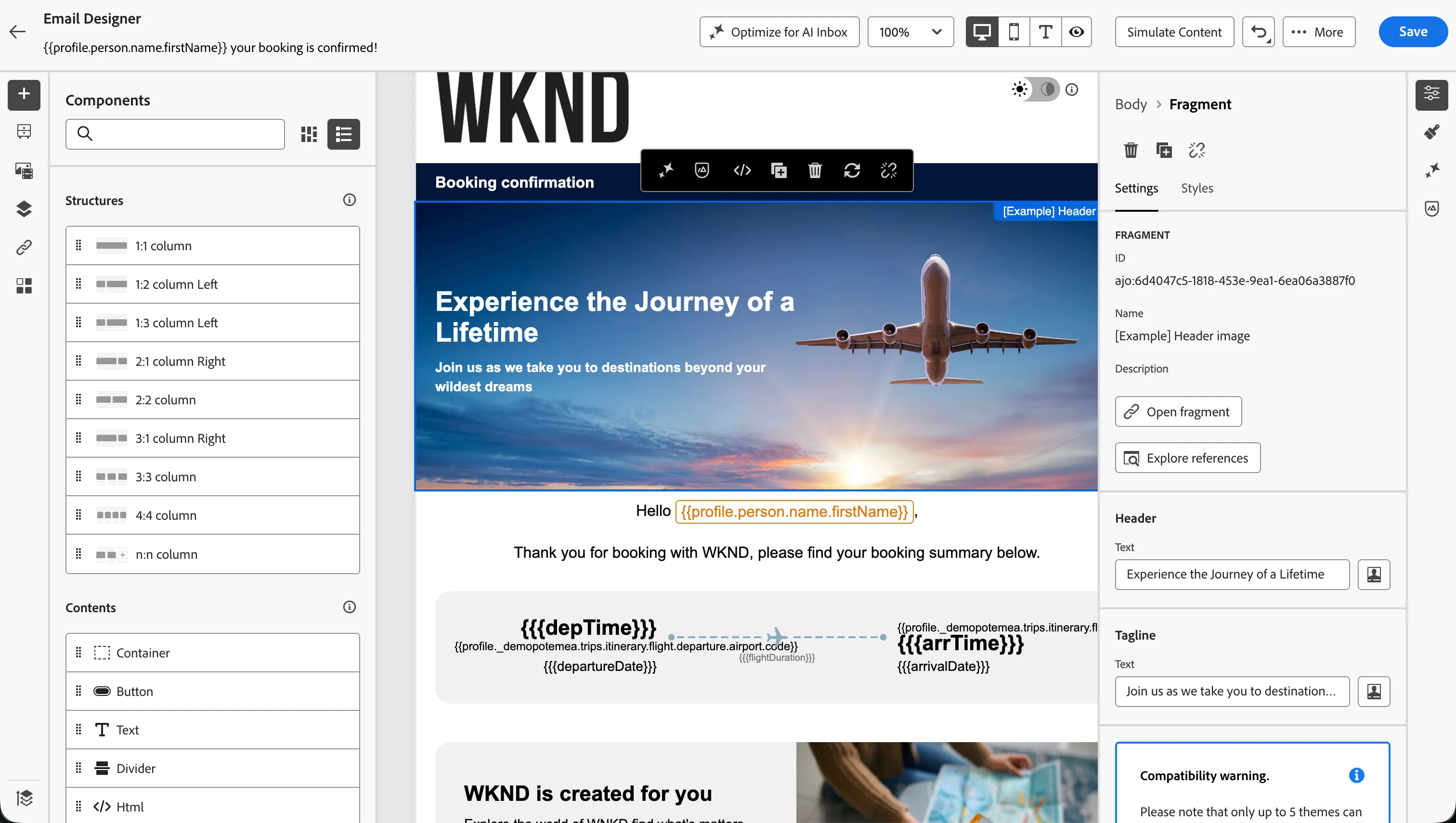
The email designer will now open. It should look like this:
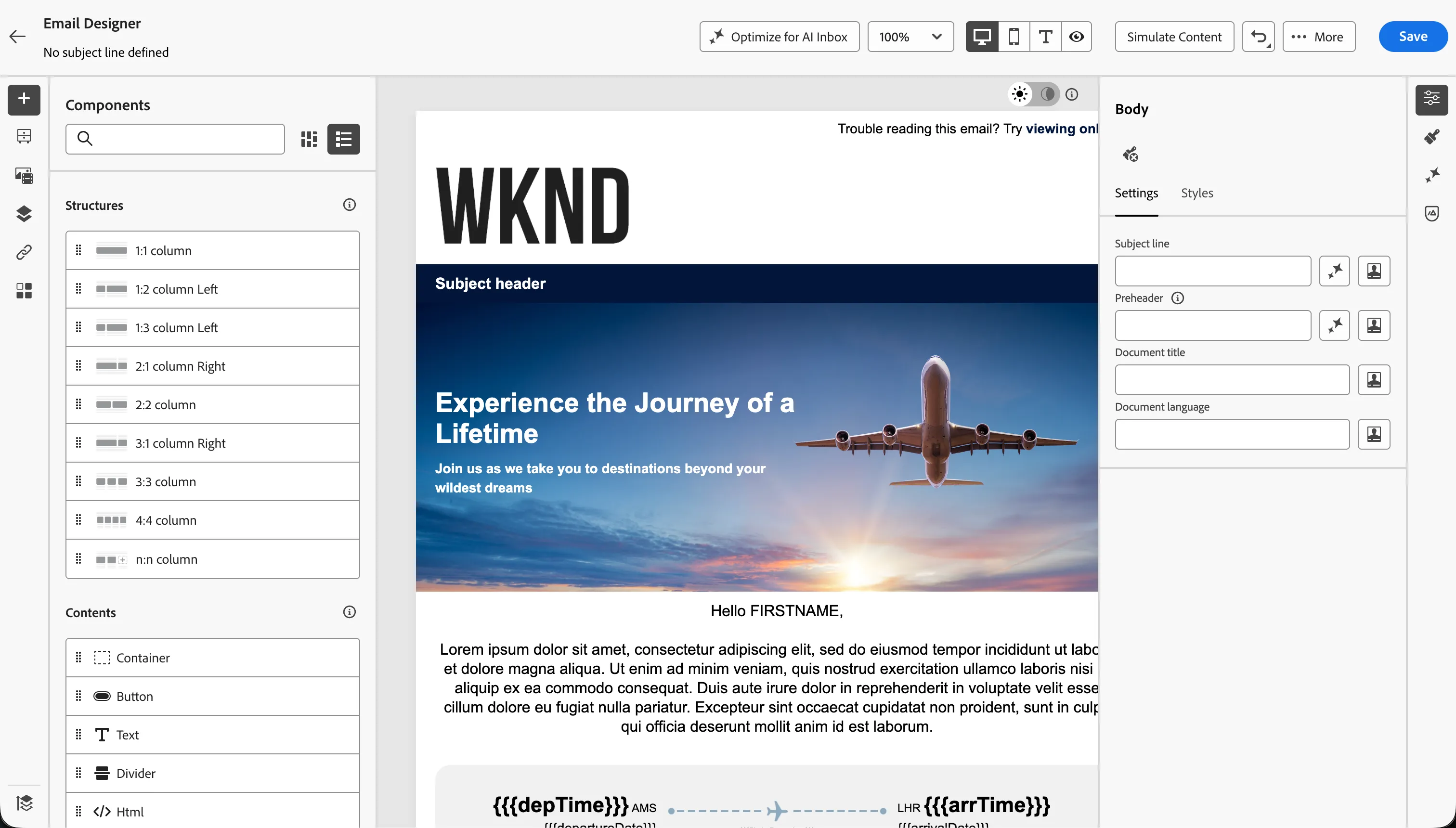
In the left menu you have Components
- Structure components are the building blocks of your email, they will determine the layout of your email.
- Content components are the different forms of content that you can place inside your structure components, like text, buttons and images.
As first step you have to personalise the body of the email with contextual data.
Start by changing the subject header with Booking confirmation
Previously, in the subject line you have used an attribute from the profile. Do the same with the first name of the customer :
- Click and select FIRSTNAME
- Click on
 to open the personalisation window.
- Search first name and click on +.
Then, you can now change the main content :
- Replace the text "lorem ipsum" by something more relevant like "Thank you for booking with WKND, please find your booking summary below."
The next step is to focus on the reservation itself. For this click on the relevant component and complete the information above :
- Departure (Datetime) : search departure date and click on +.
- Arrival (Datetime) : search arrival date and click on +.
- Departure airport code : search code and click on +.
- Arrival airport code : search code and click on +.
You can now delete all the block after, they are not relevant, and keep only the one line header.
At the bottom of the email there is an empty box where you want to add a personalized banner based on the customer profile.
- Click on
 to see the list of content fragments available.
- Drag and drop the item [Example] 50/50 - Text/image in the Drop content here area.
Why section - content fragment
One advantage of using a content fragment is that you can manage and update its fields through the fragment settings, on the right side panel, rather than modifying the elements directly in the email body.
- Click on the fragment in the body of the email; a blue border will appear.
- Replace the Header text with WKND is created for you.
- Replace the Body text with Explore the world of WNKD find what's matters for you.
- Replace the Button label with Register.
- Replace the Button URL with URL
- Remove the placeholder image by clicking the X icon in the Source field.
- Click Select an asset, search for itinerary, click on the asset and click Select.
- Click Save.
Your screen should look like this:
Simulate Email Content
If you want to see how the email would render for a test profile with certain attributes, you can use Simulate Content.
- Select Simulate Content > Simulate Content from the Email Designer
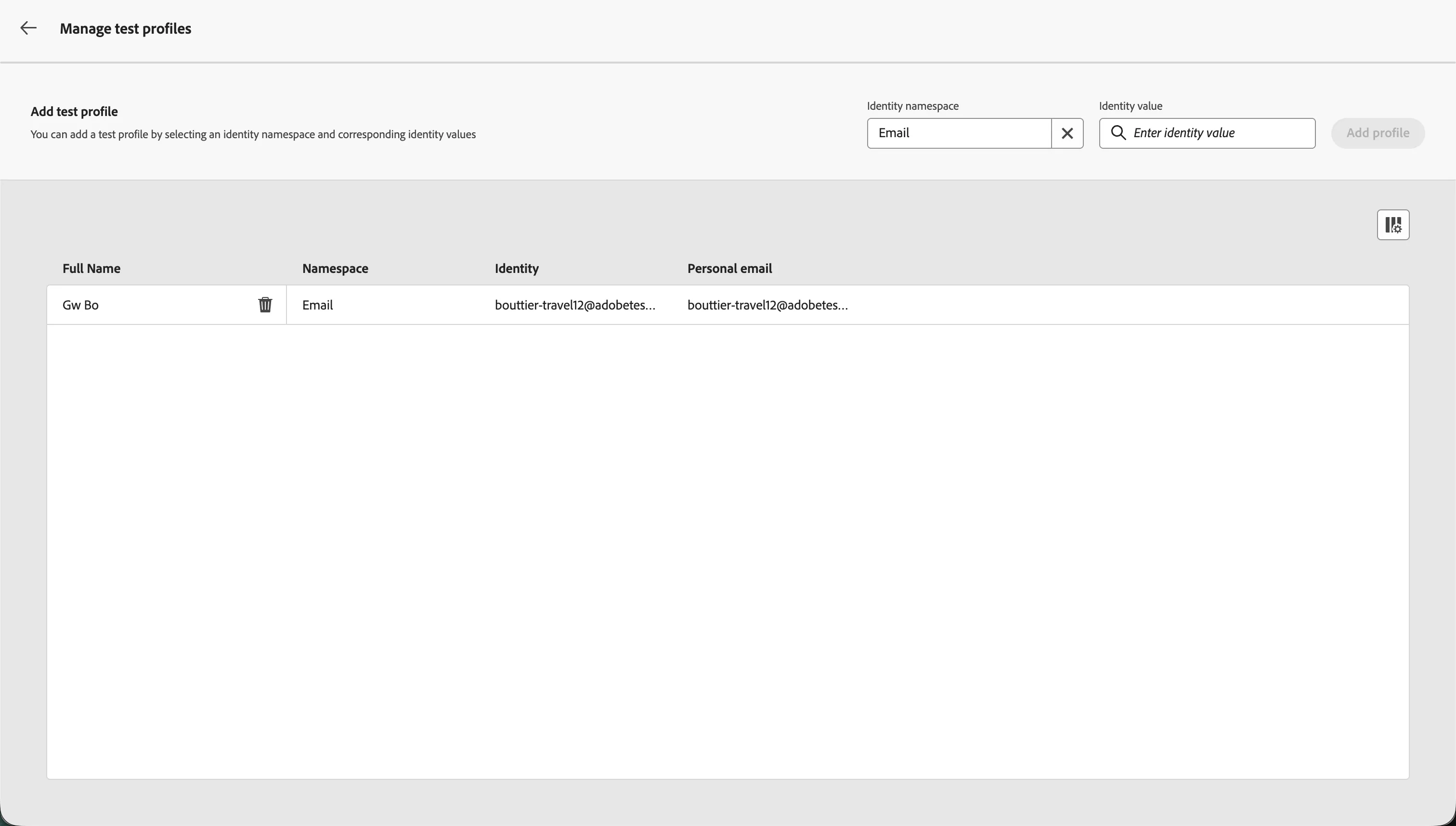
- Add a test profile that you want to simulate email content for.
- Click on Manage test profiles.
- In Identity namespace, click on
 .
.
- In Select identity namespace, click on Email, then click Select.
- In Identity value type the email address you used at the beginning of this lab.
- Click Add profile.
Now you have a test profile you can use to simulate the email content. Click the arrow in the top left corner to come back to the Simulate page.
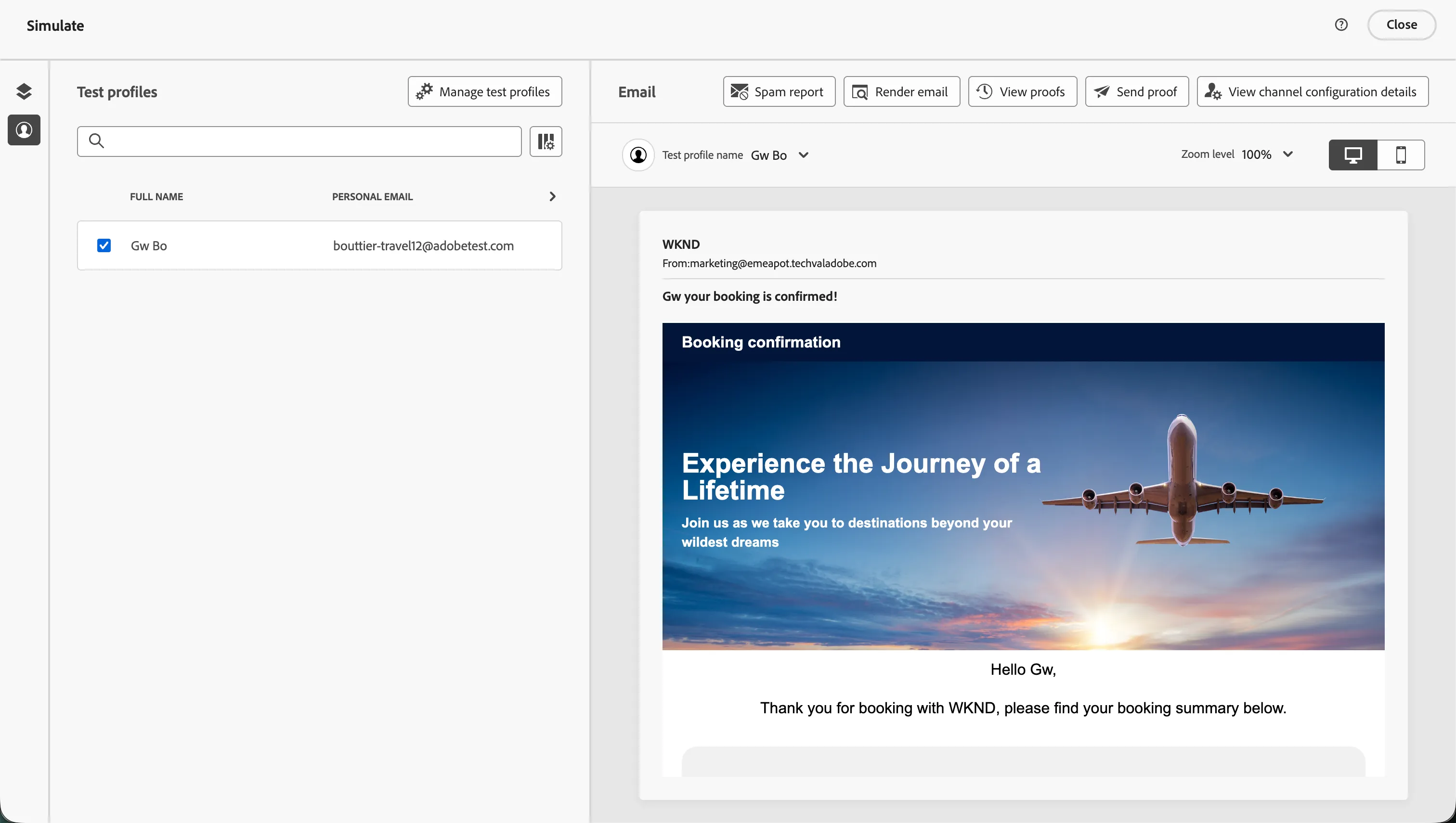
The simulation takes in consideration only the contextual data available. In this case you will only the personalisation based on the profile attribute; Order Id and Order Summary will be empty because the event payload is not available at this stage.
The email is rendered based on the profile attributes:
- the body contains the first name;
- the bottom banner shows the WKND Club Program information, since the profile is not yet a WKND Club member.
Your simulation should look like this:
- Click Close to return to the Email Designer.
- Navigate out of the email designer by clicking the back arrow icon in the top left. If prompted, click on Save&Close.
- Navigate out of the message overview by clicking the back icon in the top left.
- You'll return to the journey canvas. Click Save in the Actions: Email panel.
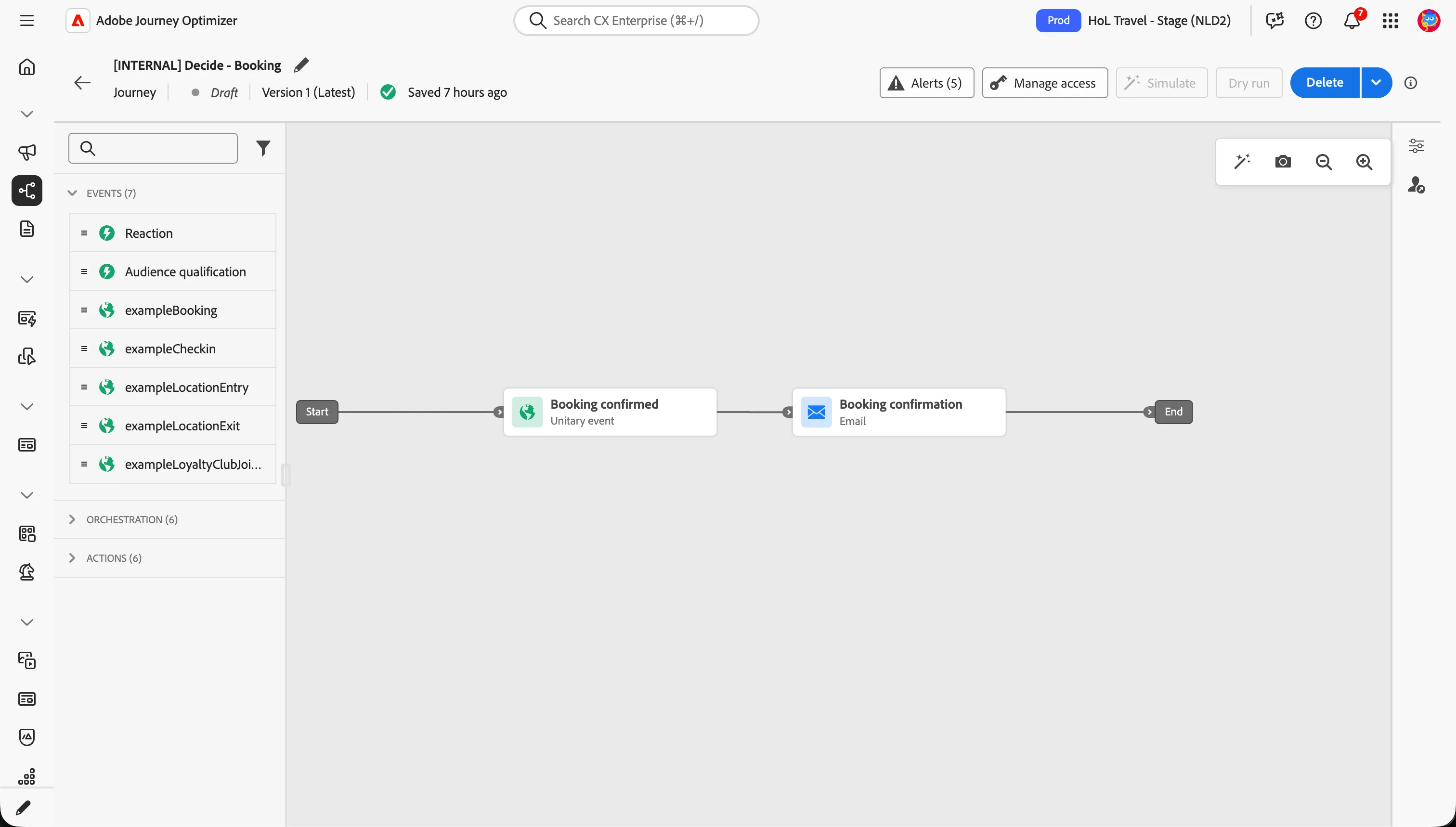
Your journey should now look like:
Event trigger
Your goal is to push the customer to subscribe to the WKND Club program; this is the next step of the journey: waiting for the subscription event.
- From the events tab, choose the prebuilt event exampleLoyaltyClubJoined and drag it onto the canvas. This event is meant to be triggered once the customer has subscribed to the Luma+ program.
- Set the label to WKND+ - Subscription event.
- Click on the Define the event timeout checkbox to activate it, then specify the wait duration to be 7 days.
- If not yet checked, click on the Set a timeout path checkbox so the journey branches into 2 paths.
- Click Save.
Defining a timeout path allows you to specify the actions that should be taken if the expected event does not occur. This ensures that your process can continue smoothly and handle exceptions in a controlled and predictable manner.
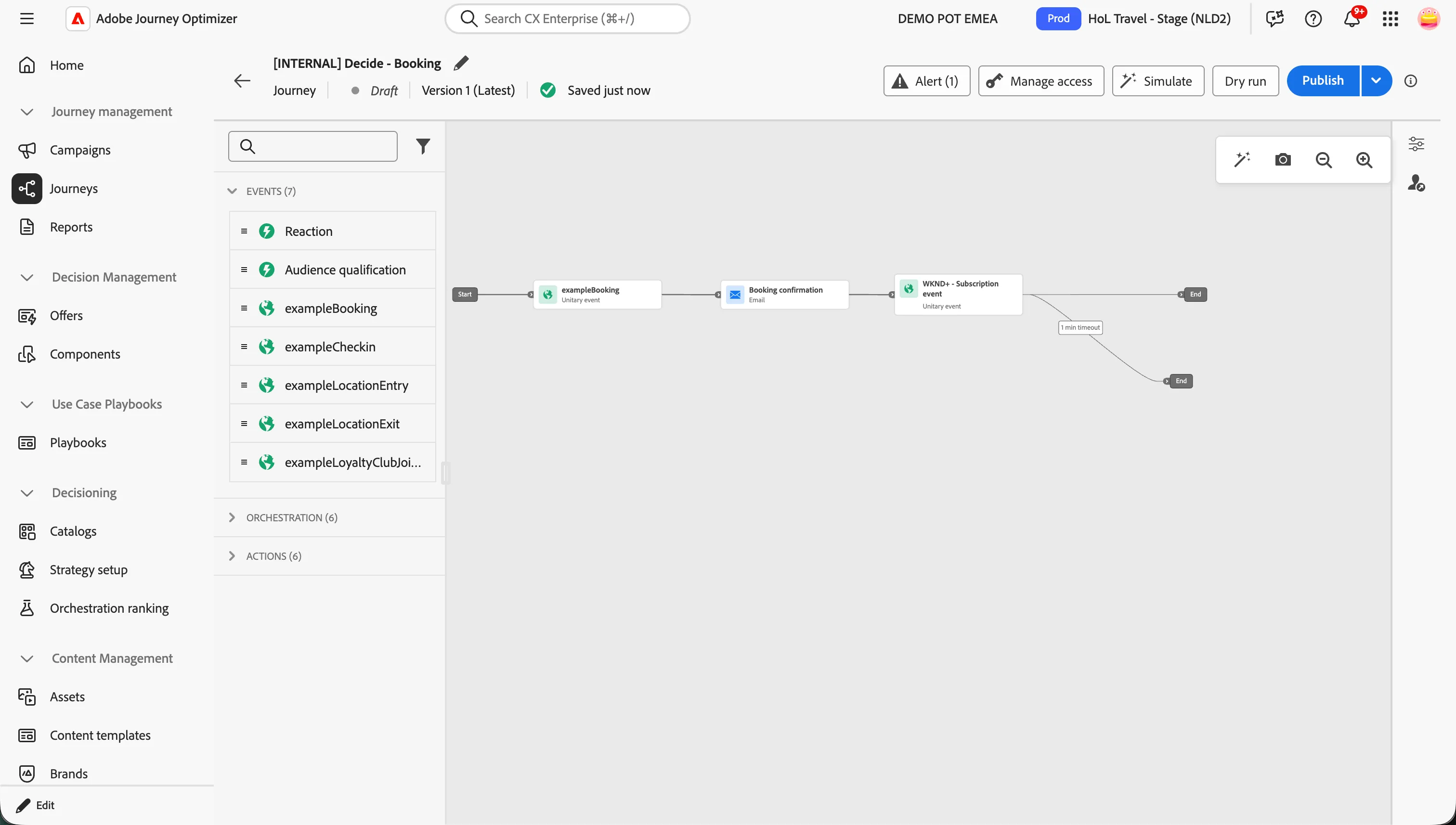
Your journey should now look like
Condition - Preferred Channel?
You want to be sure that the customer receives the follow up message on his preferred channel. Right before sending the follow up communication, check the customer's preferred channel.
- From the orchestration tab, choose Optimize and drag it onto the canvas, over the 7 d timeout branch.
- Click on the activity to open the detailed view.
- Set the Label to Preferred Channel.
- Set the Method to Data source condition.
- Click on Path1 and change the label to Push.
- Click on the Expression text field to open a window.
- On the left side, search for "preferred". Drag the data element Preferred Channel to the right side.
- Select Push, then click Ok.
Your condition should look like this:
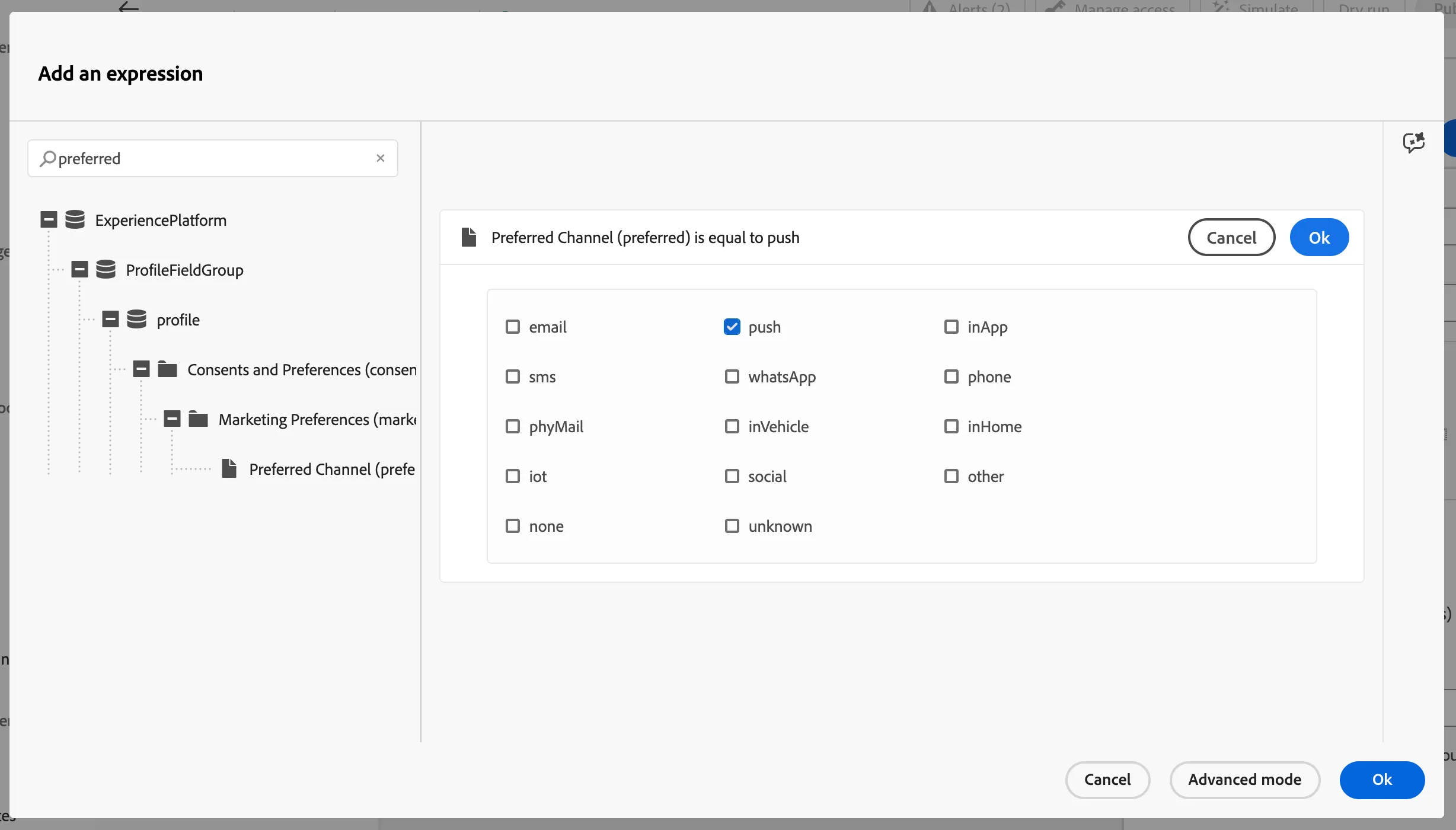
- Click Ok to save the condition.
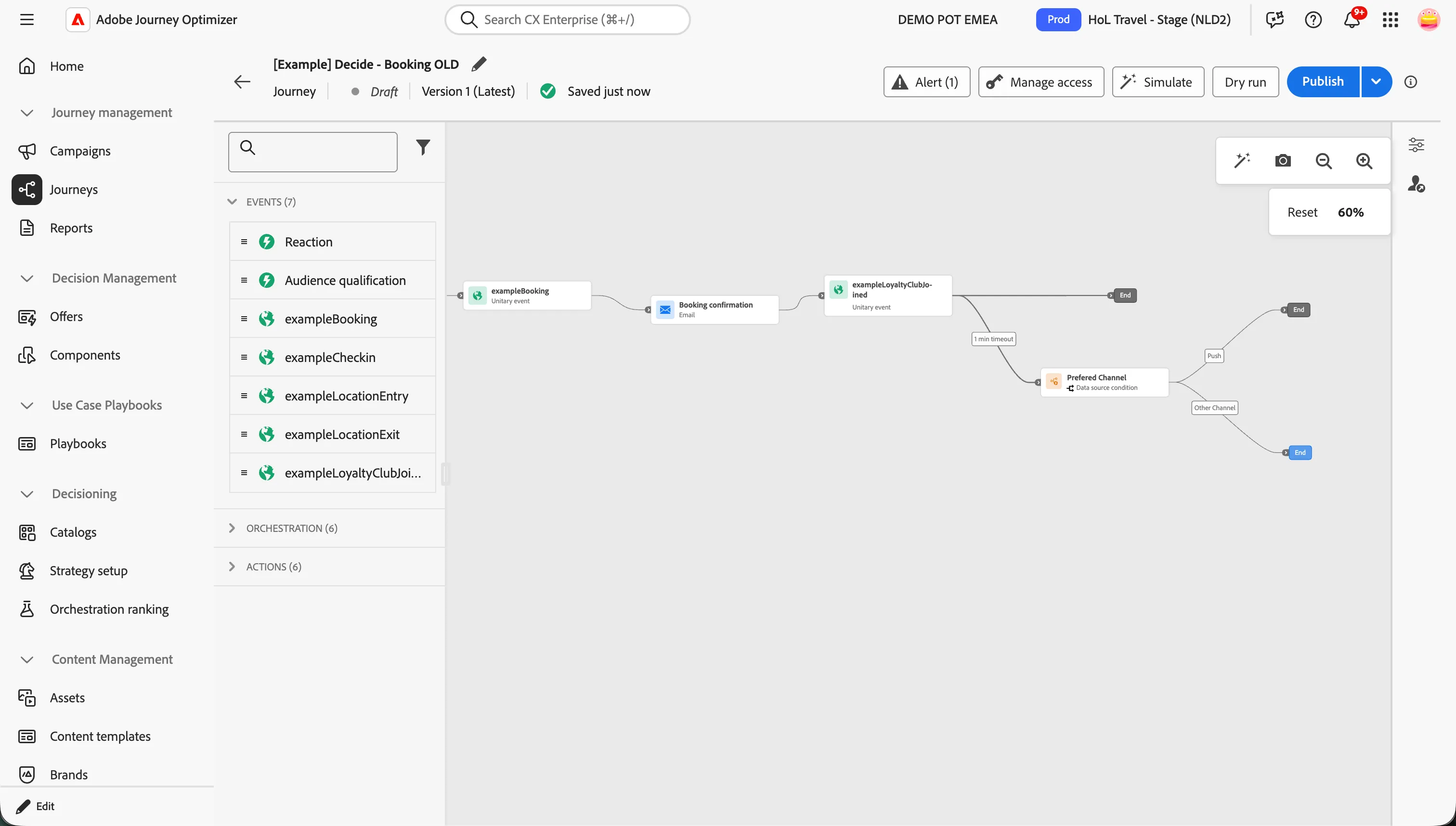
- Check Show path for other cases than one(s) above and set the label to Other channels.
Your screen should look like the image below. Click Save.
Push - Registration Reminder
Now you need to author the push-notification to promote Luma+, the loyalty program. This pushes a short message to the profile's smartphone that they can easily interact with. When they click on the push they'll be taken to the mobile app directly.
- From the actions tab, choose Action and drag it onto the canvas following the Push path after the Preferred channel condition.
- In the Selection action type window select Push, then click Add.
- Click on the activity to open the detailed view.
- Set the label to Push - Registration reminder.
- Click on Configure action.
- In Push notification channel configuration select pushMessages.
- Click on Edit content to start designing your push.
- If you don't see the properties panel on the right, click on Properties, at the bottom of the page, then:
- Set the title to WKND Club Loyalty program.
- Set the body to
- Add personalization for the first name in the same way we did in the previous email.
- Click Save.
Your screen should look like the image below:
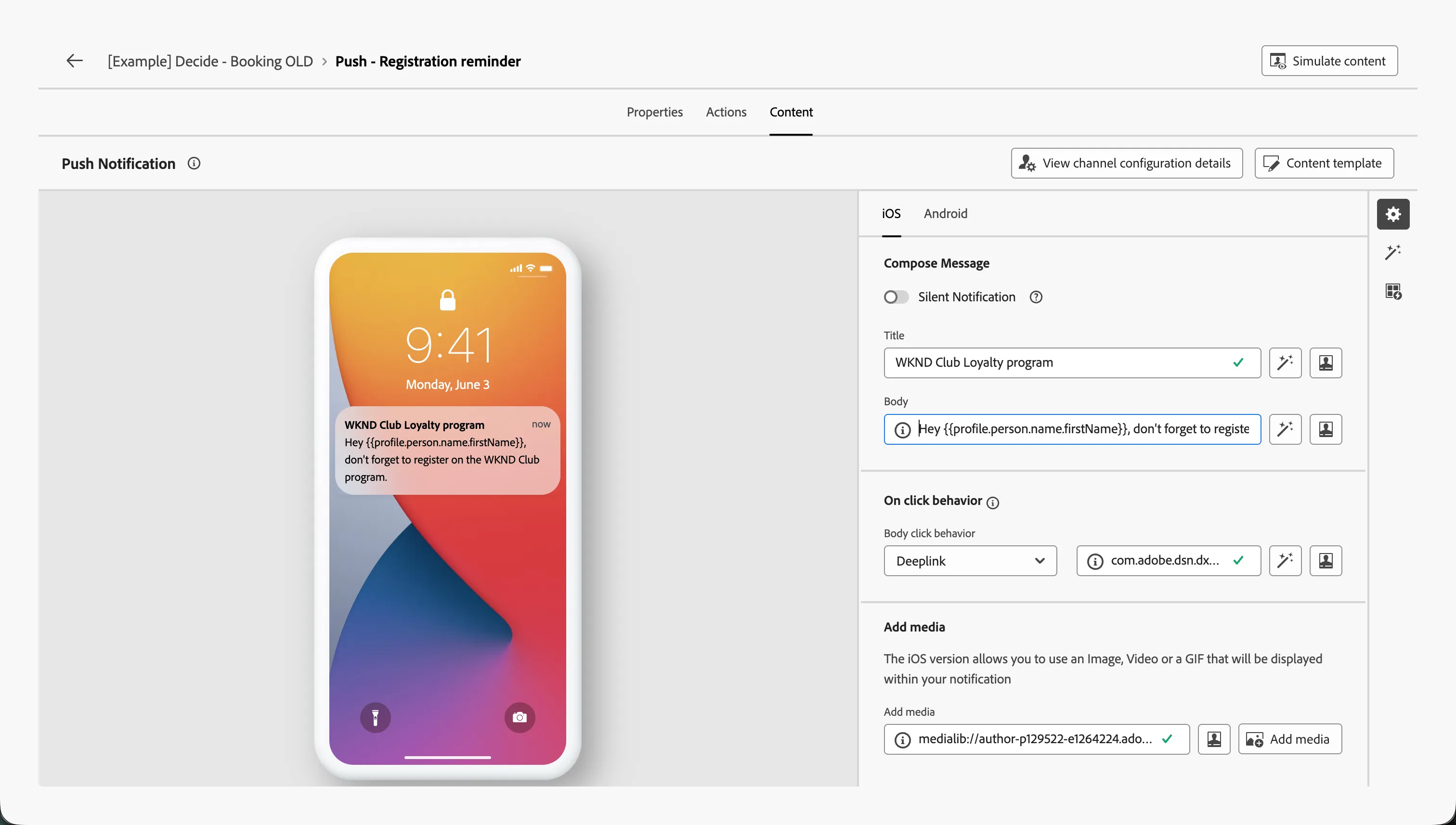
You may have noticed the double curly brackets in the body: in the push messages you can use contextual data, exactly like you did for the email.
- Navigate out of the designer by clicking the arrow in the top left.
- Click Save to close the detail panel.
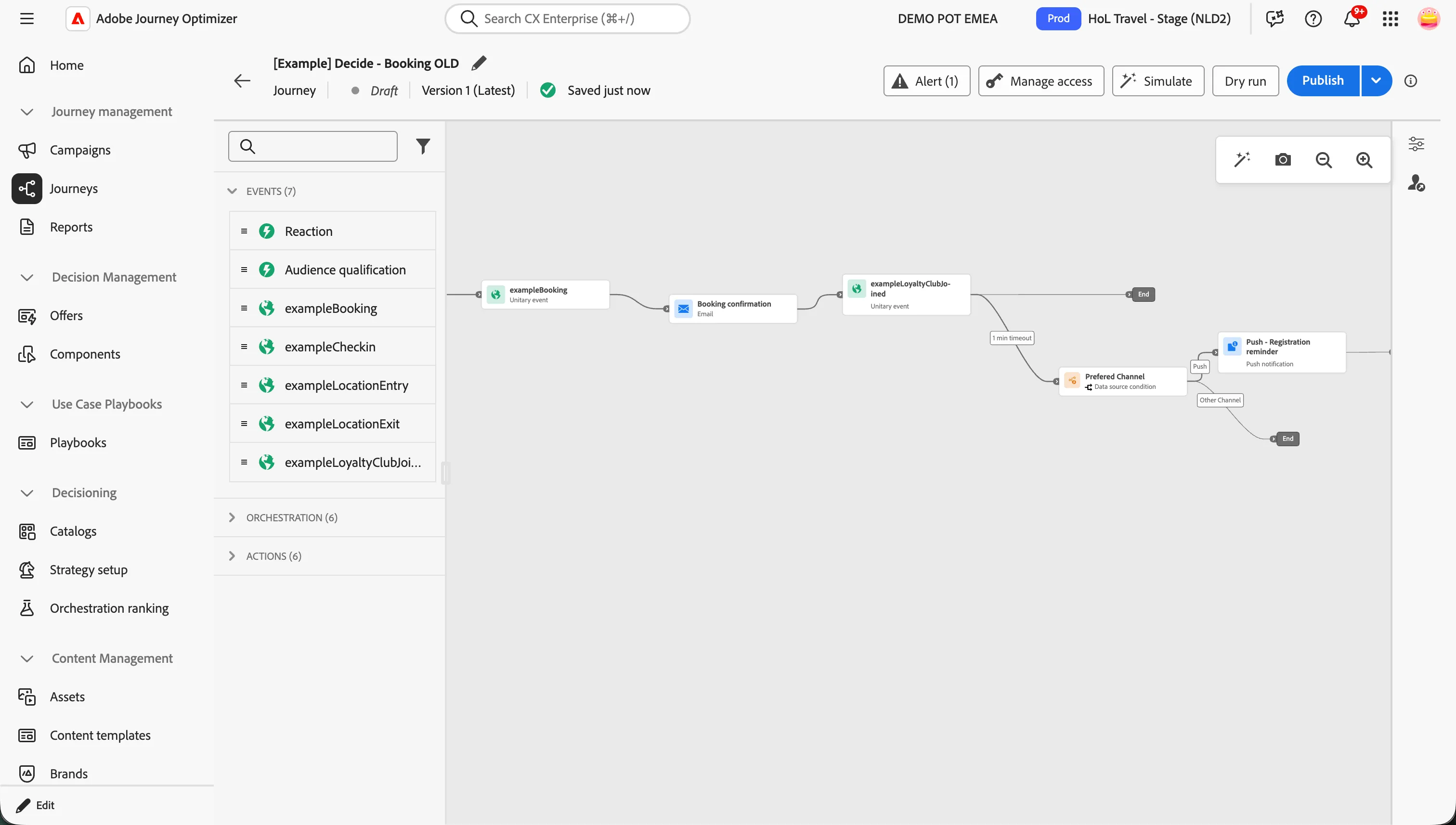
Your screen should now look like the image below:
Email - Registration Reminder
Final step: you need to create the email for customers who have not chosen push notifications as their preferred communication channel.
The implementation will be faster, since there is a template available.
- From the Actions tab, choose Action and drag it onto the canvas, where this icon appears.
- In the Select action type window, click on the drop down and select Marketing.
- Select Email, then click Add.
- On the right you'll see the detailed view; set the label to Email - Registration reminder.
- Click Configure action.
Now you are in the wizard dedicated to the configuration of the details about the email.
- Set the Email channel configuration to marketingEmailMessages. Leave the other settings as they are.
- Click on Edit content to start designing your email.
- Click on Content template > Apply content template.
- Select [Example] Registration reminder, and click Confirm.
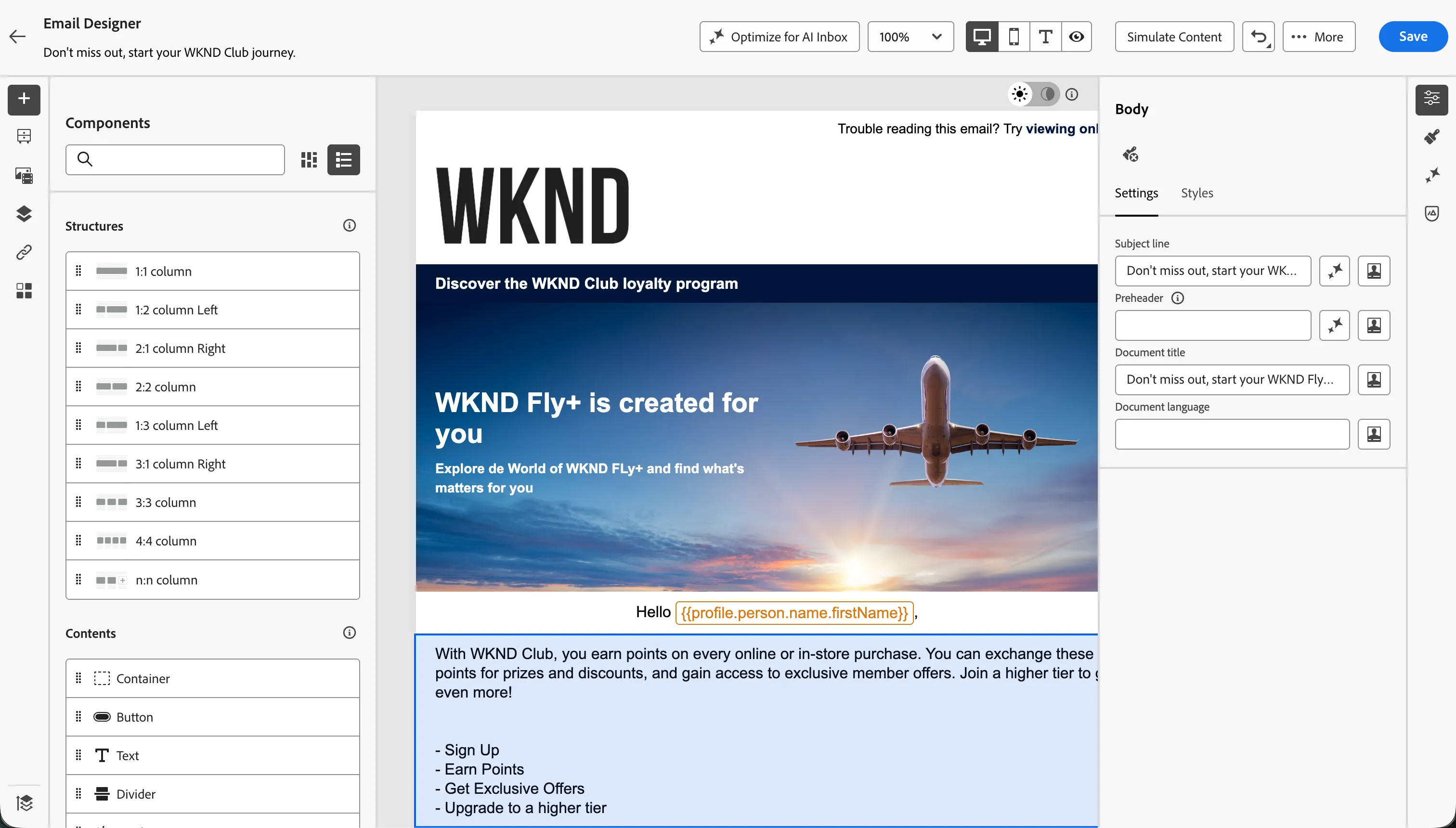
The template contains everything is needed: the subject line, the images and the personalisation expressions.
- Click on Edit email body to check the content.
The email should look like this:
- Navigate out of the email designer by clicking the back arrow icon in the top left. If prompted, click on Save & close.
- Navigate out of the message overview by clicking the back icon in the top left.
- You'll return to the journey canvas. Click Save in the Actions: Email panel.
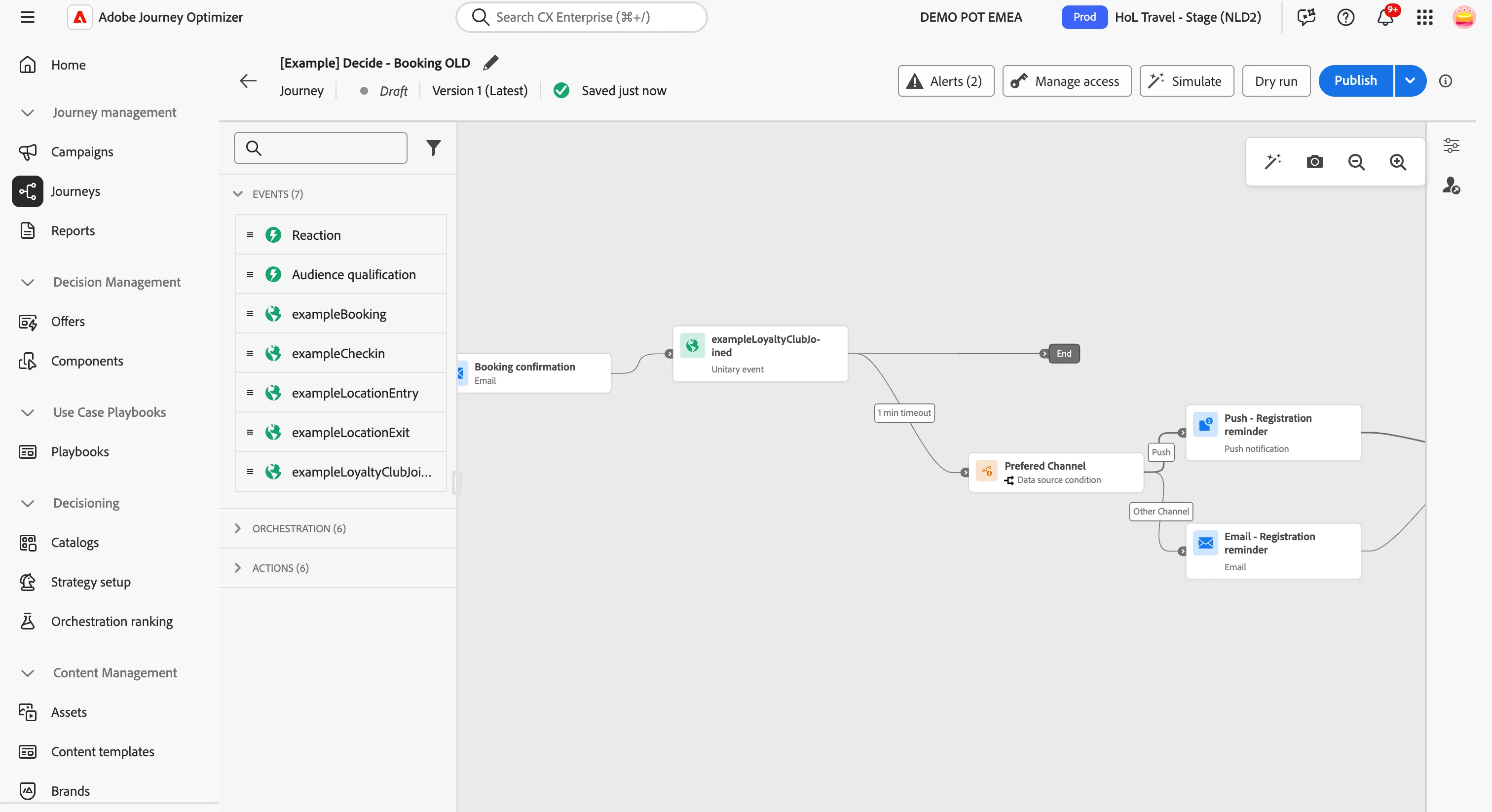
Your canvas should look like this:
Recap
Well done! With the Decide section you have explored how Adobe Journey Optimizer orchestrates post-purchase communications:
- Journeys triggered by real-time events, like a purchase confirmation.
- Personalised emails built with contextual data, profile attributes and conditional content fragments.
- Preferred channel logic to reach each customer on email or push, based on their profile.
To review : In this section, the customer completed the purchase of a flight ticket and received an order confirmation, including a WKND+ ad, as they are not a member. A week later, a follow-up message nudged them towards the loyalty program on their preferred channel. Now that the customer has made a purchase, it's time to step back and analyze what happened: the next section, Research, shifts the focus from the customer experience to the data behind it.