Creating a Point of Interest
Time to build. You've experienced the journey as a customer—now construct the orchestration in AEP that makes that experience real for your users.
Point of Interests
Adobe Places Service is a geo-location service that enables mobile apps with location awareness to understand the location context to create a more personalized and engaging experience.
POI - overview
To log into the Adobe Experience Platform, check the Environment & AccessEnvironment & Access page.
A point of interest (POI) is a location or a point on a map that is of importance to your organization or company. It can include locations like airport, cafes, restaurants, retail locations, stadiums and so on. Companies can define points of interest to help personalize a user’s mobile experience when they have entered a geo-fenced region for a particular point of interest
To get an overview of all the POI:
- First, you have to open Experience Platform. Click on the navigation-icon (9 dots) in the top right and select Experience Platform in the dropdown list.
- In the menu on the left side, click on Data management > Places. You will be taken to the POI Management interface.
- Filter the list by clicking on
 and set the LIBRARY to Luma.
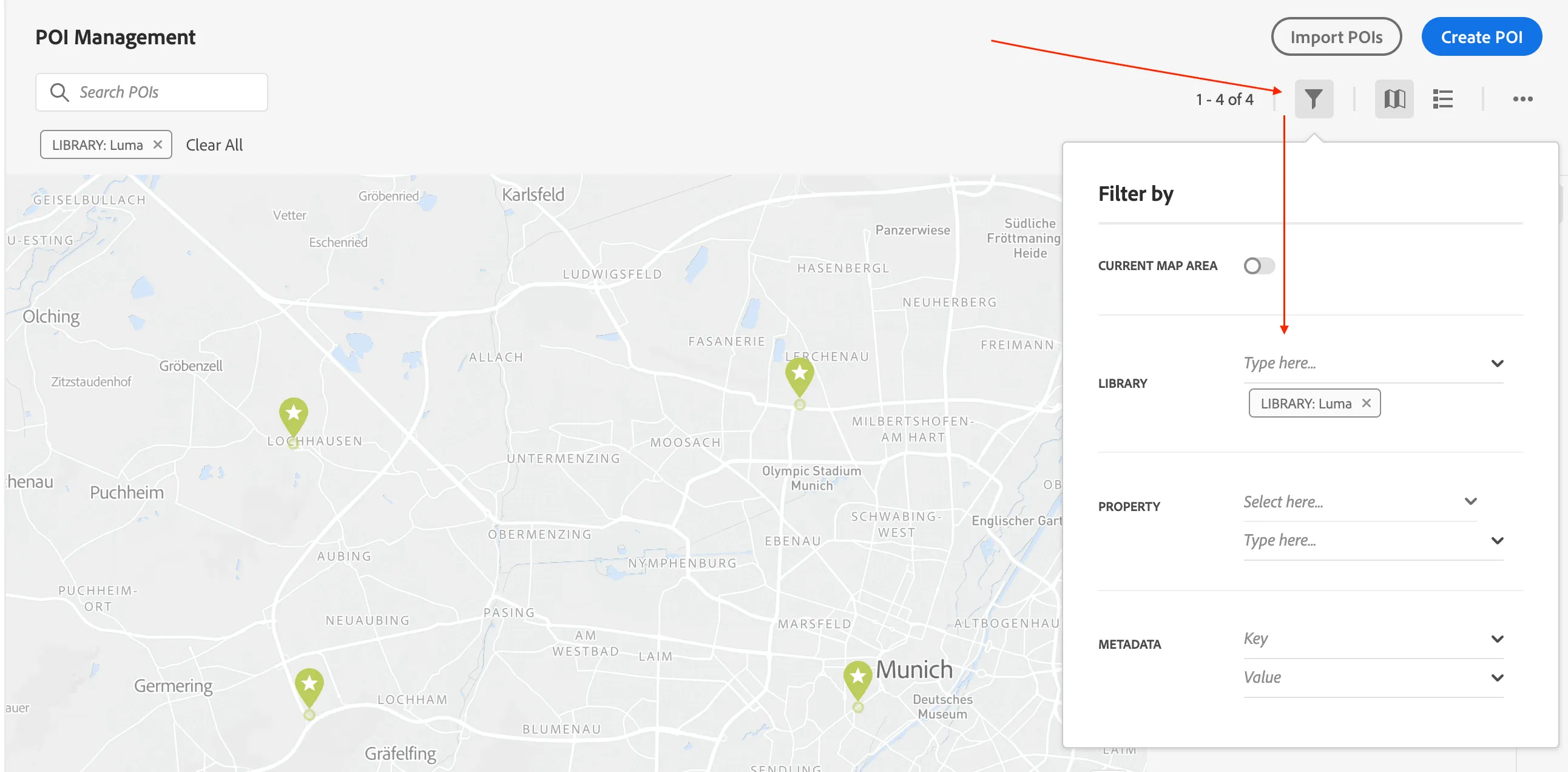
You can now view the list of all Airport across Europe. WKND recently decided to launch the geo‑location experience for an additional airport that is not yet included in the list. You are responsible for creating it.
Creating a Point of Interest (POI)
Click on Create POI. A menu will open on the right side.
- Give your store a name like {{LASTNAME}} - Airport.
- Make sure the Library is set to Airport.
- Leave the radius at 100. This setting defines how large the POI is (in meters).
- Set the Icon to whatever you prefer.
- Set the Color to lightgreen.
- Set the Category to Airport.
- Unfold Location, scroll down and click Drop Pin on Map. This will allow you to click anywhere on the map to place your POI. Choose a location and drop your pin. You'll know you did it right if the latitude and longitude become populated.
- Fill the fields City and Country based on the location you've chosen.
- Unfold Metadata, click on + to add a value.
- From the Name dropdown, select airportId.
- Fill the value with {{LASTNAME}}-airport.
- Click Save.
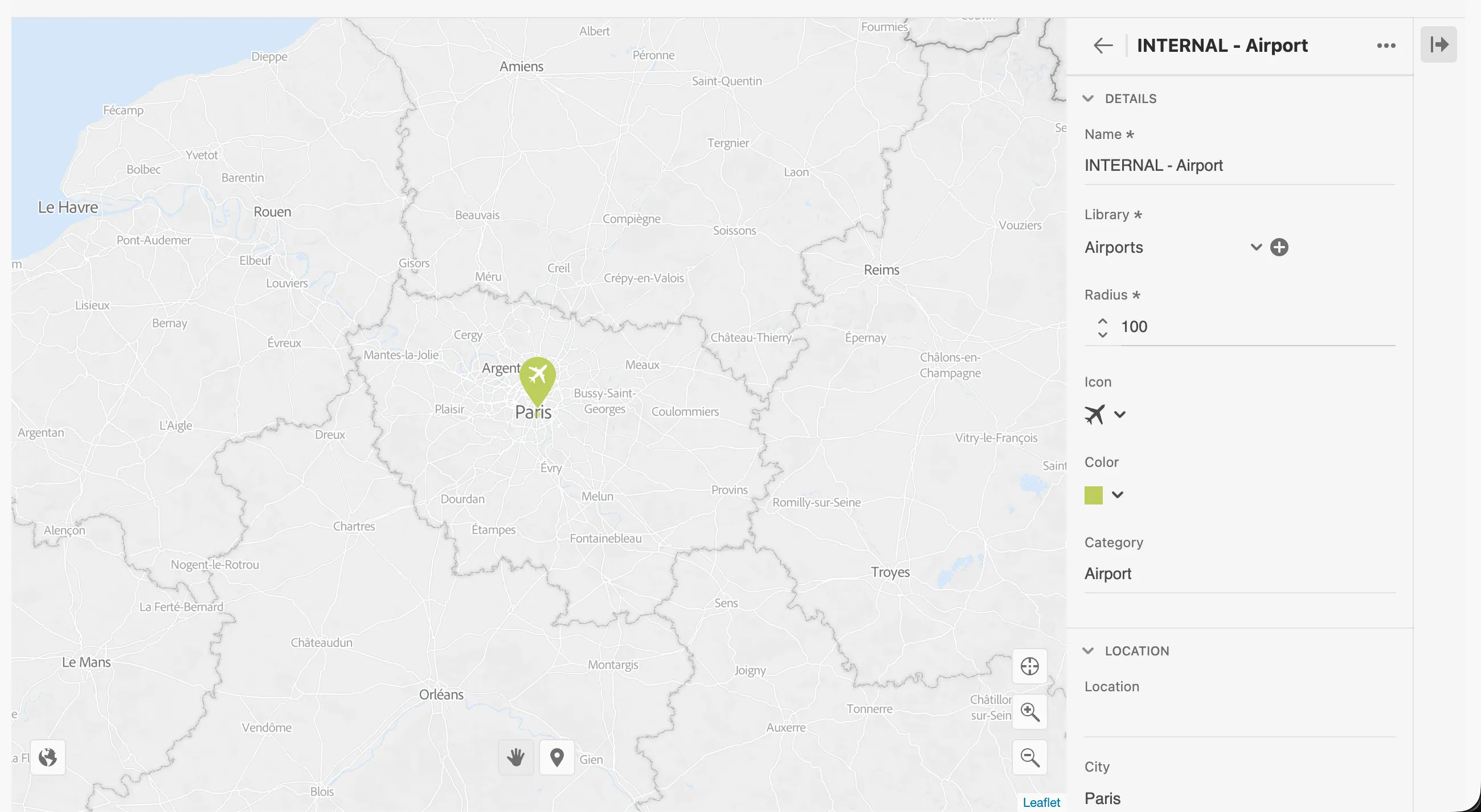
All the Airport required for the lab have already been created. No additional actions are required.
You're now finished creating your POI.
Click on the nine-dots icon on the top right corner and navigate back to Journey Optimizer.