Creating the journey
Story so far
The traveler has landed at the destination and is exiting the airport. You now build the journey that detects their location, checks whether it matches their destination airport, and sends a push notification with a personalized itinerary and suggested things to do.
Creating the journey
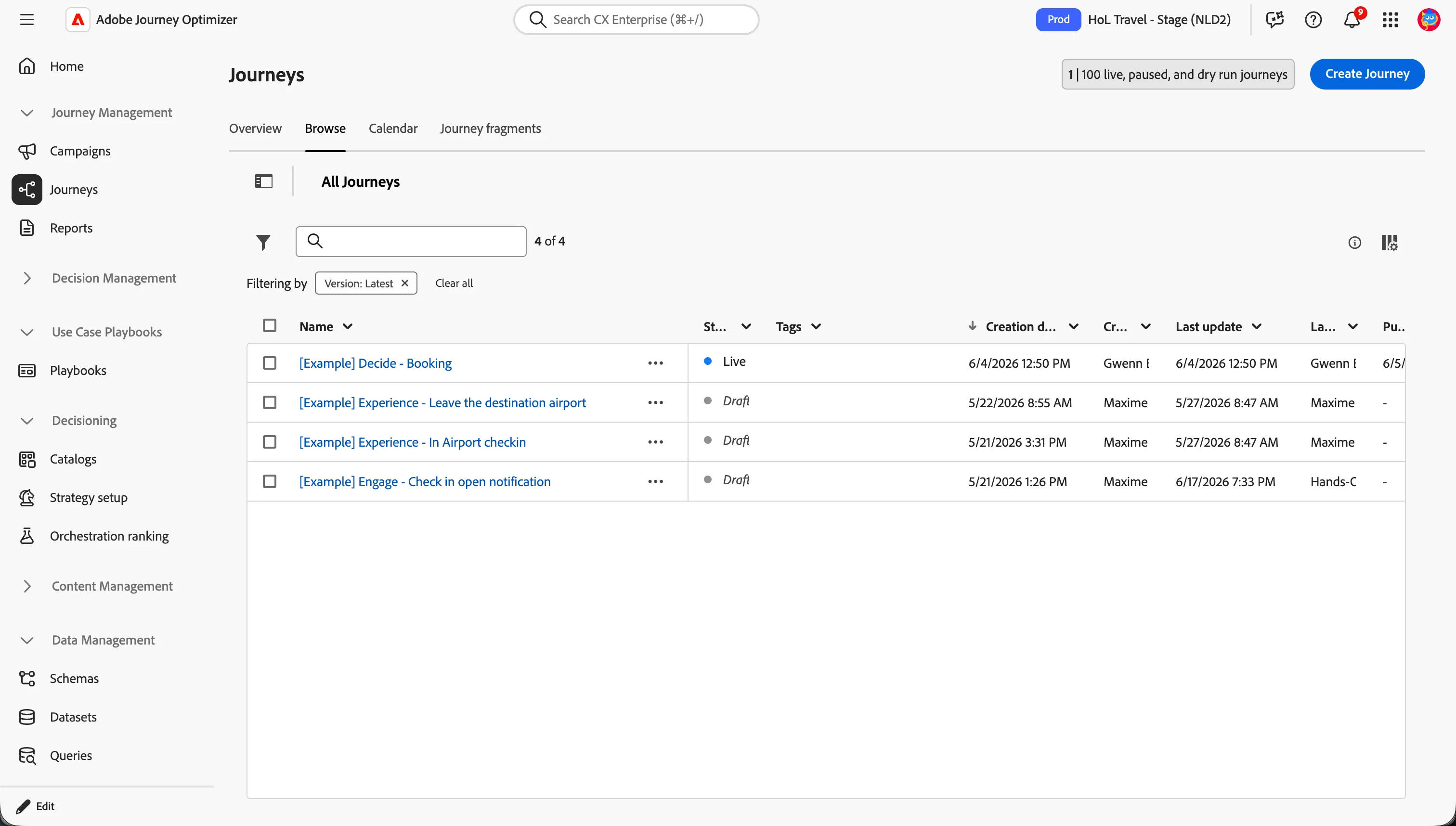
To get an overview of all journeys in Adobe Journey Optimizer:
- In the menu on the left side, under Journey management, click on Journeys. You will see an overview with all existing journeys.
Structure
The journey flow is:
- detect when the traveler is exiting an airport.
- Check if this airport matches the traveler’s destination
- If so, make an API call to retrieve all available activities.
- Send a push notification to the traveler with the recommendation.
Create new journey
- Click on Create Journey.
- Select Create from scratch and click Confirm.
You'll be taken to the Journey canvas with the journey properties opened.
- Set the name to [{{LASTNAME}}] Experience - Leave the destination airport.
- Set the re-entrance wait period to 1 Day. This prevents the journey from triggering multiple times a day for the same customer.
- Leave the other parameters with the default values.
- Click Ok to save and close the properties.
Event trigger - Location entry
The journey must be triggered when the user enters the geofence of a point of interest (POI).
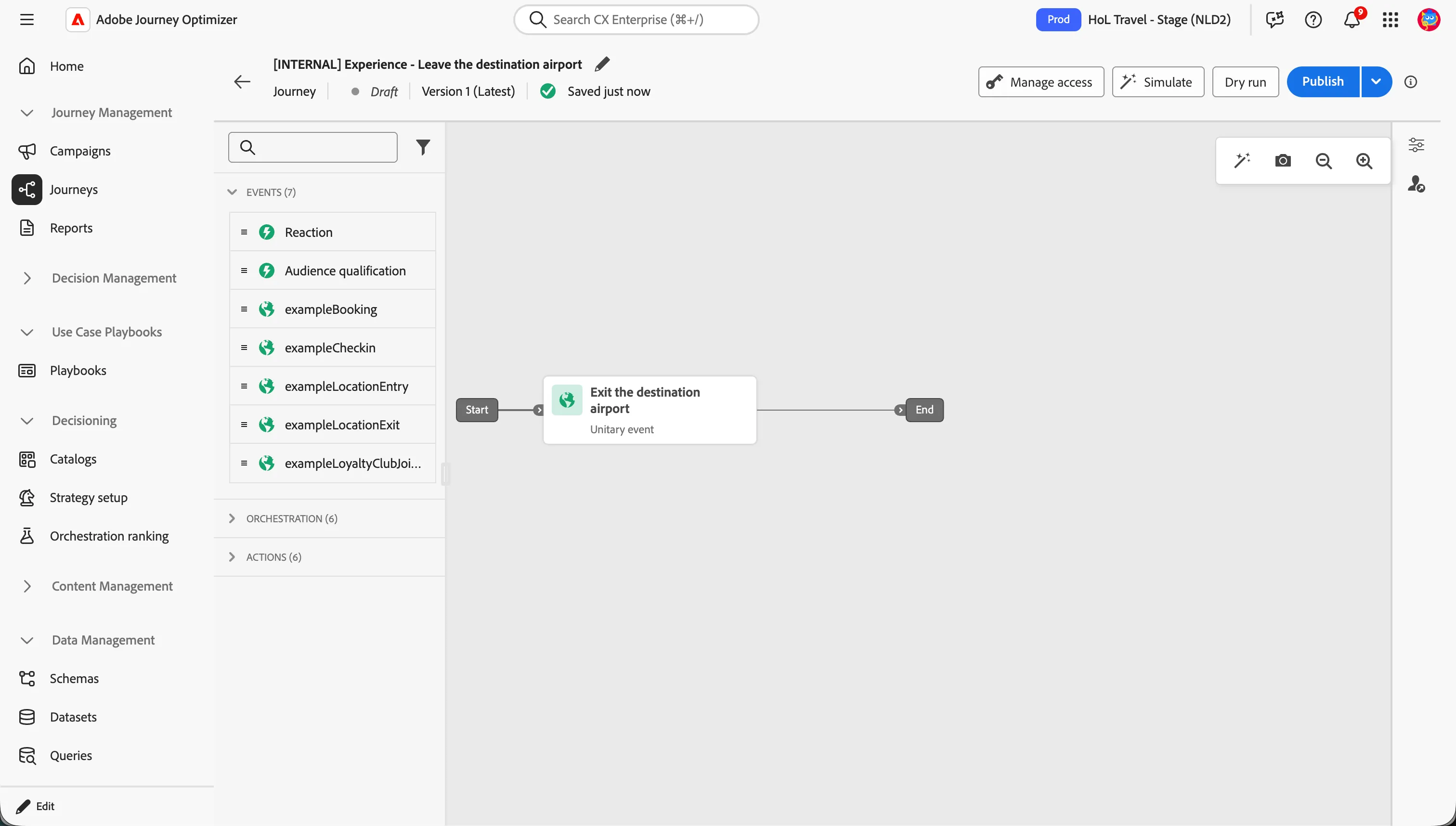
- From the Events tab, choose the event exampleLocationExit and drag it onto the canvas.
- Set the label to Exit the destination airport.
- There's nothing else to configure.
- Click Save to close the menu.
Condition
When the traveler exits a Point of Interest (POI), the first step is to identify which airport it corresponds to in order to propose relevant activities.
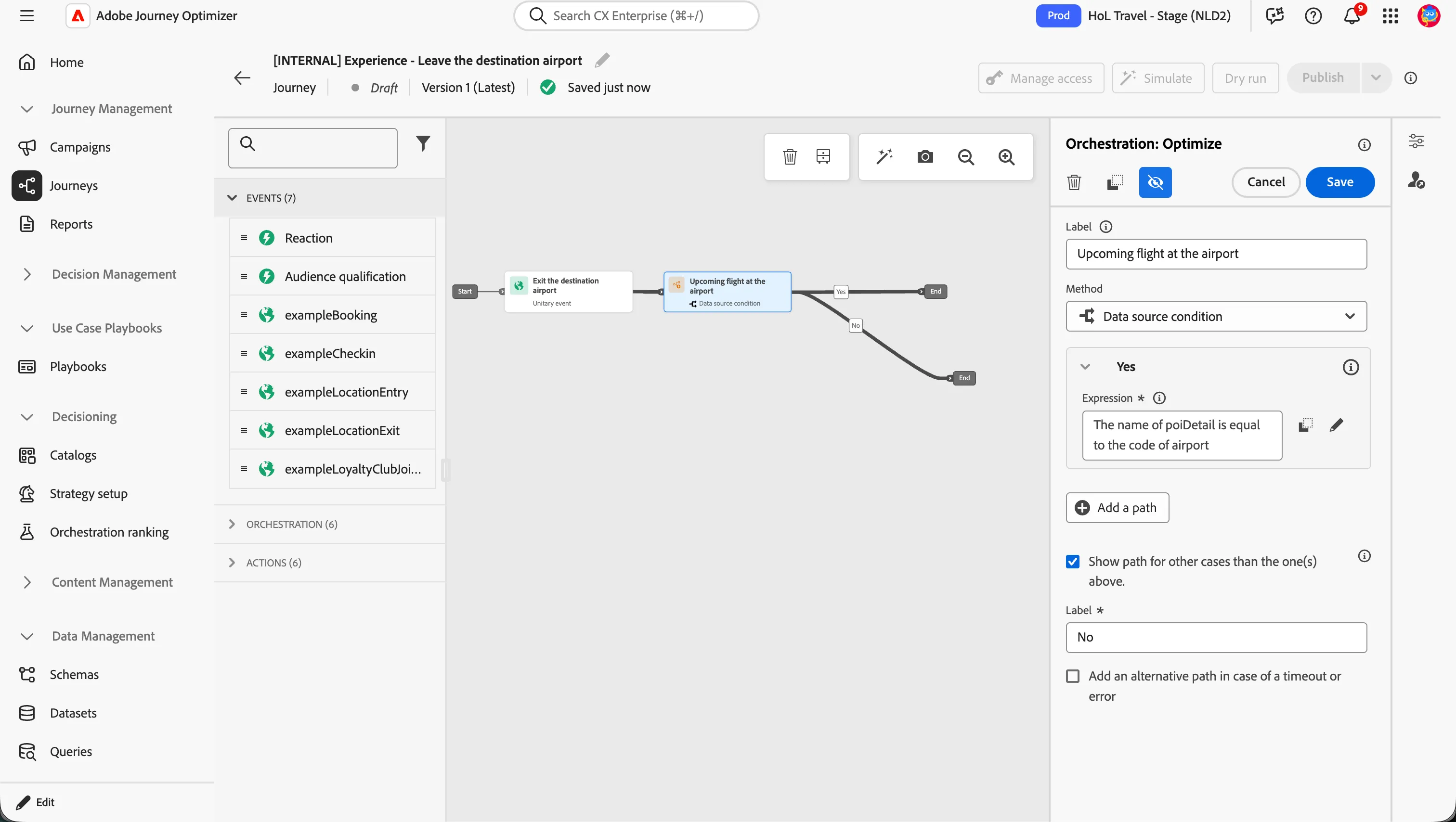
- From the Orchestration tab, choose Optimize and drag it onto the empty circle on the canvas.
- Click on the activity to open the detailed view.
- Set the Label to Upcoming flight at the airport.
- Leave Method as Data source condition.
- Click on Path1 and change the label to Yes.
- Click on the text field below Expression to open a window.
- On the left side, search for POI, find the field POI name(name) and drag it to the right side.
- Set the operator to equal to.
- On the left side, search for airport. You will not find it.
The expression editor provide two types of interfaces: Simple Mode and Advanced Mode. One of the differences is that only in Advanced Mode you can compare Contextual variables with Profile attributes. That's the reason why now you have to switch to Advanced Mode.
- Click on the Advanced Mode button.
- Scroll to the right, and delete the double quotes.
- On the left-hand side, search for airport, locate the field Code (code) field, and select it; the variable will be added to the formula. This expression ensures that the exiting airport matches the traveler’s destination airport.
- The expression should look like this:

- Click Ok to save the expression.
- Click Save.
Custom action
Before sending a communication to the traveler, you want to ensure that relevant services or activities are actually available at the destination. This avoids sending messages that are not actionable or relevant to the traveler’s situation.
In the travel use case, the custom action is used to retrieve available activities or services that the traveler can enjoy after arriving at the destination airport, based on factors such as location, timing, and availability :
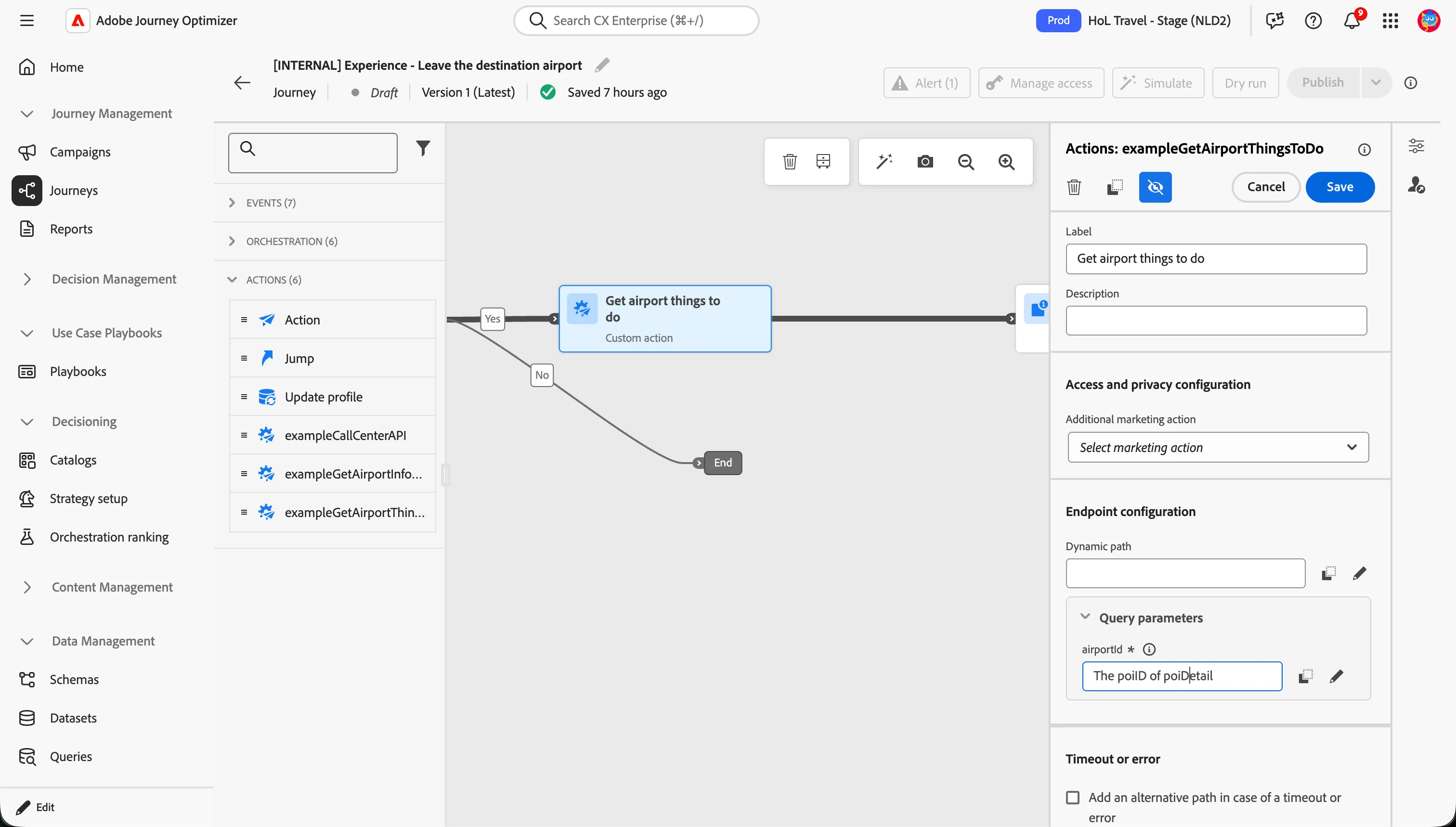
- From the Actions tab, choose the exampleGetAirportThingsToDo action and drag it onto the empty circle on the canvas on the Yes branch.
- Set the label to Get airport things to do.
- Scroll down to query parameters.
- Click on the textfield.
- Search for poiID and select the respective checkbox POI identify
- Click Ok.
- Scroll up and click Save.
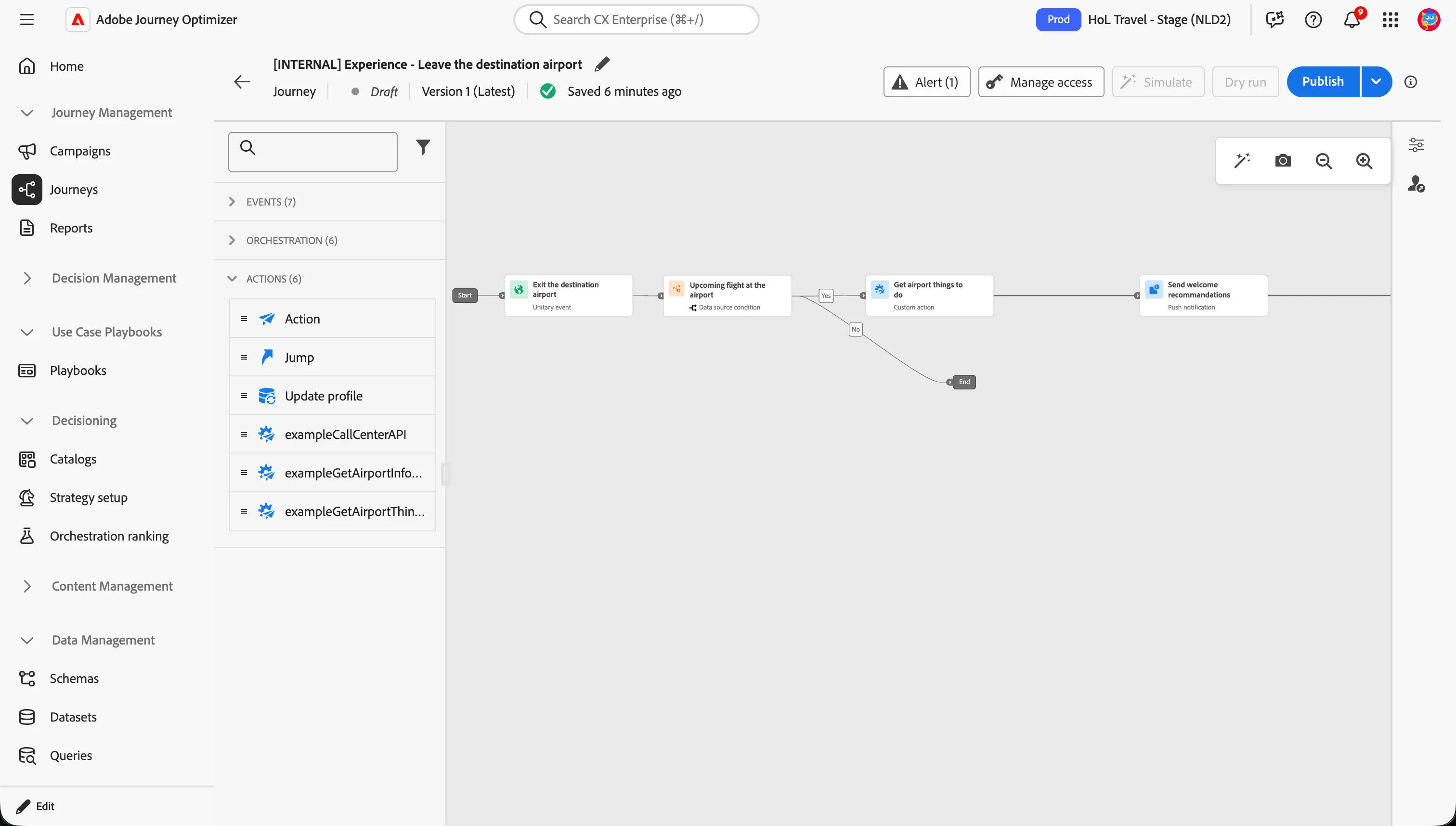
Your journey should look like this:
Push Notification
The final step is to send the push notification.
- From the actions tab, choose Action and drag it onto the empty circle on the canvas on the Yes branch.
- Choose Push Action Types
- Click Add.
- Set the label to Get airport things to do.
- Click on Configure Action
- Select pushMessages from the push notification drop down
- Click on Edit content to start designing your push.
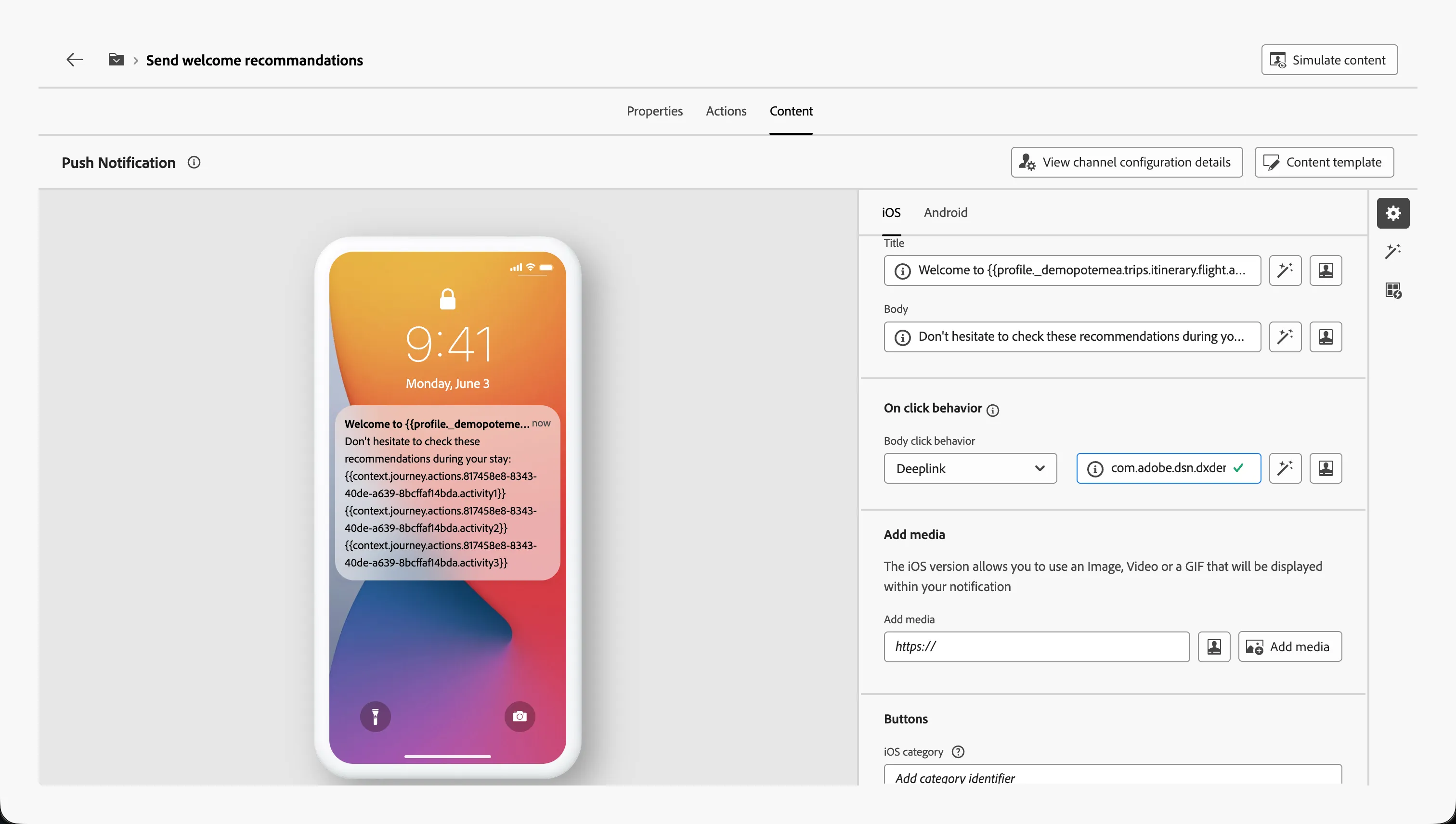
- Set the title to
- Welcome to !
- Set the body to
- Don't hesitate to check these recommendations during your stay:.
When the customer clicks on the push, should be redirected to the delivery QR code. To do this, in the On click behavior section
- Select Deeplink value from the Body click behavior drop down
- Next, in the text field enter the following URL com.adobe.dsn.dxdemo://orderqrcode This will open the app and open the QR code page
Your screen should look like the image below:
- Navigate out of the designer by clicking the arrow in the top left.
- Click Save to close the Push message detail panel.
The journey is now finished.