POC-DA1 - Reporting and Dashboards
In this exercise you will use the AEP UI to view your real-time customer profile.
In Adobe's Real-time Customer Profile, all profile data is shown alongside event data, as well as existing audience memberships. The data shown can come from anywhere, from Adobe applications and external solutions. This is the most powerful view in Adobe Experience Platform, the true experience system of record.
Learning objectives
- Learn how to view profile level dashboards and reporting
- Learn how to look up a profile through the Adobe Experience Platform UI.
Dashboards
Adobe Experience Platform comes with a number of out of the box dashboards as well as the ability to create your own custom dashboards.
You can see an overview of all profiles by navigating to Customers -> Profiles and clicking the Overview tab. Here you'll see a break down of how many profiles have been ingested, and how many identities are overlapping across namespaces.
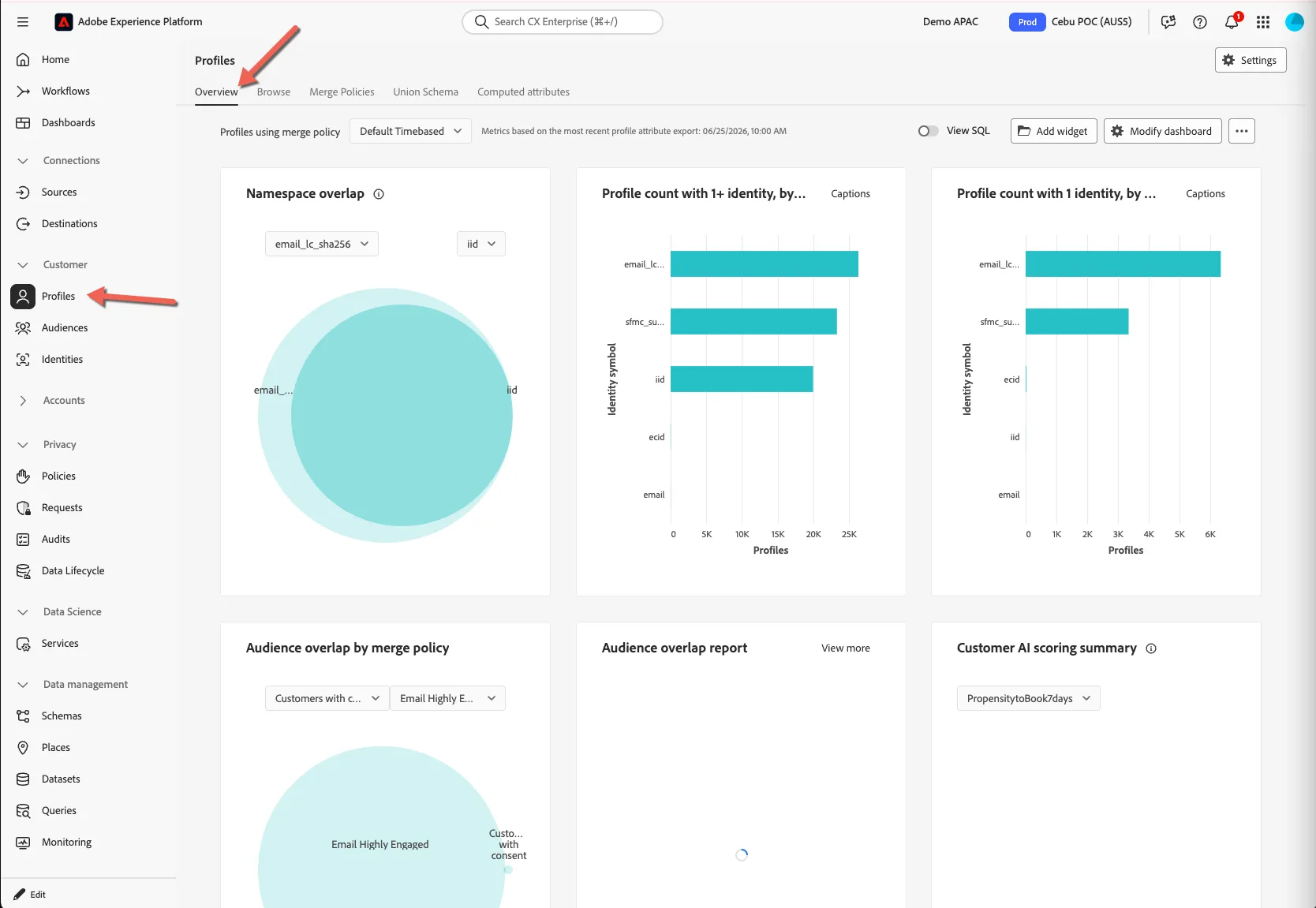
You can modify the widgets shown on this dashboard, change the order and even create your own custom widgets if needed.
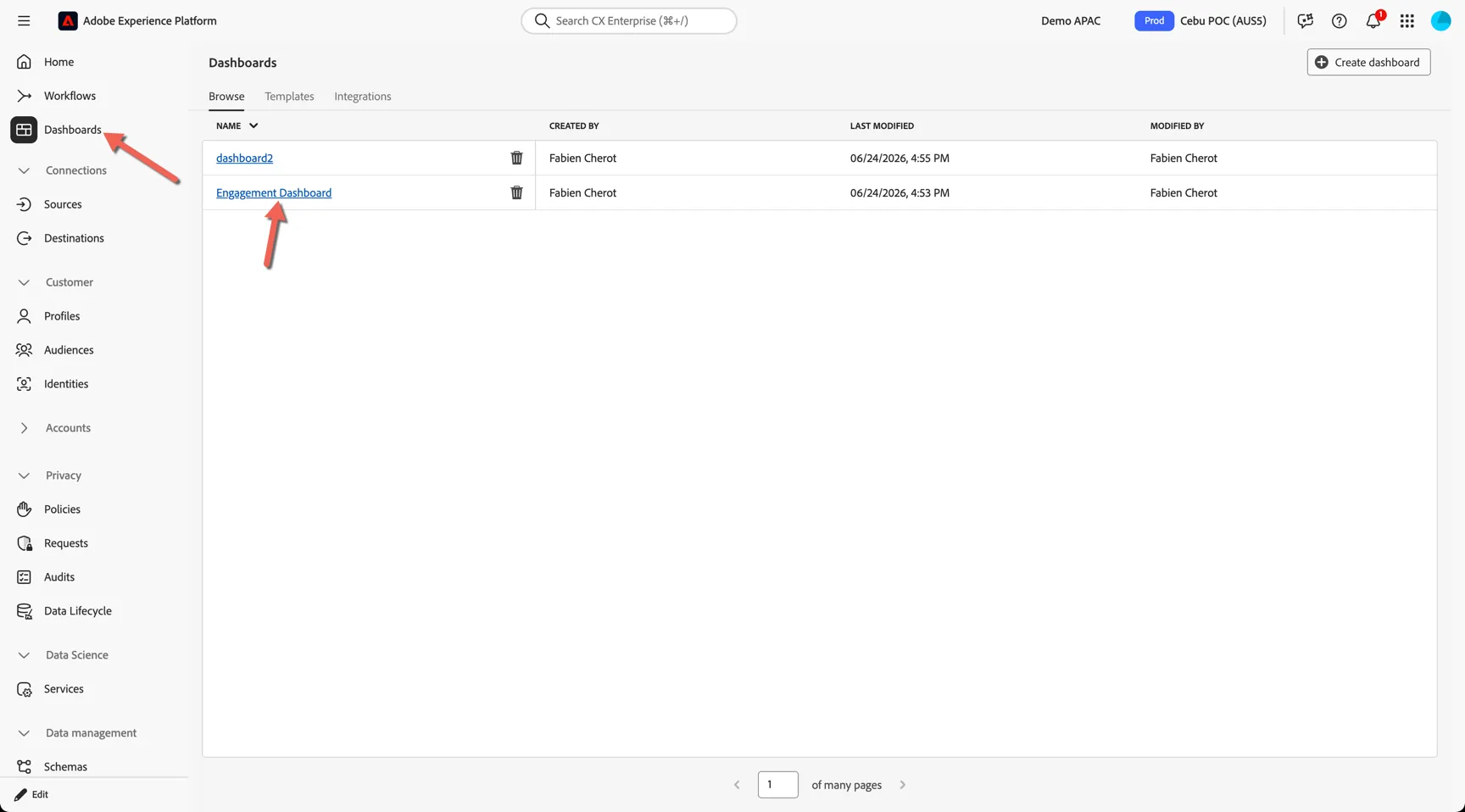
Custom dashboards can be found under the Dashboards menu on the left. Click on the Engagement Dashboard
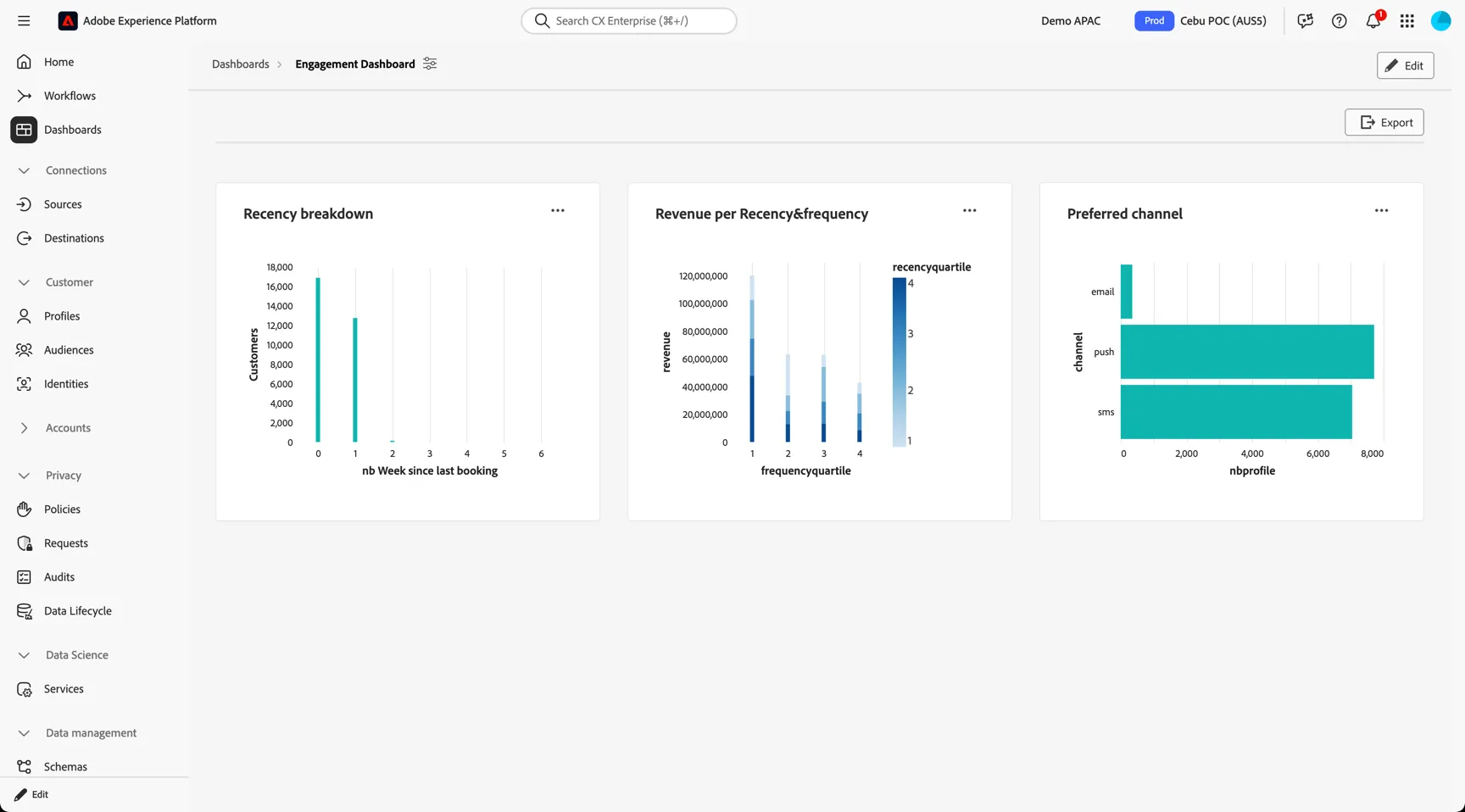
This is an example dashboard showing an overview of the recency and frequency modelling done through Data Distiller.
Look up your profile
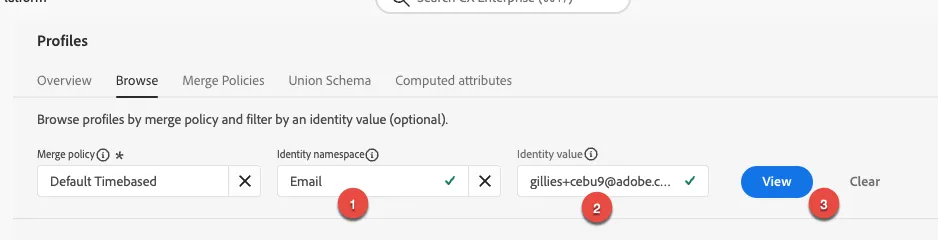
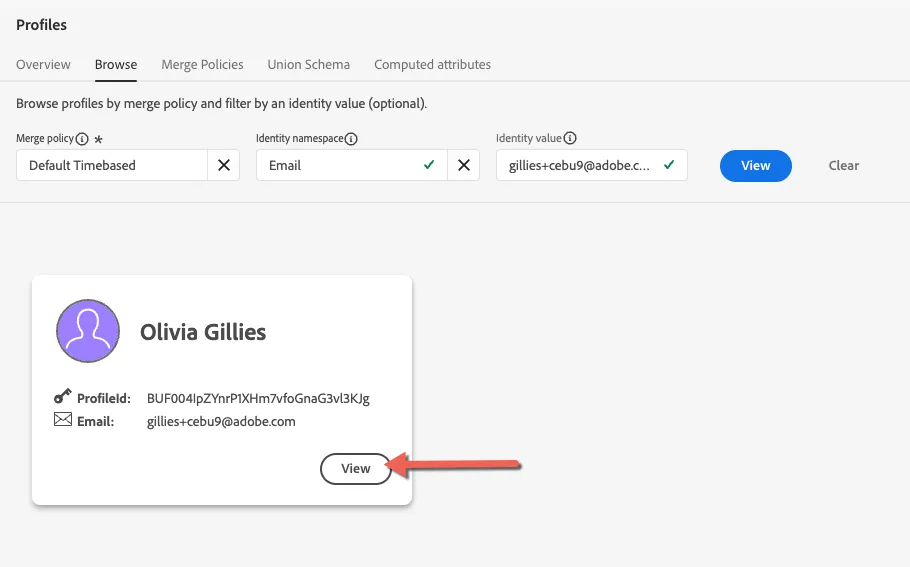
Change to the Browse tab.
With Adobe Experience Platform, all IDs are equally important.
- If you ask your Call Center, "What is the most important ID?", they will probably answer, "the phone number!".
- But if you ask your CRM team, they will answer, "the email address!".
Adobe Experience Platform understands this complexity and manages it for you. Every application, whether an Adobe application or non-Adobe application, will speak with Adobe Experience Platform by referring to the ID they consider primary. And it simply works!
- For the field Identity namespace, select Email
- For the field Identity Value, enter the email address you used for your flight booking in the previous exercise.
- Click View to find your profile card.
- Click View on your profile card to open your profile
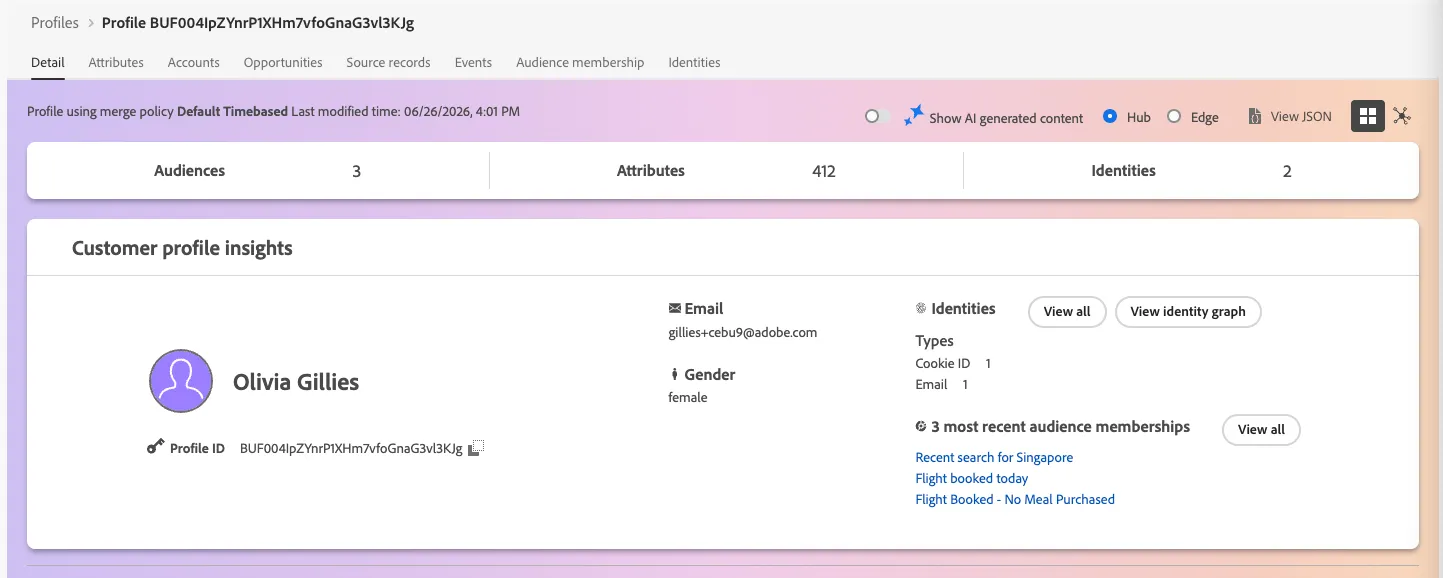
The profile dashboard gives a complete overview of your customer and is partly configurable. The panels at the top provide a quick overview - how many audiences the customer is qualified for, how many attributes have been collected and the number of stitched identities.
Note that the number of attributes is inflated in this demo / poc environment. Additional information is stored on the profile for the mock website which would usually be managed in a separate booking system. What you want to concentrate on are the events that are collected and the primary attributes collected through the booking form.
You can also see the firstname, lastname, email and the 3 most recent audience memberships - aligning to what we saw in the previous exercise.
If you have Show AI Generated content toggled on, you will see also a top panel highlighting some of the profile attributes that our agent thought was most interesting.
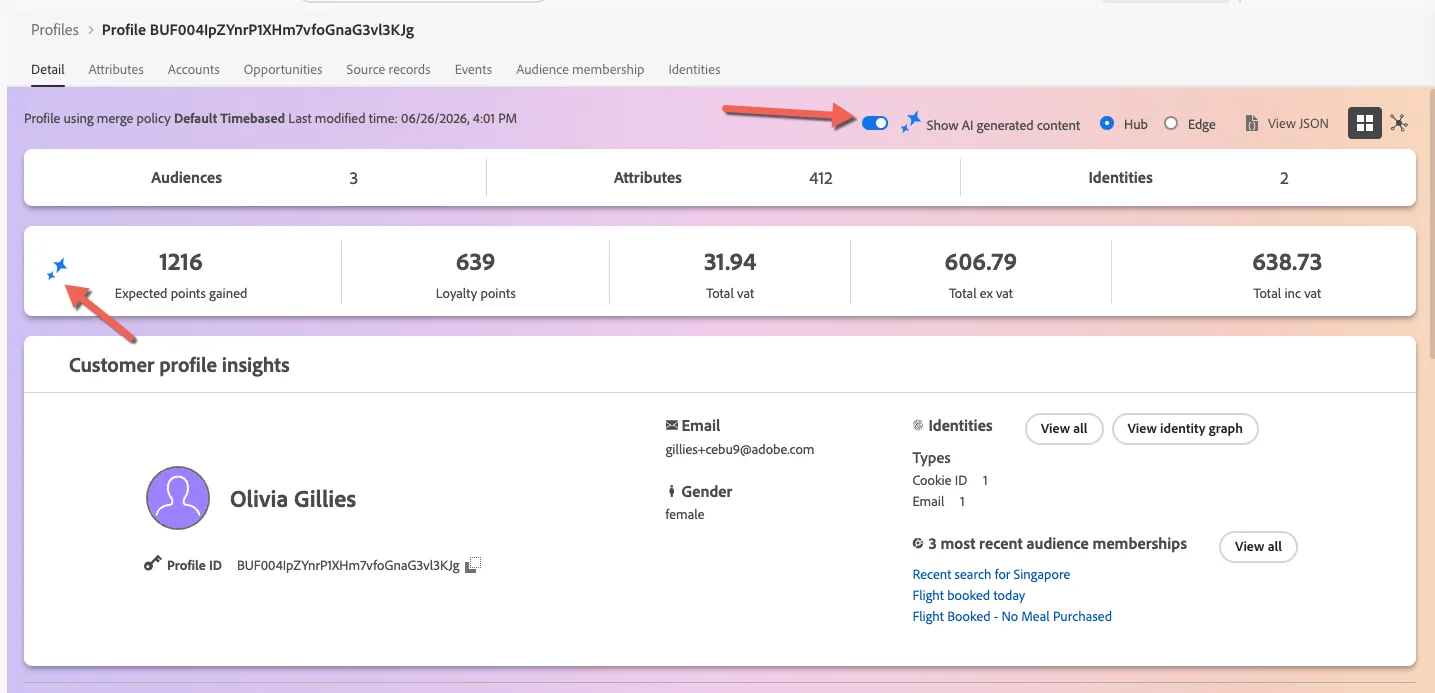
Similarly the panel below shows profile attributes selected by the AI for display. You can remove this by toggling off the AI generated content at the top.
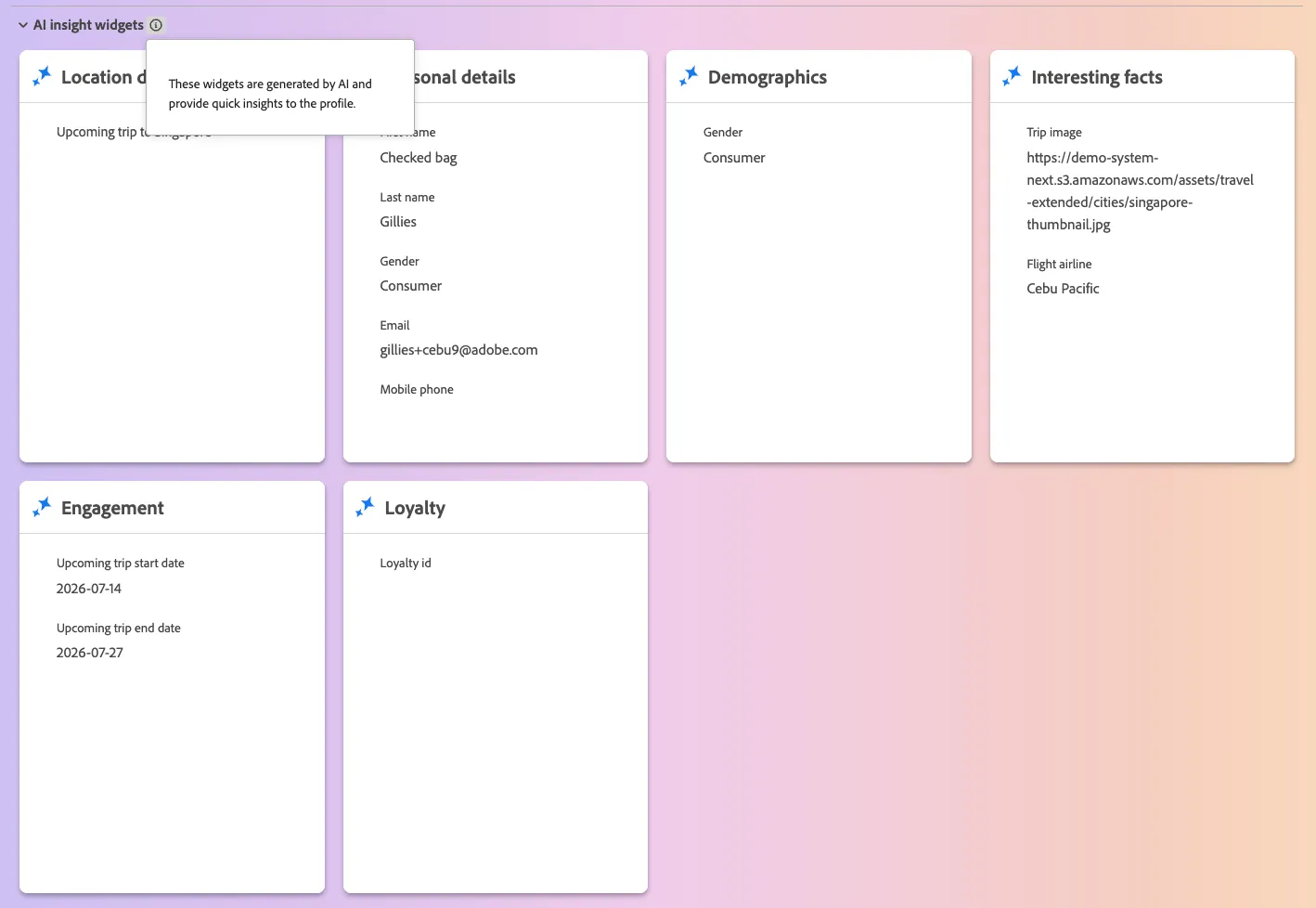
Below that are you customisable profile widgets. Each of these panels can be edited and modified to suit your requirements.
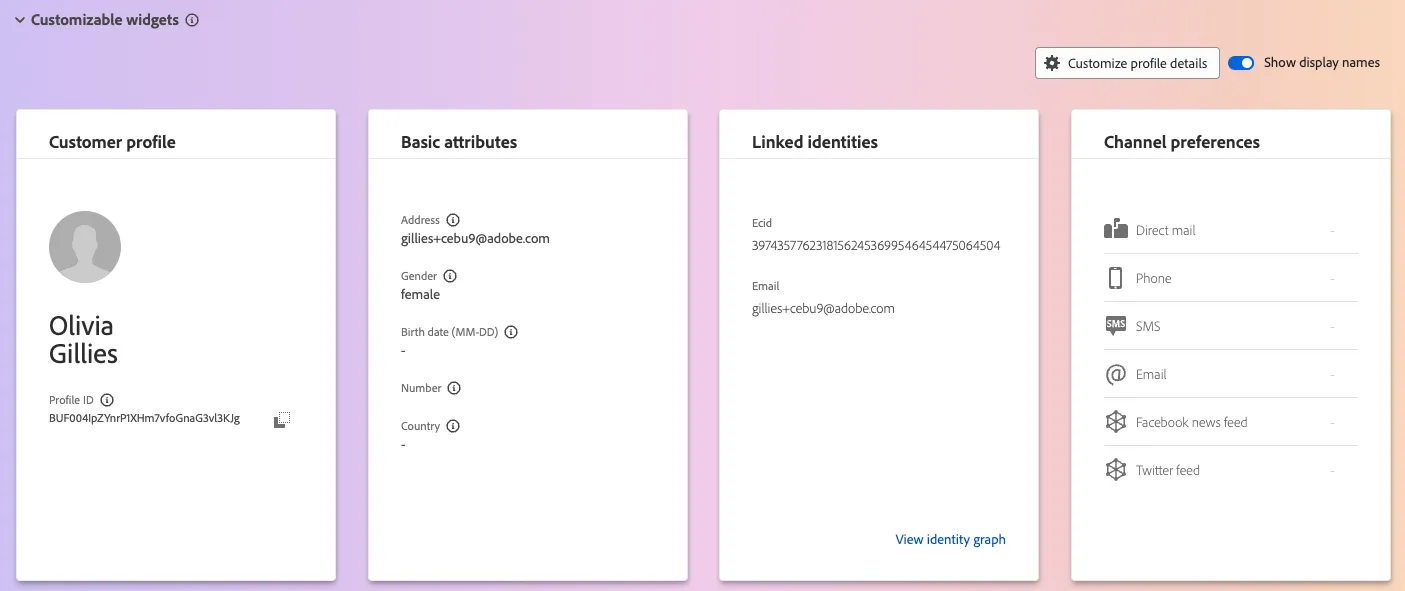
Lastly the Auto-classified area at the bottom has a number of panels which are organized based on the design of your data model. Attributes are grouped by their top level object, you can modify how this panel will present when designing your profile schemas.
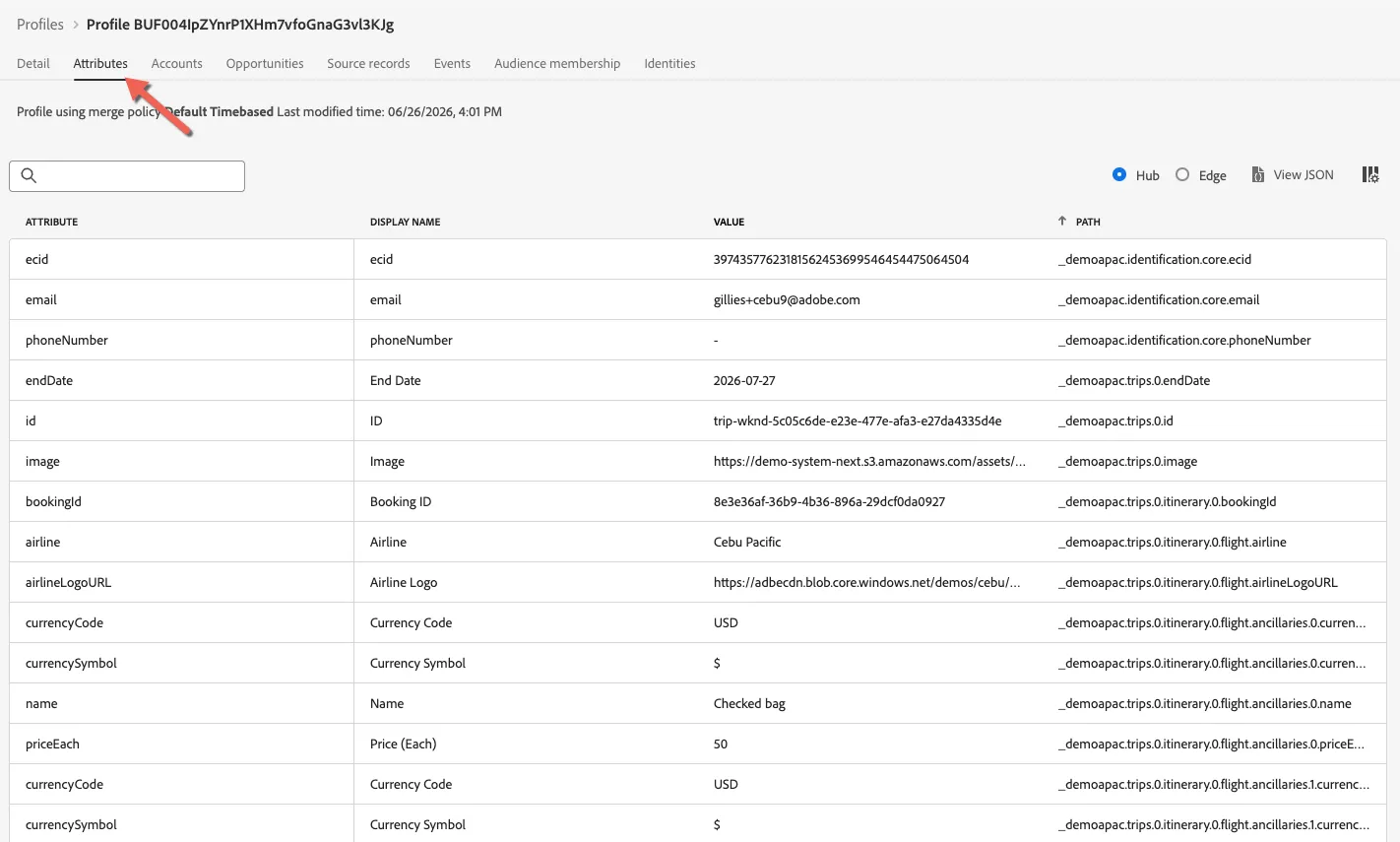
For a full list of attributes, you can switch to the Attributes panel but this is a more technical view.
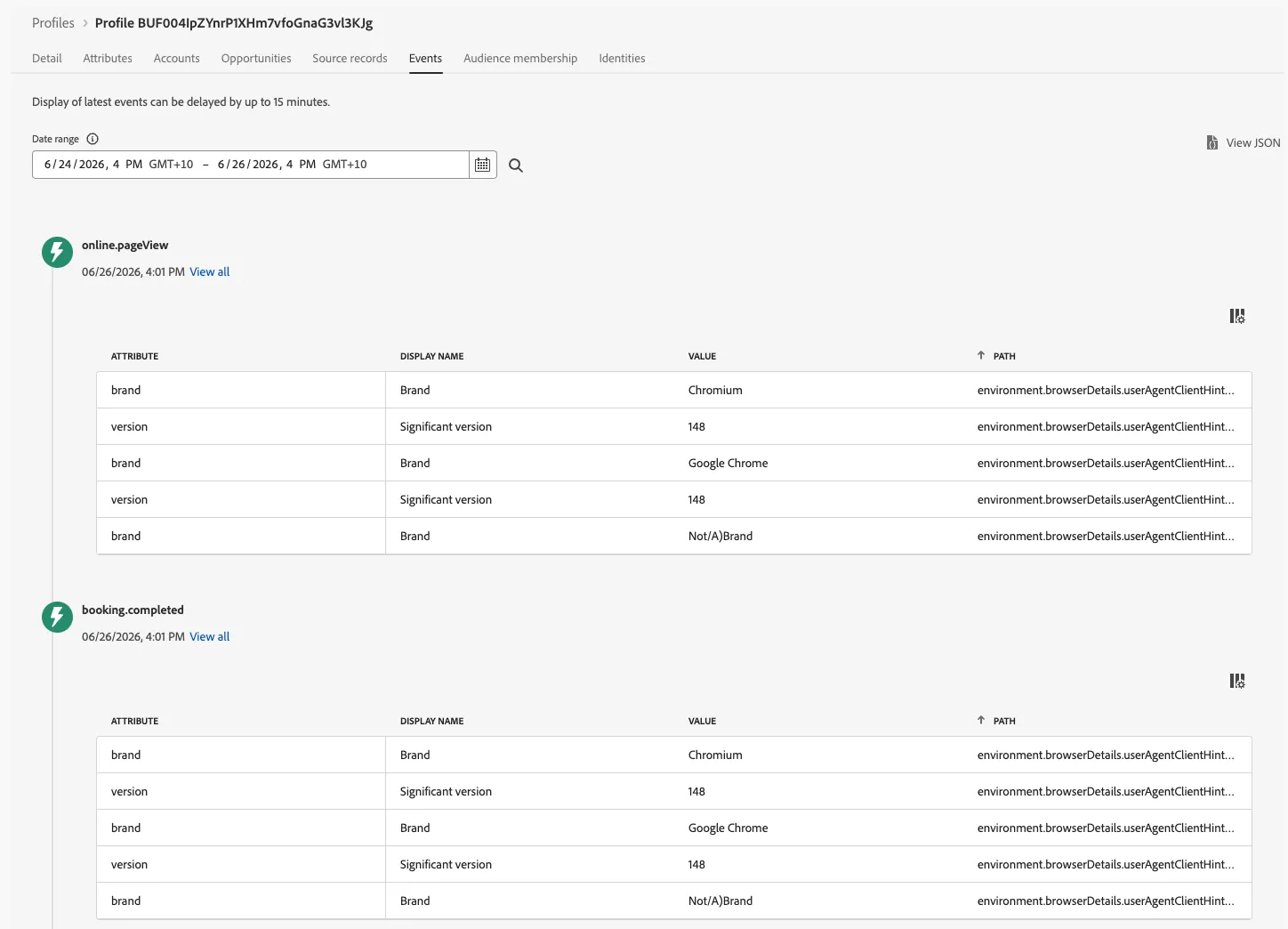
To view the behavioural data for your profile click to the Events tab. Here you can see the most recent events by default - we can see the page view and booking completed events from the last exercise.
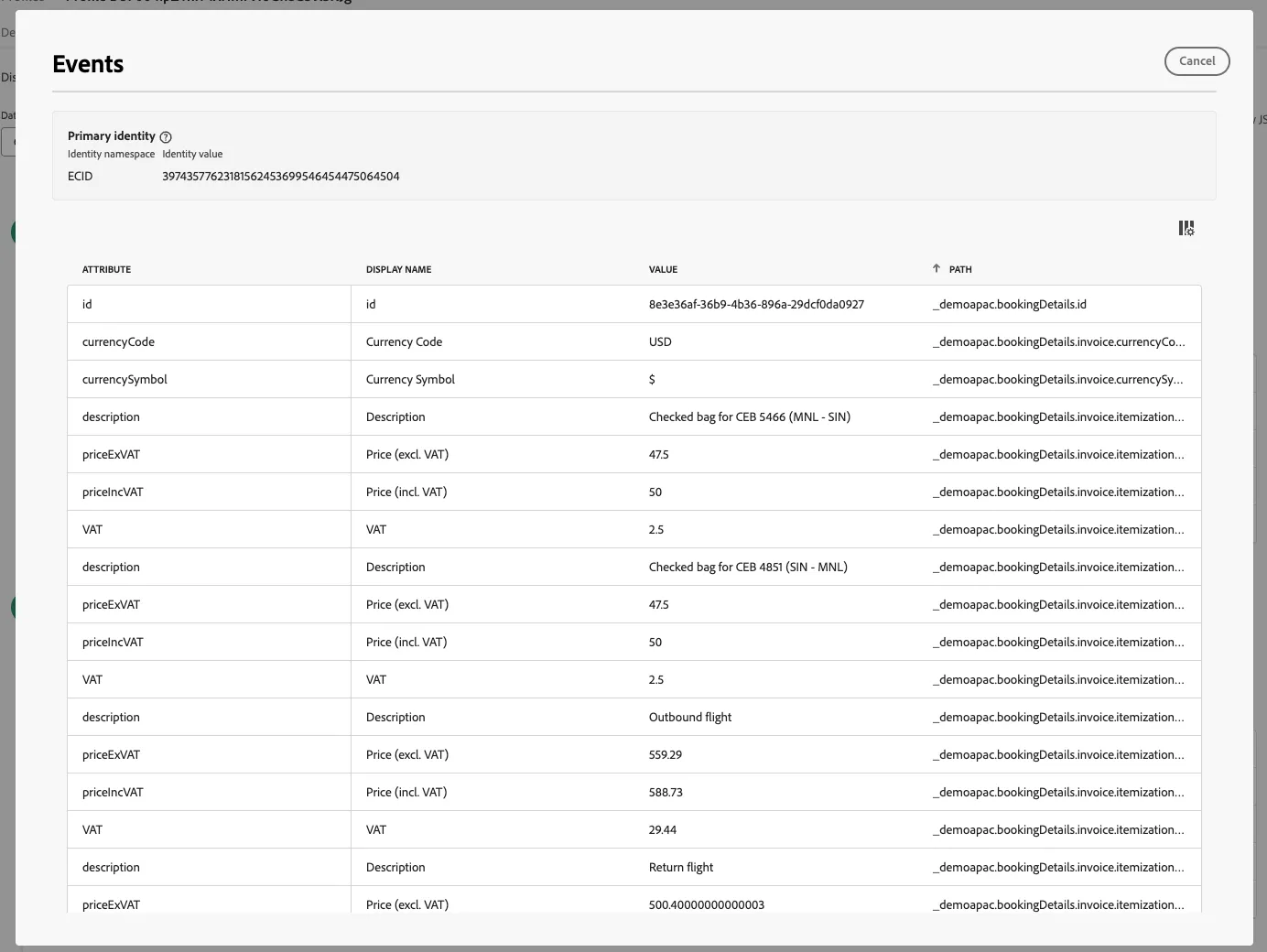
To view the detail from the booking event click to View All next to the event type.
Lastly to see which audiences this profile currently belongs to open the Audience Membership tab.
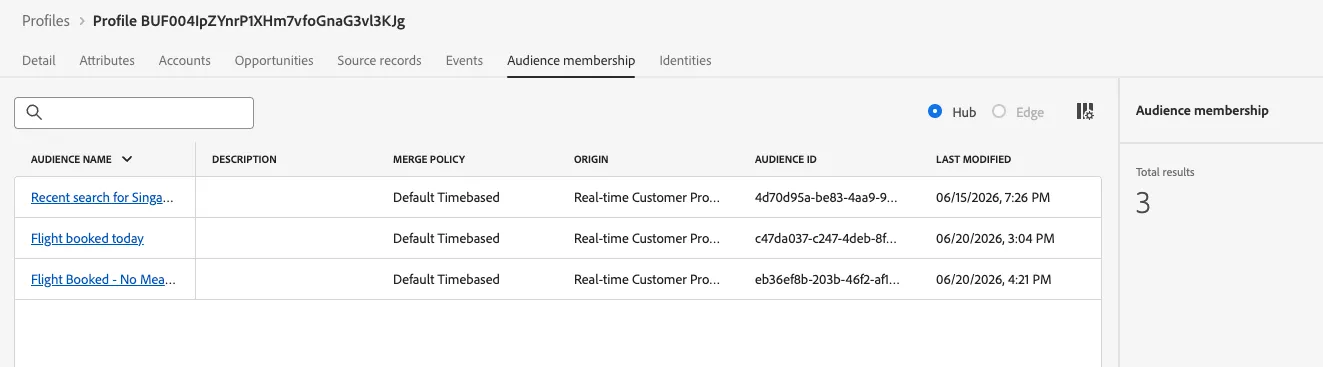
You have now successfully viewed your customer profile in Adobe Experience Platform.
Note that all of the information displayed in the Profile view is available via our Profile API. This can be used to create your own on demand profile dashboards either for integration to other systems like CRM or Kiosks. With this approach you have full control what data is retrieved and how it is presented.
Computed Attributes
Computed attributes help quickly convert profile behavioural data into aggregated values at the profile level without dependence on engineering resources enabling targeted personalisation, simplified audience segmentation, and standardised behavioural data across platforms and apps.
Navigate to Customers -> Profiles and open the Computed Attributes tab. You can see a couple of attributes already created for the POC.
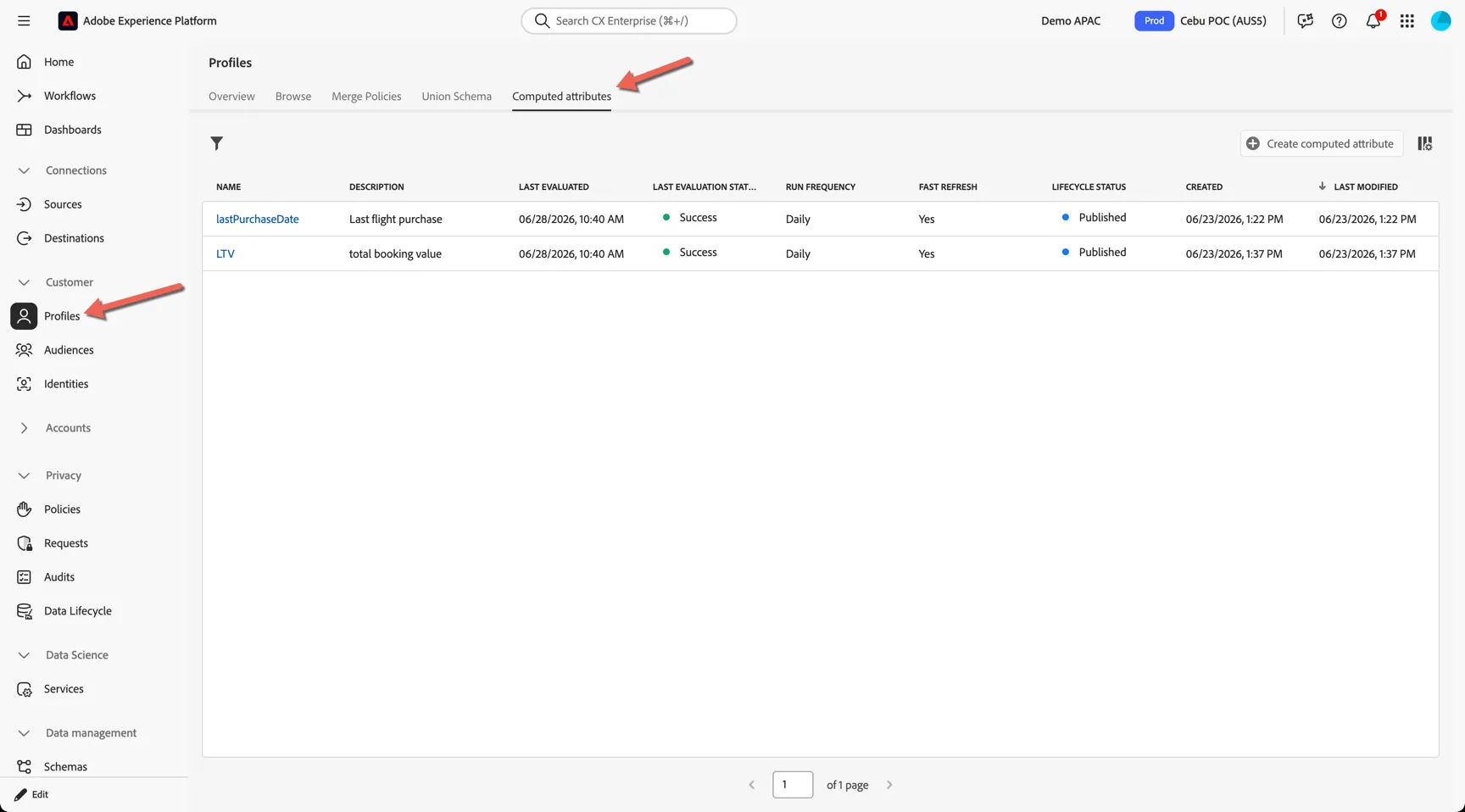
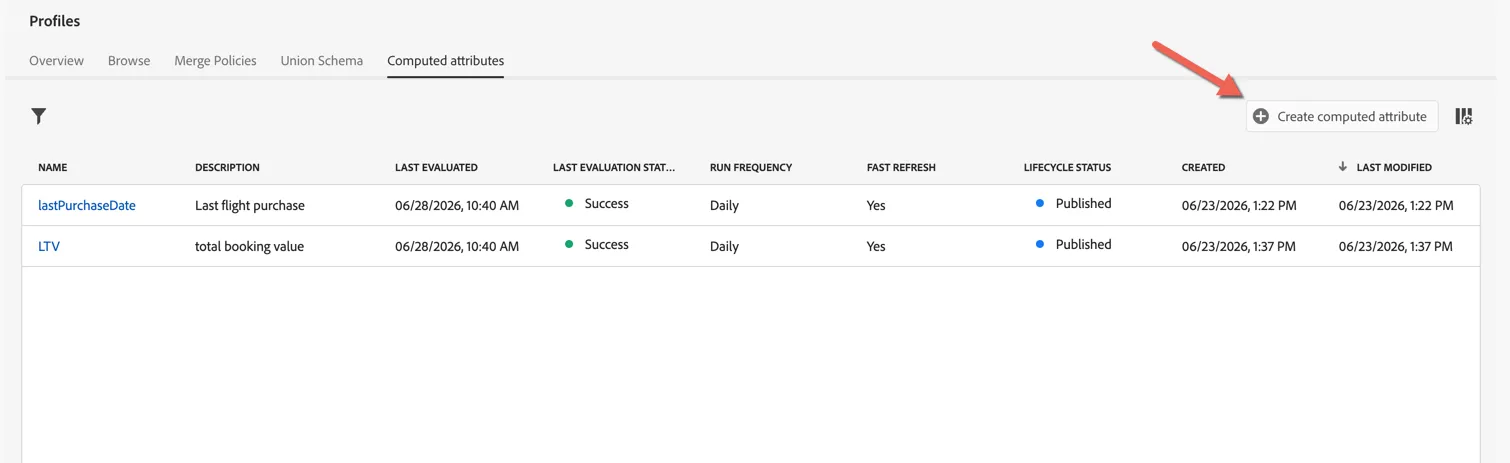
Let's create a new attribute which provides customer value from the last 3 months. Click to Create computed attribute.
Give your attribute a name like quarterlyValue and a description.
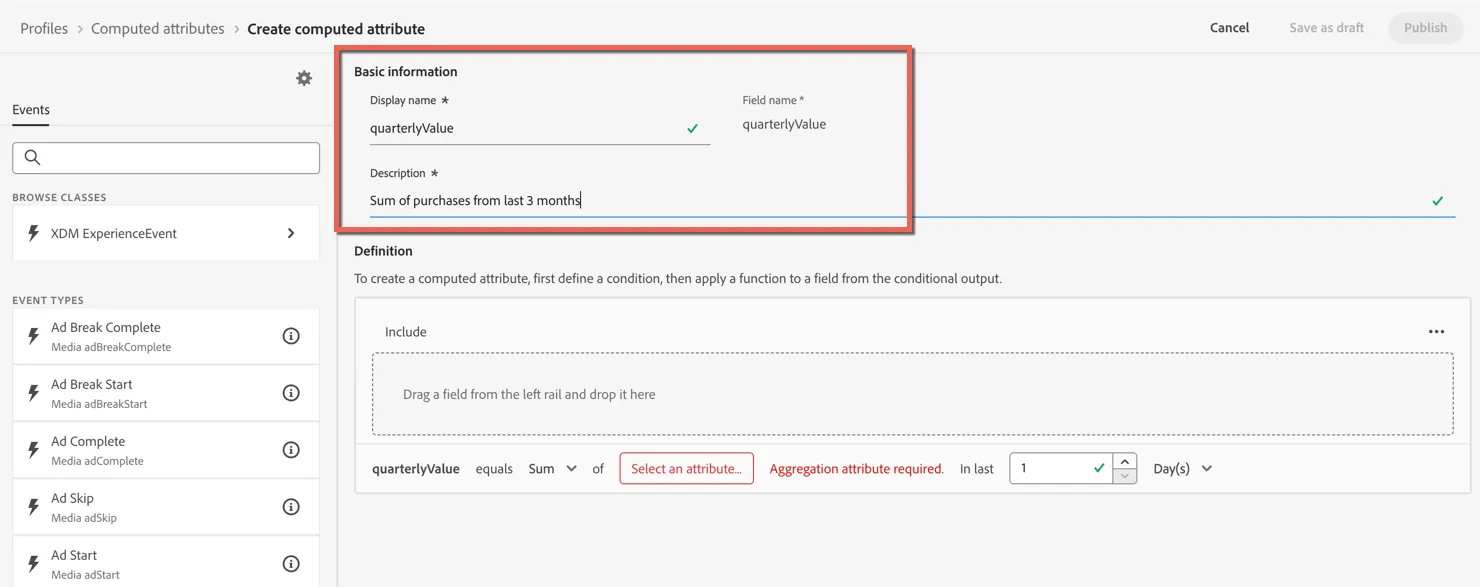
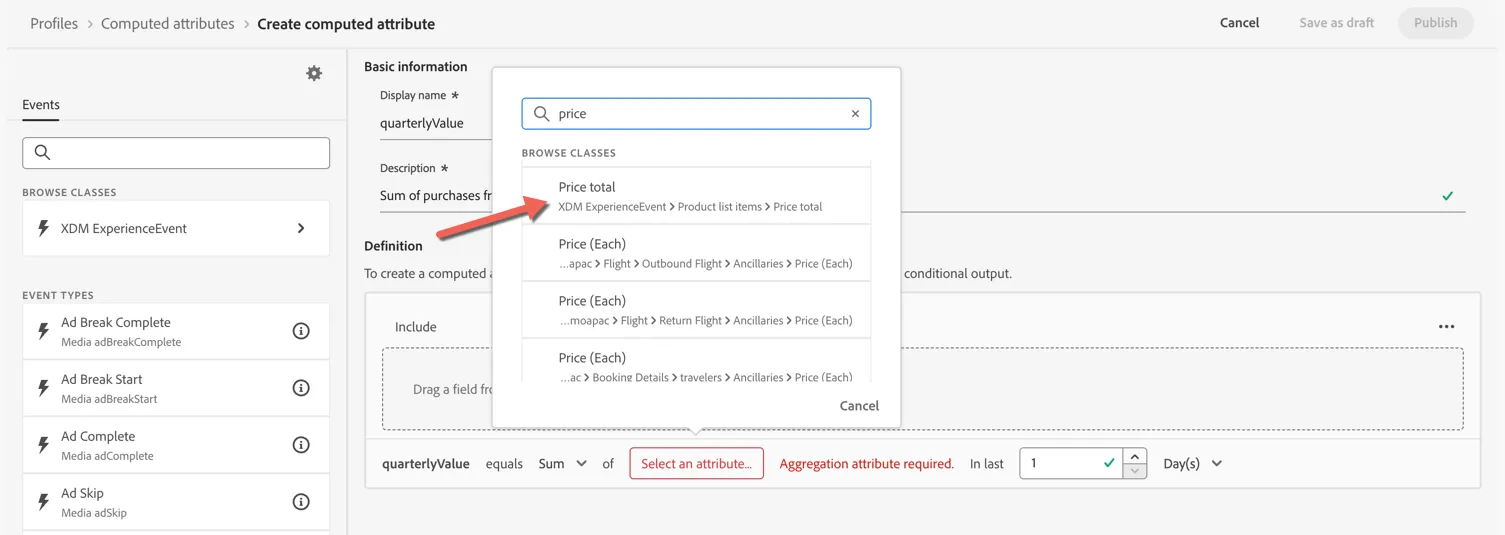
The aggregation type is already set to Sum you can also click on the Select an attribute box and find the Price Total XDM field under ProductListItems.
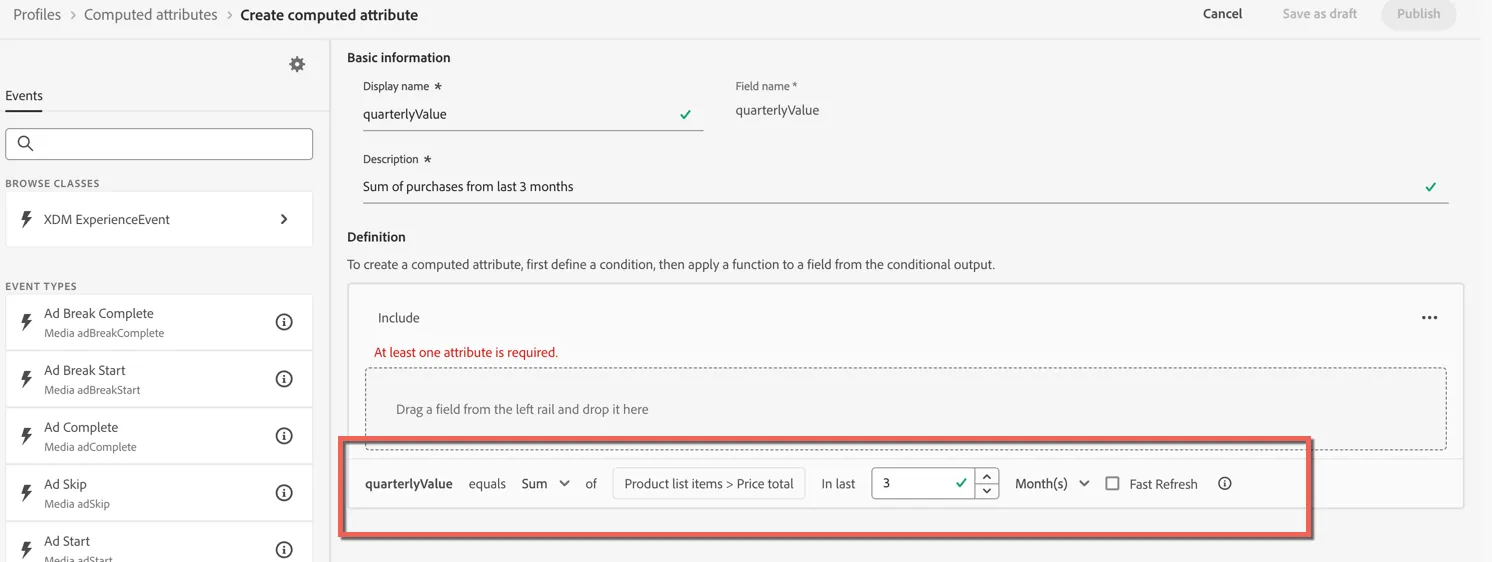
Set the lookback to last 3 months.
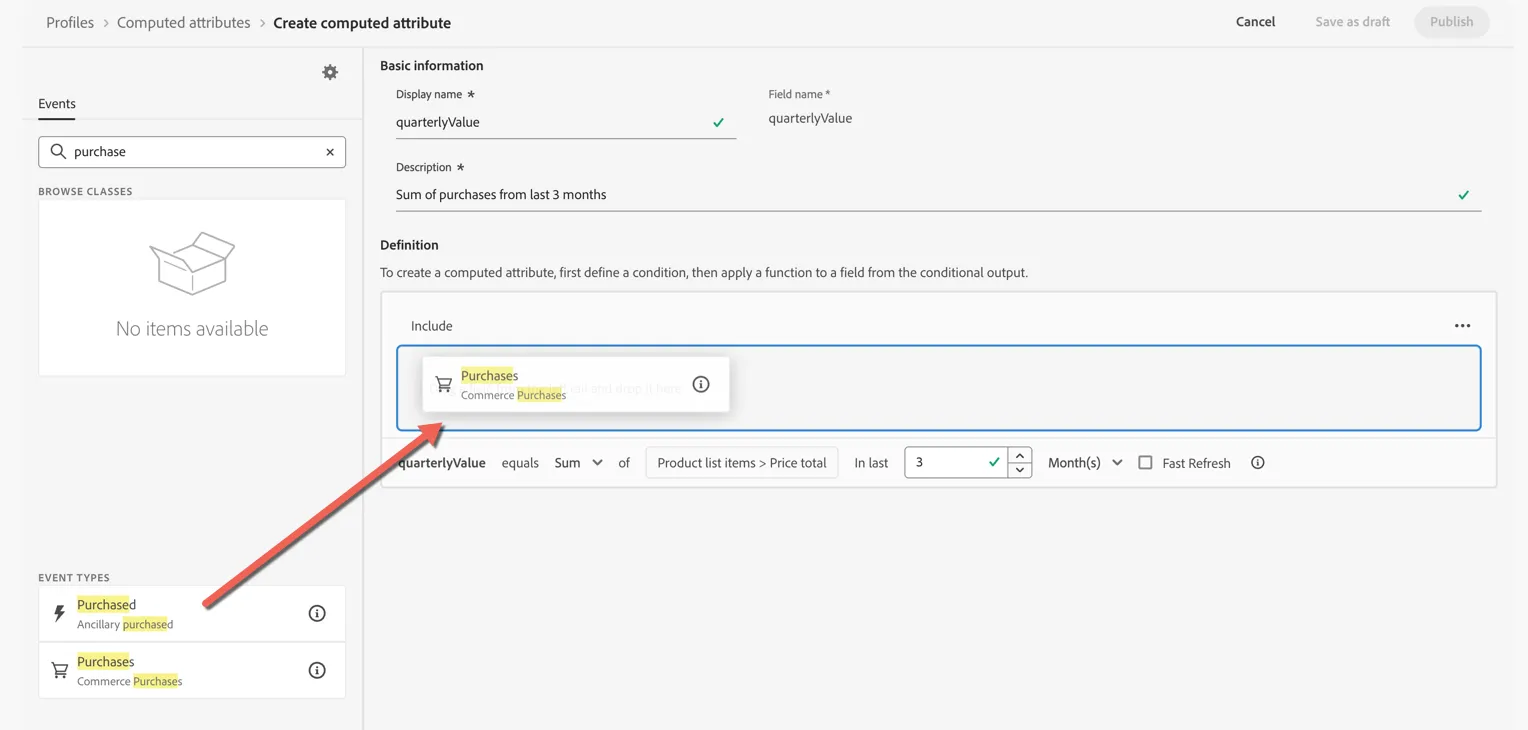
Lastly we need to filter the events that this calculation will consider. Search for "purchases" and drag the purchase event into the definition.
Your computed attribute is now configured, click Save as draft.
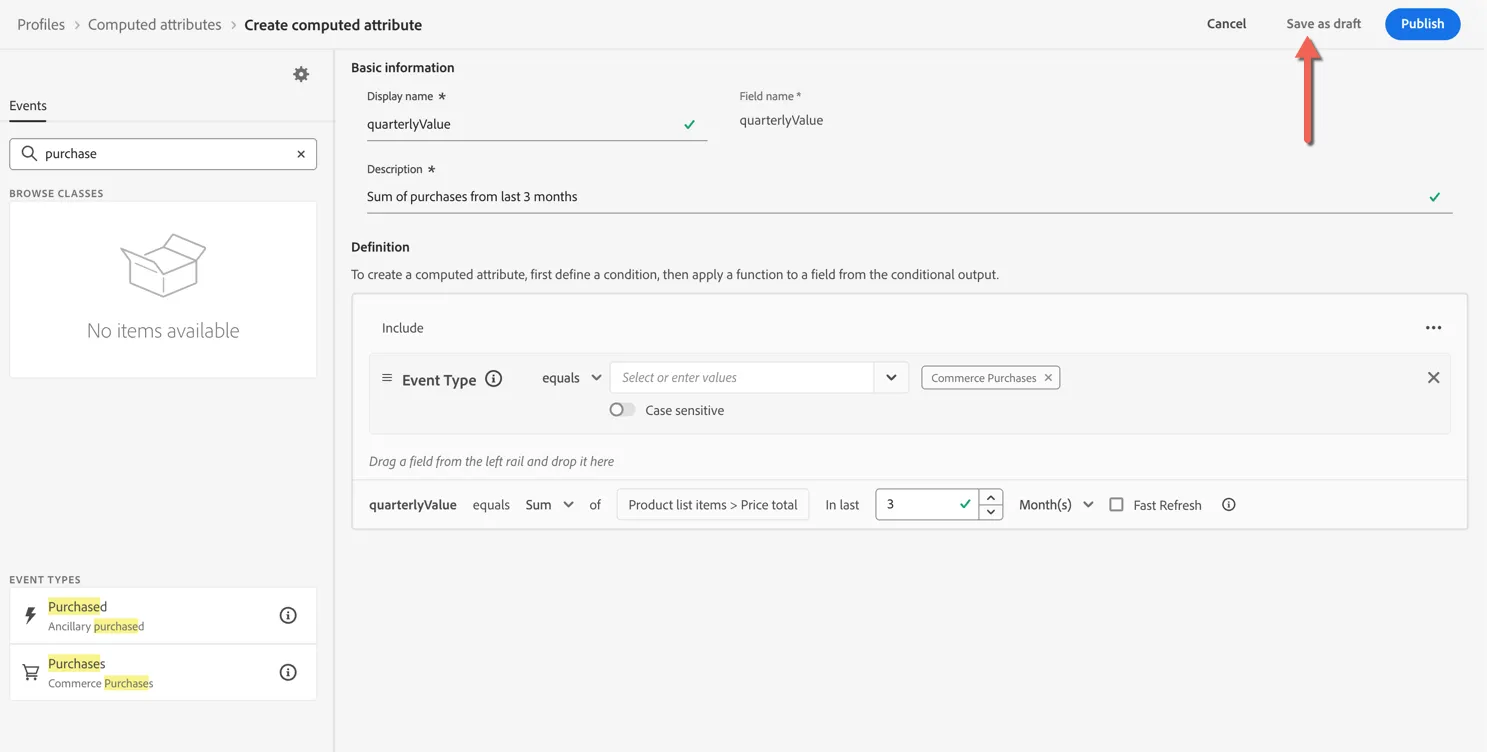
The attribute won't be added to your schema or calculated until it is published.
Congratulations!
You've created your first computed attribute.
Data Distiller
Data Distiller is a package offering that includes a subset of Experience Platform functionalities, enabling post-ingestion data preparation - such as cleaning, shaping, and manipulation - for real-time customer profile or analytical use cases by executing batch queries.
The example provided for the POC is a Recency and Frequency model query. Scoring profiles based on the recency and frequency of their interactions and placing them into quartiles.
Navigate to Data Management -> Queries and open the Templates tab. Any query can be saved as a template for easy re-use.
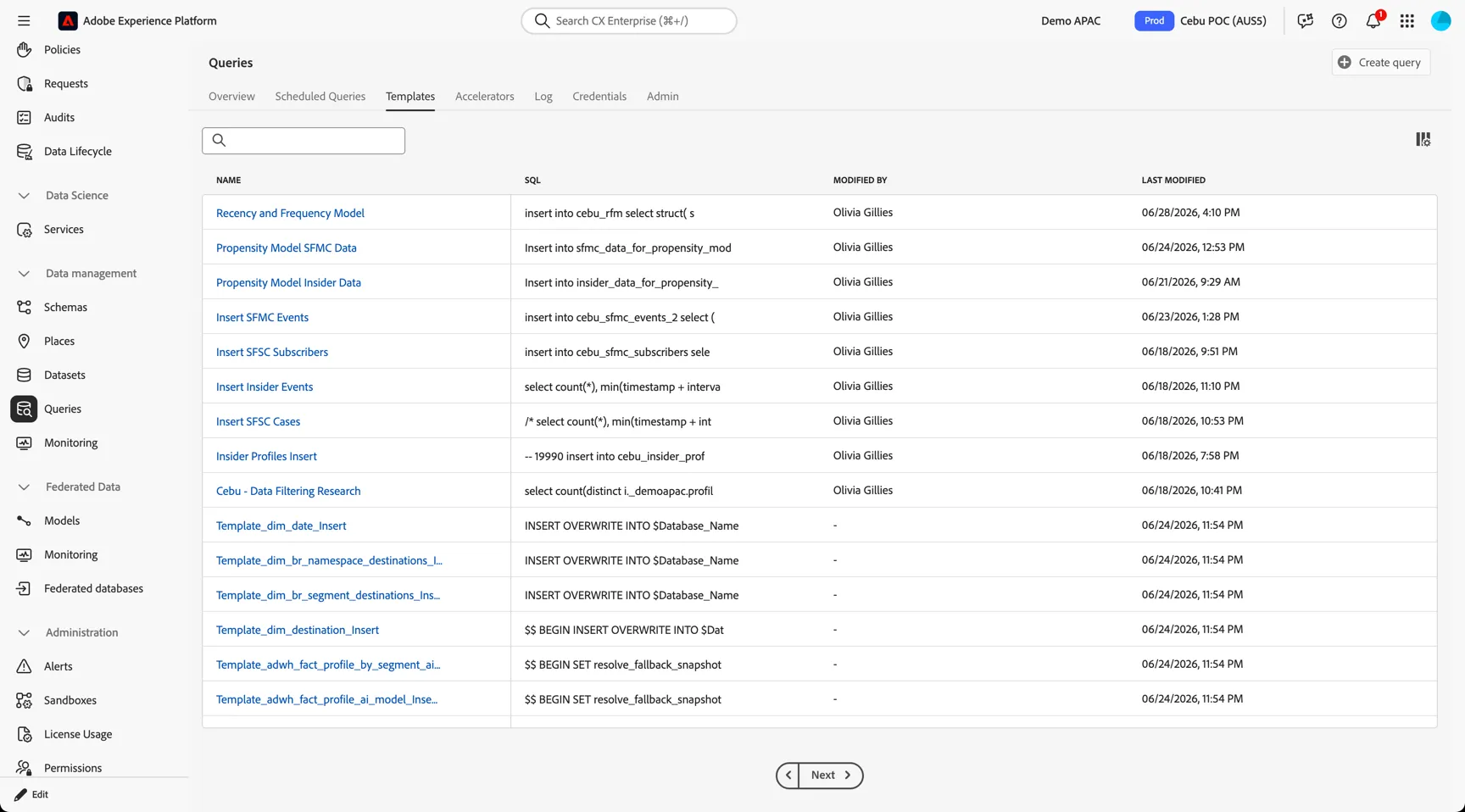
Click on the Recency and Frequency Model template. You can see the query defined aggregating purchase events from your insider dataset in order to calculate recency and frequency quartiles.
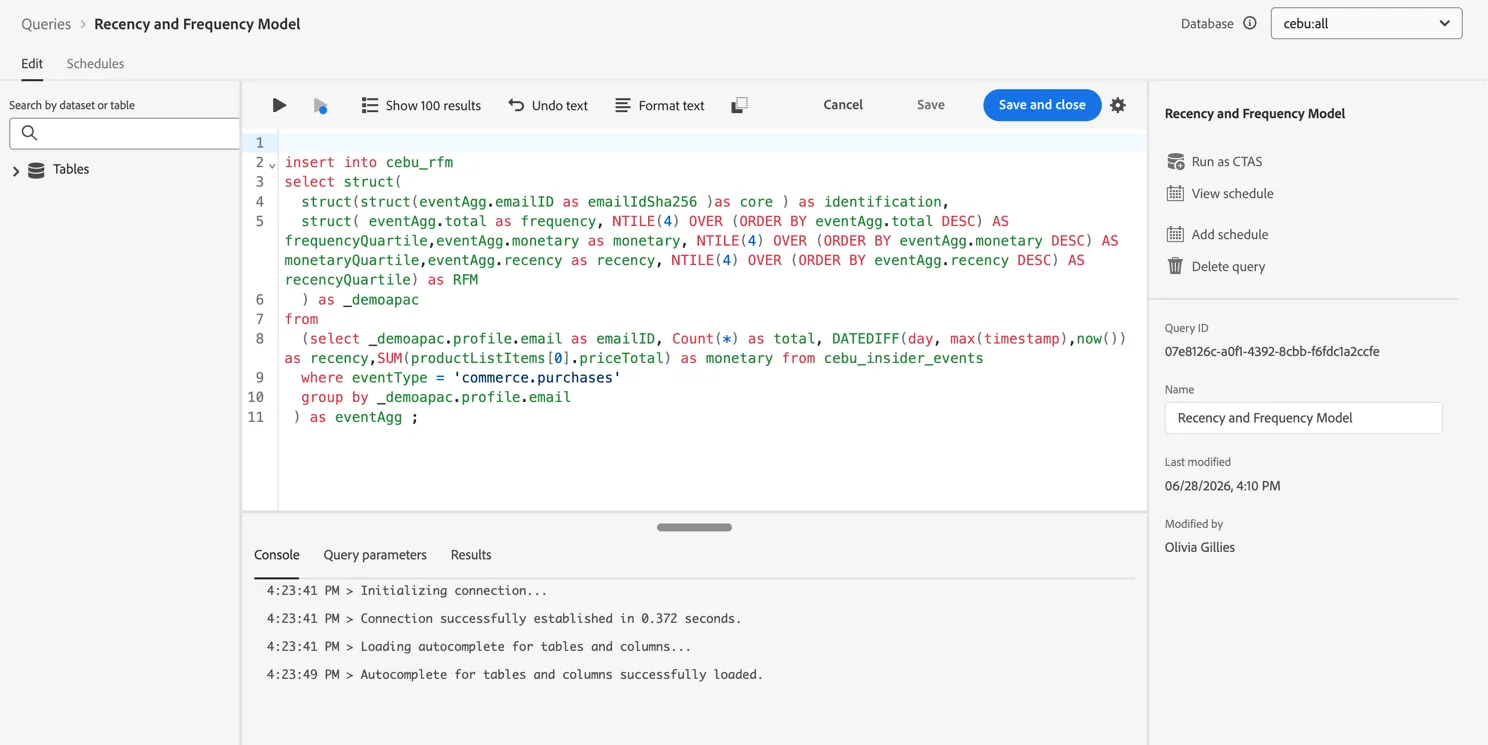
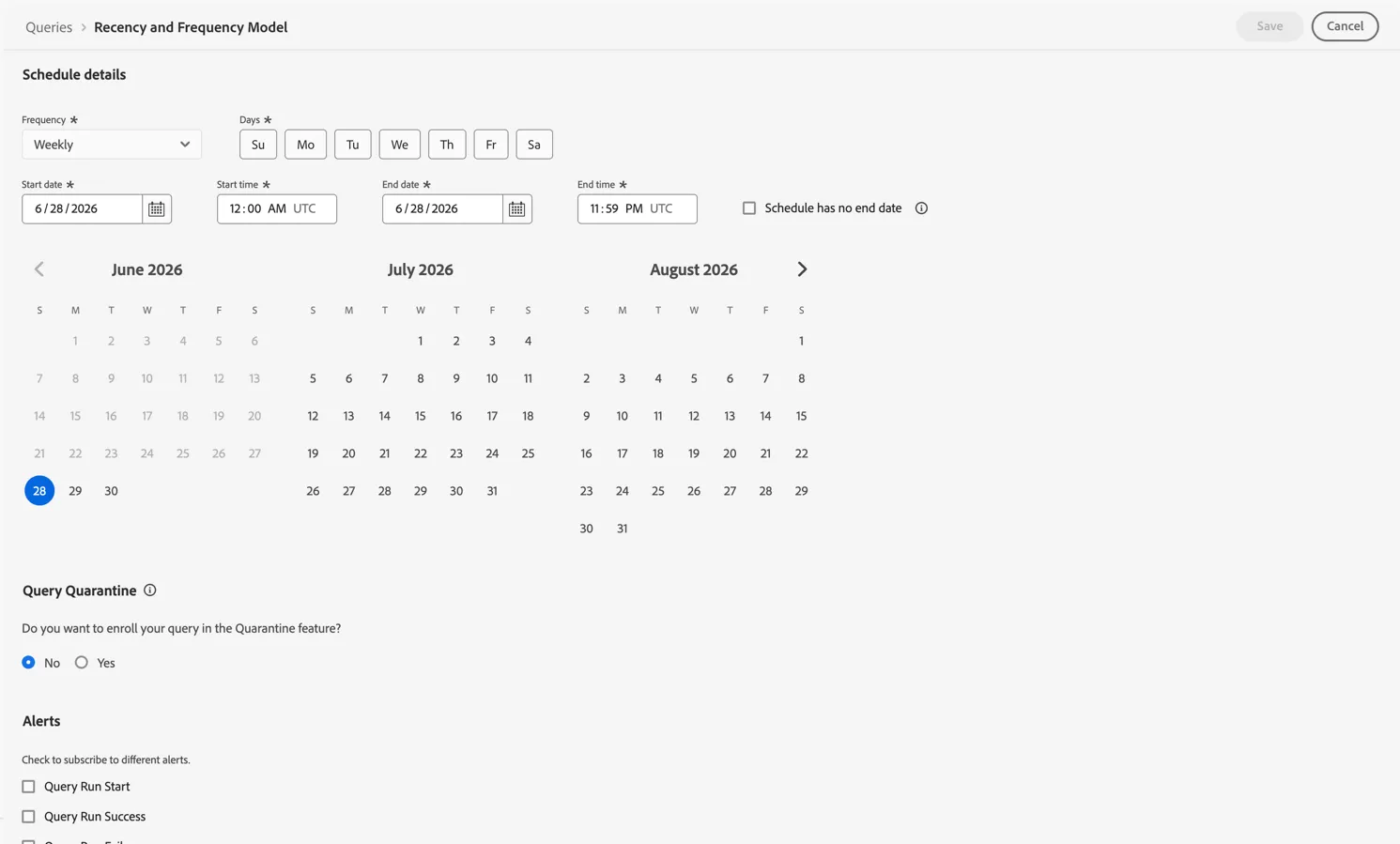
While this query was executed as a once off for the purpose of the POC, it can be easily scheduled to run regularly by clicking the Add schedule button.
Queries can be scheduled hourly, daily, weekly or monthly and have their own alerts for monitoring to ensure
Congratulations!
You've explored how Data Distiller can be used to create complex aggregates which are passed back to the profile as calculated attributes. You'll find a number of useful pre-built queries defined in the Accelerators tab also.
Dataset Export
Each night a snapshot of Adobe's unified profile store is taken and stored as a dataset in the AEP data lake. This dataset referred to as the Profile Snapshot can be shared back to your data warehouse through the Dataset Export Destinations.
AEP supports dataset export in JSON or Parquet format and the connections are established the same way as audience exports.
Navigate to Connections -> Destinations and click on the Browse tab
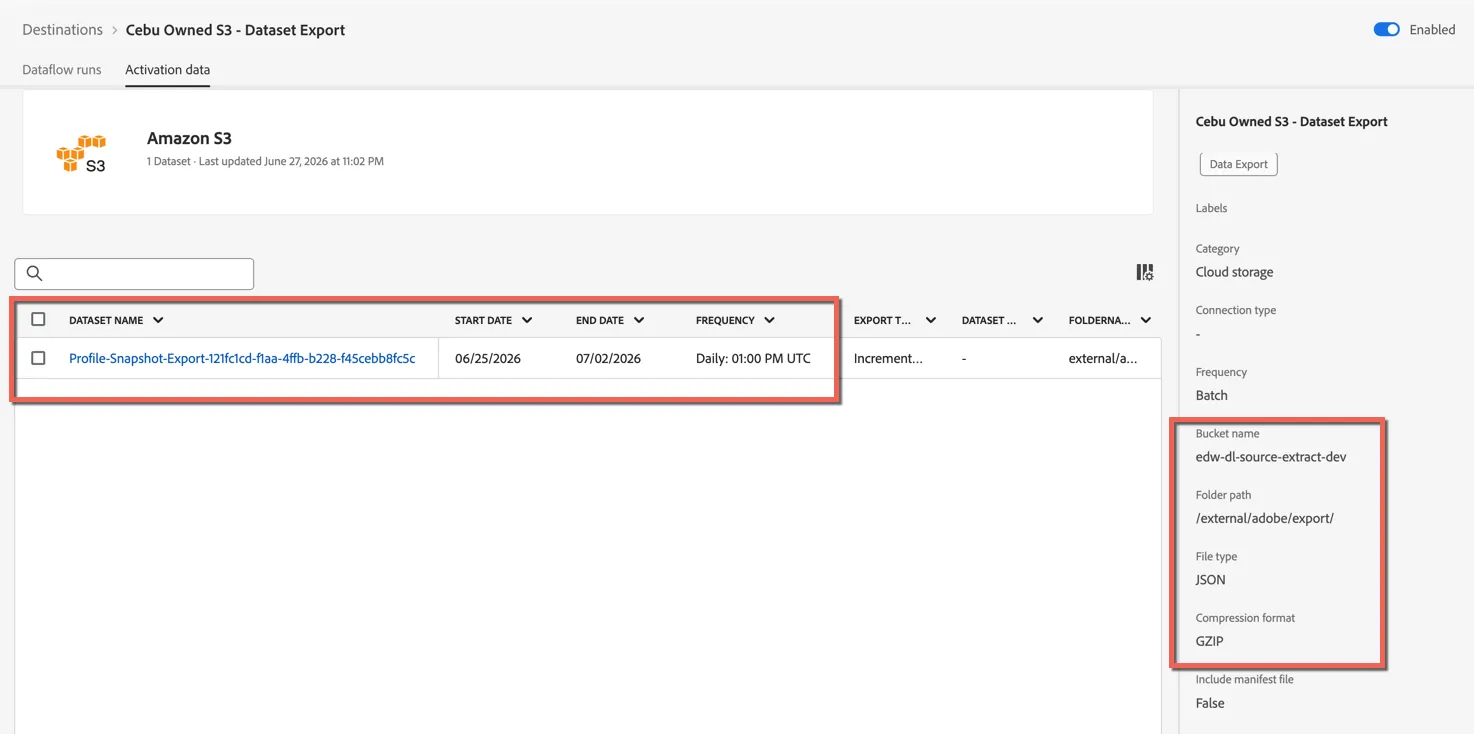
You can see that one of the destinations titled Cebu owned S3 - Dataset Export has a different data type from the others. This is a Dataset destination.
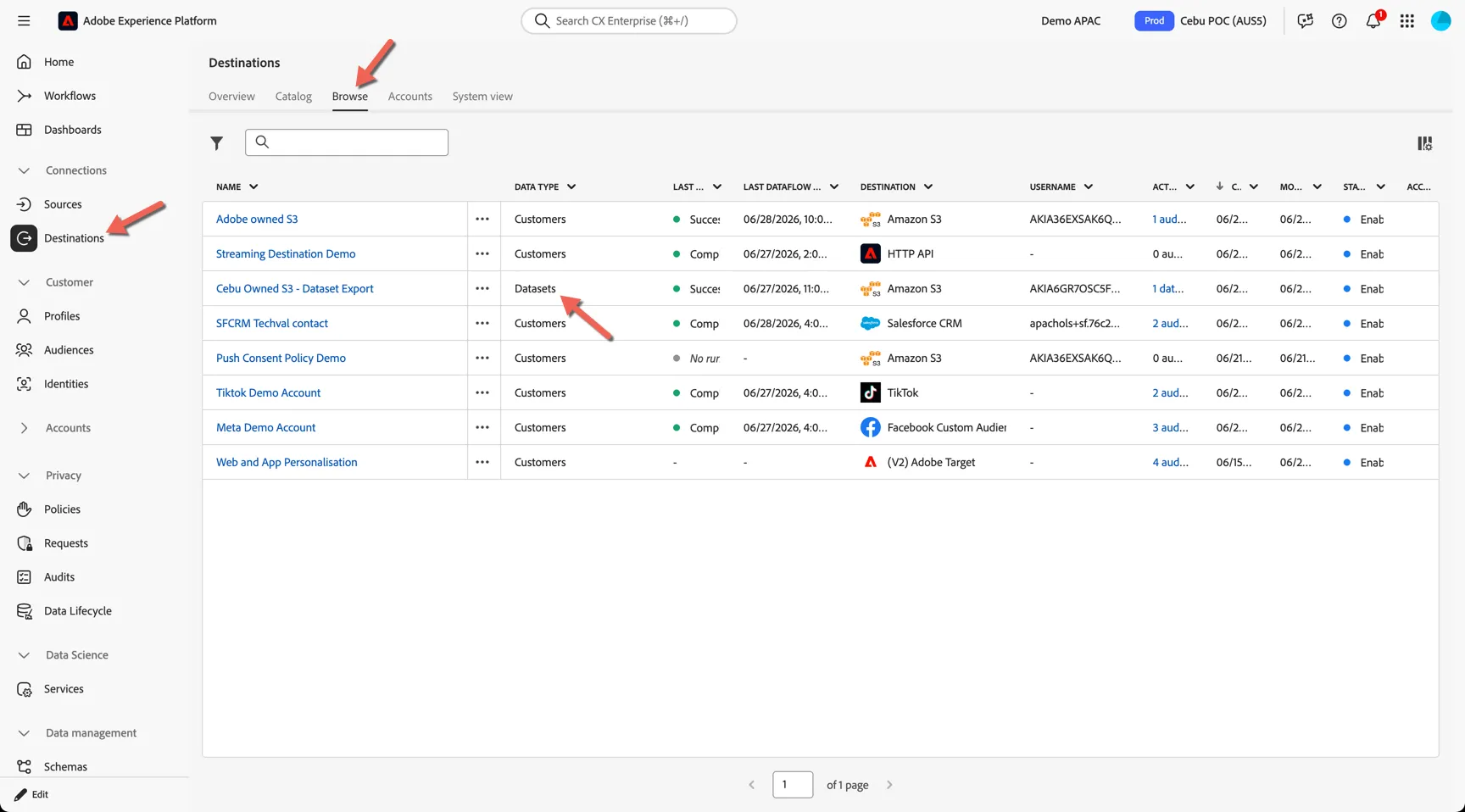
Click into the destination to see the dataflow runs and activation data. On the Activation data tab you can see that the Profile-Snapsho-Export dataset is activated and scheduled to export daily at 1pm UTC time. On the right you can see the format chosen and location where this data is being exported to within your S3 bucket.
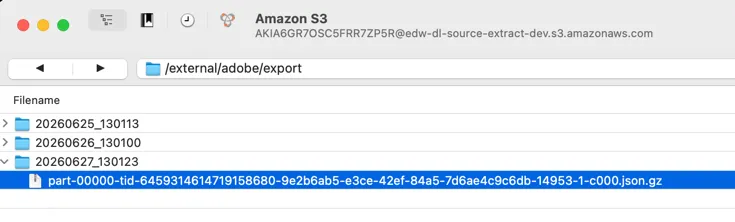
You can review this data at your leisure using your S3 browser of choice.
Additional Resources
Adobe provides a number of options for reporting on your data within Adobe Experience Platform.