POC-DE1 - Data Ingestion
This tutorial is designed to teach you about the methods for ingesting data into the Platform. The components taught in this module are core to all Adobe Experience Platform applications.
It is designed for a technical audience (Data Architects and Engineers) but can be interesting also for marketers to understand.
Learning Objectives
- Learn how to use an Adobe Experience Platform Workflow to ingest a CSV-file into Adobe Experience Platform
- Learn how to query data that has been ingested into Adobe Experience Platform using Query Service
Connect to Amazon S3
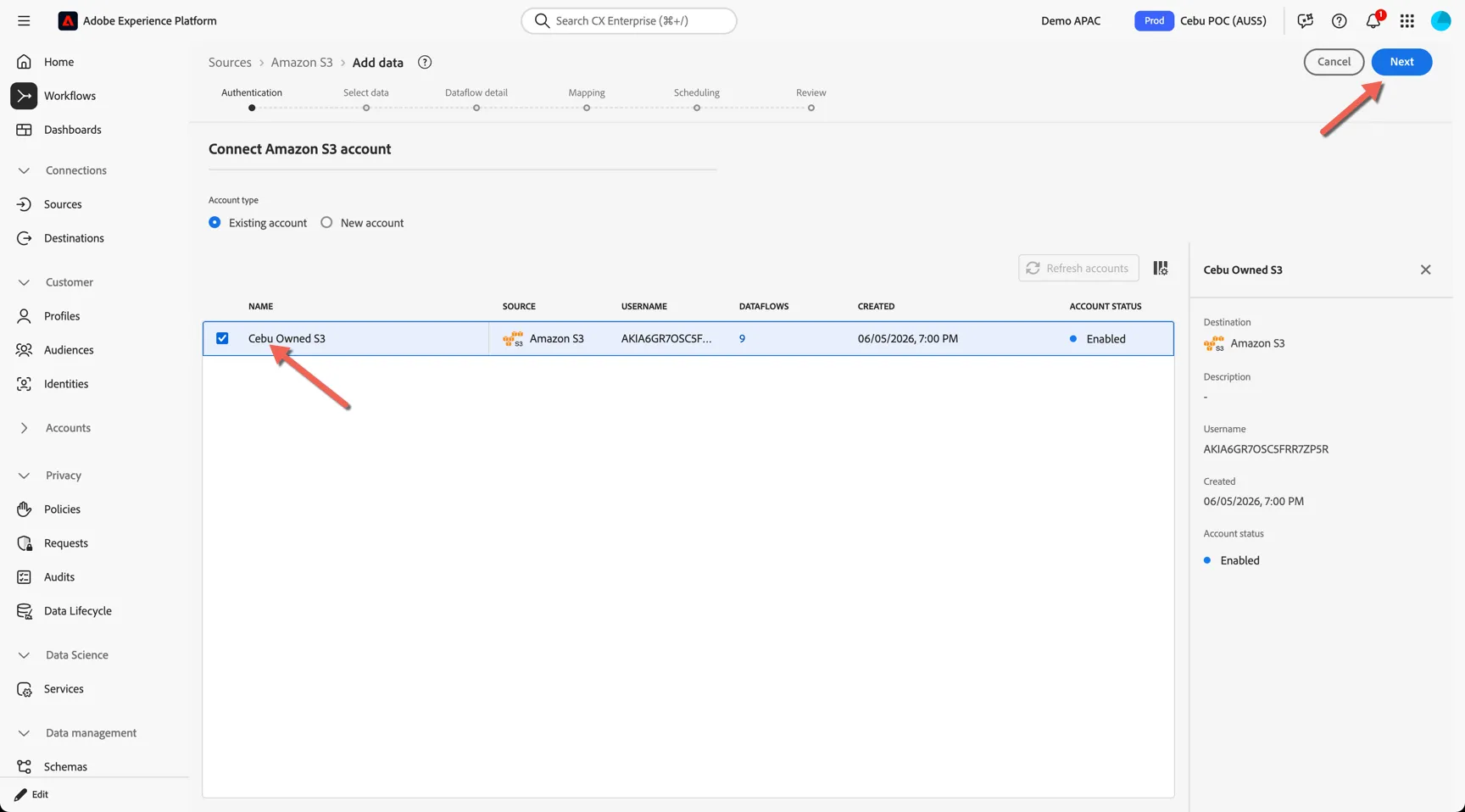
- For this exercise, we'll be using the existing Cebu Owned S3 Amazon S3 connection.
Ingest data from Amazon S3
For this exercise, we have uploaded sample_crm.csv file to your Amazon S3 bucket.
Follow the steps below to select the file for ingestion.
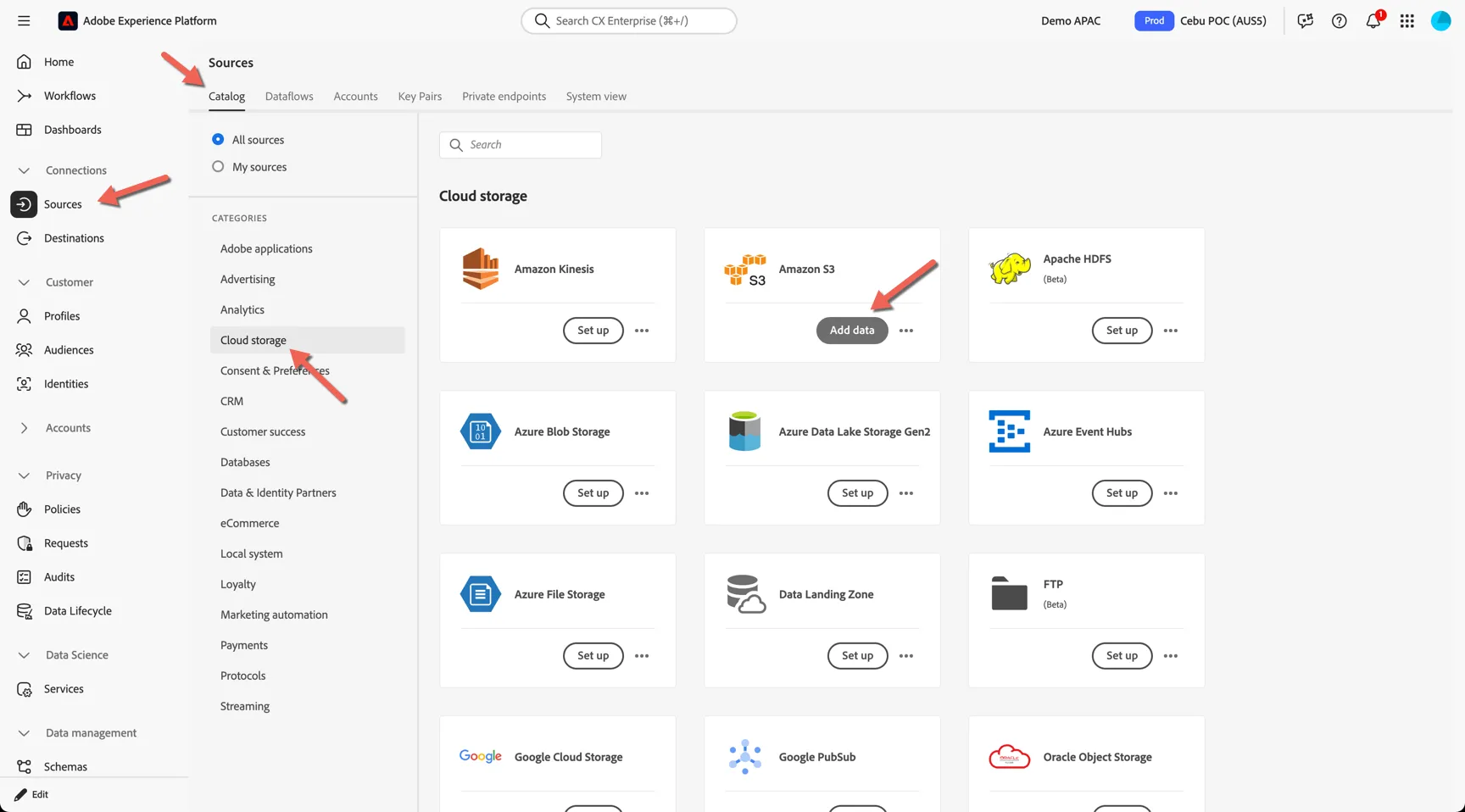
- In the left rail, navigate to Connections -> Sources. Under Categories, select Cloud storage to filter the list then click to Add Data on the Amazon S3 card.
- Click and select the Cebu Owned S3. Click Next.
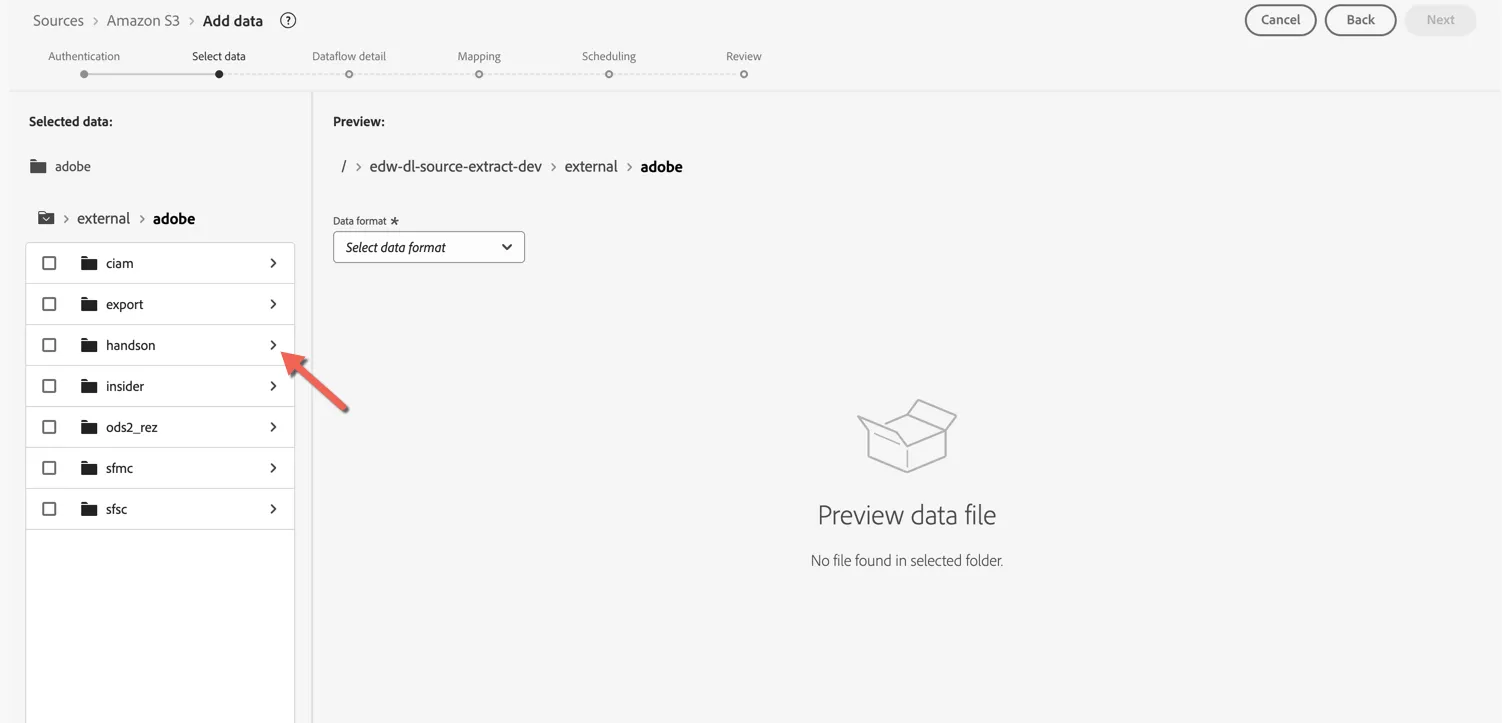
- Click into the Handson folder
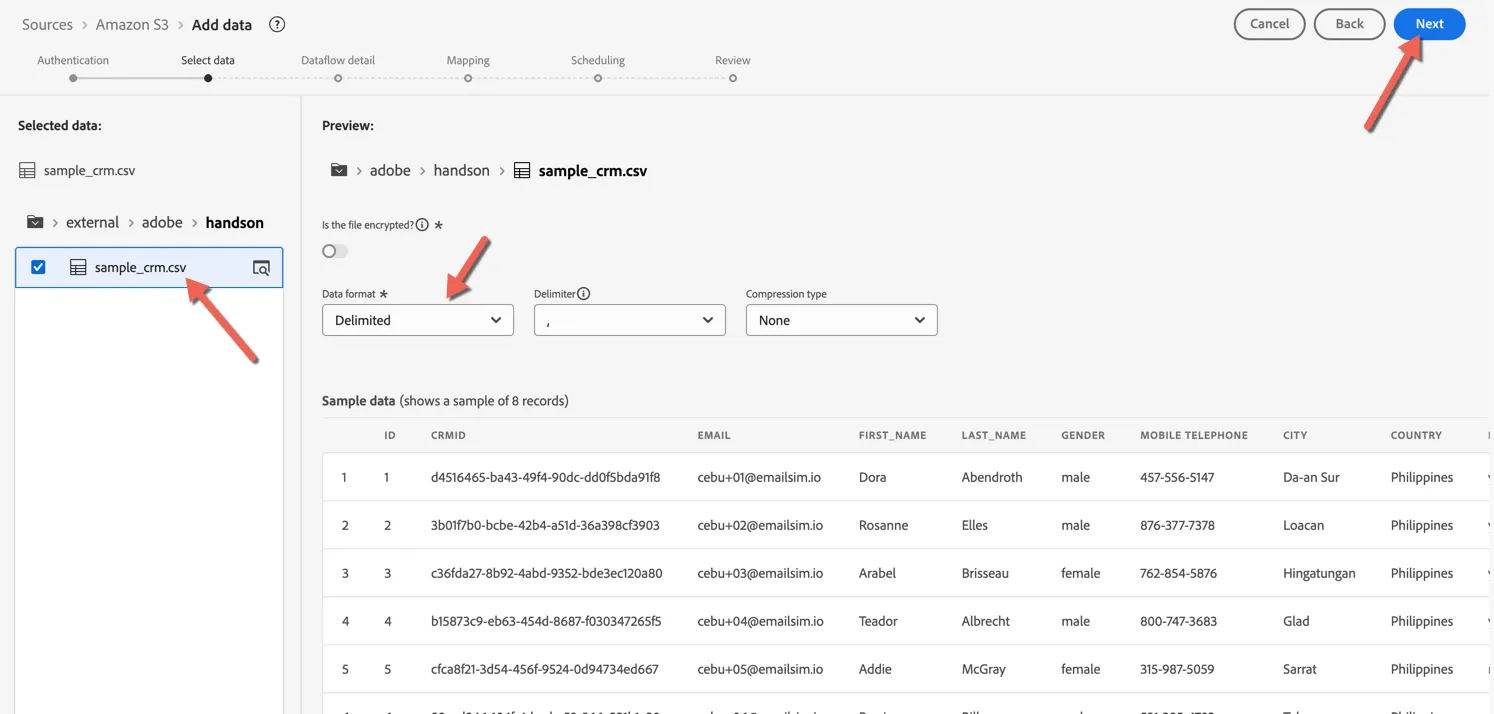
- Select the sample_crm.csv and select Delimited from Data format. Sample records from the csv will be displayed. Click Next.
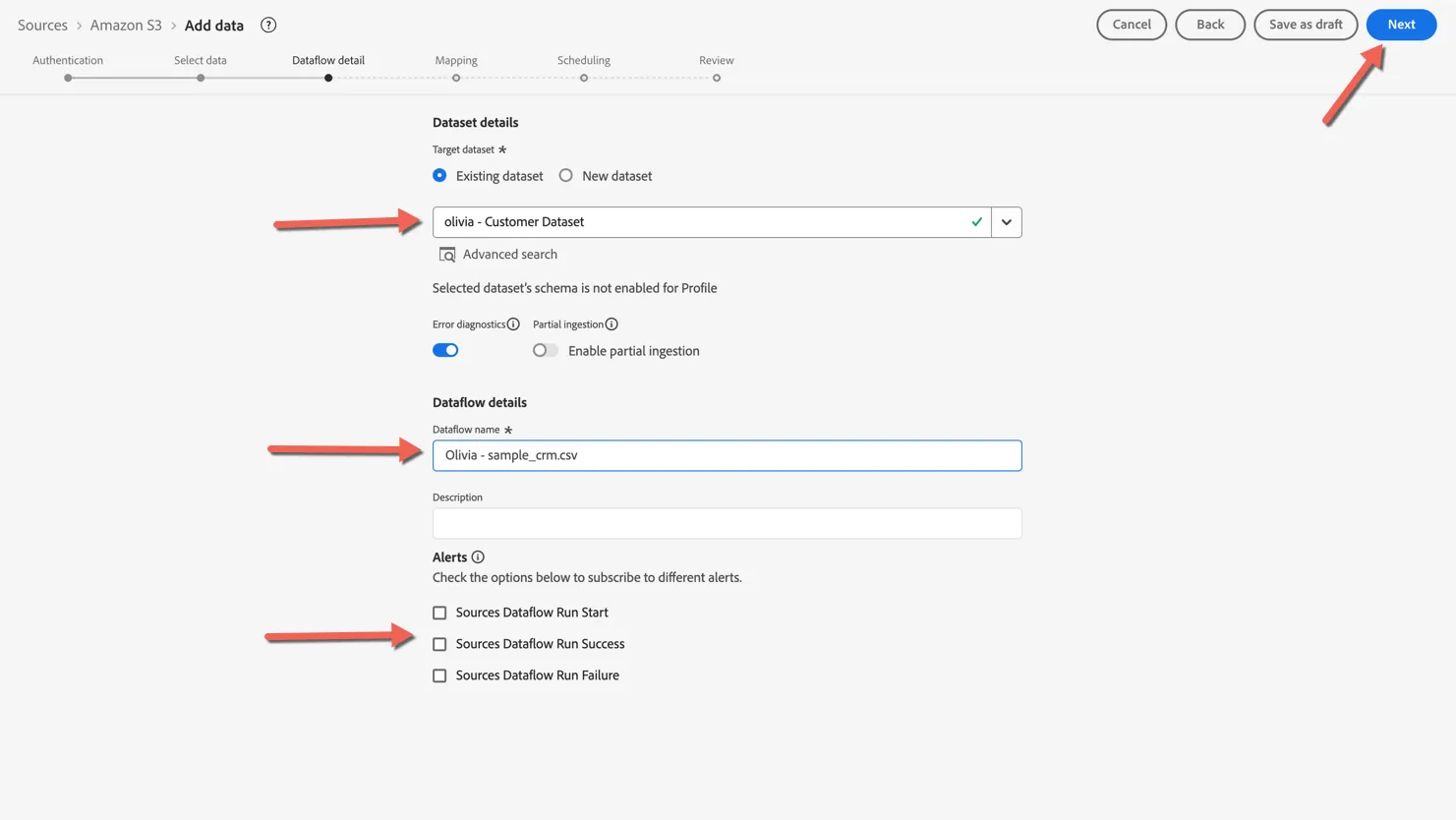
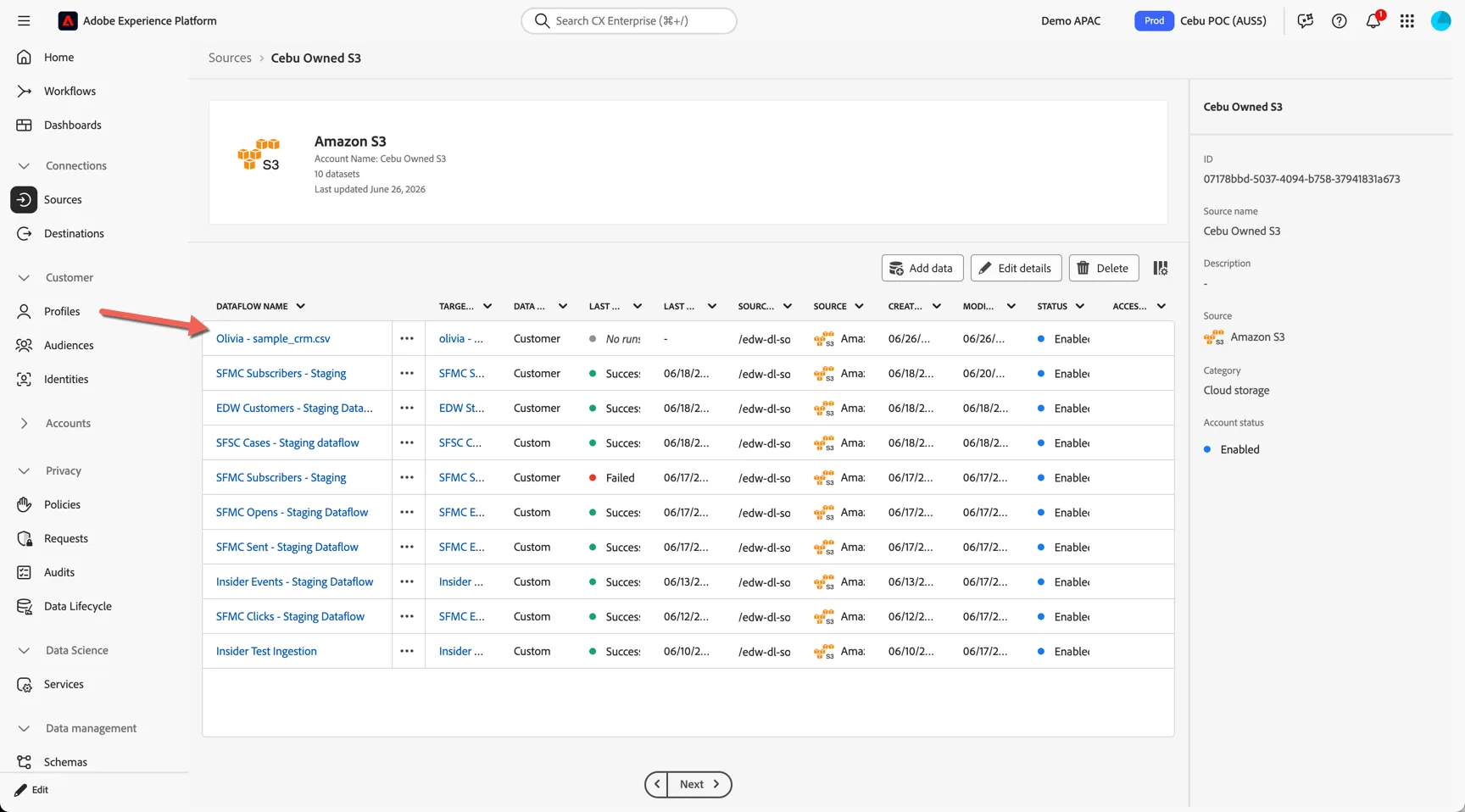
- Select the dataset you created in the last exercise. Set Dataflow name to [your name] - sample_crm.csv - this will help you find it amongst everyone else's. Note as well that alerts can be configured at the dataflow level for monitoring and observability. Click Next.
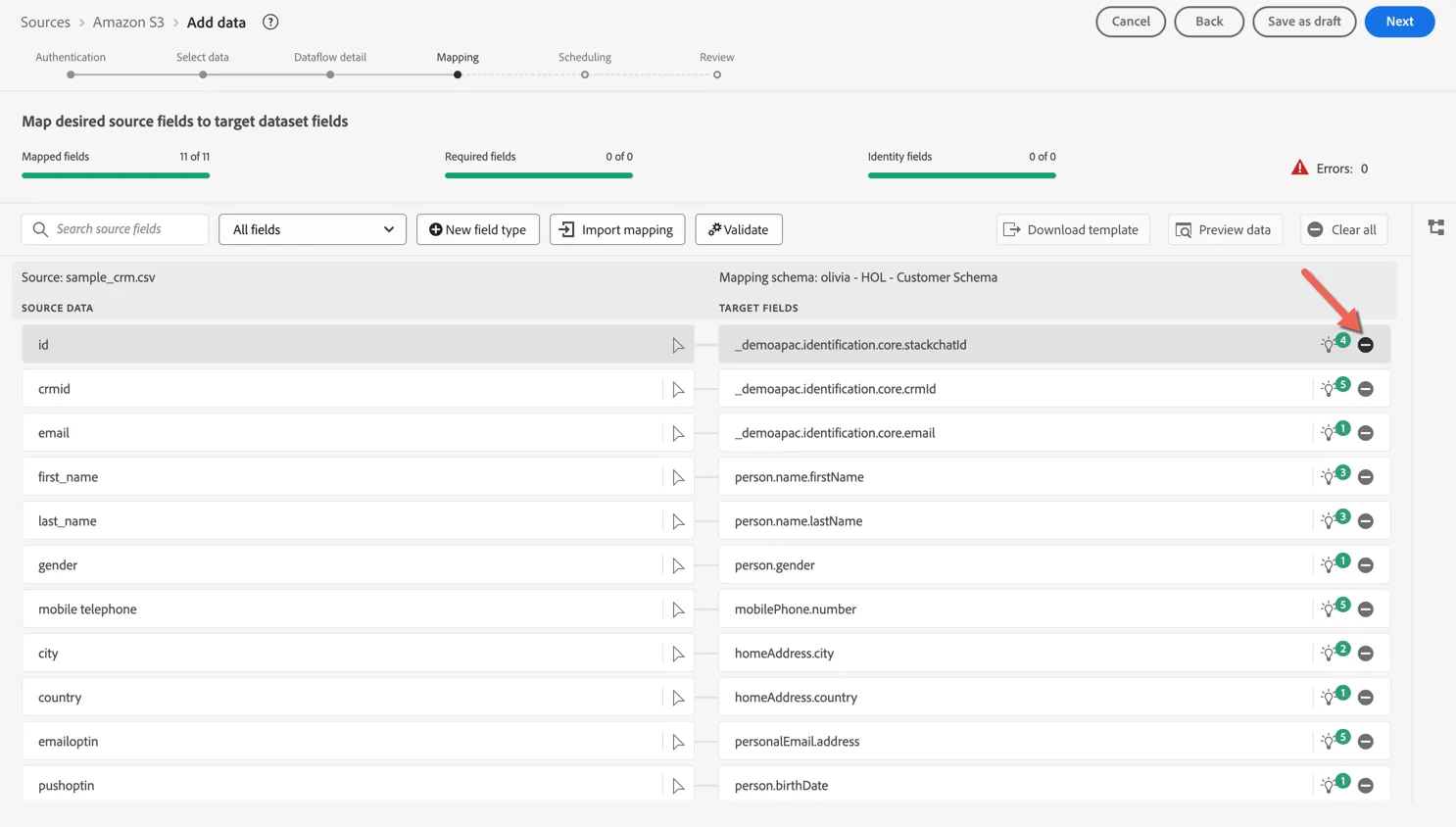
- Most fields from csv file are automatically mapped to selected Schema, but there are a few that need updating. Remove the first Id column by clicking on the minus icon, this is a row number column which we want to ignore.
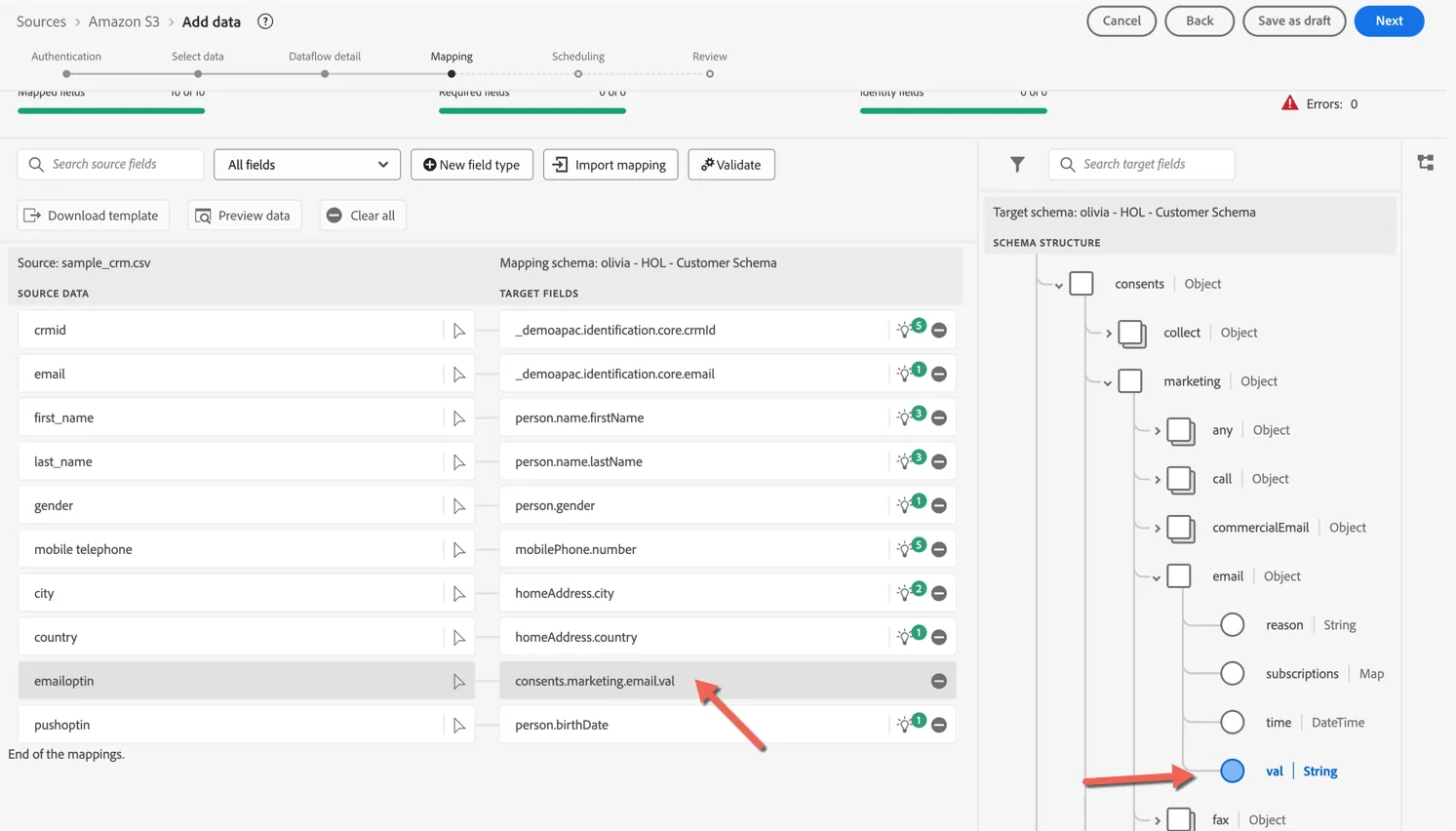
- We also need to remap the optin fields. Click on the target field you want to update and select the right field from the schema on the right. Repeat the same for push consent.
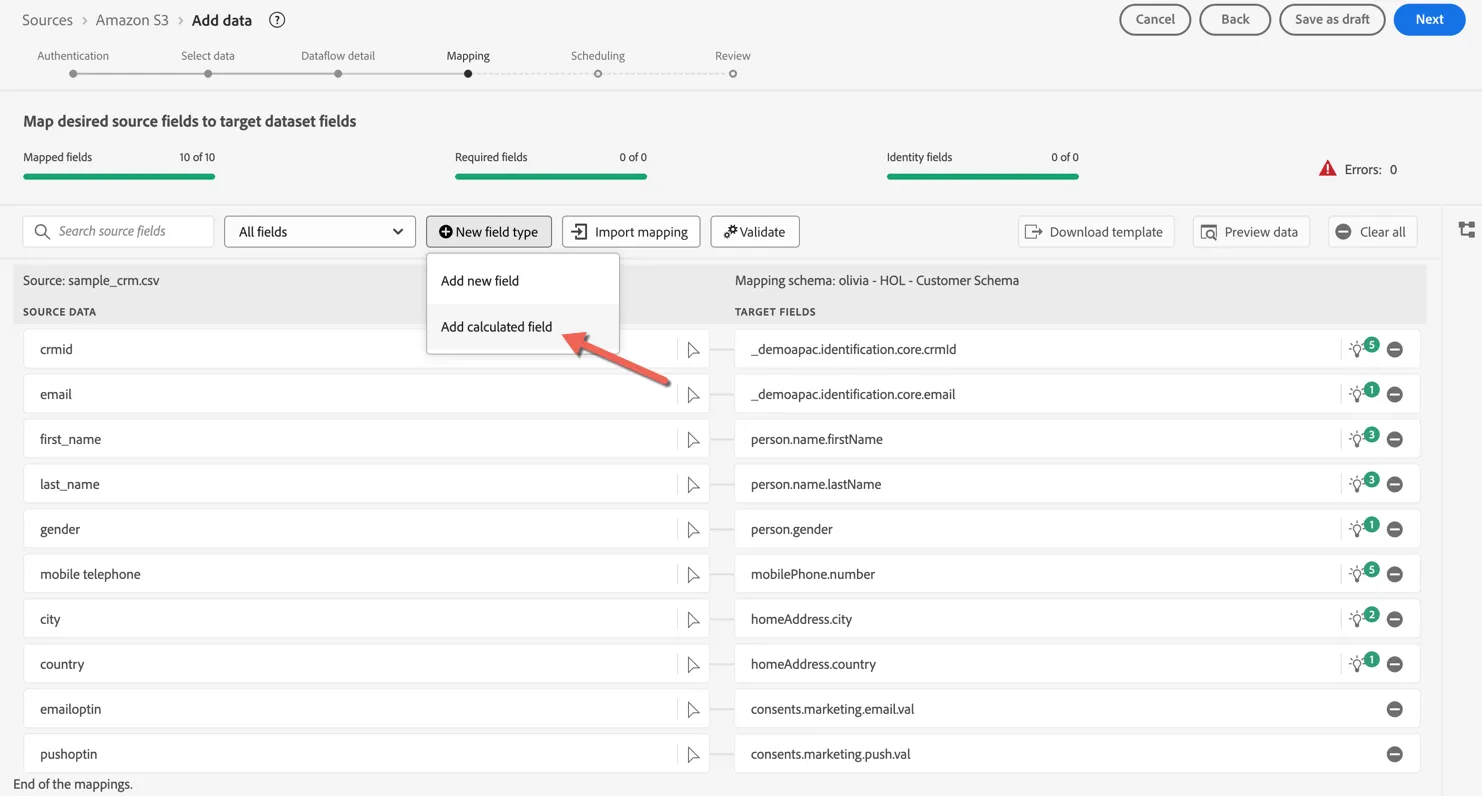
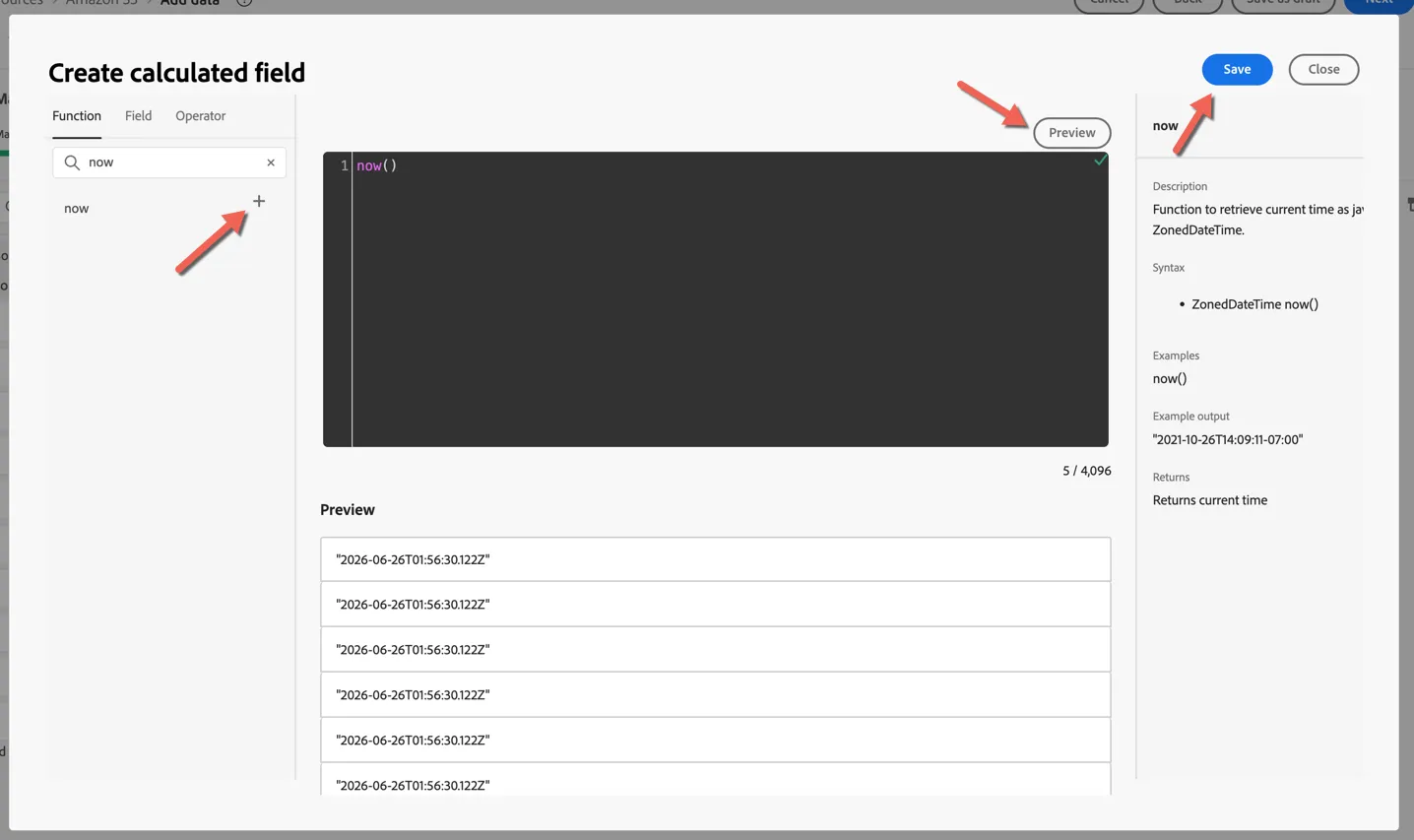
- Next we'll add a new calculated field to record on the profile the time it was ingested. Click on +New field type and select Add calculated field.
- Insert the now() function to add the current timestamp. Click on preview to see the output of the function for each row. Click Save to add the new field.
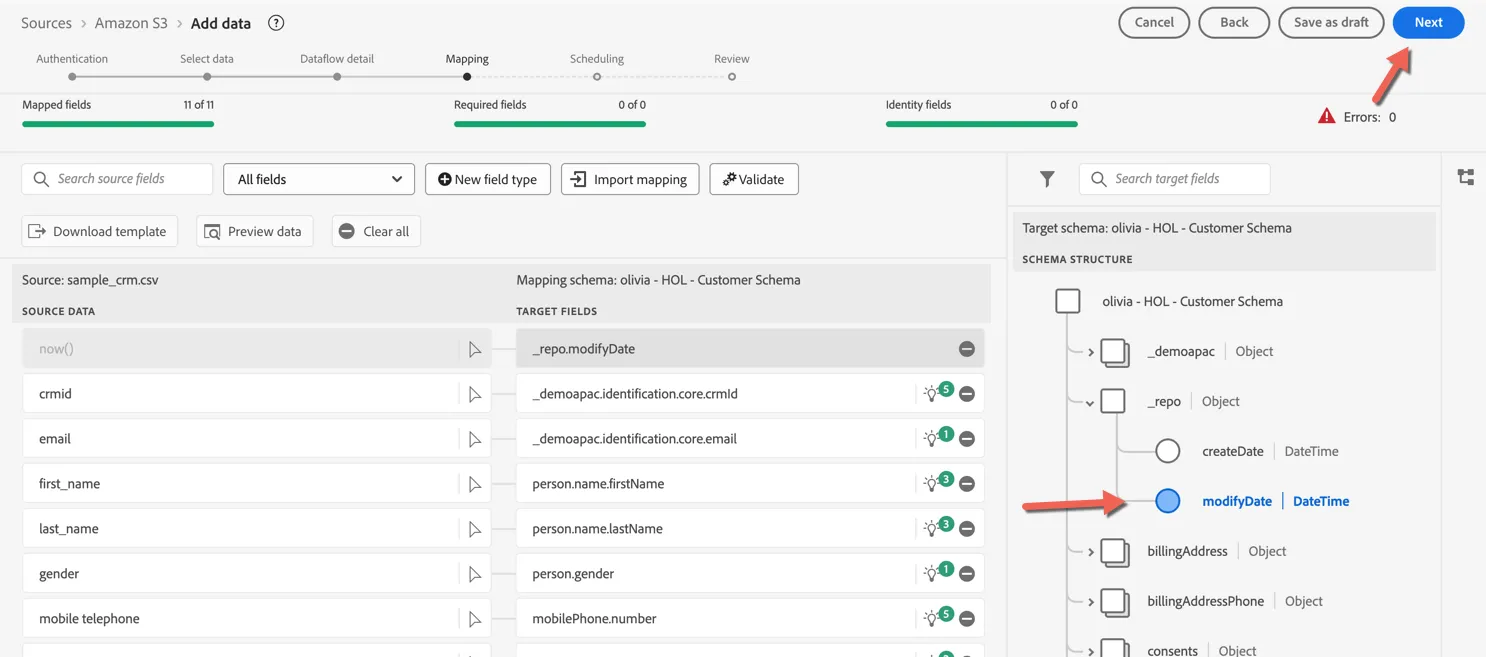
- Map the calculated field to _repo.modifyDate in the target schema. Click Next to move to the scheduling step.
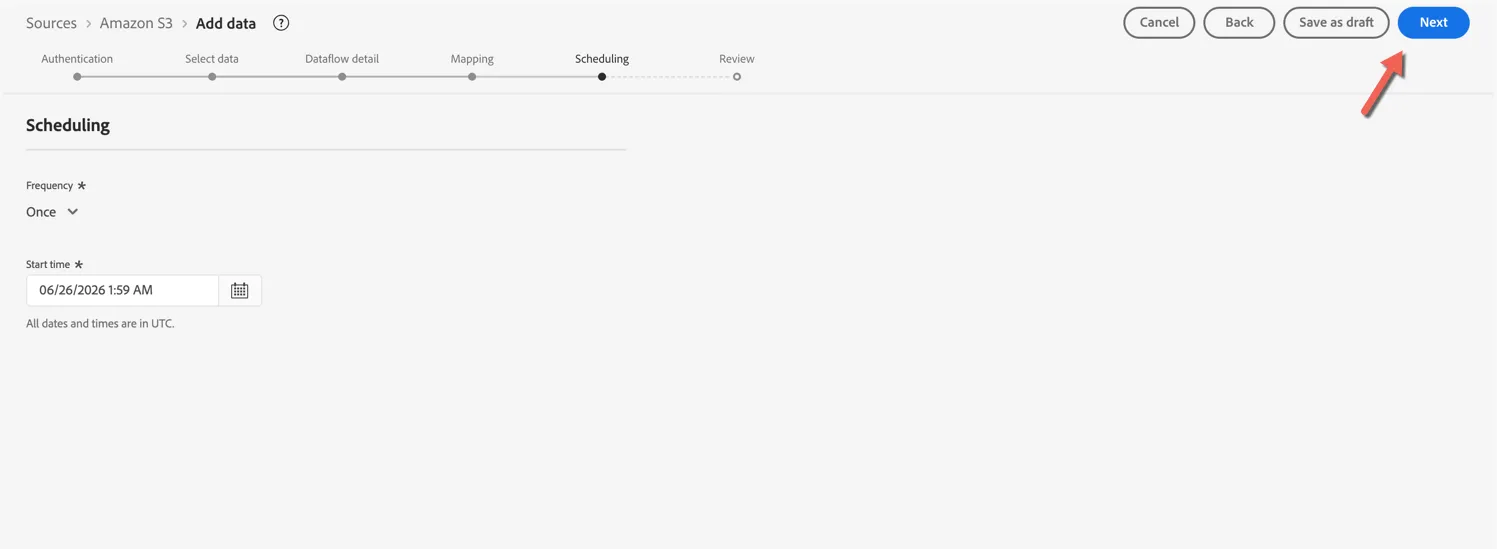
- Click Next to move to the scheduling step. Leave the frequency set to Once and click Next to proceed to Review.
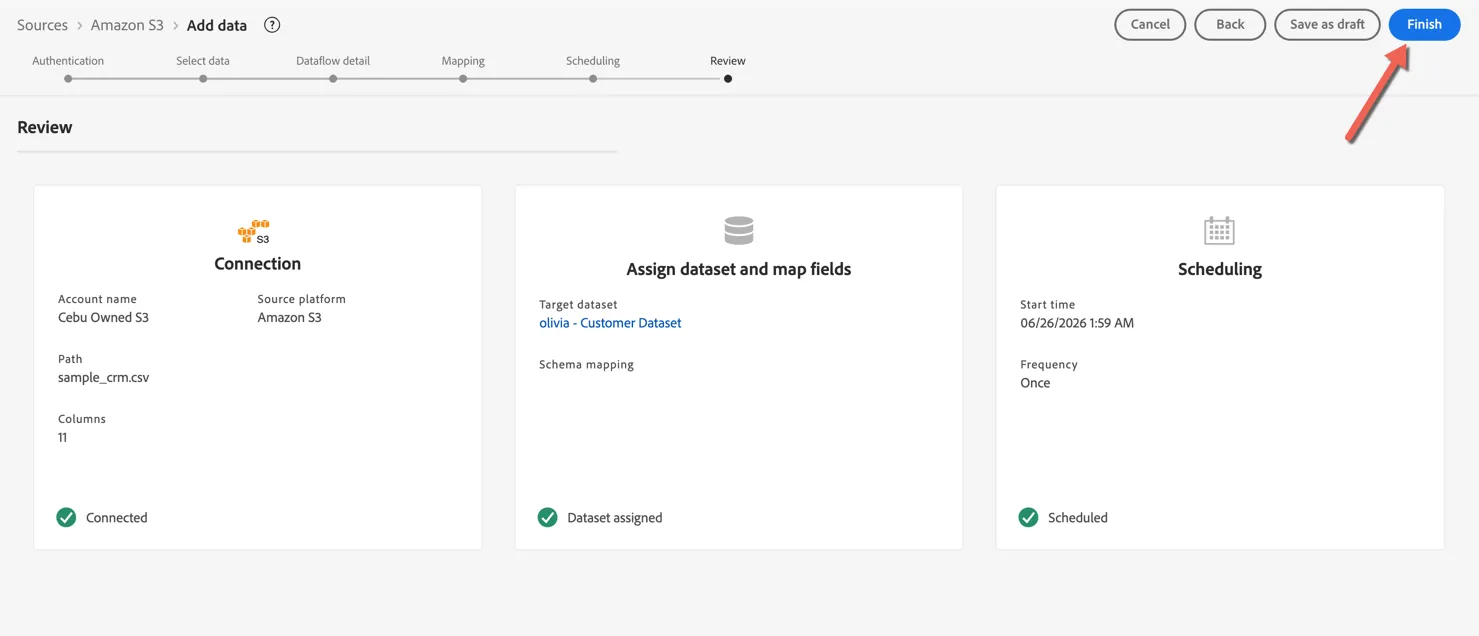
- Review your dataflow and click Finish.
Your configured dataflow will be displayed under the Amazon S3 source connector.
Congratulations!
You have now successfully ingested data from Amazon S3 source connector.
Of course in the real world you would set the dataflow to look at the folder not a specific file and the schedule would be set to run regularly not once off.
Additional Resources
Experience Platform supports both streaming ingestion (for real-time data) and batch ingestion (for file-based uploads), as well as source connectors to a wide variety of Adobe and third-party data sources.