POC-MK2 - Journey Orchestration
This tutorial is designed to teach you how to create a journey triggered from inbound customer events.
It is designed for a non-technical audience (Marketers and Marketing Operations).
The Real-Time CDP Profile Orchestration add-on provides access to the Journeys canvas only within Adobe Journey Optimizer. It explicitly excludes Messages, Business Events, and Read Segment activities.
Integration with Salesforce Marketing Cloud for delivery of messaging was not enabled during the POC, so we will use Adobe's native messaging for the exercise but this will not be available post POC under the currently bill of materials.
Learning Objectives
- Learn how to create a real-time journey
Create a Journey
In this exercise we will recreate the journey triggered when customers lock their price on the mock website.
Journeys are accessible through the Adobe Journey Optimizer UI. Use the solution switcher to change to Journey Optimizer.
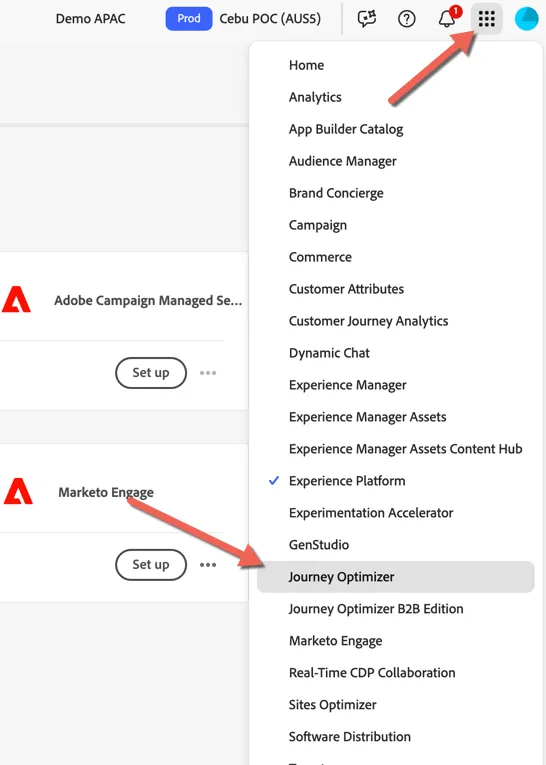
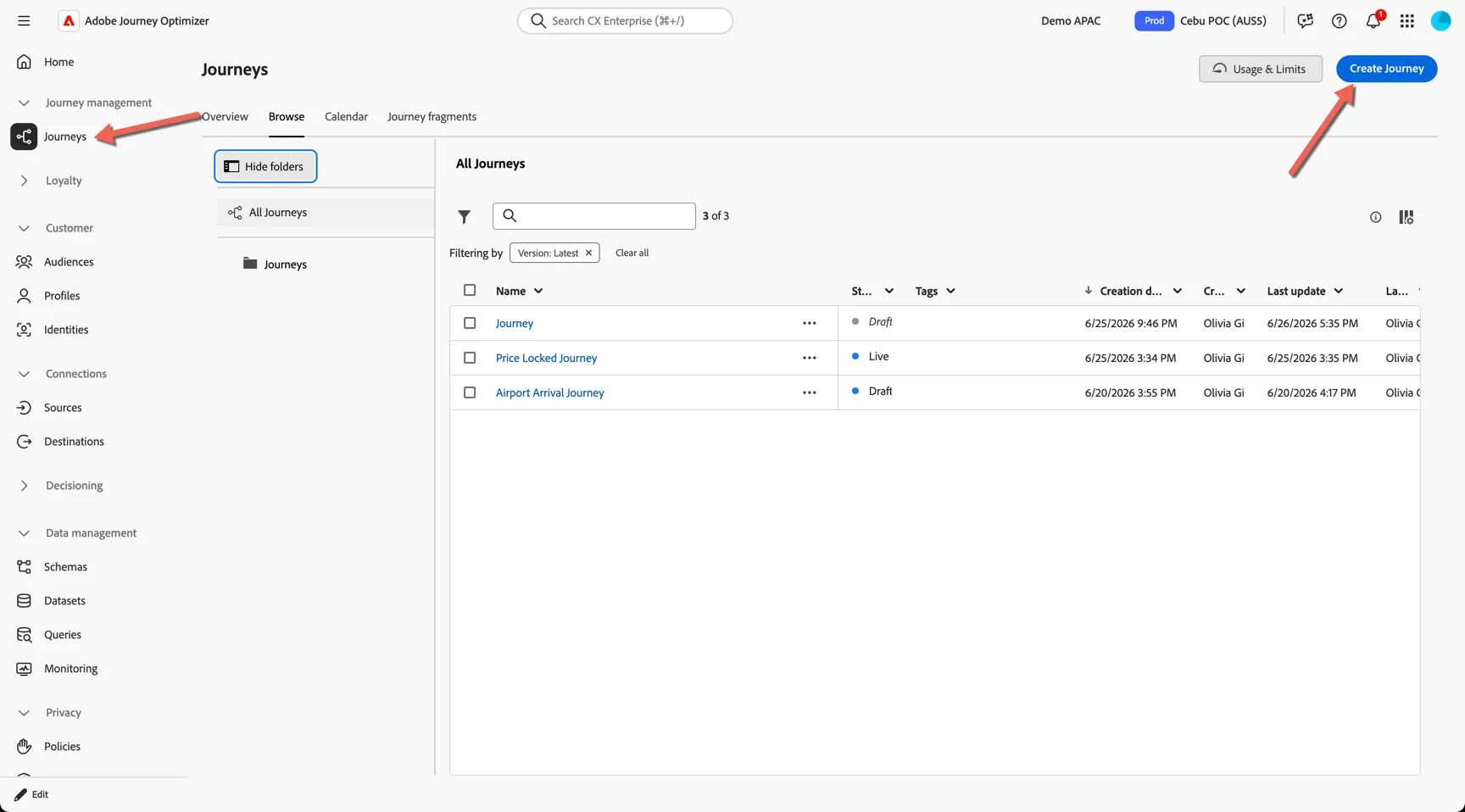
Navigate to Journey Management -> Journeys, and click to Create Journey.
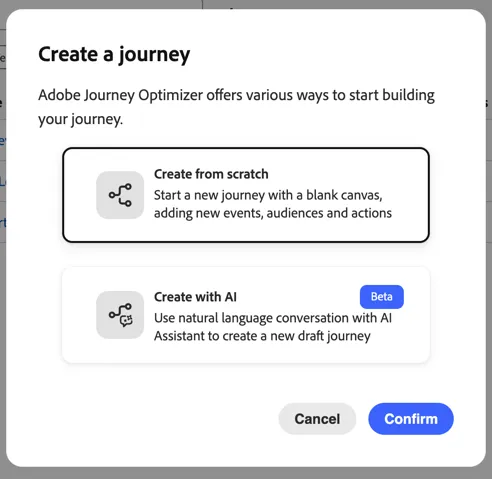
There are two options for creating a journey, manually through the UI or using AI. For this exercise we will create the journey manually. Select to Create from scratch and click to Confirm.
Give your journey a name - add your first name or something unique so you can find it again and click to save.
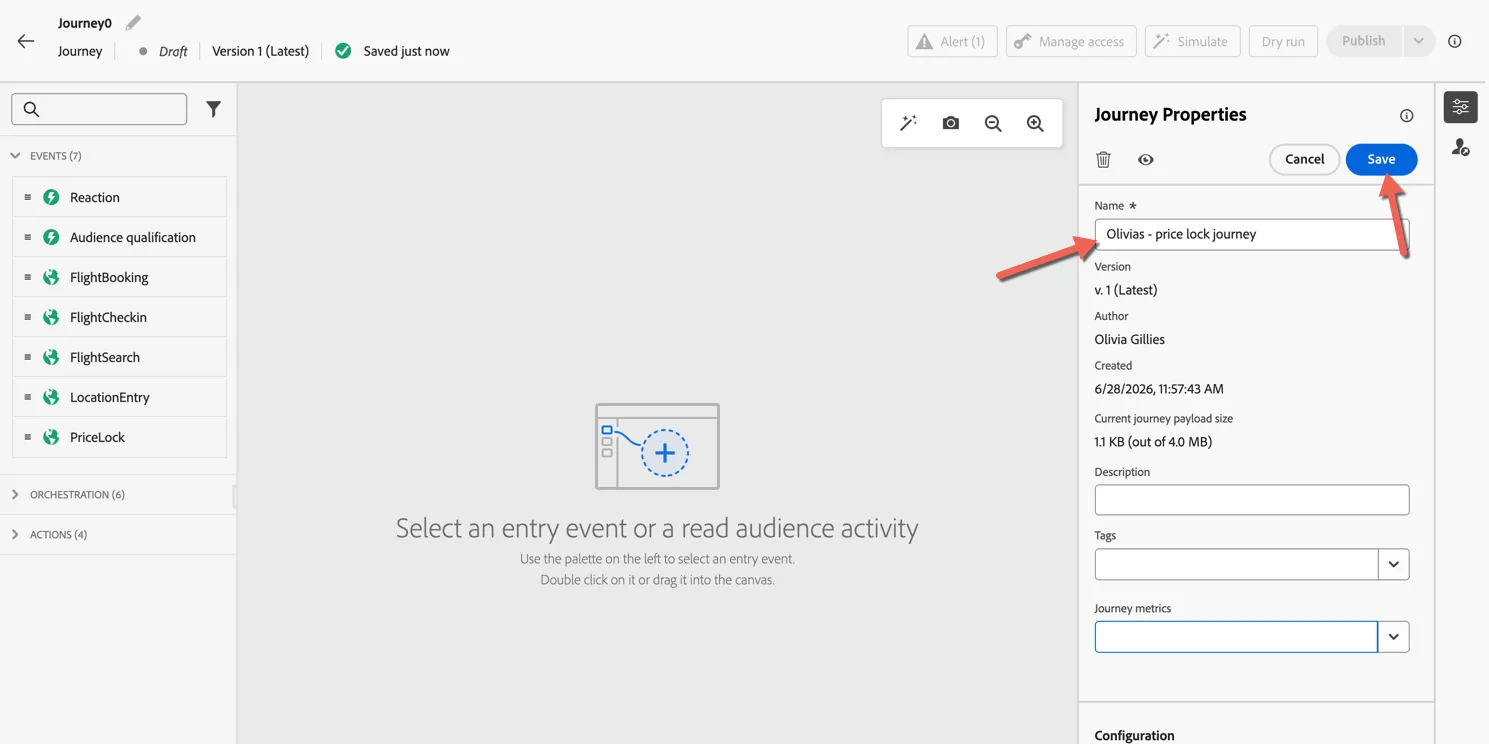
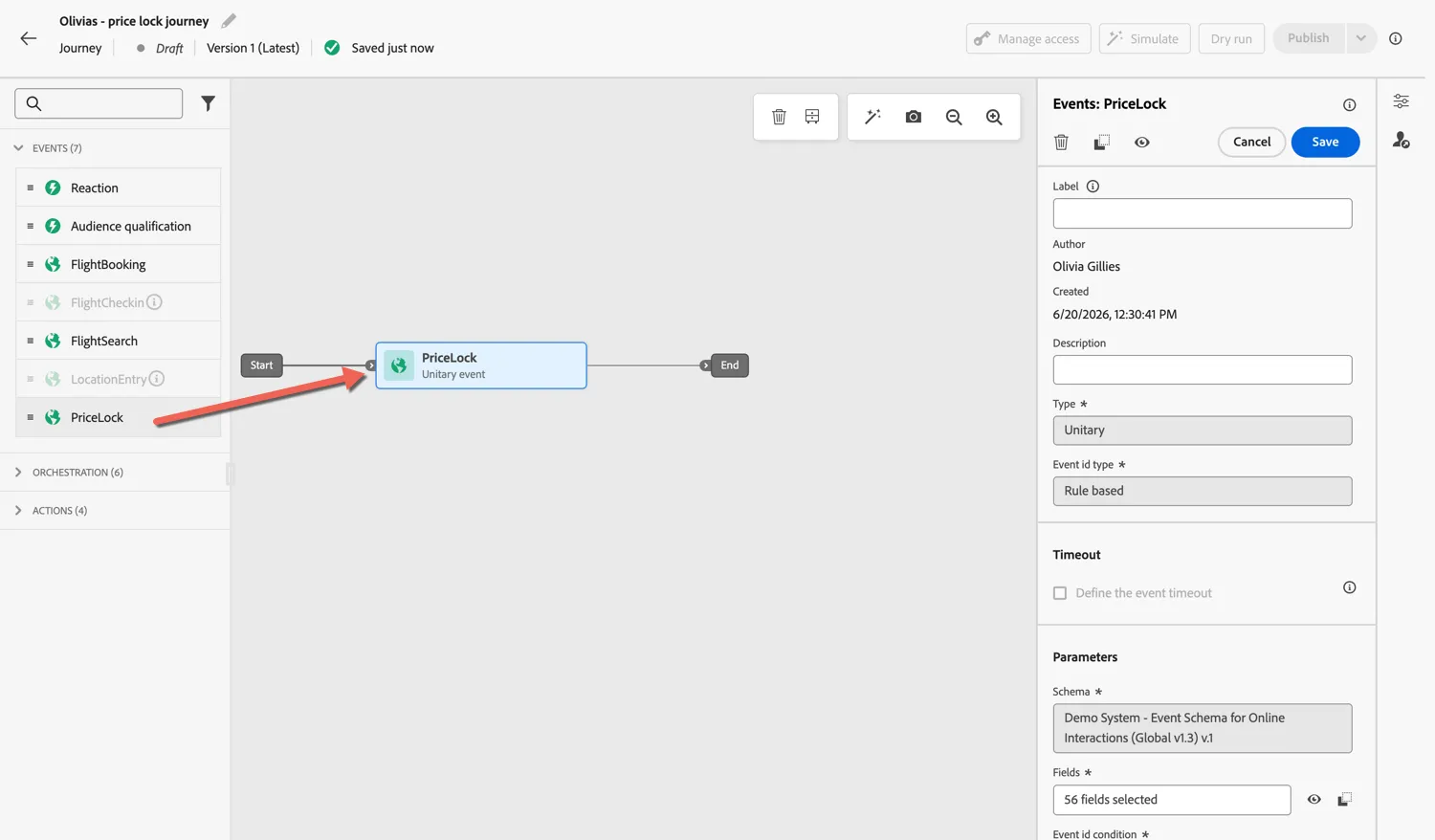
In the left panel you can see the Events that have been defined as journey triggers. Any inbound event can trigger a journey as long as it streamed to the platform. Drag the Price Lock journey into the canvas.
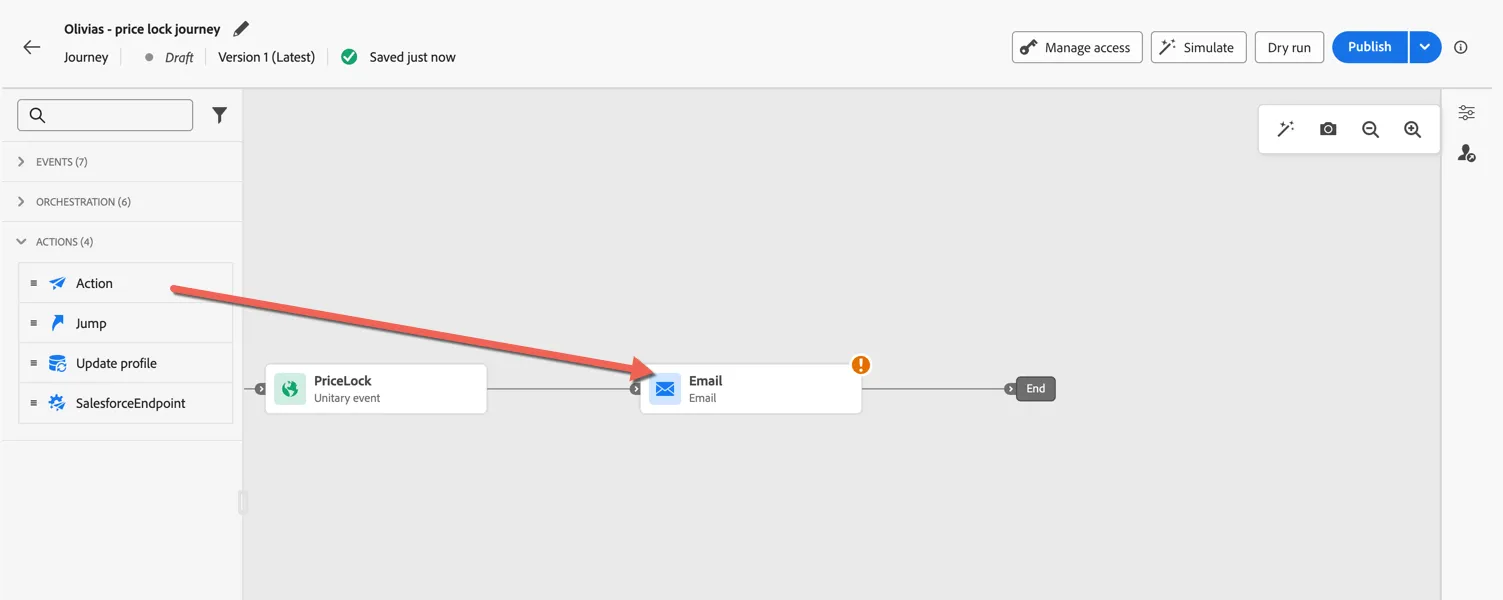
We want to send an email confirmation immediately after the event is received. Open the Actions panel and drag an Action activity into the canvas and attach it to your price lock event. Select Email when you are prompted for which action type you would like to add.
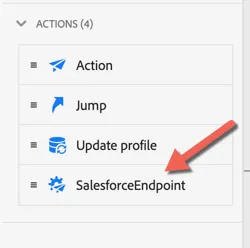
Post POC with SFMC sending messages, you will use a custom action defined to call the SFMC API.
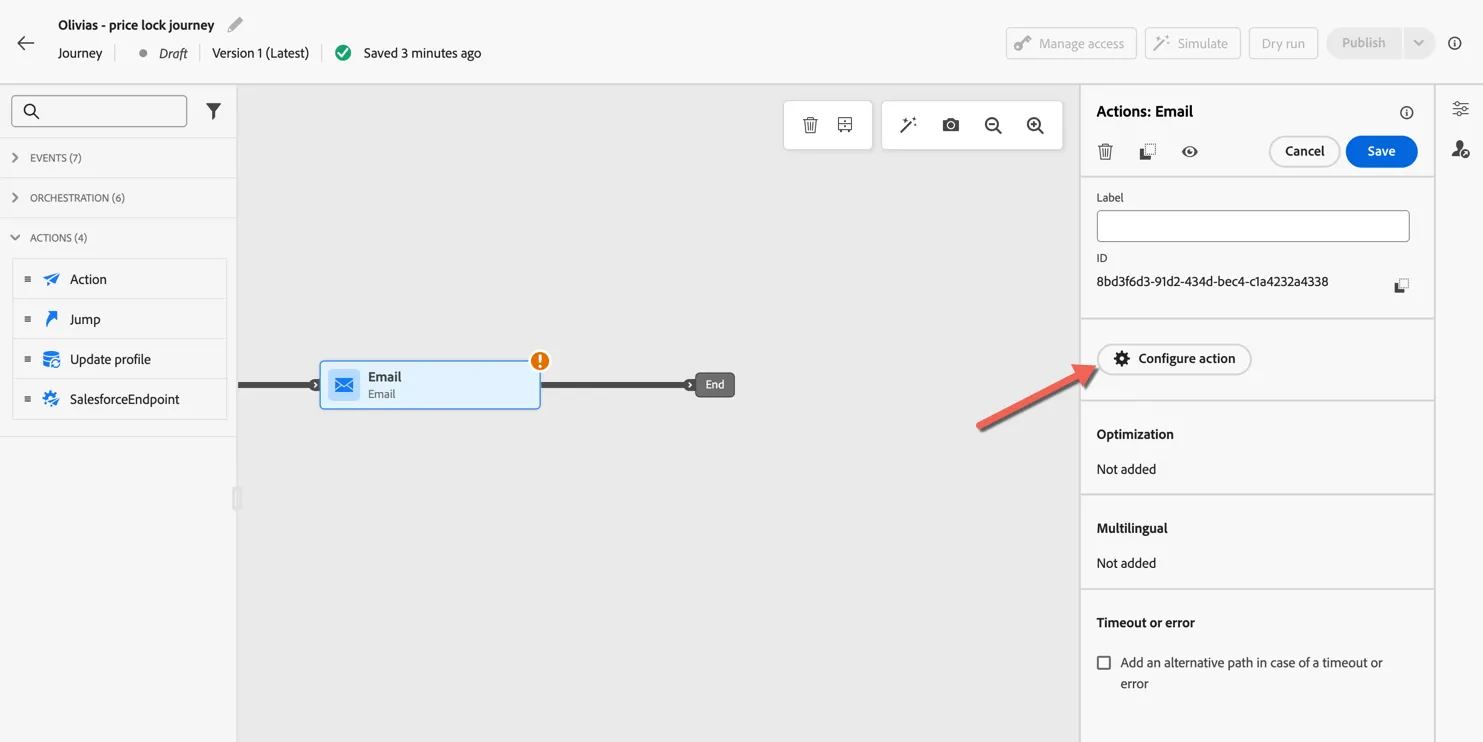
In the email activity properties, click to Configure action.
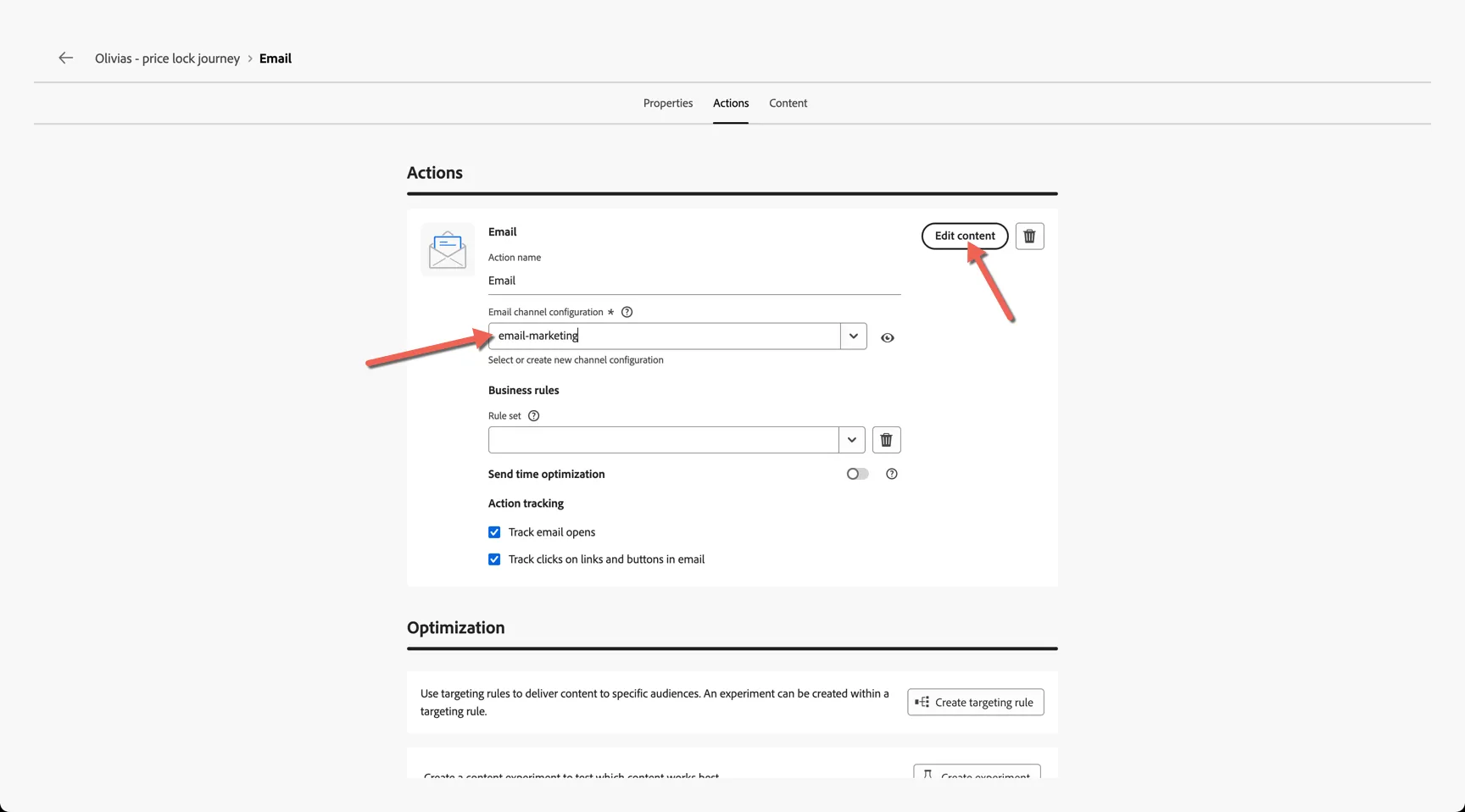
Select email-marketing for the channel configuration and click to Edit content.
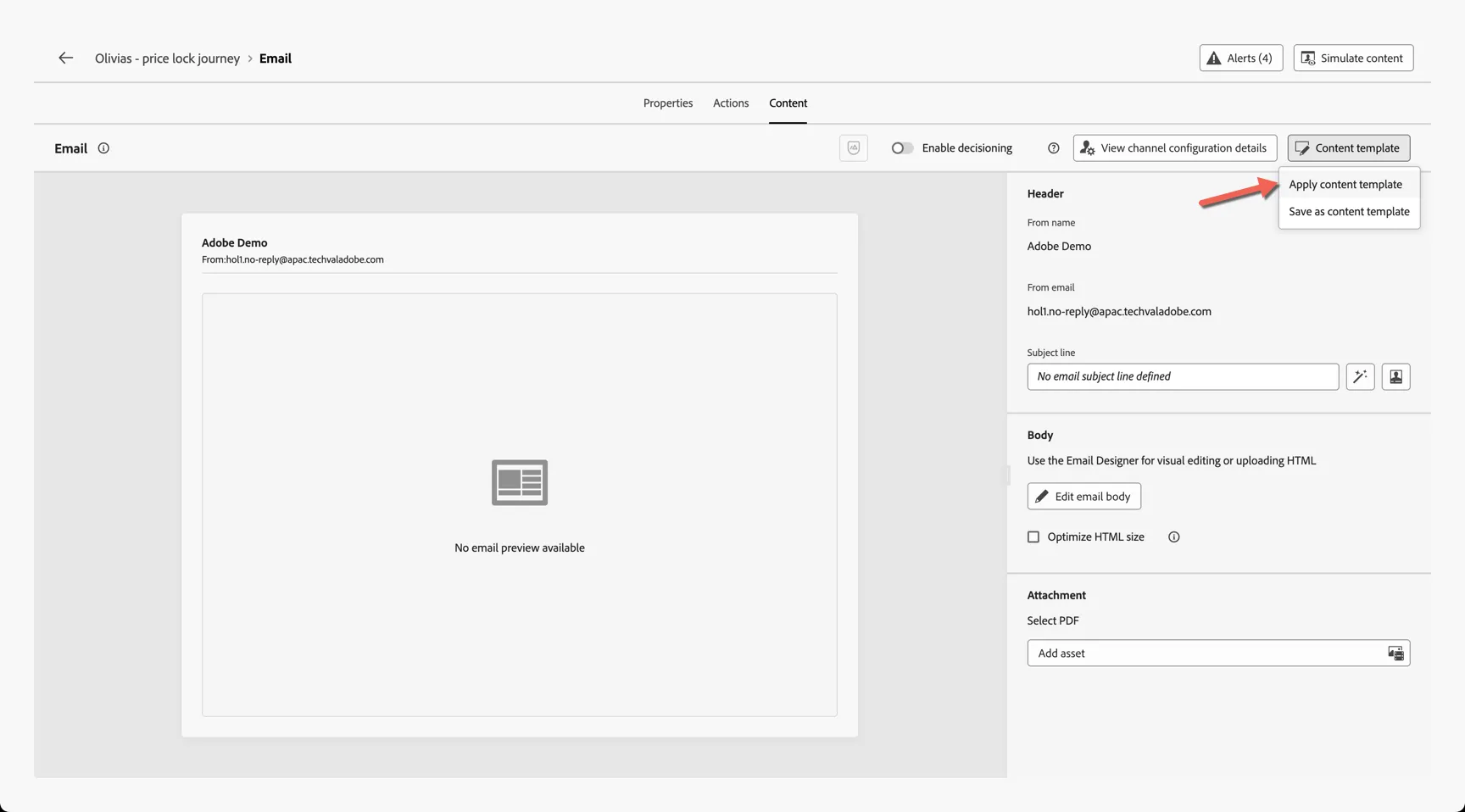
From the top right, select to Apply content template.
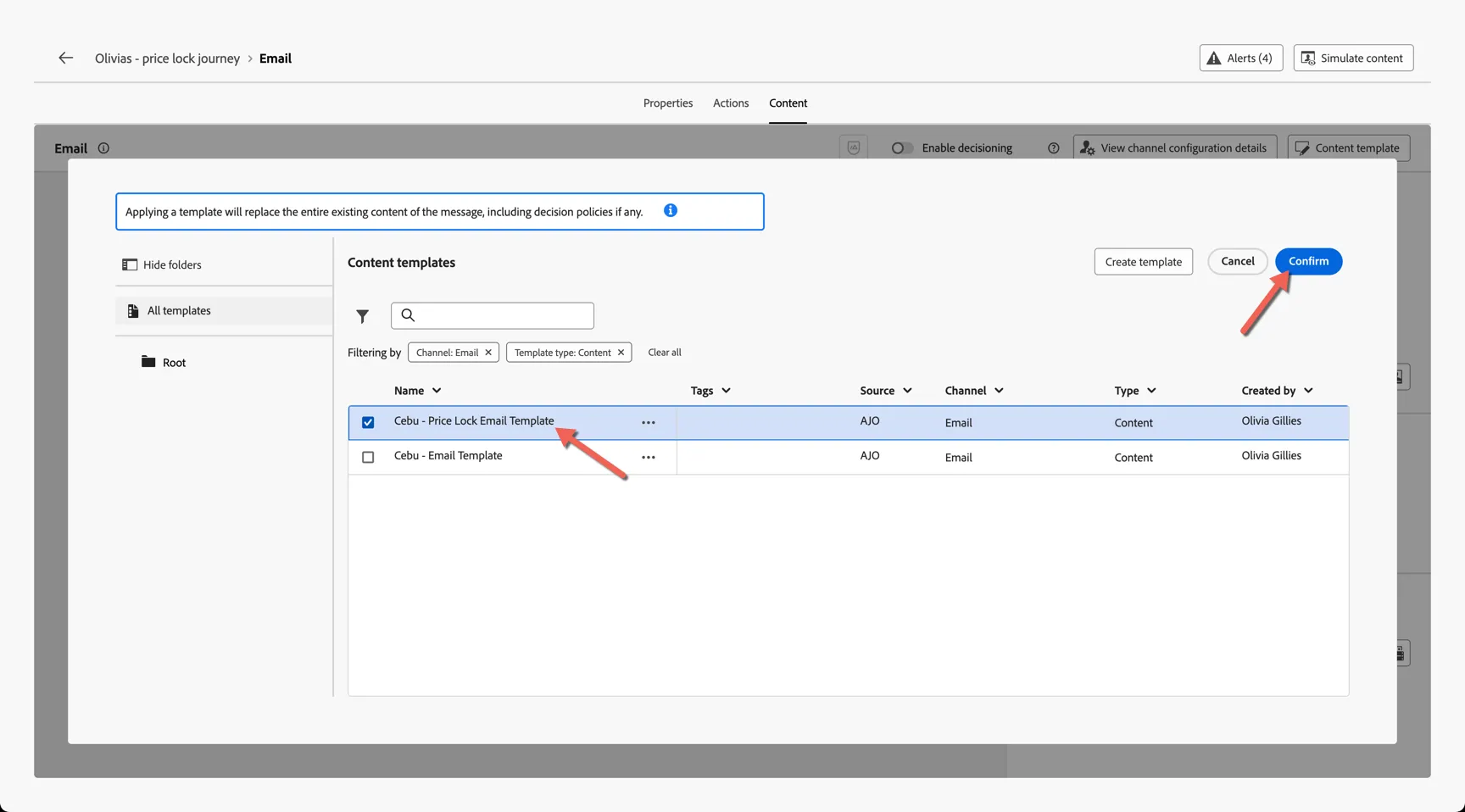
Select the Cebu - Price Lock Email Template and click to Confirm.
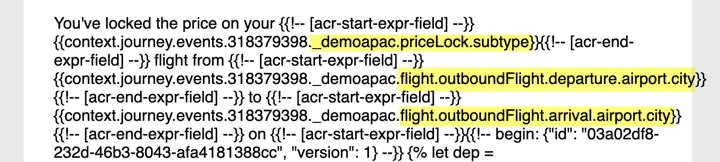
Adobe has a rich and marketer friendly email editor but this won't be applicable with messages delivered through Salesforce so we will skip it for today. One thing to note is the personalisation added to this message comes from both the target profile and the triggering event itself.
These same contextual personalisation fields will be available to pass to Salesforce for personalisation.
Once the email is sent we want the journey to wait and send a reminder before the lock expires. From the Orchestration panel, add a Wait activity to your journey. Set the duration to 22 hours. Click to Save.
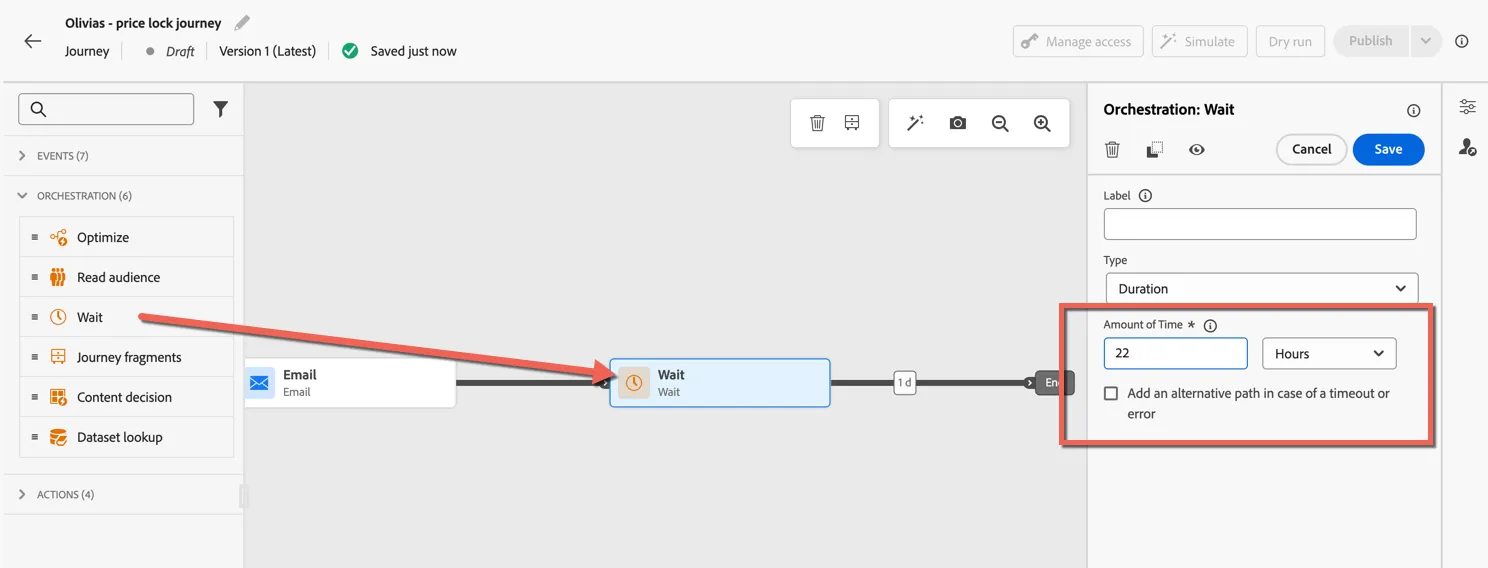
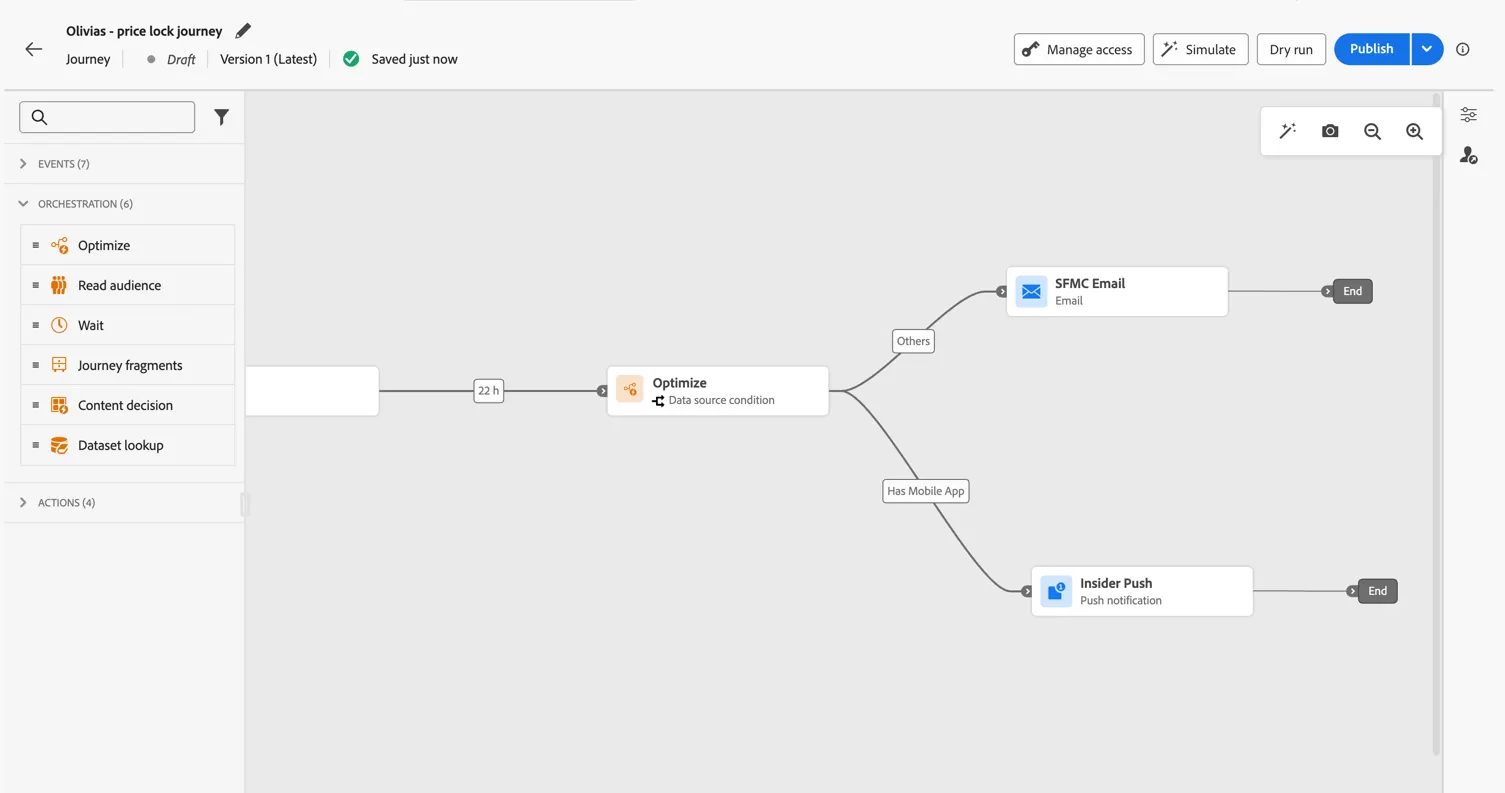
Lastly we'll send the reminder as either an Email or a Push notification depending on whether or not the customer has the app and is opted in for push. Rather than building the logic each time, we can re-use journey fragments which have been predefined for you.
Drag the Journey fragments activity into the canvas and attach it to your wait.
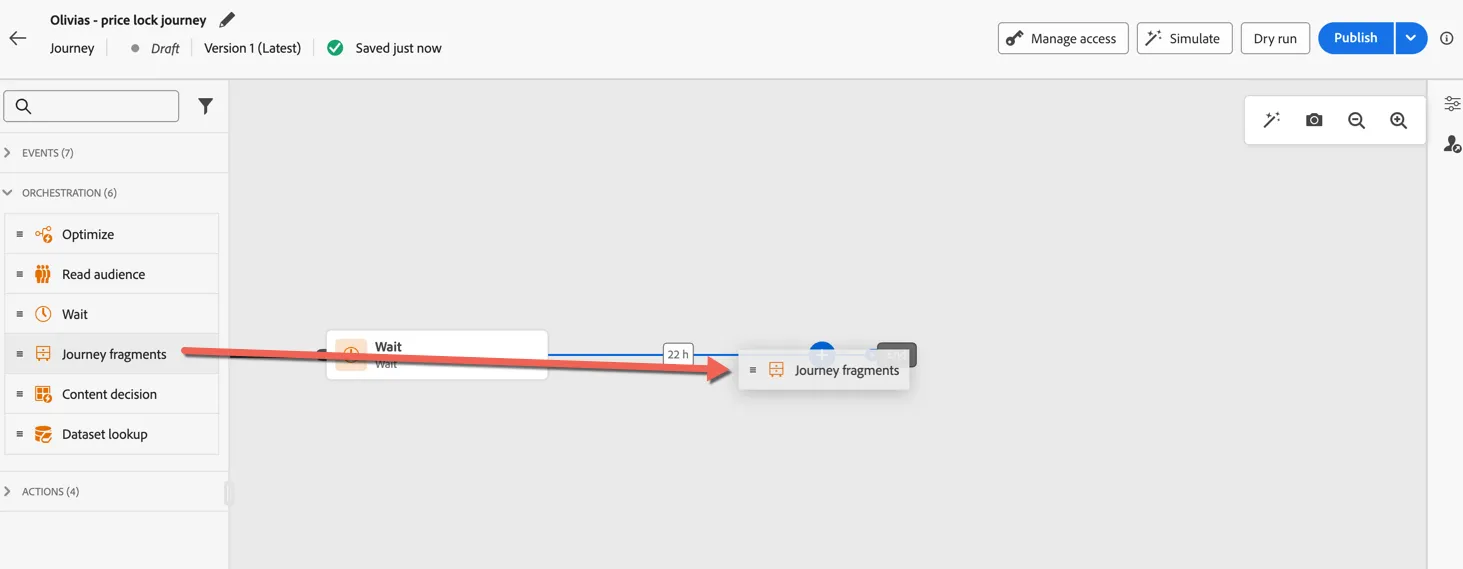
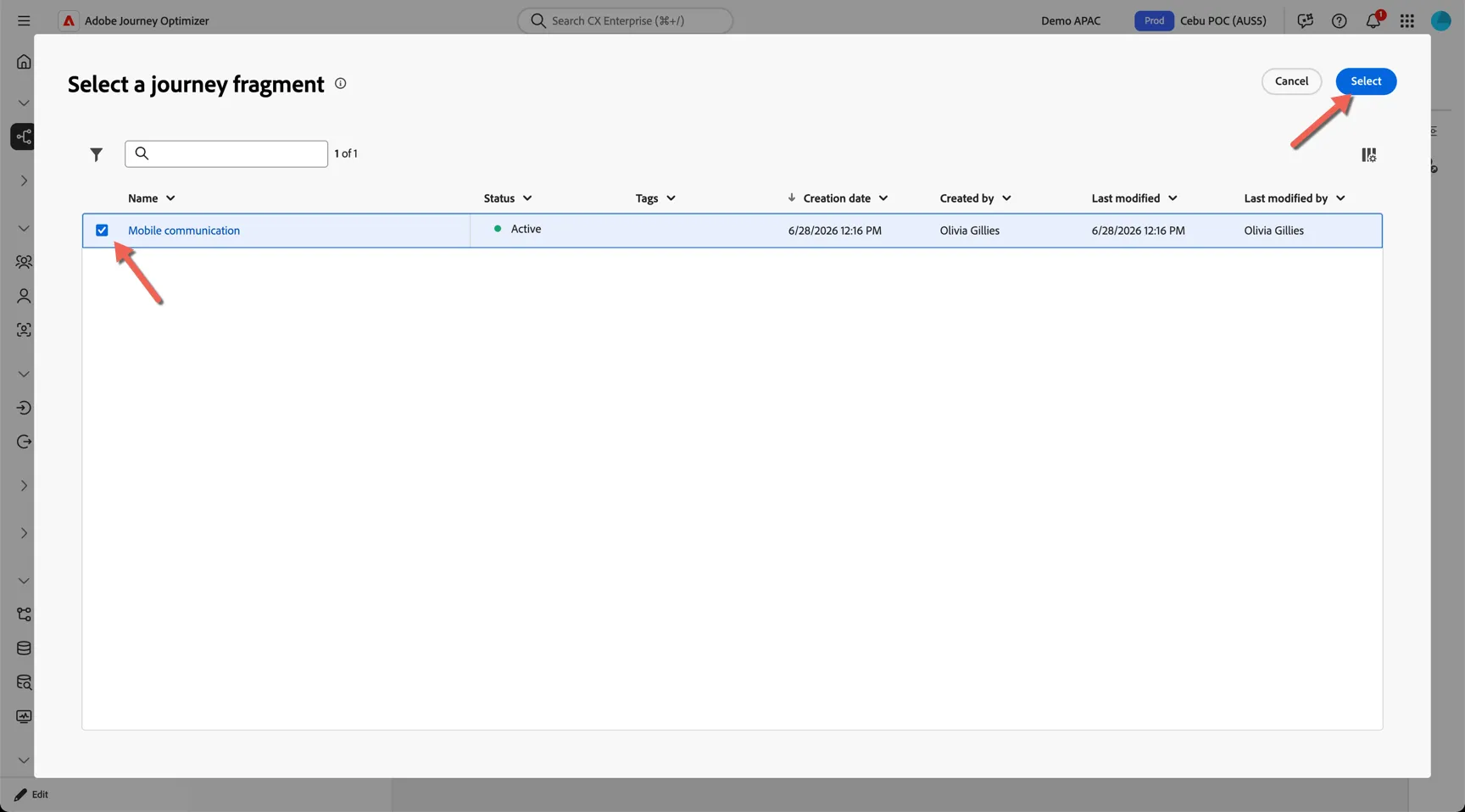
Select the mobile communication fragment and click Select
Your journey now has 3 new activities, it will send a push notification to customers with the mobile app and alternatively send an email reminder to those who don't.
Lastly we don't want to send the reminder if they have already actioned the lock and made a booking. So we'll add some exit criteria to ensure that the customer is removed from the journey if a booking event is received.
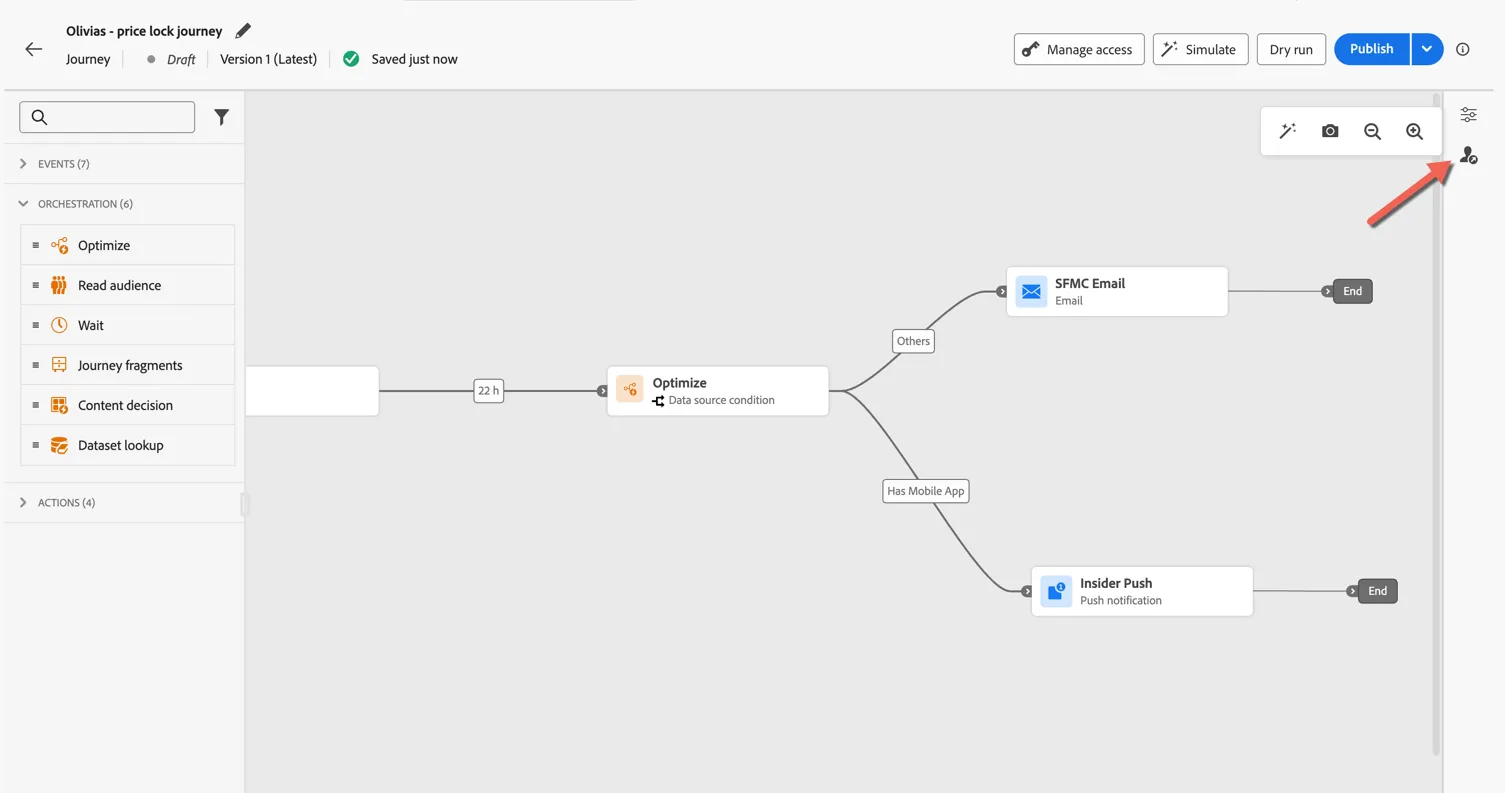
Click to show exit criteria using the profile icon in the right rail.
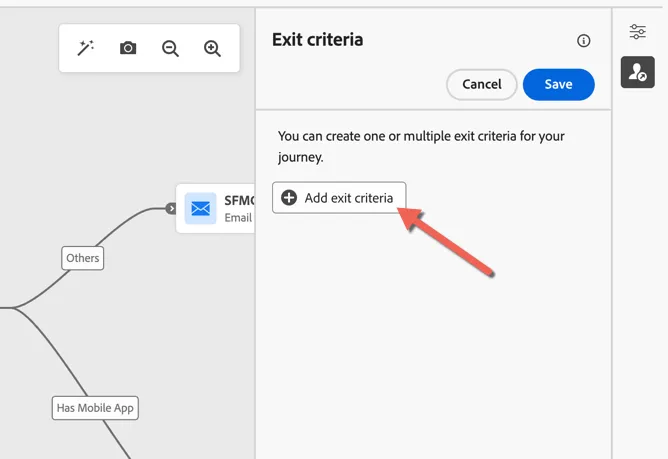
Click to Add exit criteria
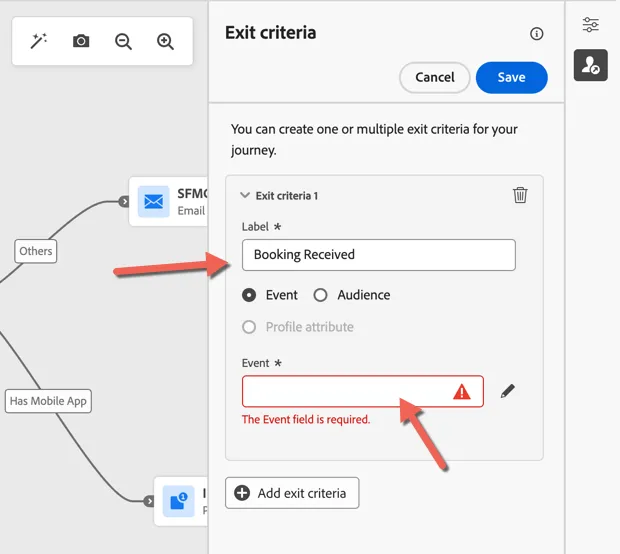
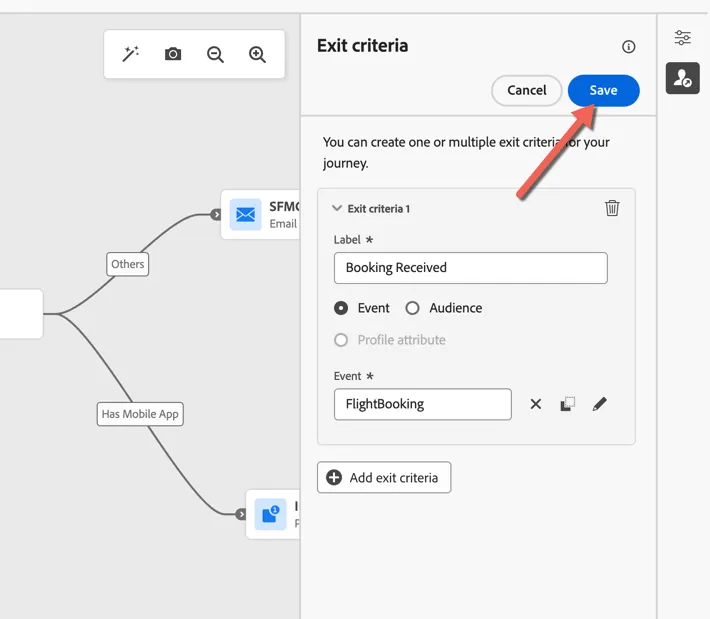
You can use events or audiences as exit criteria, in this case we'll use the booking event. Give your criteria a label - Booking Received. Then click into the Event box to select an event type.
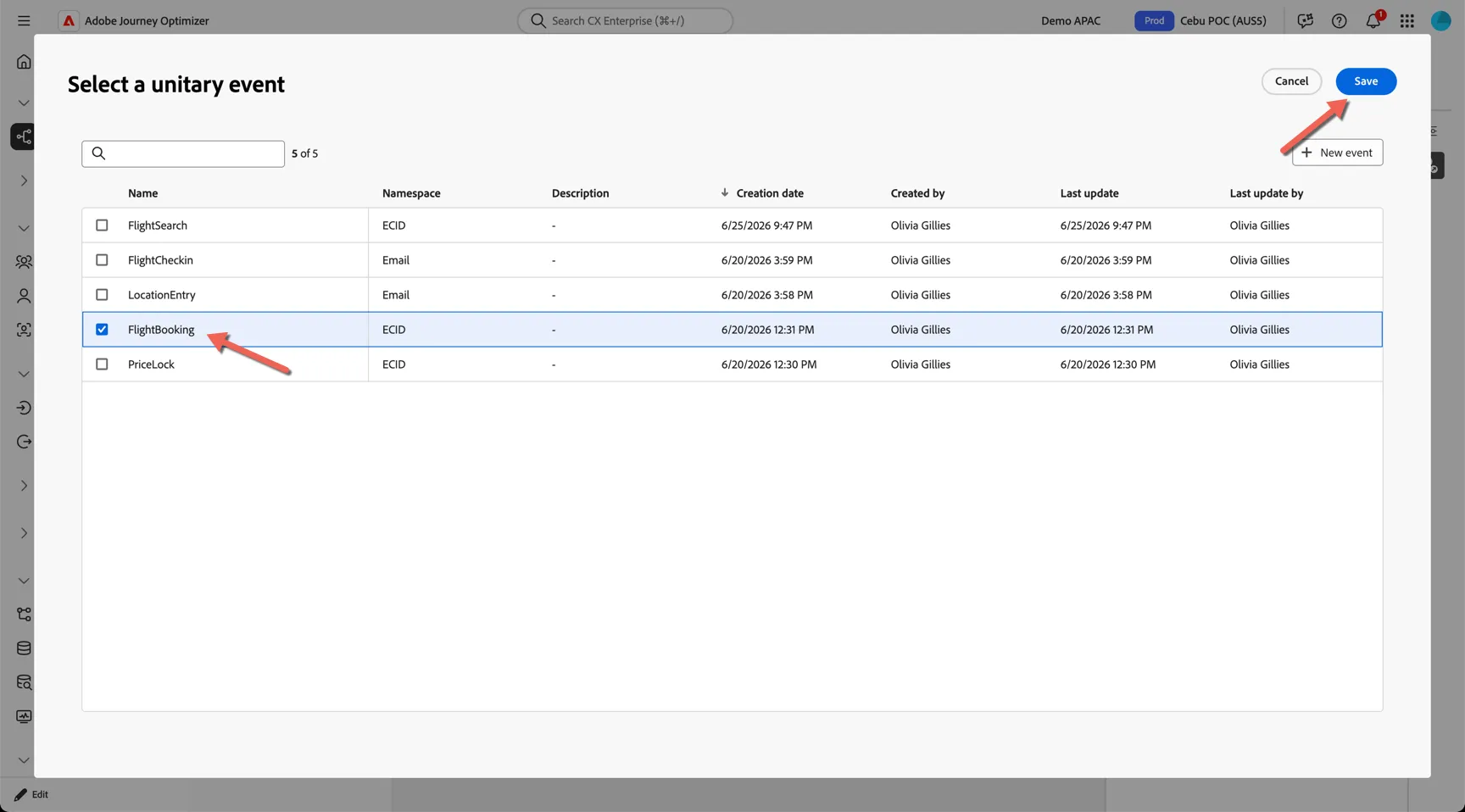
Select the Flight Booking event and click to Save.
Click to Save the exit criteria.
Congratulations!
Your journey logic is now complete! You've created an event triggered journey to send an email then follow up with either a push or another email after 22 hours. Exit criteria ensuring that customers who complete their booking are removed.
Test your journey
Testing journey logic and ensuring all paths and personalisation is accurate often takes a lot longer than building the journey itself. Adobe makes this process easy through our AI simulation.
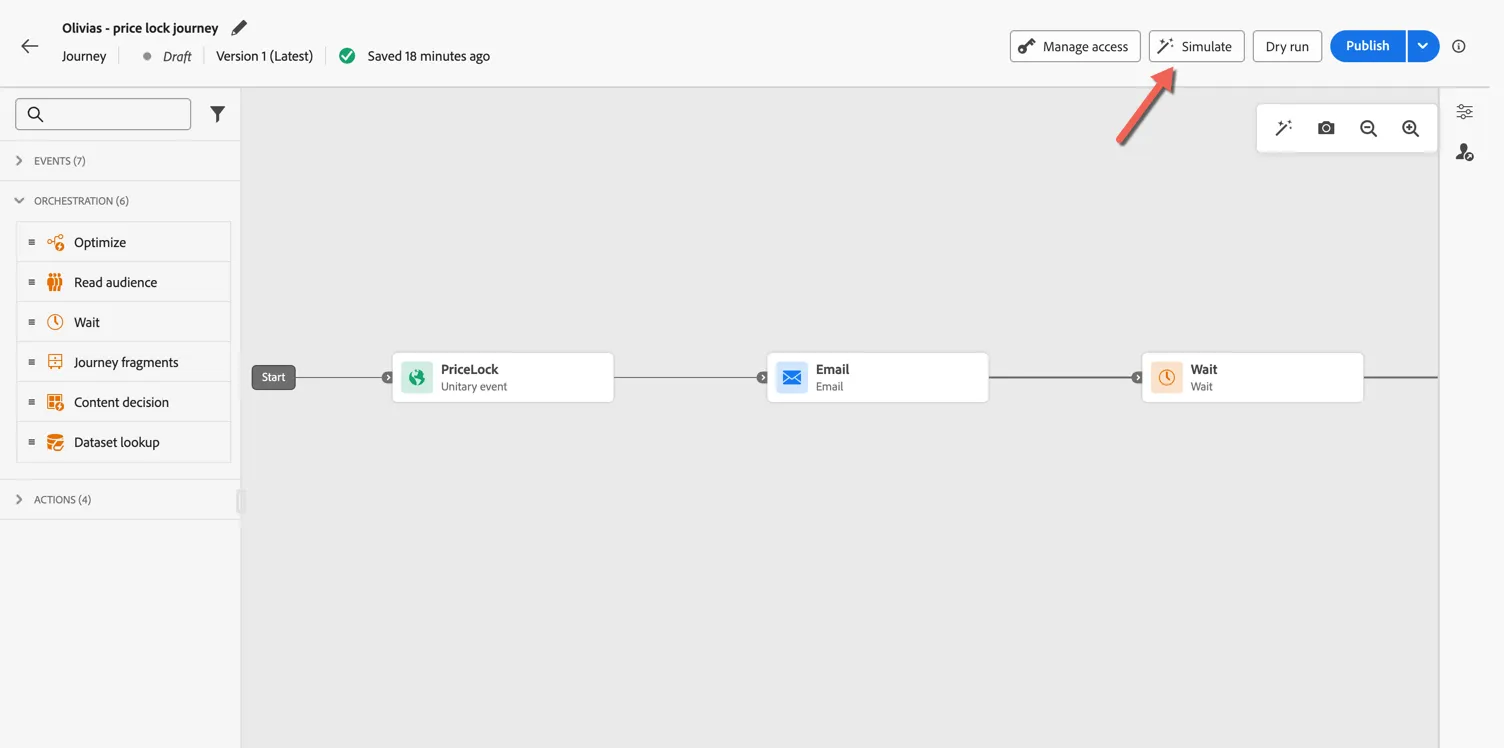
Click the Simulate button in your journey.
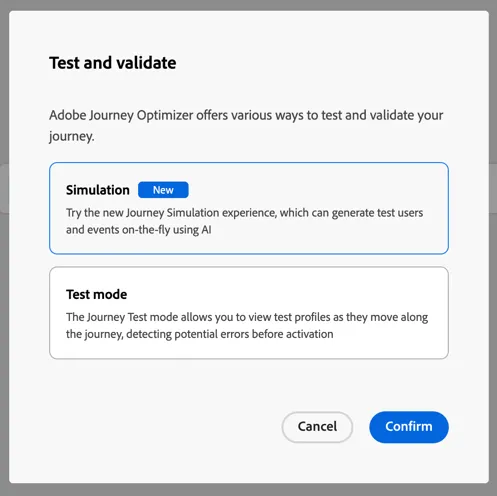
Select Simulation and click Confirm.
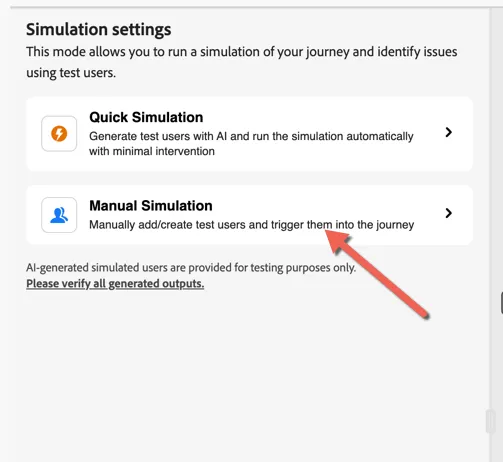
It will take around 30 seconds to activate simulation mode. Once activated, you can choose Quick simulation or Manual simulation. Quick simulation is the fastest way to test as this will take your user email address and contact details and use those for the simulation. We'll use Manual simulation mode instead so you can add your own email address instead.
Click on Manual Simulation.
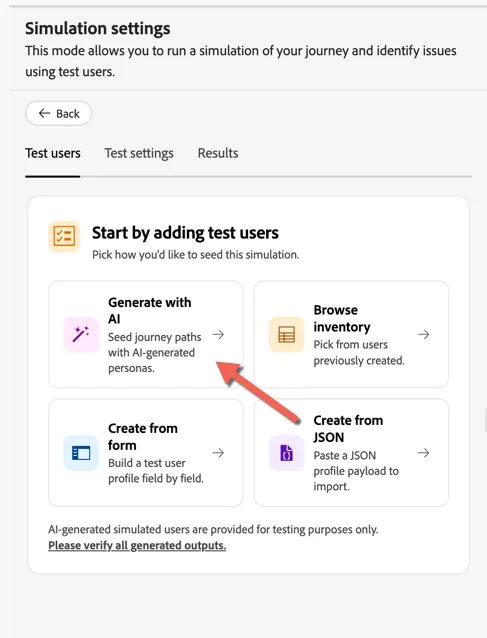
First we need to set up the test profiles. Click to Generate with AI.
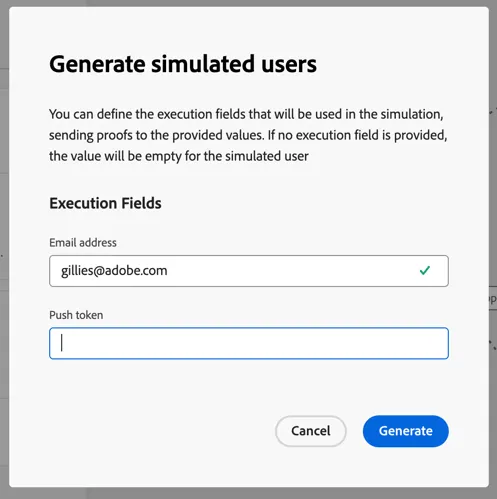
You'll be prompted to input an email address and push token for the messaging. This allows you to route all of the test communications to yourself or someone else for review!
Add your email address and click to Generate.
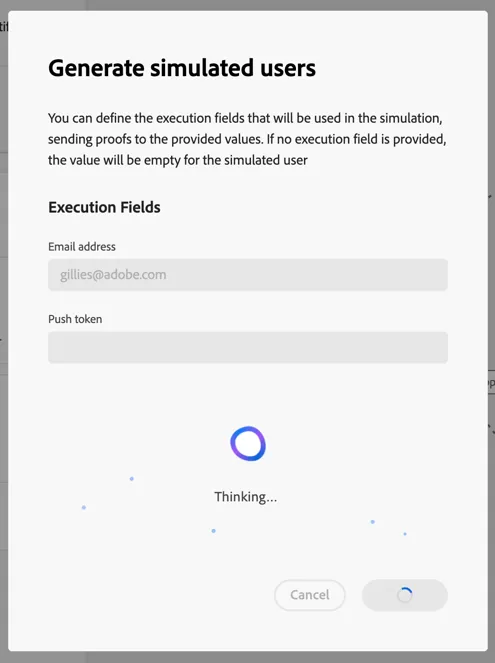
It will take a minute or so to generate the test profiles.
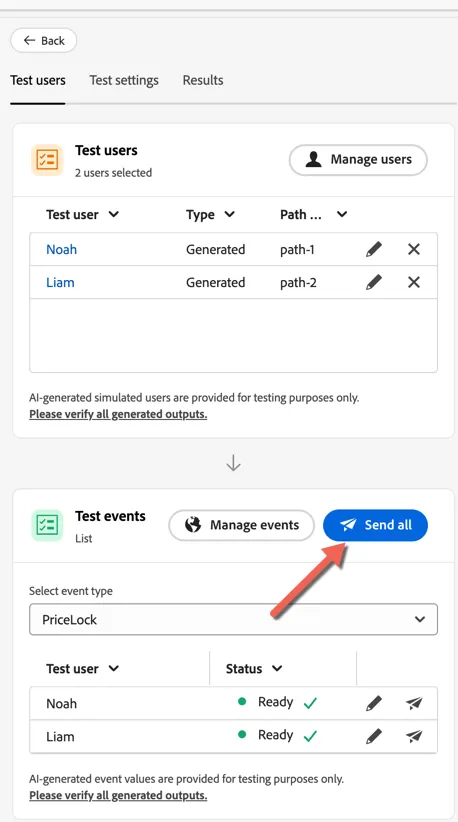
Once complete we can see that two users have been generated, one for each of the paths in our journey. Next we need to configure the test events to trigger the journey. Click on Manage events and select as well to Generate with AI.
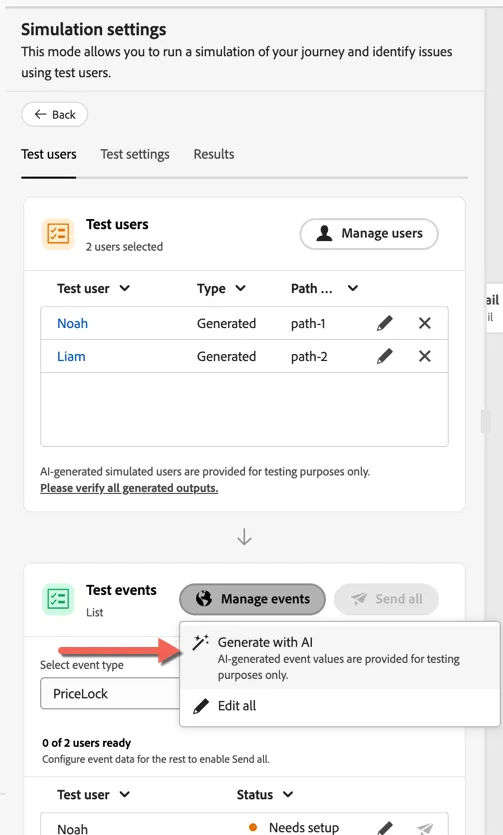
Once the test events are Ready click to Send all.
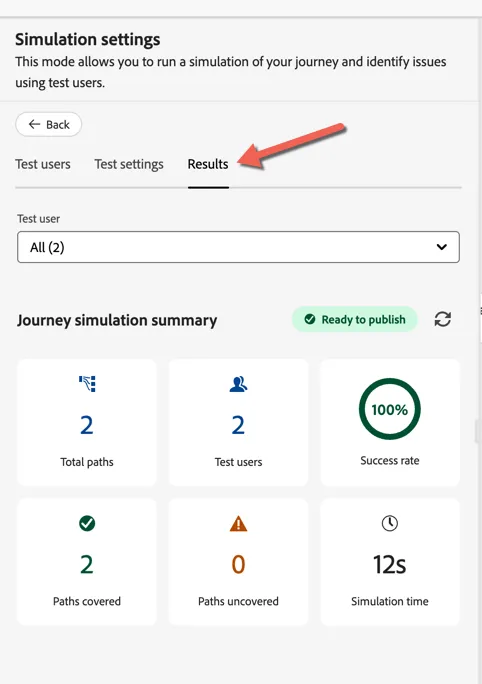
The simulation will now run using your generated users and test events! Click on the Results tab to see what happened. We can see that 2 paths were tested with a 100% success rate! The journey is ready to publish. You should have also received the emails for both users. You might need to check your spam folder since this is just a POC server and deliverability is not maintained.
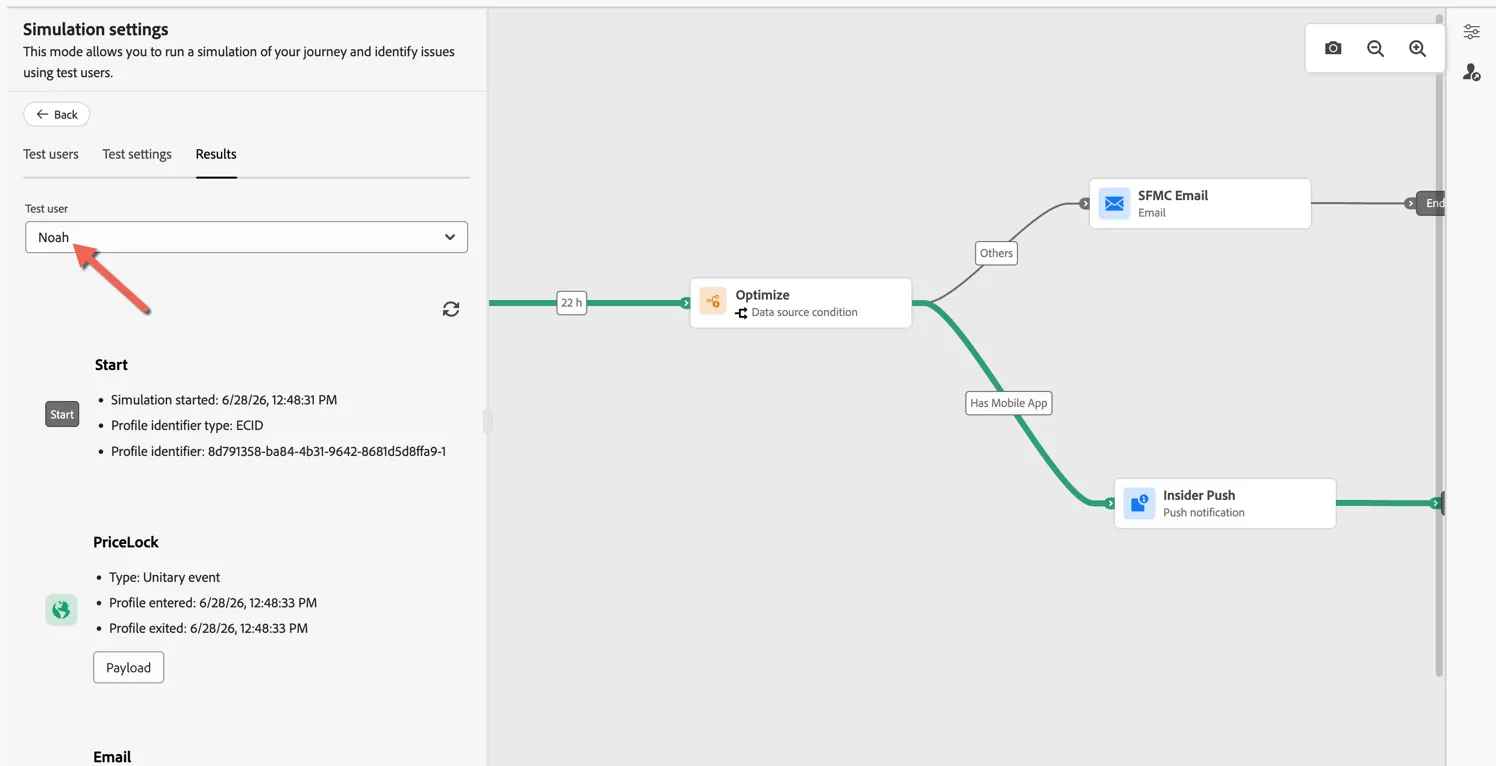
You can even look at the path each profile took through the journey by selecting them in the drop down.
Congratulations!
You've successfully tested your journey. Leveraging generative AI to accelerate this process is a game changer for marketing teams.
Additional Resources
- Get Started with Journey Activities - covers events, orchestration (conditions, wait, audience split), and actions (update profile, custom actions) with no dependency on message channels
- Custom Actions (Third-Party API Calls) - custom actions enable connection to a third-party systems to send messages or API calls; an action can be configured with any service from any provider that can be called through a REST API with a JSON-formatted payload. Under the Profile Orchestration SKU this is the primary outbound delivery mechanism in lieu of native AJO channels.
- Salesforce Rest API for Data Extension Rows - custom actions can leverage the Salesforce Rest APIs to pass profiles to Salesforce at the appropriate times during a journey.