POC-DE2 - Schemas and Datasets
All Adobe Experience Platform applications (RTCDP, AJO and CJA) share a common data foundation.
This tutorial is designed to teach you about the architecture behind Adobe Experience Platform and the methods for ingested data into the Platform. The components taught in this module are core to all Adobe Experience Platform applications.
It is designed for a technical audience (Data Architects and Engineers) but can be interesting also for marketers to understand.
Learning Objectives
- Learn how to create an XDM Schema in Adobe Experience Platform
- Learn how to label schemas for governance
- Learn how to create Datasets in Adobe Experience Platform
- Learn how to use an Adobe Experience Platform Workflow to ingest a CSV-file into Adobe Experience Platform
- Learn how to query data that has been ingested into Adobe Experience Platform using Query Service
Create an Individual Profile schema
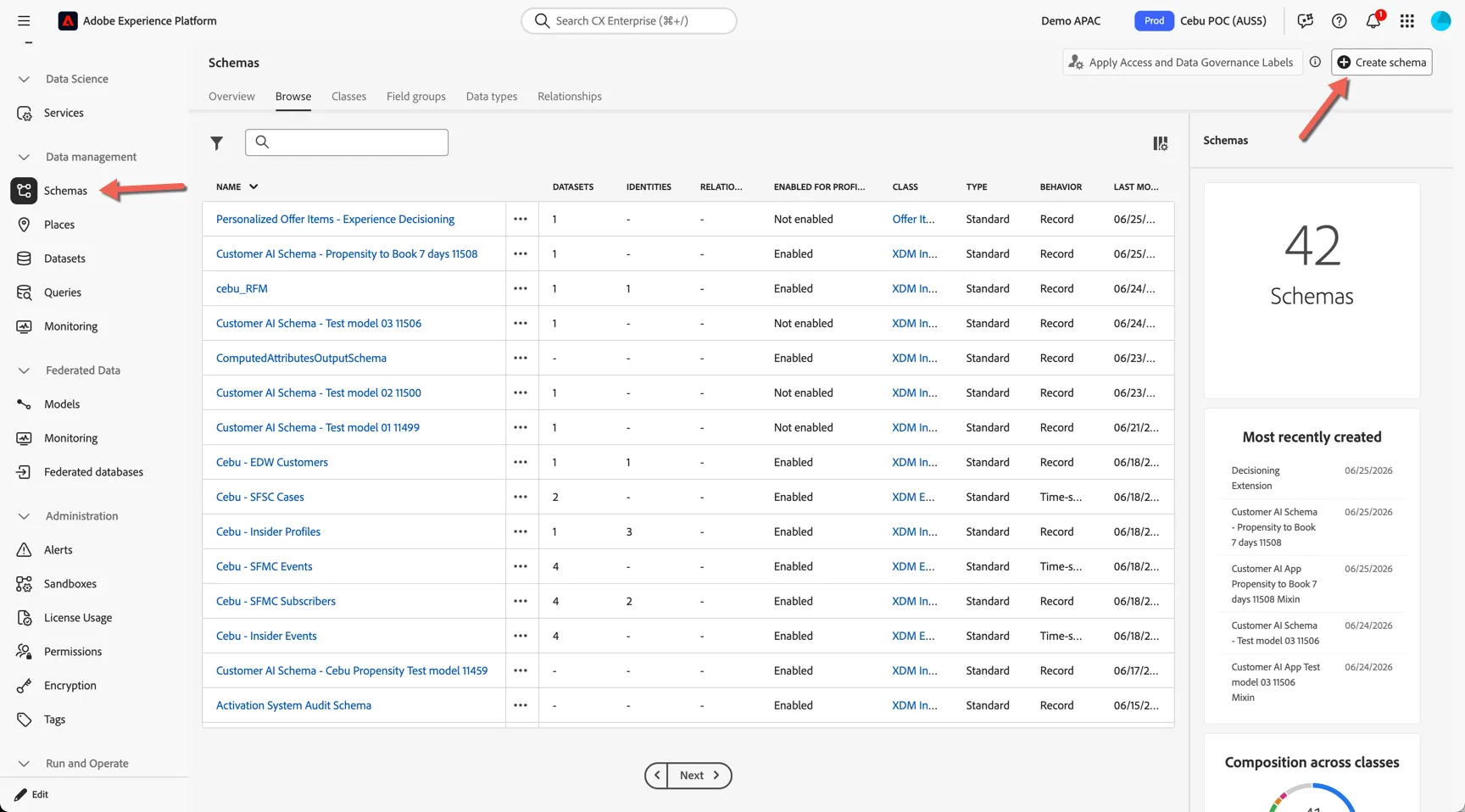
Navigate to Data Managment -> Schemas from the left rail. You’ll see the list of available Schemas.
To create a new schema, click on the button Create schema button on the top right
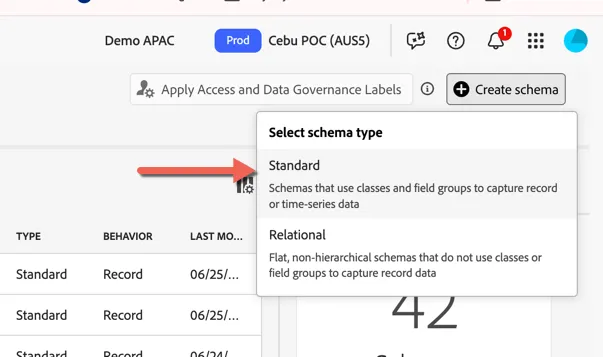
Select to create a Standard schema.
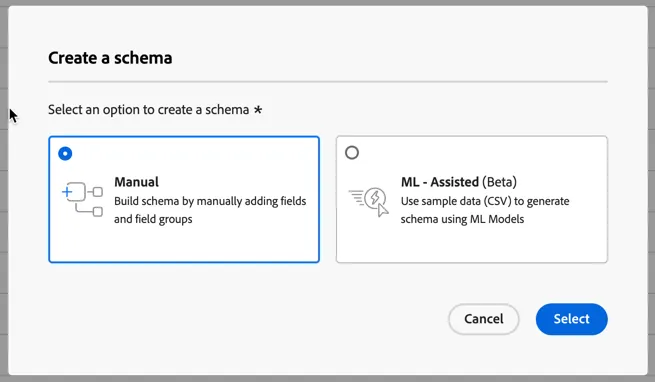
Select to create a schema Manually.
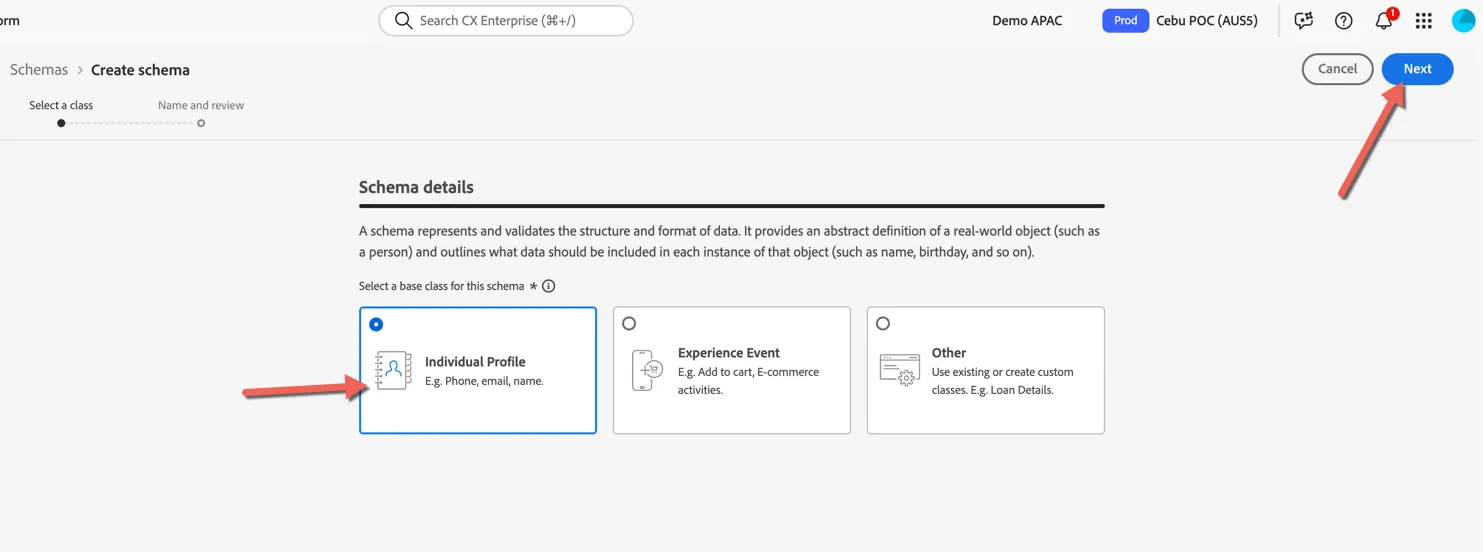
Select Individual Profile and click Next
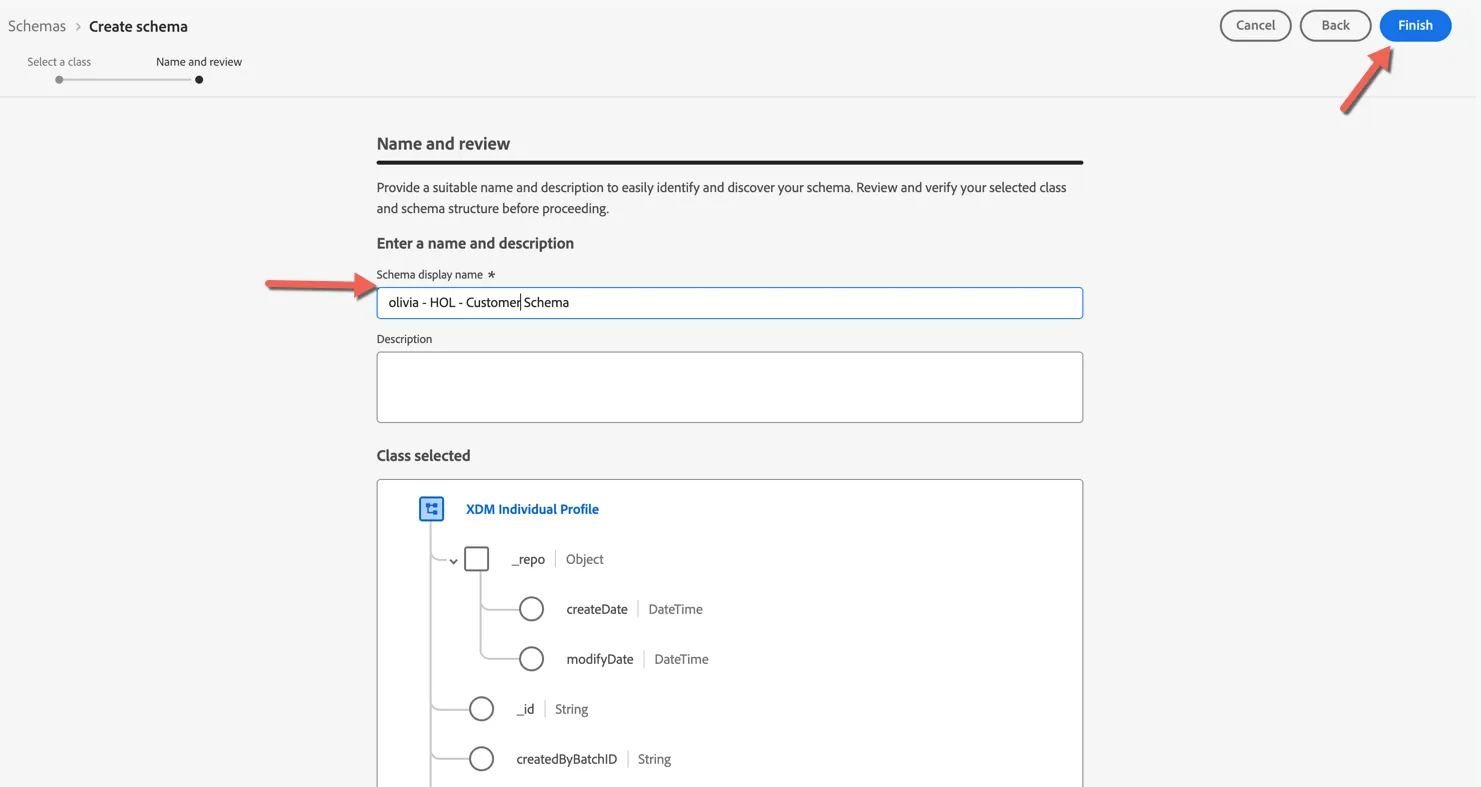
Name your schema using the following pattern: [your name] - HOL - Customer Schema
Replace [your name] with your own. As an example: olivia - HOL - Customer schema
You can give your schema a description if you wish, then click finish to create the schema.
Add field groups
Click on + Add next to Field groups to add field groups to your schema.
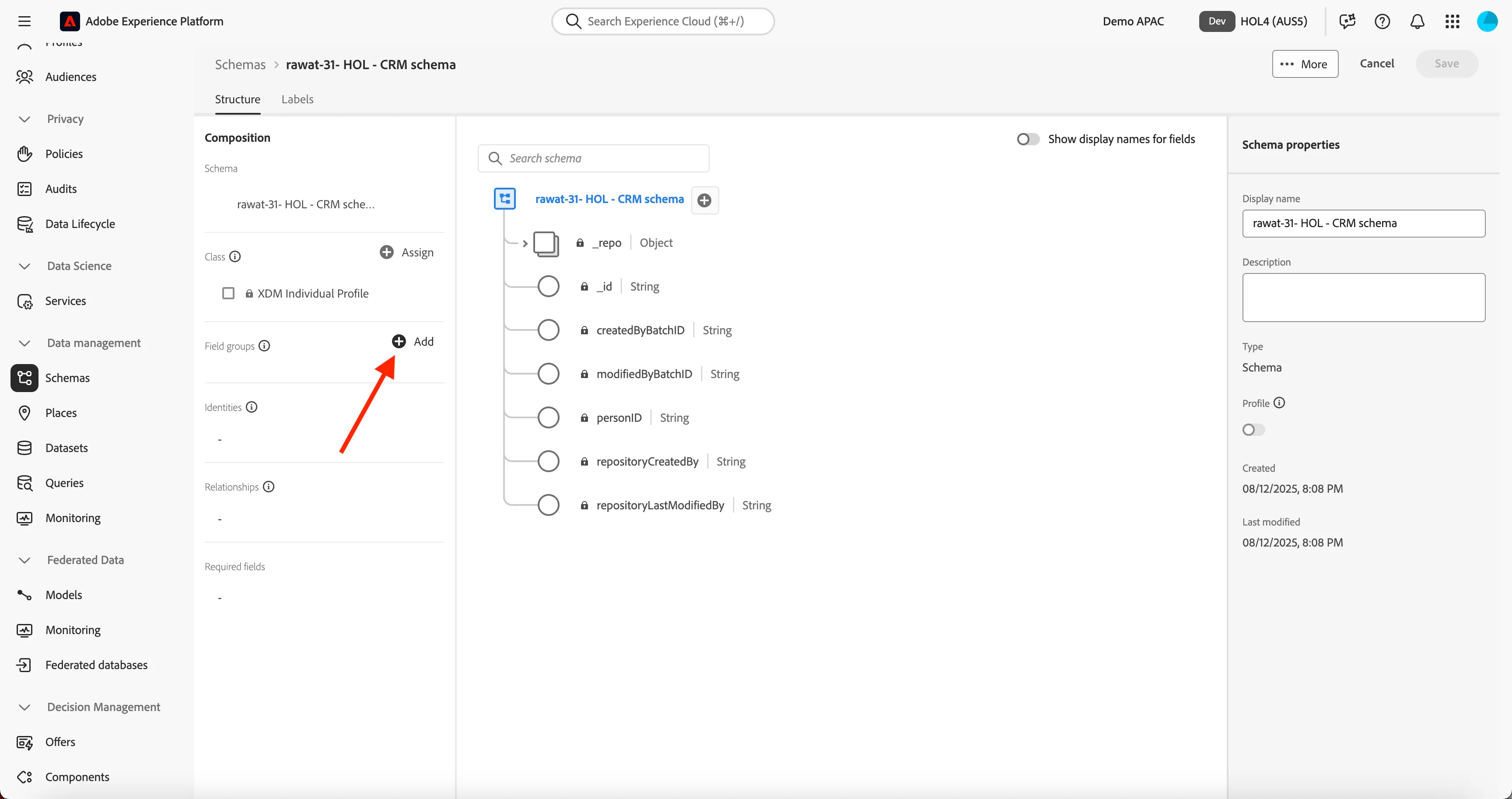
You can create new field groups to match your company requirements but Adobe also provides many out of the box field groups to save yourself some time. For this exercise we'll use some of these to store:
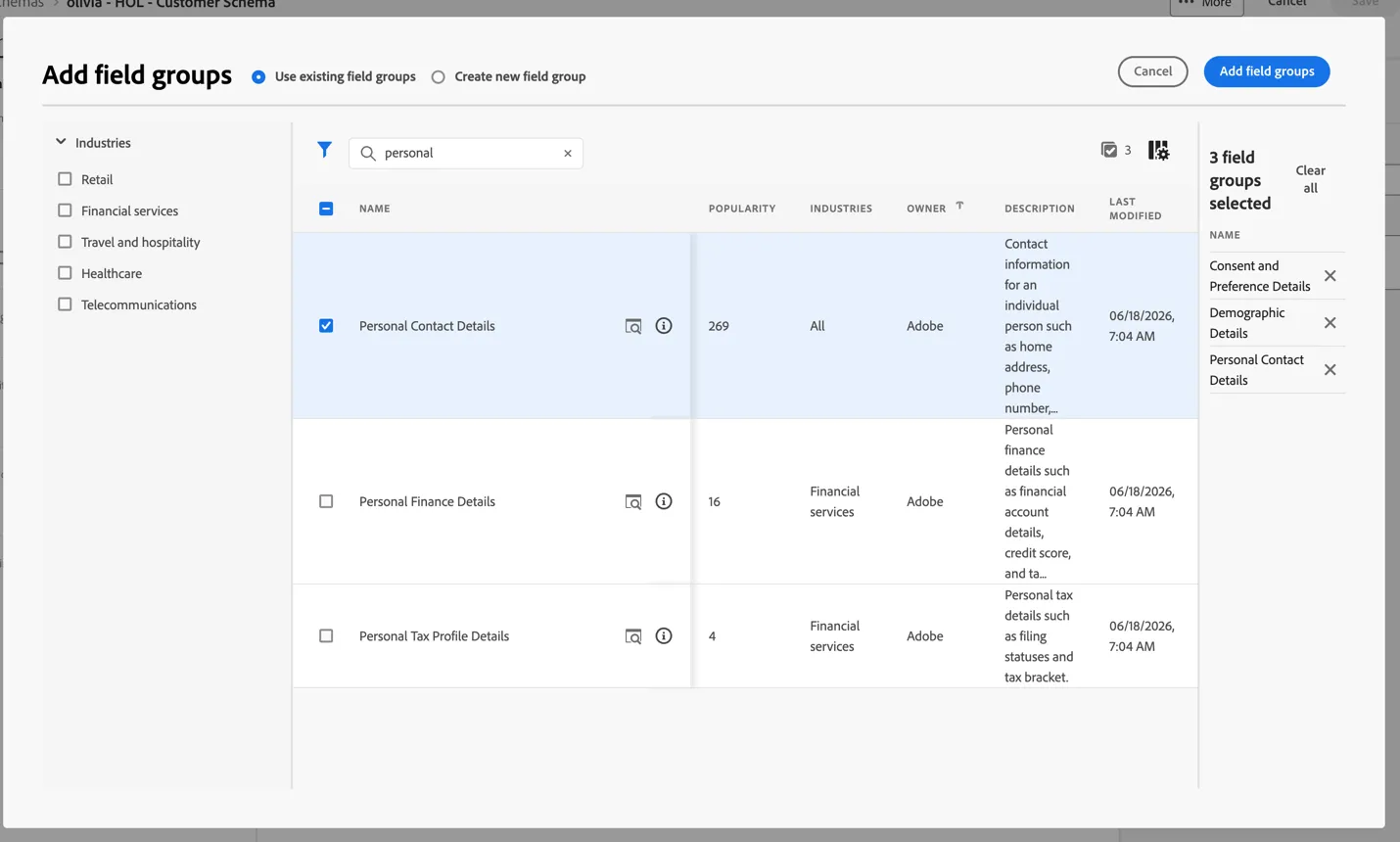
- Personal Contact Details (Contact Information)
- Consent and Preference Details (Other Information)
- Demographic Details (PII information)
- [Profile] Core (v1.0) (Identity fields)
Search for these field groups and add them to your schema, once you've checked all 4 click Add field groups in the top right:
You can now see your updated schema, clicking on each field group will highlight the fields that have been added by that field group. Click on Save in the top right to save the changes to your schema.
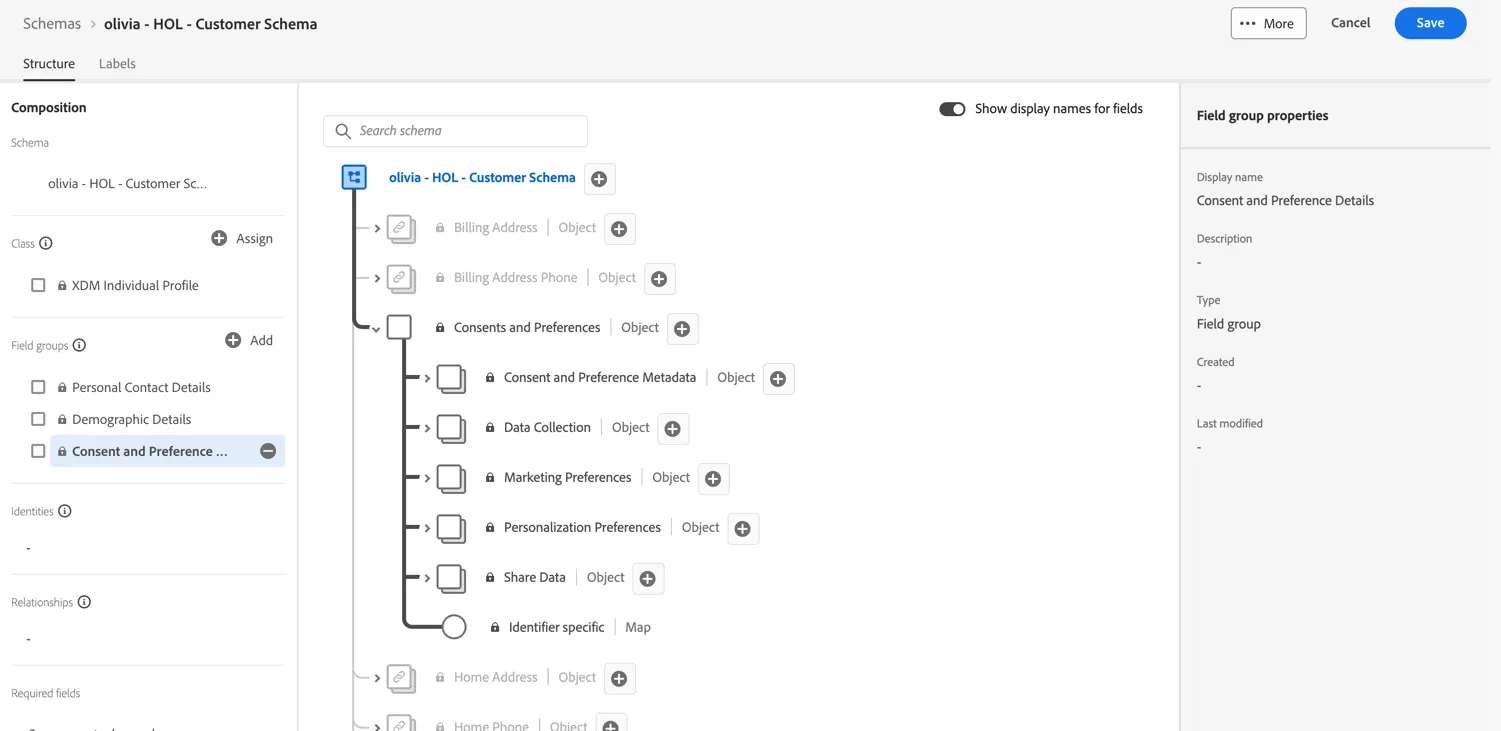
Click on Save in the top right to save the changes to your schema.
Set Identity Fields
Now we need define which fields in our schema will store the values used to identify our customers. Click on the [Profile] Core (v1.0) field group. First notice that this field group top level object is _demoapac this is the Adobe Experience Platform tenant name, all custom fields and custom field groups will live under a tenant name branch to differentiate them from Adobe provided default schema fields.
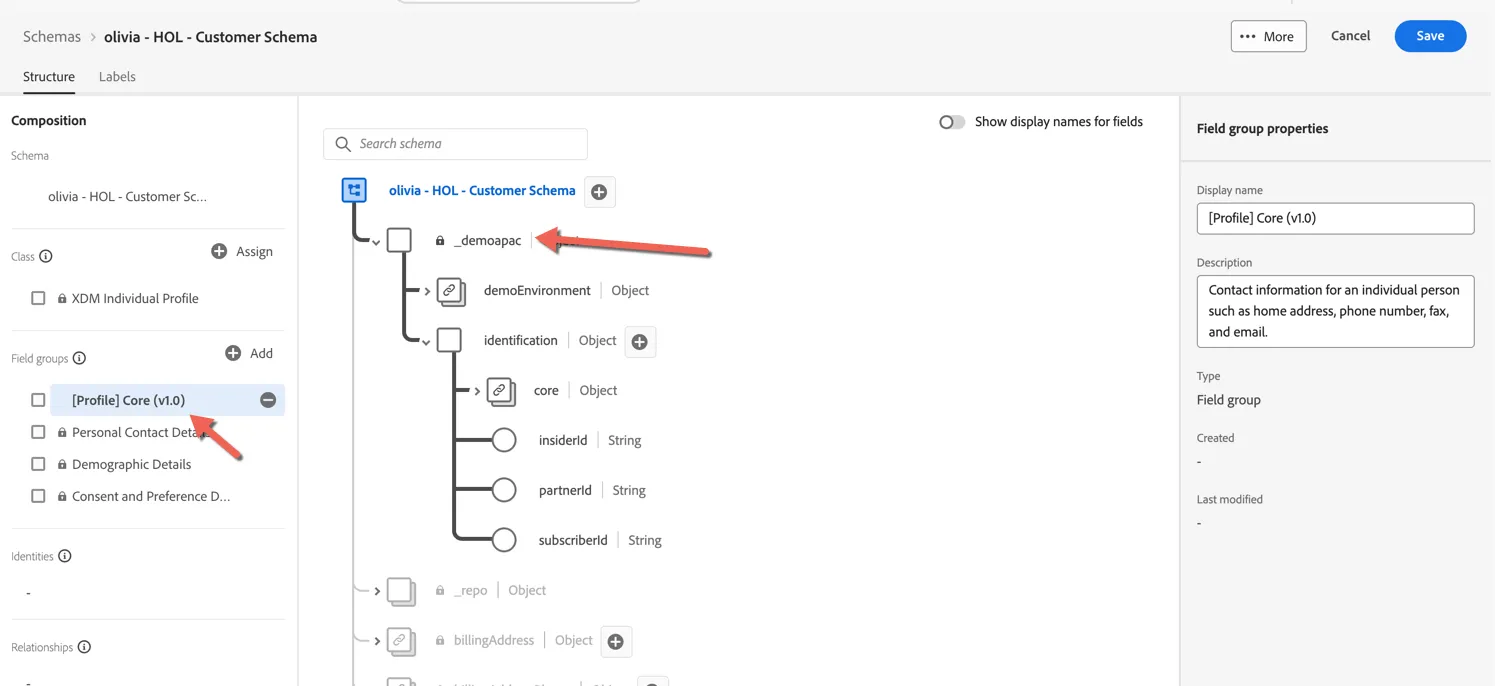
Expand the object to see the fields below it. You'll find in here a number of identity fields. We need to do three things:
- Flag them as ID fields to be ingested into the Identity Service
- Define which ID will be Primary for the schema. There can be only 1 primary id, and this field is mandatory for all data using the schema.
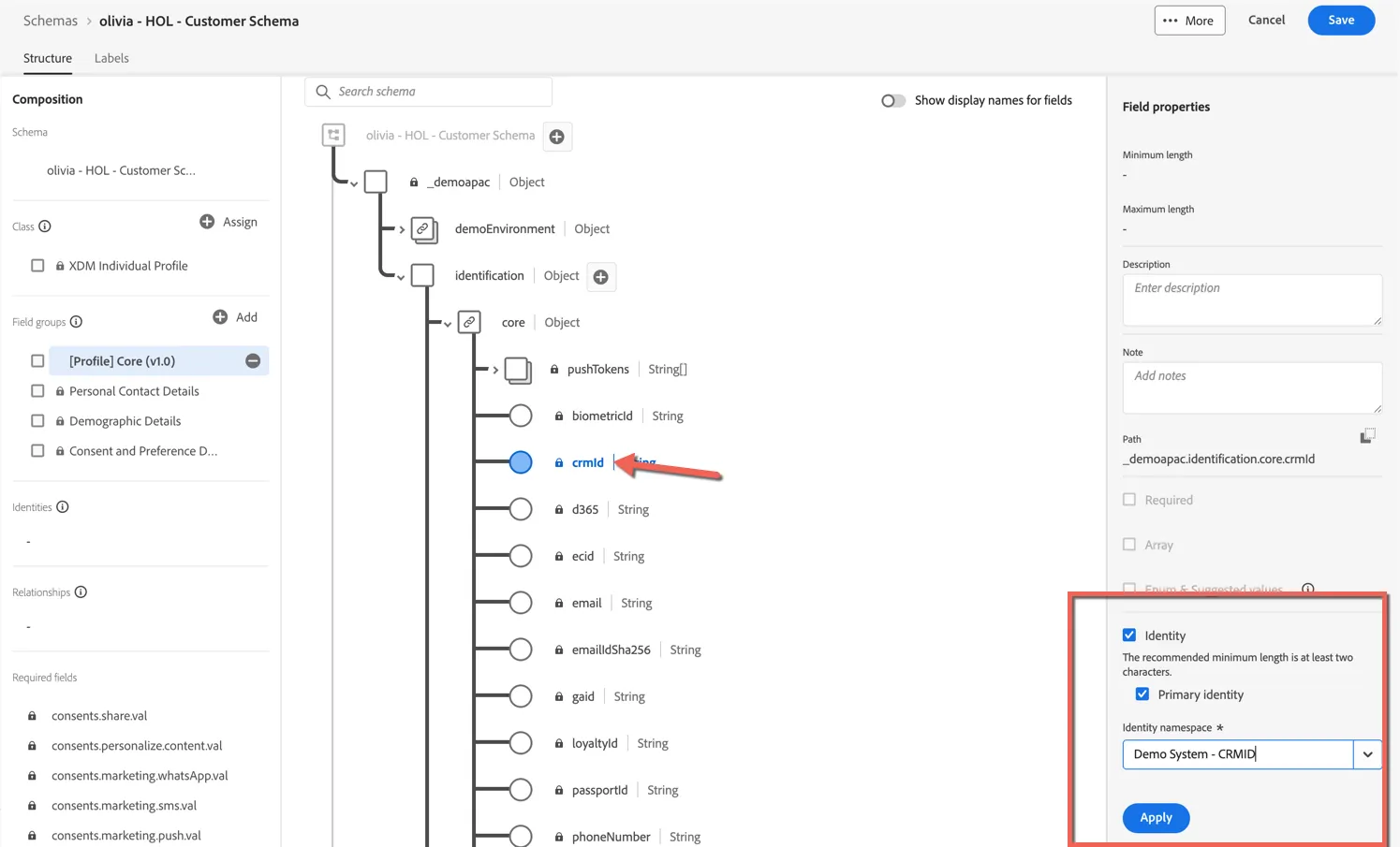
Since this is a Customer Schema, we're going to define the crmid as the primary id, since it will always be present on the crm data. Click on the crmId field and scroll to the bottom of the field properties on the right hand side. Tick the Identity checkbox, tick the Primary Identity checkbox and set Demo System - CRMID as the Identity Namespace. Then click Apply.
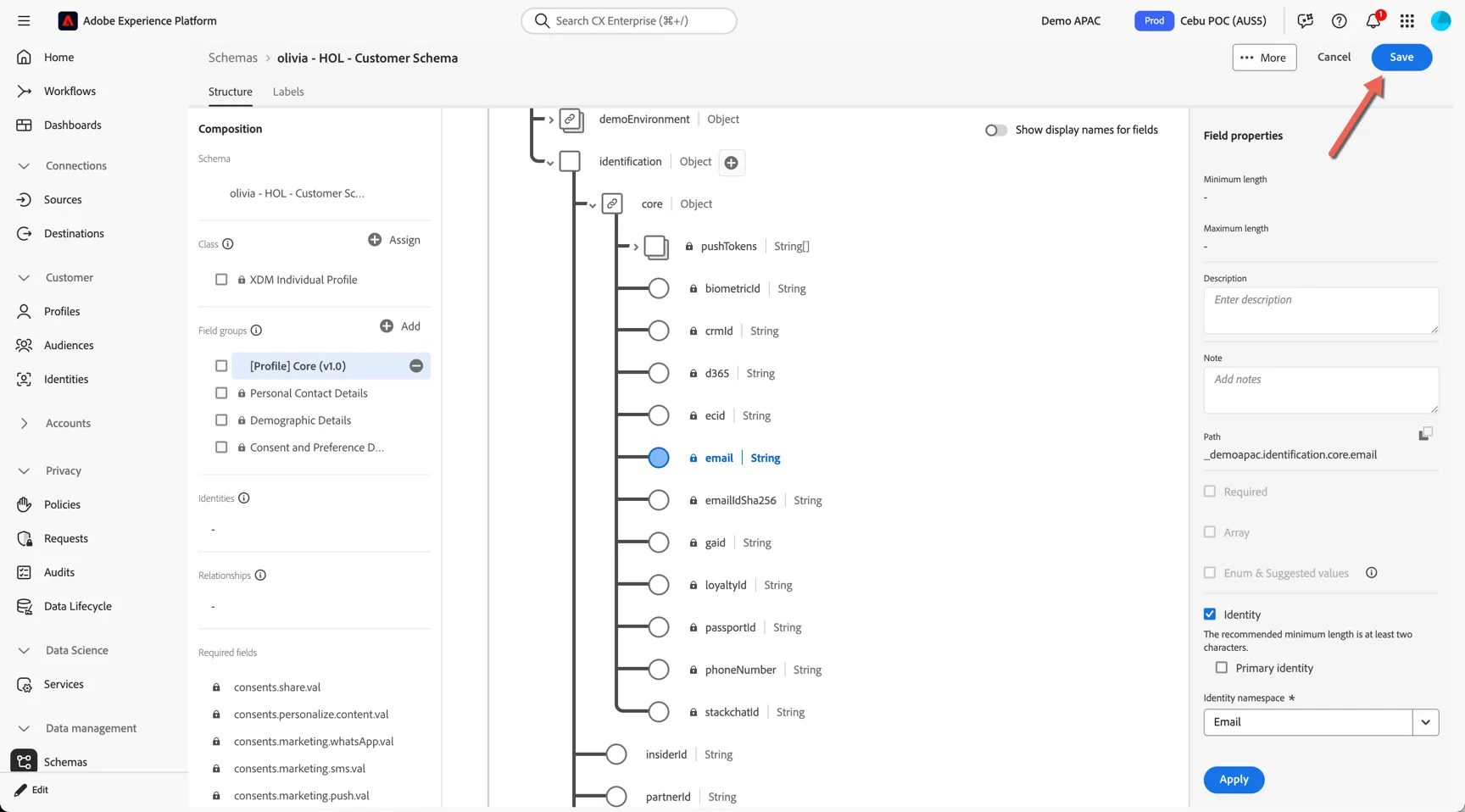
In most cases our schemas will contain more than one identity field, this is how we start to build relationships within our Identity Graph (more on this to be covered later). Select the Email field and set it's Identity Namespace to Email. Then click Apply.
Click Save in the top right to save your new schema.
Congratulations
You've created your first schema - generally schemas will be enabled for profile to make the attributes available for the unified view and segmentation but since this is just a for demonstration purposes please leave this toggle OFF.
Add Governance Labels
Schemas and schema attributes can have governance labels applied. The labels identify the type of data expected within the schema or field and can be used to enforce data usage policies and access controls.
Let's label the first and lastname fields in our new schema as fields which contain PII. This will allow you to hide this data from certain users through access policies, or prevent these fields from being exported to external destinations through governance policies.
From your schema, click to open the Labels tab.
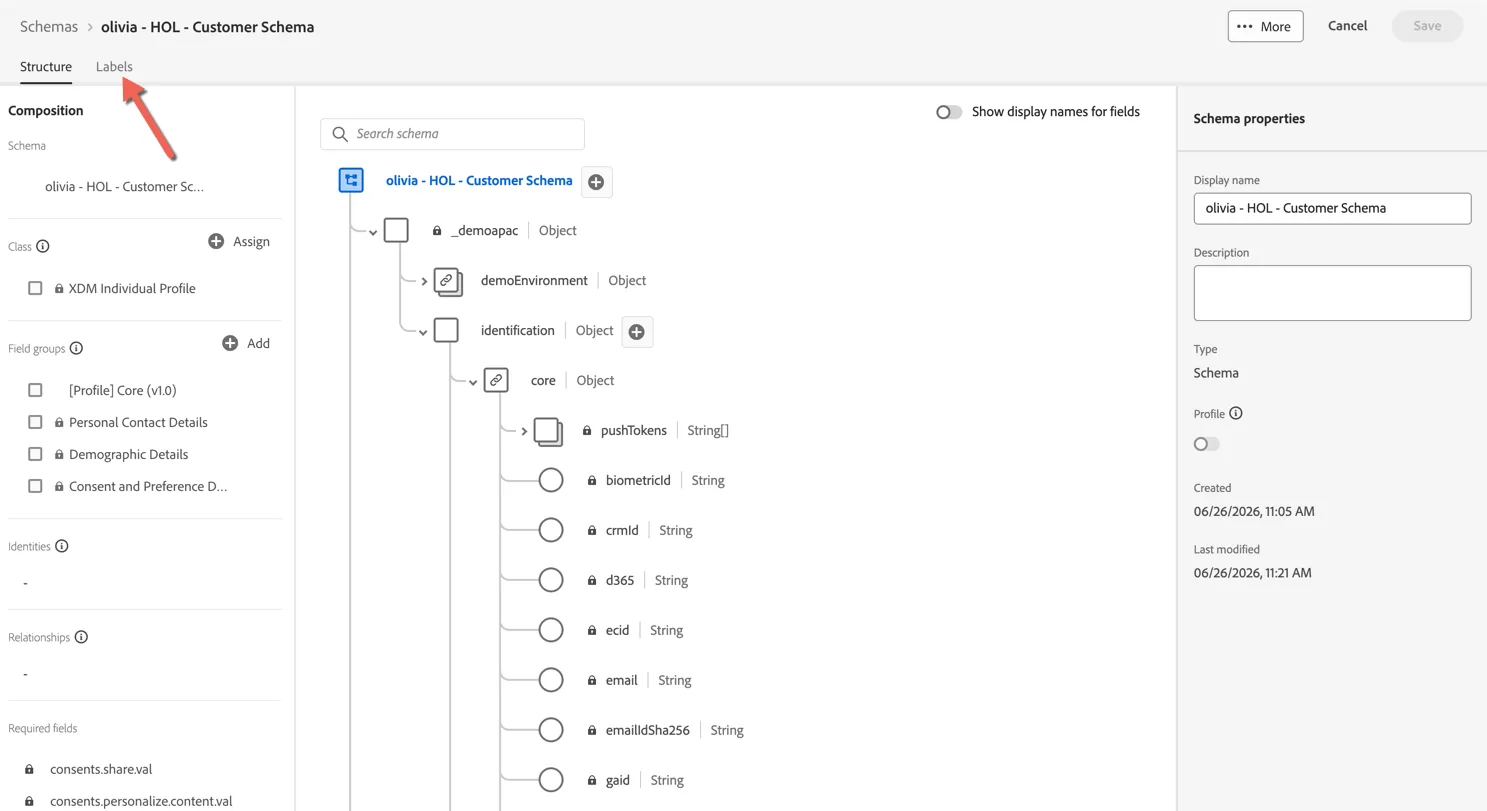
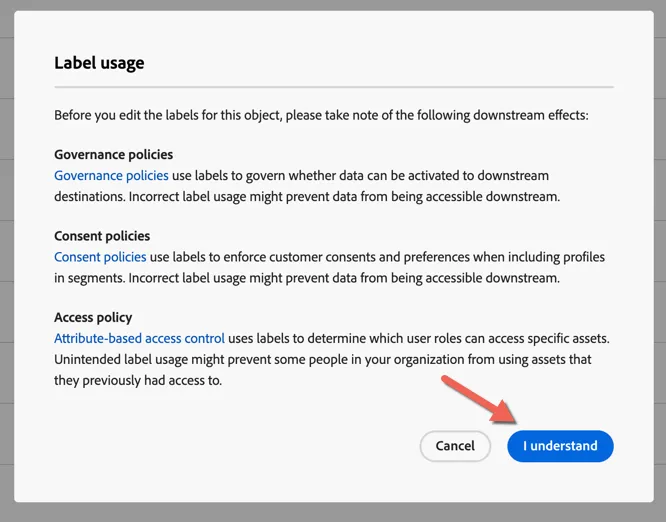
Click to say you understand the impact for editing labels.
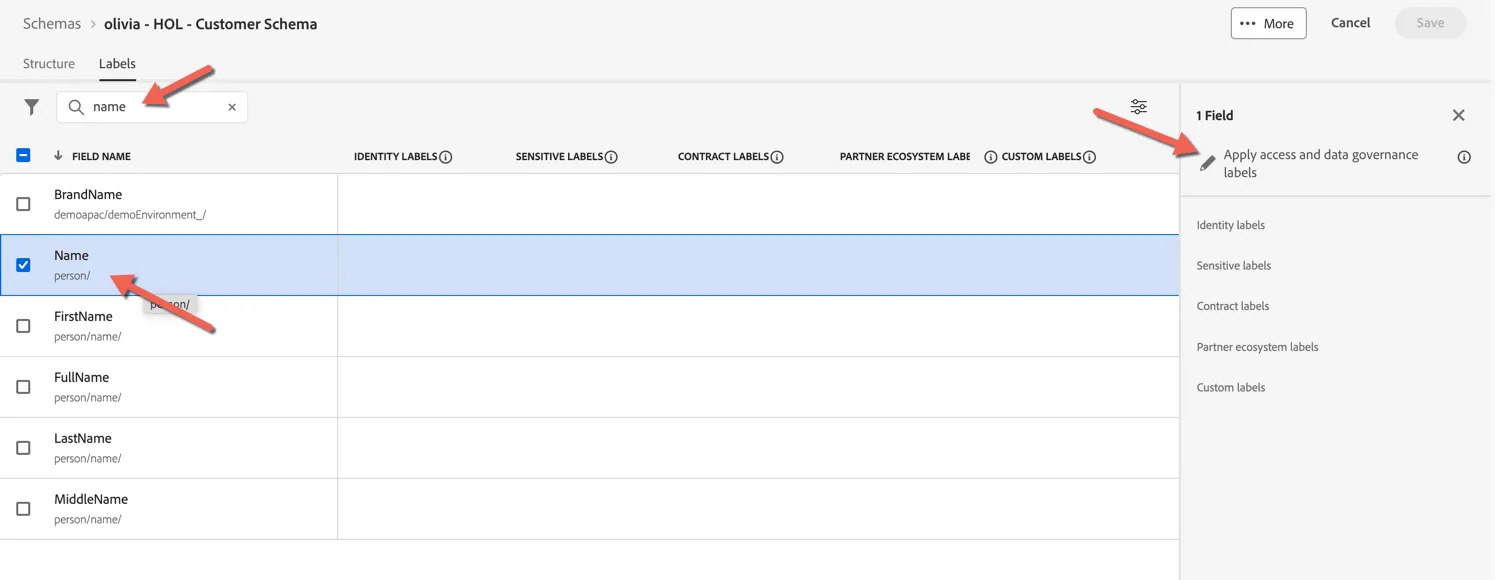
Search for name, then select the Name attribute. Click to Apply access and data governance labels. By selecting the parent object the label will apply to all fields within that object.
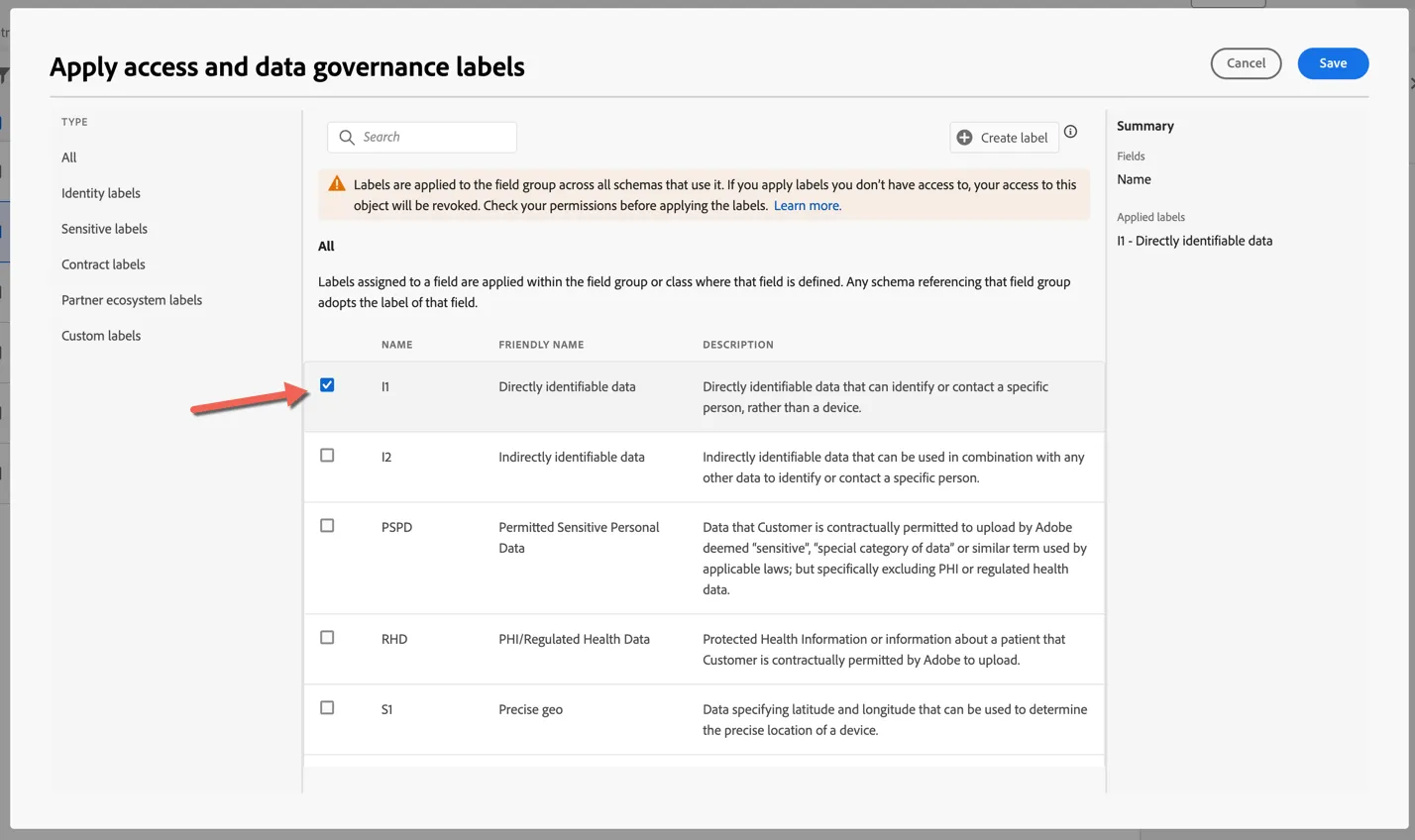
There are a number of out of the box labels, or you can create your own custom labels. Select the first label I1 this flags the data as being directly identifiable information or PII.
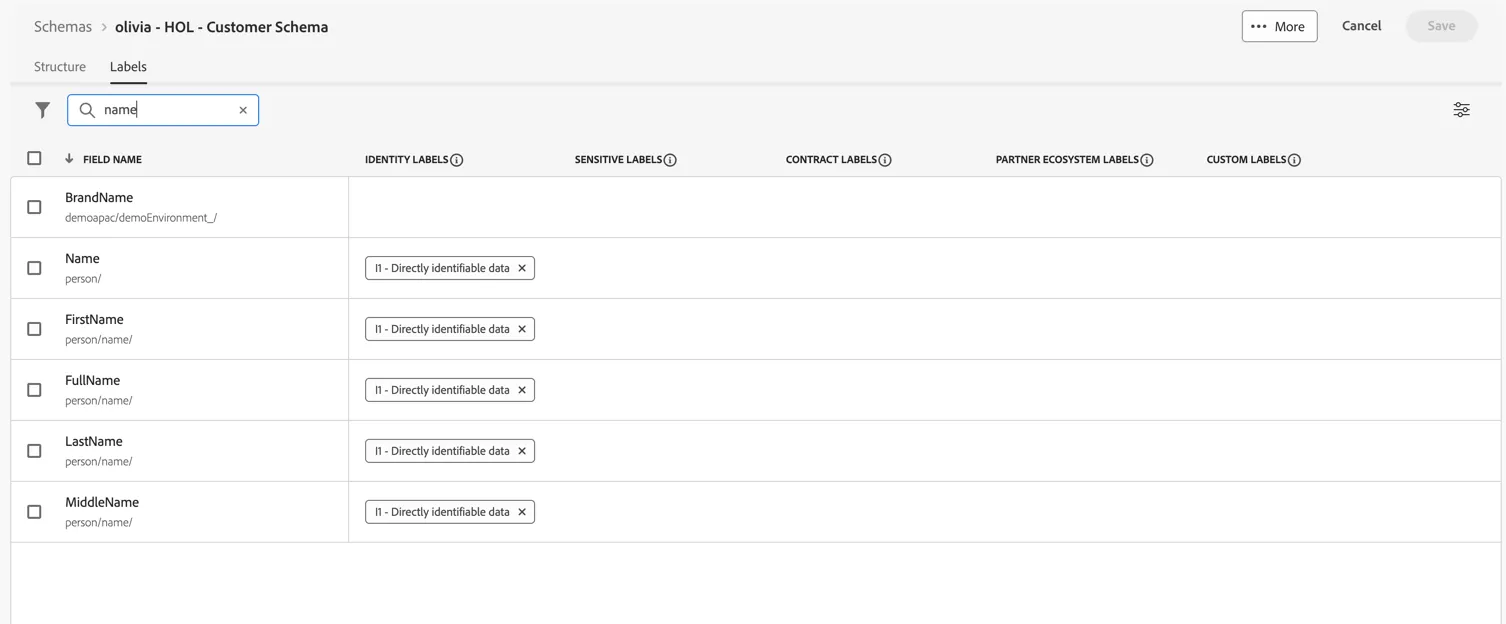
Click to Save. Your schema is now labelled.
Create a Dataset
Now that we have a schema created, we need to create a dataset for storying the data.
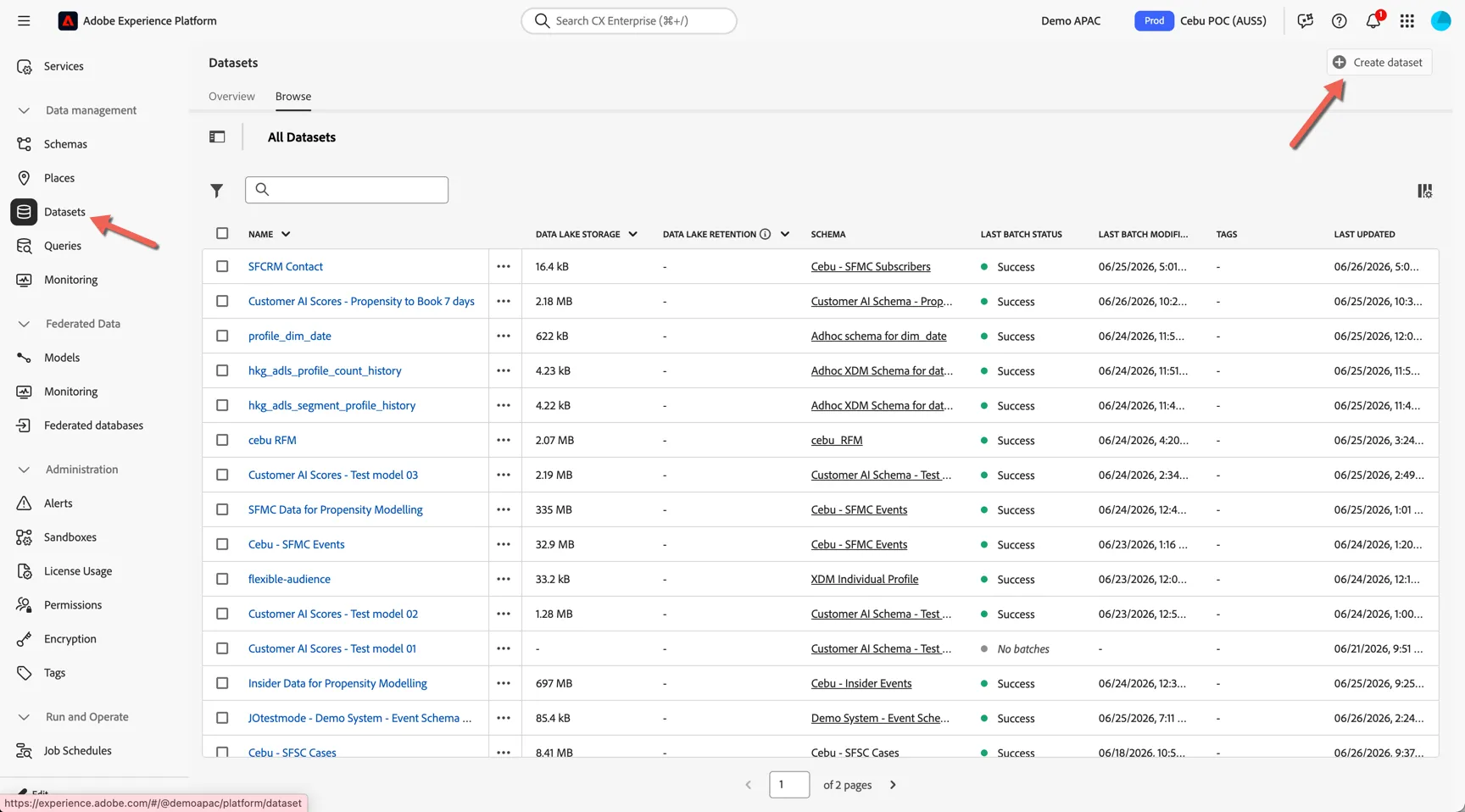
- Navigate to the Data management -> Datasets and click on the Create dataset button in the upper right hand corner
- Click on the Create dataset from schema card

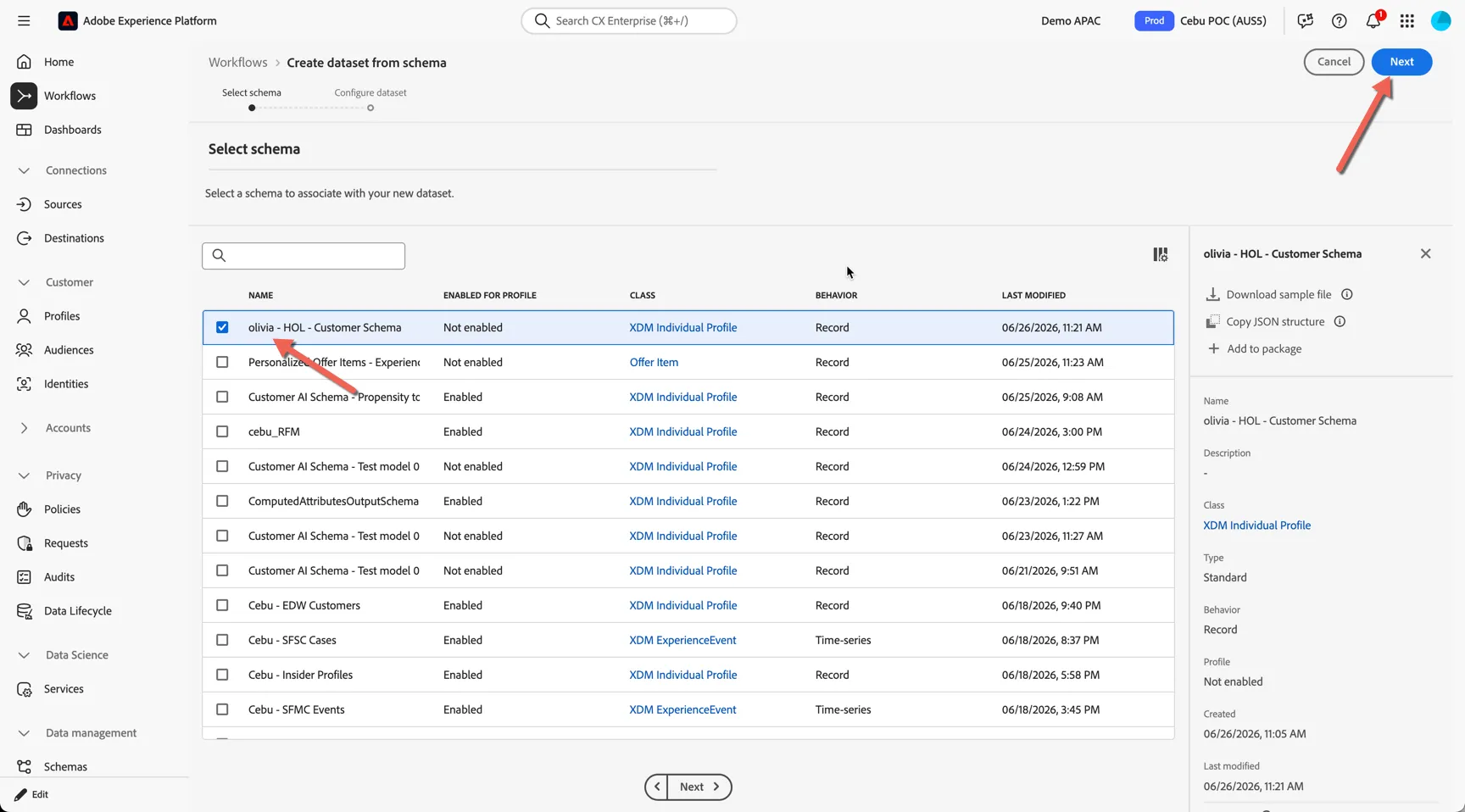
- Select the option to Create dataset from schema. Select your schema created in the last exercise. Click Next to continue.
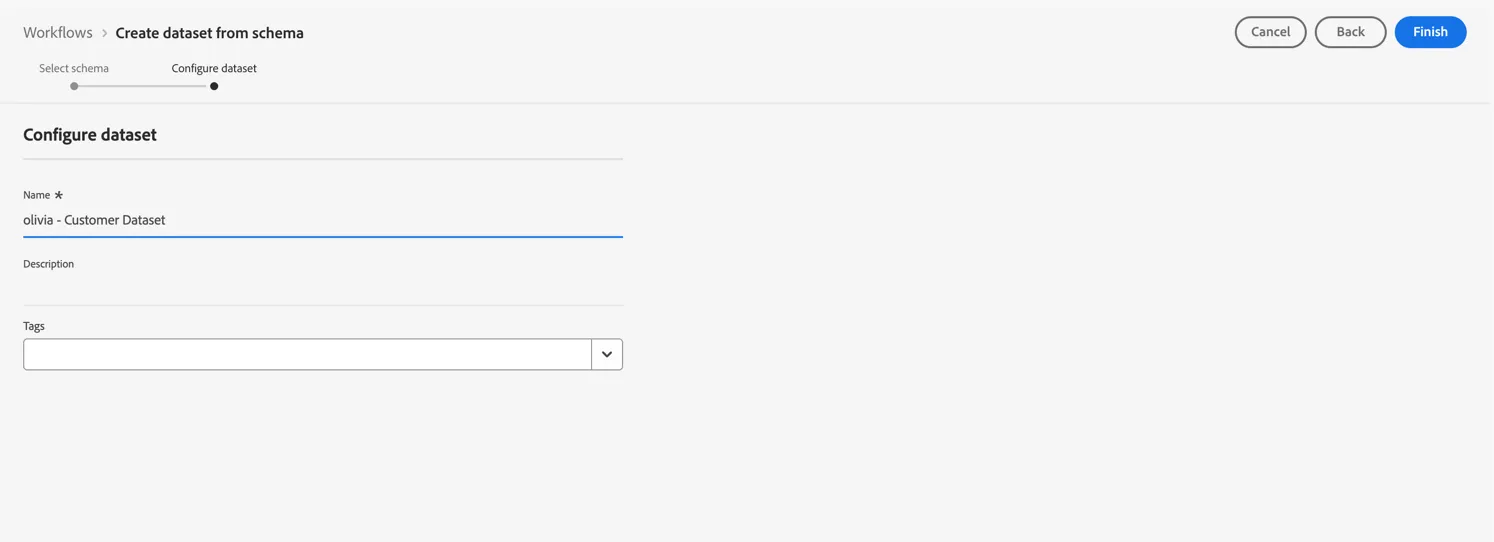
- Name your dataset [your name] - Customer Dataset. Click Finish to finish your dataset configuration
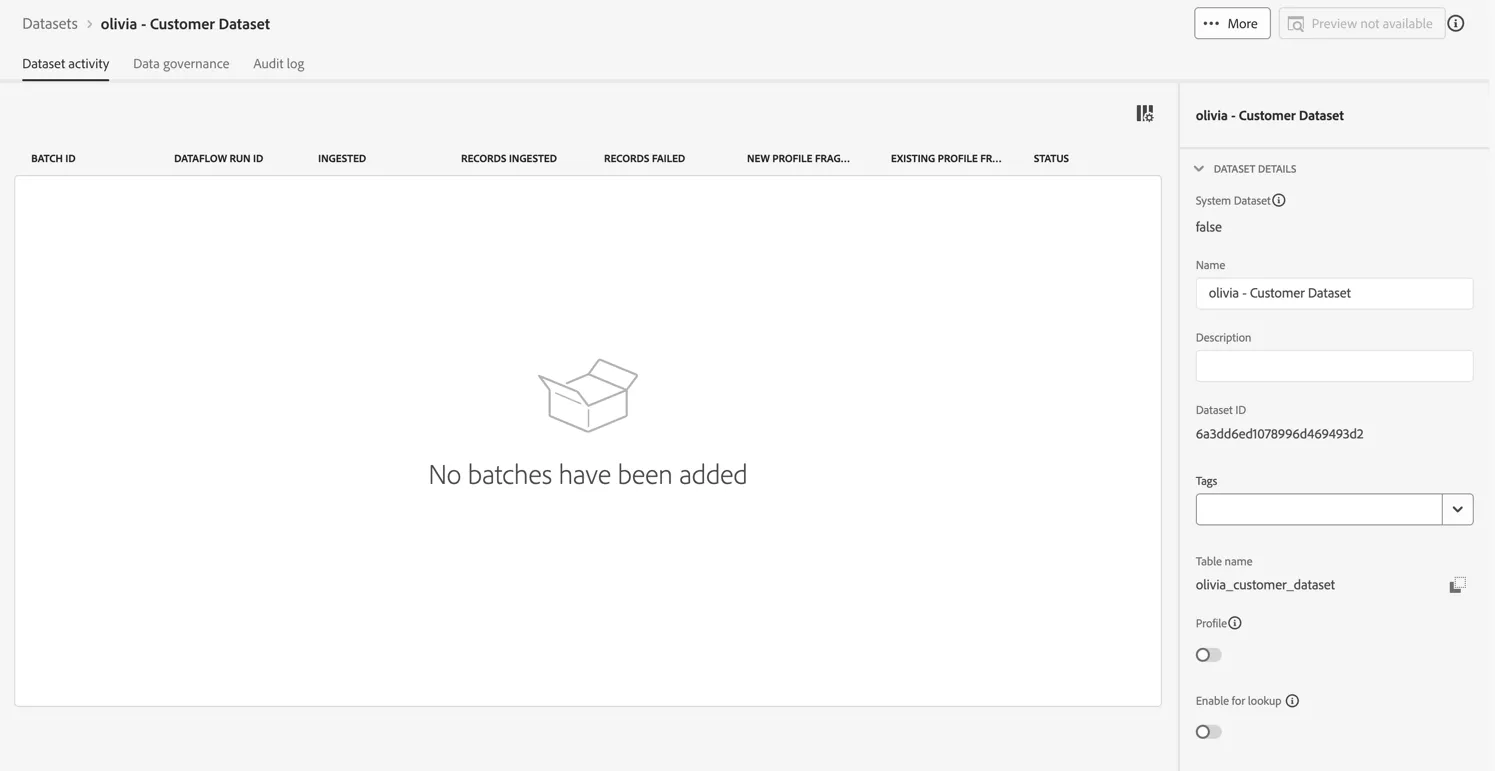
You'll now see this:
Congratulations
You've created your dataset for receiving Individual profile data. As with schemas the dataset must be enabled for profile in order for the data to be added to the unified profile but we will leave this OFF for the exercise today.
Additional Resources
XDM is the standardised framework by which Experience Platform organises customer experience data, and all ingested data must conform to a pre-defined XDM schema. Here are some additional resources on configuring your schemas and datasets.