POC-MK1 - Audiences and Activation
This tutorial is designed to teach you how to create audiences within Adobe Real-time CDP.
It is designed for a non-technical audience (Marketers and Marketing Operations).
Learning Objectives
- Learn how to create real-time audiences
- Learn how to create complex audiences
- Learn how to create federated audiences querying data directly from your data warehouse.
- Learn how to activate an audience to a destination
Real-time Audience
In this exercise we'll recreate the real-time audience used to personalise the experience on the mock website when a customer searches for a particular destination.
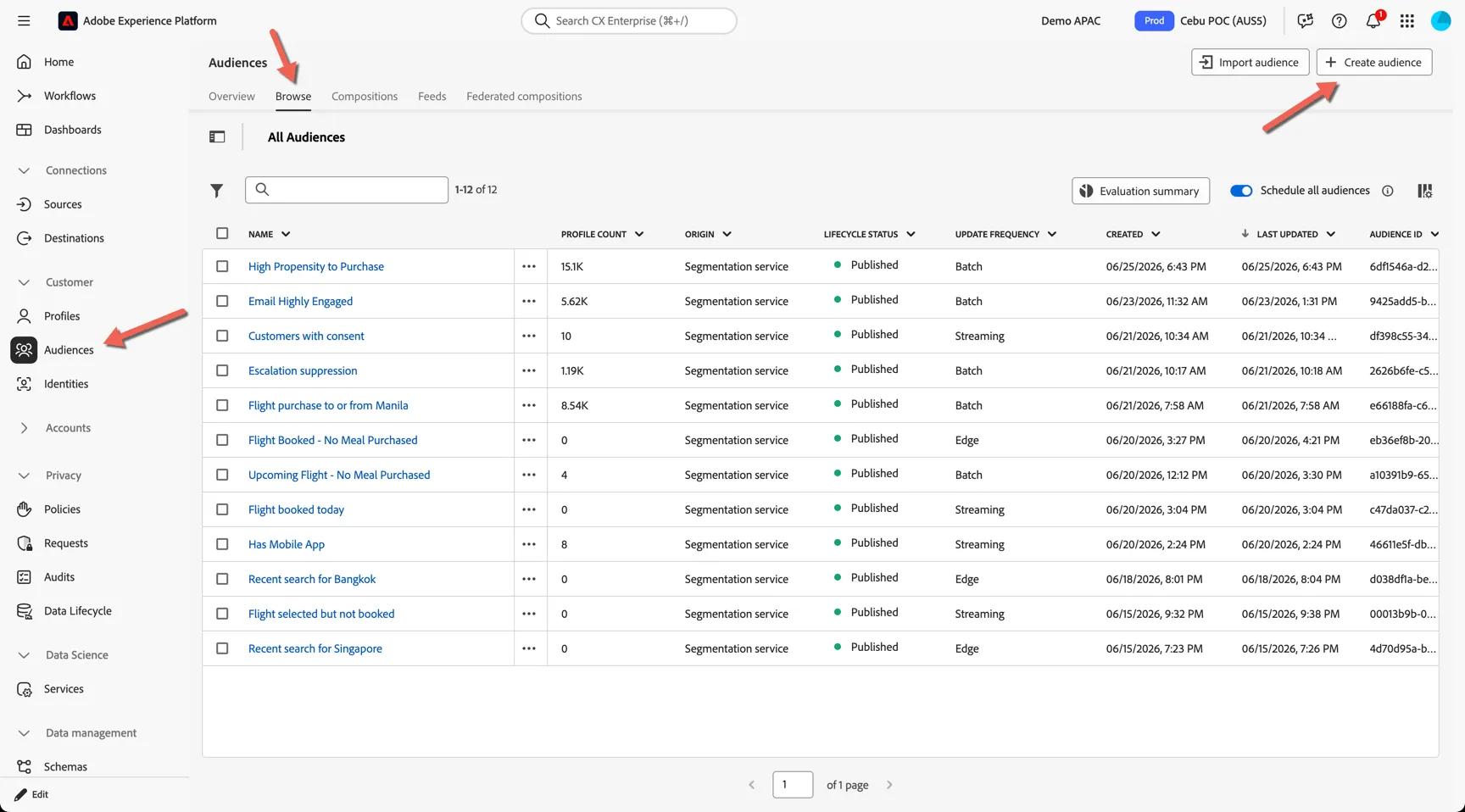
Navigate to Customers -> Audiences. The browse tab shows the list of existing audiences.
Click to Create audience.
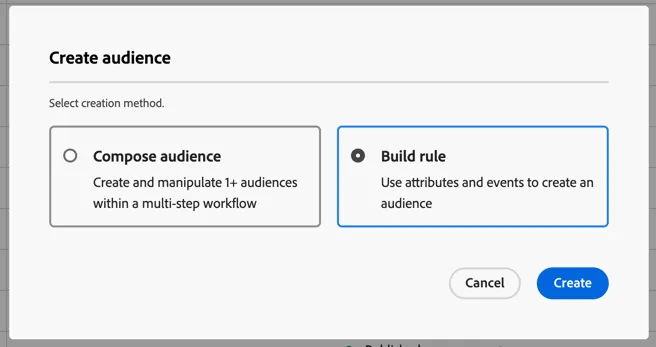
Select to build a Rule based audience.
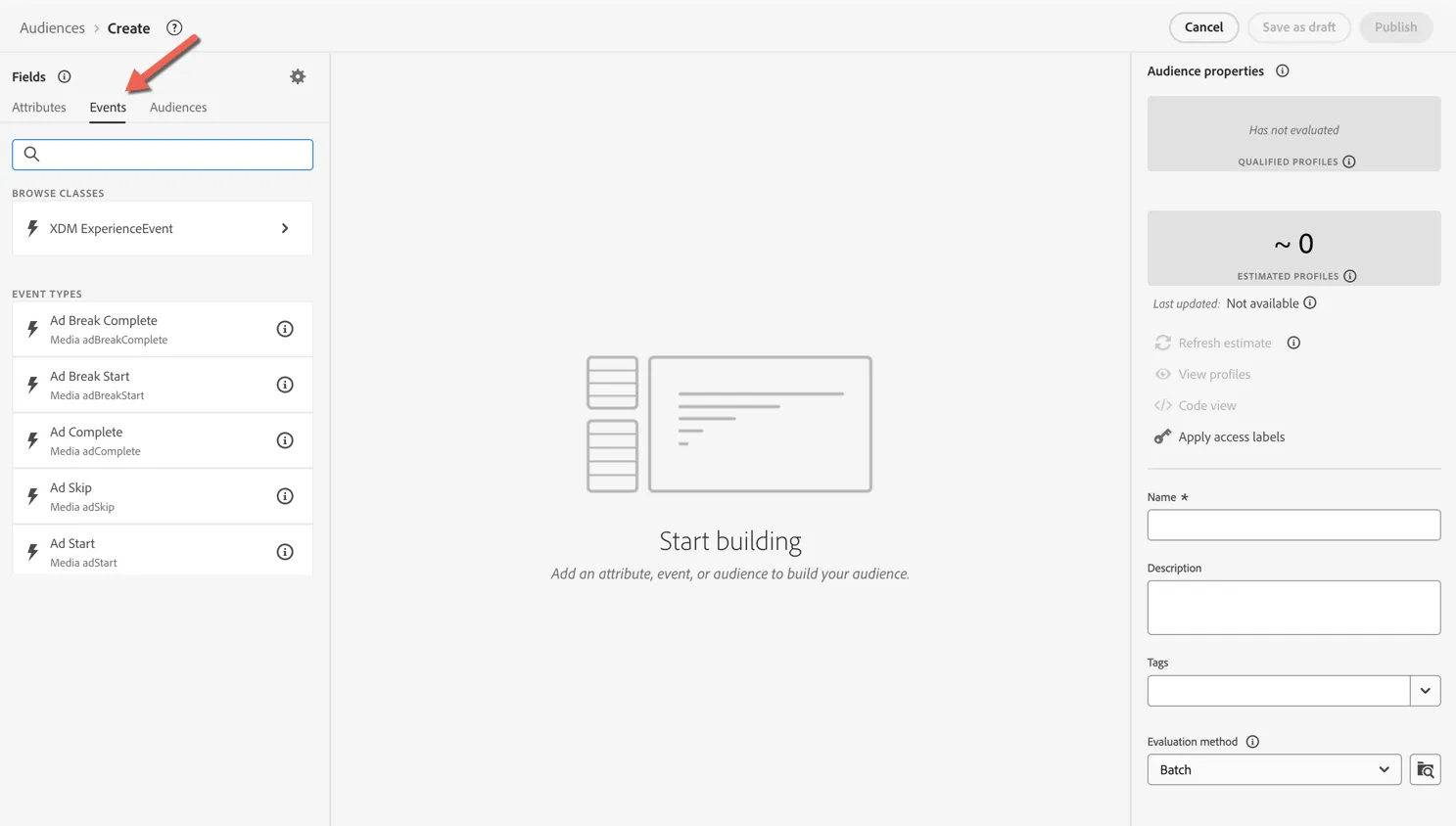
You're now in the rule based audience builder where you can create audiences using any of the attributes or events on the profile. Change the panel on the left to events as this will be an event based audience.
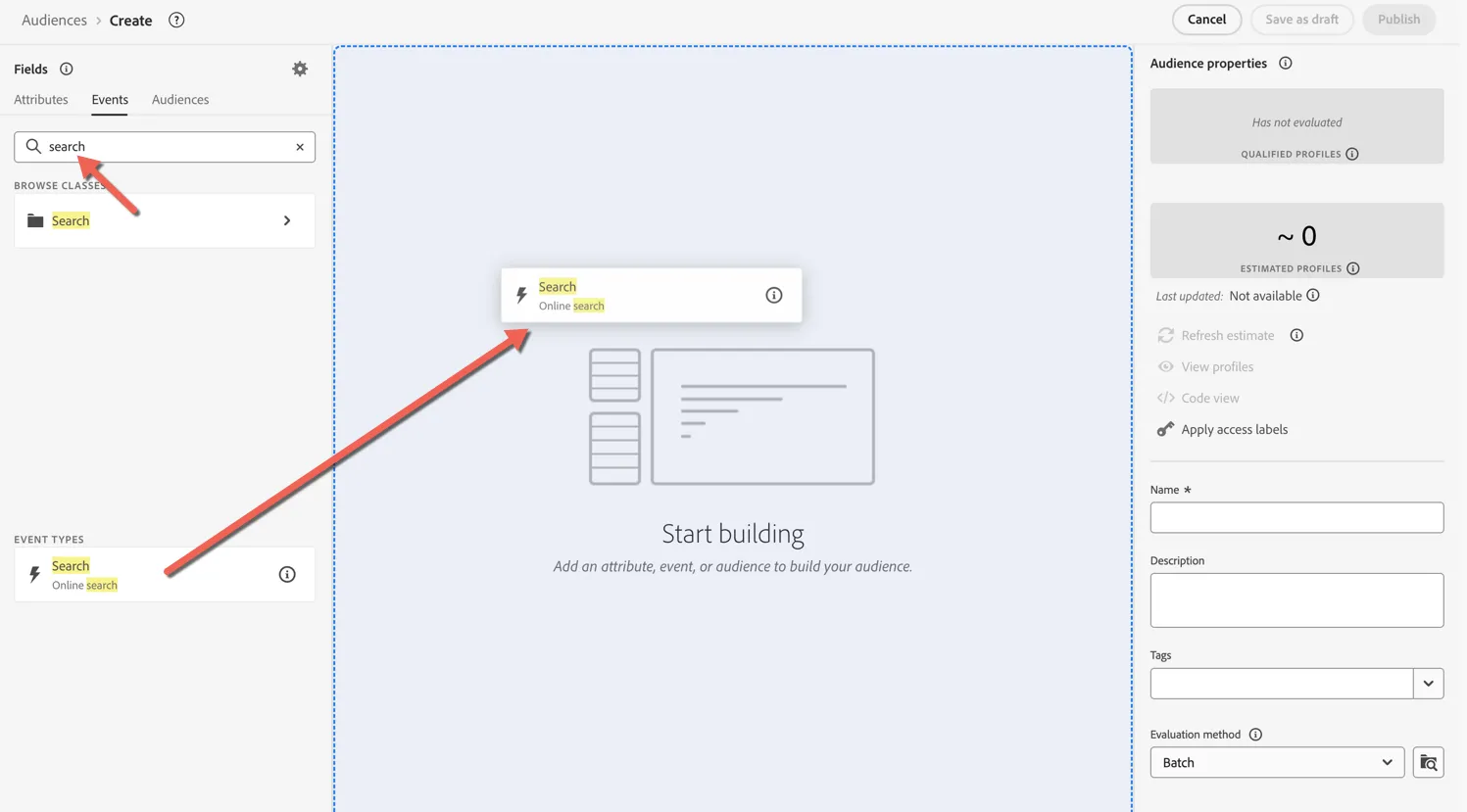
Search for "search" and drag the Online Search event type into the rule builder.
First we'll update the look back window, change Any time to In last 1 day.
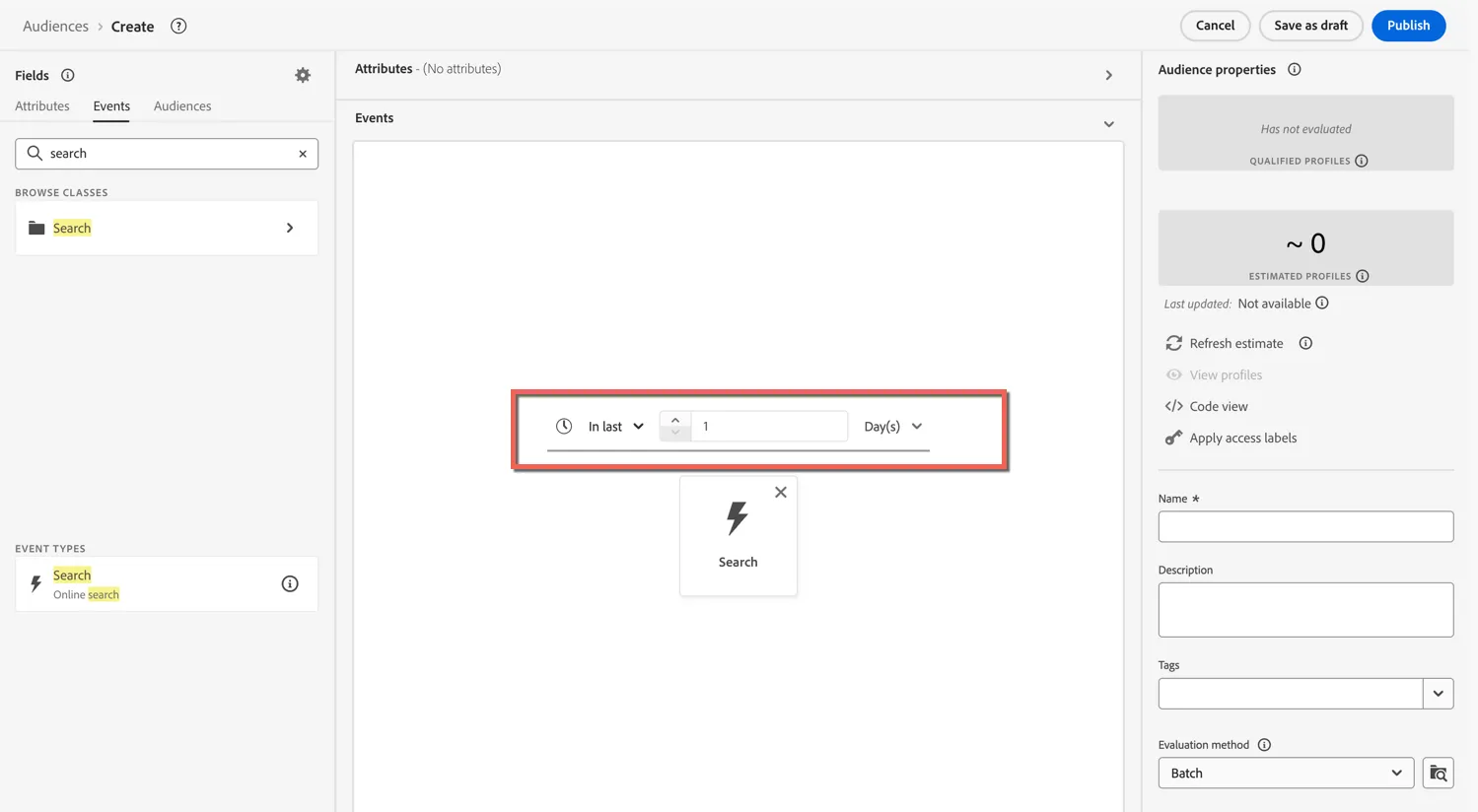
Next we need to filter the event to only look for people who searched for a particular destination - Sydney.
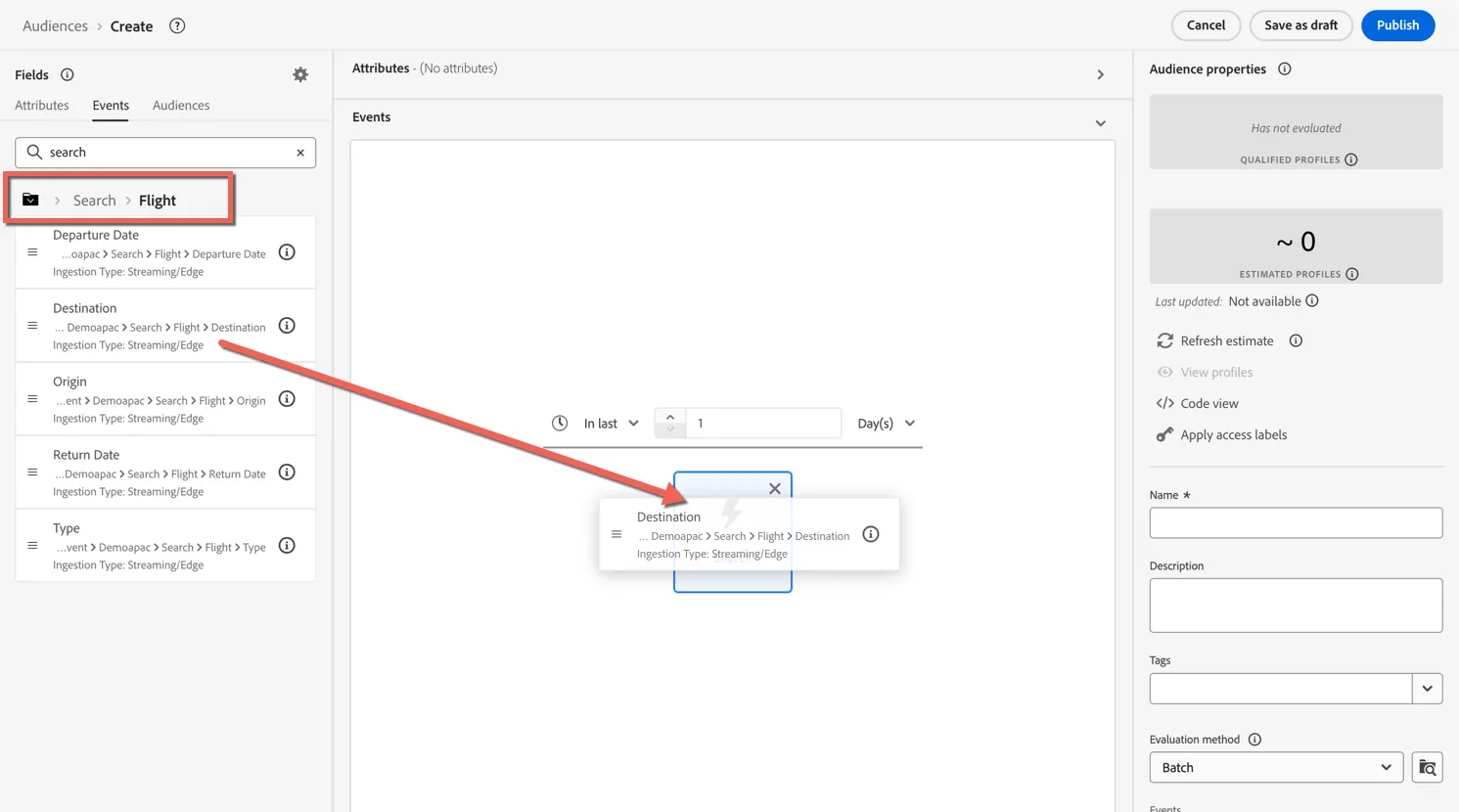
From the left panel drill into the event schema and find the event attribute search -> flight -> destination and drag it until it's hovering on top of the search event. It will highlight blue when you're in the right place then drop it.
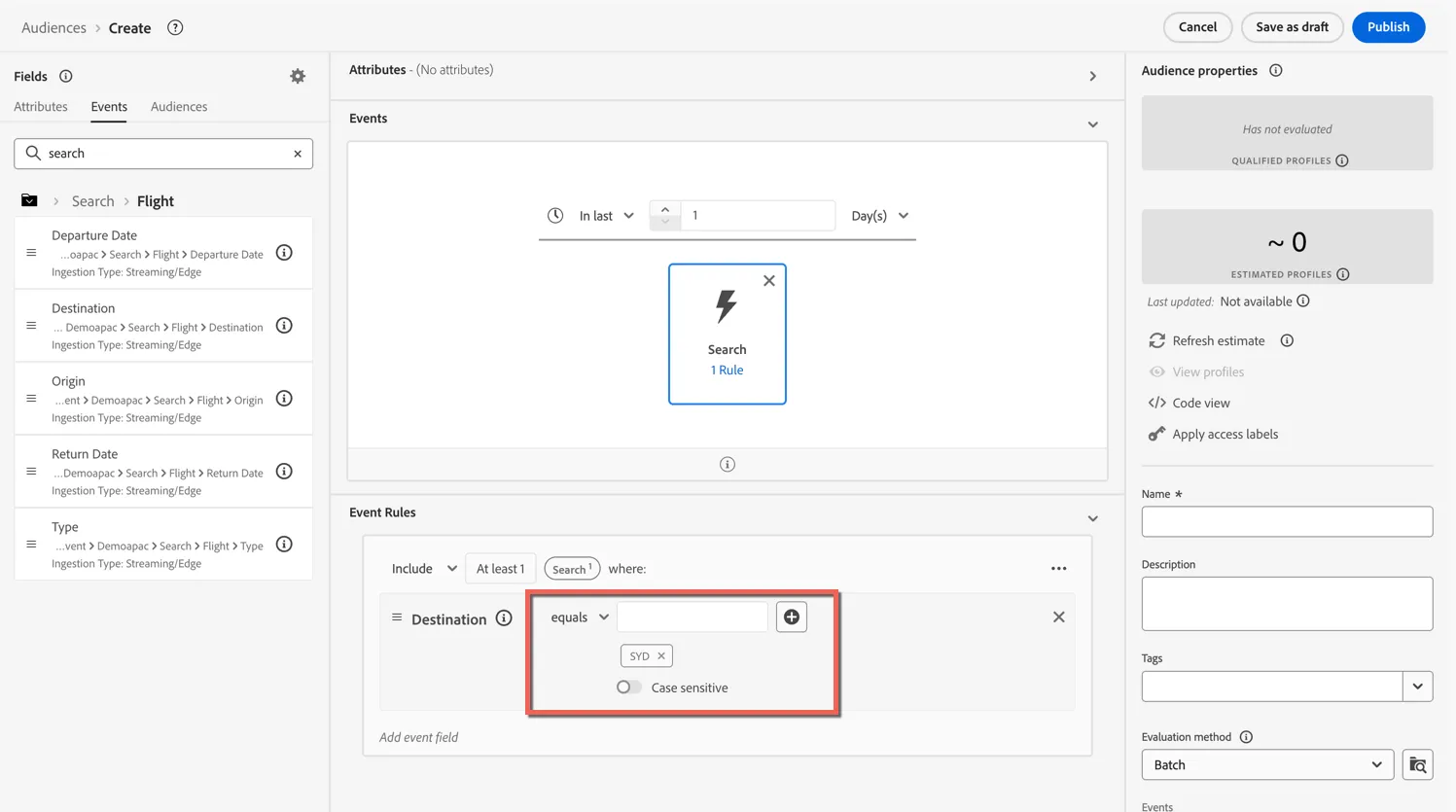
Set the rule conditions to equals SYD - enter the value in the text box and hit enter. You could add multiple values here if you wanted - for example to create an audience of people who searched for australia you could add MEL, BNE, PER as well.
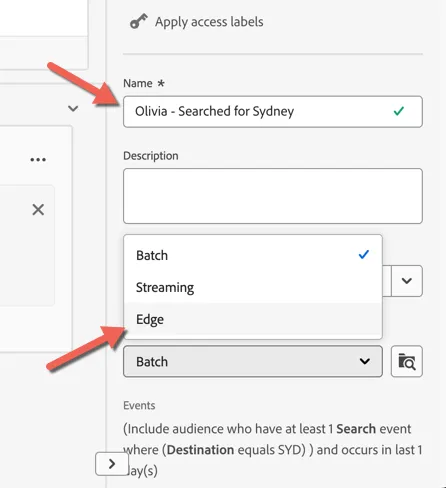
Lastly, give your audience a name - something unique, and update the evaluation method from Batch to Edge - this is what makes the audience real-time.
Your audience is now ready. Click on Publish to set it live.
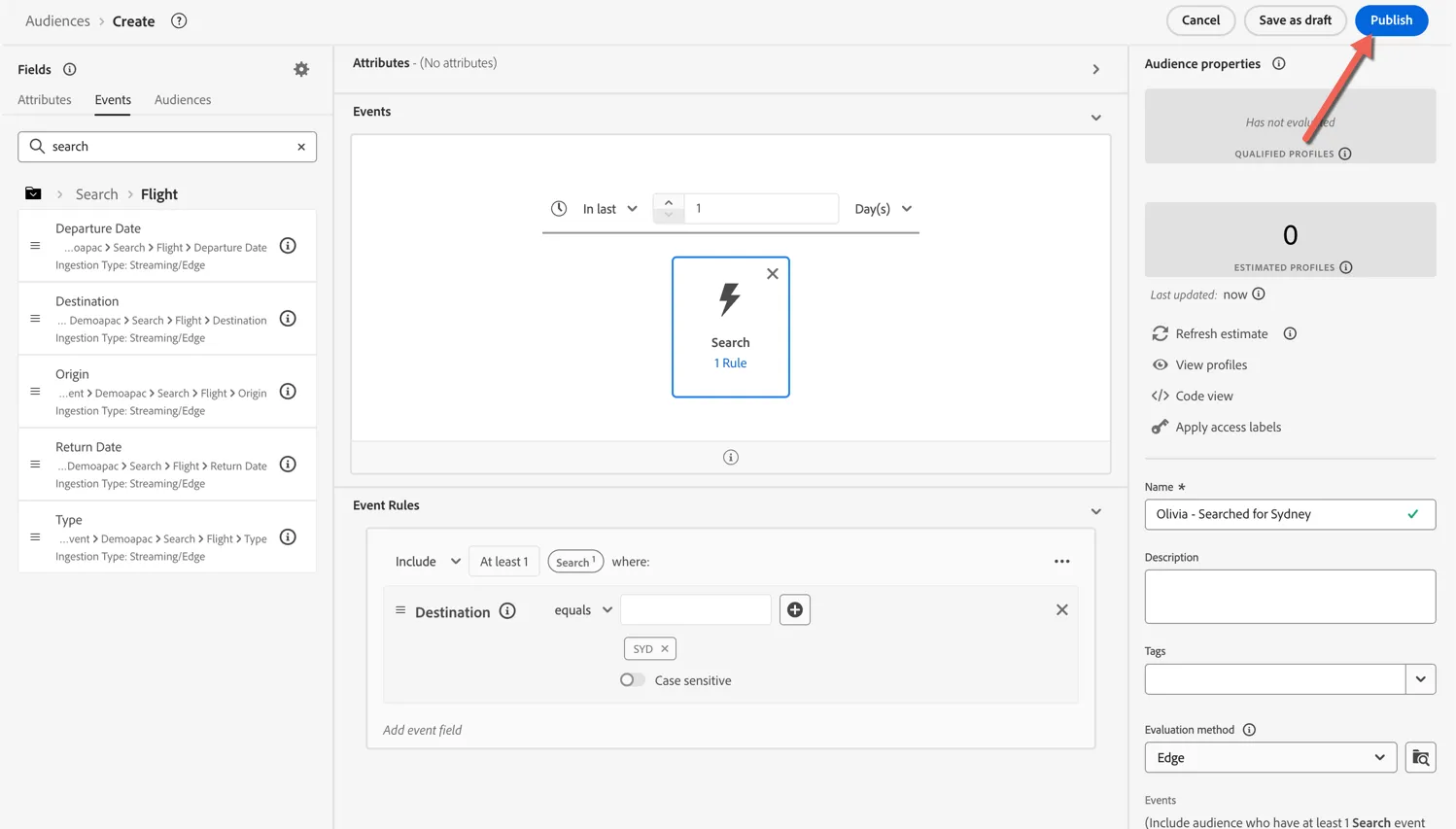
The count will appear as 0, this is expected. The count is updated each night as part of the batch job but don't worry profiles will already start to qualify into your audience in real-time.
Congratulations!
You've created your first real-time audience.
Complex Audience
In this exercise we'll create a more complicated audience combining profile attributes with a sequence of events.
Let's create a retargeting audience to find customers who received the onboarding email campaign then within a week viewed a product but have not yet purchased (this is using the insider commerce based event taxonomy). The campaign will target Philippine residents only.
This audience uses complex sequential logic which Adobe's audience engine is designed to manage.
Click to Create audience.
Again this will be a rule based audience.
From the attributes panel, search for home and click into the Home Address object.
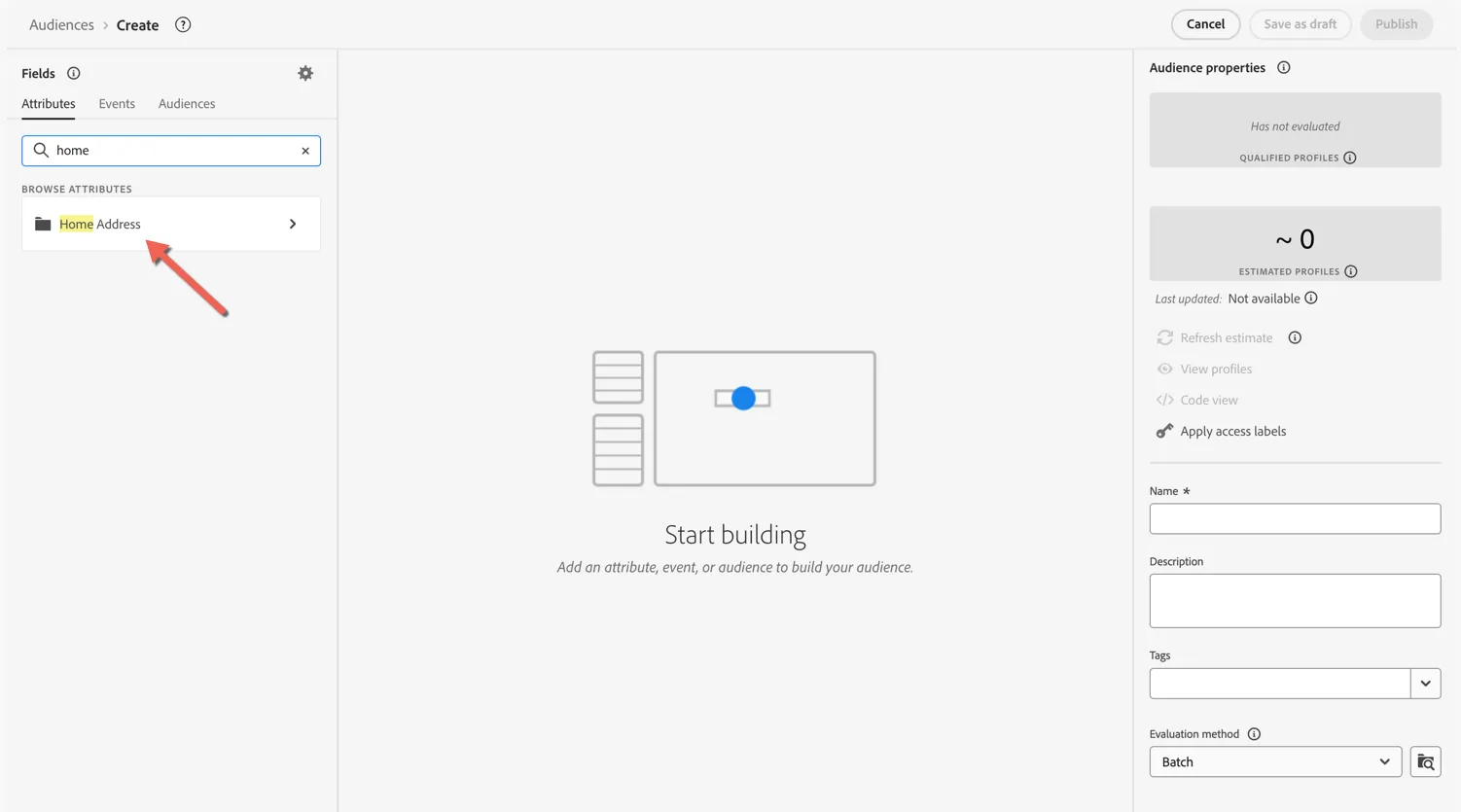
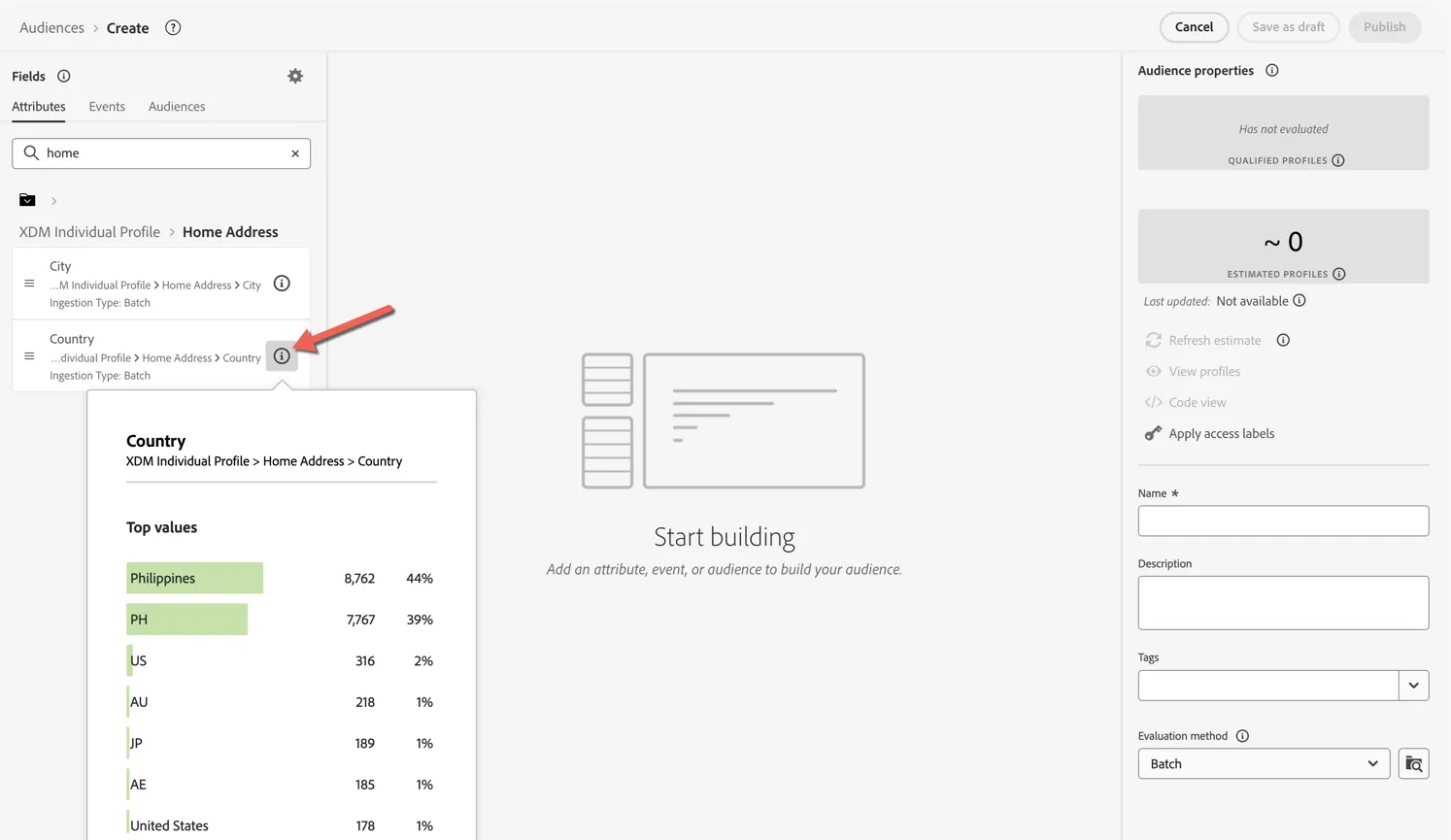
Here we have the profile's home city and country. Click on the information icon to see the distribution of top values.
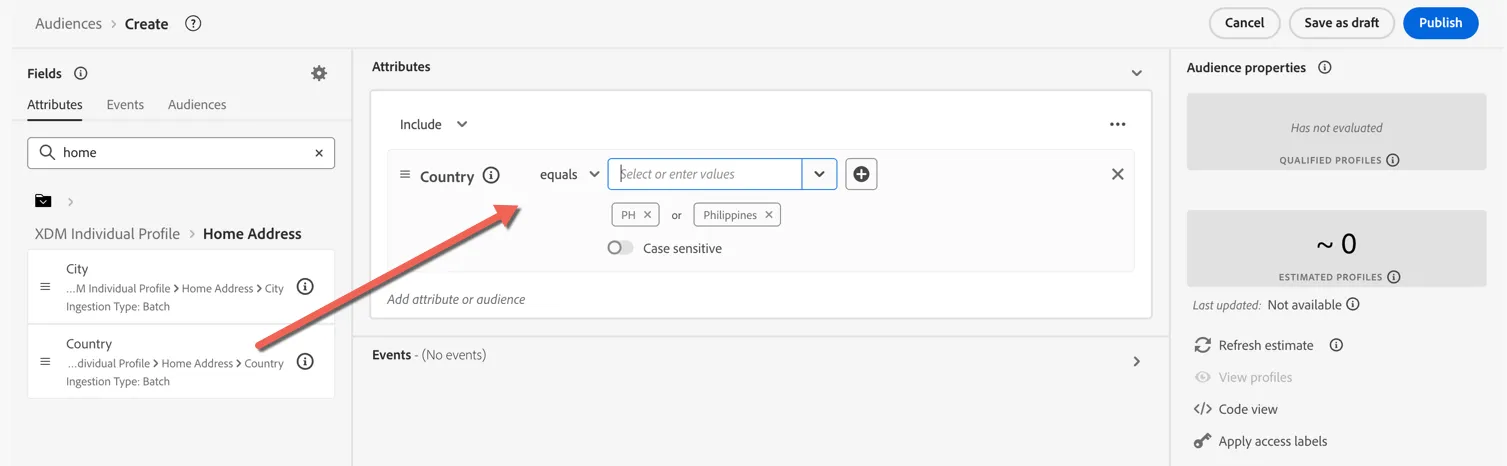
Drag the Country attribute into the rule builder. Select Philippines and PH to include both values in our audience.
Now let's switch to the events tab and search for Salesforce. Click into the Salesforce Marketing Cloud object.
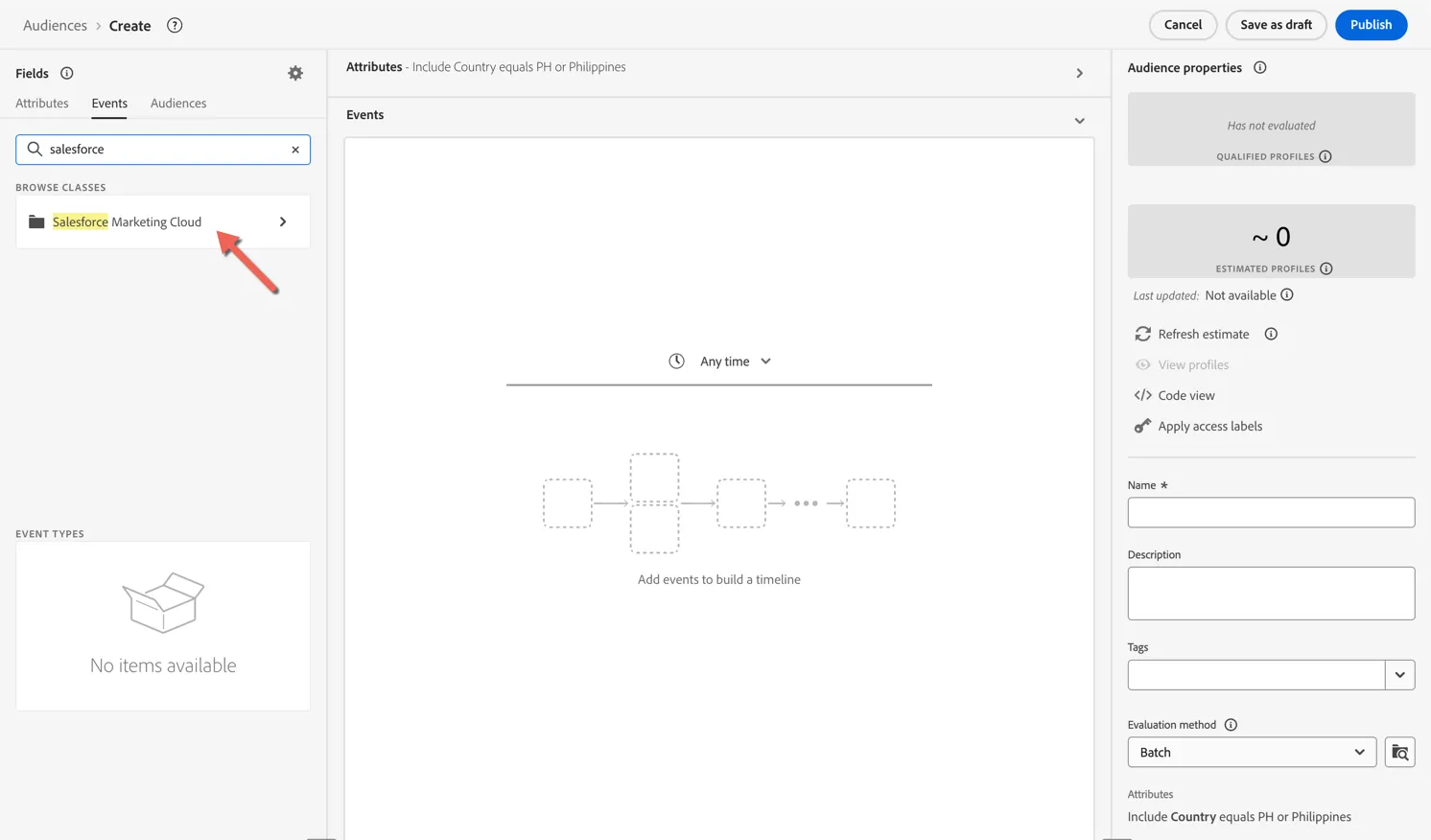
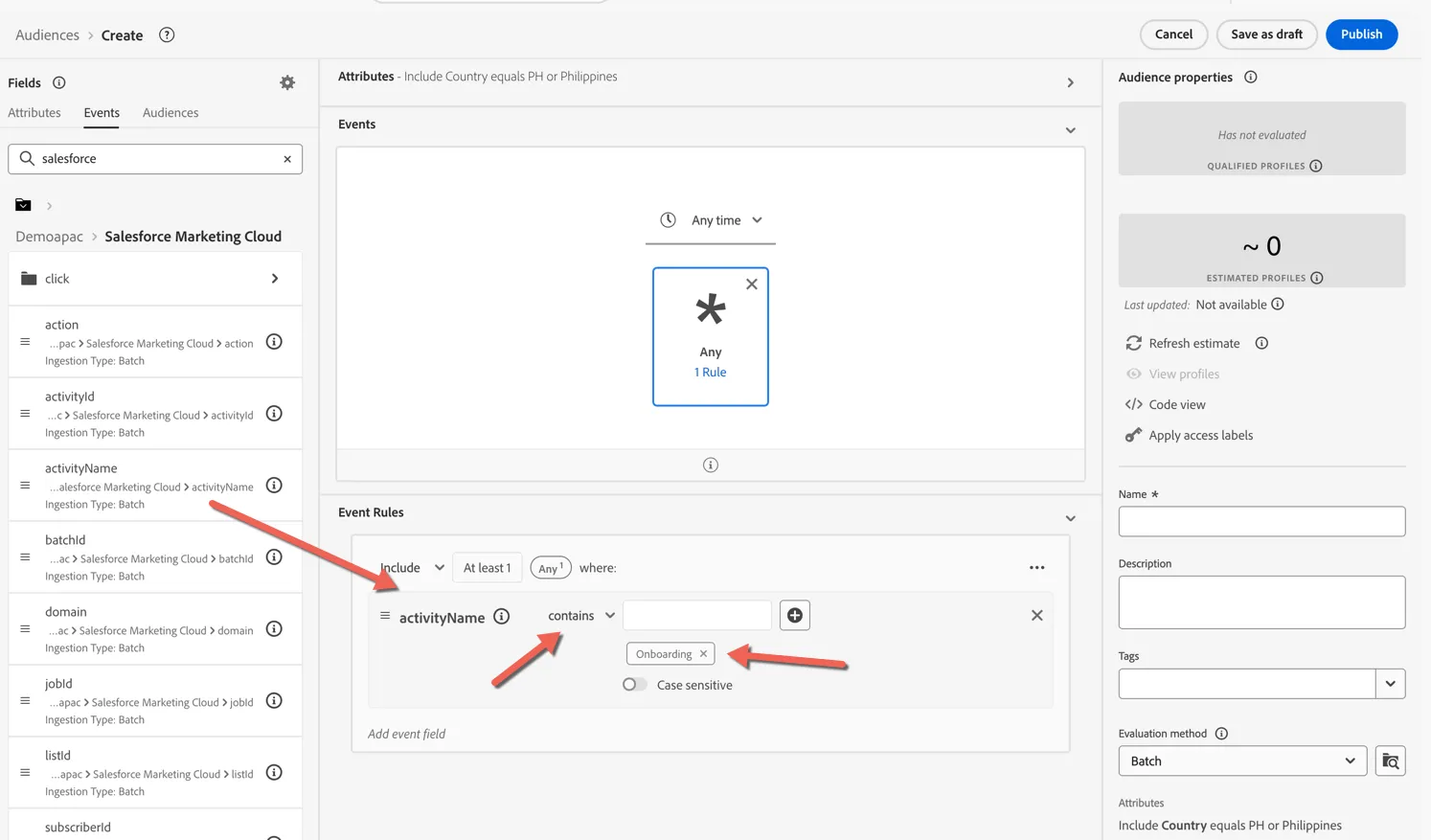
Drag the activityName attribute into the event rules. Set the operator to contains and add the value Onboarding to the value.
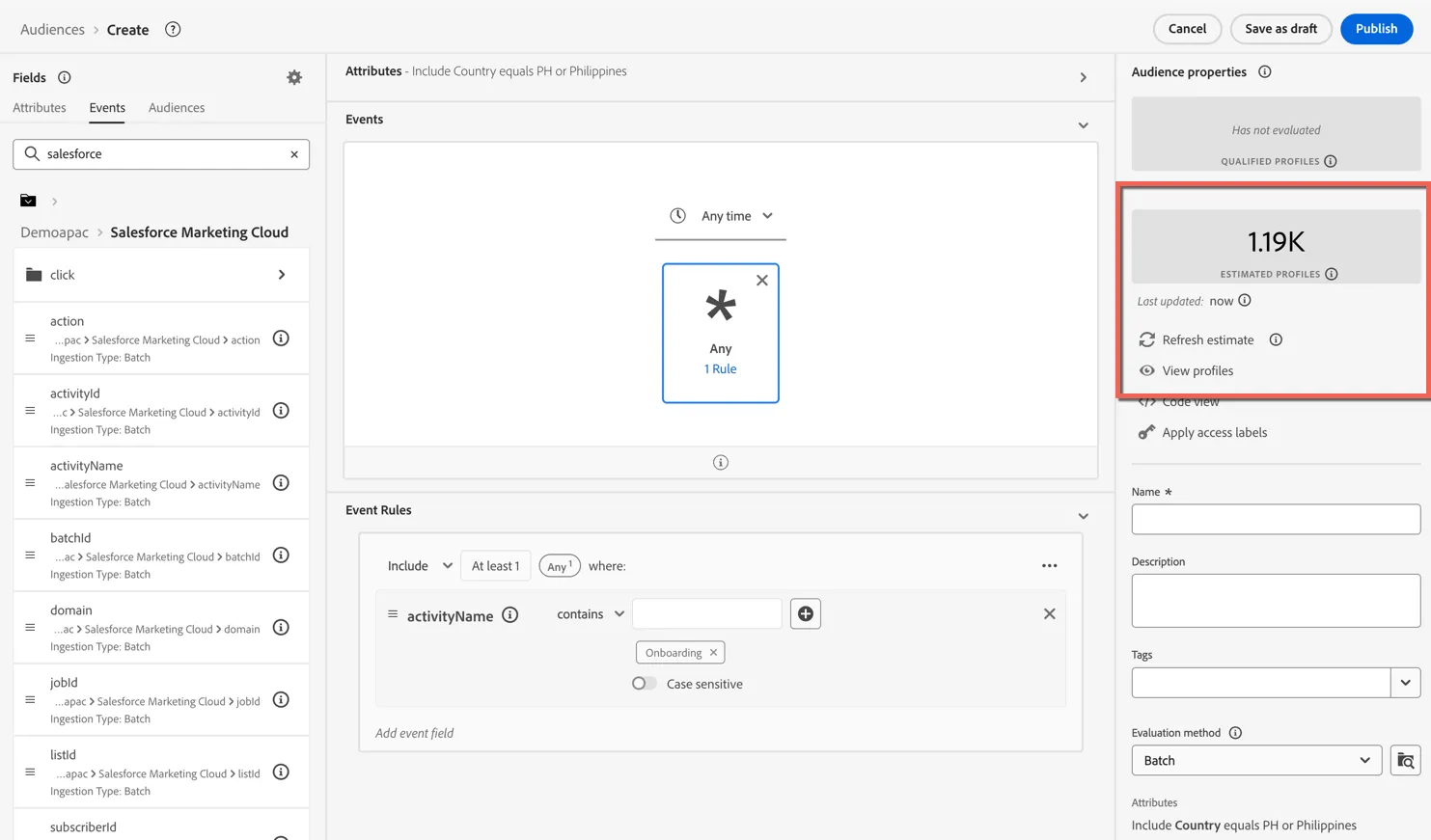
You can click on the Refresh estimate at any time to see how many profiles are likely to qualify based on the current rules.
Next we want to append a product view event to the rules AFTER the email event. Search for product and drag the Product Views event type into the rule builder until it's hovering to the right of the email event. You'll see a blue line appear on the right when you're in the right place to connect the event.
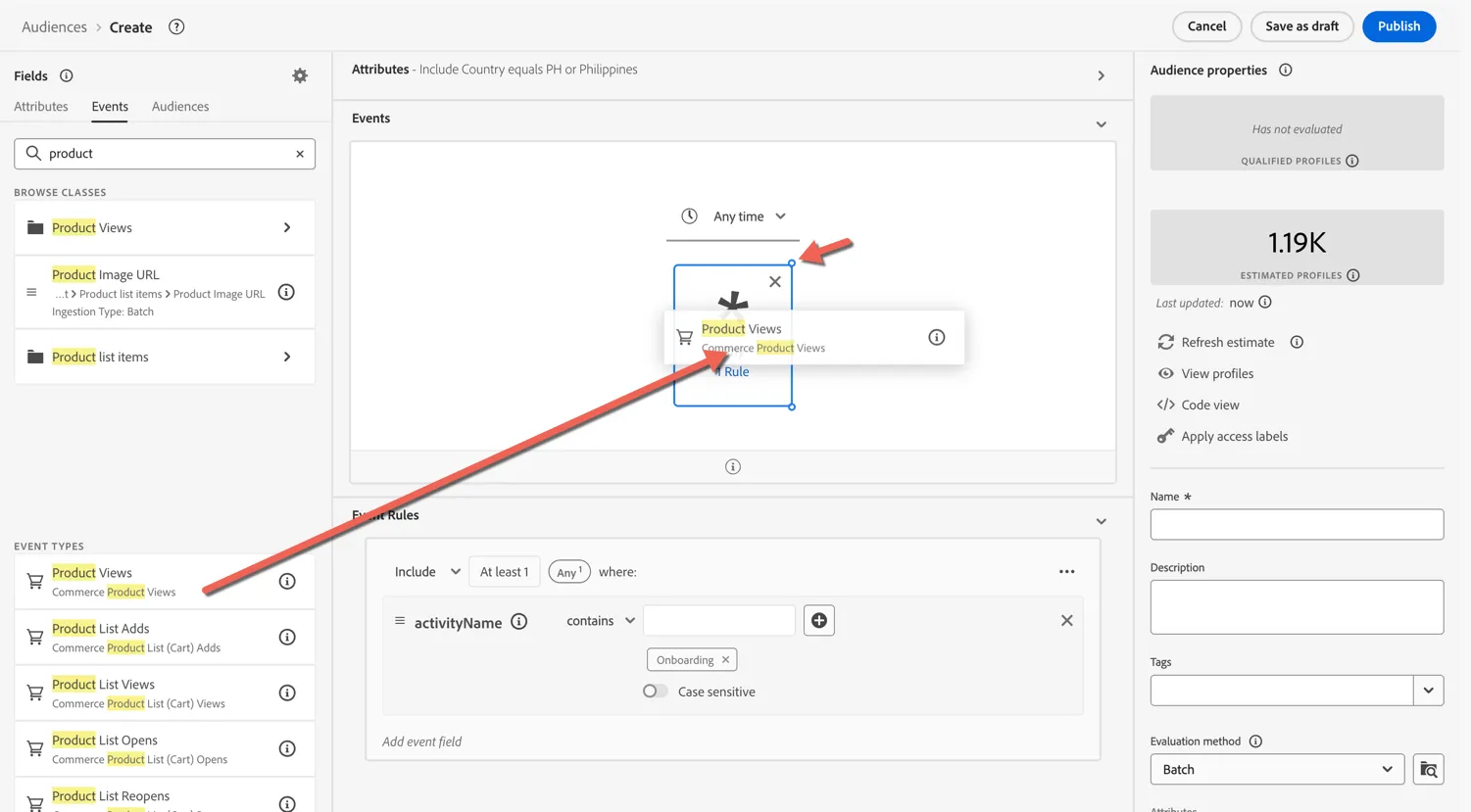
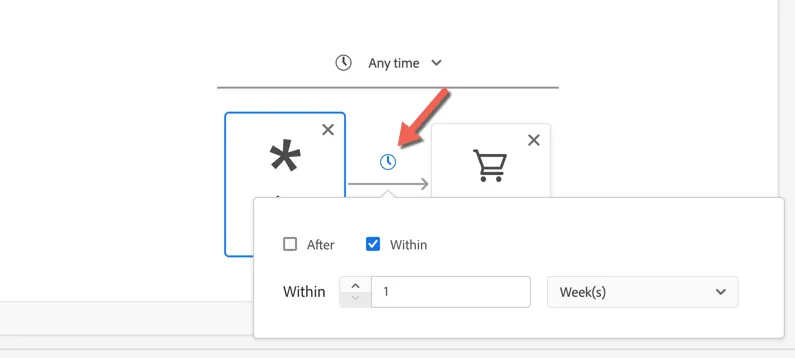
The events are now configured in sequence, the email event needs to have happened before the product view event. We can also define a specific window for this second event to have happened within. Click on the clock icon between the events and set the condition to within 1 week.
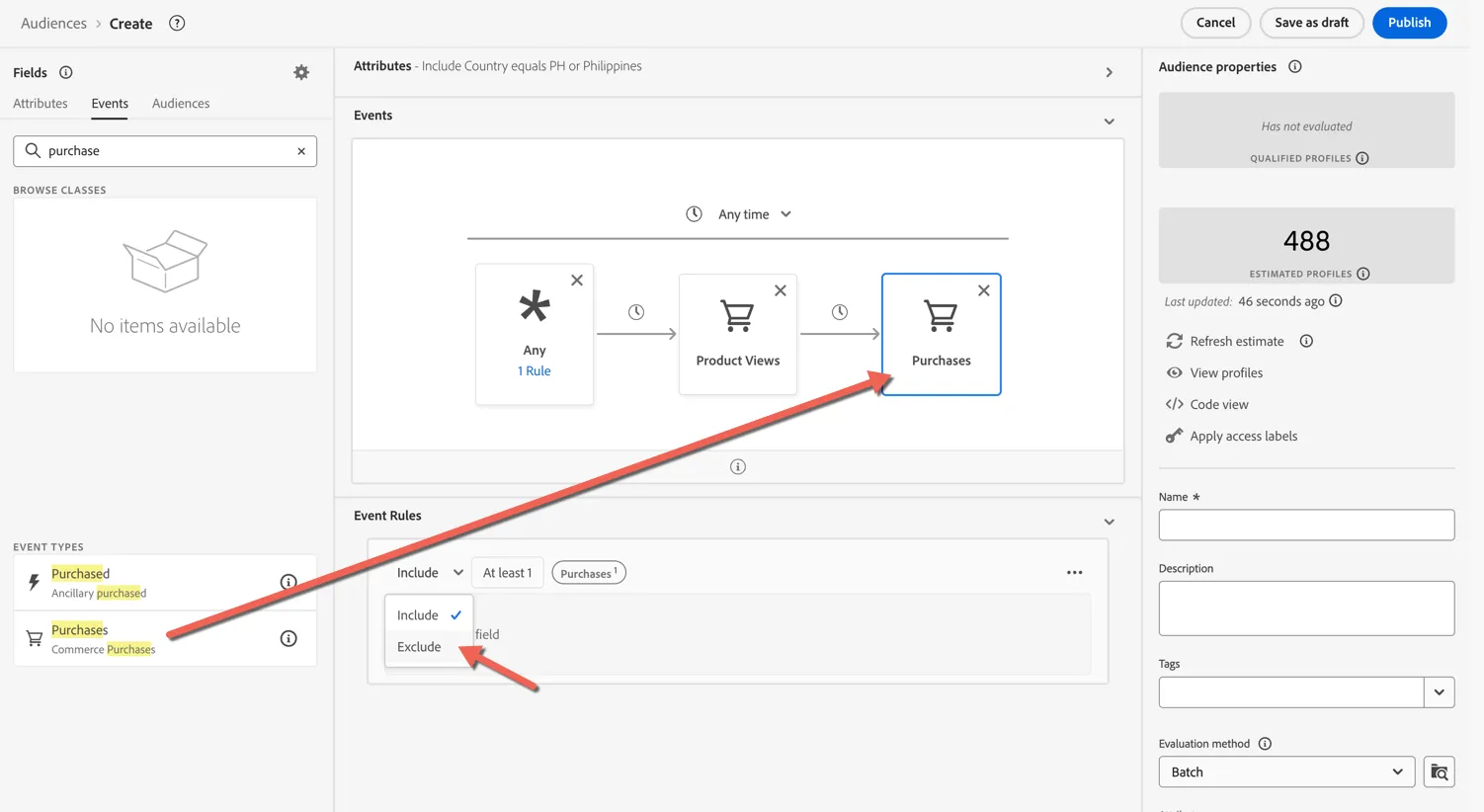
Lastly we want to add a purchase event to our sequence, but we want to EXCLUDE anyone who has already purchased. Search for purchase and drag the purchases event to come after the product view. Once the purchase event is added, change the event rules from include to exclude.
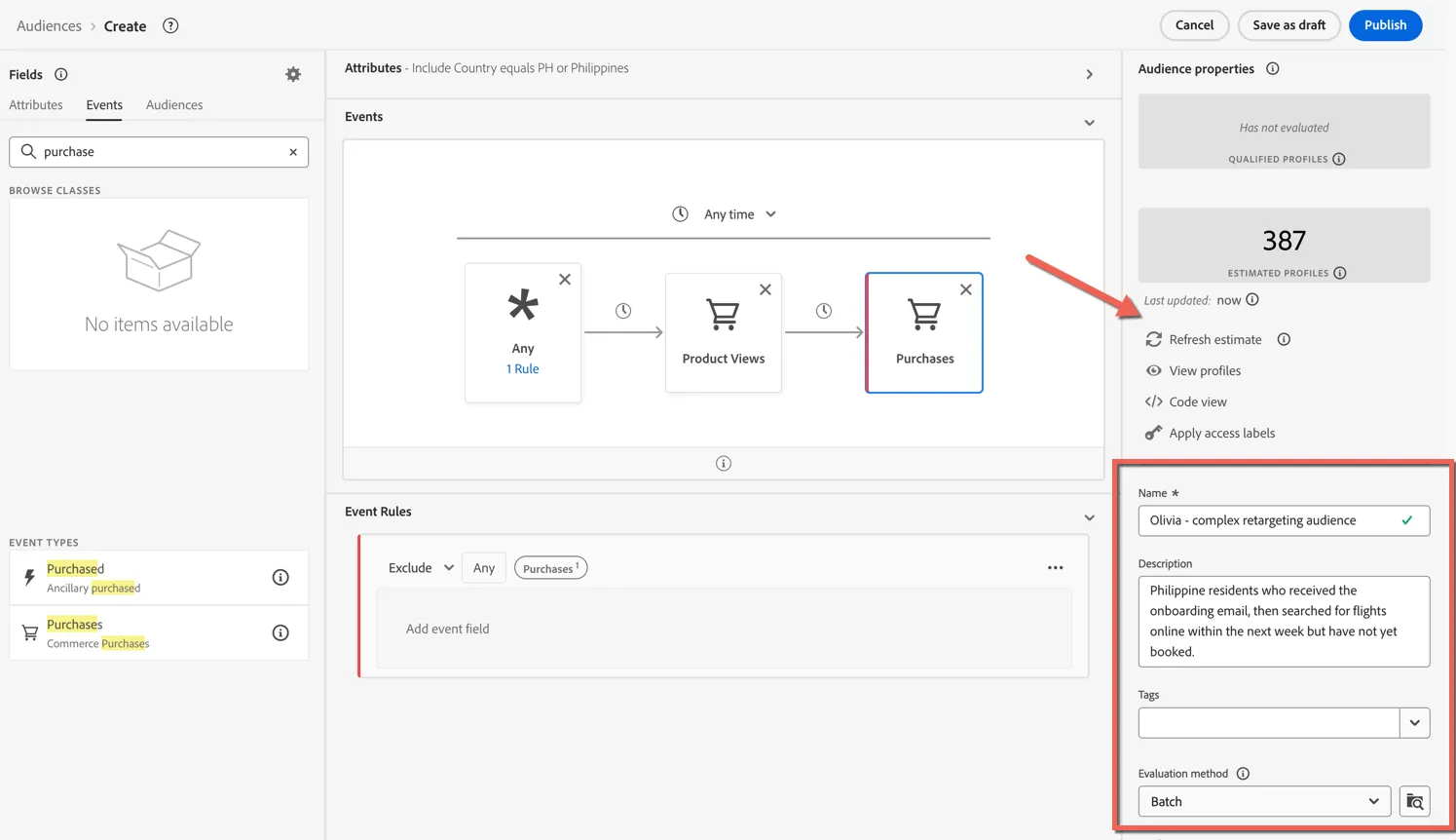
Refresh the estimate to see the new size with all of the conditions configured. Add a name and helpful description to the audience. This will be a batch calculated audience due to it's complexity so leave the evaluation type as Batch.
Click Publish to save your audience. It will calculate overnight as part of the daily batch job.
Federated Audience
As part of the POC we demonstrated how we can create audiences directly from your data warehouse without needing to ingest your entire booking system database.
Unfortunately due to limitations in the POC environment we are unable to provide hands on access to this feature.
Activate Audiences
For the POC we were not allowed to connect to your Salesforce Marketing Cloud instance which will be your primary destination and unfortuantely we do not have a demo SFMC environment to use. As a result we will use Tiktok or Meta destination for this exercise. The activation flow is relatively similar regardless of the destination. For SFMC you will configure which Data Extension you want to send the data to as part of the configuration. This very specific mapping is not required for social destinations.
Activate profiles to Tiktok or Meta for ad targeting, personalisation, and suppression based on hashed email and phone number.
You can use this destination for audience targeting to reach and re-engage with your customers across social and paid destinations.
Most social platforms including Meta and Tiktok support the activation of the following identity types:
- GAID - Google Advertising ID
- IDFA - Apple ID for Advertisers
- phone_sha256 - Phone numbers hashed with SHA256 algorithm
- email_lc_sha256 - Email addresses hashed with SHA256 algorithm
Export Type = Segment Export
Social and Paid Media destinations require that no personally identifiable information (PII) is sent in clear text. Therefore, the audiences activated to these destinations can be keyed off hashed identifiers, such as email addresses or phone numbers.
Go to the Adobe Experience Platform.
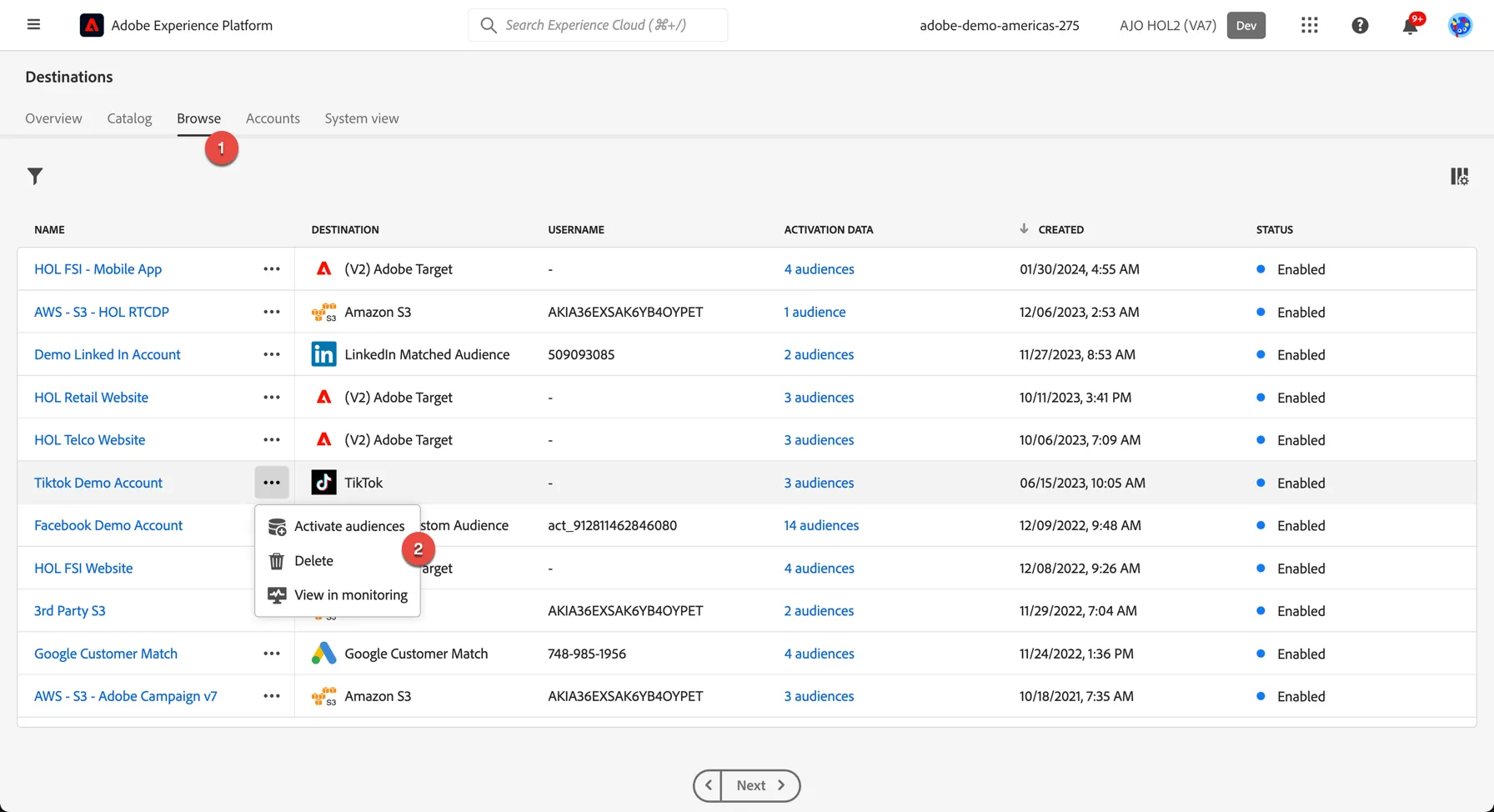
- There are a few destinations already configured for this POC. Click on browse on the top menu to see the list. Click on the 3 dots next to Tiktok or Meta and select to Activate audiences
- In the list of available segments, select the segment you created in the previous exercise.
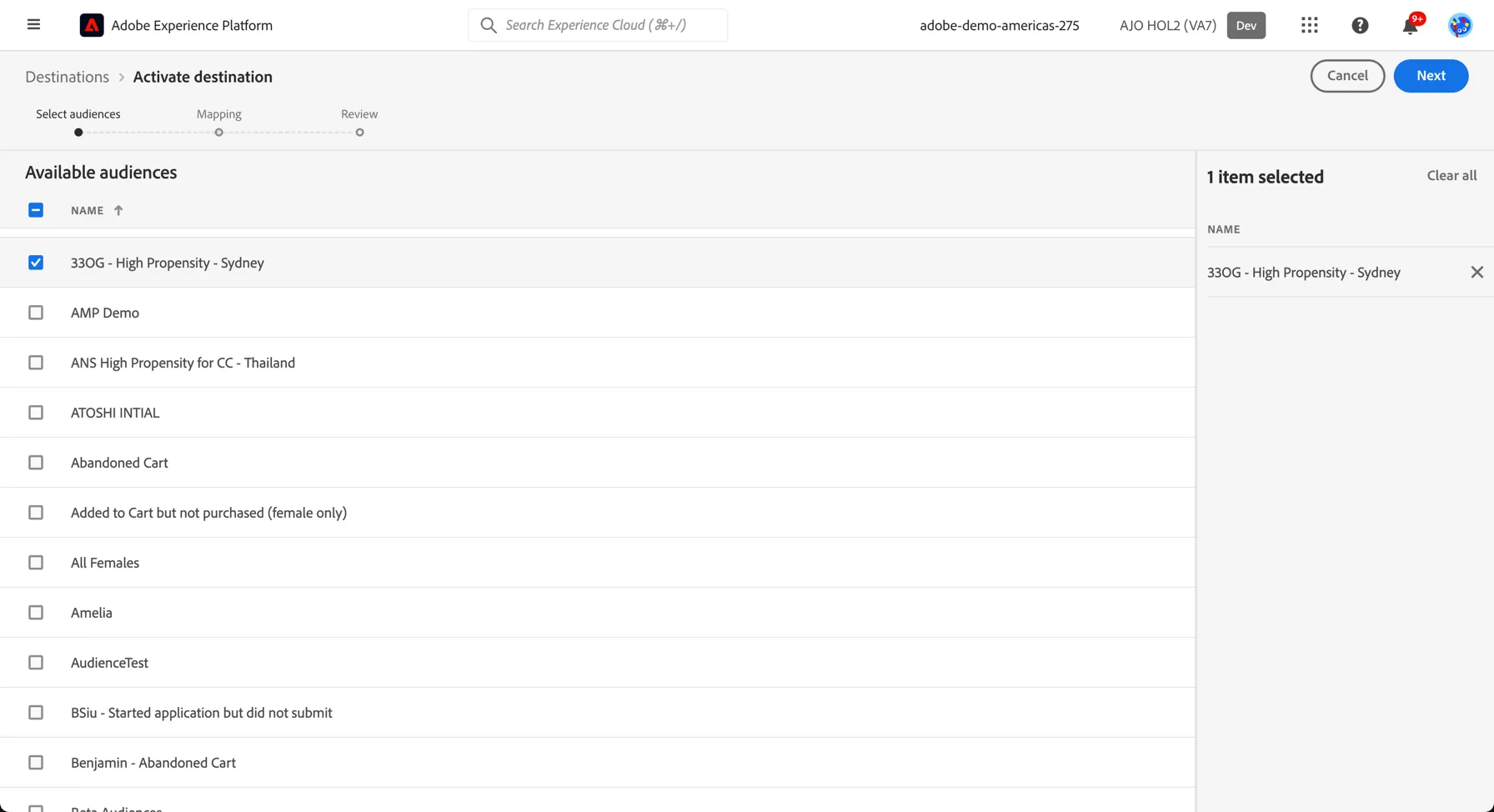
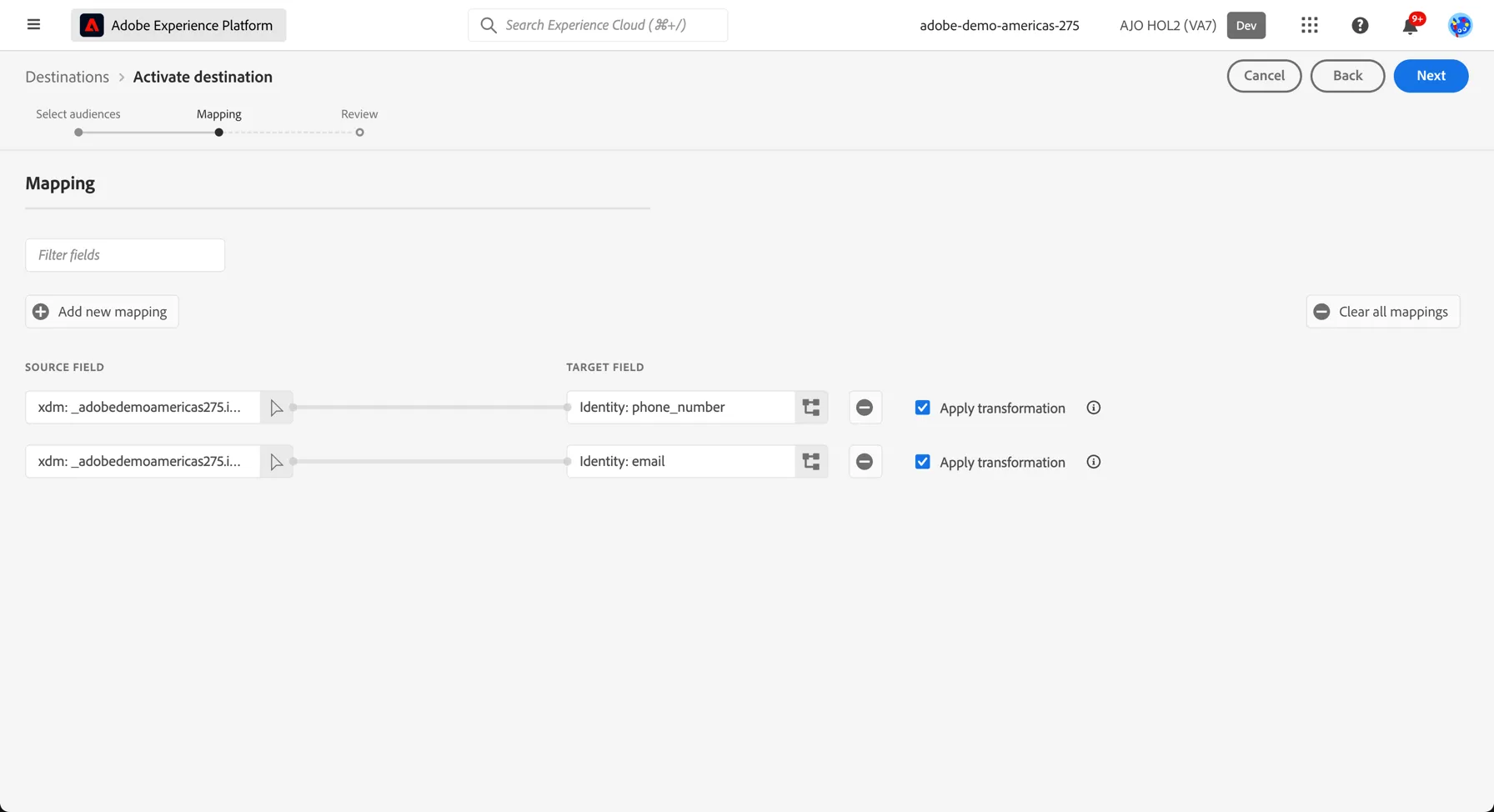
- The mapping step only needs to be completed once, after that every segment will use the same set of mapping identifiers to match customers between Adobe Experience Platform and your destination. For Tiktok we use hashed email and phone number. Click Next to proceed to the next step.
- Finally, on the Review page, click Finish.
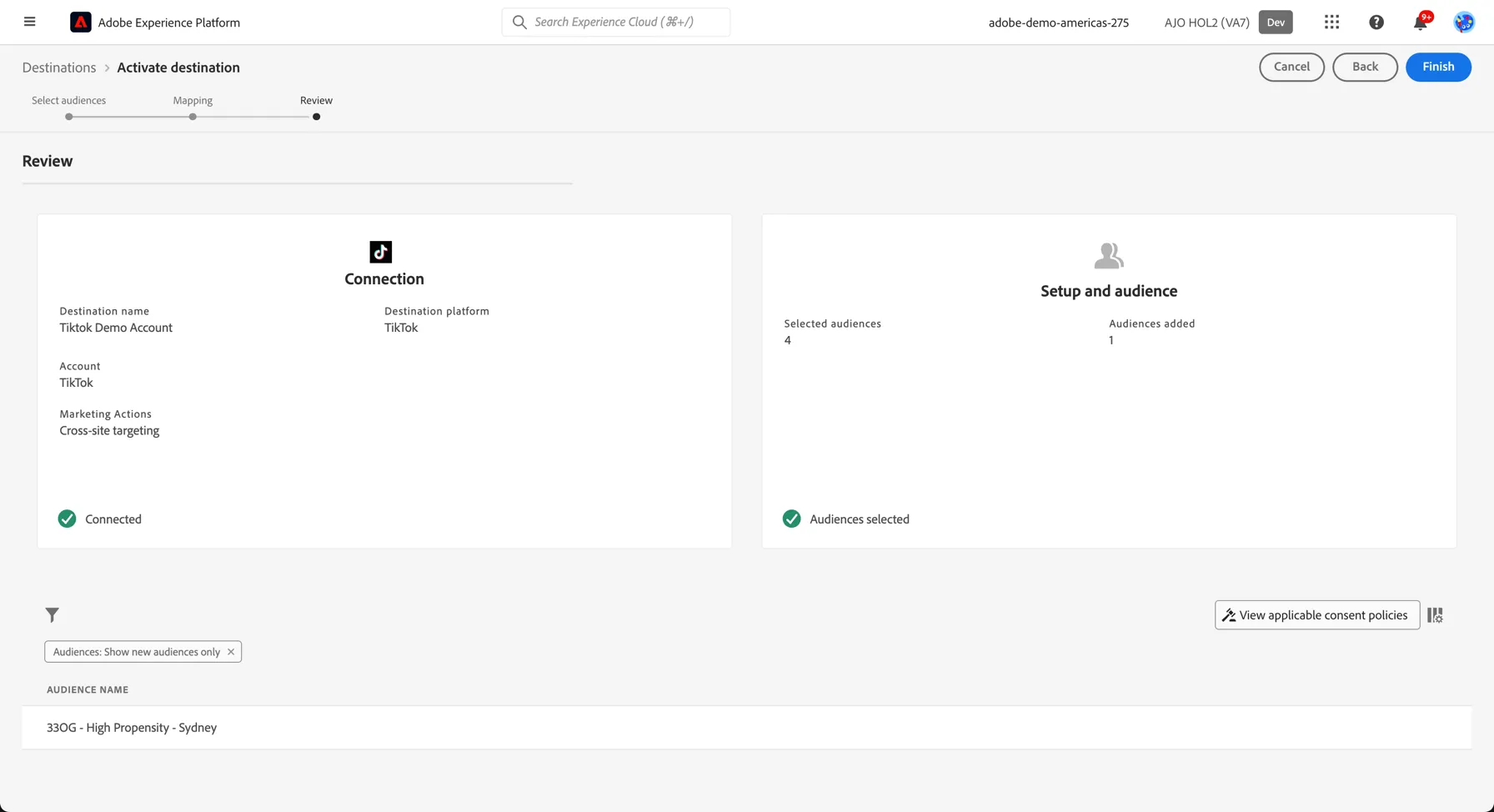
Congratulations!
You've activated your first audience. A successful activation means that a custom audience would be created programmatically within the destination. Segment membership in the audience would be added and removed as users are qualified or disqualified for the activated segments.
The integration between Adobe Experience Platform and Tiktok supports historical audience backfills. All historical segment qualifications get sent to Tiktok when you activate the segments to the destination.
Additional Resources
Destinations are pre-built integrations that allow for the seamless activation of data from Adobe Experience Platform for cross-channel marketing campaigns, email campaigns, targeted advertising, and many other use cases.