Business Rules for Frequency Management
Journey capping & arbitration
Journey capping helps you limit the number of journeys a profile can be enrolled in, preventing communication overload. In Journey Optimizer, you can set two types of capping rules:
- Entry capping limits the number of journey entries over a given period for a profile.
- Concurrency capping limits how many journeys a profile can be enrolled in simultaneously.
Both types of journey capping leverage priority scores to arbitrate entries.
Create a Journey Capping Rule
- Navigate to the Business Rules menu to access the rule sets inventory.
- Select the rule set Flutter CRM Track Rule Set - Journey.
- To create a new rule inside this rule set, click Add Rule.
- Set the Rule name to [your name] - Journey concurrency capping.
- Set the Rule Type to Journey Concurrency Cap.
- Set the Capping to 1.
- Set prioritisation look ahead to 7 days. Note: the Prioritization look ahead field is used to arbitrate journey entries based on priority scores over a chose period (e.G., 1 day, 7 days, 30 days). This helps prioritize entry into higher-value journeys if a profile is eligible to multiple journeys.
- Click Save.
When applied to 2 or more journeys, this capping rule will prevent a profile from entering more than 1 of those Journeys, depending on the Journey Priority Scores.
This can be useful for concurrent marketing campaigns. Lets say, Sky Bet has multiple Journeys running simultaneously, and you wish to limit your customers to only being enrolled in one journey at a time to prevent marketing fatigue.
Apply Capping rules to journeys
To apply a Capping rule to a Journey:
- Open one of the Journeys you have created in the previous labs.
- Click the Pencil Icon next to the Journey name. This will open the Journey Properties panel.
- Scroll down to Conflight Management.
- In the Capping rules drop-down, select the rule you have created.
- Click Save.
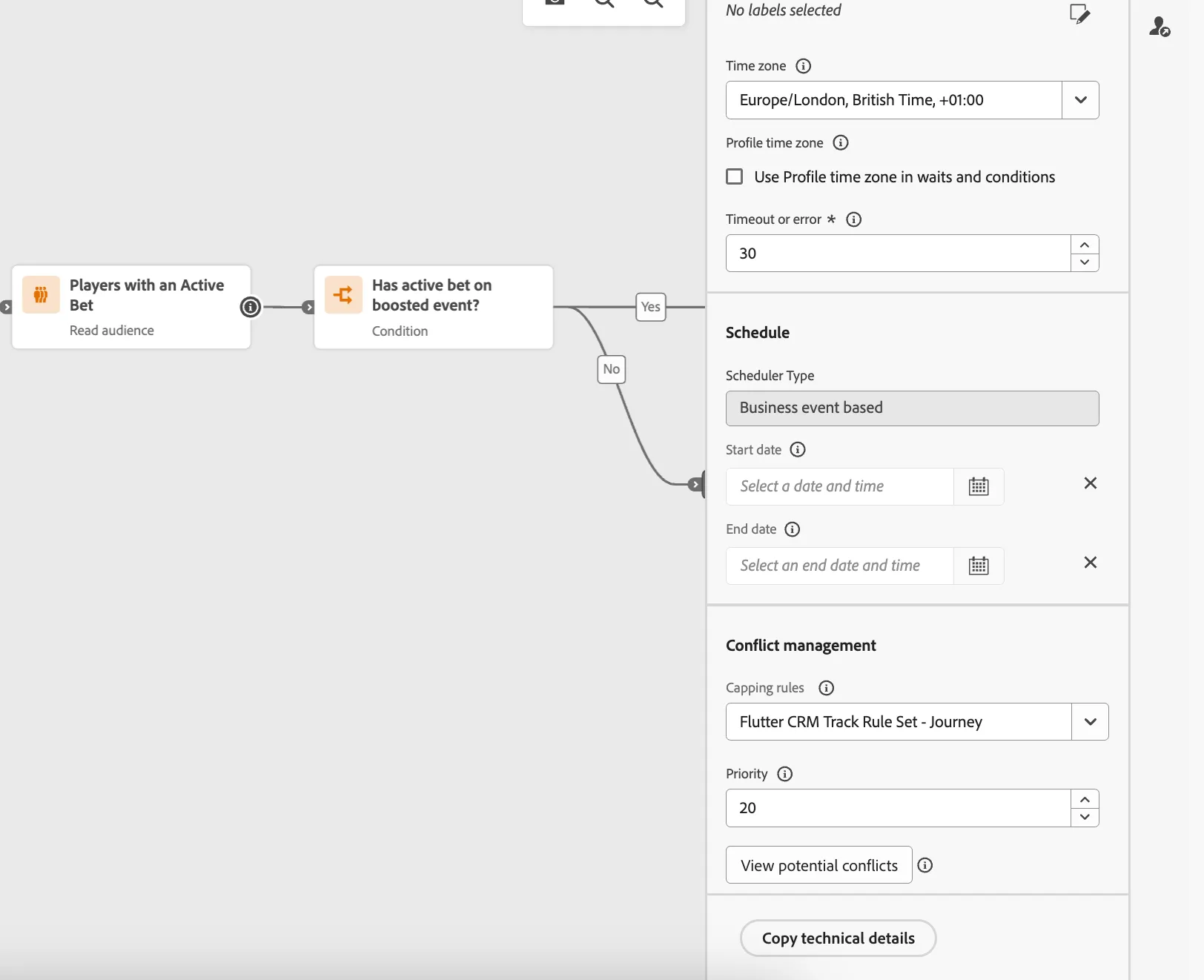
- Repeat steps 1-5 for another one of your Journeys, applying the same capping rule.
Once your Journeys are activated, the capping rules will take effect.
Once the journey is live, you can check in the journey report if the rule set has led to any exclusion from the journey, in the Journey Exclusions table.
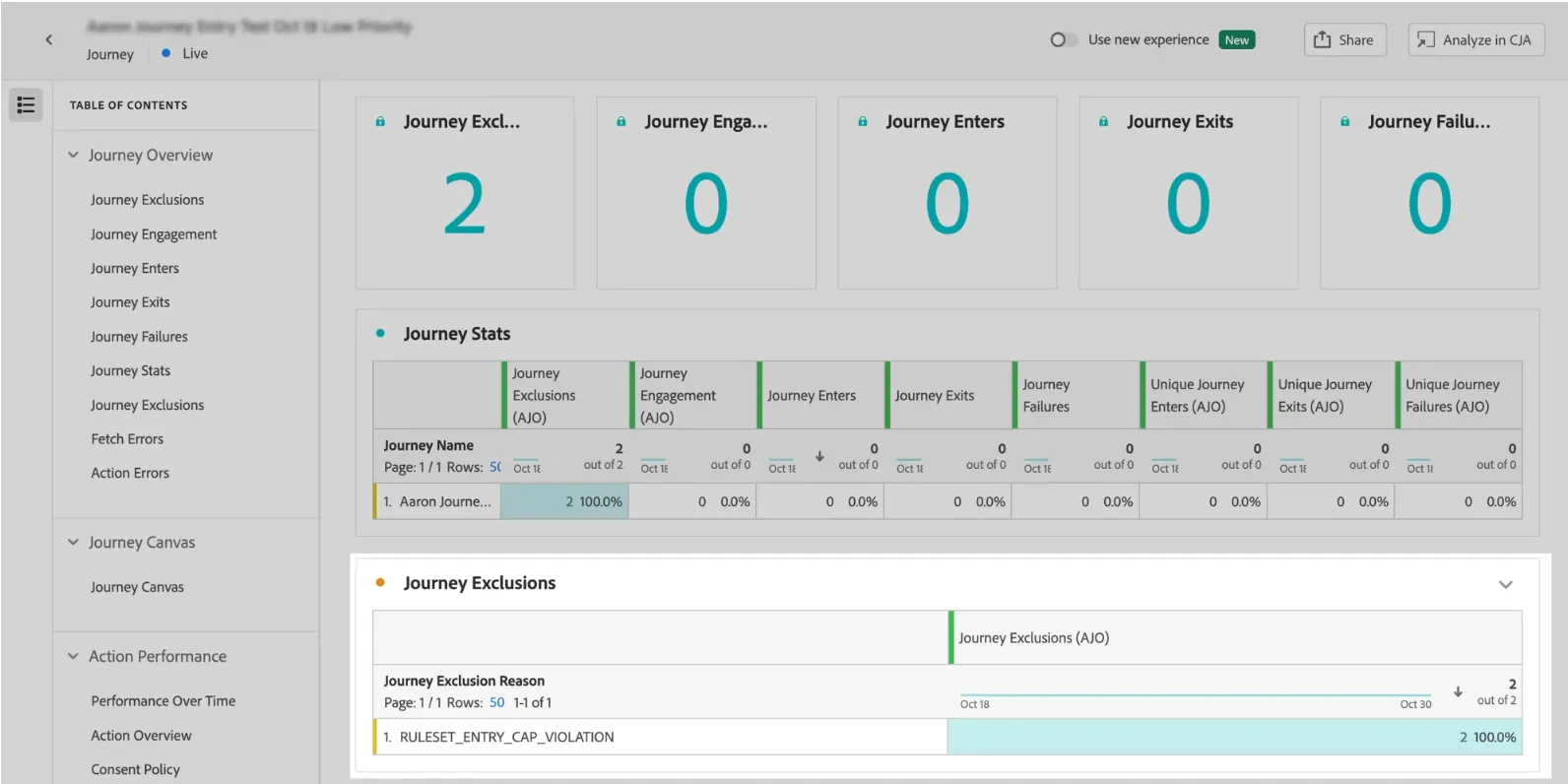
In this example we have created a Journey Concurrency capping rule. We can also follow the same steps to creat an Entry capping rule, which limits the number of journey entries over a given period for a profile.
This could be useful to apply to the Boost Go-Live Journey for example, since multiple boost events could go live each day, but you may want to cap how many times you message a player in a 24 hour period.
You now know how to apply Capping to your Journeys!
Global & Custom rule sets for Channels
We have just created a Rule Set for the Journey domain, which applies entry and concurrency capping rules at the Journey level. We now want to explore how to apply capping rules for communication channels. For example, do not send more than 1 email or SMS communication per day.
Create a Channel Capping Rule
- Navigate to the Business Rules menu to access the rule sets inventory.
- Select the rule set Flutter Boost Promos - Channel.
- To create a new rule inside this rule set, click Add Rule.
- Set the Rule name to [your name]-promotions-email-push.
- Set the Duration to Daily.
- Set the Cap to 3.
- Check the Email and Push notification channels.
- Click Save.
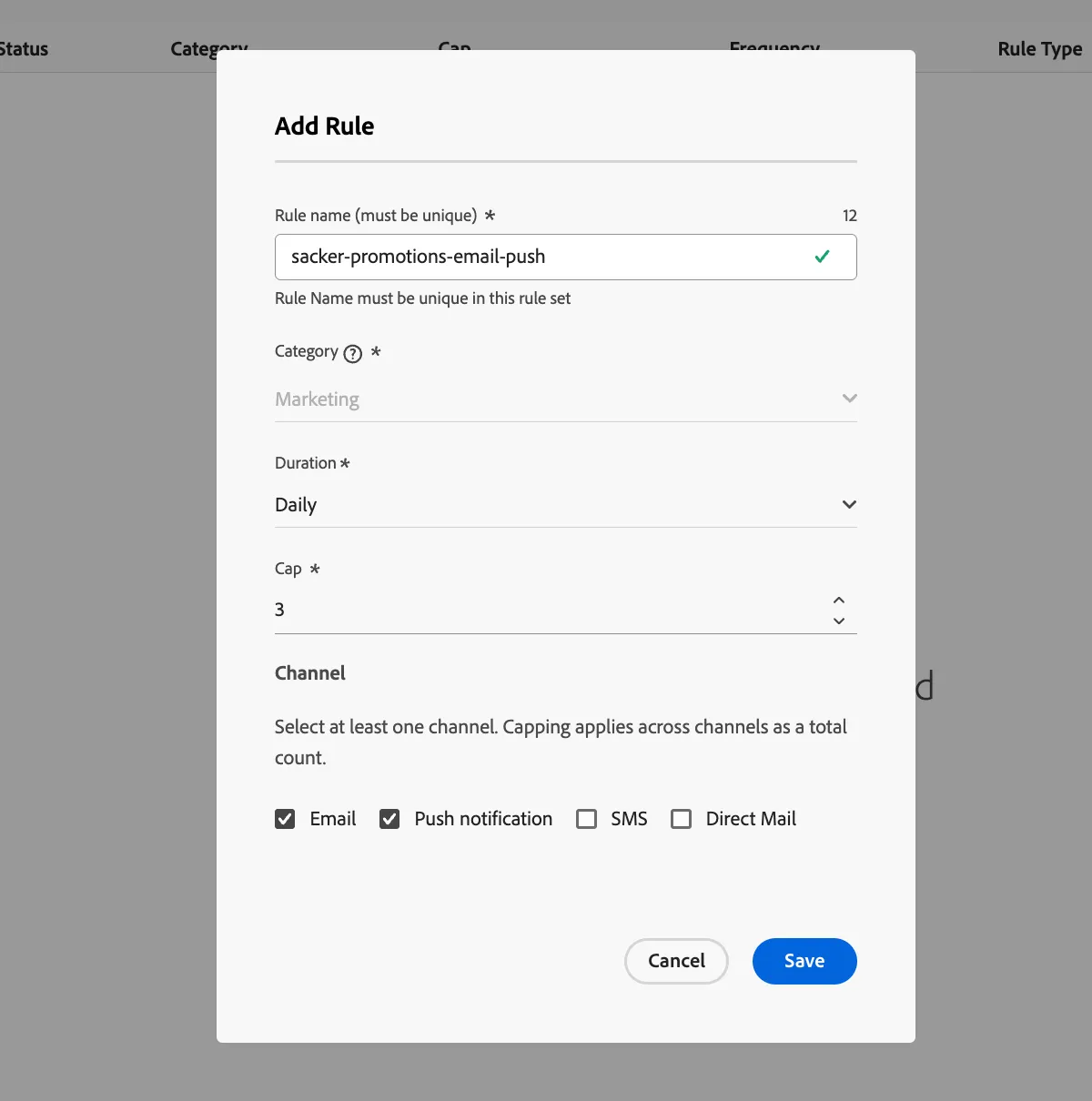
In our example, the cap is set to 3 across both marketing emails and push message. If a profile has already received 2 marketing emails and 1 marketing Push within 1 day, this profile will be excluded from the very next delivery of any marketing email or push messages.
Apply Capping rules to messages
To apply a Capping rule to a message:
- Open one of the Journeys you have created in the previous labs.
- Click on one of the Email Actions on your journey canvas.
- Select Edit content to open the Email editor.
- In the top, right hand corner, click Add Business Rule.
- Choose your Rule Set Flutter Boost Promos - Channel from the Business Rule drop down.
- Click Save.
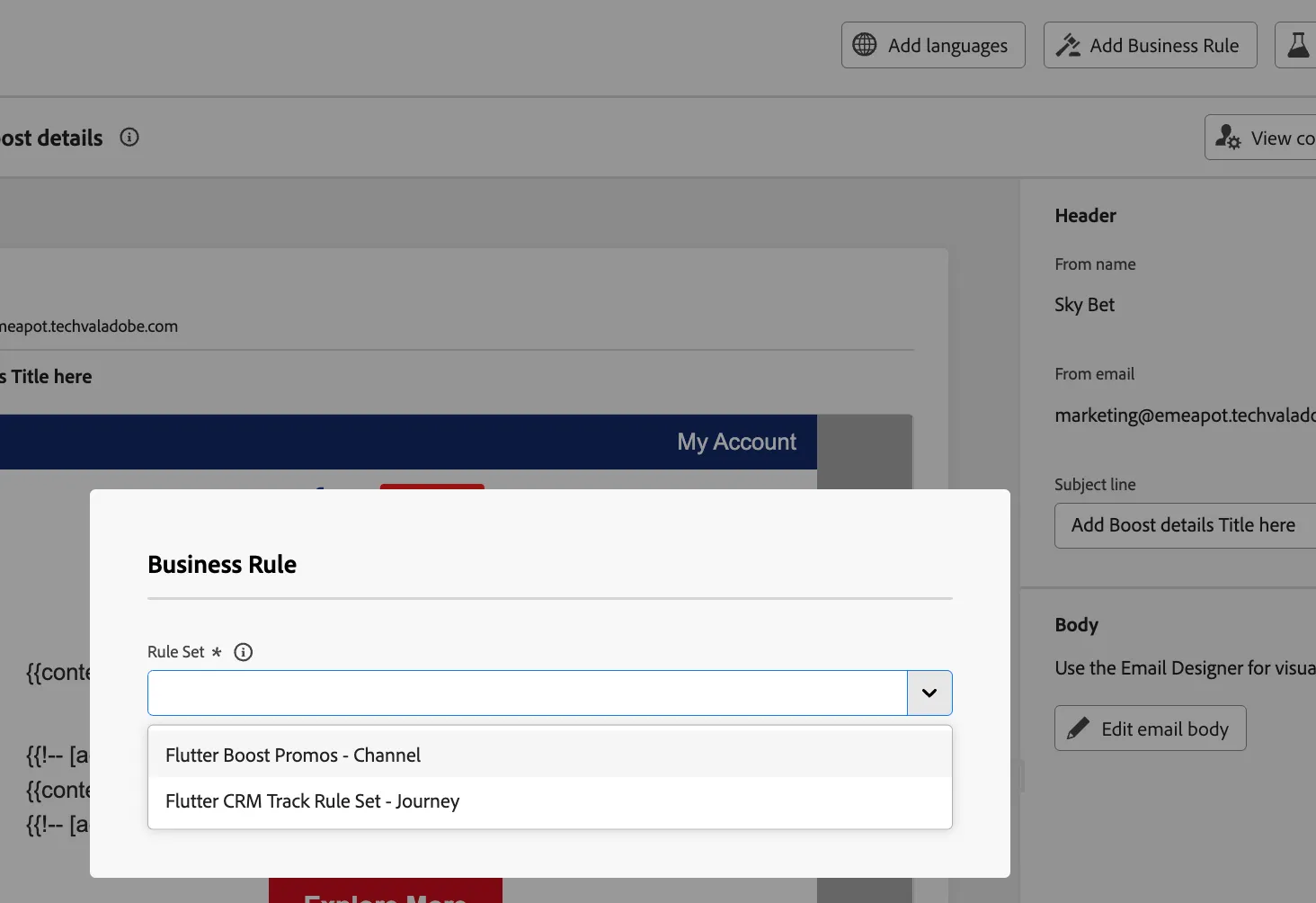
This will apply the capping rules in your rule set to the Email message. This Email message will not be delivered to the Player if they have already received 3 messages across either email or push channels that day. Again, this will be reported in the Journey exclusions report.
You now know how to apply Capping to your Messages!