Configuring a Business Event
The information on this page is "for your information" only. We have pre-created a Business Event that you will use in the next sections of this guide.
Event overview
What is an Event?
Events allow you to trigger your journeys unitarily to send messages, in real-time, to the individual flowing into the journey. We saw this in the Bet Placed Journey we built earlier.
In this Boost Go-live Journey we want the Event to be triggered by the Sky Bet organisation, rather than the Player doing a certain action, like placing a bet.
Business events are not linked to a specific profile, instead they can be used for Triggering Journeys when, for example a particular Boost offer goes live during a sporting event.
In this Journey we want to be able to communicate to all customers who have a bet placed on a particular Boosted Event. To do this we will start by configuring our Business Event for this Boosted Event.
To get an overview of all events in Adobe Journey Optimizer:
- In the menu on the left side, under Administration, click on Configurations. You will see a set of tiles. Click on Manage in the Events tile to get an overview with all existing events.
Configuring a business event
We'll be configuring an event that we can use in our journey. The event should trigger when a Boost goes live.
To configure a new event, click Create Event. A menu will open on the right side.
- Set the name to yourname_boostGoLive.
- For Type, select Business in the dropdown.
- For schema, click on Select a schema and choose Flutter - Boost Events Schema v.1 in the dropdown.
- For fields, click on 1 field selected, a pop-up window will open. In this window we can select the data fields we want to have available for the event.
- Scroll down (or use the search field) to find Event Type (eventType) and check the checkbox
- From the folder BoostDetails, expand this folder, then check the following fields:
- Boost ID (boostId)
- Description (description)
- Event ID (eventId)
- Image URL (imageURL)
- Title (title)
- Valid Until (validUntil)
- Click Ok.
- The window will close and you should now see 7 fields selected.
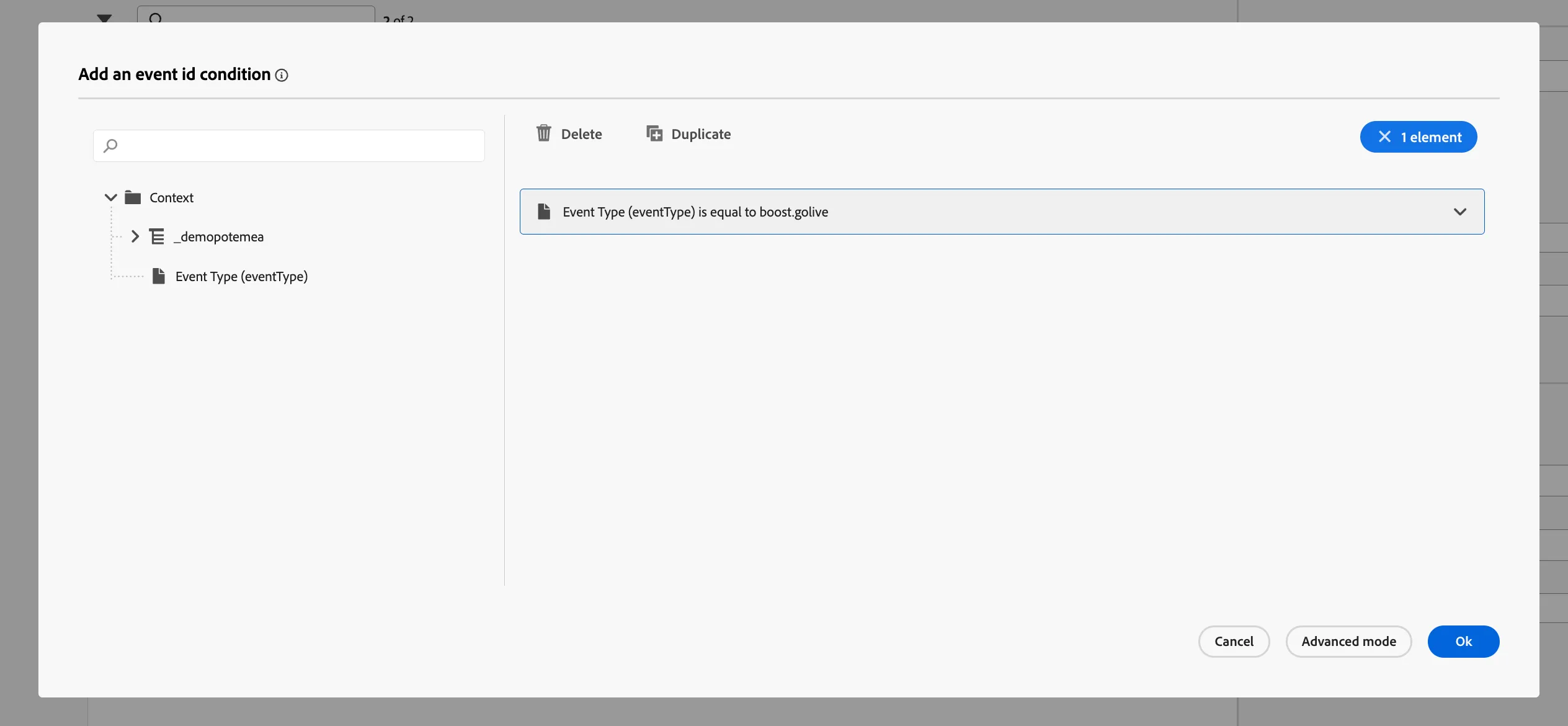
- For the event ID condition, click on the pencil icon. Another pop-up window will open.
- Drag the Event Type (eventType) from the left menu onto the right side.
- You'll be prompted to choose a value. Scroll down to the bottom and look for boost.golive. Check this value then scroll back up and click Ok.
- Click Ok to save and close the pop-up window.
- Your condition should look like:
-
Your screen should look like the image below. Click Save.
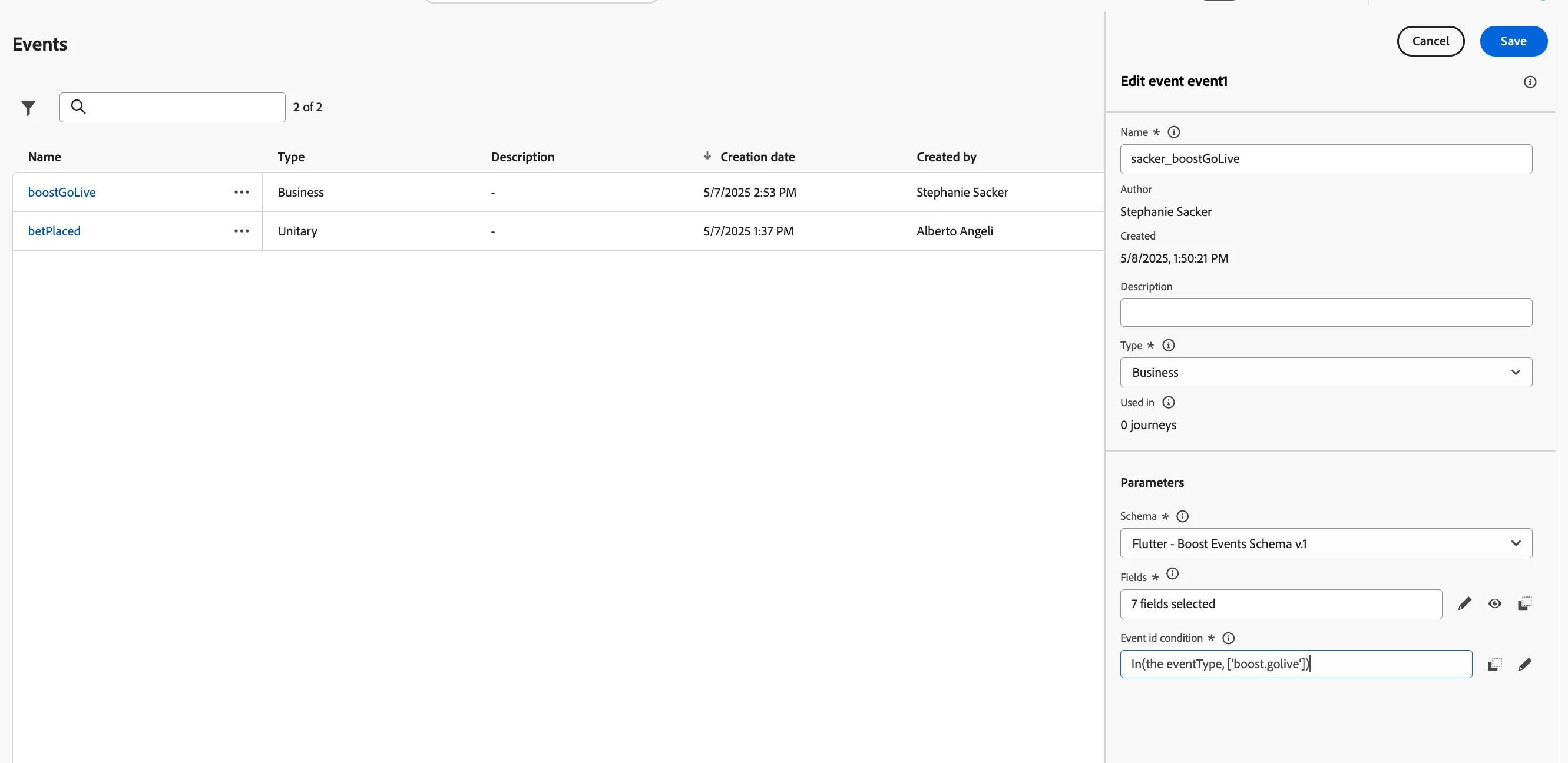
You have successfully created a Business Event to be used as the trigger in our Boost Go-Live Journey!