Creating the journey
In this exercise, you'll be creating and testing a journey using the components you've created in the previous exercises.
Journey overview
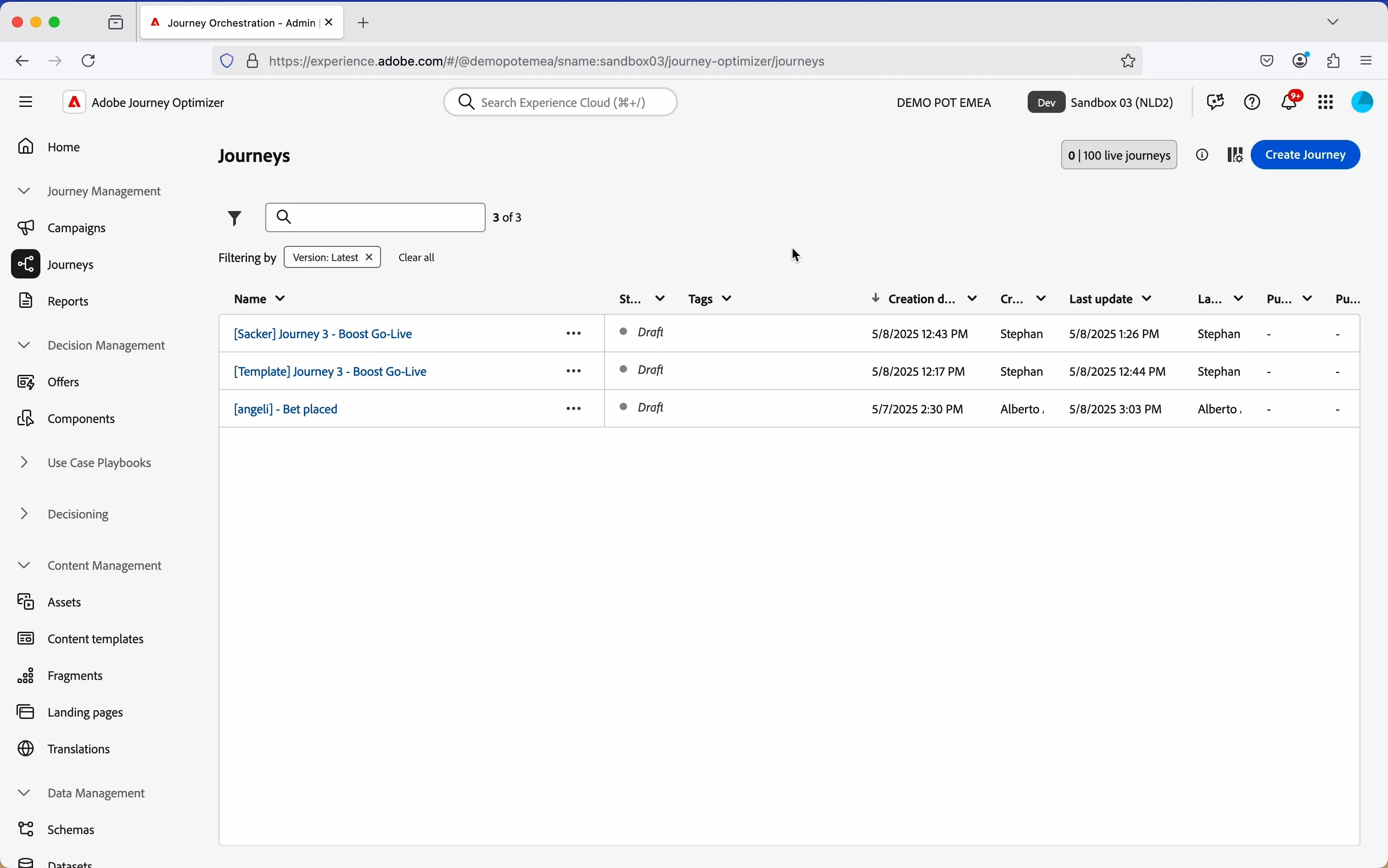
To get an overview of all journeys in Adobe Journey Optimizer:
- In the menu on the left side, under Journey Management, click on Journeys. You will see a overview with all existing journeys.
Creating a journey
We'll be creating a journey that will send an email to people that have a placed a bet. The content of the email depends on:
- the status of the bet (WIN, LOSE, PENDING);
- the balance of the account, stored in the profile.
Click on Create Journey. You'll be taken to the Journey canvas with the journey properties opened.
- Set the name to [your name] - Bet placed.
- For the other properties we'll keep the default values.
Your screen should look like the image below. Click Save to save and close the properties.
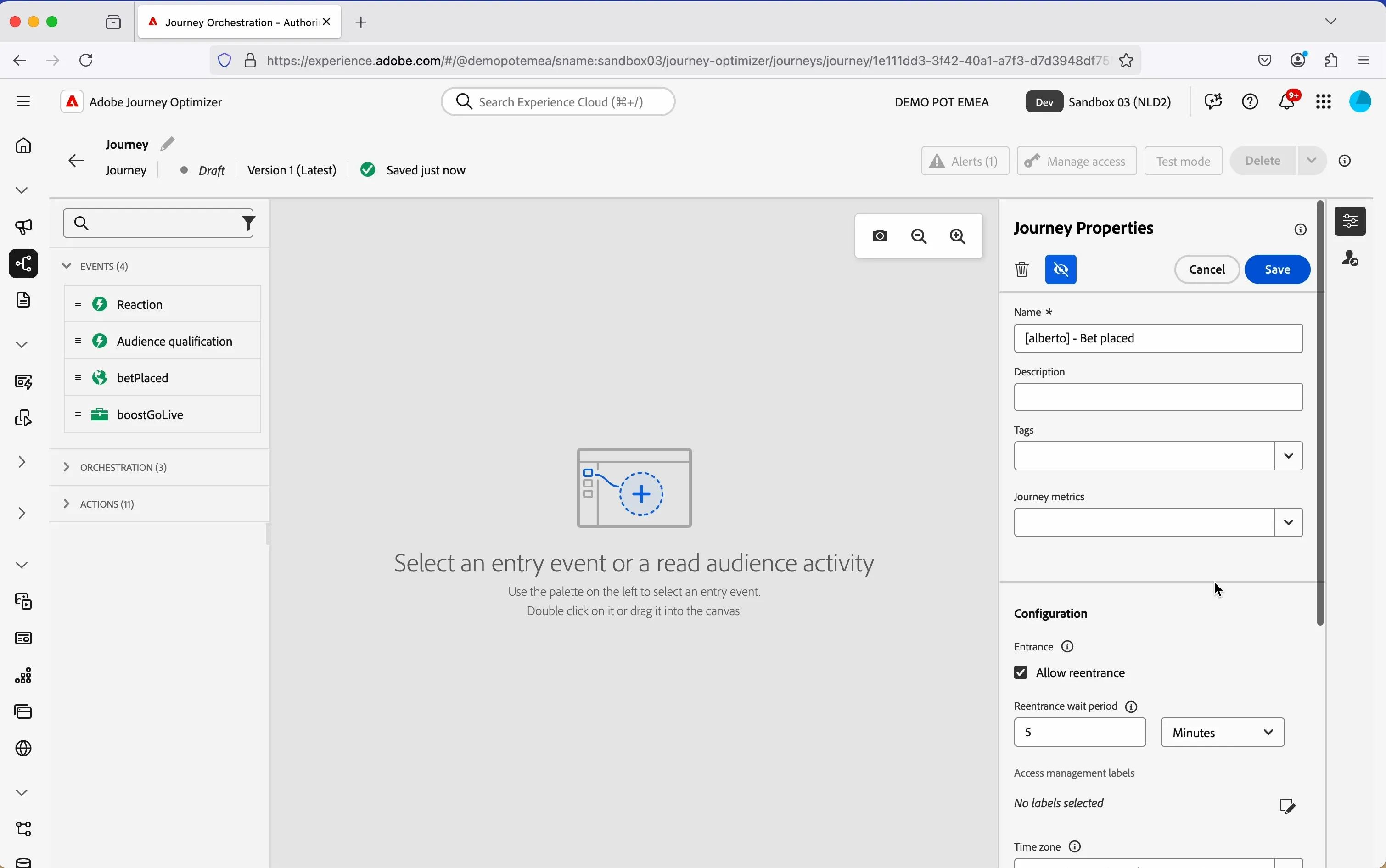
You're now in the journey canvas. This is where you'll be creating your journey's logic. In the left menu you have activities. There's three types of activities:
Events are the triggers that can start or continue your journey.
Orchestration is the logic of your journey. It looks at conditions, audiences, but can also be used to make your workflow wait or end.
Actions are the results of your journey. This can be messages, profiles updates or API calls.
Event trigger - Bet placed
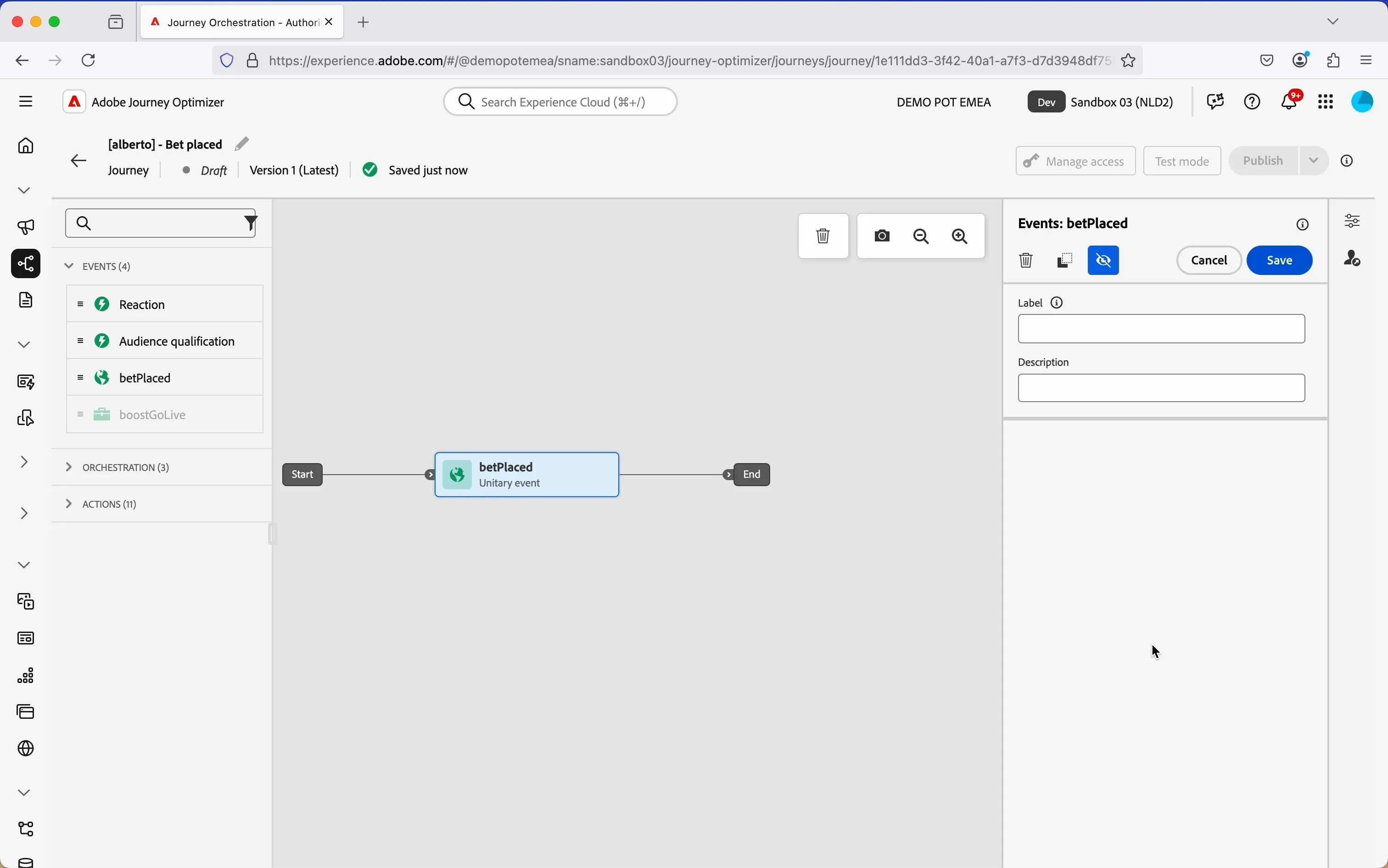
- We're starting our workflow of with an event trigger. From the events tab, choose betPlaced and drag it onto the canvas.
- Note: This is the same as the event you configured in a previous exercise, please use this and not your own as it becomes important later when building the email content.
- There's nothing we need to configure for this as we have already done this when we configured our event. Click Save to close the menu.
Add a delay
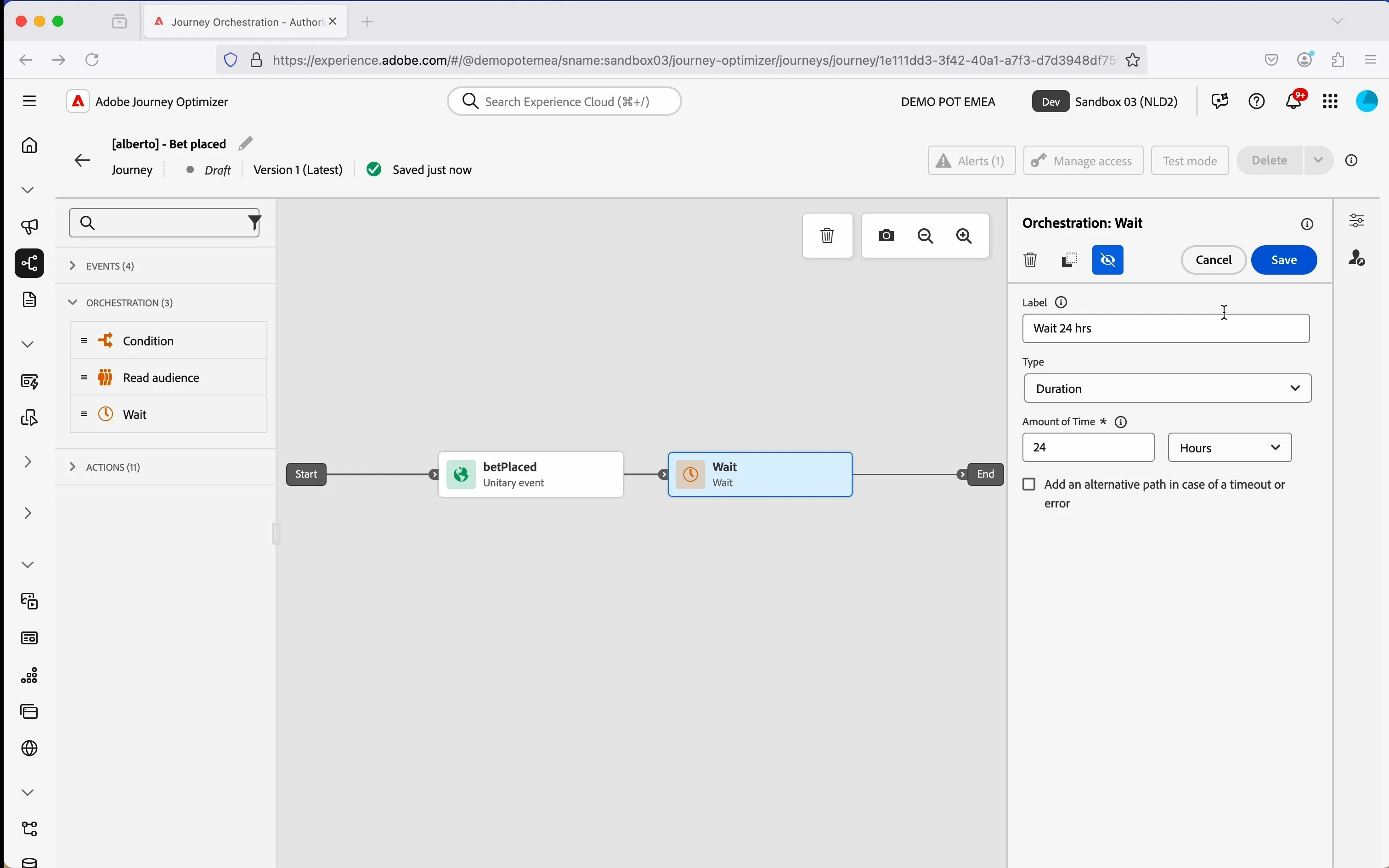
Once the customer has placed the bet, we have to wait 24 hours to get the result of the bet and communicate on the basis of it.
- From the orchestration tab, choose Wait, drag it onto the canvas and drop into the blue circle with the plus icon that appears.
- A panel with the details appear on the right.
- Fill the Label with Wait 24 hrs.
- Set the Amount of Time to 24.
- Leave Type as Duration.
- From the dropdown select Hours.
- Then click Save.
Your canvas now should look like this:
Add a custom action
As a next step, we need to retrieve the information about the bet placed, from the bet APIs. To achieve this we have to use the custom action getBetDetails, created in the previous exercise.
- From the actions tab, choose getBetDetails, drag it onto the canvas and drop into the blue circle with the plus icon that appears.
- A panel with the details appear on the right.
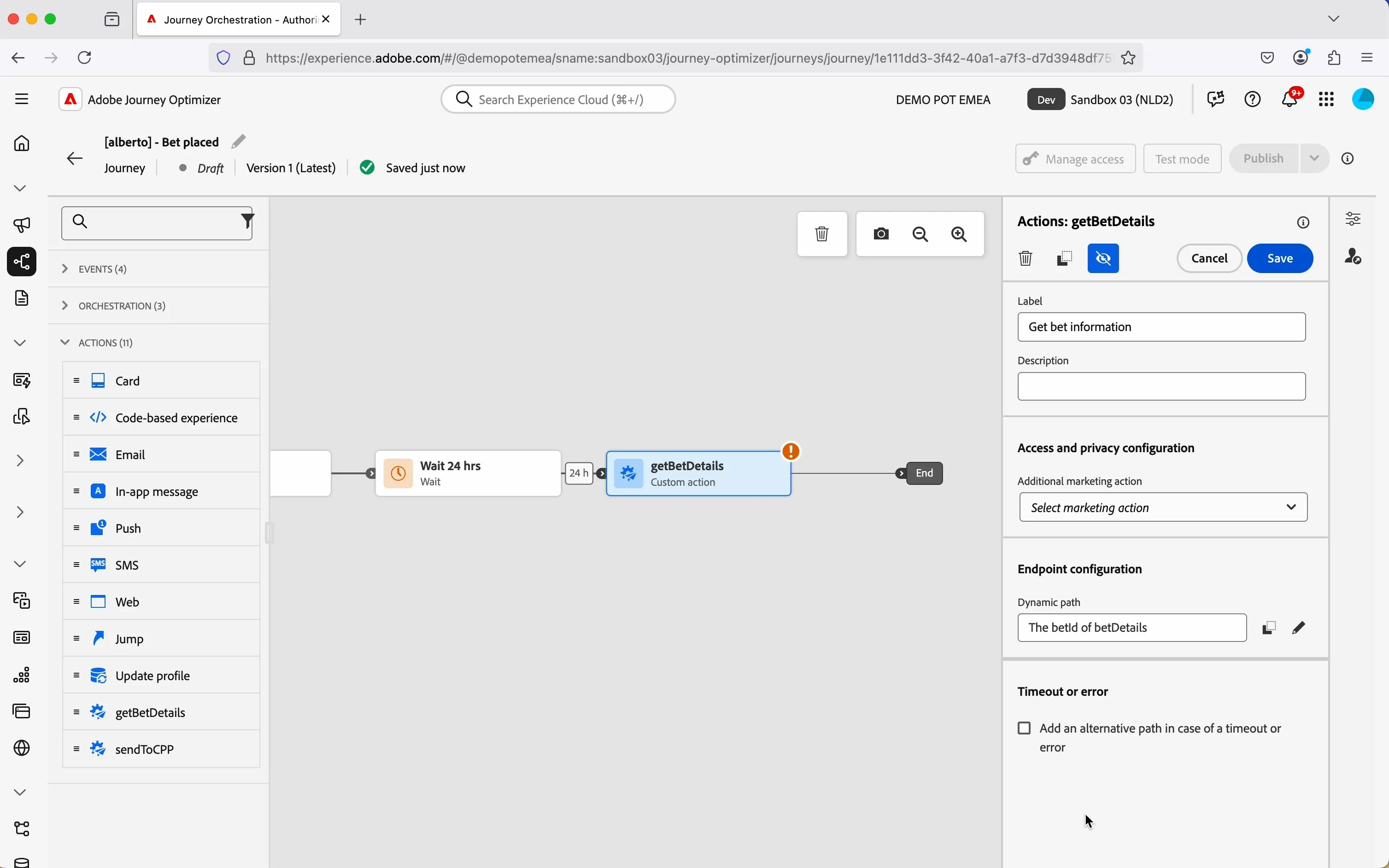
- Fill the Label with Get bet information.
- In Endpoint configuration, click on the pencil icon beside the text box; a popup will open.
- Here we need to select the betId to be passed to API; click on Context > betPlaced > _demopotemea > betDetails > betId and check the checkbox. Then click Ok.
- In Dynamic path text fields, now you can see: The betId of betDetails.
Your screen should look like this.
- Click Save.
Add a condition
The next action in the workflow is determined by the status of the bet. You can create different branches, one for each possible value.
- From the orchestration tab, choose Condition, drag it onto the canvas and drop into the blue circle with the plus icon that appears.
- Click on the activity to open the detailed view.
- Set the Label to Bet status.
- Let the Type as Data Source Condition.
- Click on Path1 and change the label to Win.
- Click on the pencil icon beside the Expression text field to open a popup.
- Click on Advanced mode.
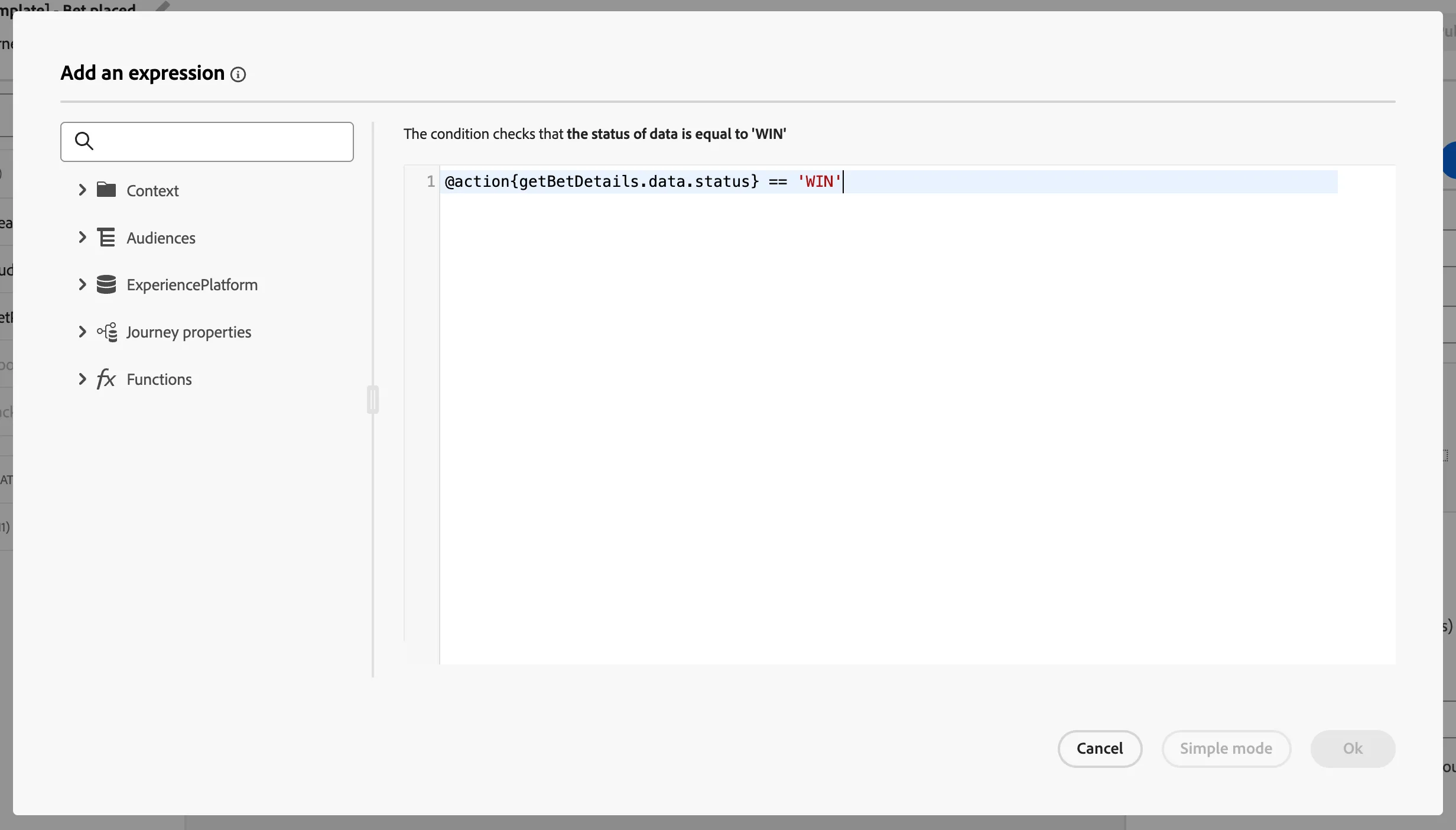
- On the left side, open Context > getBetDetails > data. Click on the "+" icon beside the field status.
- Complete the expression by adding the statement == 'WIN'.
- Click Ok.
Your expression should look like this:
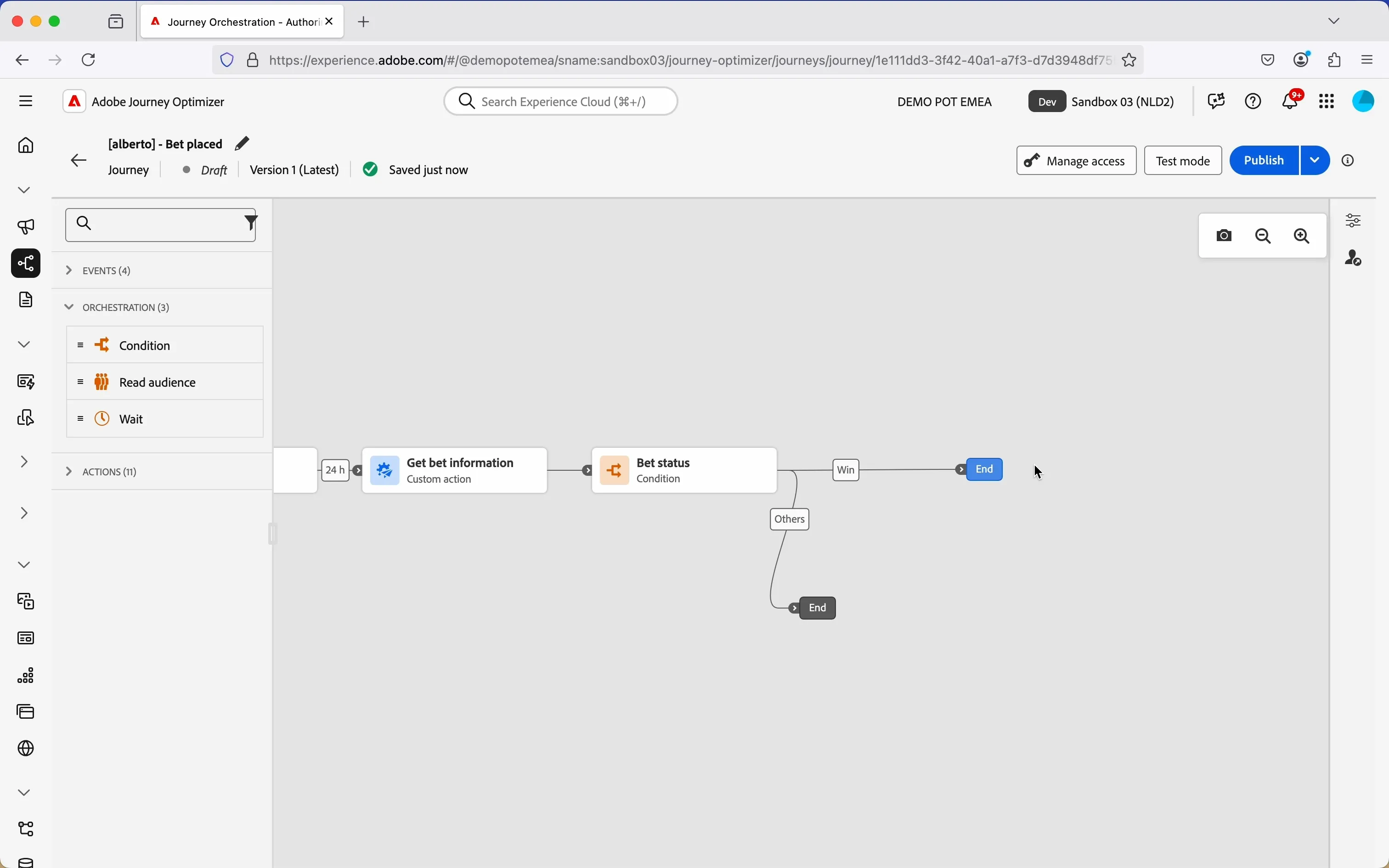
- Click Show path for other cases than the one(s) above to add a path in the case that the status is not "WIN".
- Click Save.
Your canvas now should look like this:
Email - Bet status notification
In the next steps you will be building the email to communicate to the customer that status of the bet, including a banner based on their favourite sport.
- Designing the Email: You'll pick a fully completed template of the basic email so that you don't have to build anything at all.
Note: You must use the example betPlaced event in your journey. If you used your own custom event, replace it before continuing.
Building the Email
- From the actions tab, choose Email and drag it onto the empty circle at the Win-path.
- Click on the activity to open the detailed view.
- Set the label to Email - Bet status
- Set the category to Marketing.
- Set the email surface to marketingEmailMessages.
- Click on Edit content to start designing your email.
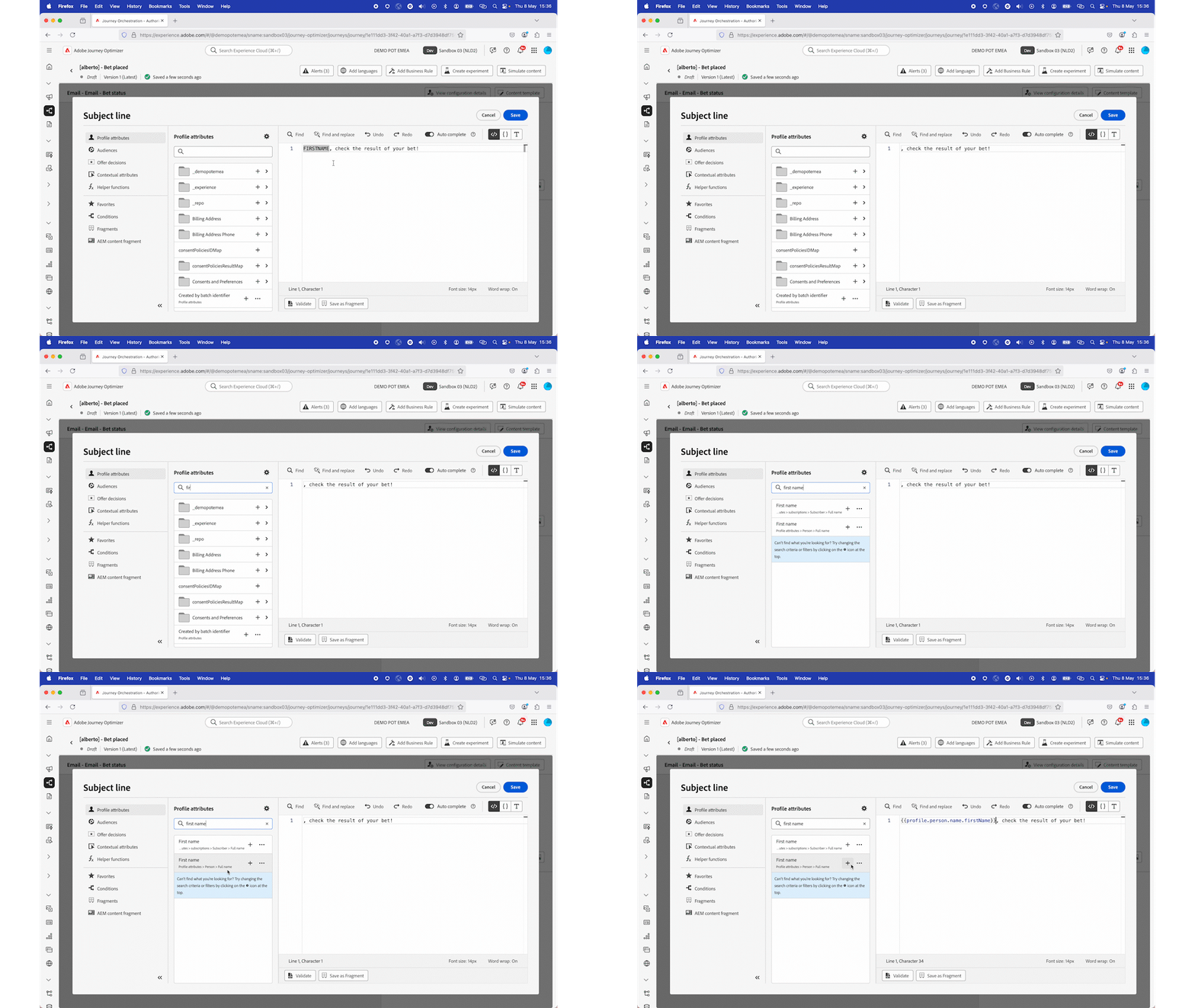
- Click on to create a subject line. Set it to FIRSTNAME, check the result of your bet!
- Remove the text FIRSTNAME and search for first name in the profile attributes.
- Find the field First name (... attributes > person > Full name) and click on the icon to add it to your subject line. It should now be{{profile.person.name.firstName}}, check the result of your bet!
- Click Save.
- Under Saved templates, choose [T] Flutter - Bet Placed Email Template. It will show you a preview of the template. Click on Use this template.
- The email designer will now open. It should look like the image below. Click Save in the top right.
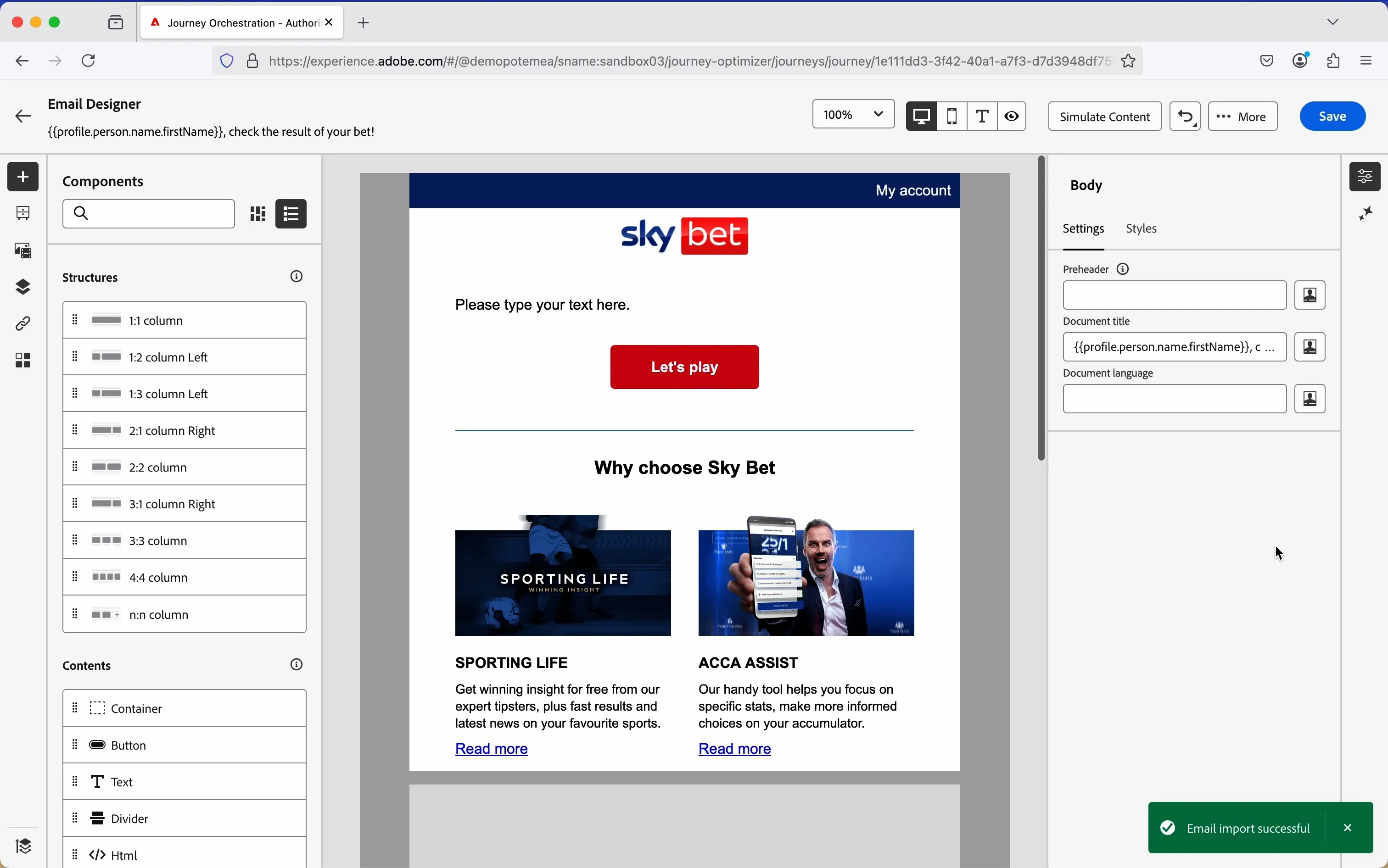
The Email Designer
In the left menu you have components.
Structure components are the building blocks of your email, they will determine the layout of your email.
Content components are the different forms of content that you can place inside your structure components, like text, buttons and images.
Add conditional content - image
As first step, let's add an hero image, based on the outcome of the bet.
- From the left menu, under Contents, drag the Image element and drop above the text "Please type your text here.".
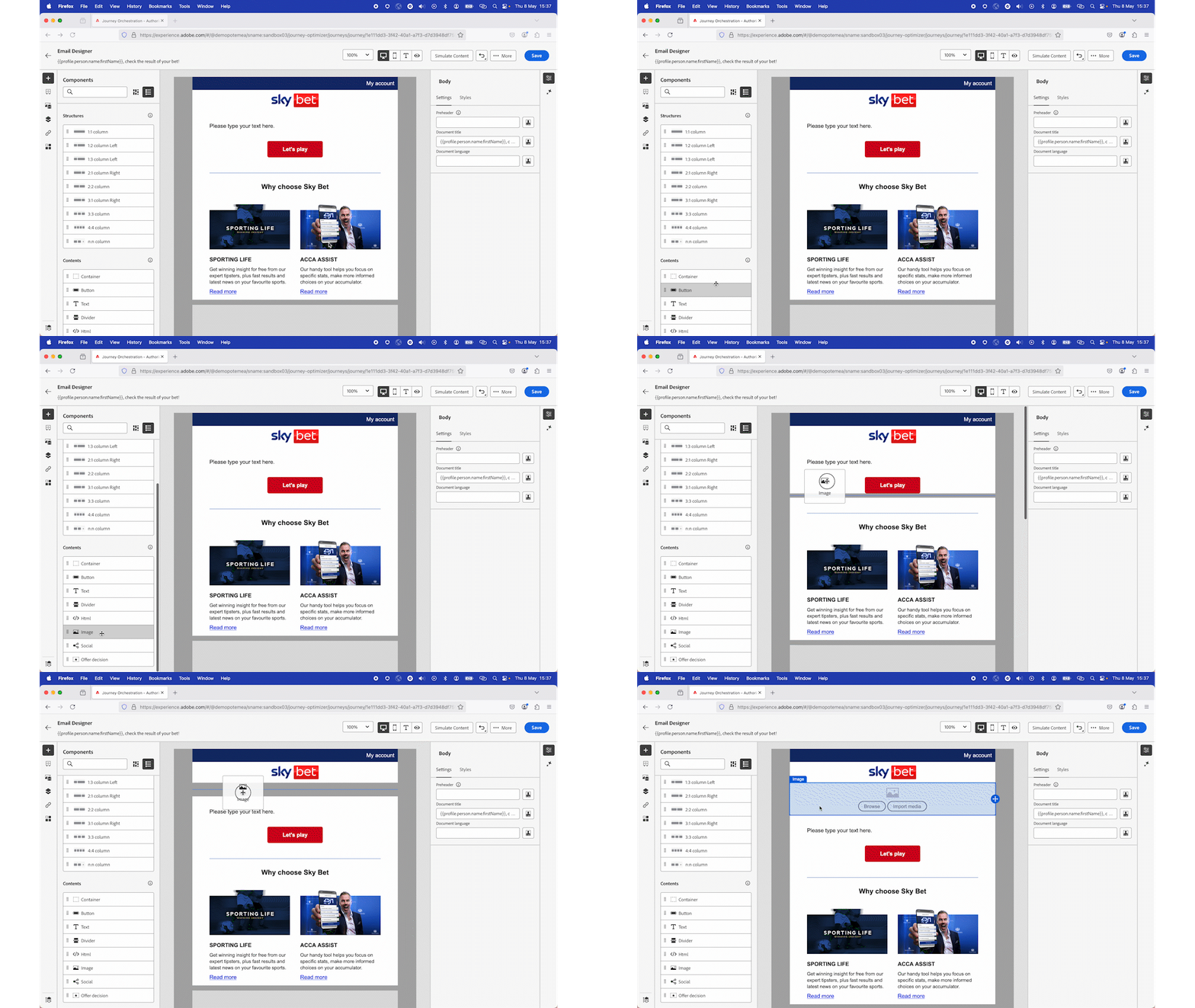
- Click on the grey box that acts as placeholder for the image; a blue border will appear around the box, along with a black rectangle with buttons.
- Click on the icon with 4 squares, to enable to conditional content.
- The border will change to orange, and in the left menu you'll see a list of variant.
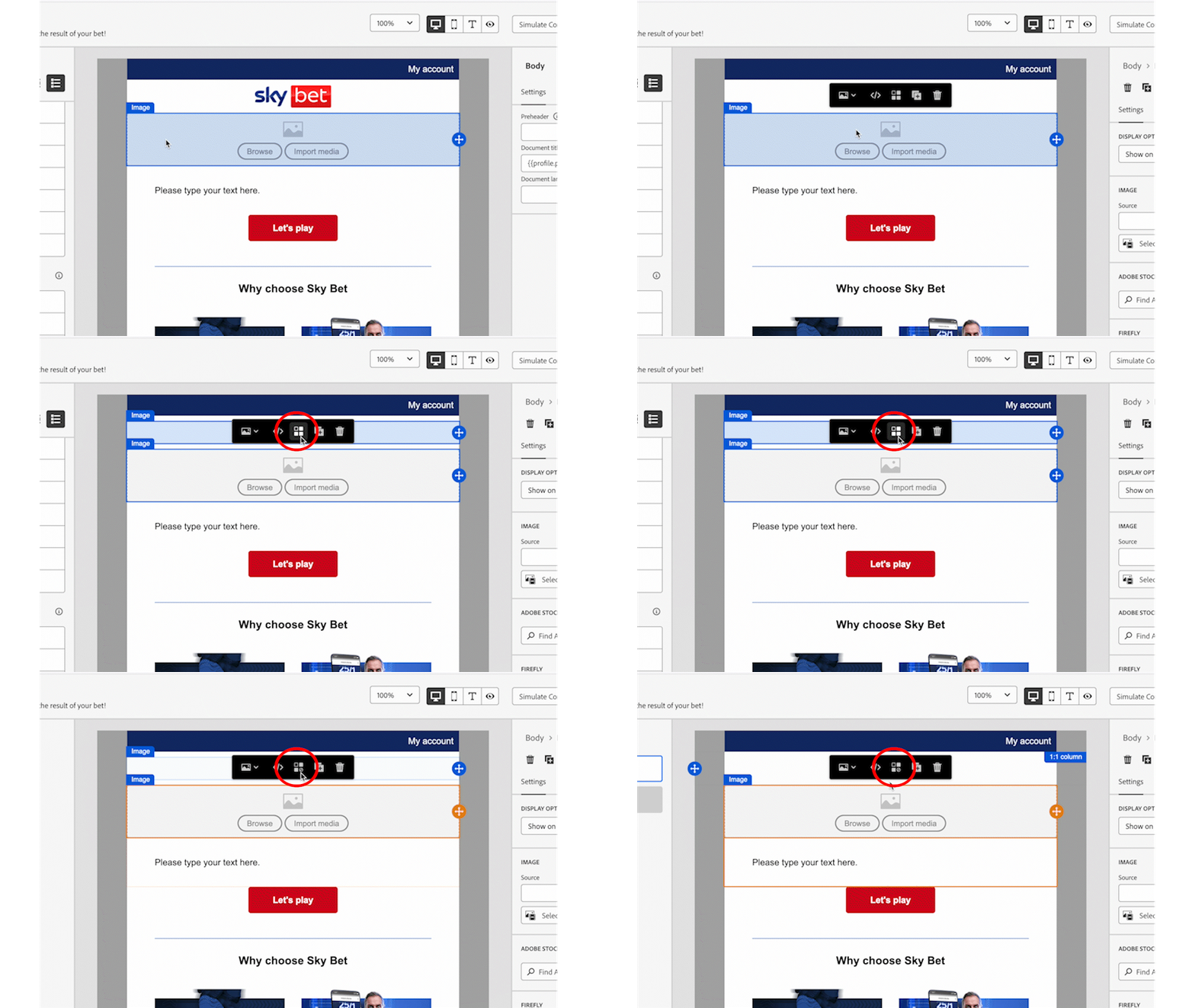
The Default variant is select by default, this means that the changes we will apply, will be applied to this variant.
- Click on Browse to open the popup to select the assets.
- In the search field type "betplaced-banner_default" and press Enter.
- Click on the picture and then click Select.
- Now you can see the image in the body of the email.
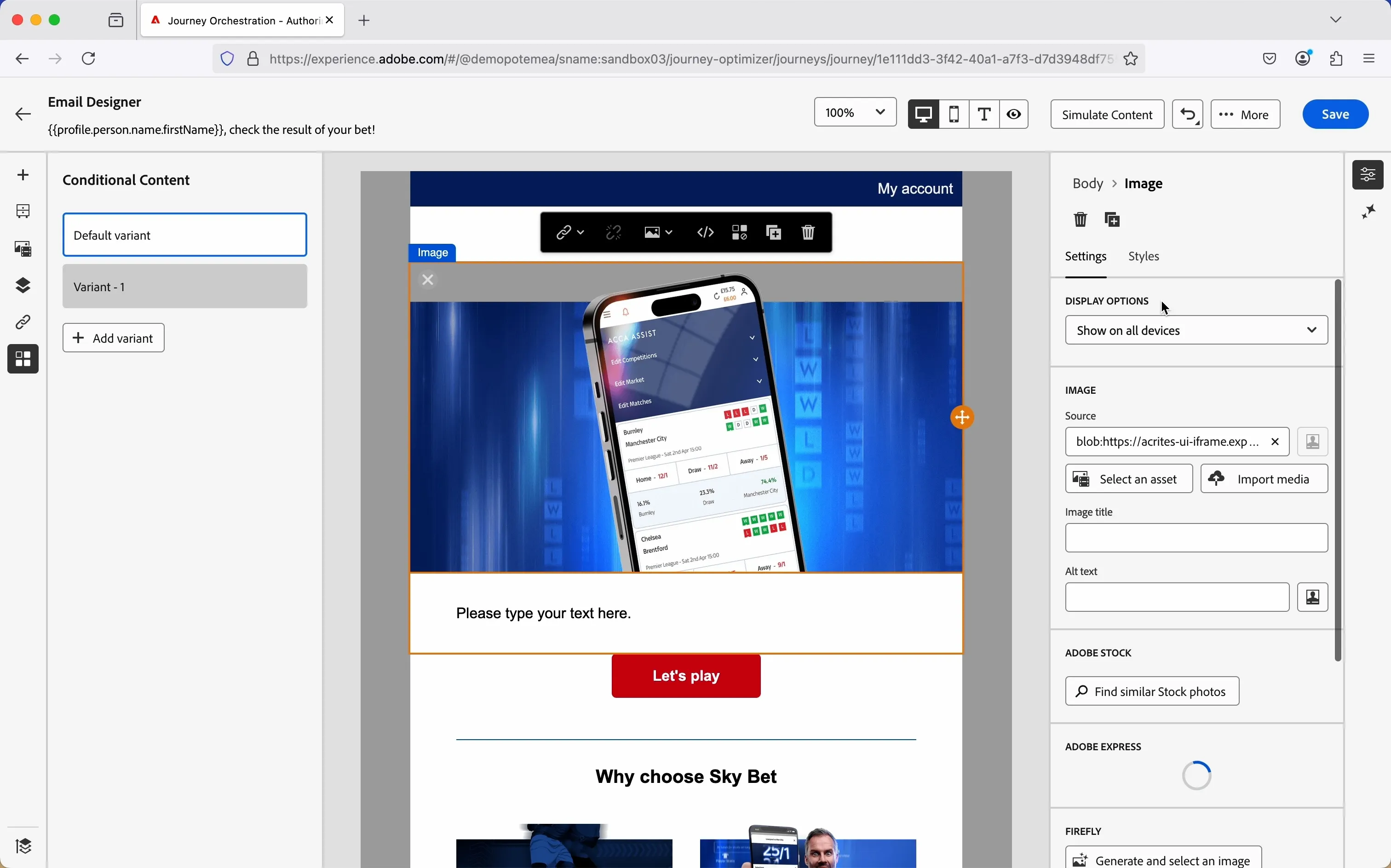
Let's add the first variant, based on the bet outcome.
- Click on Variant - 1, in the left panel.
- Click on the icon with the 2 arrows, to select the condition.
You'll see a list of pre-build condition. You can either use one of them, or create a new one. Let's create a new one.
- Click on + Create new.
- Click on Contextual > Contextual schema > Context > Journey Orchestration > Actions > getBetDetails > Data
- Drag and drop Status in the main canvas.
- In the text box type "WIN" (uppercase).
- Click on Save Condition.
- In the Title text field, type yourname - Bet won.
- Click Add.
- Then, click Select.
Now "Variant - 1" will be displayed when the status of the bet, in the API call response, is WIN.
Let's select the image:
- Click on Browse to open the popup to select the assets.
- In the search field type "betplaced-banner_won" and press enter.
- Click on the picture and then click Select.
Let's rename the variant, to have clear understanding of the logic:
- hover on the Variant - 1 tile.
- Click on the 3-dots icon.
- Click on Rename.
- Now the title is editable; type "Bet won".
- Press Enter.
Your email now should look like this.
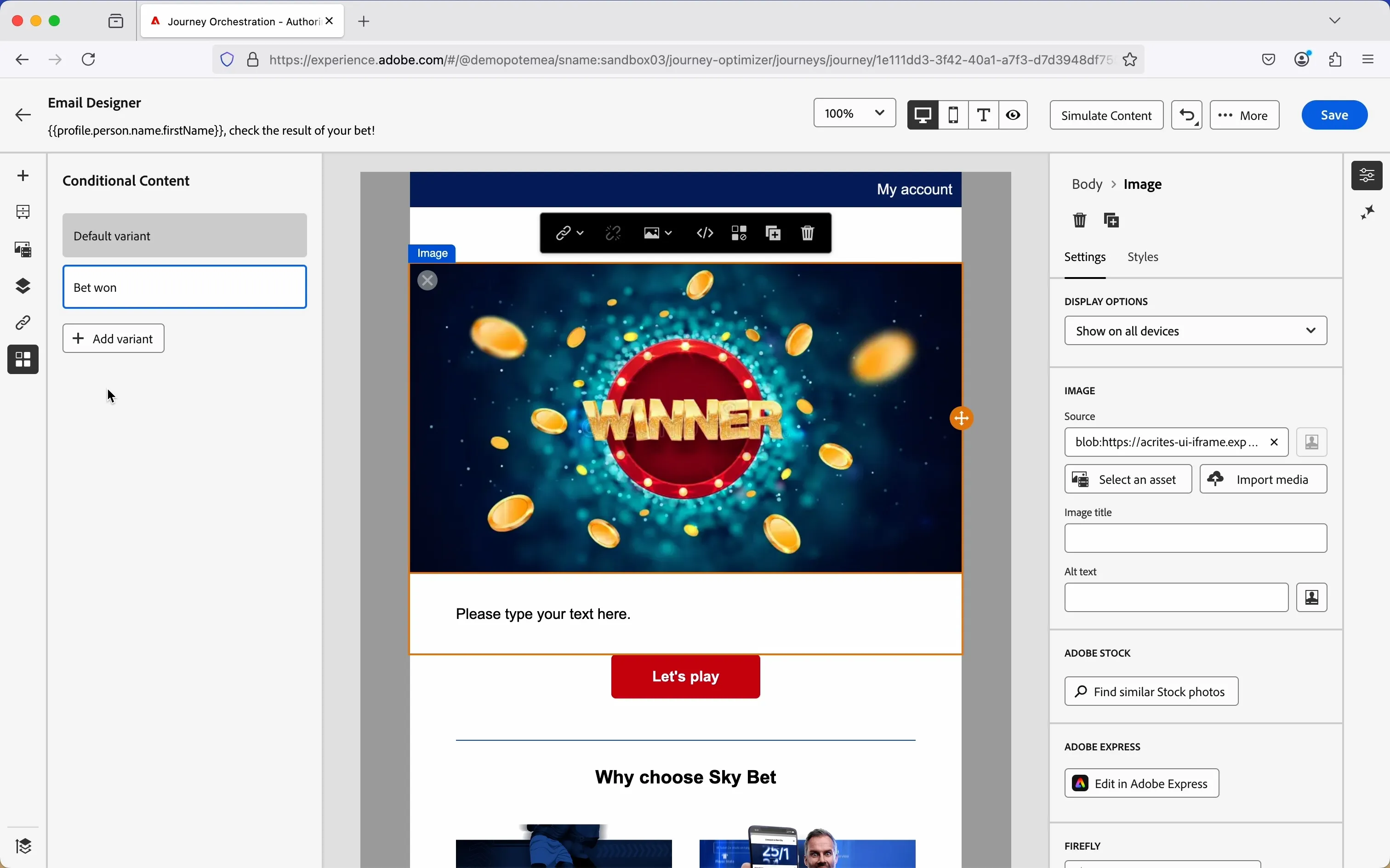
To avoid losing your work, click Save, on the top-right corner.
Now, let's repeat the same process, in case the bet is a loser.
- Click on + Add Variant
- Click on Variant - 1, in the left panel.
- Click on the icon with the 2 arrows, to select the condition.
You'll see a list of pre-build condition. You can either use one of them, or create a new one. Let's create a new one.
- Click on + Create new.
- Click on Contextual > Contextual schema > Context > Journey Orchestration > Actions > getBetDetails > Data
- Drag and drop Status in the main canvas.
- In the text box type "LOSE" (uppercase).
- Click on Save Condition.
- In the Title text field, type yourname - Bet lost.
- Click Add.
- Then, click Select.
Now "Variant - 1" will be displayed when the status of the bet, in the API call response, is LOSE.
Let's select the image:
- In the email body, above the image, you can see a black rectangle with icons. Click on the icon and then click Select an asset to open the popup to select the assets.
- In the search field type "betplaced-banner_lost" and press Enter.
- Click on the picture and then click Select.
Let's rename the variant, to have clear understanding of the logic:
- mouse over on the Variant - 1 tile.
- Click on the 3-dots icon.
- Click on Rename.
- Now the title is editable; type "Bet lost".
- Press Enter.
Your email now should look like this.
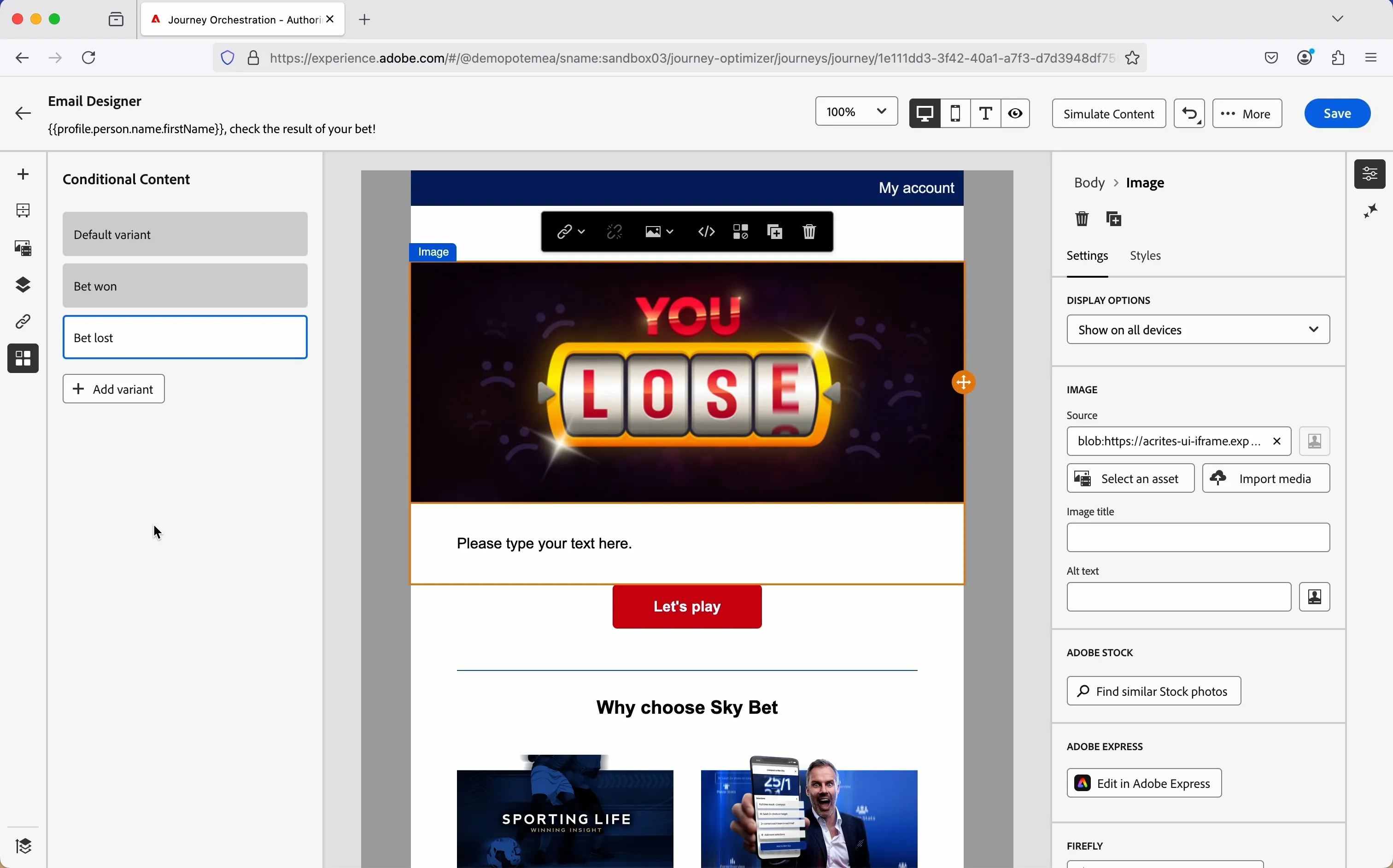
To avoid losing your work, click Save, on the top-right corner.
You can explore the email template to see how the other blocks are built.
Navigate out of the email editor by clicking on the -icon in the top left corner; then click the -icon to come back to the main canvas.
Once you're in the main canvas, click Save to apply the changes.
"Others" branch
If the bet was a winner, the customer receive the communication and exit the journey. If the bet was a looser and still not settled, there are 2 possible alternatives:
- if the balance is greater than 0, the customer will flow in the "Win" branch (remember that the hero image is based on the bet status);
- If the balance is less than 0 and the customer has not reached the deposit limit, they will receive an email suggesting a deposit.
Add condition
The next action in the workflow is determined by the balance of the profile.
- From the orchestration tab, choose Condition, drag it onto the canvas and drop into the "Others" branch.
- Click on the activity to open the detailed view.
- Set the Label to Is balance > 0.
- Leave the Type as Data Source Condition.
- Click on Path1 and change the label to Yes.
- Click on the pencil icon beside the Expression text field to open a popup.
- On the left side, open ExperiencePlatform > Person > ProfileFieldGroup > _demopotemea > accountDetails and drag and drop balance on the dotted line box on the right.
- In the select, choose "greater than".
- In the text box type "0".
- Click Ok, in the top right corner.
- Click Ok, in the bottom right corner.
Your expression should look like this:
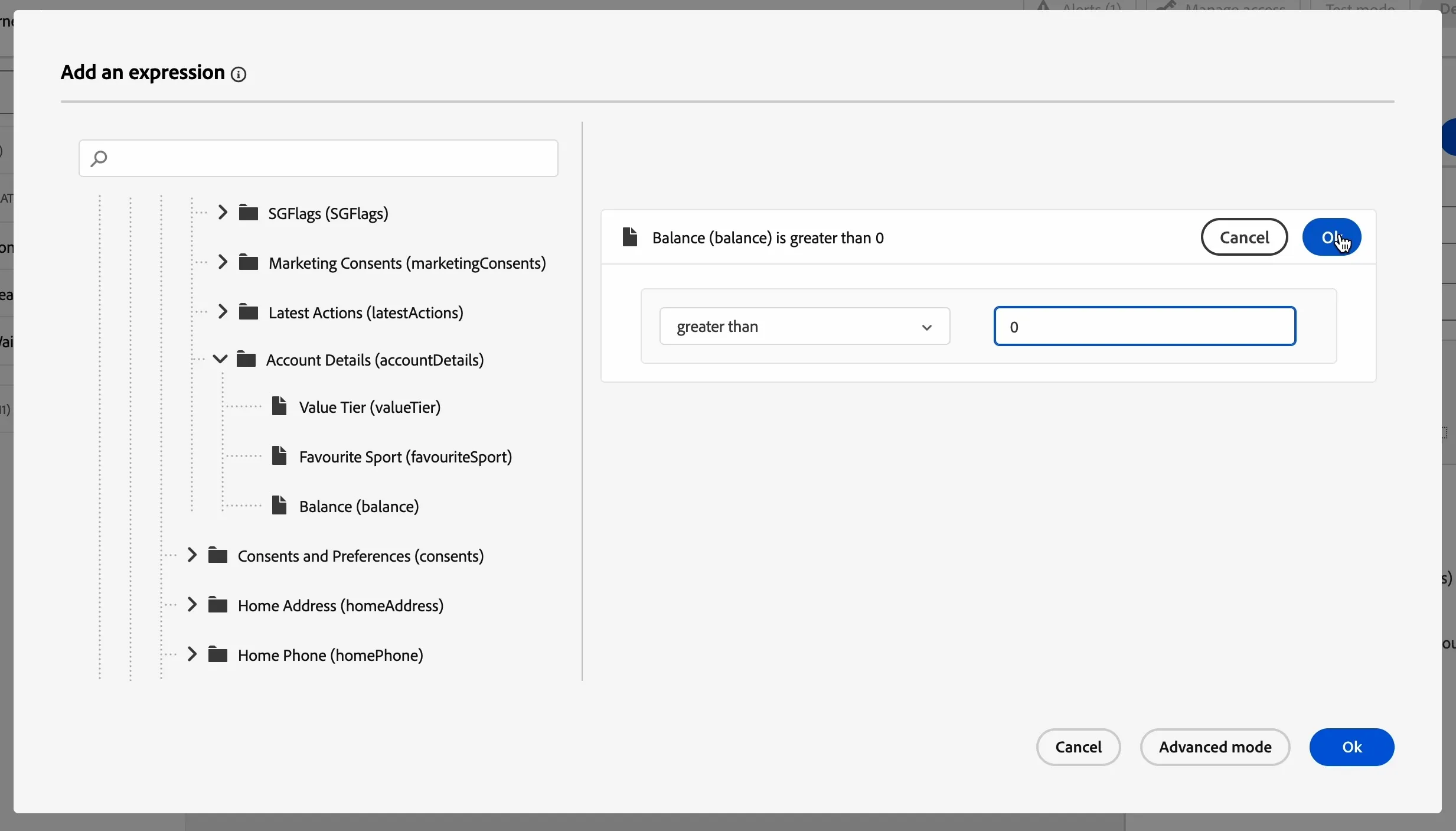
- Click Show path for other cases than the one(s) above to add a path in the case that the balance is 0.
- In Label text field type "No".
- Click Save.
Join branches
As said before, if the balance is positive, the customer should receive the same communication as if the bet is a winner. To do this we can join the "Win" and "Others > Yes" branches.
- Drag the Email - Bet status node and drop over the "Others - Yes" branch.
- Adjust the node's position for a better visualisation of the workflow.
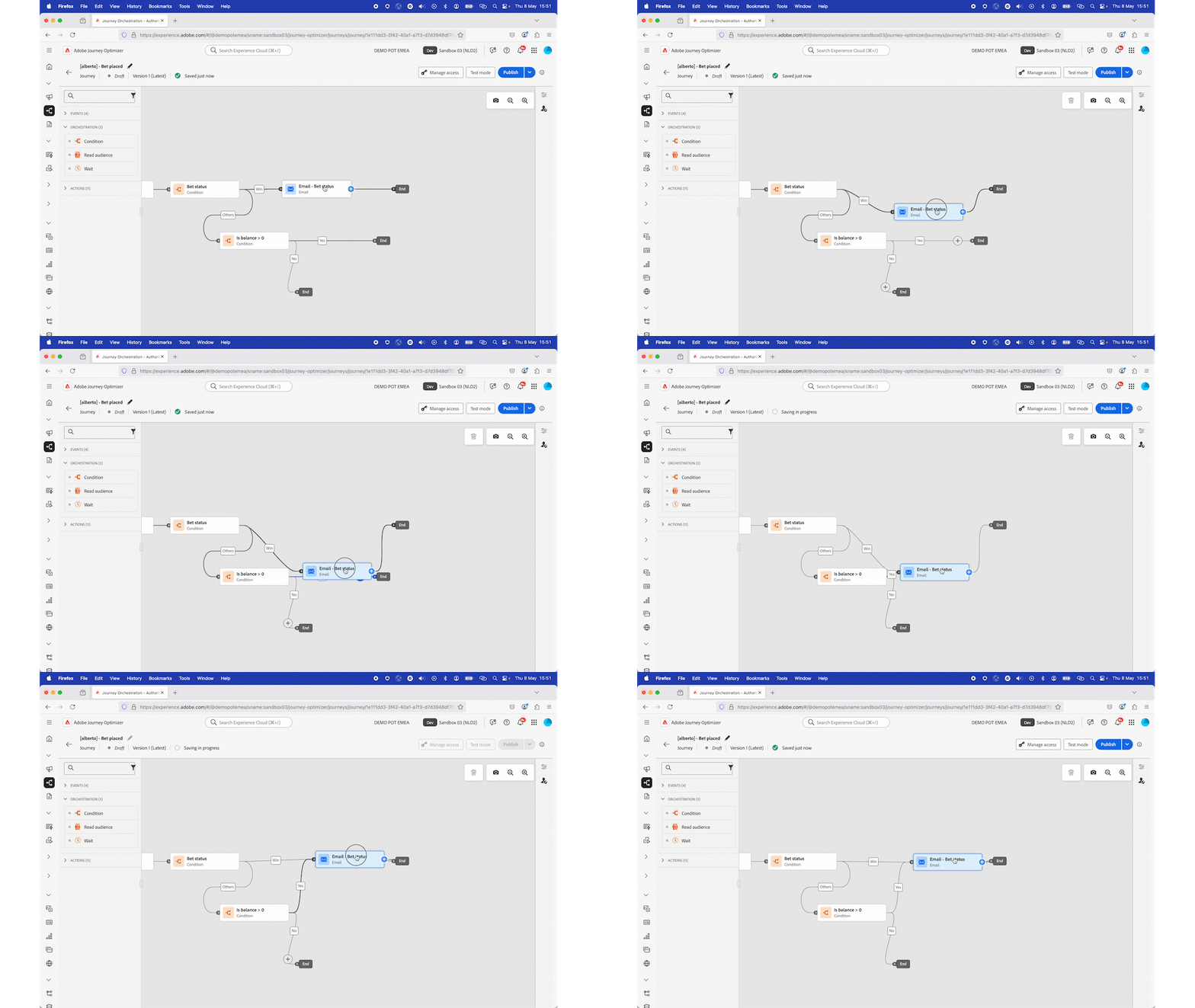
Add a condition
If balance is 0, we will suggest deposit. We also want to respect the customer's choice, so before sending the email, we'll check if the customer has already reached the deposit limit.
- From the orchestration tab, choose Condition, drag it onto the canvas and drop into the "Others - No" branch.
- Click on the activity to open the detailed view.
- Set the label to Deposit limit reached?.
- Leave the Type as Data Source Condition.
- Click on Path1 and change the label to Yes.
- Click on the pencil icon beside the Expression text field to open a popup.
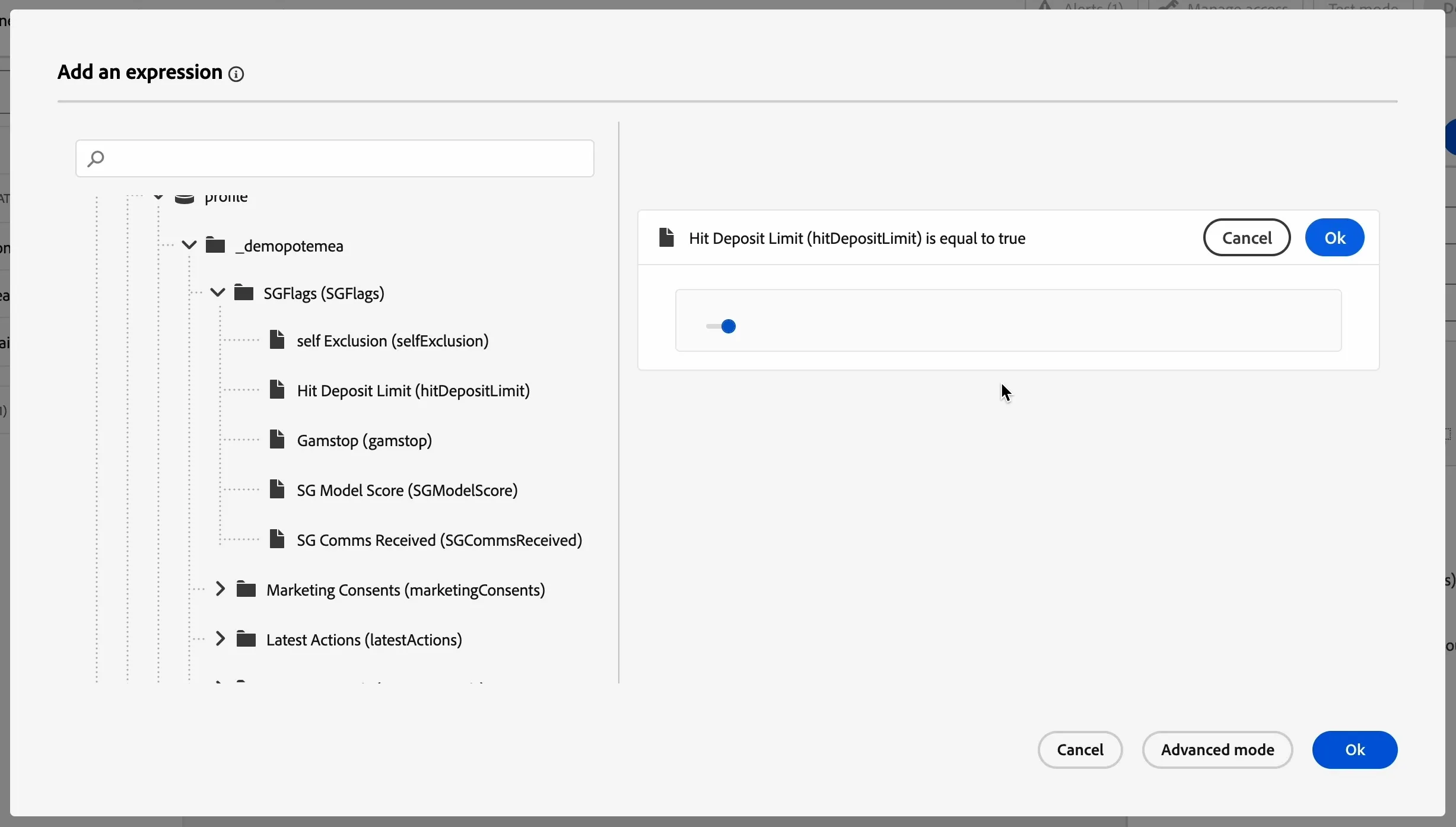
- On the left side, open ExperiencePlatform > Person > ProfileFieldGroup > _demopotemea > SGFlags and drag and drop hitDepositLimit on the dotted line box on the right.
- Click on the toggle.
- The expression now should be: Hit Deposit Limit (hitDepositLimit) is equal to true.
- Click Ok, in the top right corner.
- Click Ok, in the bottom right corner.
Your expression should look like this:
- Click Show path for other cases than the one(s) above to add a path in the case that the deposit limit has not been reached already.
- In Label text field type "No".
- Click Save.
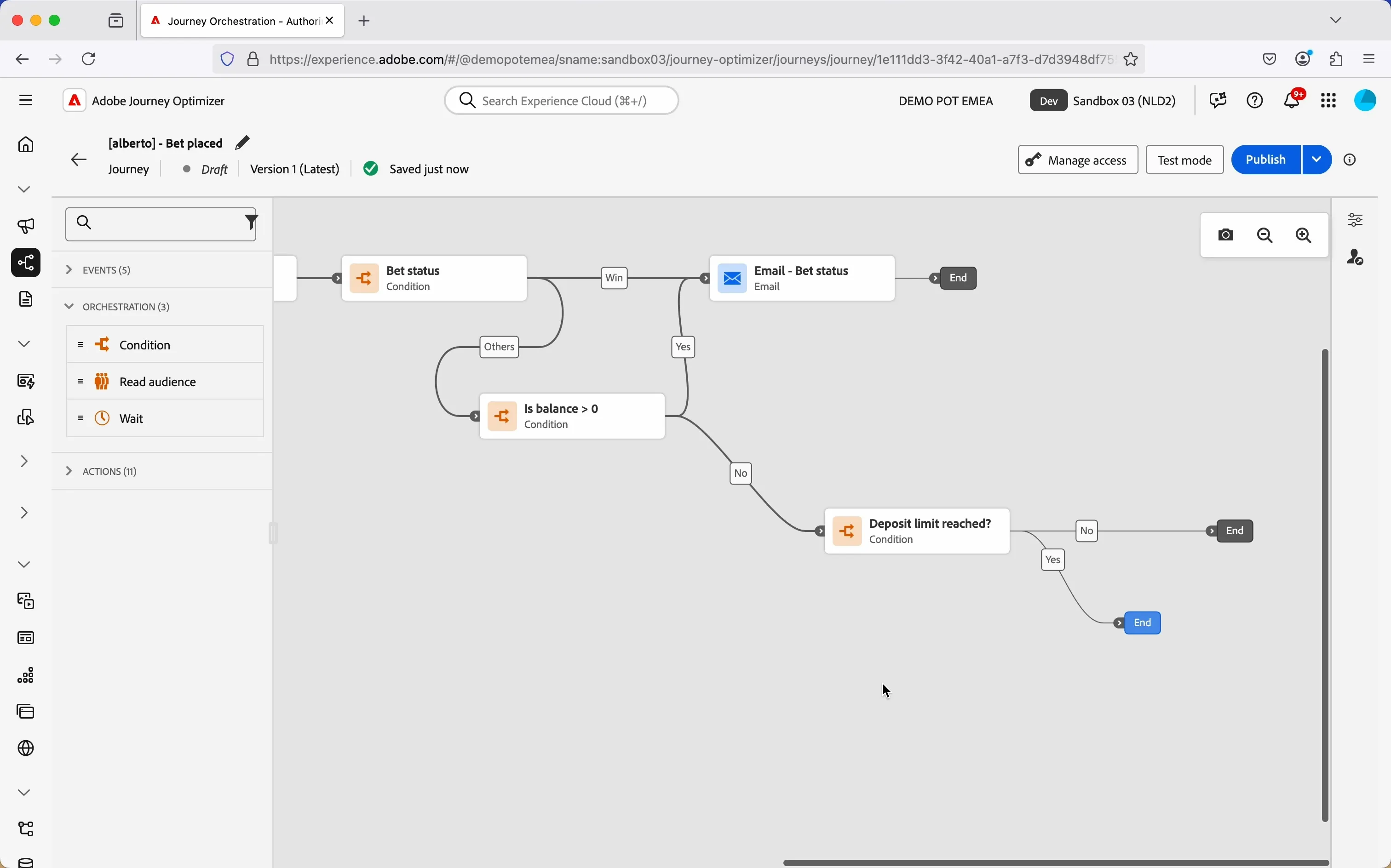
Email - Make deposit
Building the email
- From the actions tab, choose Email and drag it onto the empty circle in the No path.
- Click on the activity to open the detailed view:
- Set the label to Email - Make deposit
- Set the category to Marketing.
- Set the email surface to marketingEmailMessages.
- Click on Edit content to start designing your email.
- Click on to create a subject line. Set it to FIRSTNAME, top up your account and keep the fun going!
- Remove the text FIRSTNAME and search for first name in the profile attributes.
- Find the field First name (... attributes > person > Full name) and click on the icon to add it to your subject line. It should now be{{profile.person.name.firstName}}, top up your account and keep the fun going!
- Click Save.
- Click on Edit email body.
- Under Saved templates, choose [T] Flutter - Make Deposit Email Template. It will show you a preview of the template. Click on Use this template.
The template contains all the element required. No action required.
You can explore the content of the email to understand how it is constructed.
For example, the text of the email is personalised with attributes from the profile stored in AEP. Double click on the oranged bracketed strings to see the details.
Navigate out of the email editor by clicking Save, then click on the arrow in the top left corner; then click the arrow again to come back to the main canvas.
Once you're in the main canvas, click Save to apply the changes.
You have now successfully created the application journey using the Adobe Journey Optimizer. Next, we are going to test our journey using Test Mode.