Creating the audiences
In this exercise, you’ll create two audiences by utilizing Adobe Experience Platform’s Audience Builder.
Audience Overview
To log into the Adobe Experience Platform, check the Welcome! section..
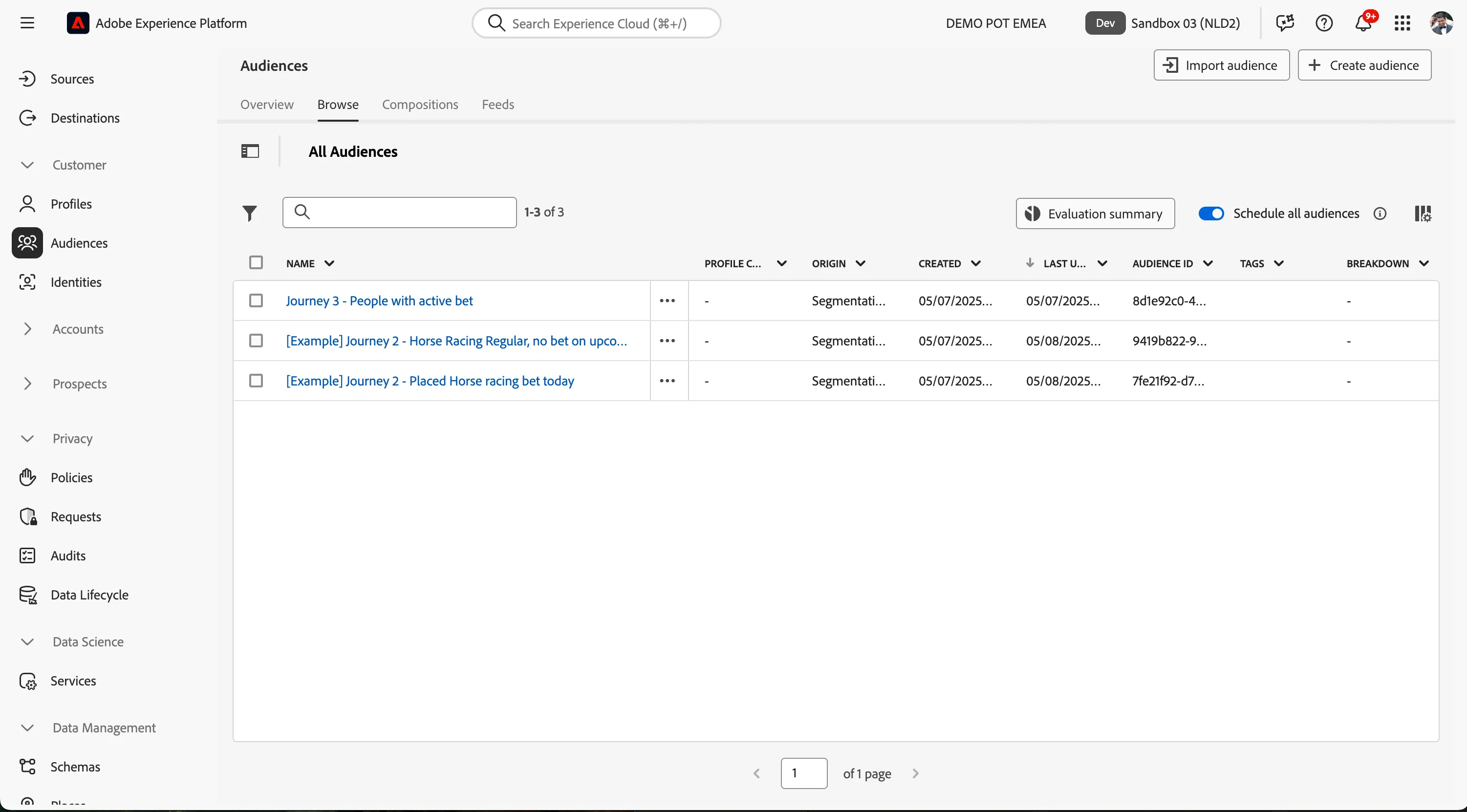
To get an overview of the available audiences in Adobe Experience Platform:
- In the menu on the left side, click on Audiences. You will see a dashboard overview with information on a specific audience.
- Click on Browse in the tab bar. You will see an overview of all existing Audiences.
Create an audience for Horse racing regulars who have not bet on upcoming races
We aim to create a rule to include all customers who have bet on horse racing in the last 10 days but have not placed a bet for an upcoming race. We consider these customers for retargeting with a personalized email containing details of an upcoming race.
If you prefer to skip building this audience, you can use [Example] Journey 2 - Horse Racing Regular, no bet on upcoming race in your journey and continue to the next step.
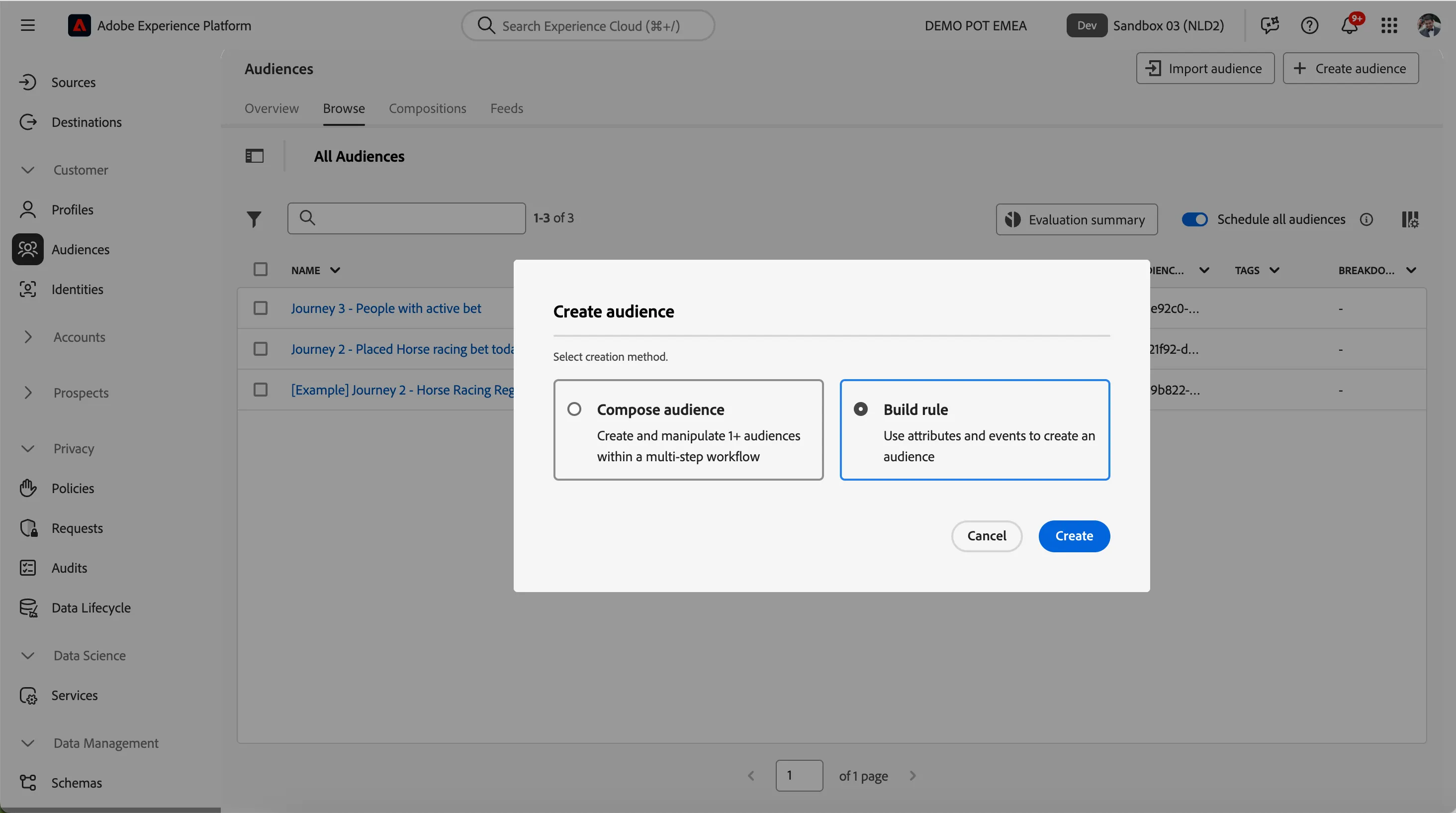
- Click on + Create Audience. This will open the Create Audience popup.
Select Build Rule as the creation method.
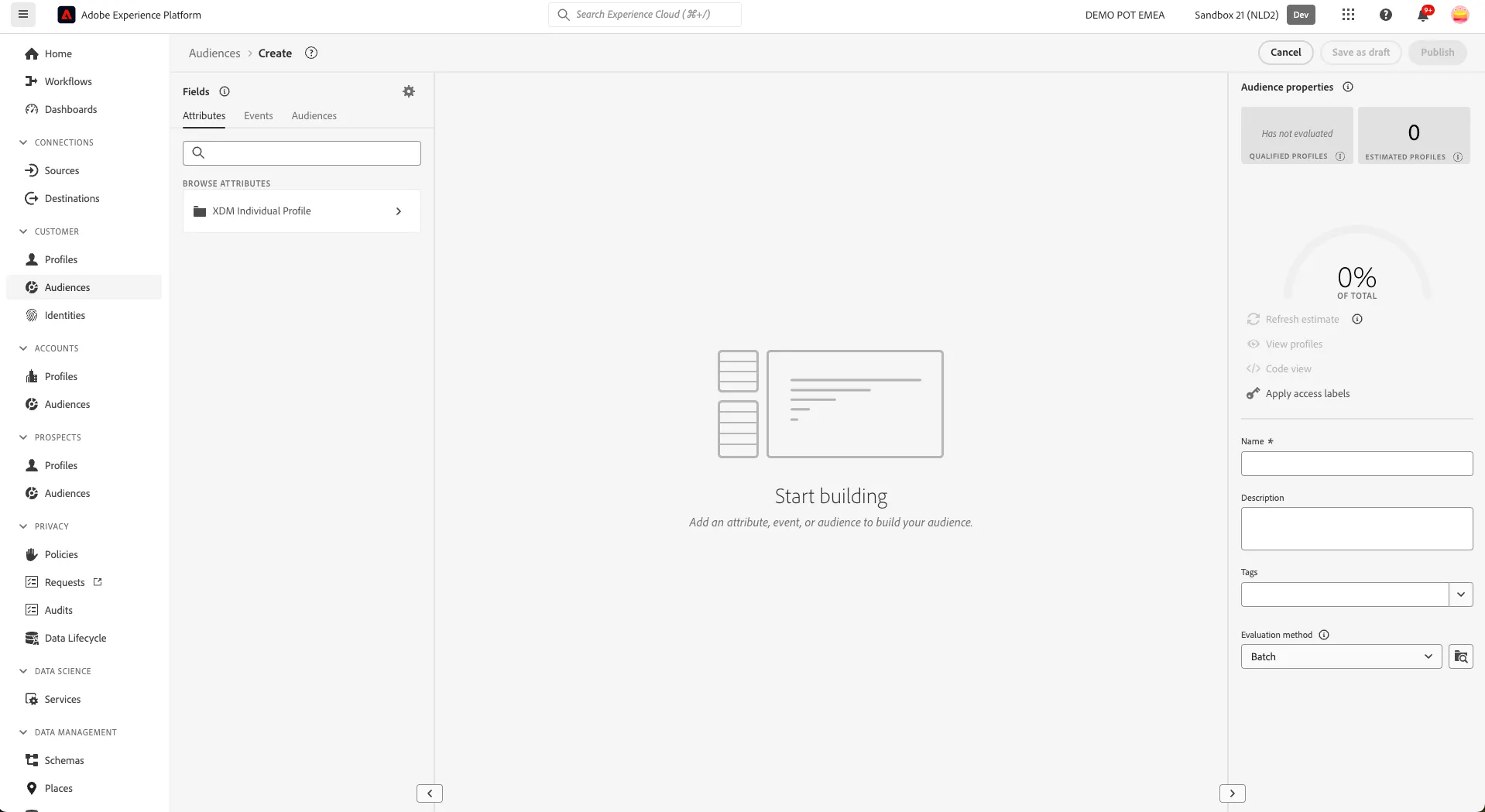
- This will open the Rule Builder. You will immediately notice the Attributes tab selected beneath Fields, as well as the XDM Individual Profile selector under BROWSE ATTRIBUTES.
Let's build an audience for our regular horse racing betting customers:
- Ensure you are on the Attributes tab in the Fields section.
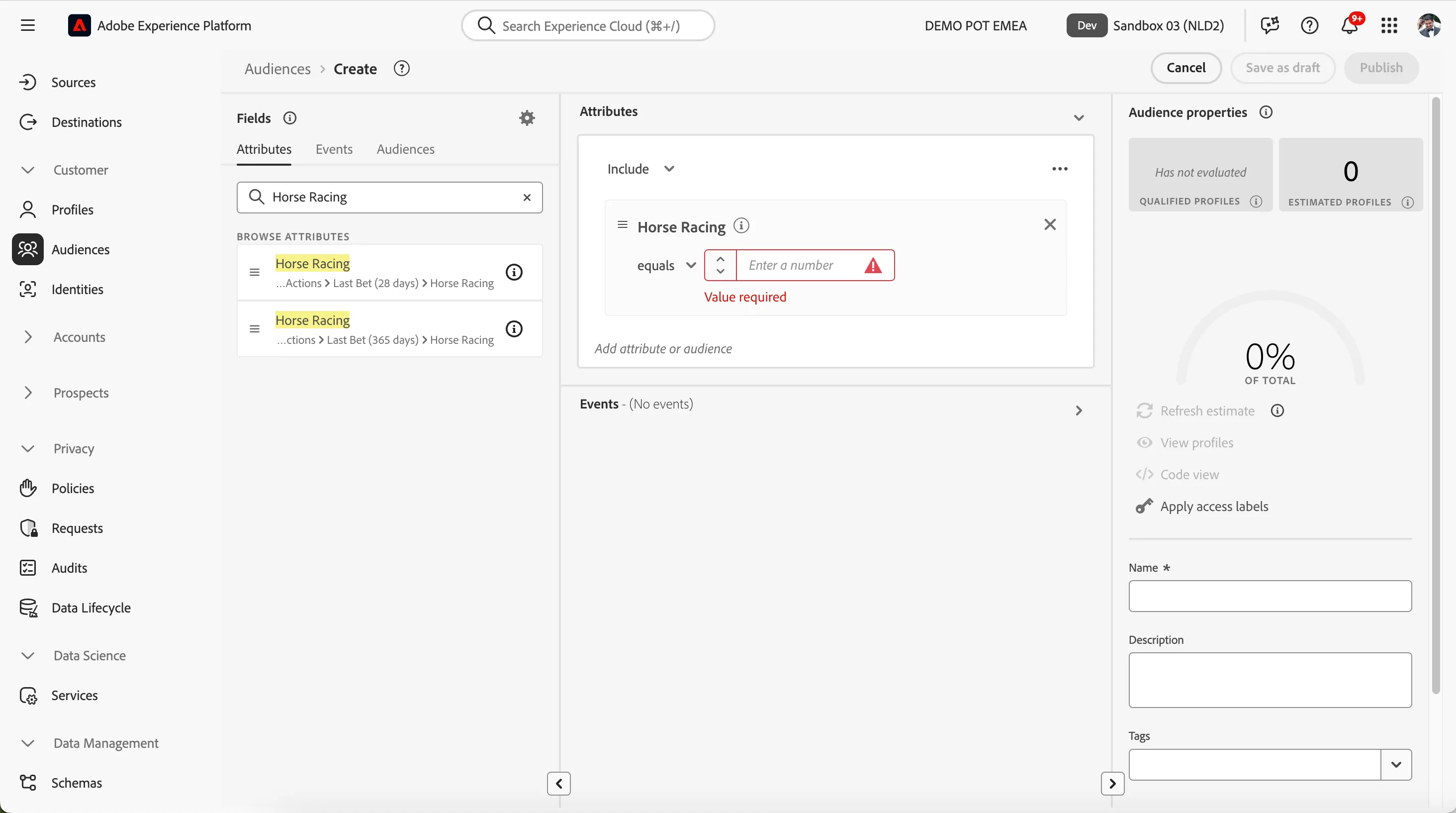
In the text search field, type Horse Racing. You will see two horse racing attributes.
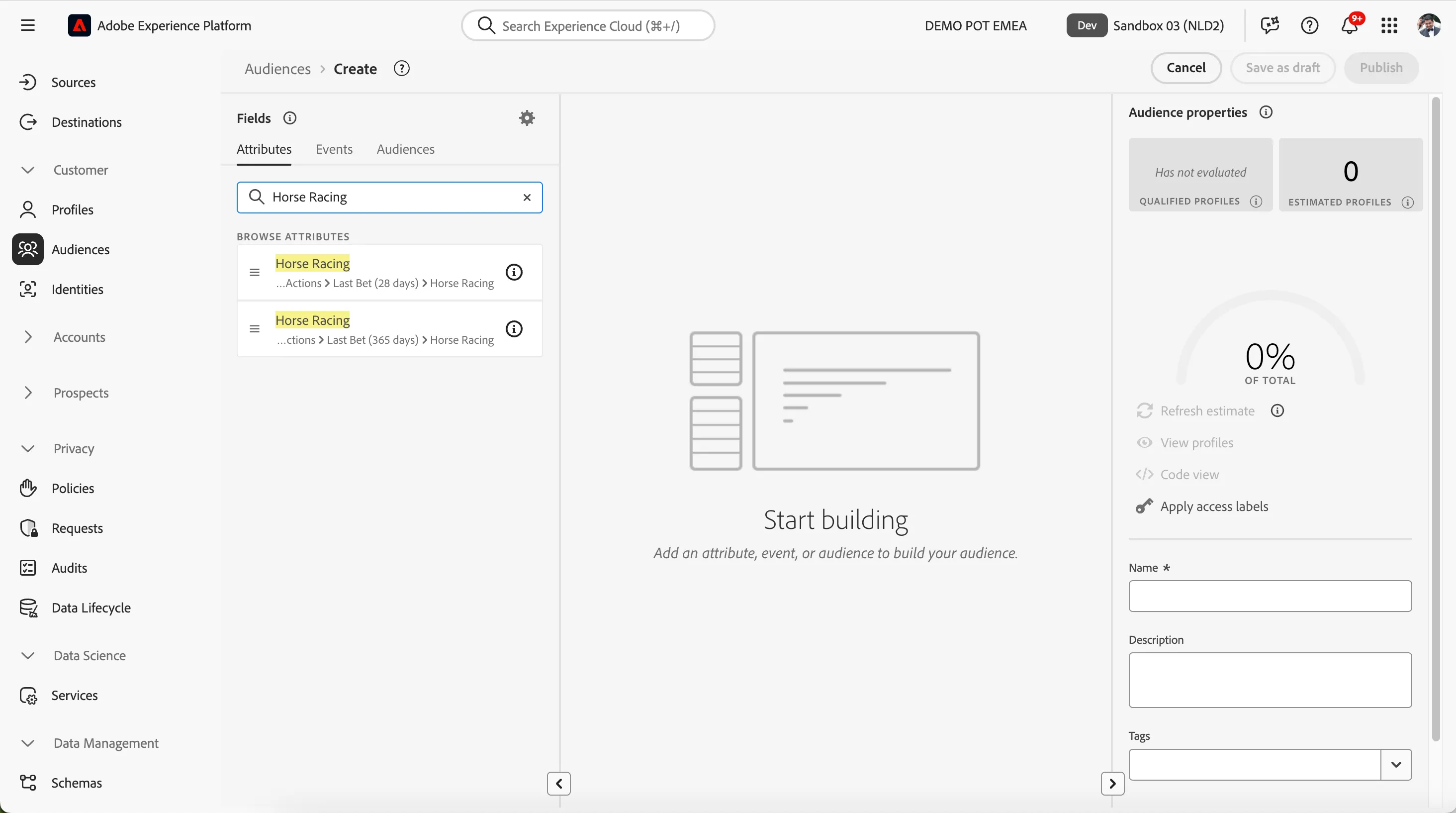
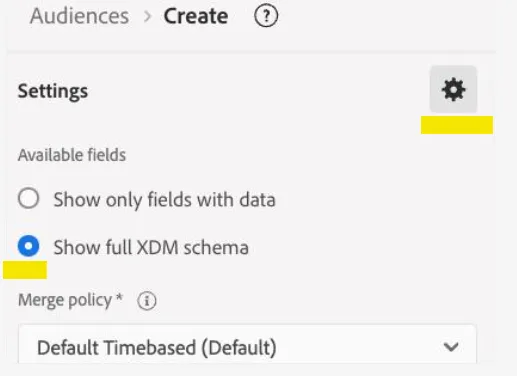
If Horse Racing is not visible, please enable the option Show full XDM schema.
Drag the Horse Racing attribute from the path ..Actions > Last Bet (28 Days) > Horse Racing onto the canvas where it says Start Building.
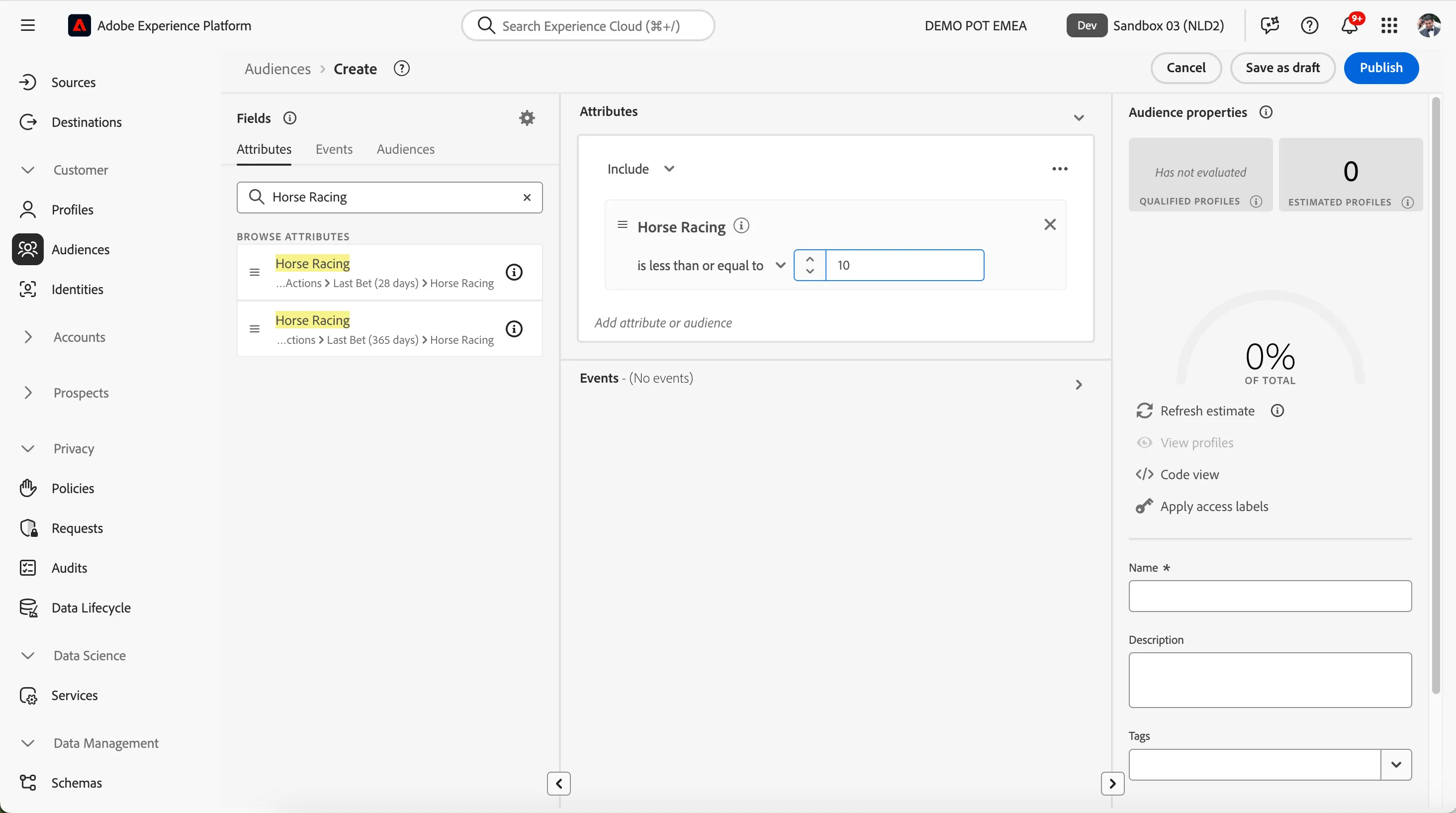
Change the condition to less than 10 days. For this, select is less than or equal to from the dropdown and enter 10 in the field. The rule now includes all customers who have placed a bet on horse racing in the last 10 days.
- Now, we need to exclude all the individuals who have a bet on horse racing in the next few days.
- Clear the text from the search bar.
Type Open Date Time in the search field. Open Date Time is the attribute where the date and time of the open bets are recorded in the profile.
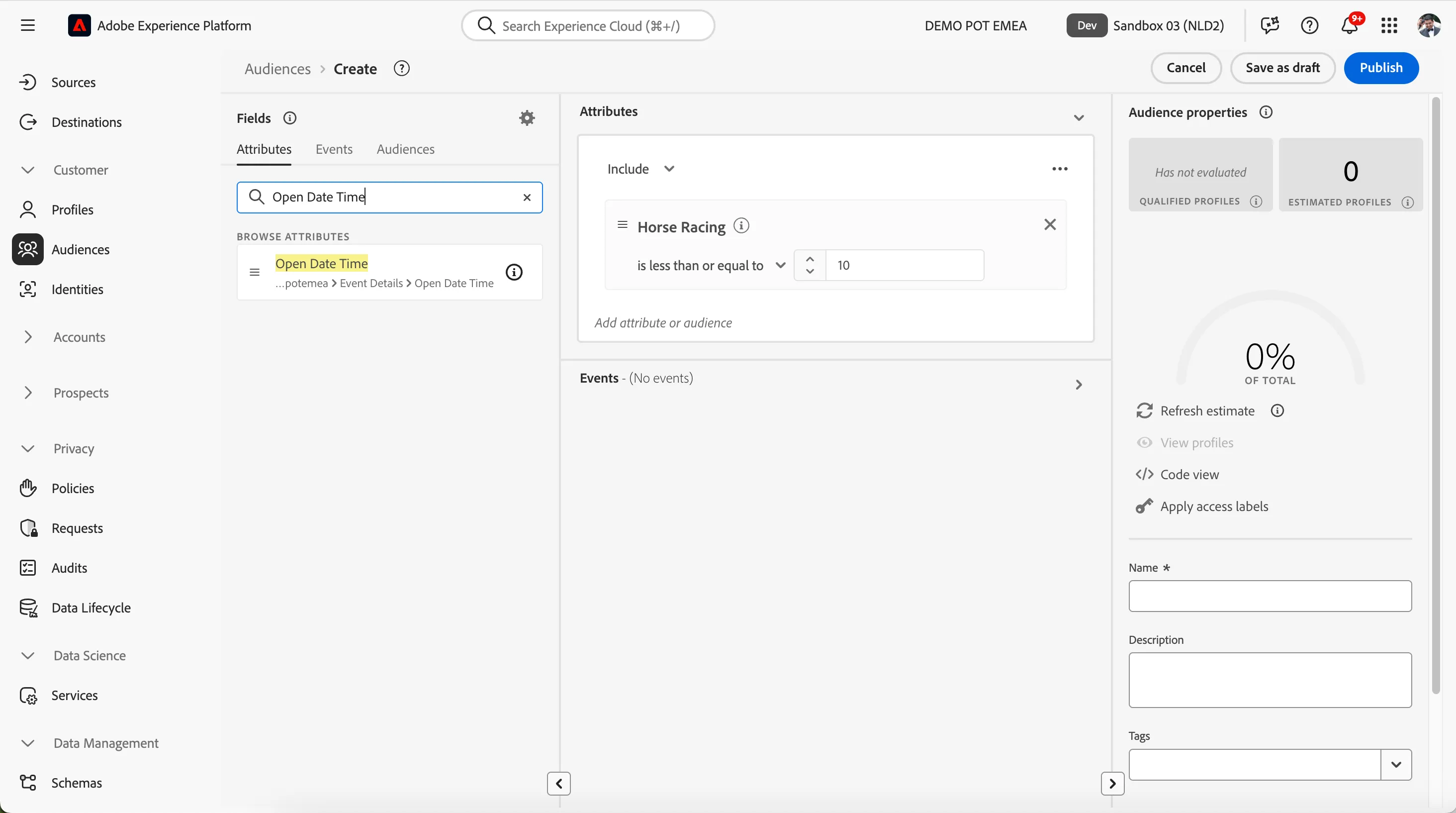
Drag Open Date Time over the build pane below the Horse Racing rule. This will add an additional condition to the existing rule.
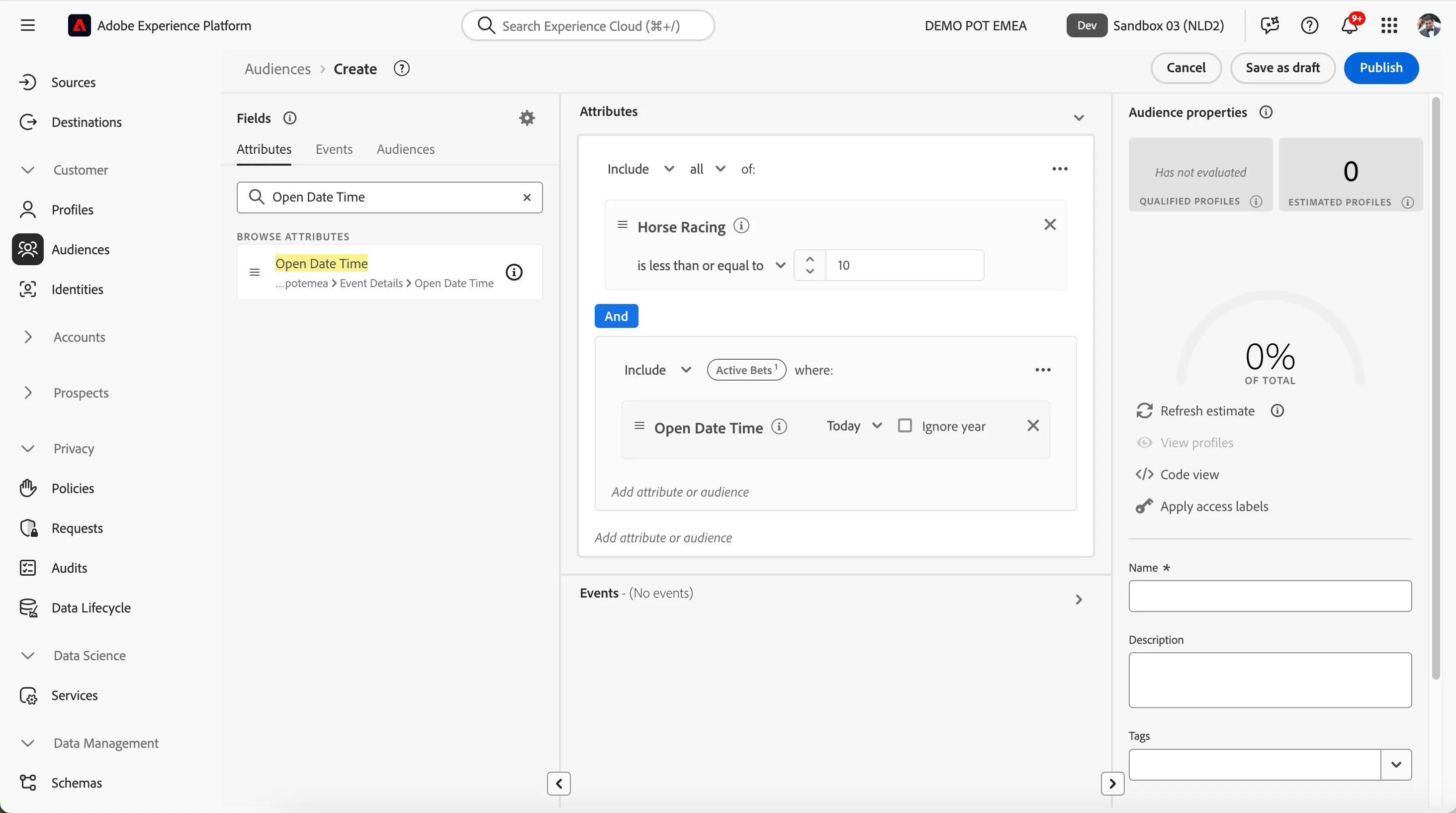
Update the rule condition to be In next from the dropdown and modify the number of days to 2 Days.
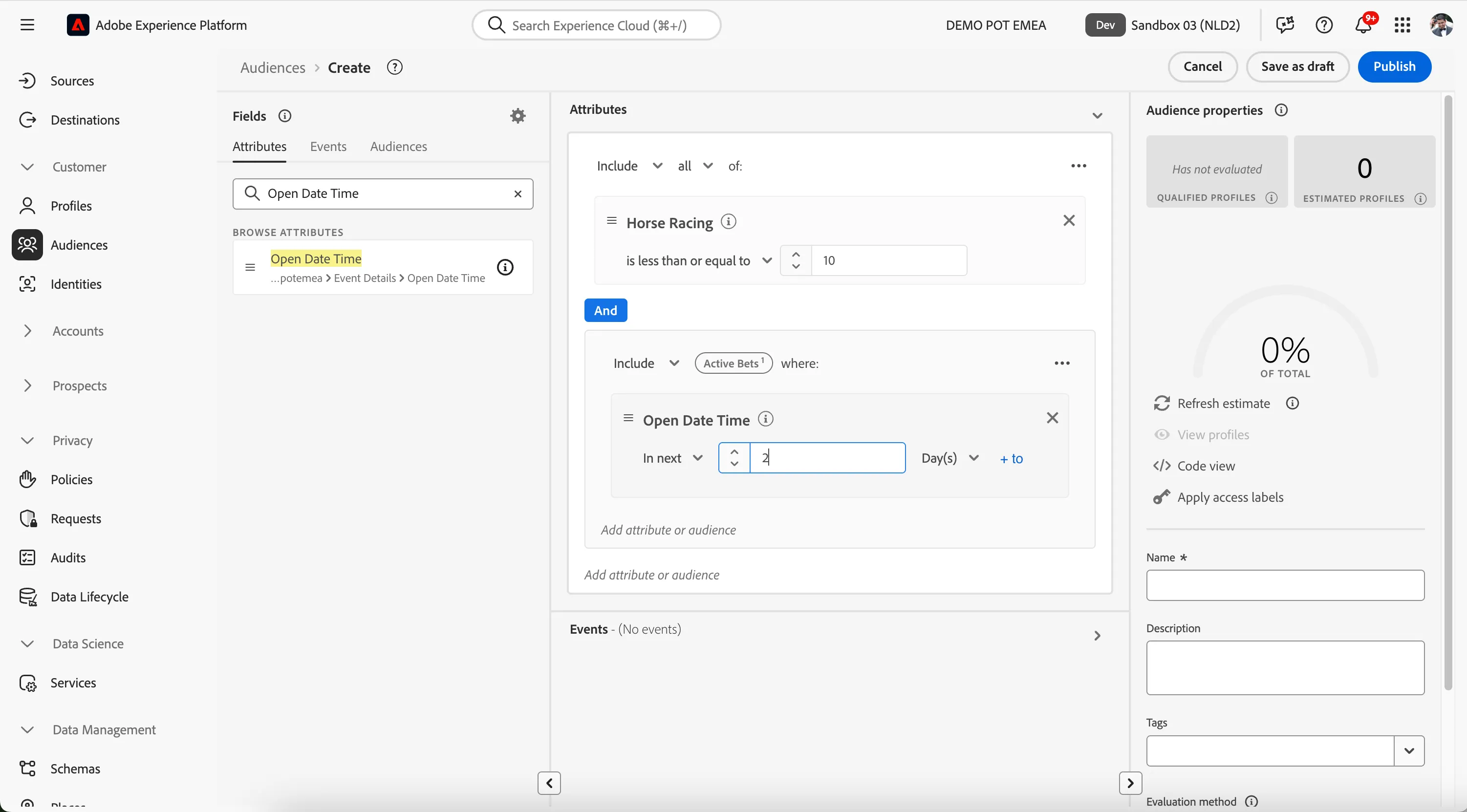
-
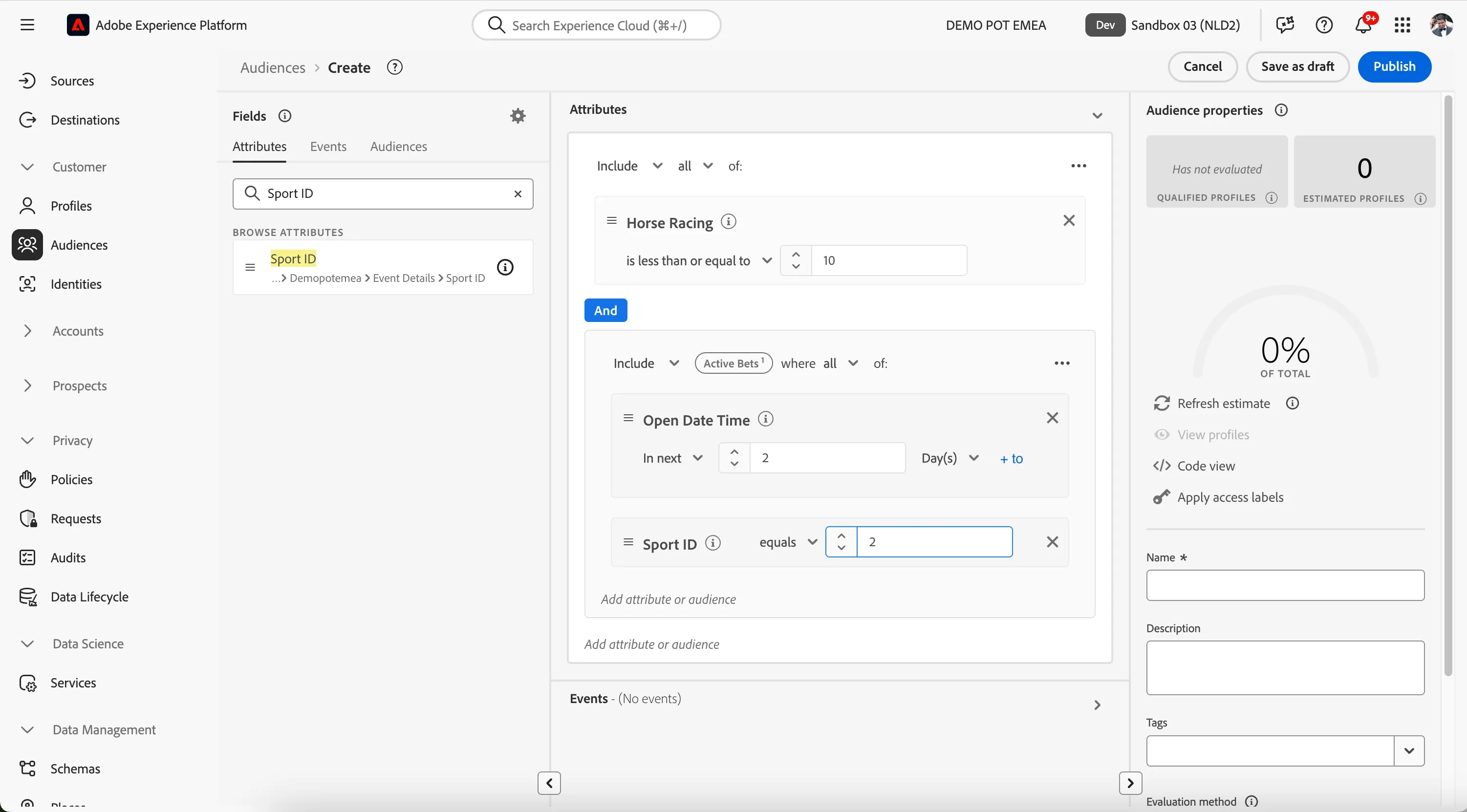
We need to ensure that the best is for horse racing and not for any other sports. We will add this condition using Sport ID attribute. For this, search for Sport ID in the search panel, drag the attribute Sport ID below Open Date Time and set the condition as equals 2.
Next, change the condition from include to Exclude to make the rule to exclude customers who have an open Horse racing bet in the next two days.
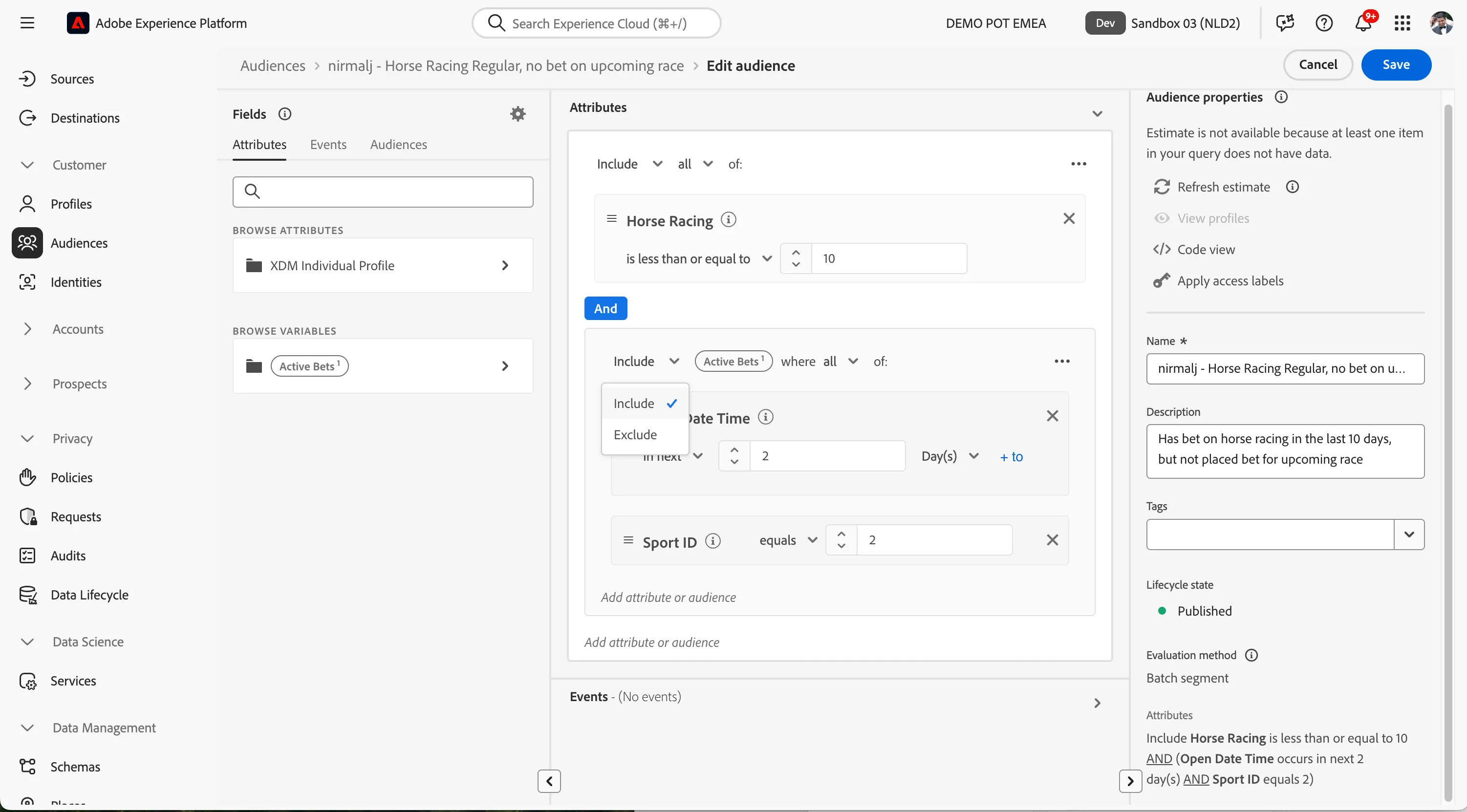
Your screen will looks like this now. The UI showcases the exclusion rule with a red border on the left of the container.
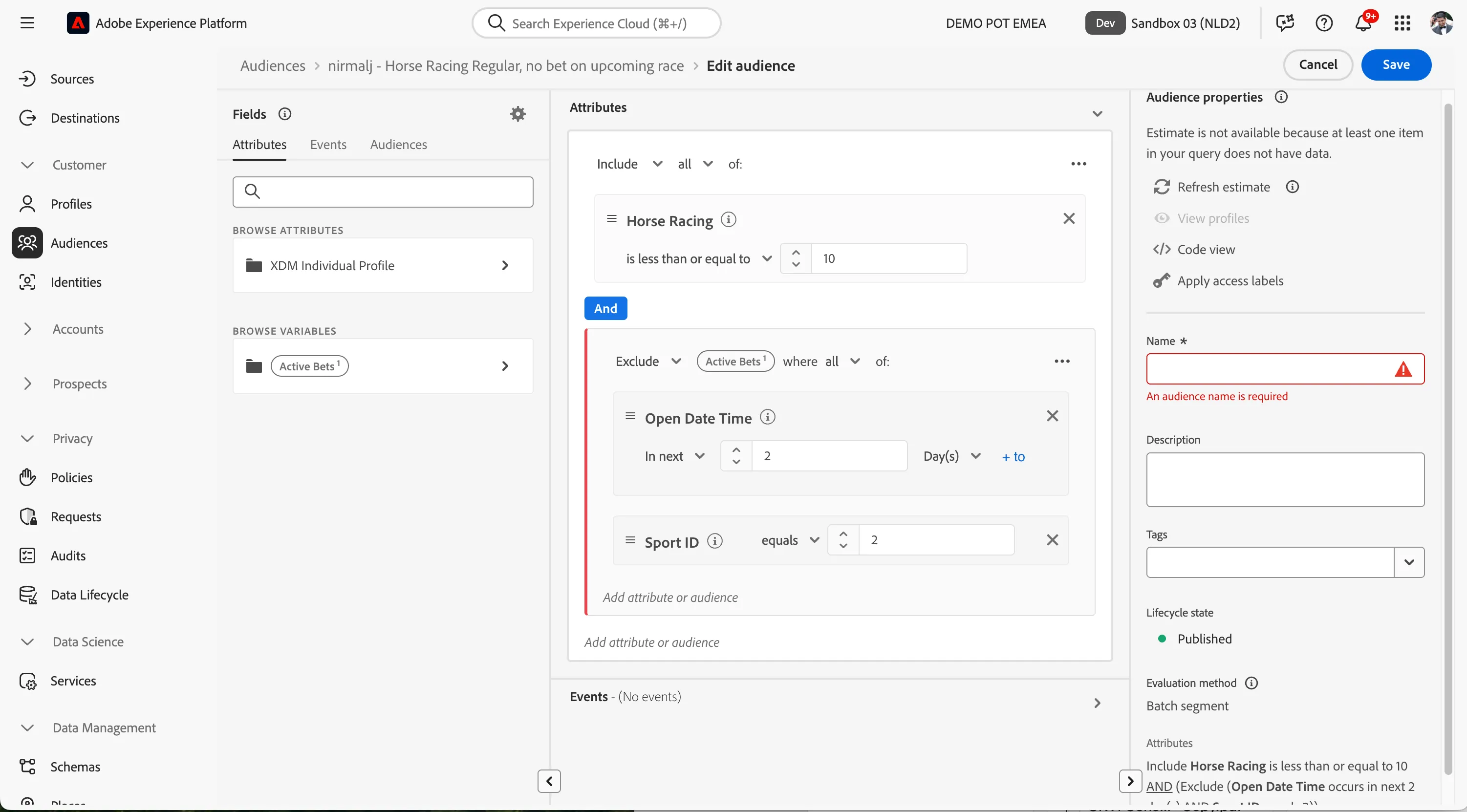
At each step in defining your audience, you can get an estimate of the audience's population:
- Click on Refresh Estimates in the right-hand panel
You will then see an estimation of your current audience size. This information is very helpful for a business user, as it allows them to see the impact of certain attributes on the resulting audience size.
IMPORTANT: The sandbox you are using for the exercise has been reset before the workshop, so Refresh Estimate may return 0.
For more details on how estimates work, see the documentation.
The rules now includes all customers who have placed a horse racing bet in the last 10 days but do not have an active open horse racing bet in the next two days. Let's save the audience now.
- Enter the name as [name] - Horse Racing Regular, no bet on upcoming race. Replace [name] with your name.
- (Optional) Enter the description as Has bet on horse racing in the last 10 days, but has not placed a bet for an upcoming race.
Select Evaluation method as Batch. Your screen will look like the one below.
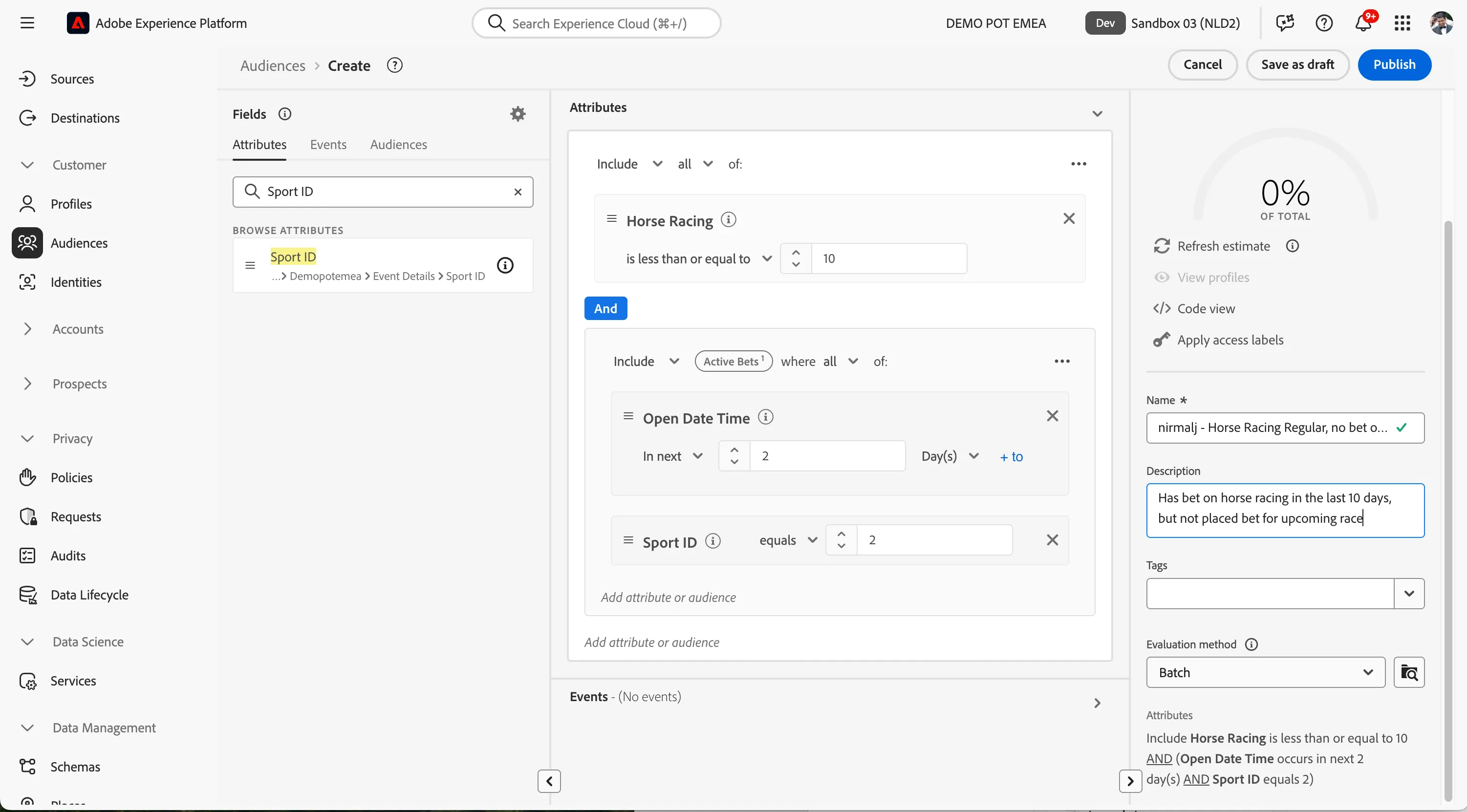
- Click on the Publish button at the top right to publish the audience.
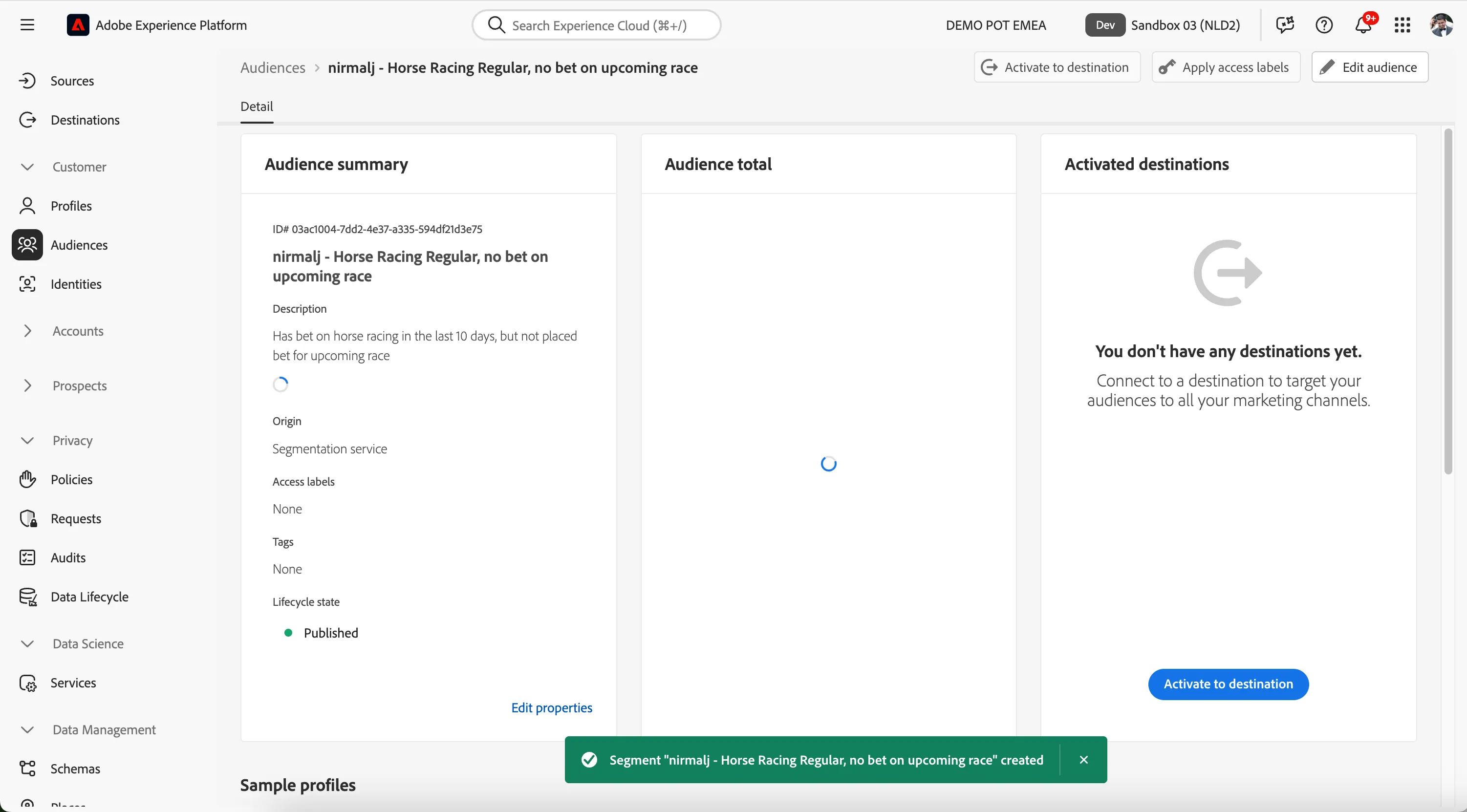
Once published, you will be redirected to the audience overview page, which will look like this:
Create an audience for people who placed a bet today
We created a batch audience in the previous step that will run overnight every day. From the time a customer qualifies for the audience until the journey is triggered, if the customer has placed a bet, we do not want them to be contacted. To address this, we will create another streaming segment of all customers who placed a horse racing bet today.
If you want to skip building this audience, you can use [Example] Journey 2 - Placed Horse Racing Bet Today in your journey and can skip this build step.
- From the Audiences overview page, click on + Create Audience. This will open the Create Audience popup.
Select Build Rule as the create method.
- This will open the Rule Builder. You will immediately notice the Attributes tab selected underneath Fields, as well as the XDM Individual Profile selector under BROWSE ATTRIBUTES.
Let's build an audience for our horse racing betting customers:
- Ensure you are on the Attributes tab in the Fields section.
In the text search field, type Horse Racing. You will see Horse Racing attributes that matches the search.
Drag Horse racing attribute in the path ..Actions > Last Bet (28 days) > Horse racing onto the canvas where it says Start Building.
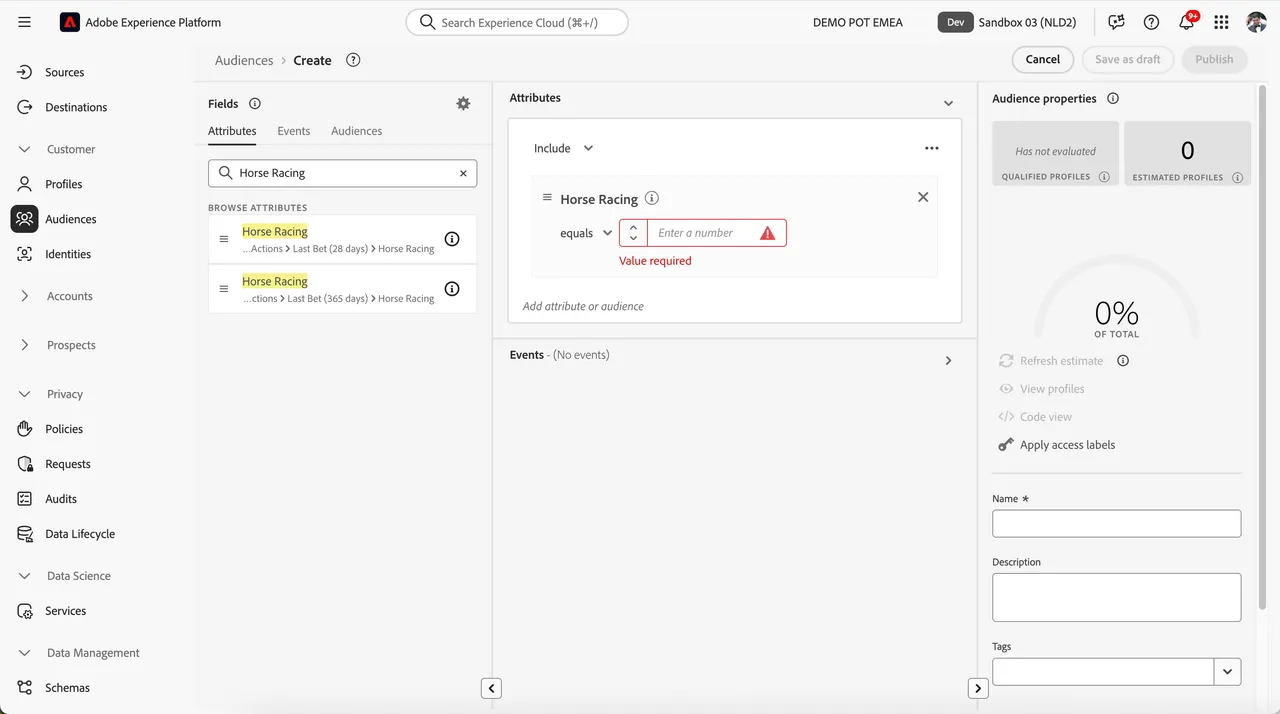
Enter the value for Horse racing as equals 0 (zero), which makes the condition apply to all the Horse racing bets today.
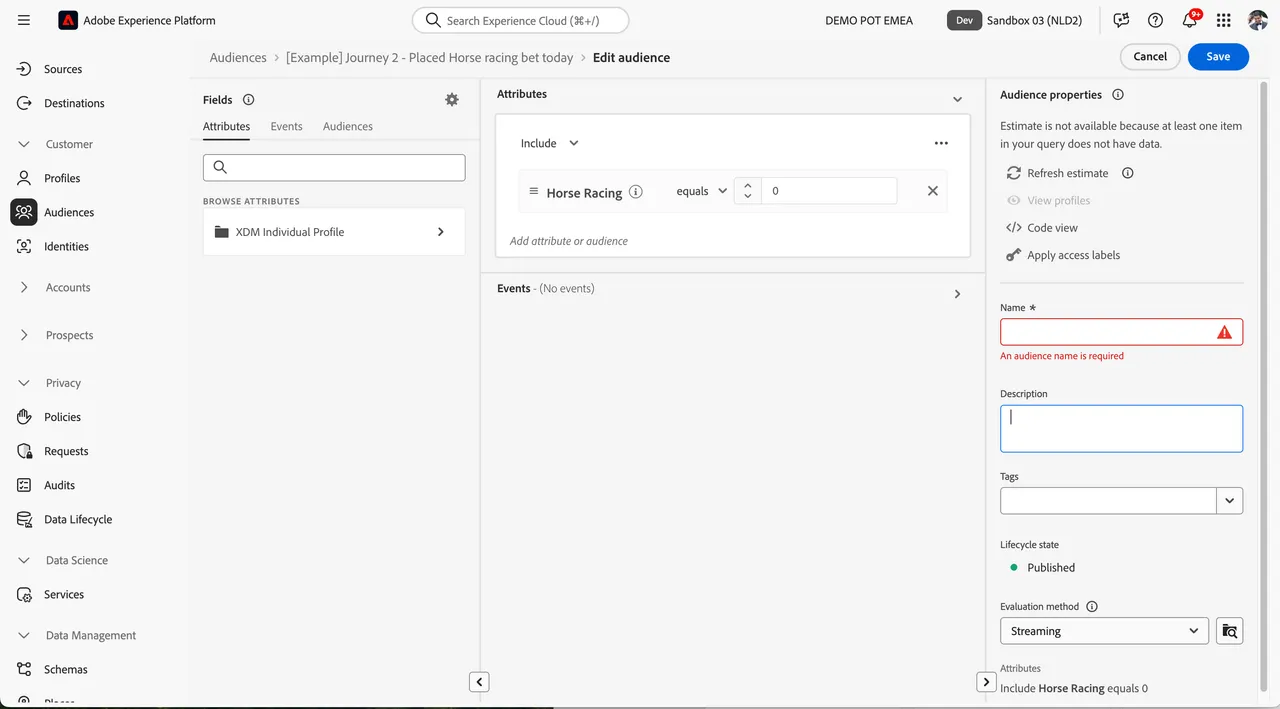
So far, you’ve only used the UI to build your audience, but there’s also a code-option to build a audience.
When building an audience, you’re actually composing a Profile Query Language (PQL) query. To visualise the PQL code,
- Click on the Code View switcher in the upper right corner of the Audience builder.
- Click on Segment Builder view to return back to the UI.
Let's publish our audience.
- Enter a Name for your audience using the following naming convention, e.g. [your name] - Placed Horse Racing Bet Today.
- (Optional) Enter a Description.
- Select Streaming* from the Evaluation Method dropdown list. You can read more about evaluation methods here.
- Click on Publish.
You will be taken to the Audience Summary screen, outlining your audience definition.
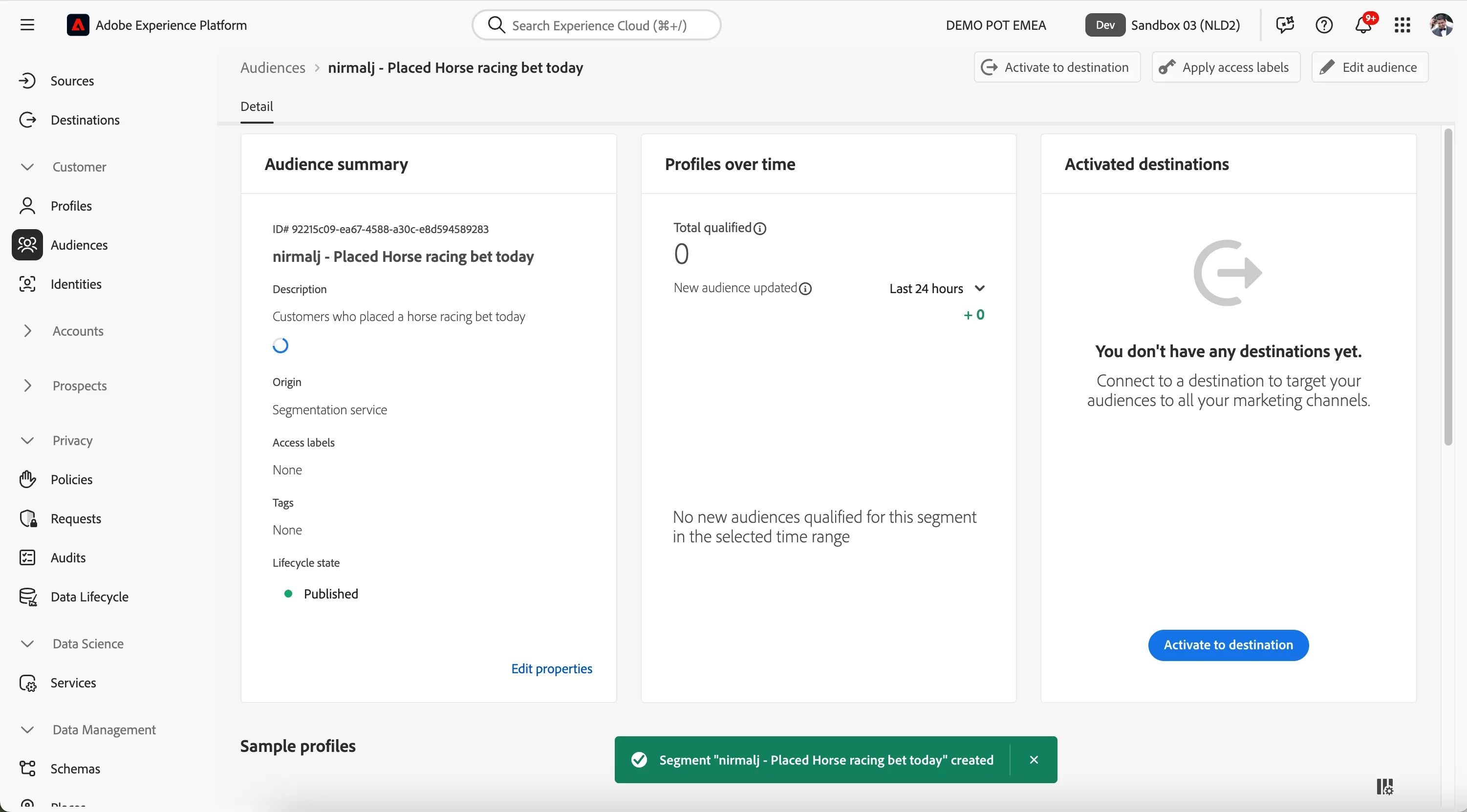
You have now successfully created two audiences using the Adobe Experience Platform Audience Builder.