Creating the journey
In this exercise, you'll be creating and testing a journey using all the components you've created in the previous exercises.
Journey overview
To get an overview of all journeys in Adobe Journey Optimizer:
- In the menu on the left side, under Journey Management, click on Journeys. You will see a overview with all existing journeys.
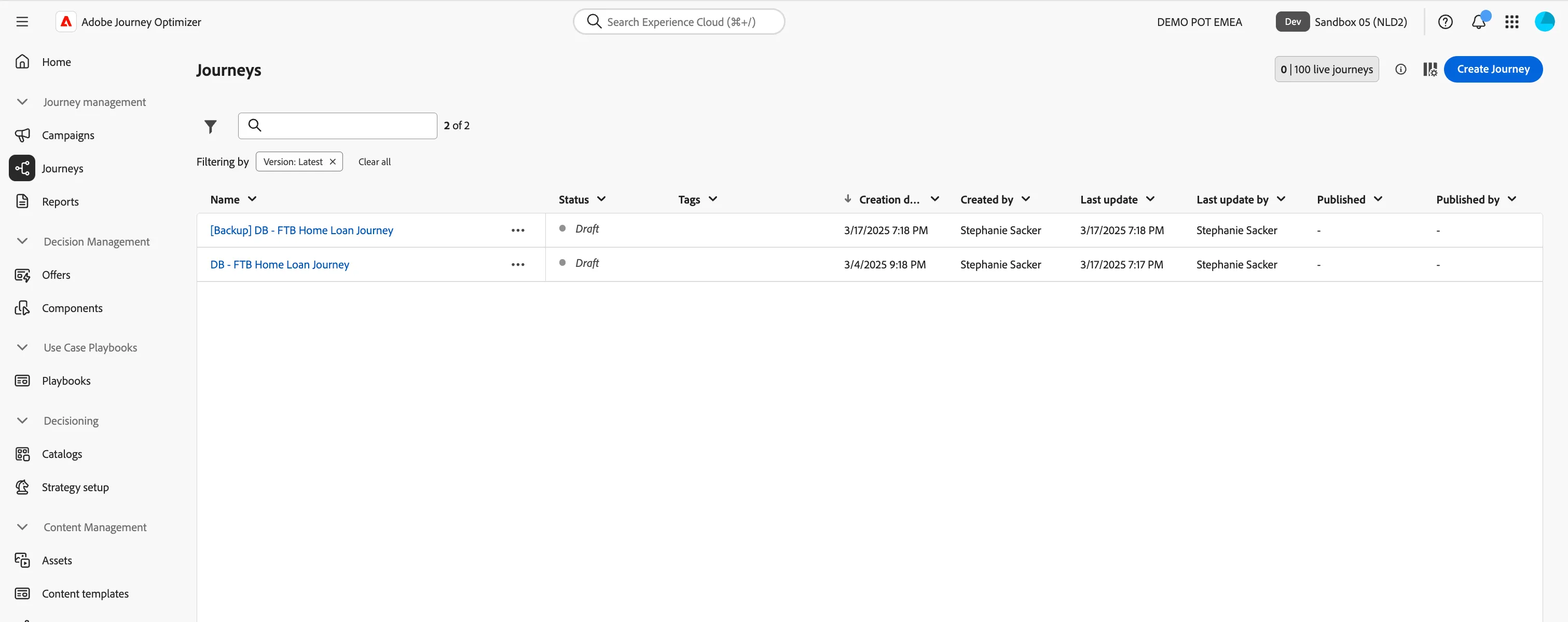
Creating a journey
We'll be creating a journey that will send an email to people that are regular in horse racing bets, but haven't placed a bet in last 10 days. The content of the email depends on:
- upcoming horse racing events from external system;
- an offer for the customer based on the value tier of the customer.
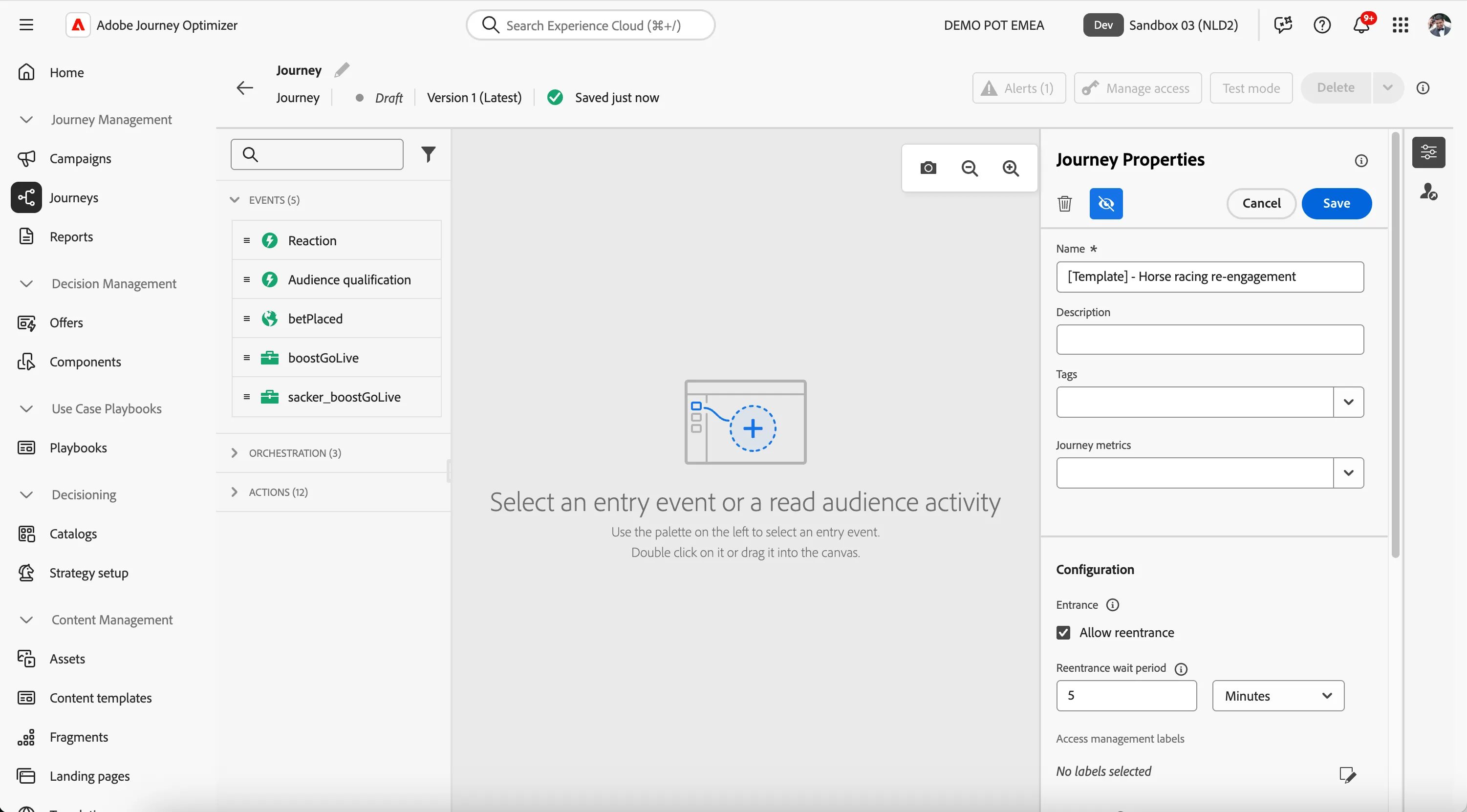
Click on Create Journey. You'll be taken to the Journey canvas with the journey properties opened.
- Set the name to [your name] - Horse racing re-engagement.
- For the other properties we'll keep the default values.
- Your screen should look like the image below. Click Save to save and close the properties.
You're now in the journey canvas. This is where you'll be creating your journey's logic.
Read Audience
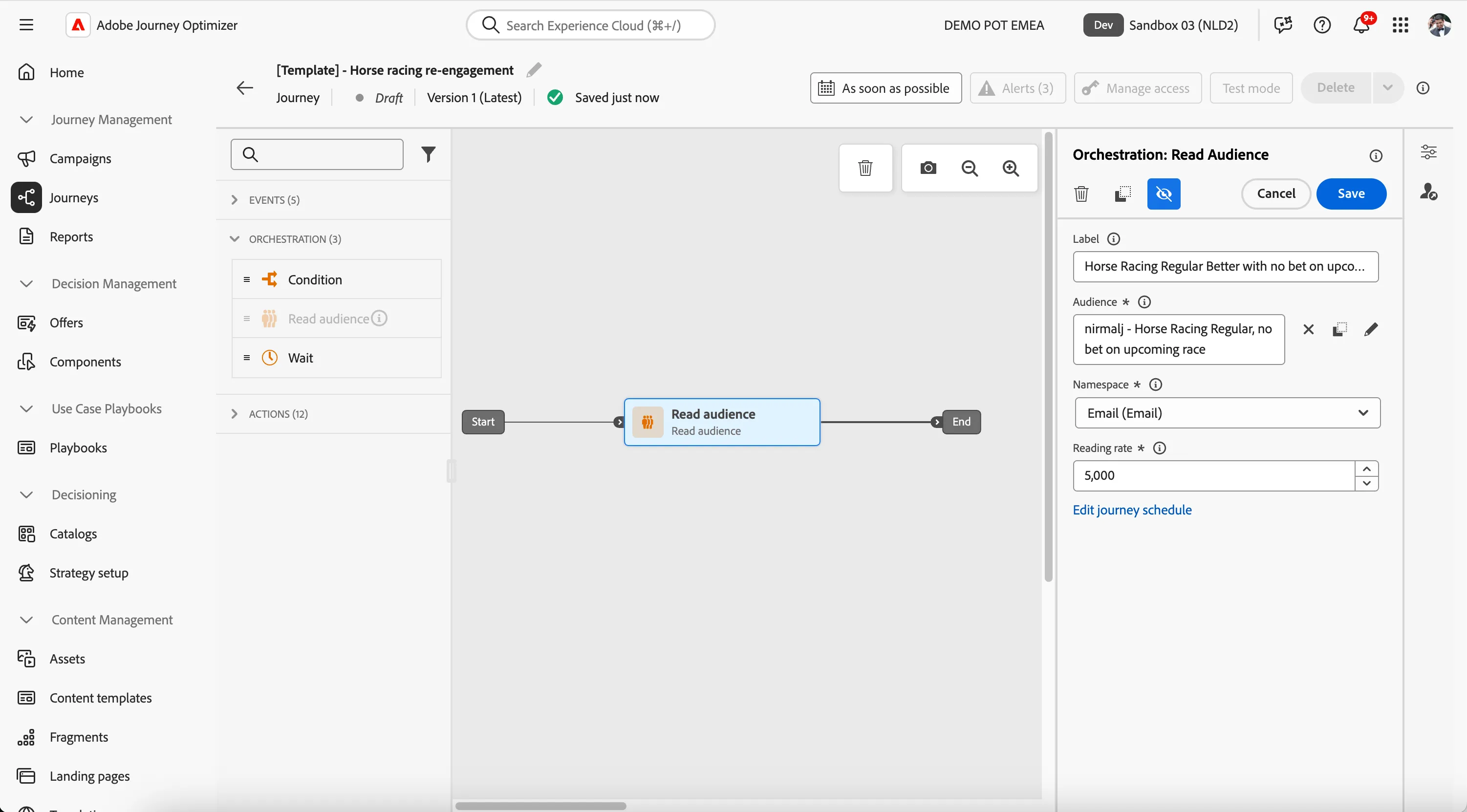
- We're starting our workflow of with an read audience trigger. From the orchestration tab, choose Read audience and drag it onto the canvas.
- Click on the activity to open the detailed view.
- Set the label to Horse Racing Regular Better with no bet on upcoming race.
- Click on Audience to open a window, select your audience [your name] - Horse Racing Regular, no bet on upcoming race from the list and click Save. If you didn't create the audience, you can use [Example] - Horse Racing Regular, no bet on upcoming race
- Set the namespace to Email (Email).
- Keep the Reading rate as default (5000)
- Your screen should look like the image below. dClick Save.
Add a Condition
We want to exclude all the customers who has placed as bet on horse racing after the audience is evaluated and until the journey is ran. For this we are creating a condition to exclude those customers from going through the journey further.
- From the orchestration tab, choose Condition and drag it onto the -icon next to read audience on the canvas.
- Click on the activity to open the detailed view.
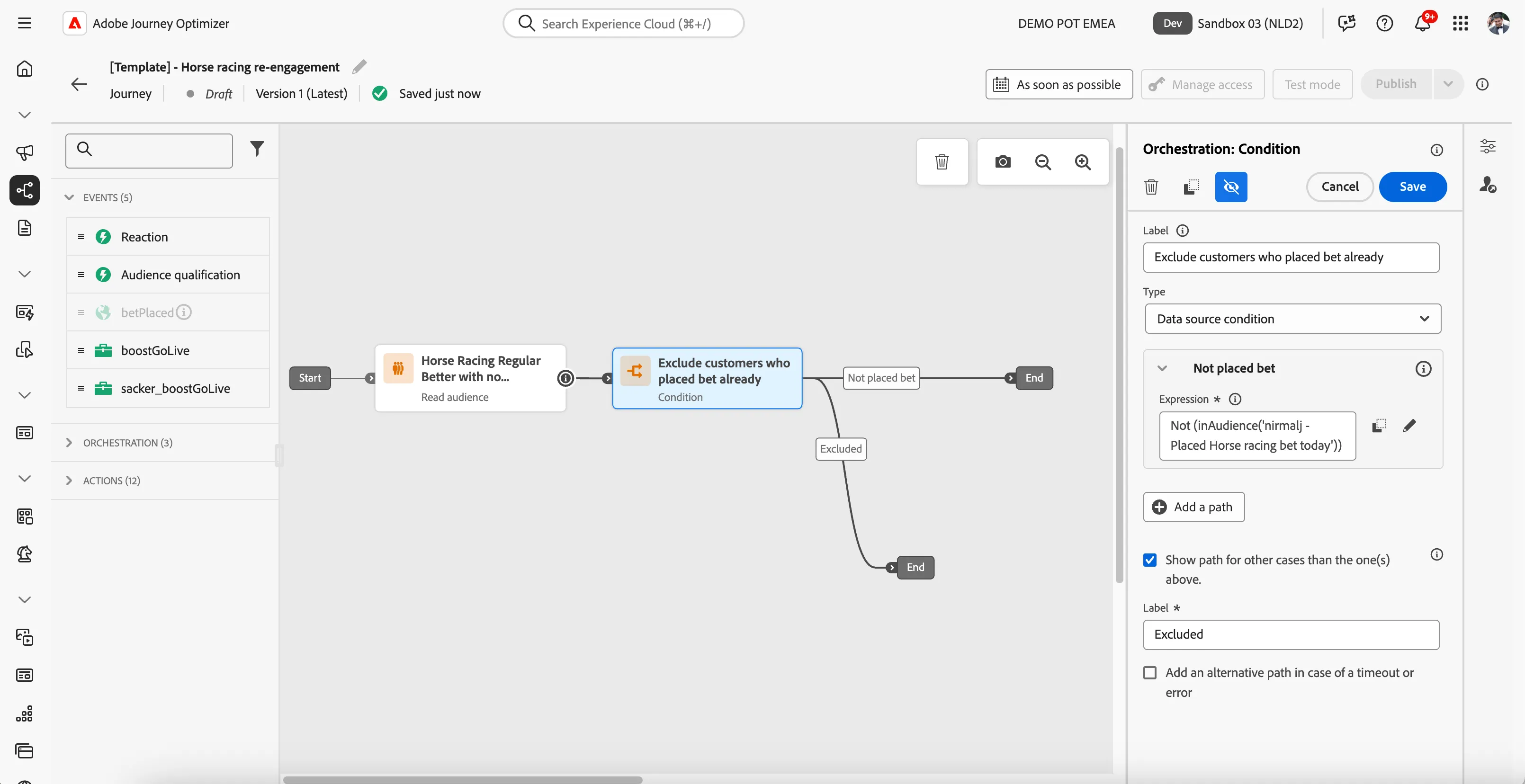
- Set the label to Exclude customers who placed bet already.
- Click on Path1 and change the label to Not placed bet.
- Click on expression field to open a window.
- On the left side, open Audiences.
- Drag your audience [your name] - Placed Horse racing bet today from the list to the drag and drop area in the right. If you didn't create the audience, you can use [Example] - Placed Horse racing bet today.
Click on the toggle to make it false
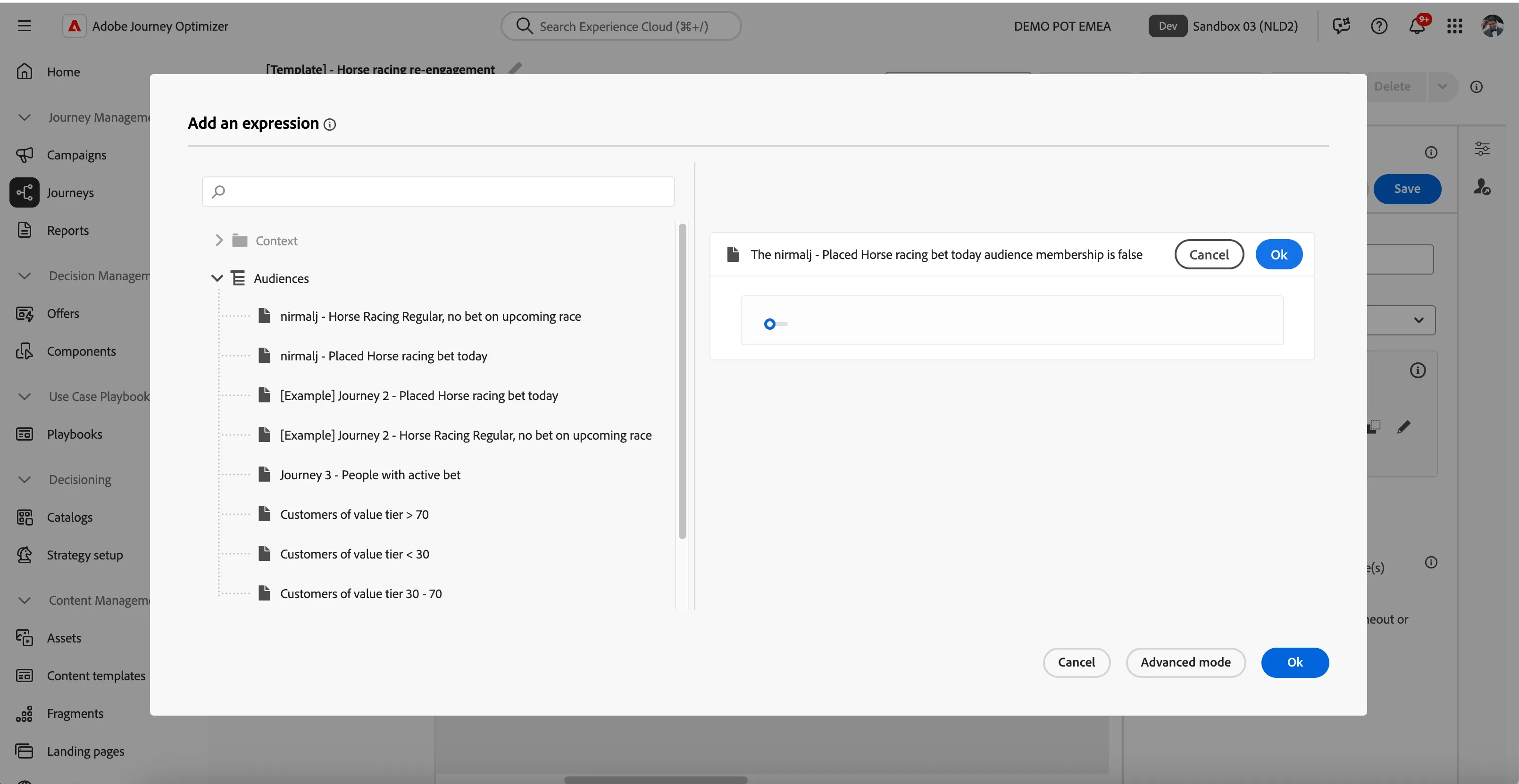
- Click OK the condition. This should make the condition as The [your name] - Placed Horse racing bet today audience membership is false
- Click OK on the expression popup to save the condition.
- Check Show path for other cases than one(s) above and leave the label as Excluded.
- Your screen should look like the image below. You can reposition the paths on the canvas by clicking and dragging to move them. Click Save.
Getting the upcoming horse racing events
Now we want to get the details of upcoming horse racing events. We already built our custom action to fetch the upcoming events and will use that in this step.
- From Actions tab, drag yourname_getUpcomingEvents to the icon on the Not placed bet branch. If you didn't create the custom action, you can use getUpcomingEvents.
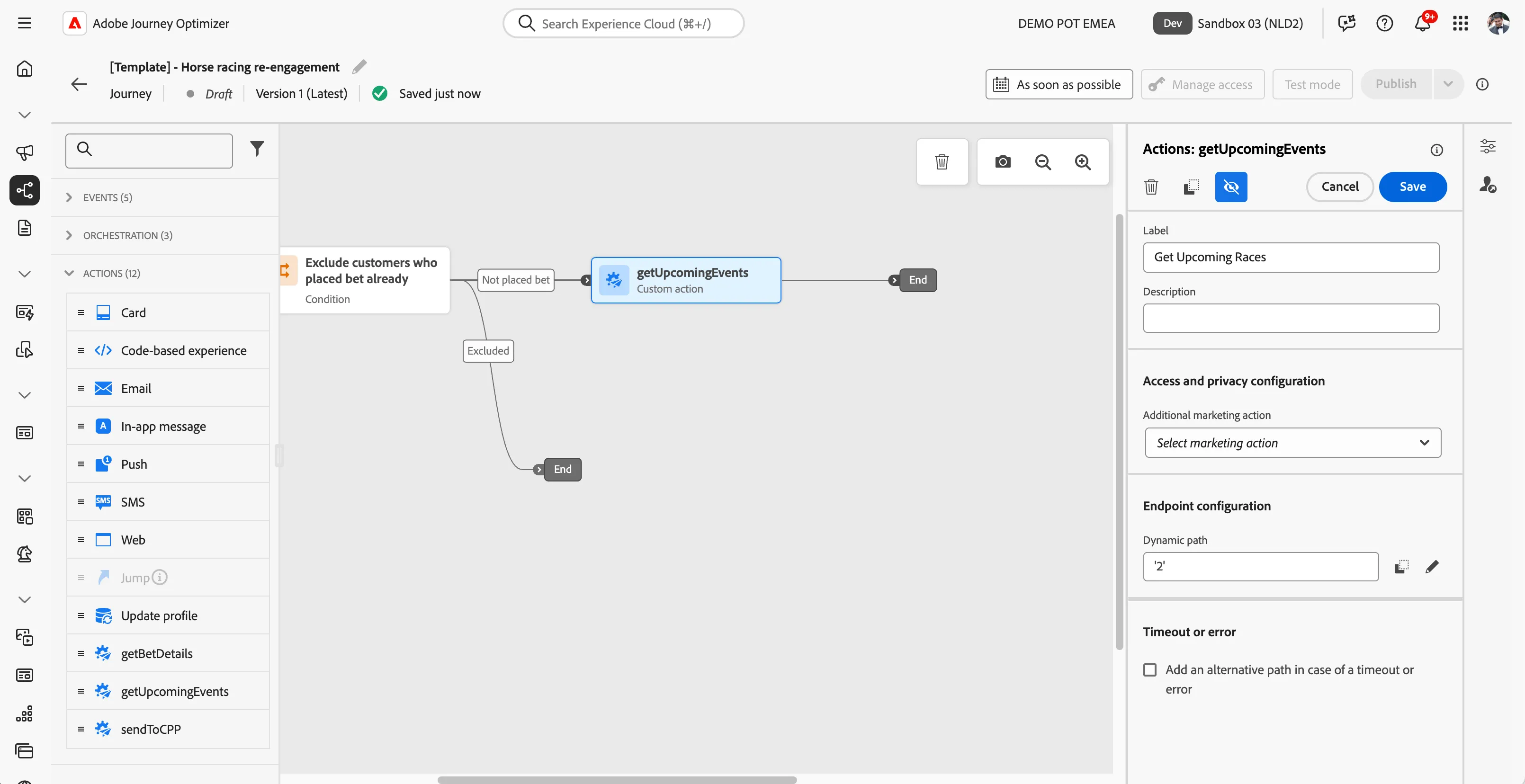
- Set the label as Get Upcoming Races
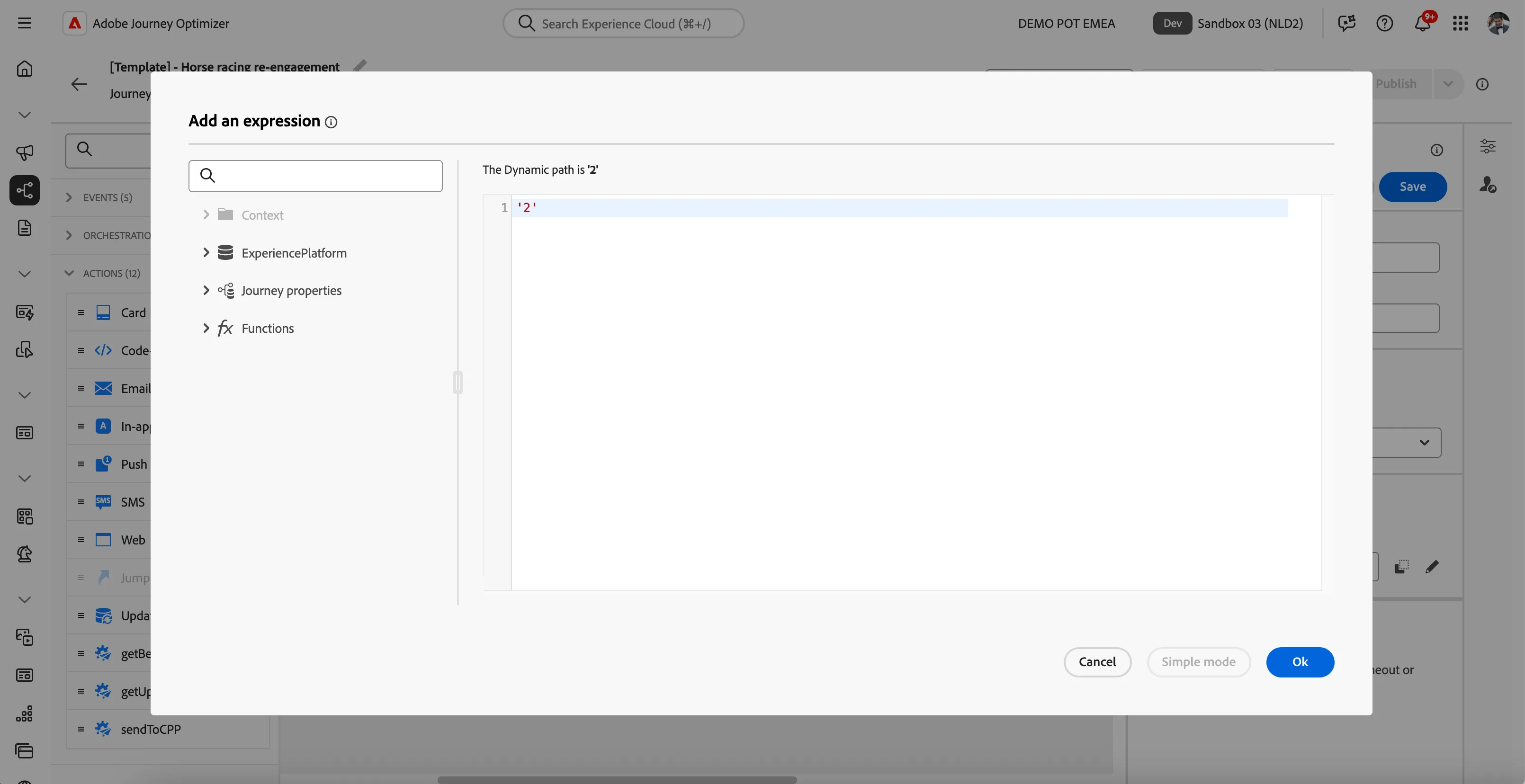
- Click on the Dynamic path field to open the expression editor. Click on Advance mode and add '2'
Click OK
- Your screen should look like the image below. Click Save to save the action configuration.
Email - Horse racing offer email
In the next steps you will be building the email for your journey. You'll pick a fully completed template of the basic email so that you don't have to build anything at all.
Building the Email
- From the actions tab, choose Email and drag it onto the icon after the custom action.
- Click on the activity to open the detailed view.
- Set the label to Racing Offer Email.
- Set the category to Marketing.
- Set the email surface to marketingEmailMessages.
- Click on Edit content to start designing your email.
- Click on to create a subject line. Set it to FIRSTNAME, We Miss Your Bets! Exclusive Offer for This Week's Races
- Remove the text FIRSTNAME and search for first name in the profile attributes.
- Find the field First name (... attributes > person > Full name) and click on the icon to add it to your subject line. It should now be {{profile.person.name.firstName}}, We Miss Your Bets! Exclusive Offer for This Week's Races
- Click Save.
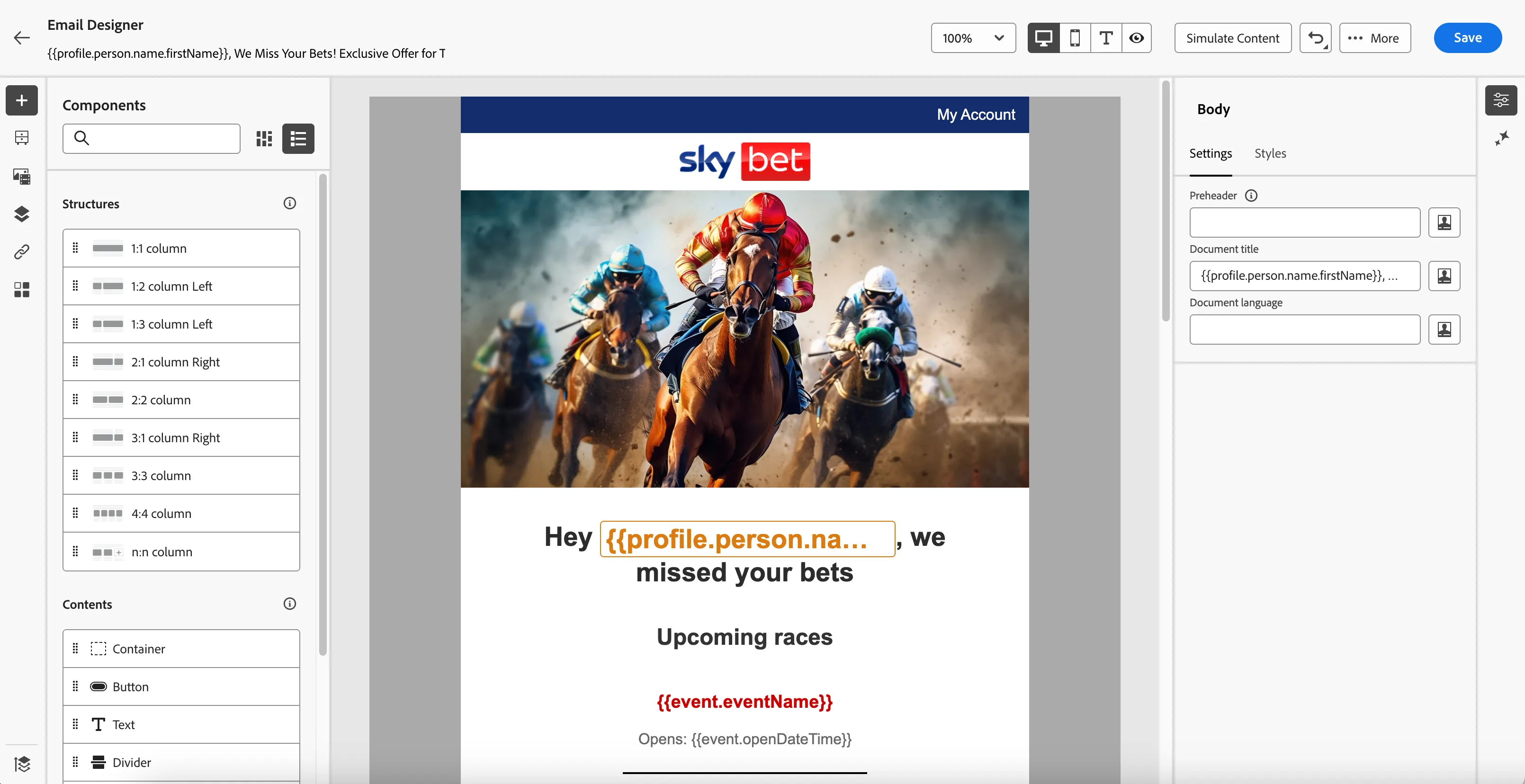
- Click on Edit email body. Under Saved templates, choose [T] Flutter - Horse racing offer Template. It will show you a preview of the template. Click on Use this template.
- The email designer will now open. It should look like the image below. Click Save in the top right.
Configuring the email
We had most of the content prebuilt into the email using the template. Now lets customise the email for our journey.
Click on the text Upcoming races to get that block highlighted. Once highlighted, click on icon to open the HTML block.
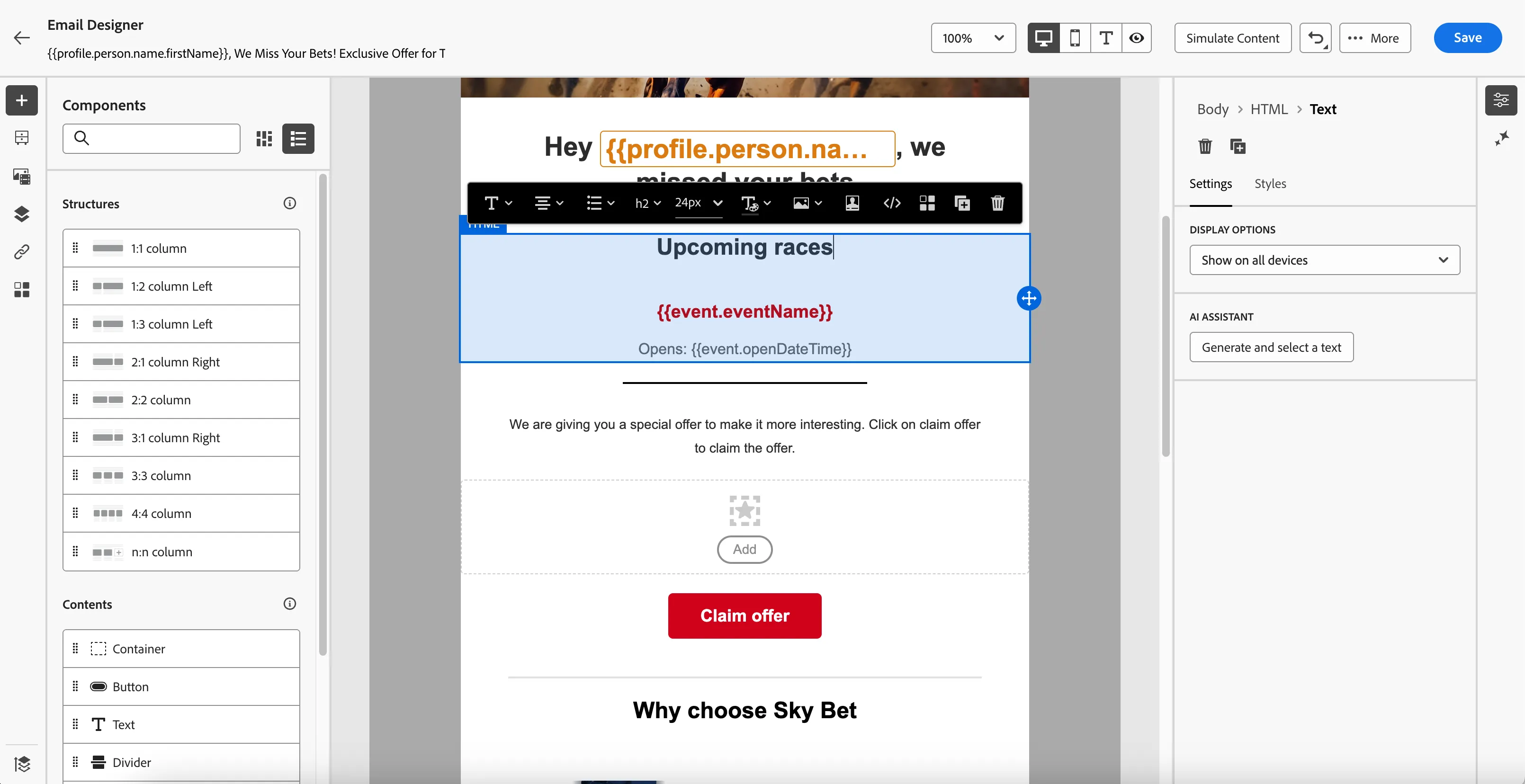
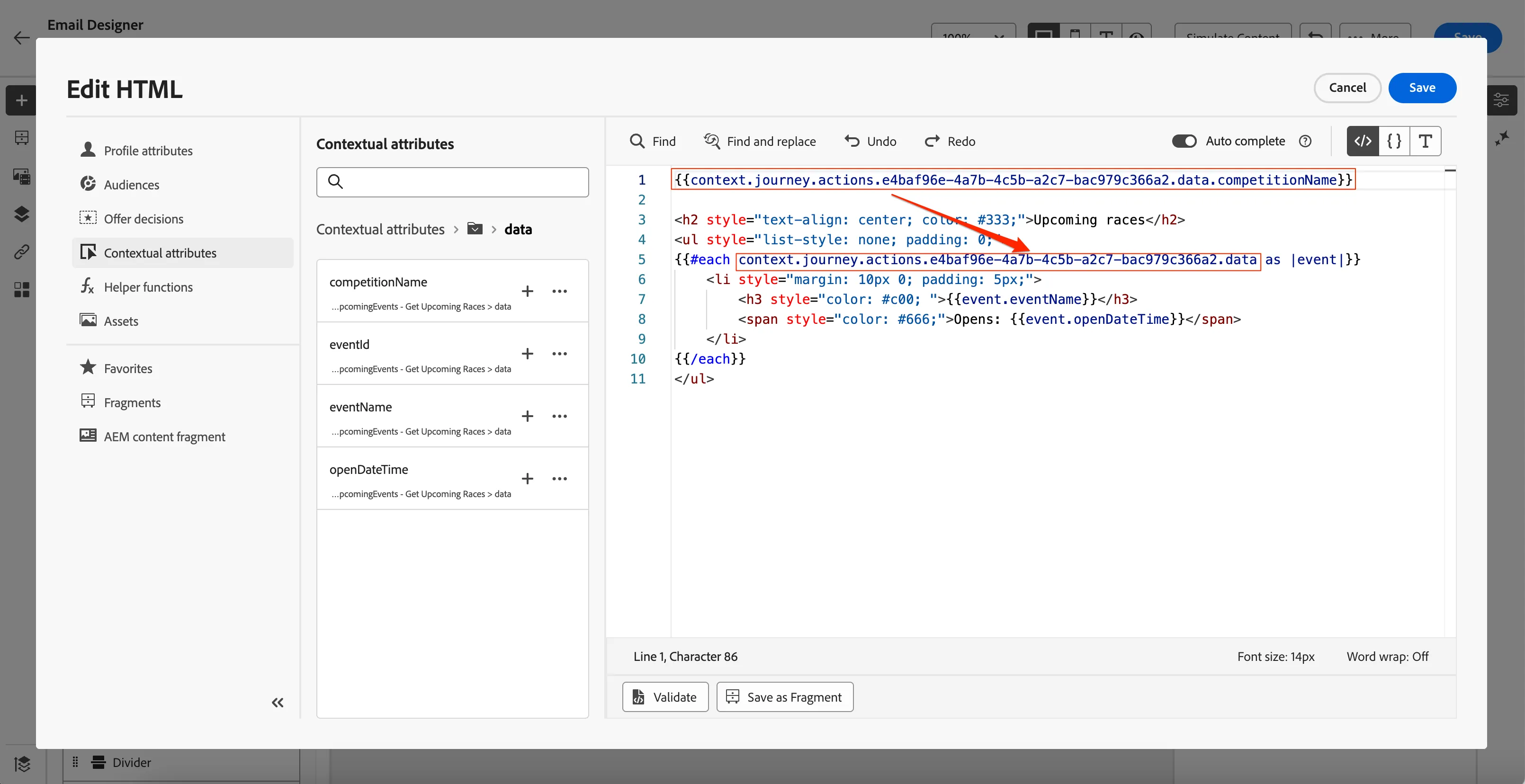
- From the left menu, select Contextual attributes > Journey Orchestration > Actions > yourname_getUpcomingEvents - Get Upcoming Events > data > competitionName and click on icon next to it. You will see a attribute something like {{context.journey.actions.e4baf96e-4a7b-4c5b-a2c7-bac979c366a2.data.competitionName}} added to the editing pane. We are selecting the response from our custom action using this step. If you have used getUpcomingEvents action, you can skip the next step
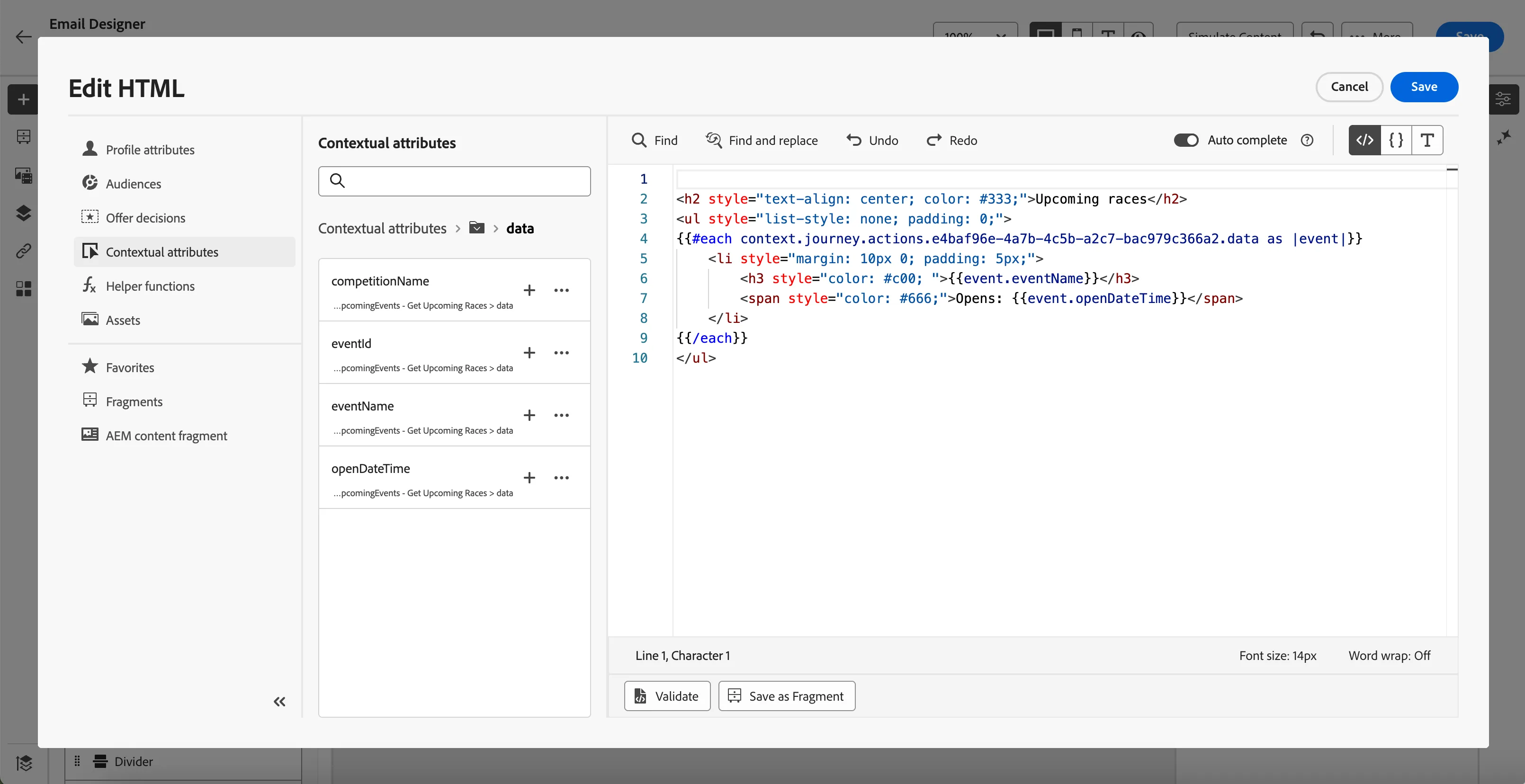
Replace the similiar line in the code block as mentioned below using the newly added attribute. Remove {{ from the beginning and .competitionName}} from the end.
After the replace, your screen will look like below. Click Save to save the expression.
-
- Now lets add the offer to the email. For this click Add, a pop-up window will open.
- From the Placements drop down, choose Email - Image
- Check the [your name] - Horse racing re-engagement offer decision and click on Add in the top right of the window. If you didn't create the decision, you can use Horse racing retargeting.
- Under Offer preview, you can see the potential offers customers could receive. Using the icons you can see the different offers the customers see based on the value tier they qualify and the ranking.
Your screen should like this. Click Save
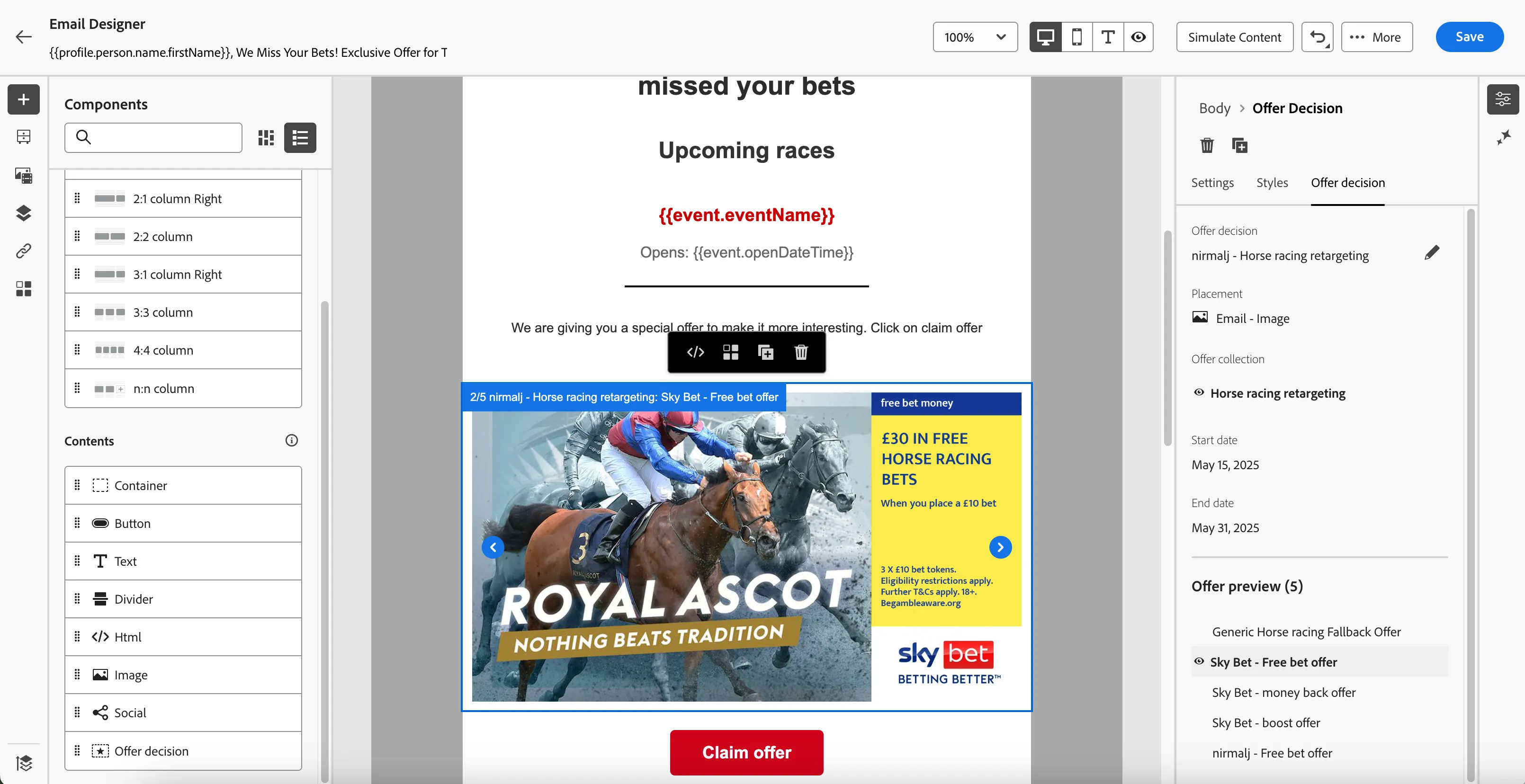
- Click Save in the top right. Then navigate out of the email designer by clicking on the back arrow -icon in the top left. You'll be taken to the messages overview for your journey.
Now we will explore some the Experimentation & Gen AI capabilities in the Email designer.
Creating a content experiment
As part of our drive to increase the conversion rates of our emails, we want to run an A/B Experiment to see what subject line leads to a higher open-rate. In Adobe Journey Optimizer we call this a Content experiment.
- In the top right, click on Create experiment. A window will open.
- Set the success metric to Email Opens (AJO).
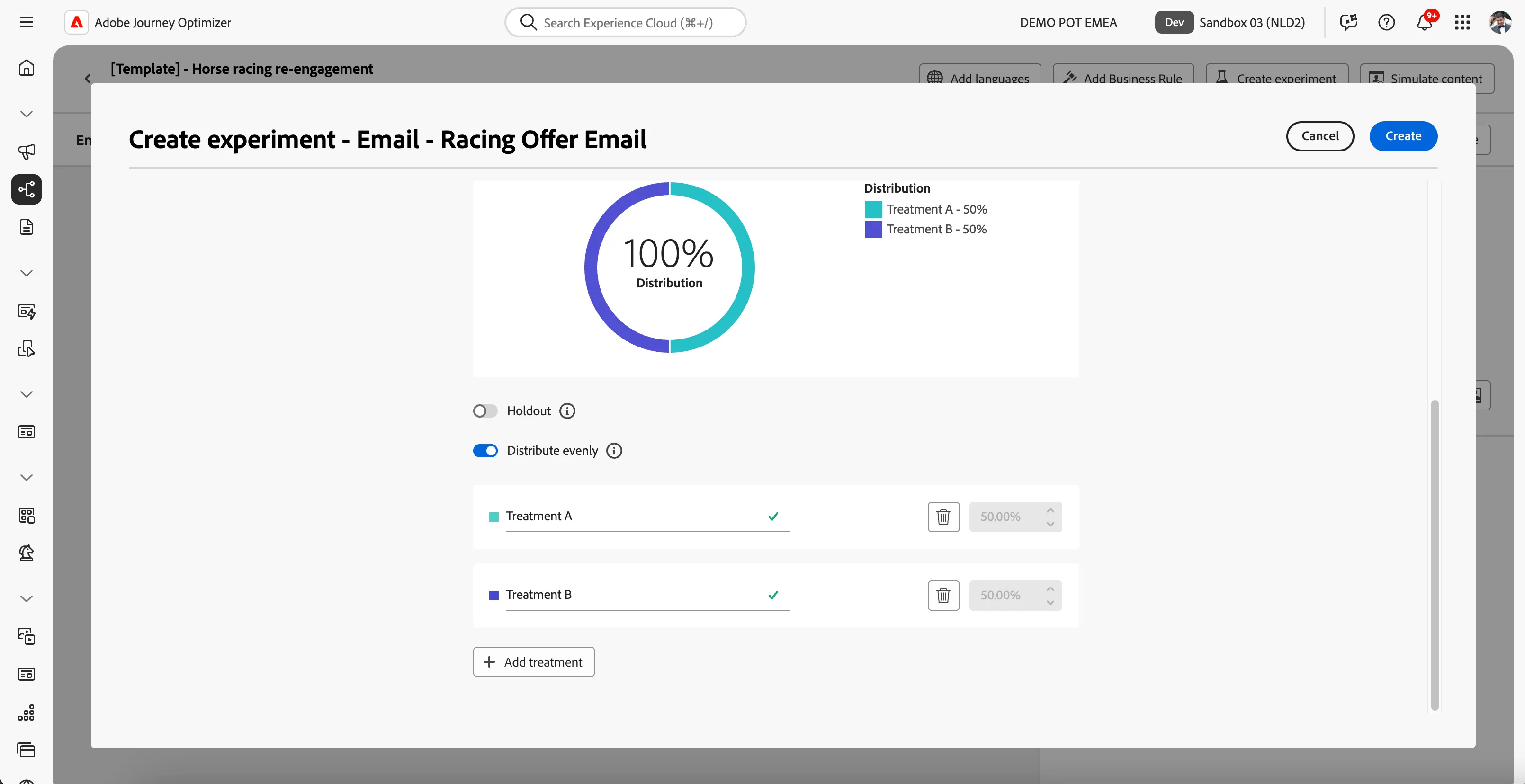
- Leave the holdout off, this is the default setting. Enabling this will allow you to add a percentage of the audience to a control group, receiving none of the content treatments.
- Leave distribute evenly on, this is the default setting. Disabling this will allow you to customly distribute the incoming audience over your treatments.
- Click Add treatment to add a second treatment to your experiment.
Your settings should now look like this:
- Click Create in the top right.
- Notice how the interface changed and now displays your treatments on the left menu.
- The email content for Treatment B is empty. However, we'd want this to be the same as Treatment A as we are only testing how the subject line affects the open rate. Click on the -icon for Treatment B and click Delete. You'll be prompted to confirm the delete, click Delete to remove Treatment B.
- To create a copy of Treatment A click on the -icon for Treatment A and click Duplicate. You'll be prompted to provide a name for the new treatment. Set the name to AI generated subject line.
- Rename Treatment A to Default subject line,by clicking on the icon for Treatment A and clicking Rename.
- Select the email for the AI generated subject line. On the right side you'll see the current subject line, which was duplicated from the original email we created.
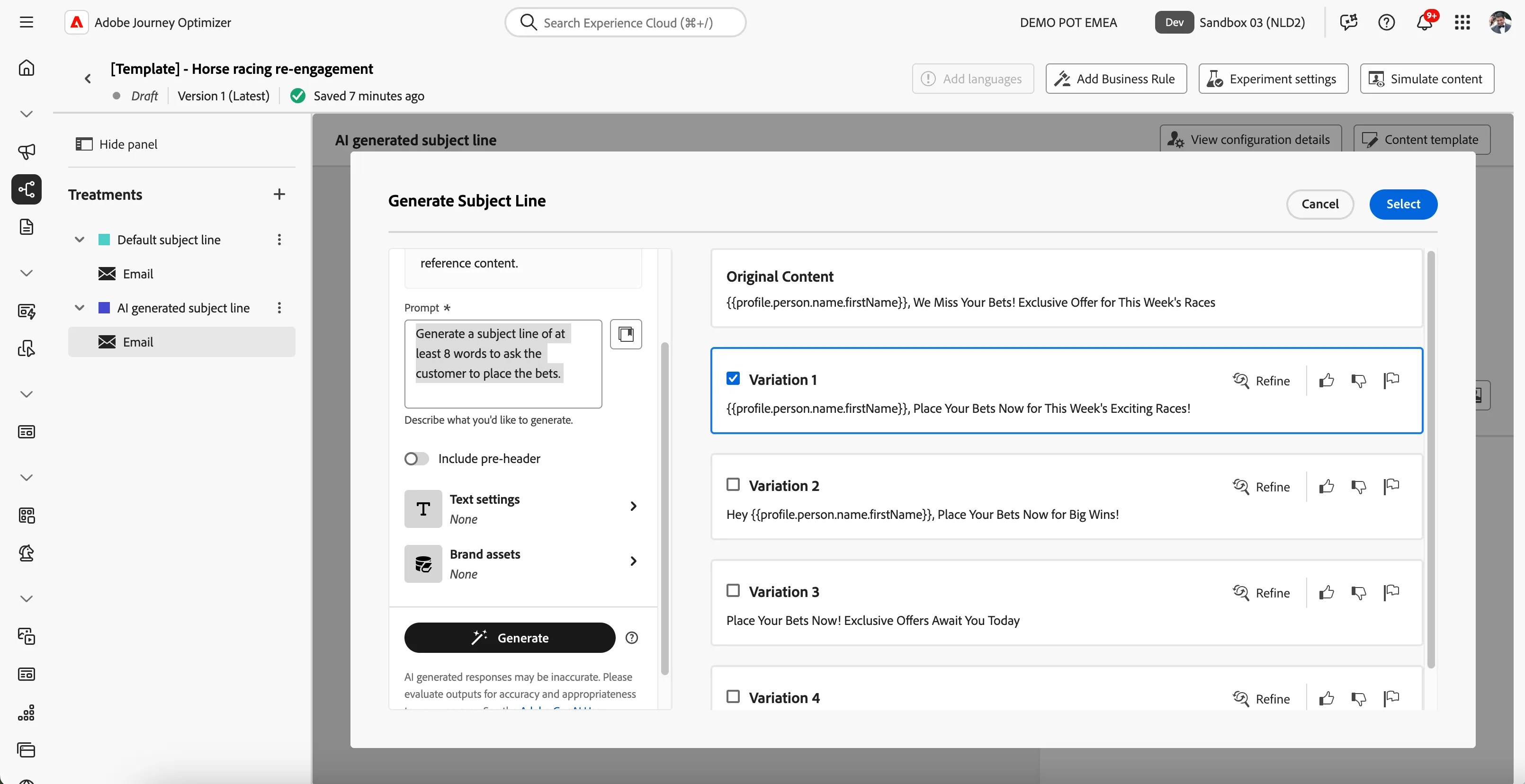
- Click on the -icon to edit text with AI Assistant. A window will open.
- You're now in the AI Assistant interface. You can write a prompt and set various settings like communication style, language and tone.
- The more descriptive you are, the better the prompt will work. Try the following prompt: Generate a subject line of at least 8 words to ask the customer to place the bets. and click Generate.
- The AI Assistant will provide you with several variations.
- Feel free to add more instructions to the prompt and play around with the tone to find a result you like!
When you find your perfect subject line, select it and click Select in the top right corner.
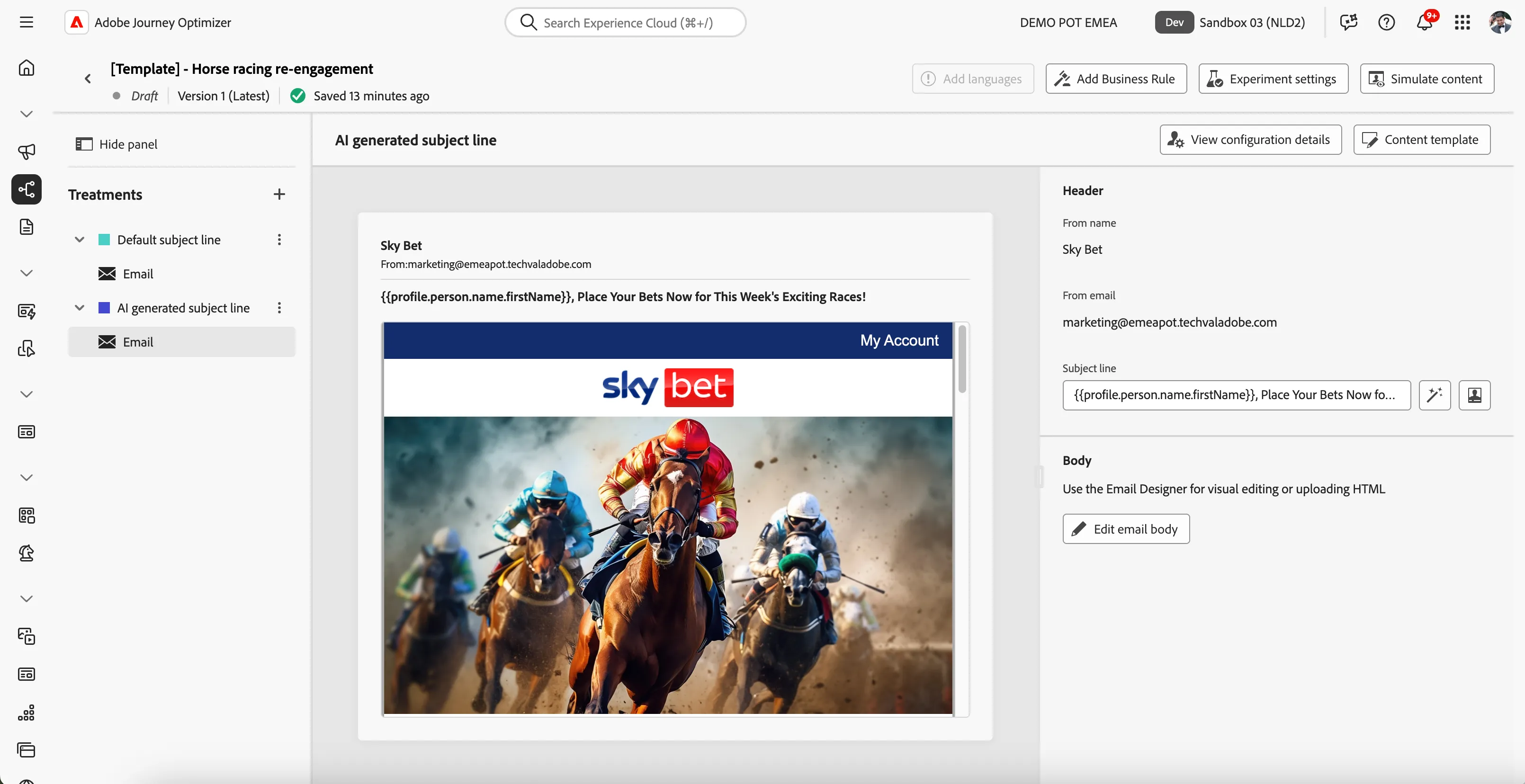
We now succesfully set up a content experiment for a subject line open rate test using AI to generate a subject line! Your screen should look like the image below.
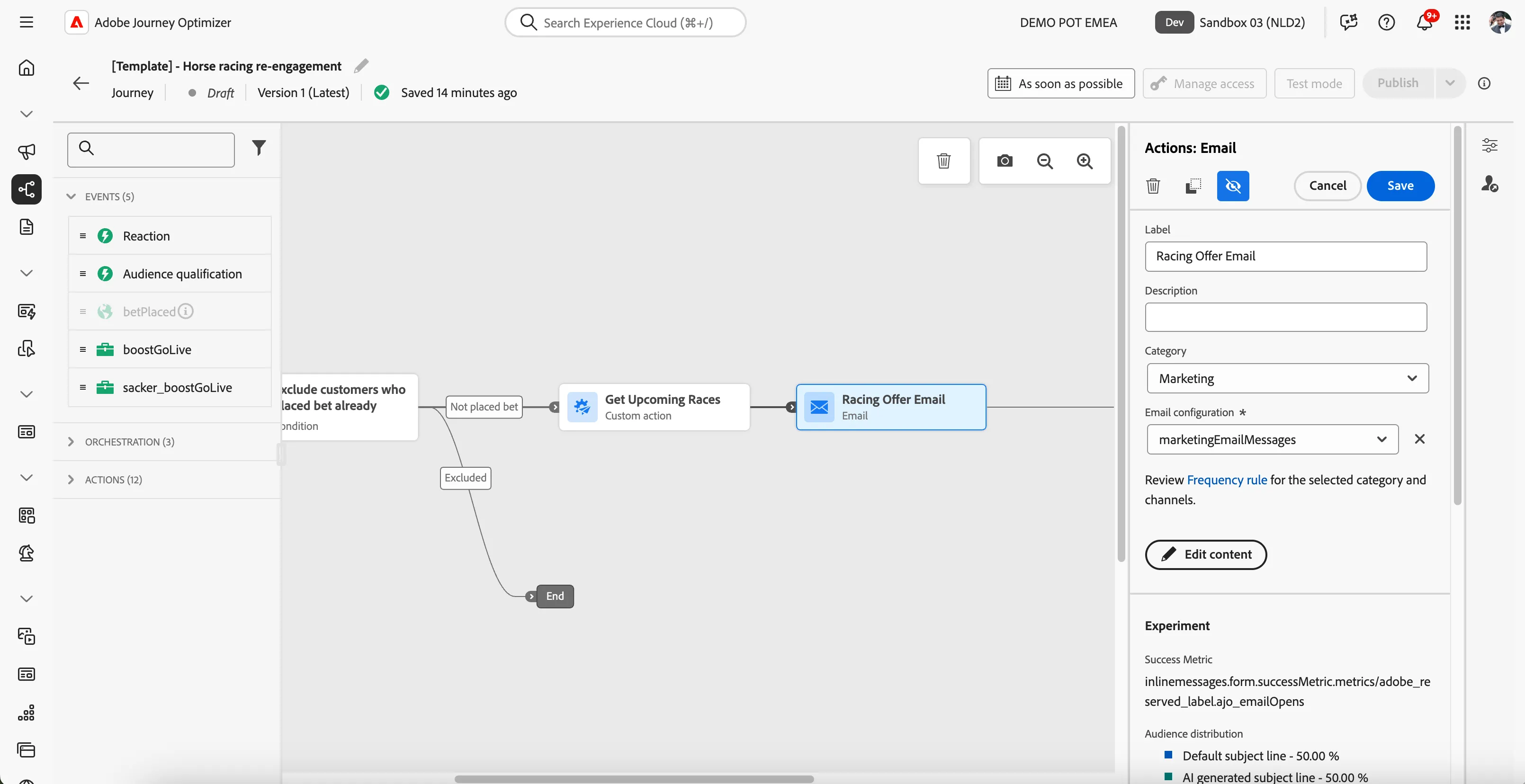
Navigate out of the email overview by clicking on the arrow -icon on the top left. You will be taken back to the journey canvas. Click on Save
Personalising web experiences
Journey Optimizer allows you to personalize the web experience you deliver to your customers through inbound journeys or campaigns.
Configuring the web experience
- From the actions tab, choose Web and drag it onto the icon after the email.
- Click on the activity to open the detailed view.
- Set the label to Racing Homepage Banner.
- Set the web configuration to webChannel. This is the channel configured we have pre-configured with the demo site details.
- Click on Edit content to start designing your web experience.
- Click on Edit web page from the right side pane.
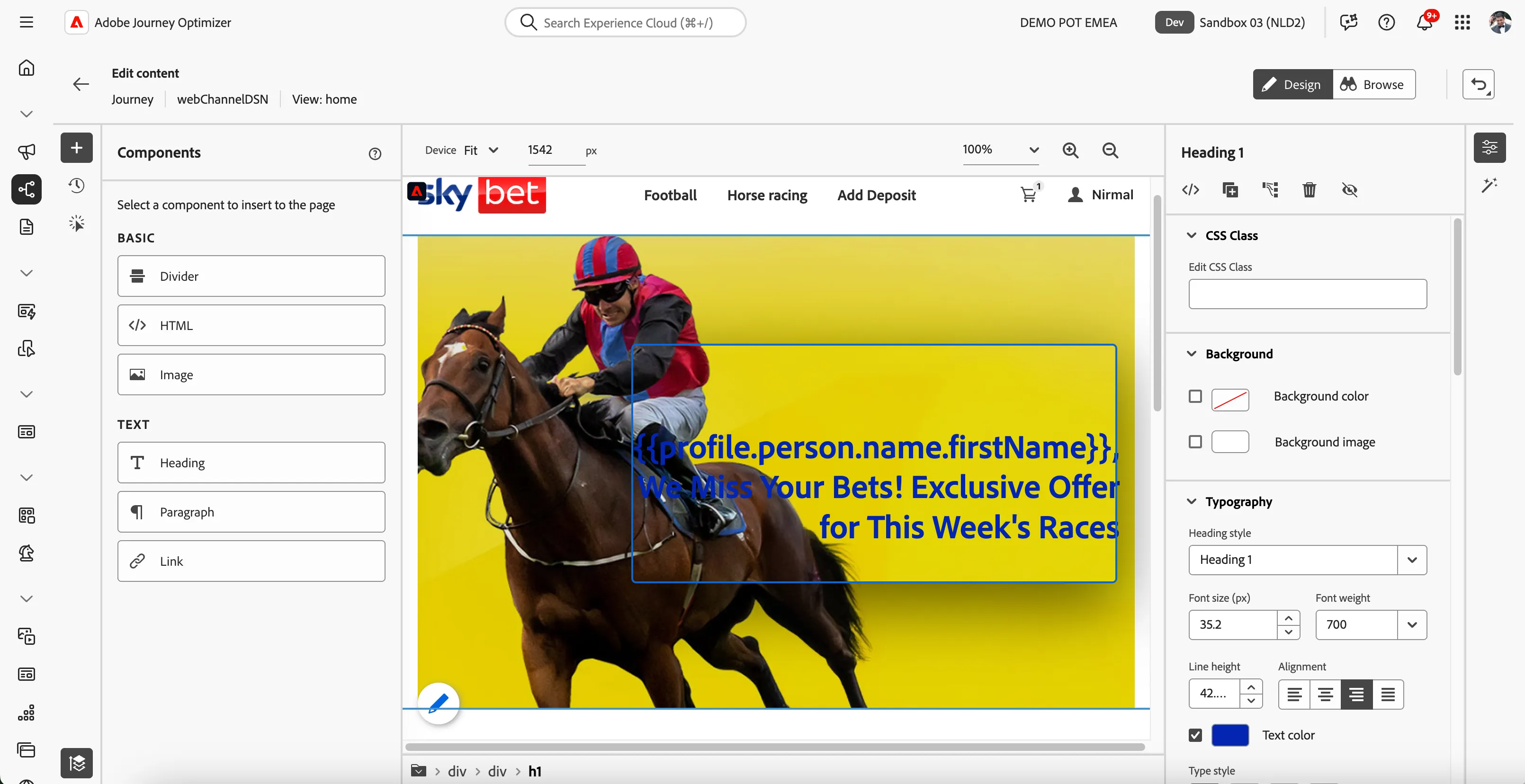
Hover on the image to show the text elements available. Click on the text element to show the properties of the field. Once selected, click on icon to edit the HTML.
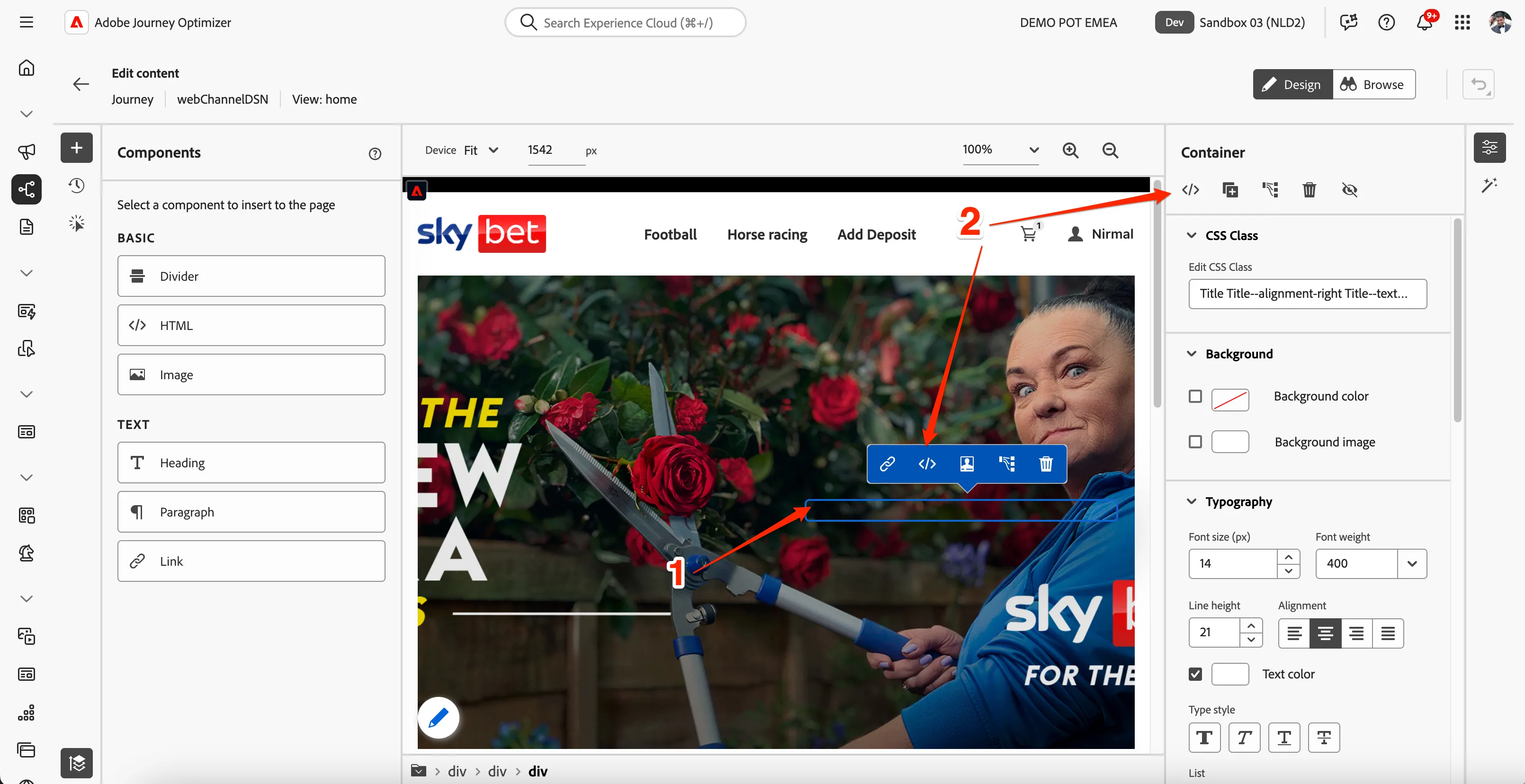
- In between the <h1></h1> tags, paste the below text.
- FIRSTNAME, We Miss Your Bets! Exclusive Offer for This Week's Race
- Remove the text FIRSTNAME and search for first name in the profile attributes.
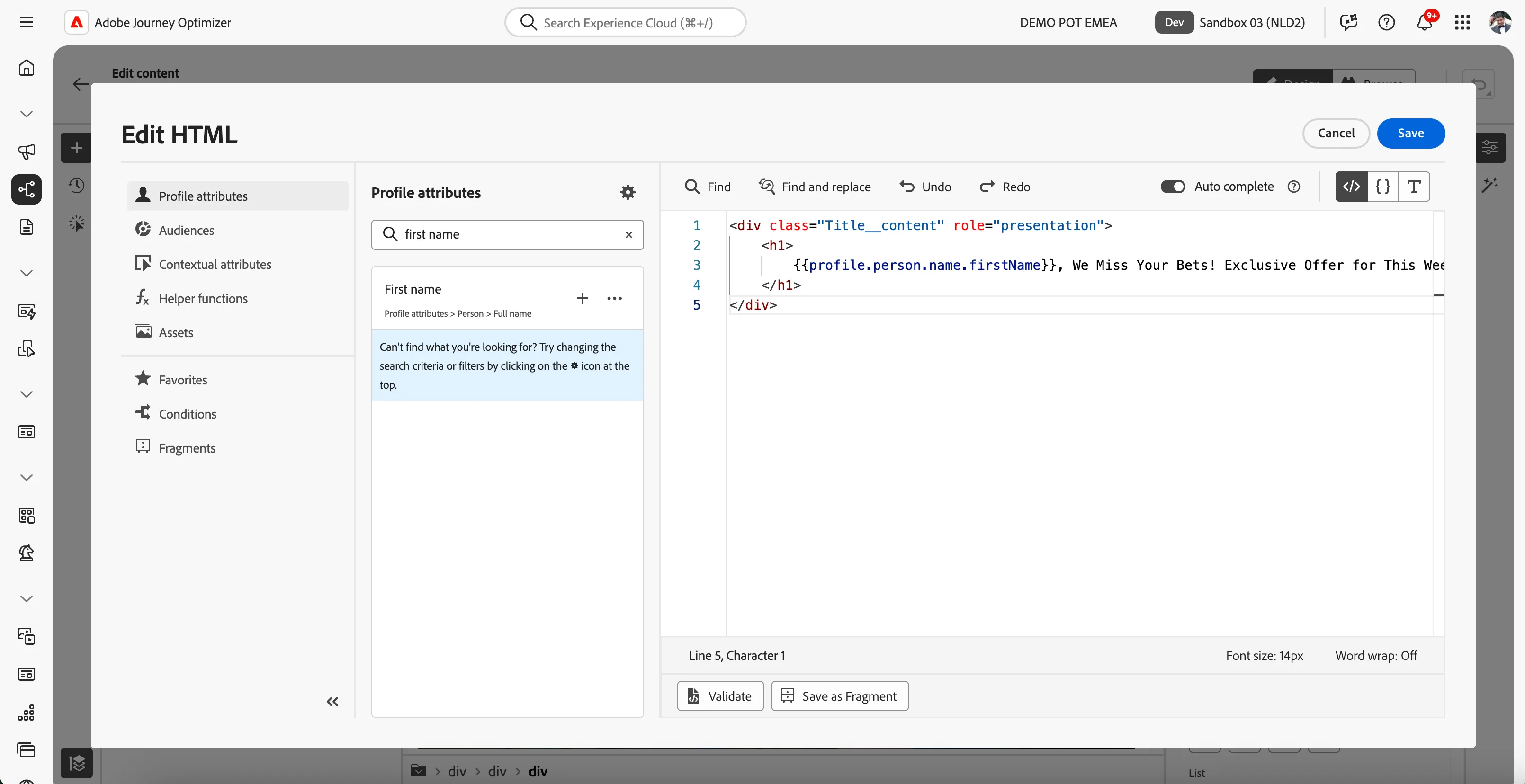
- Find the field First name (... attributes > person > Full name) and click on the icon to add it to your subject line. It should now be {{profile.person.name.firstName}}, We Miss Your Bets! Exclusive Offer for This Week's Races
The screen will look like this. Click Save.
- In case a popup comes up mentioning You are performing modifications on your SPA, click Confirm.
Now select the banner image to open its properties. Click on the gallery icon to change the image.
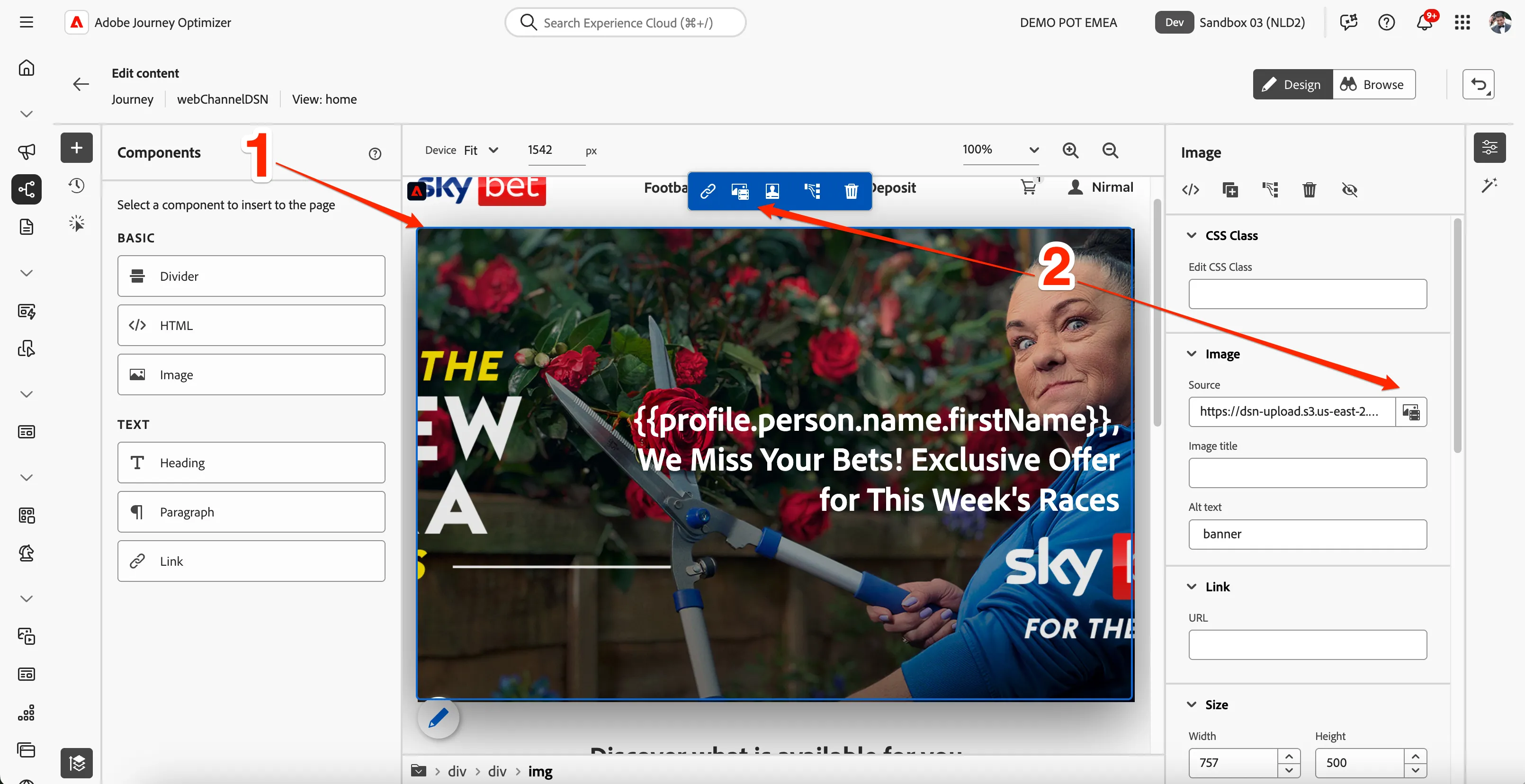
Here you can get the image from various sources or you can generate image using firefly. Switch to asset selector by clicking icon from the left menu.
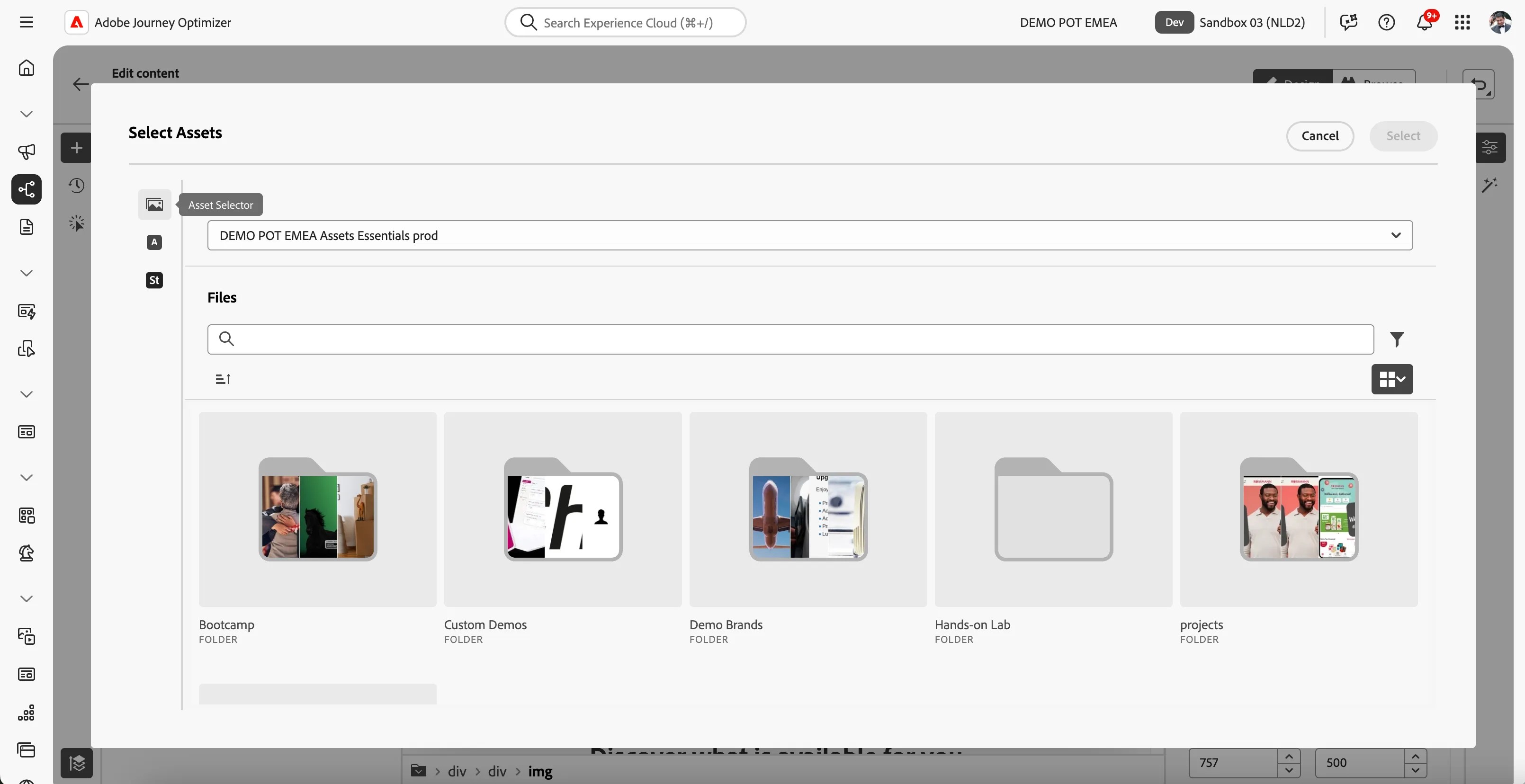
- Search for web-offer-background and select web-offer-background.png.
Your screen will look like this. Now you have created a personalised greeting message with a horse racing banner background for all the customers who got qualified in the journey.
- Click on icon of the top left to go back to web configuration summary.
Creating a web experiment
As part of our drive to increase the conversion rates of our web experience, we want to run an A/B Experiment to see if a personalised banner makes an impact. So we are going to configure a Content experiment for our web experience also.
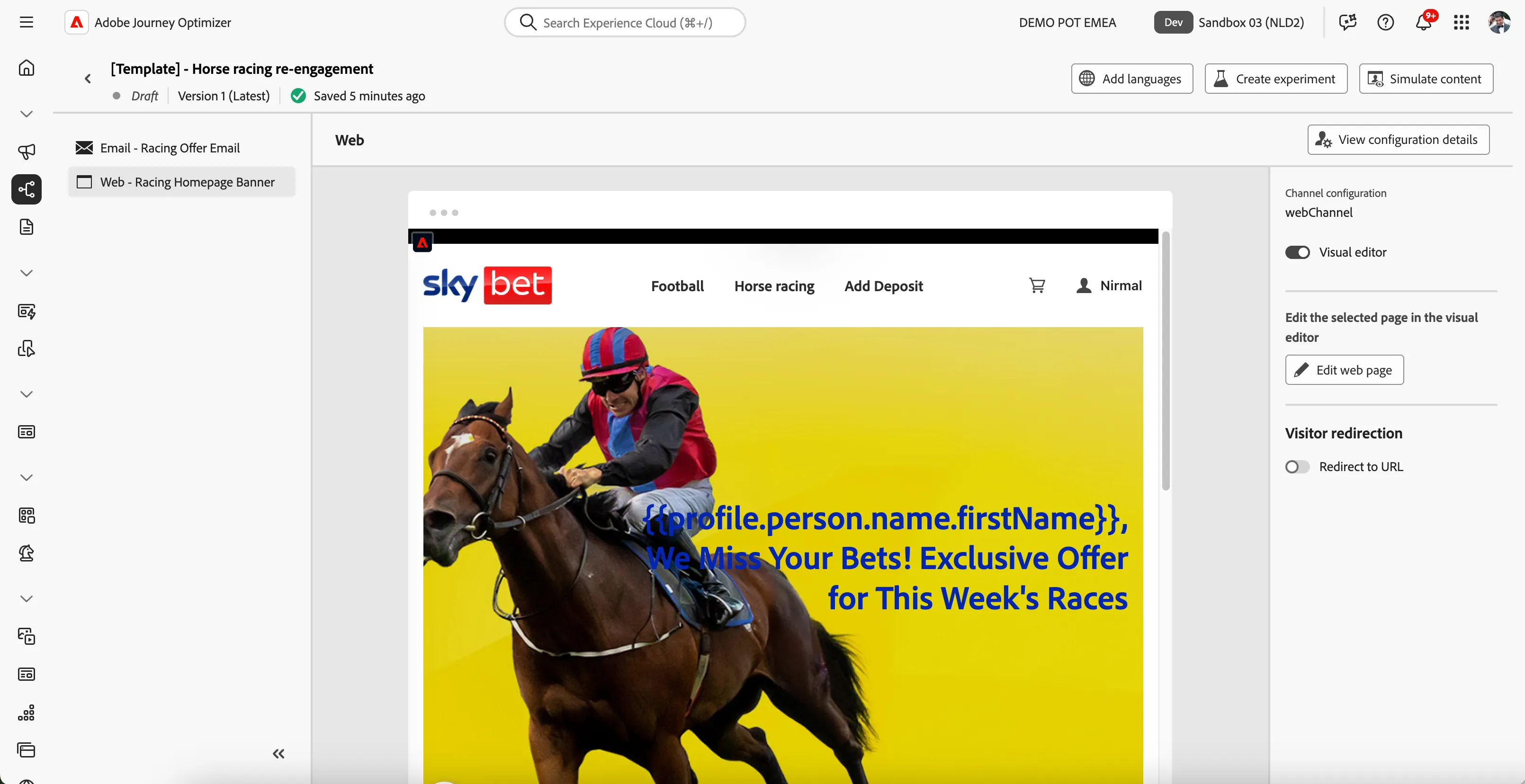
- In the top right, click on Create experiment. A window will open.
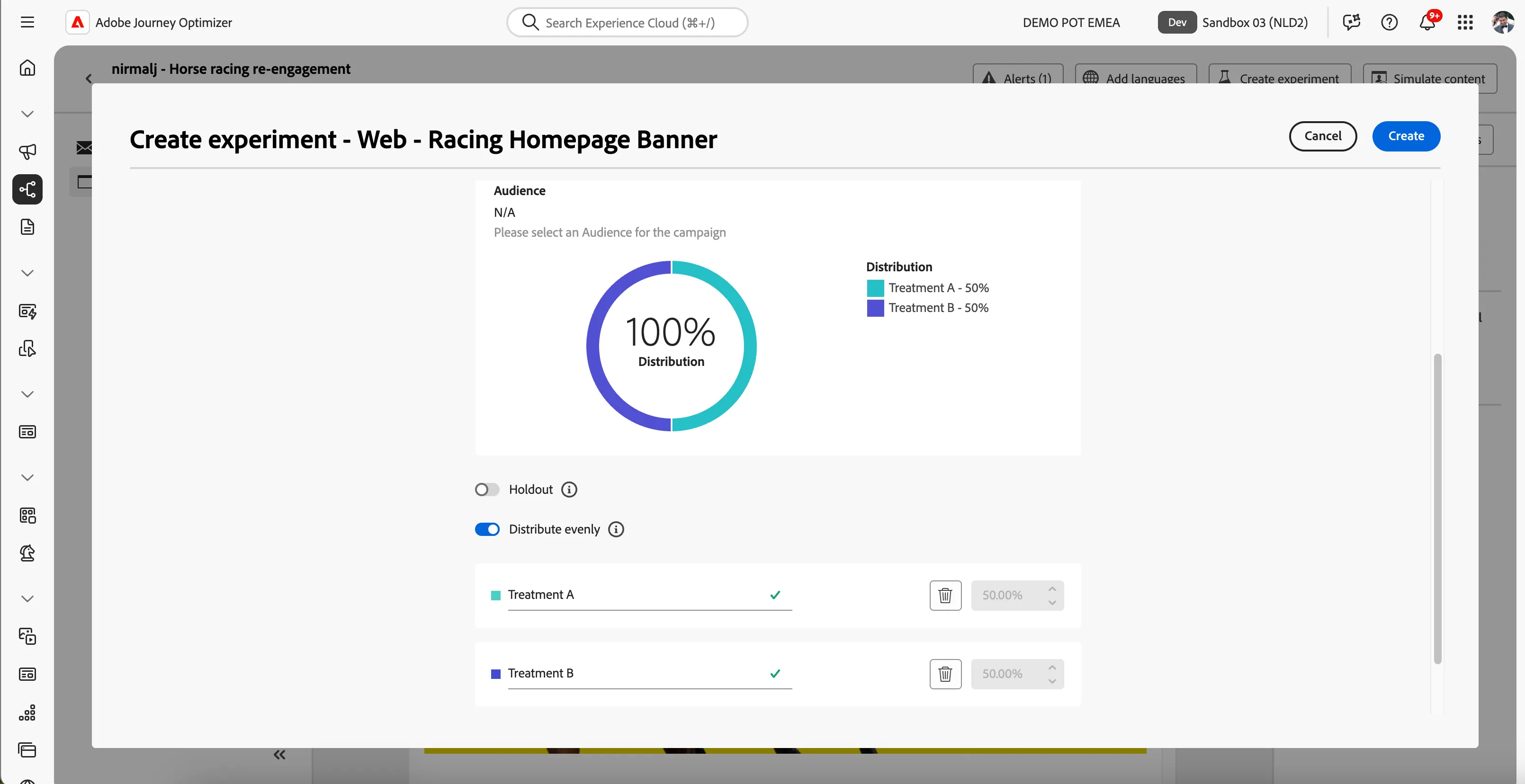
- Set the success metric to Unique Clicks (AJO).
- Leave the holdout off, this is the default setting. Enabling this will allow you to add a percentage of the audience to a control group, receiving none of the content treatments.
- Leave distribute evenly on, this is the default setting. Disabling this will allow you to customly distribute the incoming audience over your treatments.
- Click Add treatment to add a second treatment to your experiment.
Your settings should now look like this.
- Click Create in the top right.
- Notice how the interface changed and now displays your treatments on the left menu.
- The web content for Treatment B is the default website. However, we'd want this to be the same as Treatment A but without any personalised copy.
- Click on the -icon for Treatment B and click Delete. You'll be prompted to confirm the delete, click Delete to remove Treatment B.
- To create a copy of Treatment A click on the -icon for Treatment A and click Duplicate. You'll be prompted to provide a name for the new treatment. Set the name to Default Offer Banner.
- Rename Treatment A to Personalised Offer Banner,by clicking on the icon for Treatment A and clicking Rename.
- Select the web for the Default offer Banner.
- Click Edit web page
Click on the banner title and click icon to edit it.
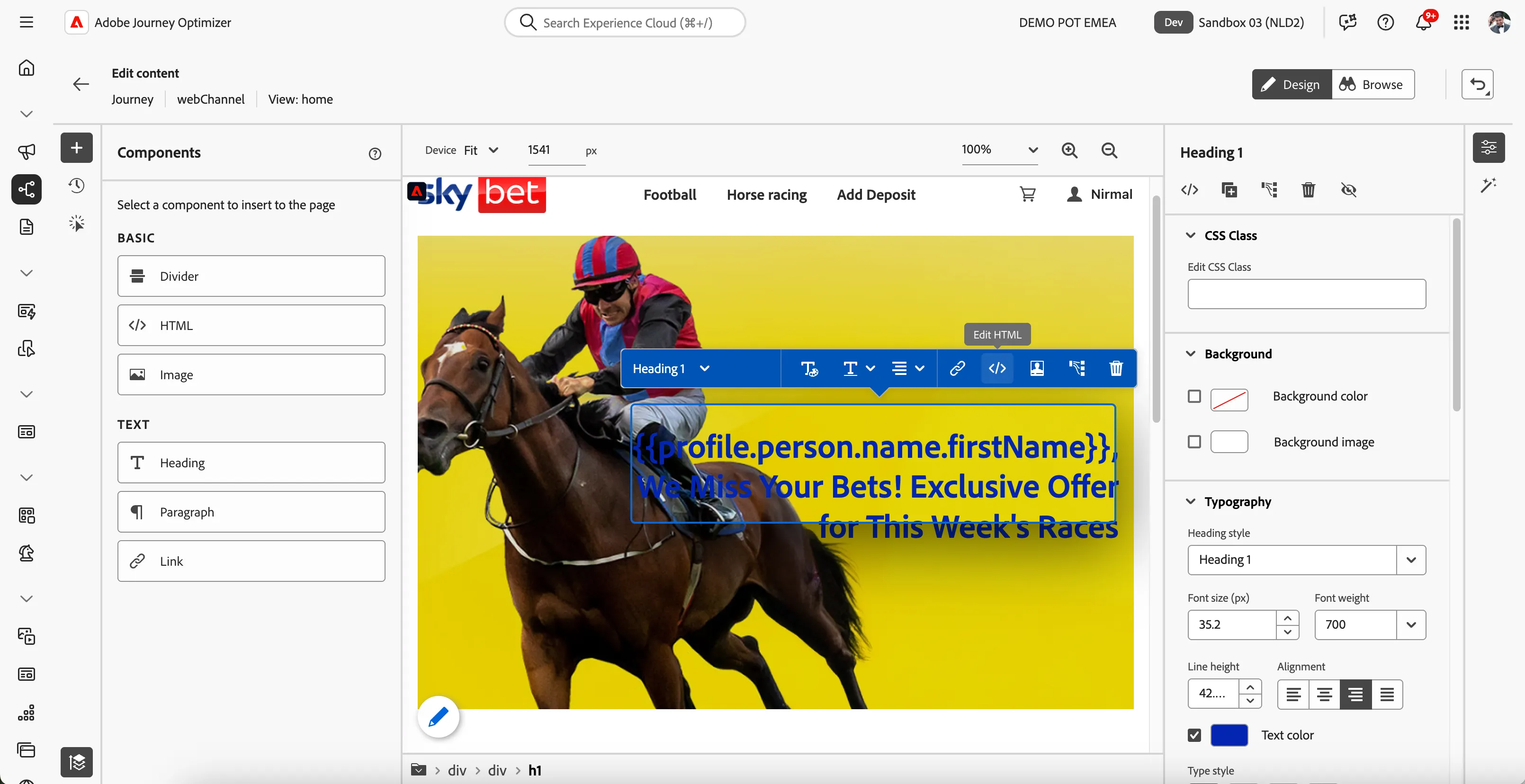
- Update the text to Exclusive Offer for This Week's Races
- Click Save
Your screen will look like this.
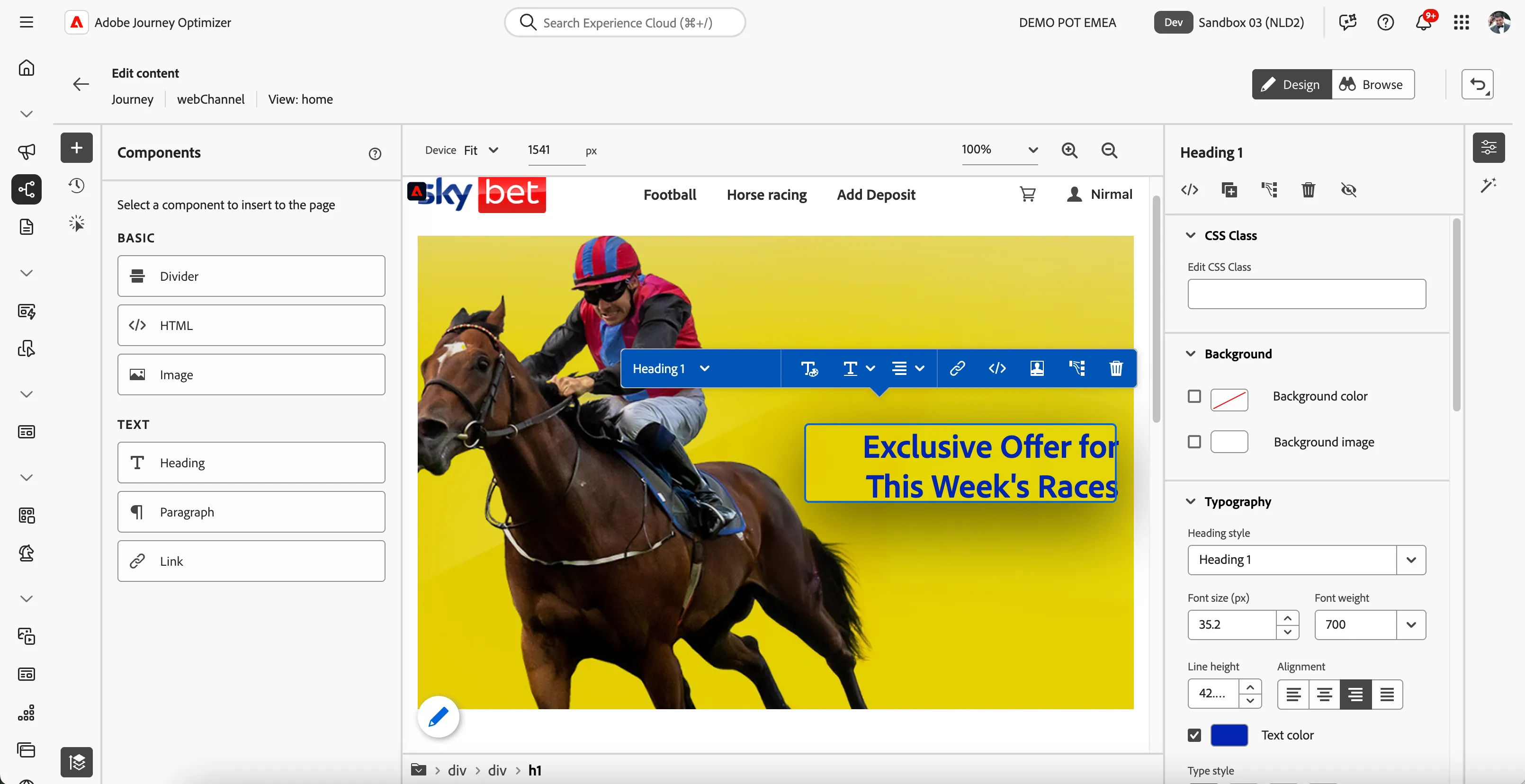
- Click on icon of the top left to go back to web configuration summary
You see now two treatments with two different messages as the web experience.
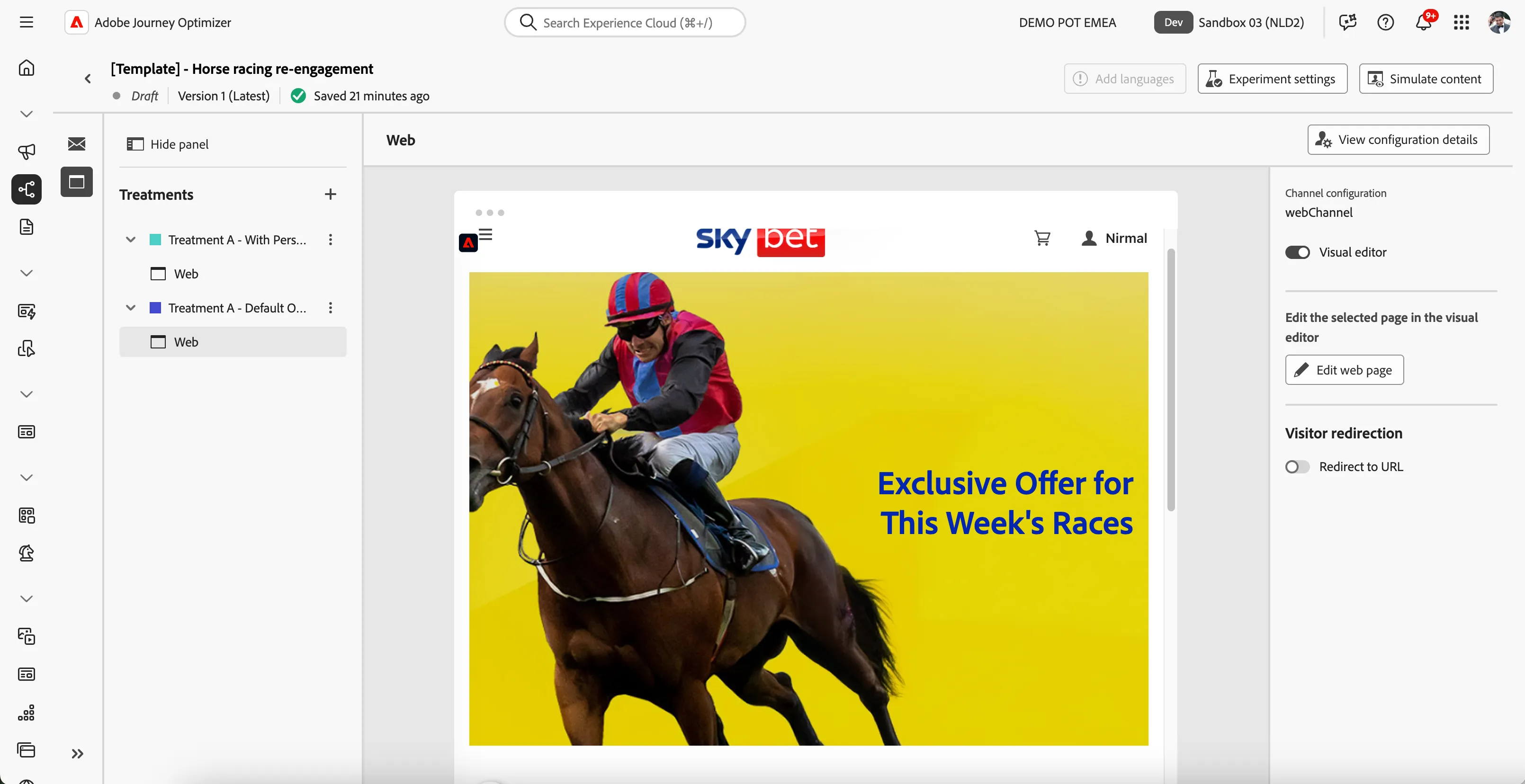
- Click on icon to go back to the journey. Your screen will look like this. Click Save to save the configuration of web channel step in the journey.
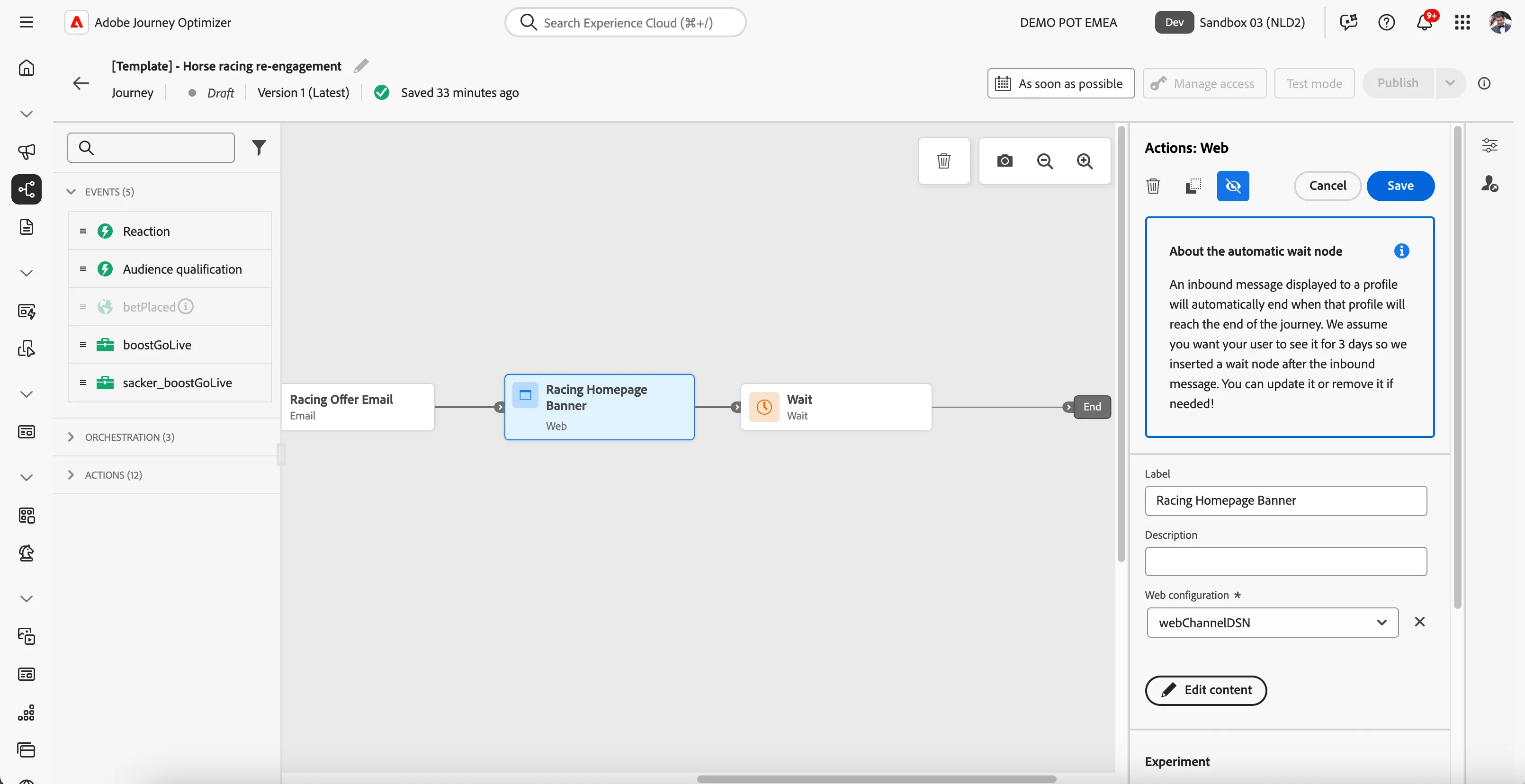
You have now successfully created the application journey using the Adobe Journey Optimizer. Next, we are going to test our journey using Test Mode.