Creating the journey
In this exercise, you'll be creating and testing a journey using all the components you've created in the previous exercises.
Journey overview
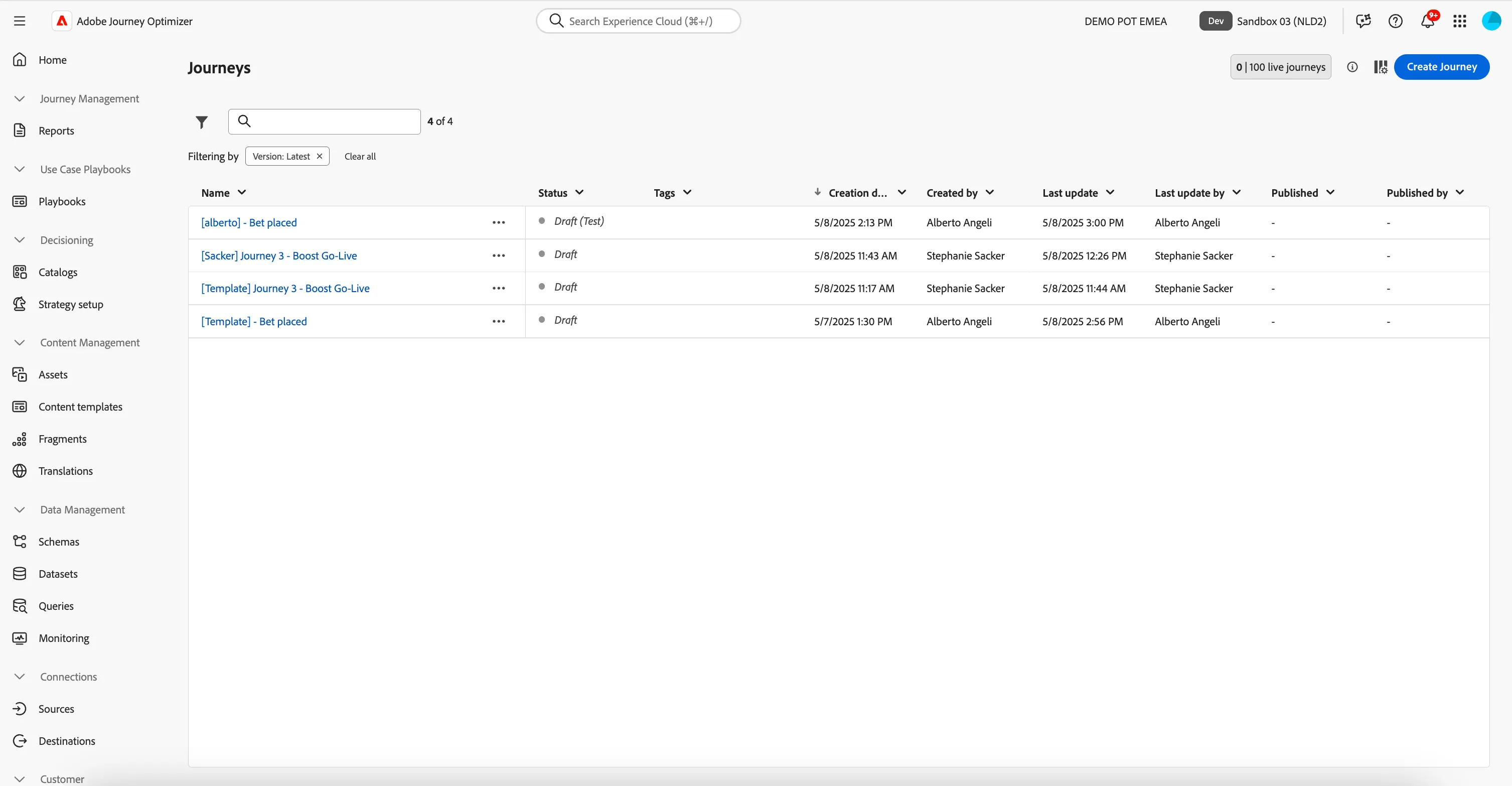
To get an overview of all journeys in Adobe Journey Optimizer:
- In the menu on the left side, under Journey Management, click on Journeys. You will see a overview with all existing journeys.
Creating a journey
We'll be creating a journey that will send personalised communication to Players who have a bet placed on a particular sporting event when a Boost goes live for that event.
We will design this Journey so that it can be used for any Boost event that could go live.
To create your journey, create a copy of an existing template journey.
- From the list of Journeys, find the Journey with the name [Template] Journey 3 - Boost Go-Live
- Click on the 3 dots next to the Journey Name.
- Select Duplicate.
- Define the name for your Journey as [your name] - Boost Go-Live
- Click Duplicate.
Your Journey will now apprear in the list of Journeys. Click your Journey name to open the Journey Canvas where we will orchastrate the Boost Go-Live Journey.
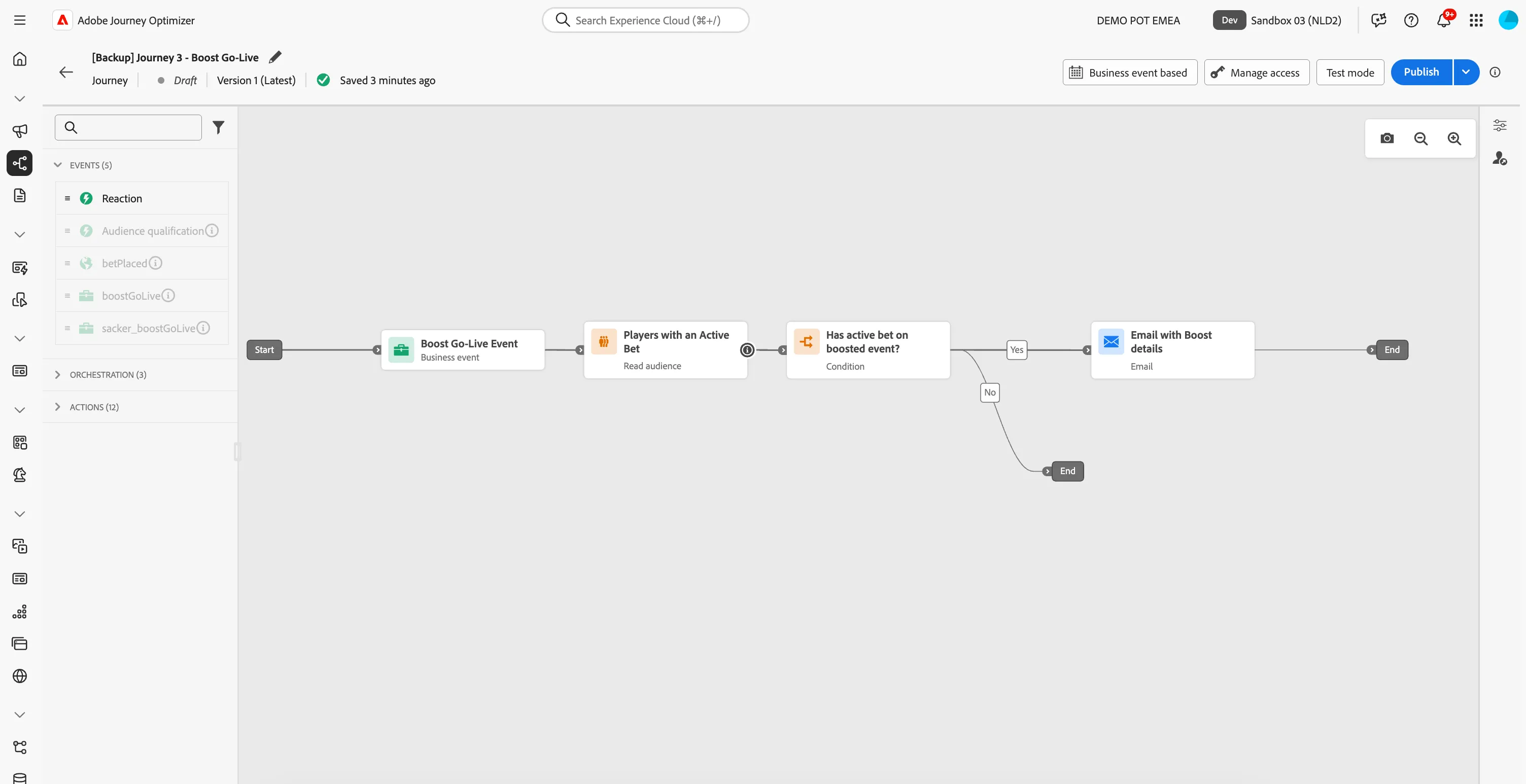
You're now in the journey canvas. This is where you'll be creating your journey's logic. In the left menu you have activities. There's three types of activities:
- Events are the triggers that can start or continue your journey.
- Orchestration is the logic of your journey. It looks at conditions, audiences, but can also be used to make your workflow wait or end.
- Actions are the results of your journey. This can be messages, profiles updates or API calls.
The Journey so far...
You'll notice the Journey is partially built out to save time in the Lab, we have;
- The Journey Trigger Event - This is a Business Event that will be sent by Flutter to Adobe Experience Platform, in order to trigger this Journey for when the boosted event goes live.
- "Players with an Active Bet" Audience - We created this at the start of this exercise. It will ensure only Players with an active bet will enter into the Journey.
- "Has an active bet on a boosted event"? Condition - When a Boost goes live, and the business event is triggered, the first thing we want to check are the events the Player in the Journey has active bets for. If the Player has an active bet for the boosted event, they will progress through the Journey. If not, they will exit the Journey.
- Note: this is a condition that compares the incoming context data (event ID) of the business event to the Players profile attributes (Active bets > event ID).
- "Email with Boost Details" Email Action - We will begin by editing the content of this email.
Email with Boost Details
In the next steps you will be building the first email for your journey.
- Designing the Email: You'll pick a fully completed template of the email from the Content Templates.
Building the Email
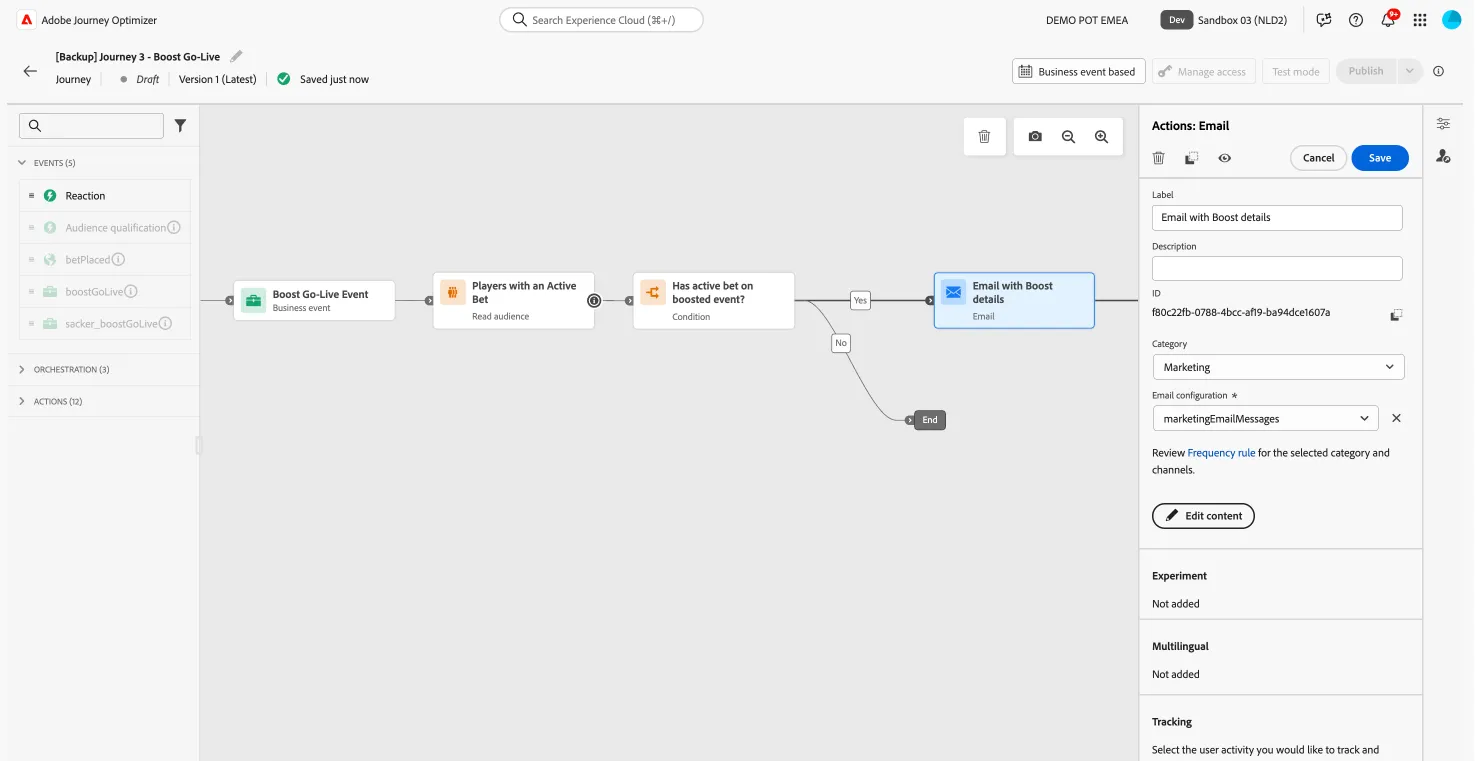
- From the actions tab, choose Email and drag it onto the Yes-path.
- Click on the activity to open the detailed view.
- Set the label to Email with Boost details.
- Set the category to Marketing.
- Set the email surface to marketingEmailMessages.
- Click on Edit content to start designing your email.
- Click on to create a subject line. Set it to Boosted odds: BOOST TITLE
- Remove the text BOOST TITLE and select Contextual attributes from the menu on the left side of the window.
- Click on the Journey Orchestration folder under Contextual attributes.
- Click on the Events folder.
- Click on the boostGoLive - Boost Go-Live Event folder. Note: This contains all the fields that have been sent as context data with the Boost Business Event.
- Expand the _demopotemea > Boost Details folders.
- Find the field Title and click on the icon to add it to your subject line. It should now be Boosted odds: {{context.journey.events.221433798._demopotemea.boostDetails.title}}
- Click Save.
- Click on Edit email body. Under Saved templates, choose [T] Flutter - Boost Event Email Template. It will show you a preview of the template. Click on Use this template.
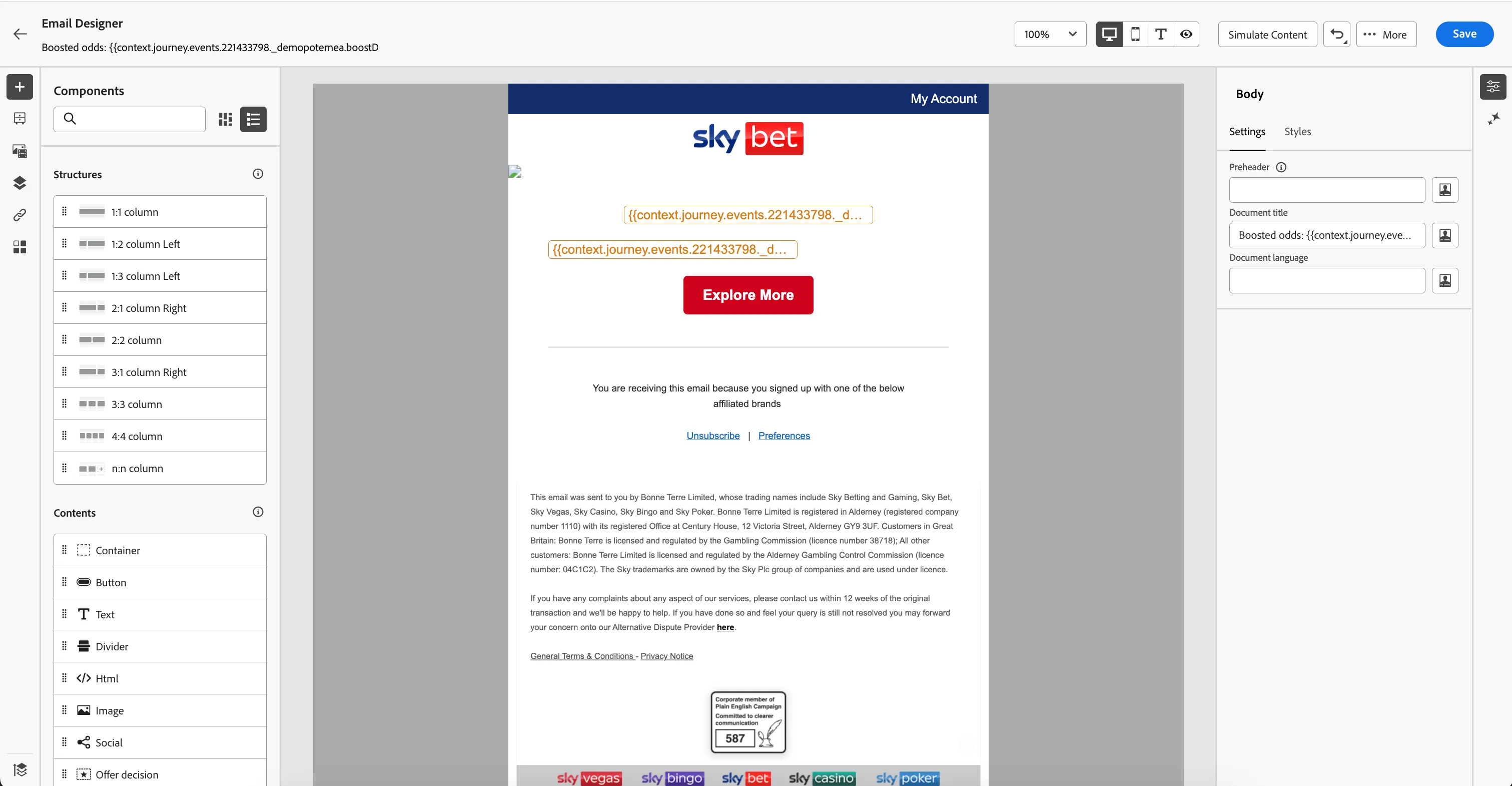
- The email designer will now open. It should look like the image below. Click Save in the top right.
The Email Designer
We won't be adding any futher Structure or Content components to this email template, since we have done this already when building Journeys 1 and 2.
However, you'll also notice there are personalised fields added into the email copy. These are references to the context data sent with the boost business event, and are populated dynamically in the resulting email to each customer that qualifies to receive the Email message.
The email template contains the Boost title, Boost description, and Boost Image URL.
- Click Save in the top right. Then navigate out of the email designer by clicking on the arrow in the top left. You'll be taken to the messages overview for your journey.
Navigate out of the email overview by clicking on the arrow on the top left. You will be taken back to the journey canvas.
- Click Save on the Actions: Email panel to save your Email action.
Adding a Reaction Event
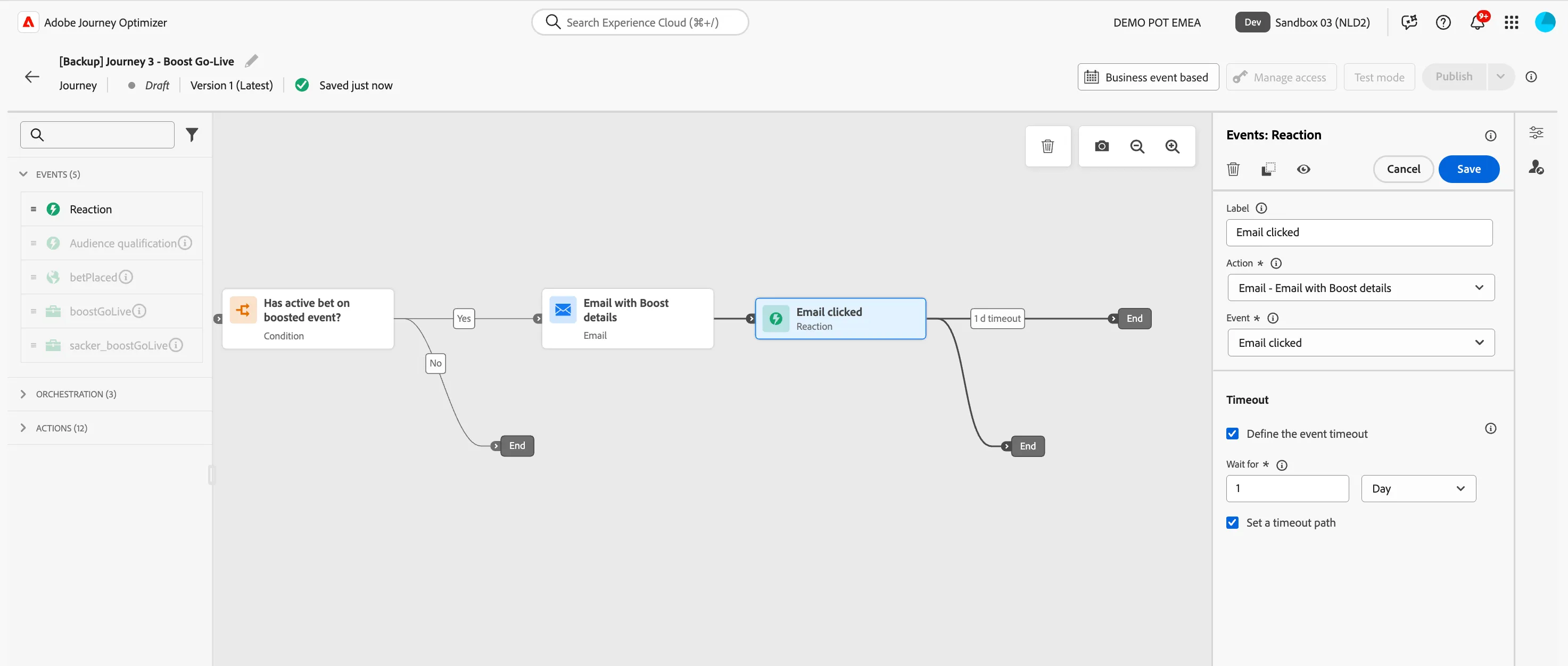
If the Player does not engage with the communication about the boost event, we want to re-target them with an offer to incentivise them to bet on the next events one day later. To do this we will add a Reaction event for Email clicks into the journey.
- From the Events tab, choose Reaction and drag it onto the journey path after the Email with Boost details.
- Set the label to Email clicked.
- Set the action to Email - Email with Boost details.
- Set the event to Email clicked.
- Under Timeout, check the box "Define the event timeout", and set the "wait for" value to 1 Day.
- Click Save.
Your Journey will now have the Reaction event added. You can rearrange the paths so the 1d timeout path is on top:
Add Journey Conditions
If the Player has still not clicked on the boost event email after 1 day, we want to send an offer to incentivise them to bet on the next events. We want to check if the Boost event shared in the email is still valid before we send any follow-up communication.
If the Boost has expired, we want to send the Player an Offer via their preferred channel. We will add 2 conditions to our journey:
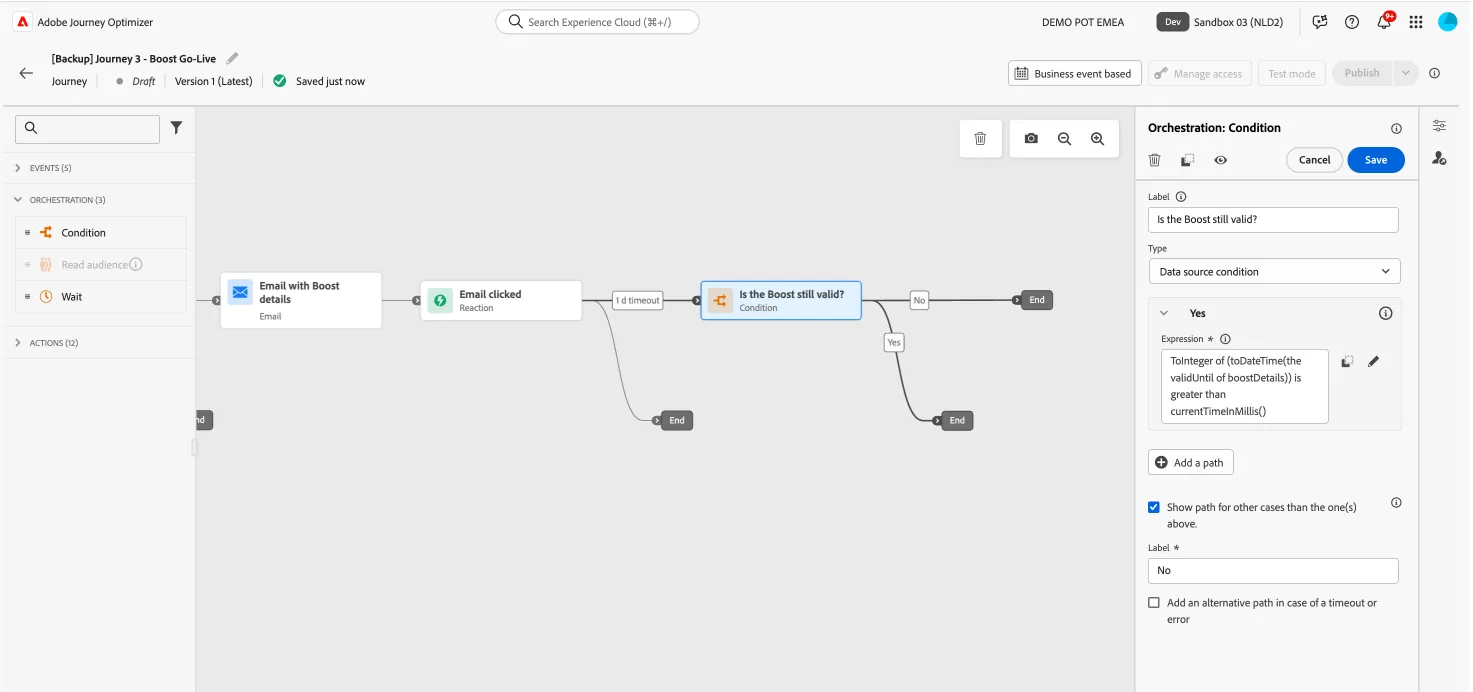
Condition 1 - Is the Boost still valid?
- From the orchestration tab, choose Condition and drag it onto the 1 d timeout path.
- Click on the activity to open the detailed view.
- Set the label to Is the Boost still valid?.
- Click on Path1 and change the label to Yes.
- Click on the Pencil icon to add an expression.
- Click Advanced mode at the bottom, right corner of the expression editor.
- Copy the following expression and paste this into the editor: toInteger(toDateTime(@event{boostGoLiveBoostGoLiveEvent._demopotemea.boostDetails.validUntil})) > currentTimeInMillis(). This expression checks the expiry time of the Boost event has passed the current time. i.e. the boost event has expired.
- Click Ok.
- Check Show path for other cases than one(s) above and leave the label as No.
- Your screen should look like the image below. You can reposition the paths on the canvas by clicking and dragging to move them. Click Save.
Condition 2 - Preferred Channel?
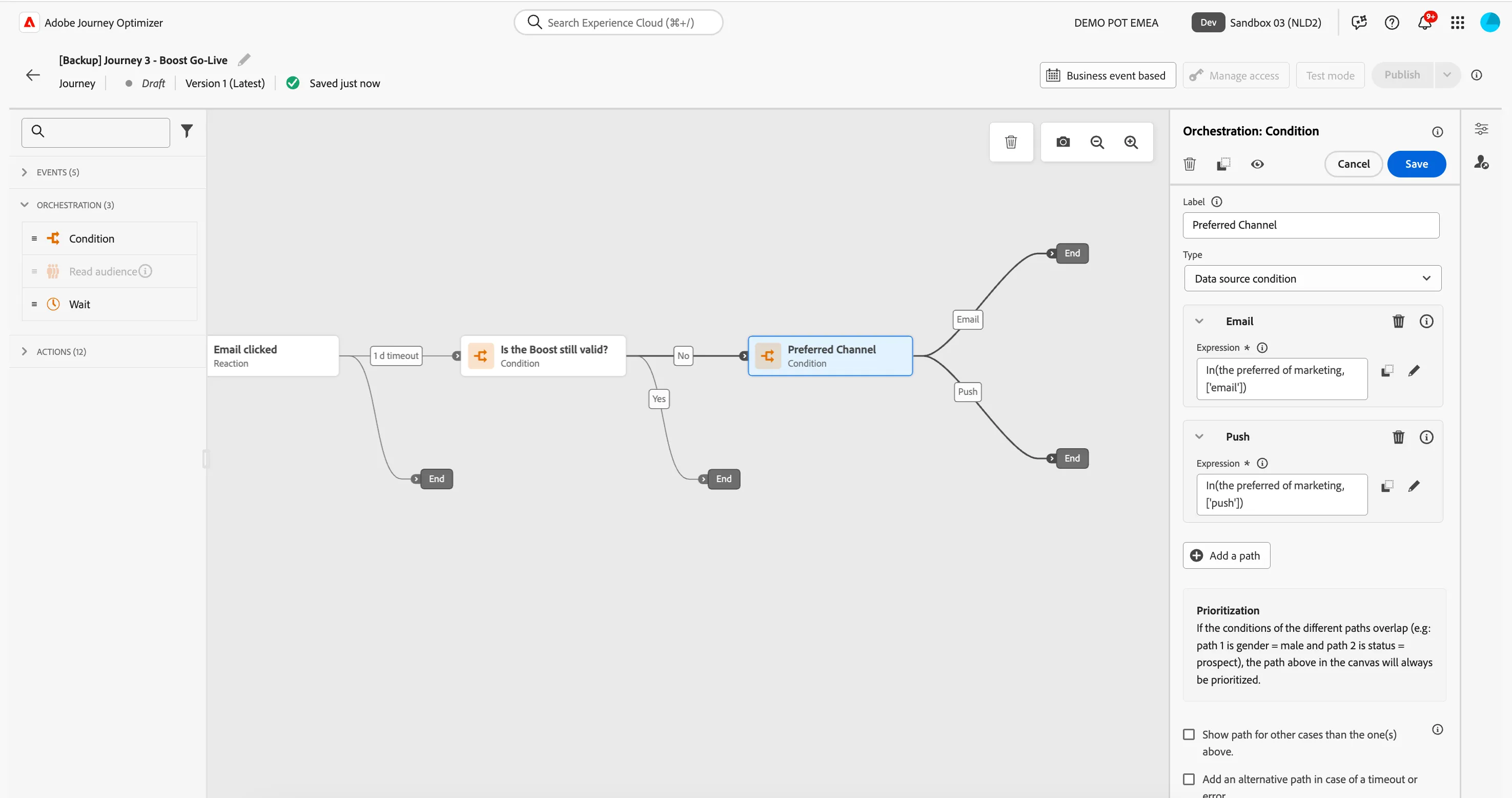
- From the orchestration tab, choose Condition and drag it onto No path of the previous condition, since we want to only send further communication if the Boost has expired.
- Click on the activity to open the detailed view.
- Set the label to Preferred Channel.
- Click on Path1 and change the label to Email.
- Click on Add an expression to open a window.
- On the left side, open ExperiencePlatform > ProfileFieldGroup > Profile > Consents and Preferences.
- Drag Preferred Channel (preferred) to the right side and select the email checkbox. Click Ok in the top right corner of the white box, and then Ok again to save the condition and close the expression editor.
- Click + Add a path to add a path in the case that their preferred channel is Push.
- Click on Path1 and change the label to Push.
- Click on Add an expression to open a window.
- On the left side, open ExperiencePlatform > ProfileFieldGroup > Profile > Consents and Preferences.
- Drag Preferred Channel (preferred) to the right side and select the push checkbox. Click Ok in the top right corner of the white box, and then Ok again to save the condition and close the expression editor.
- Your screen should look like the image below. You can reposition the paths on the canvas by clicking and dragging to move them. Click Save.
Email - Promo Offer
In the next steps you will be building the second email for your journey. If Email is the Player's preferred channel, we're going to follow the Boost email with an Email containing a Free Bet Offer.
- Designing the Email: You'll pick a partially completed template of the email from the Content Templates.
Building the Email
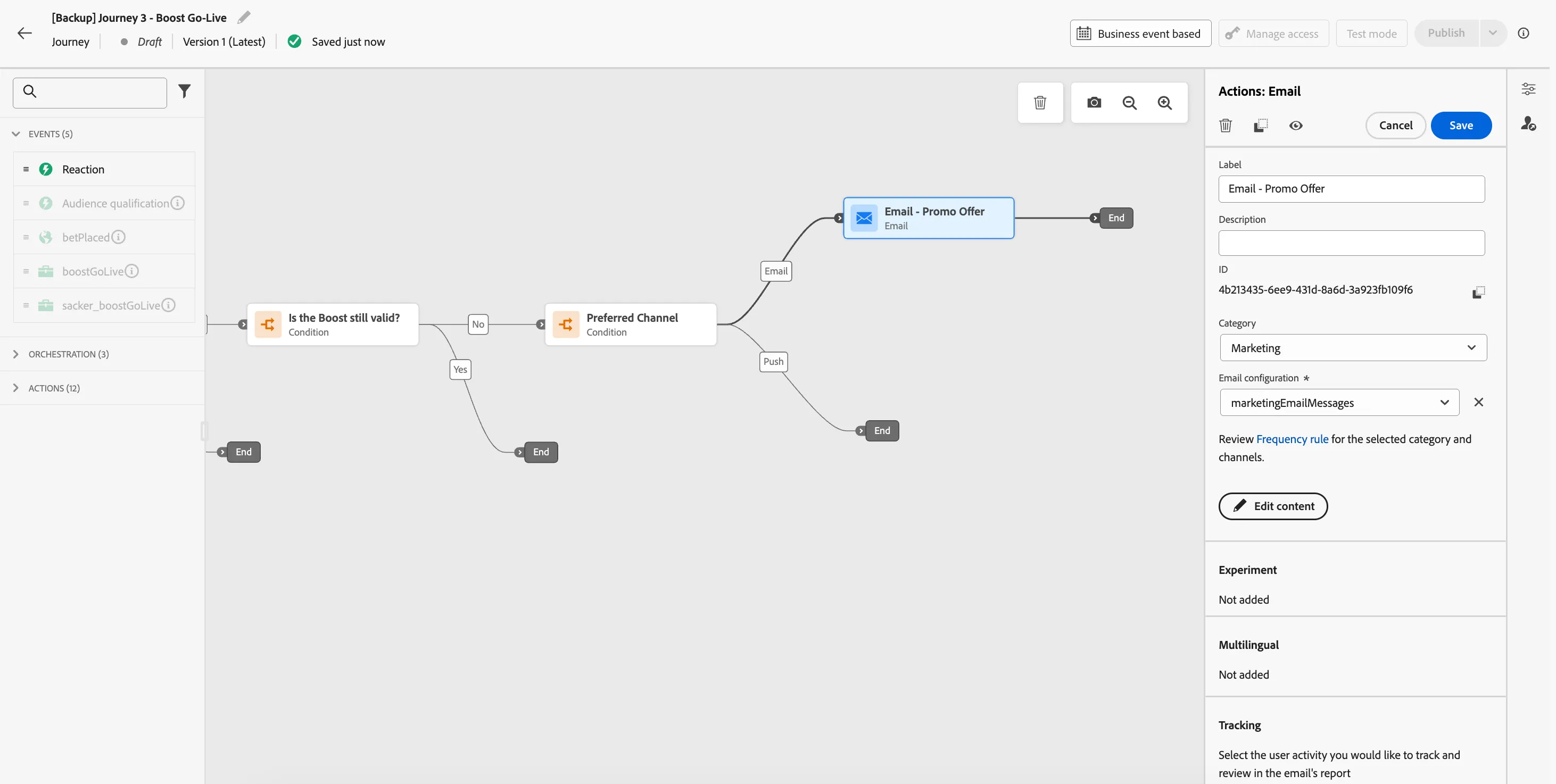
- From the actions tab, choose Email and drag it onto the canvas following the Email path after the condition.
- Click on the activity to open the detailed view.
- Set the label to Email - Promo Offer.
- Set the category to Marketing. This should already be pre-populated, since the previous message was a marketing message.
- Set the email surface to marketingEmailMessages.
- Click on Edit content to start designing your email.
- We'll now explore one of the Gen AI features, and use the AI Assistant to generate a subject line for our email.
- Click on the -icon next to the Subject line to edit text with AI Assistant. A window will open. You're now in the AI Assistant interface. You can write a prompt and set various settings like communication style, language and tone. The more descriptive you are, the better the prompt will work. Try the following prompt: Generate a subject line of at least 8 words to inform a customer about a free bet offer for a sporting event today and click Generate. The AI Assistant will provide you with several variations. Feel free to add more instructions to the prompt and play around with the tone to find a result you like! Your screen should look like the image below.
-
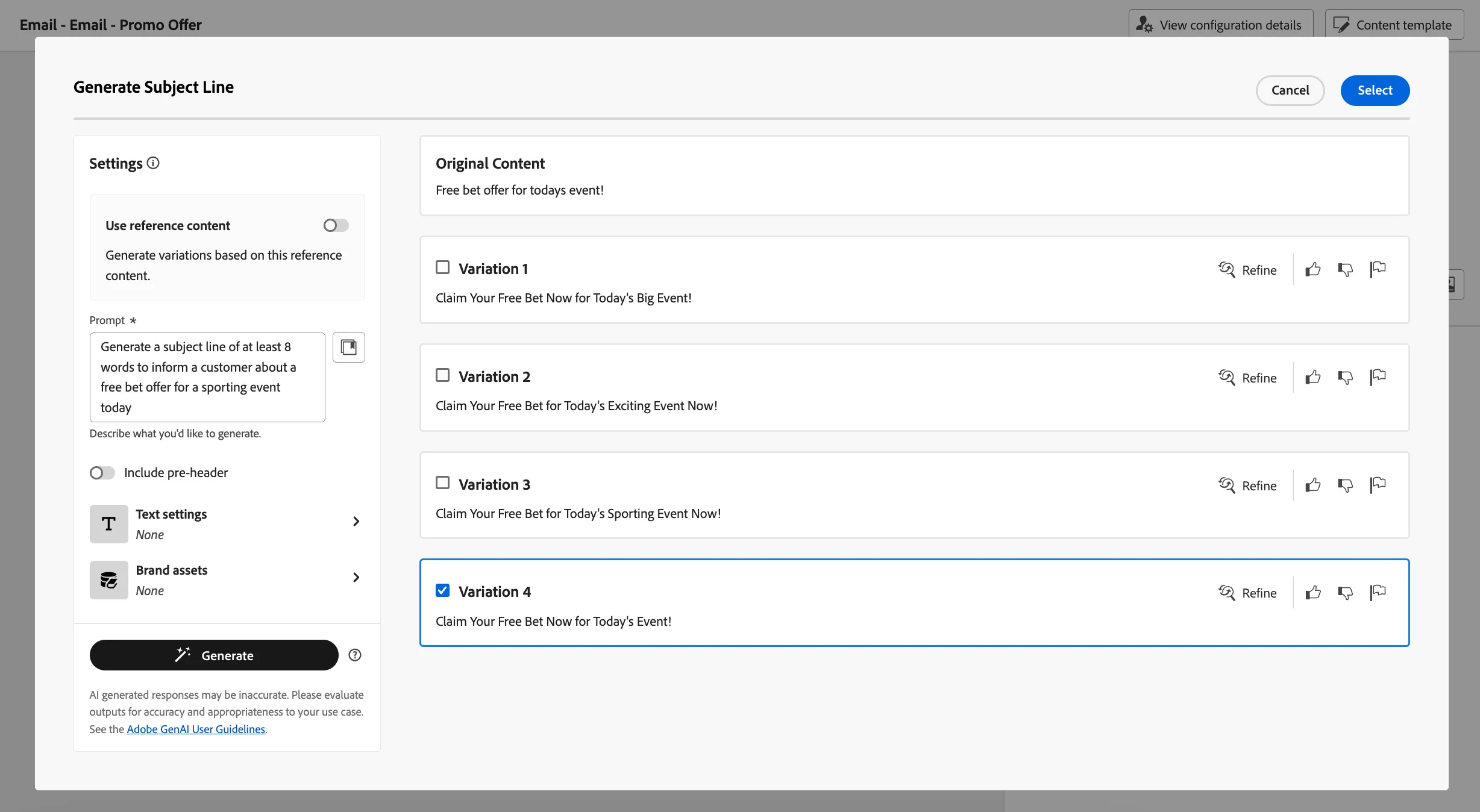
- When you find your perfect subject line, select it and click Select in the top right corner to return to the Email editor.
- Click on Edit email body. Under Saved templates, choose [T] Flutter - Offer Generic Email Template. It will show you a preview of the template. Click on Use this template.
- The email designer will now open. It should look like the image below. Click Save in the top right.
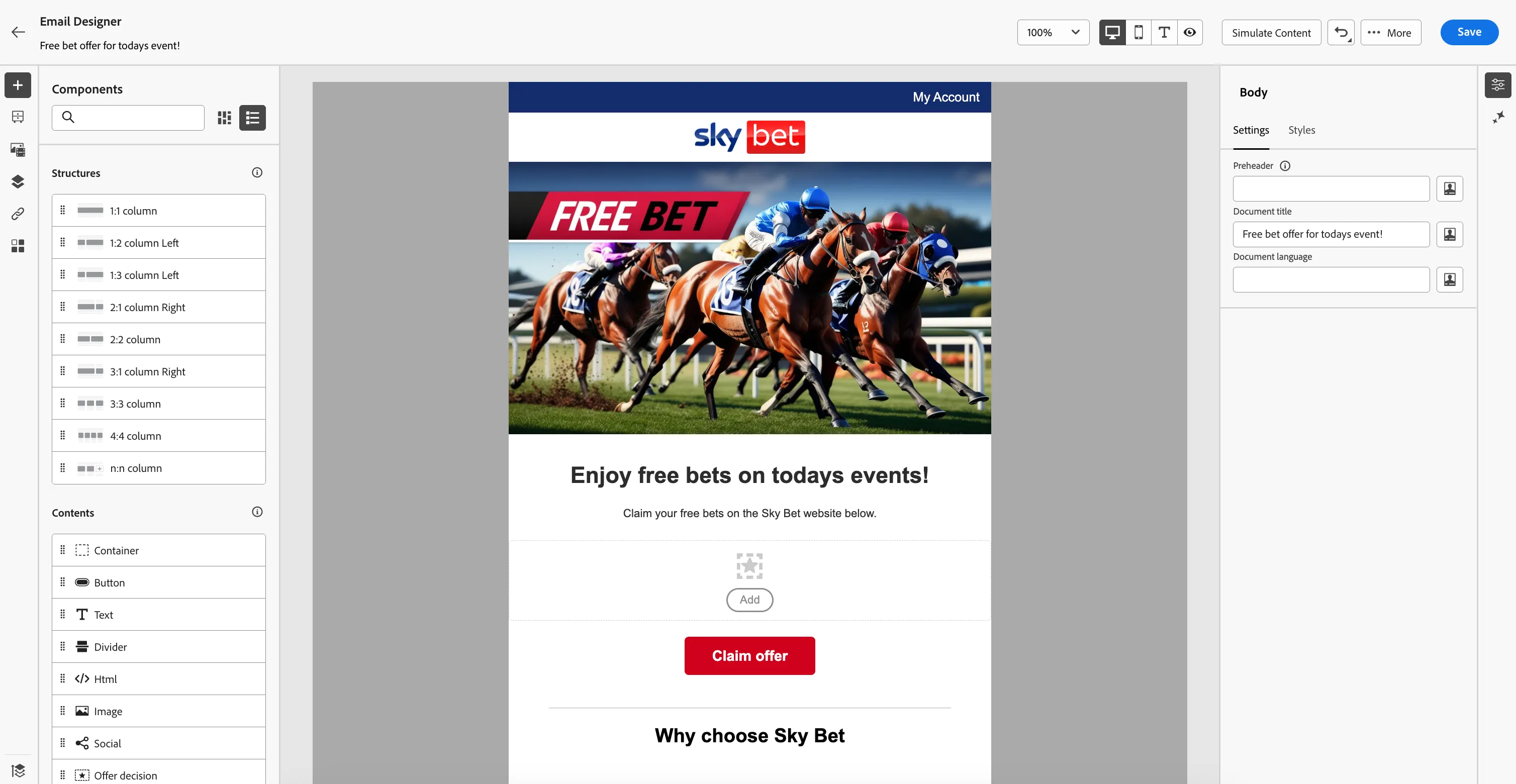
The Email Designer
Add an Offer into you Email
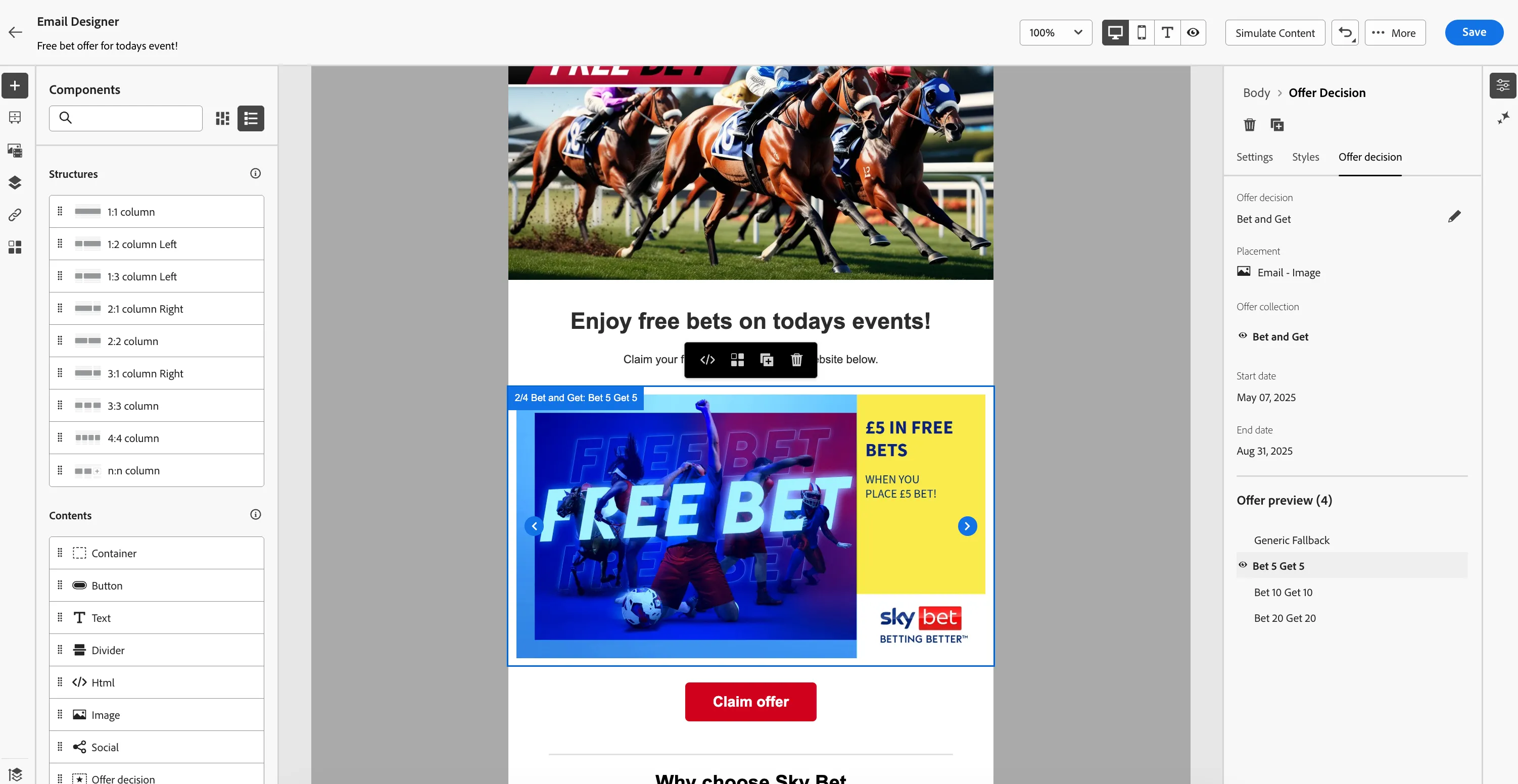
We want to add the Free Bet Offer we created earlier in this exercise to the email. The Players that receive this email will see a free bet offer for £5, £10, or £20 depending on their Value Tier.
- Now let's add a personalized offer to the email. Scroll down and you will see the "Add" button.
- Click Add, a pop-up window will open.
- In the top left, click Select Offer decision.
- From the Placements drop down, choose Email - Image
- Check the [your name] - Bet and Get offer decision and click on Add in the top right of the window. If you didn't create the decision, you can use Bet and Get.
- Under Offer preview, you can see the potential offers customers could receive.
- Your screen should look like the image below:
- Click Save in the top right. Then navigate out of the email designer by clicking on the arrow in the top left. You'll be taken to the messages overview for your journey.
Navigate out of the email overview by clicking on the arrow on the top left. You will be taken back to the journey canvas.
- Click Save on the Actions: Email panel to save your Email action.
Push - Promo Offer
If Push is the Player's preferred channel, we're going to follow the Boost email with a push-notification containing a Free Bet Offer. This pushes a short message to the profile's smartphone that they can easily interact with. When they click on the push they'll be taken to the mobile app directly.
- From the actions tab, choose Push and drag it onto the canvas following the Push path after the condition.
- Click on the activity to open the detailed view.
- Set the label to Push - Promo offer.
- Set the category to Marketing. This should already be pre-populated, since the previous message was a marketing message.
- Set the push configuration to marketingPushMessages.
- Click on Edit content to start designing your push.
- if you don't see the properties panel on the right, click on Properties, at the bottom of the page, then:
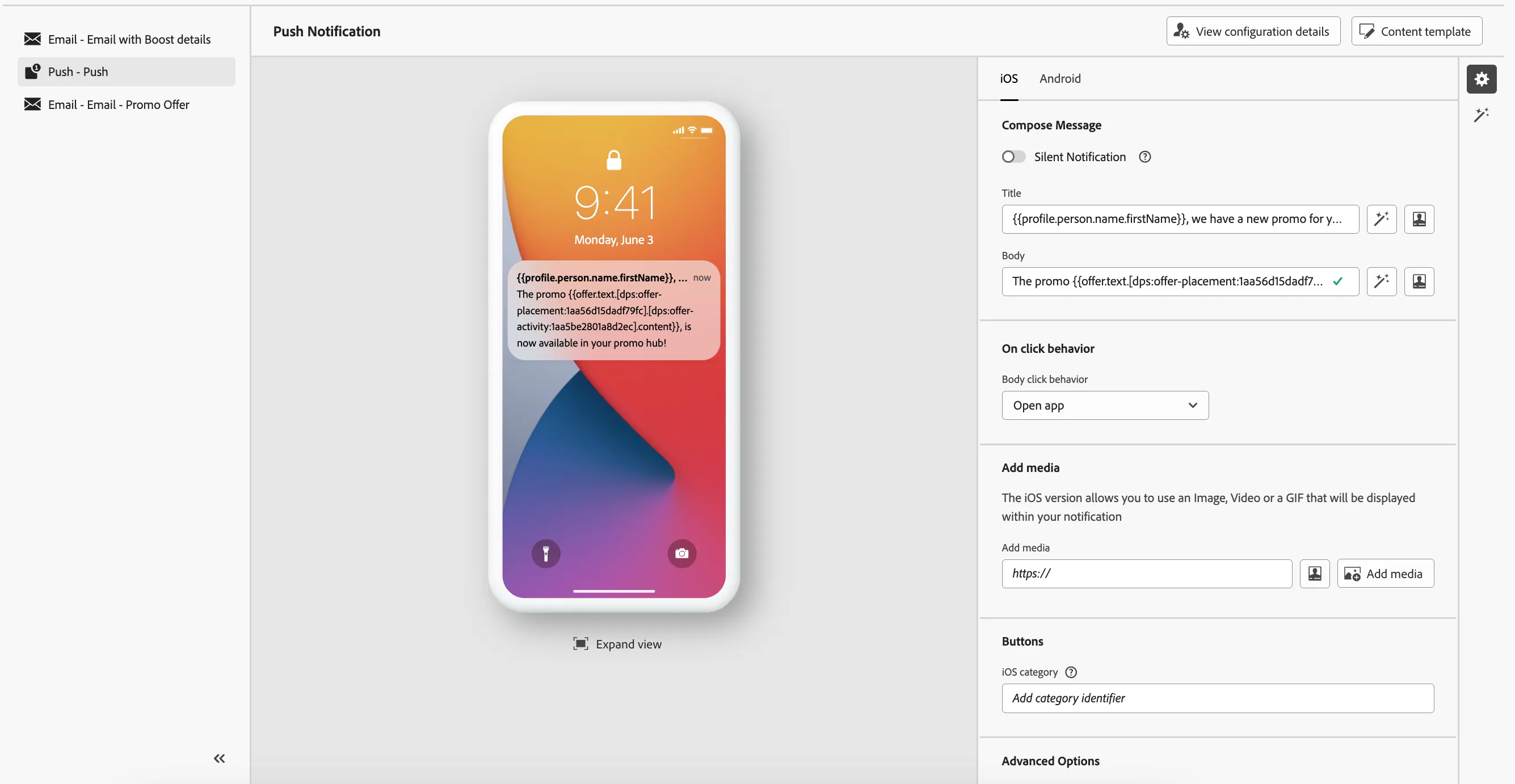
- Set the title to We have a new promo for you!.
- Select and remove the text PROMO TEXT OFFER.
- In Offer decisions, select the Offline - Text Placement from the drop down. This is the same offer decision you added to the Offer email, only a different placement.
- Click on the icon next to the Bet and Get offer to add the Offer decision to your expression. It should read: The promo {{offer.text.[dps:offer-placement:1aa56d15dadf79fc].[dps:offer-activity:1aa5be2801a8d2ec].content}}, is now available in your promo hub!
- Click Save.
- Your screen should look like the image below:
-
- Navigate out of the designer by clicking the arrow in the top left. Your screen should now look like the image below. Click Save to close the in-app message detail panel.
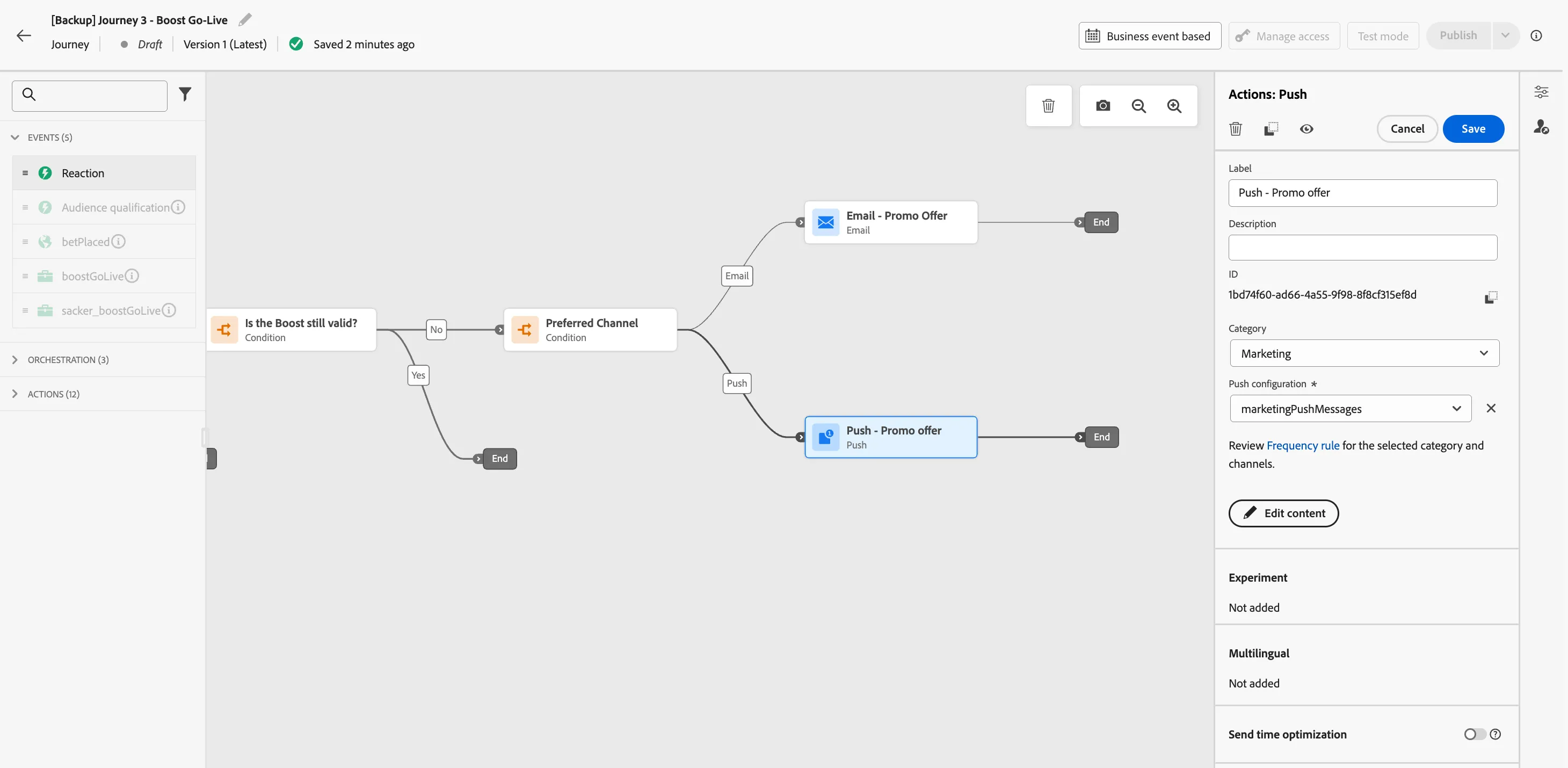
Adding a Custom Action
We want to Add a Custom Action to our Journey after the offer has been sent to notify CPP of the relevant offer to be credited to the Player's profile.
- From the actions tab, choose yourNameSendToCPP and drag it onto the Email path on the canvas. If you did not create an action, use the sendToCPP event.
- This should open up the configuration menu for the action. In the menu, request parameters section, click on the identityNS edit button (pencil) to open up a popup.
- Click on Advanced mode and type "Email" into the editor. Click Ok.
- In the menu, request parameters section, click on the userID edit button (pencil) to open up a popup.
- Expand Experience Platform > Person > profile > _demopotemea > identification > Email ID (emailId) and select it by enabling the checkbox. This will pass the customer's Email Address from the profile attributes to the API endpoint.
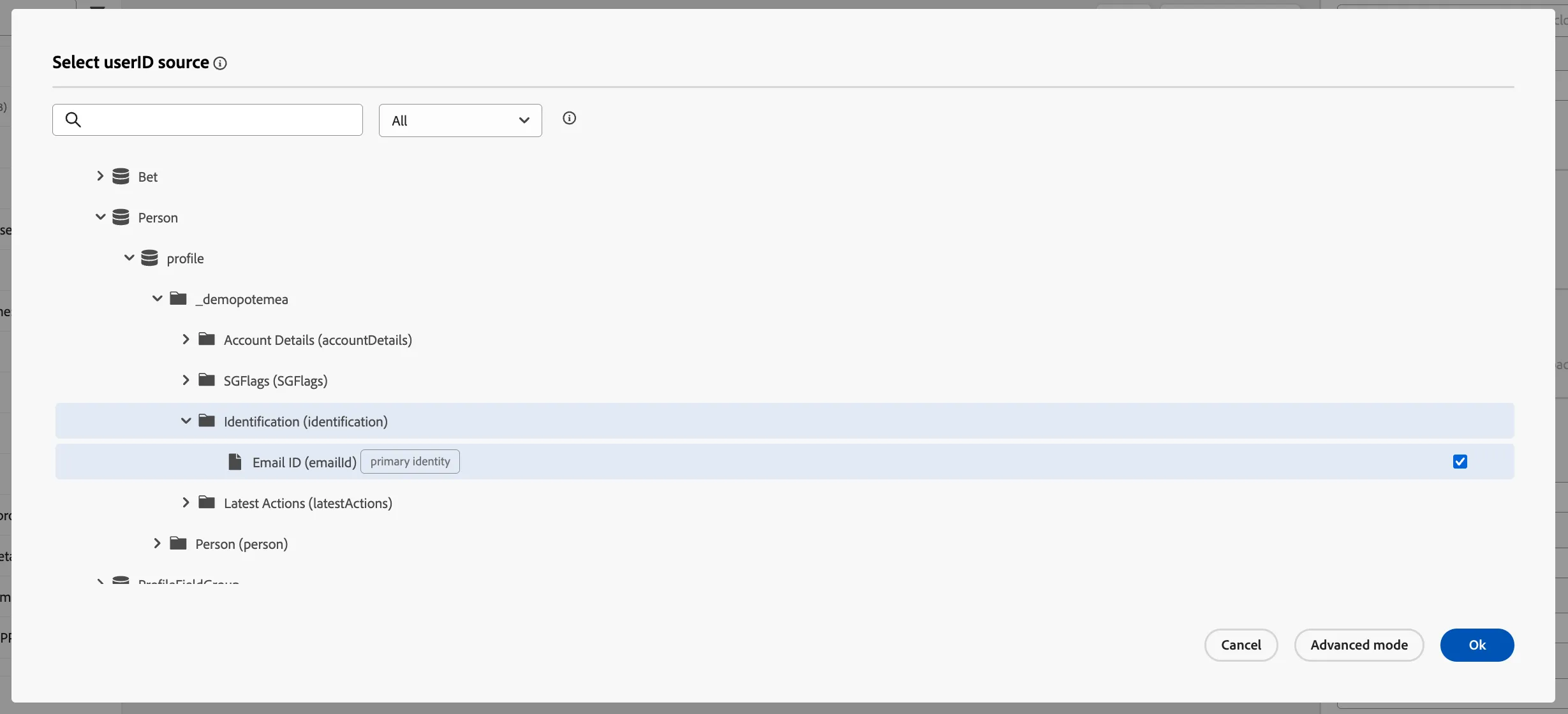
- Click OK to close the popup and see The emailId of personalEmail in the userID field.
We will now do the same for the activityID and placementID parameters. These can be retrieved from the offer decision UI. Map the following:
- Click on the activityID edit button (pencil) to open up a popup.
- Click on Advanced mode and type "dps:offer-activity:1aa5be2801a8d2ec" into the editor. Click Ok.
- Click on the placementID edit button (pencil) to open up a popup.
- Click on Advanced mode and type "dps:offer-placement:1aa5ba679f9f79ff" into the editor. Click Ok.
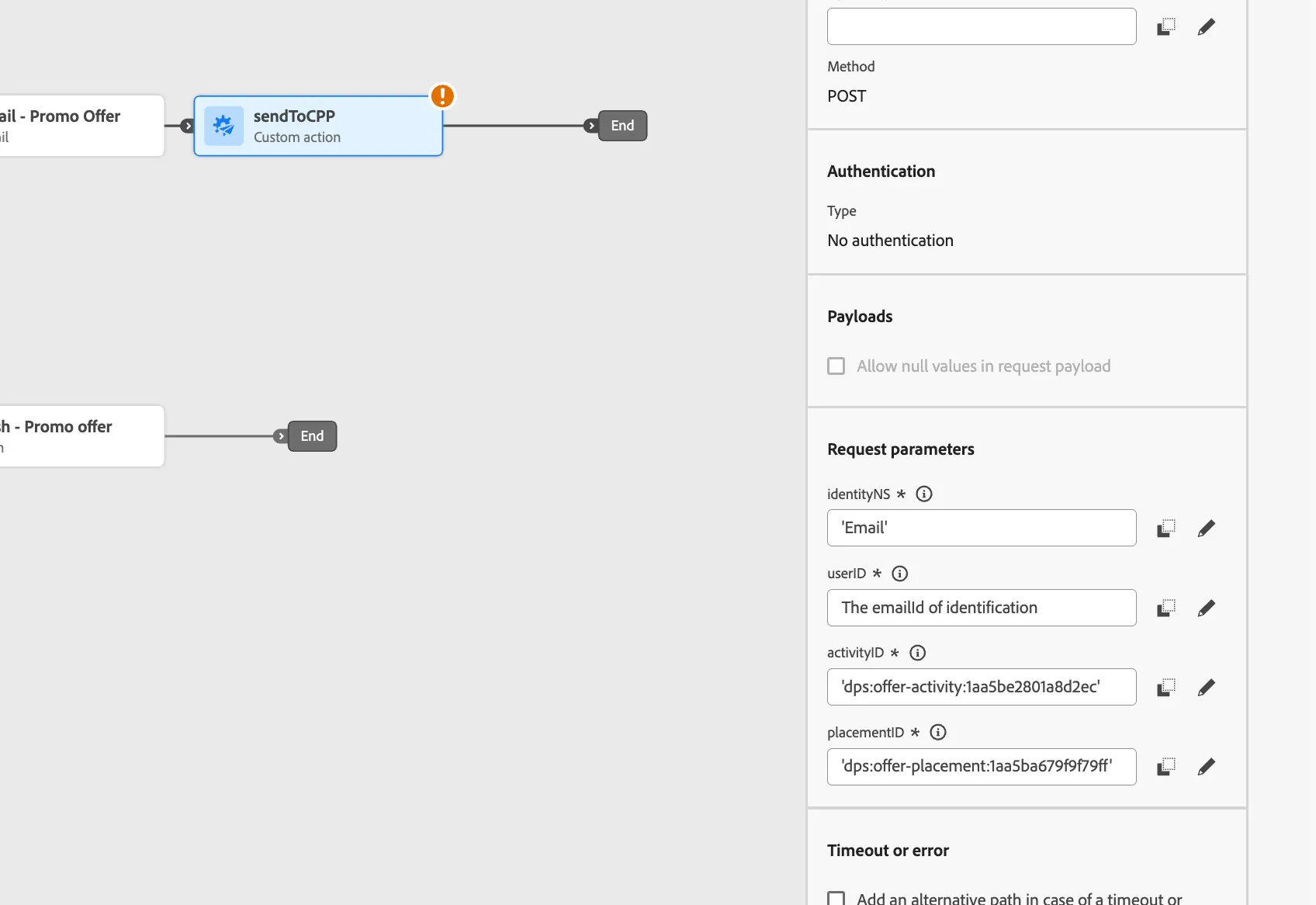
- You should have the below request parameters mapped:
- Click on Save on the top to save the action configuration.
We want to send the offer to CPP after either the Email or Push message, so we need to merge the Journey paths. Reposition the custom action by dragging it over the end of the Push path.
Adding an exit criteria
As part of the Safer Gambling initiative, we want to make sure we do not send these boost promotions to players who have been flagged.
In this case, we wouldn't want them to receive any further communication from this journey. This is where Exit criteria come into play. With this feature you can define real-time triggers that cause the profile to be removed from the journey.
- On the right side of the canvas you'll find a small vertical hotbar. Click on the -icon to Show exit criteria.
- Click on Add exit criteria.
- Set the label to Safer Gambling Exclusion.
- Choose Audience as the exit criteria.
- Click on the Audience input field or on the -icon. A window will open
- Select the audience Safer Gambling blocklist = Y and click Save.
- Set the behavior to Enter, this is the default value.
- Click Save.
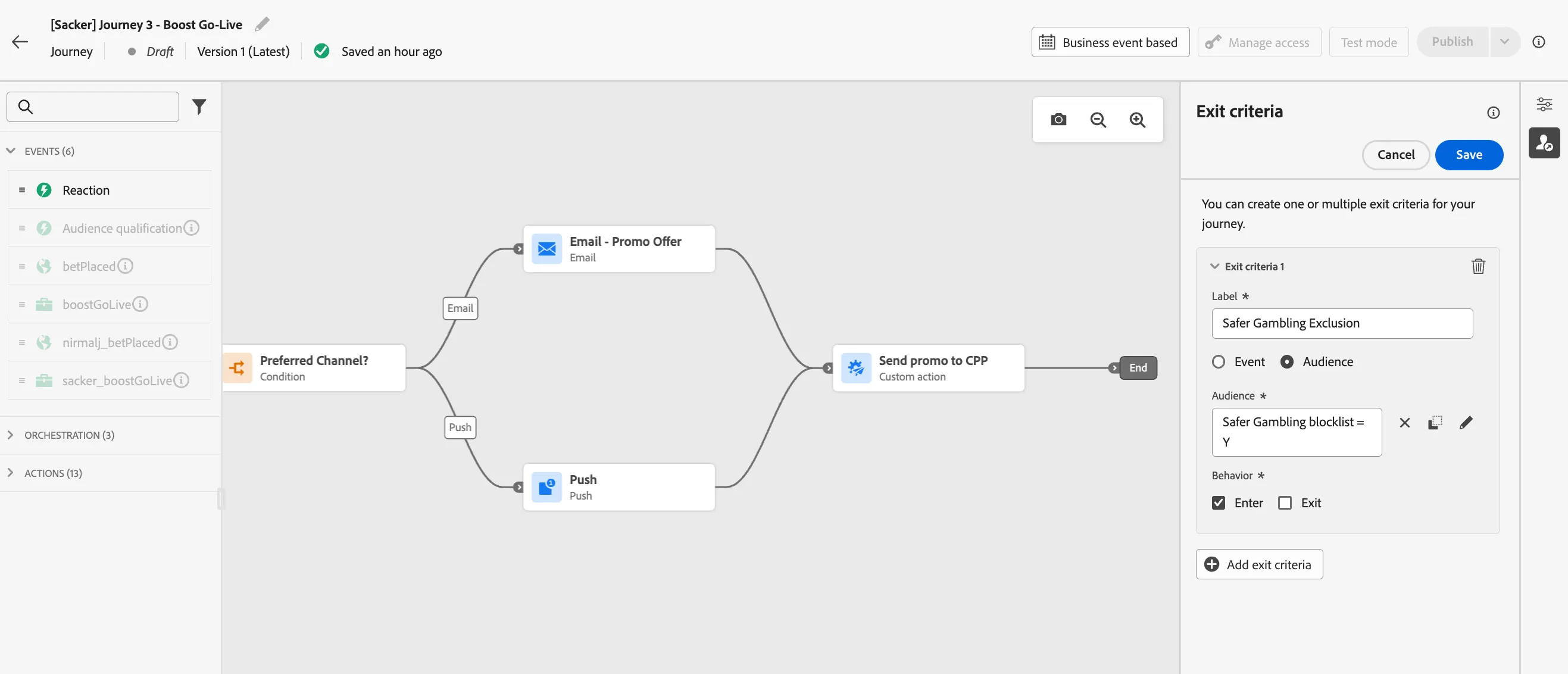
Your complete journey should now look like:

You have now successfully created the Boost Go-Live journey using the Adobe Journey Optimizer. Next, we are going to test our journey using Test Mode.